Creating and Updating Tickets via Email
- update
- Ticket
- Agent
- User
- email matching
- email tags
In this guide we will cover:
- How are Tickets Created via Email?
- How are Tickets updated via Email?
How are Tickets Created via Email?
Tickets are logged via email when an email is sent into a mailbox that is connected to your Halo.
If an email is received into a mailbox, and this email cannot be matched to an existing ticket, a new ticket will be logged. Once the email has been processed (and a ticket is logged) this email will be removed from your mailbox.
Keep in mind we do have some global, and mailbox level setting that prevent new tickets being logged via email. Checkout Disallowing New Tickets via Email for more information on this.
What Type of Ticket is Logged?
The type of ticket (ticket type) that is logged from the email will be determined by the mailbox the email was sent into.
To see what ticket type will be logged for emails sent to a mailbox head to Configuration > Email > Mailbox > select a mailbox > Incoming tab, see "Ticket Type for New Tickets created from this Mailbox".
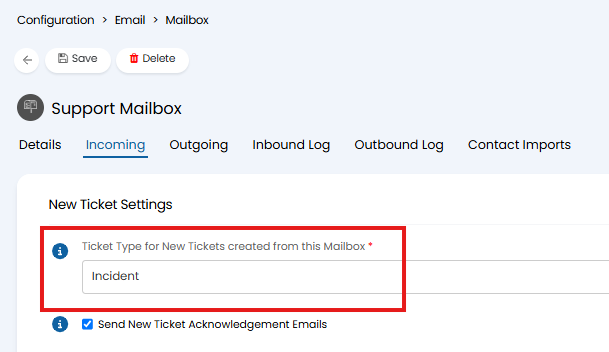
Fig 1. Ticket Type for New Tickets created from this Mailbox
The ticket type set here will be the ticket type that is logged for all emails sent to this mailbox. This can be changed using the dropdown. If you would like a different ticket type logged in certain circumstances you can setup an email rule to change this.
Which User is the Ticket Assigned to?
The end user of the ticket will be determined by the email address the email was sent from or (available from v2.250+) the 'Reply-to' email address. All users in your Halo will be checked until a user with this email address is found, this user will be assigned the ticket.
If you would like the end user of the ticket to be determined by the Reply-to address rather than the From address, head to Configuration > Email > General Settings > enable "Use Reply-To address for Ticket User matching".
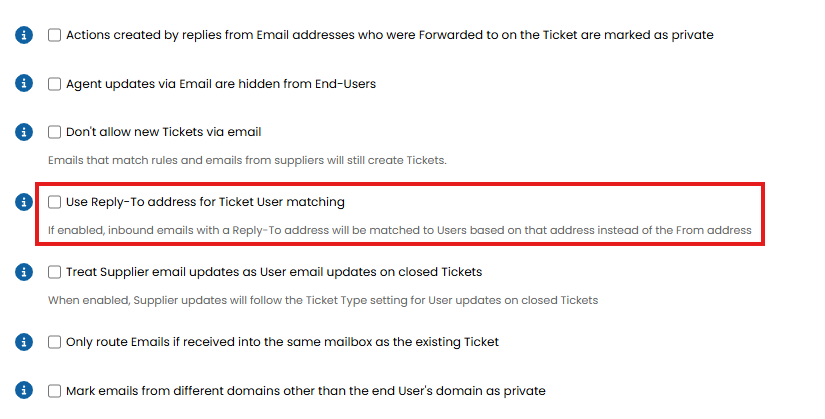
Fig 2. Use Reply-To address for Ticket User matching
This can be useful if proxy email addresses are used to log tickets on behalf of users so the From address is that of the proxy, but the Reply to address is the end user's. This allows matching to occur on the Reply-to rather than the from.
If no users have this email address the setting "If the email sender cannot be matched to a User" against the mailbox will control who the ticket is assigned to.
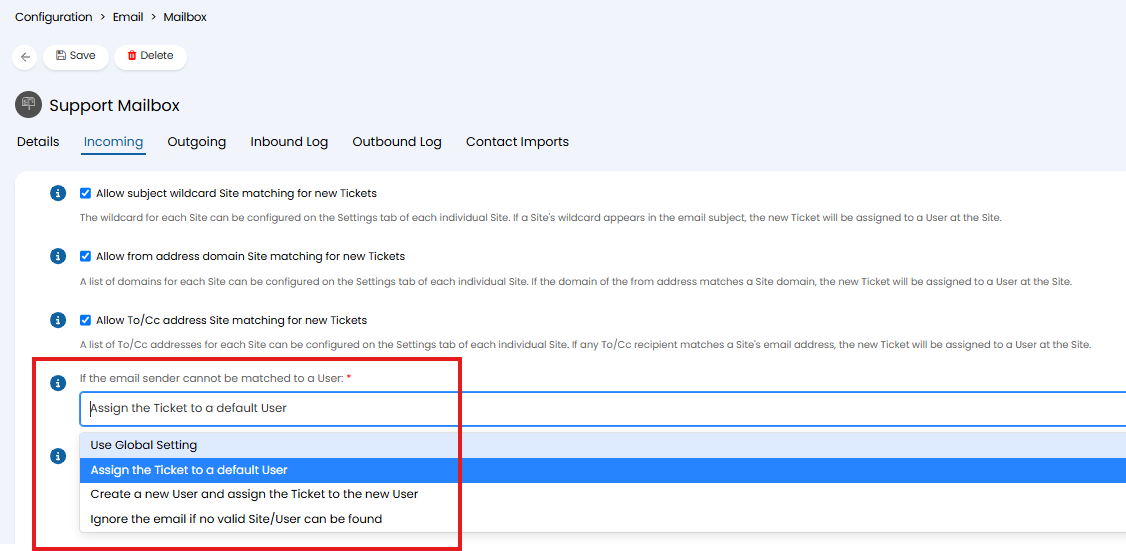
Fig 3. Setting to determine who the ticket will be assigned to if a user cannot be matched
How can I Tell if a Ticket was Logged via Email?
Tickets logged via email will have the first action labelled as 'First User Email' as shown in Figure 4.
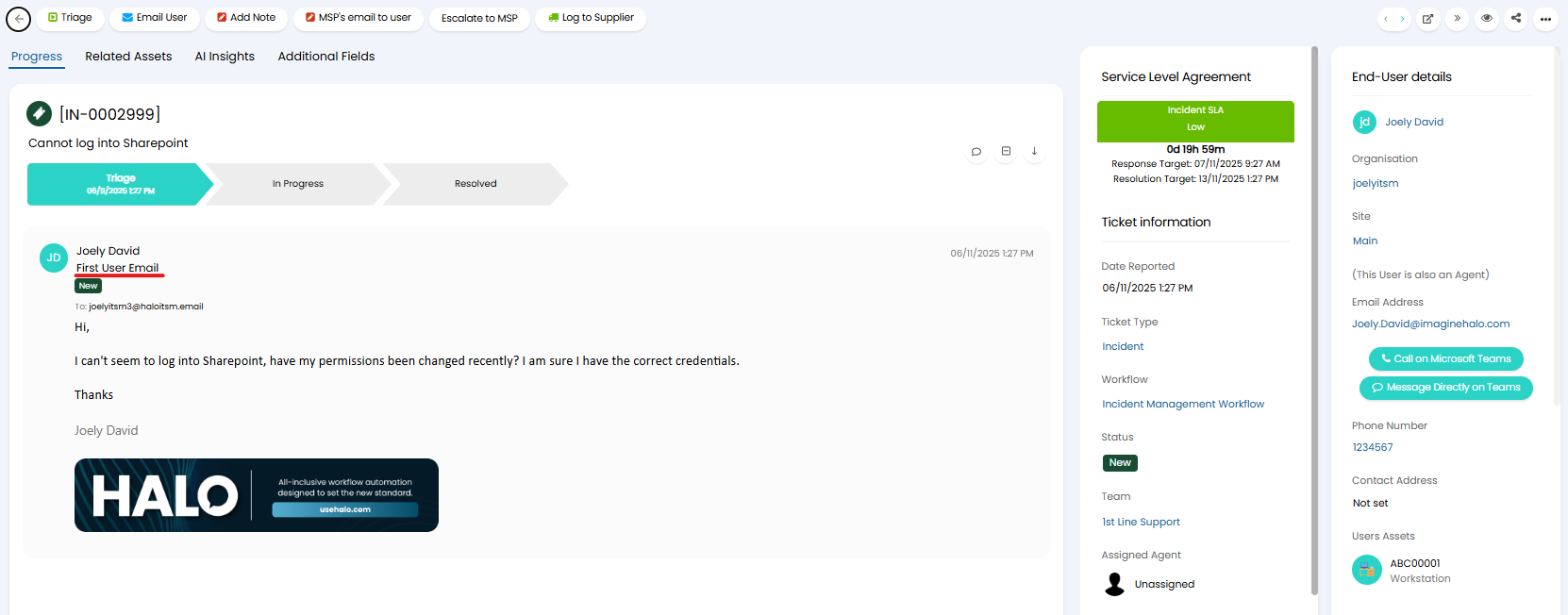
Fig 4. Ticket logged via email
How are Tickets Updated via Email?
Users, and agents can update existing tickets via email. This is done by sending an email to one of the mailboxes you have connected to your Halo instance. However, the email must match to an existing ticket in order to update it.
Matching an Email to a Ticket
Emails are matched to tickets using the ticket ID. This ticket ID must be present in the subject of the email and must be contained within 'Tags'.
What are tags? - A sting of characters surrounding a ticket ID. When Halo processes an email these tags are searched for, the value between these tags is assumed to be the ticket ID. If a ticket with this ID exists the email will update the matched ticket. Otherwise a new ticket will be logged.
Tags are used to prevent emails matching to tickets when the email contains other numerical values that happen to be the same as a ticket ID in your instance.
In the figure 4 example, the email will be matched to, and update ticket 0002999.
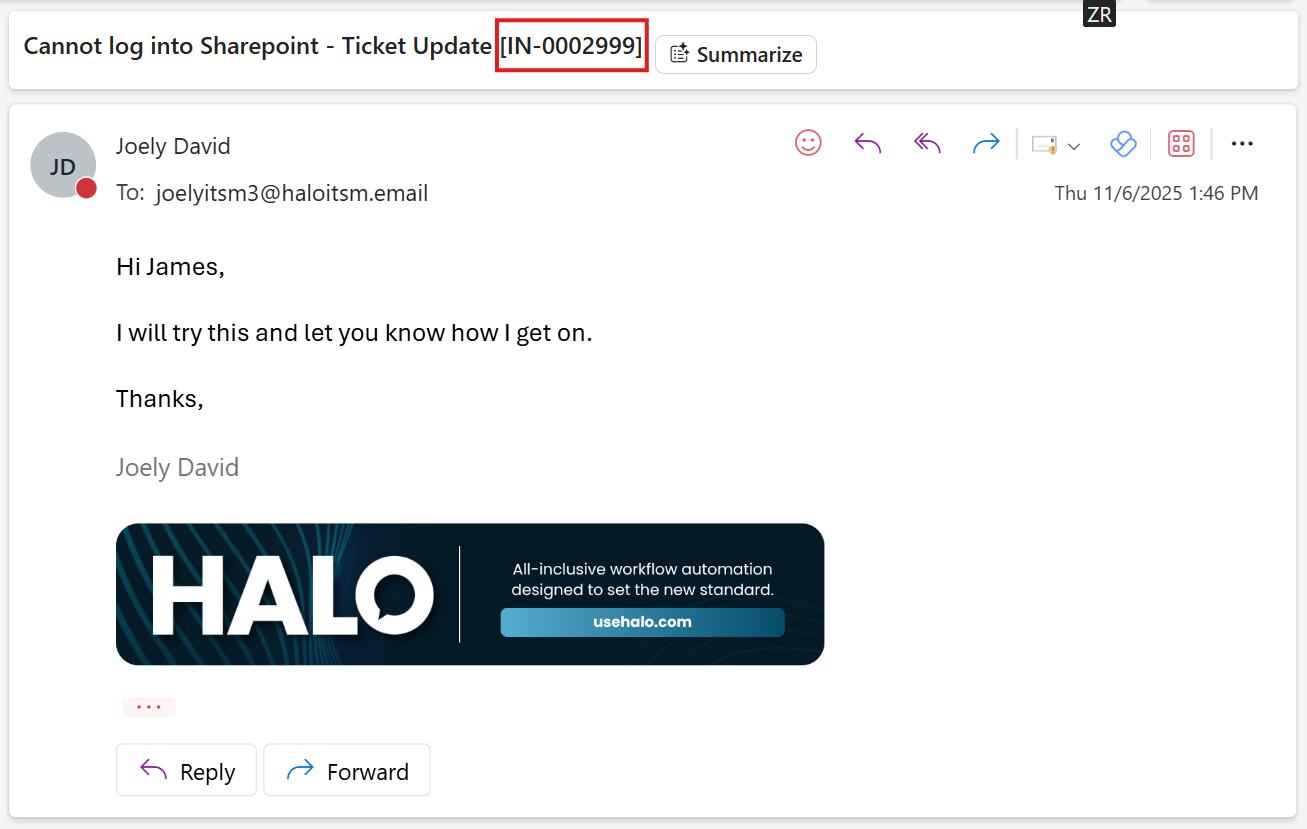
Fig 5. Email to update existing ticket
This is because it contains the ticket ID 0002999 in the email subject and this ID is between the email tags. In this example "[IN:" is the start tag and "]" is the end tag.
When agents send emails out from Halo the matching ID will be included in the email subject by default. Therefore, when users reply to this email, their reply will contain the matching ID in the subject automatically.
Additional tags can be set at the following levels to allow for more customised matching:
- Global
- Ticket Types
- Sites
Note: Custom ticket ID tags should be unambiguous, there shouldn't be any way that the sequence can be used accidentally i.e '!' and '?' would be inadequate for start and end tags.
Global Email Tags
To set the default global tags head to Configuration > Email > General Settings, here you will see the fields "Email Start Tag" and "Email End Tag". Here, enter the values you would like the ticket ID to appear between.
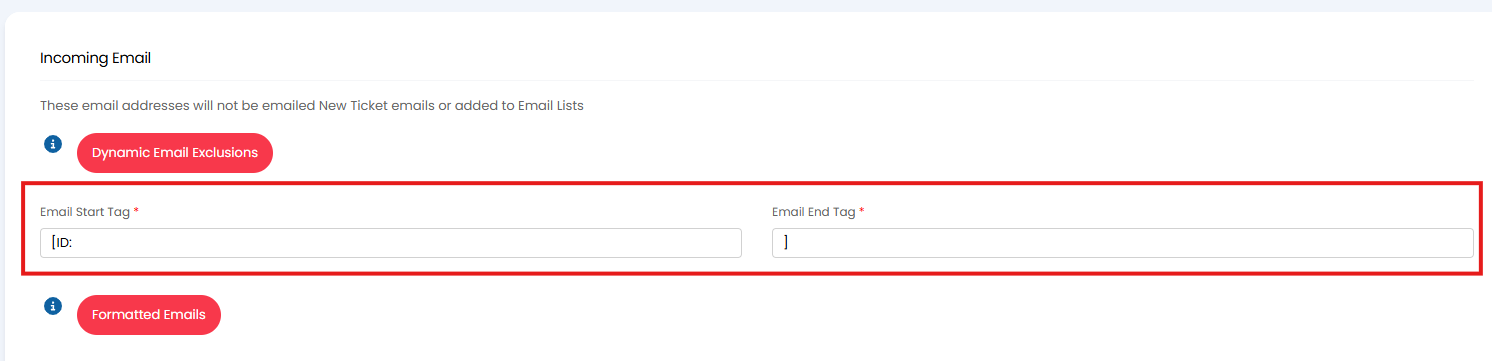
Fig 6. Email start and end tag, global setting
This is useful if you would like the tags to more accurately reflect your branding or organisation.
The drop-down "Additional Email matching method" can set the property to match on if the tag cannot be matched.
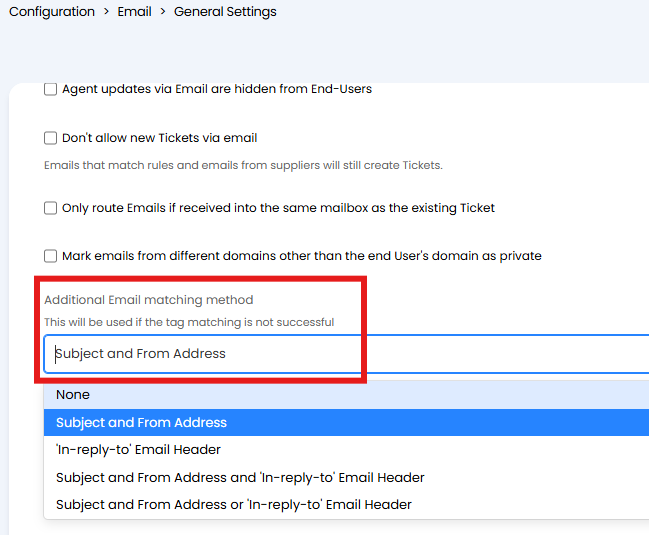
Fig 7. Additional Email matching method
Ticket Type Email Tags
Email Tags can be set per ticket type, to override the global default tags. Useful if you would like to customise tags per ticket type for visibility purposes.
To set email tags per ticket type head to Configuration > Tickets > Ticket Types > select a ticket type > Settings tab > Email section, here you will see the fields "Email Start Tag" and "Email End Tag".
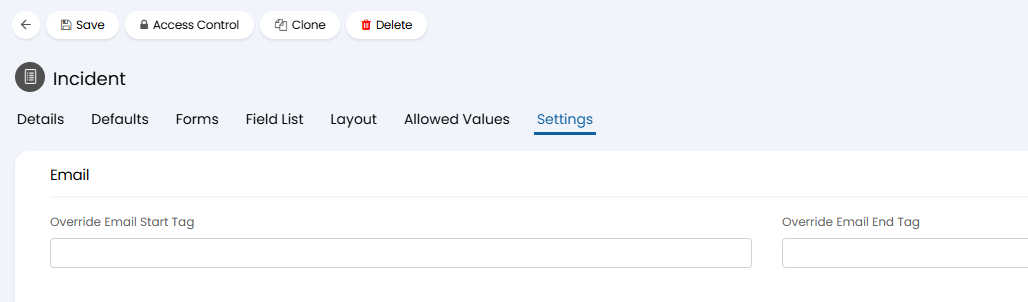
Fig 8. Email tag override against ticket type
If these fields are set this will override the global default tags for tickets of this type. This means all ticket IDs for tickets of this type will be contained within the tags set here. Users will need to send an email in with these ticket type specific tags in order to update the ticket.
Outgoing emails for this ticket type will also have the ticket ID contained within these tags.
In the Figure 9 example tags have been set such that all Incident ticket types will have their ID contained within the tags "[Incident: xxx]".
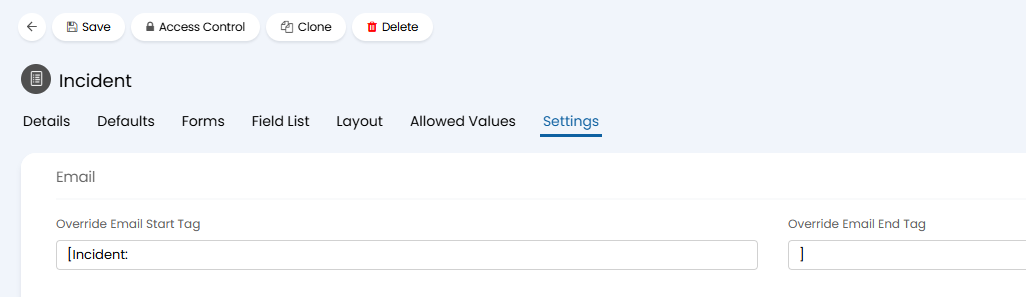
Fig 9. Example email tag override against ticket type
Site Email Tags
You can set email tags for each of your sites too. This allows emails to be matched to tickets using the ticket ID either between the ticket type/global tags or the ticket ID between the tags set for that site.
This is used when particular sites (locations) strip the tags from the email subject and replace it with their own.
To set site level tags head to Customers/Organisations > Sites > select a site > Settings tab, here you will see the fields "Email start tag for third party ID" and "Email end tag for third party ID".
The values set in these fields control what values the ticket ID will be presumed to be stored between. For every email from a user under this site, the system will check the value between these tags for a ticket ID. If this matched an existing ticket, this ticket will be updated.
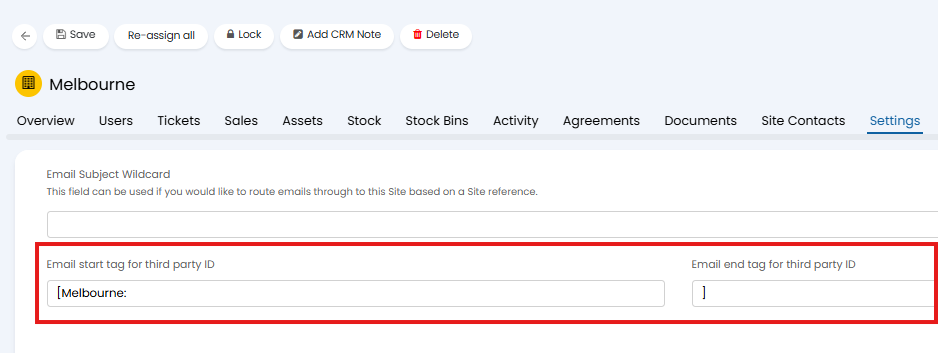
Fig 10. Email tags per site
In the Figure 10 example, users under the Melbourne site can send an email with the ticket ID contained within the tags "[Melbourne: XX]" in order to update the ticket.
Users will still be able to update tickets using the ID contained within the default tags, this just provides an additional option for matching in case certain sites have their own identifier tags.
Supplier Email Tags
Supplier email tags can also be configured to allow emails from suppliers to be matched to tickets using the unique supplier reference (rather than the ticket ID). The supplier tags determine where this supplier reference is checked for in the email.
For more information on this checkout our guide on Suppliers.
Status Change after email updates
The status of a ticket can change after an end user updates a ticket, both when they update the ticket via email or from the portal.
The status the ticket will move to after an update is set against the ticket type. Under Configuration > Tickets > Ticket Types > select a Ticket Type > Settings tab, you can set the "Status after End-User update".
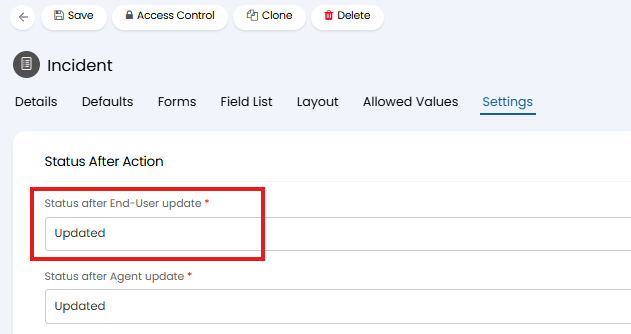
Fig 11. Status after end user update
In the Figure 12 example, tickets with the type "Incident" are set to move to the 'Updated' status when an end user updates the ticket.
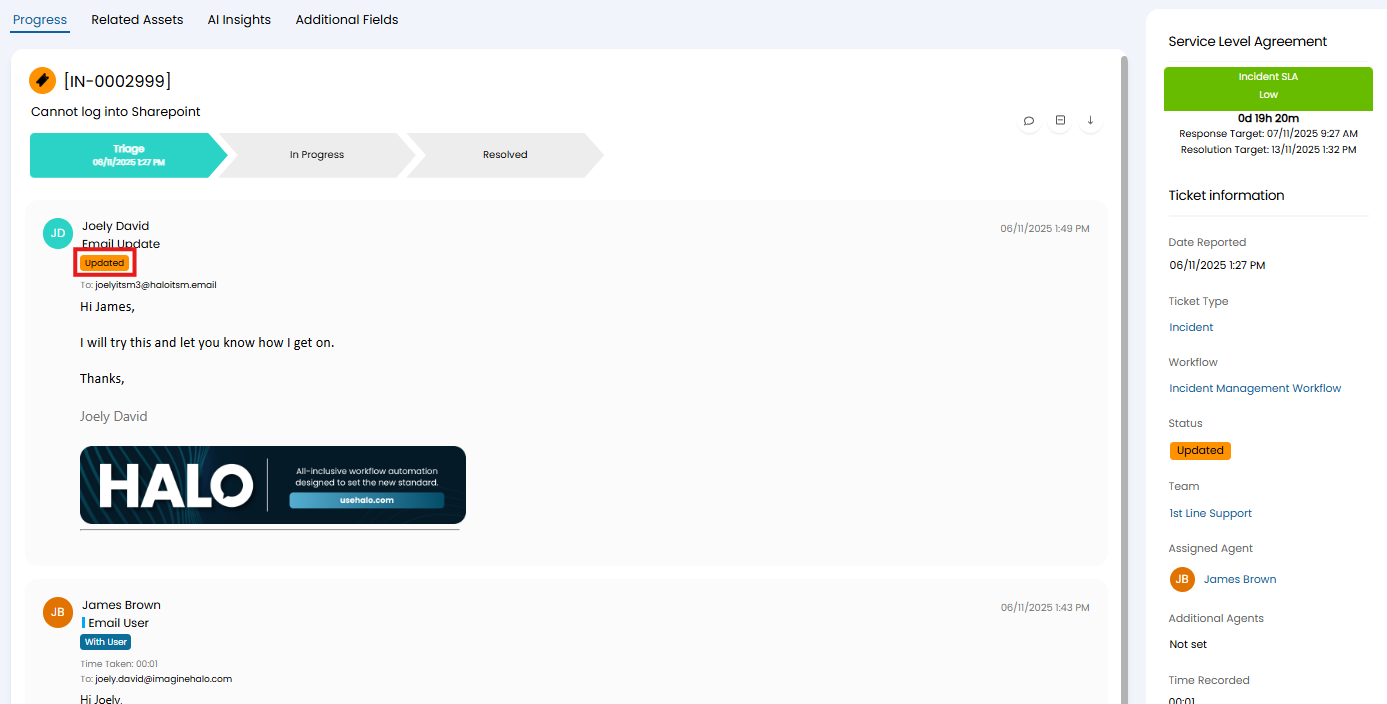
Fig 12. End user update changing the status of the ticket
Status changes are important as they control if the ticket is taken off SLA hold when a user update is received. Out of the Box, the "Updated" status will take the ticket off SLA hold, but this can be customised using status settings.
Emails on Closed Tickets
You can customise how emails that match to a closed ticket are treated for each ticket type.
To set this head to Configuration > Tickets > Ticket Types > select a ticket type > Settings > Closure settings section and toggle "User Emails on closed Ticket".
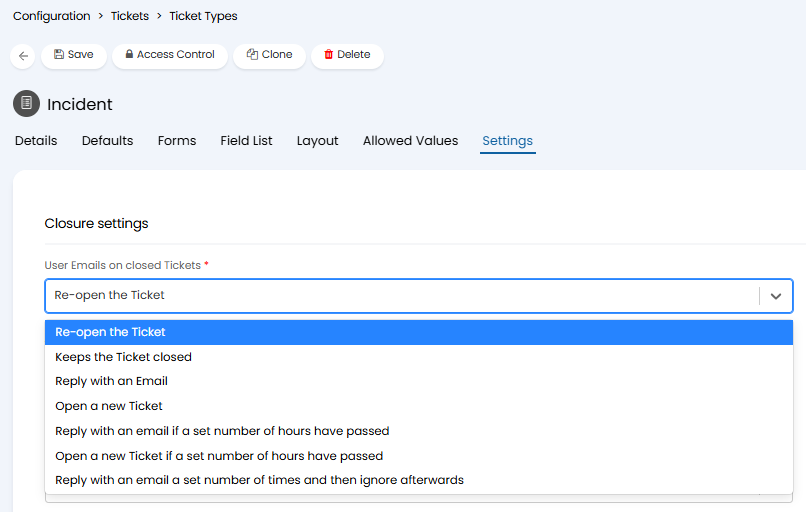
Fig 13. Setting to control how emails on closed tickets are treated