Email Rules
- help request
In this guide we will cover:
- Creating a new email rule
- Matching
- Email rule types (including asset/user matching)
- Integration email rule types
- Setting email visibility using a rule
Admin Guides:
What are Email Rules?
Email rules are used to evaluate incoming emails and specify different outcomes based on the content within the email, such as the from address, email subject, email body etc.
Creating Email Rules
There are several different types of Email Rules that you can use, which are configured via heading to Configuration > Email > Email Rules.
You will then be presented with a list of the Email Rules that exist within Halo. You can create as many email rules as required and they are evaluated by the email processing service in Sequence order.
To create a new Rule click "New" found at the top right-hand side of the screen:
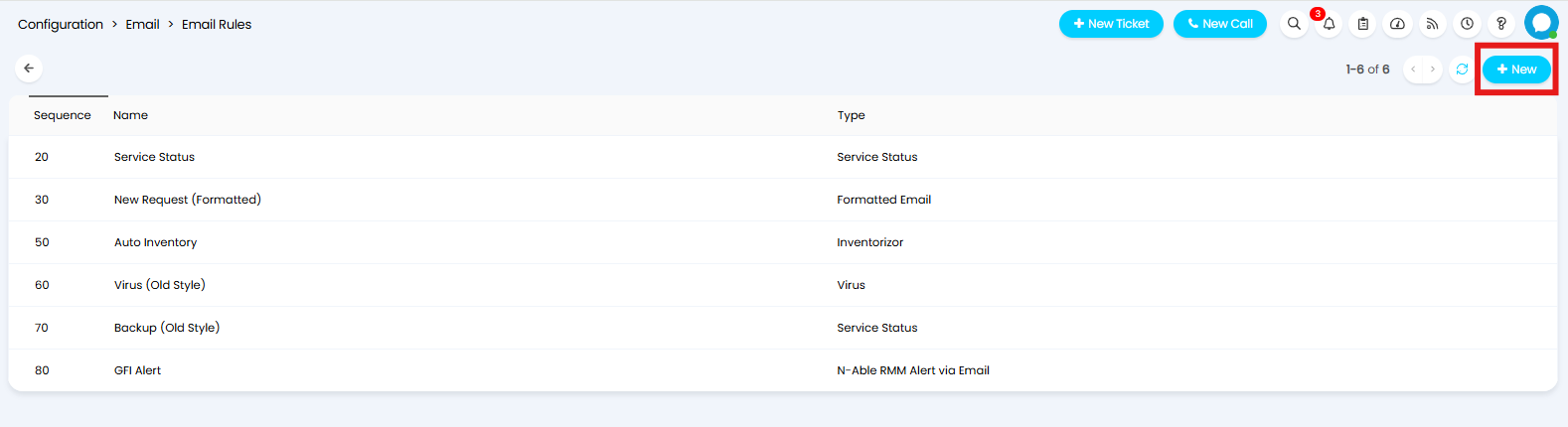
Fig 1. Email Rules
You will then be taken to the New Email Rule screen where you can populate the details of your new Email Rule.
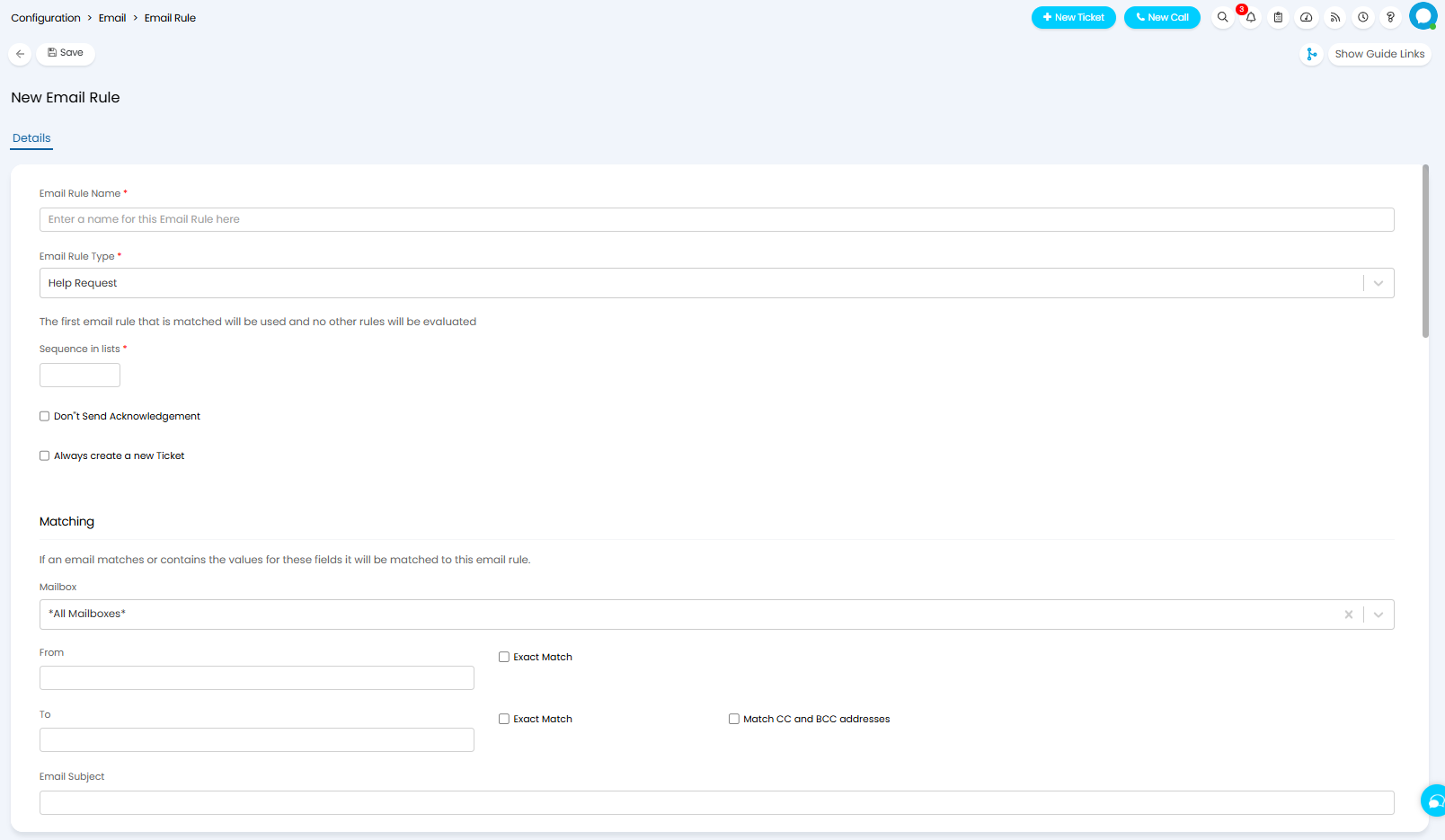
Fig 2. New Email Rule Screen
Email Rule Type - Determines what happens to emails that match this rule. We will outline each type in the "Email Rule Types" section of this guide.
Sequence in lists - Controls the order in which the rule in checked. Lower sequence rules are checked first. Once a rule has matched no further rules will be checked so lower sequence rules will take priority.
Don't Send Acknowledgement - When enabled, if the email logs a new ticket a 'New Ticket Logged' acknowledgement email will not be sent to the user.
Always create a new Ticket - When enabled, emails that match this rule will always log a new ticket rather than match on/update an existing ticket. Allowing you to force new ticket creating for selected emails.
Matching
The email matching occurs in the "Matching" section of an email rule. Here, determine what content an email need to have in order to match this rule. If no matching criteria is set this will cause the rule to match and apply on every email.
Matching can be configured based on the following properties:
- Mailbox it is addressed to
- From Address
- To Address
- Subject
- Body
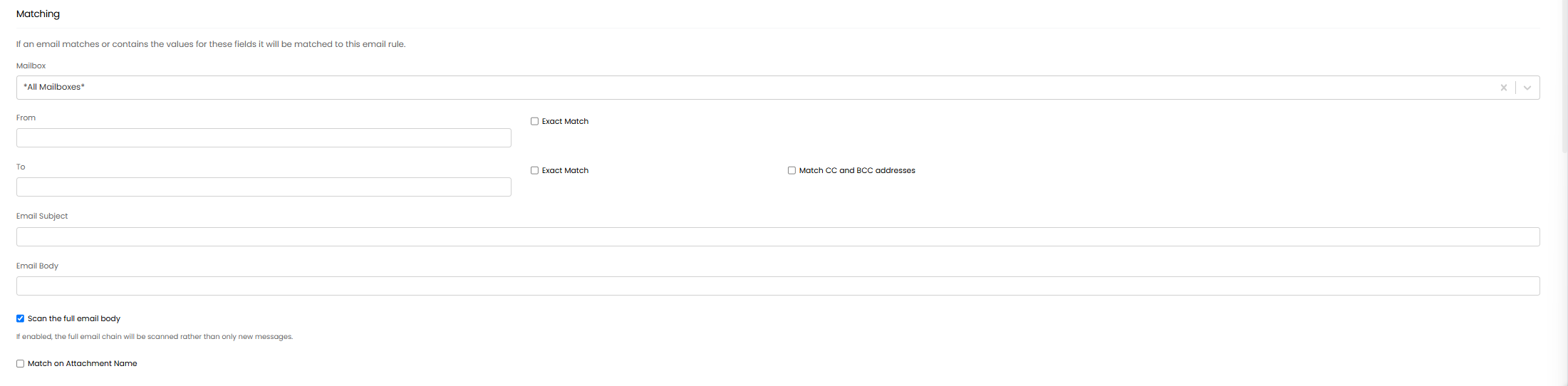
Fig 3. Matching Criteria
Each field will be used to check if the email contains the values specified here. In the Figure x example an email will match onto this rule provided the subject contains the string 'ALERT' AND it is from the address "alerts@usehalo.com".
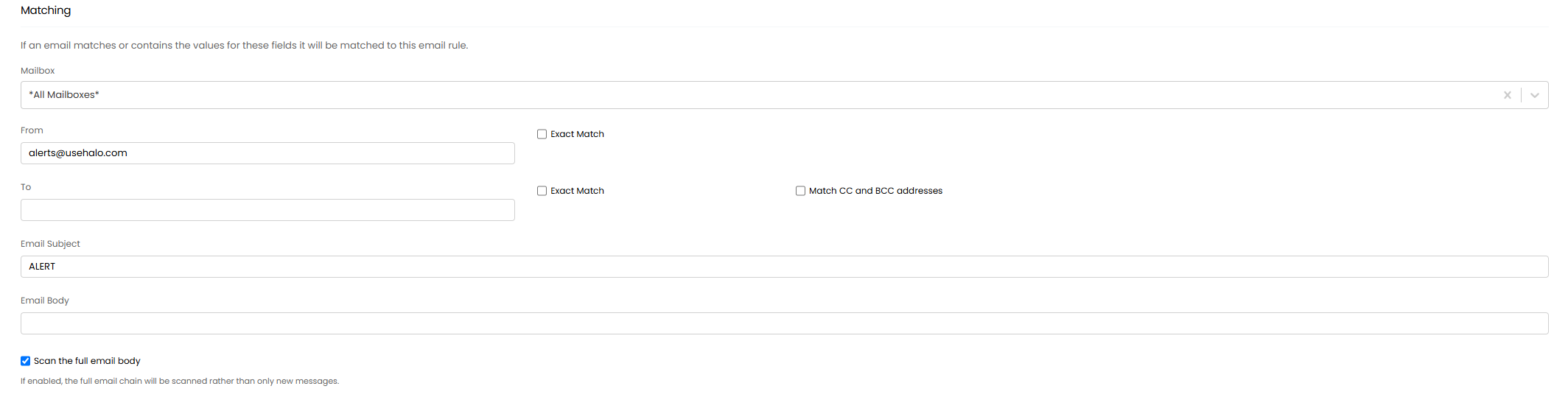
Fig 4. Matching Criteria Example
If you would like to the 'From' or 'To' address matching to not match based on if an email contains a string, but instead only match if the address matches the specified string exactly, use the "Exact Match" checkboxes.
The checkbox "Scan the full email body" can be enabled if you would like the whole email chain to be scanned for the matching criteria when a new email comes in. When disabled only the subject/body of the new email will be checked.
You can also set the matching criteria to be based on an attachment name, rather than the email subject or body. To do this enable "Match on Attachment Name", then enter the match type and the name of the attachment you would like the rule to match to.
Email Rule Types
You will see an option to specify the 'Email Rule Type'. Below outlines what some of the core Email Rule types do:
Ignore Email
Any incoming email that matches the specified criteria will be ignored by the system. Meaning that if no criteria is set, then all emails will be ignored. This is useful for filtering out spam and unwanted emails.
Help Request
This Rule allows for information from incoming emails to be mapped to existing fields within Halo, along with specifying a ticket type for tickets raised via these emails. Once a ticket type has been specified, you will be able to create ticket field mappings via clicking the "+ Add" button.
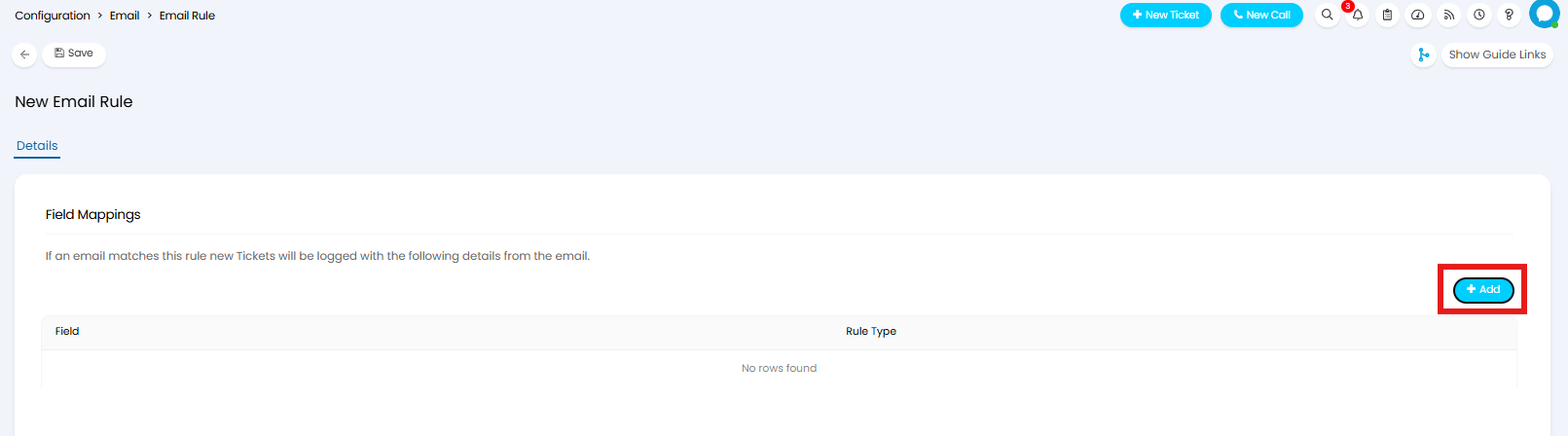
Fig 5. Field Mappings
Here you can set the Field in Halo to populate with the details, the match type, and the value.
If "Search for value between tags" is selected as the match type, a start and end tag can be specified. These tags will be identified within the email allowing the value to be taken from between the tags and used to populate the field.
If "Set value if specific text is found" is selected as the match type, you will need to specify a string to search for in the summary of the email, and a value to set in the field if it is identified.
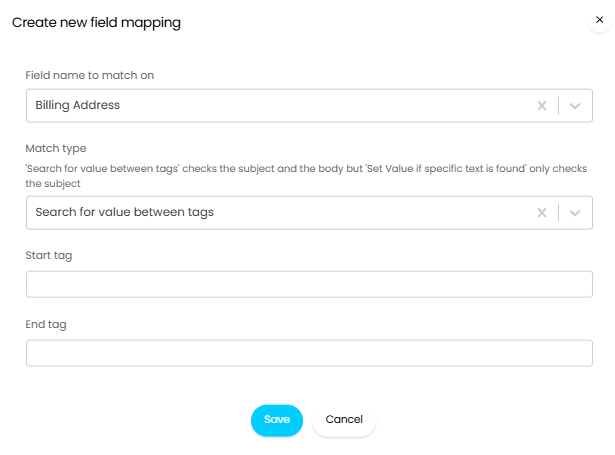
Fig 6. Field mappings for Email Rules
Note: The values used to populate the field must exist within the system, and must be allowed as values for the specified field.
The below example outlines how start and end tags can be used to match the Category "Account Administration", and to populate the "CFfurtherinfo" field.
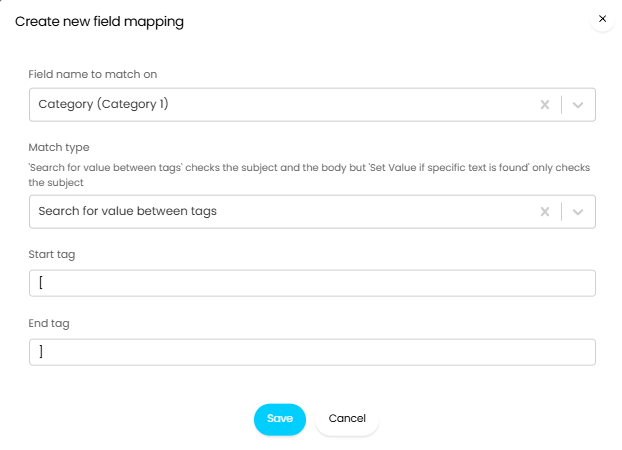
Fig 7. Category Field mappings with start and end tags
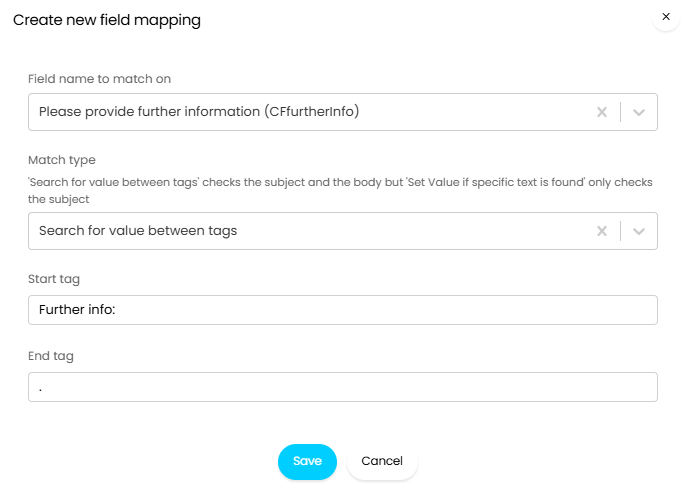 Fig 8. Custom Field mapping with start and end tags
Within the email the string "[Account Administration]" must be present for the value to be applied to the Category field. For the CFfurtherinfo field to populate, the content must be between the tags "Further info:", and ".".
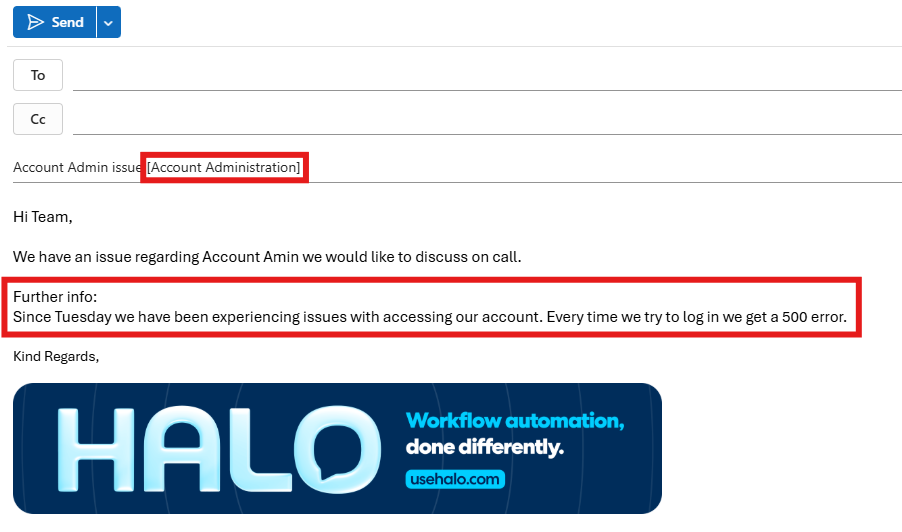
Fig 9. Start and end tags in an email
Now when the ticket is logged from this email the category field will populate with "Account Administration", and the CFfurtherinfo field will populate with "Since Tuesday we have been experiencing issues with accessing our account. Every time we try to log in we get a 500 error".
You can also specify Asset Matching for this Email Rule type, which works in a similar fashion to the field mappings:
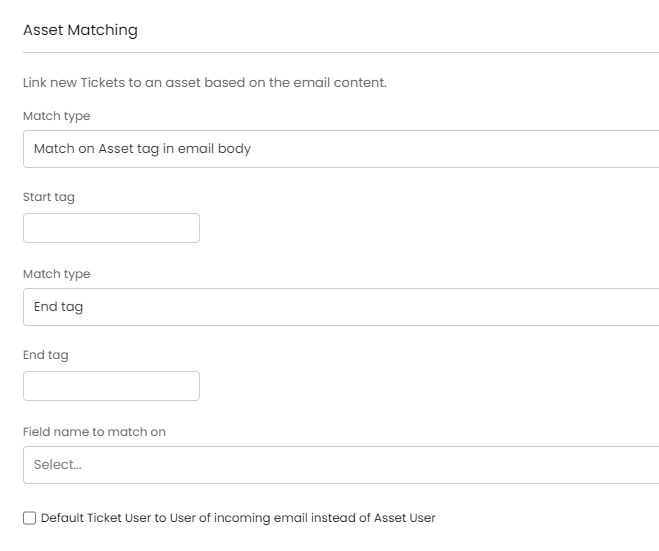
Fig 10. Asset matching in Email Rules
When matching onto assets in Halo by tag, you must specify a start and end tag. The asset matching email rules do not need to be created per asset. The values set on emails will be what the system matches on. For example if your email comes in and has a string in the body such as
- Asset Number[BC-WS-1]
and that also matches onto an asset in your Halo as it is the Asset Tag (Also referred to as Asset Number) , you could set the asset matching to be like this:
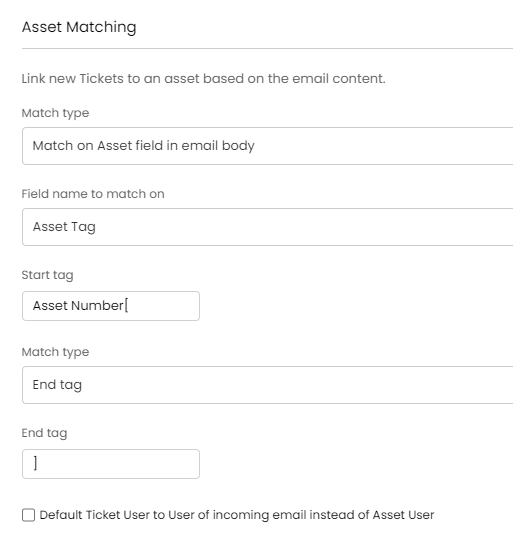
Fig 11. Asset matching setup
If you have an email body come in that contains i.e. an asset field of Type: Asset, you can also match on this (Asset fields are created within Configuration > Asset Management > Fields). Say the asset field is called: "Uniquely Identifying Number" we can match onto it. In this example we will match onto it using the Match Type "End of line (CR)" this refers to the value given after the start tag and before the next line break.
The email body contains:
UIN:134264368 (where there is a line break after the 8)
Therefore the email rule will be configured this way:
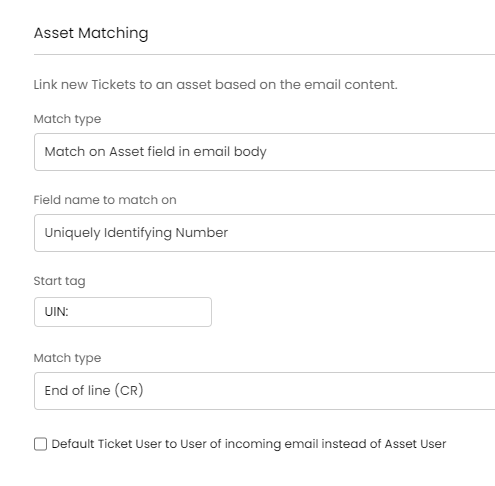
Fig 12. Asset matching setup using a unique identifier field
The same can be done for user fields to help match onto users.
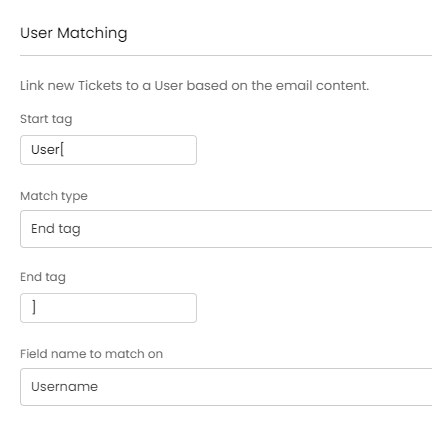
Fig 13. User matching
Service Status
This Email Rule allows for the service status monitoring via incoming alert emails.
Formatted Email
This rule will log a ticket based on the Formatted Email mappings found under Configuration > Email > General Settings > Formatted Emails.
Supplier Email Update
This option is no longer required, as the system can match onto suppliers based off of the native config of suppliers.
Alert via Email
Halo also allows for incoming alert emails from 3rd parties to raise and update tickets. The 'Alert Email' Rule allows for tickets of a specified type to be raised, fields to be matched and also allows for tickets to be closed based on the presence of a string in the email.
Note: Asset matching must be configured on the Email Rules for this setting to work.
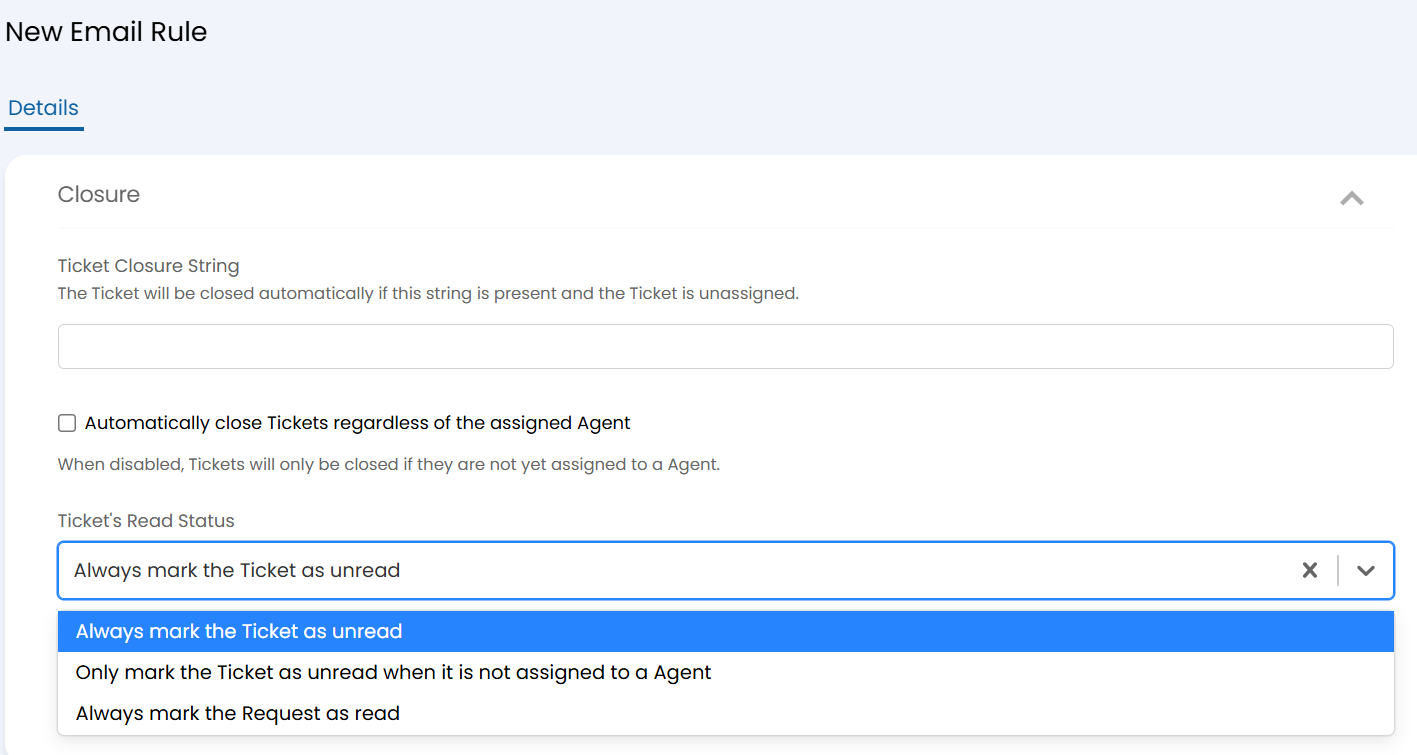
Fig 14. Closure string for Alert-type Email Rules
Asset Update Via CSV
This rule will find, save and use the attached CSV file from an email to update assets. The file must be in the correct format in order to complete the import.
For more information on how to import using a CSV file see our guide on Asset Imports – CSV/XLS/Spreadsheet Method.
Client/Site Import Via CSV
This rule will find, save and use the attached CSV file for a scheduled import of clients and sites. The file must be in the correct format in order to complete the import.
Phone Number in Subject
This rule will identify and match a user based on the phone number in the subject. This must be an exact match to the number as it is stored in Halo.
Note: If the phone number is stored in Halo with a country code this will need to included.
You will have the option to specify start/end tags to look for the number between, rather than all digits in the email being checked. Useful when multiple numbers may be in a single email. To use tags enable "Use start and end tags to match onto a phone number in the email subject", then enter the start and end tag the phone number will be contained between.
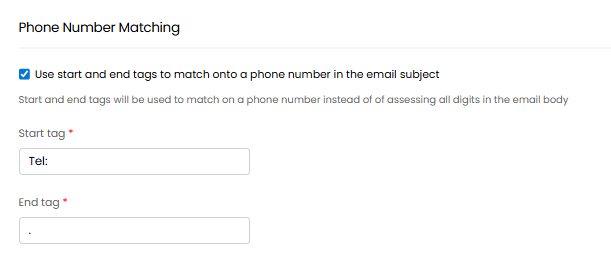
Fig 15. Start and end tags for Phone Number Matching
Now, only numbers between these tags will be used to match a user to the ticket. If a phone number is found that is not contained within these specified tags, the number will be ignored.
Apply Template
It should also be noted that Halo provides the ability to have incoming emails raise a ticket with a given template. This is configured by using this email rule and selecting the template you would like to use.
User Import Via CSV
This rule will find, save and use the attached CSV file for a scheduled import of users. The file must be in the correct format in order to complete the import.
For more information on importing Users using a CSV file see our guide on Creating Users.
Custom Table Import Via CSV
This rule will find, save and use the attached CSV file for a scheduled import data into a Custom Table. The file must be in the correct format in order to complete the import.
For more information on this see our guide on Custom Table Imports via Email and CSV – Scheduled Imports.
Check Ticket Details
This email rule type can be used to have an automatic email sent back out to the user when the criteria in this rule is met. This is used to provide users with automatic ticket updates when they email in requesting an update on a particular ticket.
For information on how to use and configure this functionality see our guide on Automatic Ticket Updates via Email here.
Email Rule types for integrations
Halo has specific alert email rule types for:
- N-Able N-Central
- SCOM
- Datto RMM
- Ninja RMM
- Huntress
ConnectWise Automate - Used to have an alert email rule type, the integration now has inbuilt functionality for setting up alerts.
For further information on configuring these integrations and their associated alerts, please visit the respective guides:
- N-Able N-Central Integration
- SCOM Integration
- Datto RMM Integration
- Ninja RMM Integration (API v2)
- Ninja RMM Integration (API v1 Legacy)
Huntress Email Rule Type
Email alerts from Huntress can be converted to tickets in Halo using the "Huntress" email rule type.
Configure the matching criteria for the email rule to capture all email alerts from Huntress. This will ensure all alert emails from Huntress match to the email rule and can be processed accordingly.
Then, you can set the ticket type emails that match to this rule will log, you can use the "Alert" ticket type we have out of the box, or you may wish to create a new ticket type for this.
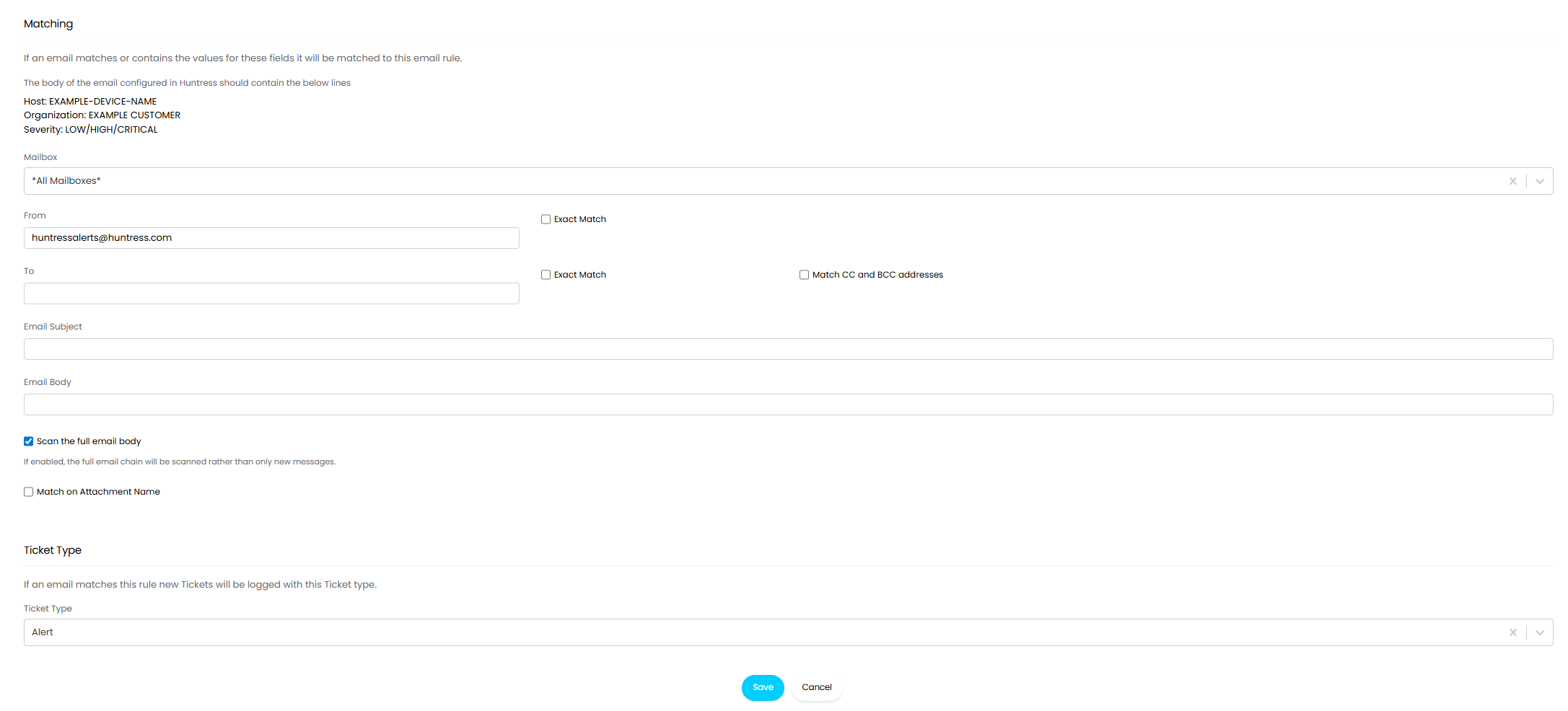
Fig 16. Email Rule configuration for Huntress alerts
From v2.244+ emails matching to this rule will attempt to match the end user of the ticket to the user who's device triggered the alert. The body of the email will be checked for any email addresses - if an email matches to an email of a user in your Halo, they will be made the end user of the ticket.
Visibility
The visibility of emails can also be set at the email rule level. If you wish to have the first user email come in as a private email (This will mean no users can see the action), you can tick on this check box for certain email rules:
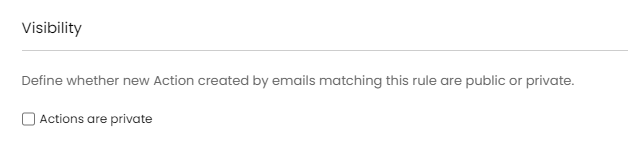
Fig 17. Mark emails as Private
Email rules are config change tracked. This additionally allows changes to them to be synced between production and UAT environments.