Custom Table Import via Email and CSV - Scheduled Imports
In this guide we will cover:
- What are Custom Table Imports via Email and CSV?
- Prerequisites
- Setting up Custom Table Imports
- Troubleshooting
What are Custom Table Imports via Email and CSV?
This guide explains how to set up automatic custom table imports in Halo using email rules and CSV files. The process allows you to update custom tables by simply emailing CSV files to your Halo instance.
Prerequisites
- Access to Halo configuration settings
- A custom table already created in Halo
- CSV file with data matching the custom table structure
- Halo Integrator enabled for your instance
Setting up Custom Table Imports
1. CSV File Preparation
- Ensure your CSV file name exactly matches your custom table name
- Verify that your CSV columns match the custom table fields
2. Email Rule Configuration
Navigate to: Configuration > Email > Email Rules
- Click "New Email Rule"
- Set the Email Rule Name
- Select "Custom Table Import via CSV" as the Email Rule Type
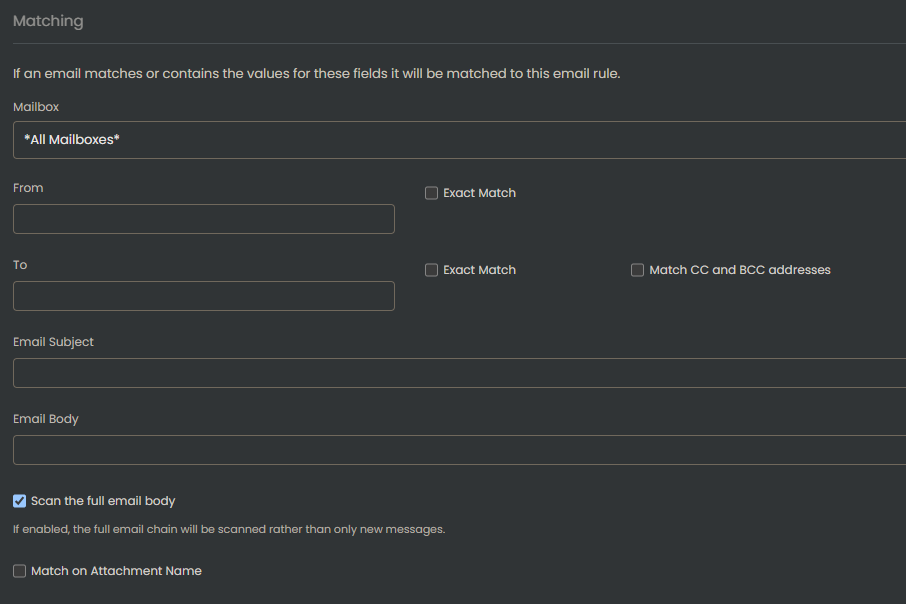
- Configure matching criteria:
- From address
- To address
- Subject line
- Body content
- Attachment name matching
- Set the sequence number to determine rule priority
- Save the email rule
3. Custom Table Configuration
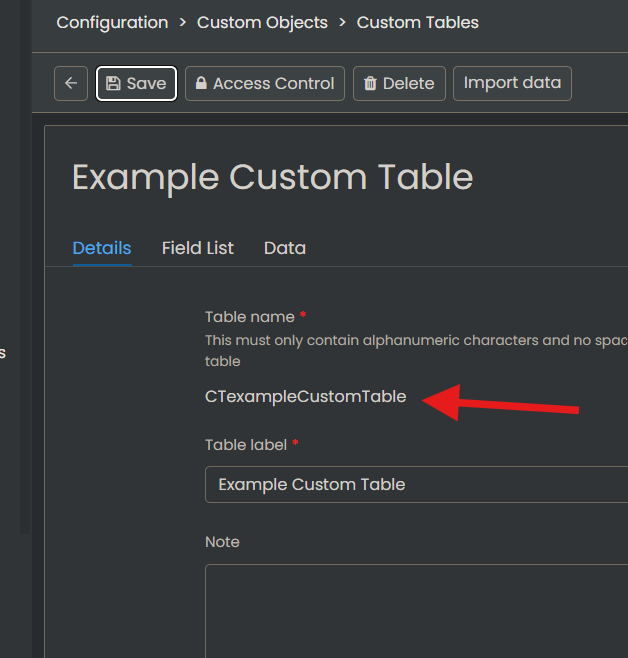
Configure your custom table settings in Configuration > Custom Objects > Custom Tables
Verify the following settings:
- Table name matches your CSV filename exactly
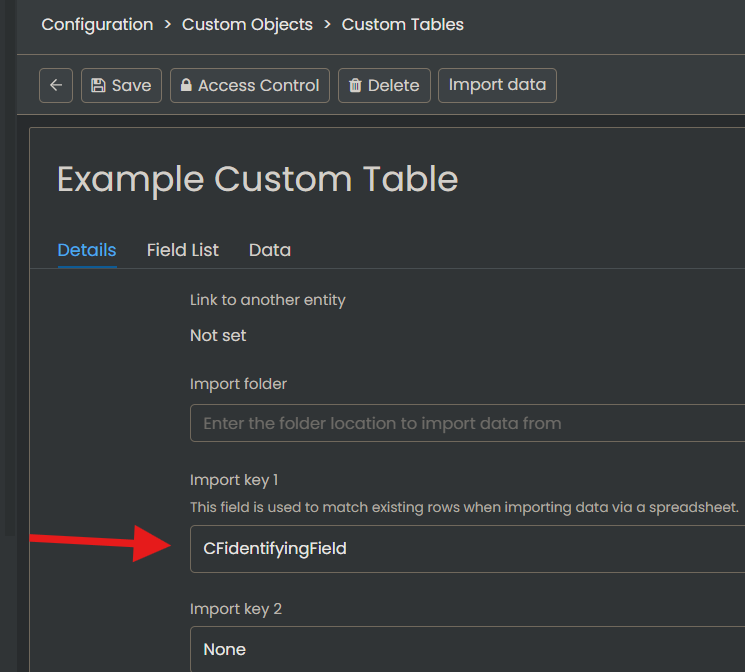
- Import keys are properly configured for row matching
4. Scheduled Imports Configuration
The Scheduled Imports module provides the core functionality for custom table imports.
- Navigate to Configuration > Integrations
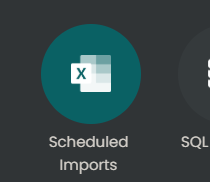
- Locate and enable the "Scheduled Imports" module
- Open the module settings
- Enable Halo Integrator syncing for custom table imports
5. Halo Integrator Configuration
For hosted customers:
- The cloud-hosted Halo Integrator runs nightly by default
- No additional configuration needed
For On-Prem installations:
- Follow the detailed Halo Integrator setup guide here
- Enable the custom table import integration in your local Halo Integrator
Using the Import Process
- Send an email matching your configured rule criteria with your properly named CSV file attached
- The email rule will capture the incoming file
- The next Halo Integrator run will process the import
Troubleshooting
- Verify CSV filename exactly matches the custom table name
- Ensure all mandatory columns are present in the CSV
- Check email rule matching criteria if files aren't being captured
- Review Halo Integrator logs for processing errors
- Verify the Halo Integrator is enabled and running