Creating Users
- Users
- User
- importing users
In this guide we will cover:
- What are Users?
- Creating Users Manually
- Customers Area
- New Ticket Screen
- New Call Screen
- Changing End-User
- Converting from an Opportunity
- Creating Users via Portal Registration
- Create Users from Anonymously Logged Tickets
- Create Users when an Email cannot be matched to a User
- Create Users from a CSV/XLS Import
- Create Users from an Integration Import
Configuration Settings:
Related Guides:
What are Users?
Users are the people who raise Tickets in Halo, and they each have a User account associated to a Client/Customer. Agents will also have a User account associated with them.
A User account is used to access the Self-Service Portal, and this guide will cover ways these accounts can be created.
Note: Ensure the Agent permission "Users Access Level" is set to "Read and Create" or above.
Creating Users Manually
Users can be manually created within a few areas of the system. All follow the same process of entering the basic information into Fields:
- Details Tab:
- Username (Prefills First Name and Surname automatically)
- Site
- Email Address(es)
- Telephone Number(s)
- Address(es) - As of v2.238+, addresses created here can also be set against the Site on creation using the checkbox "Copy to Site address"
- Preferences Tab:
- Email/Marketing Settings
- Permissions Tab:
- Web Access Level (Whose Tickets that User can access within the Self-Service Portal. If set to "No Access", they will not be able to log in at all)
You can also set a Users Preferred Name and Middle Name. You can set this preferred name to be the name which shows on the ticket details by selecting the relevant option in the "User names to display in dropdown" field, found in Configuration > Users > General Settings. These new names can be pulled into Email Templates using the variables $-PREFERREDNAME, and $-MIDDLENAME.
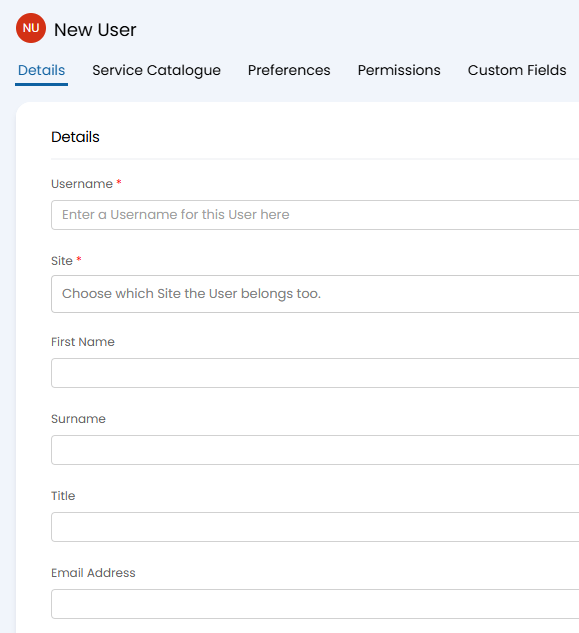
Fig 1. Creating a new User manually
From v2.250+, the Site of a new User can be automatically populated when the User's email matches a domain set against the Site. To do this, enable "Enable email domain matching to Sites when manually creating new Users". When an email address which matches a domain set on a Site is entered in the "Email Address" field, the site will automatically be set, and a message will be displayed below the "Email Address" field to show the Site has been auto-filled.
Client/Customers Area
The first option this can be done is within the Client/Customers Area.
A similar process can also be followed for anywhere a list of Users is visible, such as within the Client/Customer profile > Sites & Users tab.
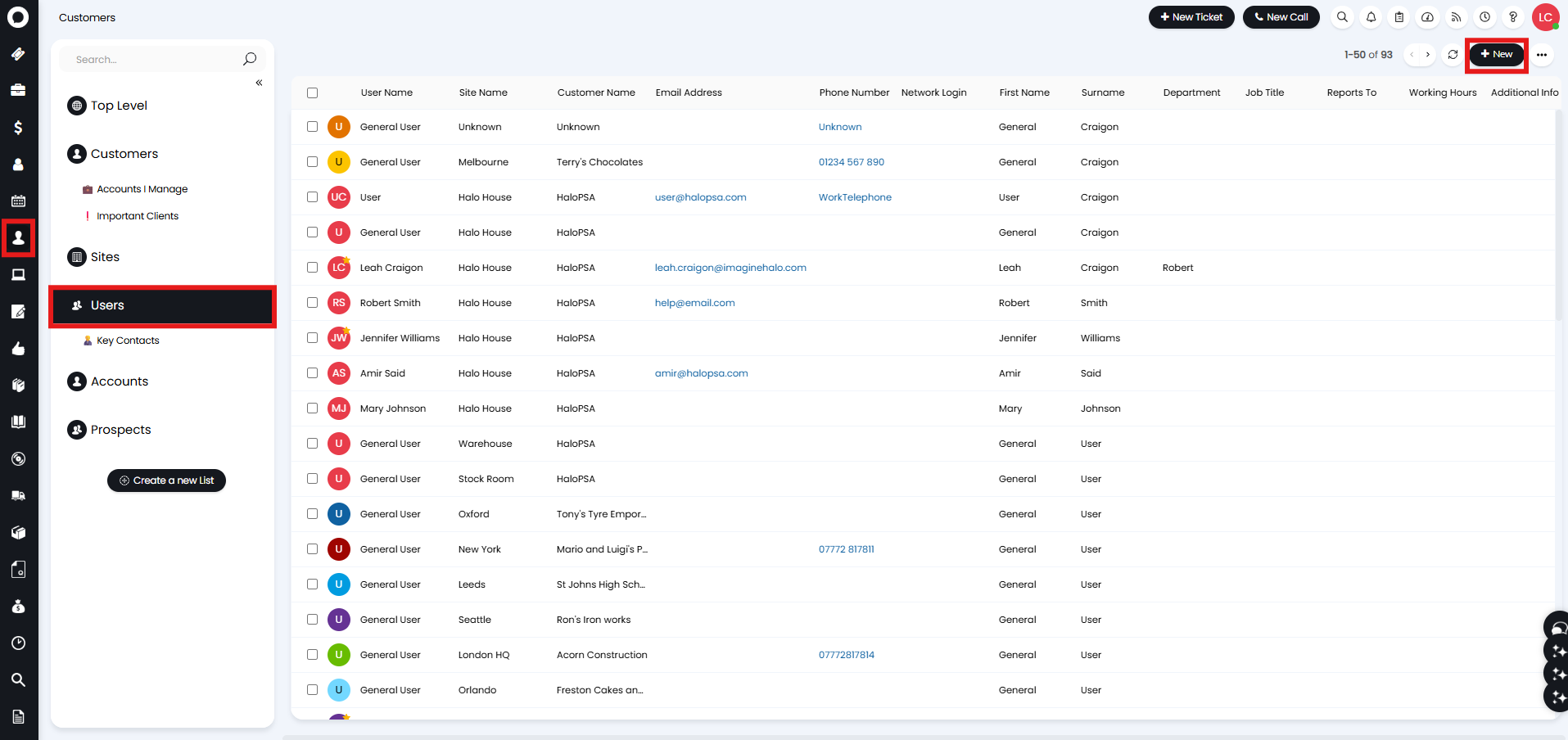
Fig 2. Creating a User in the Client/Customer Area
New Ticket Screen
In Configuration > Users > General Settings, enable the below option.

Fig 3. Enable User creation on the New Ticket screen
When viewing the New Ticket screen and selecting a User, an additional option will show in the dropdown; selecting this will show a popup to enter the information and create the User.
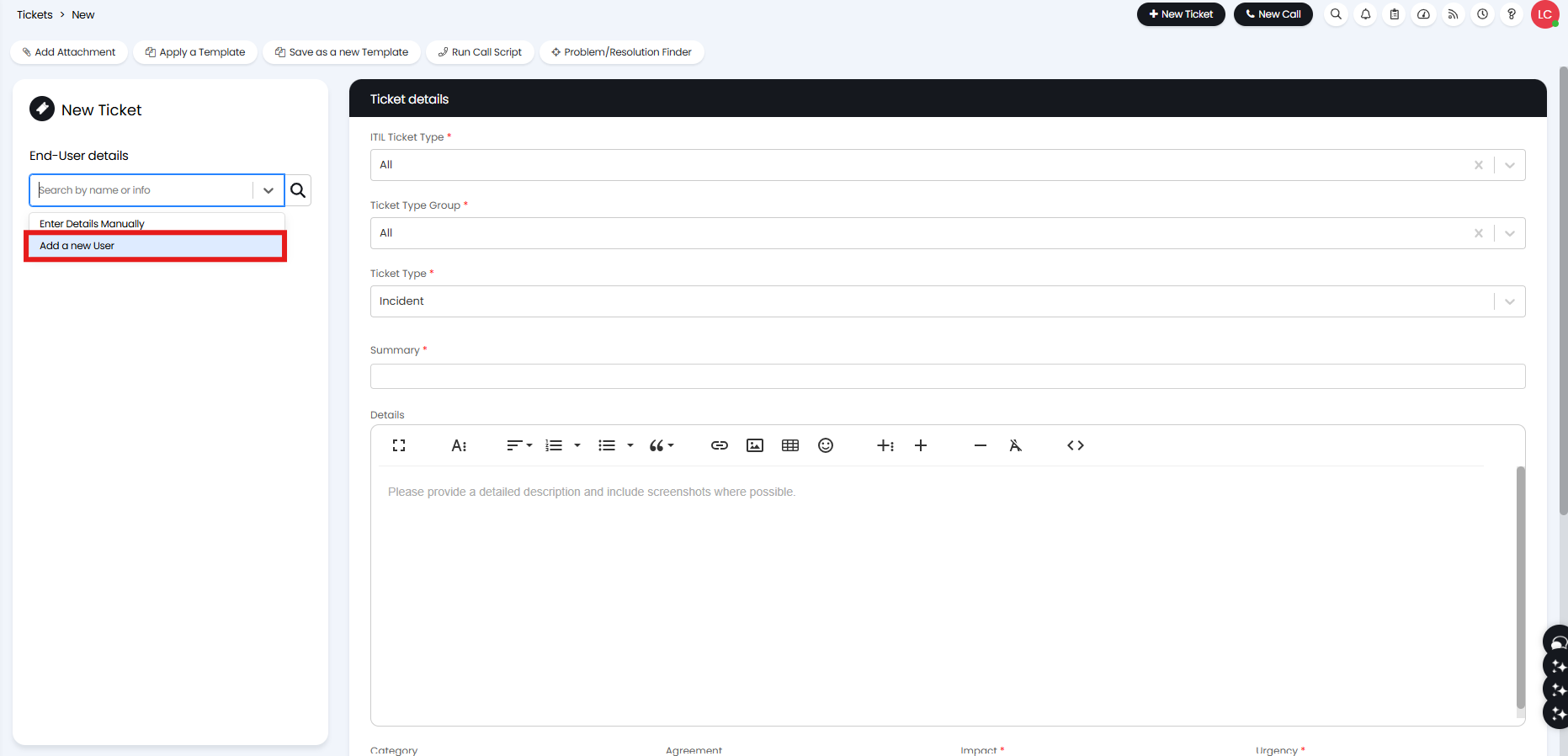
Fig 4. Creating a User on the New Ticket screen
There is also the additional option in Configuration > Tickets > General Settings to create a User when a Username is set but General User is selected.

Fig 5. Enable User creation when filling in General User details
When completing the User details field when a Ticket is raised against the General User, a new User will be created with these details against the Client/Customer and Site of the General User.
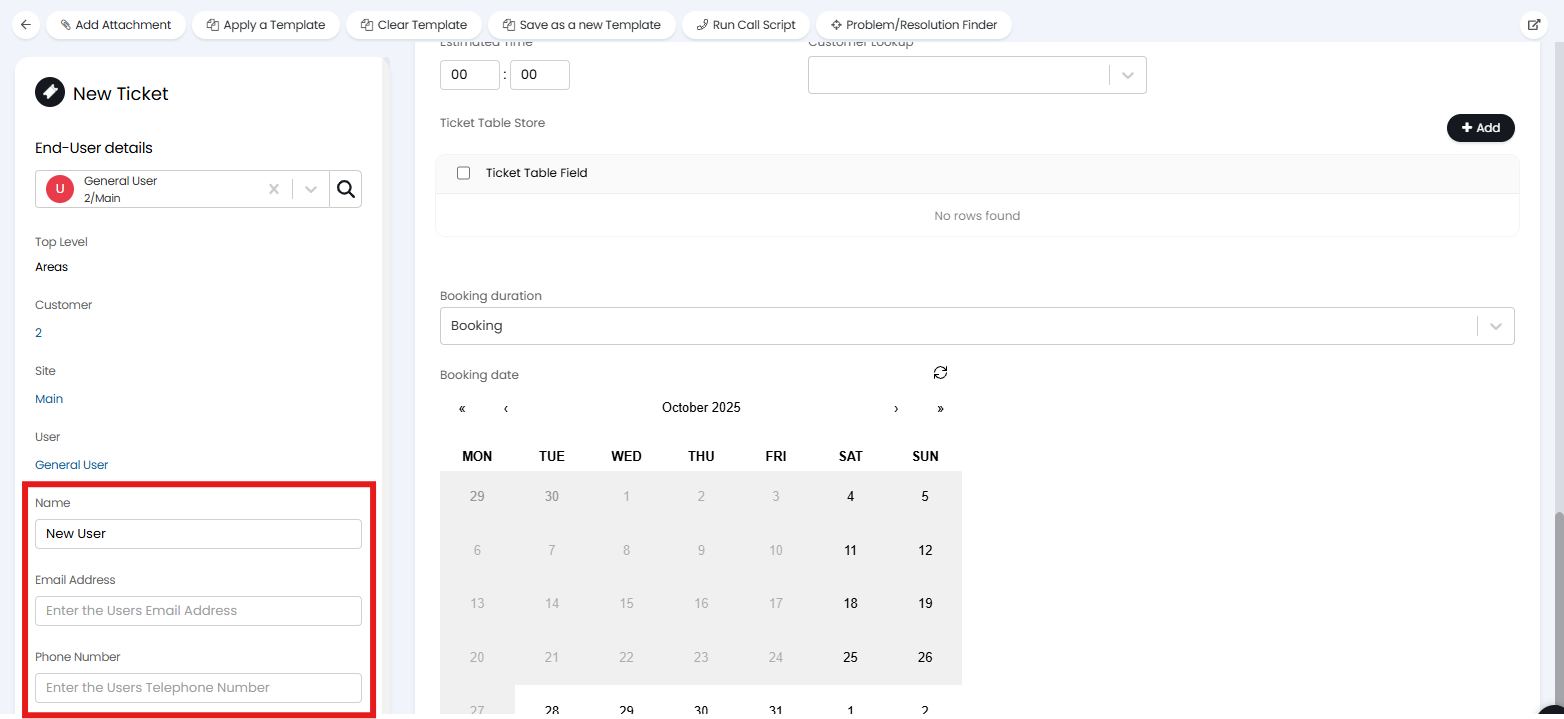
Fig 6. Creating a User from the General User details
New Call Screen
If the New Call screen is opened, whether from the UI or an integration, you can create a new User when matching the Client/Customer to the call or changing the previously matched User.
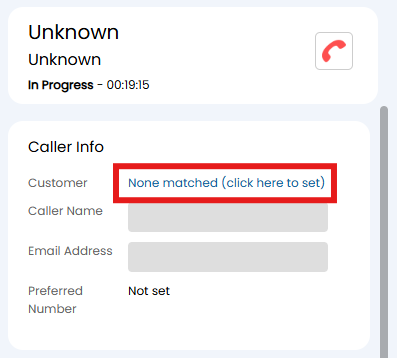
Fig 7. Matching a Client/Customer on the Call screen
Clicking this will show a popup to either select an existing User, or create a new one.
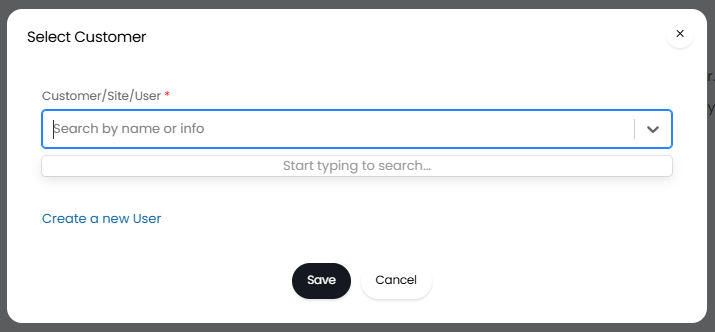
Fig 8. Creating a User from the New Call screen
Changing End-User
In Configuration > Users > General Settings, enable the below setting.

Fig 9. Enabling User creation when changing User
Note: This option can only be used when changing the Site/User against a Ticket using the below popup, which can be accessed from the "..." > Change Site/User. It cannot be used when changing the User directly within the End-User details.
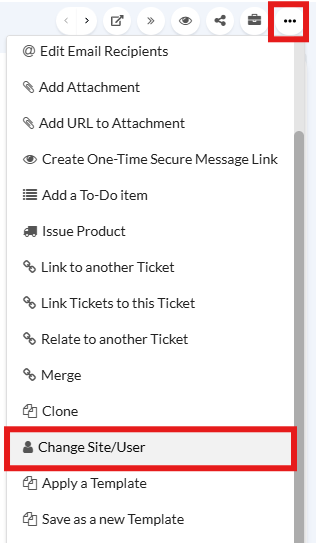
Fig 10. Change Site/User option
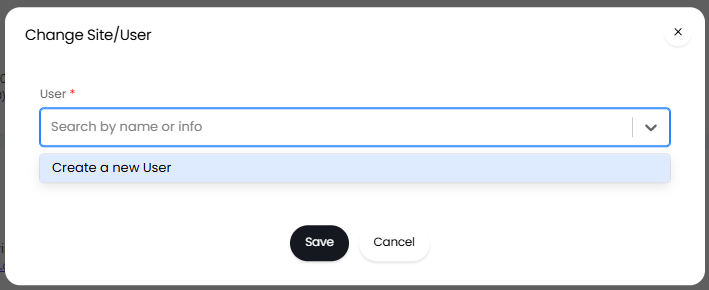
Fig 11. Creating a User when changing the End-User of a Ticket
If you wish to force your Agents to use this view, and thus allow new User creation here, enable the below in Configuration > Tickets > General Settings. This means they will not be able to change the End-User from the End-User details on the Ticket, only from the "..." option.

Fig 12. Force use of "..." > Change Site/User to change the End-User of a Ticket
Converting from an Opportunity
If you are utilising the Sales/CRM functionality, a Contact or Prospect can be converted to a User from the Opportunity Ticket.
If using Contacts, the conversion option will appear like below. The Contact will be converted to a User, and the Opportunity/Company to a Customer.
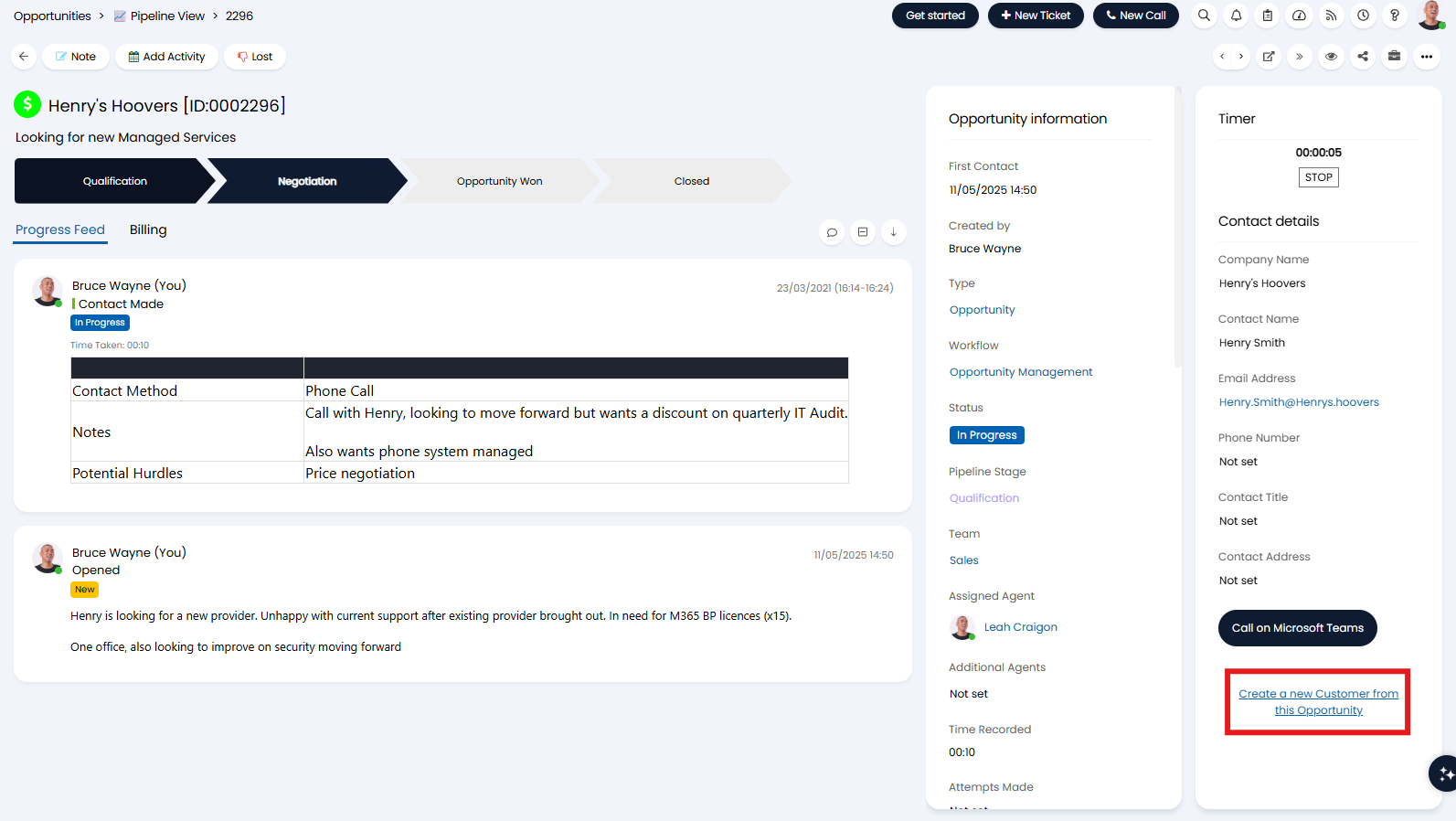
Fig 13. Converting a Contact to a User
If "Use Accounts and Prospects for Opportunities" is enabled in Configuration > Sales, the conversion option will appear like below. The Prospect will be converted to a User, and the Account to a Customer.
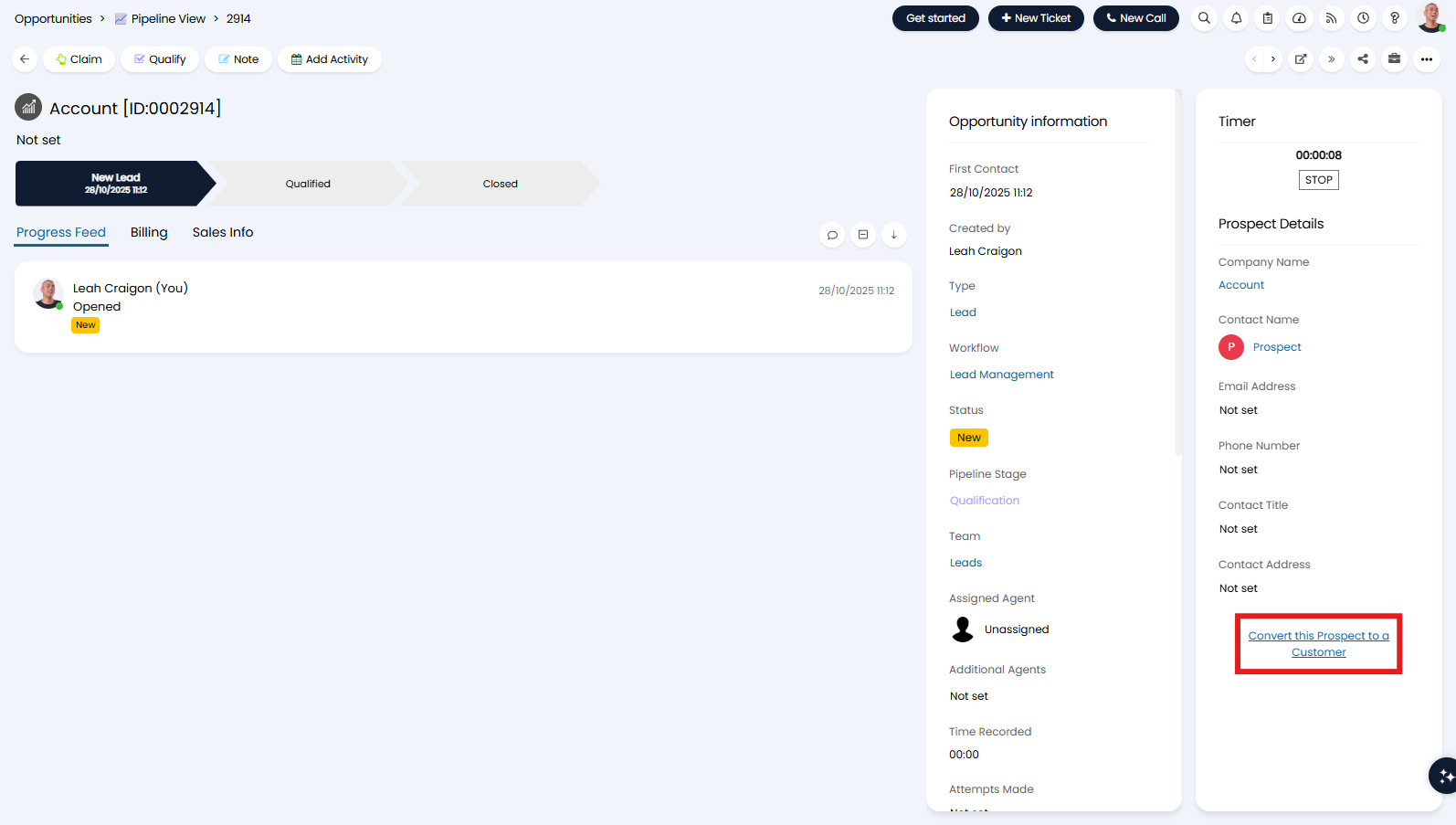
Fig 14. Converting a Prospect to a User
Creating Users via Portal Registration
In Configuration > Self Service Portal, you can allow Users to register an account from the Self-Service Portal login screen. Upon enabling, you will need to set a default Site for these new Users to be created within.
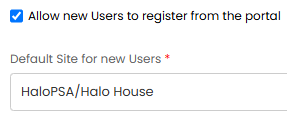
Fig 15. Enable User creation from the Self-Service Portal
This option will then appear on the Self-Service Portal login screen.
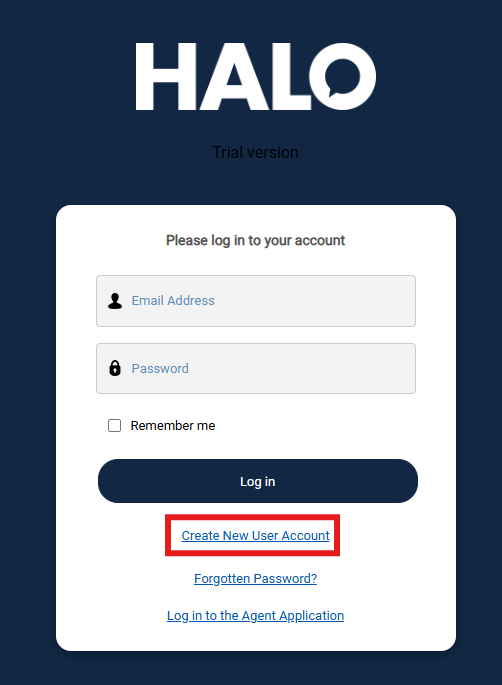
Fig 16. Creating User account from the Self-Service Portal
Clicking this will then allow the User to create an account by entering their name and email address.
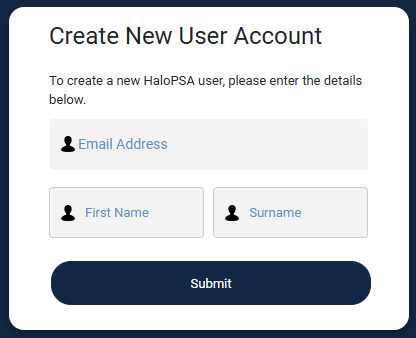
Fig 17. Entering User details
Create Users from Anonymously Logged Tickets
When allowing tickets to be logged anonymously, users can be created using the contact details given for these anonymously logged tickets.
To ensure contact details can be given for the anonymous tickets ensure "Anonymous User" under Configuration > Self Service Portal is not set but "Anonymous User Site" is set. The site chosen will be the site new users will be created under.
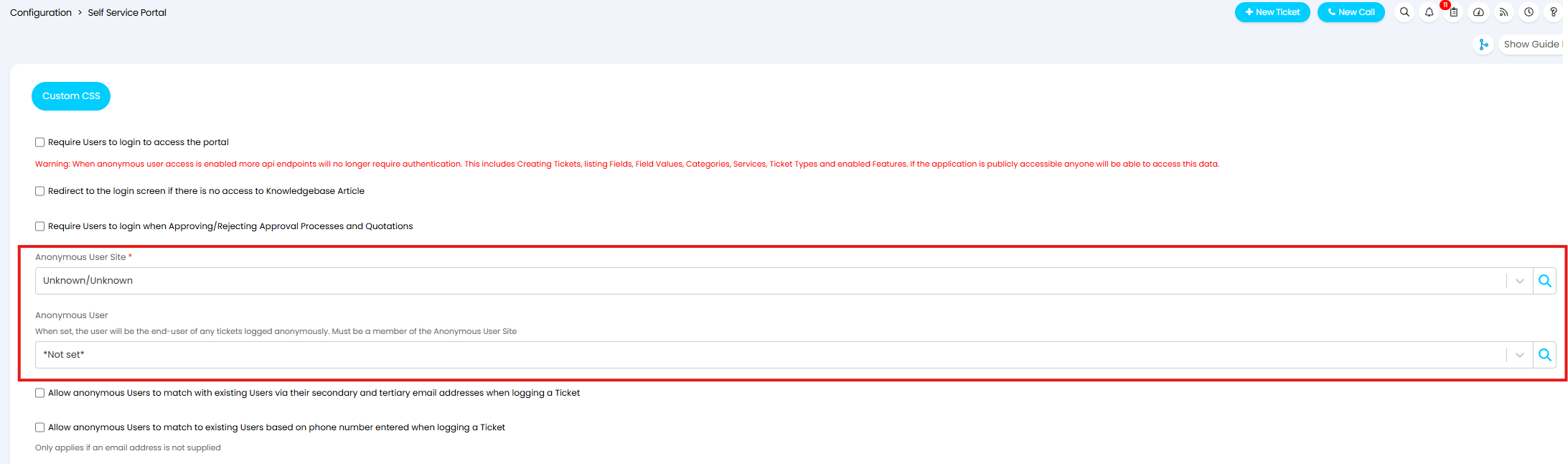
Fig 18. Set Anonymous User and Site
Also ensure "Hide the contact information fields when logging anonymously" is disabled against the ticket type. This will ensure when tickets of this type are being logged anonymously, contact details can be entered for the ticket.
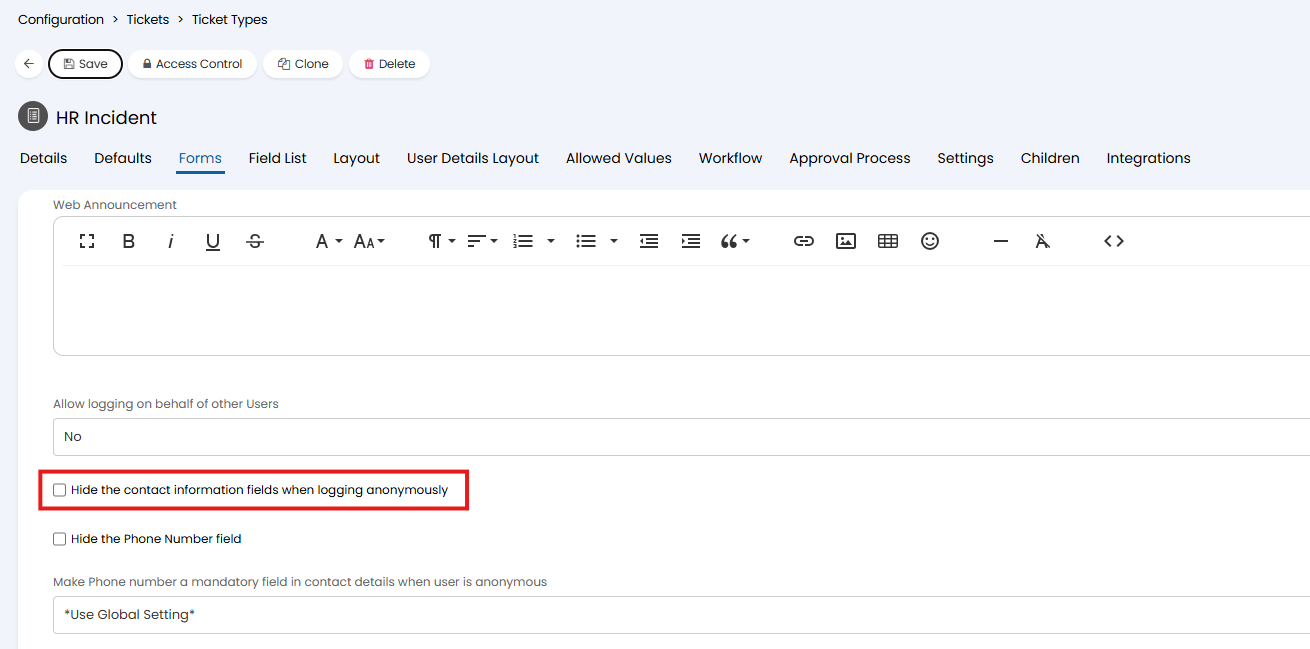
Fig 19. Disable Hiding the Contact information for tickets of this type
Now, a "Contact Details" section will show when tickets of this type are being logged in the portal.
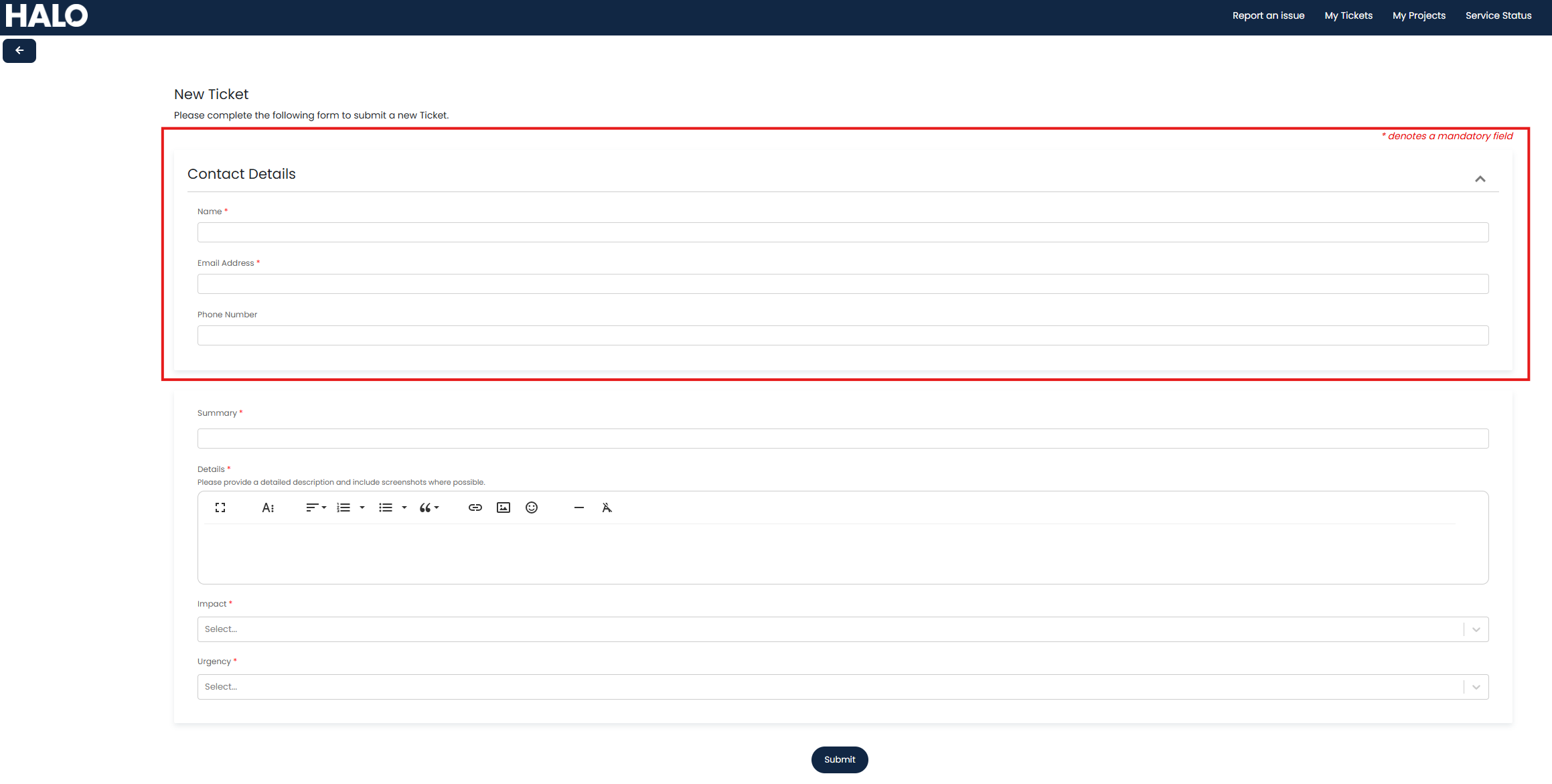
Fig 20. Contact Details for Ticket
The details entered here will be used to create a user account.
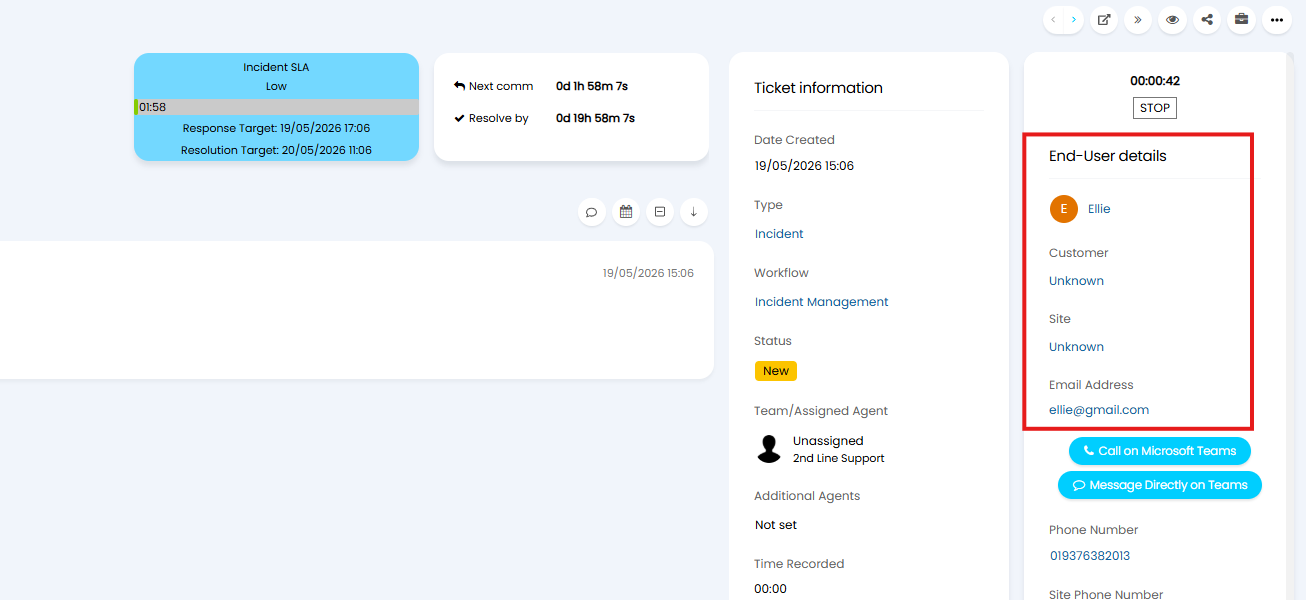
Fig 21. New user account
From v2.238+ if any user custom fields are also added to the ticket type, the data entered into these will also be added to the newly created user account. Allowing you to gather and store custom information about anonymous users.
Create Users when an Email cannot be matched to a User
In Configuration > Email > General Settings, you can set a new User to be created if the email address does not match an existing User.
This is overridden by the setting of the same name in Configuration > Email > Mailbox Setup > Incoming tab.

Fig 22. Enable User creation from unmatched emails.
A new User has been created under the default Client/Customer and Site set in Configuration > Tickets > General Settings, and the Username will come from the name set against that email address.
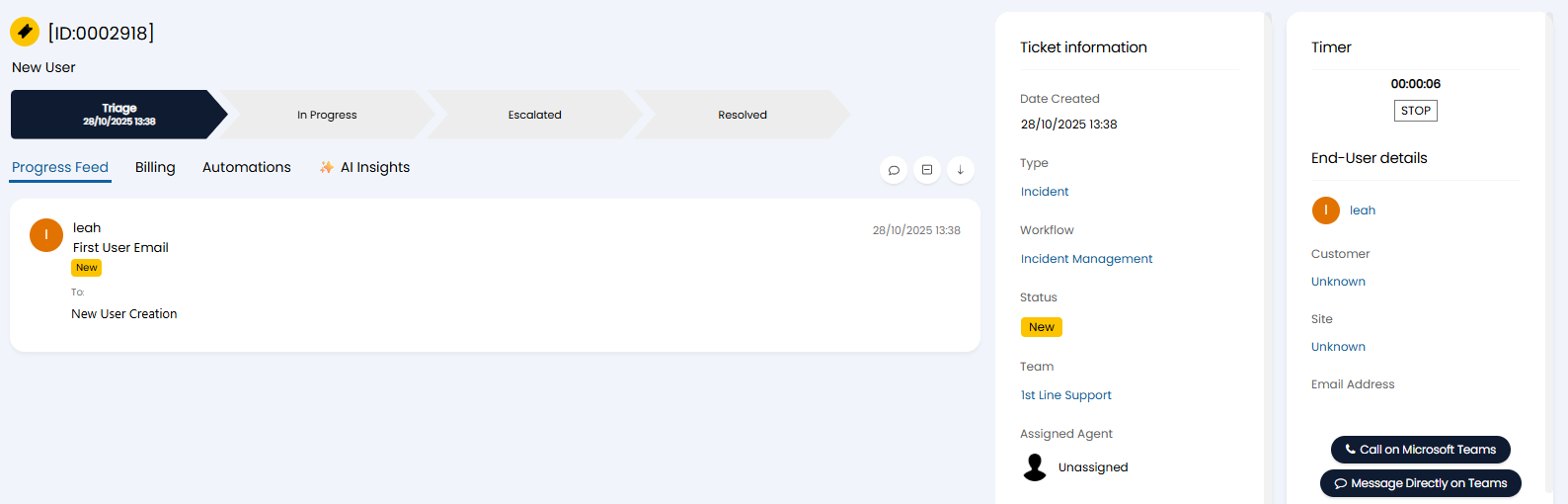
Fig 23. New User created from email.
Create Users from a CSV/XLS Import
Users can be created in bulk by importing from a spreadsheet. In Configuration > Users > General Settings, you will find options to set the unique identifier, and import a spreadsheet.
Clicking "Import Users" will bring up the import screen to upload a spreadsheet. If you exit out of this upload popup, the option to "Download Samples" will show. Clicking this will download a ZIP file of all the default import spreadsheets, including one for Users with the appropriate header names.
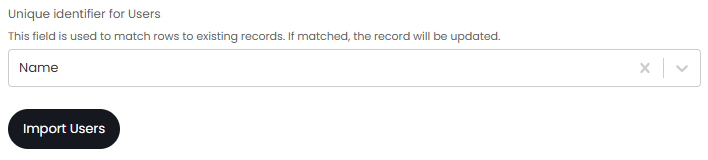
Fig 24. CSV import configuration.
You will need the name of the User, and the assigned Client/Customer and Site at minimum. These Client/Customers and Site will need to already exist in your system, they cannot be created via this import. They can however, be imported through a separate spreadsheet using the "Import Clients/Customers & Sites" button in Configuration > Users > General Settings before importing the Users after.

Fig 25. Example import spreadsheet.
Create Users from an Integration Import
Multiple integrations with Halo can import and create Users with information from the integration platform. Each integration differs slightly in approach, so check out the relevant guide for your integration to do so.
Most integrations will work on the same premise: a matching Field to determine if a new User is created or an existing one updated, and mappings to determine which Site they are added to.
There will be a button to "Import Users" (similar to the CSV import). This will bring up the same import screen with a list of Users in that program, and the import can be started manually there. There is also the option to automate these imports through the "Halo Integrator". If enabled, Halo will automatically run imports once a day to import or update details on these Users. If you are hosted, this sync will be handled automatically by us.
Note: Manually importing Users for the first time creation is a good way to ensure that the import works smoothly before configuring the automatic sync.
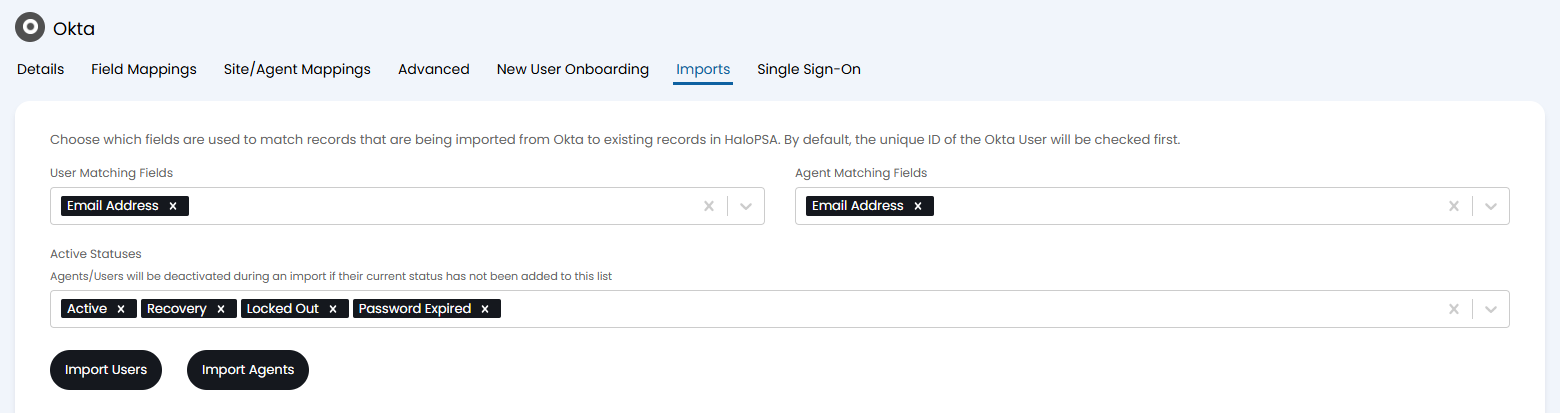
Fig 26. Example Okta User/Agent import.
Sending Welcome and Password Emails
Upon creation of a user, the following buttons will be available.
- Send Welcome Email: Sends an email template with the URL of your Self-Service Portal, and the user's login credentials for it.
- Send Password Reset Email: Sends an email template with a link for the user to change their password.
Note: These will not show if the "Web Access Level" is set to "No Access" on the user, as this means they will not be granted the ability to log into the portal.
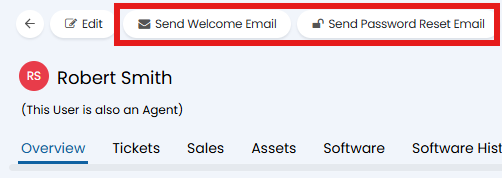
Fig 27. Email buttons on a user.
The email templates for both can be found with the IDs 80 and 186, and will contain dollar variables to populate the information upon sending. If customising or branding these templates, ensure the variables are present somewhere still.
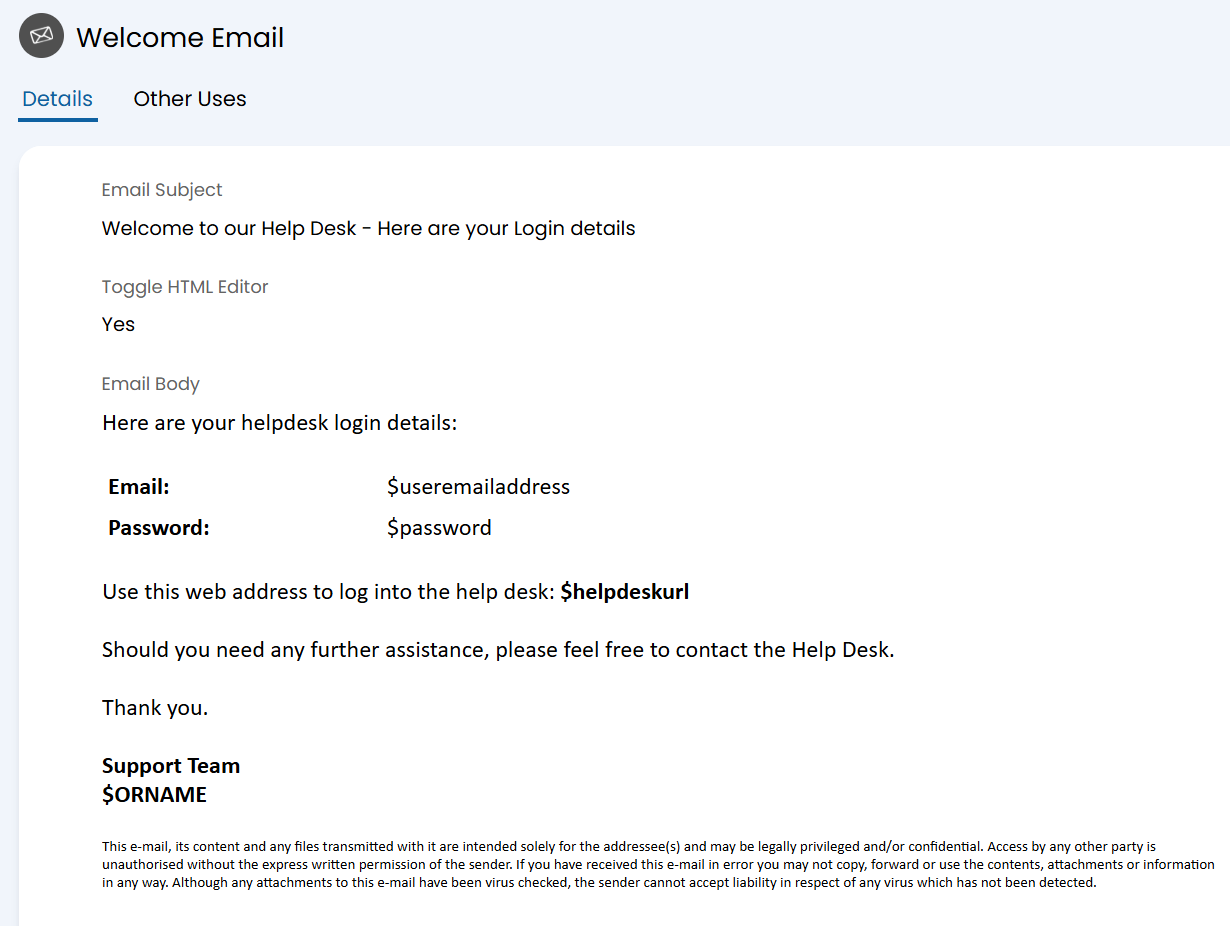
Fig 28. Welcome email template.
Welcome emails can also be automated to send when a user is created, which includes those made by imports or integrations. In Configuration > Email > General Settings, there will be an option to send these. Additionally, there is the option to configure how long these credentials last for before they expire. This defaults to one day.
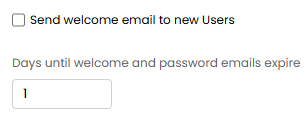
Fig 29. Welcome email options.