Introduction to HaloCRM
In this guide we will cover:
- The basics of each part of HaloCRM along with the appropriate terminologies
This guide will go through the basic definitions of terms that are used within HaloCRM, and a taste of the commonly used features within them (many more features are available!). To learn about these areas in more detail, guides have been linked throughout. If you would like clarification on how something works, please contact our support team at support@halocrm.io who can assist you.
Note: These features are interconnected with each other, so having a basic understanding of each will help you when configuring your setup.
Contacts and Prospects
HaloCRM uses difference terminology for a 'contact' based on your relationship with that person. That is, whether you're nurturing a relationship or maintaining one.
Prospect - An individual associated with a client that you have had communications with but have not yet conducted any business with. You have a new relationship with them that needs to be nurtured.
Contact - An individual associated with a client that you have conducted business with previously. You have an existing relationship with them that needs to be maintained to secure future deals, e.g. upsells and renewals.
Note: Other Halo environments refer to 'Contacts' as 'Users' so you may this this terminology used across our guides. Prospects are always referred to as prospects.
A contact and prospect record holds details about a person such as their name, email address, phone number, and job title, as well as the client they are linked to.
In Halo, contacts and prospects are stored within the "Clients" module.
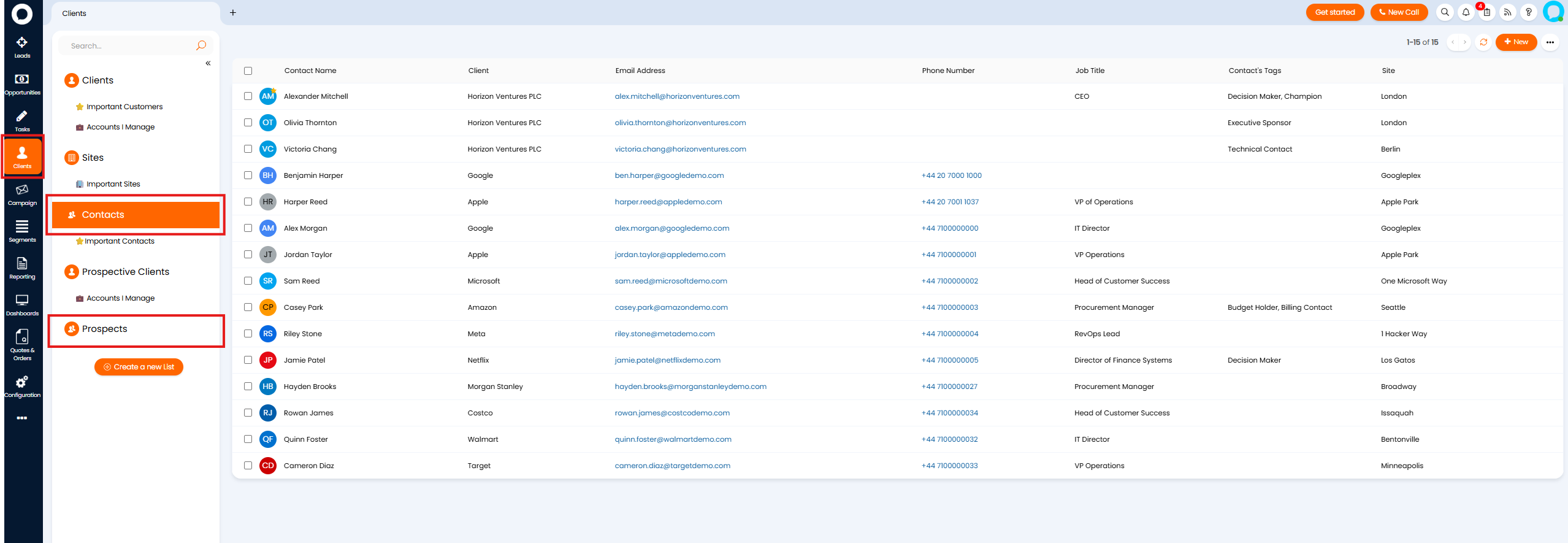
Fig 1. Contacts and Prospects
Selecting a contact or prospect here will show you more information about that person, such as their contact details and all current opportunities with them.
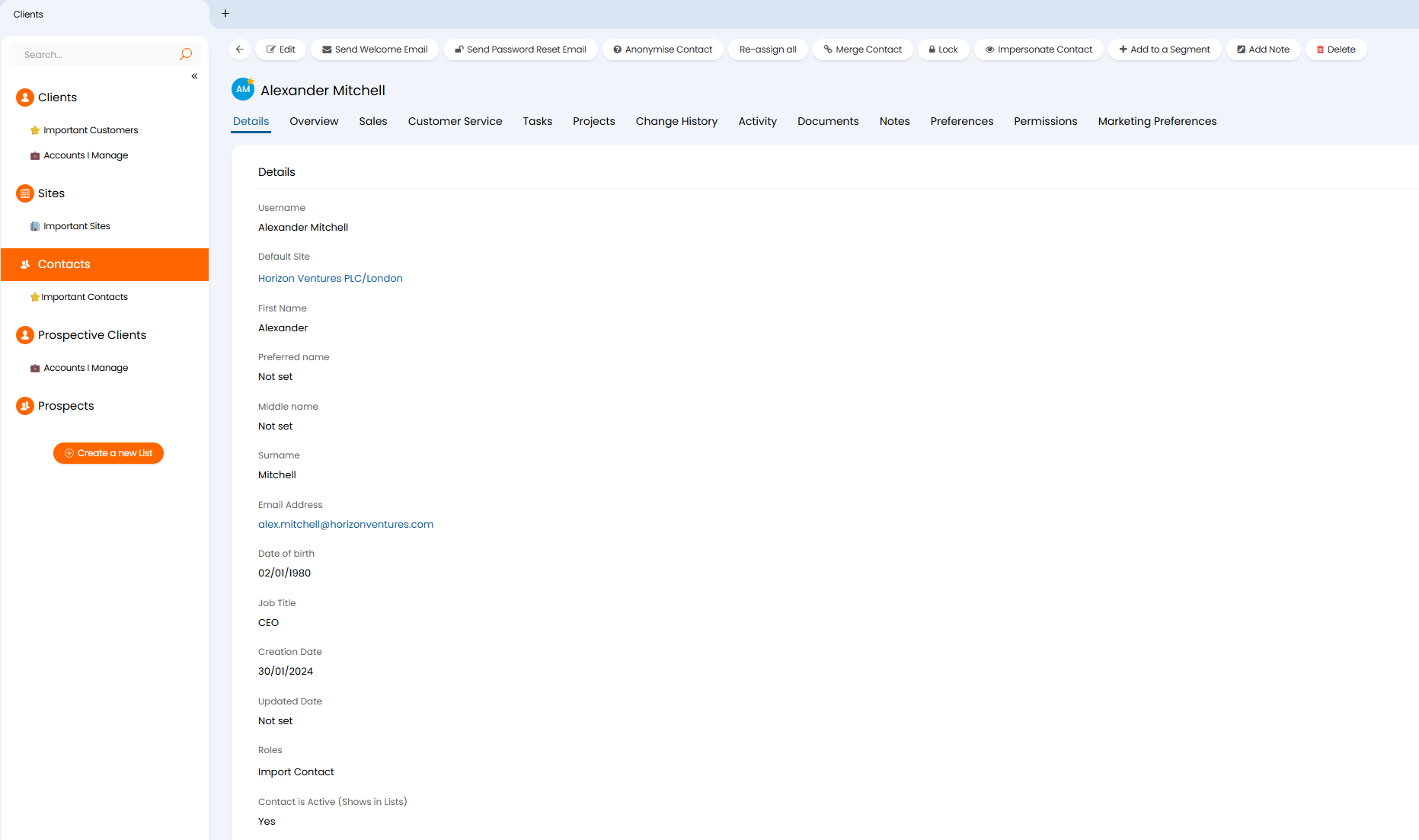
Fig 2. Contact Details
Each contact/prospect will be assigned to a "Default Site", this denotes the client that they are associated with.
For more information on creating Contacts and Prospects, see our guide here. For more information on configuring Contacts and Prospects, see our guide here.
Clients and Prospective Clients
HaloCRM uses different terminology for a 'client' based on your relationship with them. That is, whether you're nurturing a relationship or maintaining one.
Prospective Client - An organisation you have had communications with but have not yet conducted any business with. You have a new relationship with them that needs to be nurtured.
Client - An organisation you have conducted business with previously, they are now a paying customer. You have an existing relationship with them that needs to be maintained to secure future deals, e.g. upsells and renewals.
Note: Other Halo environments use the terminology 'Accounts' to refer to Prospective Clients, therefore you may see this terminology used across our guides. Other terminology is also used for Clients, including 'Customers' and 'Organisations'.
Halo CRM offers functionality to support both clients and prospective clients. For example, customer service functionality is available to help support clients with existing/ongoing orders.
In Halo, Clients and Prospective Clients are stored within the "Clients" module.
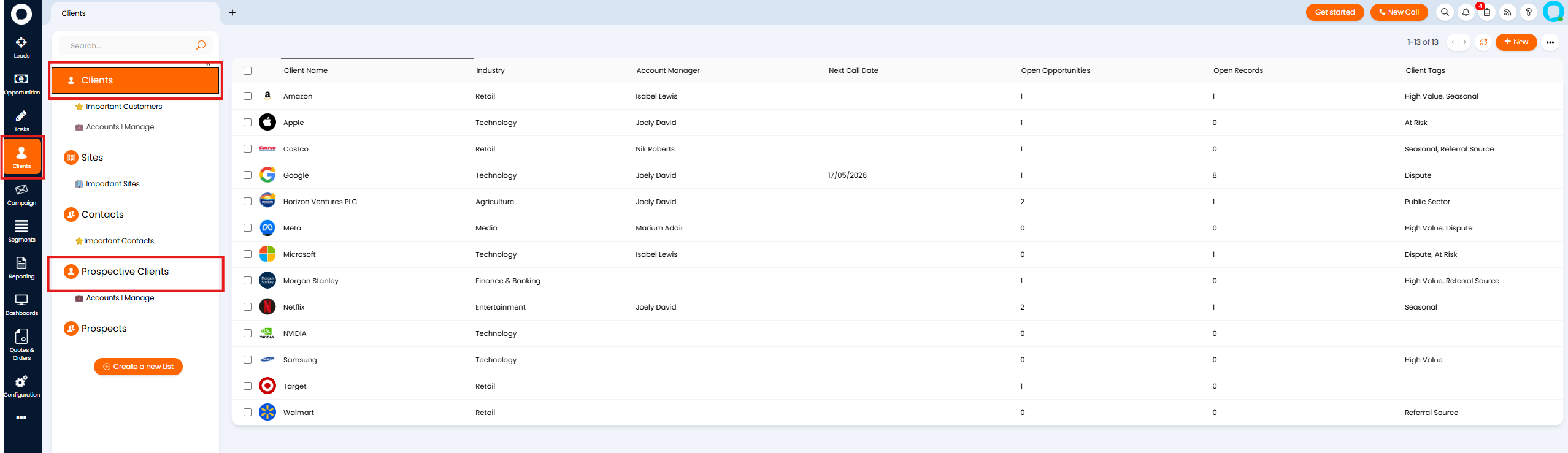
Fig 3. Clients and Prospective Clients
Selecting a Client or prospective Client here will show you more information about that client, such as their organisation details, their contacts, and open opportunities with them.
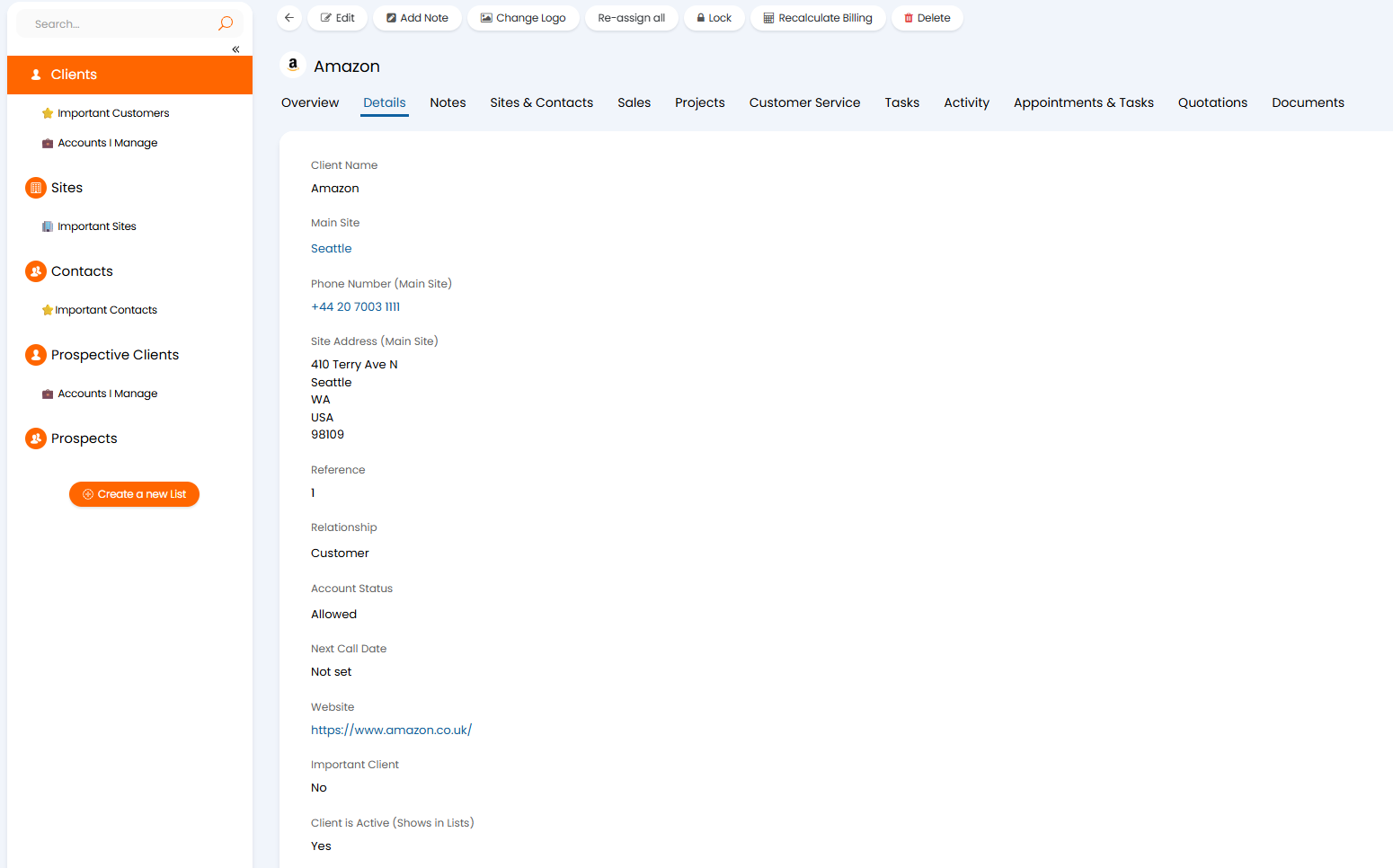
Fig 4. Client Details
For information on creating and configuring clients see our guide here.
Sites
Client and Prospective Clients will also have site records under them.
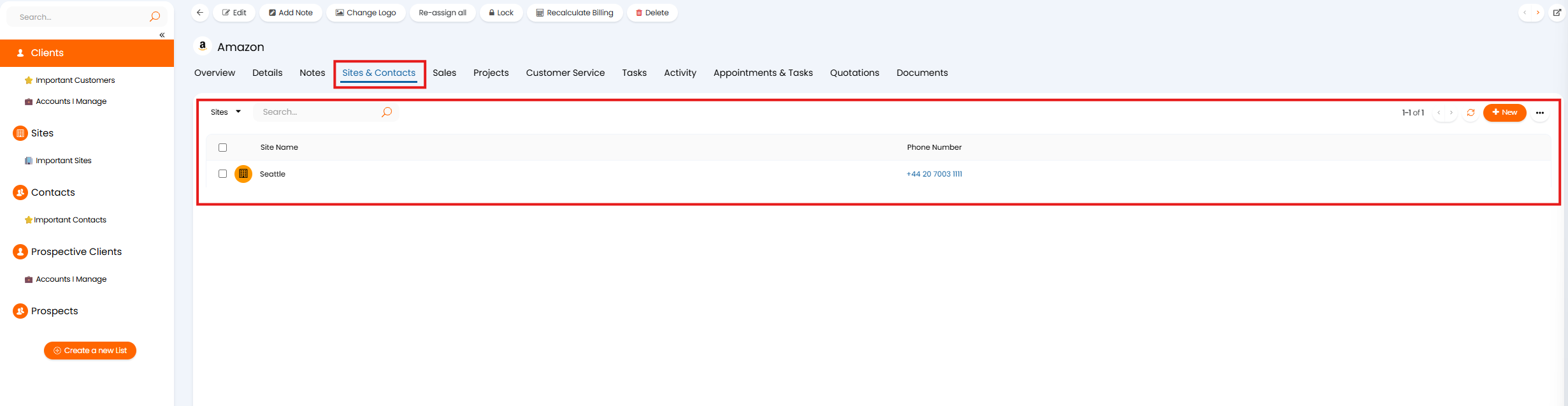
Fig 5. Sites under a client
Sites are locations under a (client) organisation. Each contact must belong to a site to denote where they are within the client's organisation. Opportunities and quotes can then be raised for the specific sites within a client.
Selecting a Site will show details about and current activity for that site. Such as the delivery/invoice address of the site, current tasks/sales for the site.
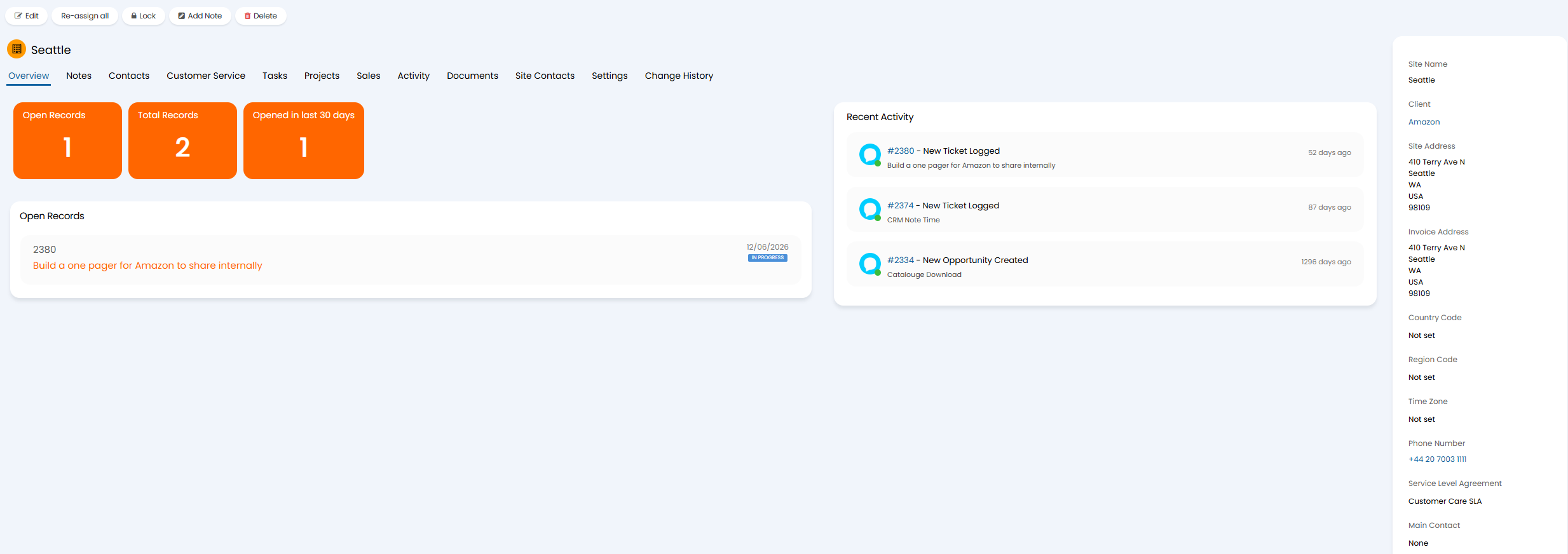
Fig 6. Site Details
For information on creating and configuring sites see our guide here.
Agents
Agents are the people in your own company who work within HaloCRM, your sales reps, sales managers, and anyone else who needs to interact with the platform.
You can view your Agents under Configuration > Teams & Agents > Agents, where you'll see a list of Agents and some basic information about them.
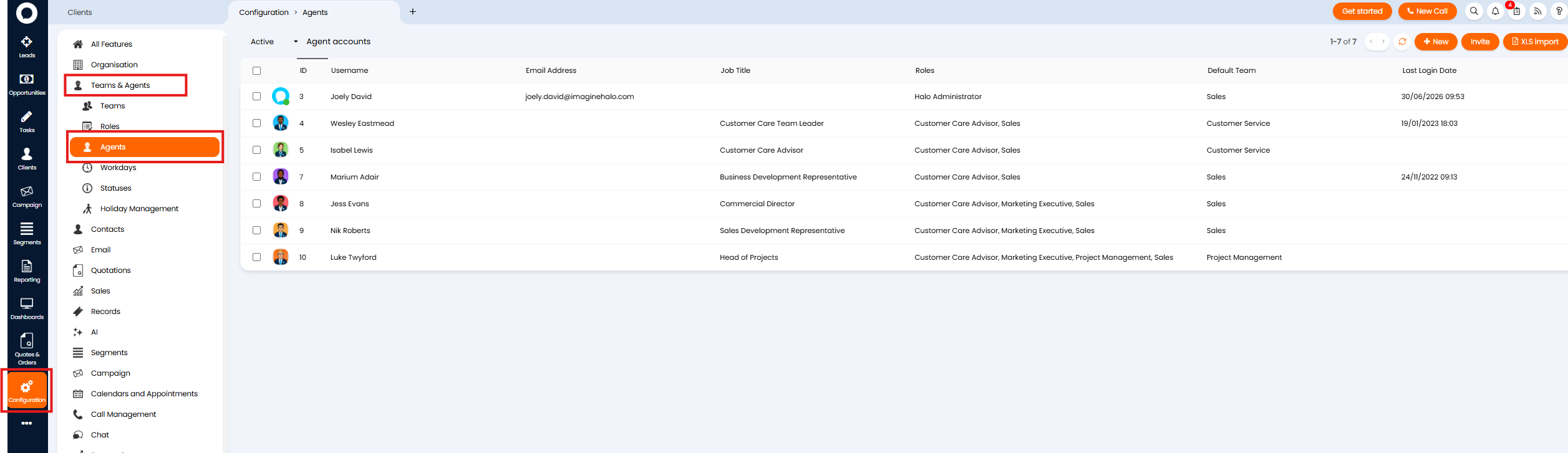
Fig 7. Agents
Agents use licenses in Halo, each Agent requires a license to log in. Either a named license for a specific Agent, or a concurrent license that can be shared (any one Agent can use a concurrent license at a time).
Selecting an Agent here will show you more information about that Agent, such as their personal details, their preferences, and permissions.
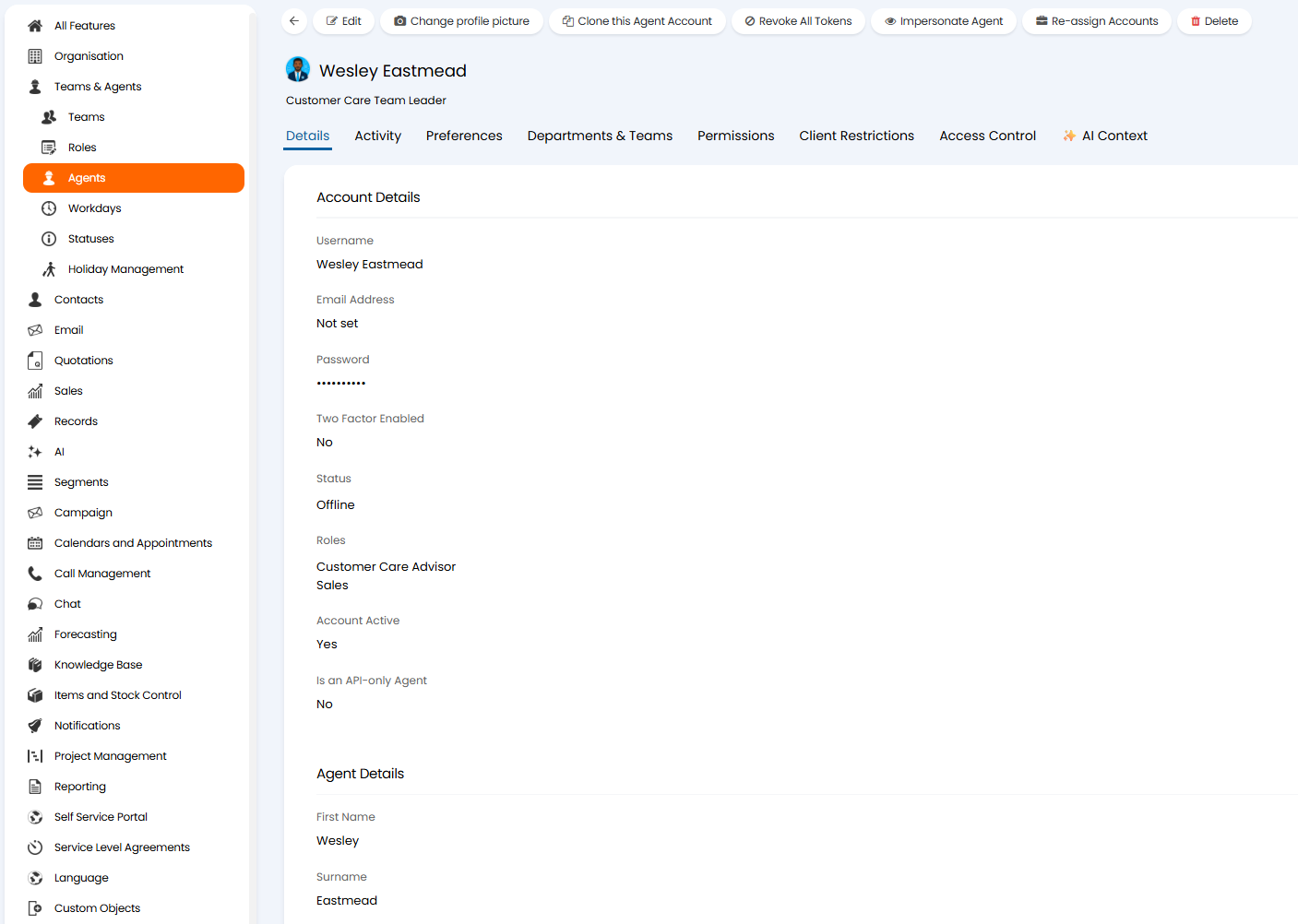
Fig 8. Agent Details
Each Agent is assigned Roles and Teams, which can be used to restrict access to certain areas in Halo and organise their workload.
For information on creating and configuring Agents see our guide here.
Organisation(s)
In HaloCRM, an Organisation represents your company, and the departments, teams and agents that sit under it. The Organisation record stores company-level details (name, address, industry, website, etc.). Halo supports the use of multiple organisations, so each of your organisation details and branding can be stored separately in the same Halo instance.
Your organisation can be setup under Configuration > Organisation > Configure my Organisation. Details here will be pre-populated with information you provided when starting your Halo trial.
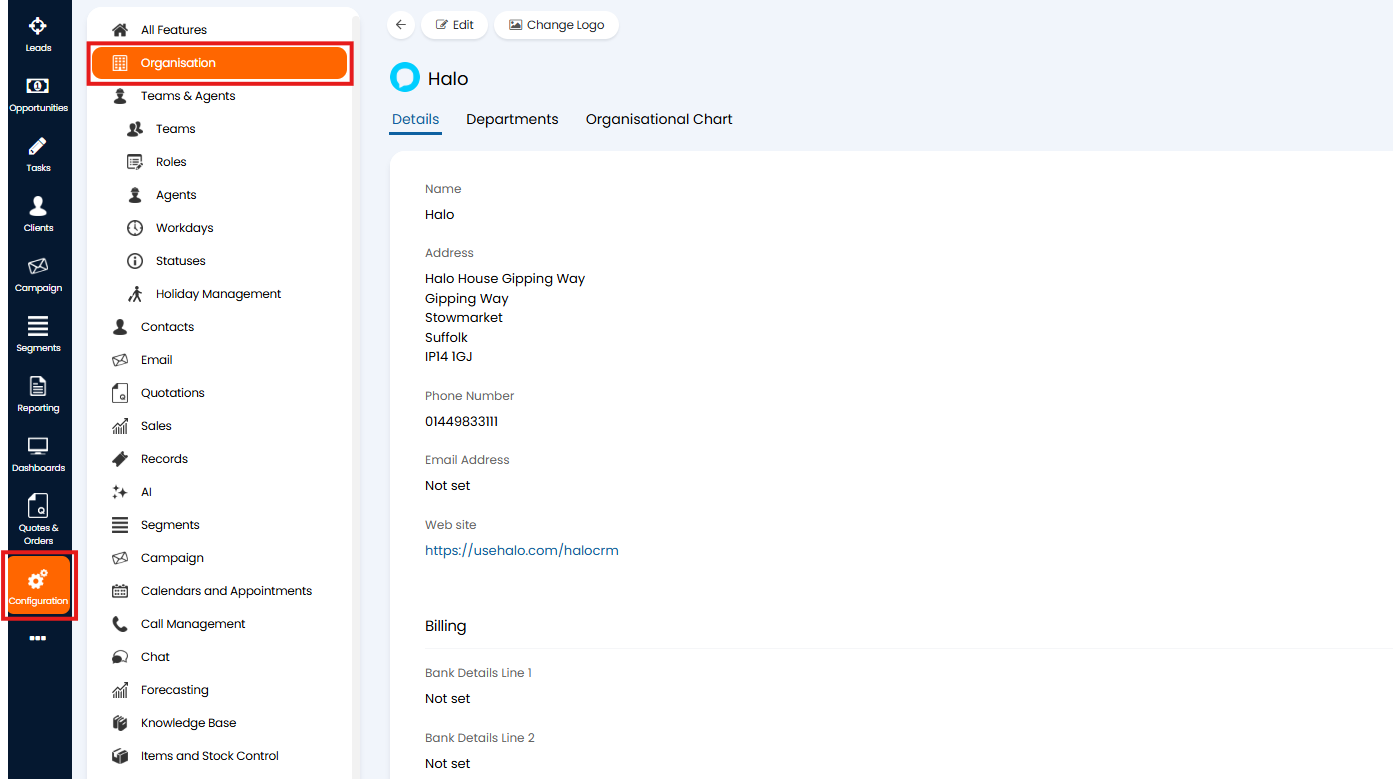
Fig 9. Organisation Details
For information on configuring your Organisation see our guide here.
Opportunities
An Opportunity is a record used to track and progress a potential sale. Each Opportunity represents a specific deal you're trying to win, and is linked to a client and contact/prospect.
In Halo, Opportunities are found under the "Opportunities" module (however, additional custom areas can be created to fit your opportunity management structure).
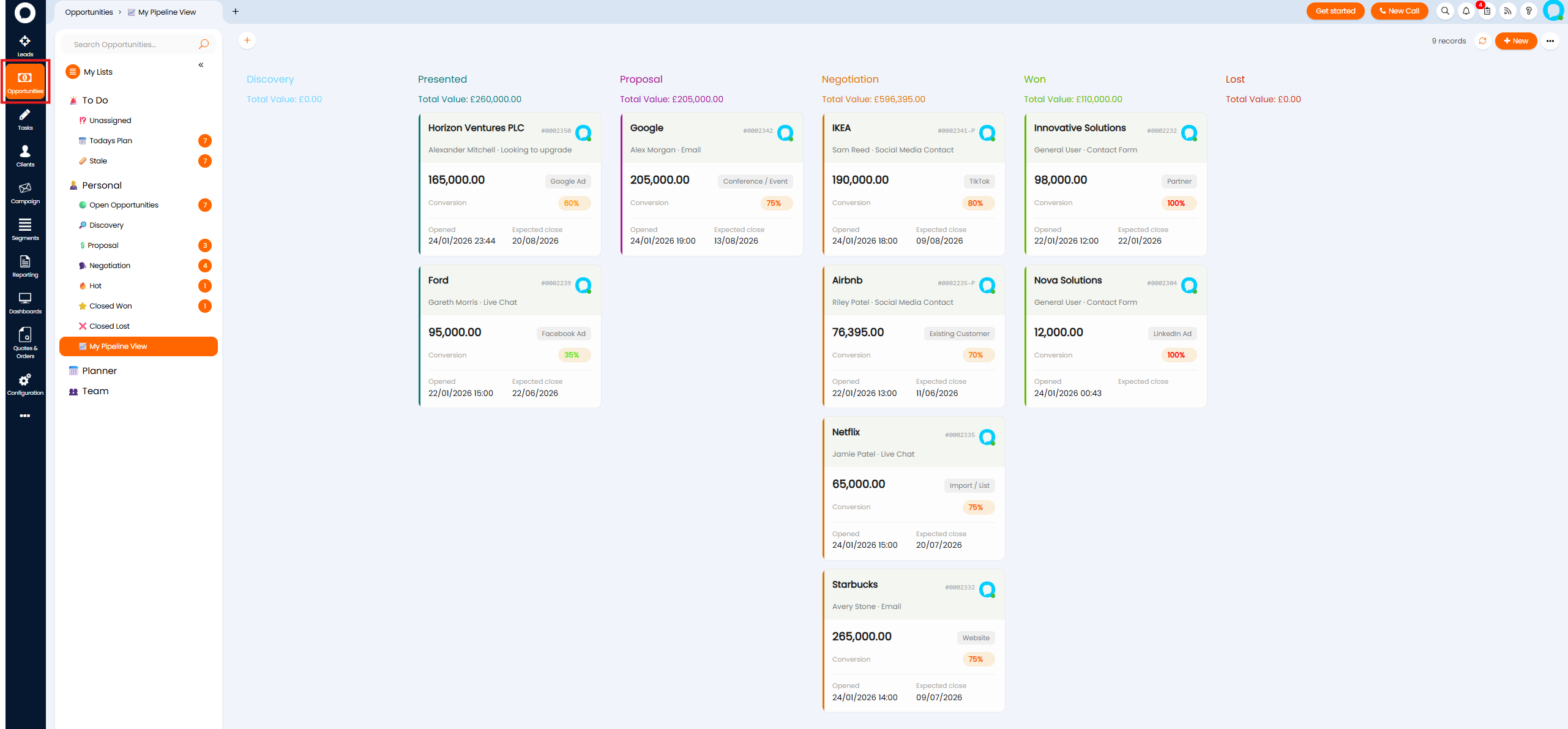
Fig 10. Opportunities area
Here, you can see out of the box, opportunities are organised based on their progression stage, with key details available such as the client, value and conversion probability.
Agents can select an opportunity to work on/view here.
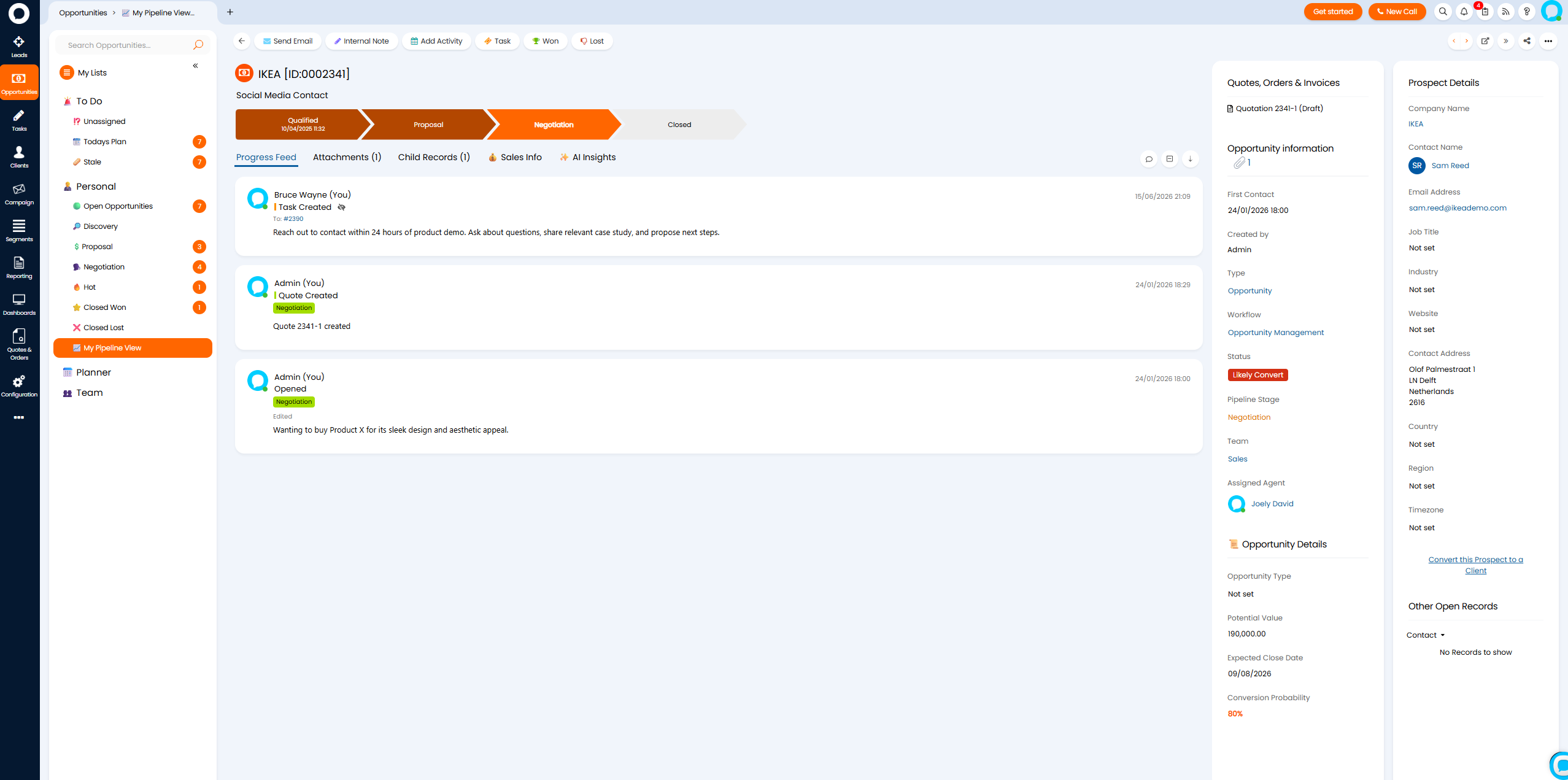
Fig 11. Opportunity
When viewing agents will see all the information about the opportunity. They can also work on the opportunity using actions.
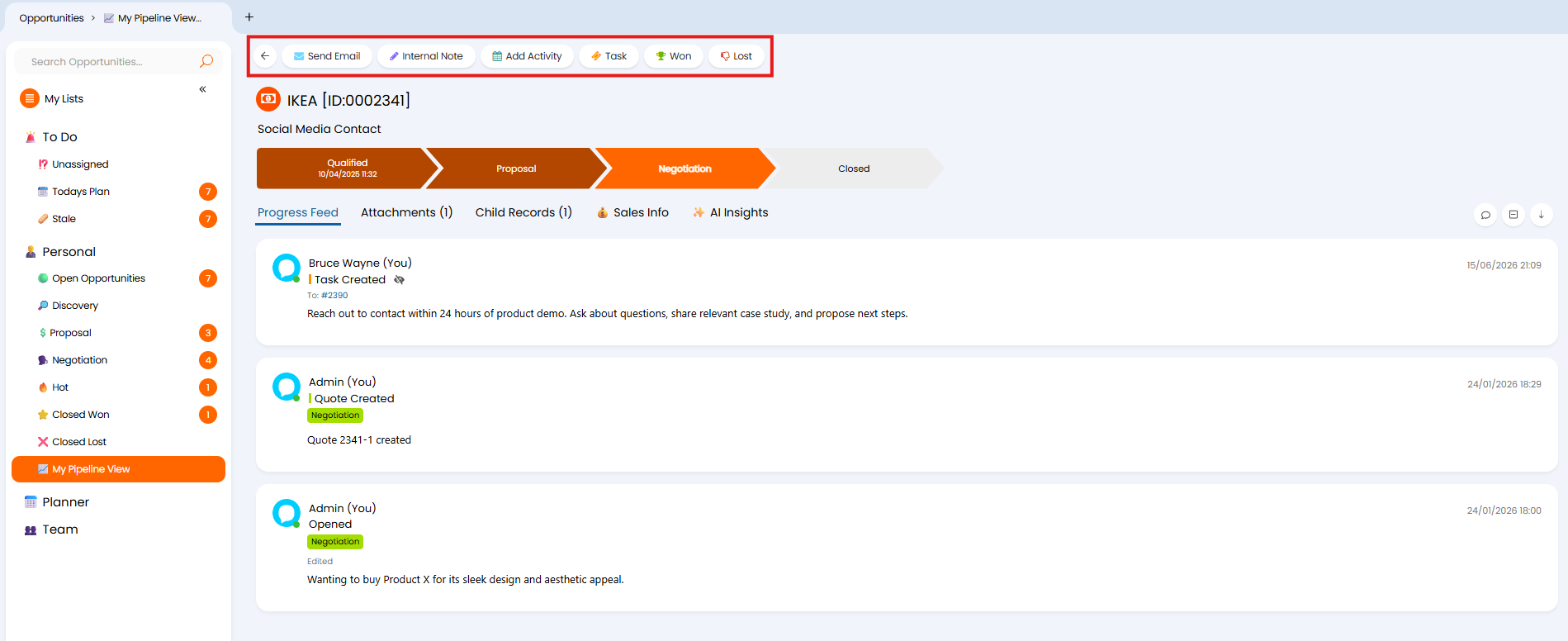
Fig 12. Opportunity Actions
Actions are carried out by agents (or automatically by the system) to log activity on an opportunity. Used for communications with the contact, adding notes, scheduling appointments and raising quotes, for example.
Note: When an Opportunity is marked as Won, this is often the trigger point that converts the associated Organisation from a Prospect into a Client, and may also trigger quoting, order, or handover processes depending on how your instance is configured.
Tasks can also be raised from opportunities, used to track and organise work that needs to be done to progress the opportunity, such as building proof of concepts or preparing a demo.
For an overview on configuring opportunities see our guide here.
Tasks
A Task is a scheduled, actionable to-do item, distinct from an Action. Tasks are how Agents (and their managers) keep track of what needs to be done to help progress an opportunity.
Note: Tasks are considered a type of 'Ticket' in Halo. Tickets have various configuration options available.
If a task is created from a opportunity, a link to the task will be available from within the opportunity, under the "Child Records" tab.
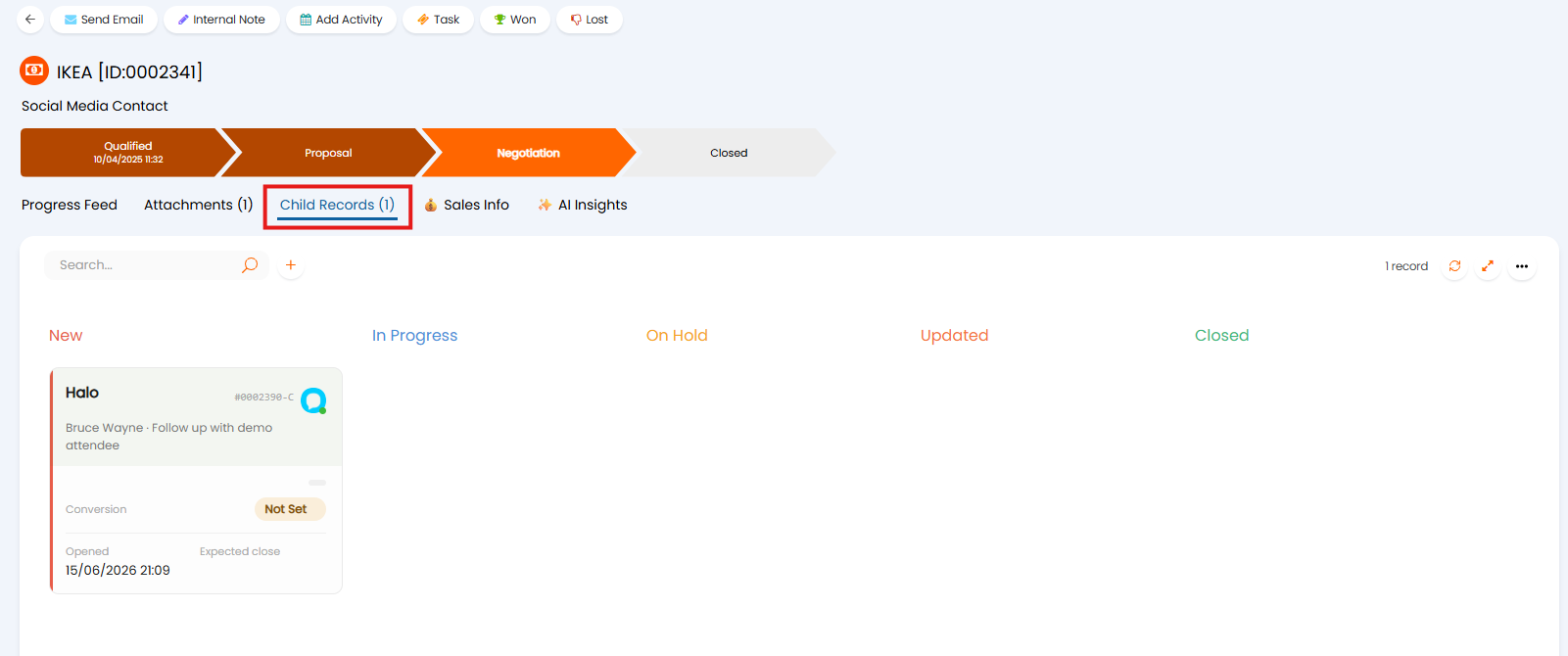
Fig 13. Tasks within an Opportunity
However, tasks can also be created without being associated to an opportunity, so they are directly associated with the client.
Tasks can be viewed within the "Tasks" module. This allows an agent to see all their outstanding tasks at a glance.
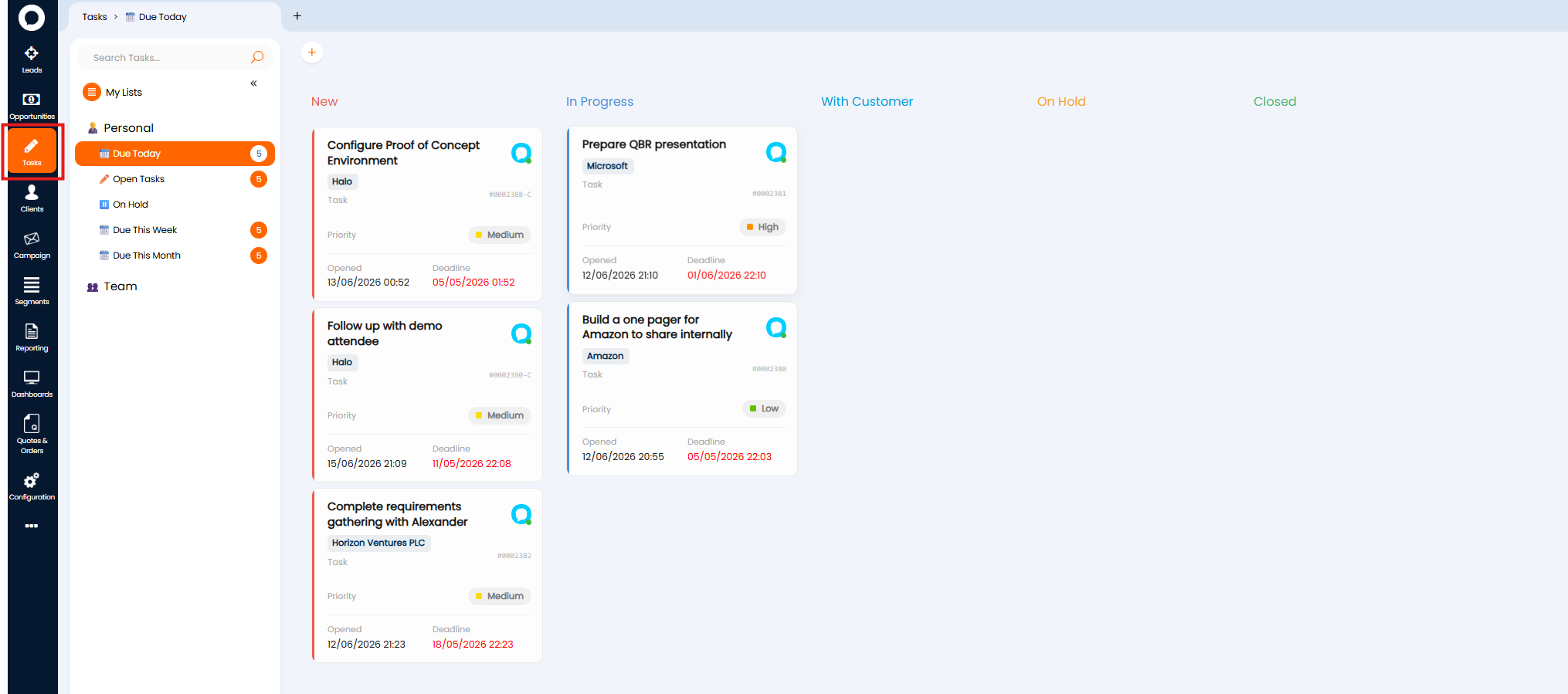
Fig 14. Tasks module
This also makes it easy for a sales manager to see what's outstanding across the team, and for agents to manage their own daily workload.
Selecting a Task here will show you all the information about the task, including what needs to be done, who it is assigned to and the deadline.
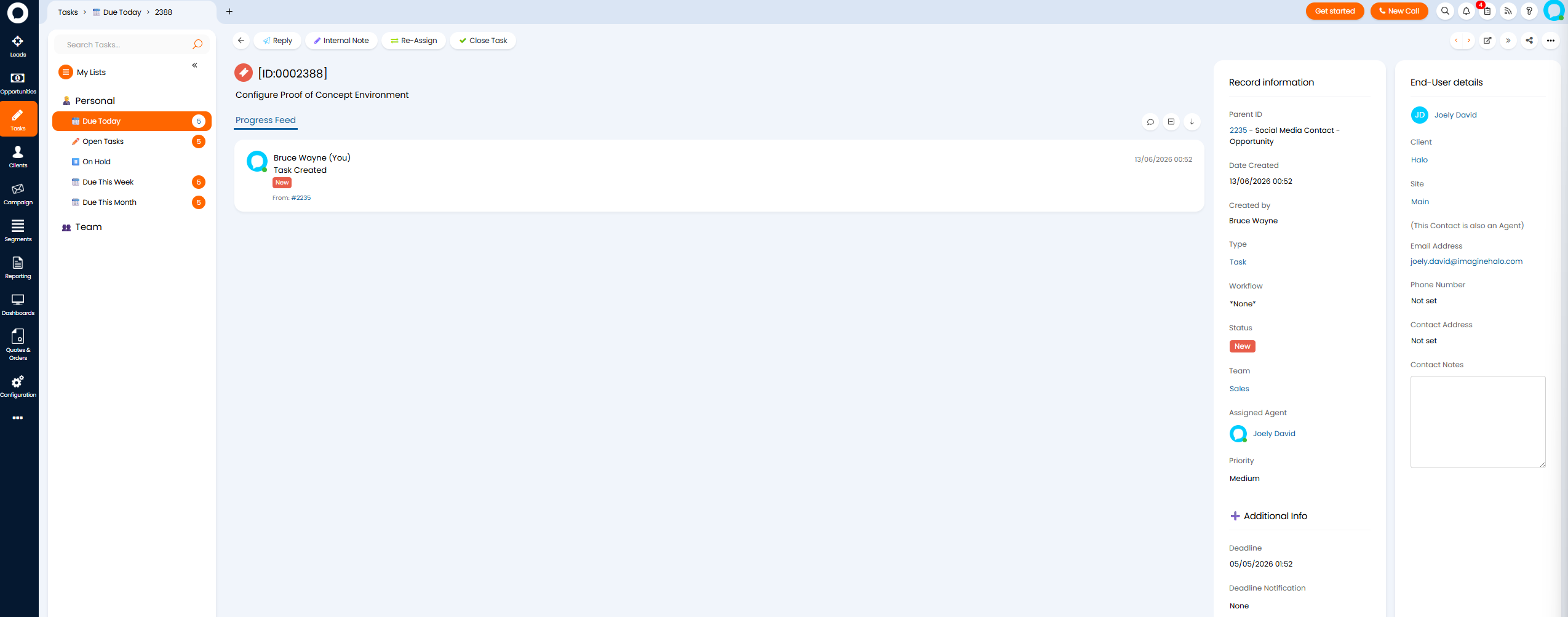
Fig 15. Task
Quoting
Quotes can be raised and sent directly from opportunities (using an action) or from the "Quotes and Orders" module.
Halo's quote builder makes it easy to build your quotations, with options to add lines based on your existing products, and creating custom ad-hoc lines.
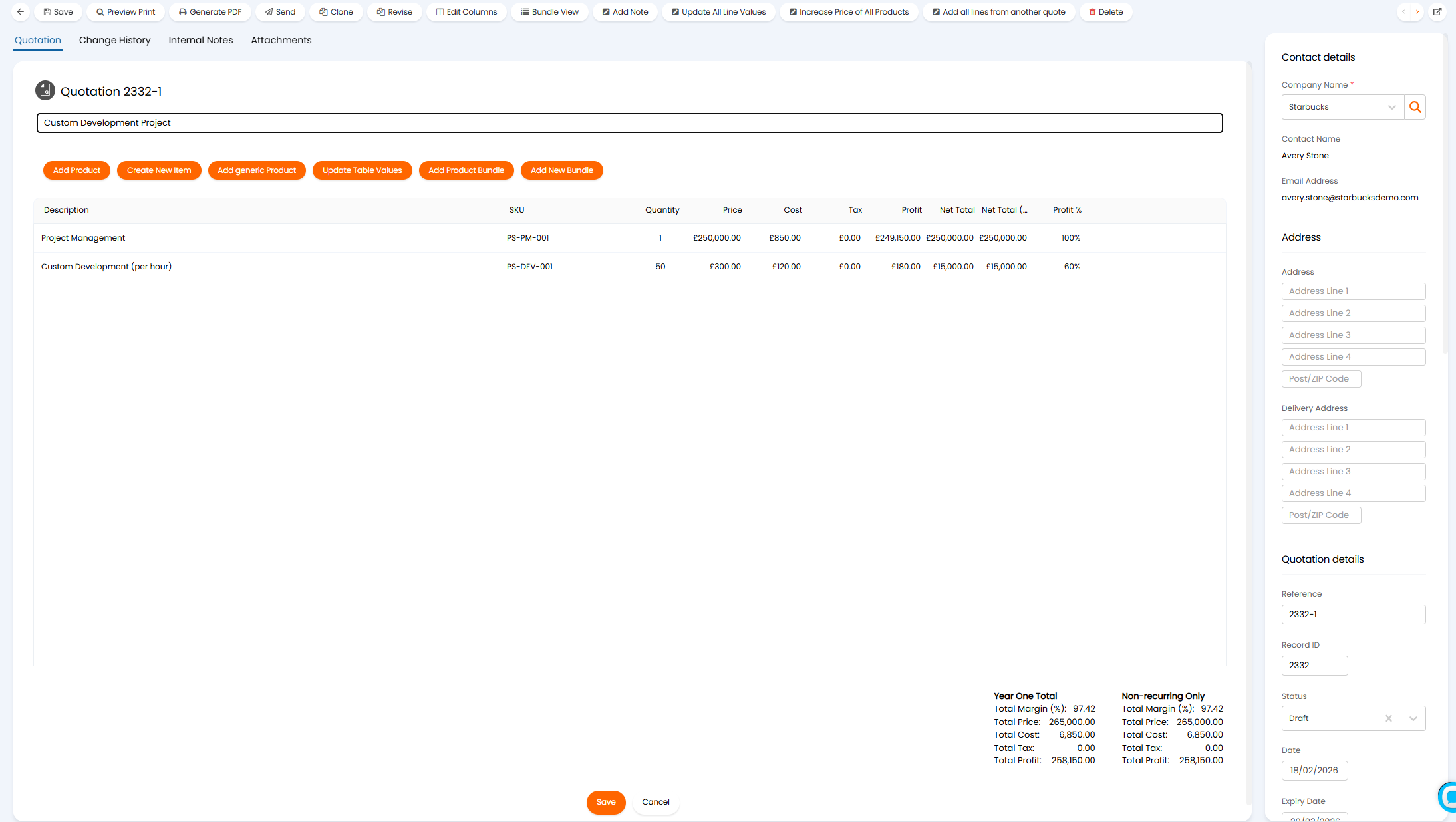
Fig 16. Quote Builder
The "Quotes and Orders" module contains all current and historic quotations, organised based on their status.
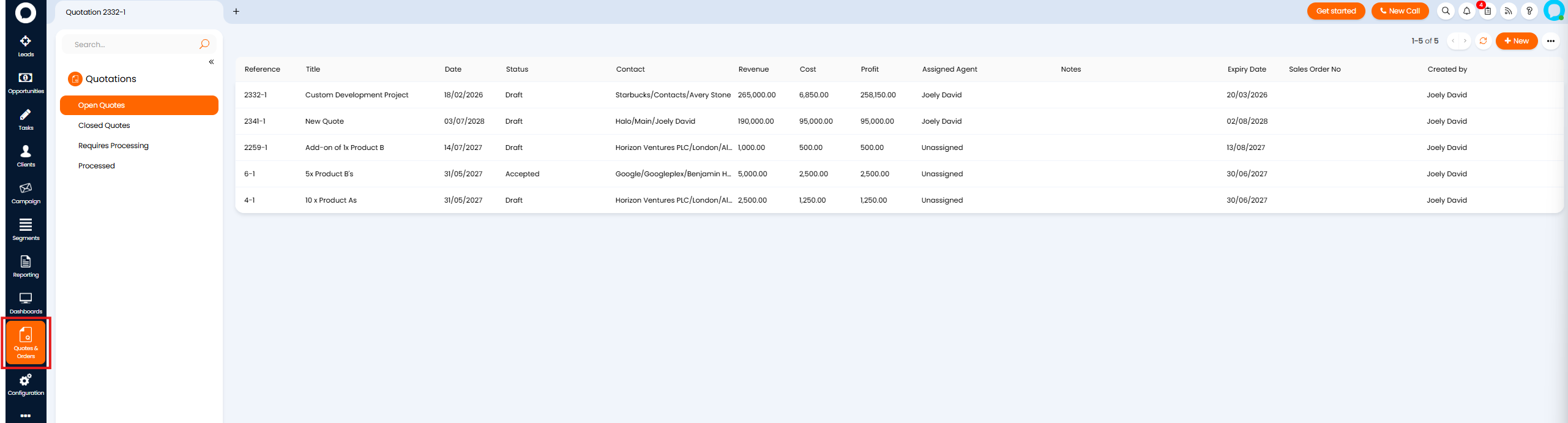
Fig 17. Quotes and Orders module
Here, agents can easily see which quotes are awaiting approval or require action (processing).
By default, all quotes an agent has access to will show here, regardless of the assigned agent, but the view can be filtered using the option shown in figure x to show only quotations assigned to them. 
Fig 18. Show only quotes assigned to me
For more information on creating, building and sending quotations see our guide here.