Users
- user settings
- user preferences
- user roles
- user permissions
- importing users
In this guide we will cover:
- What are Users?
- User Settings
- Importing Users
- Customising the User Profile
What are Users?
Users in Halo are the people raising the tickets. They are the requestors rather than the people resolving the tickets (those people would be referred to as agents/technicians in "Halo terminology").
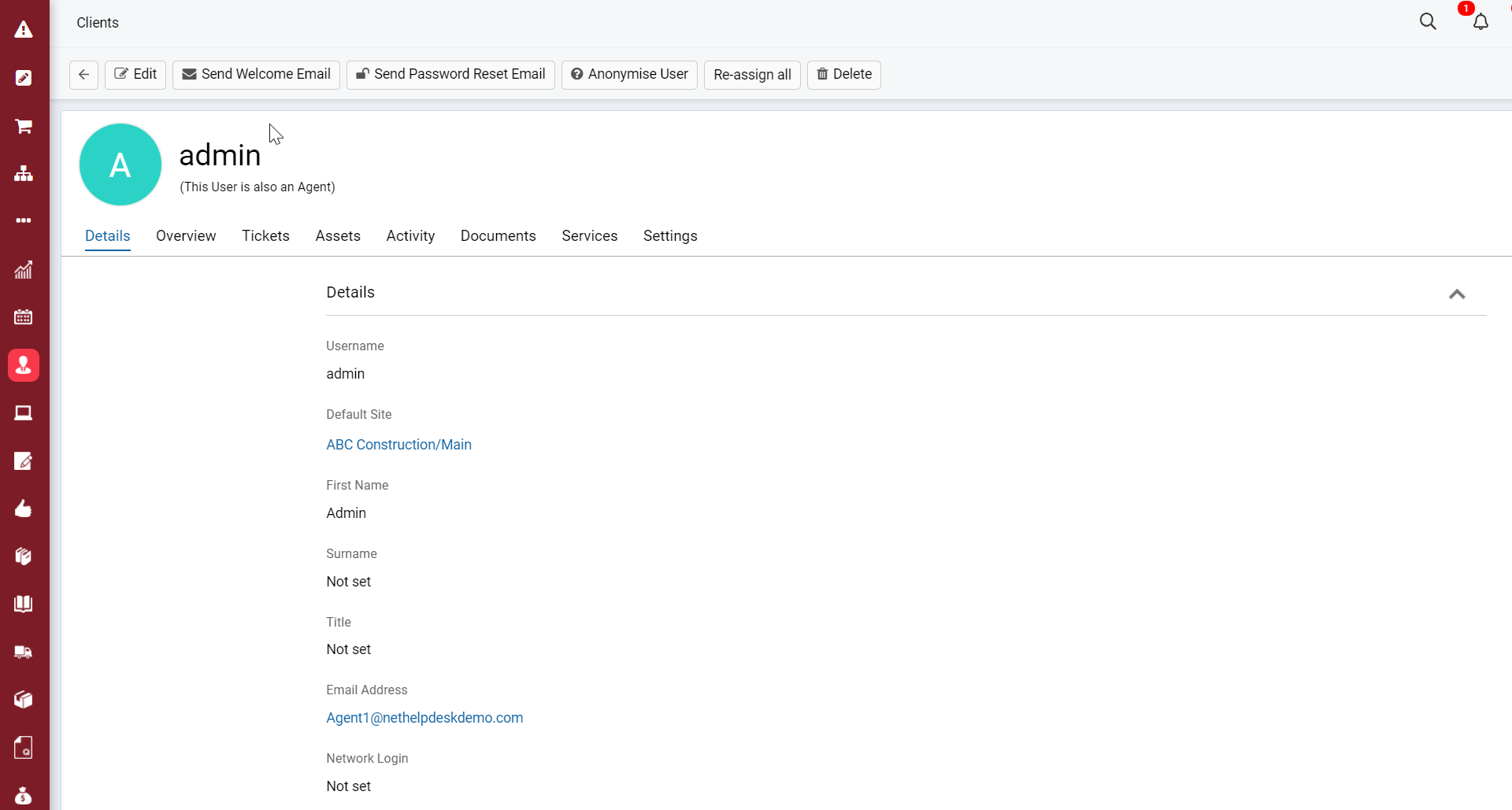
Fig 1. A user in Halo (Clients > Users).
User Settings
Similar to Clients and Sites, each user has a profile. Here you can set a few user specific pieces of information from, as well as make adjustments to some user specific configuration options such as the user's portal access level.
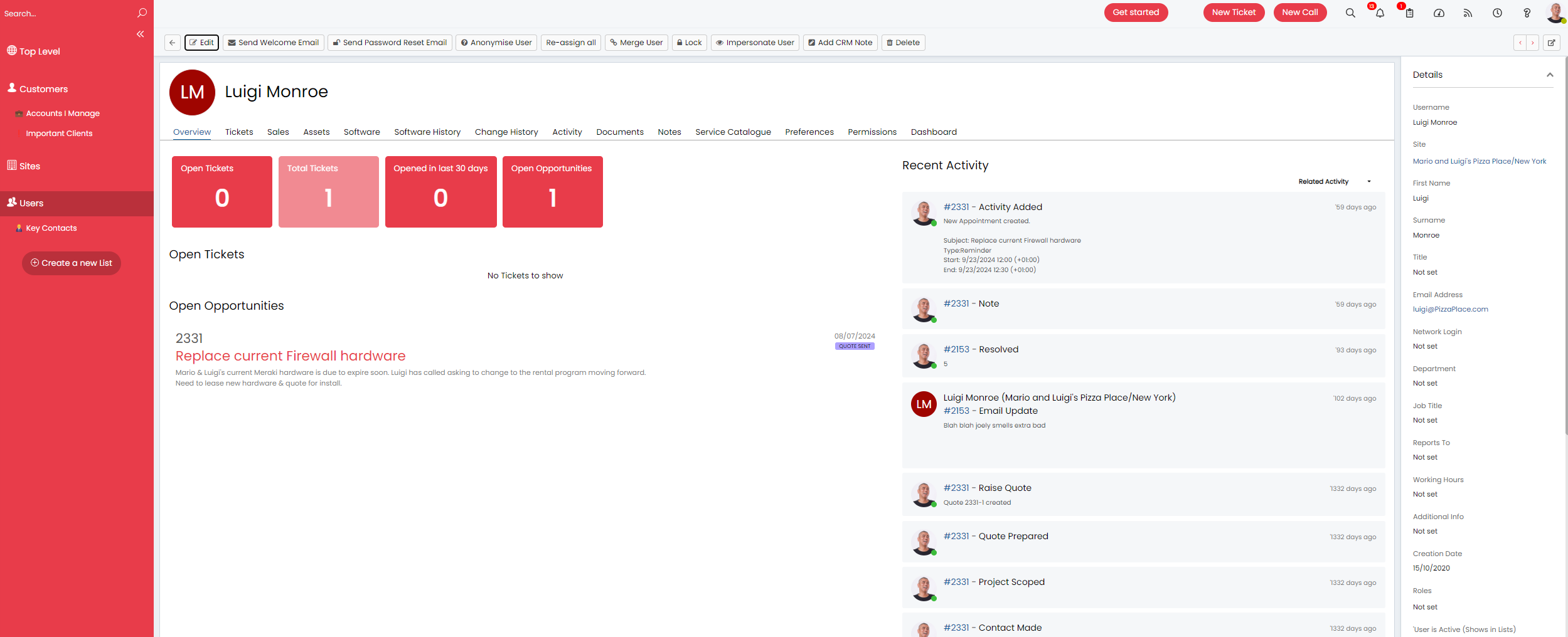
Fig 2. User Profile.
Under a user's profile you can see all the ticket's the user has ever logged, the assets they have, their software, software history, activity, documents linked to their account as well as monitor any changes made to the profile.
The service catalogue tab shows all the services the user has access to subscribed to. This is just for visibility, to change this you would need to edit the service itself.
User Preferences
The "Preferences" tab determines the user's preferences. Here you can set the following:
- If the user receives emails.
- If the user receives acknowledgement emails for each ticket they log.
- The notifications they receive.
- Message group used for this user.
- Is approval delegated for this user, who to?
- A pop-up to be shown against each ticket logged by this user, usually used for important information about this user.
User Permissions
The "Permissions" tab determines what the user has access to.
Web Access Level - Determines which tickets the user can see on the self-service portal under the 'My issues and requests' area. By default this will be set to 'This Users tickets' which will allow the user to only see the tickets they have logged. Setting to 'No access' will prevent the user being able to log in the self-service portal. Settings are available to restrict which options are available to choose from in this list, using these settings to restrict the options here prevents agents accidentally giving higher levels of access than should be authorised. These settings are found under Configuration > Self Service Portal.
Assets Access Level - Determines who's assets the user can see in the portal (if the 'my devices button for the portal is enabled).
Quotation Access Level - Determines which quotations a user can see based on which user they are assigned to.
Service Access Level - A number can be set here to determine what services the user has access to. A number can then be set against the service to determine which users can use this service, only users with this number of higher will be able to use the service. Access level 3 is the highest, granting the most access and 1 is the lowest.
This User can partake in approvals - When checked the user will be able to be assigned to be an approver in an approval process, or selected from a list to be an approver.
This User is an important contact - When checked, the user will have a star icon against their profile, any tickets they log will also have a star icon against them to indicate the end user is important. Ticket rules can also be based on this criteria.
Note: When user permissions are changed they will not take effect until the user logs out and back in. When permissions are changed a log out will be forced within one hour to ensure the new permissions take effect.
User Roles
Rather than setting permissions for users individually you can create a role with a set of permissions and assign this role to many users.
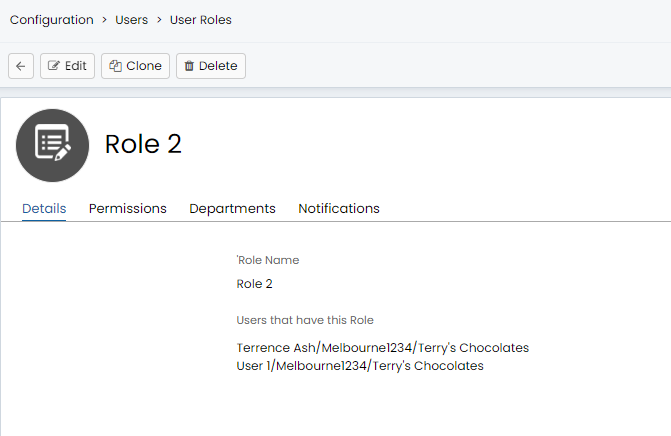
Fig 3. User Role.
To do this head to Configuration > Users > User Roles > New. Once the role is named, users assigned and saved you can assign permissions. You will also have the option to assign these users to a department.
The "Notifications" tab shows all the notifications these users are subscribed to as when creating a notification you can assign users based on their role.
You can view a User's roles in the User information panel against a Ticket. To do this enable the setting "Show the Roles for the User of the Ticket in the User panel" in Configuration > Tickets > General Settings.
Importing Users
Users are typically imported through an integration or via a spreadsheet/csv. To import users using a spreadsheet, head to Configuration > Users > General Settings, see the "Imports" section.
You can configure the Import Spreadsheet to import users. You can specify the unique identifier which will allow the importer to match based on a certain field for existing records already in Halo.
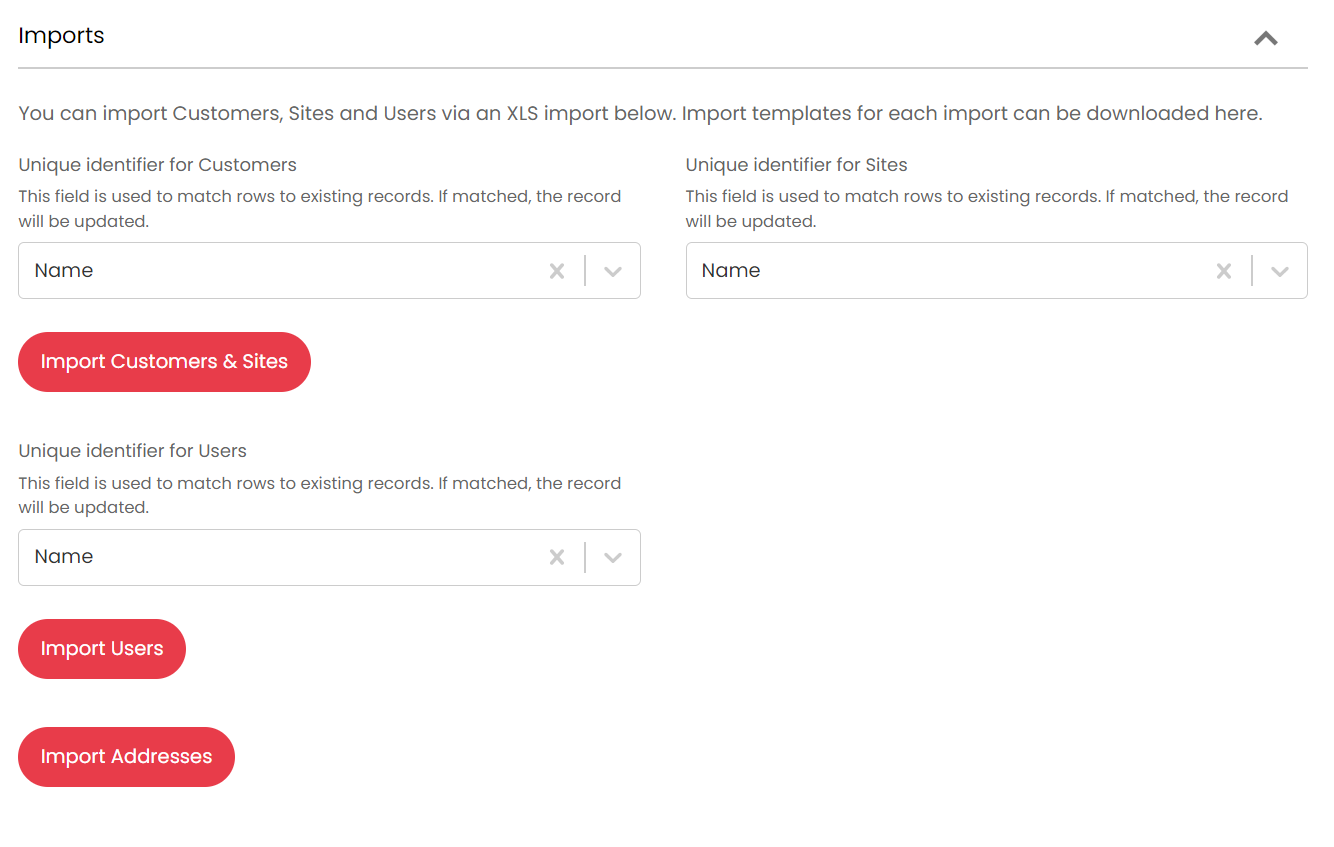
Fig 4. Importing Users.
For more information on importing users via a spreadsheet see our article here.
Users can also be imported from a number of our integrations, including:
Information on how to import users from an integration can be found on the respective integration guide.
Customising the User Profile
Screen layout profiles can be used to customise how the user screen appears within Halo. Within Configuration > Advanced Settings, scroll to the "Screen Layouts" section and click on the "Screen Layout Profiles" button.
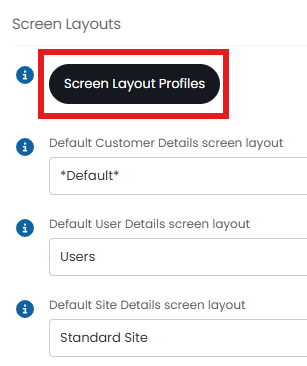
Fig 5. Screen Layouts section.
Clicking into there will bring a list of the screen layout profiles. In the top left, change the entity to "User", then click "New" in the top right.

Fig 6. Screen layout entity options.
You can now create your screen layout profile. Give it a name, then save to show the configuration options. This name will then show in the "Details" tab.
The first tab is the "Tab layout". Change the dropdown at the top from "Default" to "Custom". This will then show a list of tabs and allow you to customise which tabs show and rearrange them.
To re-order tabs, hover over one and a dotted icon will appear on the left (as seen on the "Sales" tab). Use this icon to drag-and-drop the tab into the order you want.
You will also see a pencil icon to the right of each tab.
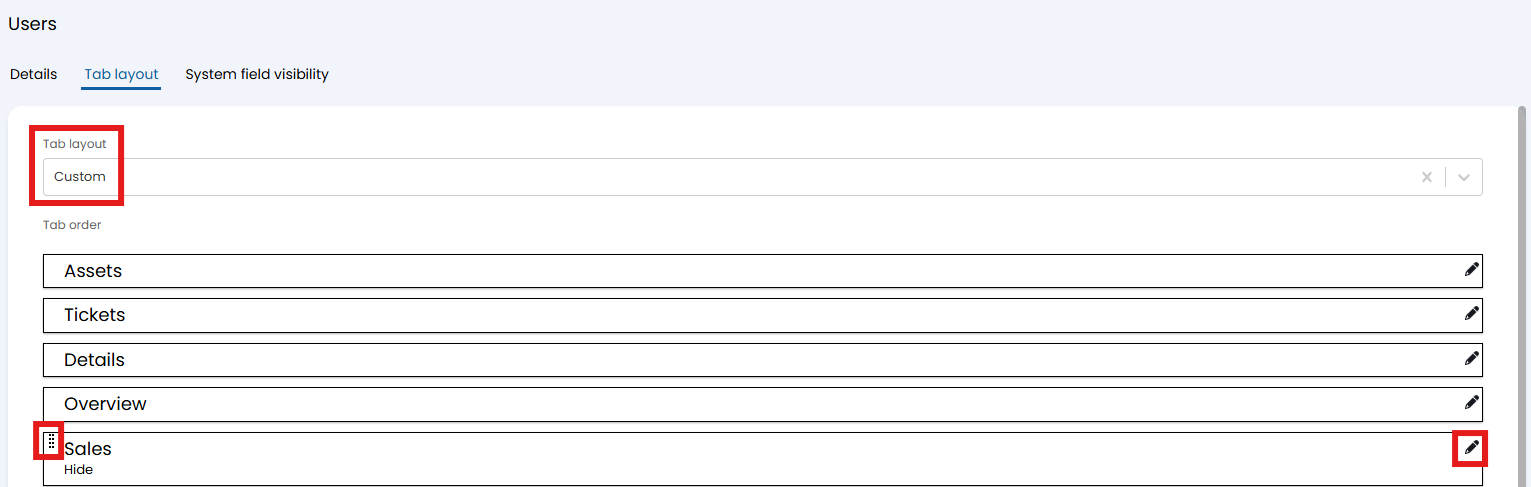
Fig 7. Rearranging and customising tab layout.
Upon clicking this pencil icon, you can edit the display of that tab. Here you can choose to hide, show or pin the tab to a sidebar. All tabs will be set to "Show tab" by default. As per Fig 7, the "Sales" tab is set to "Hide", and this information is shown on the tab configuration.
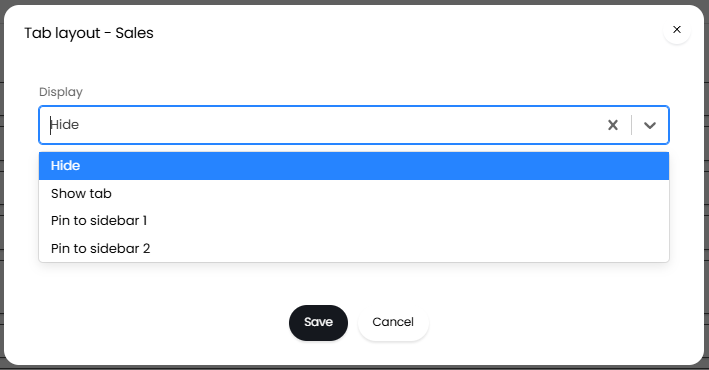
Fig 8. Changing tab display.
The final tab is "System field visibility". Here is where you can set if certain system fields are visible or hidden. This allows you to hide the fields you do not use so they do not clutter the user's details. You can hide "Other 1-5", "Email Address 2", "Email Address 3" and "Unsubscribed" fields as an example.
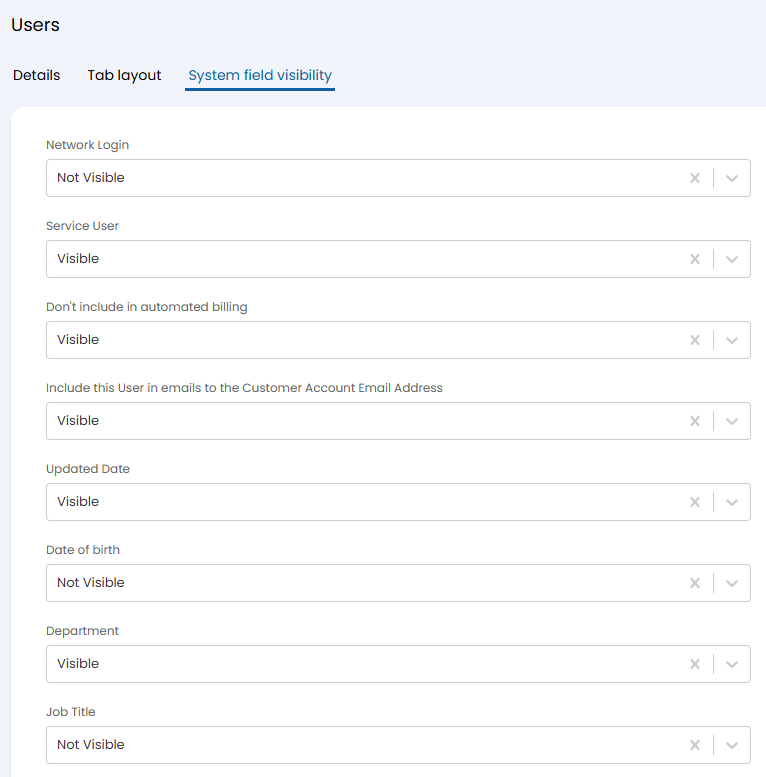
Fig 9. Hiding system fields.
Once you are happy with the above, save your screen layout profile. Go back to Configuration > Advanced Settings > Screen Layouts section, and change the "Default User Details screen layout" from "*Default*" to your newly created one.
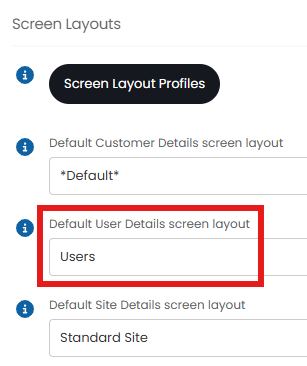
Fig 10. Setting the custom screen layout profile.
Let's look at this user profile as an example of how this will now show. Below is how the user profile appears by default.
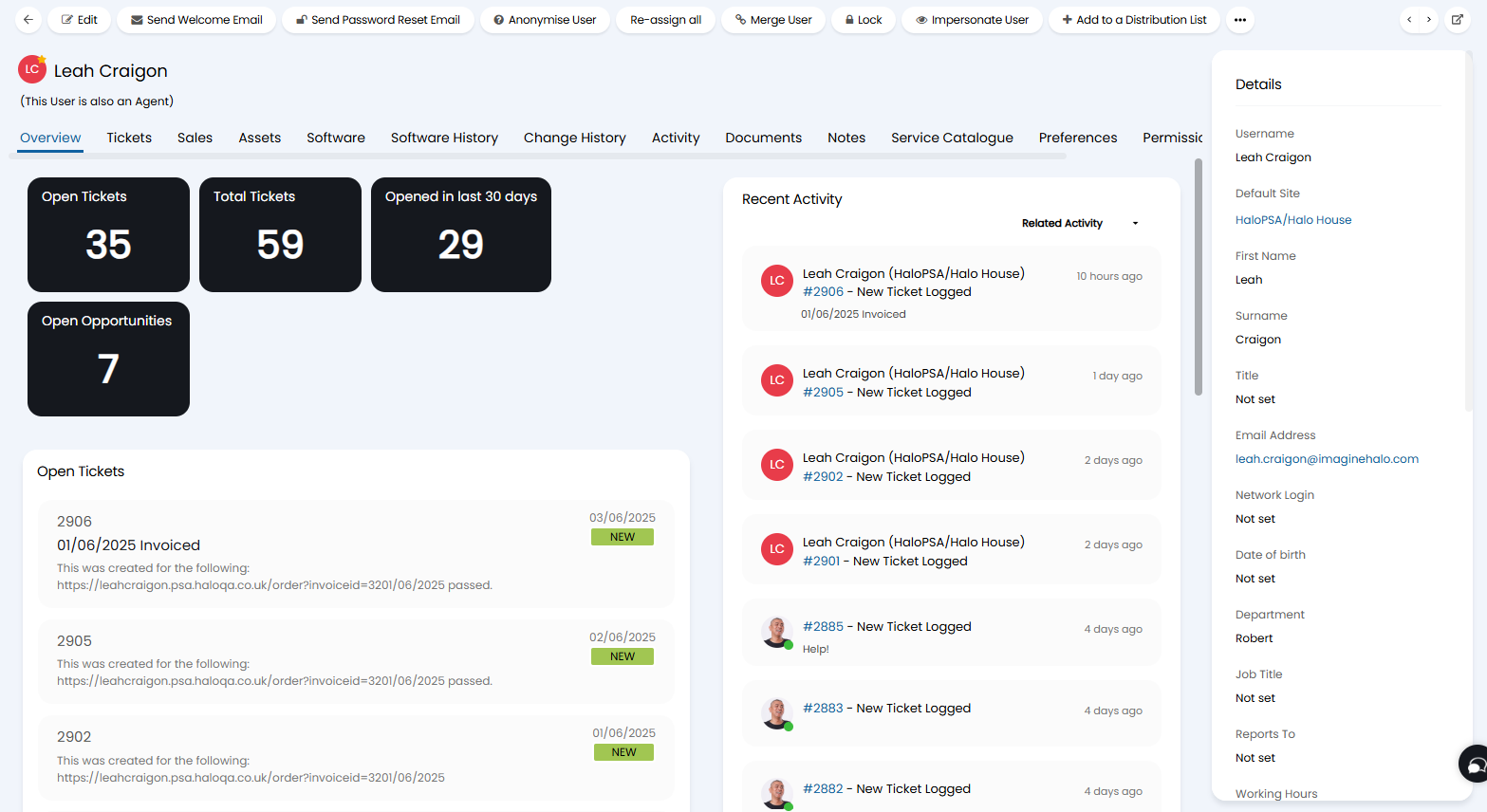
Fig 11. Default user profile.
Once we have applied the new profile as per Fig 10, the user profile instead shows like below.
For example, "Network Login" and "Date of birth" are no longer shown between the "Email Address" and "Department" fields since they were set to "Not Visible" in Fig 9.
The "Sales" tab is also no longer visible (hidden as per Fig 8), and the order of the tabs has changed as per the new screen layout profile (reordered as per Fig 7).
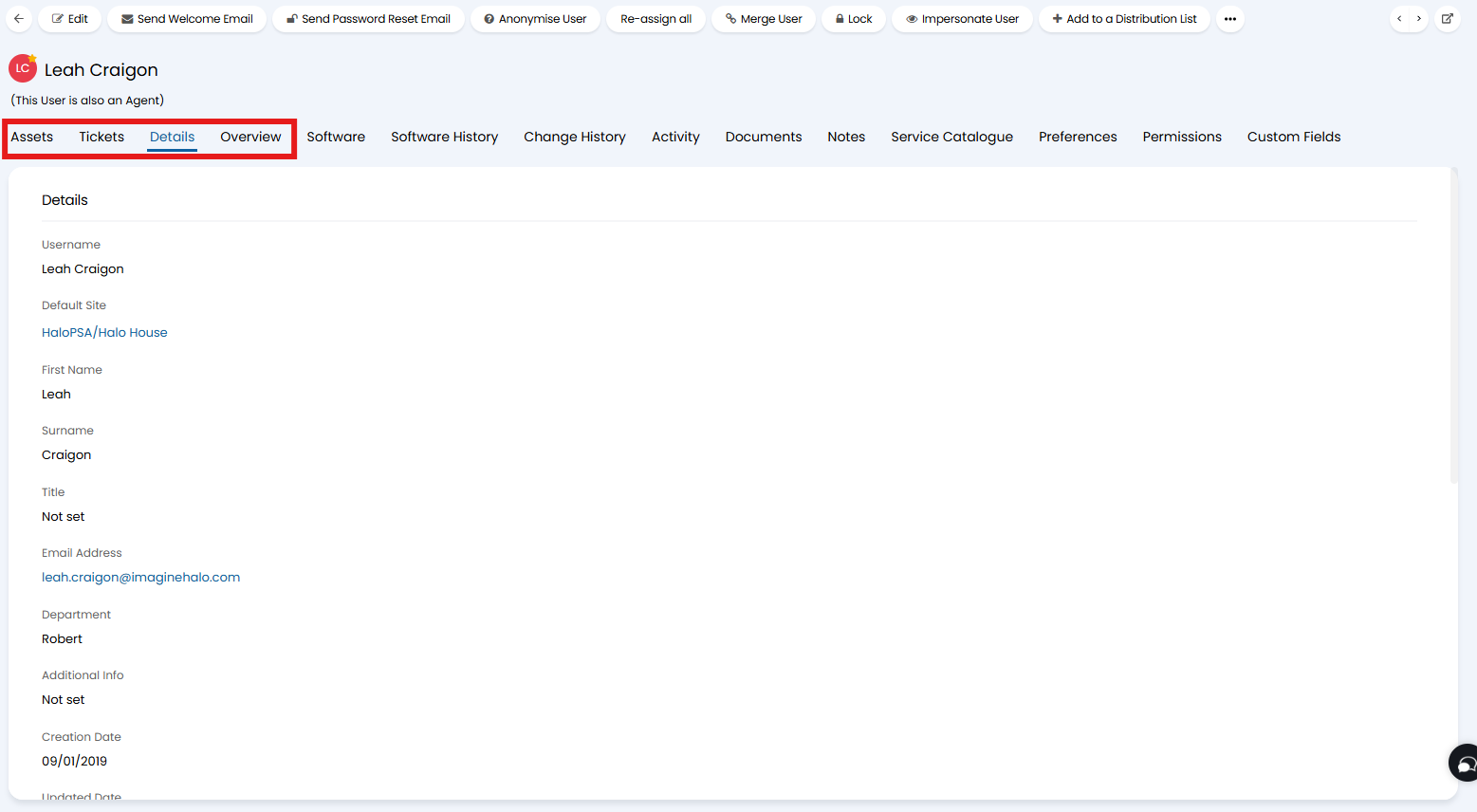
Fig 12. New layout applied to the user.