Microsoft Entra ID Integration (Formerly: Azure Active Directory)
- Agent
- single sign on
- SSO
- User
- Azure Active Directory
In this guide we will cover:
- What is the Entra integration used for?
- Who Can set the integration up
- Connecting Entra to your Halo
- App Registration Setup
- Single Sign-On (SSO) Configuration
- Agent/User Import Configuration
- Advanced Configuration
- Licence Management
- Imports
- Halo Integrator
- Microsoft Entra ID Integration - Delta Queries
- Licence Management in Microsoft Entra ID
- Control who can manage the Entra integration
- Miscellaneous Settings
What is the Entra Integration used for?
The Entra integration enables identity management within Halo by importing agent and user identities from Microsoft Entra; offering a streamlined identity management within Halo.
Who should use the Entra integration?
This integration is intended for organisations where Microsoft Entra is the primary identity provider, including those using hybrid environments with Entra Connect (formerly AD Sync). SSO providers or secondary sources of identities may also be configured.
HaloITSM and HaloCRM:
Clients using HaloITSM or HaloCRM will typically rely solely on the Entra integration when Microsoft Entra is their primary identity provider. These organisations generally operate within a single Azure tenant, so a single integration is usually sufficient. However, the integration supports multiple tenants—if relevant identities are distributed across multiple Azure tenants, the configuration steps in this guide can be repeated for each one.
HaloPSA:
HaloPSA clients should use the Entra integration to import staff identities from their own internal tenant where Microsoft Entra is the primary identity provider. For managed customer tenants under the Microsoft Cloud Solution Provider (CSP) program via Partner Center, the Microsoft CSP integration should instead be used to import managed licences, devices, and users.
If a HaloPSA client manages customer tenants outside of the CSP program, the Entra integration can still be used in a multi-tenant fashion as described above, by connecting directly to each managed tenant individually.
Who Can S et T he Integration Up
You can give non-administrator agents permission to setup the Entra integration in addition to Administrators. This is useful when you have separate teams that manage your Azure to those who manage your Halo instance. Rather than having to give your Azure managers admin permissions in Halo, or split the setup between the two teams, you can give the Azure managers permission to access and setup the Entra integration in your instance, but no other integrations/admin capabilities. This also means these agents can manage the integration in your Halo instance, useful when there are changes to Azure tenants/groups that require the integration in Halo to be updated.
To give an agent permission to setup new connections for the integration head to Configuration > Teams & Agents > Agents > select an agent > Permissions > enable 'Can Configure Microsoft Entra ID (formerly Azure Active Directory) Access Control'.
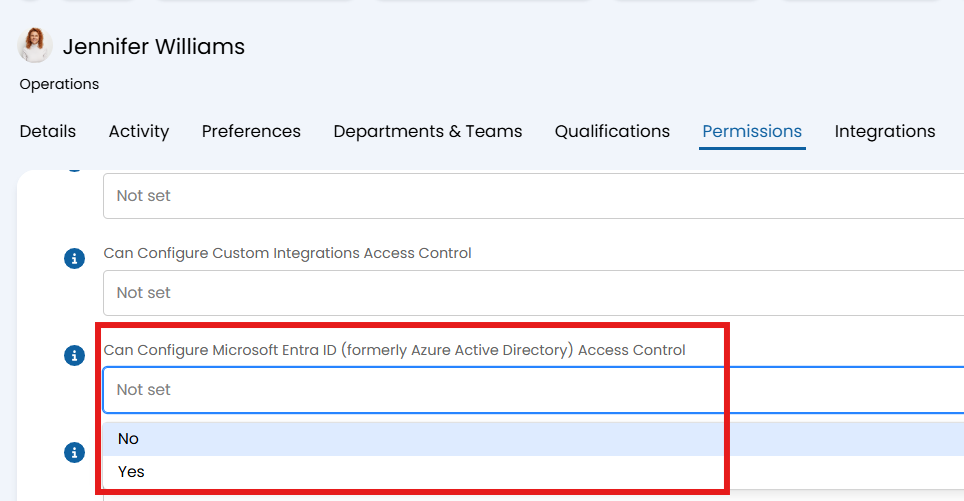
Fig 1. Permission to allow agent to create Entra connections for Halo/Entra integration
Now this agent will be able to create and edit connections for the integration.
If you would like selected agents to be able to manage selected connections on a per-tenant basis, access control can be granted to additional agents, this means you can choose which tenant connection agents have access to. For more information on this see the section 'Control who can manage the Entra integration', however, we recommend reading through the rest of the setup first.
Connecting Entra to your Halo
To enable the Azure Active Directory integration in Halo, navigate to Configuration > Integrations, and enable the module. After enabling, click the module's menu icon to start configuring it.
Make sure to enable the module on the integrations page.
Fig 2. Enabling the module.
This integration supports multi-tenancy, which means you can configure connections for multiple Azure tenants, connection and configuration is done on a per-tenant basis. To start connecting a tenant click 'Add/edit tenants' and create a new connection.
When connecting to this integration you will see there are a number of authentication methods and credential types to choose from on the integration setup page in Halo. If you are unsure which authentication method and credential type to use, check out our article here: Authentication Methods for Microsoft Integrations.
The simplest and lowest overhead option is to use Application permissions (Client Credentials) as your authentication method and 'Client Secret' as your credential type.
To configure a connection, you should navigate to the Entra integration within your instance, click 'Add/Edit Tenants' button and click 'New' in the top right of your screen.
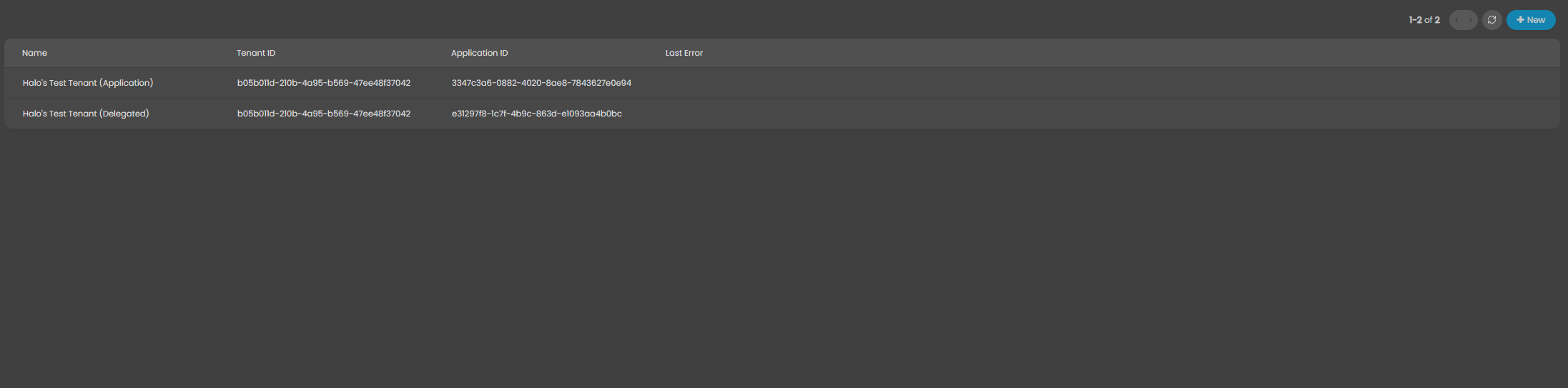
Fig 3. Add tenant
You should then name your connection and choose your authentication method and credential type.
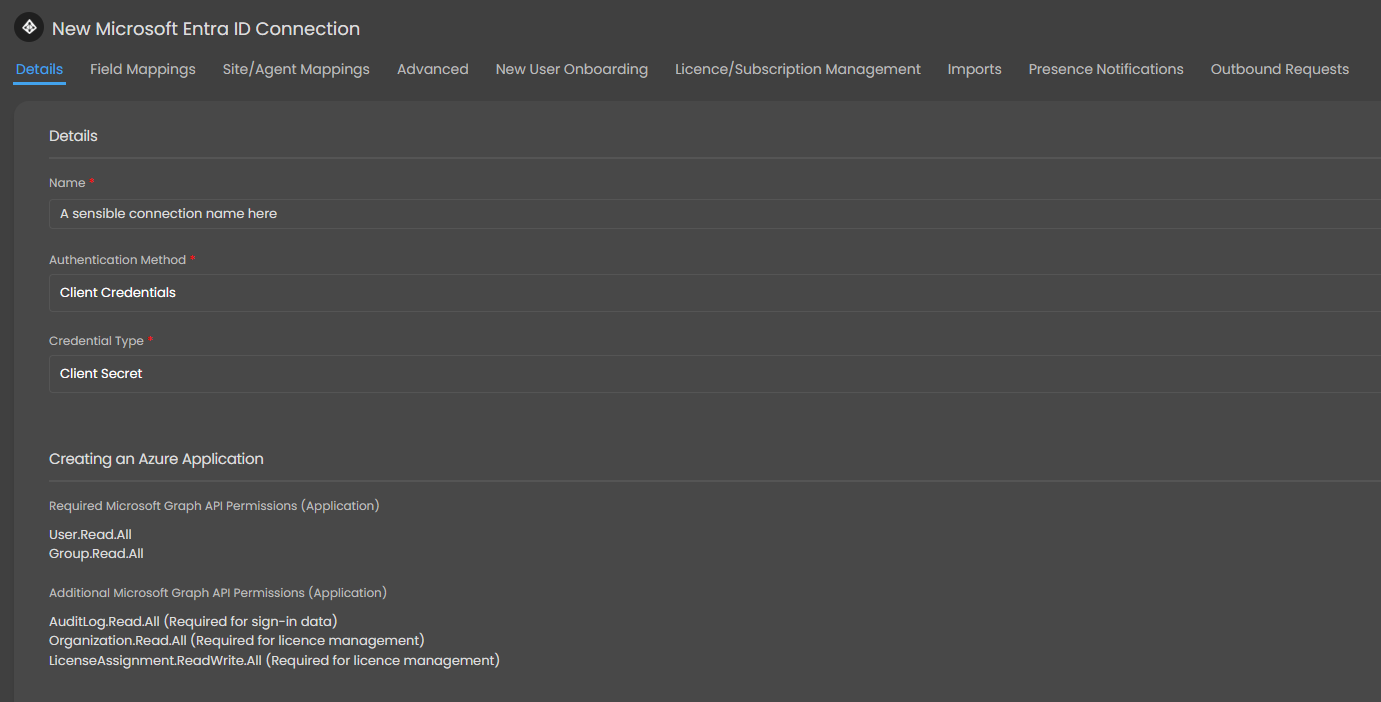
Fig 4. Choose authentication method and credential type
You will then be presented with the permissions that need to be configured. At the time of writing, these are the permissions (whether application or delegated) that can be used in the integration.
| Name | Purpose | Mandatory? | Authentication Method(s) used in |
| User.Read.All | Read User Data | Yes | ALL |
| Group.Read.All | Read Group Data | Yes | ALL |
| offline_access | Maintain access | Yes | Authorization Code (Delegated) Only |
| AuditLog.Read.All | Access sign-in data; required if you wish to import last sign in date | No | ALL |
| Organization.Read.All | Read Organization data to enable licence assignment: required if you wish to manage licence assignment from Halo | No | ALL |
| LicenseAssignment.ReadWrite.All | Read and Write Licence Assignments: required if you wish to manage licence assignment from Halo | No | ALL |
Once you have chosen the authentication method, credential type and understand which permissions you need, you can proceed to create an App Registration within your Azure Tenant by following the instructions in Authentication Methods for Microsoft Integrations.
Instructions to configure the integration with a Secret are included below as this is most commonly used method:
App Registration Setup
Open the Entra Admin Center (or similar) and navigate to the App Registration section. Click "New Registration".
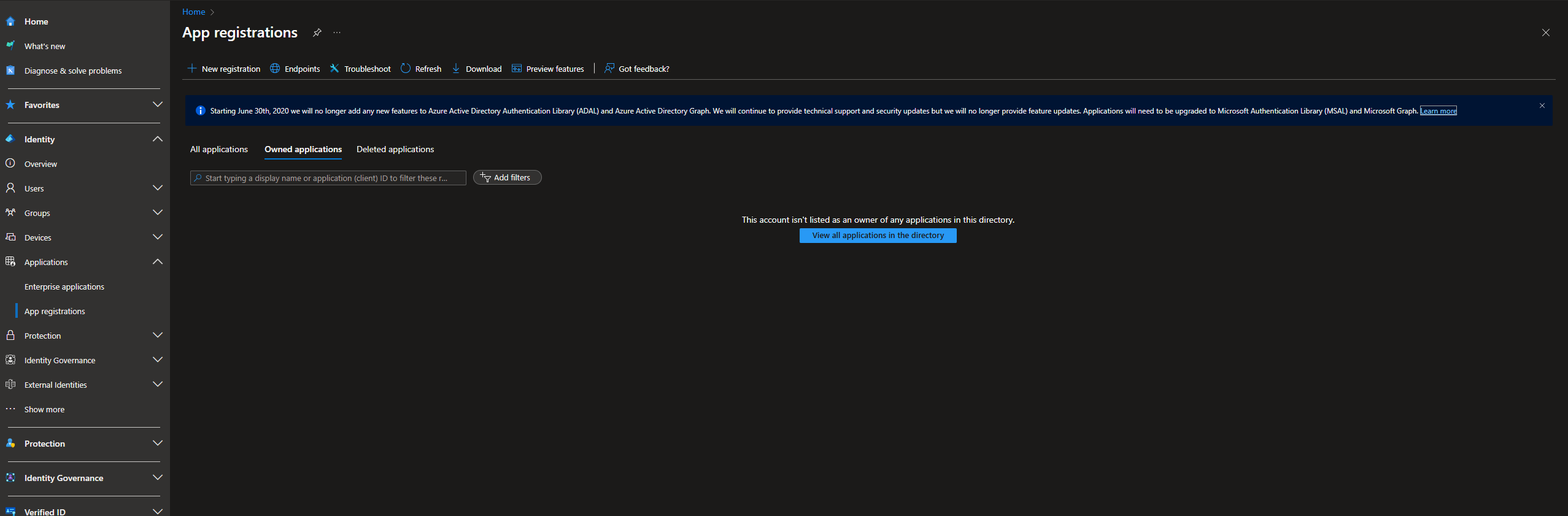
Fig 5. Create new app registration in Azure
On the registration screen you will want to fill out:
- Name: Choose something sensible; this won't be visible to users unless used as an SSO provider.
- Supported Account Type: Single tenant
- Redirect URI: The integration setup page/guide will tell you if you need one and the value required under the heading 'Redirect uri to register in Azure application for imports'. The platform is "Web". The redirect required will differ based on the Halo version you are on (prior/after v2.200+), therefore be sure to check the integration setup page for the exact URI needed.
Note: If you have disconnected to the integration and are reconnecting, if your Halo instance is on v2.200+ you will need to use the new redirect URI (https://YOURHALODOMAIN/authcallback).
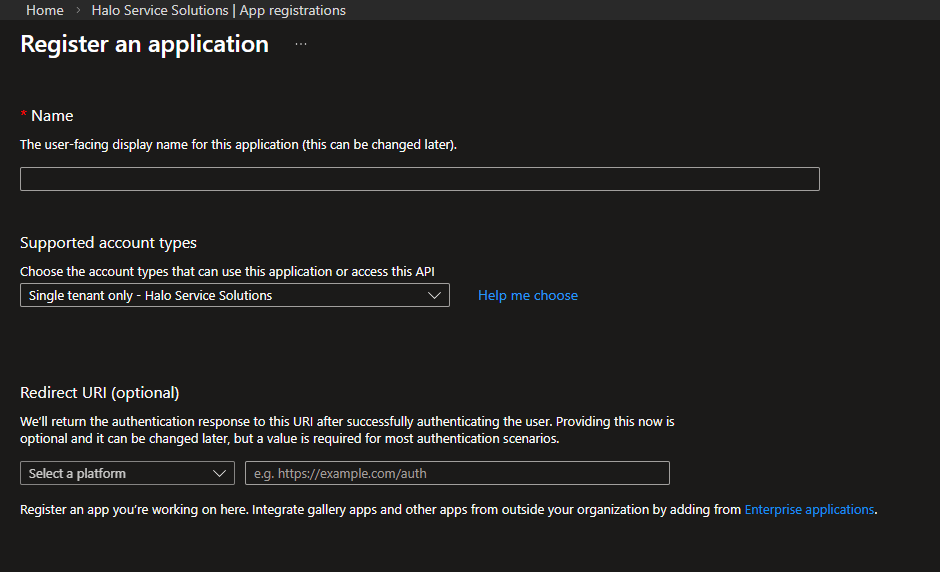
Fig 6. New application screen
Click "Register". Once registered, copy the "Application (client) ID" and "Directory (tenant) ID" from the Overview tab and store them safely, as these will be needed later.
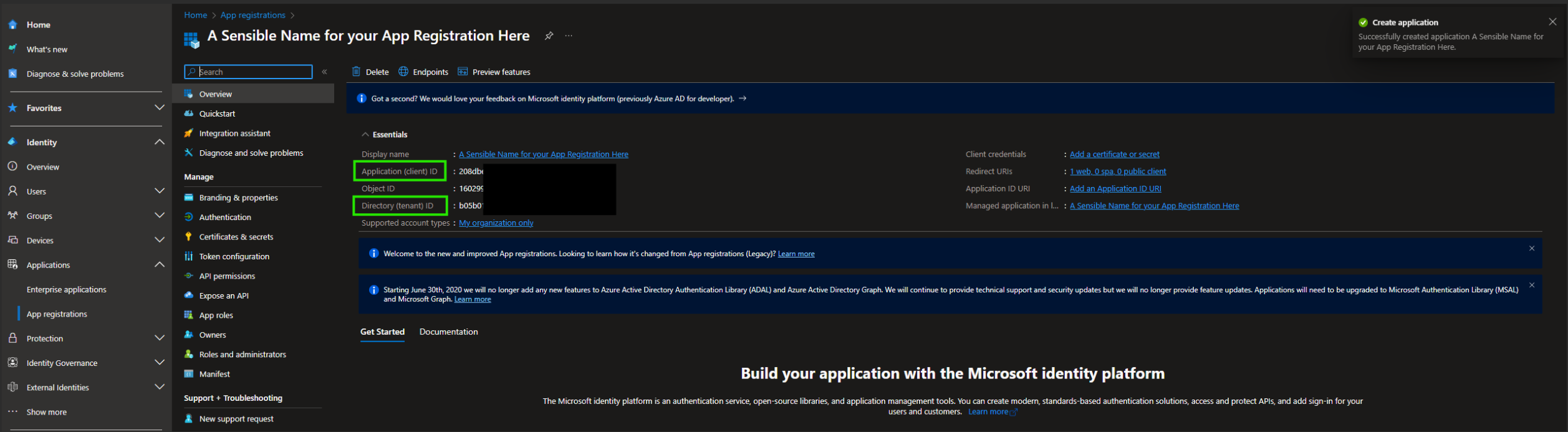
Fig 7. Application ID and secret
Remove the default 'User.Read' permission.
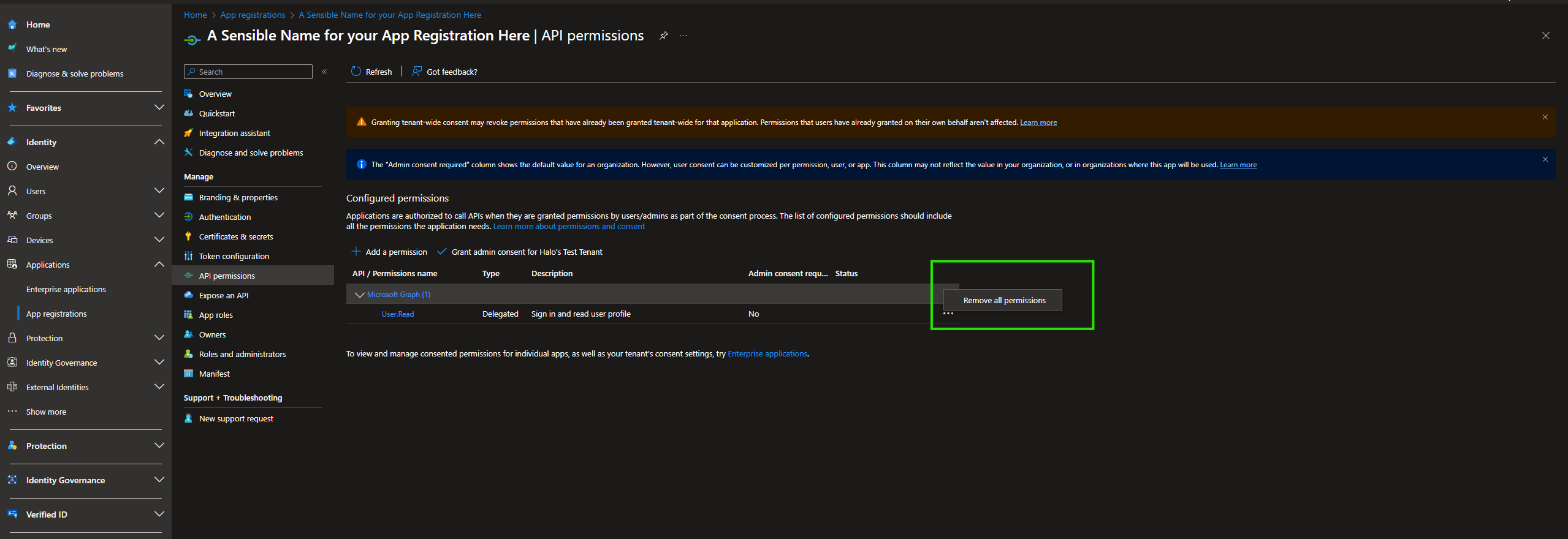
Fig 8. Remove permission
Click 'Add a permission', choose the Microsoft Graph API and choose your permission(s). If the permissions on the integration's configuration page and the guide differ, use what the integration page in Halo gives and report this difference to our support team.
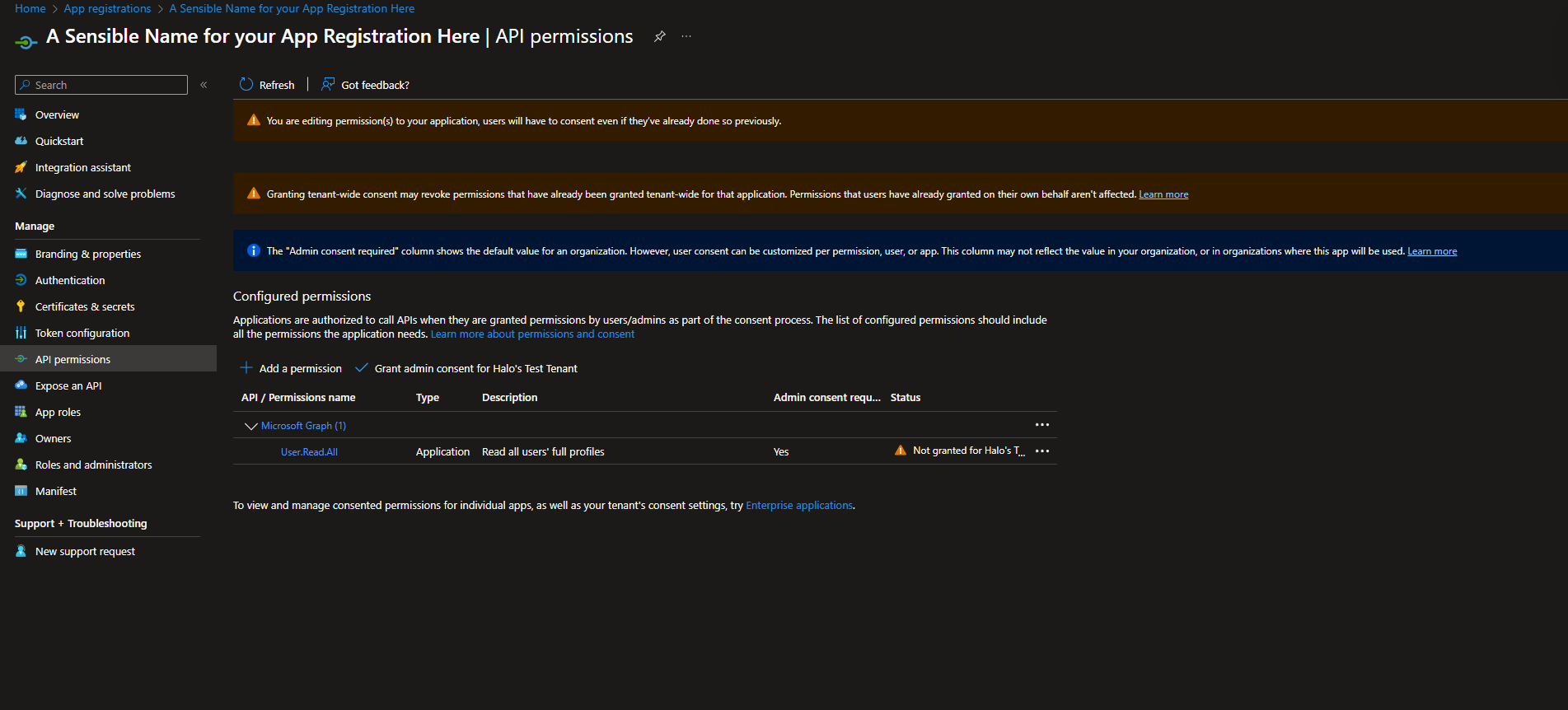
Fig 9. Add permission
Grant admin consent.
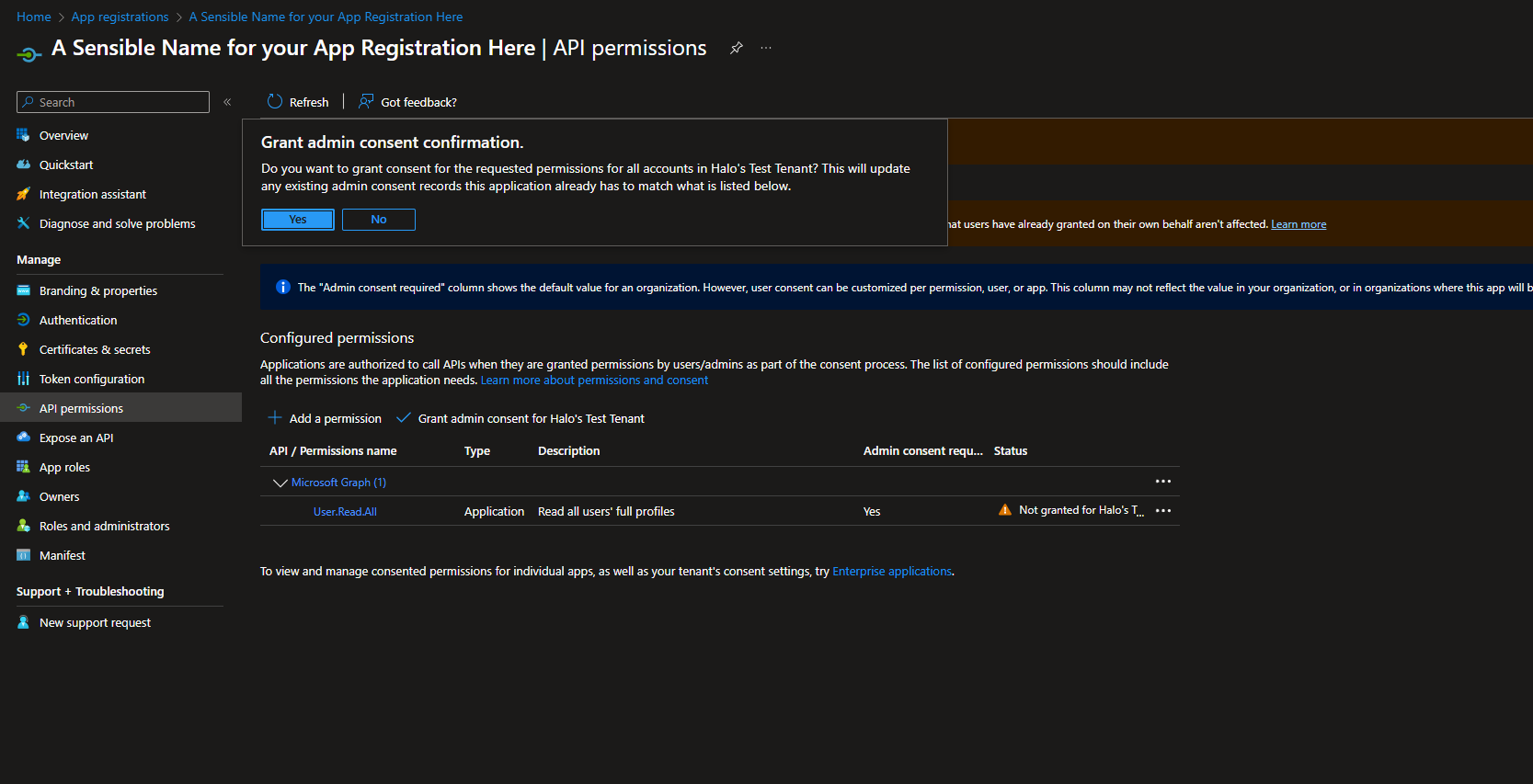
Fig 10. Grant admin consent in Azure for permissions
The 'Status' column will change if consent has been successfully granted:
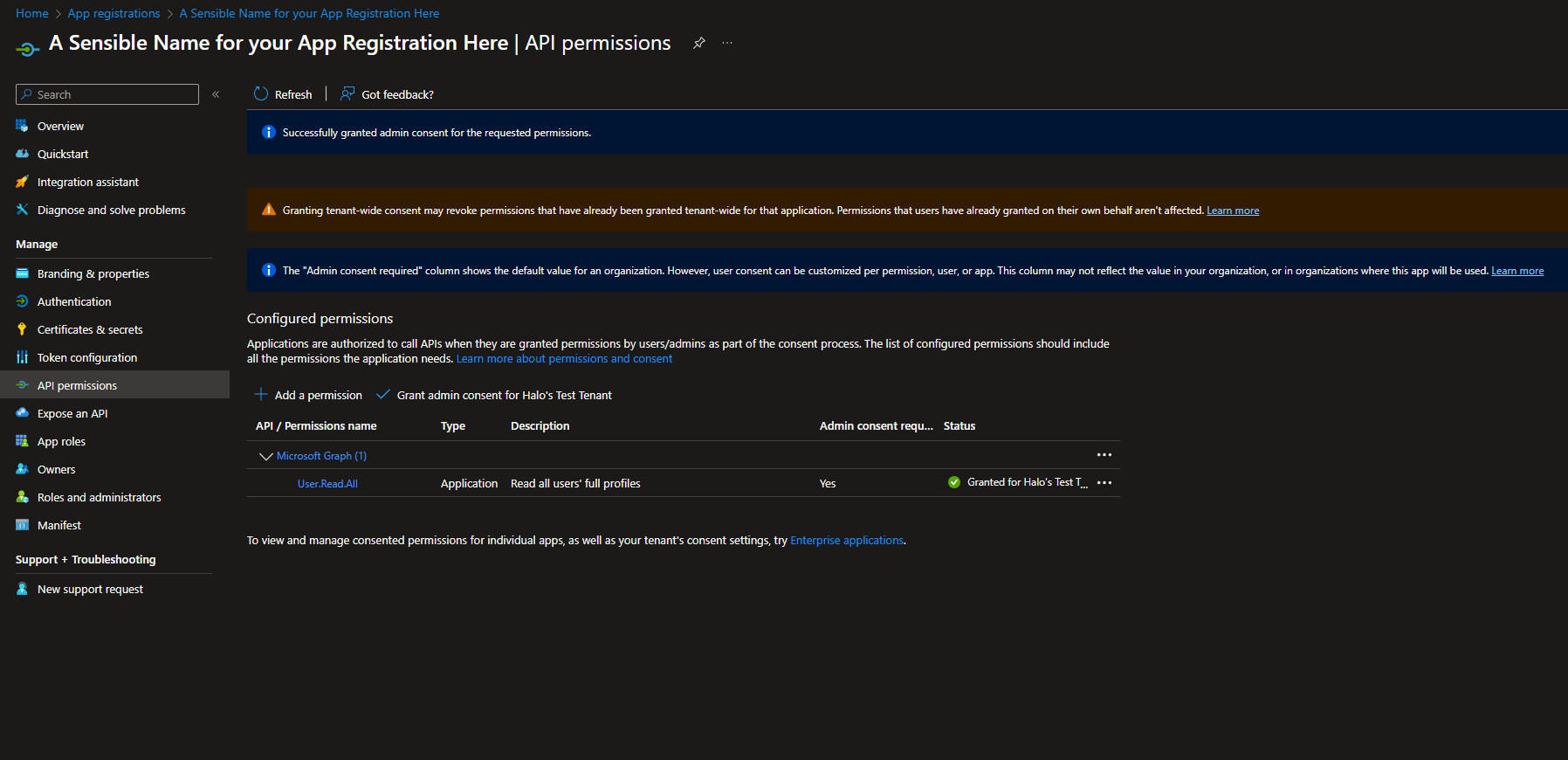
Fig 11. Admin consent granted successfully
Once completed, navigate to the "Certificates & secrets" tab, and open the "Client secrets" tab if not already. Click "New client secret", fill out the description and choose an expiry. Microsoft limits this to a maximum of 2 years from creation. Once this generates, copy the "Value" (not Secret ID) and store it securely. It will no longer be visible once you leave this screen.
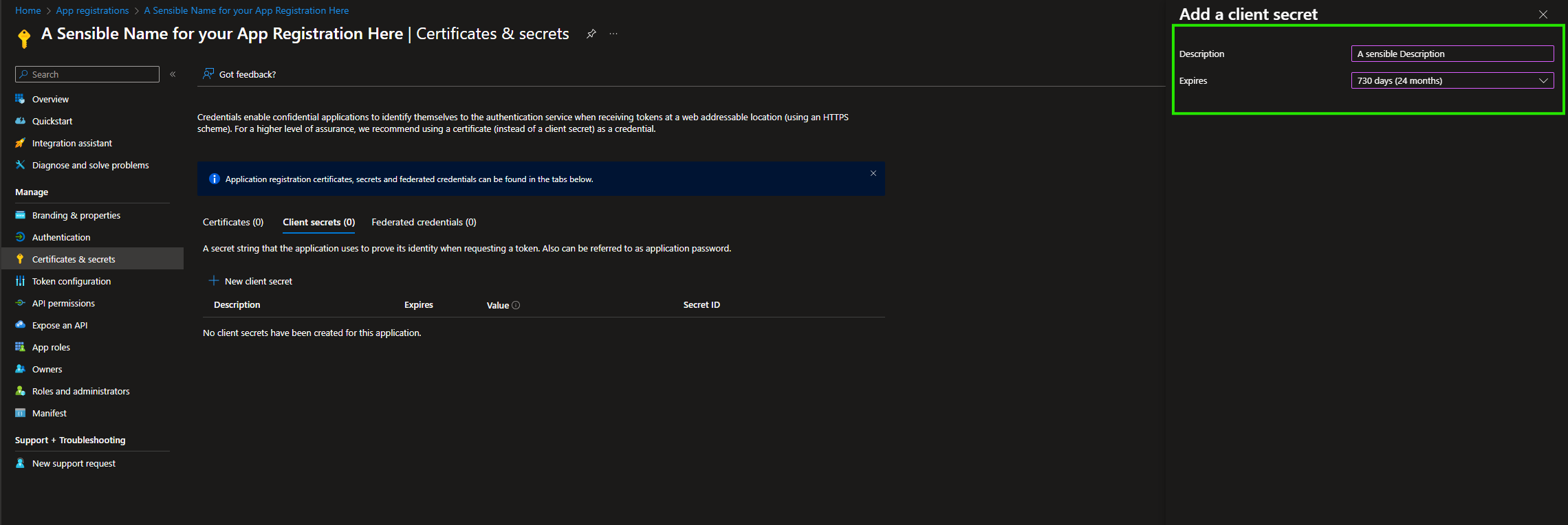
Fig 12. Generate secret
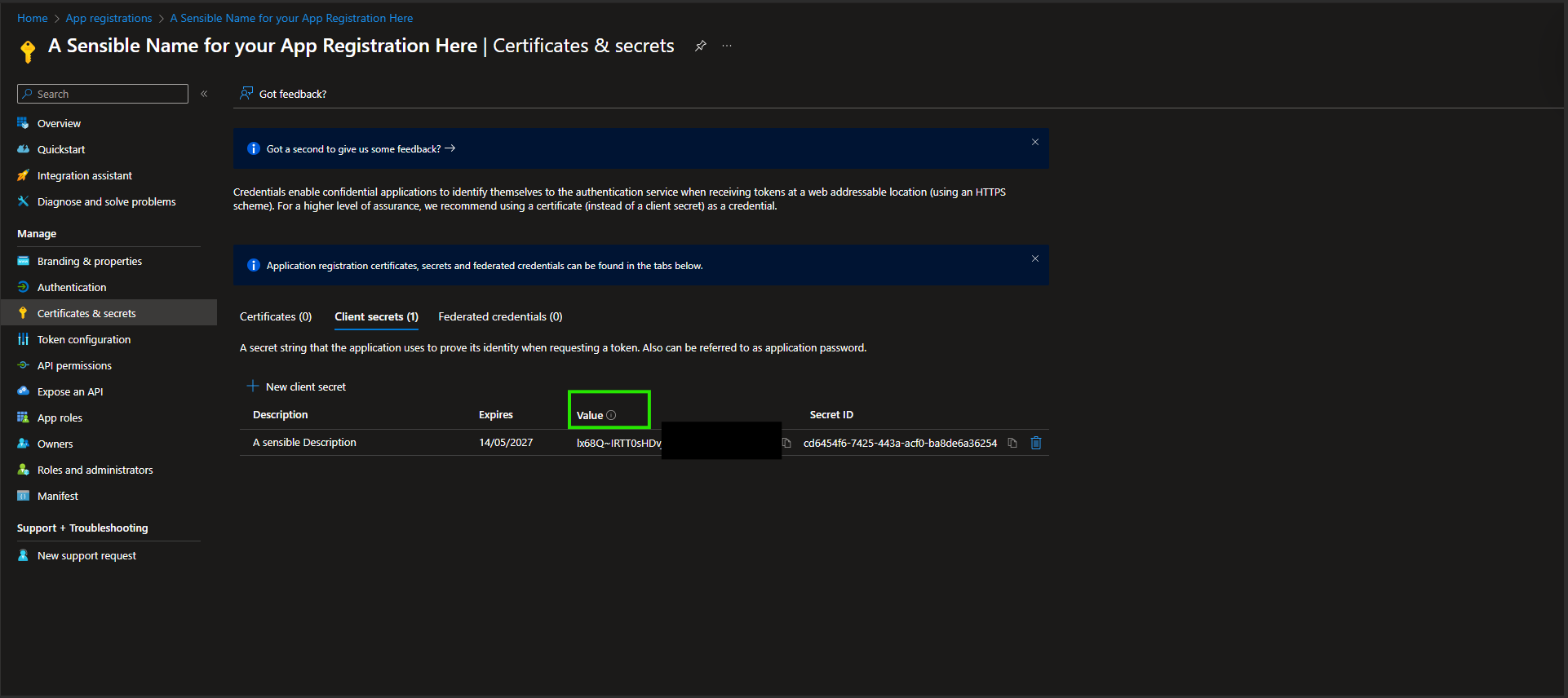
Fig 13. Secret value
Return to Halo, add this secret to the secret field along with the Tenant and Application IDs and 'Save'.
If you have connected instances, you will find the "Enabled for Instances" drop-down. Here you can choose which instances the integration is allowed to run in. This allows you to easily prevent imports in UAT environments as you no longer need to disable these integrations in UAT each time it is restored. By default this will be set to "Production only".
Note: When updating the Instances the Integration is enabled in, the config change must be synced to the other instances before taking effect in the linked instances.
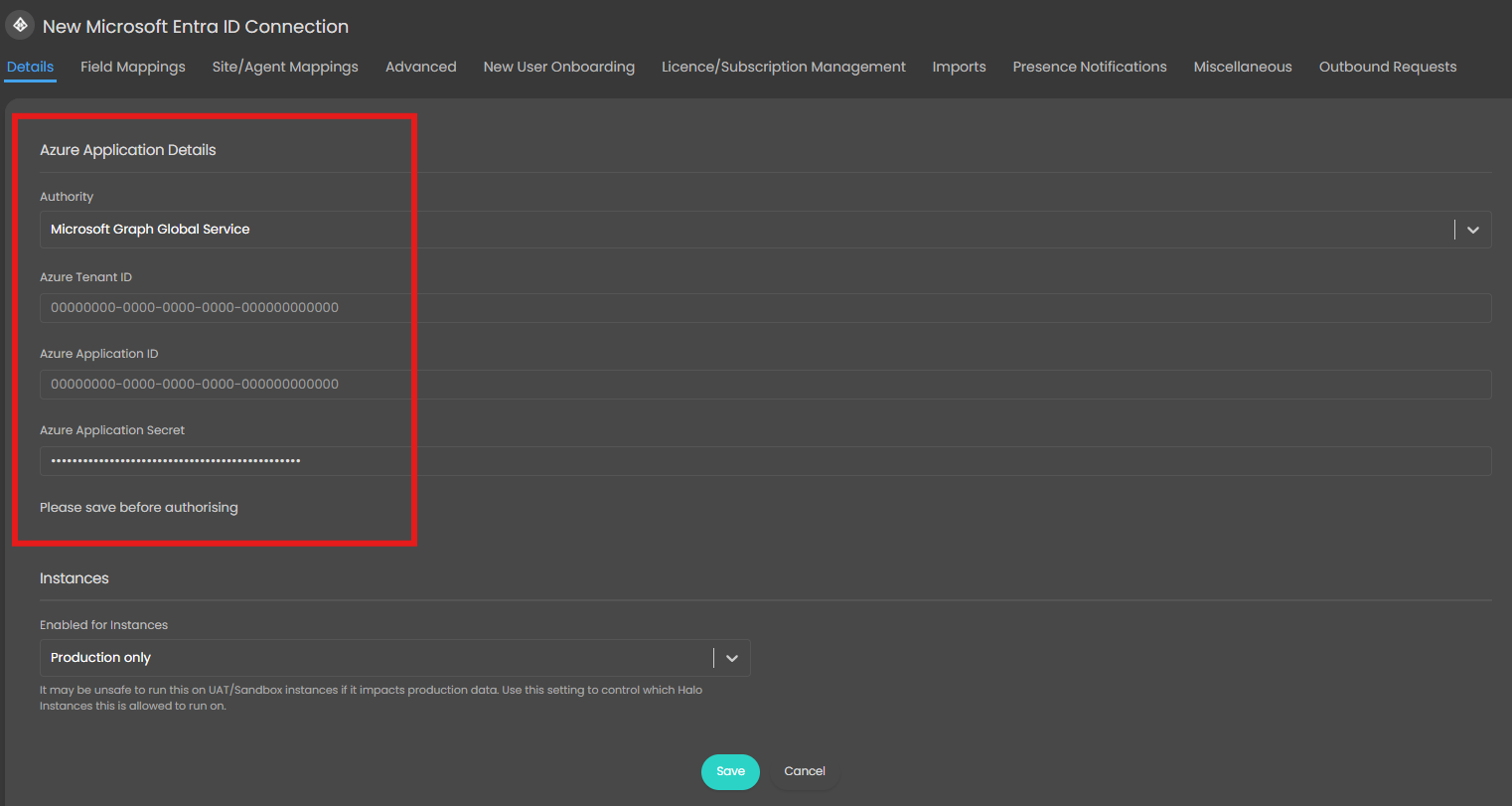
Fig 14. Enter application details in Halo
Using delegated permissions
There will be a "Sign in with Microsoft" button. Once pressed, you will be directed to the Microsoft Sign-In screen where you can sign in before being re-directed back to Halo. You will need to sign in with an account with appropriate permissions to access the resources you wish to import; so access to read all users, groups as a minimum and potentially audit logs, organisation data and ability to modify licences if you wish to use those features.
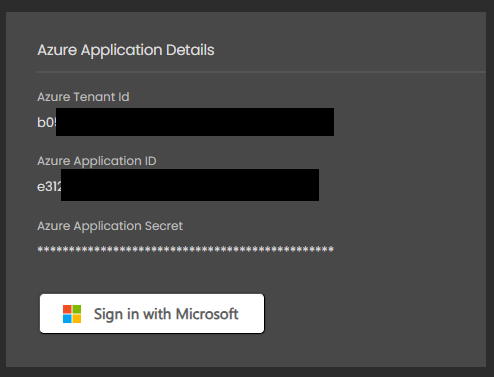
Fig 15. Sign in with Microsoft to authorise connection
If the authentication has been successful, the permissions/redirect URIs will have disappeared and the other tabs become accessible (if they weren't before). If unsuccessful, an error will appear in a model windows once re-directed back to Halo.
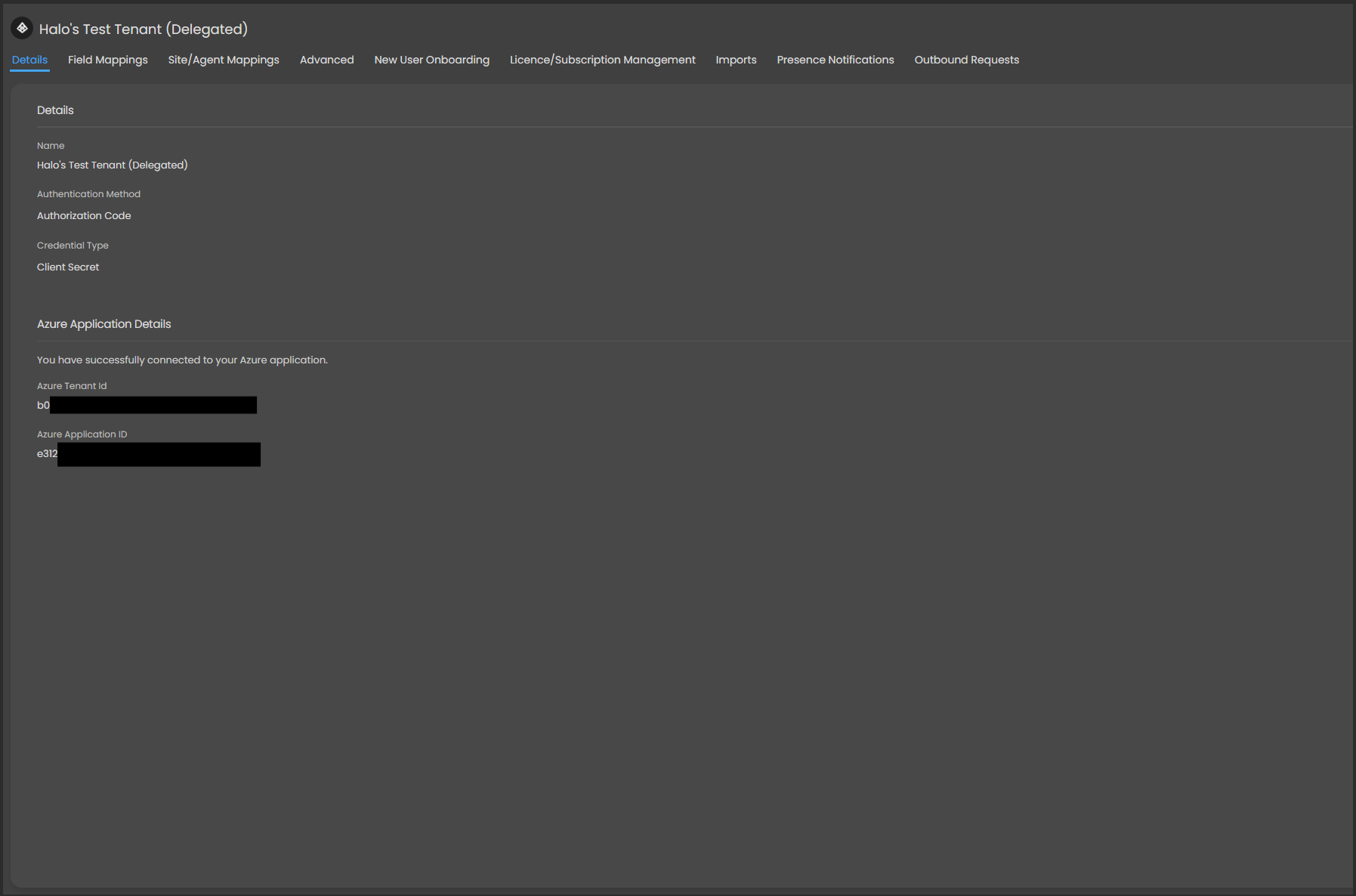
Fig 16. Successful connection
Using application permissions
There will be an "Authorise Application" button. Once pressed, the application will attempt authorisation without leaving Halo.
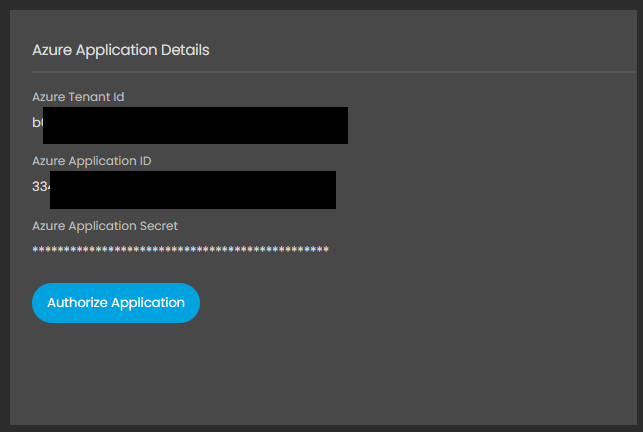
Fig 17. Authorise application
If successful, the button will disappear and relevant tabs will be unlocked. If unsuccessful, an error code will appear in a modal window.
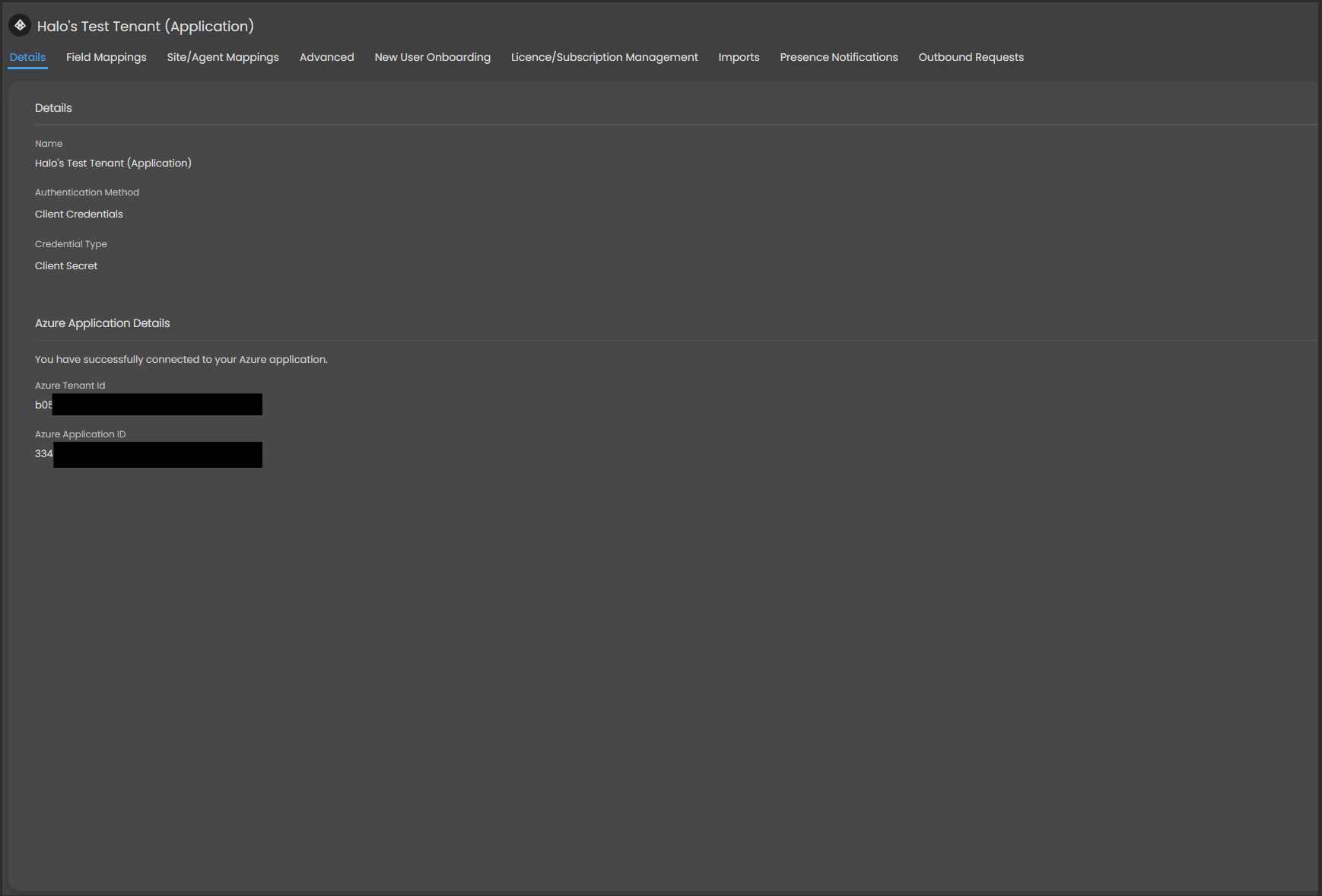
Fig 18. Successful connection
Single Sign-On (SSO) Configuration
Single Sign-On (SSO) allows your users and/or agents to log into Halo using the Microsoft credentials.
For information on setting up single sign on checkout our dedicated guide: Single Sign-On (SSO) in Halo.
Agent/User Import Configuration
Field Mappings
On the Field Mappings tab, you can map fields from an Azure User to Halo fields for both Users and Agents, including custom fields for Users. If you've created a new connection, some default mappings will be displayed. To remove any defaults during the initial configuration, save the connection first, or all defaults will be removed.
Click the add icon in the top right corner to add a new field mapping for Users or Agents. This will bring up a screen where you can choose which Azure field should map to which Halo field. Each field can only be used once for Users and Agents. For Users, custom fields must be created in advance; they cannot be created on this screen.
Note: If you are mapping the manager field from Azure to a field in Halo for the user mappings, the value of this field will show as unpopulated on the manual import screen but will be retrieved when the records are actually imported.
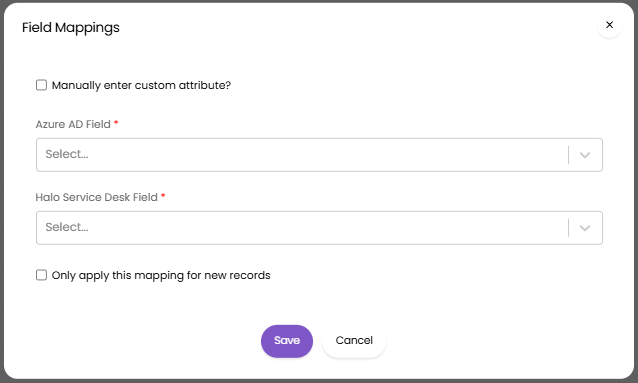
Fig 19. Field mappings
An Agent's manager can be mapped here, using the Azure AD field 'manager' and Halo 'linemanager' field. The manager must be an agent in Halo, created from an Azure import, in order for the manager to populate. The 'linemanager' field in Halo is only compatible with the 'manager' field in Azure, other fields cannot be mapped to this field.
You can map an Entra field to the Halo field "team", this will populate the default team against the agent. This can be used to assign agents to teams automatically using information in Entra. The Entra field you are mapping must contain the name of the team in Halo you would like the agent to have, matching will be based on the team name. If the data in this field cannot be matched to a team, the default team for the agent will not change, for new agents, this will be set to not set. When a default team is set for an agent they will be granted the following membership to this team:
- Can be assigned to
- Can see Unassigned Tickets for this Team
- Can see Tickets assigned to other Agents in this Team
You will notice that you can also manually enter a custom attribute to map to by enabling the setting to "manually enter custom attribute". This allows you to enter the name of a custom attribute that you have created in Entra, and map it to a chosen field in Halo. These can be mapped to both system fields or custom fields.
Site Mappings
The next tab, Agent/User Mappings, enables you to map subsets of users from your Azure Active Directory to correlating Sites (for users) or Roles (for agents). This is achieved by building mappings which filter on fields and/or security groups in Azure. To add a new mapping, hit the + symbol in the "Site Mappings" table.
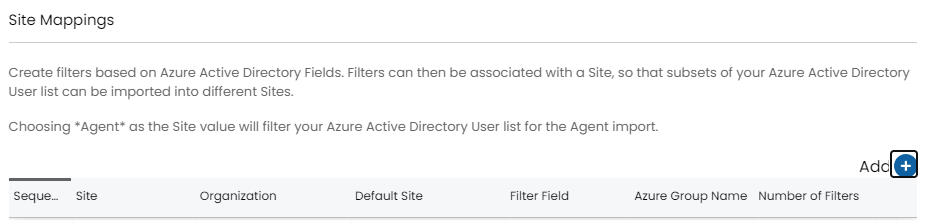
Fig 20. Site mappings
This will prompt you to choose a mapping type.
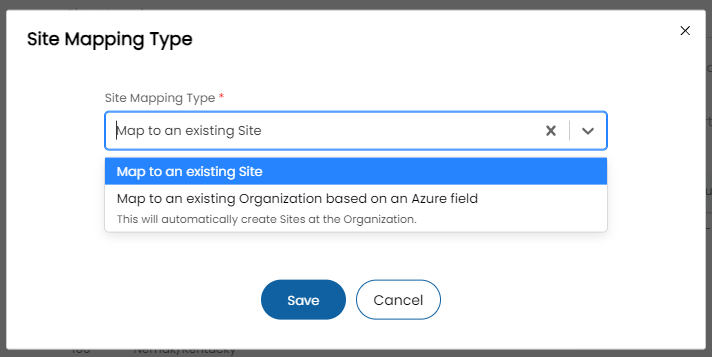
Fig 21. Site mapping types
"Map to an existing Site"- Allows you to manually correlate a subset of users from Azure Active Directory to an existing site in Halo
- Upon selection, you are are prompted to...
- Select a Site to create user profiles against in Halo.
- Select a sequence the system will import the mapping in.
- Select a user role for users to assume.
- If filtering on Azure group, the exact name of that group.
- Whether or not you would like to include external users. You can also choose to only import external users if they have an assigned licence.
- If filtering on Azure fields, the criteria for matching on users.
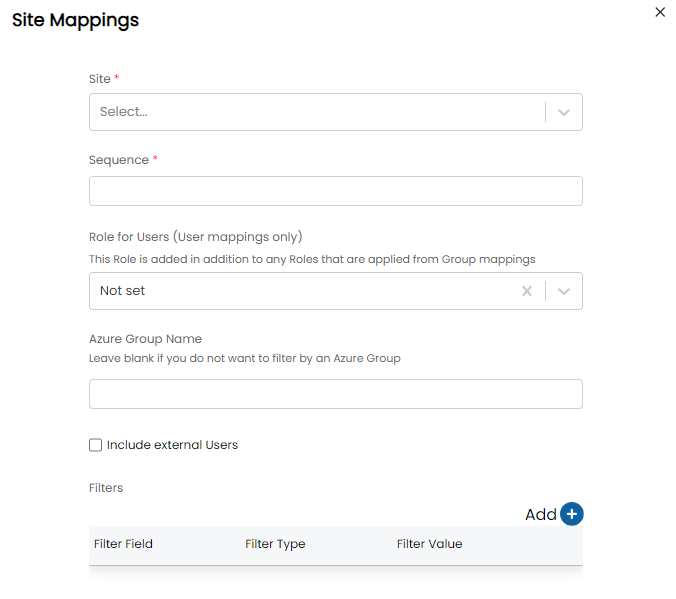
Note: This site mapping type is used for importing agents. Simply select the site value of *agent* and fill out the mapping just as you would for the users. These Azure Active Directory users will be imported as Agents as well as users when the integration sync runs.
- You can map "creationtype" to agents and users. This corresponds with the "User Type" in Entra.
- You can use this mapping type to map a "License Type" to Agents (referring to either named or concurrent licenses in Halo). By default, this is set to "No Change" which is the same behaviour as previously - make agents concurrent if new, do not change them if already existing.
- Allows you to auto-generate a site in Halo against a set Organization based on a field in Azure Active Directory
- Upon selection, you are are prompted to...
- Select the Organization in Halo to create the new site under.
- Select the filter field to group users by and create sites with (value of field will result in site name).
- Select a sequence the system will import the mapping in.
- Select a user role for users to assume.
- If filtering on Azure group, the exact name of that group.
- Whether or not you would like to include external users. You can also choose to only import external users if they have an assigned licence.
- If filtering on Azure fields, the criteria for matching on users.
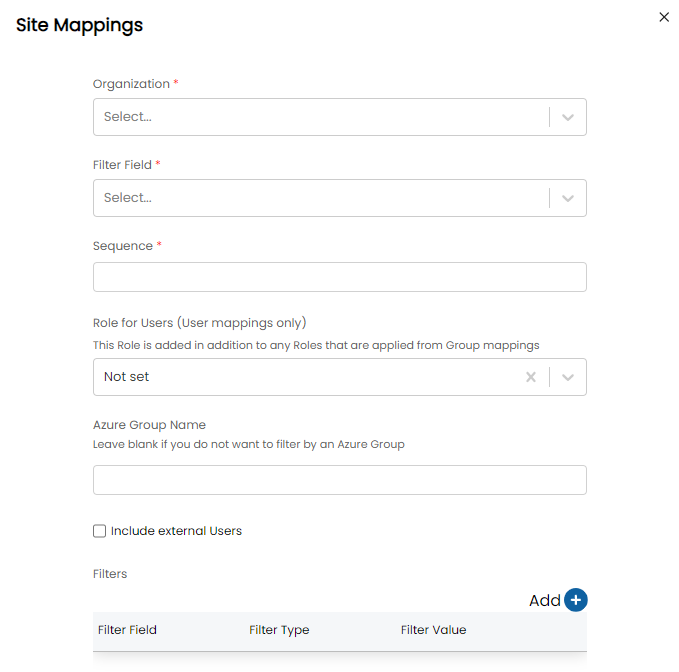
Fig 23. Site mappings configuration if mapping to an organisation
"Map to an existing site by matching on a field"
- This allows Users to be mapped to Sites dynamically.
- You can also choose to prevent the import or set a default Site for Users who do not match a Site.
- You can then select a Halo Site and User field to match values on.
- For User fields, you will likely need to map a value from Entra to the field in Halo.
- Select a user role for users to assume.
- If filtering on Azure group, the exact name of that group.
- Whether or not you would like to include external users. You can also choose to only import external users if they have an assigned licence.
- If filtering on Azure fields, the criteria for matching on users.
- Finally, you can choose values to apply to any Users imported with this Site Mapping.
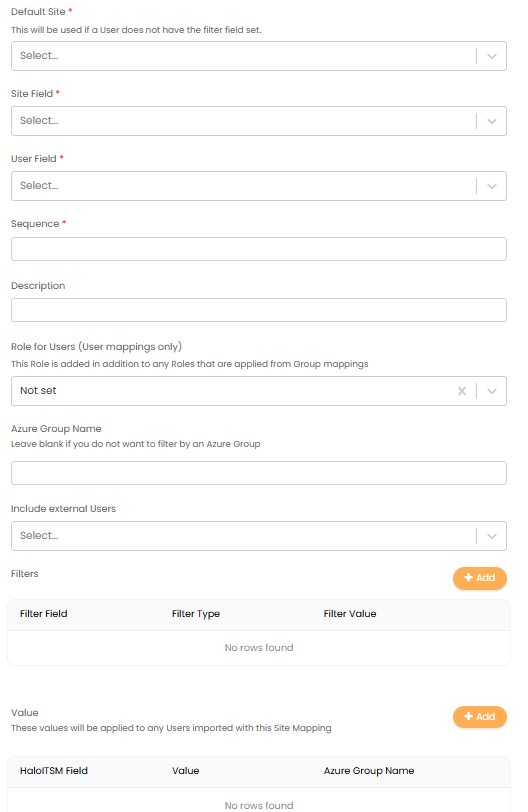
Fig 24. Site mappings configuration if mapping an existing Site on matching field
Advanced Configuration
In the Advanced Configuration section, you can set up various mappings and management functionality. This allows you to map Azure Active Directory groups to specific agent/user roles, teams and CABs in Halo so when importing agents/users, if they are part of an Azure Group with a corresponding mapping, the assigned Halo role/team/CAB from this mapping will be applied to their agent/user account. This mapping works in conjunction with the role specified in the site mapping undertaken in the previous step.
The following entities can be mapped:
- Agent Roles
- User Roles
- Change advise board (CAB)
If you are on v2.251+ you can make use of "Groups" in Halo as an alternative to mapping agent/user roles, teams and CABs here. Rather than mapping each Azure Group to a team/role/CAB, you can import the Azure Group into Halo then assign the relevant teams/roles/CABs to the group in Halo. Members will then be automatically assigned to the group based on the members in Entra, allowing for easy management. For information on using groups in Halo, see our guide here.
Licence Management (General Settings) (v2.238+)
From v2.238+ you can use Entra exclusively to manage roles. Useful when roles are directly related to azure groups as this allows agents permissions (roles) to automatically change when their roles change in Entra. This is enabled using the "Enable full Role management via Microsoft Entra ID" setting.
Enable full Role management via Microsoft Entra ID (v2.238+) - When enabled, agent's roles will be fully managed by the Entra integration. Any roles manually assigned to an agent will be removed upon import and replaced in line with the 'Agent Role Mappings' table. This means that when an agent is removed from an azure group, the roles mapped to this group will be removed from their agent account. If an agent does not have any roles (is not in a group with a mapped role) they will be made inactive in Halo.
Process nested security groups (v2.251+) - When enabled, when site mappings filter by an Azure group, and return security groups, Users in the groups will be processed under the same Site mapping. Note: This functionality is not available when using delta queries.
Agent and User role mappings
Halo agent and user roles can be mapped to Azure groups. Any users in Azure that are a part of this group will be assigned to the mapped agent and user roles when imported into Halo.
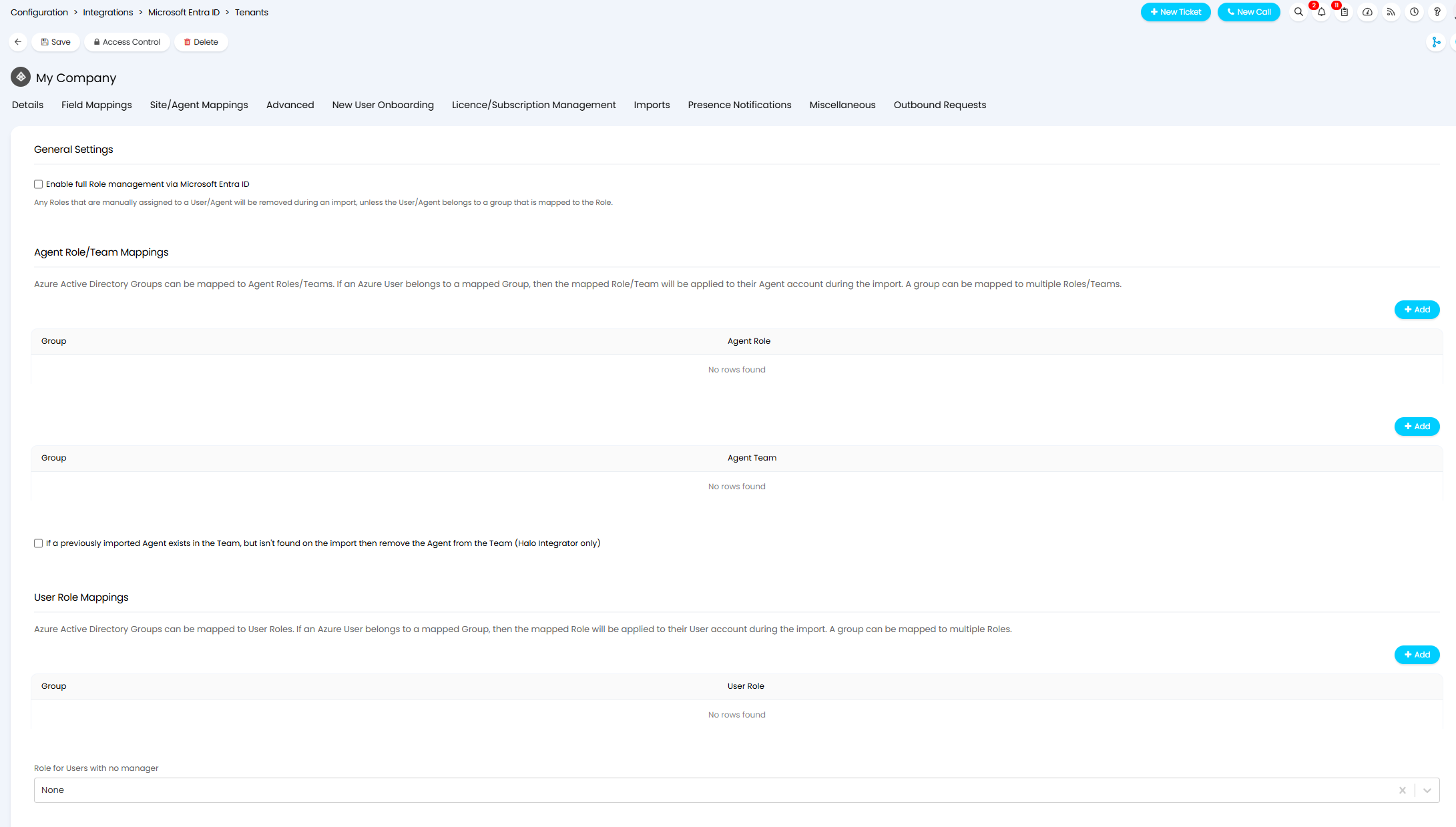
Fig 25. Agent and User role mappings
Add an entry to a table to configure a mapping. When adding a mapping you will need to type out the exact name of the Azure group then select which Halo agent/user role to map this group to.
Role for Users with no manager - This setting can be used to have users that do not have a manager in Azure create in Halo with a chosen role. For example, more senior staff may not have a designated manager therefore will like need a role in Halo that gives then a high level of access.
Agent Team Mappings
Halo agent teams can be mapped to Azure groups. Any agents that are a part of this group will be assigned to the mapped Halo team when imported from Azure. This is done using the Team mappings table.
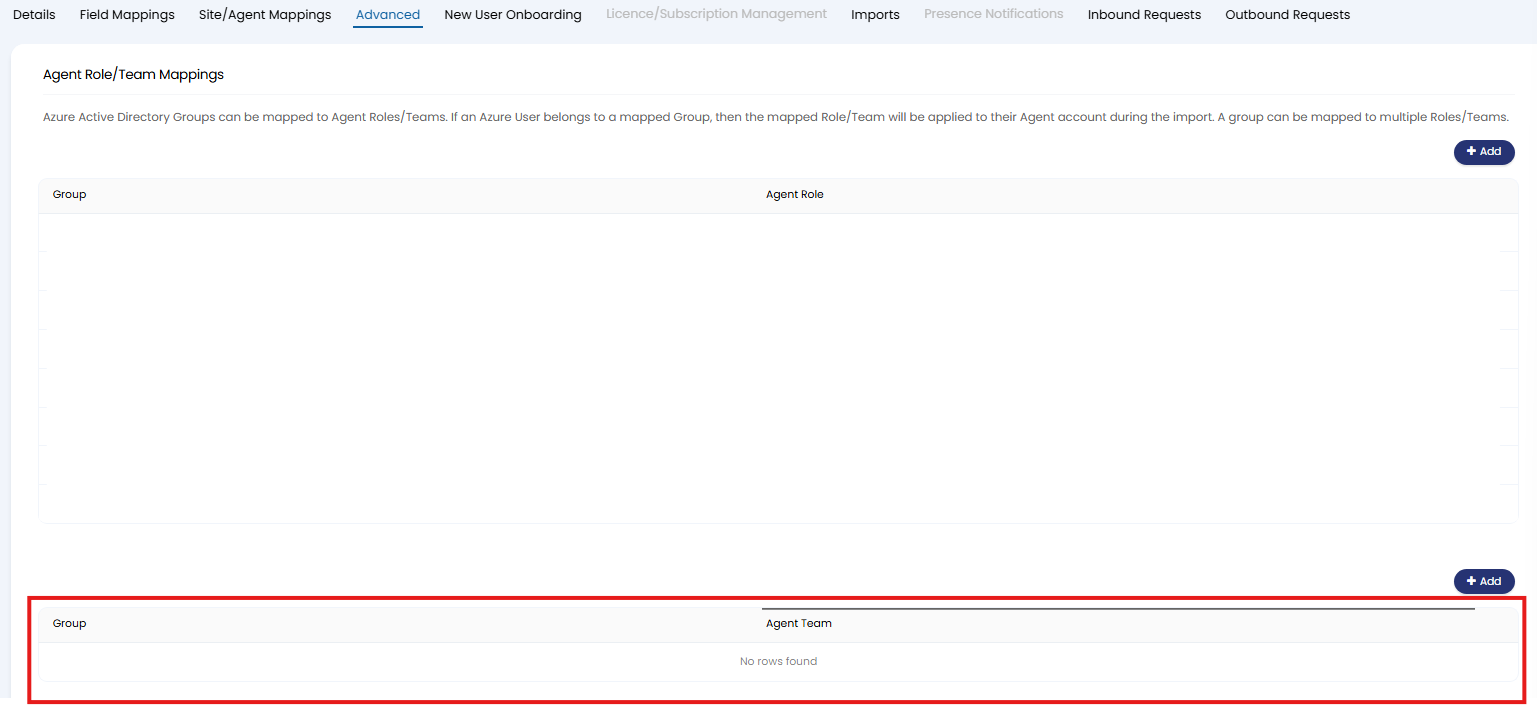
Fig 26. Agent team mappings
Add an entry to a table to configure a mapping. When adding a mapping you will need to type out the exact name of the Azure group then select which Halo team to map this group to.
If you are using the Halo Integrator, you will be able to remove an agent from the team if they are not found on the import, by using the "If a previously imported Agent exists in the Team, but isn't found on the import then remove the Agent from the Team (Halo Integrator only)" checkbox.
Change Advise Board Mappings
Here, you can have users in a particular Azure group automatically be added to a CAB in Halo when they are created in Halo.
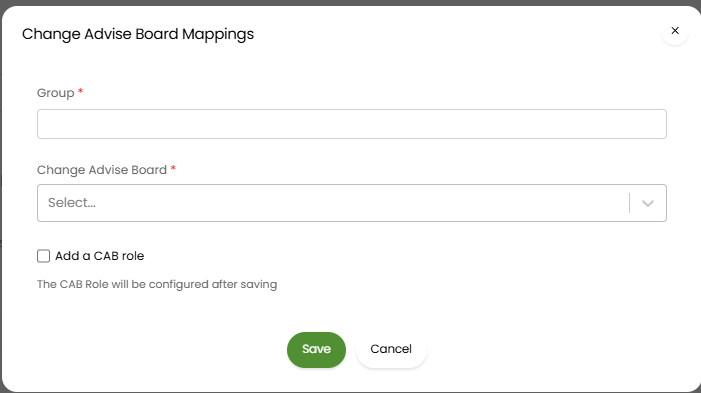
Fig 27. CAB mapping
Add a CAB role: If you check the option to add a CAB role to the mapping, you will be able to choose which CAB role users in this group are created with.
Licence Management
The last segment in the Advanced Configuration tab pertains to license management. Activating this feature enables you to update the status of an agent based on the roles they are assigned.
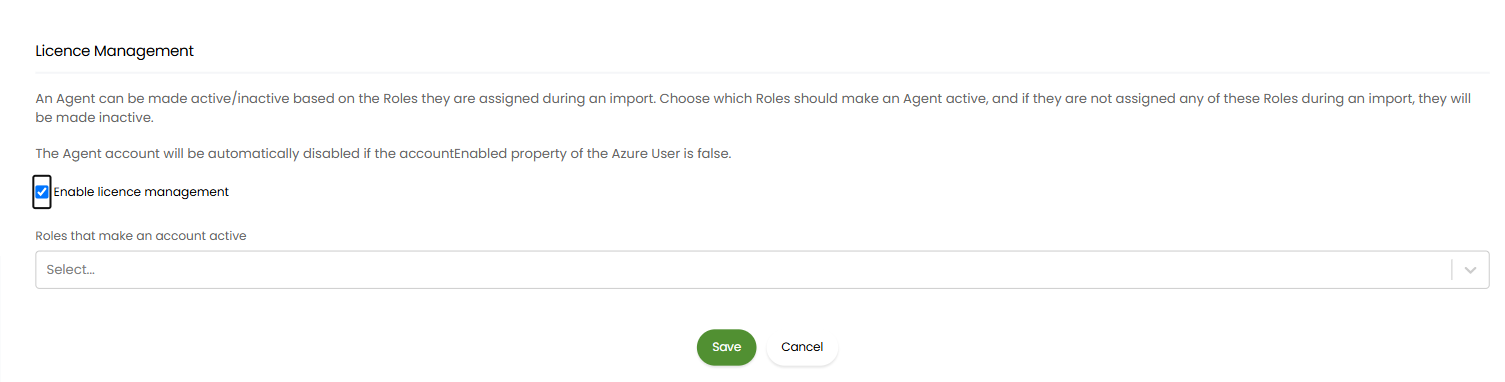
Fig 28. Licence management.
When licence management is enabled, you will be able to select agent roles that make agent accounts inactive in Halo. If all Azure users that should not be active in Halo are in the same group, you can map this group to an agent role, then set this agent role to make agents inactive.
Note: If licence management is enabled and a group is removed from the list of "Roles that give an Agent a named licence", those Agents will be assigned a concurrent licence instead upon the next sync.
Note: The Agent account will be automatically disabled if the accountEnabled property of the Azure User is false.
Imports
In the Imports tab, you have the option to manually import Users and Agents from Azure. Furthermore, you can set up the Halo Integrator application to perform these imports automatically.
"Re-assign Tickets to unassigned when the assigned Agent is made inactive" can be enabled to re-assign Tickets assigned to an Agent deactivated by Entra.
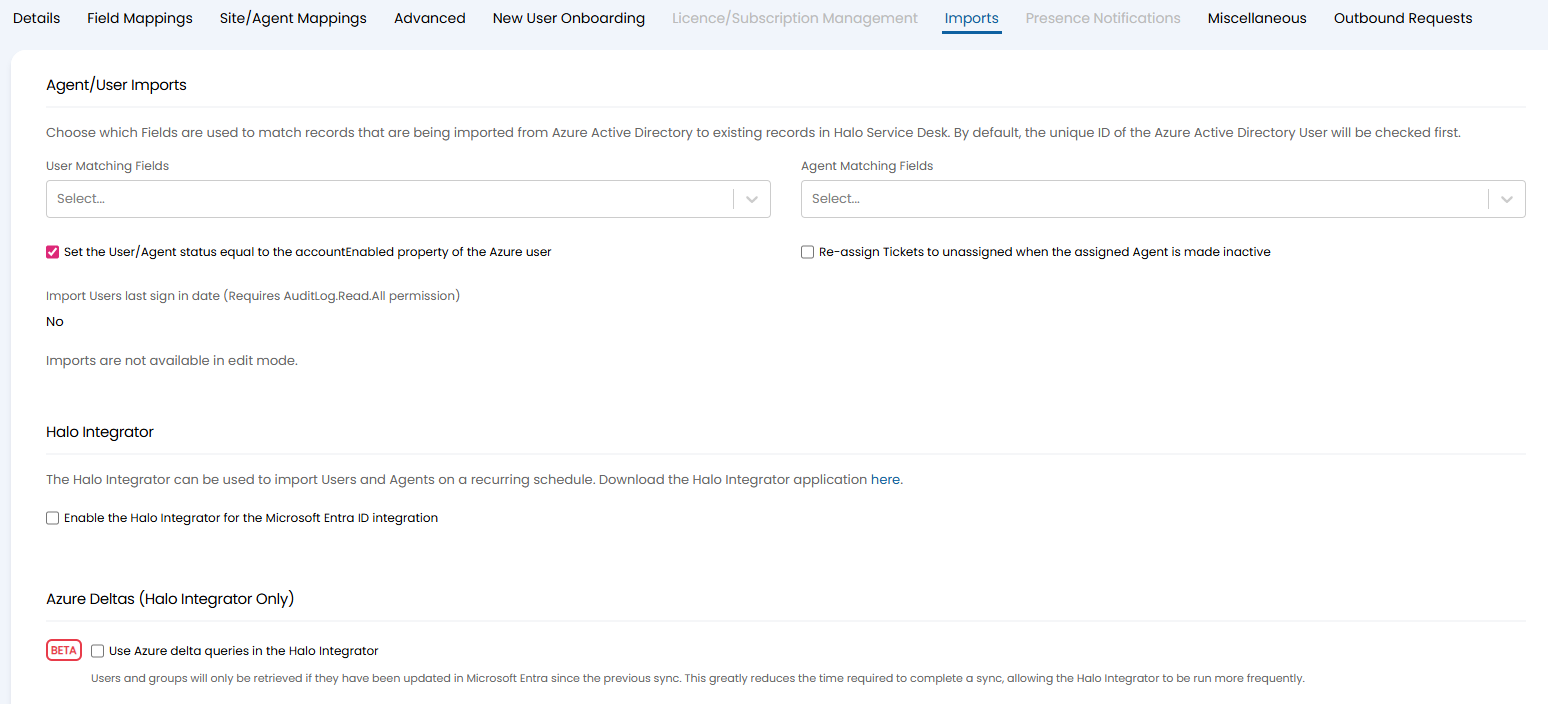 Fig 29. Import configuration
By default, when importing from Azure, a User is matched to an existing User record in Halo based on their unique Azure ID. If your User list is already in your Halo database, but you haven't imported from Azure before, Users may not have a unique Azure ID assigned, leading to potential duplicate users during the import. To prevent this, choose at least one matching field to avoid duplicates by matching old records on different fields. The matching process follows the order in which you add fields to these boxes.
When you click the "Import Users" or "Import Agents" button, Halo retrieves your User list from Azure, organizes them based on the configured mappings, and displays the returned Users on the import screen. Note that without authorization or if your authorization has expired, you'll receive a 401 Unauthorized message, and you should reauthorize the application. Even if you do not want to import manually within the web app, it is still recommended that you click the Import Agents/Users buttons to check that your mappings are returning the correct subsets of users, before proceeding with an import via the Halo Integrator.
From v2.251+ you will also have the option to "Import Groups", this will import Azure Groups into Halo and assign members to the group in line with the members in Entra. Only use this if you plan on managing access using groups in Halo.
Halo Integrator
Once you’re happy with your configuration for the rest of the connection, you can then enable the connection to be synced via the Halo Integrator application.

Fig 30. Enabling the integrator
Most customers using Halo Service Solutions have their Halo Integrator hosted for them. In such cases, there's no need for individual customers to host their Integrator for regular synchronization. If you have a specific preference to host your own Halo Integrator, please refer to the related guide for detailed instructions.
Deactivate Users in HaloPSA when they are not found in Azure (Halo Integrator only): When enabled users will be deactivated automatically in HaloPSA when they are not found in Azure. If you are using Azure deltas, users will be deactivated when they are deleted from Azure.
Setting up Multiple integrators
If you have/are setting up more than one Azure tenant, you can configure the Halo integrator to sync different entities (behave differently) for each tenant.
To do this, enable the integrator for each tenant, on the setup page for each tenant, setting the entities you would like to sync for each tenant. Then in the 'Client ID' field enter the tenant ID you would like this integrator configuration to apply to.
If you would like the integrator to run for one tenant but not the other, enable the integrator against the tenant you would like it to run for, entering this tenant's ID in the 'Client ID' field. Leave the integrator disabled against the other tenant.
Note For Older Installations
For versions 2.13.1 and above, the integration allows connections to multiple applications/tenants. If you had configured the integration for Single Sign-On before v2.13.1, a default connection is added to maintain Single Sign-On functionality.
Using delta queries allows the Halo Integrator to retrieve recently updated records only from Microsoft Entra, thus allowing a much more frequent sync of the Halo Integrator.
Microsoft Entra ID Integration - Delta Queries
Azure delta queries can be activated on the Imports tab of the Microsoft Entra integration setup screen.

Fig 31. Enabling delta queries
Using the Reset Deltas button you can also reset the current delta saved by the Halo Integrator by either clearing the delta, or getting the latest version of the delta.
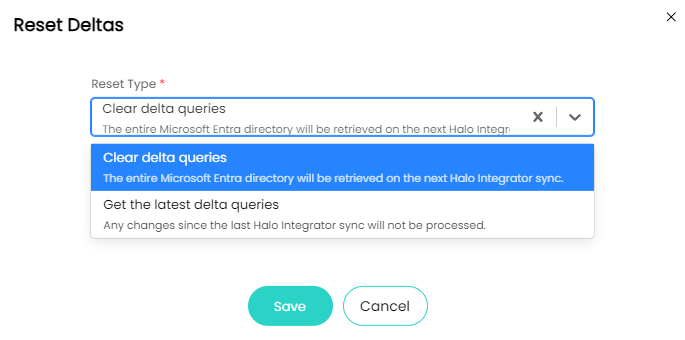
Fig 32. Resetting deltas
Getting the latest delta means that you can instantly start processing the integration on the Halo Integrator much faster, whereas clearing it means the entire directory of users will be processed on the next sync.
You can set a sync method. By default, this will be set to "Listen to all changes" to match the existing functionality. The new option will sync a delta query to only listen to system fields used within Halo and mapped user fields. This includes fields and filters used on site mappings that impact users.
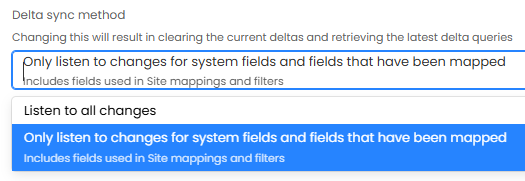 Fig 33. Delta sync method.
This also impacts groups, only changes to the displayName and members property of groups will be listened to.
Some fields are not compatible with this Delta sync method and therefore will not be listened to. However, incompatible fields will be retrieved when a change for a compatible field occurs.
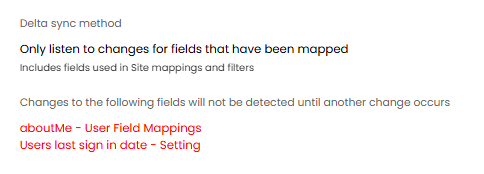
Fig 34. Incompatible Delta fields.
Incompatible fields will be highlighted, alongside where the field is used, when changing to the new method.
When modifying the sync method, user, or site field/filter mappings for the Microsoft Entra integration, the system will retrieve the latest delta queries and display a warning message to confirm this action.
For more information on Azure Deltas see our guide here.
Inbound Logging
Once the functionality is enabled, for each user update that is processed via the Halo Integrator, a more detailed log can be found on the Inbound Requests tab of each integration setup screen. This includes a more detailed log explaining which mappings have been matched, and the result of each individual update notification.
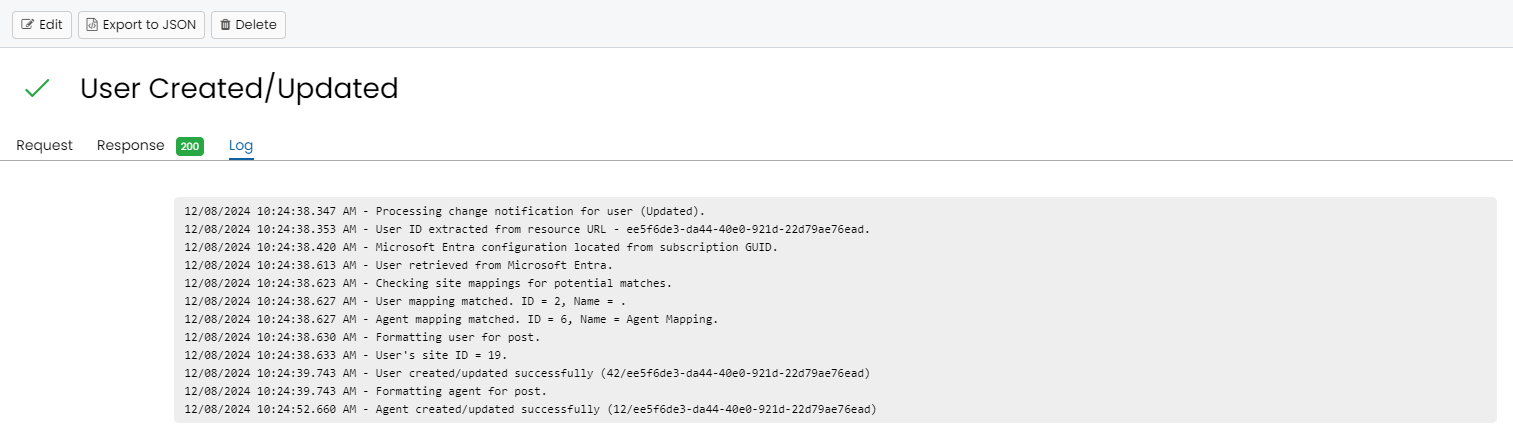
Fig 35. Log example
Manual imports are not affected by this functionality. The processing of the user update notifications has been designed to align with the manual import, even though the way they are processed is different.
Licence Management in Microsoft Entra ID
This requires adding the "LicenseAssignment.ReadWrite.All" permission to your application and reauthorising your connection.
Once this is done, you will be able to configure the Licence import. A client must be specified for the licences to be imported to, which should match the client the users are imported to. Licences can then be imported manually or via the integrator. Once licences have been imported, subsequent user imports will link the users in Halo to the licences from Entra.
Additionally, you can enable "Allow licences to be managed from within Halo" to allow licences in Entra to be managed from within Halo. When assigning software to a user, you can specify a licence for the software. If this licence is from Entra, it will be added to their account upon saving. Similarly, removing a licence from a user that was imported from Entra will remove that licence in Entra.
Note: This feature should only ever be used with either the CSP integration or Microsoft Entra ID integration, you should never enable it for both integrations.
Control who can manage the Entra integration
If you would like selected agents to be able to manage selected connections on a per-tenant basis, access control can be granted to additional agents, this means you can choose which tenant connection agents have access to.
To do this head to the Azure connection you would like to grant access for and use the 'Access control' button.
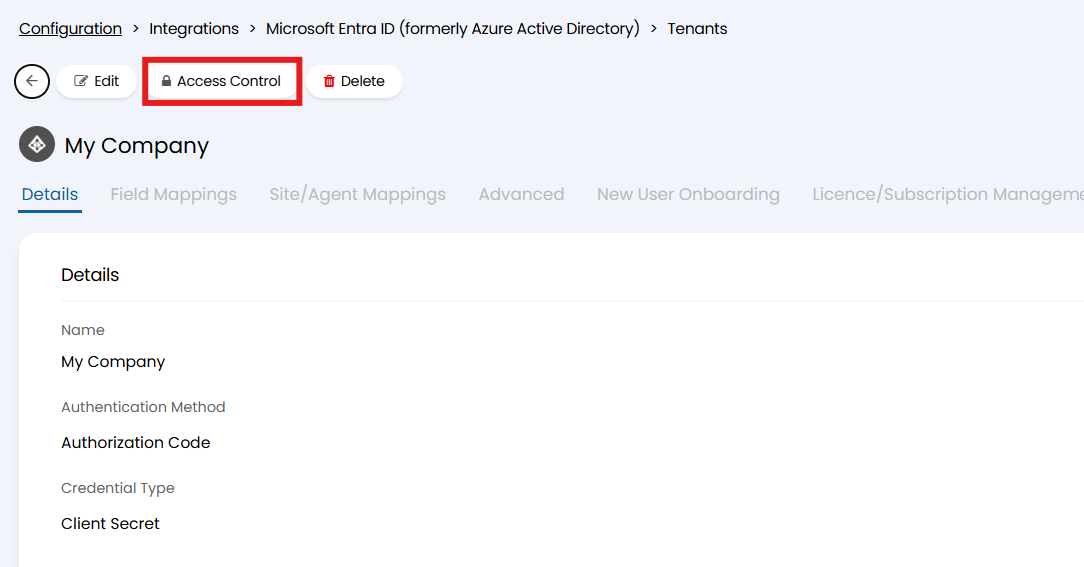
Fig 36. Give access to connection
Here, choose who to give access to and the level of access they have.
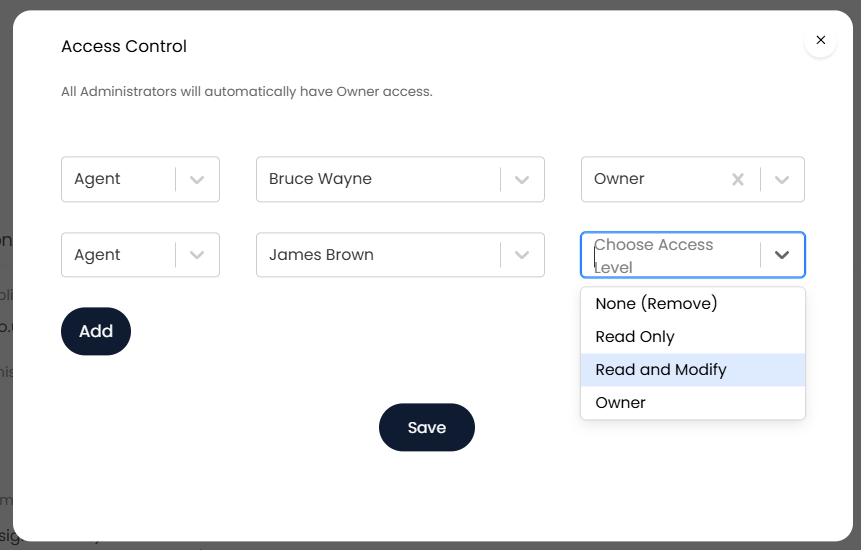
Fig 37. Granting access control
If 'Read and Modify' access if granted to 'James Brown' this means this agent will be able to view and make changes to any of the setup for this connection, but they will not be able to create new connections or see/modify others.
Miscellaneous Settings
A new tab is available within the main page configuration. Here, you can now allow Azure distribution groups to be added as followers on a ticket, allowing easy access to tickets with information that may be relevant to a large group of people.
Enable "Allow groups to be added as Ticket followers", and enable the same per Entra connection. A default connection can then be set.
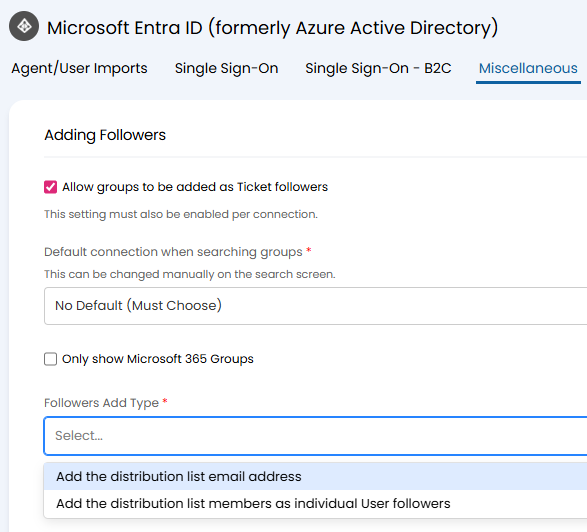
Fig 38. Adding followers to a ticket based on Azure distribution group
There are two options for how the followers are added to tickets:
| Option | How the Followers are Added | Automatic Updates? | Access to Tickets? | Extras? |
| Add the distribution list email address | The email address for the list will be CC or BCC'd into actions based on the setting at action level. | Adding or removing users from the list will immediately add or remove them from the email chain. | This option does not grant followers access to the tickets. | N/A |
| Add the distribution list members as individual User followers | This will add each user in the list as a follower. If the user has been imported into Halo, they will be made a follower. If not, their email address will be added as a follower. | Changes to the distribution list will not be reflected in Halo automatically. | Agent/user followers can be allowed access to the ticket. | A maximum number of distribution members can be selected. This defaults to 100. |