CIPP Integration
- integration
- cipp
In this guide we will cover:
- What is the CIPP Integration?
- Connecting to CIPP
- Linking to CIPP
- Creating a Custom Button
Related Guides:
What is the CIPP Integration?
CIPP can be integrated with Halo to add custom buttons that link both programs’ user records, or open custom URL paths.
Connecting to CIPP
The first step in Configuration > Integrations is to enable the CIPP module. Hover over the module, and click the "+" icon.
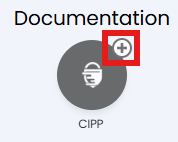
Fig 1. Enabling the CIPP module.
Clicking into the module will show a field to add your CIPP URL.
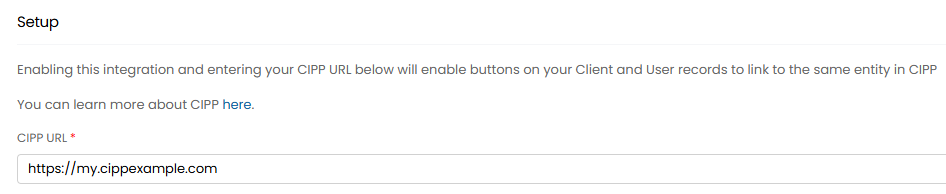
Fig 2. Adding your CIPP URL.
Linking to CIPP
The "AD Object" and tenant from Entra or CSP associated with a user will be used to match them with the corresponding CIPP profile. A button to open this will show at the top of the User profile.

Fig 3. CIPP link button on a user.
Creating a Custom Button
Custom buttons can then be created to open various areas in CIPP against customers and users. Variables for Azure values or custom fields can be used in these URLs.
Note: Action buttons can also be created for tickets to open CIPP from a ticket. To do this you will need to create an actin with the system use "Open URL". For more information on configuring actions see our guide here.
We will use the first URL as the example here.
Click into the "Custom Buttons" button.
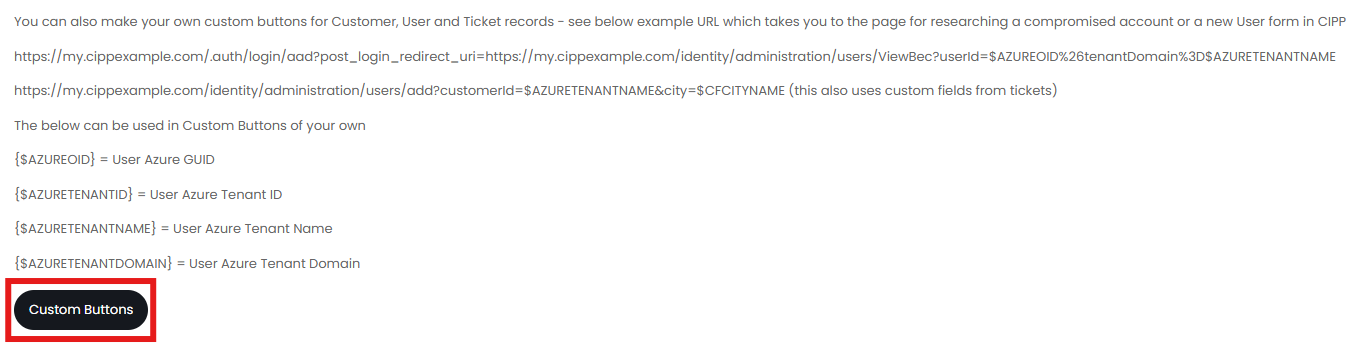
Fig 4. Custom Button instructions.
This will open the "User" entity by default, but the dropdown in the top left can be changed as required. Then, click the "New" button.
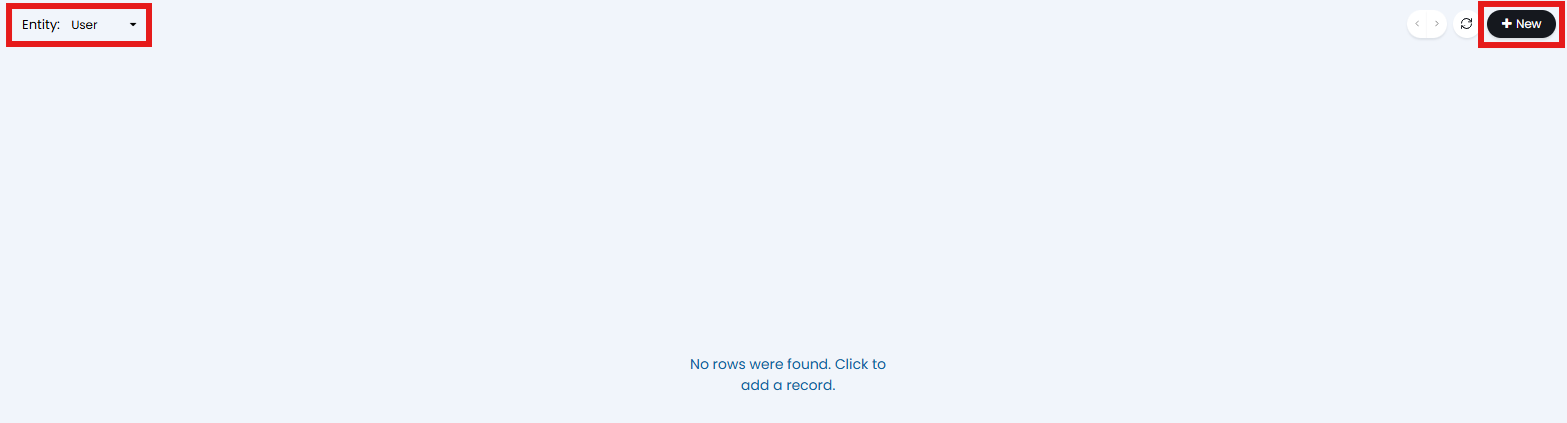
Fig 5. Custom button entity selection.
We can now configure the custom button. Give it a name for reference, a label for the button, and a icon if wished.
Set the "Button Use" to "Open Link", and set a sequence number.
Further options will then show to add the URL, and set whether it opens in a new tab. Any variables added in the URL (as seen in Fig 4) will populate with the information from the user you open the button link from.
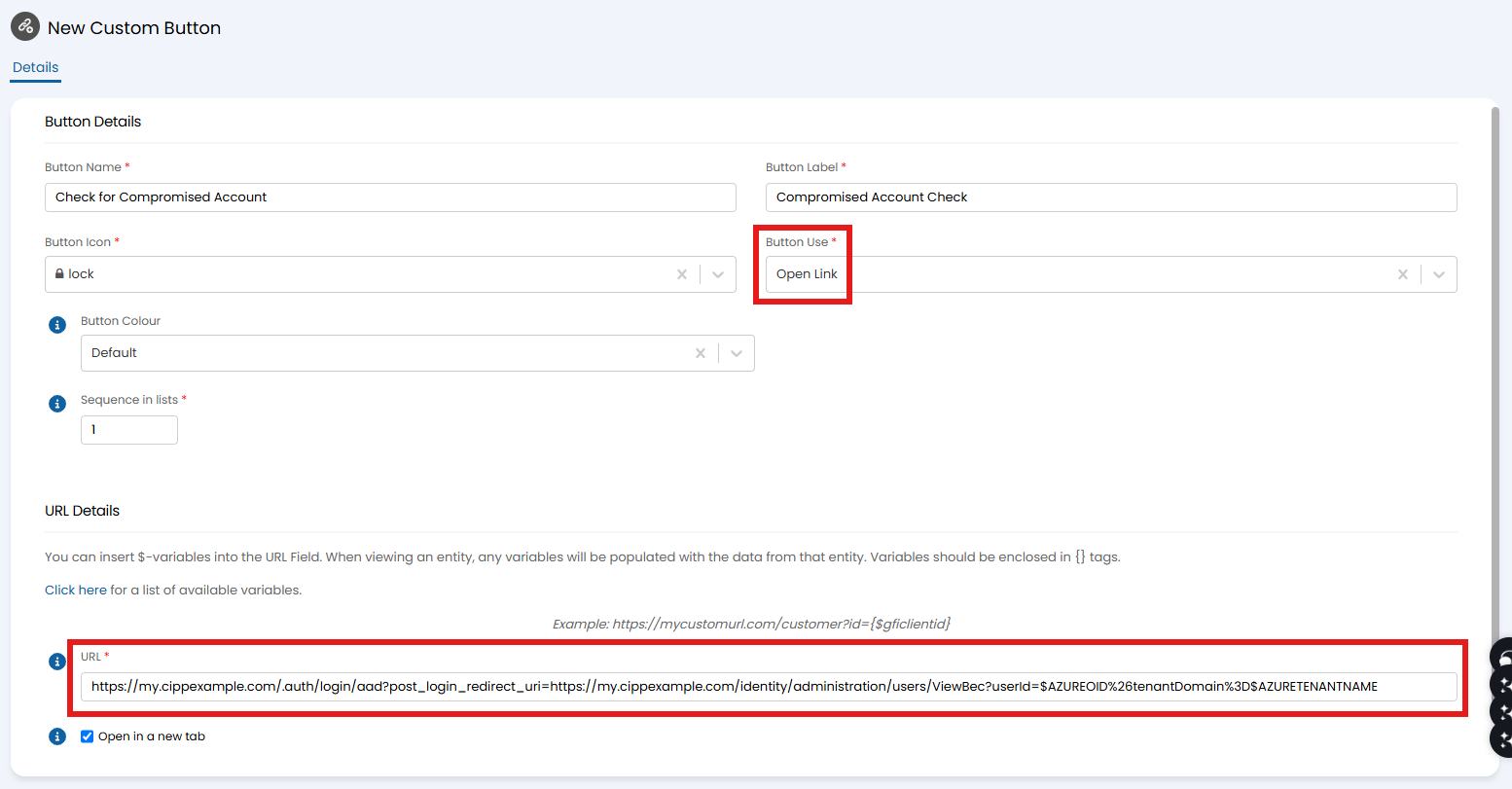
Fig 6. Creating a custom button.
The custom button is now available on the user profile.

Fig 7. User custom button.