Custom Buttons
- open link
In this guide we will cover:
- The benefits of using custom buttons and tabs
- How to create a custom button
- Create Custom buttons via the API
Admin Guides:
Related Guides:
The Benefits of using Custom Buttons and Tabs
This video By Connor from Renada, goes over the use case of using custom buttons and tabs
Custom buttons can be used to add a host of functionality to various areas in Halo whilst being very simple to configure. You might use custom buttons to:
- Build on the functionality of an existing integration
- Create a basic integration with another web-based application or service
- Add custom shortcuts to existing functions within Halo
- Trigger a runbook
Adding a New Custom Button
Head to the configuration page and then navigate to "Custom Objects" which is near the end of the list. You'll see the option for Custom Buttons. If you click on that you will see a list screen, with a drop-down in the top-left to select which type of custom buttons to show. The options include:
- Customer
- Site
- User
- Asset
- Contract
- Item
- Supplier
- Supplier Contract
Buttons of type 'Customer' will show up near the top on the customer record in Halo, 'Site' buttons will show on the site record, etc. For example:
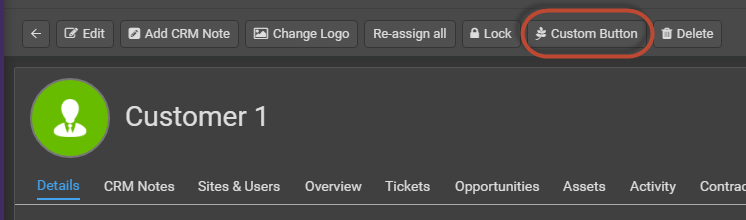
Fig 1. Custom Button Example
Select a button type and click 'New' to add a new custom button. You'll then see the following inputs:
- Button Name - This is the description of the button. This can be anything you choose and is purely used to identify the button in the config list.
- Button Label - This is the text that will appear on the button itself.
- Button Icon - This is the icon that will appear next to the text on the button.
- Button use - This will control what the button is used for. Buttons can either open a chosen link (Open Link) or start a runbook (Start a Runbook) when used.
- Sequence in lists - This defines the order of the buttons both in the list and the order they appear in the entity.
- Button Colour - This controls what colour the button will be. If using a custom colour the icon and text colour of the button will automatically change accordingly.
- Open in New Tab - Defines whether clicking the button opens the URL on in the same browser window, or in a new tab.
Buttons to Open a Link
If your 'Button Use' is set to 'Open Link' the button can open a set link when used. Useful when you would like to use it as a shortcut to navigate to other pages.
Simply enter the link you would like the button to open in the 'URL' field. If you would like this page to open in a new tab select 'Open in a new tab' otherwise the agent will be redirected to this page.
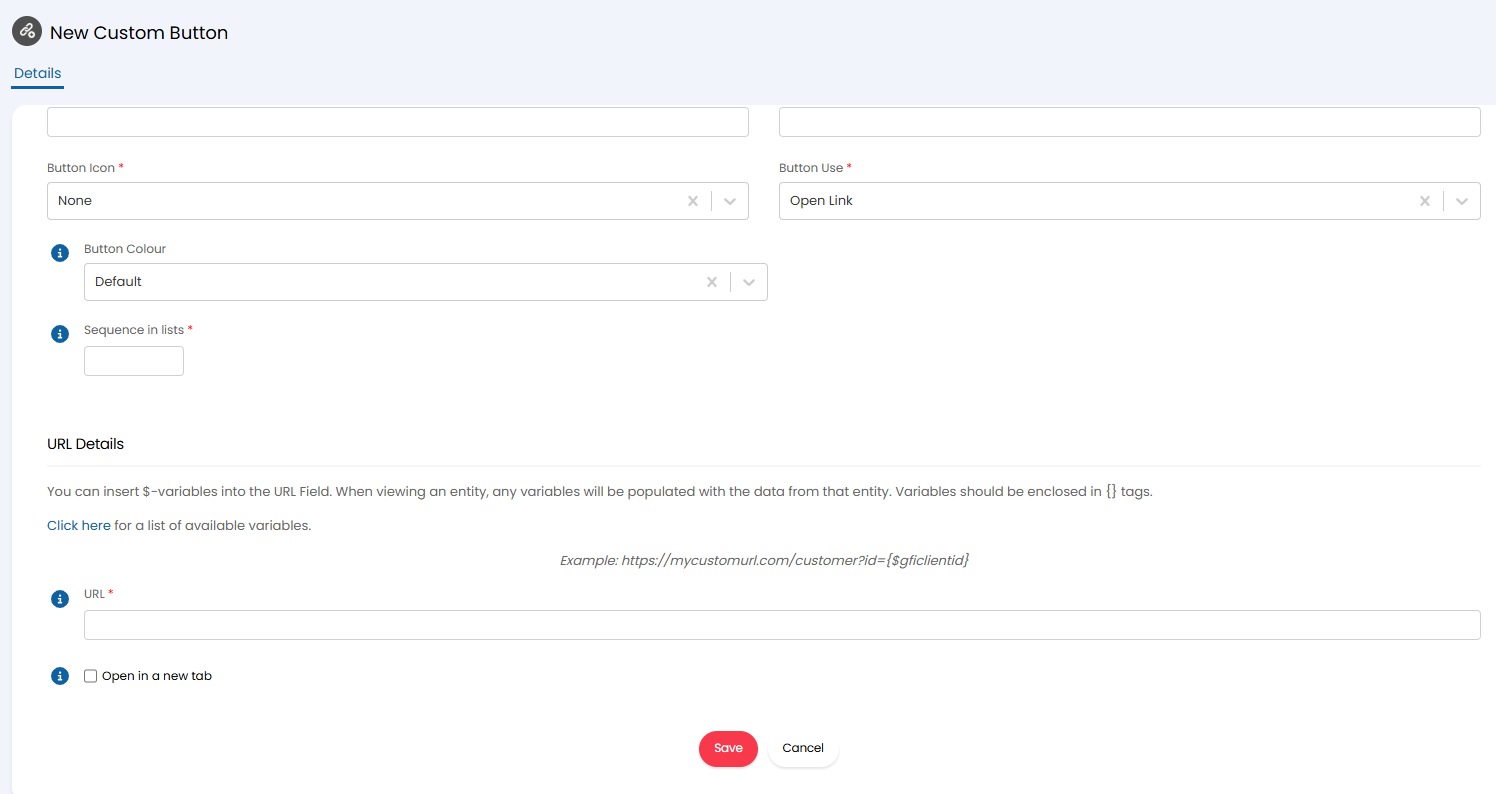
Fig 2. Button to open a URL.
Creating your URL
You can have your button simply open a specified URL, or you can build a URL to open with the assistance of variables.
For example, you might have a 3rd party Remote Monitoring web application and you wish to add a button to the assets in Halo that opens the monitoring page for the individual asset. You might also have an asset field in Halo that contains the ID number of the asset in the 3rd party application (let's imagine that the asset field is called 'Third Party ID'). To achieve this, inspect the URL of the asset monitoring page in your 3rd party application. You can see in the following example, the URL contains the asset ID 123: https://monitoring.rmm.com/asset?id=123
So in order to replicate this URL for the button on each of your assets, the URL that you'd need to use for the button would be: https://monitoring.rmm.com/asset?id={$AFThird Party ID}
You can view the list of variables that you can use the for the custom URL by clicking on the link within the URL Details of the custom button creation screen:

Fig 3. Button For Viewing List of Dollar Variables
Remember to put your variable between curly brackets, such as: {$CFCustomField}.
You can use custom field variables within the URL to set defaults within the web-app. In previous versions, only the end-user portal will work this way.
The fields that can be populated in the way are memo, single select, date, and checkbox custom fields, category 1-4, and the ticket's summary.
- The summary uses the following format: summary=X, where X is the URI encoded value.
- Memo and date custom fields use the following format: customfield_Y=Z, where Y is the custom field ID and Z is the URI encoded text / date value.
- Single select and checkbox custom fields use the following format: customfied_Y=Z, where Y is the custom field ID and Z is the ID of the desired value (for checkboxes this is 1 for Yes).
- Category 1-4 use the following format: category_Y=Z, where Y is the category ID (1-4) and Z is the ID of the desired value.
Buttons to trigger an Integration Runbook
If your button use is set to 'Trigger a Runbook' you can have your button trigger a chosen runbook. Useful when you would like to be able to trigger runbook automations manually outside a ticket.
This is available for buttons for the following entities:
- Client
- Site
- User
- Device
- Quotation
- Purchase Order
- Invoice
This is available from for buttons for the following entities:
- Sales Orders
Simply choose the runbook you would like to trigger in the 'Integration Runbook' field.
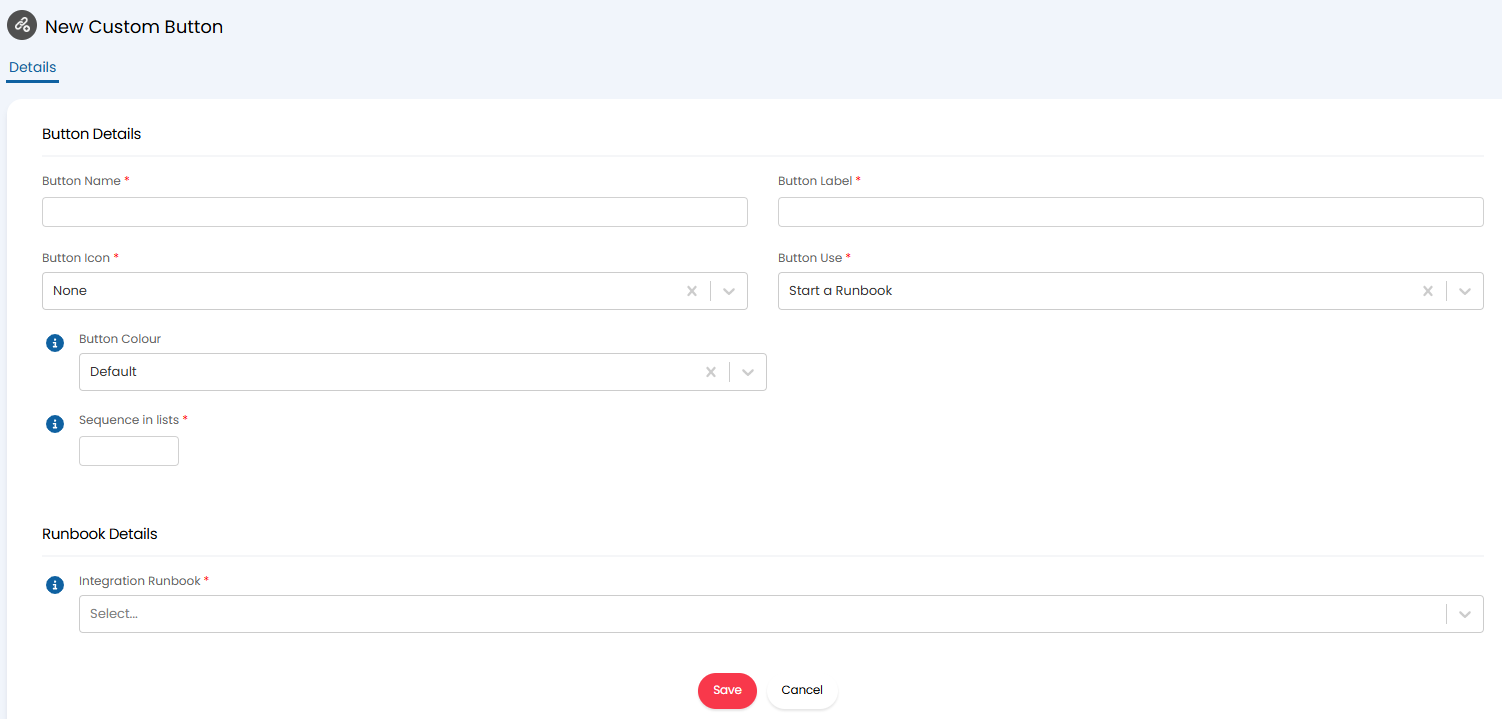
Fig 4. Custom Button to trigger integration runbook.
Note: When using a button to trigger a runbook ensure the runbook does not have any event triggers configured.
Custom Button Restrictions
Agent's access to custom buttons can be restricted to control who can use which buttons.
Access Control can be set on each custom button to control who can access it.
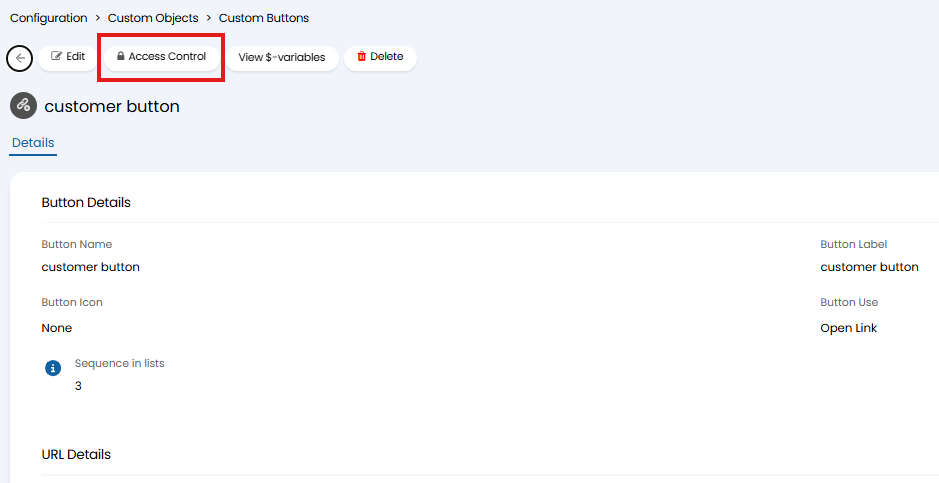
Fig 5. Access control for custom button.
When adding access control choose the entity you would like to give access to and the level of access they should have. Agents will only need read only access to be able to use a button.
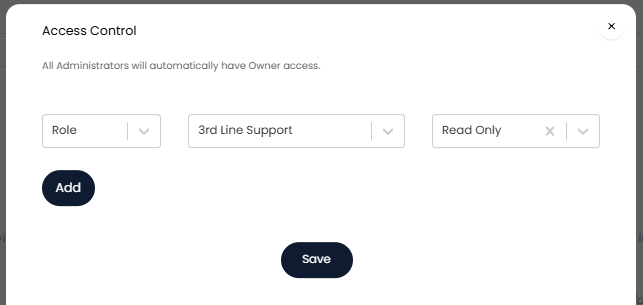
Fig 6. Access control for custom button.
Create Custom buttons via the API
Custom buttons (to open a specified URL) can be created via the API, allowing third party tools to create custom buttons for specified entities.
This allows custom buttons to be added to chosen entities using information that is available in the third party tool, but not available in Halo. Useful when the button link needs to be dynamic based on the instance of the entity it is present on, but the unique information is not available in Halo. For example, when you would like the button to take you to the most recent alert for that asset in the RMM tool. This also allows you to only have custom buttons create on specific instances of an entity, rather than all instances of that entity (e.g. all clients).
Custom Buttons can currently be created via the API for the following entities (post to the endpoint of the entity you would like to create the button on):
- Client
- Site
- User
- Item
- Device
- Quotation
- Sales Order
- Purchase Order
The following properties are used to determine the URL, the label, and the icon for the button (respectively):
- _match_integration_button_url
- _match_integration_button_caption
- _match_integration_button_icon
The following properties are used to determine the URL, the label, and the icon for the button (respectively) when you would like to create multiple buttons per entity. When looking to create multiple buttons per entity you will need to POST to the Externallink endpoint:
- url_for_linked_entity
- url_for_linked_entity_caption
- icon_for_linked_entity_caption