Single Sign-On (SSO) in Halo
- SSO
In this guide we will cover:
- The Single Sign-On Module
- Setting up Single Sign-On
- Single Sign-On Options
- Matching Users
- Claim Validations
- User Provisioning (creation)
- Adding SSO buttons to login Page
- Customise Single Sign-On Buttons
The Single Sign-On Module
A Single Sign-On module is available in Halo, a centralised location to setup each single sign on method you wish to integrate. Single sign-on can be integrated with Halo to allow your agents and/or users to log into Halo using their credentials from another application, usually you identity provider application. Reducing the number of login credentials your agents/users need.
Setting up single sign-on (SSO) in the single sign on module allows you to create multiple SSO records for each identity provider. Each record can then be linked to one of your Halo instances to restrict which instance the sign on method can be used in (Prod/UAT/Dev), useful when using linked instances. This allows you to use SSO in additional instances, but impose restrictions on who can log into the instance with their SSO credentials. Such as only allowing developers/administrators to login to your Dev instance.
The module also supports setting up a custom SSO connection, allowing you to use the sign in credentials from any identity provider that uses OIDC tokens. Sign in buttons can also be customised, allowing you to change the colour, label and logo on the button.
Note: When using this method to setup SSO with multiple Microsoft tenants, you are able to restrict which tenants can utilise SSO but you cannot have newly added tenants automatically added to the 'allowed tenants' list for single sign on. New tenants will need to be added to the allowed list (detailed later in this guide) manually. If you require them to the added automatically you can utilise this method for setting up single sign on.
Setting up Single Sign-On
Start by heading to Configuration > Integrations, and enable the module 'Single Sign-On' using the '+' icon.
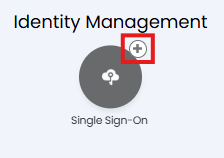
Fig 1. Enable integration module
Once enabled click into the module to begin setup.
Start by creating a new SSO application using the 'New' button in the top right.
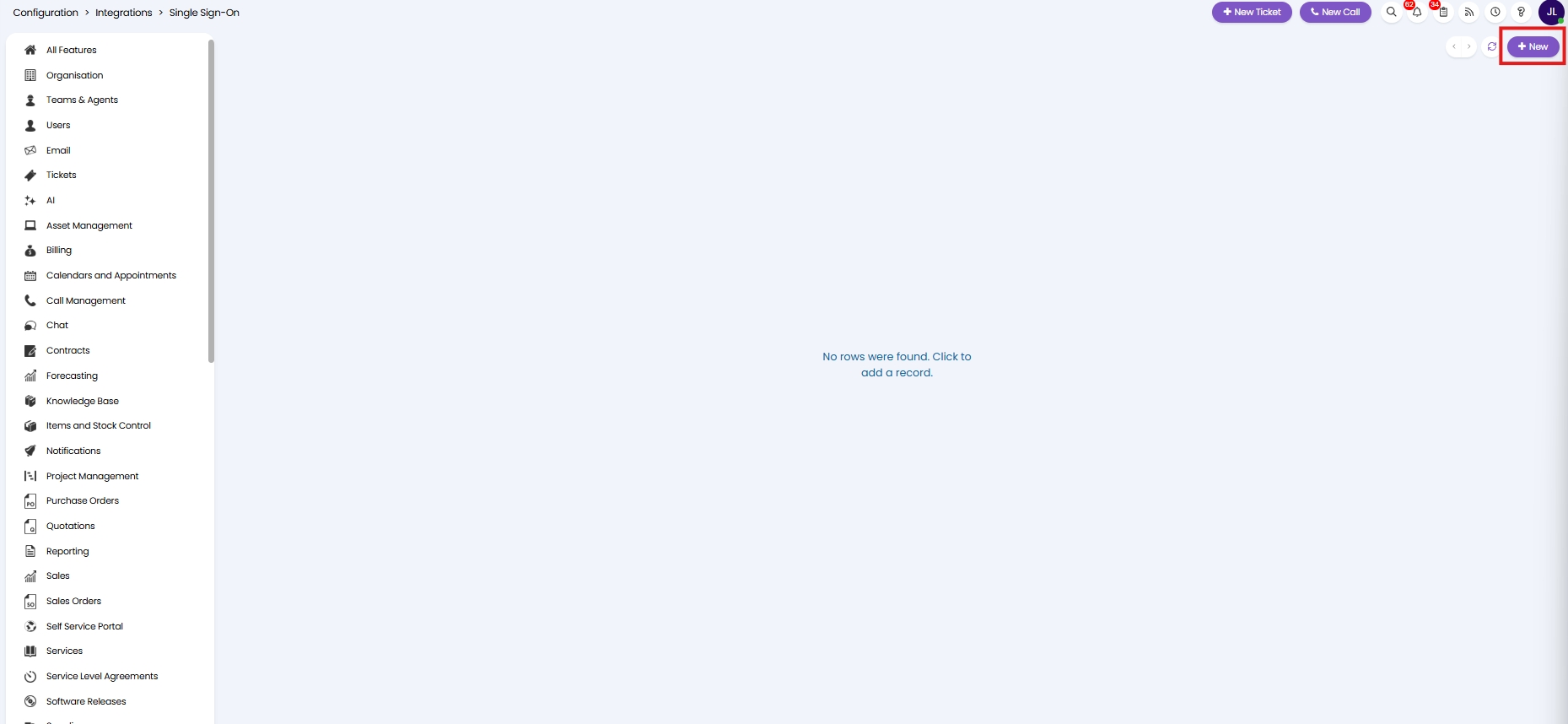
Fig 2. Create new SSO connection record
When creating a new application you will need to give the record a name and choose the type of SSO to use.
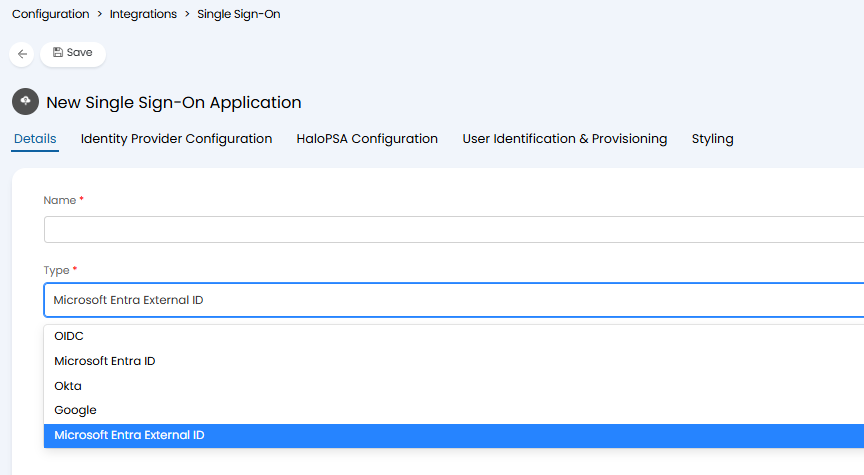
Fig 3. New application
Type of SSO application:
The type of SSO application you choose will depend on which application's credentials you would like users to be able to sign into Halo with.
OIDC - (OpenID Connect) This is used to setup SSO using another user identity provider not in the given list. This can be used to setup SSO with any identity provider that can issue OIDC tokens and expose a discovery URL.
Microsoft Entra - Used to setup SSO with Microsoft.
Okta - Used to setup SSO with Okta.
Google - Used to setup SSO with Google.
Microsoft Entra External ID - Used to setup SSO with Microsoft for external users (previously B2C).
If you have multiple linked Halo instances you will also have the option to link the SSO record to an instance using the 'instance' field.
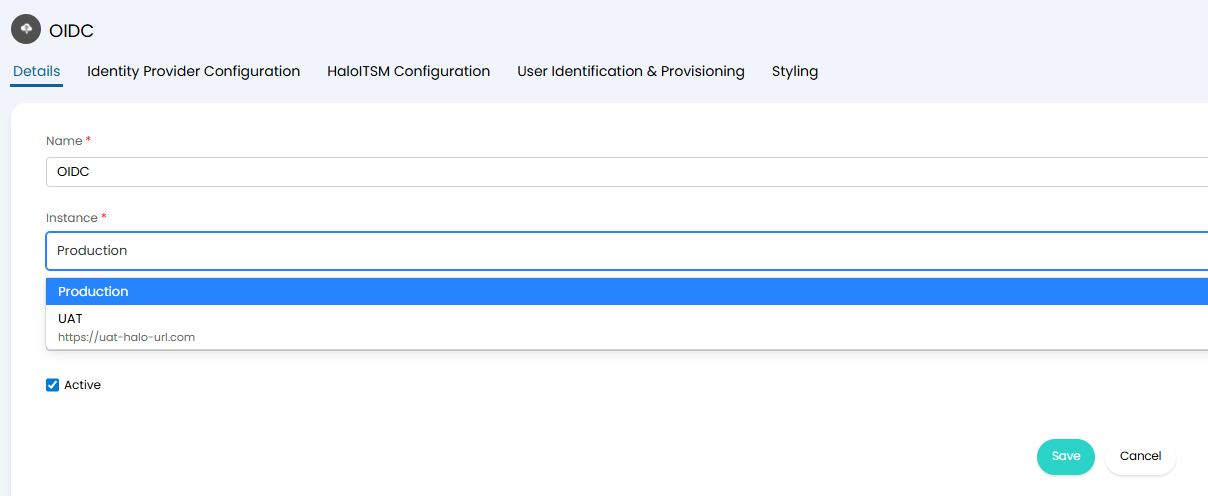
Fig 4. Link to instance
When linked, this SSO option will only appear when signing in to the chosen instance. For example, if UAT is chosen this SSO option will only appear when logging into the UAT instance, it will not appear when logging into production.
The setup that follows will depend on the SSO type chosen. Only follow the next section that applies to your chosen type.
OIDC
OpenID Connect is used when you would like to setup SSO using any other identity provider that is not in the given list. This provider must be able to issue OIDC tokens and a discovery URL.
Note: The provider must also allow for authentication via a form post as Halo carries out the authentication request via a form post.
Head to the 'Identity Provider Configuration' tab to continue setup.
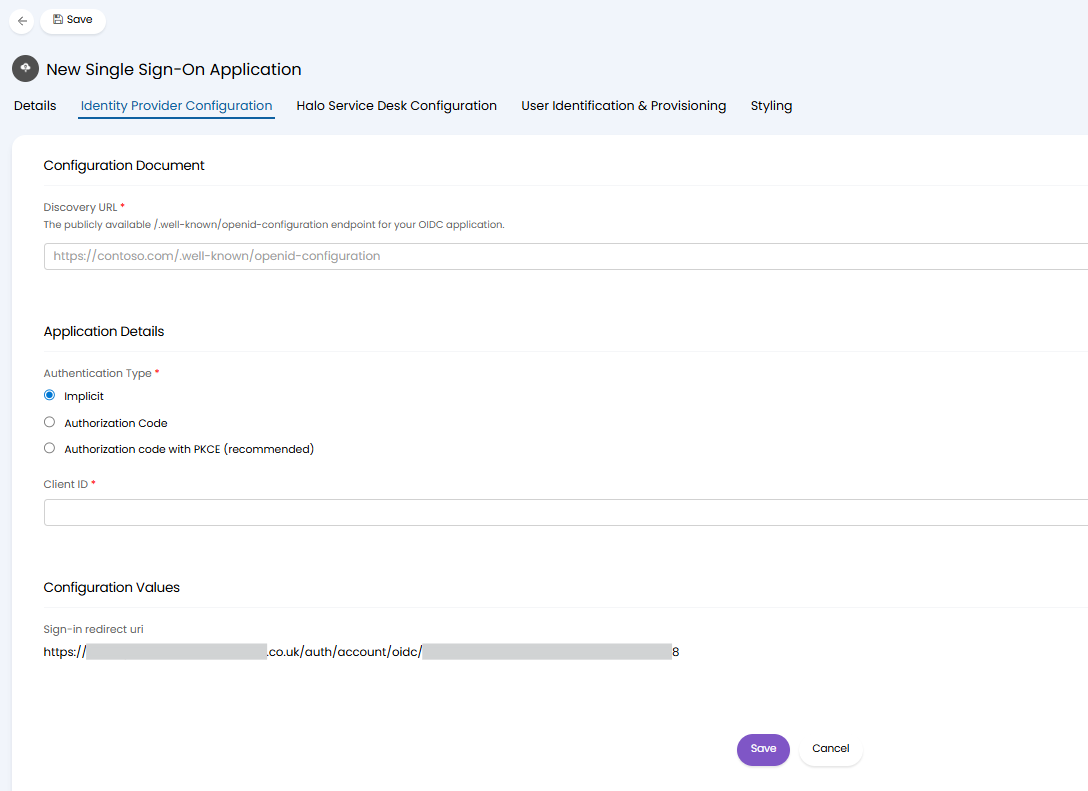
Fig 5. Identity Provider Configuration for OIDC
Discovery URL - You will need to enter the discovery URL your identity provider provides/has published for your tenant. This is usually provided per tenant in your identity provider, however, some providers may provide this per application. This should be publicly available and usually ends in '/.well-known/openid-configuration'.
You will need to create an API application within your chosen identity provider, to use for SSO. The application will need to be assigned the redirect URI found on the SSO setup page in Halo (figure 5). Keep the credentials of your application to hand as these will need to be entered into Halo.
Authentication Type - Choose the authentication type used by your SSO application. This controls how user access will be authenticated (the authentication type used in the authentication flow).
Client ID - Enter the Client ID of the application you have created in your identity provider for SSO.
Client Secret - (Only applicable if using 'Authorization code with PKCE (recommended)' as the authentication type'). Enter the Secret of the application created for SSO.
Microsoft Entra
Microsoft Entra is used when you would like to setup SSO using Microsoft Entra (Azure).
Note: This method of connecting single sign on with Entra does not support B2C SSO, only B2B.
Head to the 'Identity Provider Configuration' tab to continue setup.
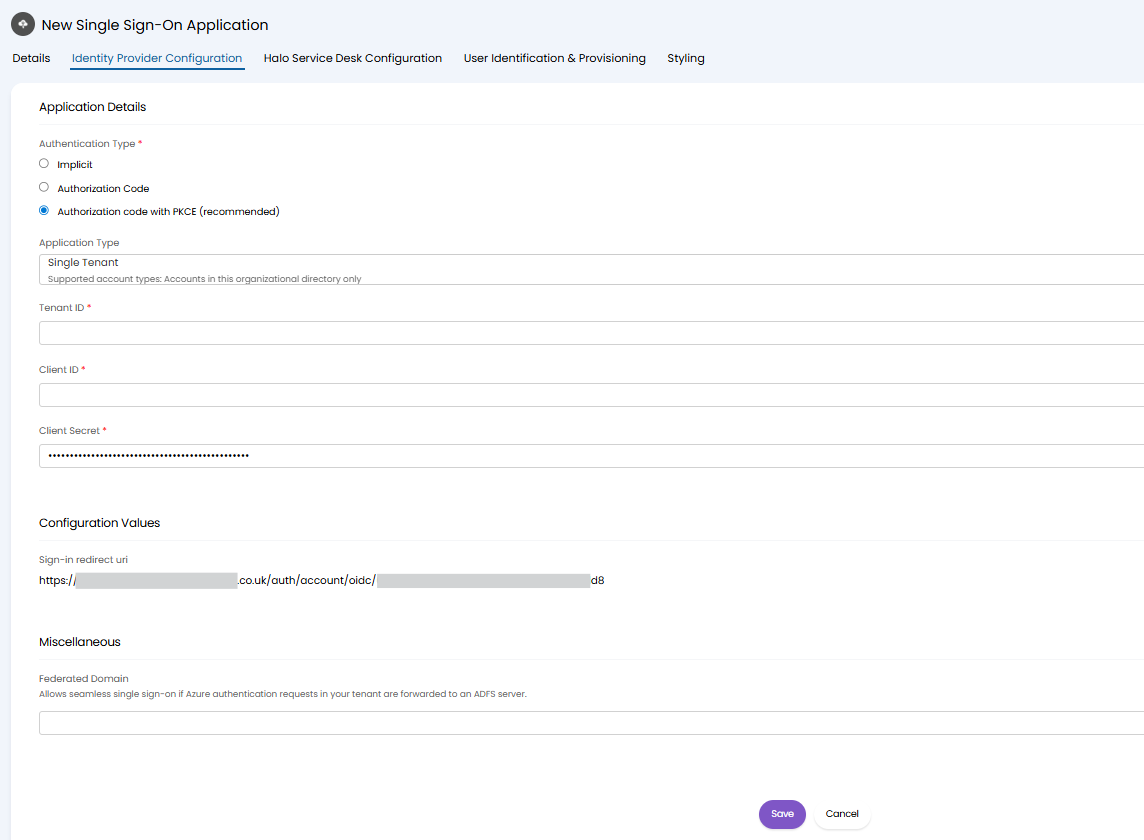
Fig 6. Identity Provider Configuration for Microsoft Entra
You will need to configure an app registration within your own Azure tenant. Before you do, you need to consider whether you will need a single or multi tenanted app.
The Halo SSO application can be single or multi tenant. Single tenant only allows Entra uses who are members of the same tenant as the one where the app registration is configured to sign-in. Multi-tenant applications allow Entra users from multiple tenants to sign in (restrictions on tenants can be configured in Halo). Our HaloITSM clients, which typically only have one Azure tenant will generally use a single tenant application. Our HaloPSA clients who wish their managed users to be able to use SSO along with HaloITSM clients with more than one tenant should configure a multi-tenant application.
Once you have decided the application type, follow the following steps to configure the app registration with your Entra ID tenant.
Create Application for SSO
Open the Entra Admin Center (or similar) and navigate to the App Registration section. Click "New Registration". Complete the details of the app registration.
Name: Be aware this could be visible to end-users, so choose a sensible name.
Supported Account Type: Single or Multi depending upon your organisation's requirements
Redirect URI: Choose the type web and insert the required RedirectURI, this can be found on the SSO setup page in Halo, seen in figure 6. This is the single redirect URI needed for both Agent and User SSO.
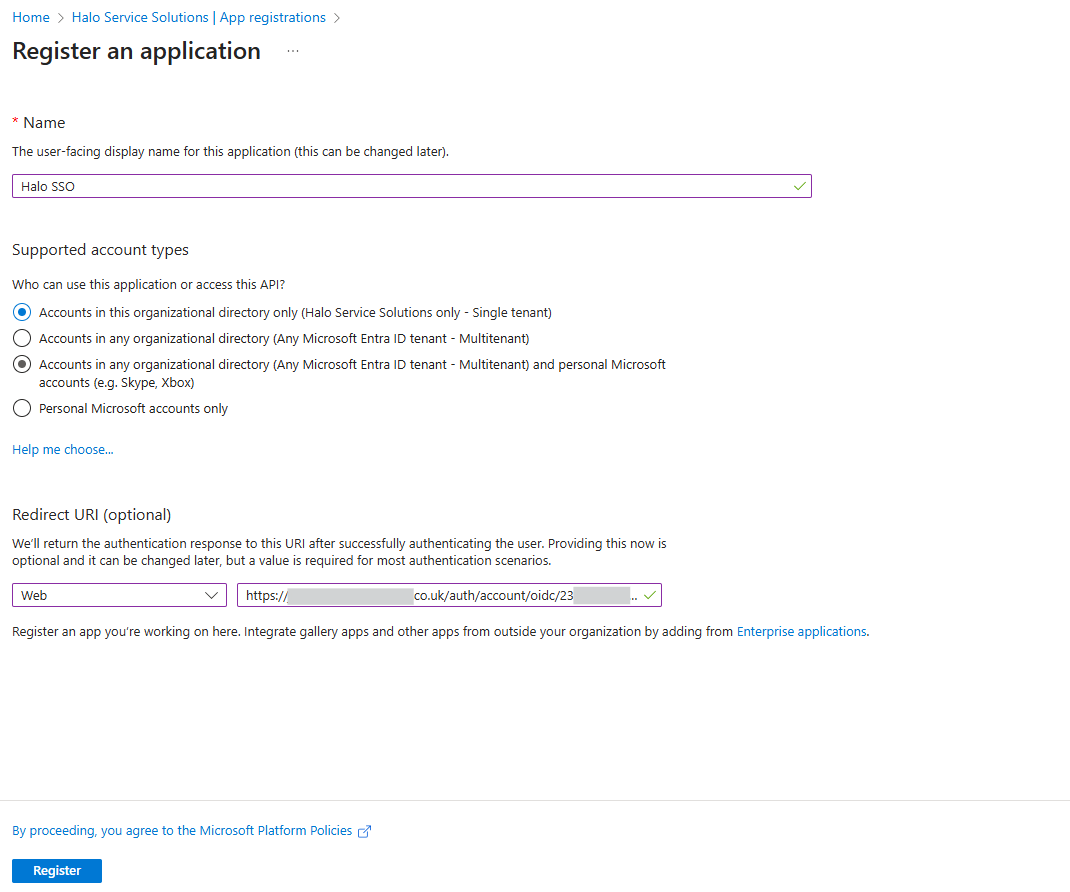
Fig 7. Azure application for SSO
Once registered, copy the "Application (client) ID" and "Directory (tenant) ID" from the Overview tab and store them safely, as these will be needed later.
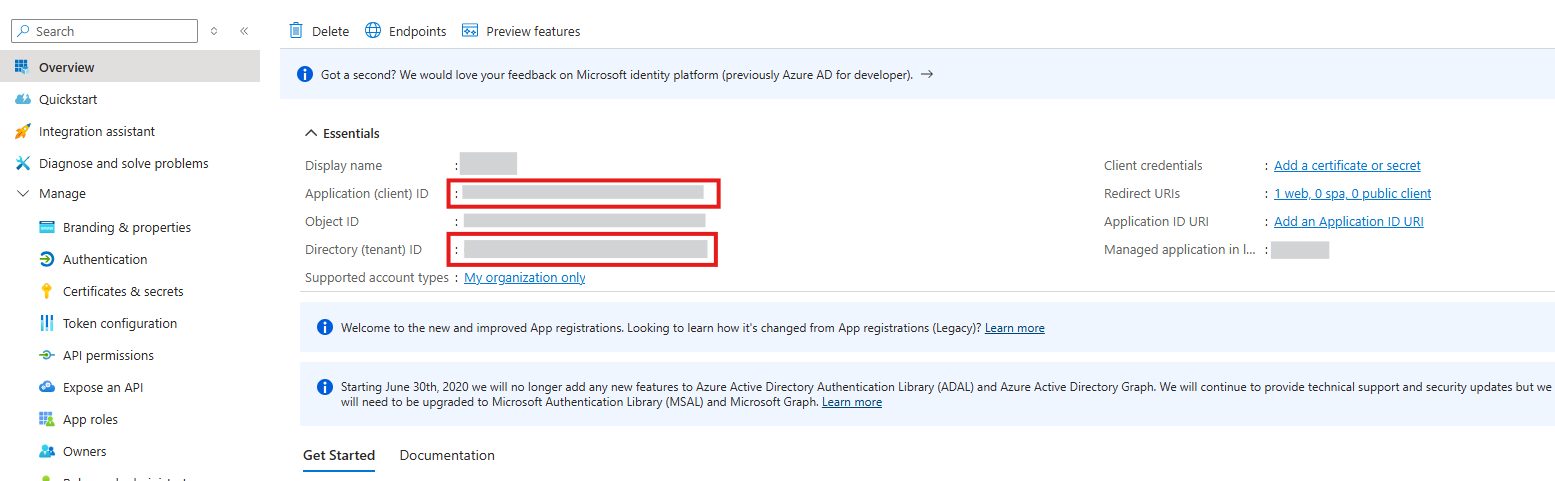
Fig 8. Application client ID and Tenant ID
Navigate to the 'API permissions' tab and remove the default 'User.Read' permission.
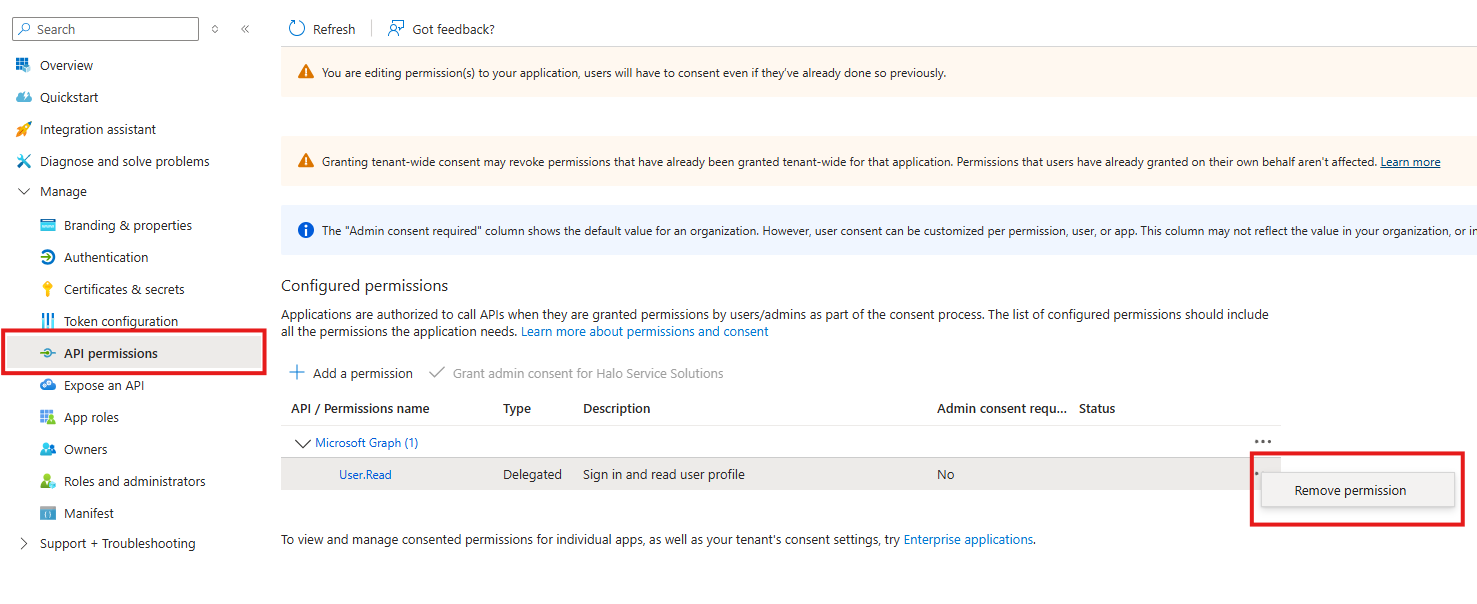
Fig 9. Remove API permission
Now navigate to the 'Authentication' tab and enable 'ID tokens' under 'Implicit grant and hybrid flows'.
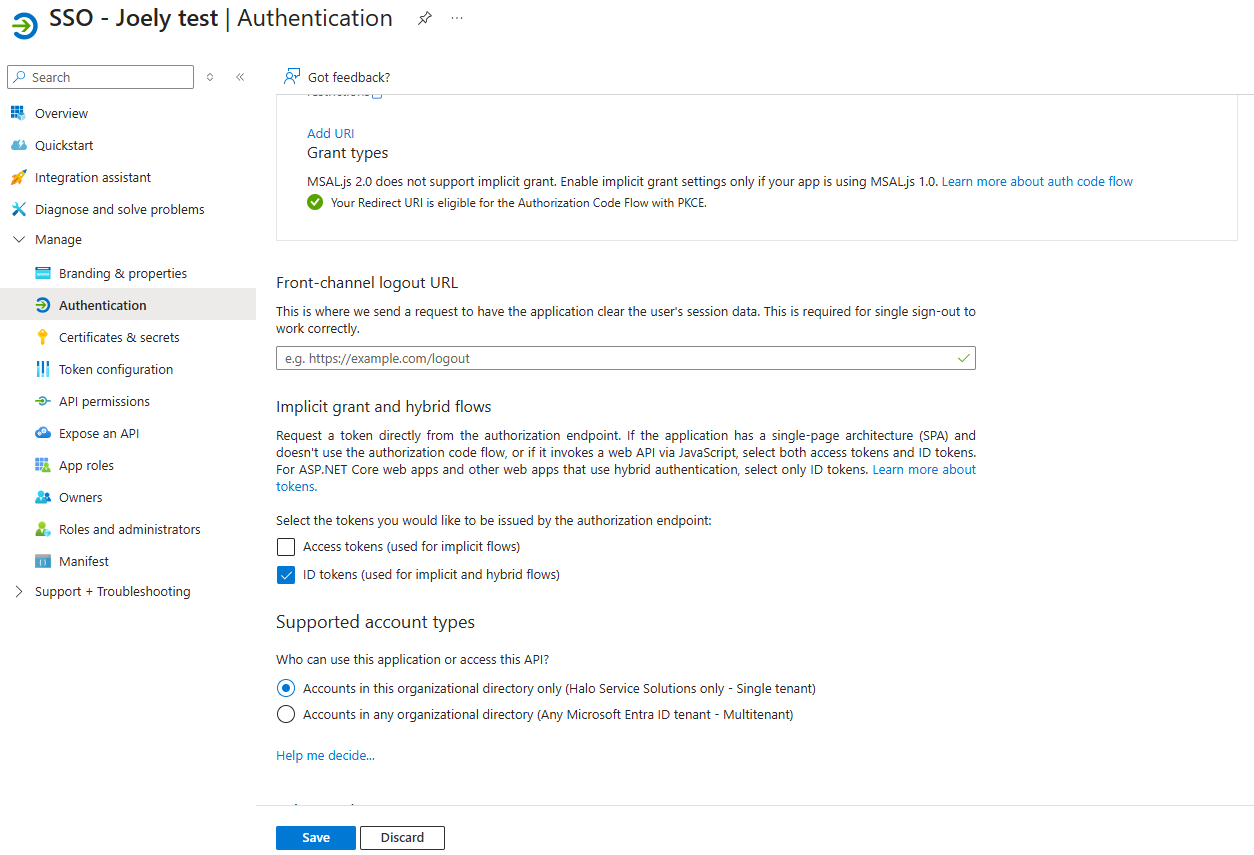
Fig 10. Enable ID tokens for application
If you would like additional claims to be validated when logging in ensure these claims are returned by the ID tokens. You may need to add additional claims you would like to validate to the application. Do this under the 'Token configuration' tab. Claims will be covered in more detail later in this guide.
If you are using the authentication type 'Authorization Code' or 'Authorization code with PKCE ' you will need to generate a secret for your application too. Head to the 'Certificates and Secrets' tab and add a 'New client secret'.
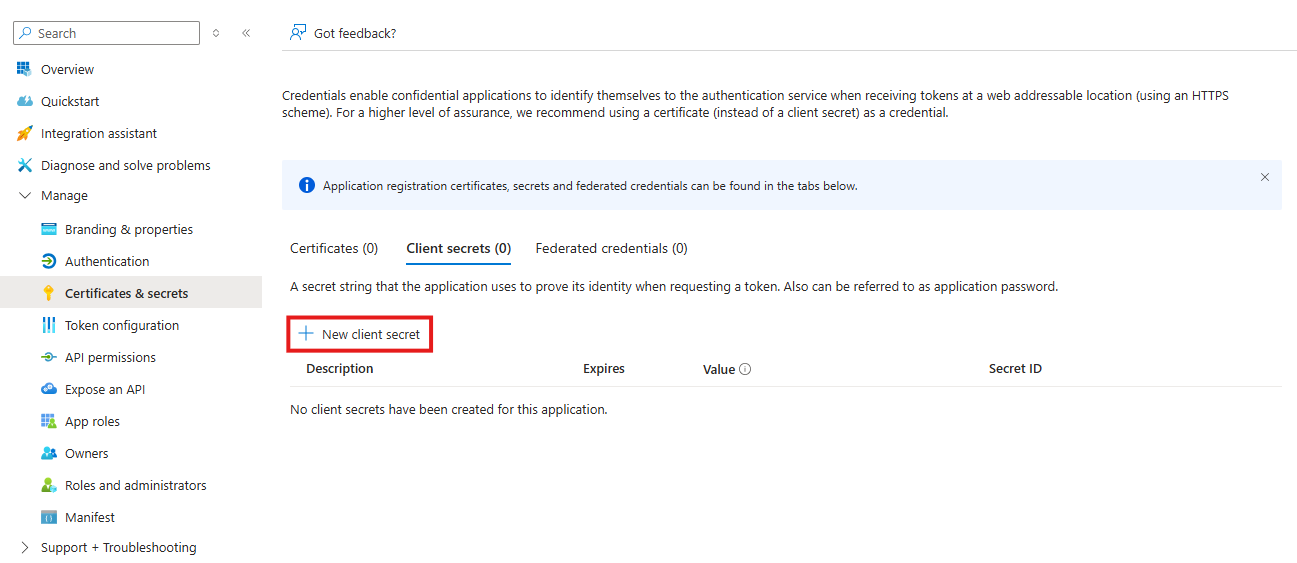
Fig 11. Add client secret to Azure application
Once added copy the secret value.
Head back to Halo and enter the Tenant ID, Client ID (and secret if using) under the SSO setup page. Ensure you set the application type you have created too (single/multi tenanted).
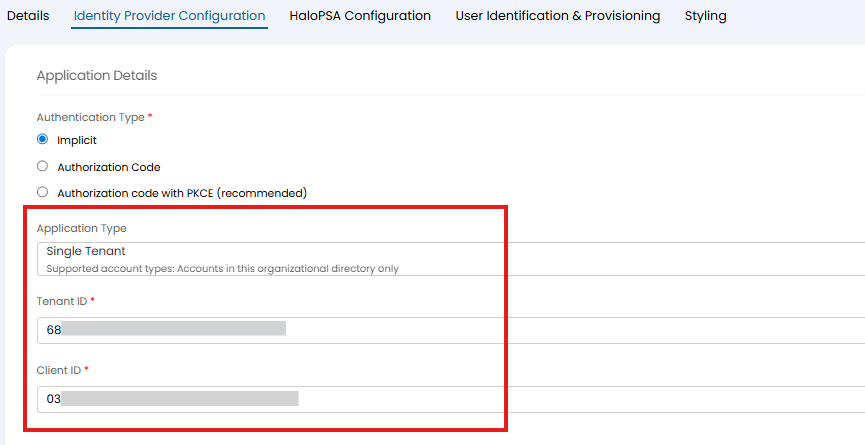
Fig 12. Enter application details in Halo
If you are using a multi tenanted application, you will also have the option to restrict which tenants can sign in using this SSO application. Simply enter the tenant IDs of the tenants that you would like to be able to sign into Halo using this SSO application. Any users within tenants not in this list will not be able to sign in.

Fig 13. Restrict tenant sign in
Federated Domain - This can be used if Azure authentication requests in your tenant are forwarded to an ADFS server to streamline the SSO procedure in Halo. You will need to enter the fully qualified domain name for your ADFS server in the field here.
User Interaction - Here, you can control how users can use this single sign on option.
- None - When signing in users will not be prompted to enter credentials or choose the account they sign in with. They will be signed in with an account automatically based on identity information.
- Select an account - When signing in users will be prompted to choose who they would like to log in as. Accounts available to choose will be based on identity information.
- Force Credential Input - When signing in users will need to enter the credentials of the Microsoft account they would like to sign in with.
When using this single sign-on type a discovery URL is still required for SSO connection, however, unlike OCID, this is generated and stored for you in the background.
Google is used when you would like to setup SSO using Google.
Head to the 'Identity Provider Configuration' tab to continue setup.
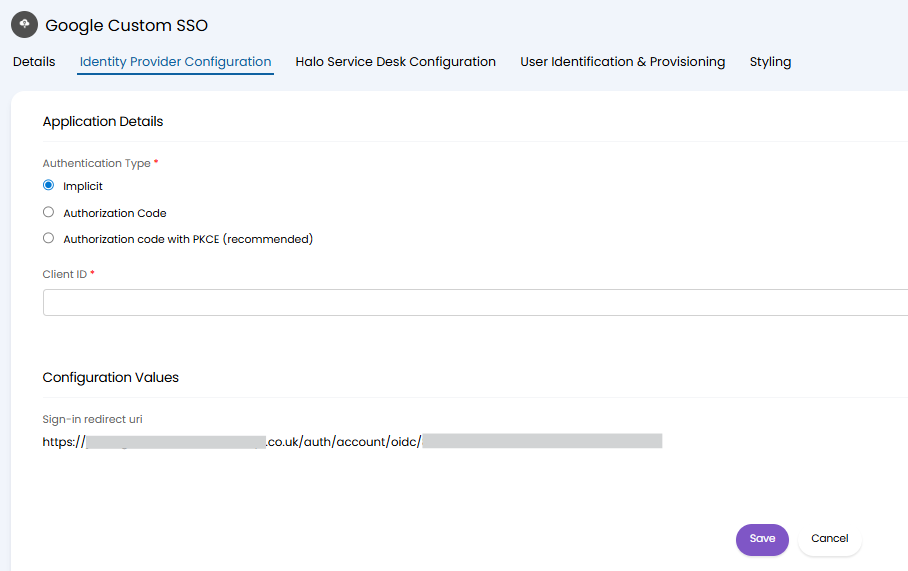
Fig 14. Identity Provider Configuration for Google
You will need to create an application in the Google developer portal to use for SSO, this application will need to include the Sign-in redirect URI found on the SSO setup page in Halo (figure 14). If you are using 'Authorization Code' or 'Authorization code with PKCE' you will also need to generate a secret for the application.
In Halo, enter the Client ID (and secret if used) from your Google application.
When using this single sign-on type a discovery URL is still required for SSO connection, however, unlike OCID, this is generated and stored for you in the background.
Okta
Okta is used when you would like to setup SSO using Okta.
Head to the 'Identity Provider Configuration' tab to continue setup.
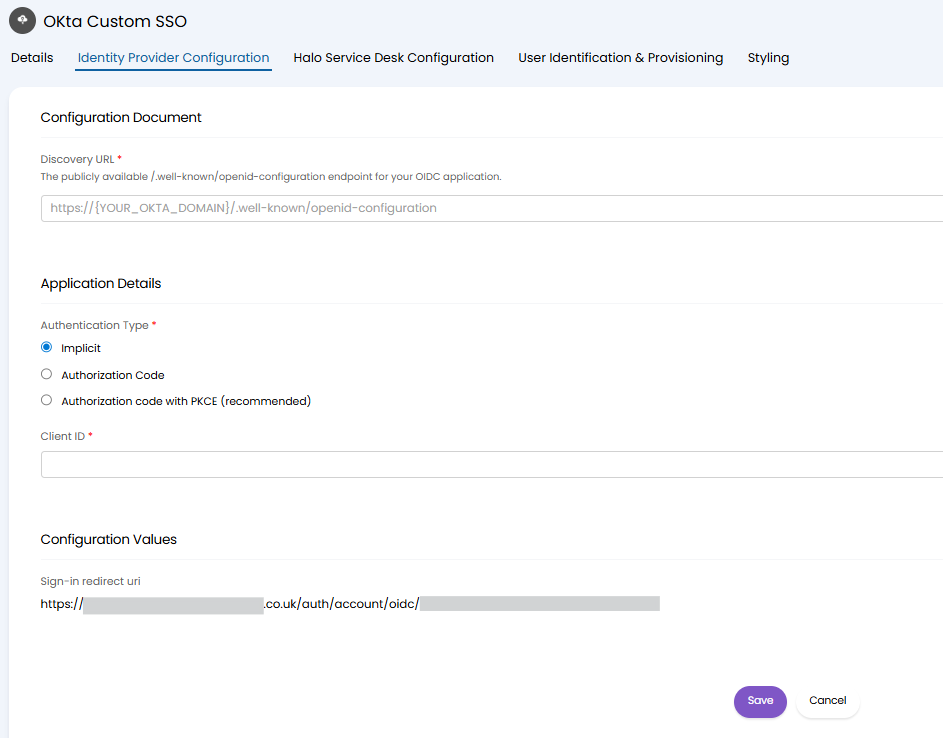
Fig 15. Identity Provider Configuration for Okta
You will need to create an application in Okta to use for single sign-on. Create an application of type 'Web' that uses 'OpenID Connect' sign in method.
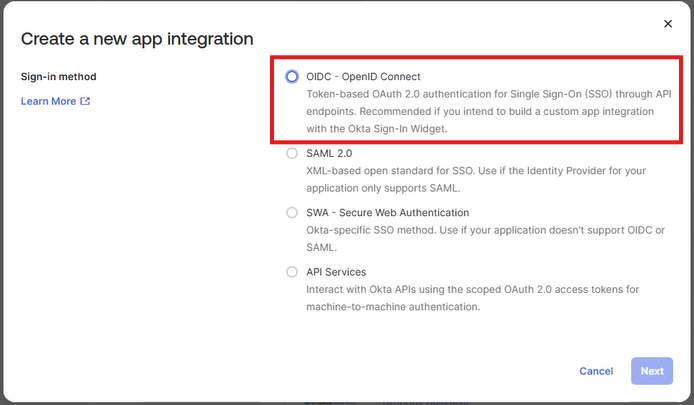
Fig 16. New application in Okta
When configuring, ensure "Authorization Code" and "Allow ID Token with implicit grant type" are both enabled. (If this is not available on your version of Okta, "Implicit (hybrid)" should be enabled).
Scrolling down, you can then set the redirect URIs for login. You will need to enter the sign-in redirect URI from the SSO setup page in Halo (figure 15). Enter https://YOURHALODOMAIN.com to use as the sign out redirect URI.
If you are using the 'Authorization Code' or 'Authorization code with PKCE' authentication type you will also need to generate a secret for the application.
Once you have the Client (application) ID (and secret is being used), enter these values into the SSO setup page in Halo.
Discovery URL - You will need to enter the discovery URL Okta has published for your tenant. This is usually provided per tenant in your identity provider, however, some providers may provide this per application. This should be publicly available and usually follows the format 'https://YOUROKTADOMAIN/.well-known/openid-configuration'.
Note: When setting up SSO against the Okta module the discovery URL is generated for you, the option is included here to enter it yourself for flexibility.
Microsoft Entra External ID
Microsoft Entra External ID is used when you would like to setup SSO with Microsoft Entra External ID. This is Microsoft's CIAM platform, used to authenticate access for external users (those not in your organisation). Allowing them to sign up and sign into your Halo portal using credentials from other platforms.
Entra External ID replaces B2C SSO as Microsoft's CIAM platform. From 15 March 2026 B2C will be depreciated for everyone on P2 tier licencing. Your B2C tenant will remain but your Azure AD B2C P2 licence will no longer function. For everyone on P1 premium tier licencing existing B2C will be supported until May 2030. Therefore, when setting up SSO in Halo it is advised to use Microsoft Entra External ID as this is Microsoft's supported method going forward.
If you would like to setup single-sign on for external users using B2C checkout: Microsoft Entra ID: Single Sign-On (B2C).
Head to the 'Identity Provider Configuration' tab to continue setup.
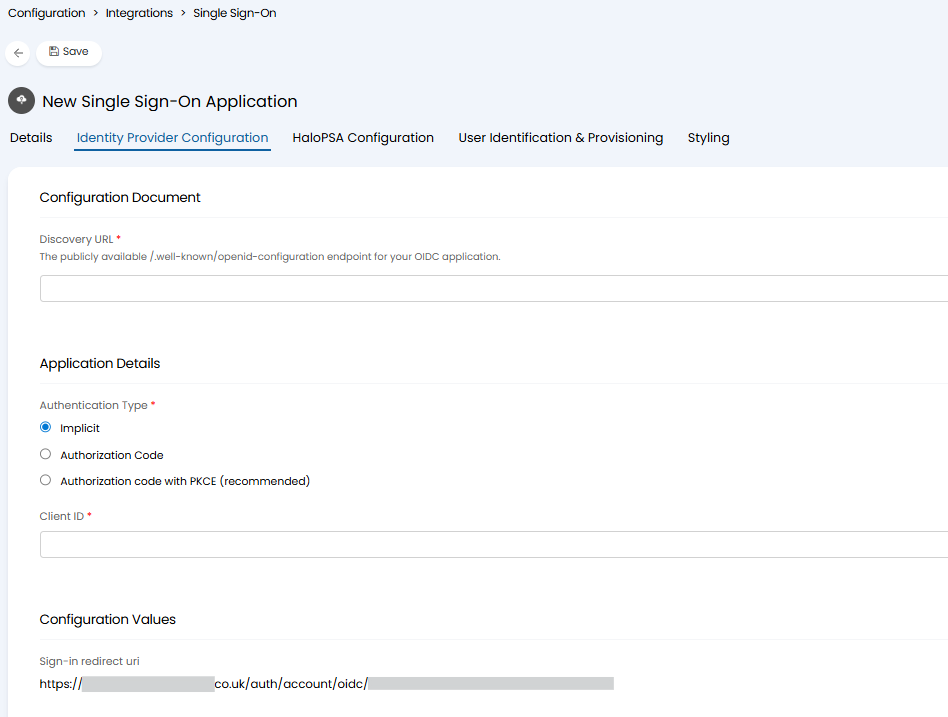
Fig 17. Identity Provider Configuration for Entra External ID
Discovery URL - You will need to enter the discovery URL your identity provider provides/has published for your tenant. This is usually provided per tenant in your identity provider, however, some providers may provide this per application. This should be publicly available and usually ends in '/.well-known/openid-configuration'. This will need to contain the user flow/policy you would like to use to authenticate users.
You will need to create an API application within your Entra External ID tenant, to use for SSO. This tenant will be separate to your primary Entra tenant. The application will need to be assigned the redirect URI found on the SSO setup page in Halo (figure 17).
Authentication Type - Choose the authentication type used by your SSO application. This controls how user access will be authenticated (the authentication type used in the authentication flow).
Client ID - Enter the Client ID of the application you have created in your identity provider for SSO.
Client Secret - (Only applicable if using 'Authorization code with PKCE (recommended)' as the authentication type'). Enter the Secret of the application created for SSO.
User Interaction - Here, you can control how users can use this single sign on option.
- None - When signing in users will not be prompted to enter credentials or choose the account they sign in with. They will be signed in with an account automatically based on identity information.
- Select an account - When signing in users will be prompted to choose who they would like to log in as. Accounts available to choose will be based on identity information.
- Force Credential Input - When signing in users will need to enter the credentials of the Microsoft account they would like to sign in with.
Obtain Discovery URL for Microsoft Entra External ID
To obtain the discovery URL needed you will first need to create an application in Entra. This application should be of type 'Accounts in any organizational directory (Any Microsoft Entra ID tenant - Multitenant) and personal Microsoft accounts (e.g. Skype, Xbox)', set the platform to be 'Web' and set the redirect URI that is present on the SSO setup page in Halo (figure 17). This URI follows the format https://YOURHALODOMAIN/auth/account/oidc/xyz.
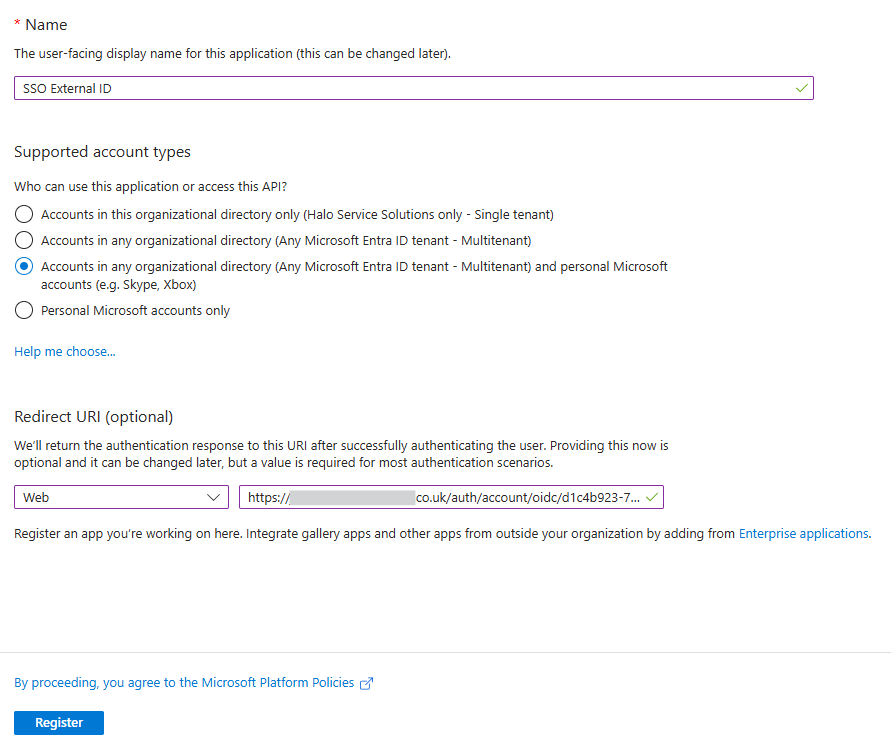
Fig 18. Azure application for External ID SSO
Once created head to the "Authentication" tab and enable "ID tokens (used for implicit and hybrid flows)" then save.
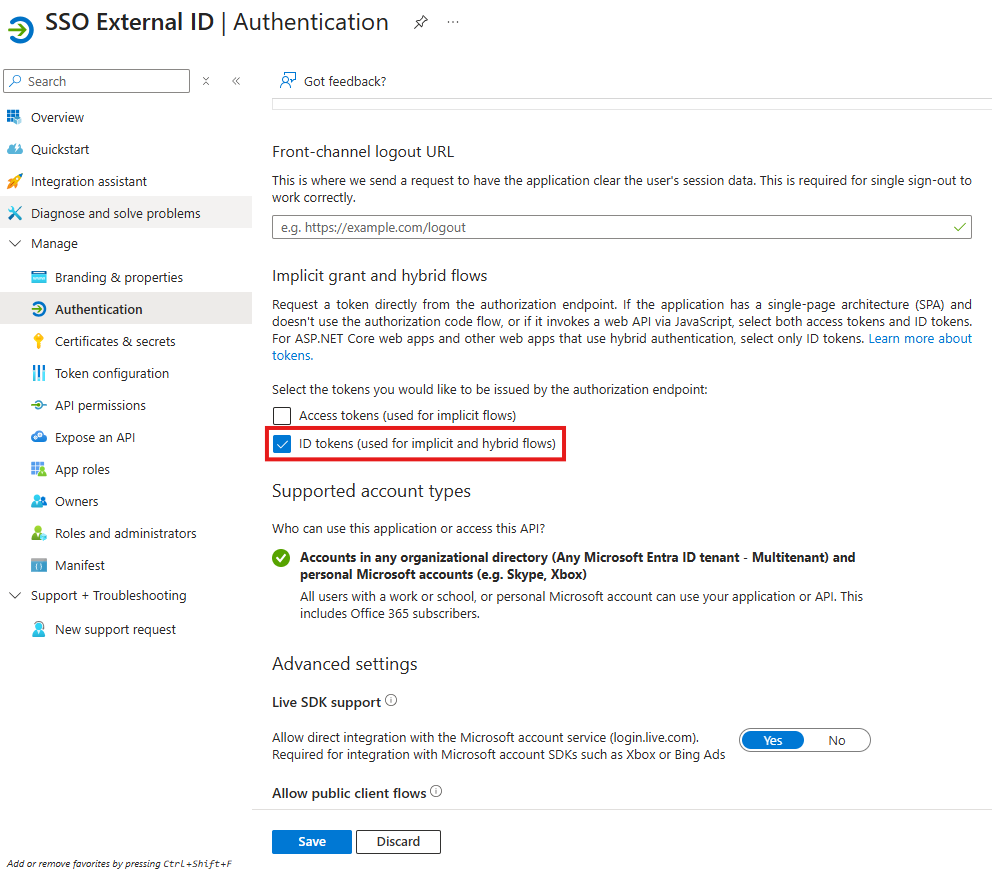
Fig 19. Enable ID tokens for the application
Now you will need to add the following permissions to this application:
- openid (Delegated)
- email (Delegated)
- profile (Delegated)
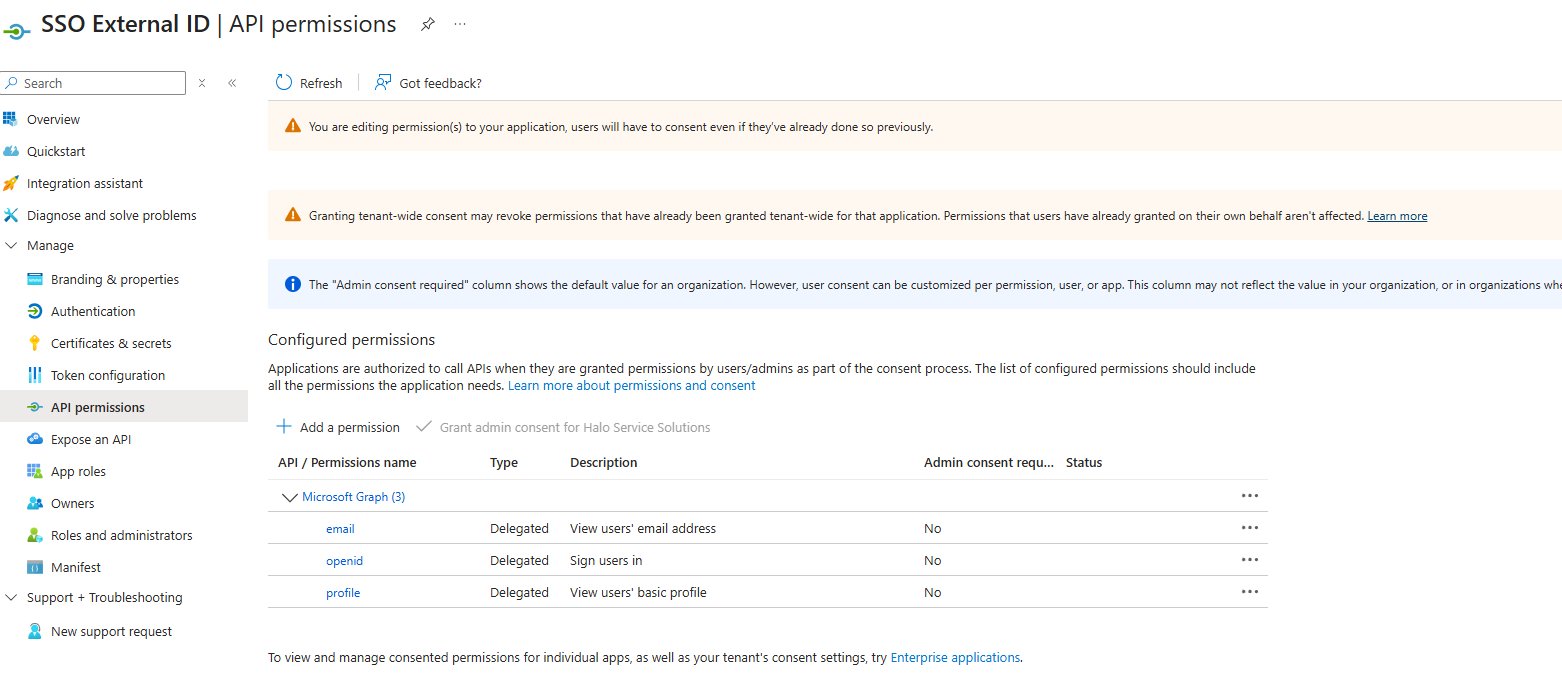
Fig 20. Application permissions
You will now need to link a user flow to this application to determine how users are authenticated. You may wish to create your own custom user flow, or use one of the standard user flows such as the 'sign up and sign in' user flow.
User flows can be added and configured under the "External Identities" section of your Azure. For information on creating user flows checkout Create a sign-up and sign-in user flow for an external tenant app.
Once you have chosen which user flow you would like to use, link the flow to the application. This is done within the "applications" tab of the user flow, for more detail on linking checkout Add your application to the user flow.
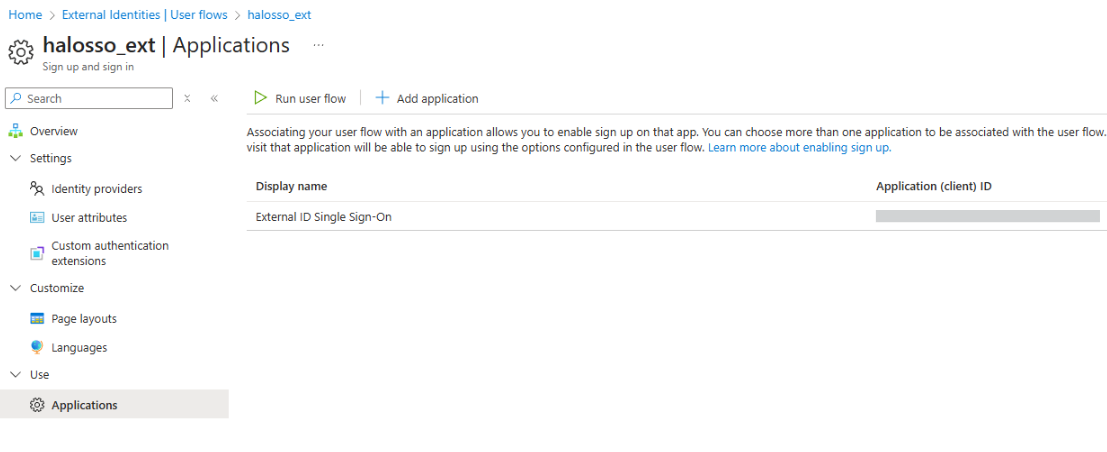
Fig 21. Application linked to user Flow
Once linked, run the flow to generate the Discovery URL you need to plug into Halo.
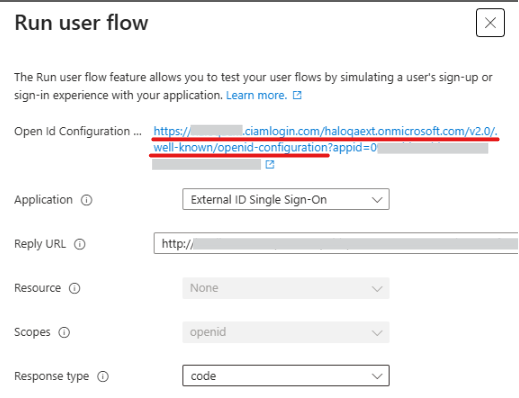
Fig 22. Discovery URL
You will need the section of the Open Id Configuration highlighted in figure 22, you will not need the "?app=xyz" parameter.
Obtain Client ID and Secret
Obtain the Client ID of your Azure application from the "Overview" tab within the application.
If you are using one of the Authorization Code authentication types, you will also need to generate a secret for your Azure application. This is done within the "Certificated and Secrets" tab of the application.
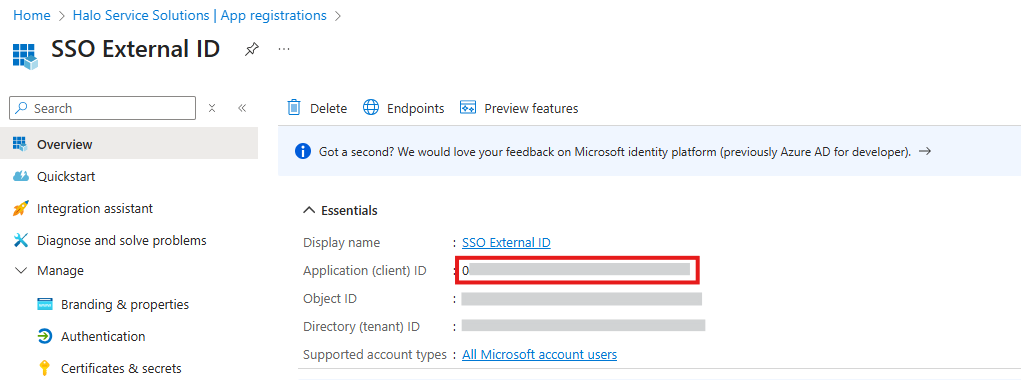
Fig 23. Client ID
Now you have your connection details these can be plugged into Halo and you can configure the rest of the single sign on module.
Single Sign-On Options
Now you have connected to the identity provider you would like to use for SSO you will need to setup how SSO behaves in Halo for this connection. These options are available for all SSO types.
Head to the 'Halo ... Configuration' tab to configure the behaviour settings.
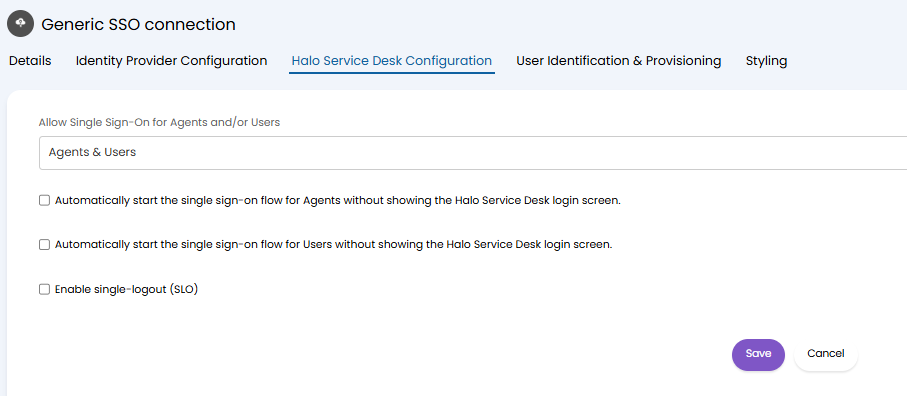
Fig 24. Additional SSO options
Allow Single Sign-On for Agents and/or Users - Controls who will be able to use this SSO connection, Agents and/or Users. This will not control who the SSO button appears for, but rather who the sign in will be successful for.
Automatically start the single sign-on flow for Agents without showing the Halo Service Desk login screen - When enabled, agents will be redirected to the sign in page using this SSO method automatically when logging into Halo. The Halo login screen will not be shown. If this option is enabled for multiple SSO connections, agents will be directed to login with the connection with the lowest ID. Therefore only enable this for one of your SSO connections.
Automatically start the single sign-on flow for Users without showing the Halo Service Desk login screen - When enabled, users will be redirected to the sign in page using this SSO method automatically when logging into Halo. The Halo login screen will not be shown. If this option is enabled for multiple SSO connections, users will be directed to login with the connection with the lowest ID. Therefore only enable this for one of your SSO connections.
Enable single-logout (SLO) - When enabled, logging out of the connected account anywhere, e.g. OneDrive will also log the user out of Halo; conversely if you log out of Halo, this will log you out of the connected applications entirely. Useful if you would like to only have to log out once at the end of the day, but you may want to disable this if you would like to be able to log out of one application but remain signed in to another.
External Login Redirects (v2.250+)
From v2.250+ external login redirects can be used for SSO connections, allowing you to initiate login with SSO from the identity provider site/portal. Useful when launching Halo from Microsoft's My Apps portal or the Okta Dashboard, for example. This means when Halo is launched from these third party portals the single sign on flow can initiate as soon as the app is launched, and automatically sign you into Halo, rather than users being prompted to log in again. Streamlining access to Halo when opened from the identity provider's apps.
Note: Google does not support IdP initiated flow for OIDC custom apps.
To enable this for your SSO connection enable "Allow the Halo login page to automatically redirect to this SSO provider when the login redirect URI parameter is used" under the "Identity Provider Configuration" tab.
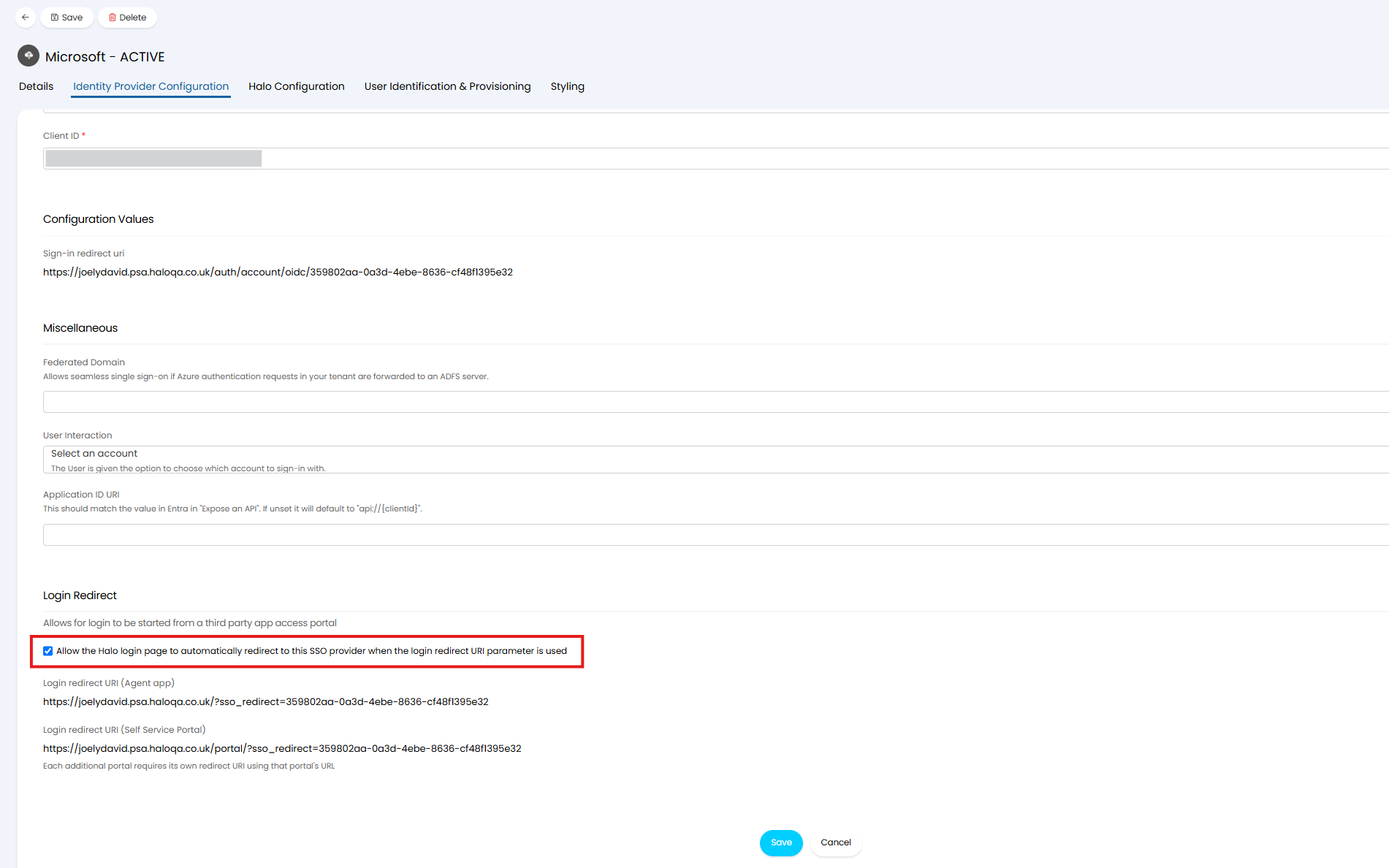
Fig 25. Allow the Halo login page to automatically redirect to this SSO provider when the login redirect URI parameter is used
When enabled, you will be provided with some additional login redirect URIs, one for your agent app and one for your portal.
If you have multiple portals a redirect will not be provided for each one, but the redirect for each portal will follow the format of the one provided, using the Figure 25 example the format would be:
- https://YOURPORTALURL/?sso_redirect=359802aa-0a3d-4ebe-8636-cf48f1395e32
The Login redirect URI will need to be added to the API application you are using for your SSO connection.
- If using Microsoft set as the 'Home Page URL' against the app registration in Microsoft Entra ID.
- If using Okta set as the 'Initiate URL' against the application in Okta.
- For other identity providers you will need to check whether they support IdP-initiated flow.
Keep in mind a connection will need to be setup for each of your Halo app launchers. As only one Homepage URL (login redirect URI) can be added to a Microsoft application, if you have app launchers (in your identity provider) for both the Halo agent app and portal, you will need to configure separate SSO connections and app registrations for each app launcher.
Now, this SSO app can be used to launch and Halo from your identity provider and automatically log users in.
Matching Users
When logging in to Halo using their SSO credentials users/agents will need to be matched to their respective user/agent profile in Halo to determine who to log them in as. For each SSO connection you can choose how users are matched to their agent/user profile in Halo.
Head to the 'User Identification and Provisioning' tab. Here, use the 'User Identifier Claim' field to determine what field users are matched on.
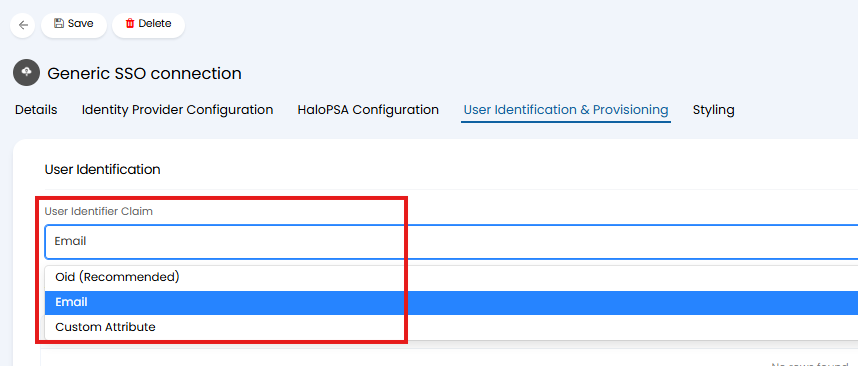
Fig 26. User Identifier Claim
Subject - (OCID only) This will match users using their subject. In order to match to users/agents the subject of each user/agent will need to be stored in Halo. When this is chosen you will be given an additional 'User Matching Field', choose the field you are storing the subject for users/agents in.
Note: The 'subject' is a claim returned in the ID token that is issued upon login. ID tokens are issued by the identity provider upon login, each token contains 'claims' which contain information about the user logging in. Some platforms (such as Entra) allow you to customise the claims returned by ID tokens.
Old - (Entra only) This will match users using their object ID in Entra. When using this claim for matching users/agents must have been imported into your Halo instance from the Entra or Microsoft CSP integration. The import is required as this stores the object ID of each user/agent, which is used when matching.
Email - This will match users using their email address. Only use if all agent/user emails are unique. All connection types can use email to match.
Custom Attribute - This will match users using a chosen attribute (claim). This attribute must be provided in the ID token issued by the identity provider upon logging in. When selected you will need to enter the name of the attribute to match on in the 'Custom attribute name' field. Then in the 'User Matching Field' select the field this attribute data is stored in, in Halo. In the figure 18 example users/agents will be matched using the 'username' attribute, if the value against this attribute in the ID token matches the value in the user field 'Additional Info' the person logging in will be matched to this user.
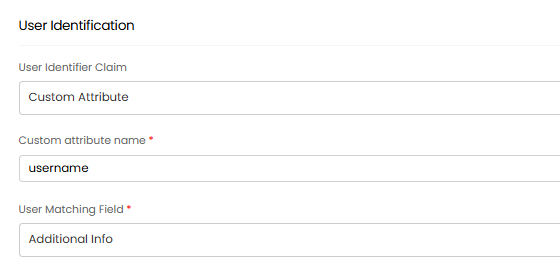
Fig 27. Custom attribute matching example
Claim Validations
You can also restrict who can sign in using this SSO connection based on claims. Useful if you would like to restrict who can sign in based on data in the identity provider, such as their group and account status etc. This can be used to restrict access to Dev/UAT instances too. This is set in the 'Additional Claim Validation' table.
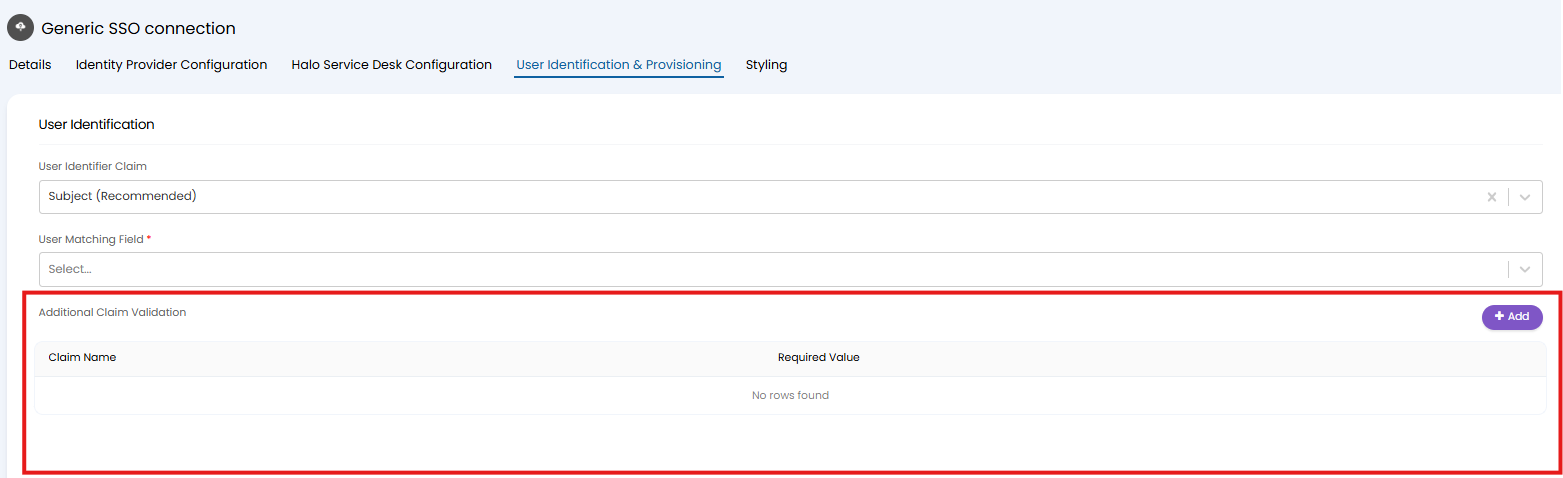
Fig 28. Additional claim validations
When adding to the table enter the claim name you would like to restrict access based on. Then enter the value users must have in this claim to be able to sign in. In the figure 22 example only users that are issued a token with the claim "accountactive":true will be able to sign in.
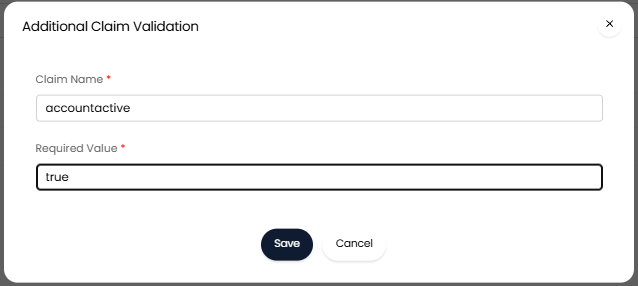
Fig 29. Example claim validation
When using the SSO connection types 'Google' or 'Okta' a claim will be added for you automatically, as shown in figure 29.
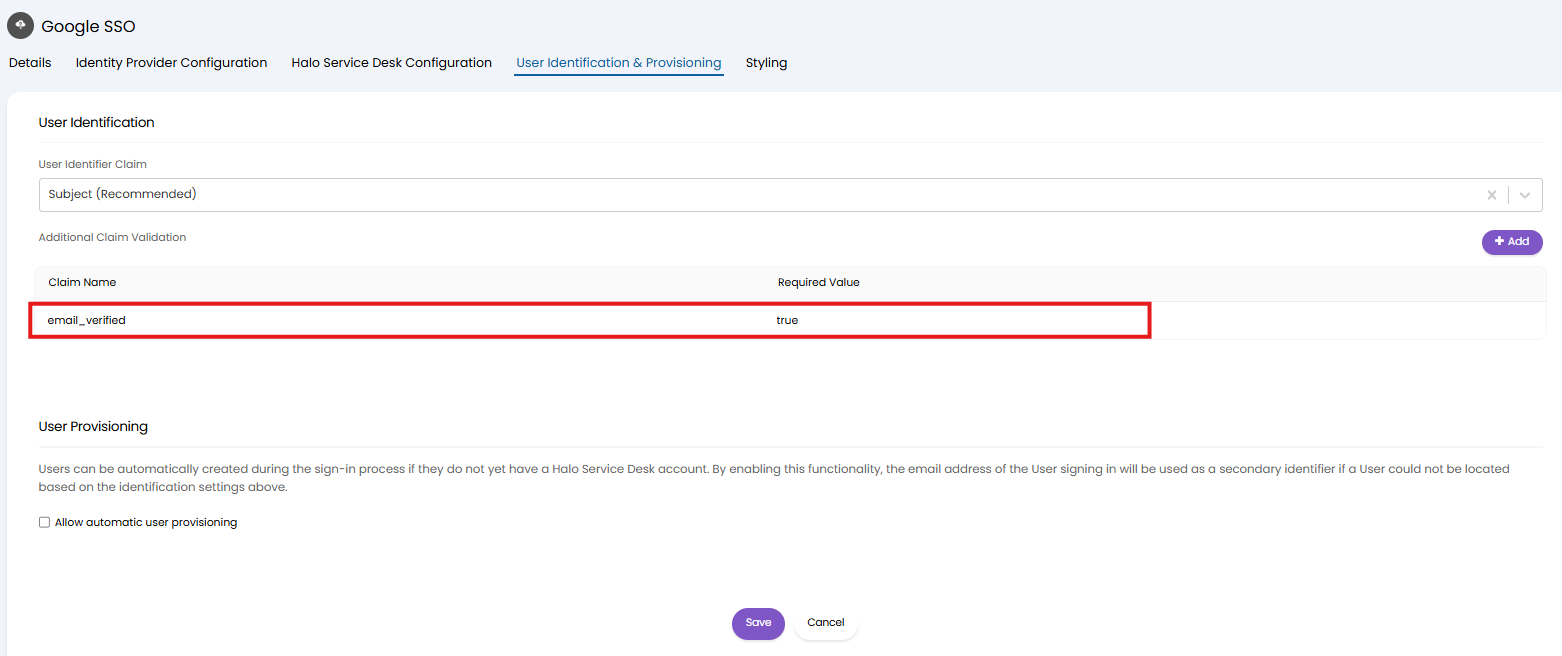 Fig 30. Email verified claim validation
This has been added for security purposes and we advise against removing this claim. This prevents any user with a fake/non verified email signing into your Halo.
User Provisioning (creation)
Users can be automatically created during the sign-in process if they do not yet have a Halo Service Desk account. By enabling this functionality, the email address of the user signing in will be used as a secondary identifier if a user could not be located based on the User Identifier Claim.
Check 'Allow automatic user provisioning' to allow users to be created during the sign-in process.
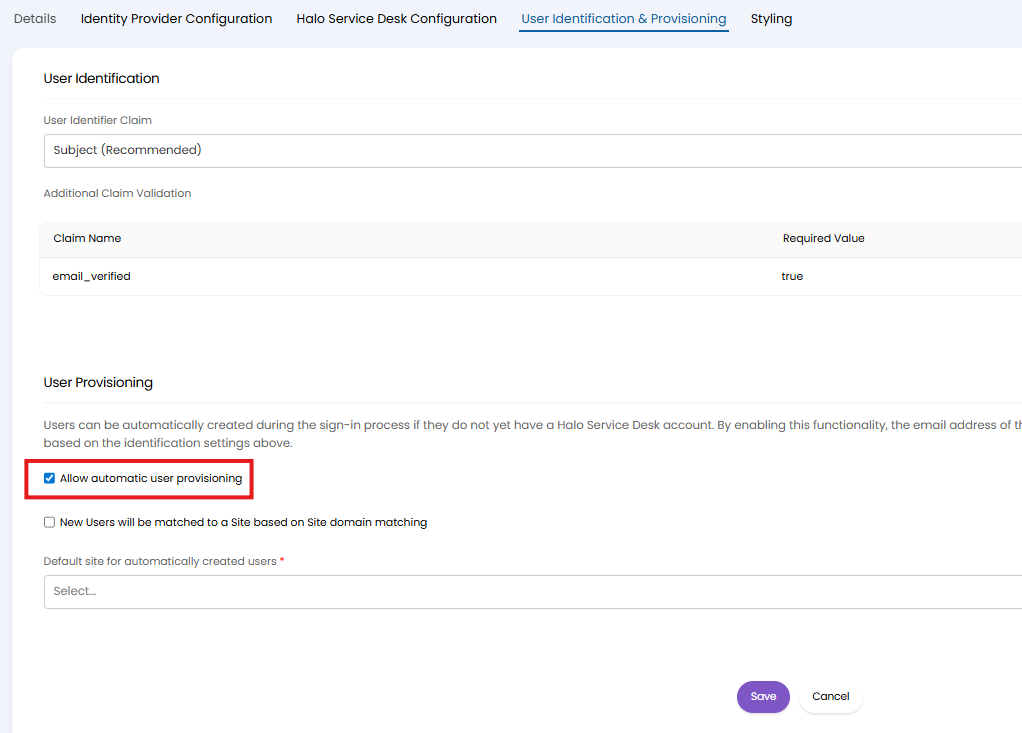
Fig 31. Allow automatic user provisioning
When enabled additional options will become available.
New Users will be matched to a Site based on Site domain matching - When enabled, new users will be assigned to a site based on the domain of their email address. If their email domain matches a site domain they will be created under this site. This is dependent on site domains being setup.
Default site for automatically created users - Choose the site users will be created under if the above setting is disabled or their domain cannot be matched to a site domain.
Adding SSO buttons to login Page
Now your SSO connection(s) are setup you will need to add the button for this SSO connection to the login pages for the Halo agent app and self service portal.
Add SSO button to agent application
Head to Configuration > Integrations > Halo API > View Applications 'nethelpdesk-agent-web-application'. Here you will see a list of all sign in options (SSO) you have configured.
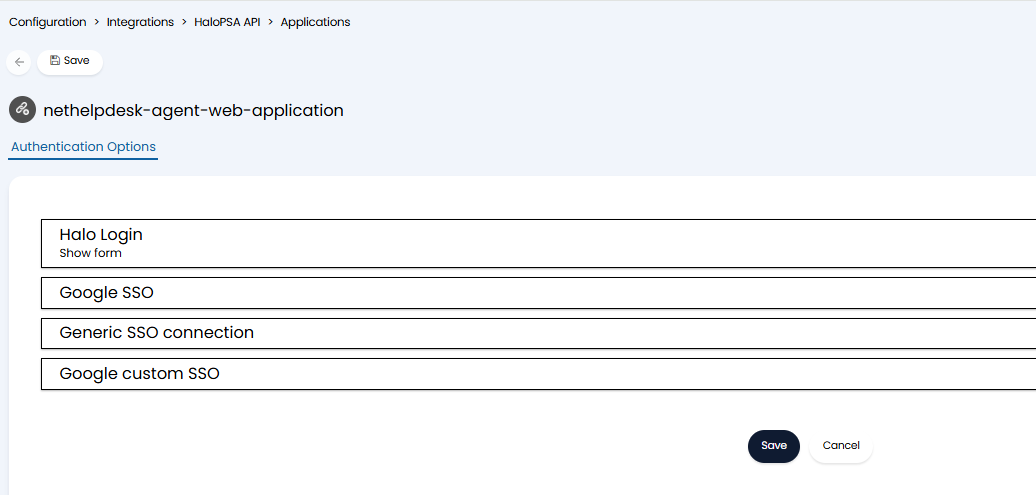
Fig 32. Sign in options for application (agent app)
To make a sign in option (button) visible, edit the page, then edit the entry, set the 'Display' to be 'Show button'.
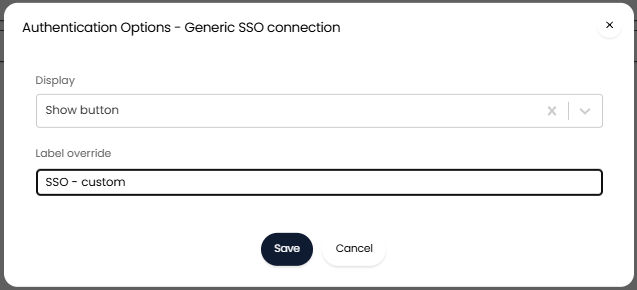
Fig 33. Set button for SSO connection to show (agent app)
You also must set a 'Label override' to determine what the label for the button will be. If this is not set no label will be used.
Add SSO button to self service portal
Head to Configuration > Integrations > Halo API > View Applications 'halo-user-portal'. Here you will see a list of all sign in options (SSO) you have configured.
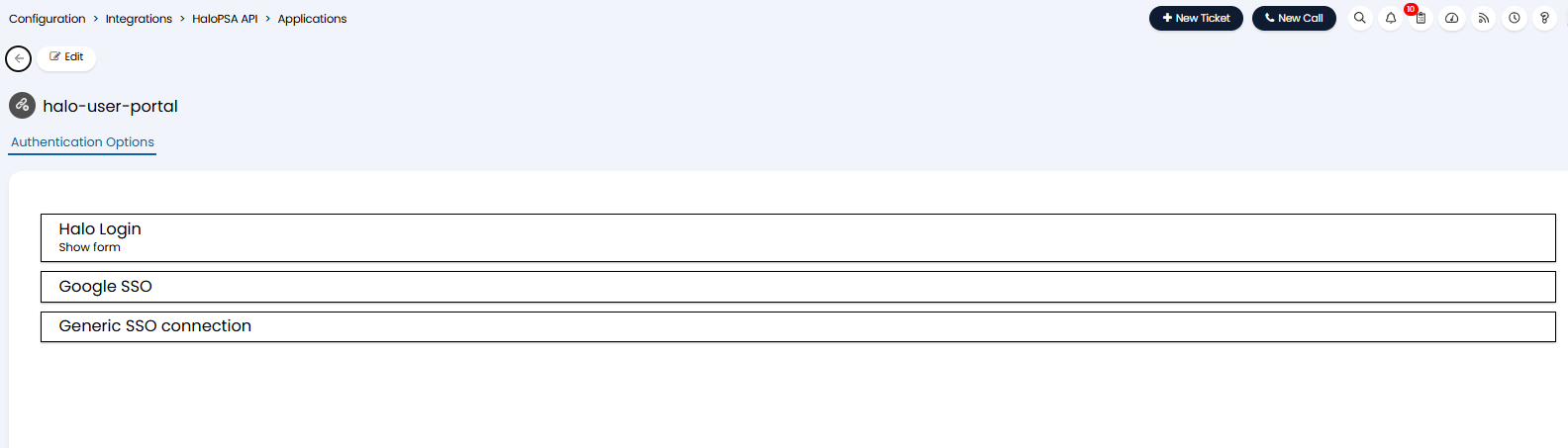
Fig 34. Sign in options for application (portal)
To make a sign in option (button) visible, edit the page, then edit the entry, set the 'Display' to be 'Show button'.
You also must set a 'Label override' to determine what the label for the button will be. If this is not set no label will be used.
Customise Single Sign-On Buttons
Each button used to sign in using single sign on can be customised. Allowing you to change how the SSO button looks for each method of SSO. This is set per SSO connection under the 'Styling' tab.
If your SSO type is not OIDC you will need to enable 'Override the styling for the login button' in this tab before you can configure styling.
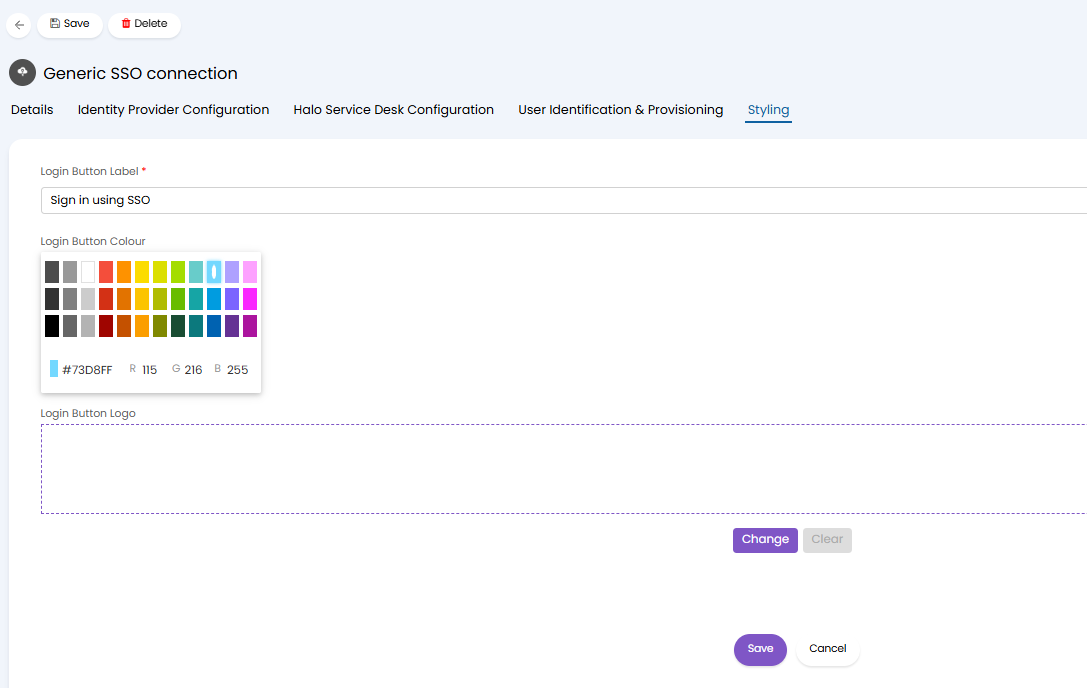
Fig 35. Options to customise SSO button
Login Button Label - The label used for the button. This will be visible to users.
Login Button Colour - The colour of the button.
Login Button Logo - Upload an image of a logo here, this will be added to the button, left aligned to the button label. Use the 'Change' button to upload an image. The image will be resized automatically
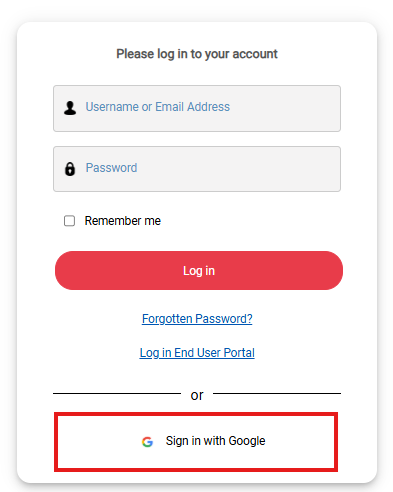
Fig 36. Customised single sign on button
Referenced by
- Authentication Methods for Microsoft Integrations
- Configuration Change Tracking and Instance Pipeline Management
- Configuring Intune App Protection (MAM) for the Halo Mobile applications
- Embedding your Halo Self-Service Portal into Microsoft Teams
- Google Workspace Integration
- Intune App Protection for the Halo Mobile Application
- Microsoft CSP Integration
- Microsoft Entra ID Integration (Formerly: Azure Active Directory)
- Microsoft Entra ID: Single Sign-On (B2B)
- Microsoft Entra ID: Single Sign-On (B2C)
- Okta Integration