Configuration Change Tracking and Instance Pipeline Management
- import
- control
- configuration
- version
- change
- Development
- management
- Tracking
- uat
- production
- config
- dev
- instance
- changes
- config change tracking
- transfer
- track
- prod
- version control
- settings
- setting
Overview
This comprehensive guide covers configuration management in Halo, including:
- Enabling and tracking configuration changes
- Managing changes between UAT and Production environments
- Rolling back changes when needed
- Synchronizing instances
- Pipeline Discipline: Essential Knowledge (critical rules for pushing changes safely)
- Importing and exporting configurations
Getting Started: Enabling Configuration Tracking
Before using configuration tracking features:
- Navigate to Configuration > Advanced Settings
- Locate the "Config Change Tracking" setting
- Enable the setting
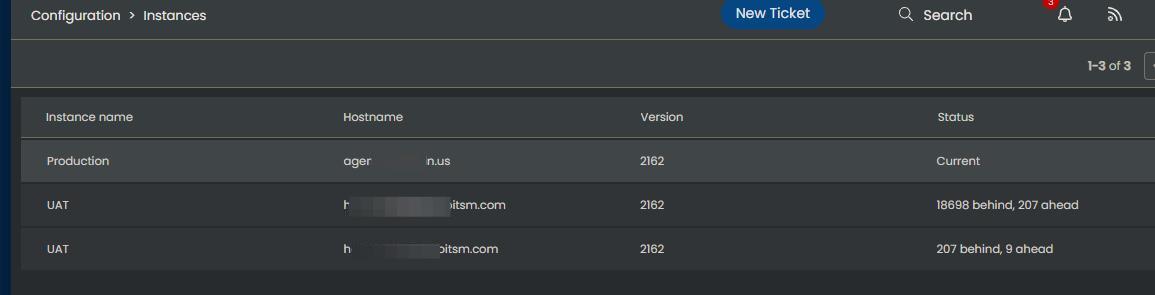
Fig 1. Halo instances linked together
Identification: When configuration tracking is active, you'll see the tracking icon in the top right of supported screens:
Fig 2. Configuration Tracking Icon
Important: Once enabled, the system will:
- Capture snapshots of each configuration change
- Generate rollback scripts where possible
- Track changes across supported entities
- Enable synchronization between environments
Pipeline Discipline: Essential Knowledge
The following guidelines are critical to maintaining a healthy configuration pipeline. Not following them can lead to silent misalignment, broken dependencies, and configuration states that are difficult to diagnose or recover from.
1. All changes MUST be pushed in order
Changes are applied sequentially. The platform cannot detect conflicts or interrelationships between changes. Pushing out of order risks:
- ID misalignment and cross-wiring: the target instance receives an ID that doesn't match what was expected, which can cause unrelated processes to become connected or misconfigured
- Dependency breaks: a change references another change that hasn't arrived yet
Though cherry-picking or omitting changes is possible via Configuration > Advanced > Config Tracking, doing so introduces significant risk and is ill-advised. If a change depends on another change that was skipped, the result is silent misalignment that may not surface until much later. We do not suggest this as best practice, though it can alleviate issues in exceptional situations while syncing. Do not treat this process uncautiously. You take full responsibility for this risk, and it is recommended to proceed only when fully informed and with appropriate safeguards in place.
2. Keep changes atomic and small-scale
- Introduce few changes at a time, of small scope
- All changes in the pipeline must be pushed. There is no "skip this one" without risk
- Complete each change set in quick succession before starting the next
3. Understanding your instance setup
Customers will have varying use cases and therefore different instance setups. The most typical pipeline is Development > Staging > Production. In some cases there is no Staging instance, and some customers maintain additional instances such as Sandbox or Beta for other purposes.
Regardless of the specific setup, the Development instance (sometimes called Build, Test, UAT, or similar) is the entry point to the pipeline. It is a sacred instance where new configuration enters the tracking tree and is intended to be pushed all the way through to Production. Every change made in the Development instance joins the pipeline and must eventually be pushed up the chain.
4. The Development instance is NOT a sandbox
Tinkering, experimenting, and trial-and-error in the Development instance pollutes the pipeline with uncommitted or half-finished changes that block or complicate syncing downstream.
Changes should be explored and tested in a Sandbox instance before being built in Development, unless you are totally certain how to build them quickly and can subsequently push them up the chain without delay. If teams need to prototype or overhaul functionality, use a dedicated Sandbox environment outside the pipeline. Once the approach is confirmed and working, rebuild the changes cleanly in the Development instance and push through the pipeline as usual. This keeps the pipeline clean and the change tree linear.
5. Understand how concurrent team activity affects pushing
Multiple teams can work in the Development instance at the same time. The constraint is not on building — it is on pushing. Once changes from different teams become interleaved in the change log, they cannot be separated cleanly when syncing upstream. All interleaved changes must be pushed together as a single sequential operation.
This means that if Team A is mid-way through a large body of work and Team B finishes something in the meantime, Team B cannot push their changes ahead of Team A. Because changes must be pushed in chronological order without skipping, Team B must wait until Team A is also ready to push. For all practical purposes around version control and pushing, any teams whose changes are interleaved should be treated as working within the same push cycle — not as independent configuration efforts with separate timelines.
Cherry-picking Team B’s changes out manually is technically possible but is not advised. Even relatively small configuration changes can generate hundreds of individual saves in the change log, all of which must be manually identified and exported. The margin for human error is significant, and a single missed dependency can cause silent misalignment in the target instance. It is not a reliable substitute for coordinated pushing.
Teams and organisations can structure their working practices around this however suits them. The key is going in with a clear understanding that concurrent work in Development ties the push timeline of everyone involved together.
Instance Types and Their Purposes
Different instances serve distinct roles in a configuration pipeline. The specific setup will vary by customer — some have only two instances, others maintain four or more — but the purposes below reflect the standard intent behind each instance type.
Development (Build)
The entry point for all new configuration. Every change that will eventually reach Production must be introduced here first. Development is where new processes, ticket types, workflows, and other configuration are built and refined before being pushed up the pipeline. As noted in Pipeline Discipline, this instance should be treated with care — it is not a sandbox for experimentation.
Staging (Test / Validate)
The final validation layer before Production. Staging should mirror Production as closely as possible and is used to smoke-test changes end-to-end before committing them to the live environment. A typical validation involves clicking through the full process introduced in Development — creating tickets, triggering workflows, running actions — to confirm everything works correctly in context.
Staging is also useful as a middle layer when instances have become misaligned, providing a controlled environment to evaluate and resolve configuration discrepancies without impacting the live environment.
Not all pipelines include a Staging instance. If changes are pushed carefully and in strict accordance with pipeline discipline, Development testing will closely approximate Staging testing. Staging becomes more important as the scale and complexity of changes increases.
Production (Live)
The live environment where Halo is actively used. Configuration changes should not be introduced directly into Production. All changes enter via the pipeline, validated in Development and Staging first. In emergency situations a direct Production change may be unavoidable — but these should be treated as exceptions, documented, and reconciled with the pipeline as soon as possible.
Sandbox (Tinker / Prototype)
A free-form environment for experimentation that sits outside the main configuration pipeline. Sandbox is the right place to try different approaches, prototype new processes, or overhaul existing functionality — all without polluting the Development pipeline with exploratory or half-finished changes.
Once an approach is confirmed in Sandbox, it is rebuilt cleanly in Development and pushed through the pipeline as normal. Sandbox is typically kept up to date with Production so that prototyping reflects the actual live state of the system.
Beta
An instance running the Halo beta release, used to preview and evaluate upcoming features ahead of general availability. This allows teams — particularly those in large enterprise environments with longer planning cycles — to assess new functionality and prepare before it reaches their Production environment.
Release Candidate
A copy of Production running the next scheduled release version, used to verify that existing configuration and processes are not broken by an upcoming upgrade. Halo maintains a high standard of quality control, so a Release Candidate instance is not necessary for most customers. Some large enterprise customers maintain one as a trust-but-verify measure before applying upgrades to their live environment.
Version Requirement: All instances in a configuration pipeline must be running the same version of Halo. Syncing between instances on different versions is not supported and is blocked by the platform. If instances in your pipeline are on different versions, syncing will not be possible until all instances are aligned.
Change Tracking Details
The system provides comprehensive tracking capabilities:
Tracking Features:
- Complete audit trail of all configuration changes
- Automatic encryption of sensitive data
- Detailed change history with timestamps and user information
- API request details for each change
Security Note: Configuration changes involving passwords and sensitive information are automatically encrypted and details will not be visible in the change list.
Viewing and Managing Configuration Changes
Configuration Change List
Access the configuration change list through Configuration > Advanced Settings > "View config changes". Changes are listed from newest to oldest, providing a complete audit trail.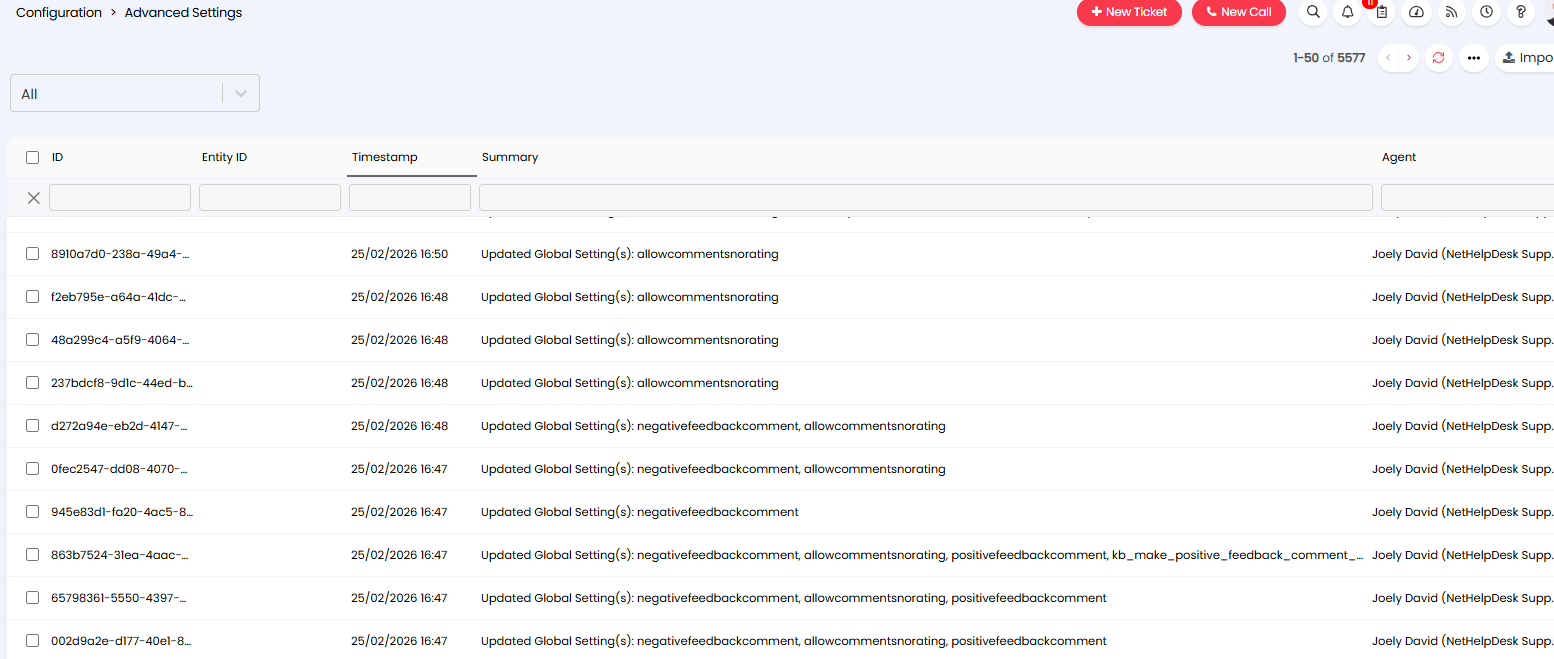
Fig 3. Configuration change list showing tracked changes
Entries here can be filtered by selecting the column you would like to filter by and entering the value to filter.
You will have a separate option to filter results by a chosen timeframe. A filter will be available in the top left of the page.
Disable Configuration Changes in your production instance
You can disable agents' ability to make configuration changes in your production instance. This should be used when you would like changes to only be made in a UAT/Dev instance and then have these changes pushed to your production, rather than allowing configuration changes to be made in your live environment. Agents will still be able to see the configuration but not make any changes to it.
This functionality is enabled under configuration > advanced settings using the setting 'Disable editing of config tracked entities in production'.

Fig 4. Disable editing of config tracked entities in your production instance
When enabled, agents will not be able to make changes to any entities that are config tracked, this includes all settings/modules under the 'configuration' module but also any other entities that are config tracked (such as assets). A banner will appear at the top of the screen for all administrator agents informing them that editing has been disabled, if a change needs to be made in an emergency, the banner can be selected to disable the setting, allowing changes to be made. If the banner is selected, the setting will need to be re-enabled under configuration > advanced settings.
Rolling Back Changes
Halo provides robust rollback capabilities for configuration changes:
Important: When you select a change to roll back, the system will revert all changes made after and including the selected change. This is not a single-change rollback feature.
To roll back changes:
- Navigate to the configuration change list
- Locate the change you want to roll back to
- Click "Roll back before this change"
- Confirm the rollback operation
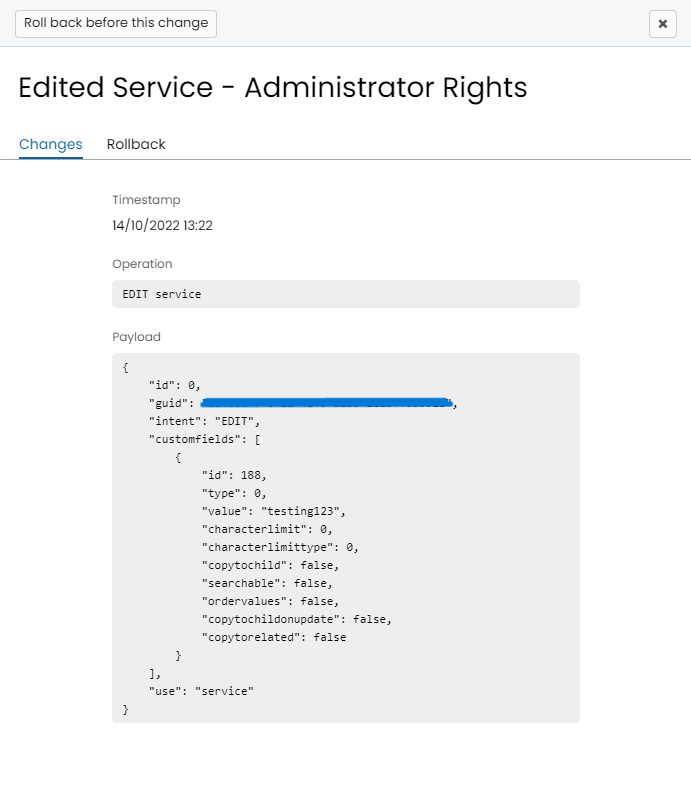
Fig 5. Example of configuration change details and rollback option
Best Practice: Before performing a rollback:
- Review all changes that will be reverted
- Document the current state in case you need to recreate any changes
- Consider creating a backup or export of your current configuration
- Communicate with team members about the planned rollback
Managing Multiple Instances
For organizations with both UAT and Production environments, Halo provides tools to manage configurations across instances:
Instance Synchronization
You can sync instances in several ways:
- Automatic Sync: Use "Sync to UAT" or "Pull from UAT" buttons for complete synchronization
- Manual Export/Import: Select specific changes to transfer between instances
Note: See Pipeline Discipline: Essential Knowledge above for critical guidance on pushing changes in order, managing dependencies, and coordinating team activity.
Supported Configuration Entities
Configuration tracking and synchronization supports a wide range of entities, including:
- Access Control (for the entities listed here)
- Accounts Codes
- Actions
- Active Directory
- Agent Check-in Statuses
- Agreement Rules
- Agreement Types (and Subtypes)
- AI Connection Credentials
- Appointment Types
- Approval Groups/CABS
- Approval Process Rules
- Approval Processes
- Automated Tickets
- Assets that are marked as Services or Business Applications, only when 'Enable config change tracking for services' is enabled.
- Asset Fields
- Asset Groups
- Asset Relationships
- Asset Types
- Break Types
- Canned Text (all entities)
- Canned Text Groups
- Categories
- Charge Types (and Rates)
- Chat Profiles
- Column Profiles
- Country/Region Codes
- Custom Buttons
- Custom Fields (all entities)
- Custom Tabs
- Custom Tables
- Custom Translations for Field/Button names
- Customer Relationships
- Customer Types
- Dashboards, only when 'Enable config change tracking for Reports and Dashboards' is enabled.
- Departments
- DevOps
- Email Rules
- Email Templates
- Enabled modules
- Event Rules
- Expense Types
- FAQ Lists (and Groups)
- Feedback messages (Surveys)
- Field Groups
- Filter Profiles
- Global Runbook Level Variables (v2.244+)
- Global Settings
- Groups (v2.251+)
- Holiday Types
- Integrations (Connection details)
- Item Groups
- Lookups
- Mailboxes
- Message Groups
- Notifications
- Notification Templates
- Opportunity Types
- Organisations/Multi-tenancy
- PDF Templates (v2.238+)
- Pipeline Stages
- Qualifications
- Reports, only when 'Enable config change tracking for Reports and Dashboards' is enabled
- Roles (Agent)
- Remote Invite Variable text
- Runbooks/Custom Integrations
- Scheduled Tickets (excluding attachments)
- Self-Service Portal custom CSS
- Service Categories
- Services
- Site Contact Types
- Site Fields
- Shift Types
- SLAs (including priorities)
- SQL Imports (SCCM/Lansweeper)
- Statuses (Agent, Asset, Contract, Purchase Orders, Tickets, Quotes and Sales Orders)
- Styling for KBs
- Survey/feedback variable text
- Surcharges
- Teams
- Ticket Areas
- Ticket Link Types
- Ticket Rules
- Ticket Template Groups
- Ticket Templates (including child templates)
- Ticket Types
- UAT and Production Instance Management
- User/Asset Relationships
- User Roles
- View Lists (excluding list groups)
- Virima Integration
- Virtual Agents
- Webhooks
- Workdays
- Workflows (including OLAs & Action Restrictions)
Unsupported Configuration Entities
Some entities are not configuration change tracked, therefore will not be synced between instances, including:
AI Suggestions
- Asset Templates
- Billing Templates
- Call Scripts
- Certificates
- Cost Centres
- Currency
- Custom SQL Quantities
- Forecasting
- Language Packs
- Product/Item Bundles
- Project Budgets
- Recurring Billing Profiles
- Release Note Groups (Software Releases)
- Release Types (Software Releases)
- Sales Mailboxes
- Screen Layout Profiles
- Software Products
- Tax Rates
- Tax Rules
As the above entities are not synced between instance you will need to replicate configuration of these entities in each instance manually. Certain entities such as PDF templates and language packs can be exported from one instance and imported into the other, this is done for each individual occurrence of the entity.
If an entity is not on either of these lists please contact Halo support for conformation on whether it is configuration change tracked and synced between instances.
Instance Synchronization Status
An instance is considered "in-sync" when:
- It matches the version of the current instance
- A UAT restore has been performed from production after upgrading to v2.104
- All configuration dependencies are properly aligned
Note: See Pipeline Discipline: Essential Knowledge above for critical guidance on pushing changes in order, managing dependencies, and coordinating team activity.
Synchronization Methods
Automatic Synchronization
For synced instances, you have two primary options:
- Sync Changes: Send configuration changes to another instance
- Pull Changes: Retrieve configuration changes from another instance
When syncing or pulling changes between instances you will be prompted to select a cut off date. Only changes made on or before (older than) this date will be synced/pulled.
Only agents with "Can push configuration changes to other instances" set to "Yes" will be able to push changes to production.. This is set on those with the "Administrator" role by default.
Manual Export/Import
For more granular control:
- Select specific changes from the configuration change list
- Export selected changes to a JSON file
- Import the JSON file into another instance
- Click "import"
- Paste the JSON into the memo box
Only Allow Changes to be Pulled in
You can restrict the syncing of changes so that changes can only be pulled into an instance, changes cannot be pushed in from another instance.
Pulling changes - Changes from another instance can be pulled into the instance you are currently in.
Pushing changes - Changes from the current instance can be pushed into another instance.
This is used if admins are not the same between instances as this prevents admins in once instance pushing changes into another instance that they are not an admin of.
To restrict the syncing of changes in this way, enable 'Do not allow config changes from other instances to be pushed to this instance' found under Configuration > Advanced Settings.
Note: See Pipeline Discipline: Essential Knowledge above for critical guidance on pushing changes in order, managing dependencies, and coordinating team activity.
Syncing using Pipelines
When managing instances on version 2.182+ of Halo you will be able to restrict syncing between specific instances to a defined pipeline. This means each instance in the pipeline can only sync changes from its source instance and this sync is only in one direction.
This allows you to have more control over your instance syncing, as, by creating a linear relationship between instances you can ensure changes are synced sequentially with the appropriate testing being carried out before syncing to production.
Example Structure:

In the above example pipeline changes will only be able to be pushed/pulled between Development and UAT then between UAT and Production. Changes should first be tested in development then synced to UAT where they can be tested in line with existing configuration. Then when testing is complete sync to Production. Changes made in development cannot be synced directly to Production.
Configuring Pipeline stages
Pipeline syncing will only take affect once you have specified a source instance for one of your instances. Once this is set pipeline syncing will be enabled and you will only be able to sync changes according to the pipeline.
Hosted Customers:
To set a source instance head to configuration > instances > select an instance you would like to set a source for, use 'Set Source Instance' to choose the instance you would like to be the source for this one. Each instance can only have one source (parent) instance.
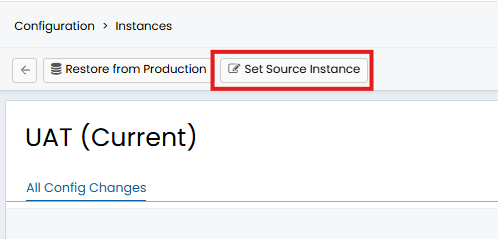
Fig 6. Set Source Instance
On-Prem Customers:
To set up multiple connected instances, please consult the following guide: Setting up the “Instances” area for On-Prem Halo Instances
Improve Instance Module Loading
You can change how syncing occurs in order to improve the loading time of the instances module.
When loading an instance within the instances module the time taken to load will depend on how many changes have occurred since the last sync. The more differences between the current instance and the instance being viewed, the longer the load. This is because each table in each instance is checked to compare differences.
You can disable this difference check, and instead determine which changes are pushed based on the last sync date. This is done using the setting 'Don't check diffs when getting changes to sync' found under Configuration > Advanced Settings.

Fig 7. Disable diff checks
When this is disabled, the differences between instances will be checked to see where differences lie, these differences are then synced. This results in the most accurate syncing of data.
When enabled, all changes since the last sync date will be pushed. This results in a faster loading of the instances area but potentially less accurate syncing of changes.
Only enable this setting if you are using instance pipelines. Once enabled do not perform manual syncs of changes (i.e. cherry-picking changes to sync). Also keep in mind when this is enabled the number of of commits behind/ahead for an instance may not be accurate but the instances area will load faster.
UAT Instance Management
For non-production instances, additional management options are available:
Restore from Production
Fig 8. Restore instance from Production
Use the "Restore from Production" button to:
- Automatically create a restore request with Halo's Infrastructure team
- Ensure testing environments match production
When restoring an instance from production, you will be prompted if any outstanding changes have not been synced to production. If you are using instance pipelines, from this version you can choose to restore all instances in the pipeline or just the current instance, by using the "Select which instances to restore" drop-down.
Note: When requesting a UAT restore using this button all the ticket data in your UAT instance will be lost. To replace your data with the ticket data in your Prod instance please contact Support.
Note: You can only use this button once per version cycle - if you wish to do another restore within the same period, please contact Halo support.
Change Tracking
Monitor configuration differences through:
- Changes Behind: View changes needed to catch up to production
- Changes Ahead: View changes made in UAT that aren't in production
Best Practice: Regular synchronization between environments helps:
- Maintain consistent testing environments
- Reduce configuration drift
- Simplify change management
- Ensure accurate testing results
Managing Mailboxes between Instances
Configuring Multiple Credentials per Mailbox
You are able to configure multiple credentials per mailbox. This allows you to link credentials to a specific instance, so a single Halo mailbox can contain credentials to access multiple Azure/Google/SMTP mailboxes. Each of these mailboxes will be linked to your production, UAT or dev instance, this instance will then only process mail in the mailbox the credentials give access to.
- The setting 'Enable config change tracking for mailboxes' under config > advanced settings, must be enabled to use this functionality.
Important: The credentials configured must authorise different Azure/Google/IMAP/POP3/EWS mailboxes. If you configure two sets of credentials for the same (Azure/Google/SMTP) mailbox mail will be split between the two instances.
This means that now when changes are pulled/synced between instances mailbox configuration will be pulled/synced too, so UAT environments can be used to test email configuration.
This new functionality allows you to:
- Create a mailbox in Prod or UAT and sync mailbox configuration between instances
- Configure instance specific mailbox credentials - When configuring credentials you will have an option to specify what instance the credentials are used for
- Complete testing in UAT instances using the same mailbox as the Prod instance
- Restore UAT to Prod without loosing the UAT mailbox
Single Credential per Mailbox
If you are on a version prior to v2.182 only one set of credentials can be configured per mailbox. This makes it difficult to push changes between instances and complete email related testing as the same credentials should not be used to authorise the same mailbox in a different instance. You will need to create a separate Halo mailbox just for your UAT environment. When a UAT is refreshed (synced to Prod) the mailbox against the UAT instance is deleted, and when changes are pulled from UAT into prod, the mailbox setup in UAT will not be pulled into prod.
Security Considerations
- Sensitive data and passwords are automatically encrypted
- Access to configuration management should be restricted
- All configuration changes are tracked and auditable
- Regular backups should be maintained
Mitigating API calls between Instances
When changes are synced/pulled between instances this will include any custom integrations/runbooks/webhooks. To mitigate API calls from UAT and Dev environments impacting data in your production environment you will either need to disable any webhooks/runbooks/custom integrations created in UAT/Dev or amend these so data is posted to the correct address (not to production environment).
Make API calls instance Specific
Webhooks/runbooks/custom integrations can be set to only trigger in chosen environments so when changes are synced to another instance the webhook/runbook/custom integration will be created but no API calls will be made. This is done using the 'Enabled for Instances' setting, found against the webhook/runbook.
Note: When changing the value of the setting 'Enabled for Instances', the config change must be synced to the other instance(s) before the setting will take effect in the linked instances.
Mitigating Notifications between Instances
When changes are synced/pulled between instances this will include any notifications. To mitigate notifications you will need to amend/disable any notifications created in your UAT/Dev environment.
Make notifications instance Specific
Notifications can be set to only trigger in chosen environments so when changes are synced to another instance the notification will be created but not triggered. This is done using the 'Enabled for Instances' setting, found against the notification.
Note: When changing the value of the setting 'Enabled for Instances', the config change must be synced to the other instance(s) before the setting will take effect in the linked instances.
Sync changes to Entities based on Third Party IDs
When syncing changes between instances for a specific entity (i.e. an asset, agent, user) the entity that is changed will be linked to an entity in other instances using it's Halo ID. When the change is pushed, the entity with the same Halo ID will be updated. However, if the Halo IDs of your entities are not consistent between your instances, you may wish to link entities using a third party ID instead, such as the ID the entity has in your identity management/CMDB tool.
This is currently available for the following entities:
- Approval processes
- Approval rules
- Cab members
- Team members
- Ticket rule criteria and outcomes
- Asset users, business owners, and technical owners
- Role agents and users
All other entiteis will still link using their Halo ID.
To enable the use of third party IDs for linking entities, head to Configuration > Advanced Settings > enable "Use third-party IDs for linking Agents, Users, Roles, Teams, and CABs to change tracked entities"
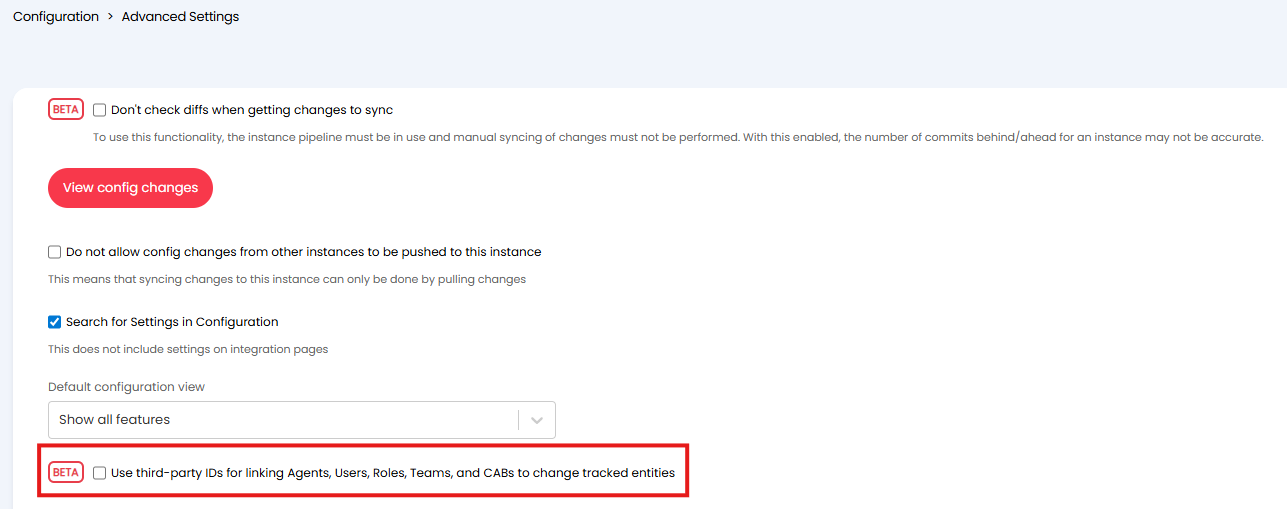
Fig 9. Setting to enable using third party IDs for linking entities
Once enabled, you will need to ensure each entity has it's 'third party id' imported into the third_party_relational_id field in Halo. This can be done by mapping a value to this field in the integration setup for the tool, in Halo. For example, if you are using Microsoft Entra ID to import agents/users (where Entra ID is the source of truth for identity mangement) you will need to map a field in Entra (perhaps employeeid) to 'third_party_relational_id' in the integration setup in Halo.
Managing Who can Sign in to Each Instance
The Single Sign on Module can be used to restrict which agents can sign into which instance. This is allows you to restrict access to your Dev/UAT/Sandbox environments to only those allowed agents (e.g. developers).
When setting up a single sign on connection you can choose the instance the connection can be used to login to.

Fig 10. Choose instance sign sign on application can be used for
Then, you will need to setup claim validations for the connection to restrict who can sign in based on data provided by the identity provider, such as their Azure group. This will prevent any agents who do not have these claims from logging into the instance.
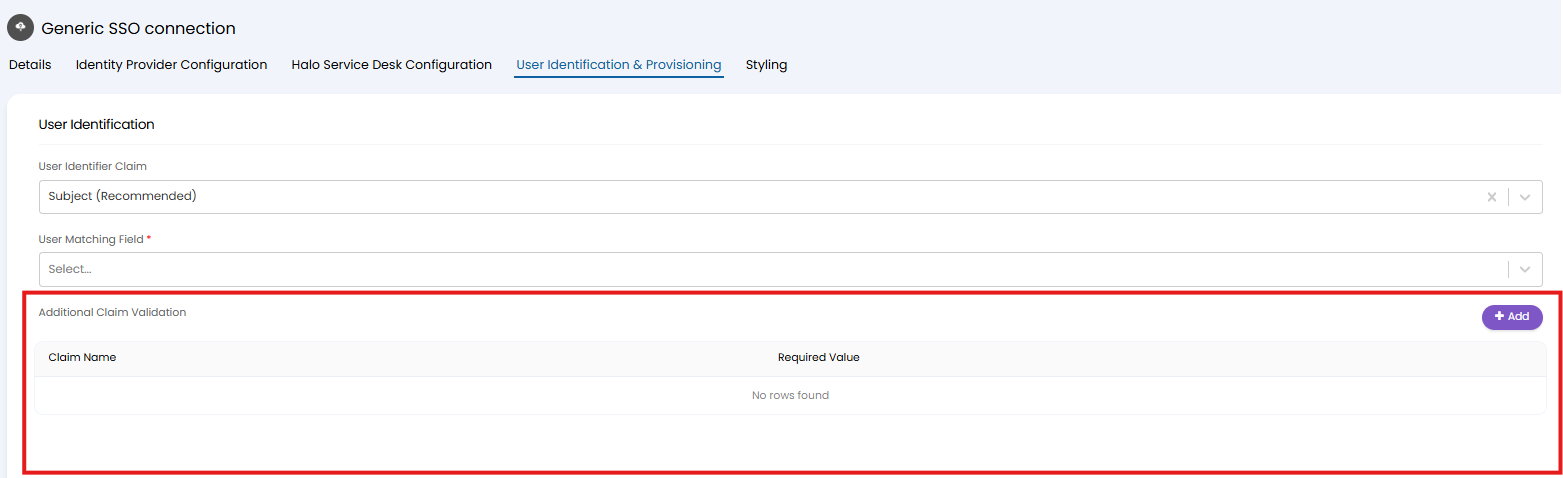
Fig 11. Claim Validation for Single Sign on Connection
For details on setting up single sign on for multiple instances see our guide here.