Office 365/Azure Mailbox Setup
In this guide we will cover:
- Pre-Requisites
- Supported Mailboxes
- Initial Setup
- Authentication Method
- Credential Types
- Processing Method
- Configuring an Azure Application
- Creating Credentials
- Connecting to the Mailbox
- Imports
- Logging
- Common Errors
In this guide we will cover Office 365/Azure mailboxes in Halo, including how to set these up to allow the ingestion of emails into a mailbox of this type to create tickets in Halo. If you are looking to connect a mailbox of a different type ensure you use the guide dedicated to that mailbox type, such as:
Pre-Requisites
1. The incoming service must be enabled in your instance. This is activated for all hosted customers automatically.
If you are On-Prem and the service is not yet active in your instance, and you are unsure of the implications of activating it, please contact your account manager or the Halo support team.
To check whether the service is currently enabled, navigate to Configuration > Advanced Settings > Backend Services, check that the incoming service checkbox is on and that the scheduling service is set to yes.
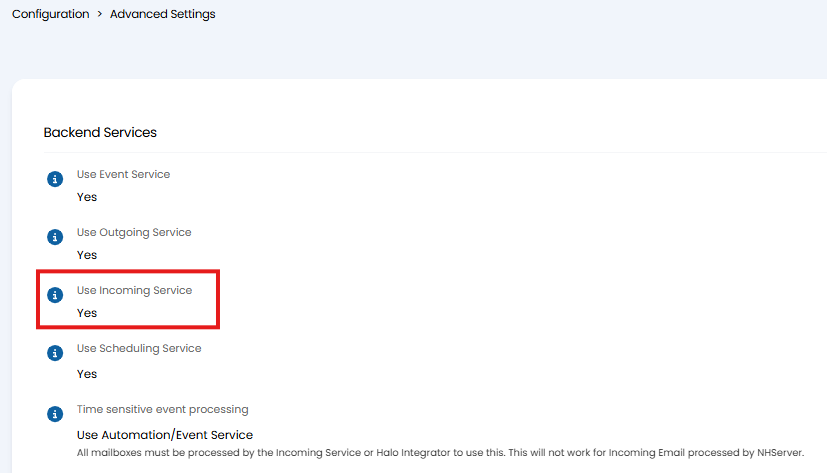
Fig 1. Incoming Service enabled.
If you are an On-Prem (self-hosted) customer please see Creating a Mailbox Overview for the pre-requisites you will require for connecting a mailbox to Halo.
Supported Mailboxes
Halo can connect to licensed and shared mailboxes. All other kinds of mailboxes are currently unsupported.
Initial Setup
To begin setup you will need to create a new mailbox in Halo with the mailbox connection type 'Office 365/Azure'. To do this head to Configuration > Email > Mailbox > New, give the mailbox a name and set the mailbox connection type as 'Office 365/Azure' and save.
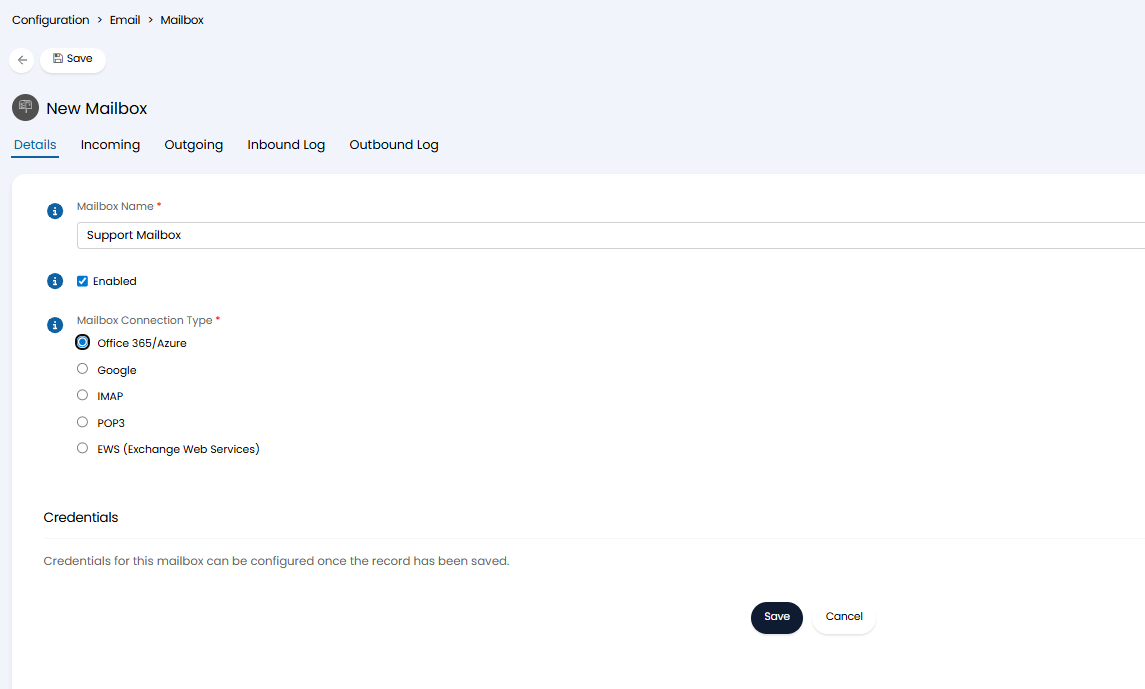
Fig 2. Office 365/Azure Mailbox connection.
Now you will need to setup the credentials to connect this mailbox. To begin hit the 'Credentials' button then hit 'new'. Here, you will be given various options to determine how the connection between Halo and your mailbox is authenticated.
Note: You will notice it is possible to configure multiple sets of credentials here, this is to allow you to configure credentials for another mailbox (of the same type) to be used in a different (UAT/Dev) instance. So a single Halo mailbox can contain credentials to access multiple Azure mailboxes. Each of these mailboxes will be linked to your production, UAT or dev instance, each instance will then only process the mail in the mailbox the associated credentials give access to. For more information checkout Creating a Mailbox Overview.
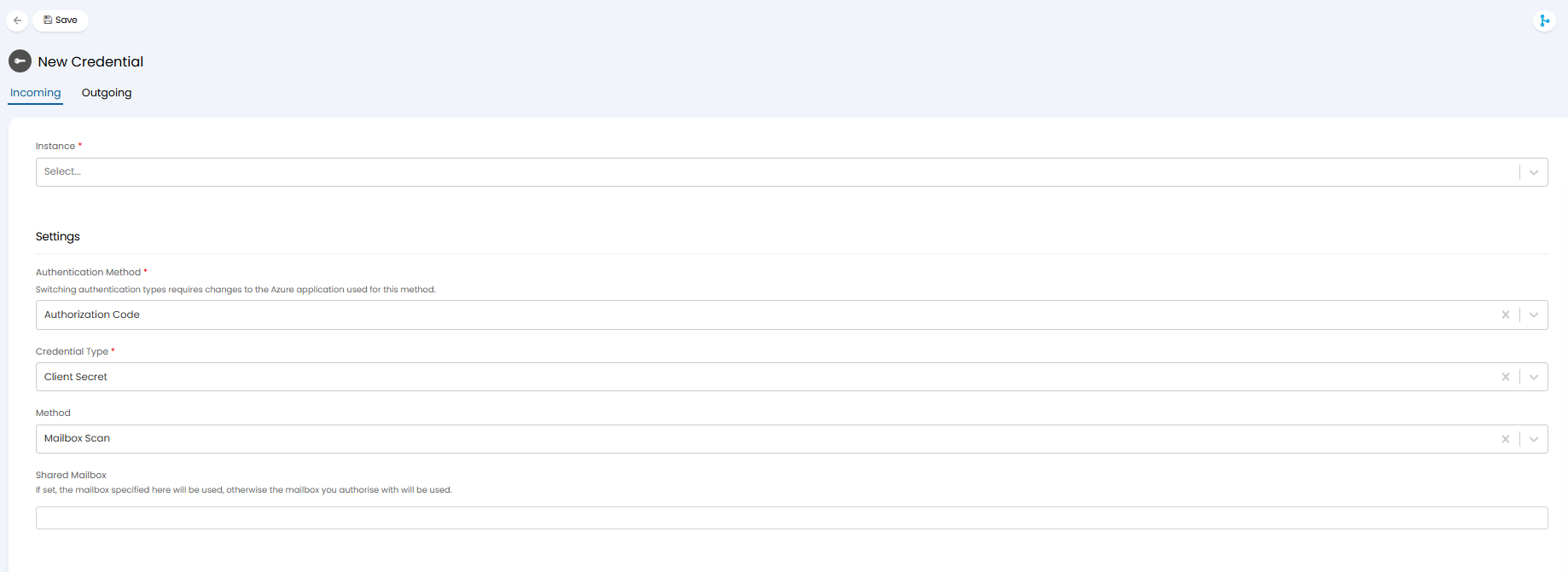
Fig 3. New mailbox credentials.
First, choose the instance you would like mail from this mailbox to be processed into using the 'Instance' field. If you do not have a testing UAT/Dev environment you will only be able to choose Production here. For more information on instance management checkout Configuration Change Tracking & Instance Management.
Authentication Method
Now you will need to choose the Authentication Method for the mailbox, options here include 'Authorisation code' and 'Client Credentials'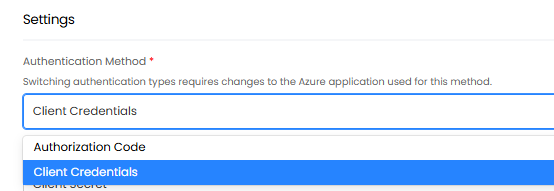
Fig 4. Authentication methods for mailbox.
These use different permission types within the Microsoft Graph API (Delegated vs Application). For information on the difference between Delegated and Application permissions, checkout Microsoft's guide here.
If unsure which authentication method to use, Application Permissions (used by the Client Credentials method) are the simplest, feature-rich and most stable option.
Authorisation Code
This authentication method uses Delegated permissions within the Graph API.
It should be noted when using this authentication method, you will only be able to process mail using the 'Mailbox Scan'. This can take up to 5 minutes to be processed by Halo after being received into the mailbox vs the almost instant processing under the 'Webhook' method.
Client Credentials
This authentication method uses Application permissions within the Graph API.
When using this authentication method you will be able to process mail using either the 'Mailbox scan' method or the 'Webhooks' method. This authentication method also allows you to use 'Federated credentials' to authenticate the connection. Federated credentials are available to hosted clients (who have their instance hosted by Halo) from v2.251+, but are available to On-Prem clients (who host their own Halo instance) on versions prior to this.
There are additional security steps that are recommended when using this method, which are outlined in more detail later on.
Credentials Types
Once you have chosen your authentication method you will need to choose the credential type you would like to use to authenticate the connection.
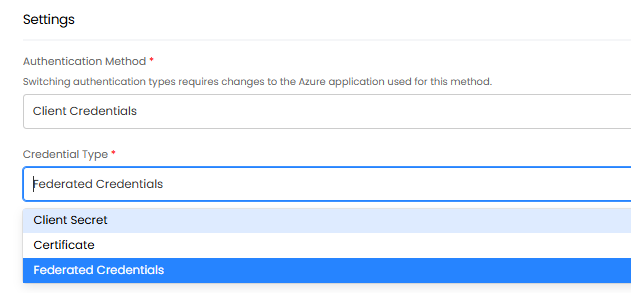
Fig 5. Available credential types.
Client Secret - When chosen you will need to generate a secret for the Azure application you setup. This will be used to authenticate the connection.
Certificate - When chosen you can use a X.509 certificate to authenticate the connection.
Federated credentials- When chosen, you can setup and use federated credentials from your Azure to authenticate the connection.
We will outline how to configure the mailbox using a Client Secret in this guide. If you wish to use one of the other two methods, please see this guide: Authentication Methods for Microsoft Integrations.
Processing Method
Now you will need to choose the method you would like to use to process emails from this mailbox. This is set in the 'method' field, there are two options here 'Mailbox scan' and 'Webhooks'.
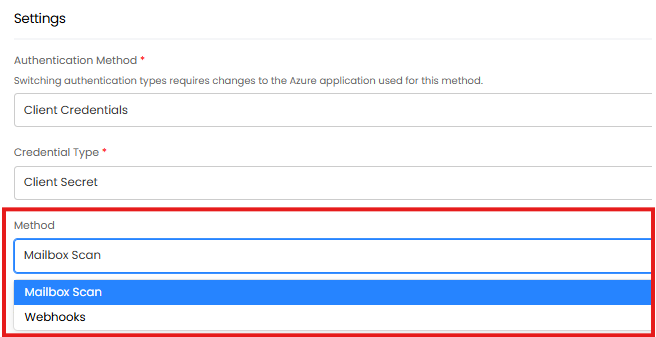
Fig 6. Method for processing mail.
Mailbox Scan
The task scheduling service (which is automatically enabled when the incoming service is enabled) will scan the mailbox every 3-5 minutes to process mail (so it can take up to 5 minutes for mail to be brought from the Exchange mailbox into Halo).
Webhooks (Recommended Method)
When using this method a webhook from Azure with the email content is sent to the Halo API when an email is received in the mailbox, providing instant delivery and processing of any emails that are received. The task scheduling service that is also used for the mailbox scan will also run to retry any potential failed webhooks, but the frequency of this scan will be decreased.
Configuring an Azure Application
Once you have selected the method you would like to use for processing emails, you must configure an application in Azure before continuing with any further Halo configuration. Setup steps for both methods are outlined in this section.
Start by navigating to the Azure portal and select New Registration in the App Registrations. There are three required fields on the creation screen:
- Name - Give your application a sensible name so it can be easily referred to later.
- Supported account types - Must be single-tenant. Multi-tenant is not supported and will cause issues later.
- Redirect URI - Only required if you are using Mailbox Scan as the method.
- If you are on a version prior to v2.182 the platform should be "Web" and the URL should be your Halo application URL followed by /azure/auth. For example, https://YOURHALODOMAIN.com/azure/auth.
- If you are on version v2.182+ the platform should be "Web" and the URL should be your Halo application URL followed by /authcallback. For example, https://YOURHALODOMAIN.com/authcallback.
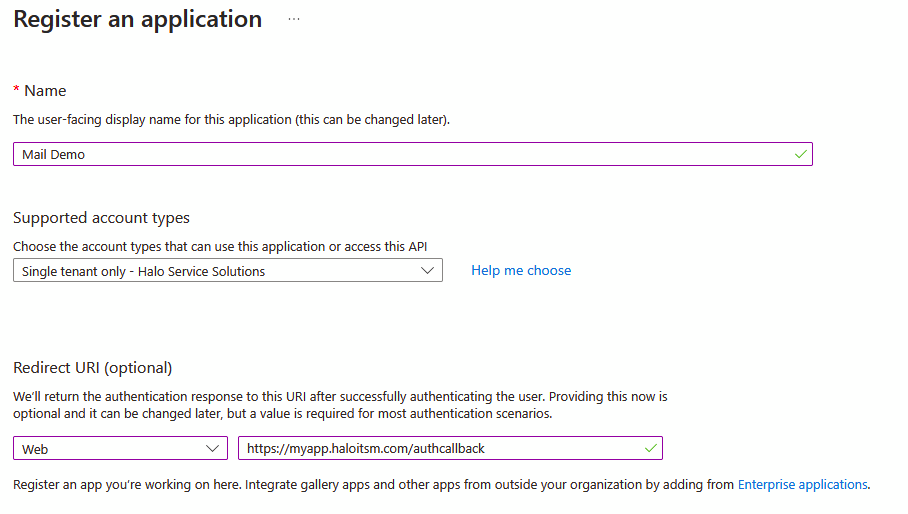
Fig 7. Creating an application.
Once registered, take note of the Application (client) ID on the overview tab, as well as the Directory (tenant) ID. These values will be needed later.
The next step is to add the relevant permissions to the Azure app. As previously mentioned, the required permissions will depend on the authentication method that you have selected, the exact permissions you need will show in Halo after selecting the authentication method/credential type/processing method you are using.
Permissions when using Authorization code to authenticate
Required Microsoft Graph API Permissions (Delegated):
- Mail.ReadWrite
- Mail.Send
- offline_access
- Contacts.Read (only required if you would like to import contacts in Outlook as users in Halo)
- Mail.ReadWrite.Shared (only required if using a shared mailbox)
- Mail.Send.Shared (only required if using a shared mailbox)
- Contacts.Read.Shared (only required if you would like to import contacts in Outlook as users in Halo and you are connecting a shared mailbox)
Note: For Shared Mailboxes, the account used to authorize will also need delegate access to the Shared Mailbox in Microsoft 365.
Permissions when using Client Credentials to authenticate
Required Microsoft Graph API Permissions (Application):
- Mail.ReadWrite
- Mail.Send
If you would like to restrict the mailboxes the application has access to, do not provide the application with any permissions. You will need to setup Role Based Access Control (RBAC), all permissions and access will need to be configured within the role. For more information see the section "Additional restrictions (Client Credentials authentication method only)".
How to add permissions to the application
1. Navigate to the API permissions tab and select Add a permission.
2. Select Microsoft Graph as the API.
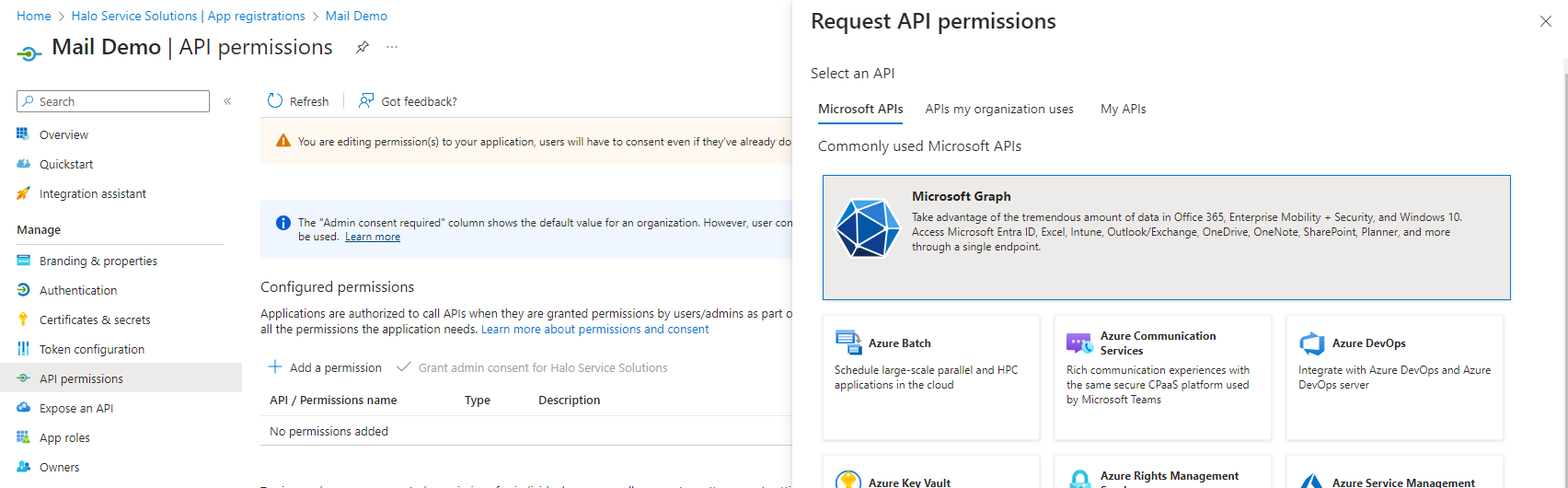
Fig 8. Selecting the API.
3. Choose the type of permission depending on the method you are using. Choosing an incorrect permission type will prevent you from fully configuring the mailbox later in Halo.
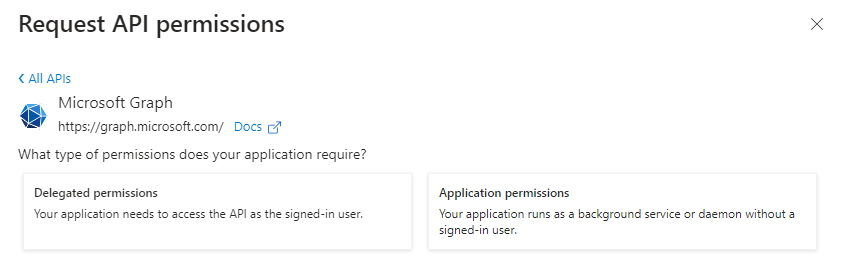
Fig 9. Choosing the type of permission.
4. Search for the permissions, and select the necessary permissions that are required.
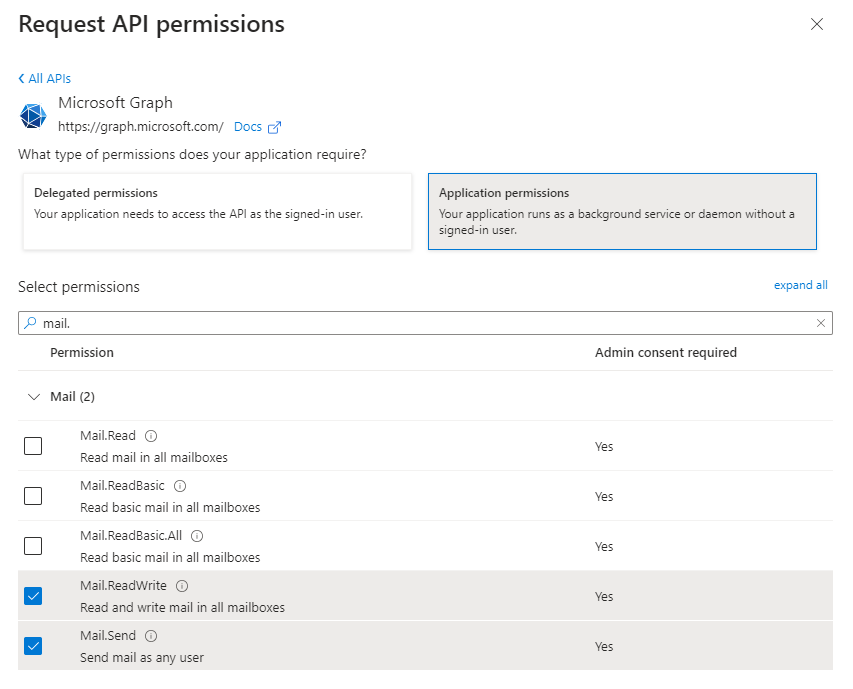
Fig 10. Selecting permissions.
5. Once added, grant admin consent for the tenant:
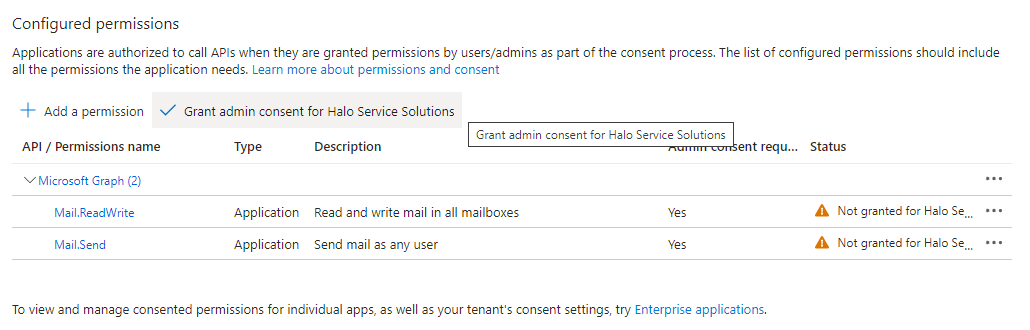
Fig 11. Granting admin consent.
Additional restrictions (Client Credentials authentication method only)
If you are using the Client Credentials authentication method, it is highly recommended that you create an application access policy or configure Role based Access Control to restrict which mailboxes your Azure application can access. Without this, the application will be able to access all mailboxes within the Azure tenant. Restrict this to the mailboxes you would like to integrate with Halo.
Note: Halo supports both methods, however, application access policies are due to be deprecated by Microsoft therefore for new setups we advise using Role Based Access Control.
Access policies are not needed when using the Authorisation Code authentication method as this method uses delegated permissions. When using delegated permissions the mailboxes the application will have access to will be determined by the mailboxes the user permissions are being delegated from has access to. If you would like to ensure only specific mailbox are accessed, ensure the user permissions are delegated from only has access to these mailboxes.
Application Access Policies
Application Access Policies allow you to restrict down the mailboxes the application can access. These restrictions will override the permissions the application already has, so you will still need to provide the application with permissions. Application access policies will be deprecated by Microsoft and they instead advise to use Role Based Access Control going forward. Existing policies will still be supported.
To find out more about how to add an application access policy, see Microsoft's documentation: https://learn.microsoft.com/en-us/powershell/module/exchangepowershell/new-applicationaccesspolicy?view=exchange-ps.
Role Based Access Control (RBAC)
RBAC can be used to restrict the mailboxes the application can access. When using RBAC do not provide the application with any permissions, all permissions (and access) will be granted by the configured role.
For information on setting up RBAC see Microsoft's documentation: Role Based Access Control for Applications in Exchange Online.
Generating the Client Secret
To obtain a secret for your Azure Application, head to the Certificates and Secrets tab within the application you have created. Generate a new secret with a sensible expiry date. Make a note of the value generated and the expiry date.
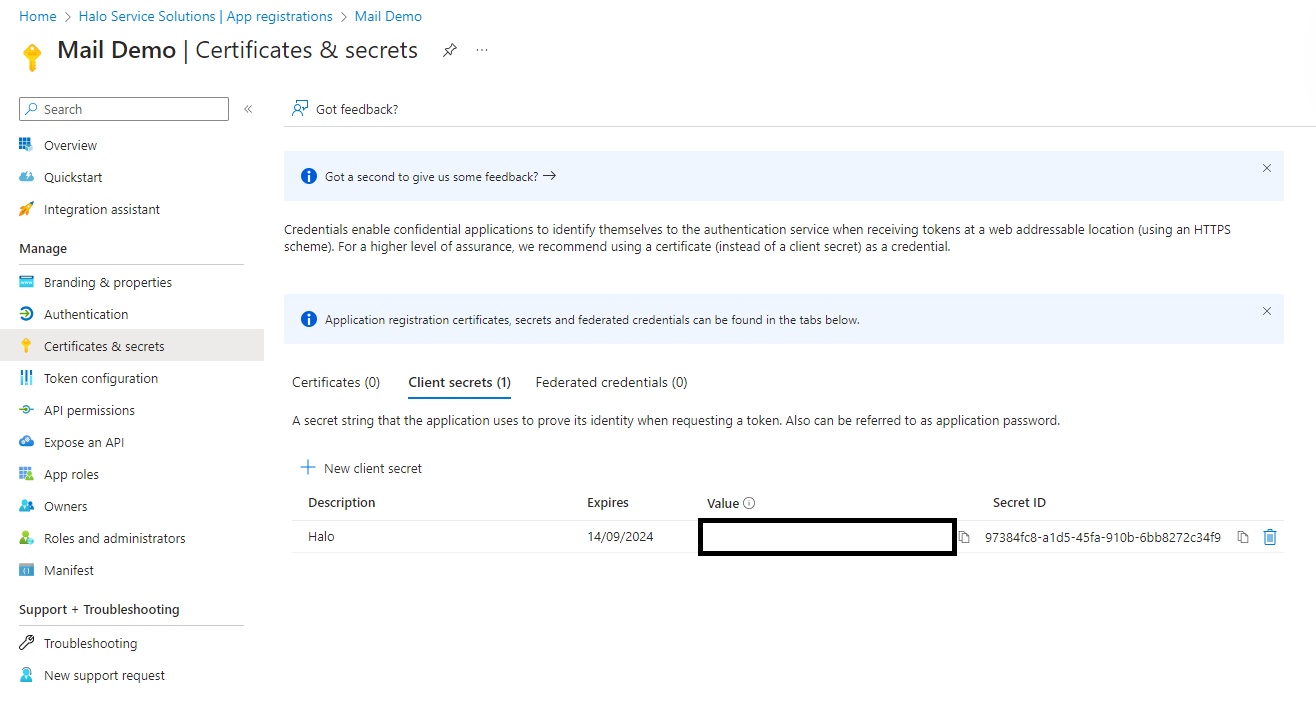
Fig 12. Creating a secret.
Note: The secret value is required not the secret ID.
Once you have the secret head back to Halo and paste this into the 'Azure Application Secret' field.
Connecting to the Mailbox
Once you have successfully created your Azure application and credentials, you can now add the details to the mailbox configuration in Halo and complete the rest of the setup.
The fields shown in figure x must be completed and the mailbox must be saved before continuing, regardless of the chosen method. The Microsoft Graph Global Service should always be chosen as the authority unless you know that your Azure tenant uses a different authority.
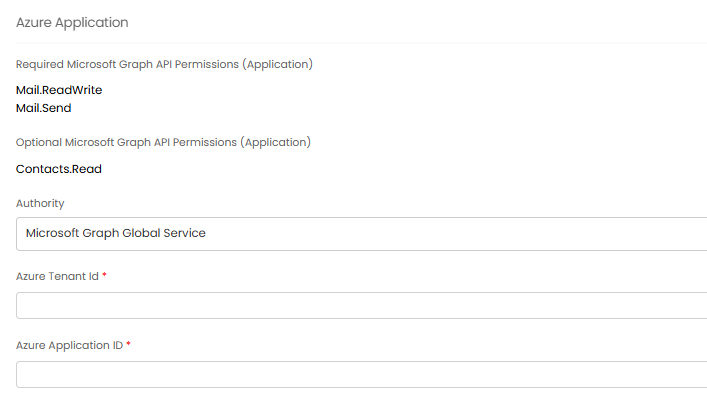
Fig 13. Configuring the mailbox in Halo.
If you are using the Authorization code as the authentication method, then an option to configure a shared mailbox is also available. If the mailbox you are connecting is a shared mailbox enter the address of the shared mailbox here. If you are connecting a licenced mailbox you can leave this field blank.
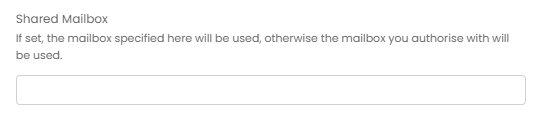
Fig 14. Shared mailbox option.
If you are using Client Credentials, then an email address field is available. This field can accept licenced or shared mailboxes. The only additional requirement is that the owner of the email address must have a UPN value that matches the email address.

Fig 15. Email address option.
Once saved, you will need to complete connection. Follow the next subsections based on the connection type you are using.
Mailbox Scan
If using the mailbox scan method, click the Authorize Application/Sign in button to initiate a sign-in flow with Azure. Be aware that the user who completes the sign-in flow will have the emails from their inbox processed. A warning will alert you to this before proceeding.
Important: Incorrect configuration can mean that your personal mail (john.doe@microsoft.com) is processed into Halo as tickets. Further details are provided below to ensure proper setup.

Fig 16. Warning message.
If you are authorizing a licensed mailbox:
Simply sign into your licensed mailbox using its username and password.
If you are authorizing a shared mailbox:
Ensure the "Shared Mailbox" field is populated the shared mailbox's full address.

Fig 17. Shared mailbox.
Ensure the licensed user is added as a delegate user on the shared resource with Read & Manage (Full Access) permissions.
If either of these have not been configured correctly, it is possible that Halo will try to ingest emails from the authenticating licensed account rather than the shared mailbox. In case of this improper configuration, it is advisable to disconnect the connection as swiftly as you can and review your configuration.
Once you are connected, the connected email address will be shown on the setup screen. All values will be locked in and can only be altered by using the disconnect button first.
Webhooks
If using the webhooks method, you are not required to complete a sign-in. Instead, a subscription will be created for the chosen email address. Click the Create Subscription button to register the subscription. If successful, the details of the subscription will be displayed, including the subscription's expiry date. The subscription can be cancelled at any time using the Cancel Subscription button.
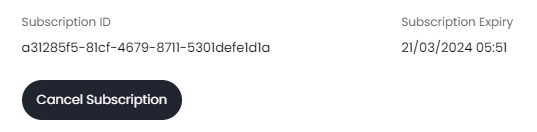
Fig 18. Subscription displayed.
The subscription expiry is always set to the maximum allowed value in Azure. It is automatically renewed whenever the expiry date is within 2 days of expiry, either during the processing of a webhook or by the task scheduler if no webhooks have been received to trigger the refresh.
From the moment the subscription has been created, webhooks will be sent to Halo from Azure to process any new emails received in the user's mailbox.
Outbound Defaults
After connecting the mailbox, if you are deleting your old mailbox that was the outgoing default you need to designate a new default. Navigate to the "Outgoing Email Defaults" found in Configuration > Email > General Settings, and change the default connection to the new mailbox. Without doing this step, you will not see anything populate in the email from field when emailing clients.
Fig 19. Outgoing email defaults.
Imports
Manual Imports
At the bottom of the incoming tab, it is now possible to import emails manually.
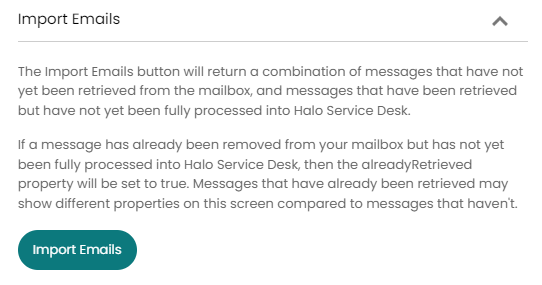
Fig 20. Importing emails.
After configuring a mailbox that is using the Mailbox Scan method, it is recommended that you attempt to click the Import Emails button. This will highlight any potential permissions issues (especially if using a shared mailbox) so that they can be rectified before signing off on your mailbox configuration.
Contact Imports
Once you have connected you will see an additional tab titled 'contact imports' this can be used to import contacts from Outlook as users in Halo, using the connected mailbox.
Note: This functionality is not supported for hosted clients who have connected their mailbox using federated credentials. This is supported for On-prem clients.
If using this functionality make sure you have the following permission to your Azure application:
- Contacts.Read
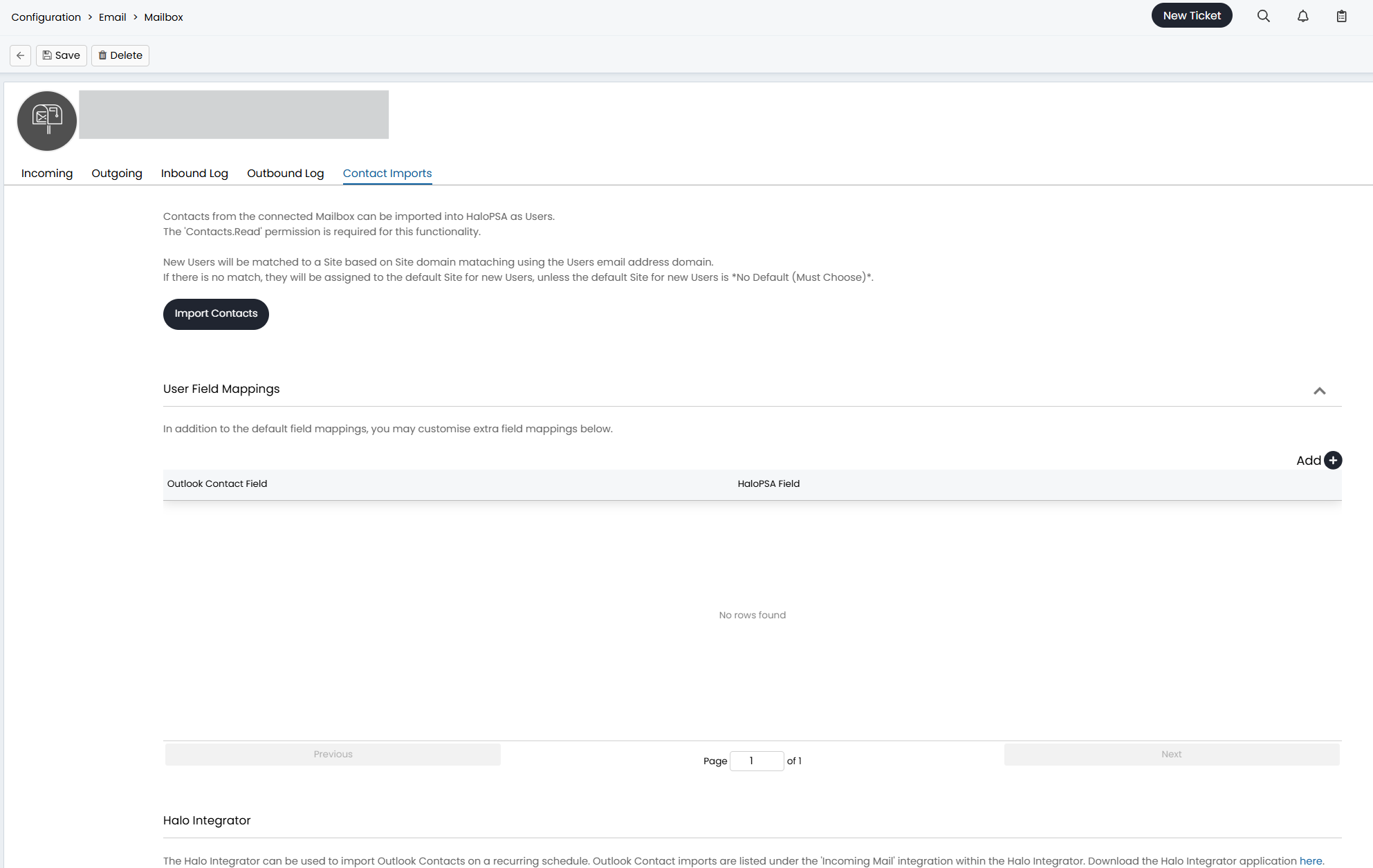
Fig 21. Contact imports.
Before importing contacts you may want to create some contact mappings, this maps Outlook contact fields to user fields in Halo. To create a mapping simply use the 'Add' button to add a mapping to the table, select the Outlook field and Halo User field you would like to be associated, and hit save. New users that are created will be attempted to match to a site based on their email domain, if their domain cannot be matched to a site domain they will be assigned to the default site for new users.
The 'Import Contacts' button can be used to manually import contacts, but these can also be imported on a schedule using the Halo Integrator. The checkbox 'Enable the Halo Integrator for importing Outlook Contacts from this Mailbox Connection' on this tab must be checked for a scheduled sync to take place.
Logging
As part of the new incoming service, it is now possible to see the log for every email that has been processed via the service. This can be found on the Inbound Log tab of the mailbox, or in Configuration > Advanced > Backend Services > Backend Service Monitoring.
Both screens allow you to see some basic information about the incoming email, and whether it was successfully processed.
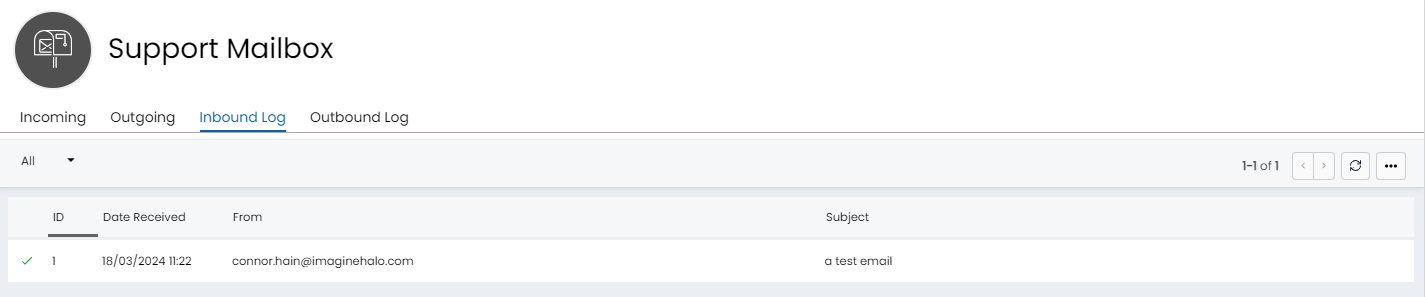
Fig 22. Inbound log.
By clicking on the record, more elaborate details about the email can be found, including the details of each processing attempt. This is located on the Requests tab. Each request can be opened, where the raw data for the request can be observed, as well as a detailed processing log for help understanding how an email has been processed.
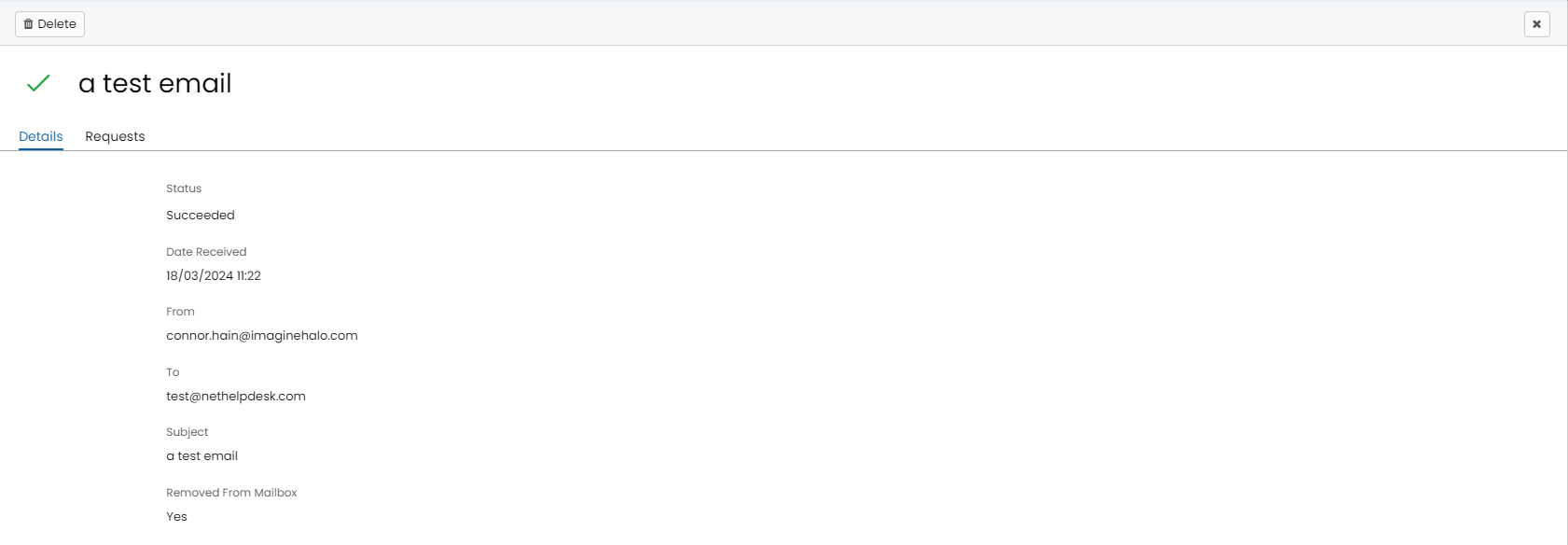
Fig 23. Details.
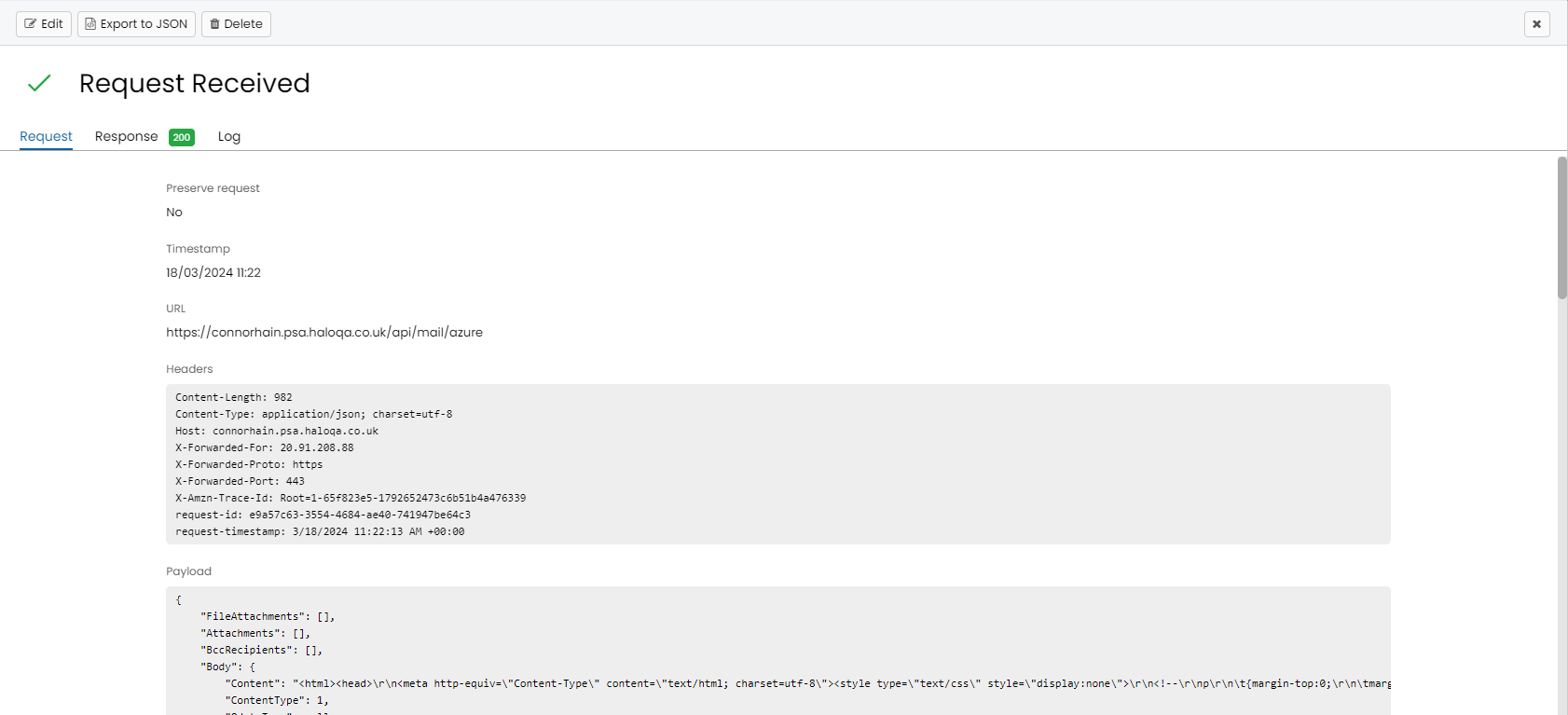
Fig 24. Request.
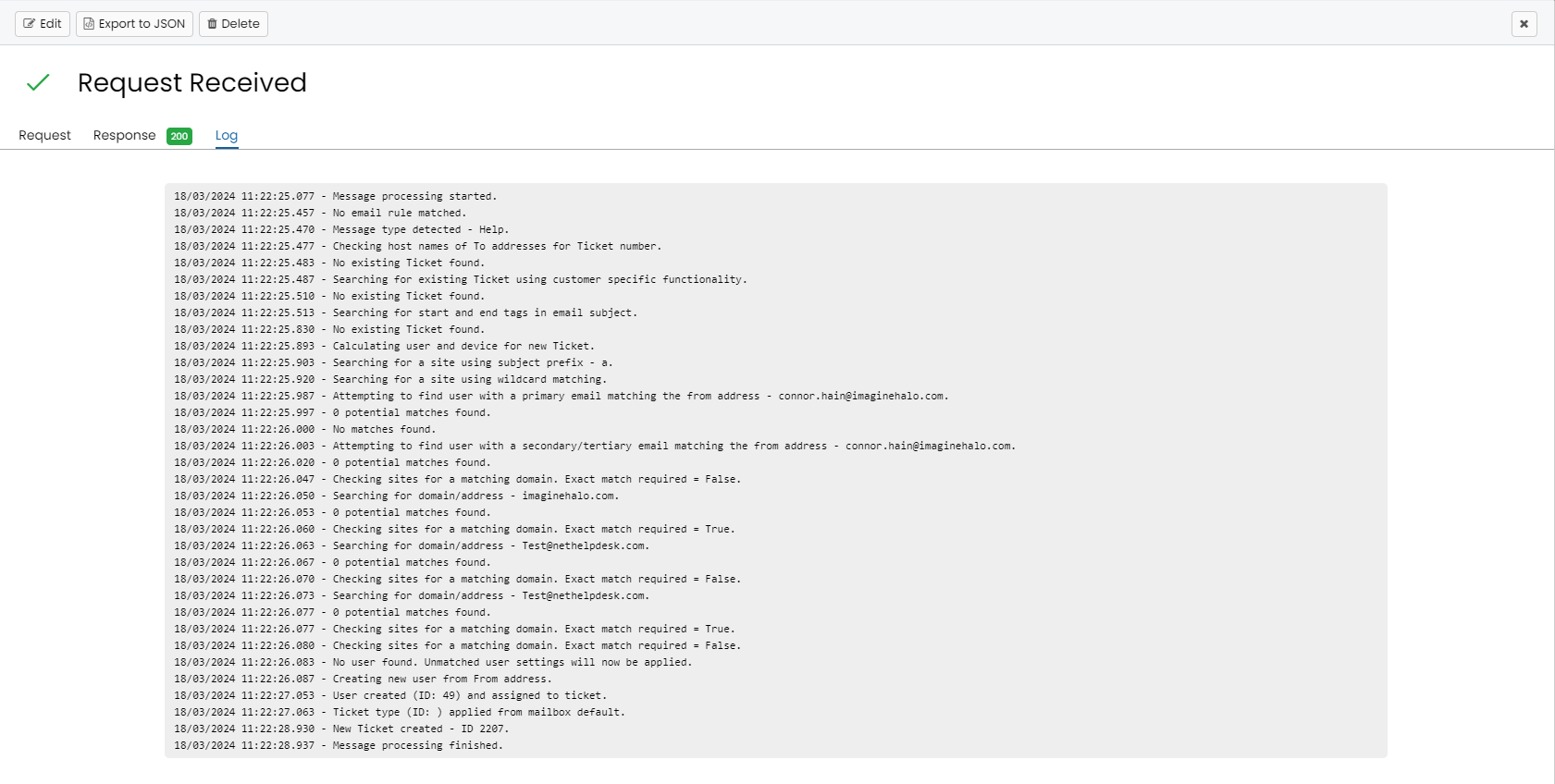
Fig 25. Log.
Error Notifications
Send Error Notifications for emails and the Halo Integrator, to specific agents (Configuration > Teams & Agents > Agents > Click into an Agent > *Preferences Tab*).

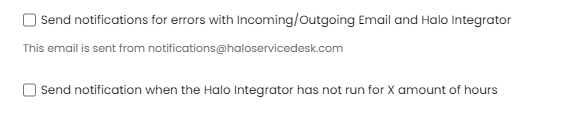
Fig 26. Notifications options.
Common Errors
Here, we have outlined some errors that may occur around mail processing. If a mailbox stops working and no error below matches your issue, first try to Disconnect and then reauthorise the mailbox in Halo.
| Error | Solution |
| Length Cannot Be less than zero (Parameter 'length') | When this occurs, you must create a new secret and make sure to copy the "Value" when generating the secret, not the Secret ID. Make sure to store this "Value" somewhere safe as it is important and can't be copied again after you click off the app registration page. |
| Error is not defined, and you are in doubt as of what to do | Disconnect and then reauthorise the mailbox in Halo if in doubt |
| Failed to retrieve agents - 400 Bad Request: "Token refresh failed - invalid_grant - AADSTS9002313: Invalid request. Request is malformed or invalid. | reauthorise mailbox, if not working try regenerating the secret, make sure to copy the "Value" when generating the secret, not the Secret ID. Make sure to store this "Value" somewhere safe as it is important and can't be copied again after you click off the app registration page. |
| Connection Failed for refreshing access token for mailbox ID 3 - AADSTS9002313: Invalid request. Request is malformed or invalid. | Reauthorise mailbox, if not working try regenerating the secret, make sure to copy the "Value" when generating the secret, not the Secret ID. Make sure to store this "Value" somewhere safe as it is important and can't be copied again after you click off the app registration page. |
| Emails not coming through to halo but mailbox is working and inbox is being emptied? | Run Report “select top 100 * from incomingemail order by IEdatecreated desc” then do a ctrl + f for rule and check to make sure it isn’t being caught by an email rule, if it is, it will be evident on the report which email rule is binning off all emails. Emails can then be added back from the deleted folder (in your outlook account) to inbox and then they will be processed back into halo once placed into the inbox folder. |