Adding a Mailbox Without The Use of Azure or Google
- exchange
- incoming
- Mailbox
- smtp
- pop
- mail server
- port
- outgoing
In this guide we will cover:
- Creating a Mailbox Record
- Entering Mailbox Credentials
Note: If possible, it is recommended to setup an Azure mailbox - Office 365/Azure Mailbox Setup.
Creating a Mailbox Record
Any emails within the mailbox will create tickets, unless "Do not import emails received before the mailbox creation date" is enabled on the mailbox record. For this reason, it is recommended to connect mailbox with an empty inbox.
In Configuration > Email > Mailbox Setup, you'll find a list of existing mailboxes as well as a "New" button to create another record.

Fig 1. Mailbox list
Set the name for this mailbox, and choose the connection type. Click "Save" to create the record before continuing.
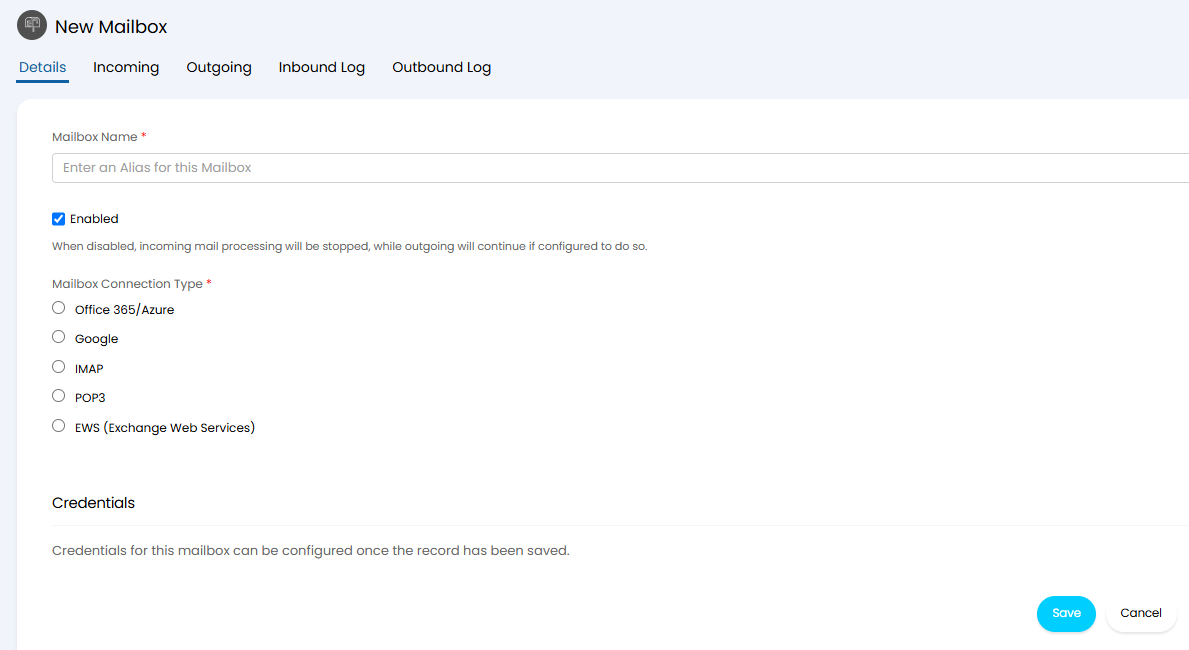
Fig 2. Creating the mailbox record
Entering Mailbox Credentials
After the initial save, click the "Credentials" button, where the connection can be made.
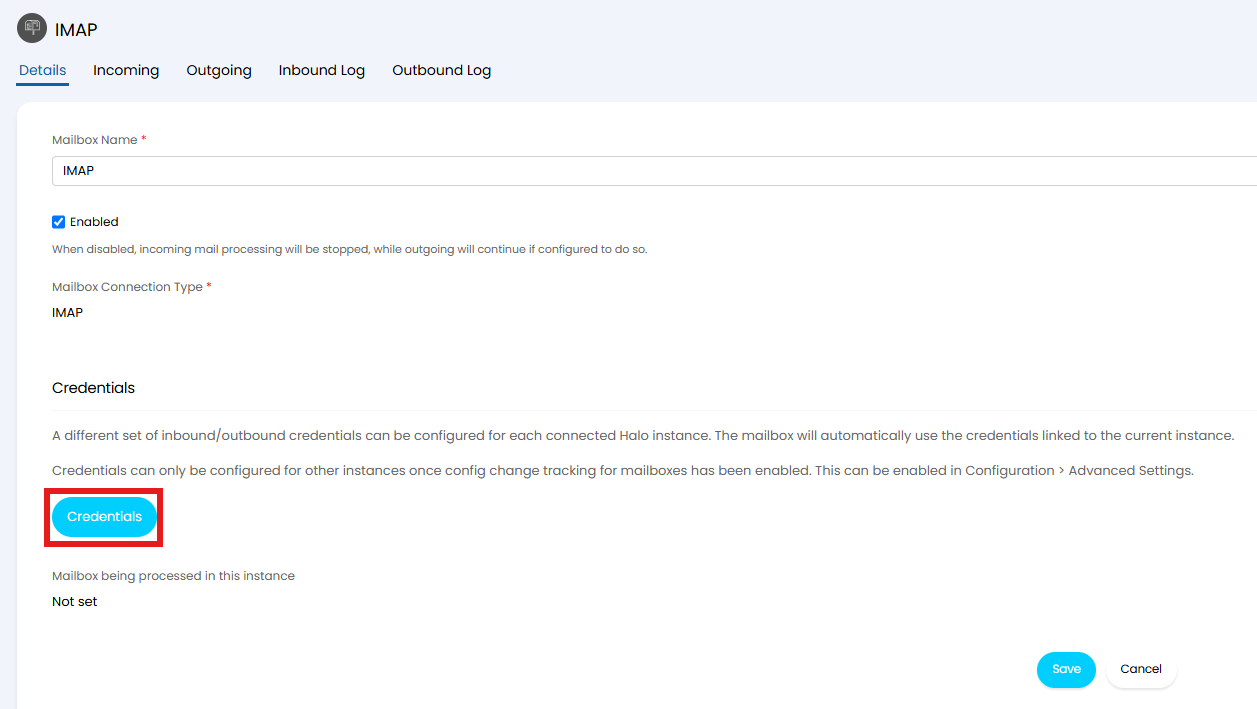
Fig 3. Credentials button
Click the "New" button in the top right.

Fig 4. Adding a credential record
Enter the credentials for the chosen connection type. The following is for IMAP connections.
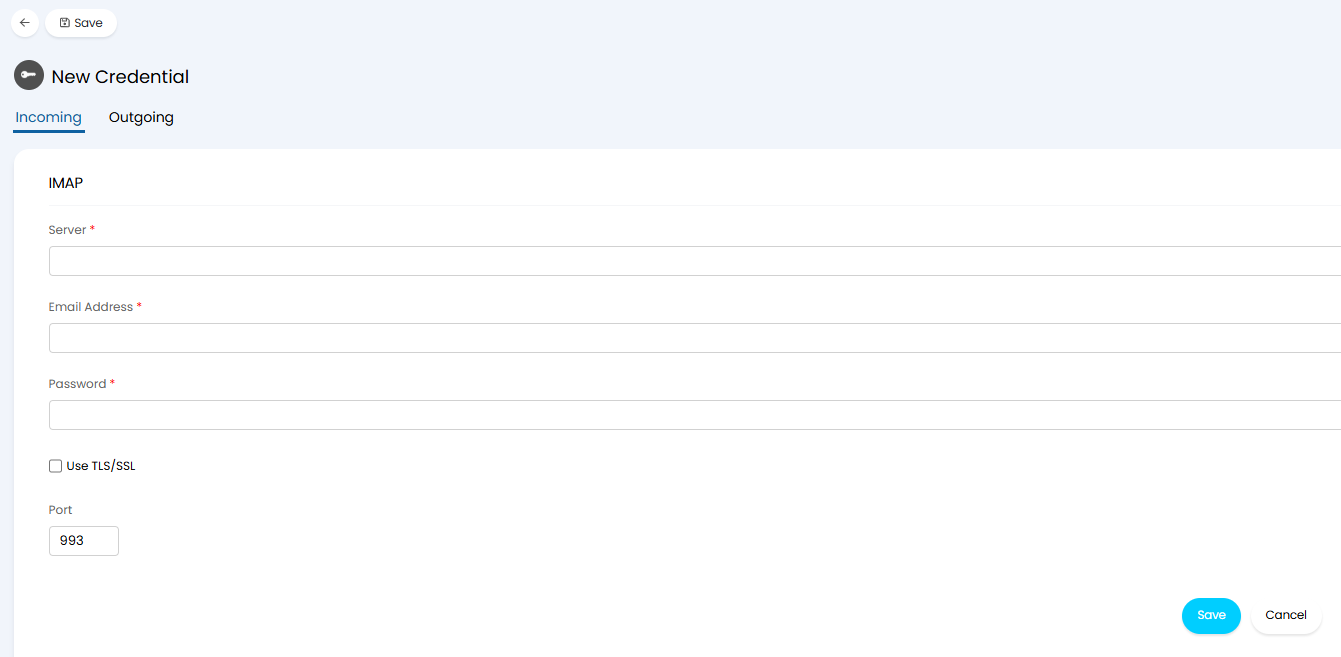
Fig 5. Incoming credentials
- Server: The IMAP server which Halo will contact. This is configured by your Mail Server. Here we are using imap.gmail.com for a Gmail mailbox.
- Email/Password: These two fields are the login details for the mailbox.
- Use TLS/SSL: Enable TLS if the server requires TLS Authentication, as Gmail does.
- Port: The port is configured by your mail server, 993 or 25 are often the defaults
Switching to the "Outgoing" tab of the credentials, you can enter any options that will override the default SMTP settings. This is the set of instructions that tells the server who is sending and how the mail will get sent.
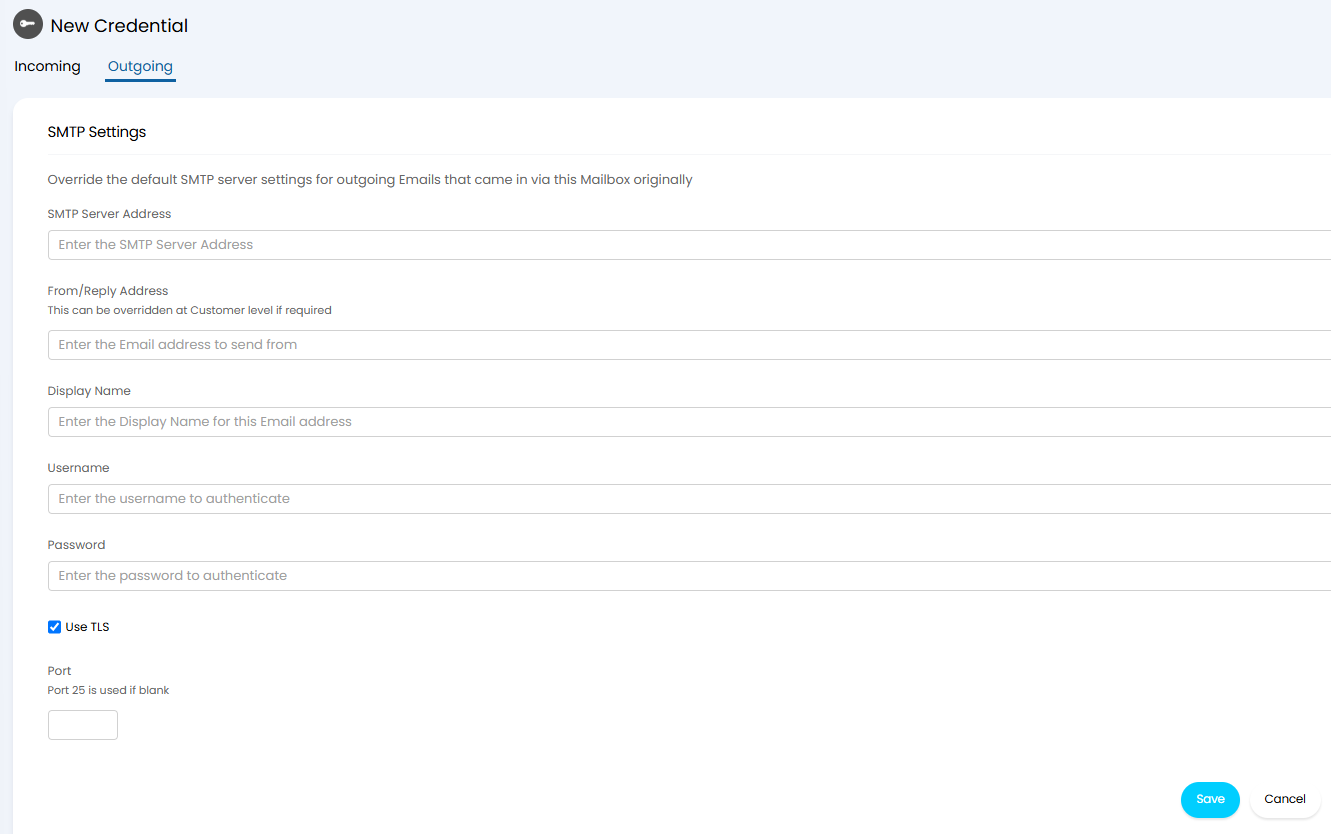
Fig 6. Outgoing credentials
- SMTP Server Address: Set by your mail server, often this will be of the form SMTP.mailserver.com and are unique to each server.
- From/Reply Address: Address you wish to send from, here we have our Gmail account
- Display Name: Name which will appear as the "From: Display Name <email@address.mail>".
- Username/Password: Login credentials (if required) for the mailbox.
- TLS: Denotes the security protocol, Gmail requires we use this so we check the box.
- Port: Configured by your mail server, 587 is often the default for a secure connection and 465 for an unsecured connection.