Authentication Methods for Microsoft Integrations
- Microsoft
- secret
- app registration
- Microsoft authentication
- Azure authentication
- MS authentication
- federated credentials
- certificate credentials
- Microsoft credentials
- troubleshooting
In this guide we will cover:
- App Registration Basic Setup
- Method 1: Secret Authentication
- Method 2: Certificate Authentication
- Method 3: Federated Credential Authentication
Related Articles:
When setting up a Microsoft integration, there are generally a number of different permission types and authentication options that can be used.
Before setting up your integration, Halo recommends you review:
- The difference between delegated and application permissions using Microsoft's guide.
- The configuration of Application Access Policies and configure one where relevant (Mail and Exchange Calendars). Some supplemental instructions are available here.
If unsure which permission type to use, Applications Permissions are the simplest, feature-rich and most stable option.
App Registration Basic Setup
Regardless of the permission type or authentication method you choose, there are some basic steps that you will need to complete for any App Registration.
Open the Entra Admin Center (or similar) and navigate to the App Registration section. Click "New Registration".
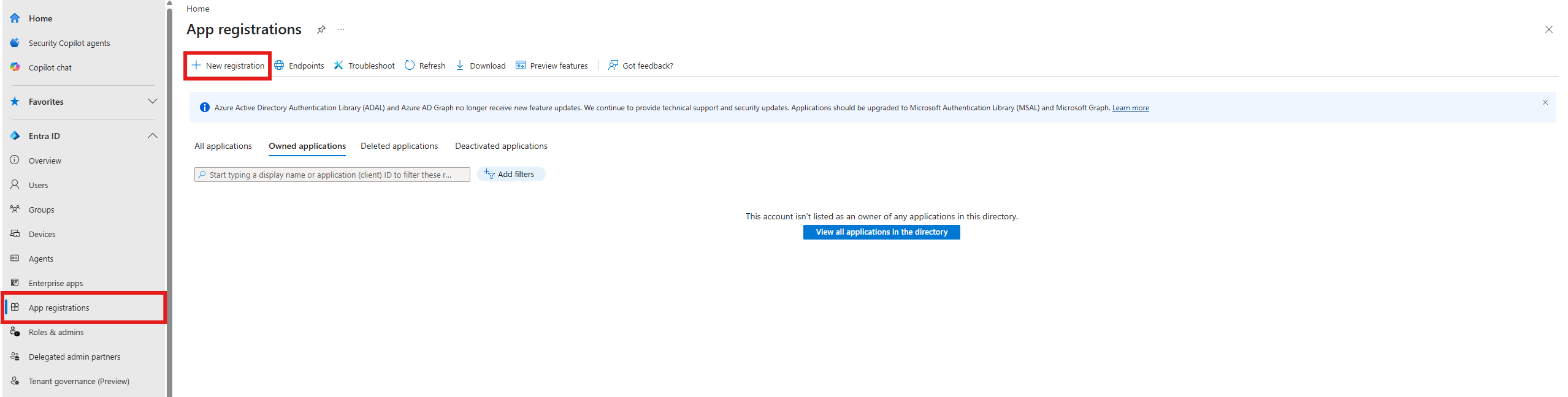
Fig 1. App registration
On the registration screen you will want to fill out:
- Name: Be aware in some situations the name will be visible to end-users (when configuring the SSO application for example).
- Supported Account Type: Single Tenant except for SSO and CSP.
- Redirect URI: The integration setup page/guide will tell you if you need one and the value required. Platform is always "Web".
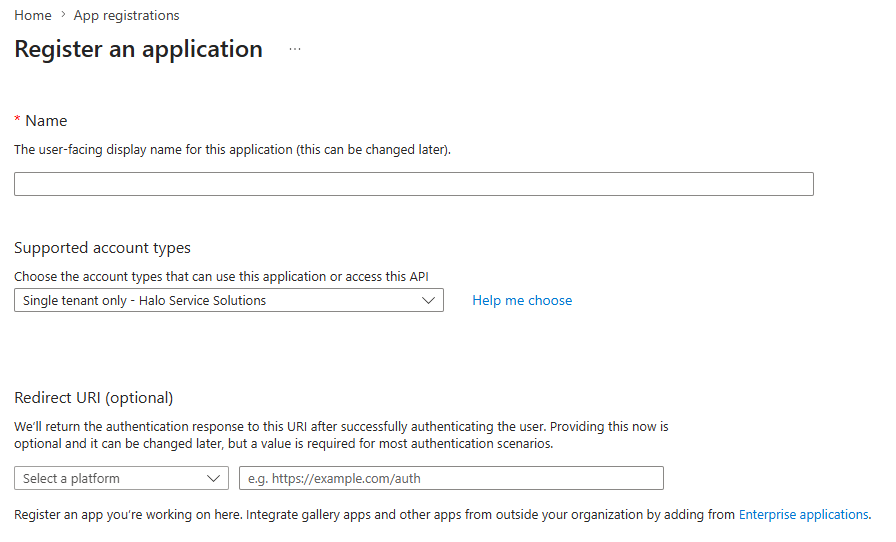
Fig 2. Creating an application
Click "Register". Once registered, copy the "Application (client) ID" and "Directory (tenant) ID" from the Overview tab and store them safely, as these will be needed later.
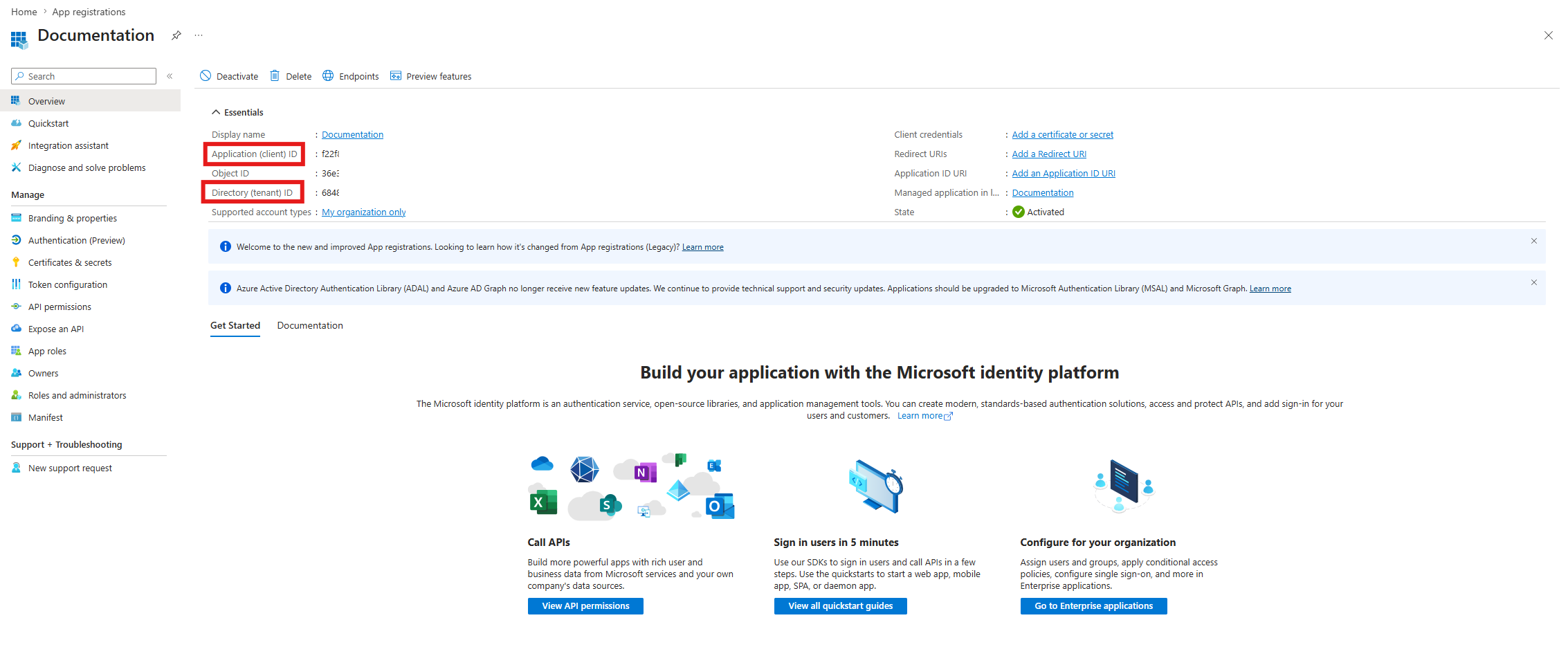
Fig 3. Copying IDs
In the "API permissions" section, remove the default 'User.Read' permission unless the integration configuration requires it.
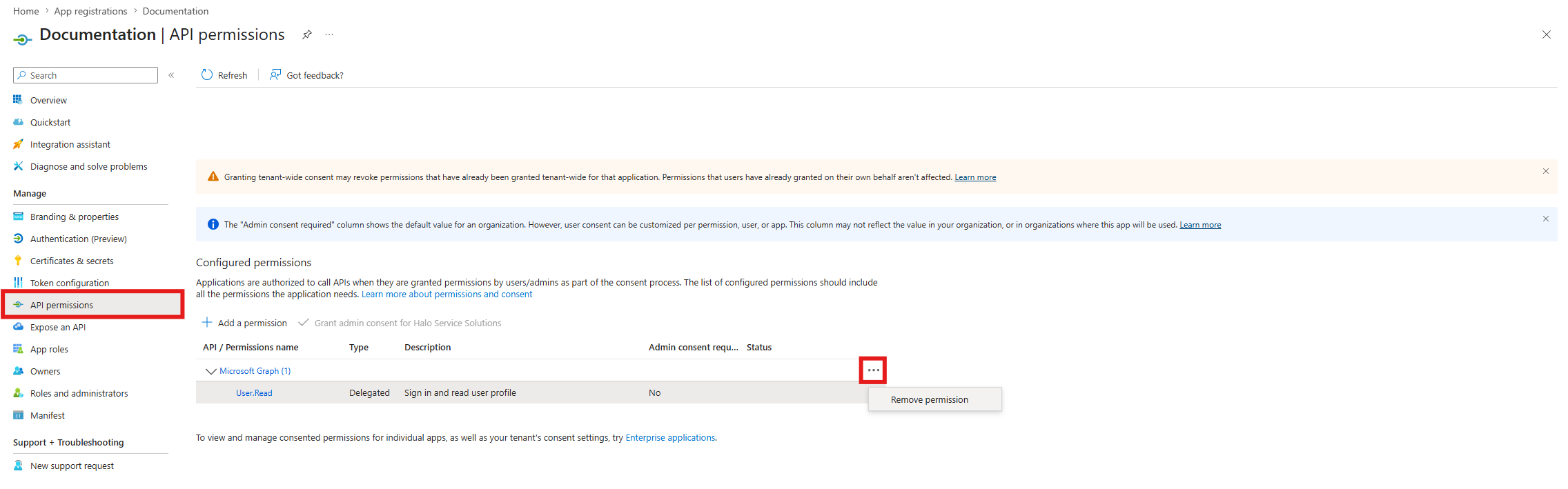
Fig 4. Removing User.Read permission
Click "Add a permission", then choose the relevant API (generally Microsoft Graph but the integration page will tell which API if not), and choose your permission. If the permissions on the integration's configuration page and the guide differ, use what the integration page in Halo gives and report this difference to our support team.
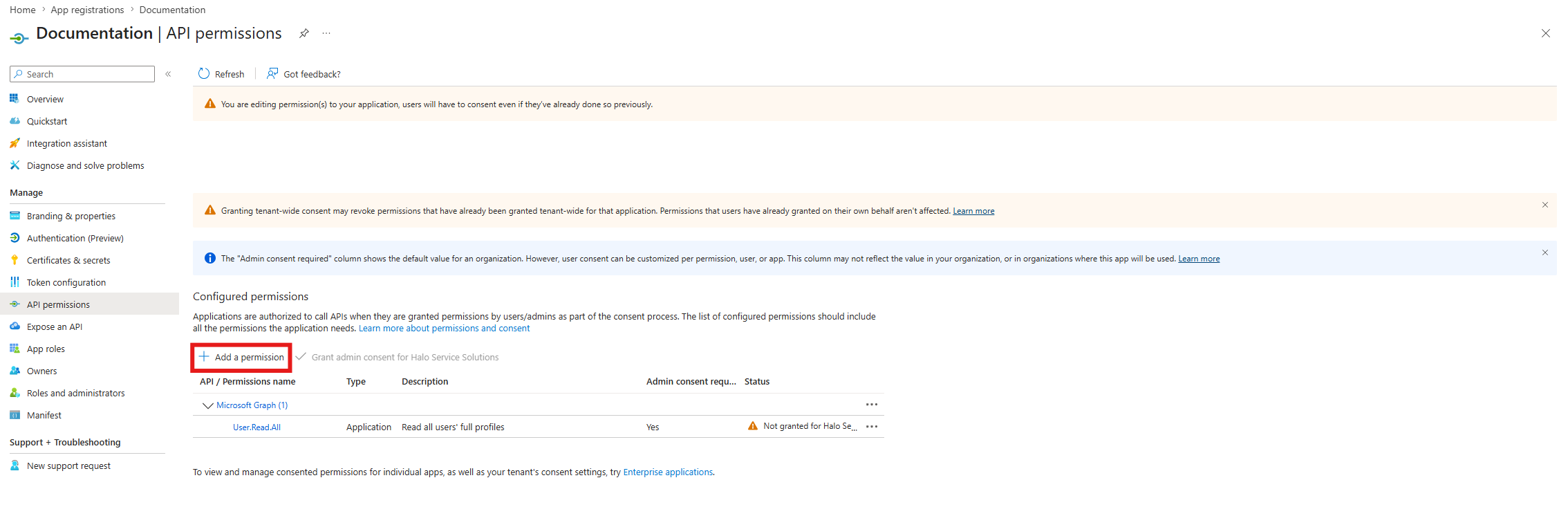
Fig 5. Adding other permissions
Grant admin consent (if required).
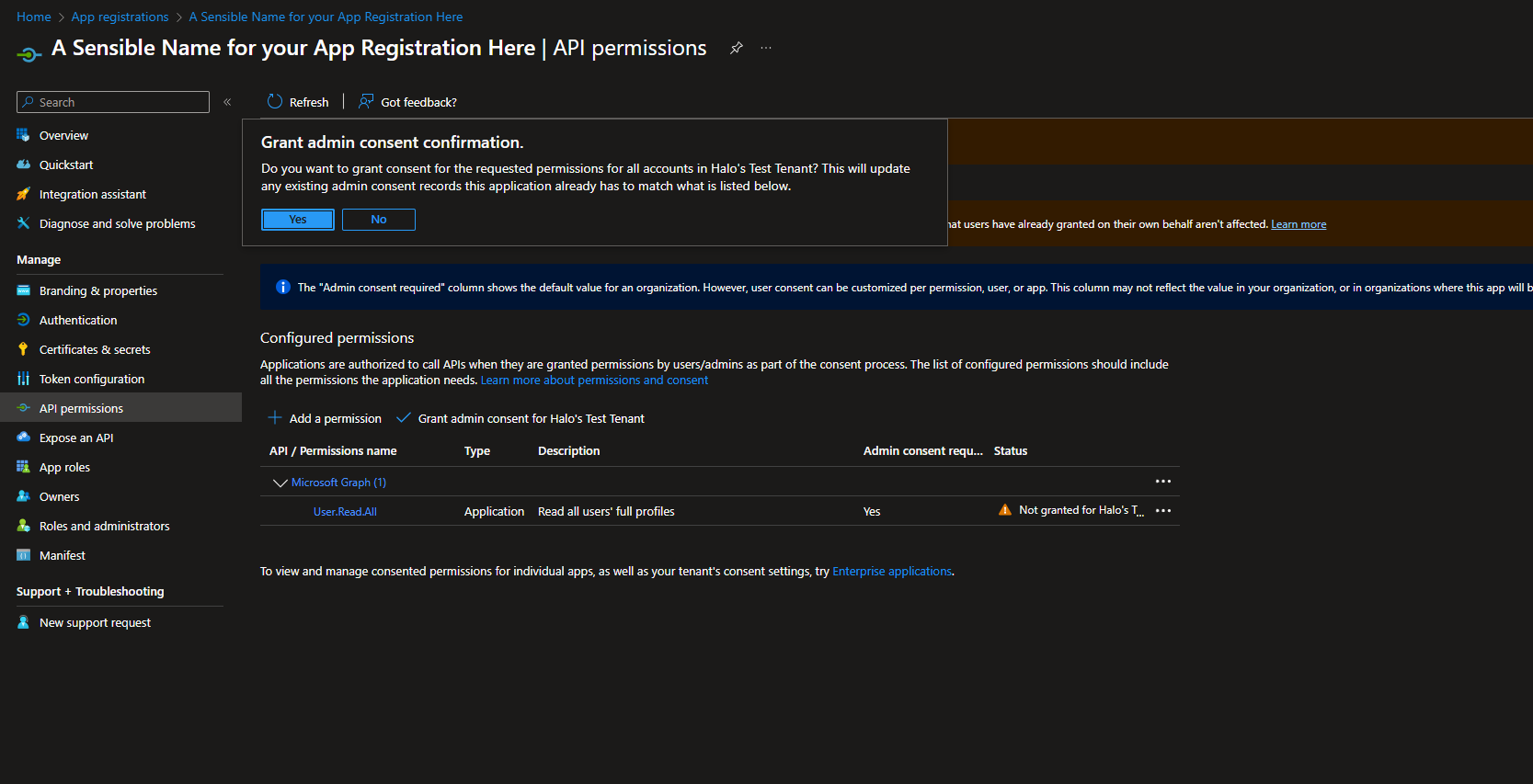
Fig 6. Granting admin consent
The "Status" column will change if consent has been successfully granted.
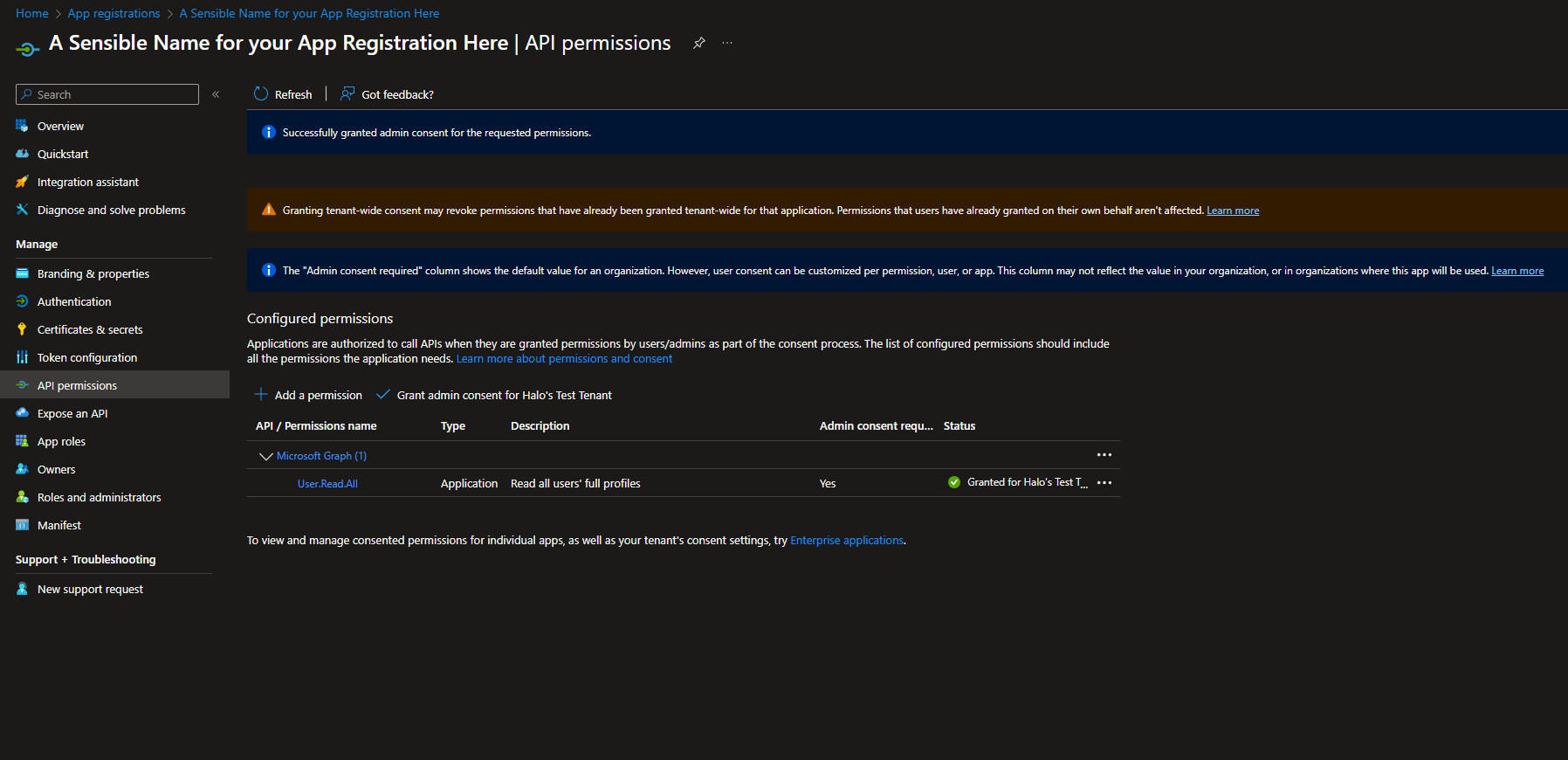
Fig 7. Permission with admin consent granted
Once completed, you will now need to select your authentication option. Note: Not all options are available for all Microsoft integrations.
Method 1: Secret Authentication
In Halo, choose "Client Secret" as your "Credential Type".
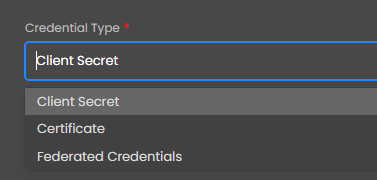
Fig 8. Choosing a credential type
In Azure, navigate to the "Certificates & secrets" tab, and open the "Client secrets" tab. Click "New client secret", fill out the description and choose an expiry. Microsoft limits this to a maximum of 2 years from creation. Once this generates, copy the "Value" (not Secret ID) and store it securely. It will no longer be visible once you leave this screen.
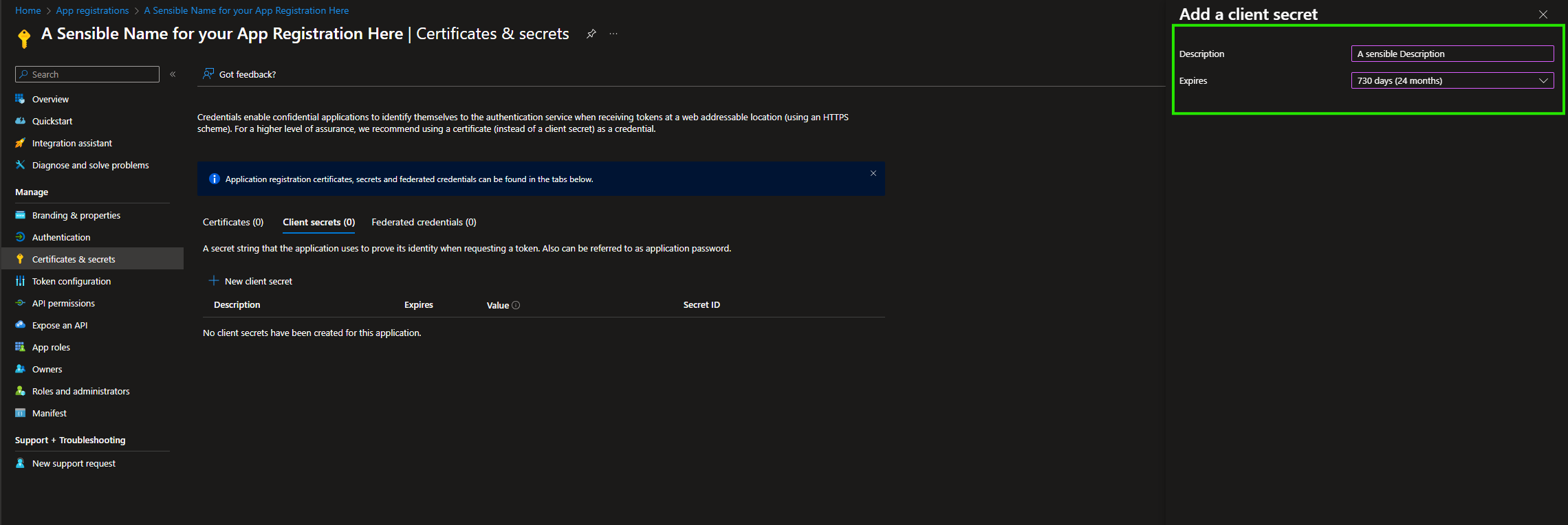
Fig 9. Adding client secret
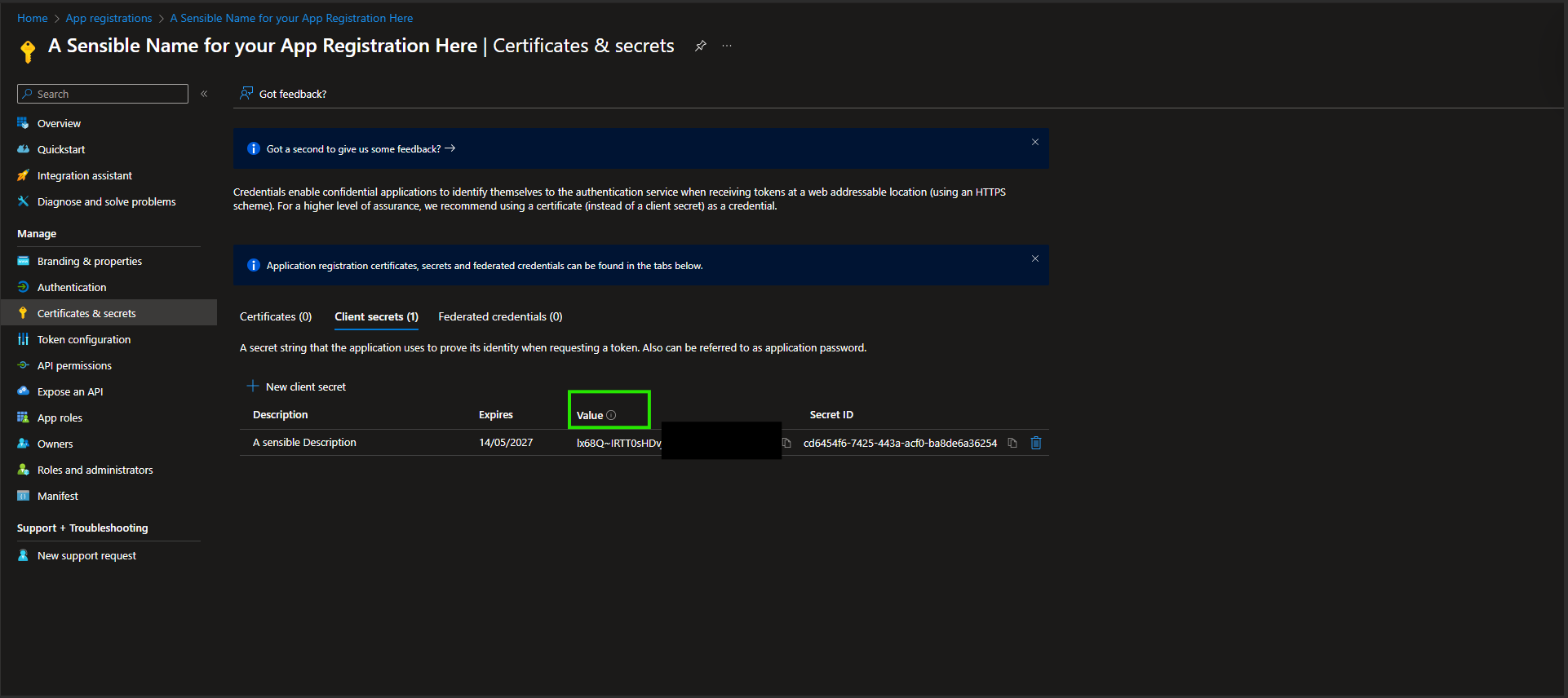
Fig 10. Copying the secret value
Back in Halo, add this secret to the secret field along with the Tenant and Application IDs.
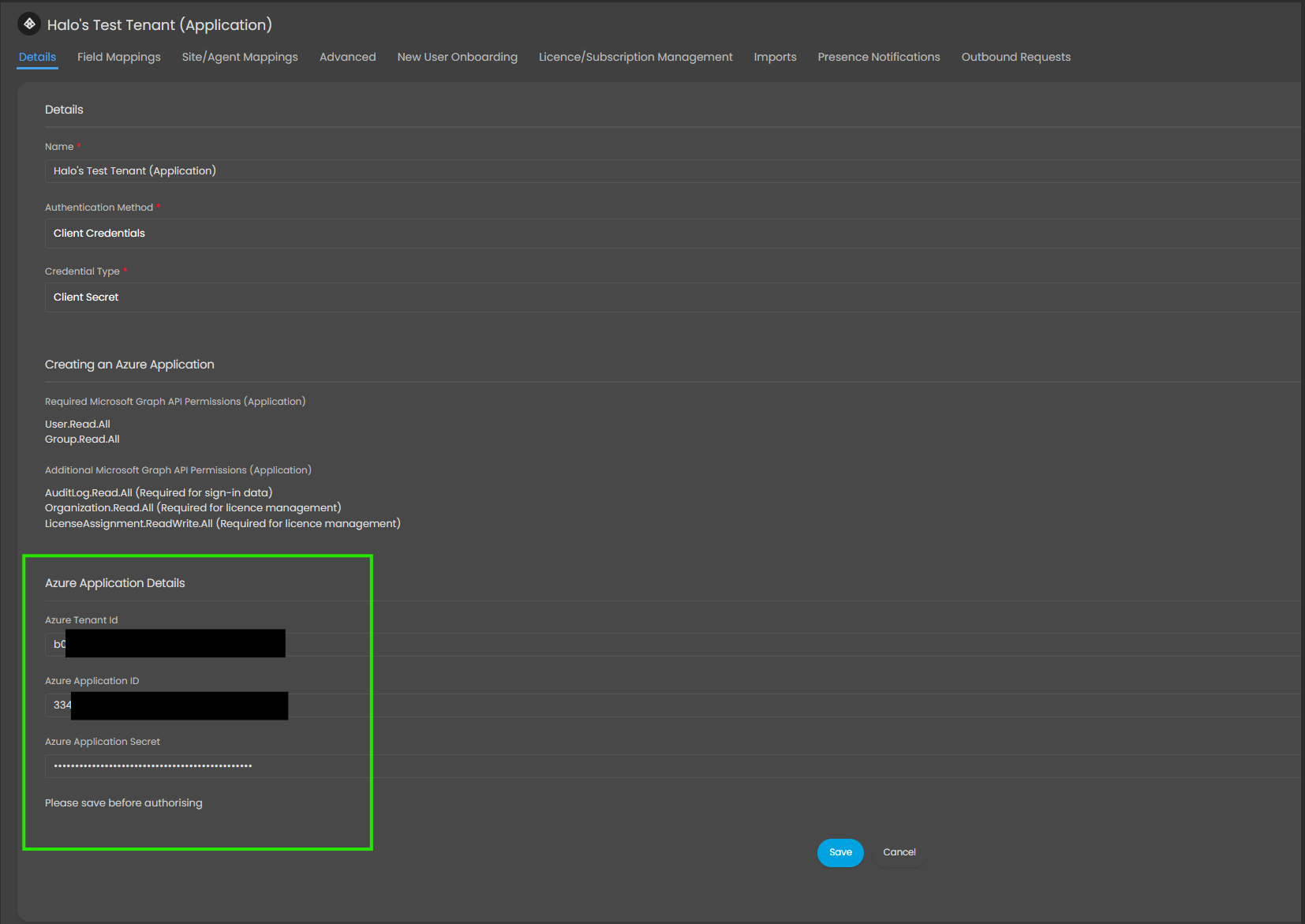
Fig 11. Adding the application details into Halo
If using delegated permissions
There will be a "Sign in with Microsoft" button. Once pressed, you will be directed to the Microsoft Sign-In screen where you can sign in before being re-directed back to Halo. You will need to sign in with an account with appropriate permissions to access the resources you wish to import. For example, if authorising the Intune integration, the user will need permission to view all Intune devices.
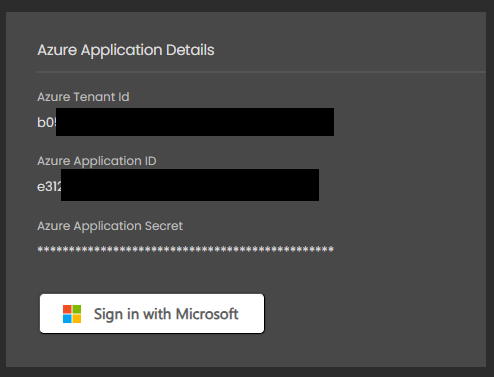
Fig 12. Sign in button (Delegated)
If the authentication has been successful, the permissions/redirect URIs will have disappeared and the other tabs become accessible (if they weren't before). If unsuccessful, an error will appear in a model windows once re-directed back to Halo.
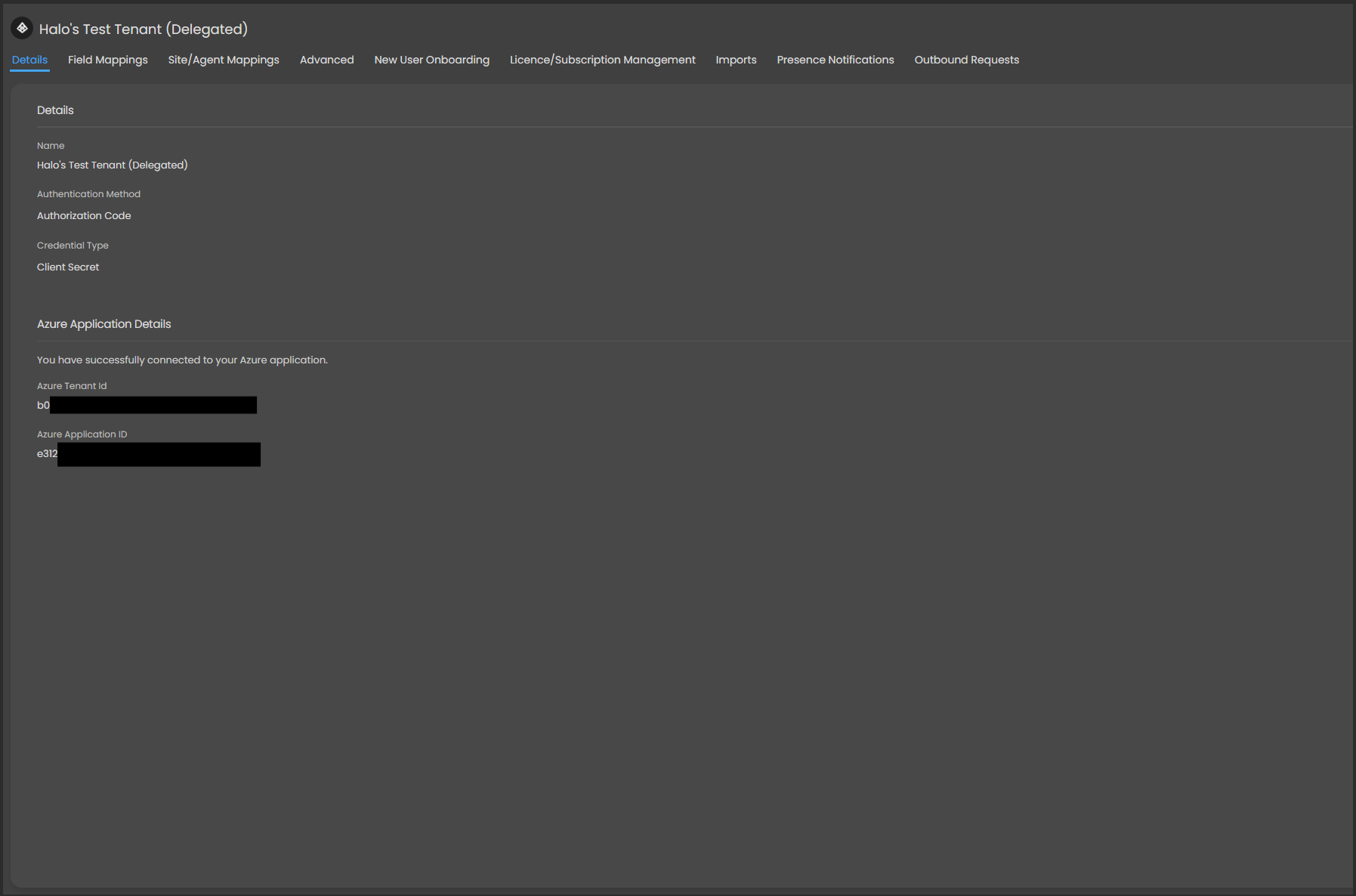
Fig 13. Successful connection (Delegated)
If using application permissions
There will be an "Authorise Application" button. Once pressed, the application will attempt authorisation without leaving Halo.
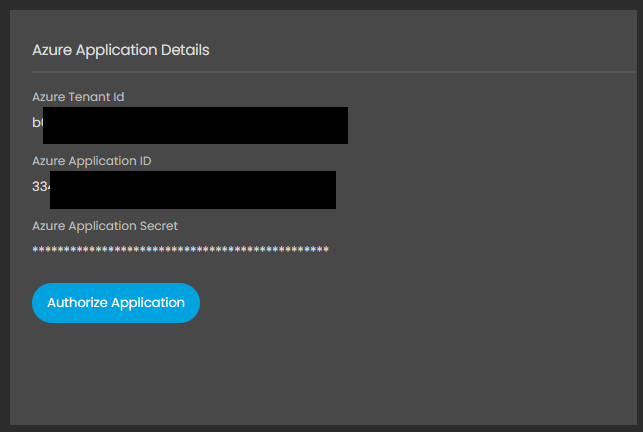
Fig 14. Authorize Application button (Application)
If successful, the button will disappear and relevant tabs will be unlocked. If unsuccessful, an error code will appear in a modal window.
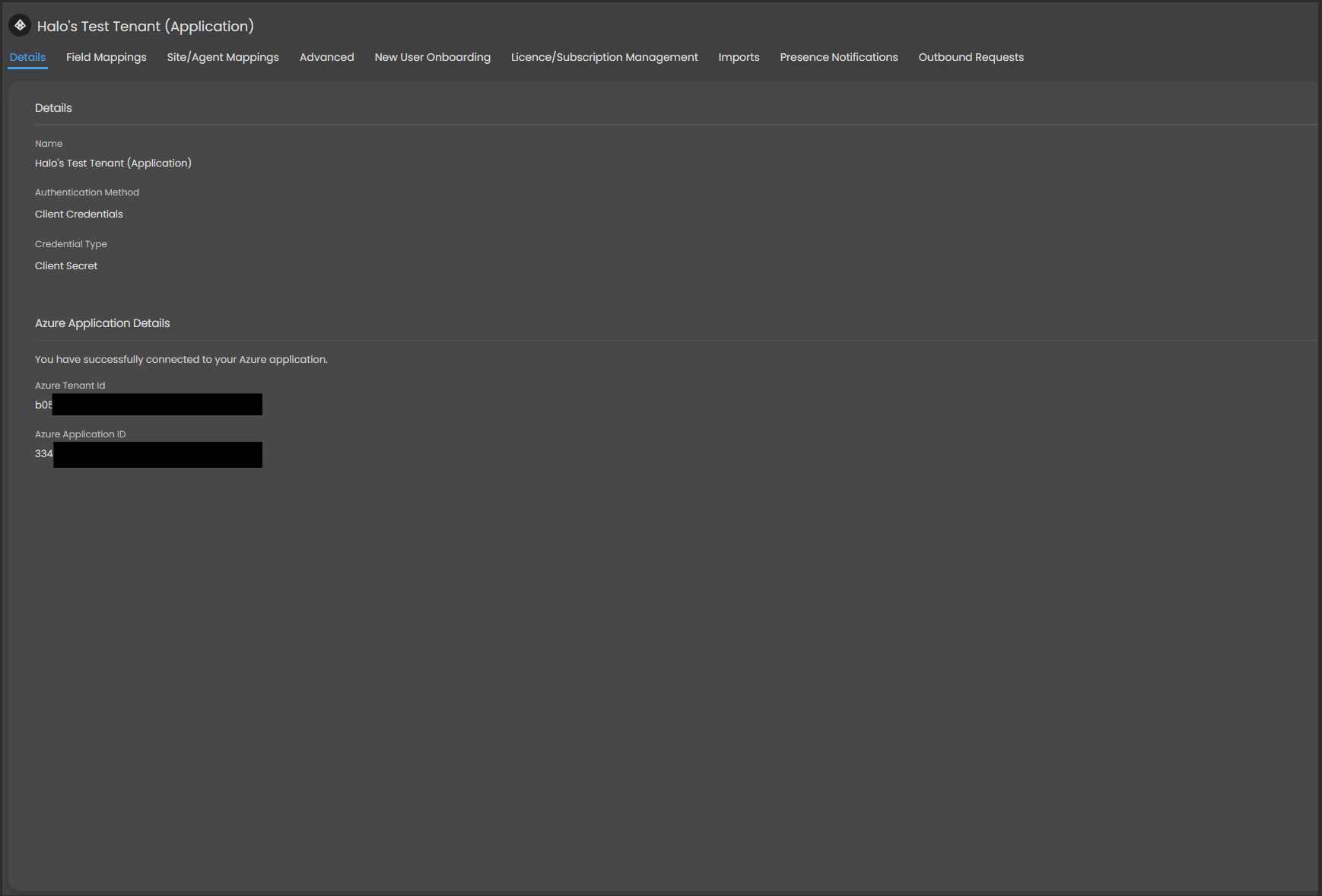
Fig 15. Successful connection (Application)
Method 2: Certificate Authentication
In Halo, choose "Certificate" as your "Credential Type".
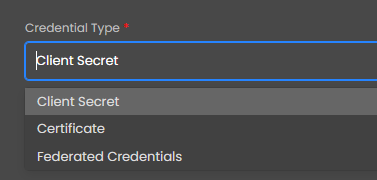
Fig 16. Selecting credential type
You will need access to a valid X.509 certificate before starting. You will need this in both ".pfx" format (with access to the export password) and in ".cer, .pem or .crt" for Azure.
Once you have these, within Halo navigate to Configuration > Advanced Settings > Certificates. Create a new certificate entry by giving it a name, uploading the file, entering the password, and saving.
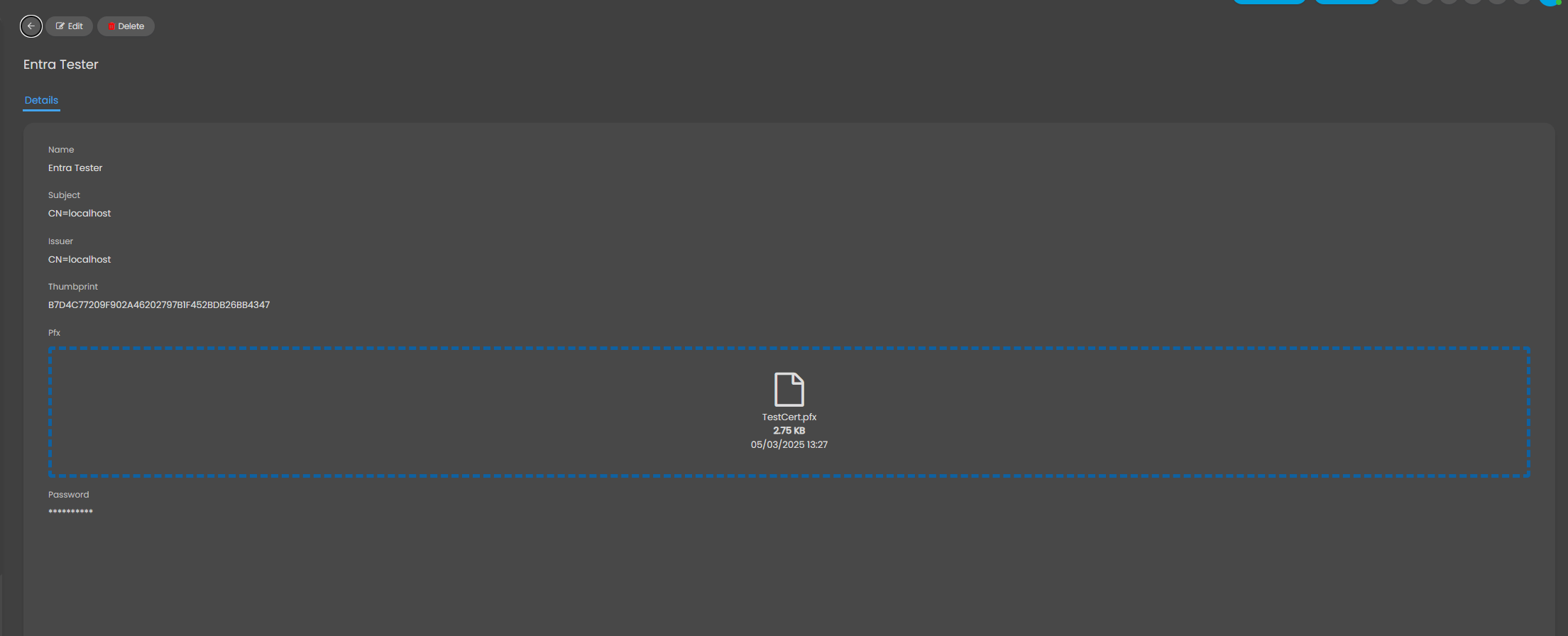
Fig 17. Creating a certificate entry
In Azure, navigate to the "Certificates & secrets" tab, and open the "Certificates" tab. Click "Upload Certificate", upload the file, and give it a description before clicking "Add".
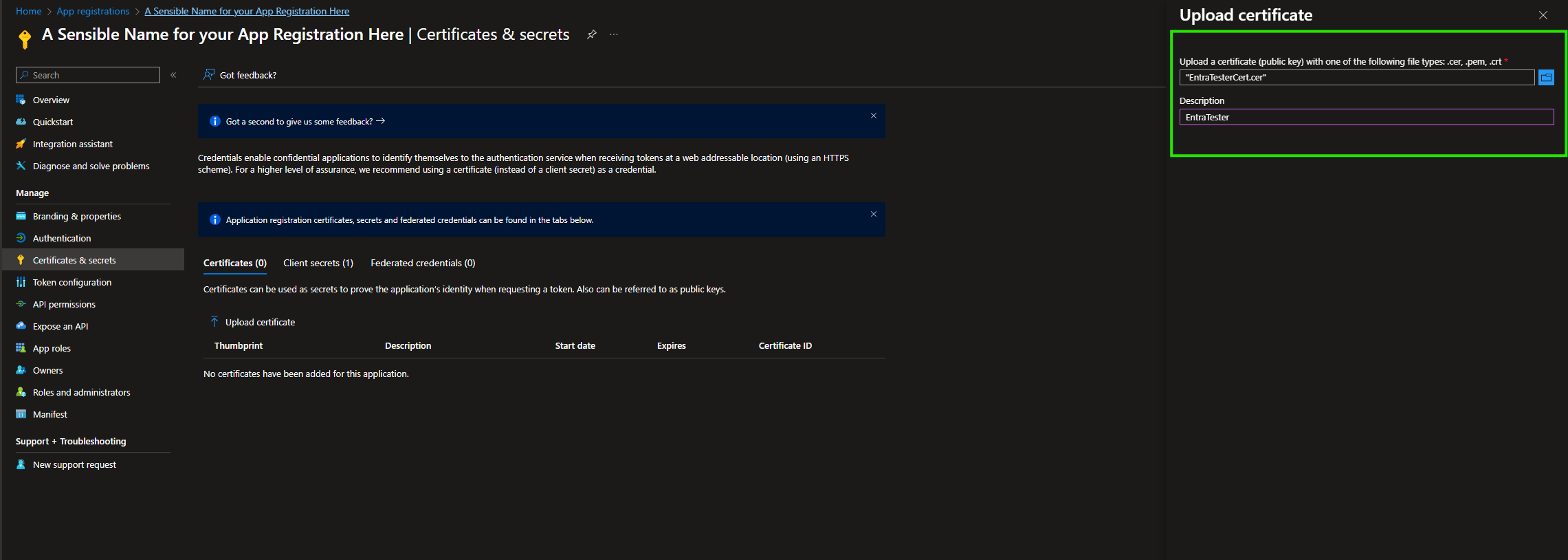
Fig 18. Uploading the certificate
Back in Halo, input the Tenant and Application IDs and choose the uploaded certificate before saving.
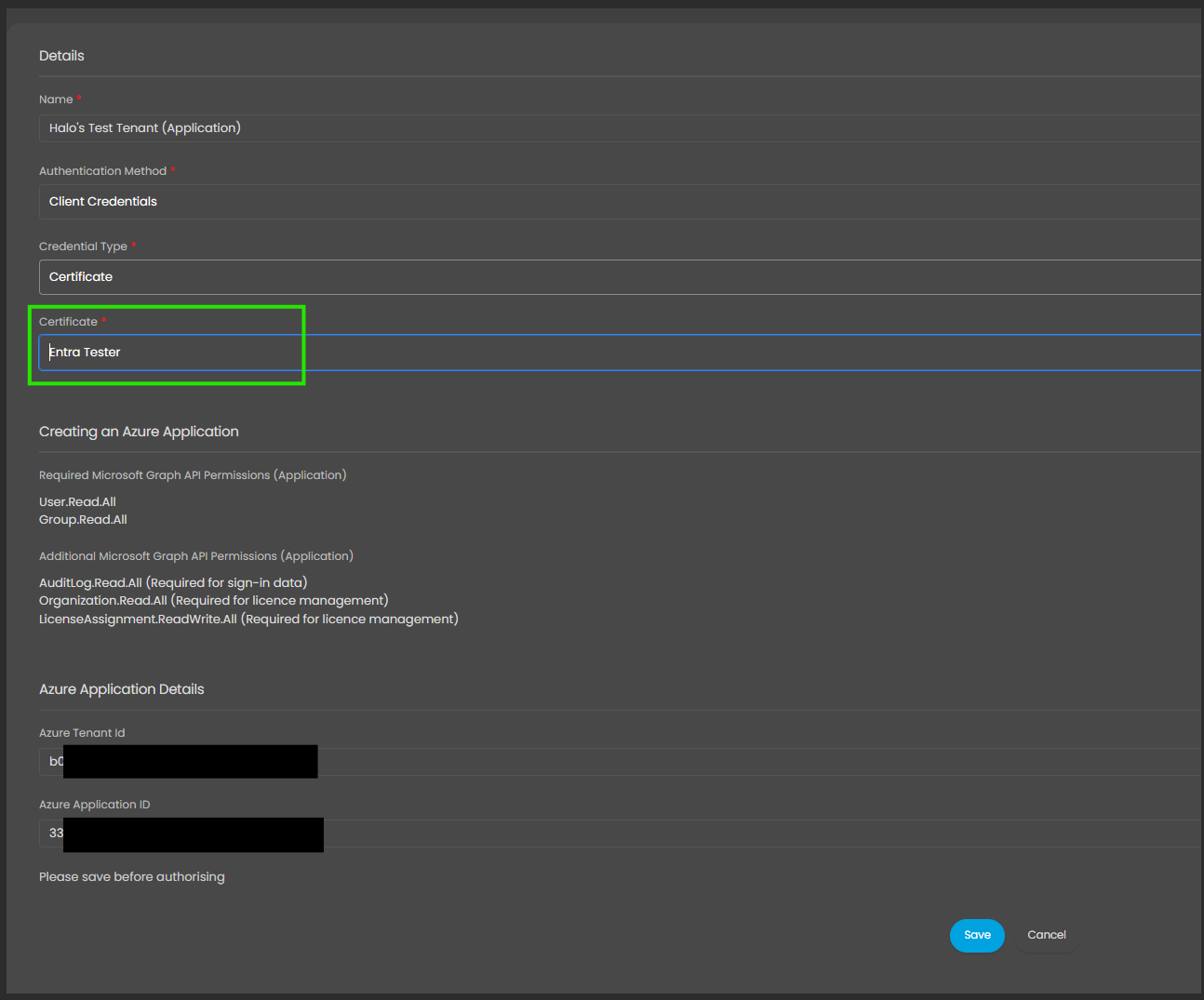
Fig 20. Selecting the certificate
If using delegated permissions
There will be a "Sign in with Microsoft" button. Once pressed, you will be directed to the Microsoft Sign-In screen where you can sign in before being re-directed back to Halo. You will need to sign in with an account with appropriate permissions to access the resources you wish to import. For example, if authorising the Intune integration, the user will need permission to view all Intune devices.
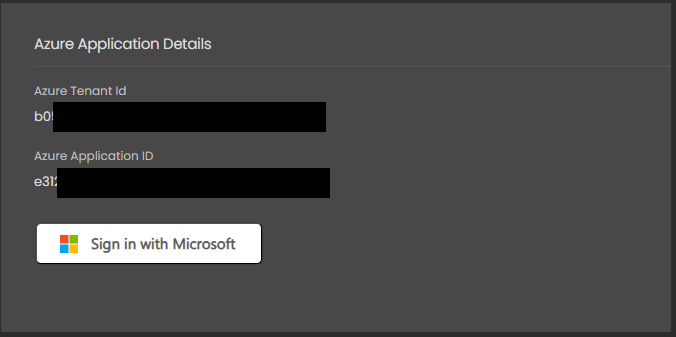
Fig 21. Sign in button (Delegated)
If the authentication has been successful, the permissions/redirect URIs will have disappeared and the other tabs become accessible (if they weren't before). If unsuccessful, an error will appear in a model windows once re-directed back to Halo.
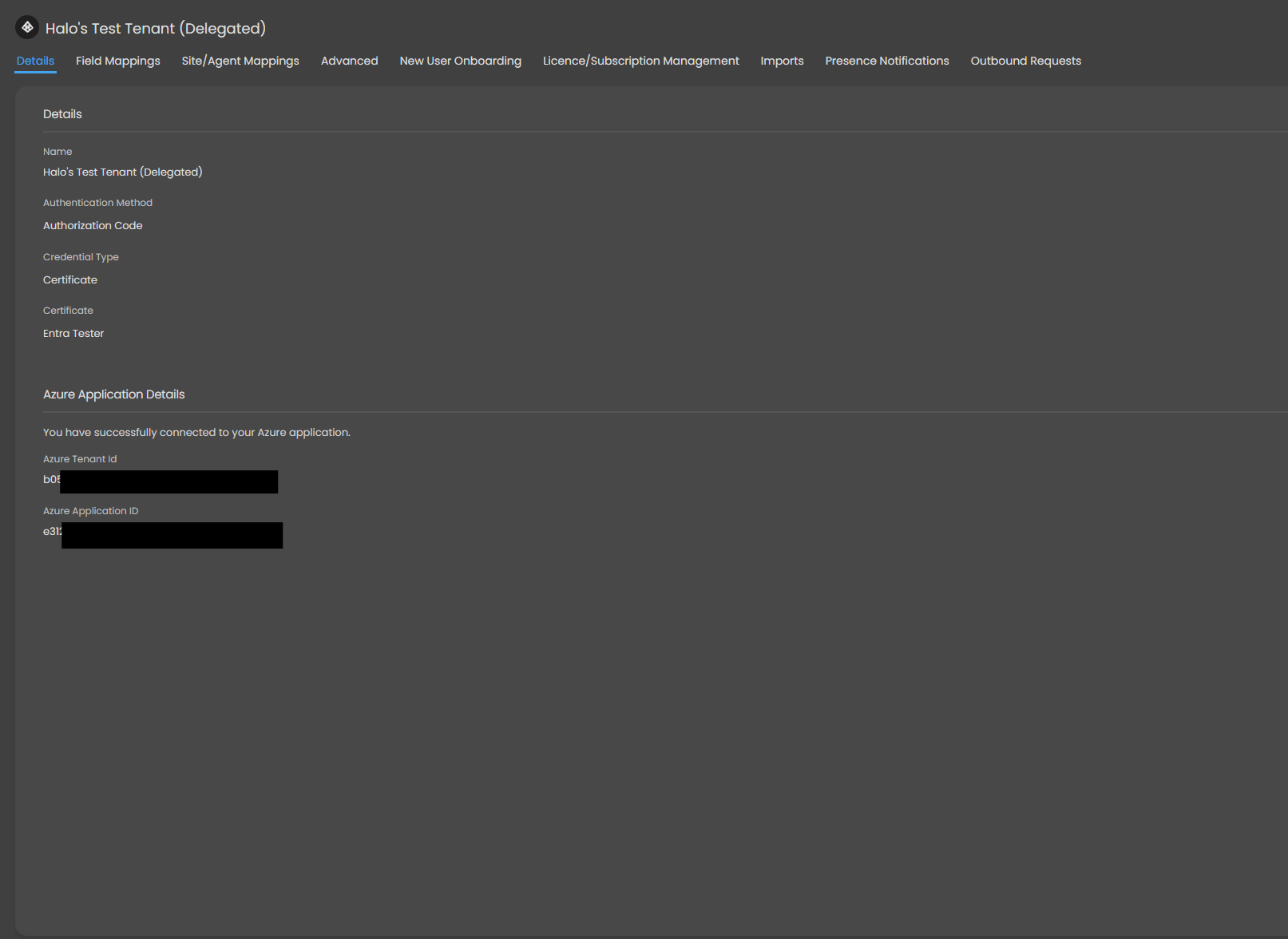
Fig 22. Successful connection (Delegated)
If using application permissions
There will be an "Authorise Application" button. Once pressed, the application will attempt authorisation without leaving Halo.
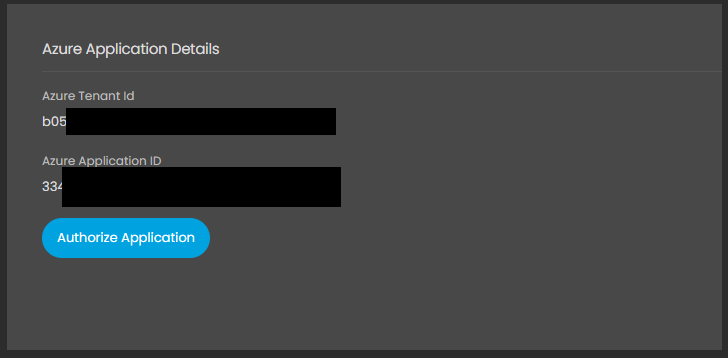
Fig 23. Authorize Application button (Application)
If successful, the button will disappear and relevant tabs will be unlocked. If unsuccessful, an error code will appear in a modal window.
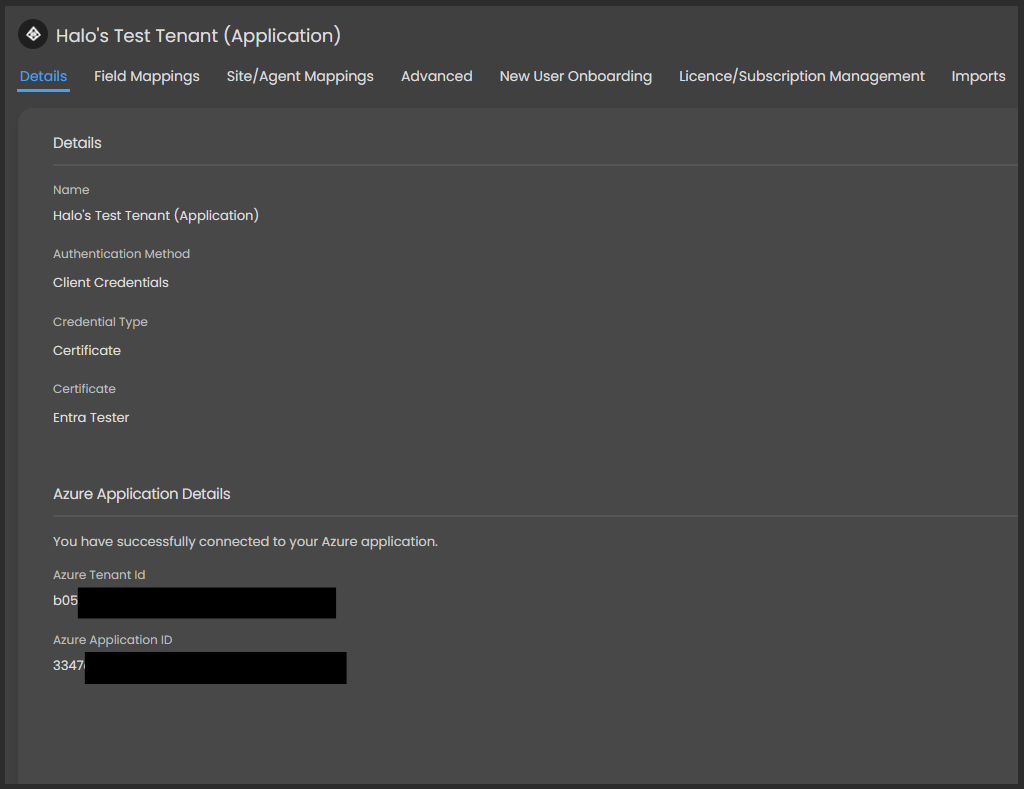
Fig 24. Successful connection (Application)
Method 3: Federated Credential Authentication
In Halo, choose "Federated Credentials" as your "Credential Type" and choose an Agent to use.
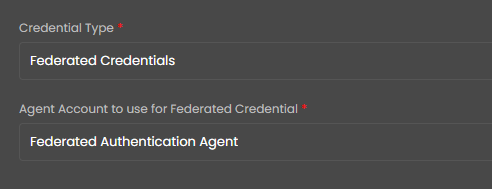
Fig 25. Selecting a credential type
Once saved, you will be presented with some values you will need to input into Azure.
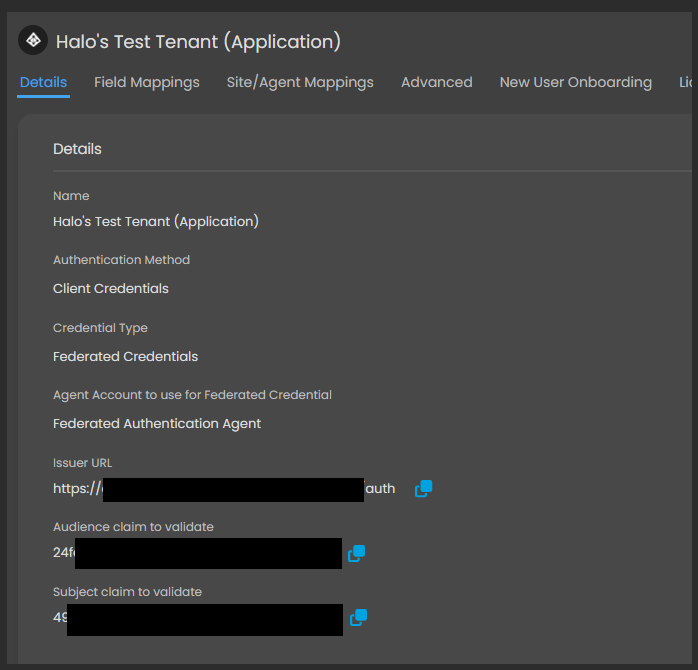
Fig 26. Credentials to copy
In Azure, navigate to the "Certificates & secrets" tab, and open the "Federated credentials" tab. Click "Add Credential", and choose "Other issuer" as your "Federated credential scenario".
The following fields need to be filled out:
- Issuer: Copy "Issuer URL" from the Halo configuration page.
- Value: Copy "Subject claim to validate" from the Halo configuration page.
- Name: Choose a name.
- Audience: Copy "Audience claim to validate".
Then click "Add".
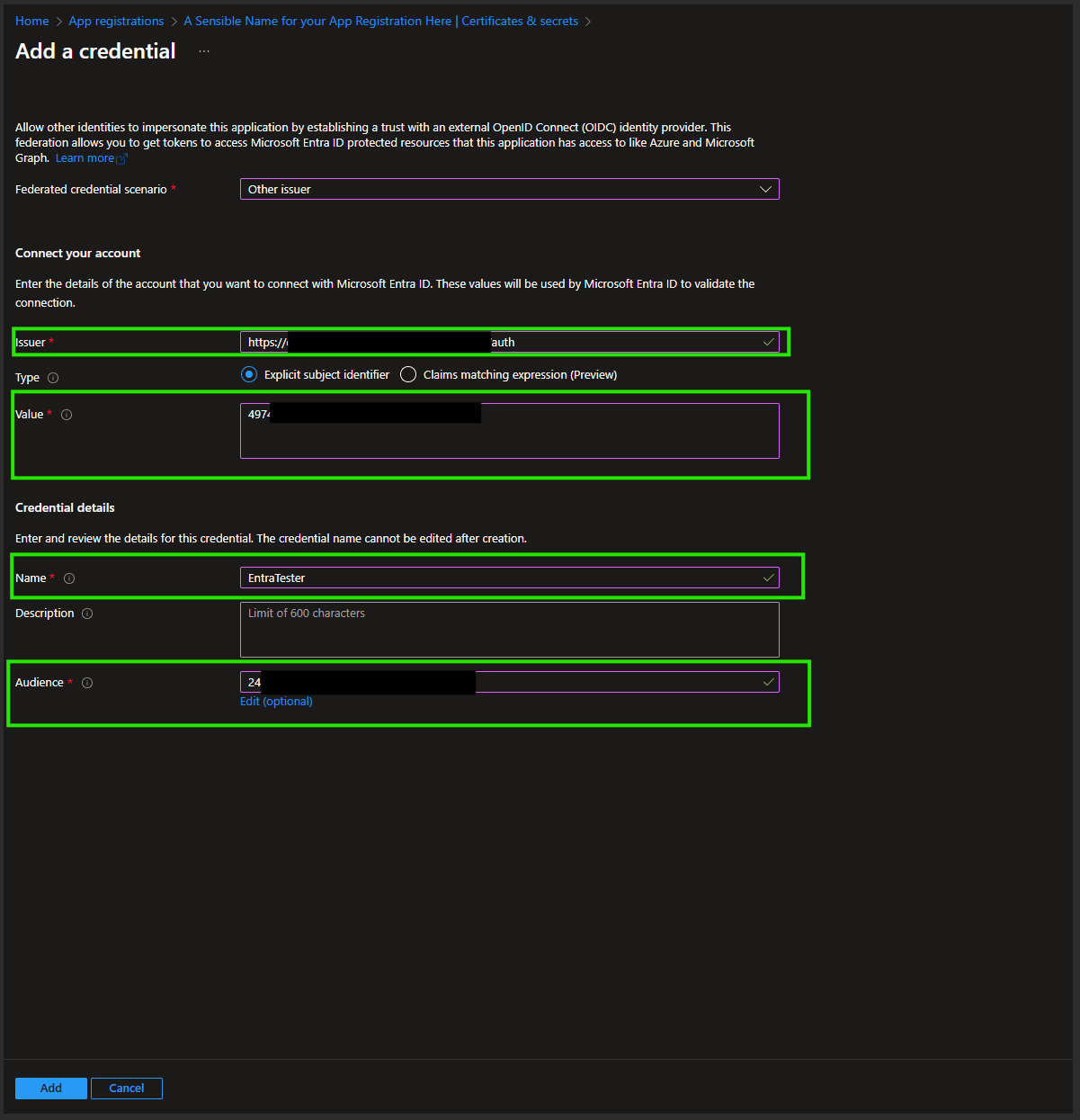
Fig 27. Setting the credential details
Back in Halo, input the Tenant and Application IDs and save. Click the "Authorise Application" button.
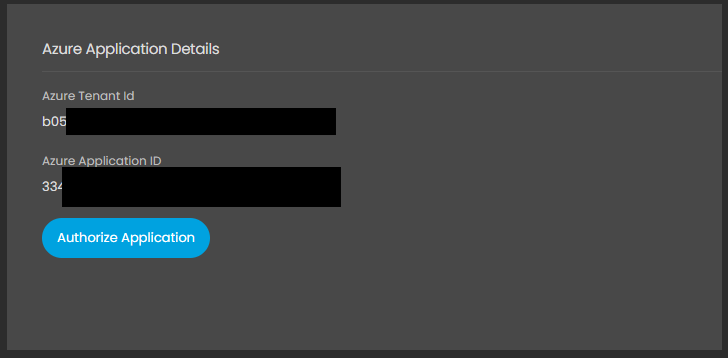
Fig 28. Authorizing application
If successful, the button will disappear and relevant tabs will be unlocked. If unsuccessful, an error code will appear in a modal window.
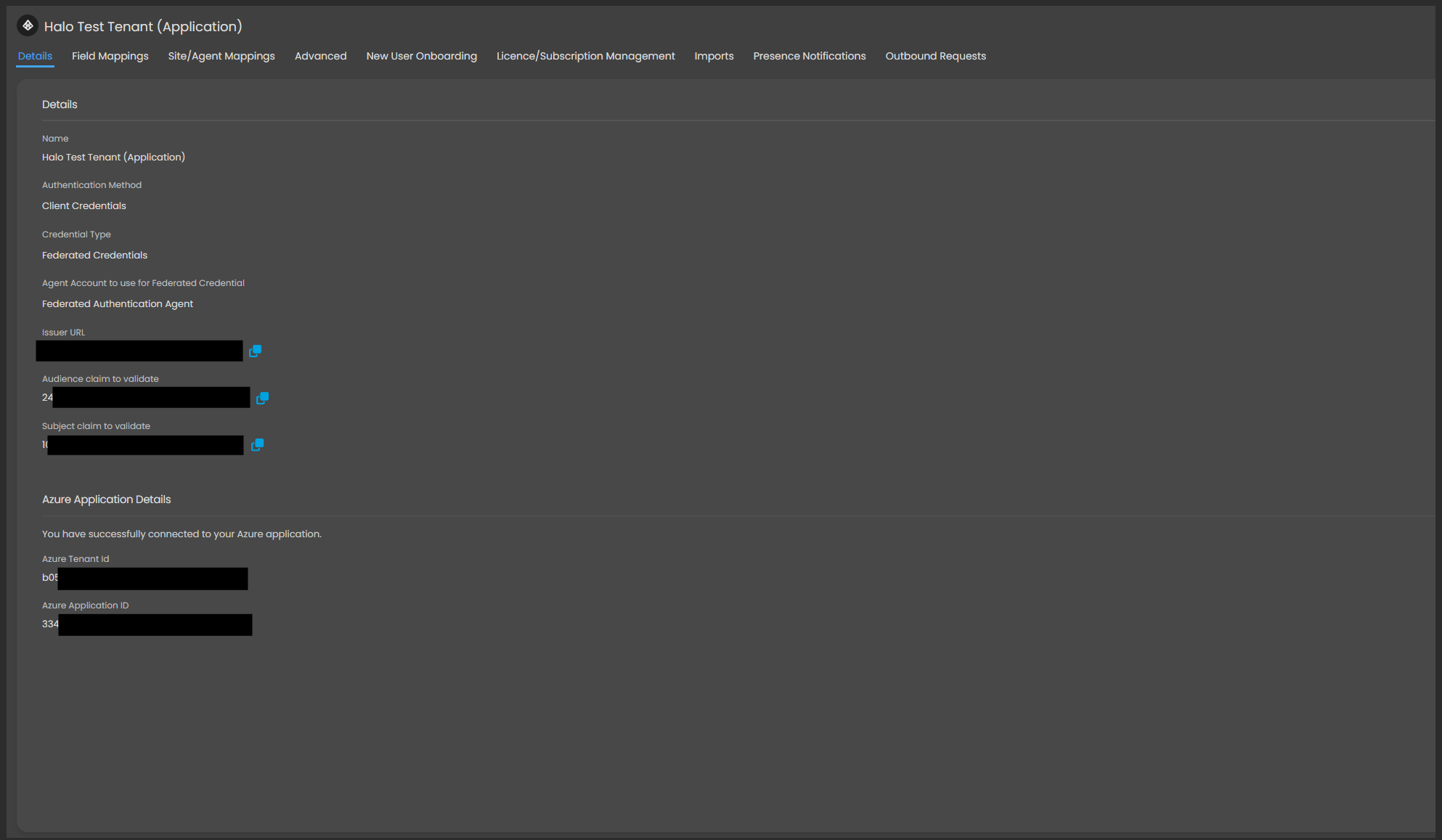
Fig 29. Successful connection