Okta Integration
- single sign on
- SSO
- integration inbound requests
- okta
- identity management
In this guide we will cover:
- What is the Okta Integration?
- Connecting Okta in Halo
- Creating an API Token in Okta
- Creating an Application in Okta
- Mappings and Configuration
- Configuring Okta SSO
What is the Okta Integration?
The Okta integration can be used to map Okta groups to Halo users/agents and their relevant roles, as well as allow them to log in to Halo using their Okta credentials. For the extent of this guide, we recommend using the "Super Admin" role in Okta.
However, the minimum scopes required if using a custom role are:
- okta.users.read: Allows reading user information.
- okta.groups.read: Allows reading group information.
- okta.apps.read: Allows reading application information
Connecting Okta in Halo
Go into the Okta module in Configuration > Integrations > Identity Management. This will open the "Details" tab of the integration, where you can connect to Okta.
Enter your Okta instance URL in the first box with no additional parameters at the end.
You will then need to determine your Authentication method using the "Authentication Type" drop-down. On versions prior to this only the Basic Auth option is available.
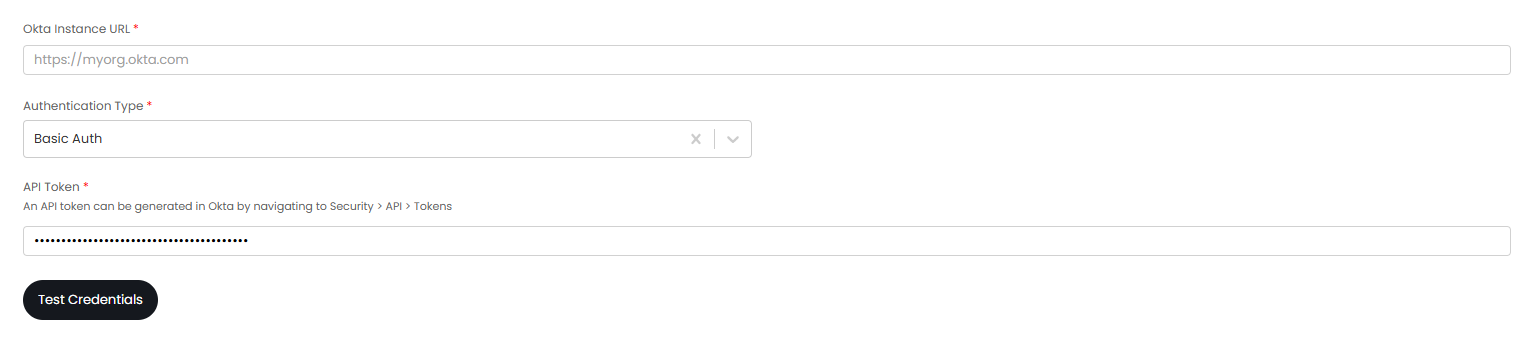
Fig 1. Entering Okta credentials.
The next steps will differ depending on the Authentication method you have chosen. This guide will outline how to use the Basic Auth method. If you would prefer to use OAuth2 please follow the relevant Okta guide linked below:
Creating an API Token in Okta
Note: This step is only for Basic Auth, for information on setting up Okta using Client credentials or an Authorisation code see the relevant Okta guides linked above.
In Okta, go to Security > API and click the "Create token" button.
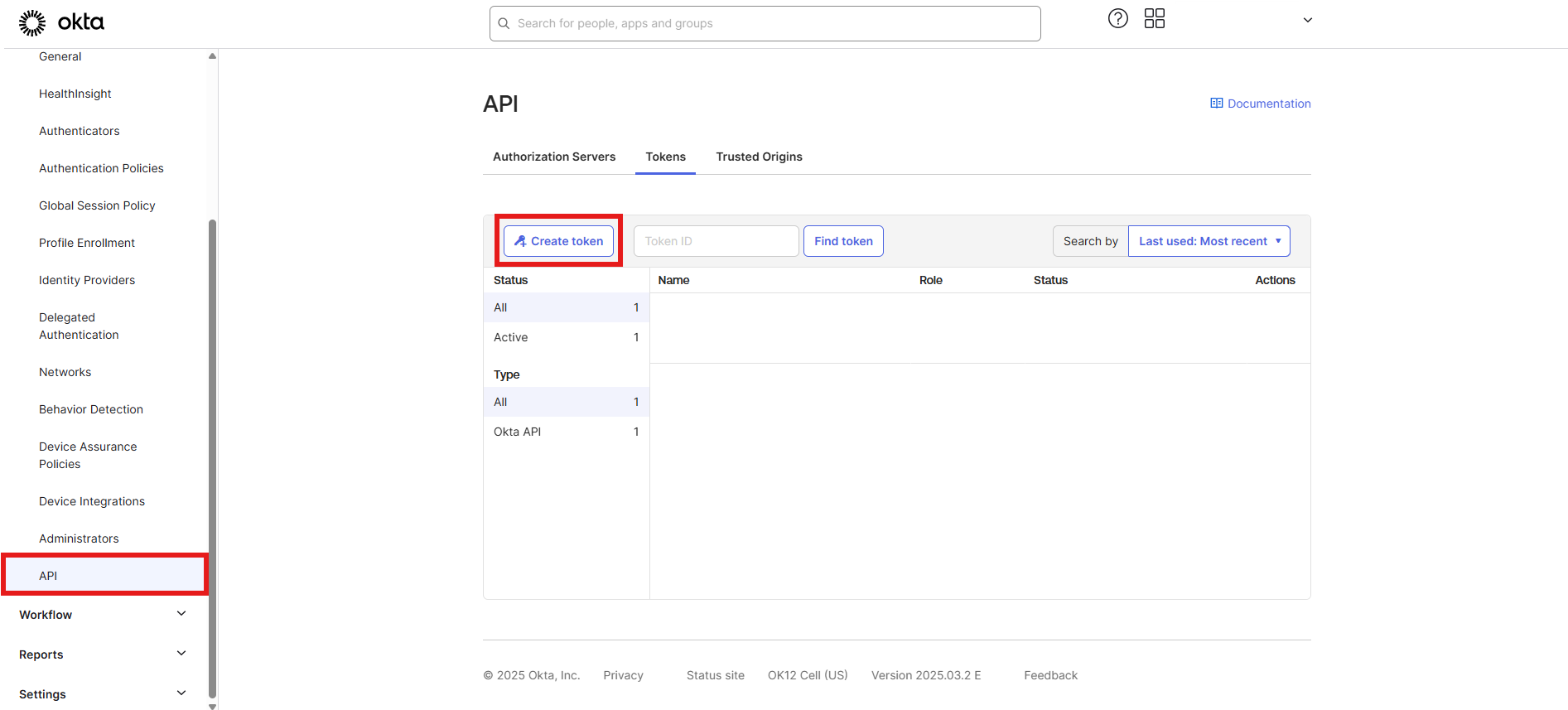
Fig 2. Token configuration in Okta.
A popup will show to name your token, and set the IP limitations for the API. Save, and make note of the token.
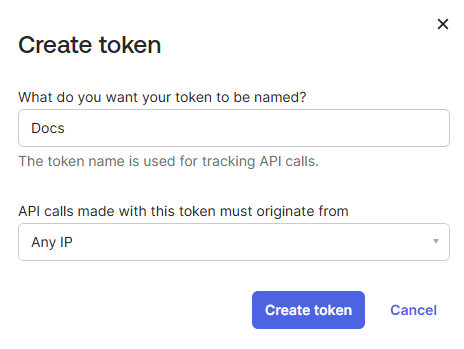
Fig 3. Creating the new token.
Click "Create token".
Creating an Application in Okta
Next, go to Applications > Applications, and "Create App Integration".
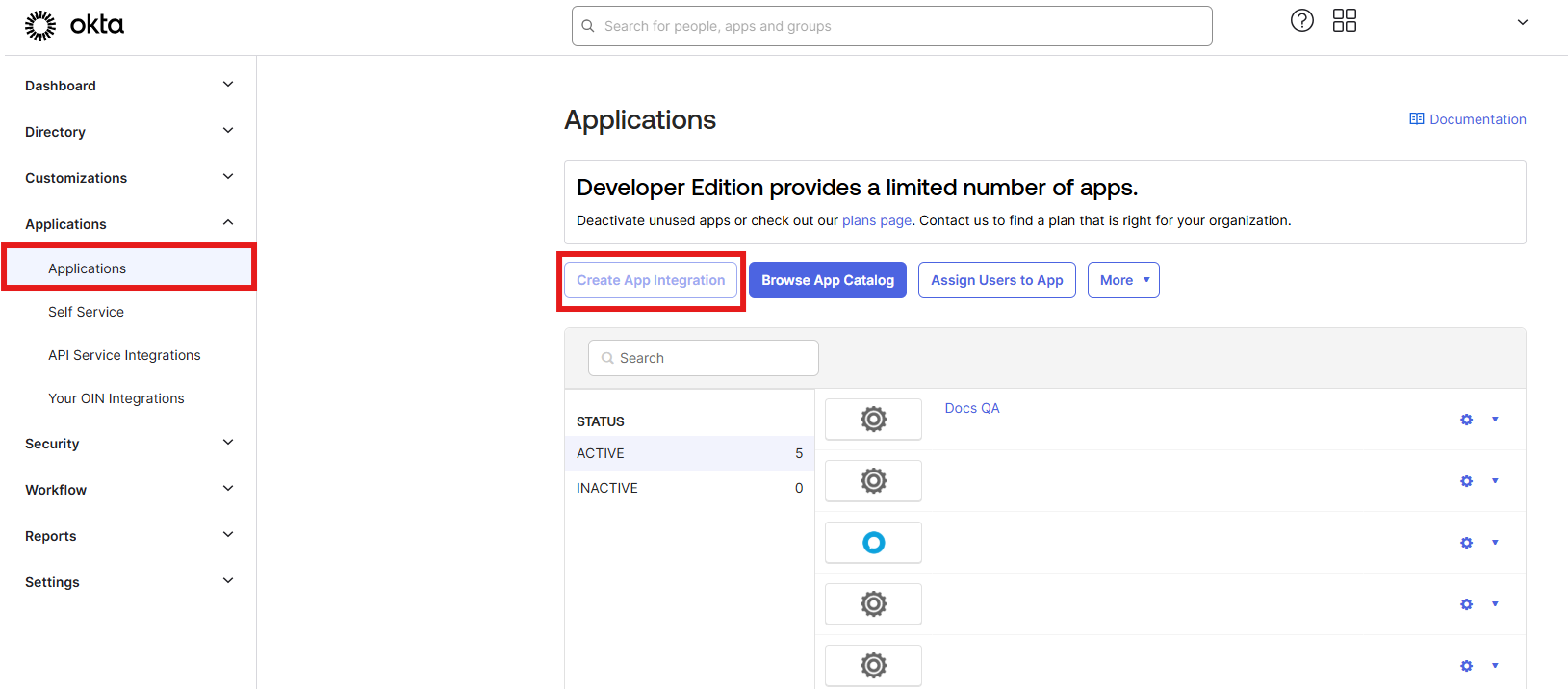
Fig 4. Applications area.
Create an application of type 'Web' that uses 'OpenID Connect' sign in method.
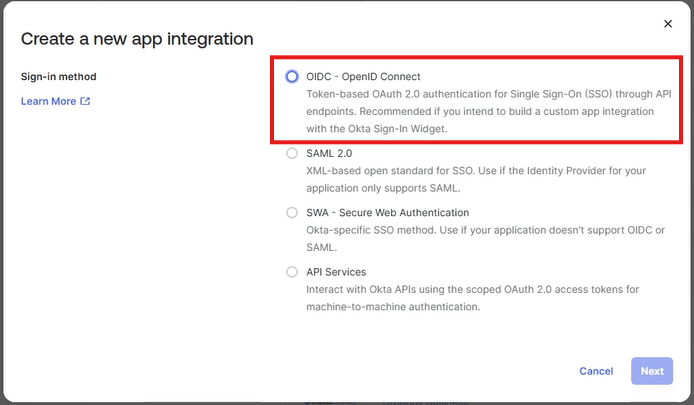
Fig 5. Sign in Method for application.
When configuring, ensure "Authorization Code" and "Allow ID Token with implicit grant type" are both enabled. (If this is not available on your version of Okta, "Implicit (hybrid)" should be enabled).
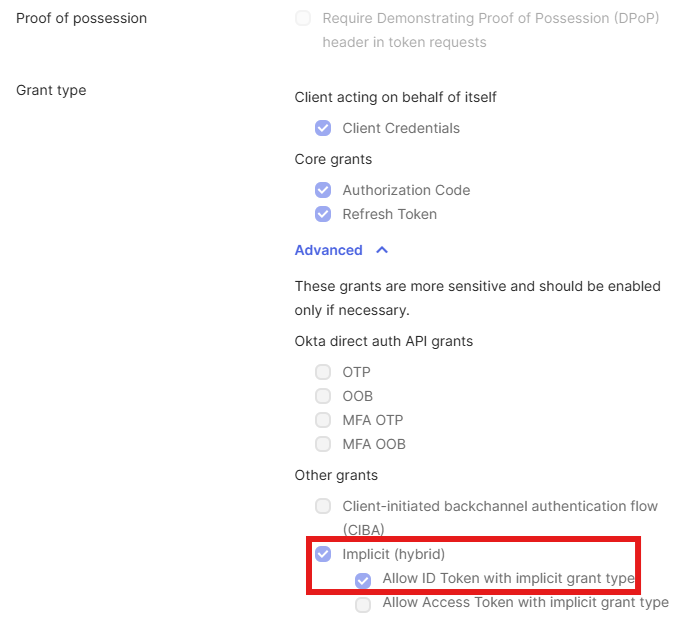
Fig 6. Enabling grants for the application.
Scrolling down, you can then set the redirect URIs for login.
The following redirect URIs are needed:
- Sign-in redirect URI - https://YOURHALODOMAIN/auth/account/openidresponse for agent login (to the agent application) and https://YOURHALOPORTALDOMAIN/auth/account/openidresponse for user logins (to the portal)
- Sign- out redirect URI - https://YOURHALODOMAIN.com for agent log outs of the agent application and https://YOURHALOPORTALDOMAIN.com for user logouts of the portal.
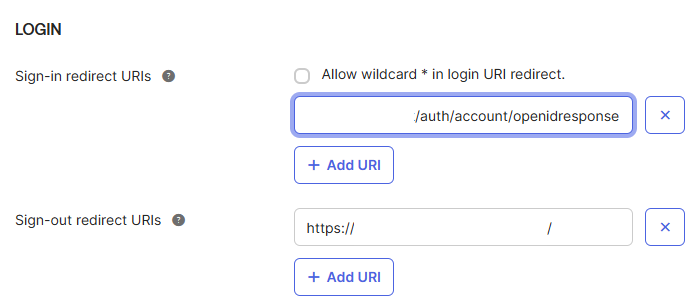
Fig 7. Setting redirect URIs for the application.
Once you have created your Token, head back to the Okta integration in Halo and paste this in the "API Token" field.
Click the "Test Credentials" button (you may need to do this twice the first time) to test your configuration. Upon successful configuration, a "Validation Successful" popup will show.
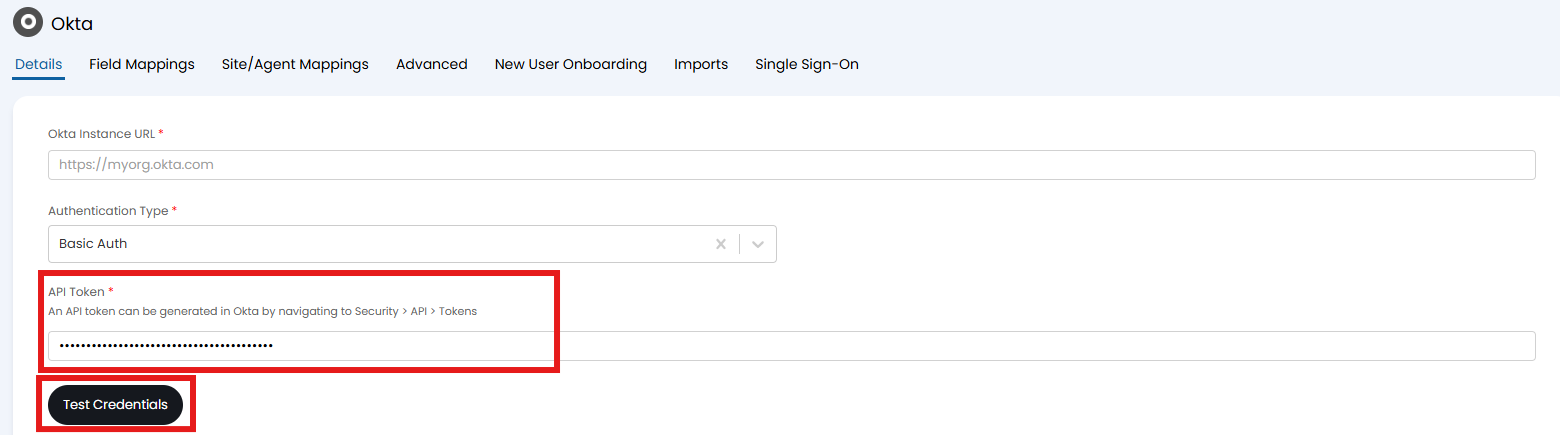
Fig 8. Setting and testing credentials.
Mappings and Configuration
The next tab, "Field Mappings" is where the user and agent mappings are set. These are pre-set here, but can be altered if needed for your set-up. The first table is for user mappings.
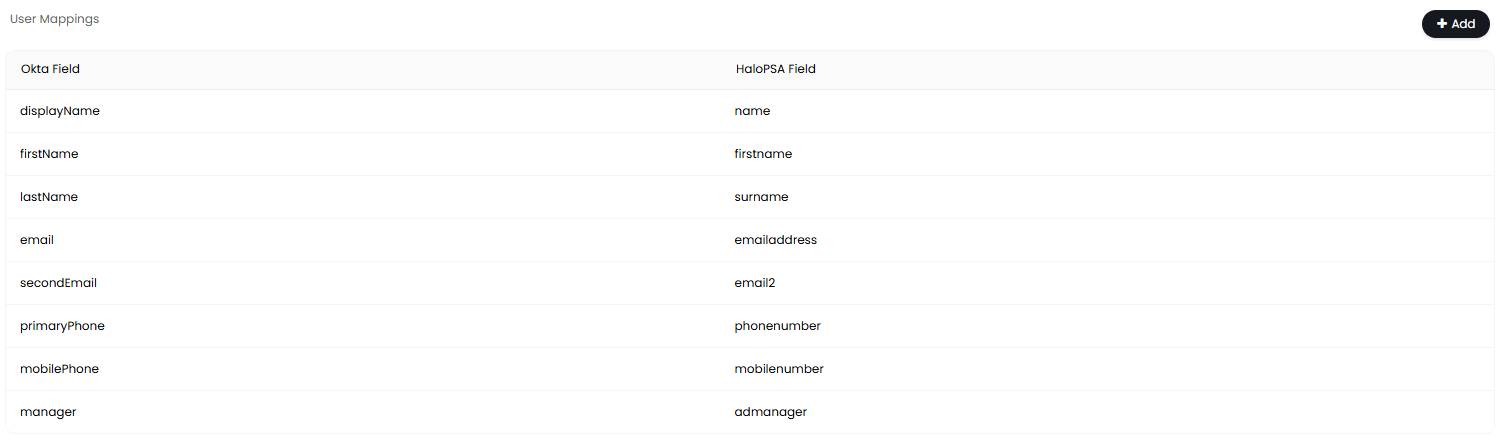
Fig 9. User Mappings table.
The second table is then for agent mappings.
As of v2.238+, you can map an Okta field to the Halo field "team", this will populate the default team against the agent. This can be used to assign agents to teams automatically using information in Okta. The Okta field you are mapping must contain the name of the team in Halo you would like the agent to have, matching will be based on the team name. If the data in this field cannot be matched to a team, the default team for the agent will not be populated. When a default team is set for an agent they will be granted the following membership to this team:
- Can be assigned to
- Can see Unassigned Tickets for this Team
- Can see Tickets assigned to other Agents in this Team
Depending on your setup, you may wish to add the "department" mapping to this table as well to import your departments.
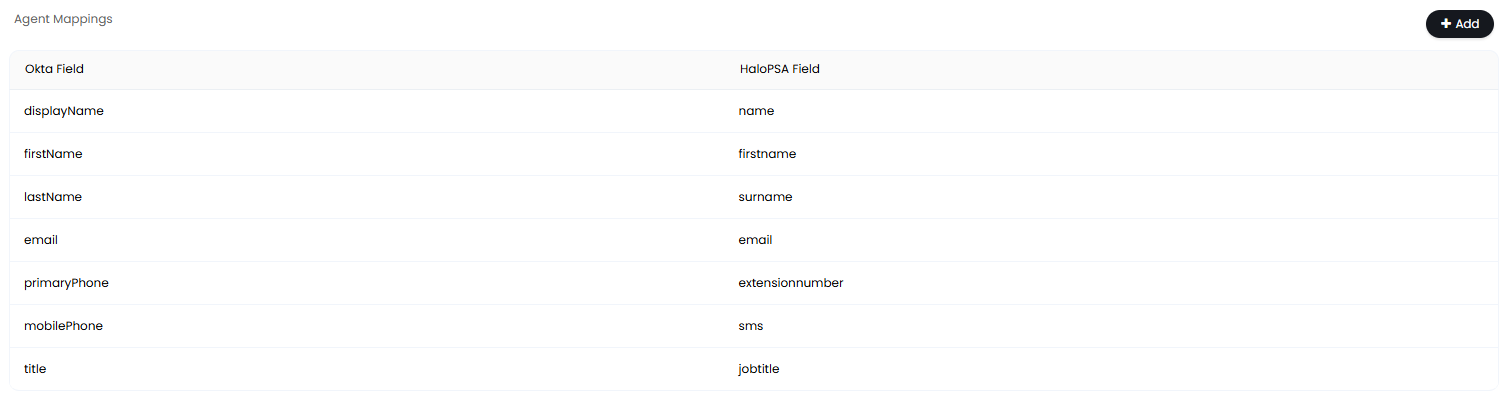
Fig 10. Agent Mappings table.
The next tab is the "Site/Agent Mappings". Here you can map a site to a specific Okta group, or set certain statuses from the mapping. You can also add filters for the mapping, as well as set a default user role.

Fig 11. Site mappings table.
The "Advanced" tab is where mappings can be set for agent roles, change advise boards, or user roles. They can be assigned or removed from these using the group set on the mappings.
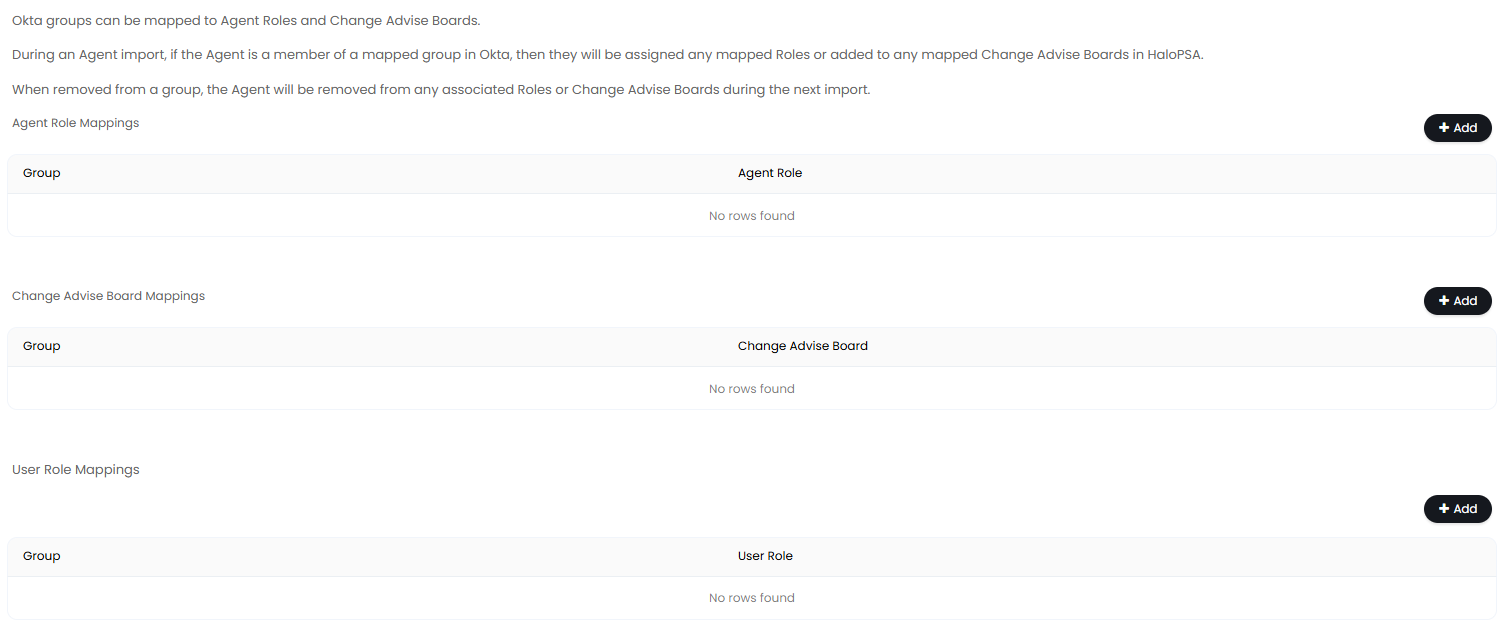
Fig 12. Advanced mappings.
The "New User Onboarding" tab allows you to set a ticket type to be logged when new users are created in Halo from Okta. If a template is set, the end-user and ticket field mappings can be set.
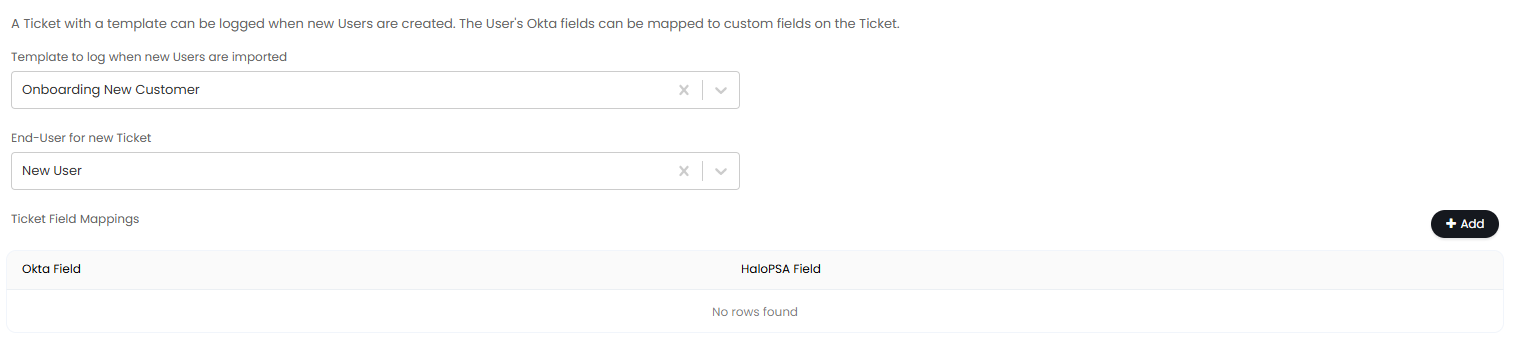
Fig 13. New User Onboarding tab.
In the "Imports" tab, you can then choose the matching fields and statuses that are considered to make them "active". The below statuses are by default considered "Active" in Okta, so will be the likely selection here. If any other status is set, the agents/users will be deactivated upon the next import.
You can manually import users and agent here, and then set the Halo Integrator to automatically sync these going forward.
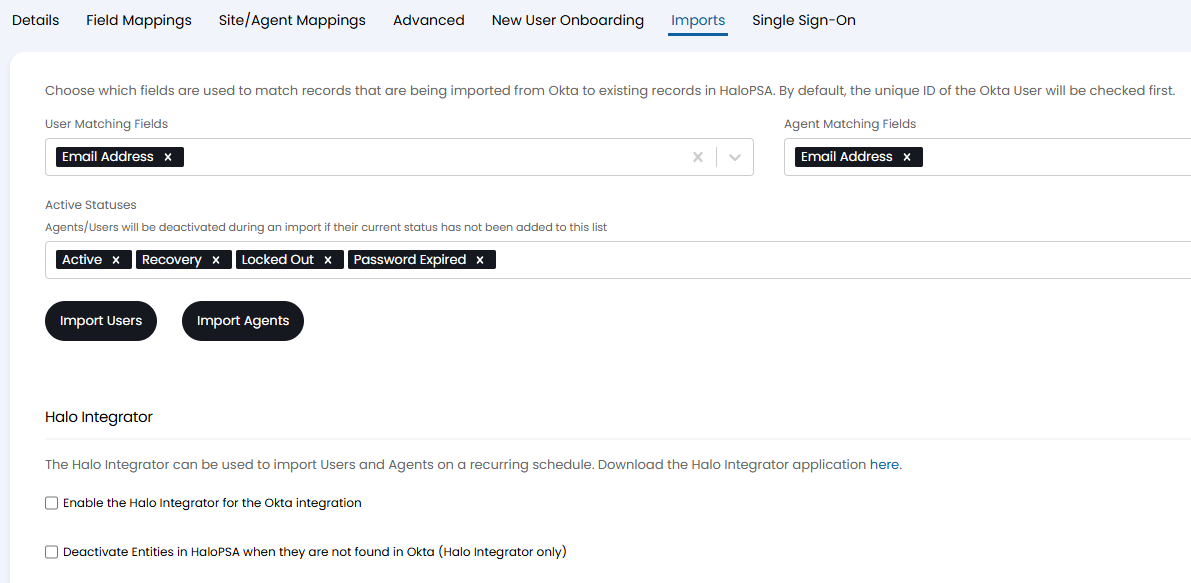
Fig 14. Matching fields and integrator configuration.
Configuring Okta SSO
The final tab is "Single Sign-On". Upon enabling the first check box, you can enter the client ID and configure some optional settings.
The application client ID can be found at the end of the URL of Okta when viewing the application you wish to use, or in the below box that shows at the top when viewing the application.
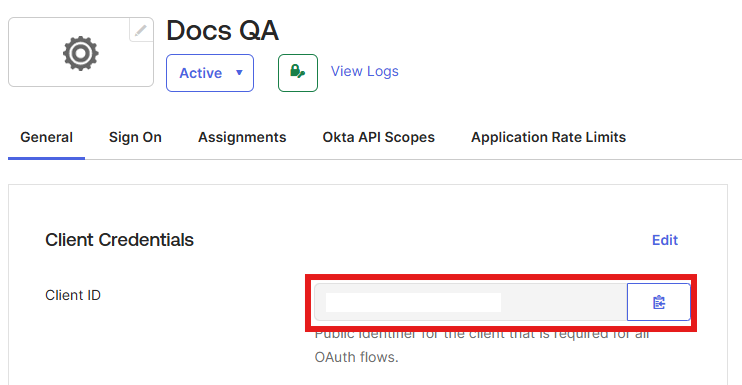
Fig 15. Client ID on the application.
Then select whether the SSO is for both agents and users, or only one.
There is then the option to configure automatic redirect. Note: It is recommended to test login of your Okta SSO before enabling this, to ensure there is no issues with agents/users trying to log in.

Fig 16. Single sign on configuration for Okta.
If automatic redirect is not enabled, the Okta login button will appear on the login screen here.
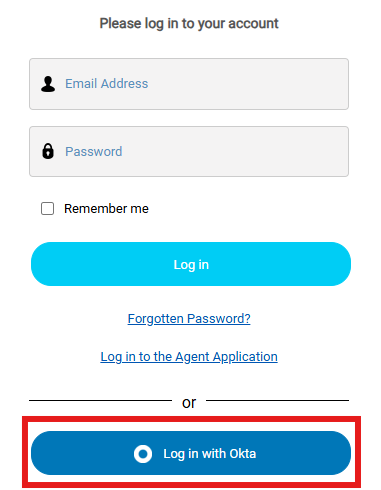
Fig 17. Okta SSO button.
Potential errors
If you encounter a 404 while attempting to sign into Halo via Okta, ensure the Okta Instance URL configured in Halo uses the primary Okta domain (https://yourOktaSubdomain.okta.com) and not subdomain (https://yourOktaSubdomain.oktaSubdomain.com). The subdomain works for their API but doesn't work with Open ID Connect.
SSO in Multiple Instances
A Single Sign-On module is available to setup single sign on in your Halo instance. This allows you to create multiple SSO records. Each record can then be linked to one of your Halo instances to restrict which instance the sign on method can be used in (Prod/UAT/Dev), useful when using linked instances. This allows you to use SSO in additional instances, but impose restrictions on who can log into the instance with their SSO credentials. Such as only allowing developers/administrators to login to your Dev instance. For information on setting up single sign on using the dedicated module instead checkout: Single Sign-On in Halo.