Microsoft Entra ID: Single Sign-On (B2B)
In this guide we will cover:
- Introduction
- Configuration Options
- App Registration Configuration
- Halo Configuration
- Grant Consent for the Application
- Configure Additional SSO Behaviour
Related Guides:
- Microsoft CSP Integration
- Microsoft Entra Integration (Formerly: Azure Active Directory)
- Single Sign-On (B2C)
Introduction
What is B2B Single Sign-On (SSO)?
Single Sign-On via a B2B connection allows your agents and users to sign in to Halo using their Entra-managed Microsoft credentials; allowing secure, centralised access management to Halo using existing identities.
Who can use B2B SSO?
B2B SSO is appropriate when all users who need to log in to Halo already exist in one or more Microsoft Entra tenants. Where internal staff and/or managed client users are already provisioned within an Entra ID tenant.
If you would like anyone to be able to log in and sign up to your Halo portal using various authentication sources including personal Microsoft accounts, you will need to use B2C SSO. This is typically used by organisations using HaloCRM.
SSO in Multiple Instances
The Single Sign-On module is available to setup single sign on in your Halo instance. This allows you to create multiple SSO records for Entra. Each record can then be linked to one of your Halo instances to restrict which instance the sign on method can be used in (Prod/UAT/Dev), useful when using linked instances. This allows you to use SSO in additional instances, but impose restrictions on who can log into the instance with their SSO credentials. Such as only allowing developers/administrators to login to your Dev instance. For information on setting up single sign on using the dedicated module instead checkout: Single Sign-On in Halo.
Prerequisites
While not explicitly required, we recommend the below are configured before SSO if they are relevant to yourselves:
Configuration Options
You will need to configure an App Registration within your own Azure tenant. Before you do, you need to consider the following points.
Single or Multi Tenant Configuration
The Halo SSO application can be single or multi tenant.
Single tenant only allows Entra uses who are members of the same tenant as the one where the app registration is configured to sign-in. Multi-tenant applications allow Entra users from any of the tenants you manage to sign in (typically used by MSPs (restrictions on which tenants can be configured in Halo).
Redirect URLs and Authorization
In the Authentication tab of App Registration, you will need to add valid redirect URIs. Depending on whether you intend to allow Agents, Users or both to use SSO will determine the Redirect URI(s) that are required to be registered.
The format for the Agent and User Redirect URIs are as follows:
- Agent Portal Single Sign-On (SSO):
- <YOUR Halo Web App URL>/auth/account/azureresponse
- User Portal Single Sign-On (SSO):
- <YOUR Halo Web App User Portal URL>/auth/account/azureresponse
Note: If you have a UAT or Dev instance of Halo, and you would like to use SSO you can add the redirect URIs for this instance too. This will follow the format <YOUR Halo UAT Web App URL>/auth/account/azureresponse. This ensures that when your UAT/Dev is refreshed you will be able to sign in to this instance using SSO too. The same application can be used for SSO in both instances (the details of this application will be synced between instances) therefore you can add all required redirect URIs to the same Azure application.
App Registration Configuration
Once you have decided the application type and which redirect URIs you require, follow the following steps to configure the app registration with your Entra ID tenant.
Open the Entra Admin Center (or similar) and navigate to the App Registration section. Click "New Registration".
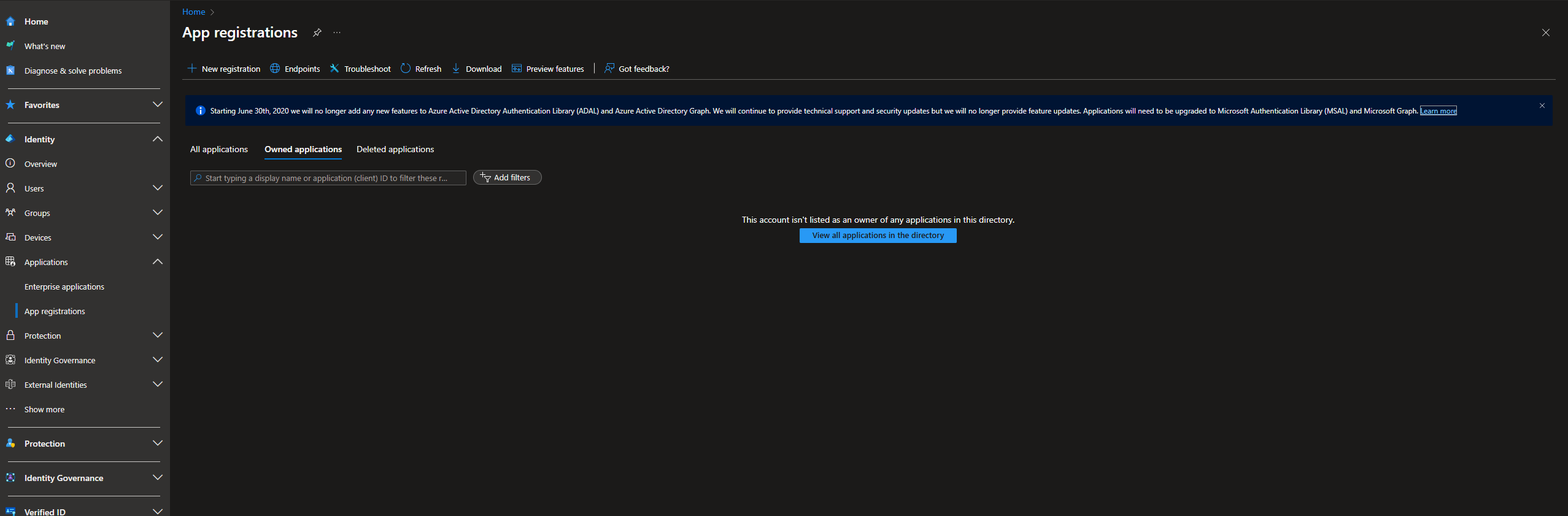
Fig 1. App registration creation screen
On the registration screen you will want to fill out:
Name: Be aware this could be visible to end-users, so choose a sensible name.
Supported Account Type: Single or Multi depending upon your organisation's requirements
Redirect URI: Insert the needed Redirect URI if using one (if you need both steps are shown below to add the other). The exact redirect URI needed can be found under Configuration > Integrations > Microsoft Entra ID > Single Sign-On.
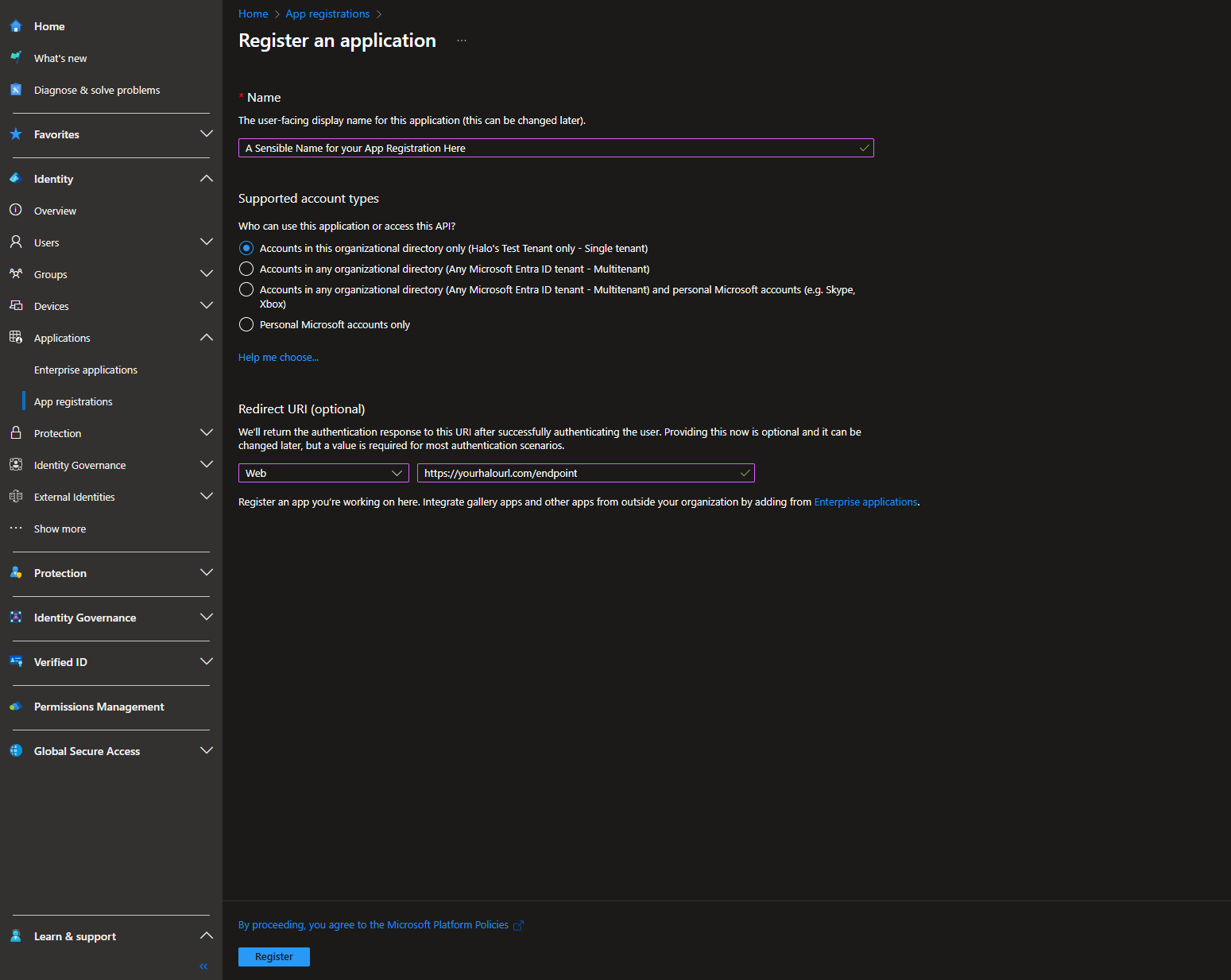
Fig 2. App registration registration screen
Click "Register". Once registered, copy the "Application (client) ID" and "Directory (tenant) ID" from the Overview tab and store them safely, as these will be needed later.
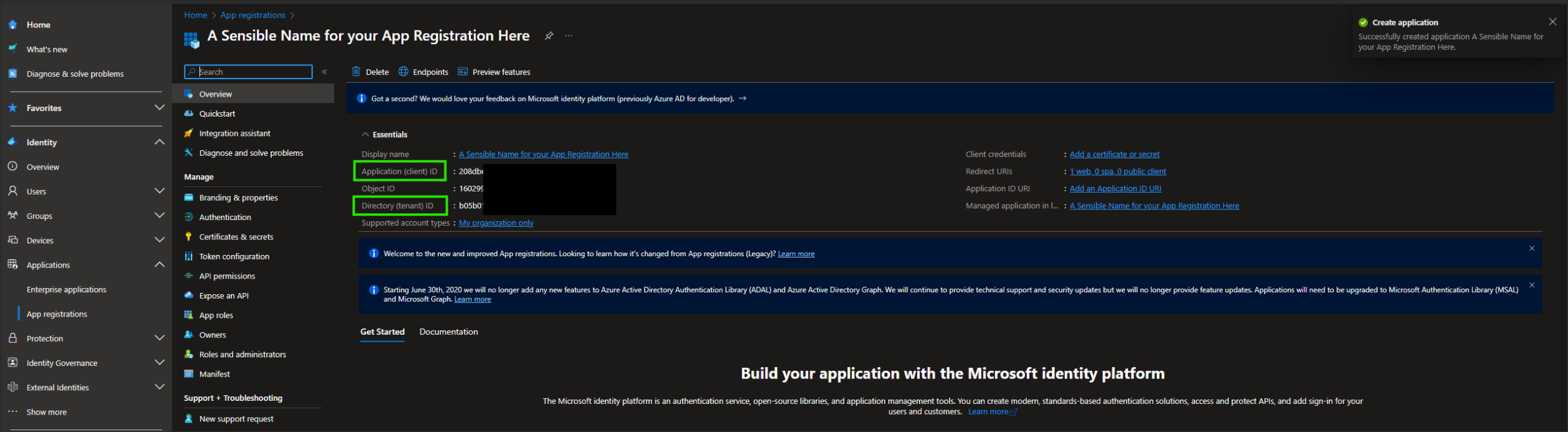
Fig 3. App registration overview
Navigate to the 'API permissions' tab and remove the default 'User.Read' permission.
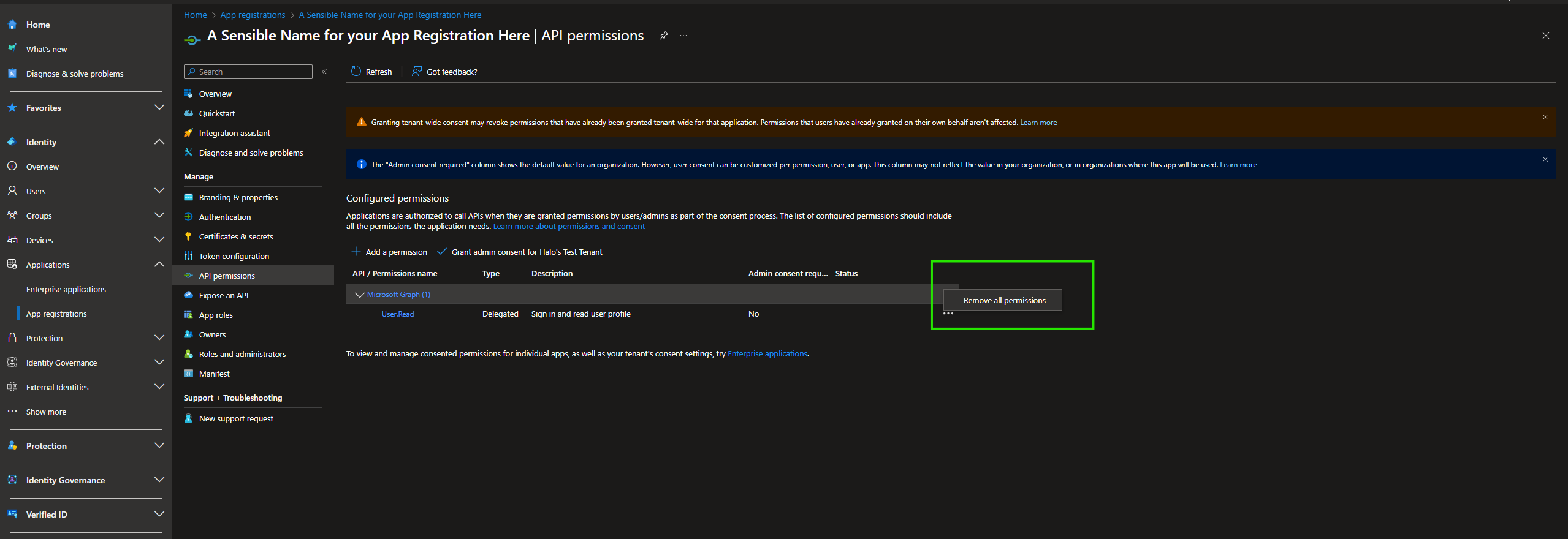
Fig 4. App registration default API permissions
Now navigate to the 'Authentication' tab and enable 'ID tokens' under 'Implicit grant and hybrid flows'. If using this application for additional Halo instances or allowing users to sign into the portal insert the additional redirect URIs here too into the box entitled 'Web' at the top.
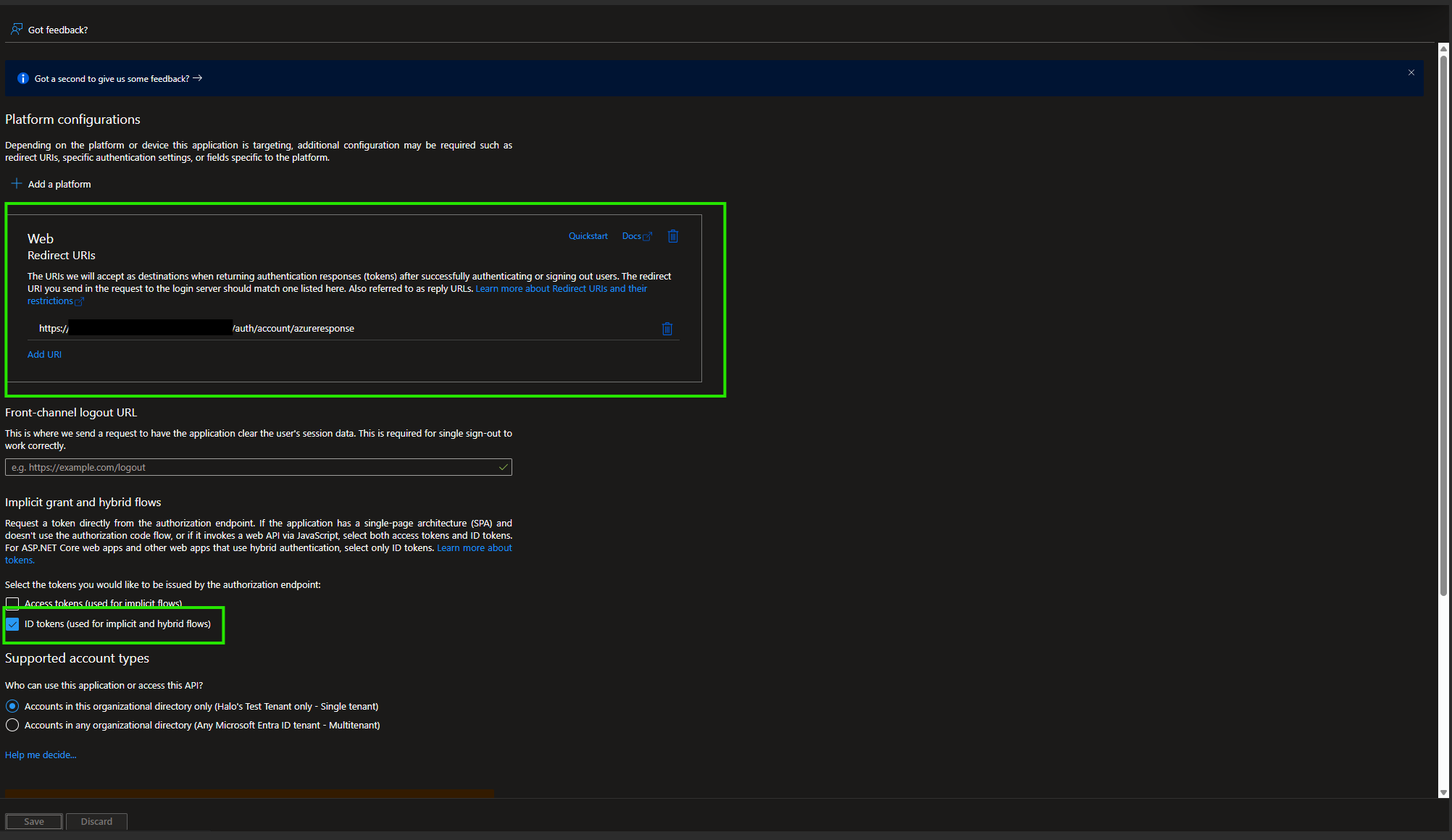
Fig 5. App registration authentication configuration
Domain Verification (highly recommended if using the multi-tenanted option):
Domain verification allows you to restrict which users can sign in using single sign on to only users with a verified domain.
Open the 'Token configuration' tab and click 'Add optional claim':
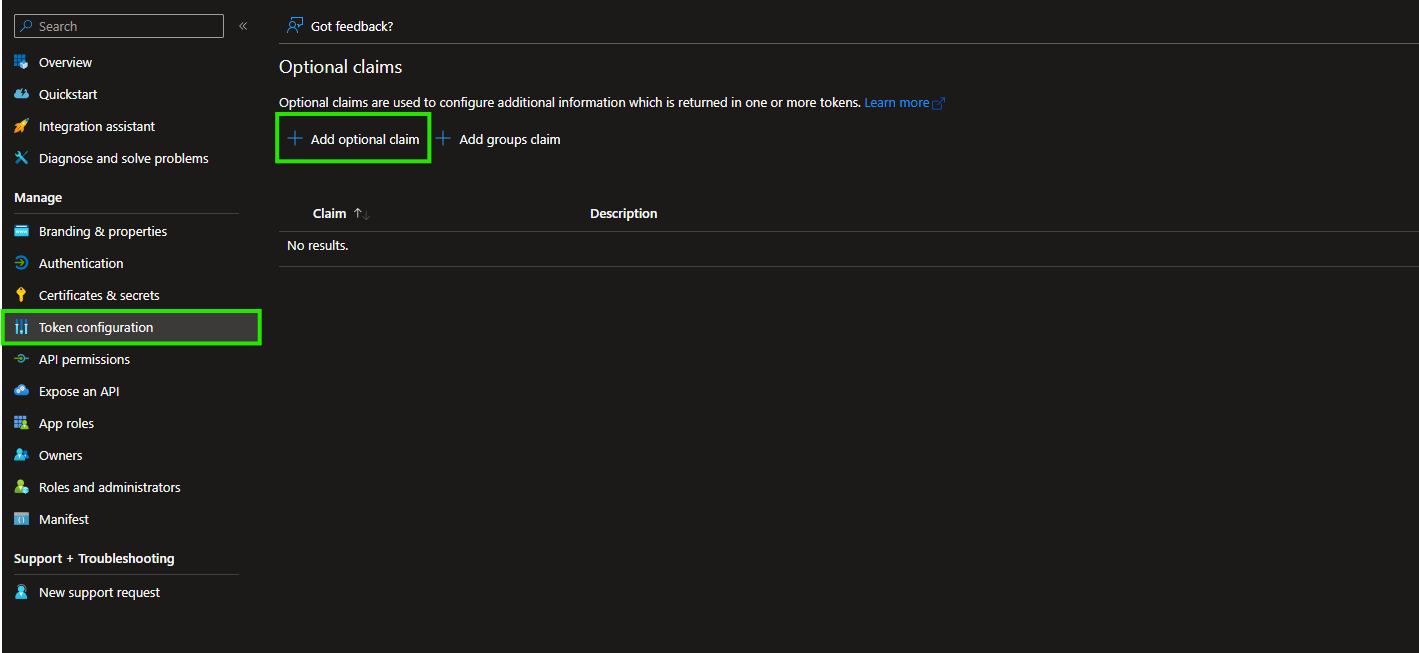
Fig 6. Default 'Token configuration' page
Choose 'ID' as your 'Token Type'
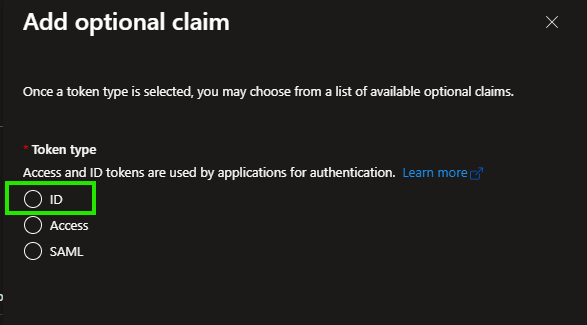
Fig 6a. ID Type
Choose 'xms_edov' as your claim and click add
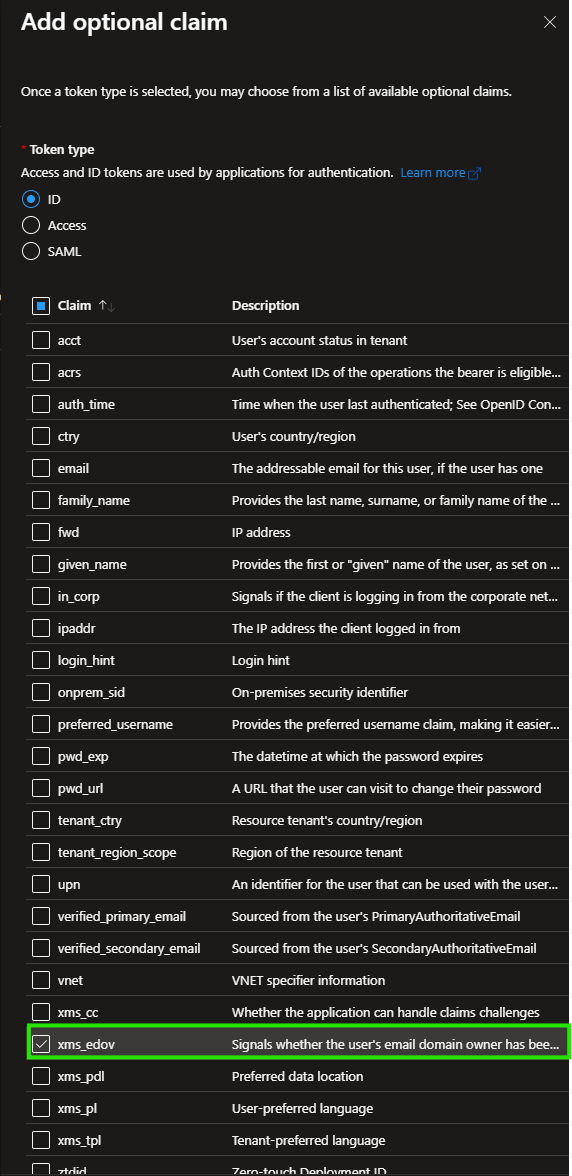
Fig 6b. The 'xms_edov' claim
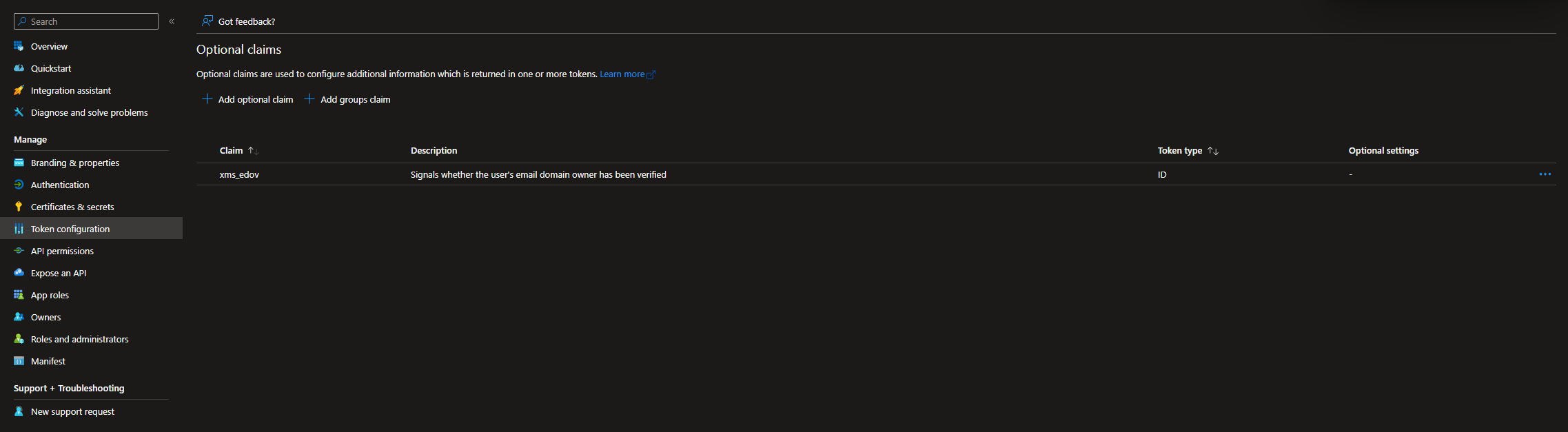
Fig 7. Claim successfully added
Halo Configuration
Once the App Registration is successfully configured, navigate to Configuration > Integrations > Entra ID > Single Sign On, where you'll find settings related to the tenant/application type for Single Sign-On (SSO).
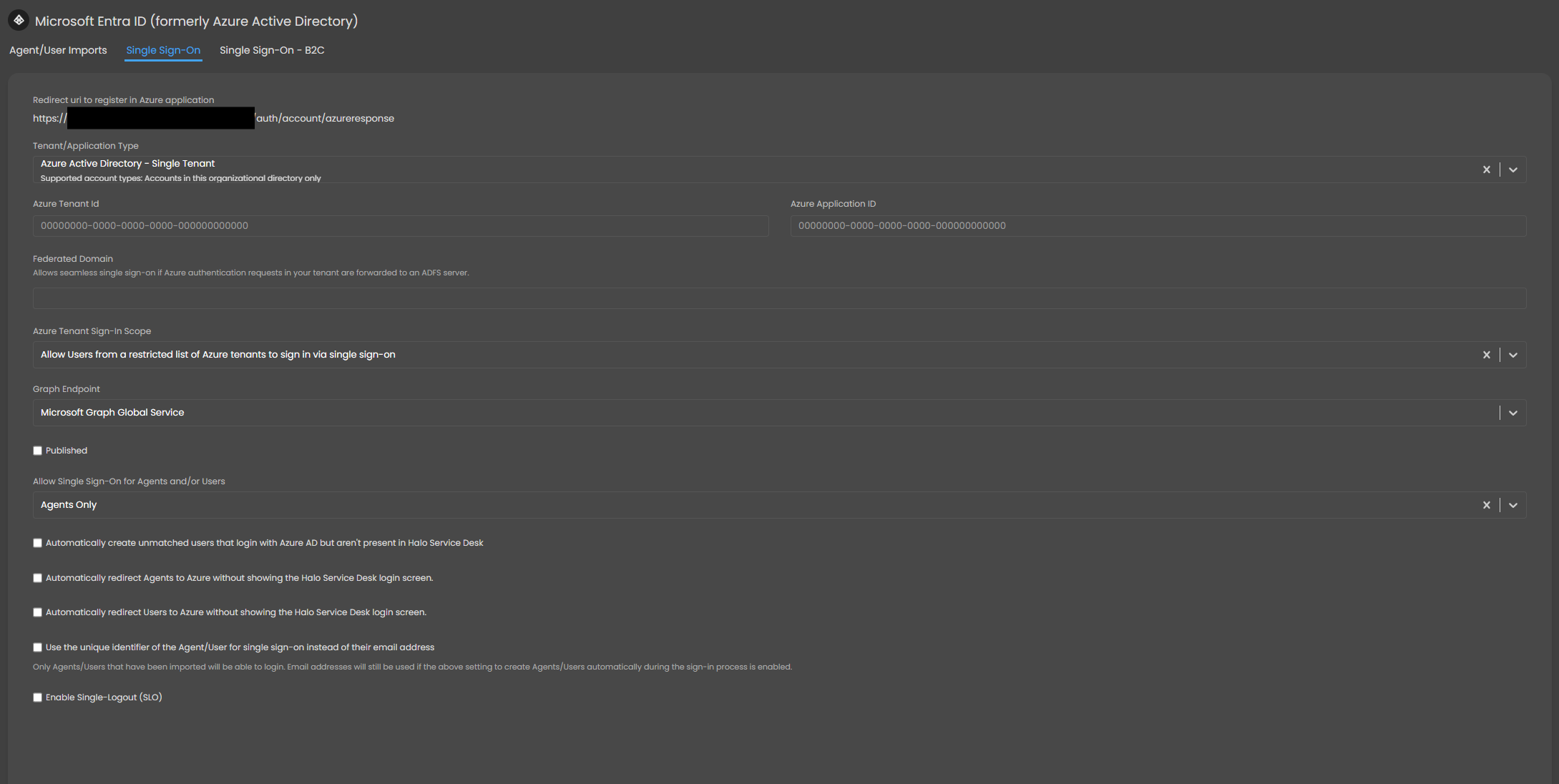
Fig 8. SSO blank configuration screen
The configuration options are as follows:
- Tenant/Application Type - Allows you to choose between single or multi tenanted configuration as discussed in 'Configuration Options'
- Azure Tenant ID - Enter the Tenant ID you copied from the App Registration configuration
- Azure Application ID - Enter the Application ID you copied from the App Registration configuration
- Federated Domain - This can be used if Azure authentication requests in your tenant are forwarded to an ADFS server to streamline the SSO procedure in Halo. You will need to enter the fully qualified domain name for your ADFS server in the field here.
- Azure Tenant Sign-In Scope - Only required if your application is multi-tenanted. This determines which users can sign in with SSO. We recommend setting this to ‘allow users from a restricted list’ as this is more secure. When this option is selected, you will need to enter the tenant IDs of the tenants that are allowed to use SSO. Only users/agents in these tenants will then be able to use SSO. Alternatively you can allow all Azure tenants without listing the tenants allowed.
- If using the CSP integration, the tenants you manage can automatically be added here for provided you have "Automatically add the Azure tenant id of any imported Client to the allowed list for single sign-on" enabled.
- Graph Endpoint - Here choose which graph endpoint you are using, this will be the default for the vast majority of clients
- Published - This checkbox activated SSO. Enable this once configuration is complete.
- Allow Single Sign-On for Agents and/or Users - Determines who can use SSO, agent and/or users.
- Automatically create unmatched users that login with Azure AD but aren't present in Halo- When this is enabled, new users can be created using SSO. If a user logs into the Halo portal with an account that does not currently exist as a user account in Halo, a new Halo user account will be made for them. This is only available when using a single tenanted application.
- Automatically redirect Agents to Azure without showing the Halo login screen- Agents will not see the Halo Login screen when accessing the Halo agent app, they will automatically be re-directed to MS login.
- Recommended if you want to enforce Entra SSO sign-in and use no other identity provider for agents
- Automatically redirect Users to Azure without showing the Halo login screen- Users will not see the Halo Login screen when accessing the Halo portal, they will automatically be re-directed to MS login.
- Recommended if you would like to enforce Entra SSO sign-in and use no other identity provider for users. You can enforce this on a client by client basis by enabling the following setting at the client's profile under Settings tab > Self Service Porta
 Fig 3. Redirect when logging in with Halo credentials.
- Recommended if you would like to enforce Entra SSO sign-in and use no other identity provider for users. You can enforce this on a client by client basis by enabling the following setting at the client's profile under Settings tab > Self Service Porta
- Use the unique identifier of the Agent/User for single sign-on instead of their email address - Agents and users will only be able to login using their unique identifier instead of their email. This will only work for agents/users that have been imported from Entra or CSP as this is required to obtain their unique identifier.
- Enable Single-Logout (SLO) - When this is enabled, logging out of their MS account anywhere, e.g. OneDrive will also log them out of Halo; conversely if you log out of Halo, this will log you out of 365 entirely. Useful if you would like to only have to log out once at the end of the day, but you may want to disable this if you would like to be able to log out of one application but remain signed in to another.
- Verify that the User's email has been domain verified - Ensures that the Azure tenant in which the user is located in has verified they own the domain of the user's email address. For example, if john.smith@microsoft.com is trying to sign in, we will verify that the tenant that user is associated too owns the 'microsoft.com' domain. It is strongly recommended that all clients using the multi-tenanted option enable this unless they are using the 'Use the unique identifier of the Agent/User for single sign-on instead of their email address' option above. Without this enabled, your instance could be at risk of unauthorised sign-ins by malicious actors which are manipulating the email address returned to Halo by Entra. Please see the instructions in the 'Domain verification' heading under the 'App Registration Configuration' section above.
Your configuration should look something like the below, multi-tenanted example:
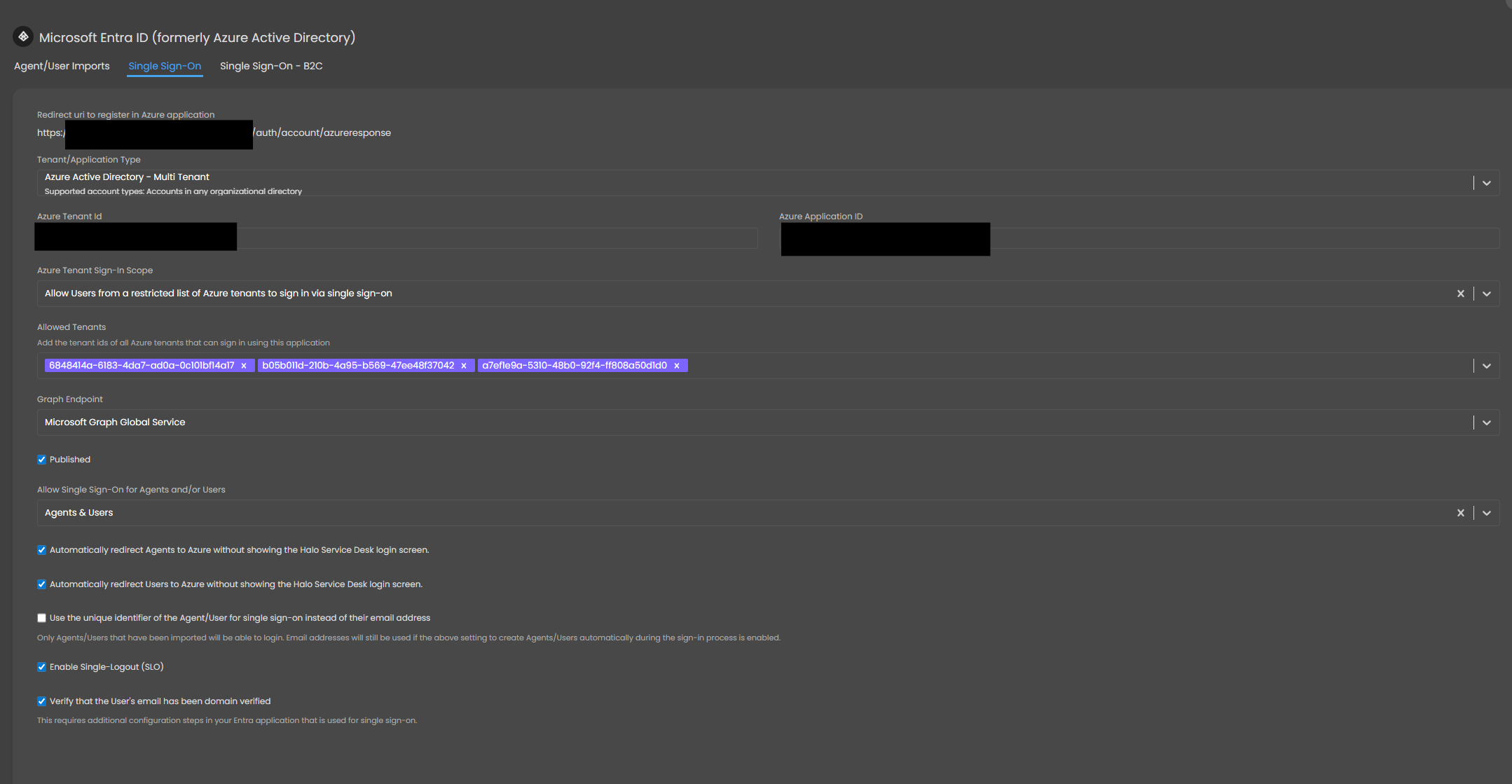
Fig 9. SSO configuration completed
Grant Consent for the Application
Now, users and agents will be able to sign into Halo using single sign on.
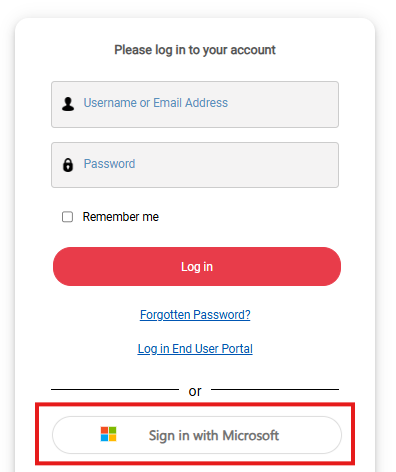
Fig 10. Sign into Halo using Single Sign On
The first time each user signs in they will see the pop-up shown in figure 11.
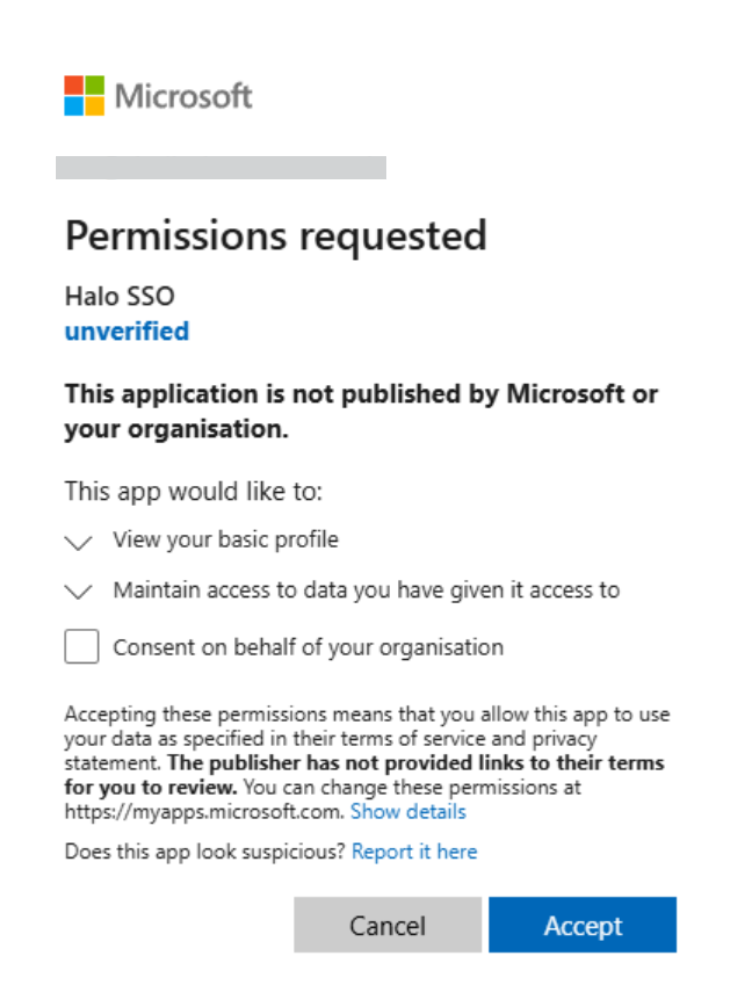
Fig 11. Permissions requested pop-up
Once a user has accepted these permissions the pop-up will not appear for that user again.
To prevent this pop-up appearing to users in the first place (auto grant permission), admin consent will need to be granted for the enterprise application in Azure. There are two methods in which this can be done, depending on how your Azure is structured. The next two sub-sections outline how to do this based on whether you do/do not have an account that is a global administrator over all tenants.
Note: Admin consent can only be granted in Entra after a user has attempted to log in using single sign on in Halo.
Auto Grant Consent when you have an Account that is a Global Administrator over all Tenants
Only use this method when using a multi-tenanted application, and you have an account that is a global administrator over the tenants.
Head to 'Enterprise applications' within Entra and search for the application you have created for single sign on in Halo > click into the application > permissions > click "Grant admin consent for YOURTENANT"
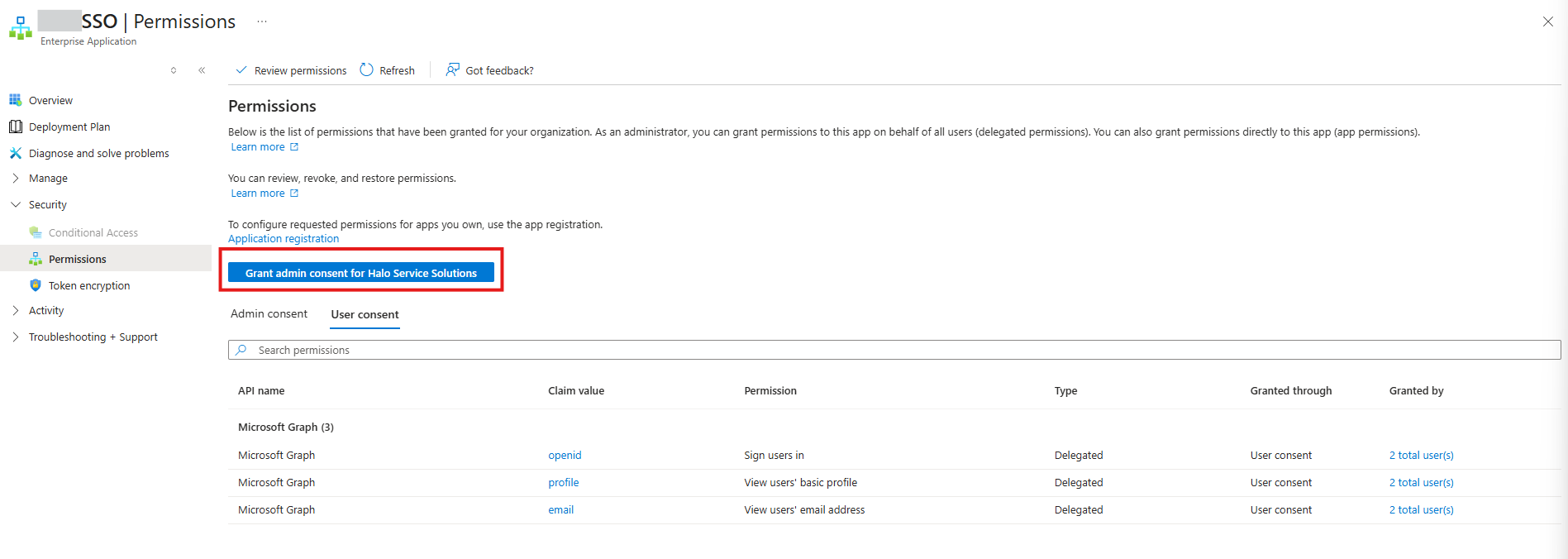
Fig 12. Grant admin consent for the application
Only an administrator in Azure can grant admin consent. This must be the global administrator of all tenants allowed single sign on.
Once this is granted, users can log into Halo using single sign on and they will not be prompted to accept permissions.
Auto Grant Consent when you do not have an Account that is a Global Administrator over all Tenants
Use this method when using a single-tenanted application. Or when using a multi-tenanted application and you do not have an account that is global administrator over all tenants.
Have an administrator of one of the Azure tenants log into Halo using single sign on. When logging in, they will see the pop-up shown in figure 13. Upon logging in they will need to select "Consent on behalf of your organisation".
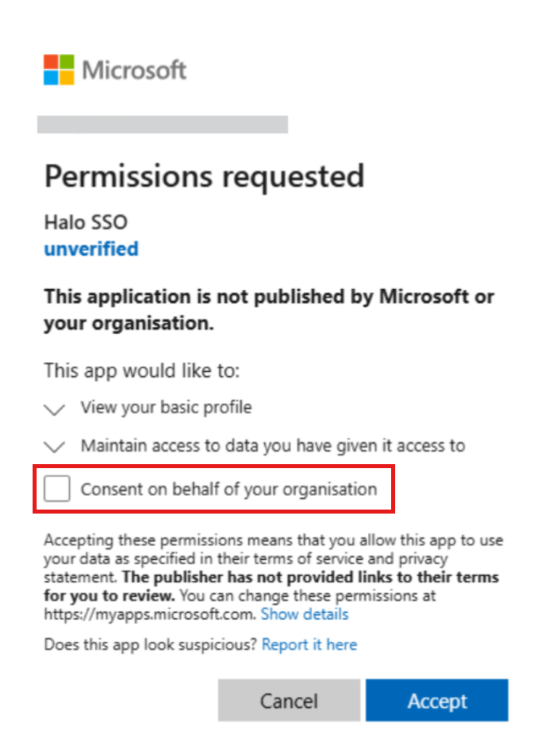
Fig 13. Popup when logging into to Halo using Single Sign on for the first time
This will grant permissions for all users under the tenant the person logging in is an administrator of. This means these users will not longer see this pop up.
If you are connecting single sign on for multiple tenants, so using a multi tenanted application, you will need to repeat this process for each of your tenants. An administrator from each tenant will need to log into Halo and grant consent for their organisation,.
Configure Additional SSO Behaviour
Remembering Agent/User Logins
To streamline the log in process, you can allow agents and users to have their login details 'remembered' so they need not enter their password to log in each time. To enable this functionality, head to Configuration > Advanced Settings, and enable 'Remember Me when using a SSO method'.

Fig 14. Enabling Remember Me for SSO
When enabled, a 'Remember Me' setting will appear on the login screen so agents/users can choose to have their login details remembered for next time.
Bypass 2FA with SSO
To allow agents/users using SSO to bypass Halo 2FA head to Configuration > Advanced Settings and enable 'Bypass Halo 2FA if logging in with Single Sign-On'.
When enabled, 2FA procedures will be automatically bypassed when agents/users are using SSO to log in.
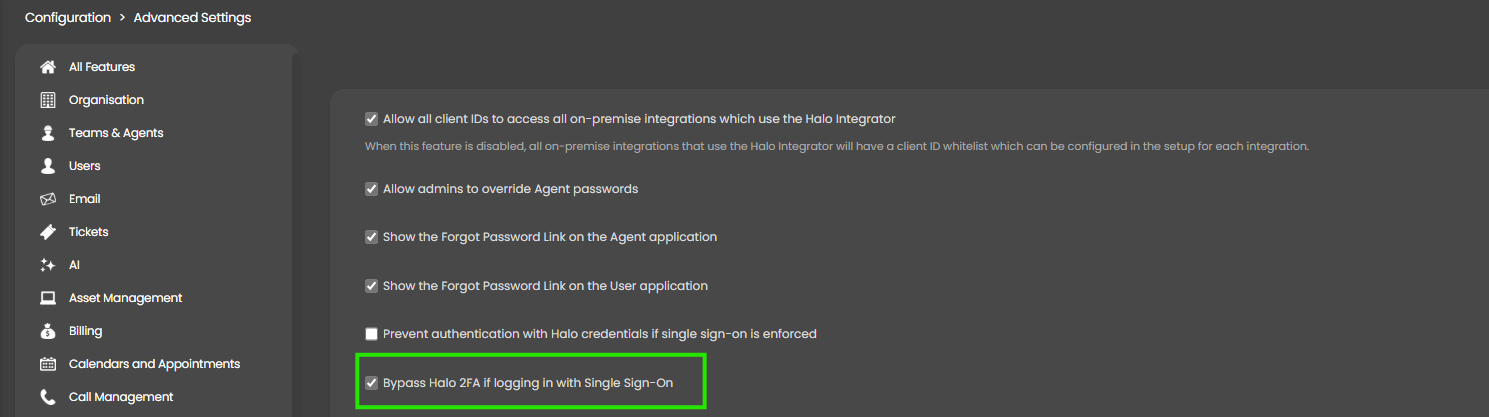
Fig 15. Enable Halo SSO bypass when using SSO
Don't ask for 2FA again when using SSO
When using 2FA with Halo login credentials, agents/users will have an option to check 'Don't ask again' when completing 2FA so they need not complete 2FA once more when logging in with the same device.
This functionality can be expanded to include SSO. You first need to ensure you have enabled Halo 2FA procedures (forced for everyone or enabled per agent). You will also need to enable the 'Don't ask again on this browser' option, enabled under Configuration > Advanced Settings.
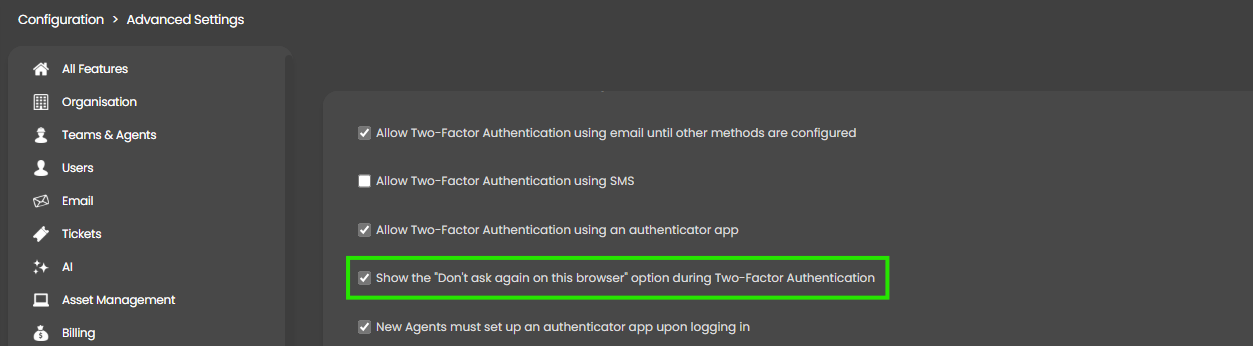
Fig 16. Enabling Don't ask again
Once setup, then enable 'Allow Halo 2FA if logging in with Azure Single Sign-On' under Configuration > Advanced Settings.
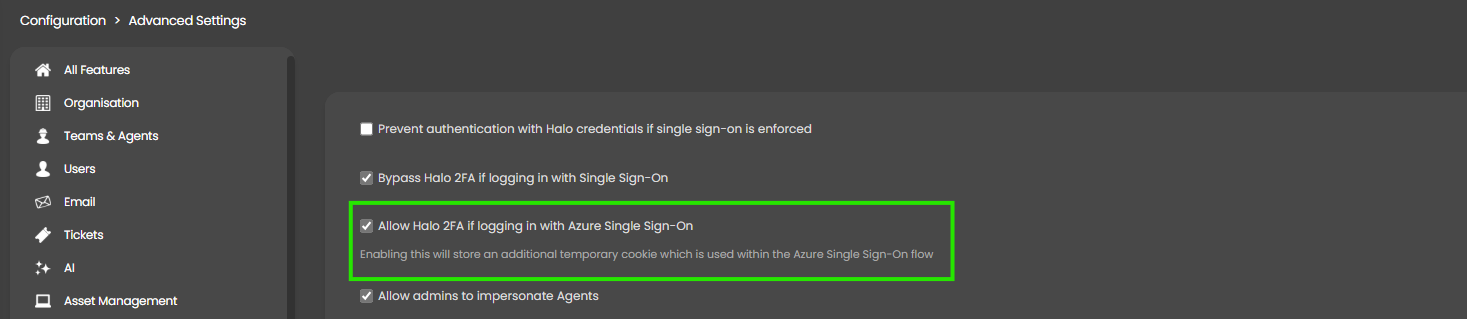
Fig 17. Enabling 2FA bypass if previously provided 2FA
When this is enabled, an additional cookie will be stored to allow agents/users to skip 2FA if they have checked 'Don't ask again' when logging in previously.