Microsoft Entra ID: Single Sign-On (B2C)
- single sign on
- B2C
- B2C SSO
- B2C single sign on
What is Single Sign on B2C?
Single sign on B2C allows your agents and users to sign in to Halo using credentials from various accounts. It also allows unknown users to sign up to access your Halo portal using credentials from existing accounts.
Who can use SSO B2C?
B2C SSO is typically used by organisations using HaloCRM, as they will not have a fixed user list and will want to make sign up for users as easy as possible.
Organisations using HaloPSA and HaloITSM will use B2B SSO as all the users and agents that will be logging in already exist in your Azure tenant or one of the Azure tenants you manage (fixed list).
In this guide we will cover:
- B2B vs B2C single sign on
- How to configure SSO for B2C
Microsoft is now depreciating B2C licencing. From 15 March 2026 B2C will be depreciated for everyone on P2 tier licencing. Your B2C tenant will remain but your Azure AD B2C P2 licence will no longer function. For everyone on P1 premium tier licencing existing B2C will be supported until May 2030. Users are now directed to use Microsoft's Entra External ID platform instead (this replaces B2C). Single sign on with Halo using Entra External ID for external user authentication is now available. For information on how to set this up checkout: "Single Sign-On in Halo".
For more information on Microsoft Entra External ID checkout: Introduction to Microsoft Entra External ID.
B2B vs B2C single sign on
Single sign on allows users and/or agents in your Halo to log in to their Halo account using existing credentials they have for other accounts. Halo obtains authentication from the third party the account is with.
B2B single sign on stands for 'Business to Business'. This method of single sign on only allows users who exist in your Azure tenant (or a tenant you have access to) to sign up or sign in to your Halo with their Microsoft (work) credentials. This is typically used when a business is providing services to another business, as you will have a pre-defined set of users that will be allowed access to your Halo. These users will either be in your Azure tenant, or you will have access to their Azure tenant through the partner centre, therefore when using this method of SSO in Halo you must be using either the Entra ID or CSP integration. HaloPSA and HaloITSM customers typically use the B2B method of single sign on.
B2C single sign on stands for 'Business to Customer'. This method of single sign on allows agents and/or users to be able to sign up and sign in to your Halo portal using various accounts, such as their Google, Microsoft and social accounts. Whereas B2B only allows users to sign in using their work account. B2C is typically used when the users you would like to access your portal are not in your Azure tenant, so when they are external consumers however, you can restrict who can sign up/in to your portal when using B2C. HaloCRM customers typically use this method of single sign on.
In this guide we will only cover the setup of B2C single sign on (SSO) using Azure, we have a separate guide on B2B SSO for Azure/Microsoft here. For information on B2B single sign on for Google accounts see our guide here.
How to configure SSO for B2C
Pre-requisites
- You must have a B2C Azure tenant
- If on a Halo version prior to v2.182 the B2C tenant must have a domain name ending ".com"
To get started head to configuration > integrations > Microsoft Entra ID > single sign-on B2C tab. Here is where you will configure the SSO connection in Halo.
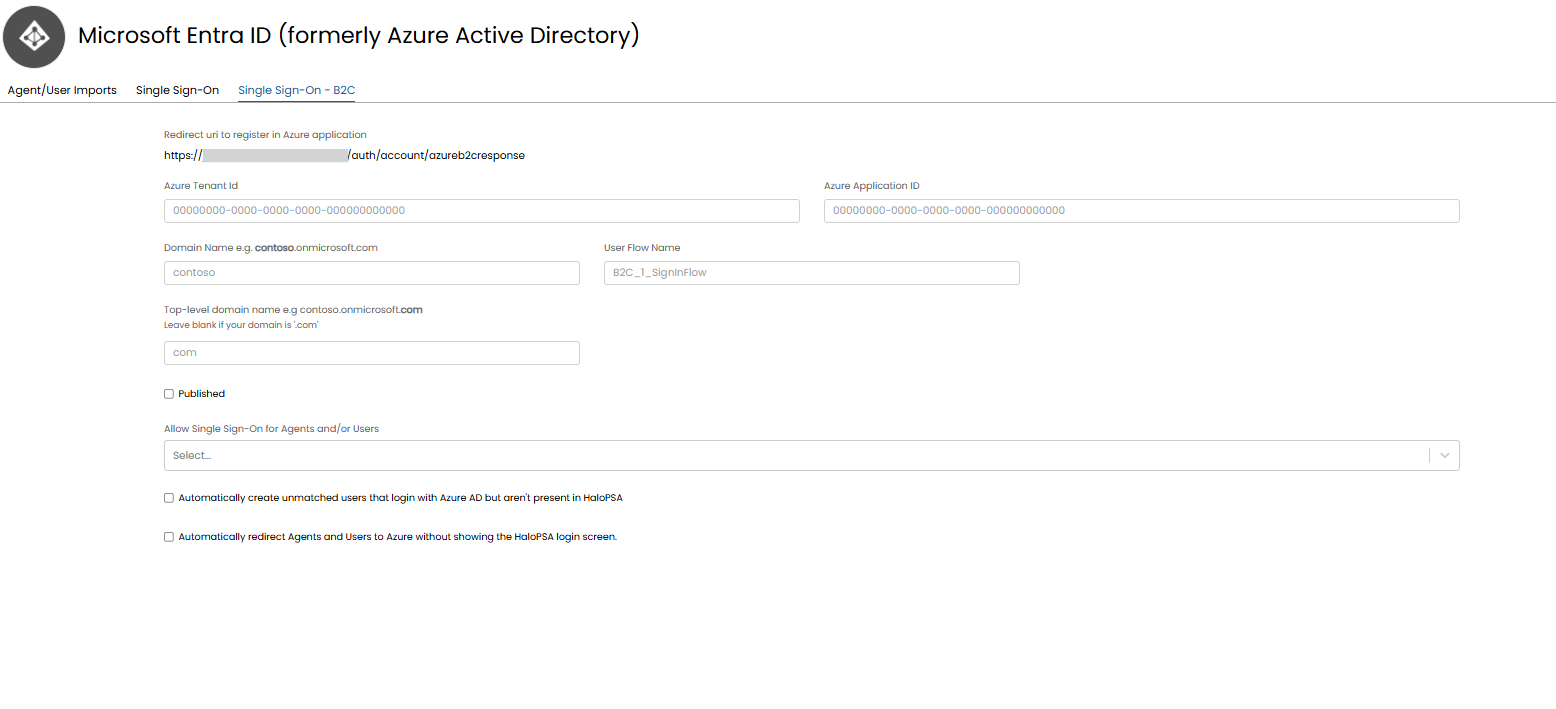
Fig 1. B2C SSO configuration
Create Azure application
First you will need to create an Azure application for your B2C Azure tenant. This application should be of type 'Accounts in any identity provider or organizational directory (for authenticating users with user flows)', set the platform to be 'Web' and have the redirect URI present on the SSO setup page in Halo (figure 1). This URI follows the format https://YOURHALODOMAIN/auth/account/azureb2cresponse
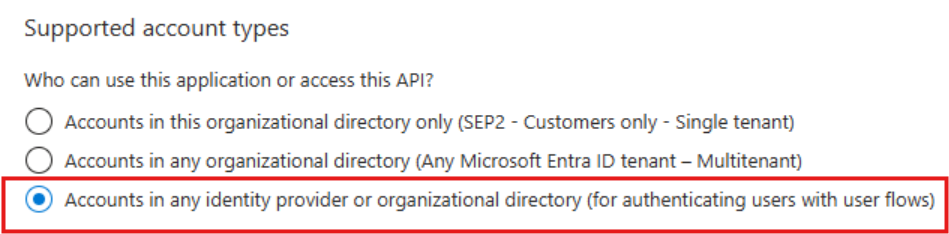
Fig 2. Account type for azure application
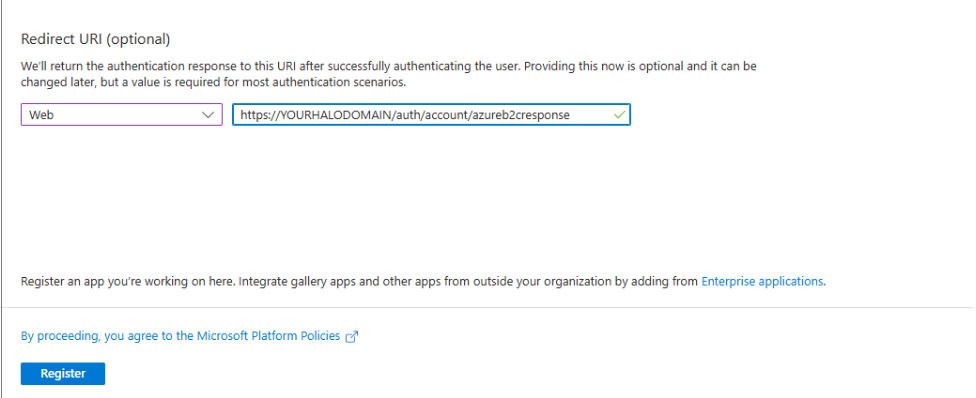
Fig 3. Azure application
Note: If you have two re-direct URIs visible on your SSO configuration page add both redirects to the application.
Now you will need to add the following permissions to this application:
- openid (Delegated)
You will also need to enable ID tokens (used for implicit and hybrid flows). This is enabled under the 'Authentication' tab under the application
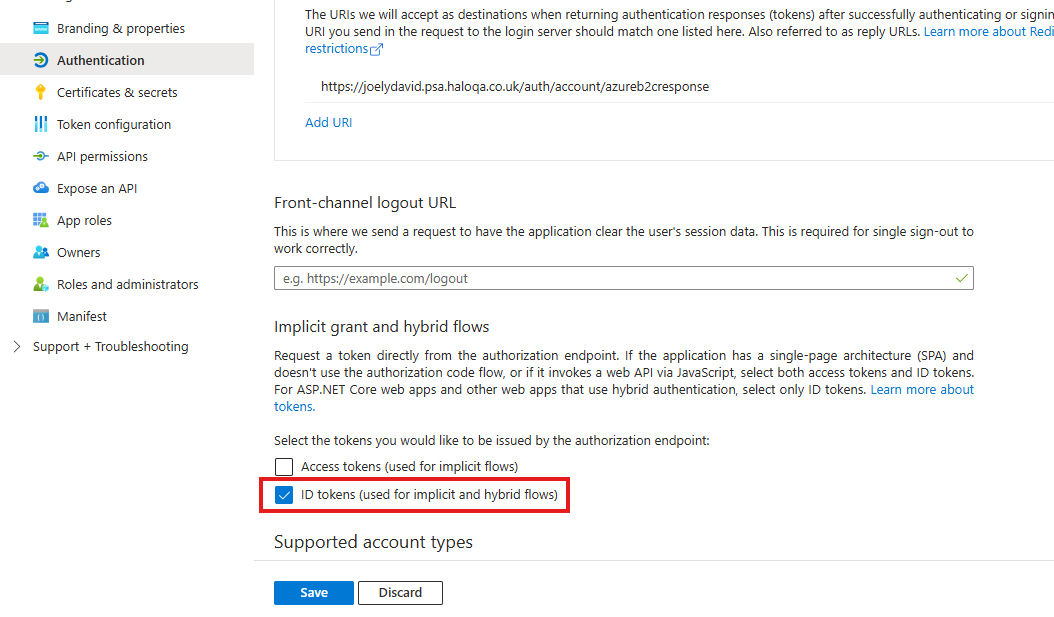
Fig 4. Enable ID tokens
You will now need to assign a user flow to your application to determine how users are authenticated. You may wish to create your own custom user flow, or use one of the standard user flows such as the 'sign up and sign in' user flow.
For more information on creating user flows see Microsoft's article here: https://learn.microsoft.com/en-us/azure/active-directory-b2c/tutorial-create-user-flows?pivots=b2c-user-flow
Now you will need to ensure you have the correct application claims against your B2C policy, the following claims will need to be added:
- Identity provider access token
- User's Object ID
These can be added under Home > Azure Ad B2C > select policy > Application claims.
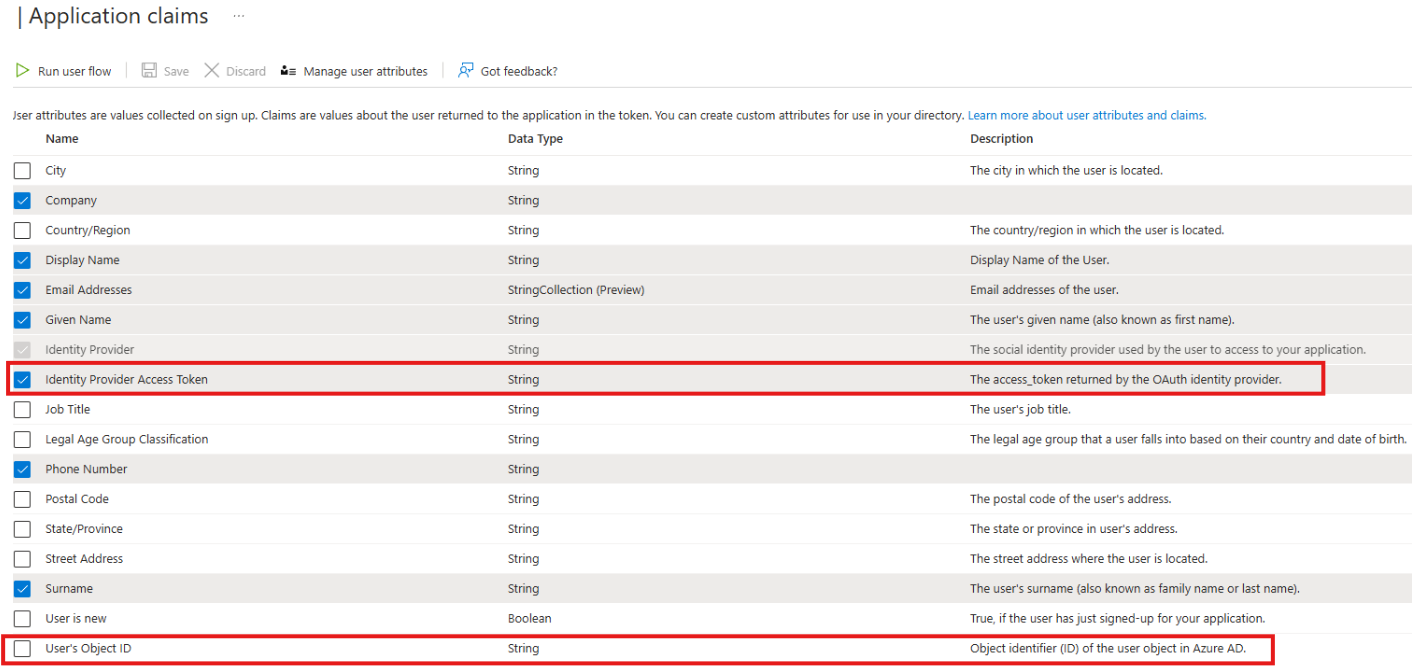 Fig 5. Add application claims
Now your application setup is complete head back to the Halo configuration page.
Halo Configuration
Enter your tenant and application ID into the relevant fields.
Domain Name - Here enter the domain name of your Azure AD B2C tenant, if your domain is contoso.onmicrosoft.com the tenant name will just be "contosco".
User Flow Name - Here enter the name of the User Flow assigned to your application (this must be exact).
Top-level domain name- You only need to complete this field if your tenant domain name does not end in ".com". Here enter the region for your domain name so if your domain name is contoso.onmicrosoft.us enter ".us" in here.
Now complete the additional settings on the page
Allow Single Sign-On for Agents and/or Users - Choose who SSO is allowed for, agent and/or users.
Automatically create unmatched users that login with Azure AD but aren't present in Halo - When this is enabled new users can be created using SSO. If a user logs into the Halo portal with a login that does not currently exist against a user account in Halo, a new Halo user account will be made for them. If this is enabled an additional option to choose the site users are created under will appear.
Automatically redirect Agents and Users to Azure without showing the Halo login screen - When enabled users will not see the Halo Login screen when accessing the Halo portal, they will automatically be re-directed to the SSO login page.
When you are happy with your configuration enable the SSO functionality using the 'Publish' setting.
Enable SSO to show on your portal
Once you have setup SSO this will now be available as an additional authentication option against your portal application. To start using this you will need to set this option to be visible.
Head to configuration > integrations > HaloAPI > applications > select your 'halo-user-portal' application'. Here, edit the page and edit the tile for 'Azure B2C SSO', here set the tile to be visible.
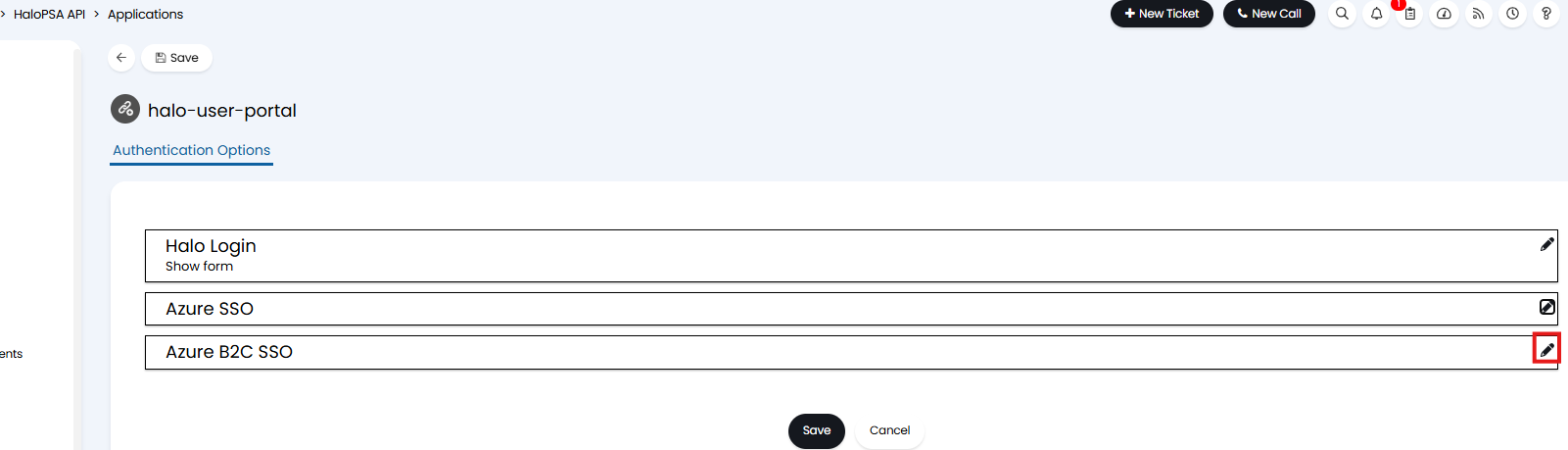
Fig 6. Edit B2C tile
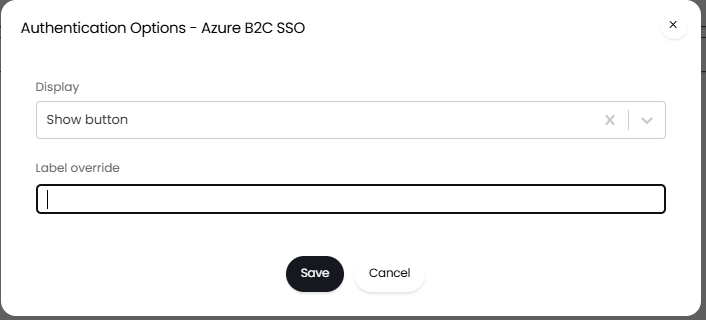
Fig 7. Set B2C SSO to show
You can also choose a new label for the button here as well, this will override the label 'Azure B2C SSO'.
Note: If you have multiple portals ensure this is done for each of your portals, or only the portals you would like to use SSO for.
Additional Settings for SSO
Remember agent/user logins
To streamline the log in process you can allow agents and users to have their login details 'remembered' so they need not enter their password to log in each time. To enable this functionality head to configuration > advanced settings and enable 'Remember Me when using a SSO method'.
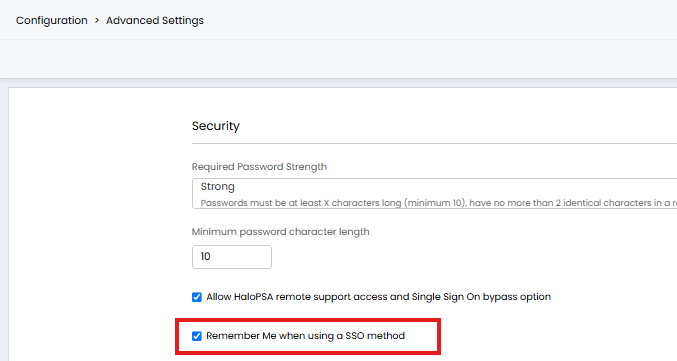
Fig 8. Setting to have login details remembered
When enabled, a 'remember me' setting will appear on the login screen so agents/users can choose to have their login details remembered for next time.
Bypass 2FA for SSO
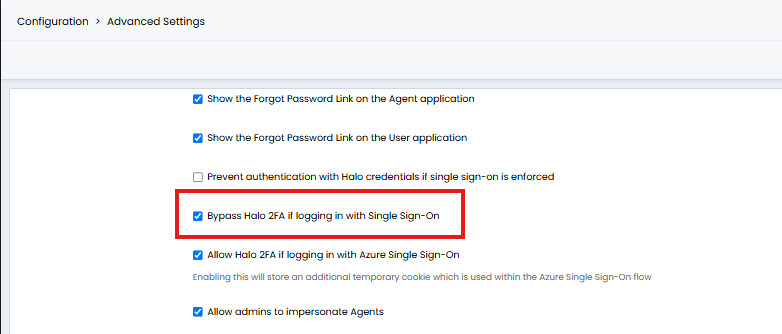
Fig 9. Setting to allow Halo 2FA to be bypassed
When enabled 2FA procedures will be automatically bypassed when agents/users are using SSO to log in.
To allow agents/users using SSO to bypass Halo 2FA head to configuration > advanced settings and enable 'Bypass Halo 2FA if logging in with Single Sign-On'.
Don't ask for 2FA again when using SSO
When using 2FA with Halo login credentials agents/users will have an option to check 'Don't ask again' when completing 2FA so they need not complete 2FA again when logging in with the same device. This functionality is compatible when users/agents are signing in with SSO.
To enable this first ensure you have enabled Halo 2FA procedures (this can be forced for everyone or enabled per agent). You will also need to enable the 'Don't ask again' option, enabled under configuration > advanced settings.
Once setup you will need to enable 'Allow Halo 2FA if logging in with Azure Single Sign-On' under configuration > advanced settings.
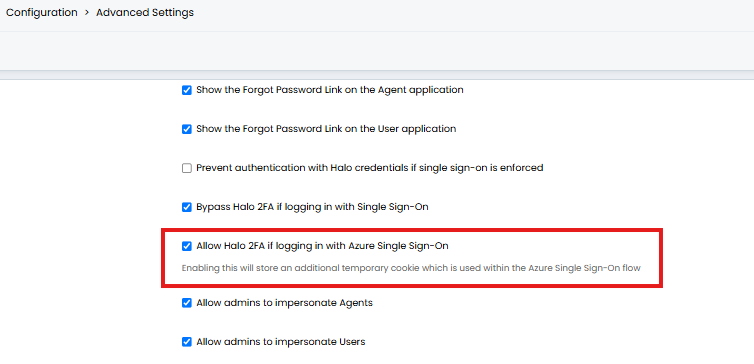
Fig 10. Setting to allow 'don't ask again' functionality to work when using SSO
When this is enabled an additional cookie will be stored to allow agents/users to skip 2FA if they have checked 'Don't ask again' when logging in previously.