Creating Report Data Within a Runbook (Matching and Merging to Existing Alert Tickets)
- Runbooks
- custom integrations
- reports in runbooks
In this guide we will cover:
- Creating Report data within a Runbook
- Worked Example - have email alerts merge based on alert ID
Creating Report Data within a Runbook
Report queries can be within integration runbooks to obtain data from your Halo database to be used as part of the runbook. This guide will cover how to configure and pull database information using report queries from within a runbook as well as a use case of this feature.
First navigate to Configuration > Custom Objects > Custom Integrations this is where you can configure runbooks.
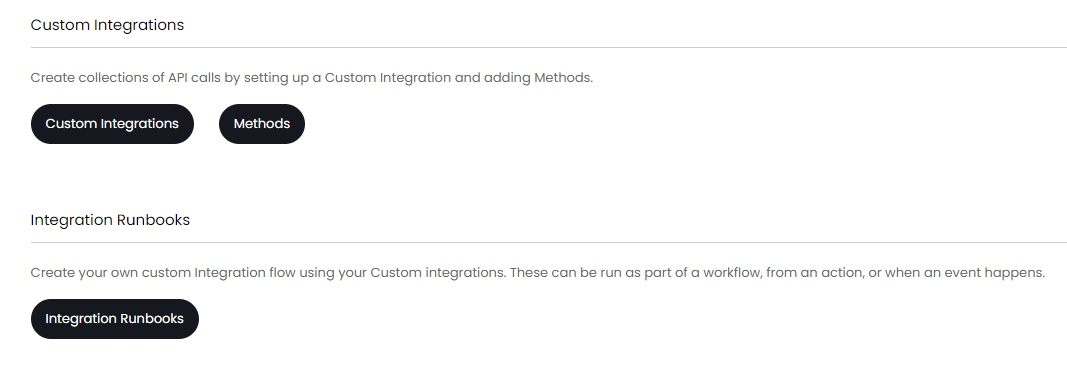
Fig 1. Custom integrations page
Click into integration runbooks and create a new or choose an existing runbook (at this point you should have authenticated into your own Halo instance, guide: Authorising API Access into Your Own Halo Instance).
Add a step to the runbook with type 'Action' and action type 'Run a SQL query on the Halo database'.
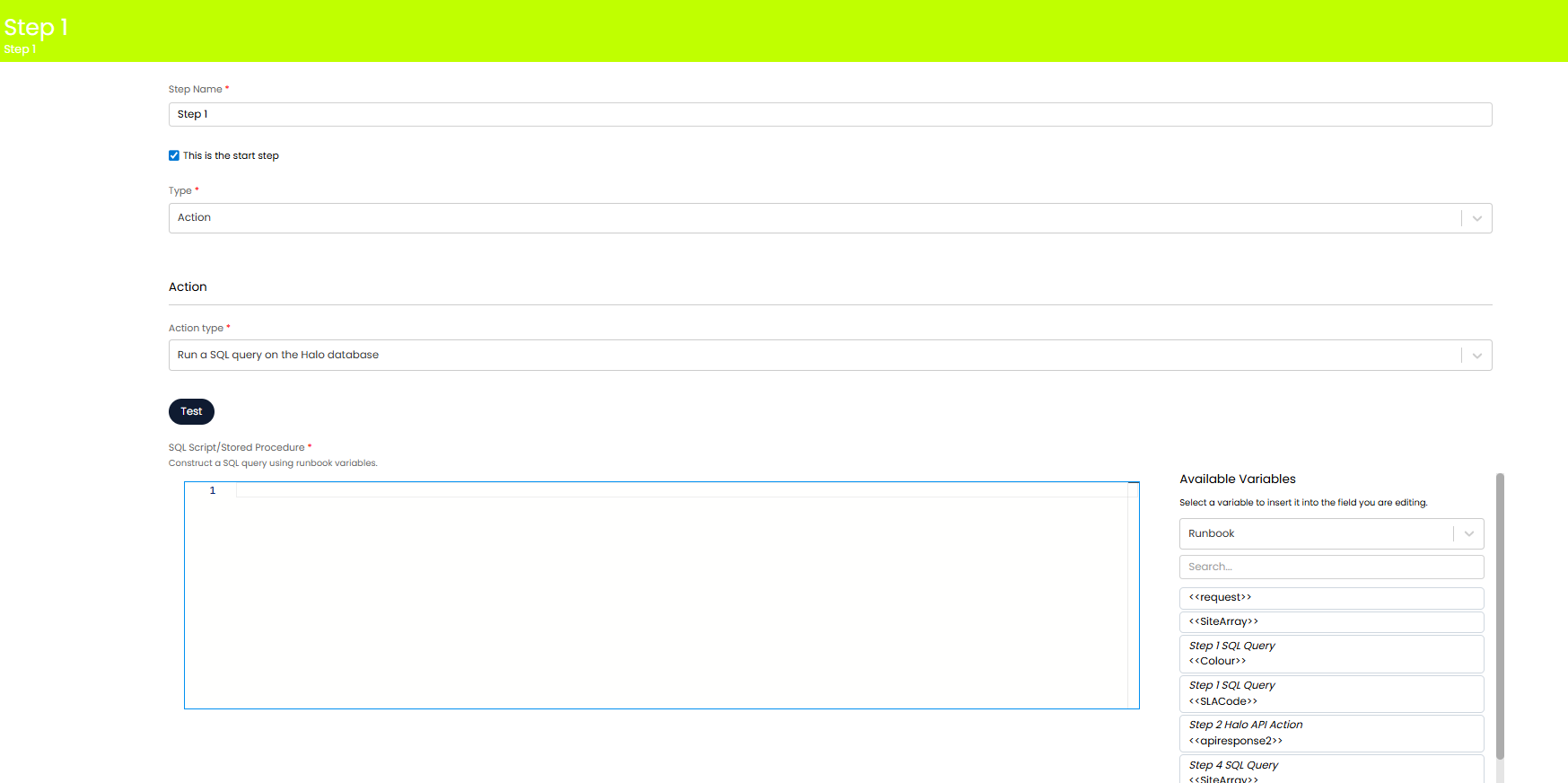 Fig 2. Runbook step to run report (SQL) query
When selected you will be able to enter a SQL query against this step in the 'SQL Script/Stored Procedure' field. This query will be run on your database when the runbook reaches this step. Variables can than be created or updated based on the output of the query, these variables can then be used elsewhere in the runbook. Allowing runbook variables to change dynamically based on the current data in your Halo database.
In the figure 3 example I have a query set to run that obtains the ticket ID (FAULTID), the ID of the primary linked asset to this ticket (DID), and the data in the field CFWarrantyExpiry (this is a custom field against assets). The report includes the variable <<TicketID>> which stores the ID of the ticket that triggered the runbook. The query is filtering results limited to this ticket.
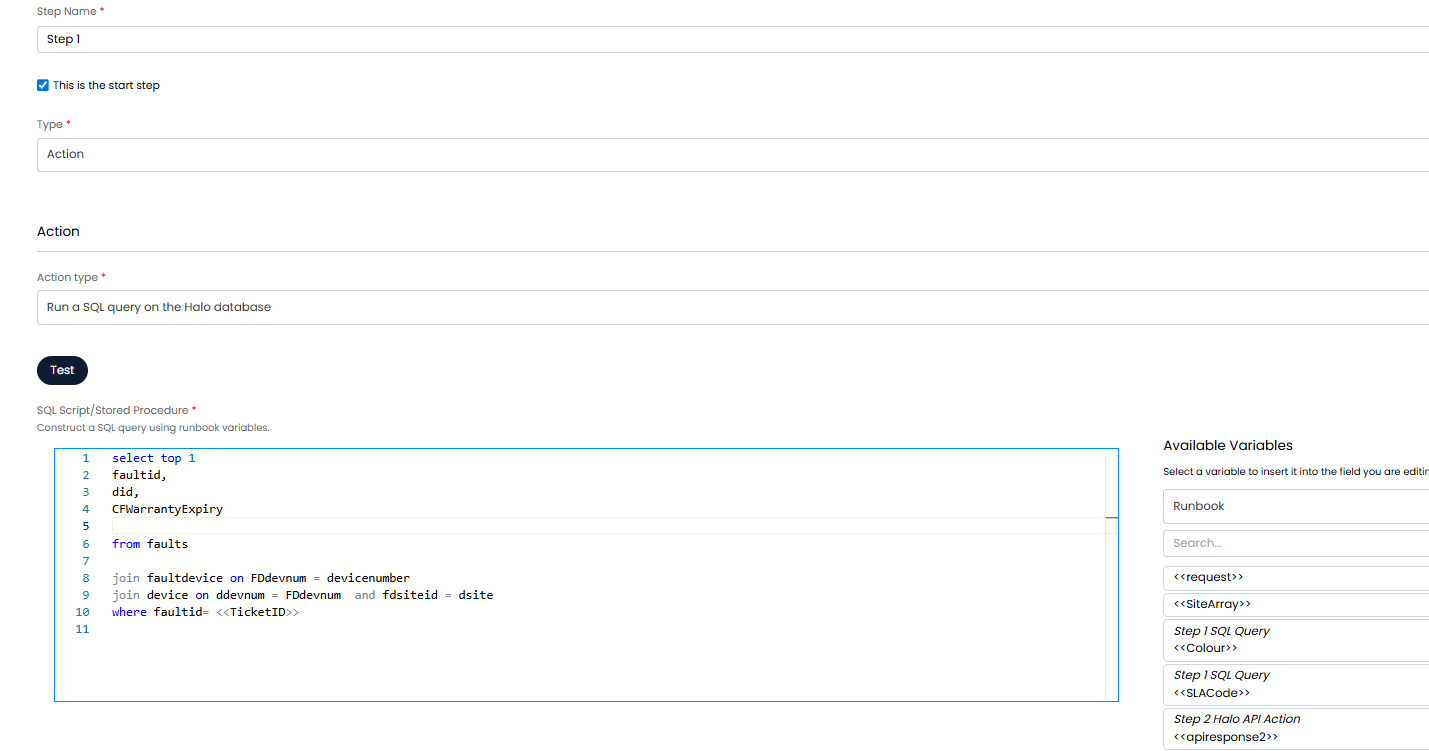
Fig 3. SQL query to obtain device (asset) information
Note: Runbook level variables can be used as part of SQL queries.
I would like to use the data from the field CFWarrantyExpiry elsewhere in my runbook (perhaps to check if the asset is currently still under warranty). So now, a variable will need to be created that stores this information.
To do this, scroll down to the 'Runbook-level variable mappings' table and add a new entry, select *Add a new runbook-level* variable to configure a new variable.
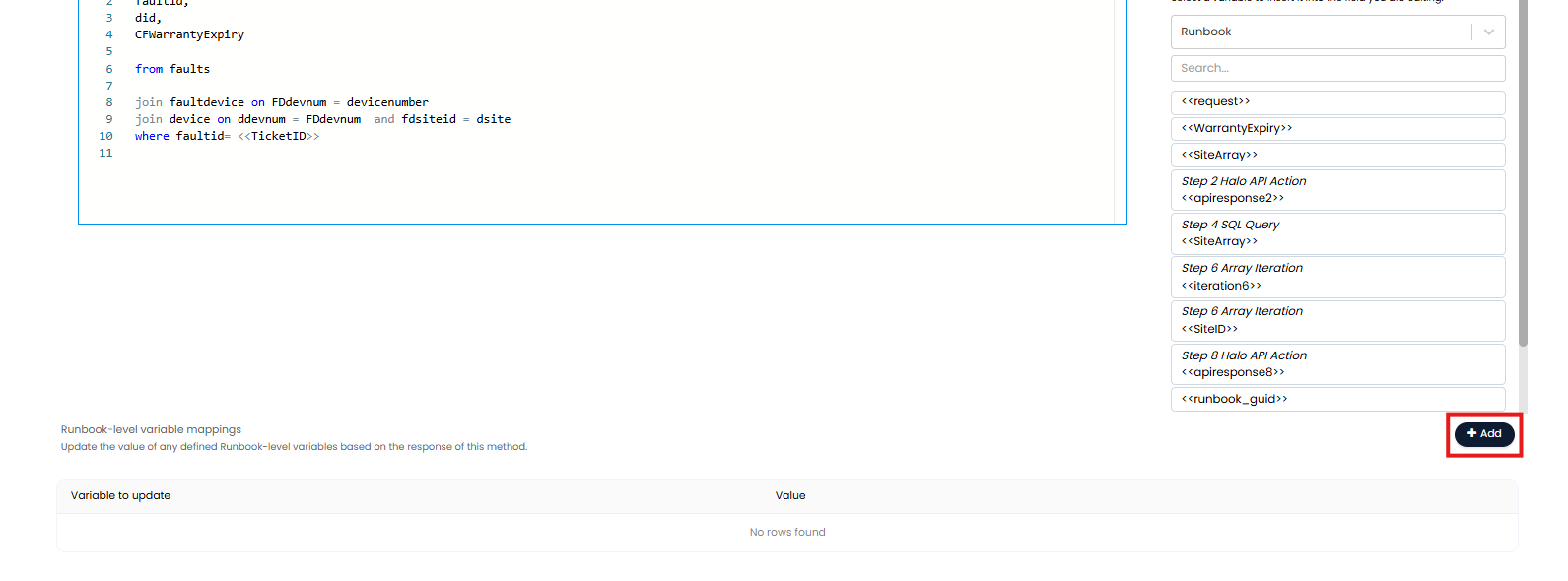
Fig 4. Add a new runbook level variable
The output of the report will be stored in the response object, therefore variables can be configured based on this object and it's properties.
In the below example I have created a variable called ' WarrantyExpiry', which will contain data from the CFWarrantyExpiry property of the response object.
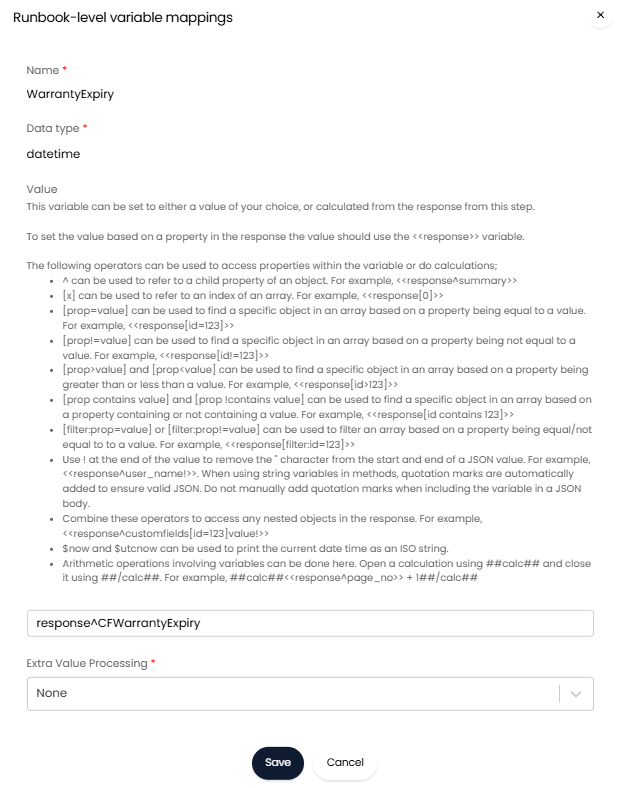
Fig 5. Runbook Level variable
I can now call use the data in this variable elsewhere in the runbook by calling <<WarrantyExpiry>>.
If the SQL query returns multiple rows, these will be stored in the response object as an array. You can then store the whole response object in a variable to iterate through each array in a following runbook step.
Note: If doing this, ensure the variable has the data type 'Array'.
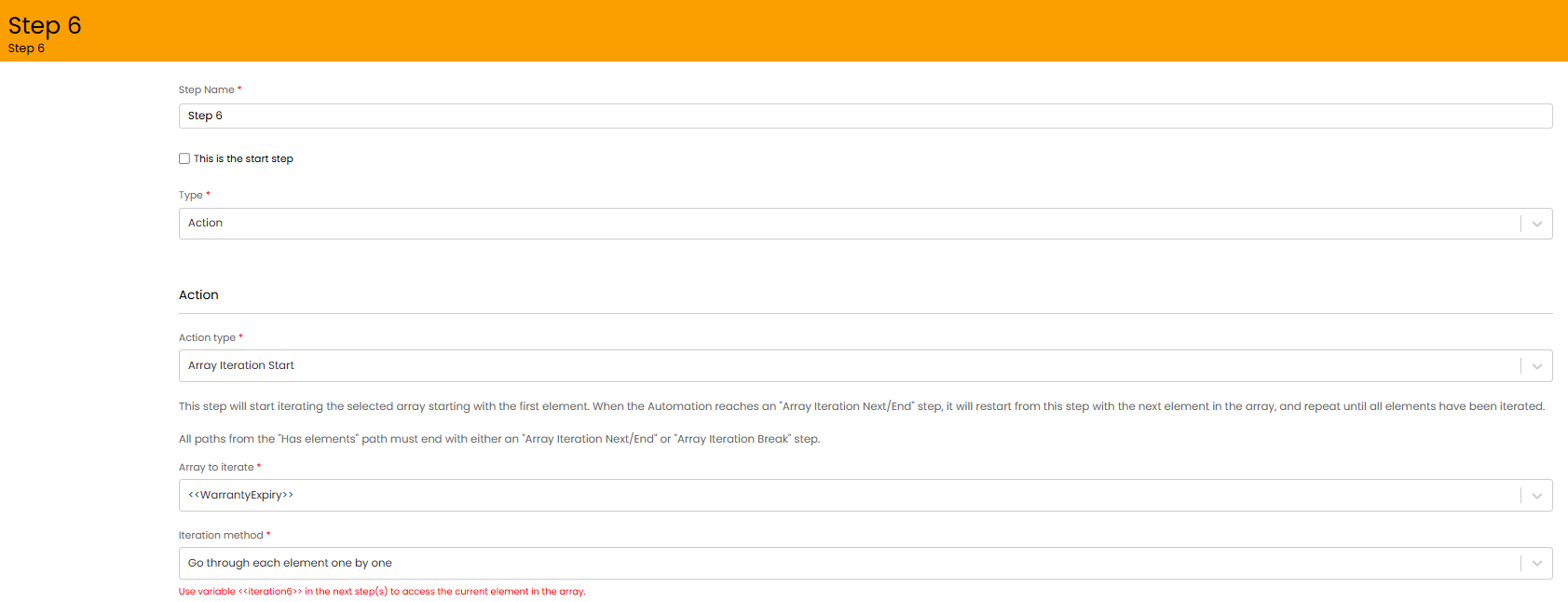
Fig 6. Array Iteration step
Worked Example- have email alerts merge based on alert ID
When using a custom alerting tool in Halo, you may have multiple tickets come in that should be tied to the same alert. This is achievable by using a mixture of integration runbooks, email rule and ticket custom fields.
To begin configuring, create a custom field of entity "Ticket" which will be how we store the 3rd party software's ticket ID.
Then create an email rule of type "Alert Via Email", which will be used to capture the Alert Ticket ID from the incoming alert email. If you are unfamiliar with email rules and how to match information in the body to a custom field in Halo, please check out this guide: Email Rules.
The ticket type to use for the email rule is likely best set to a ticket type specific to the alerting software you are using.
Set the from address or multiple from addresses via using semi colon (;) separated values. and then match onto the custom field for the Alert Ticket ID. For example the email body may come through like this:
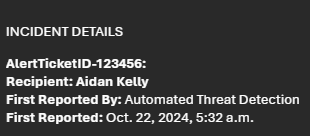
Fig 7. Example email body
To set the AlertTicketID field to be populated with the actual ID from the email, we can use the following field mapping on the email rule (mappings will look for the value in either the subject or body of the email).
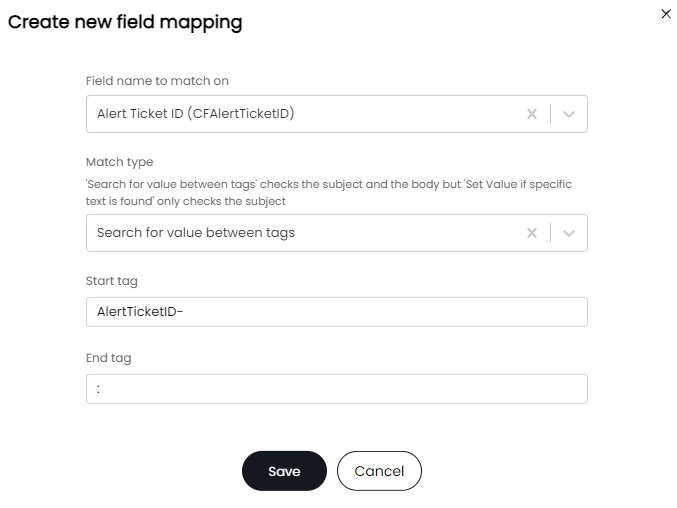
Fig 8. Email rule field mapping to populate custom field with data from email
This will map our value to our tickets. Make sure the custom field is on the field list of the ticket type.
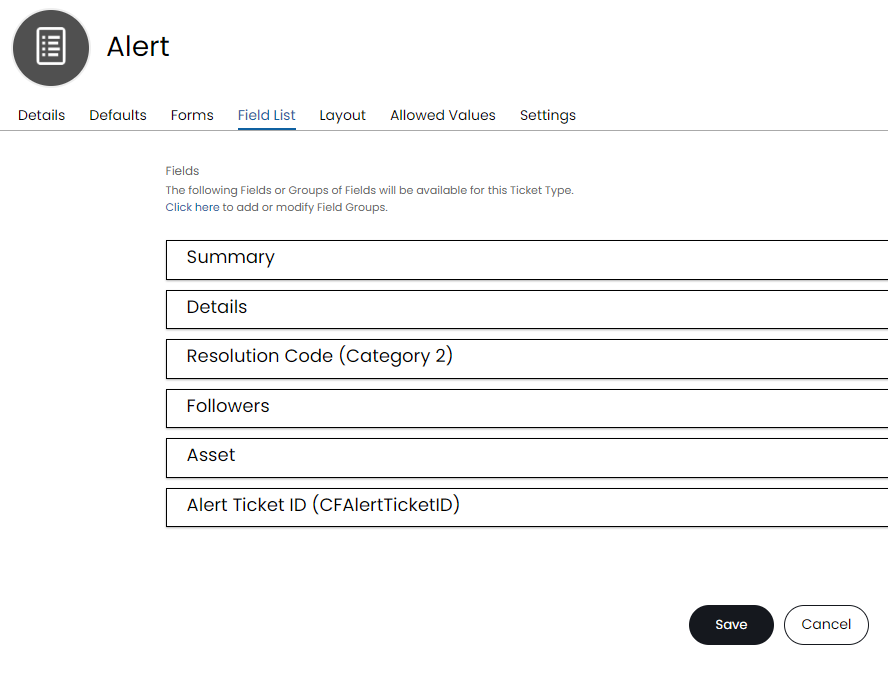
Fig 9. Custom field on ticket type
Now when my email comes in and creates an alert ticket, the custom field will be populated with the ticket ID from the alerting software.
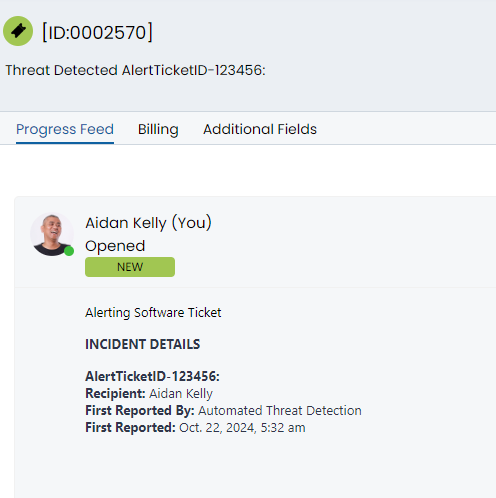
Fig 10a. Custom field populated with ID from alerting software
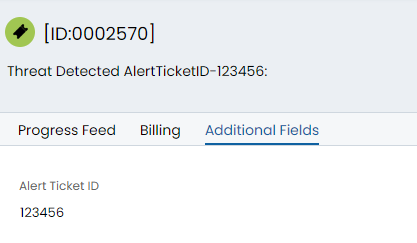
Fig 10b. Custom field populated with ID from alerting software
The use case of having this ID field populate is to create a runbook to make sure that all future tickets where this AlertTicketID is found, is merged into the previous ticket that also had that AlertTicketID.
Now that the basic configuration has been configured, the next step is to create the runbook for the new alert tickets that come in with the same AlertTicketID.
Configuring the Runbook for Future Alerts
First navigate to Configuration > Custom Objects > Custom Integrations and create a new runbook, set the following event and details from within the "Details" tab.
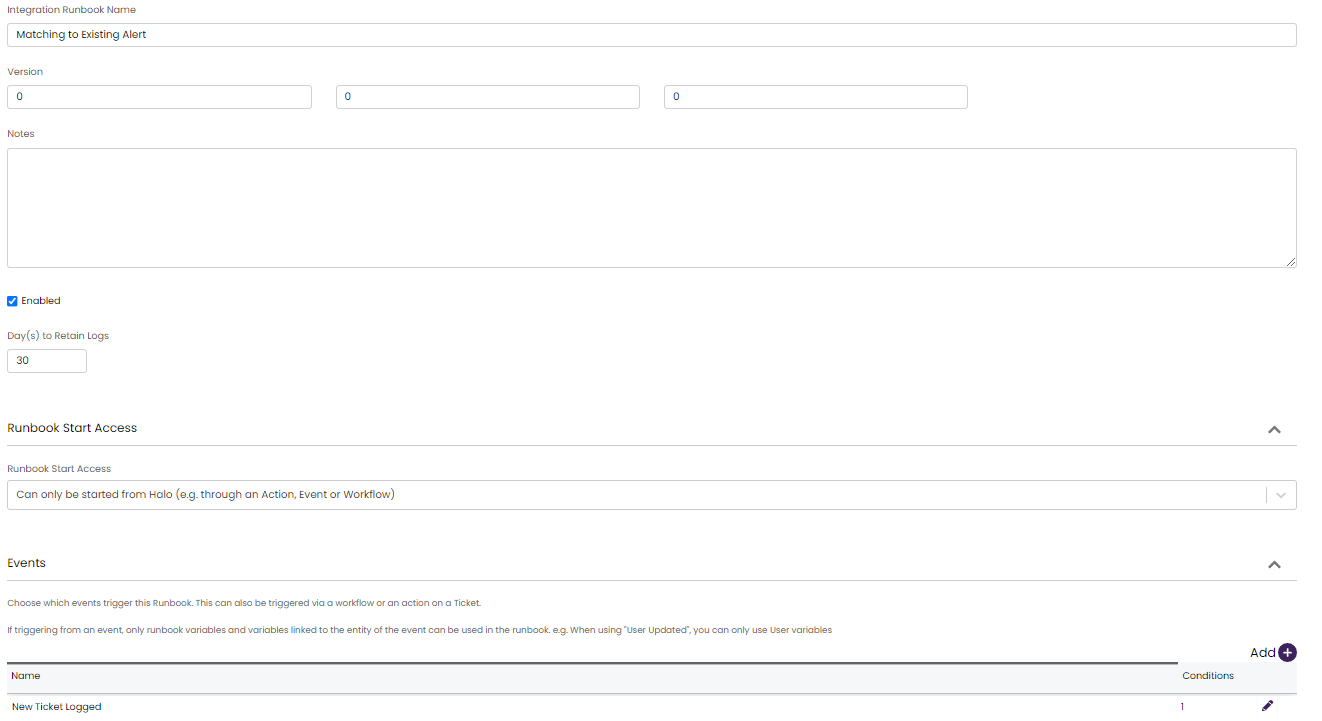
Fig 11. Runbook setup
The event condition being that the ticket type is "Alert" or whichever ticket type you have set on the email rule (this is best set to a unique ticket type for the alerting software, so that the event is only triggered on relevant tickets.
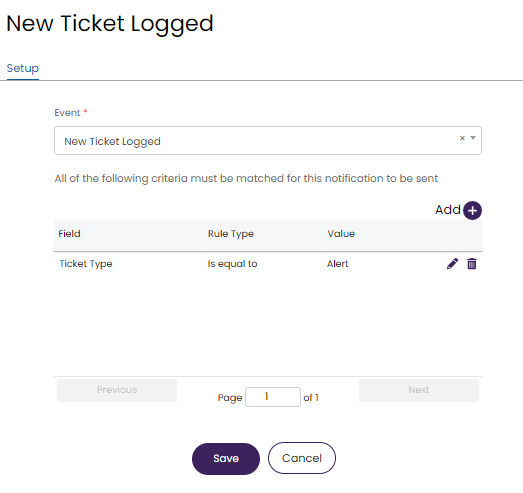
Fig 12. Event condition- New ticket logged
The first step of the runbook will be for gathering the ticket information, in this case the ID of the ticket in Halo and the Alert Ticket ID. Click on the Add a Step button from within the flow chart of the runbook.
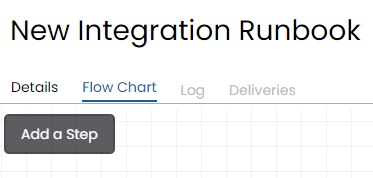
Fig 13. Add step button
Within the new step, set the Type to Action and the Action Type to "Execute an Integration Method" and then click on "New Method" and create the following method, with the correct data types set for the output variables.
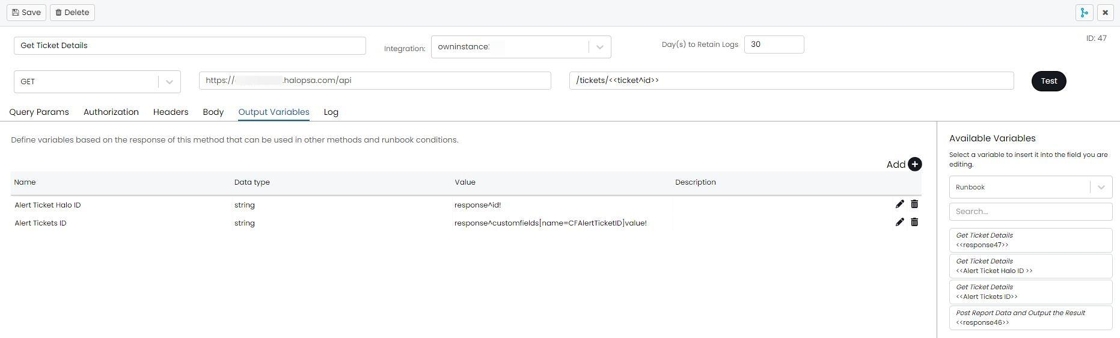
Fig 14. Method example
The Output Variables Values:
response^id!
response^customfields[name=CFAlertTicketID]value!
The second step of the runbook will need to run a SQL query on the database. Do this by adding a new step with action type 'Run a SQL query on the Halo database'.
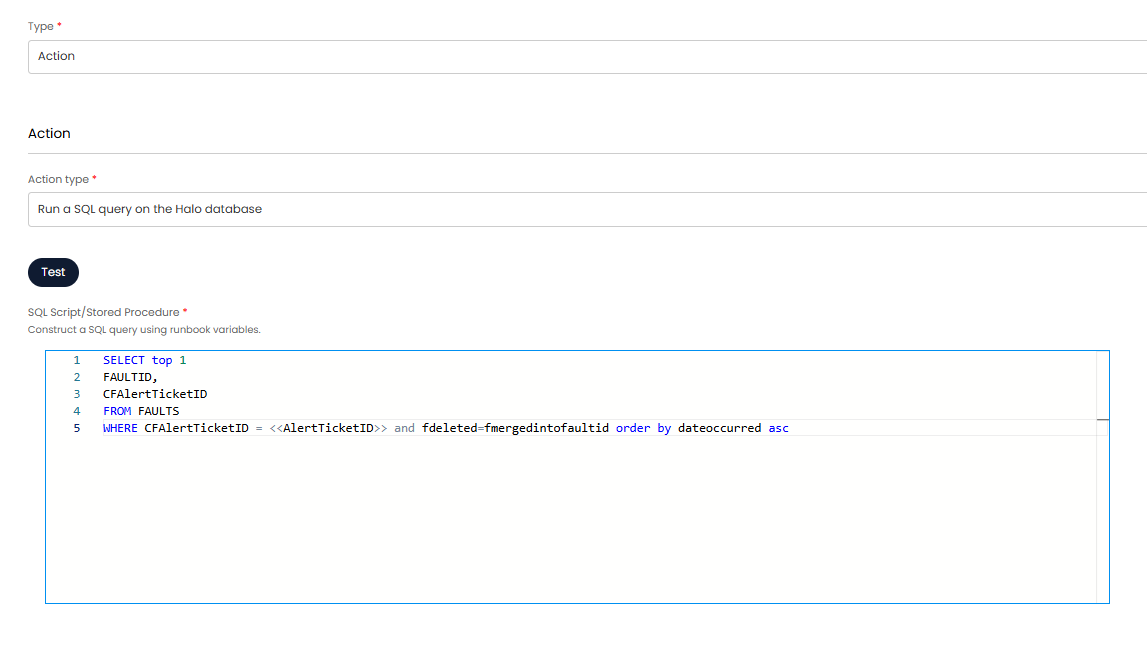
Fig 15. Run SQL query on database
This will get the ticket that was created the earliest out of all tickets with that matching Alert Ticket ID. The output taken from the report will be the existing Halo ticket, this should be created the following way.

Fig 16. configure the output taken from the report
Then the existing alert ticket can be given a condition, which if it meets, then the existing ticket will be updated with the information of the new ticket. The conditional step will be configured the following way.
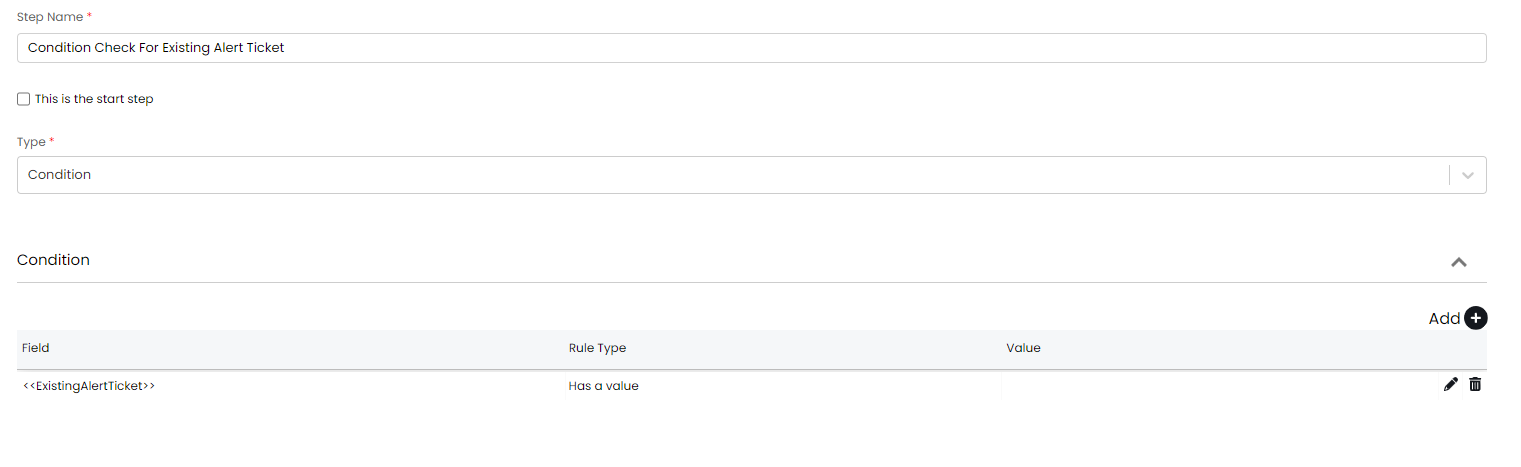
Fig 17. condition for alert
If there is a value returned, then the next step will be an action to send the information form the new ticket to the existing alert ticket.
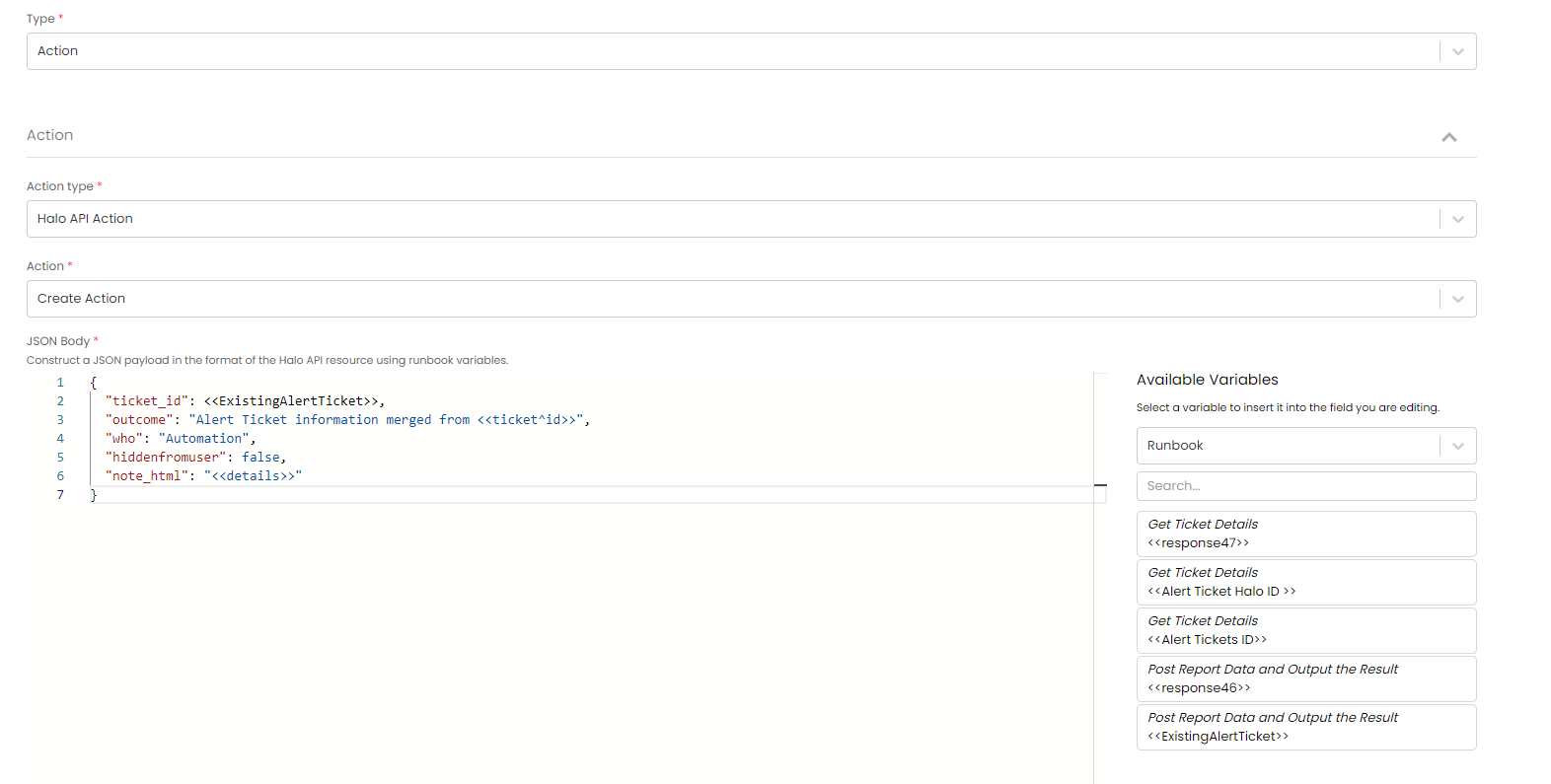
Fig 18. Action to send the information form the new ticket to the existing alert ticket
You can also send an additional update to the new ticket to close it off and give the explanation as to why.
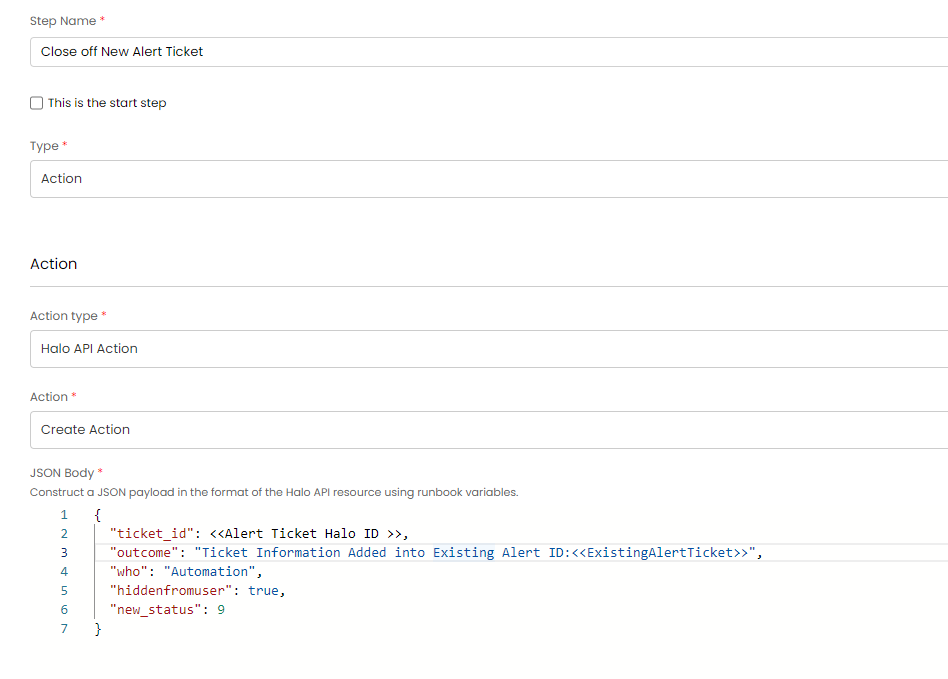
Fig 19. Action to send additional update to closed ticket
If the condition is not met, it is also a good idea to leave an automated note.
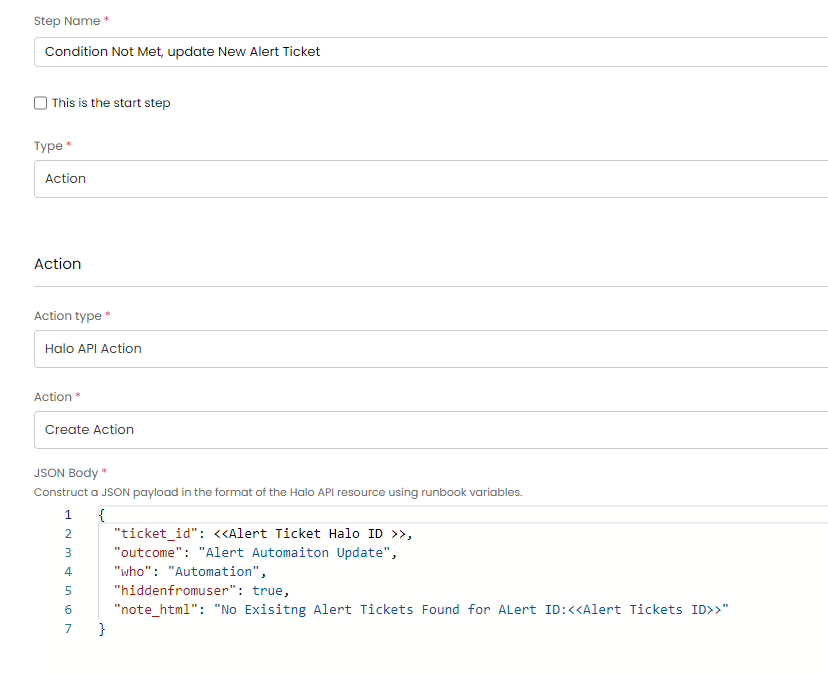
Fig 20. Action to leave automated note if condition not met