Customising how your Tickets Look
In this guide we will cover:
- Ticket Layout Overview
- Customise if and how the Workflow Stages of the Ticket Appear
- Customise How to Progress Feed Looks/is Organised
- Customise how the SLA Timer displays
- Customise when the Sidebar shows and the Information that shows here
- Customise the Information that is shown within the Ticket Details
- Other Customisation Options
Related Guides:
When viewing Tickets in Halo the layout and information shown on the ticket can be customised to fit your preferences and requirements. In this guide we will outline the different options available for customising how your tickets look. We will not cover all of the tabs that can appear within a ticket, as we have a dedicated guide on this here.
Ticket Layout Overview
When viewing a ticket in Halo you will see some or all of the components highlighted in Figure 1.
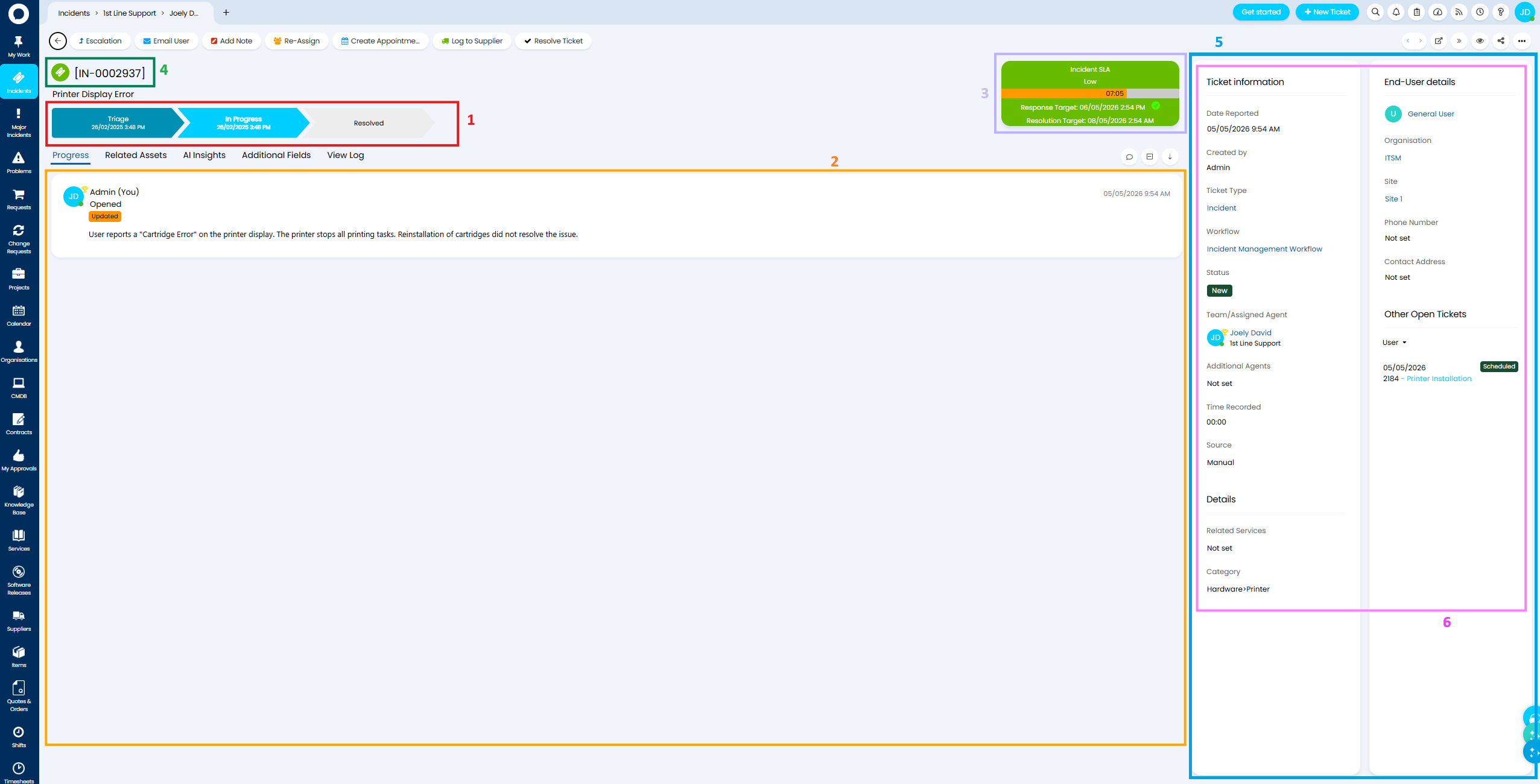
Fig 1. Annotated Ticket Layout
The ticket components highlighted in Figure 1 are as follows:
Red (1) - Workflow Stage, this shows stages of the workflow the ticket is using and the current stage the ticket is in. Useful for monitoring the progress of the ticket.
Orange (2) - Progress feed, this shows the actions that have been completed on the ticket. Allowing you to see what work has been completed so far.
Purple (3) - SLA Timer, this shows the SLA information for the ticket. Allowing agents to see SLA targets and how long is remaining.
Green (4) - Ticket Icon and Ticket ID, this shows an icon to represent a ticket is being viewed and the ID of this ticket.
Blue (5) - Side Pane, this holds additional information about the ticket, separate to the progress feed. This pane will be pinned to the side of the screen so it remains visible even as the agent scrolls through the progress feed or navigates to other tabs. The pane can be collapsed/expanded as needed.
Pink (6) - Ticket Details, this is key information about the ticket. This is stored separately for increased visibility.
Customise if and how the Workflow Stages of the Ticket Appear
Show/Hide Workflow Stages
To toggle if workflow stages appear on a ticket head to Configuration > Tickets > General Settings > use "Workflow Progress Visual".
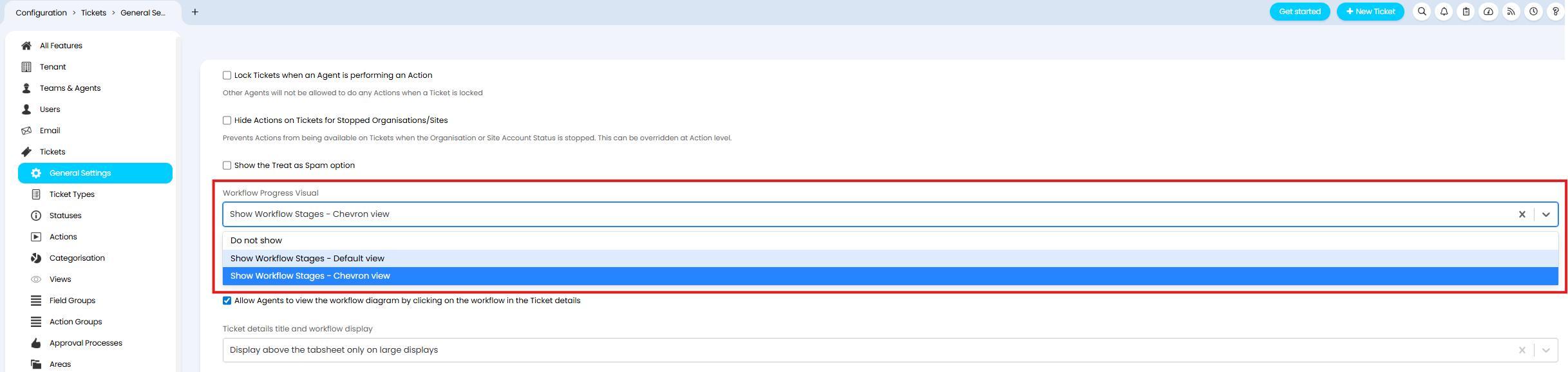
Fig 2. Setting to Toggle if Workflow Stages show on tickets
To hide the workflow stage display set this to "Do not Show".
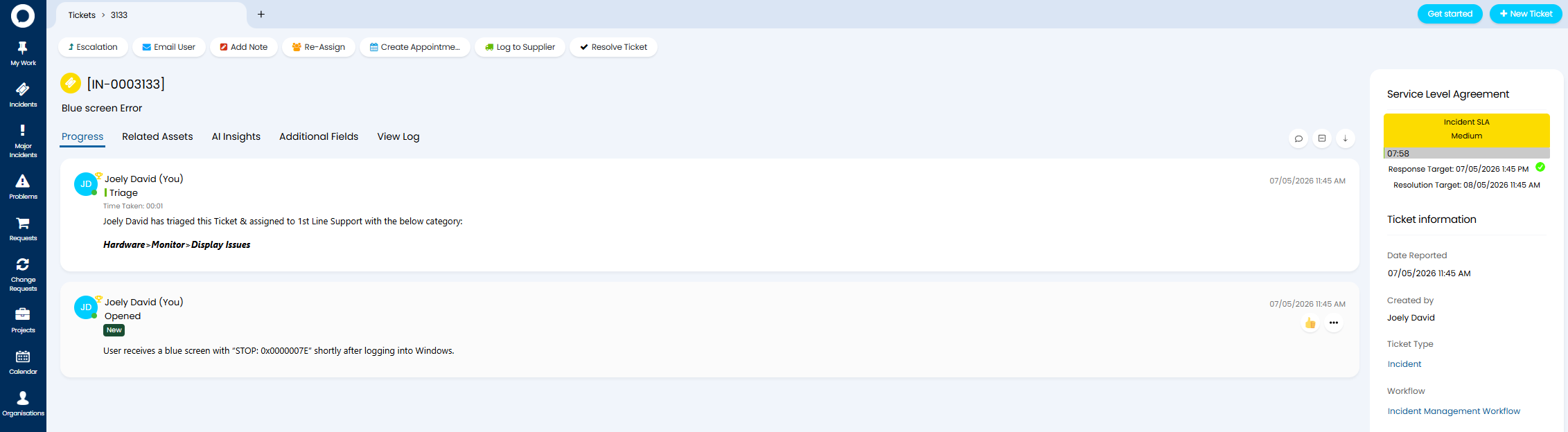
Fig 3. Ticket with Workflow Stage display hidden
Change how the Workflow Stage Display Looks
The workflow stage display can use the standard display (Figure 3) or the chevron display (Figure 4).
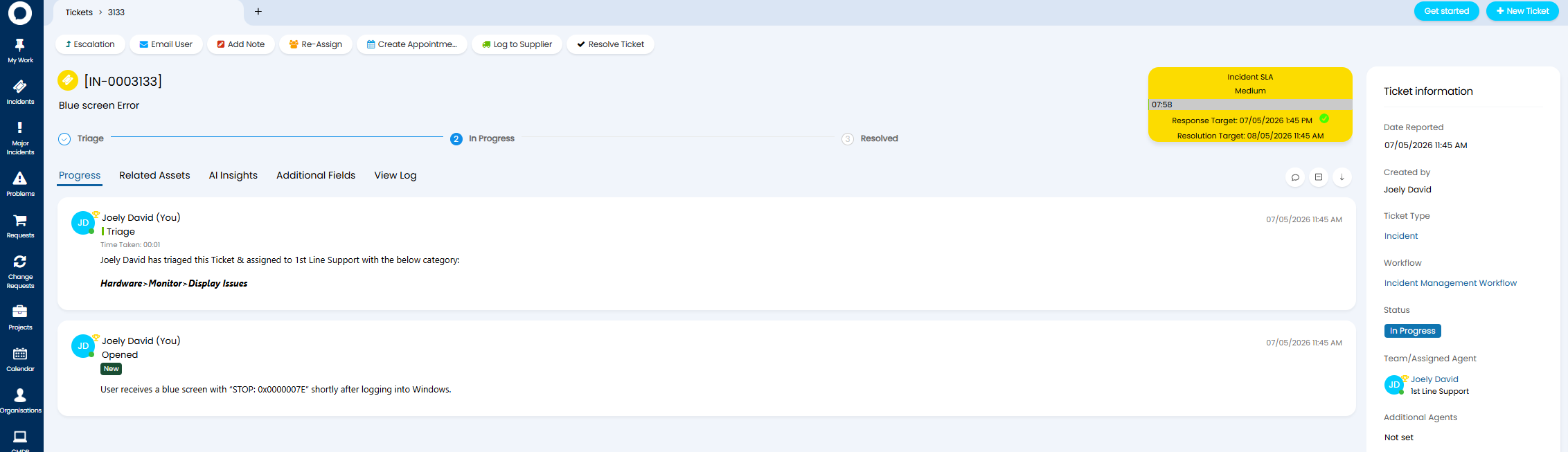
Fig 3. Default Workflow Stage Display
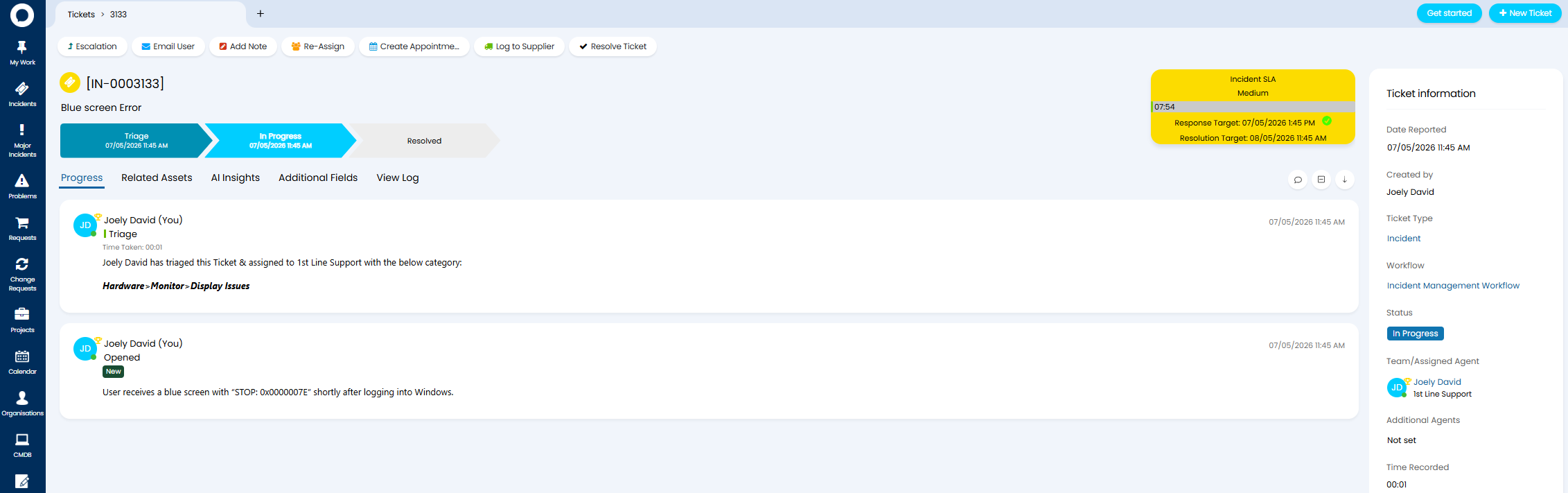
Fig 4. Chevron Workflow Stage Display
Toggle between these two views using the setting "Workflow Progress Visual" found under Configuration > Tickets > General Settings (Figure 2)
Use Stage Start vs End Dates in Chevron View
When using chevron view you will be able to see the dates the ticket started or finished each of the workflow stages. To toggle between showing start or end dates here, use the setting "Workflow progress display type" found under Configuration > Tickets > General Settings.
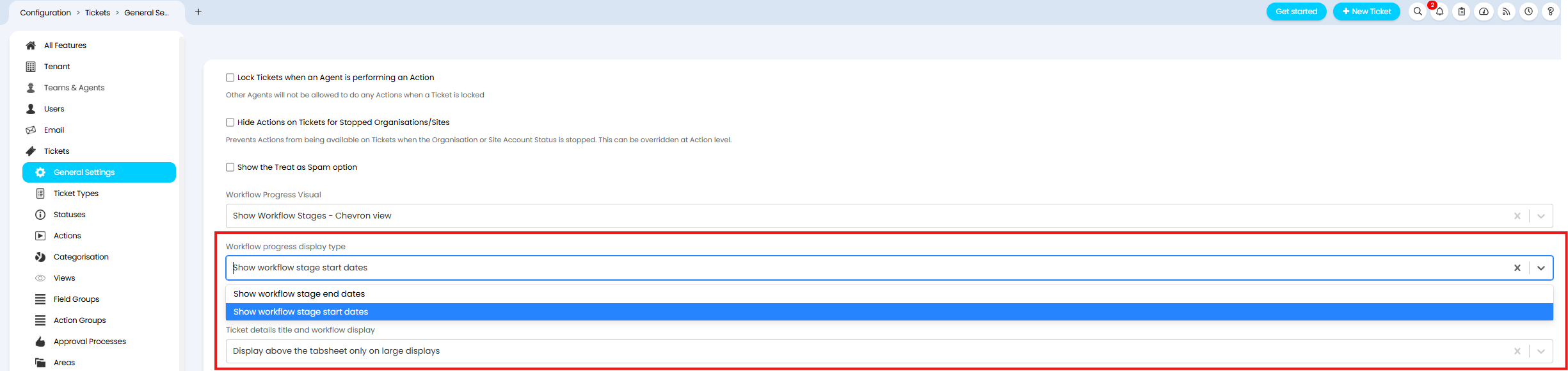
Fig 5. Setting to Control if Chevron Workflow Stage Display uses start or end dates
Control where the Workflow Stage Display sits
The Workflow Stage Display can either sit within the progress Feed tab (Figure 6) or above the progress feed (and other tabs) (Figure 4).
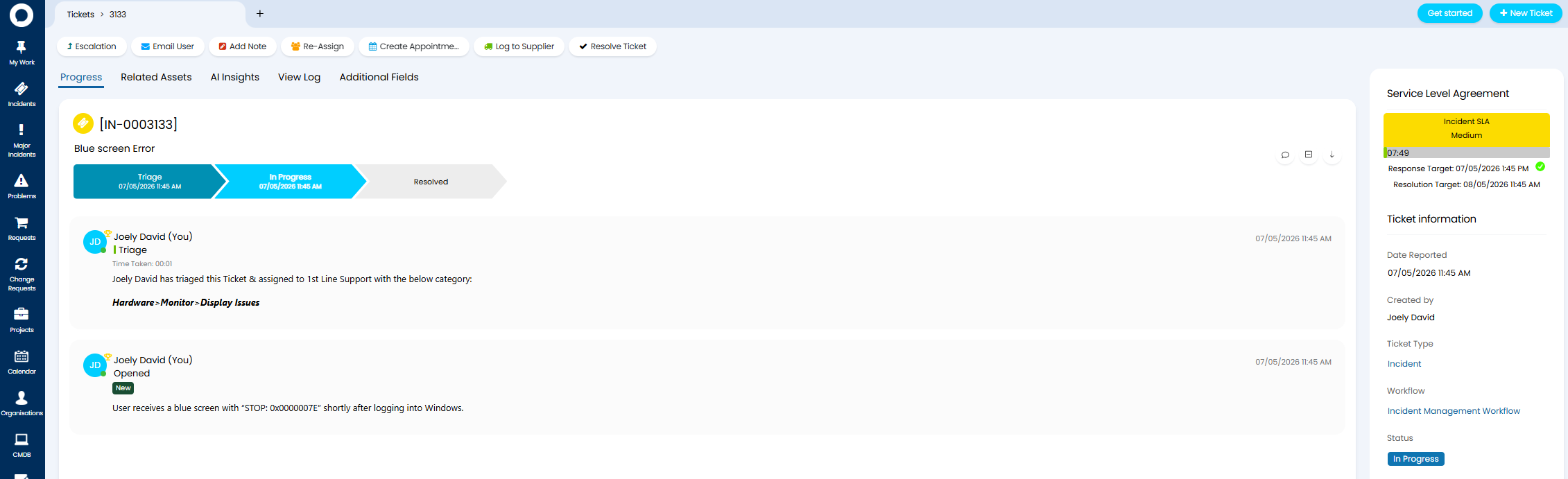
Fig 6. Workflow Stage Display inside ticket Progress Feed
To toggle where the Workflow Stage Display sits use the setting "Ticket details title and workflow display" found under Configuration > Tickets > General Settings.
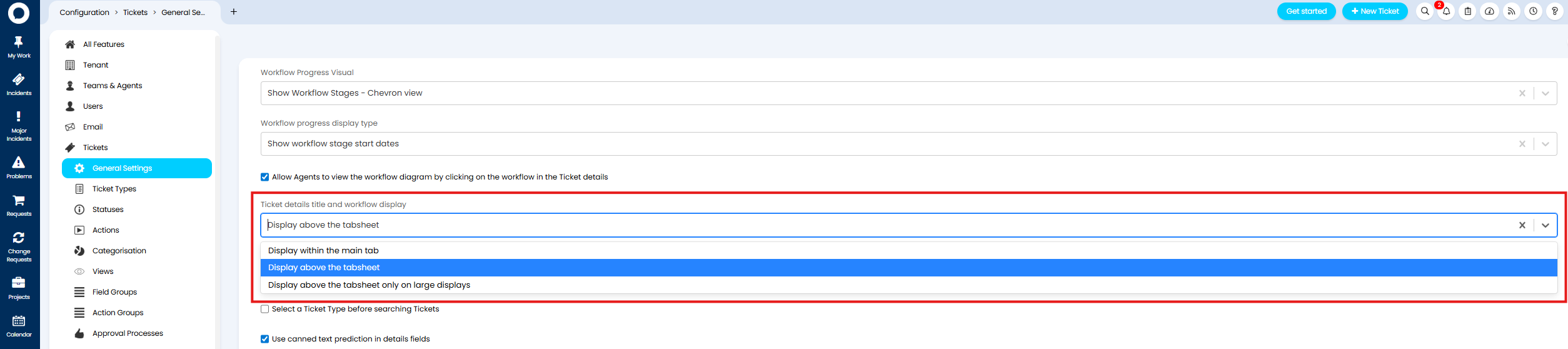
Fig 7. Setting to adjust where the Workflow Stage Display on Tickets sits
Customise How to Progress Feed Looks/is Organised
Set Actions to be in their own/the same Container
Actions within the Progress Feed can either each be in their own container (Figure 8) or all in the same container (Figure 9).
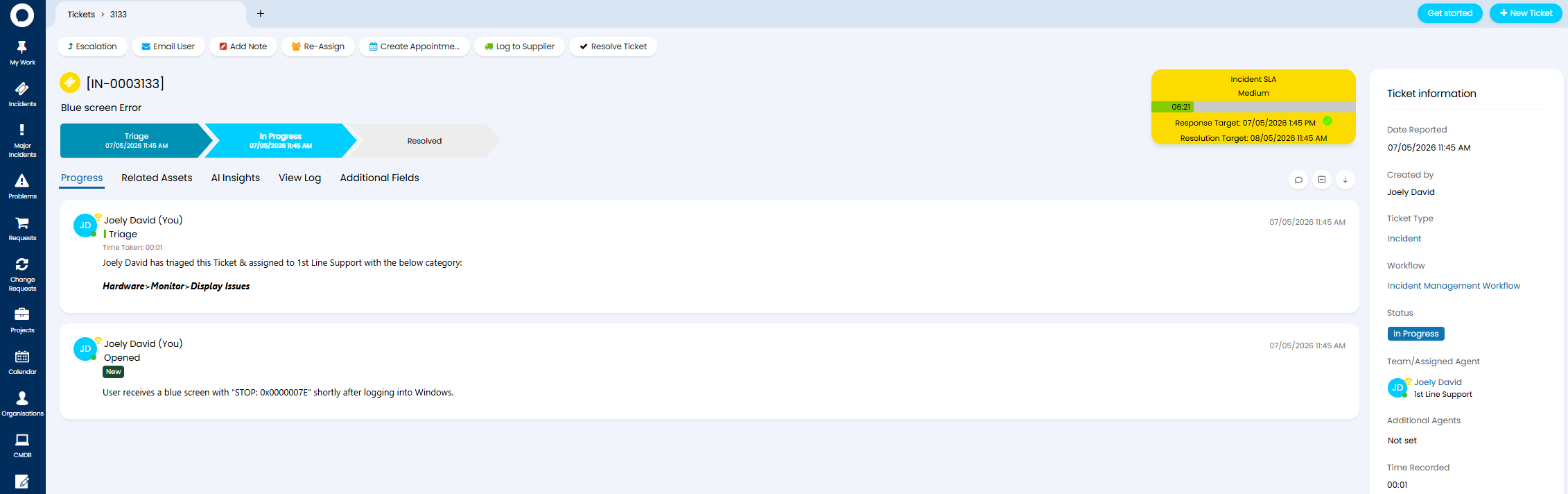
Fig 8. Each Action in it's own Container
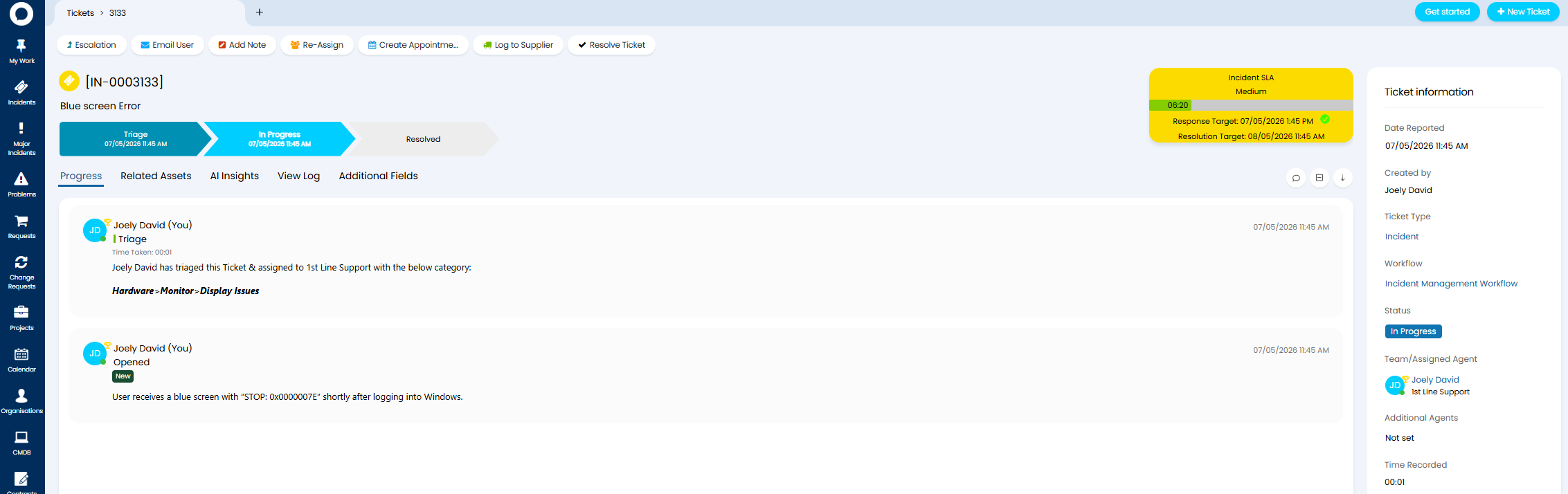
Fig 9. Actions in the same Container
To toggle if they are in the same container or not use the setting "Progress tab style" found under Configuration > Tickets > General Settings. Where the option "Standard" will result in actions being in the same container.

Fig 10. Setting to Toggle if Actions are in the same Container
Keep in mind if the Workflow Stage Display is set to sit inside the Progress Feed actions will always be in the same container. The setting shown in Figure 10 will not be available.
Organise Actions based on their Communication Channel (Email vs SMS vs internal)
All actions logged on a ticket will show in the progress feed but you can enable additional tabs that shows actions based on the communication channel the action was logged using. Useful if you have various forms of communication occurring in a single ticket as you can track each conversation separately.
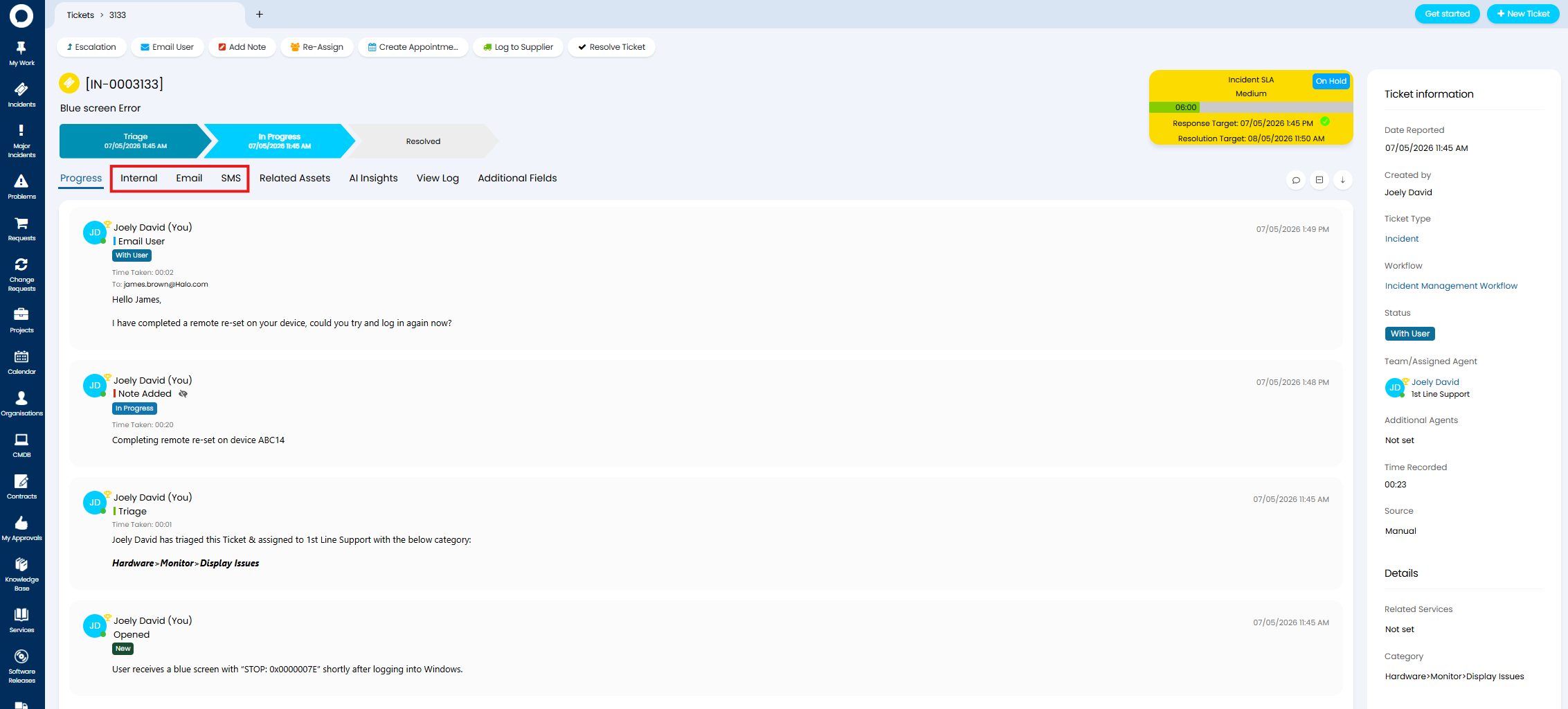
Fig 11. Additional tabs for each communication channel
Each of the tabs will only show actions that have been sent/received using that communication channel. The email tab for example will only show incoming and outgoing emails for the ticket.
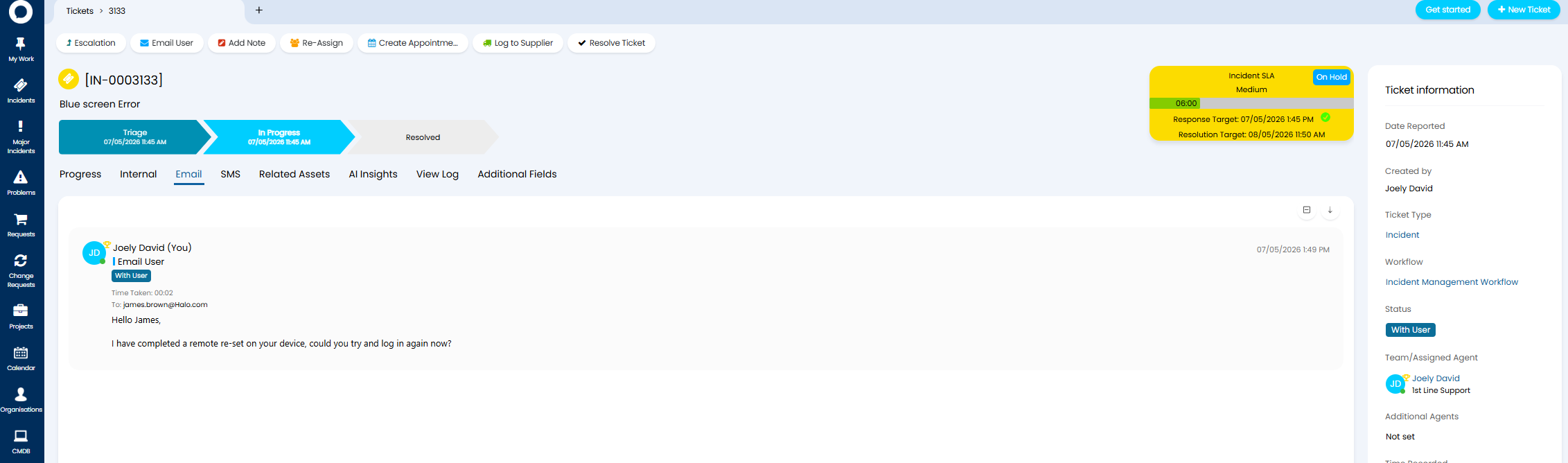
Fig 12. Email communication channel tab
To toggle this view on/off use the setting "Show a tab for each communication channel" found under Configuration > Tickets > General Settings.

Fig 13. Setting to show/hide a tabs for each communication channel on a ticket
Customise how the SLA Timer displays
The SLA timer can either show in the Ticket Details (Figure 14) or sit above the progress feed as a 'widget' (shown in Figure 15) for each ticket type.
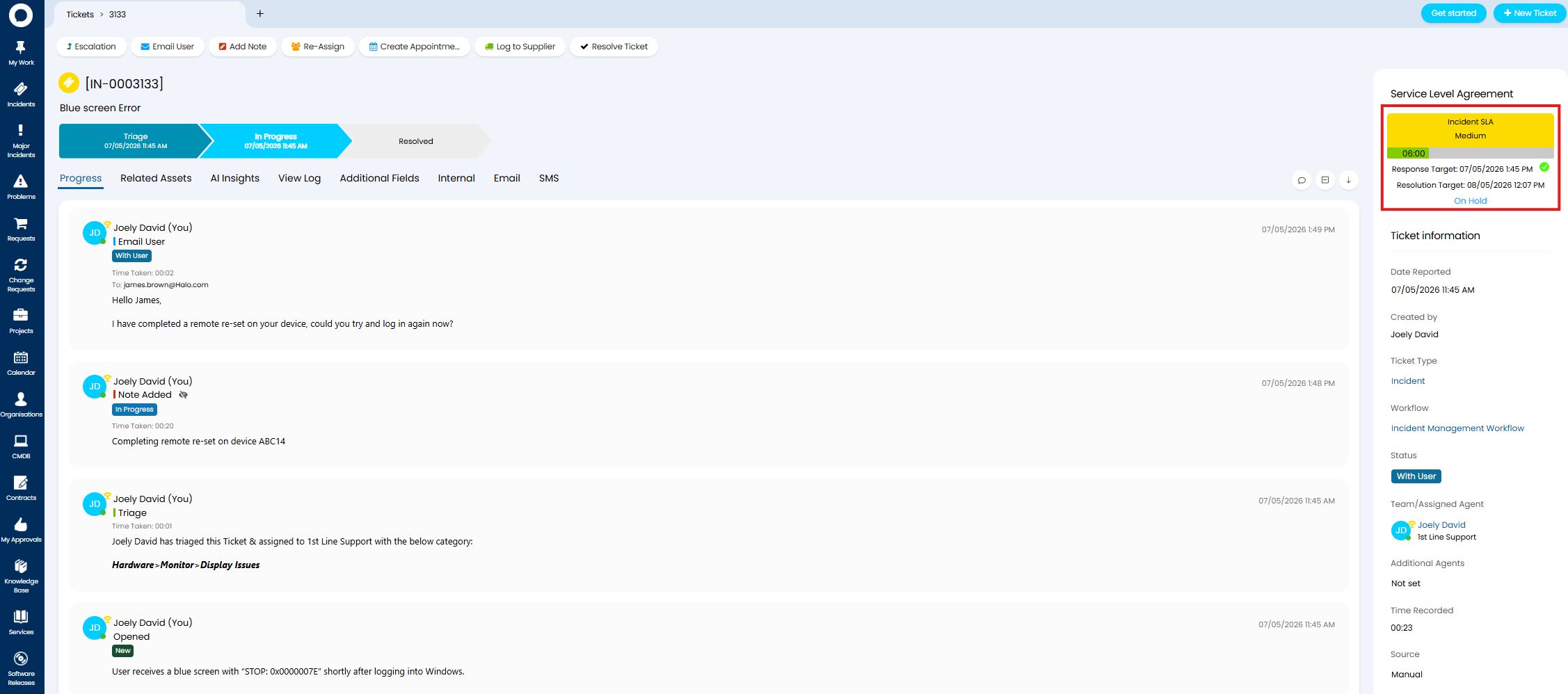
Fig 14. SLA Timer in Ticket Details
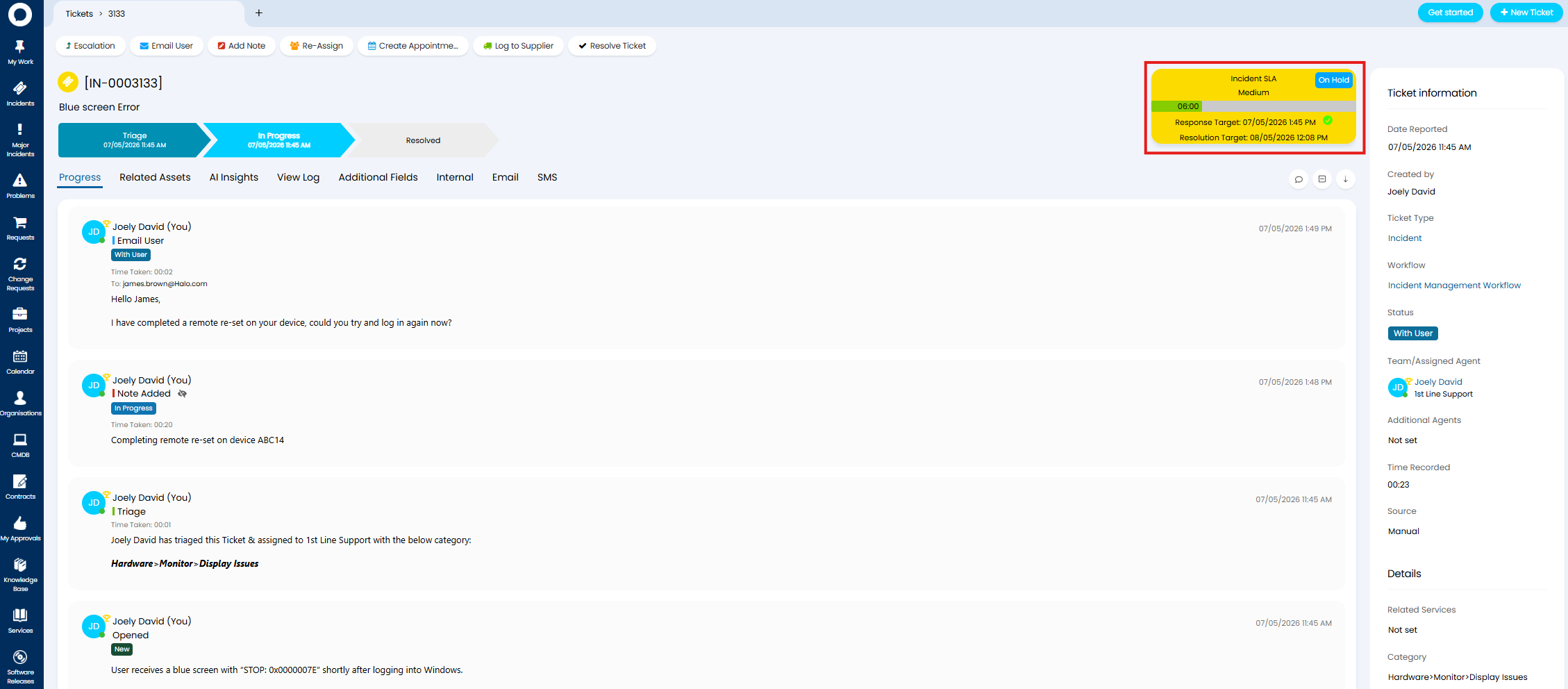
Fig 15. SLA Timer as a Widget
To toggle between these two available views head to Configuration > Tickets > Ticket Types > select a ticket type > Forms tab > toggle "Ticket Details Header Widget 1" and/or "Ticket Details Header Widget 2".
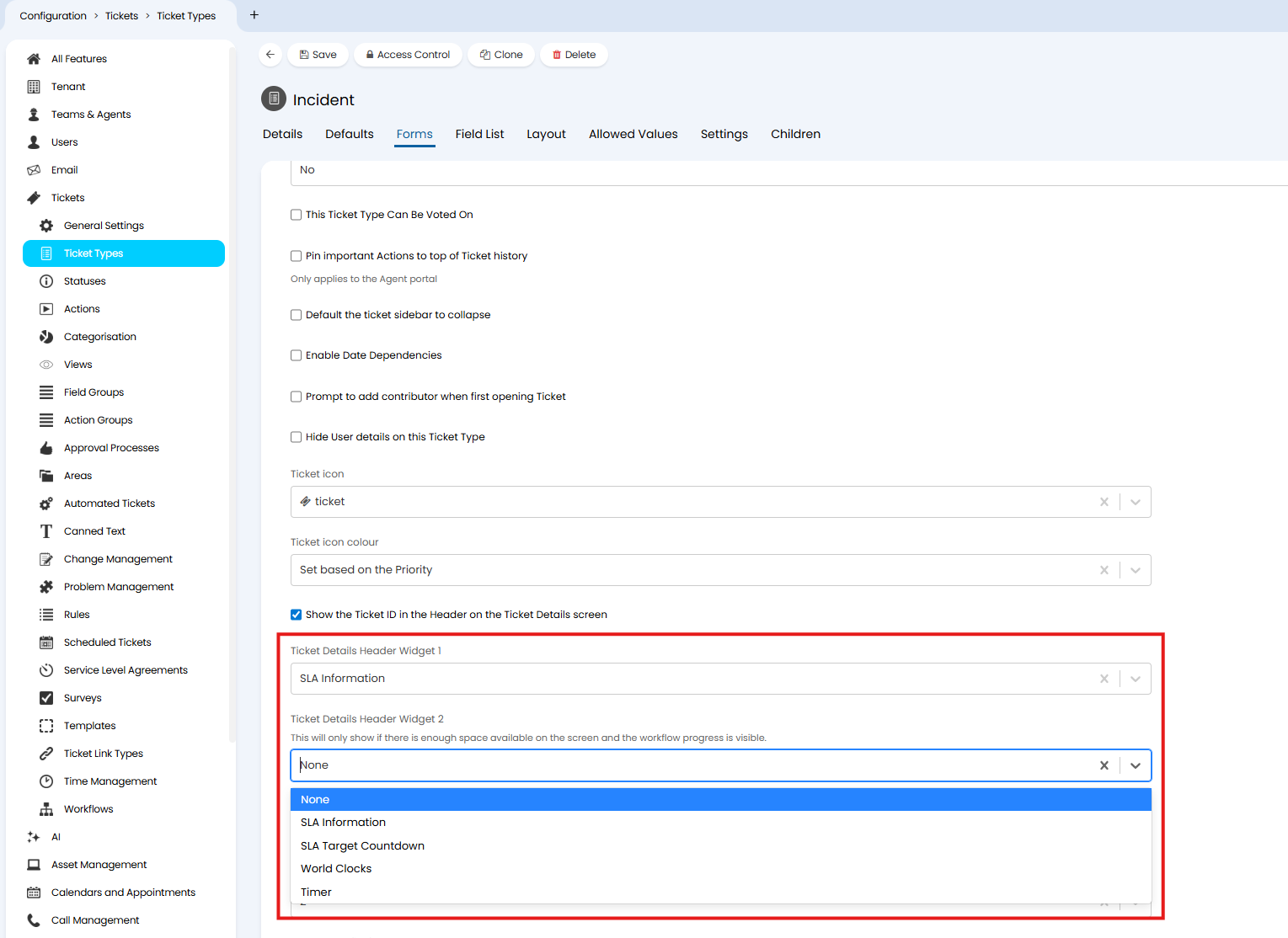
Fig 17. Setting to control where SLA timer displays
If either widget is set to "SLA Information" the SLA timer will show at the top of the ticket as a widget. If this is not selected for either widget (if no widgets or other widgets are chosen) the SLA Timer will show in the ticket details.
Show a Separate Progress Bar for Response an Resolution Targets
The SLA Timer can show a single progress bar (Figure 18) to represent how long an agent has left to meet the response target, once the response target is met, this bar will represent how long an agent has left to meet the resolution target. Alternatively it can show two bars at once (Figure 19), one for the response target, the other for the resolution.
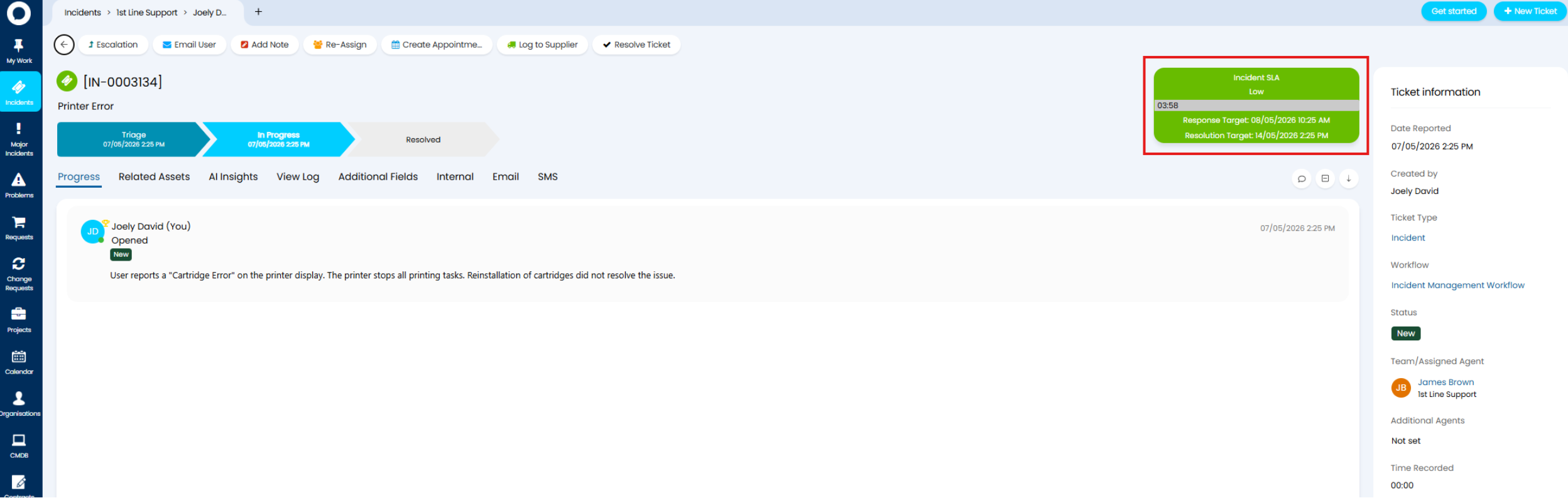
Fig 18. SLA Timer with Single Progress Bar
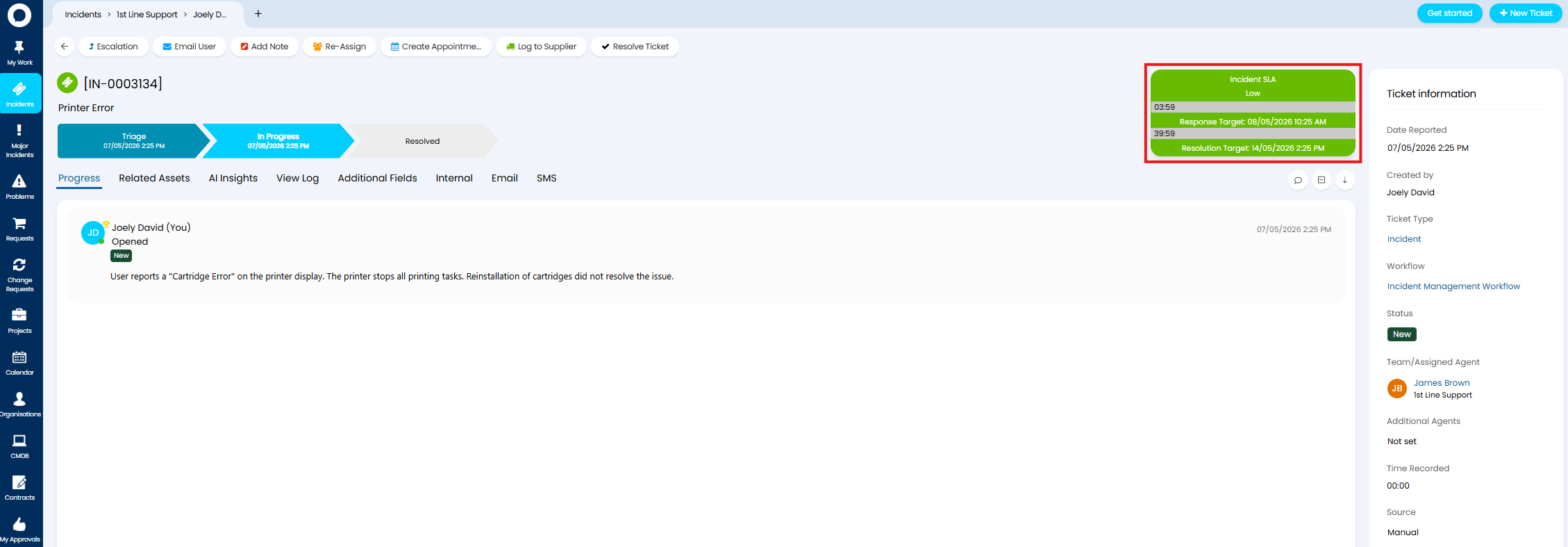
Fig 19. SLA Timer with Two Progress bars
To toggle between these options use the setting "Show a separate progress bar for Response and Resolution on the Ticket Details screen" found under Configuration > Tickets > General Settings.
When using two progress bars on the SLA Timer, the timer will
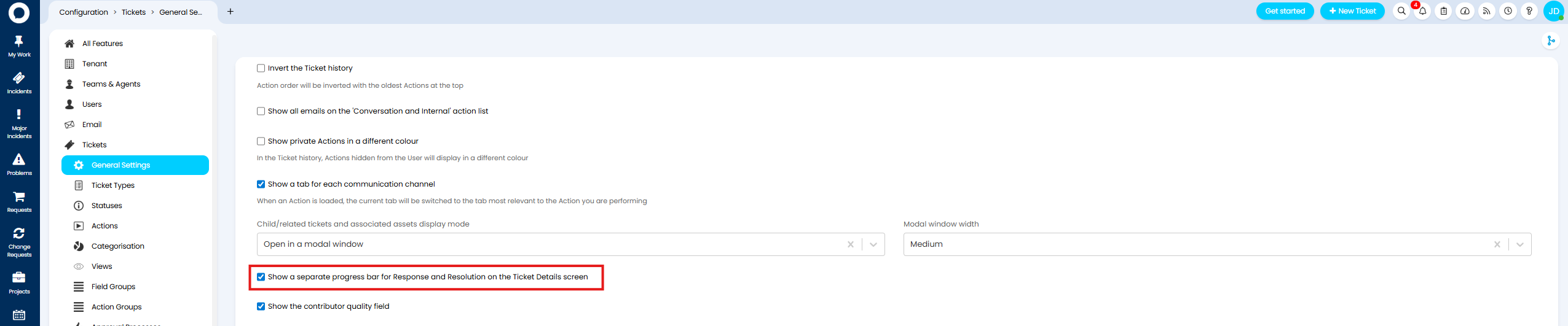
Fig 20. Setting to Show two SLA Progress bars
Keep in mind, a progress bar will hide once the target is met, therefore when using two SLA Progress bars, once each of the respective targets is met it's progress bar will be hidden.
Show SLA Target Countdown
An SLA Target Countdown widget can be added to each ticket type to show how many real time days/hours/minutes the agent has to meet SLA targets. This is shown in Figure 21.
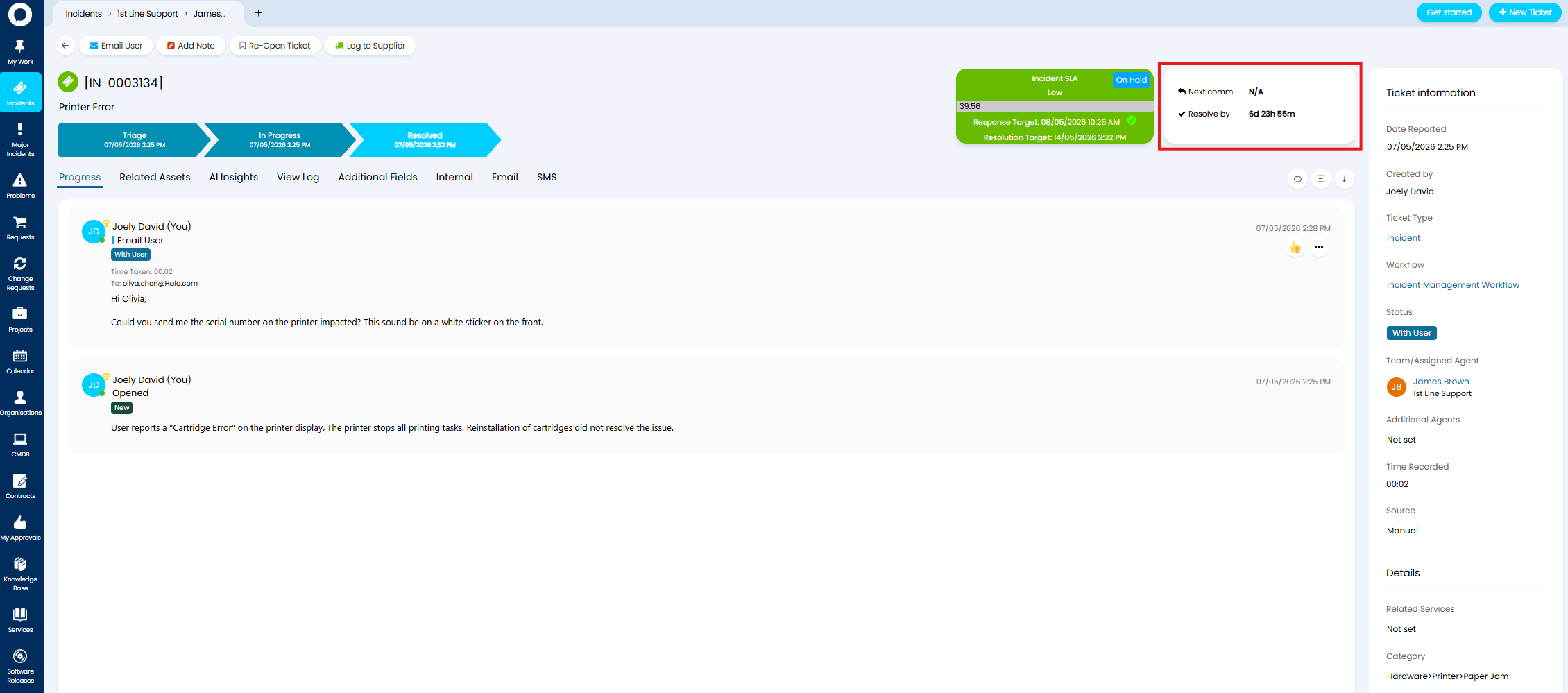
Fig 21. SLA Target Countdown widget
To have this show on a ticket head to Configuration > Tickets > Ticket Types > select a ticket type > Forms tab and choose "SLA Target Countdown" in "Ticket Details Header Widget 1" or "Ticket Details Header Widget 2".
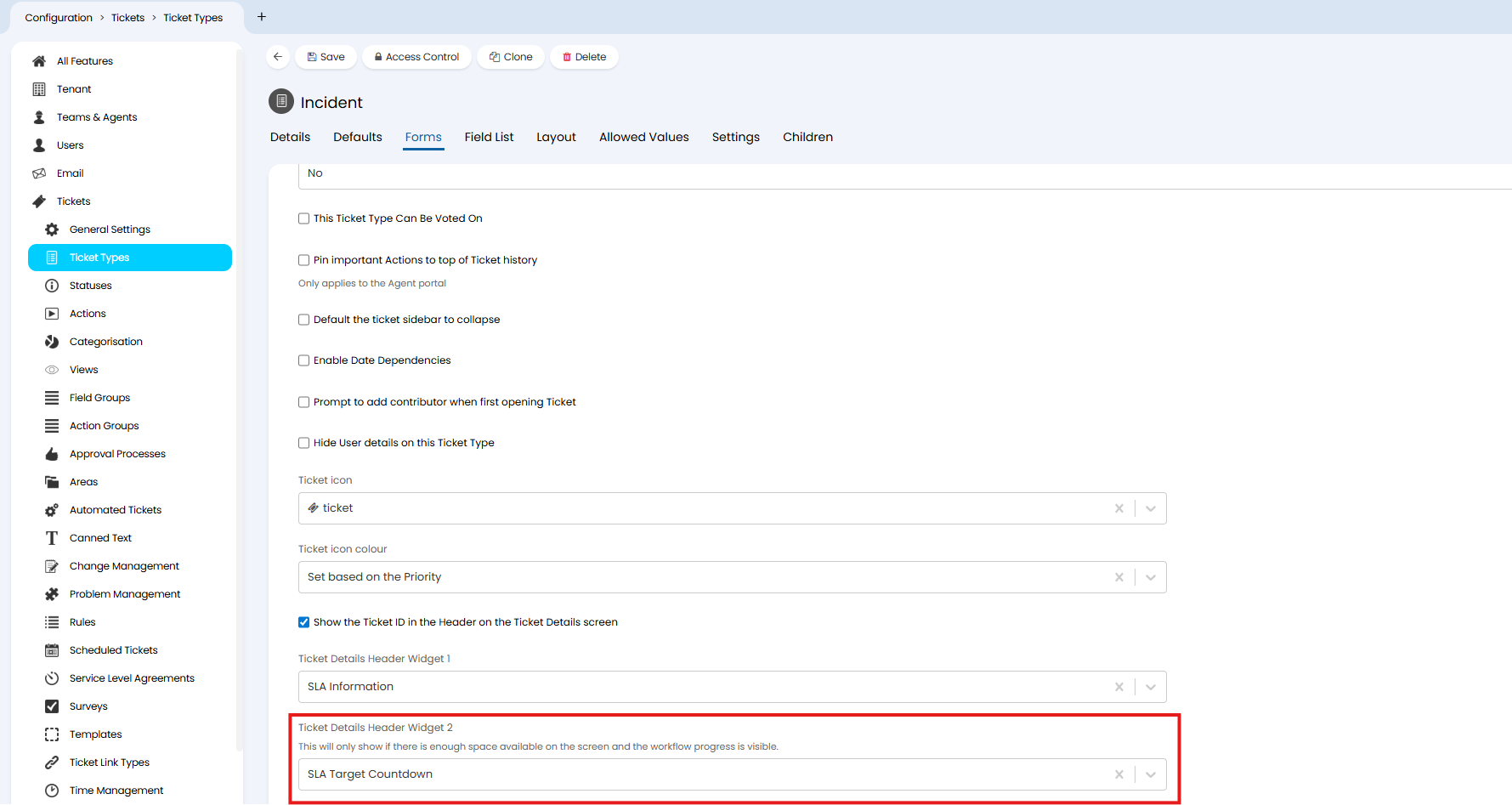
Fig 22. Add the SLA Target Countdown Widget to a ticket type
Customise when the Sidebar shows and the Information that shows here
Default if the Sidebar is Expanded or Collapsed
The sidebar can be set to be expanded or collapsed by default for each ticket type. When the sidebar is shown, you will see the Ticket Details pinned to the right hand side of the screen These will remain visible even when navigating to other tabs in the ticket, unless agents collapse this. It can be useful to use the sidebar as it makes key information about the ticket easily accessible but if you find this makes the screen too busy (such as when working on smaller screens), you can collapse the sidebar using the collapse icons shown in Figure 23.
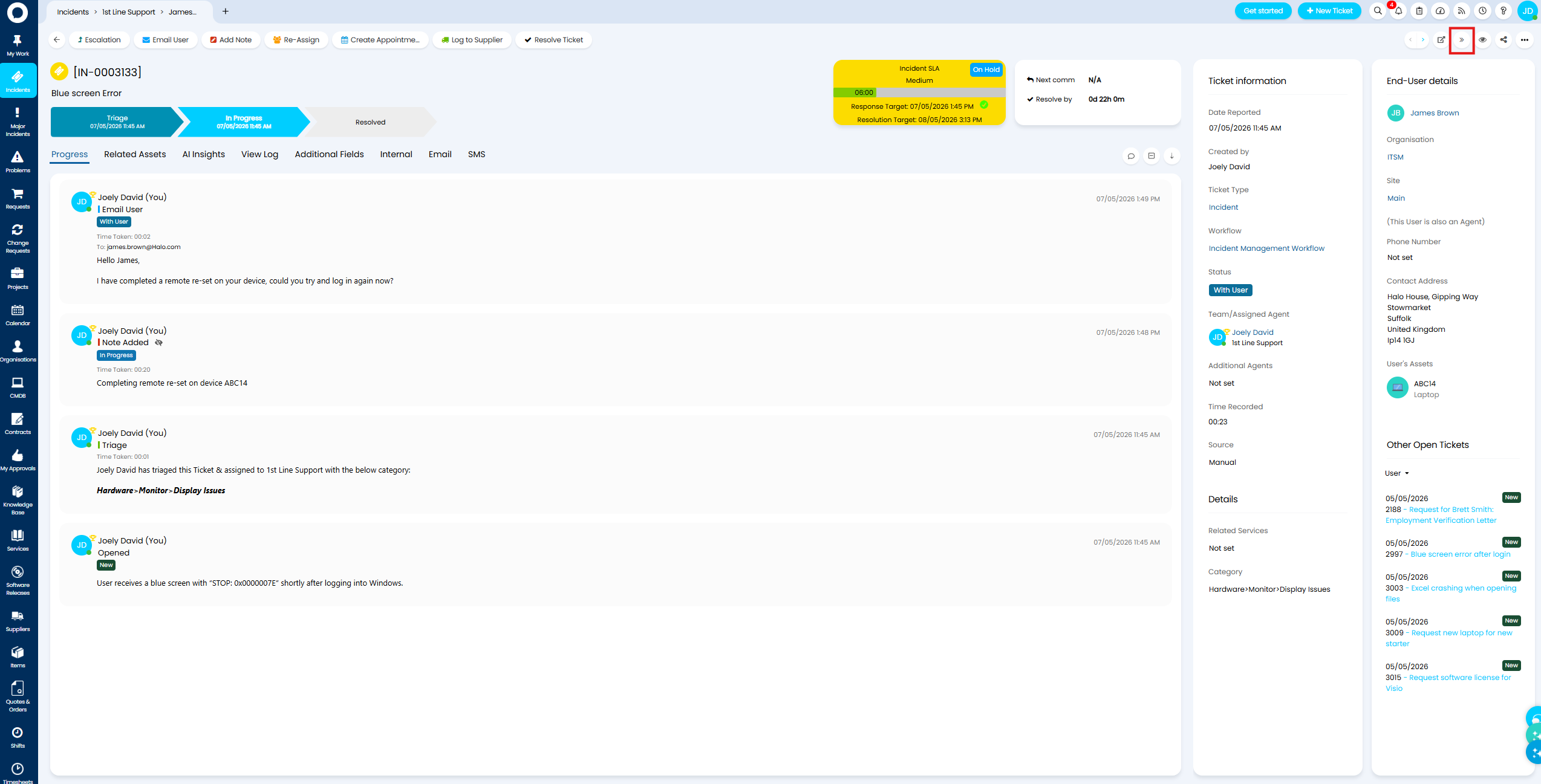
Fig 23. Ticket Sidebar
Note: When the Sidebar is collapsed, the information in it will instead be available in a separate tab, until it is expanded again.
To default if the sidebar is expanded/collapsed when initially opening a ticket head to Configuration > Tickets > Ticket Types > Forms tab > toggle "Default the ticket sidebar to collapse".
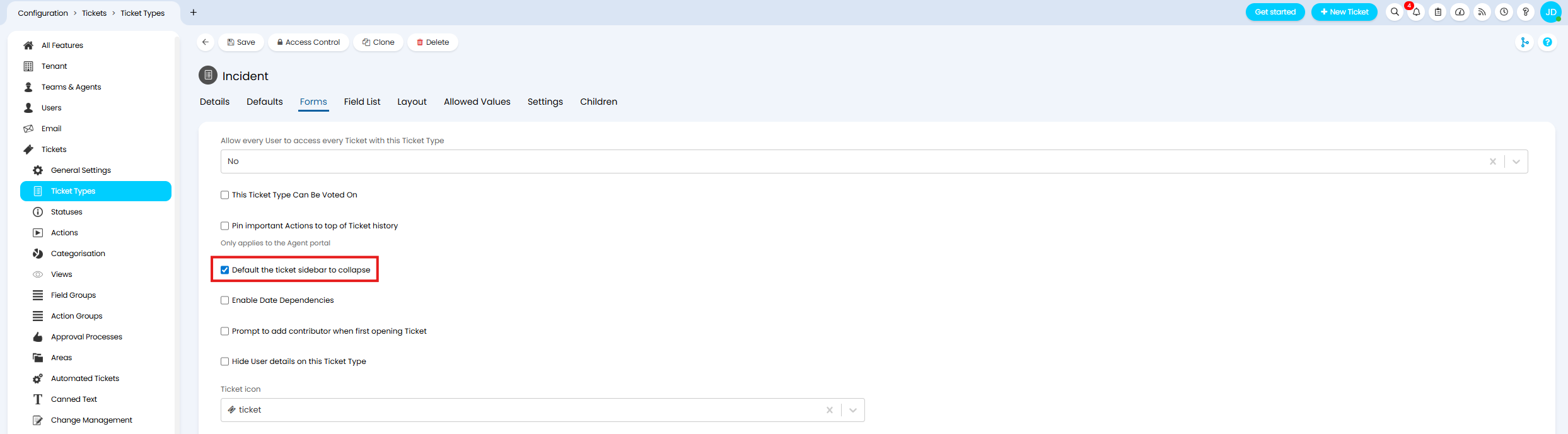
Fig 24. Setting to control if the sidebar is collapsed or not by default for tickets of this type
When checked, the sidebar will be collapsed by default.
Hide the Sidebar
If you would not to use the Sidebar at all for certain ticket types you can remove the Sidebar and instead have all ticket details shown in a tab.
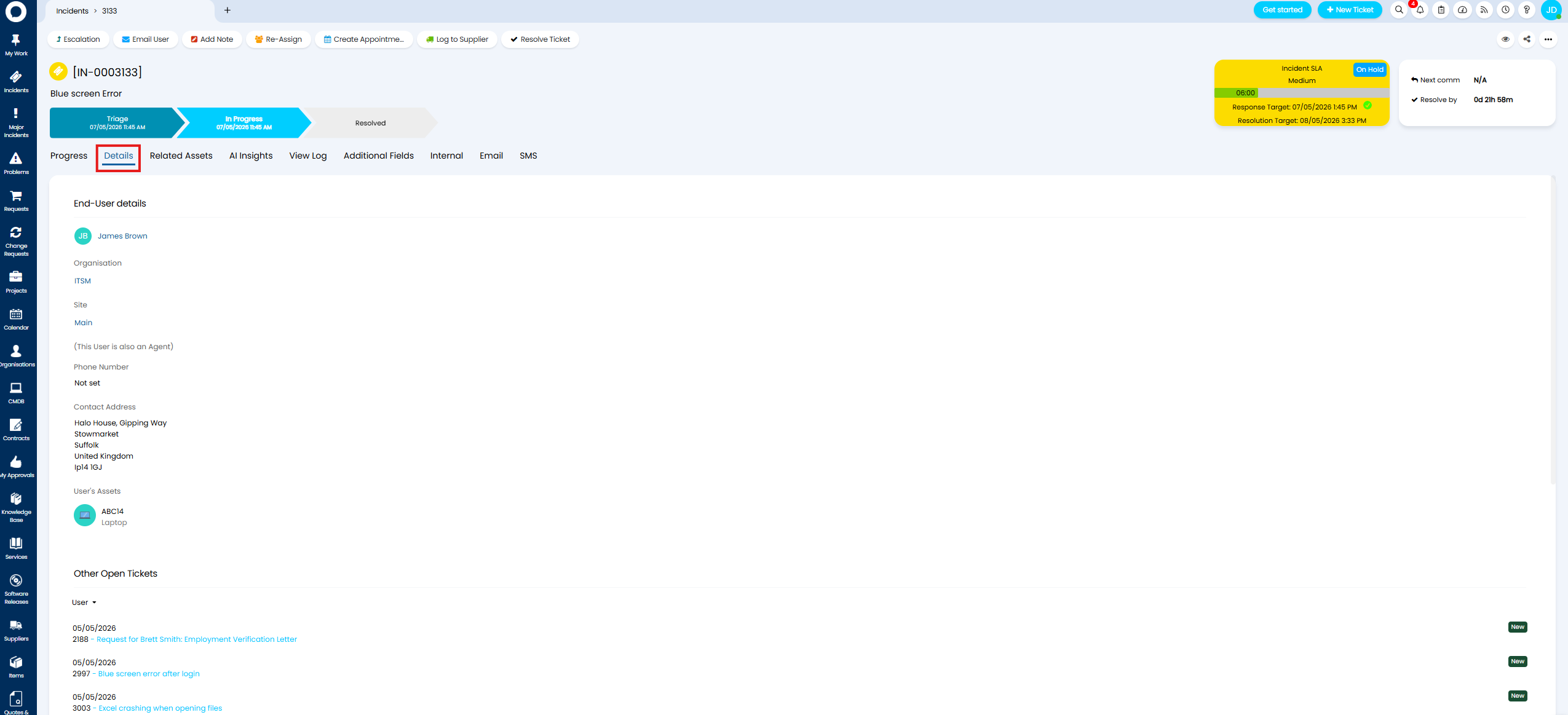
Fig 25. Ticket Details showing in Tab when Sidebar removed
To remove the Sidebar head to Configuration > Tickets > Ticket Types > select a ticket type > Forms tab > set "Maximum number of Sidebar Columns" to be "0".
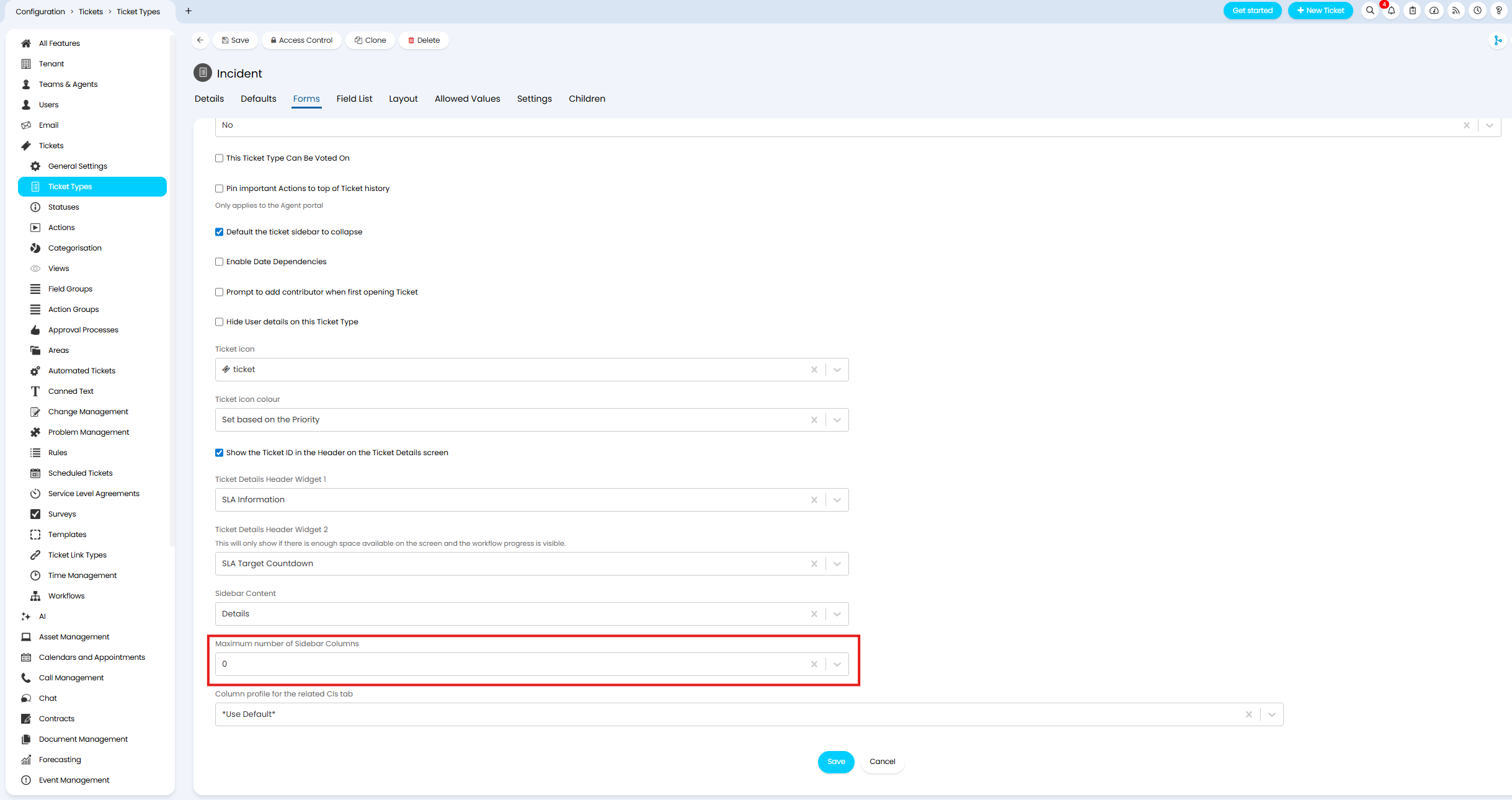
Fig 26. Maximum number of Sidebar columns set to 0
Note: This setting (and the ability to disable the Sidebar) will only be available when the "Sidebar Content" is set to be "Details".
Show the Progress Feed in the Sidebar
The Progress Feed of the ticket can be set to be shown in the sidebar, rather than in it's own tab, with the ticket details then showing in their own tab instead ('swapping' them over).
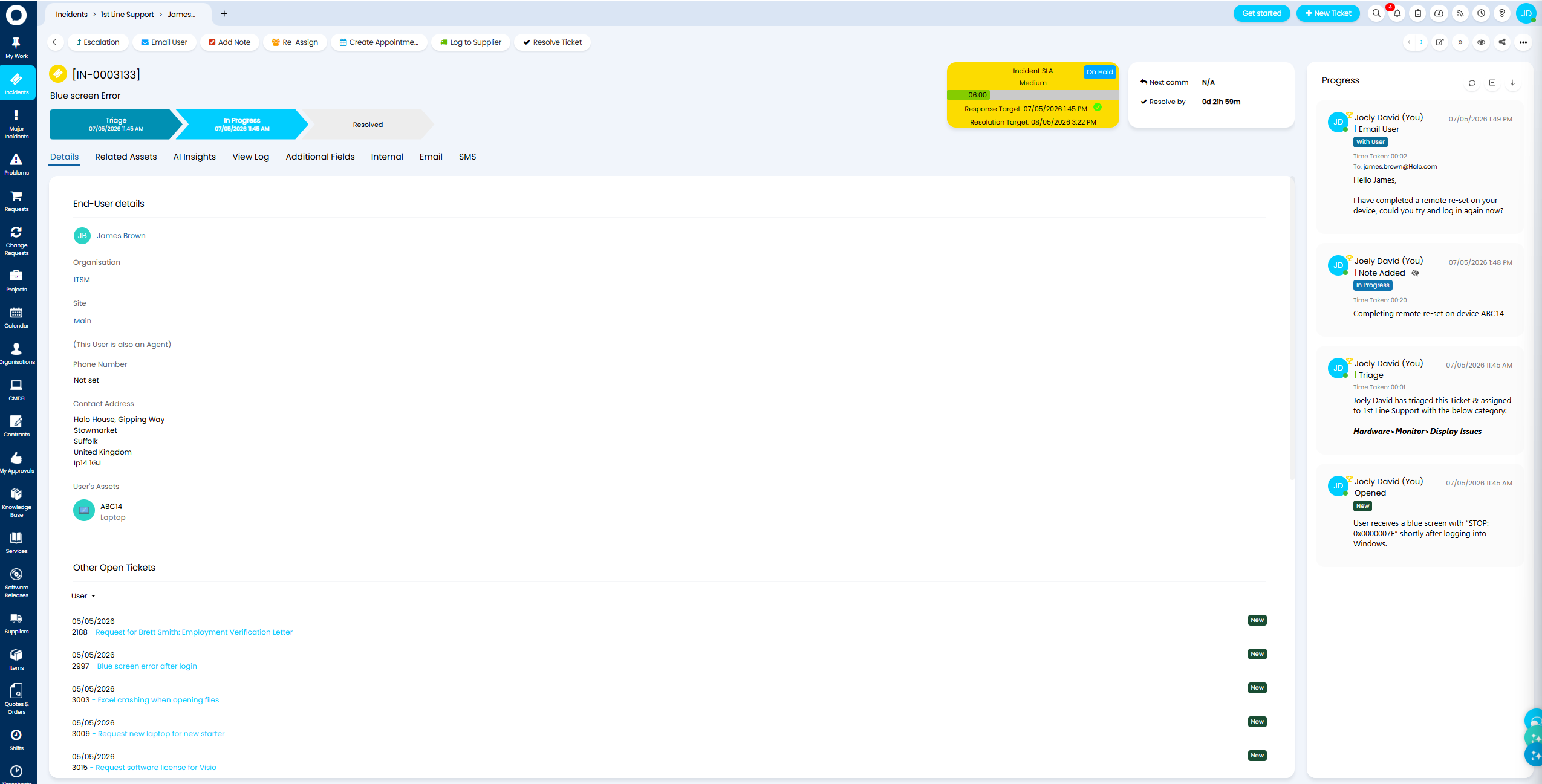
Fig 27. Progress Feed in Sidebar
To show the progress Feed int he Sidebar head to Configuration > Tickets > Ticket Types > Forms tab > set "Sidebar Content" to "Progress".
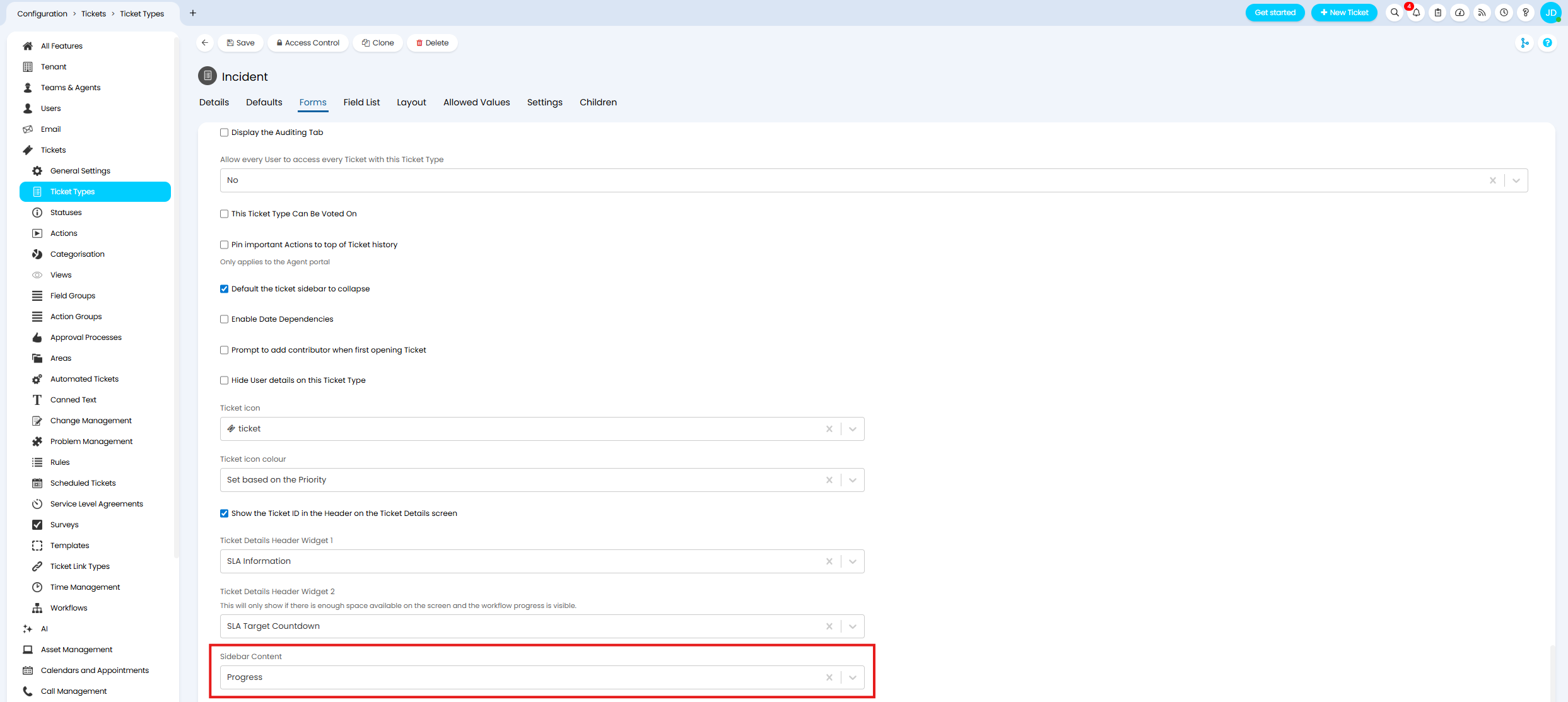
Fig 28. Set the Progress Feed to show in the Sidebar for Tickets of this Type
Set How many Sidebar Columns there are
When Ticket Details are set to show in the Sidebar, you can choose how many columns are used to organise these details in the Sidebar. Figure 29 shows the sidebar using two columns, Figure 30 shows it using one.
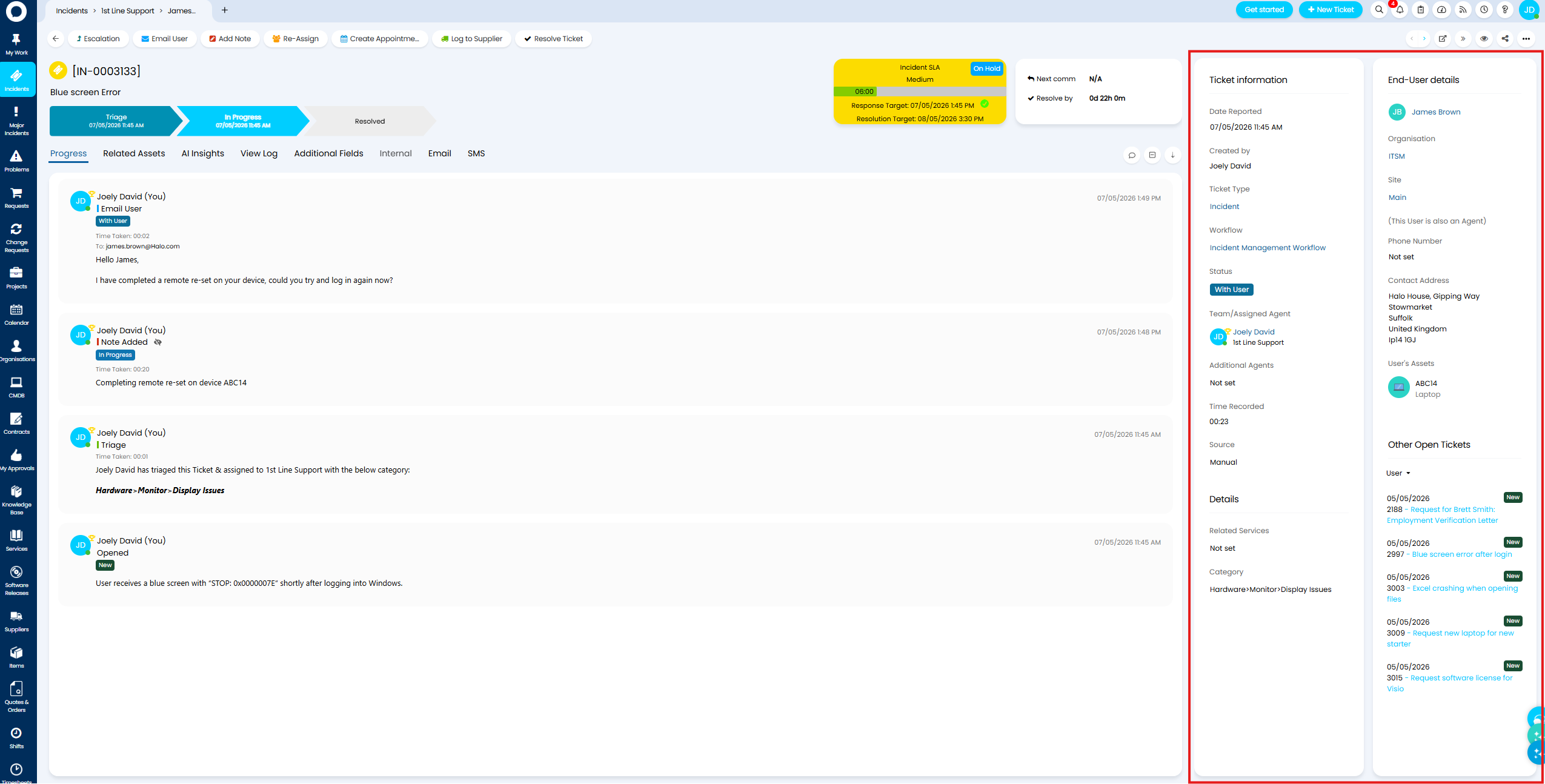
Fig 29. Sidebar with two columns
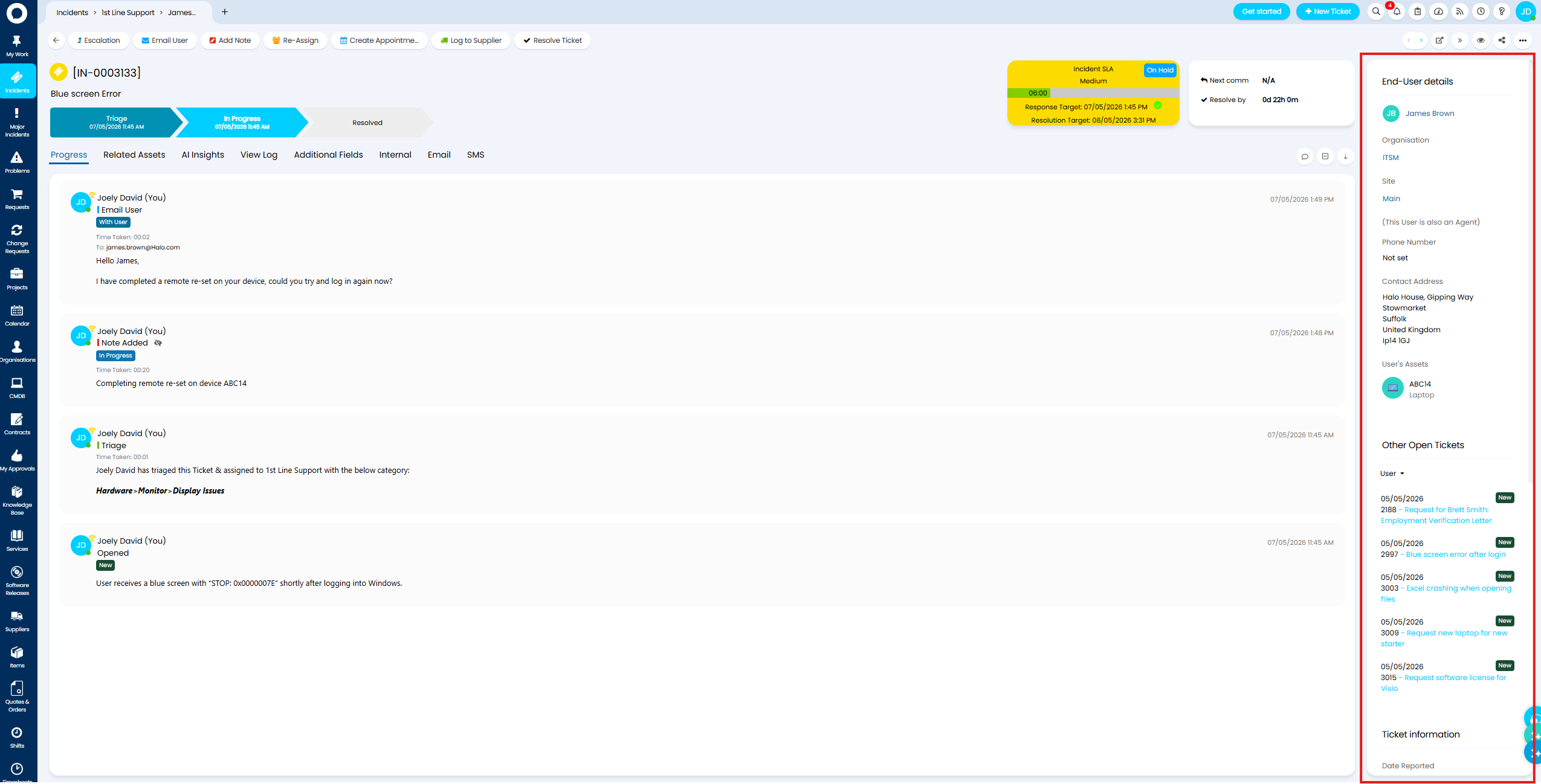
Fig 30. Sidebar with one column
Set how many columns are used per ticket type, under Configuration > Tickets > Ticket Types > Forms tab > toggle "Maximum number of Sidebar Columns".
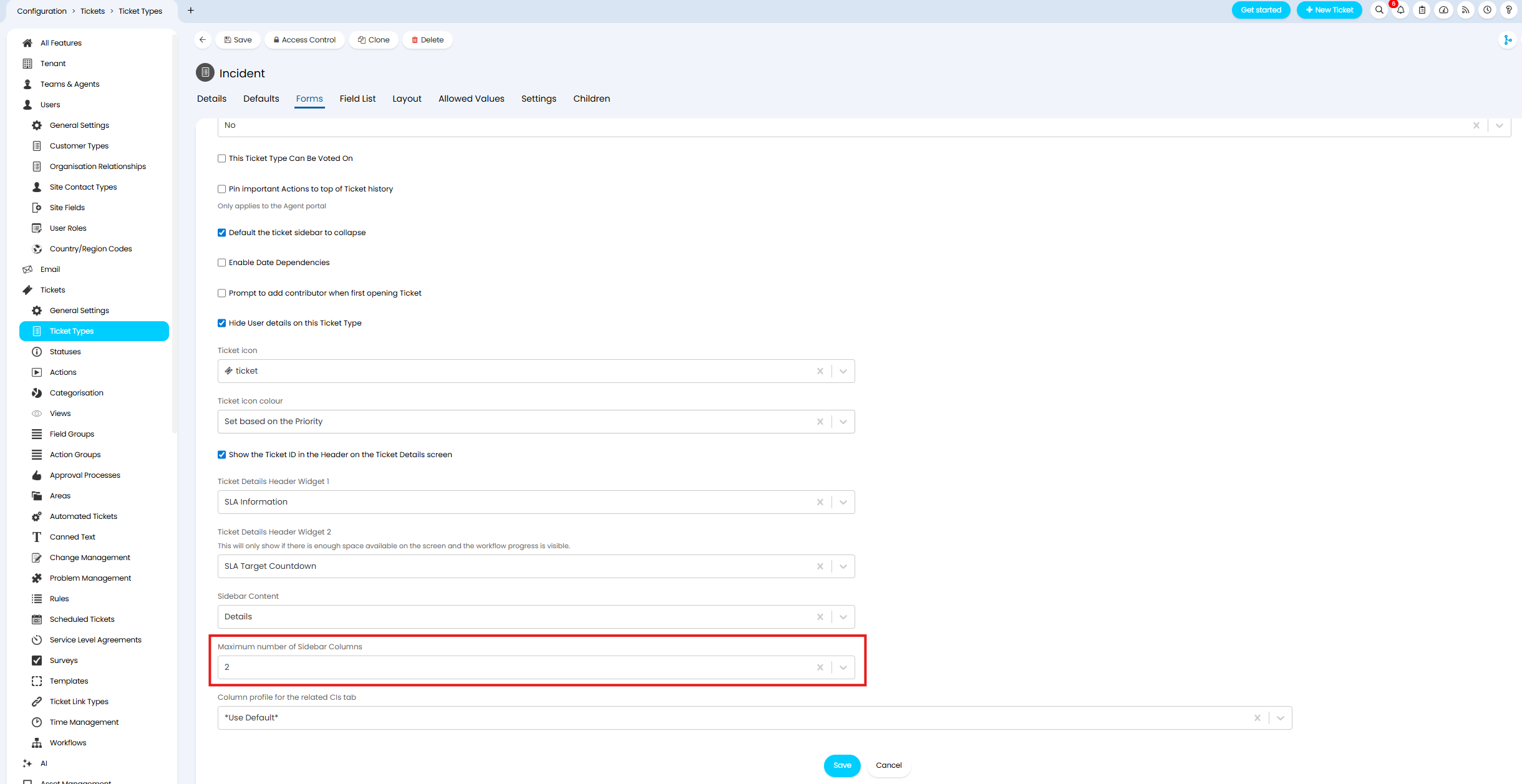
Fig 31. Set how many columns are used in the Ticket Details
When using two columns one column will contain information about the ticket, the other will contain all the information about the end user (or entities relating to the end user) of the ticket.
Customise the Information that is shown within the Ticket Details
Show/Hide "Other Open Tickets" for User, Site, Customer, Asset, Organisation and Supplier Tickets
The "Other Open Tickets" section in the Ticket Details shows other tickets that are currently open for the same user, site, customer, asset, organisation or supplier as this ticket. The dropdown here allows you to toggle between the other open tickets for each of these entities.
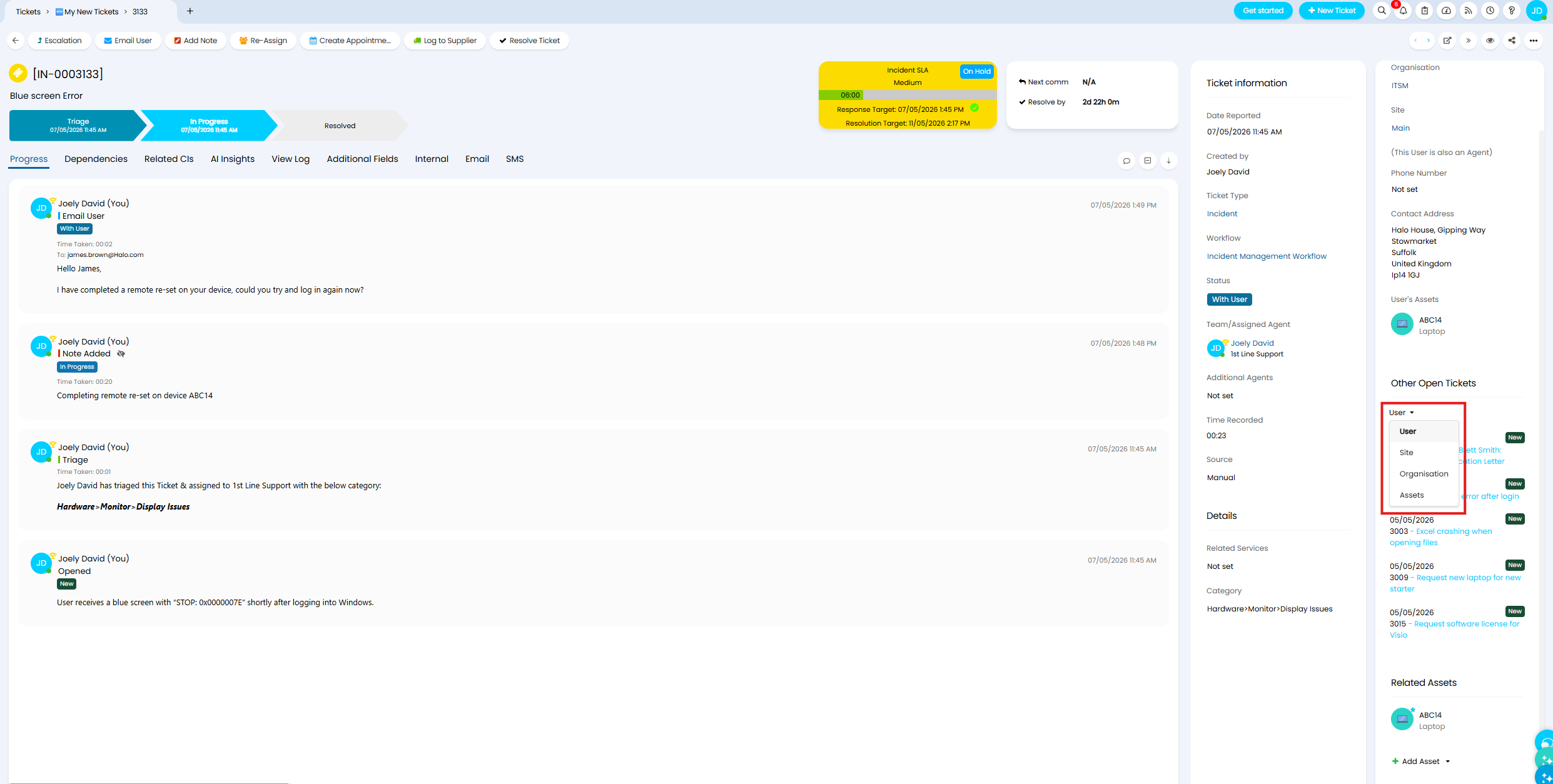
Fig 32. Toggle between the other open tickets for different entities
Note: The asset option in the dropdown will only show if the ticket has a related asset.
To toggle if "Other Open Tickets" show, and which entities you can view other open tickets for, head to Configuration > Tickets > Ticket Types > select the ticket type > Settings tab > Related Activity section. Here, you can use the checkboxes highlighted in Figure 33 to toggle the information in this section. If none are enabled, the section will not show on the ticket type.
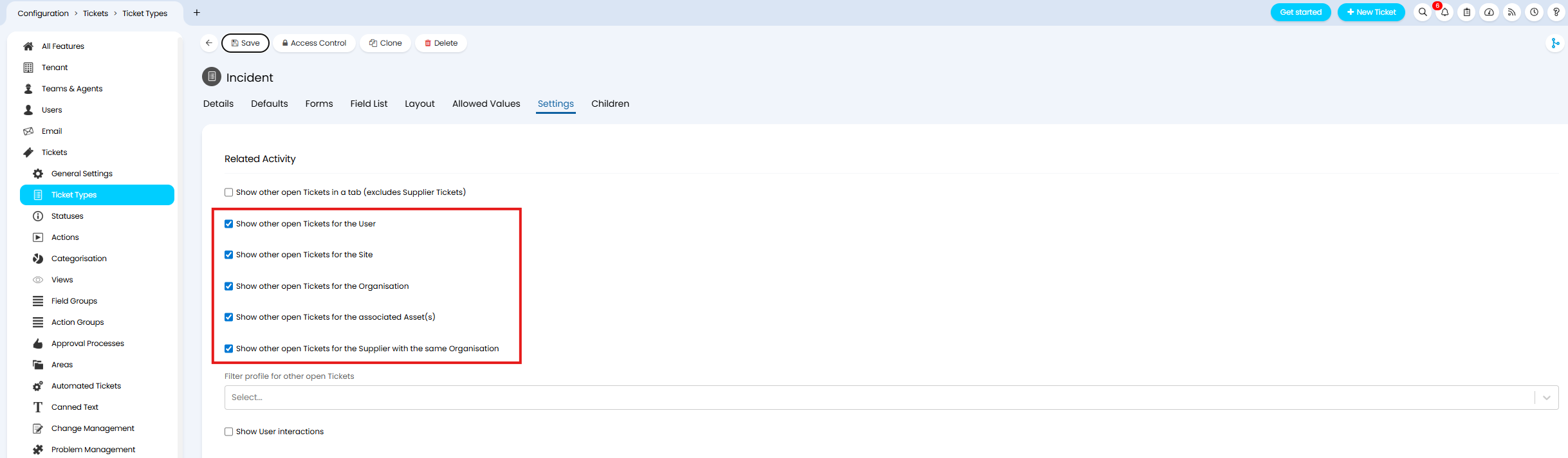
Fig 33. Settings to toggle if the other Open Tickets section shows
If you would like this information to be in it's own tab, rather than in the ticket details enable "Show other open Tickets in a tab (excludes Supplier Tickets)".
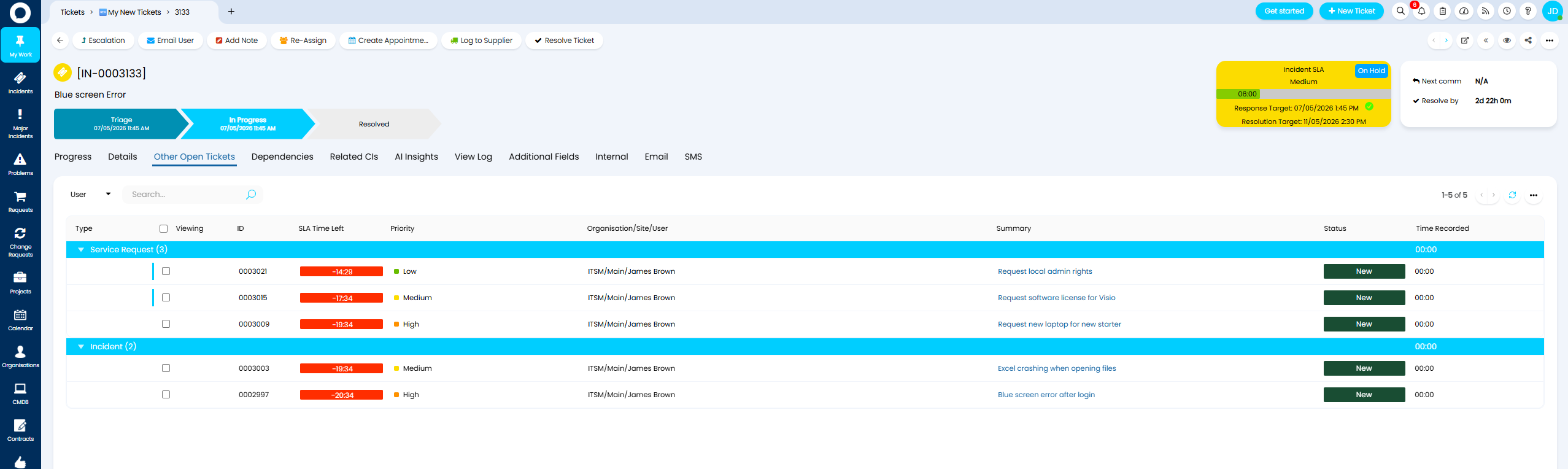
Fig 34. Other Open Tickets displaying in own Tab
Customise the Filter Profile used for the "Other Open Tickets" section
You can customise the filter profile that is used on the tickets within the "Other Open Tickets" section per ticket type. Useful if you would like to control whether all tickets show (even closed tickets) or only have currently open tickets show here. Or if you have a custom filter profile that you would like to use.
To set the filter profile used, head to Configuration > Tickets > Ticket Types > select a ticket type > Settings tab > use "Filter profile for other open Tickets" to choose the filter profile you would like to use here.
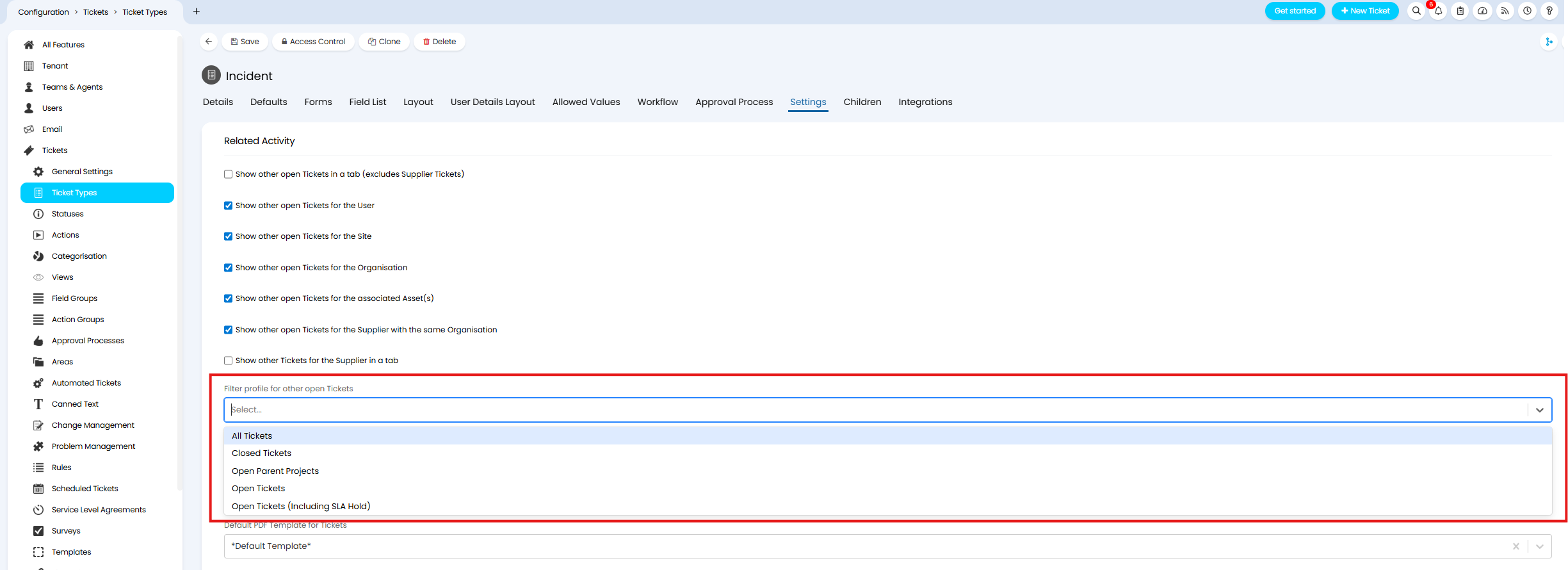
Fig 35. Setting to Control the filter profile used for the Other Open Tickets Section
Show/Hide User Interaction information
'User Interactions' show all the most recent interactions that have taken place for the end user of the ticket. Selecting an interaction will open the action (and ticket) the interaction took place on.
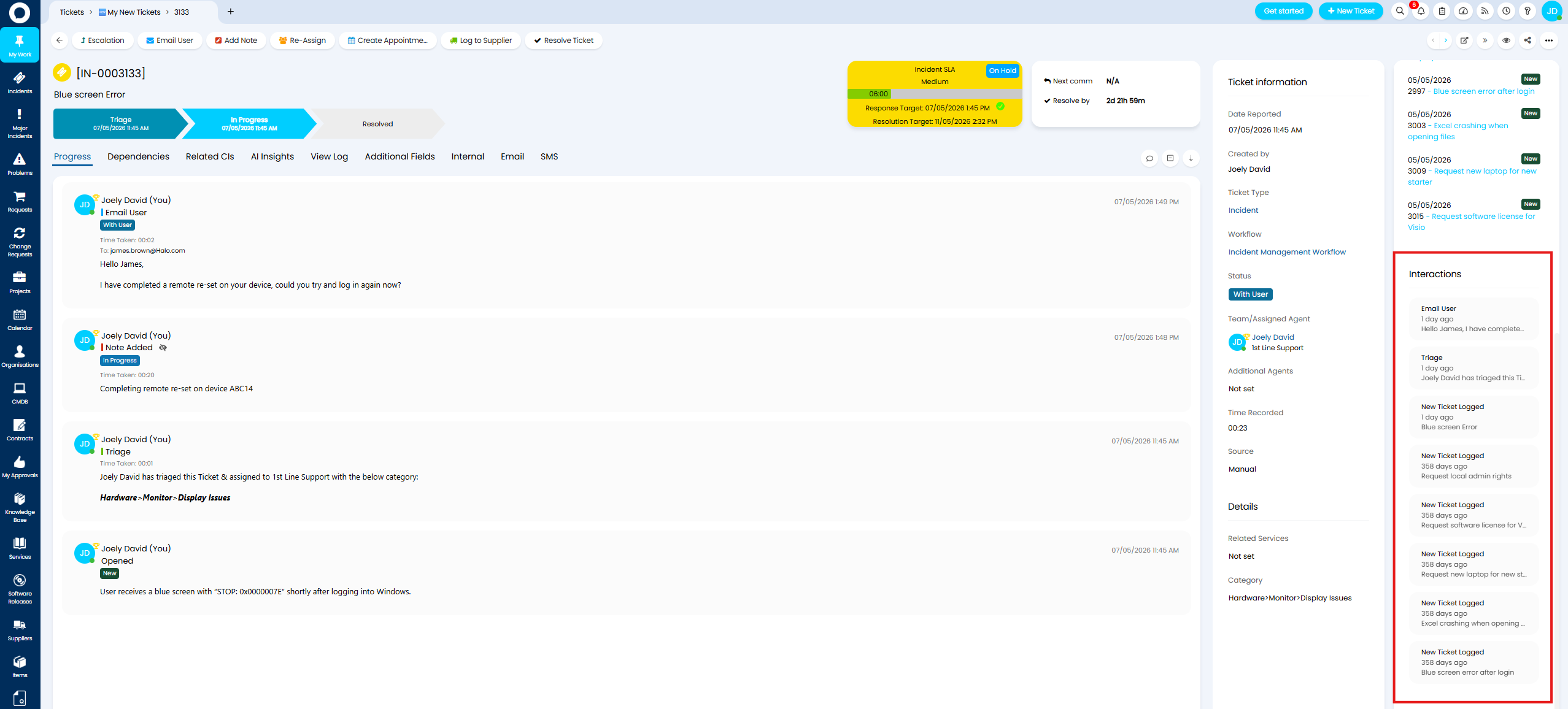
Fig 36. User Interactions
To toggle if this information shows in the ticket details head to Configuration > Tickets > Ticket Types > select the ticket type > Settings tab > Related Activity section > toggle "Show User interactions".
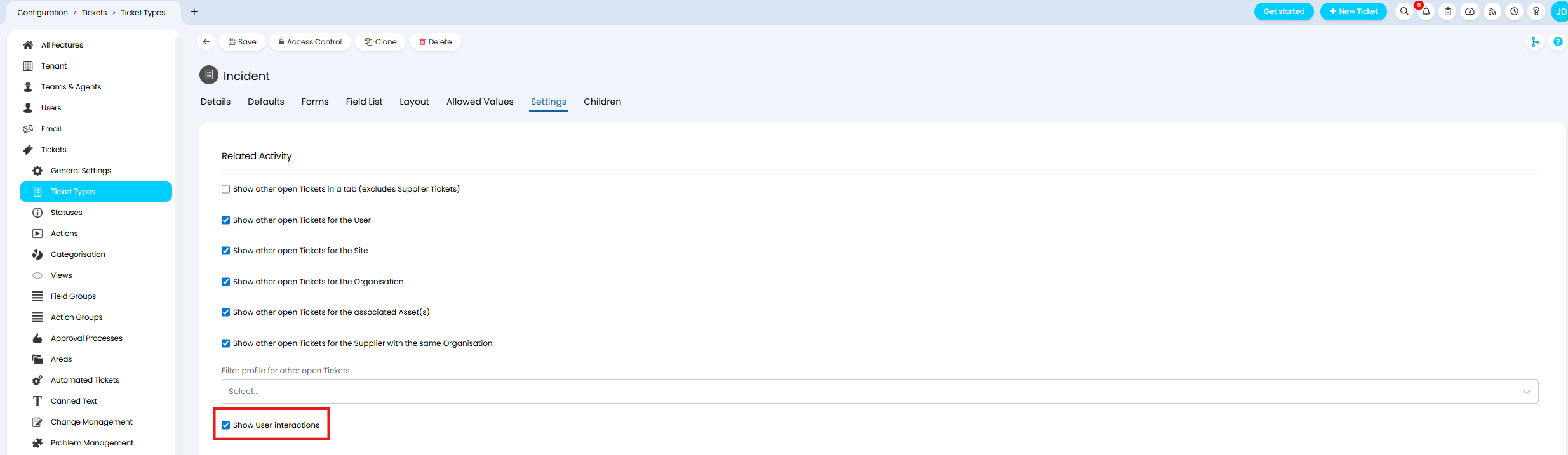
Fig 37. Setting to toggle if User Interactions show in Ticket Details
Show/Hide/Move Related Asset Information
The Related Assets information will show all the assets that are related to the ticket.
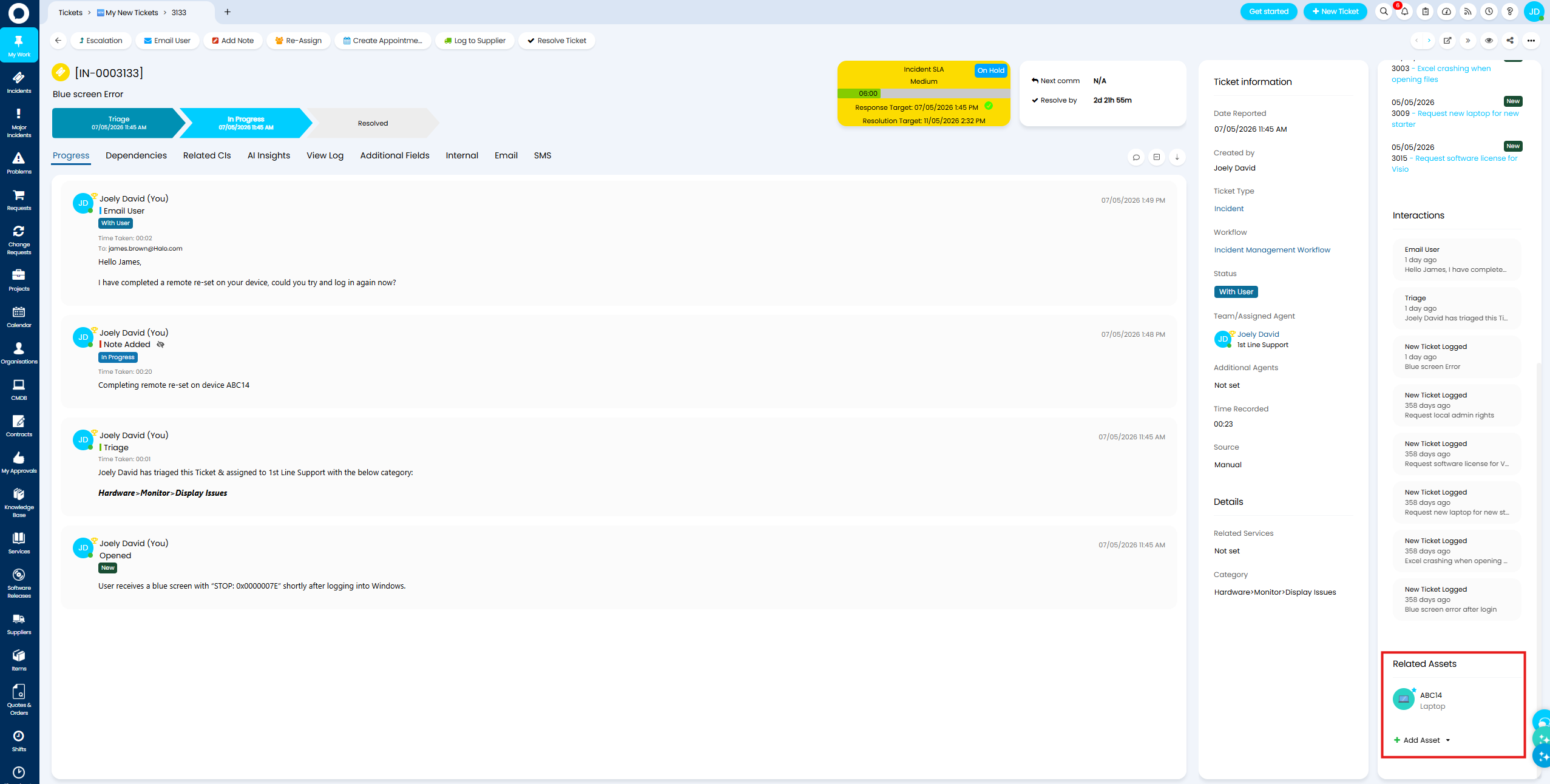
Fig 38. Related Assets information
Whether this shows will depend on if the "Asset" field is in the field list of the ticket type. Where this shows will depend on the visibility settings of this field.
To set if Related Asset information shows, head to Configuration > Tickets > Ticket Types > select the ticket type > Field List. Add the "Asset" field to have this information show, remove this to remove this information.
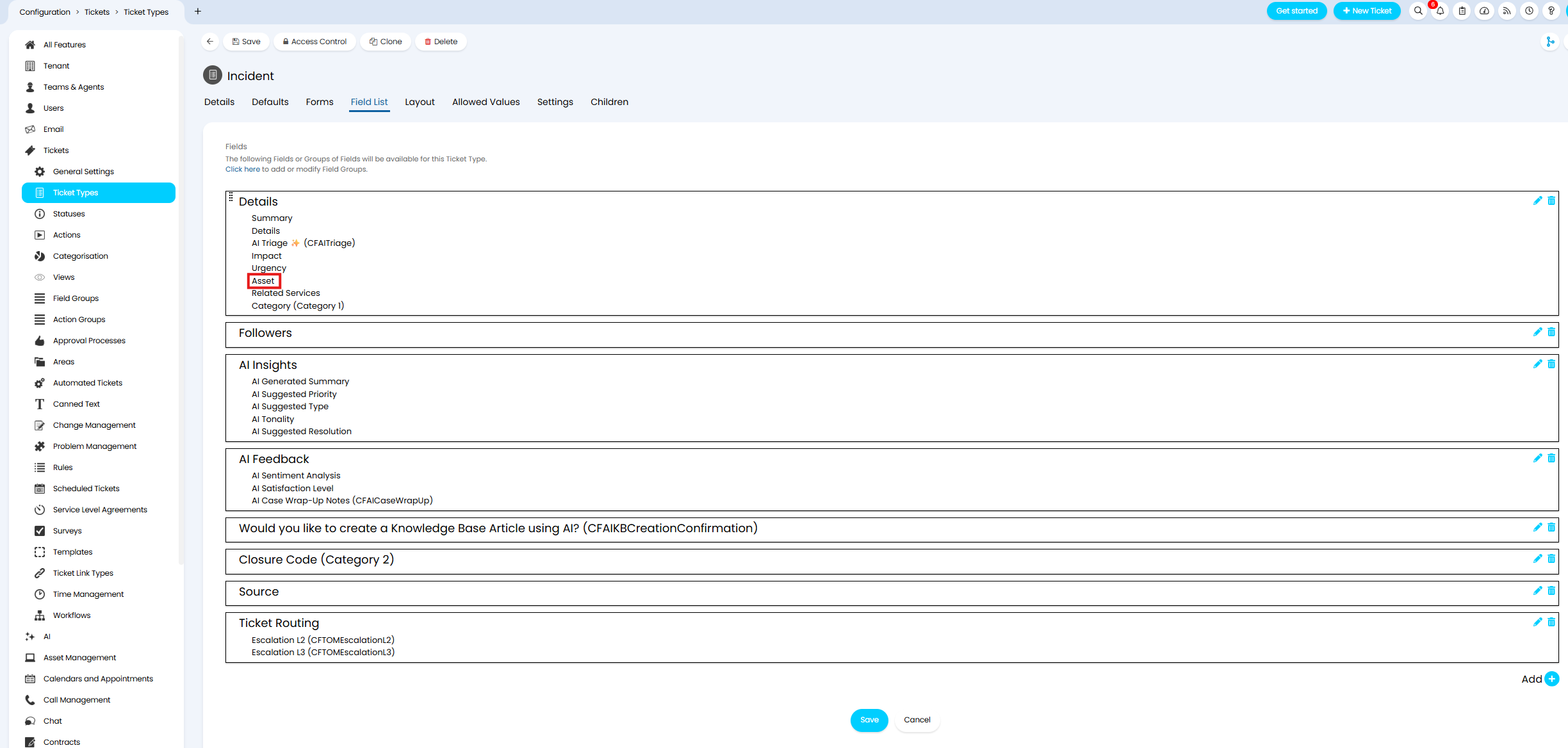
Fig 39. Asset Field on Ticket Type
To control where this information shows, edit the "Asset" field on the ticket type and use "Agent Ticket Details Screen Visibility" to control where you would like this to show.
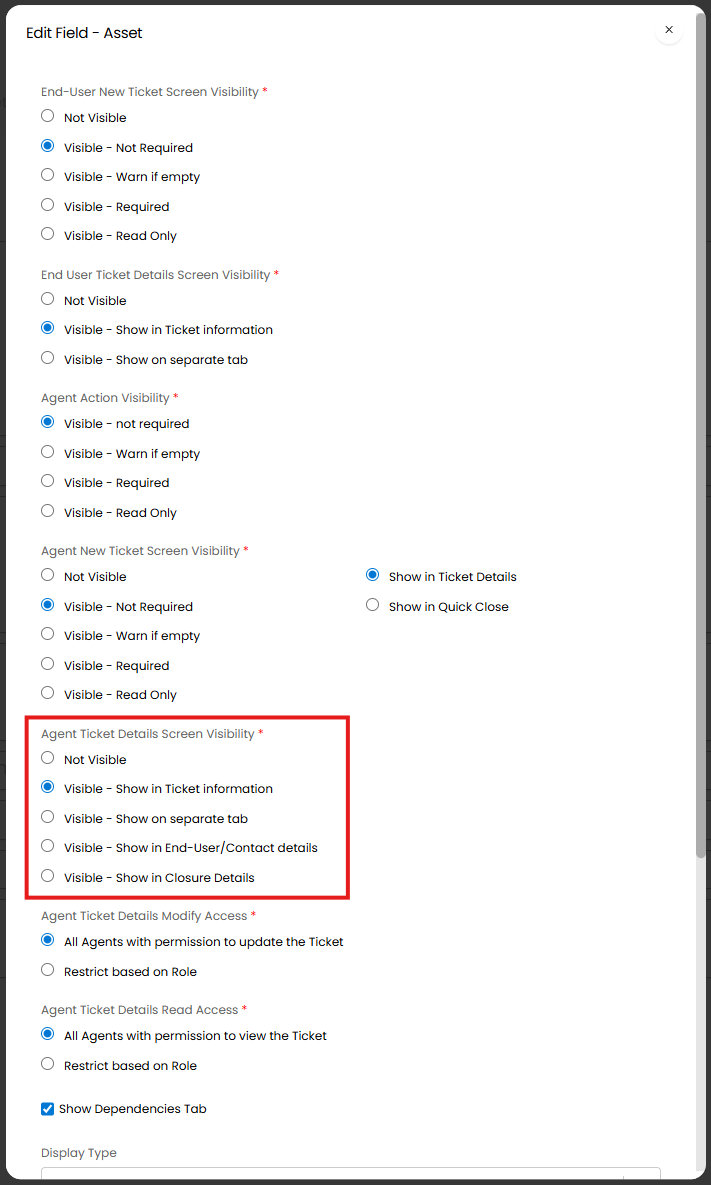
Fig 40. Setting to control where Related Asset information shows
Show/Hide Ticket Fields in the Ticket Details
Both custom and system ticket fields can be set to show in the ticket details. Useful when you are storing some key information in a custom field and would like this to be easily visible for agents.
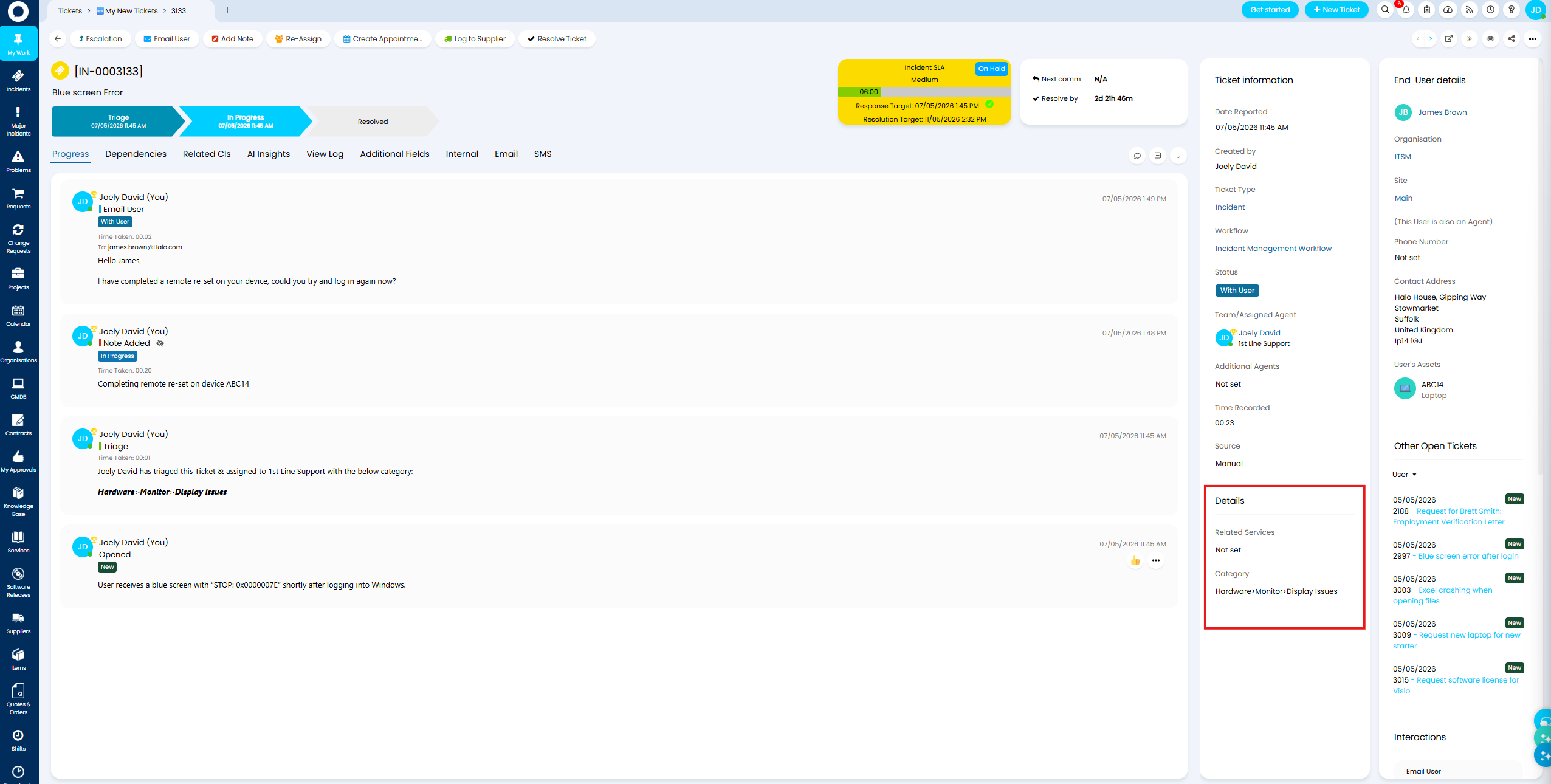
Fig 41. Ticket Fields in Ticket Details
Whether fields show here is determined by the visibility settings of the field on the ticket type's field list. To set this, head to Configuration > Tickets > Ticket Types > select a ticket type > Field List > edit a field > use "Agent Ticket Details Screen Visibility" to control where this field shows. If set to "Visible - Show in Ticket information" the field will show in the Ticket Details.
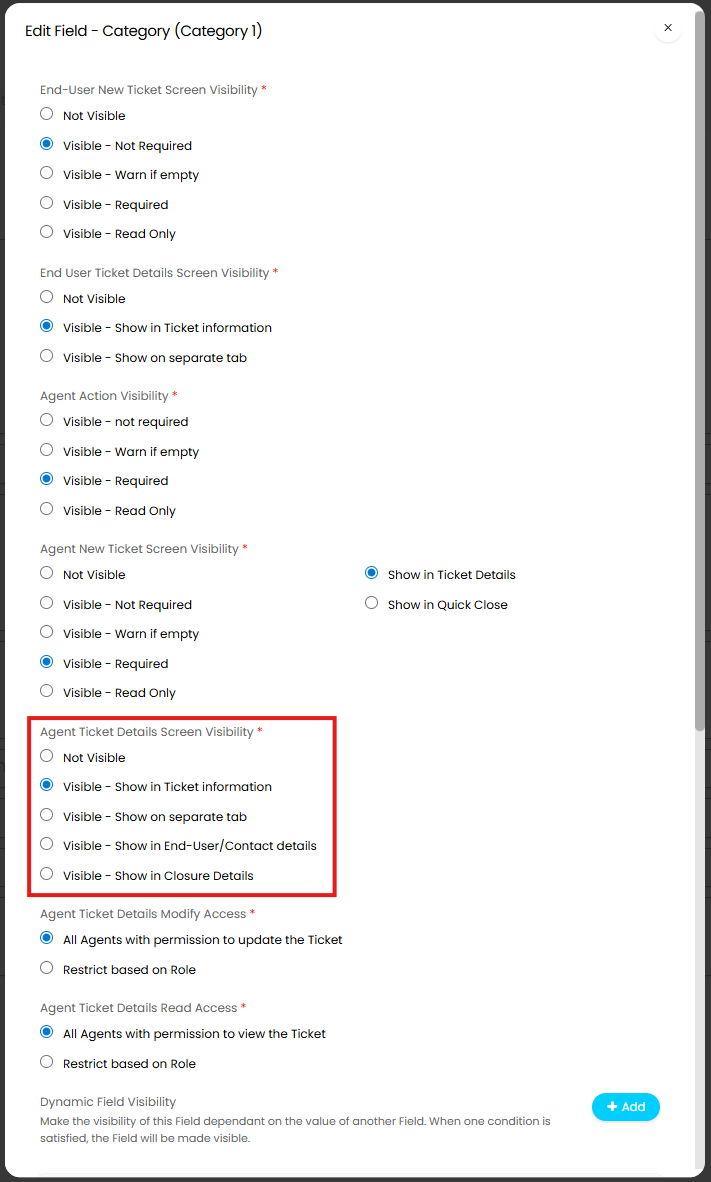
Fig 42. Set where ticket field shows
Show/Hide User Details
Information about the end user who logged the ticket can be shown/hidden per ticket type.
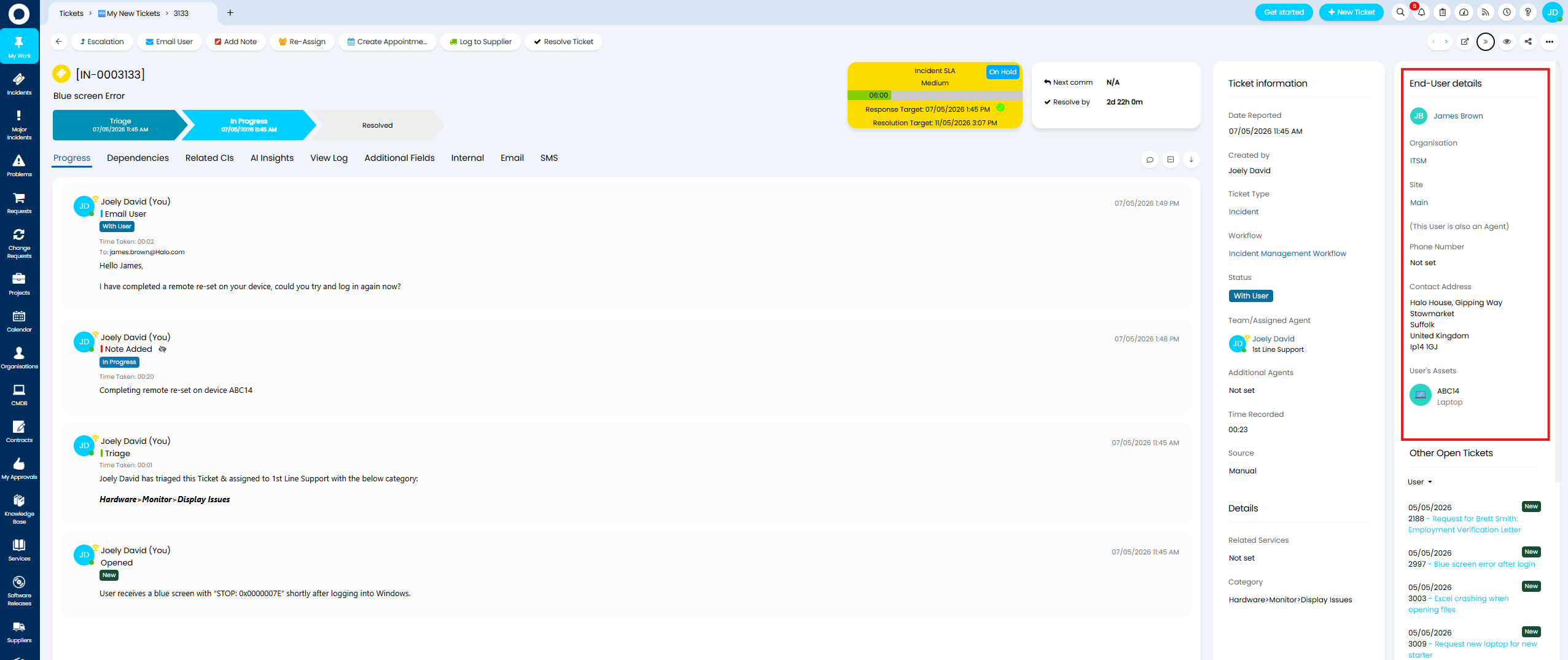 Fig 43. End User Details
To toggle if these details show, head to Configuration > Tickets > Ticket Types > Forms tab > toggle "Hide User details on this Ticket Type".
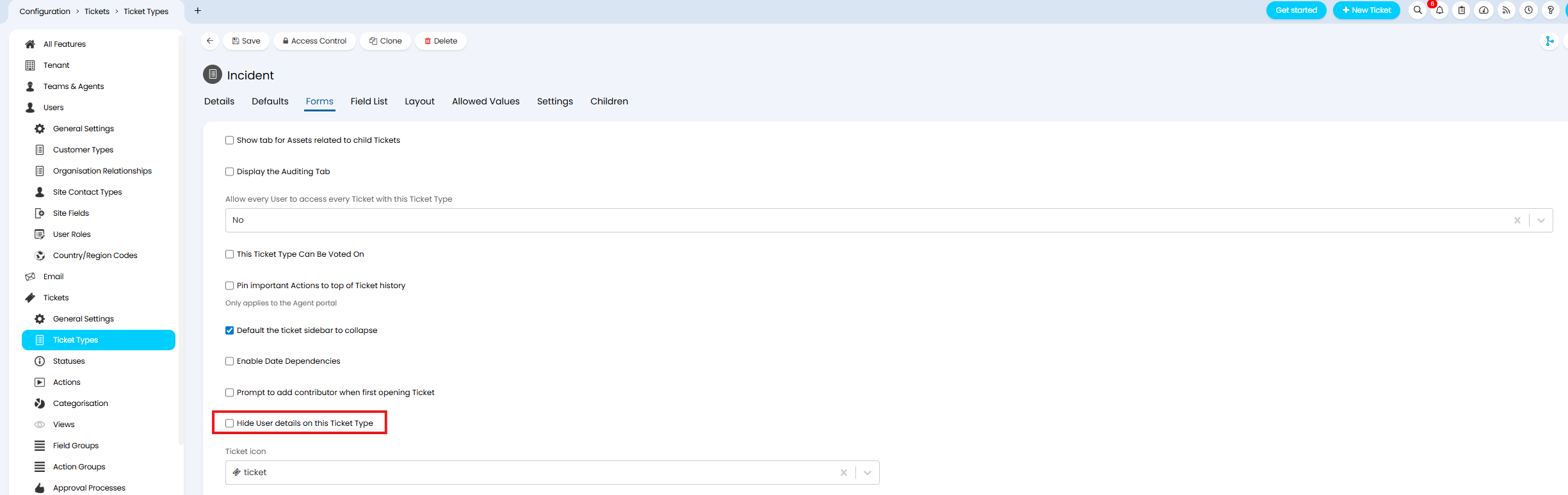
Fig 44. Setting to Hide User Details on a ticket type
When this is enabled, you will not be able to see any information about the end-user of the ticket, including the 'Other Open Tickets', 'User Interactions' or 'User's Assets'. Useful or tickets that are logged anonymously.
Note: If the ticket details are set to show in two columns (Figure 43), when this is enabled, only one column will show.
Show/Hide the User's Assets in the Ticket Details
The "User's Assets" field can show within the End-User details section of the Ticket Details, showing all the assets that are currently assigned to the user.
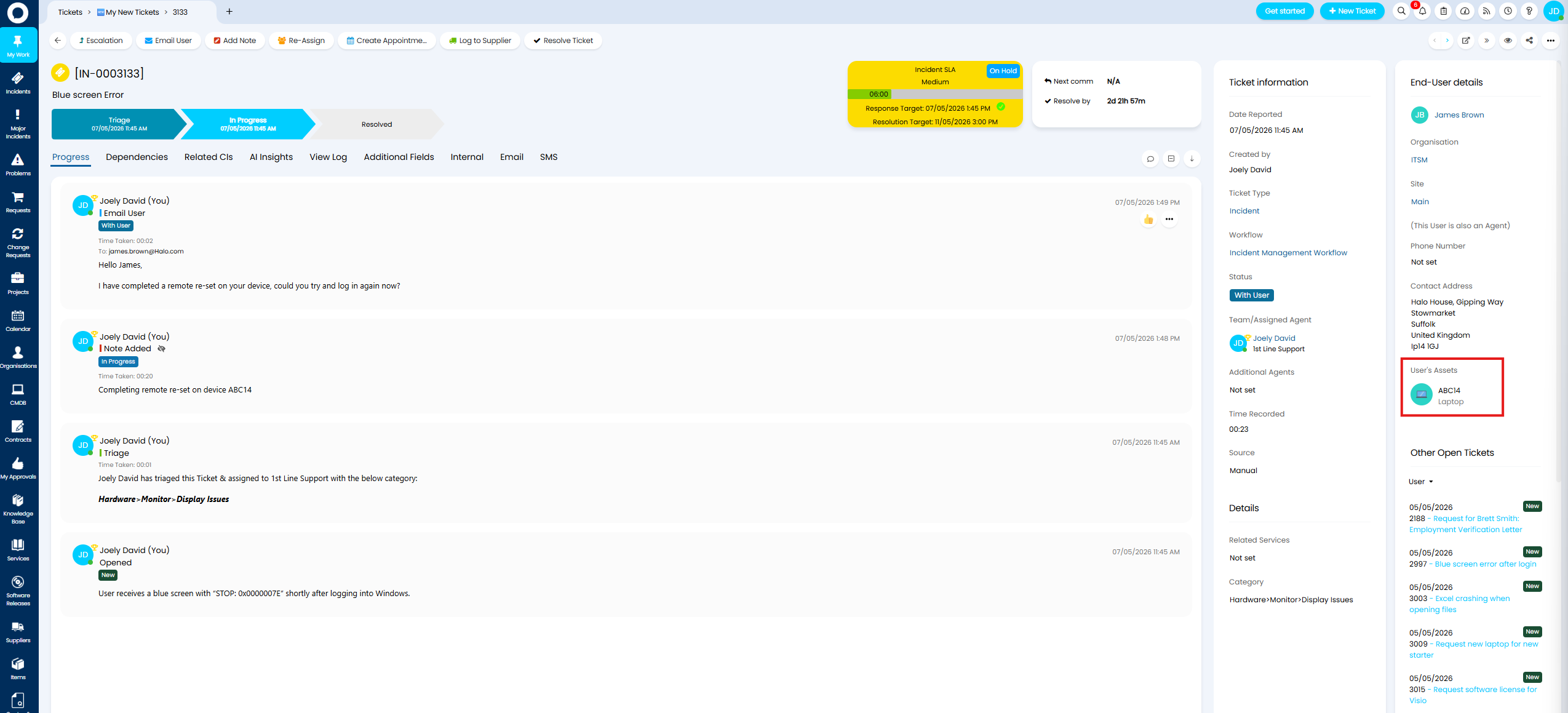
Fig 45. User's Assets
To toggle if this shows, head to Configuration > Asset Management > General Settings > toggle "Show the Users assets on the Ticket Details screen".
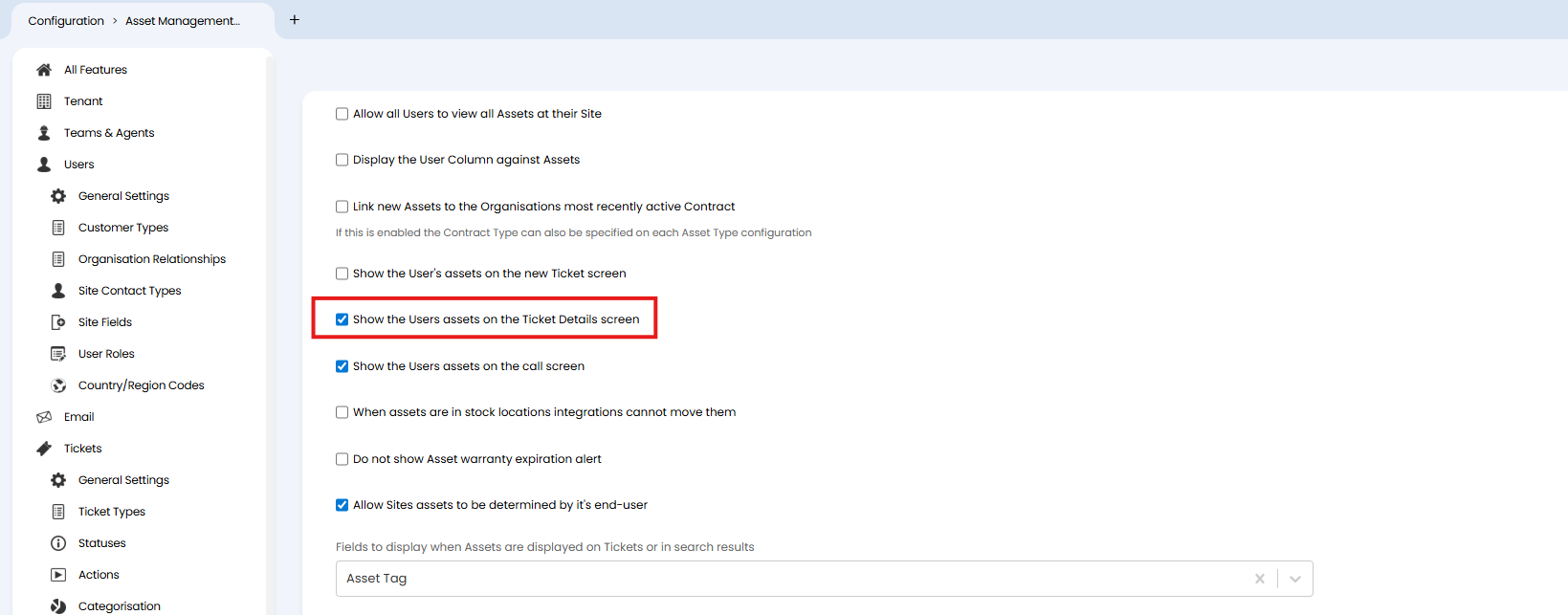
Fig 46. Setting to control if User's Assets show in Ticket Details
Set the Order User Details Appear in (v2.228+)
You can customise the order in which the user details show within Ticket details for each ticket type. The end user details available within a ticket are highlighted in Figure 47.
Fig 47. End User details within a ticket
To customise the order in which these appear head to Configuration > Tickets > Ticket Types > User Details Layout tab > change the "User Details Layout" to "Custom". Now, you will be able to drag and drop the available fields into the order you would like them to appear in.
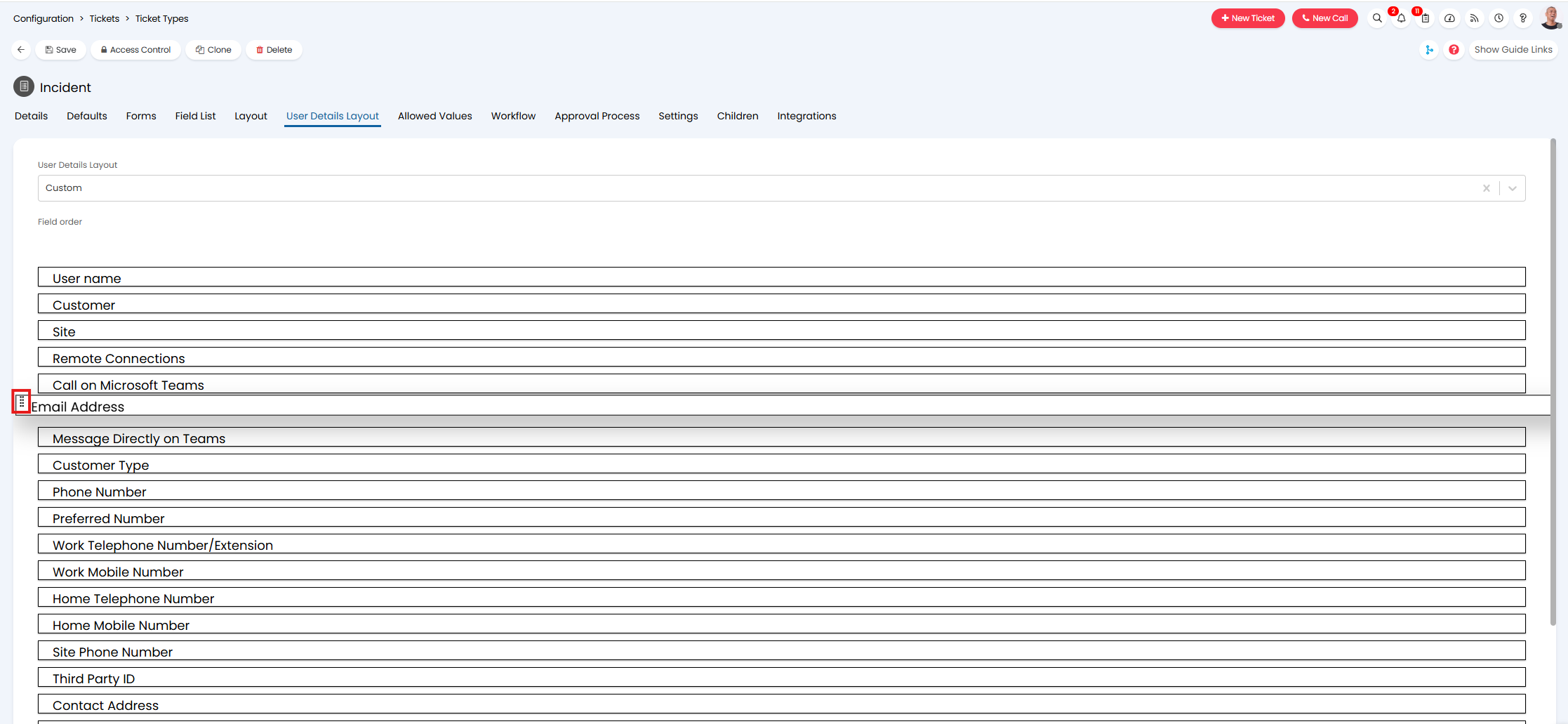
Fig 48. Drag and Drop user fields
Other Customisation Options
Add/remove a World Clock Widget
A 'World clocks' widget can be added/removed to the header of each ticket type, useful if you service users across multiple time zones and would like a reference to the time zone they are in. When the widget is enabled for the ticket type it will show in the header, as shown in Figure 49.
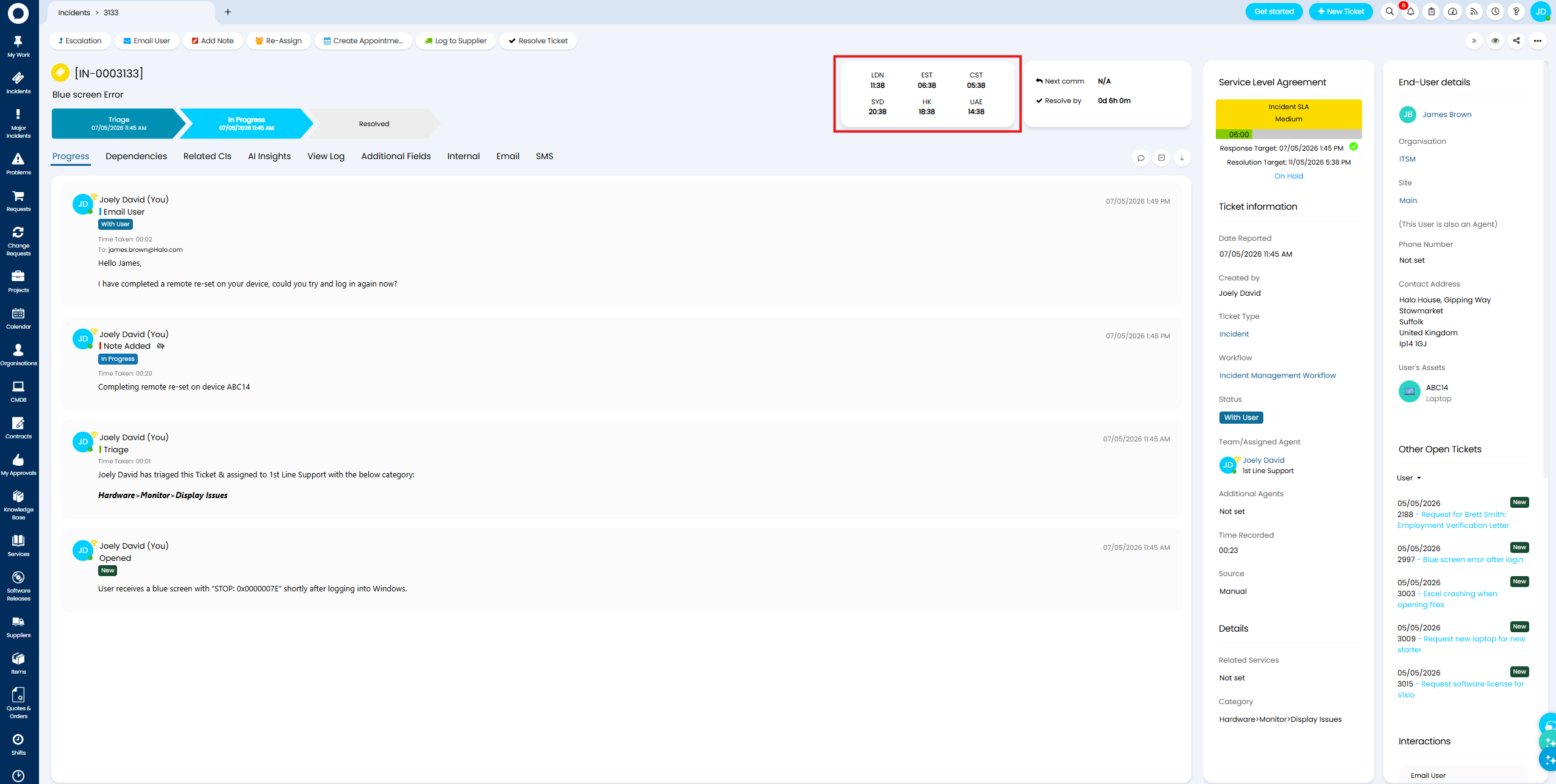
Fig 49. World Clocks Widget
To add/remove this from a ticket type, head to Configuration > Tickets > Ticket Types > select a ticket type > Forms tab > set "Ticket Details Header Widget 1" or "Ticket Details Header Widget 2" to "World Clocks".
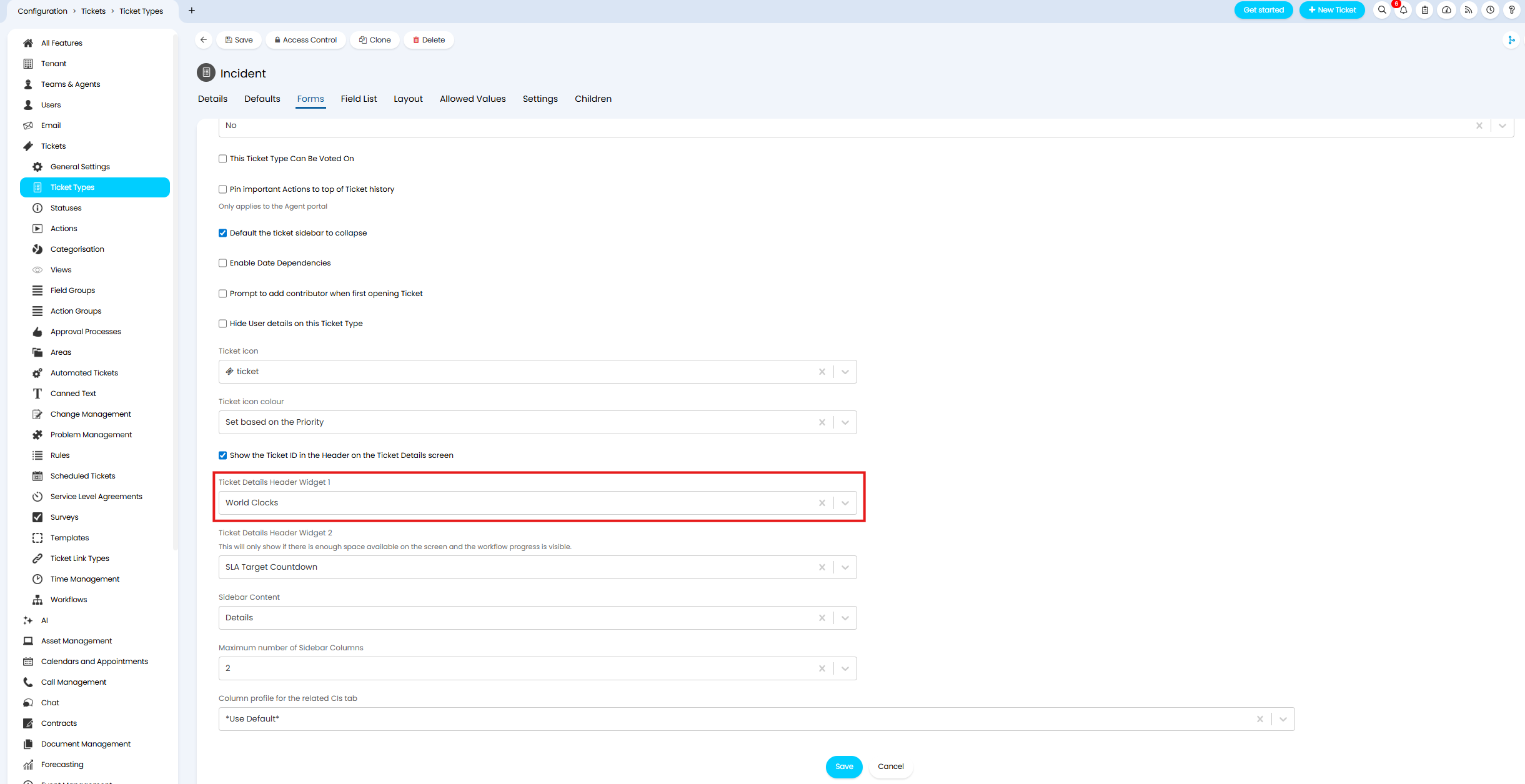
Fig 50. Set the World Clocks widget to show for the Ticket Type
Change the Ticket Icon
Every ticket will have an icon above the ticket's summary to represent the ticket entity. You may wish to customise this to closer align to your use of tickets, or as a way to differentiate between different ticket types. For example, alert tickets could have a different icon to incident tickets.
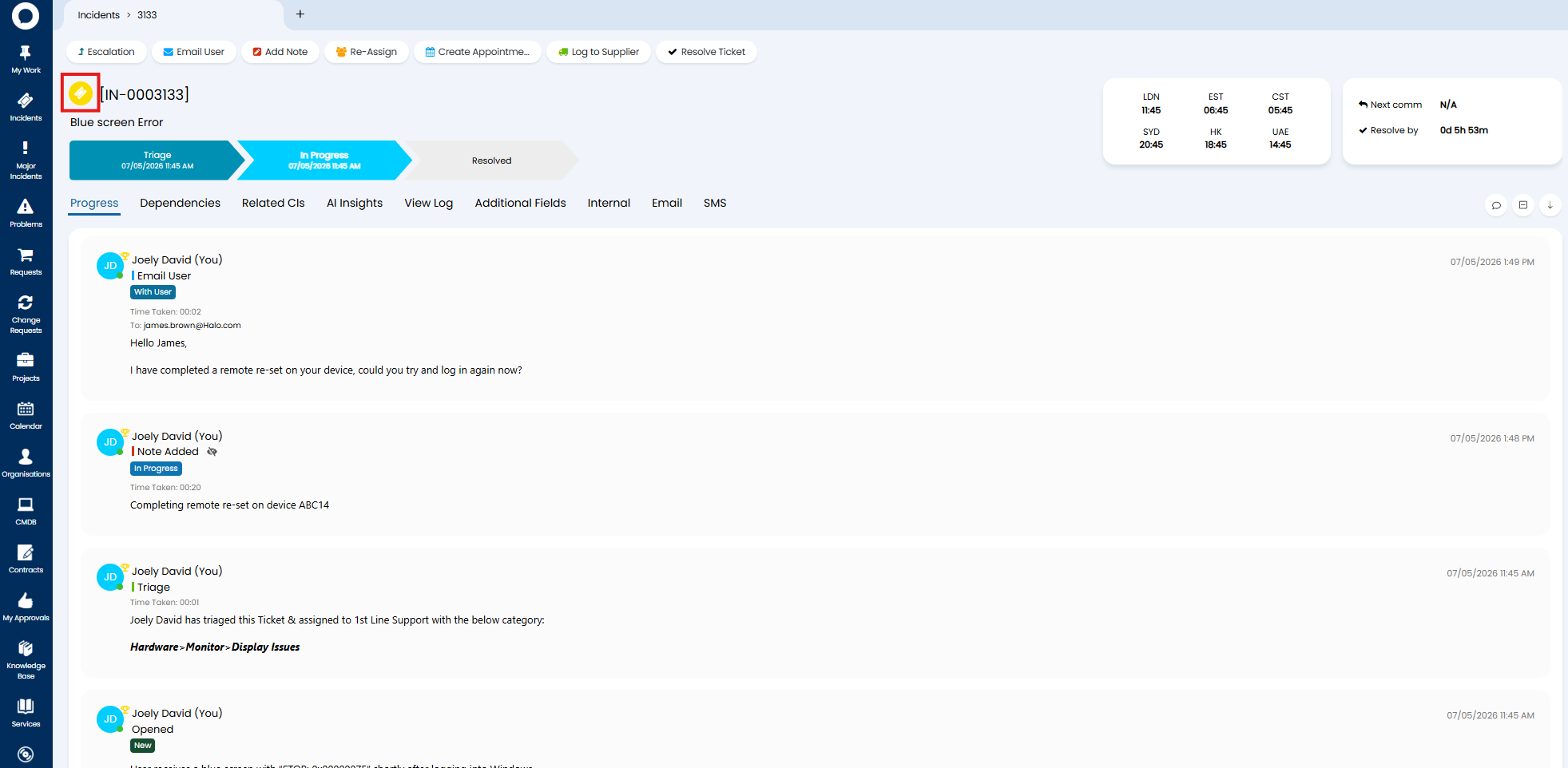
Fig 51. Ticket Icon on Ticket
To customise the icon used head to Configuration > Tickets > Ticket Types > select a ticket type > Forms tab > use "Ticket icon" to choose the icon you would like to display on tickets of this type.
Note: If default is selected an icon of a ticket silhouette will be used.
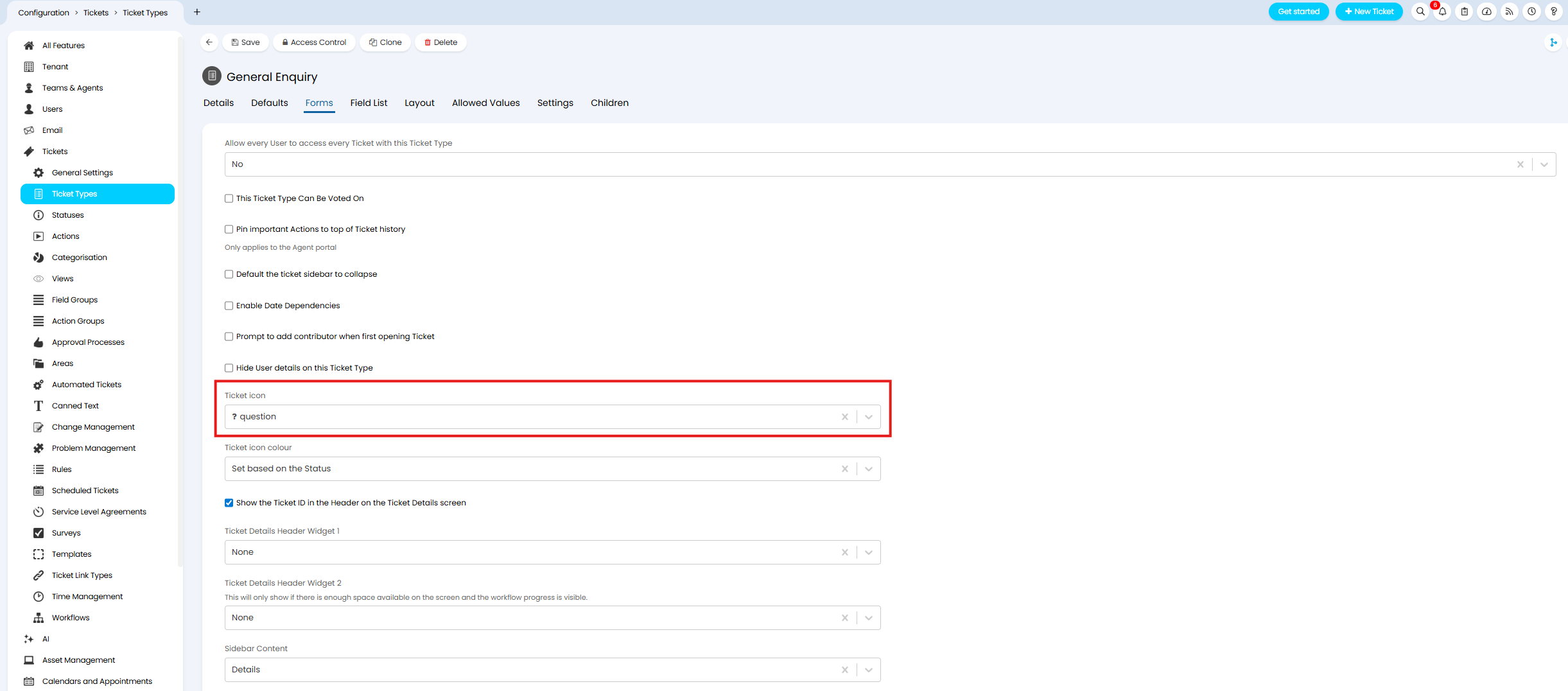
Fig 52. Setting to Control the Ticket Icon used for the Ticket Type
Show/Hide the Ticket ID
The ID of a ticket can be set to show in the header of the ticket per ticket type.
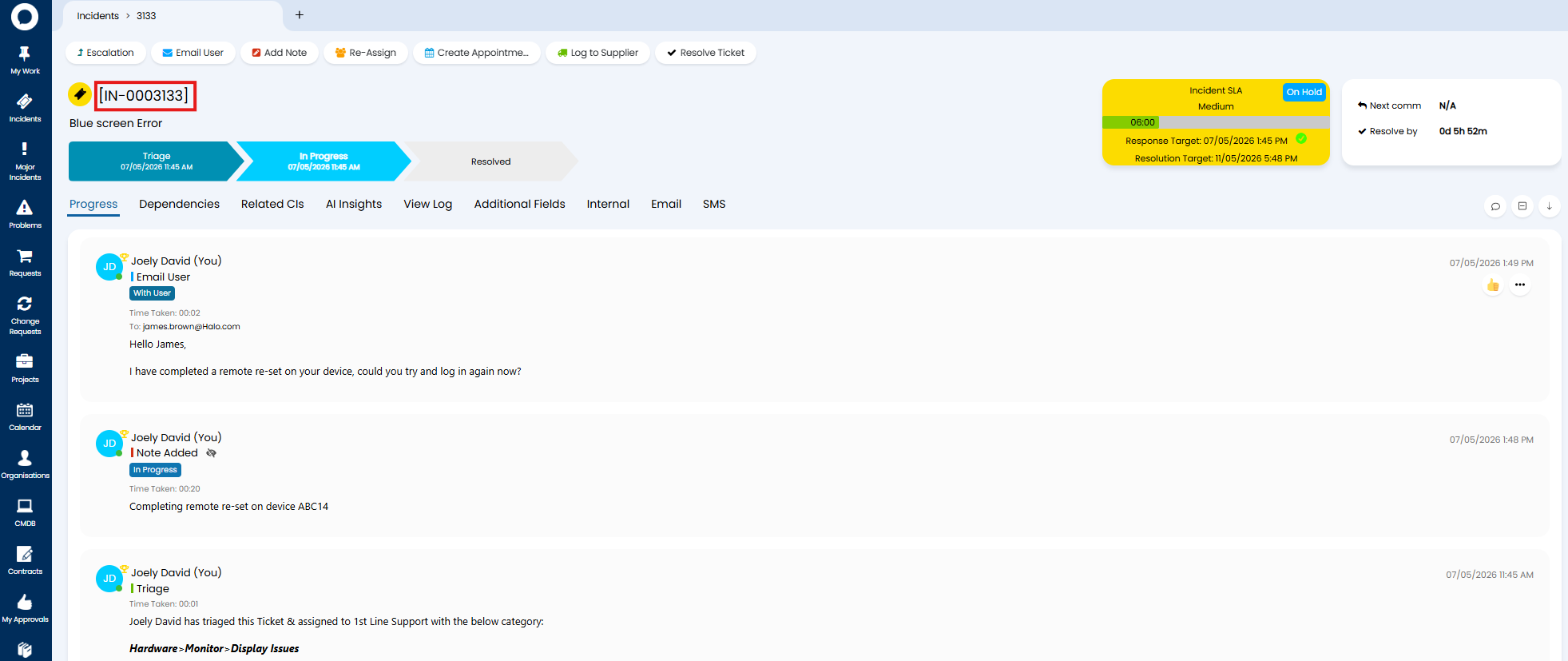
Fig 53. Ticket ID on Ticket
To toggle whether this shows or not, head to Configuration > Tickets > Ticket Types > select a ticket type > Forms tab > toggle "Show the Ticket ID in the Header on the Ticket Details screen".
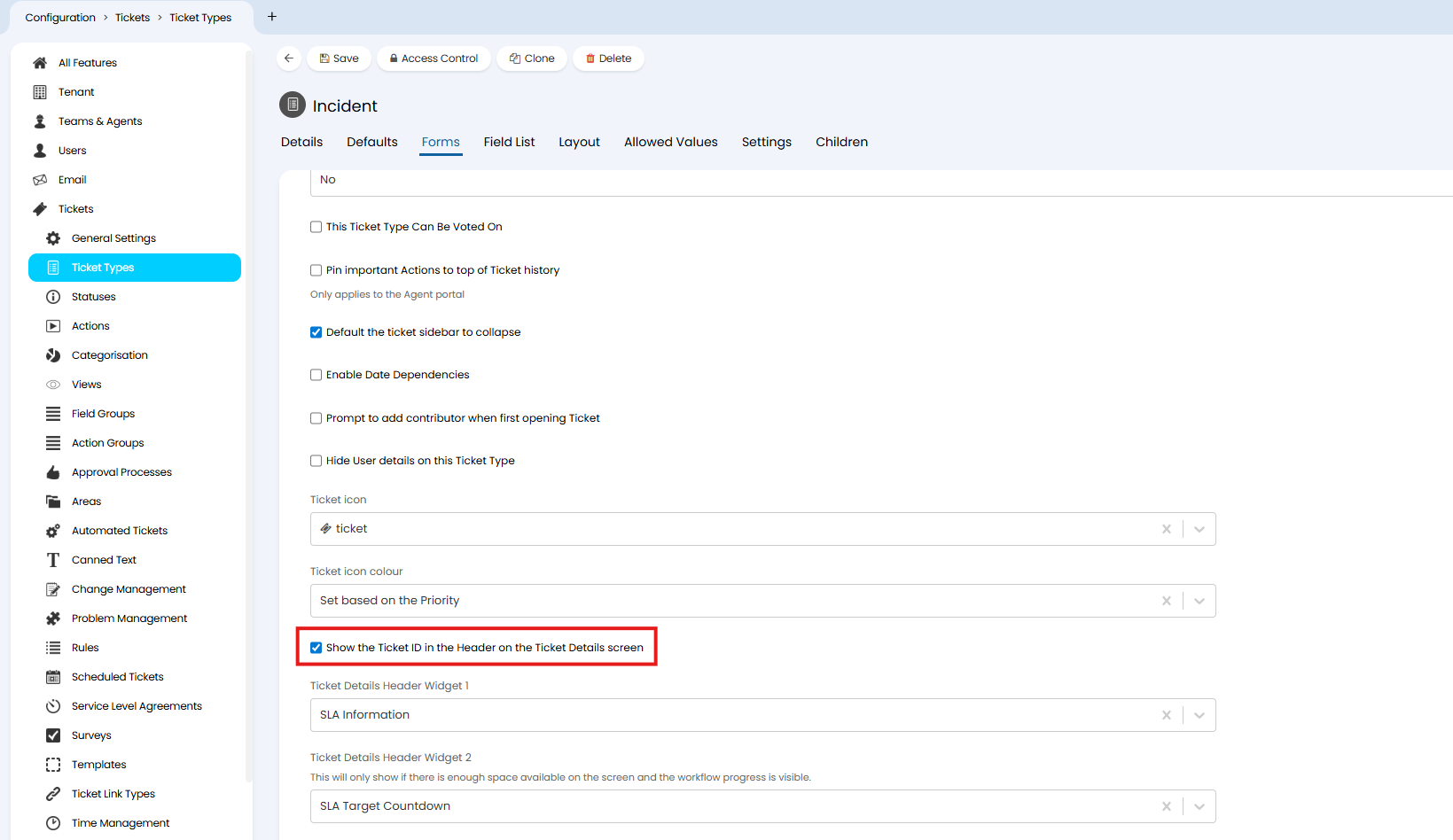
Fig 54. Setting to control if the ID of the Ticket shows on Tickets of this Type
Customise the Email Start Tag shown/used
When displaying the ticket ID you will notice email tags are wrapped around the ID. These tags are used by Halo to identify the ID of a ticket within an email, to allow the email to be matched to (and update) the correct ticket.
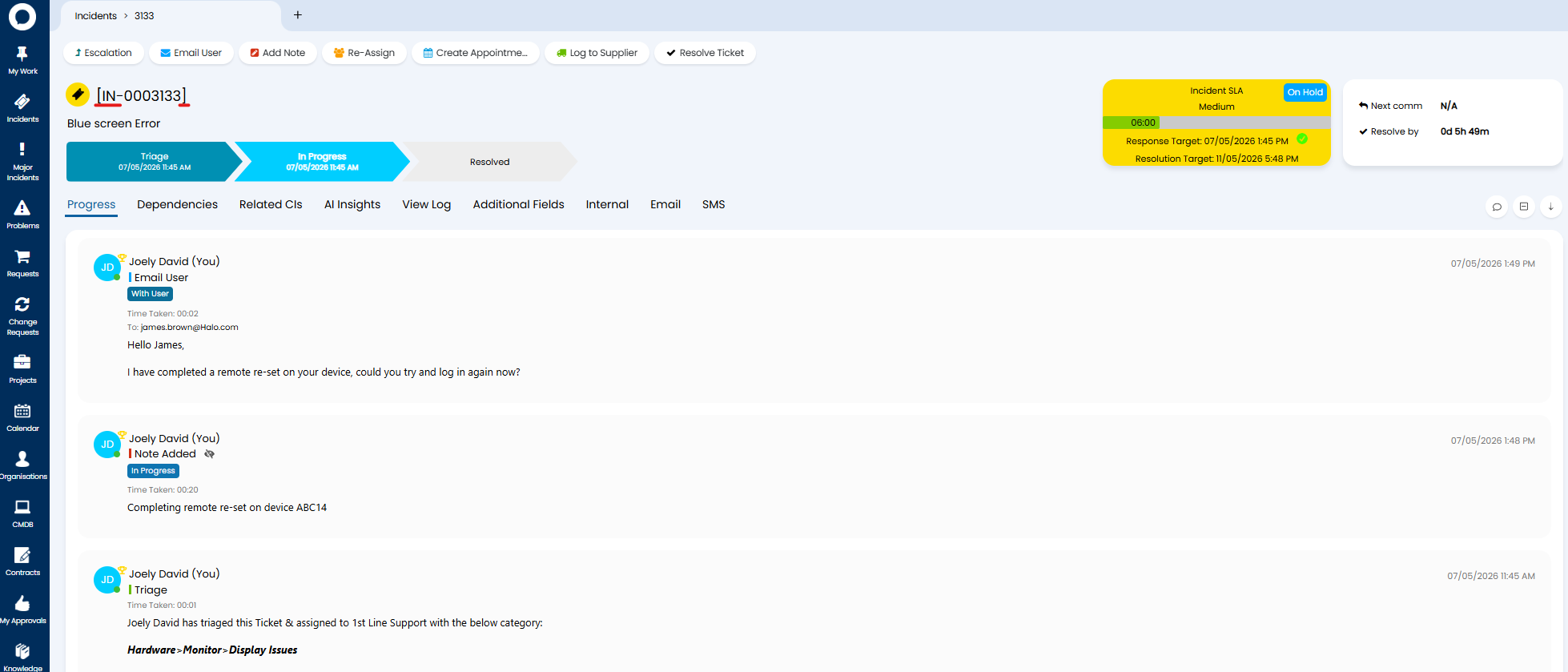 Fig 55. Email tags for Ticket
For more information on what tags are and how they are used checkout our guide here.
Tags can be customised, globally and for each ticket type.
To change the tags that are used for all tickets in your system head to Configuration > Email > General Settings > use "Email Start Tag" and "Email End Tag" to set the tags you would like to use.
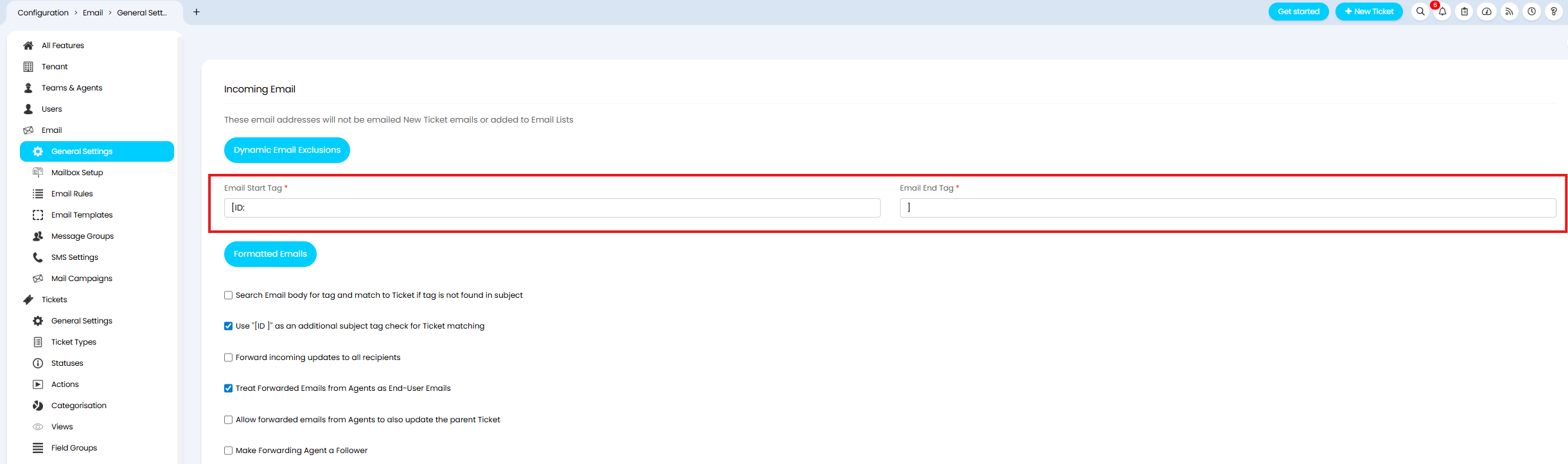
Fig 56. Settings to control the email tags used for all tickets
To change the tags that are used for a specific ticket type, head to Configuration > Tickets > Ticket Types > select a ticket type > Settings tab > use "Email Start Tag" and "Email End Tag" to set the tags you would like to use.
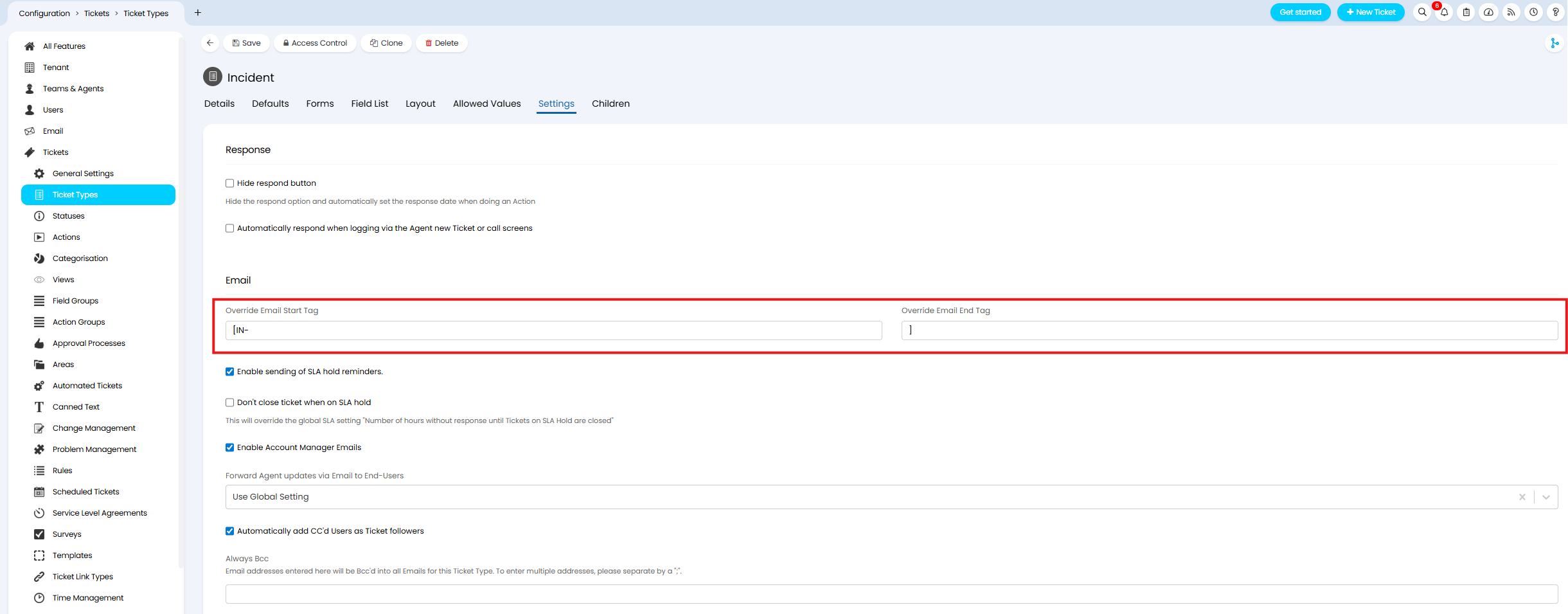
Fig 57. Settings to control the emails tags used for this ticket type
Show User Details widget when hovering over the user's action History (v2.246+)
When viewing the actions on a ticket, hovering over the user who did the action can show a widget with that users' details. This widget is available from v2.246+.
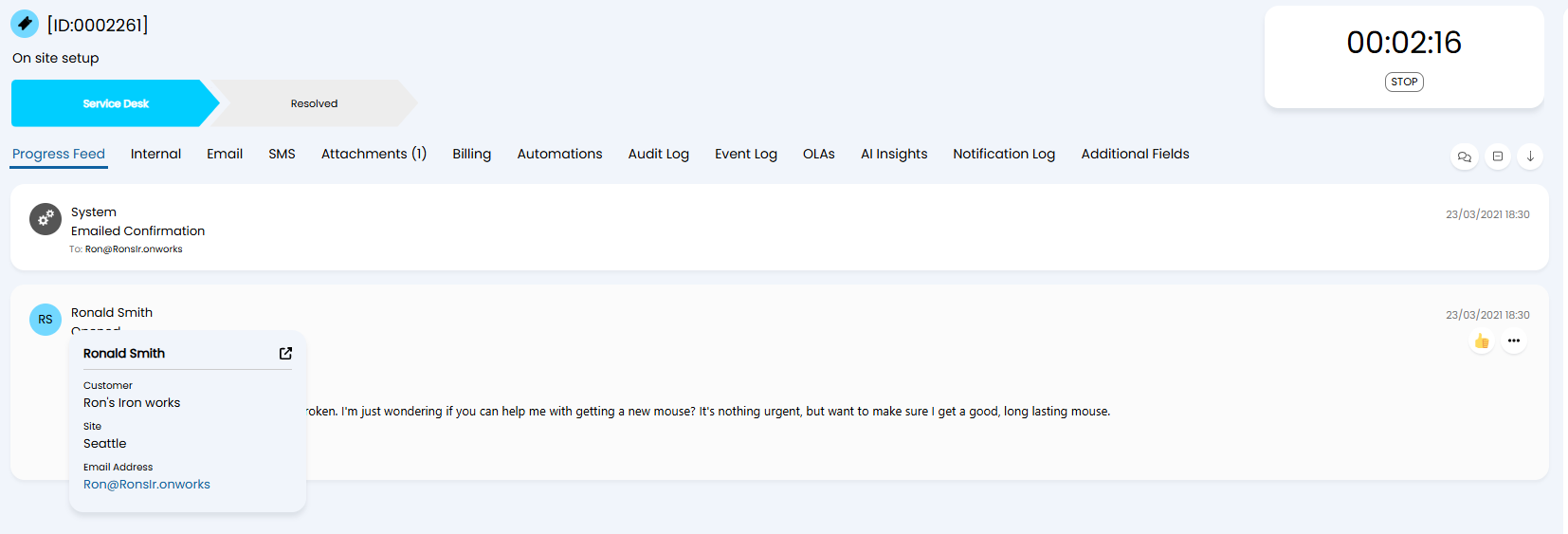
Fig 58. User Details Widget
This gives you quick insight into the user, especially useful when liaising with users who are not the end user of the ticket, and whom you are not familiar with.
The following information about the user will show in this widget, provided it is populated on the user's record.
- Customer Name
- Site Name
- Email Address
- Secondary Email Address
- Tertiary Email Address
- Work Telephone Number
- Work Mobile Number
- Home Number
- Home Mobile Number
- WhatsApp Number
- Site Phone Number
- Preferred Phone Number
- Is a Prospect
To enable the use of this widget, head to Configuration > Users > General Settings > enable "Show a widget with User information when hovering over a User in Action History".
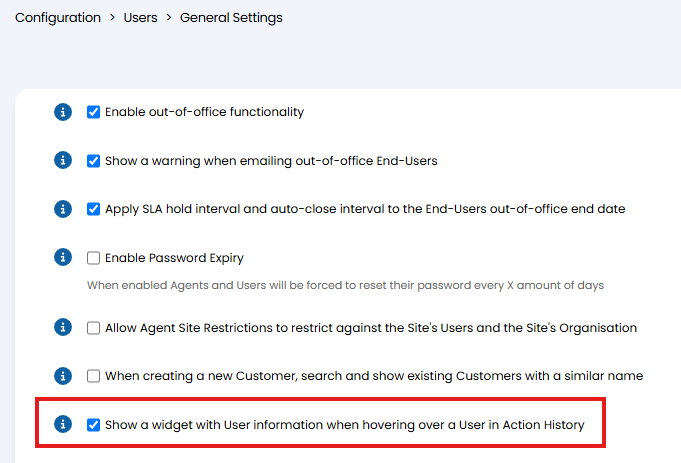
Fig 59. Enable user detail widgets
As this is enabled globally, this will cause widgets to pop up every time you hover over a user's name on a ticket action.