Ticket Tabs
- tickets
- tabs
- ticket tabs
- custom tabs
In this guide we will cover:
- Types of Tab
- Custom Tabs
- Customising Tab Layout
Admin Guides:
Related Guides:
- Altering Ticket Types
- Custom Fields
- How to configure Statement of Work (SoW) Templates
- Parent and Child Tickets
- Planning & Forecasting
Types of Tab
Budgets
After enabling the Budgets module in Configuration > Project Management, the "Budgets" field can be added to the field list of the ticket type. This will then show a Budgets tab on the ticket where budgeted hours can be set against it.
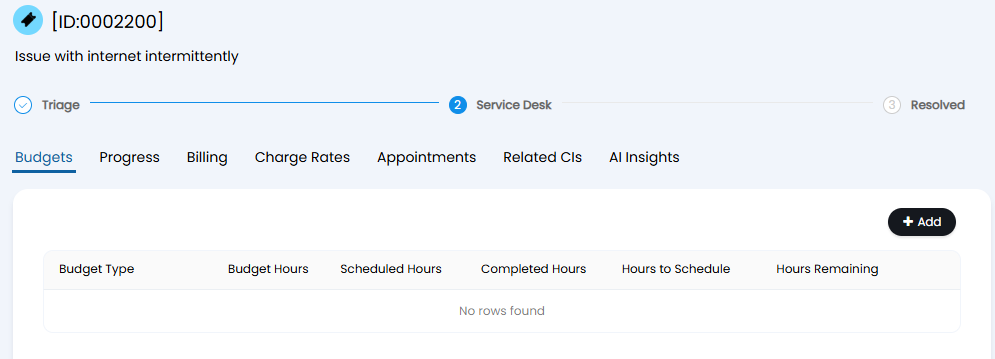
Fig 1. Budgets tab.
Progress Feed
The Progress tab will show any actions that have been completed on a ticket in a descending order that they occurred.
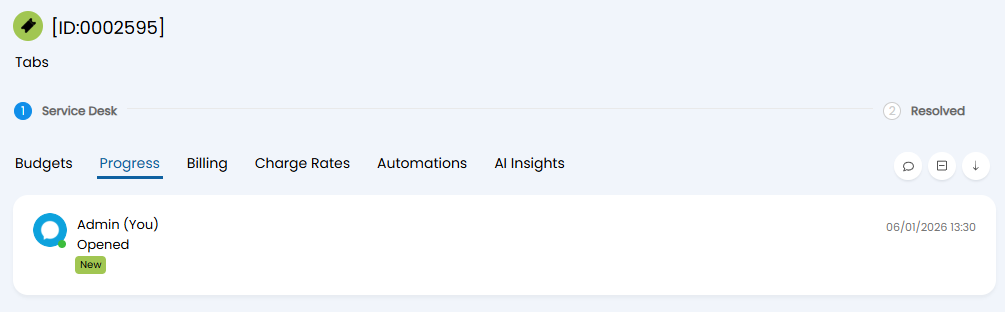
Fig 2. Progress Feed tab.
Attachments
Upon adding an attachment to an action within the ticket, the Attachments tab will appear. This will list every attachment that is on that ticket in one place, which is helpful to find attachment easily, especially on longer tickets with lots of actions.
It will also show the total number of attachments on the ticket within the tab name.
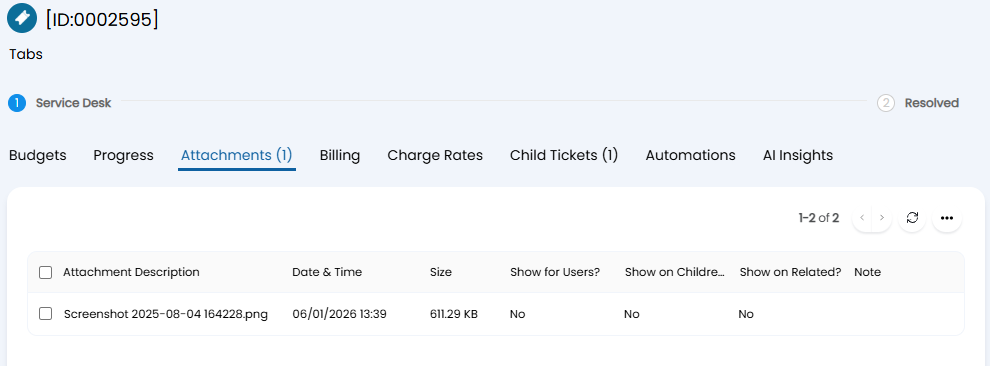
Fig 3. Attachments tab.
Billing
The Billing tab is used to show all of the billable time on a ticket within one area. This allows you to quickly glance at how the ticket is coming along and whether it lines up with the time that it was expected to take your agents.
You can manually set charge type and expenses against the ticket if needed, and any billable time from actions will appear here as well.
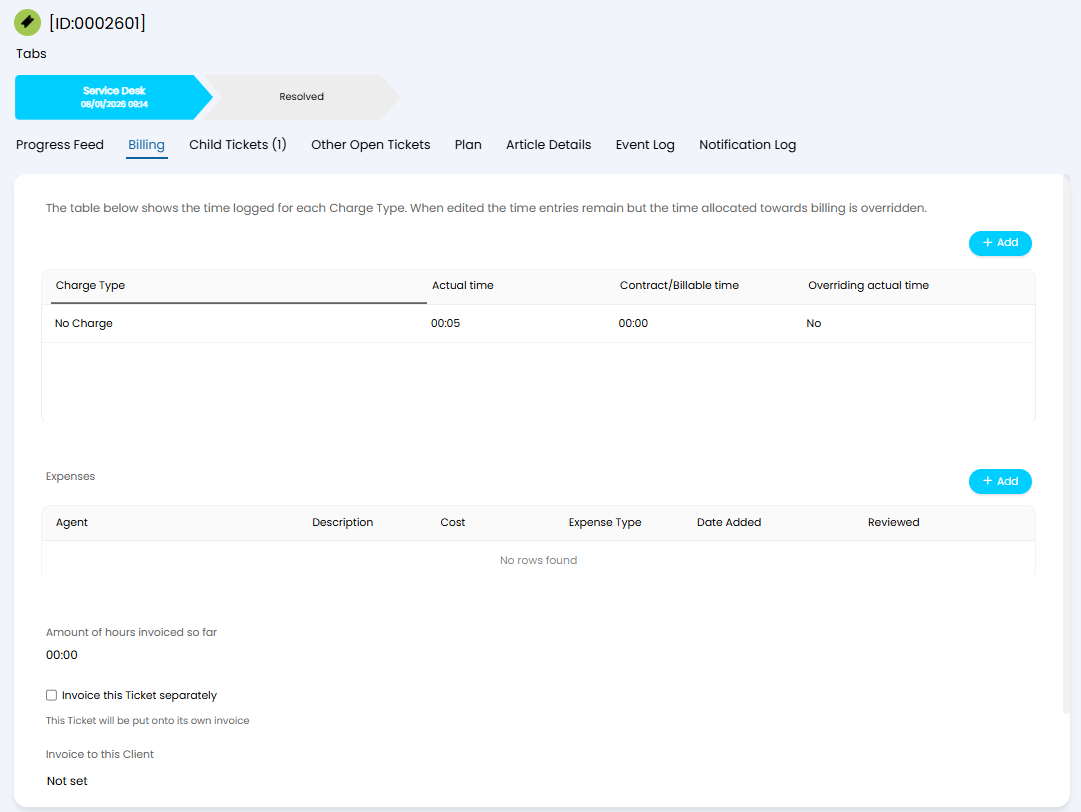
Fig 4. Billing tab.
Appointments
Upon creating an appointment on the ticket, the Appointments tab will appear showing the details of it, such as date and time, Agent, Completion Status and Appointment Type.
Appointments can be created with an action, the appointment creation screen, or the calendar screen.
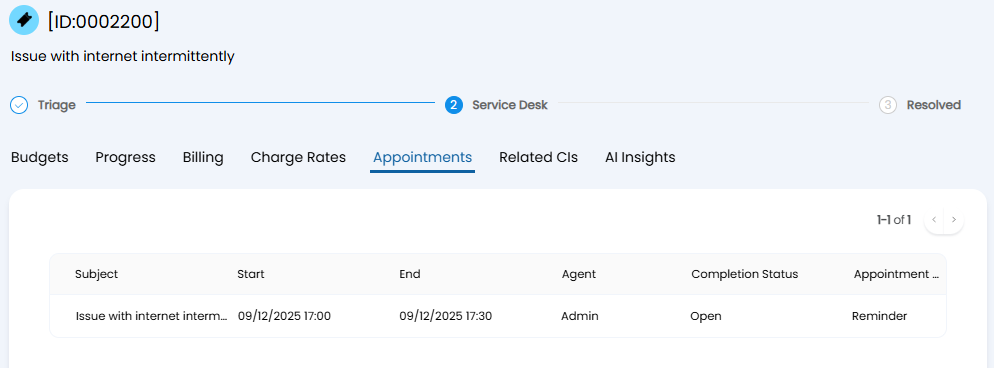
Fig 5. Appointments tab.
Tasks
The Tasks tab shows Project Tasks that are linked to a Project (a ticket type with ITIL type of Project).
Project tasks act as child tickets to the project, and the total number of tasks will appear in brackets next to the tab name.
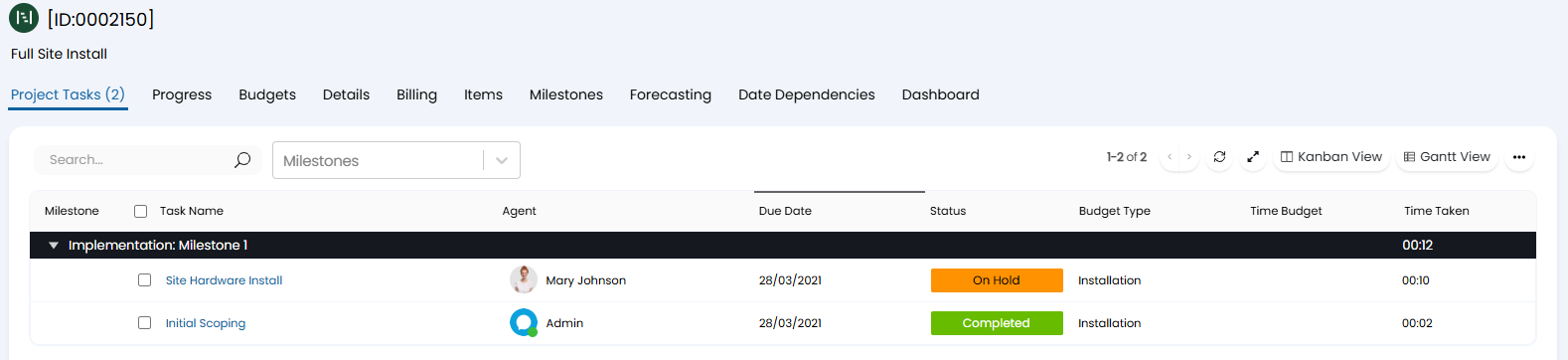
Fig 6. Project Tasks tab.
Child Tickets
The Child Tickets tab shows all of the child tickets that have been linked to the parent ticket you are currently viewing. It will also show the total count of the linked child tickets within the tab name.
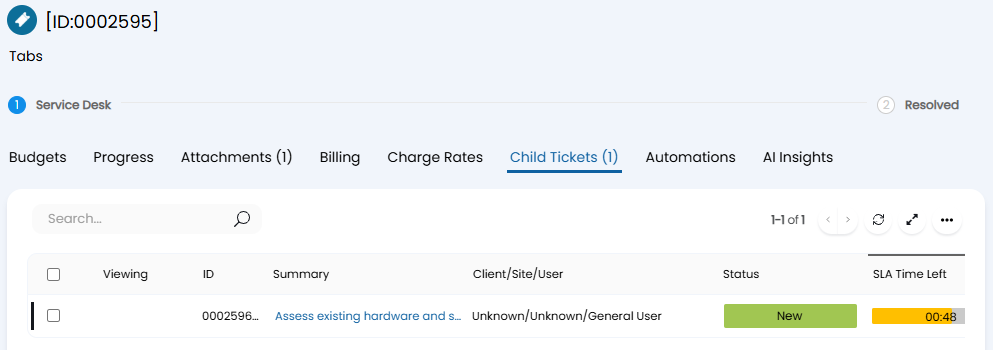
Fig 7. Child Tickets tab.
Project Task Notes
If an action is marked as important on a project task, it will appear under the tab 'Project Task Notes' of the project ticket.
They will appear with the most recent first similar to how the Progress Feed appears, and will show the number of notes in brackets next to the tab name.

Fig 8. Project Task Notes tab.
Related Tickets
The Related Tickets tab will show any tickets that have been related to the one you are viewing, and it works both ways (A to B, and B to A).
The Ticket count will be shown in brackets next to the tab name if "Show related Ticket count" is enabled in Configuration > Tickets > General Settings.
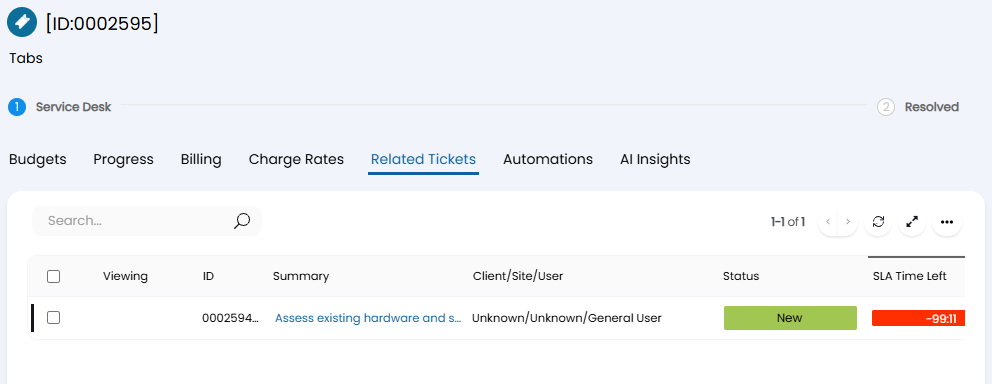
Fig 9. Related Tickets tab
Related Notes
The Related Notes tab will show actions on the related tickets that have been marked as important. This works the same way as Child Ticket Notes - the total number of notes will appear next to the tab name, and the notes will appear with the most recent first.
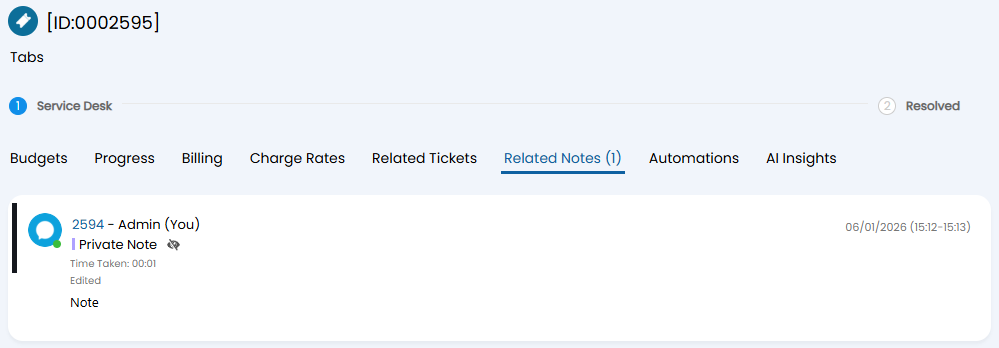
Fig 10. Related Notes tab
Other Open Tickets
Other Open Tickets can be displayed in the Ticket Details or as a separate tab. In order to have these show in their own tab, navigate to the Settings tab of each Ticket Type (Configuration > Tickets > Ticket Types), and select the option "Show other open Tickets in a tab (excludes Supplier Tickets)". To control whether the other Tickets shown in this tab are those assigned to the Ticket's User, Customer, Site, and/or Asset, toggle the relevant checkboxes "Show other open Tickets for the User/Site/Customer/associated Asset". With this enabled, Tickets of this type will show a tab called "Other Open Tickets". Here you will see a list of all the Tickets for the entities you selected. If multiple entities are selected, a dropdown will show allowing you to switch between views.
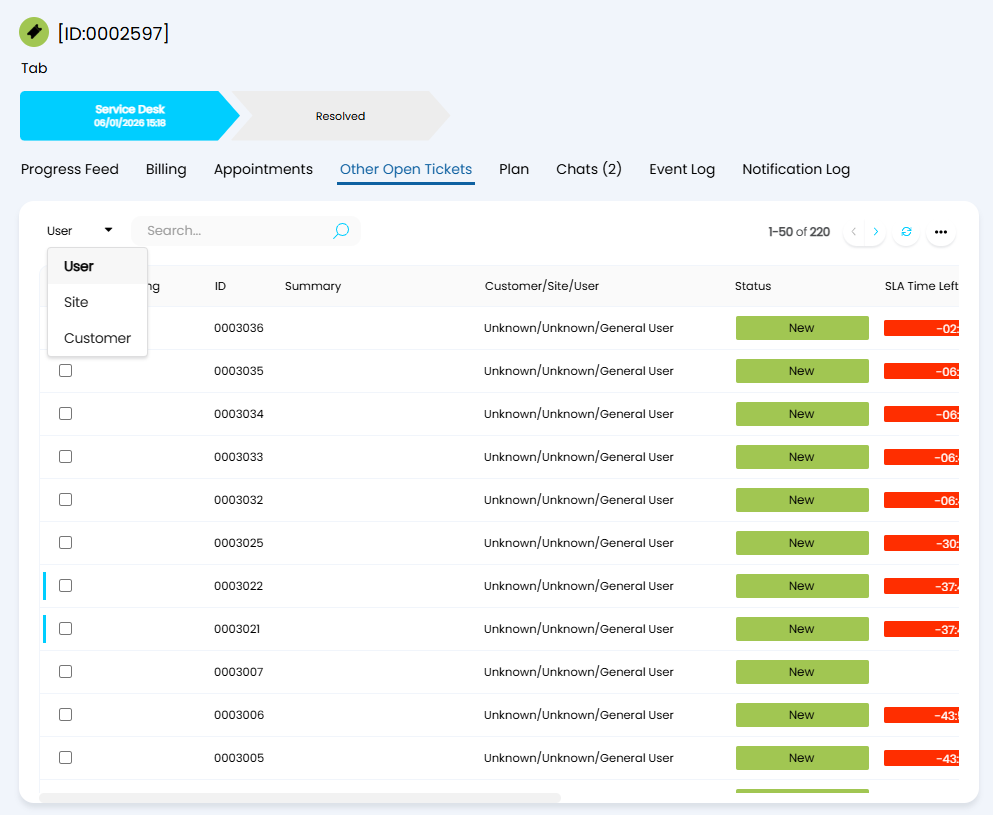
Fig 11. Other Open Tickets tab
Change Calendar
This tab shows change requests logged against assets, which is done by adding the "Asset" field to the Field List tab within the ticket type. You can then add the tab by adding the "Asset Change Calendar" field to the ticket type (Configuration > Tickets > Ticket Types > choose the type > Field List tab).
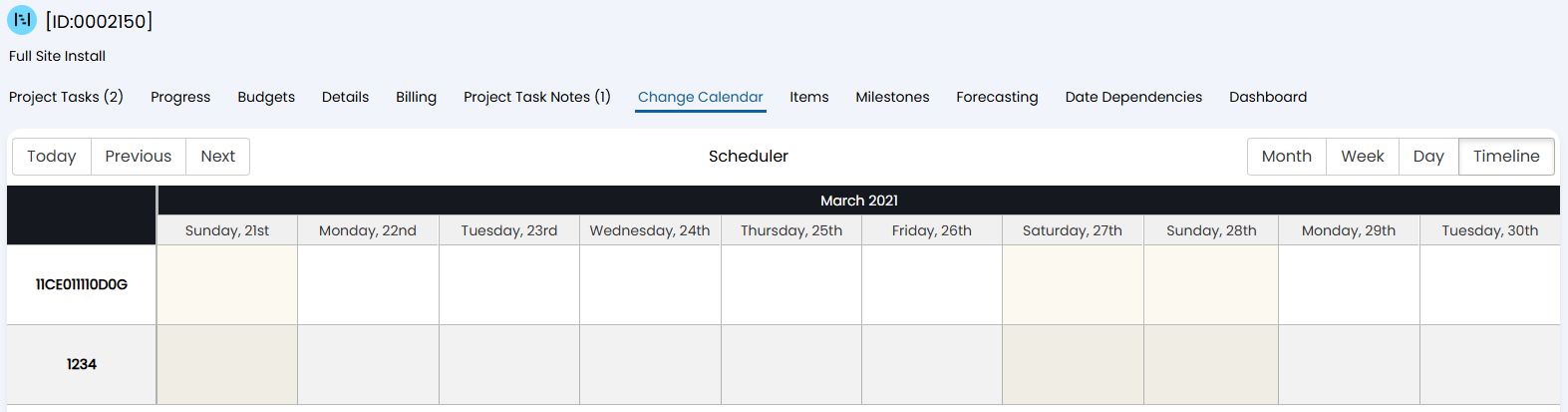
Fig 12. Change Calendar tab
Dependencies
This tab shows the dependency chart for related assets on the ticket. Linking BC-LAP-1, the one outlined in black, shows the relationships associated with it within the appearing tab.
To enable this tab you will need to click the pencil icon on the Asset field within the tickets field list.
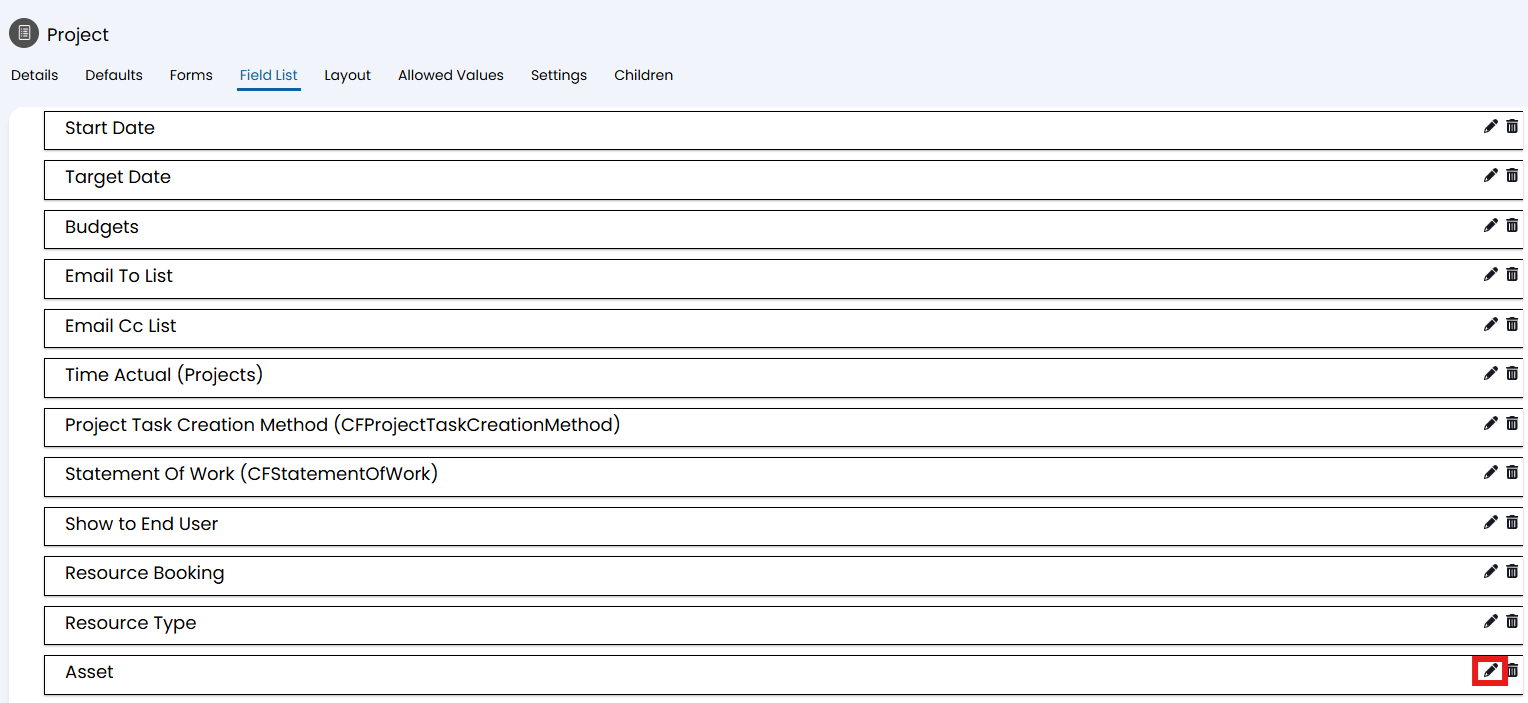
Fig 13. Editing the Asset Field
This will open the edit screen where you can check the "Show Dependencies Tab" checkbox.
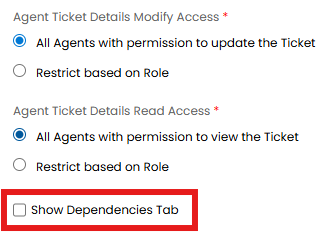
Fig 14. Show Dependencies Tab on Tickets
Now when an asset with relationships to other assets, is added to a ticket, then the dependencies tab will show on the ticket.
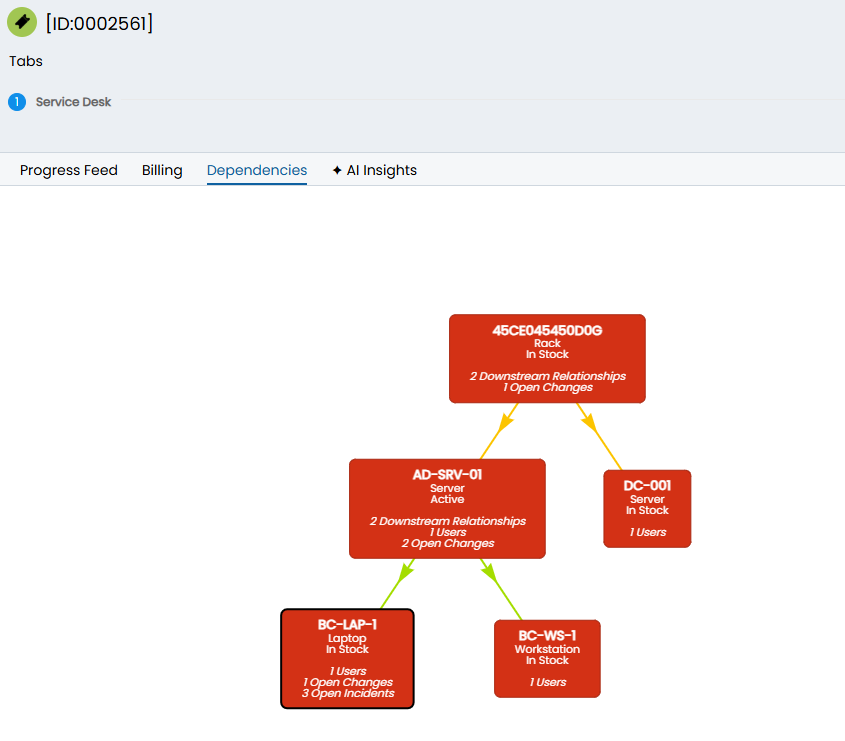
Fig 15. Dependencies tab.
We can also show related services by checking the following checkbox in Configuration > Asset Management > General Settings:

Fig 16. Option to Show Related Services on the Dependency Diagrams
When this general setting is on, we can see the related services option on the sidebar of the dependencies tab, in this case, the service called "Desktop" is now showing on the far right hand side of the dependency diagram:
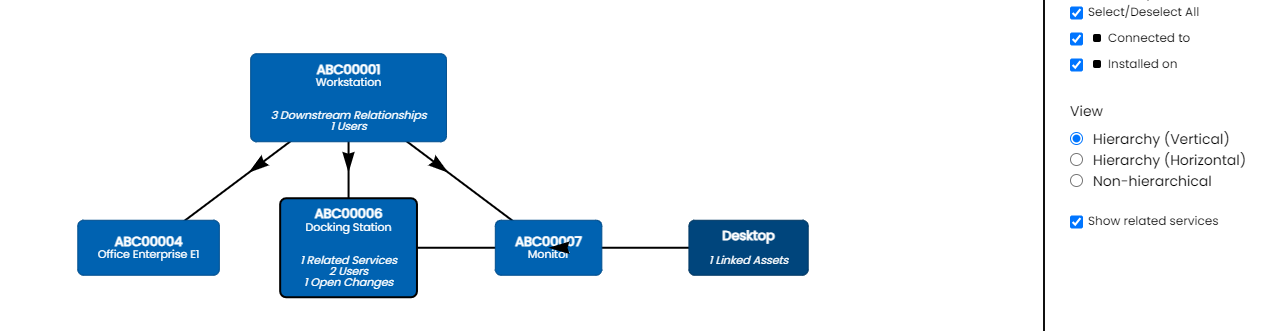
Fig 17. The Dependency Diagram with Related Services
To configure a column profile view for the related assets tab, checkout topic 5 of this Guide: Asset Views
Child Ticket Assets
This tab shows the assets that are related to the child tickets of the parent ticket you are viewing. This will show if the checkbox in Fig 14 is enabled in Configuration > Tickets > Ticket Types > choose the type > Forms tab.
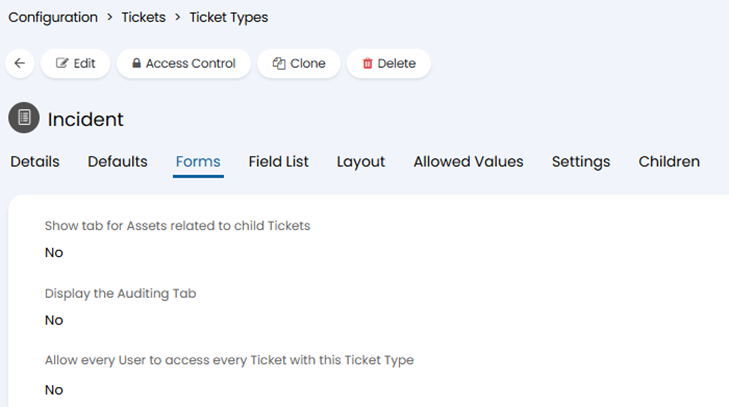
Fig 18. Show tab for Assets related to child Tickets.
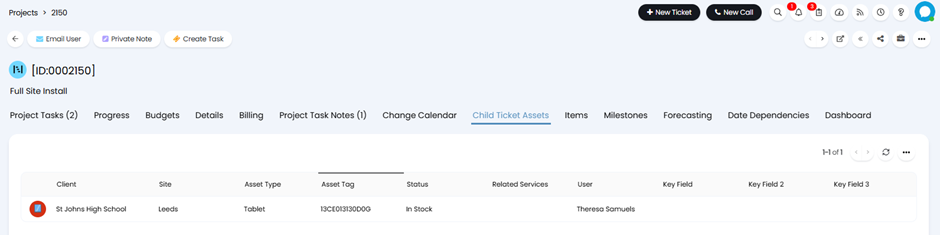
Fig 19. Child Ticket Assets tab
Products
This tab will show any products that have been issued on the ticket using the Issue Product action, or with an action that has the "Issue Products" system use associated with it.
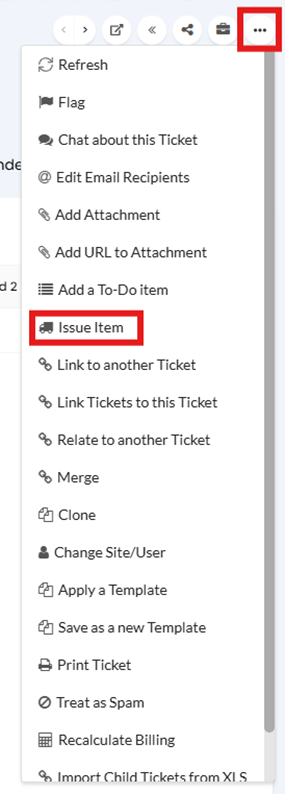
Fig 20. Issue Product action in More options dropdown
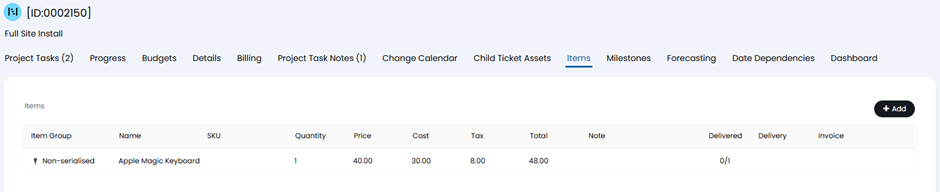
Fig 21. Products tab
Change Management
This tab shows the planned changes related to that ticket when the Change Management module is enabled in Configuration > Tickets.
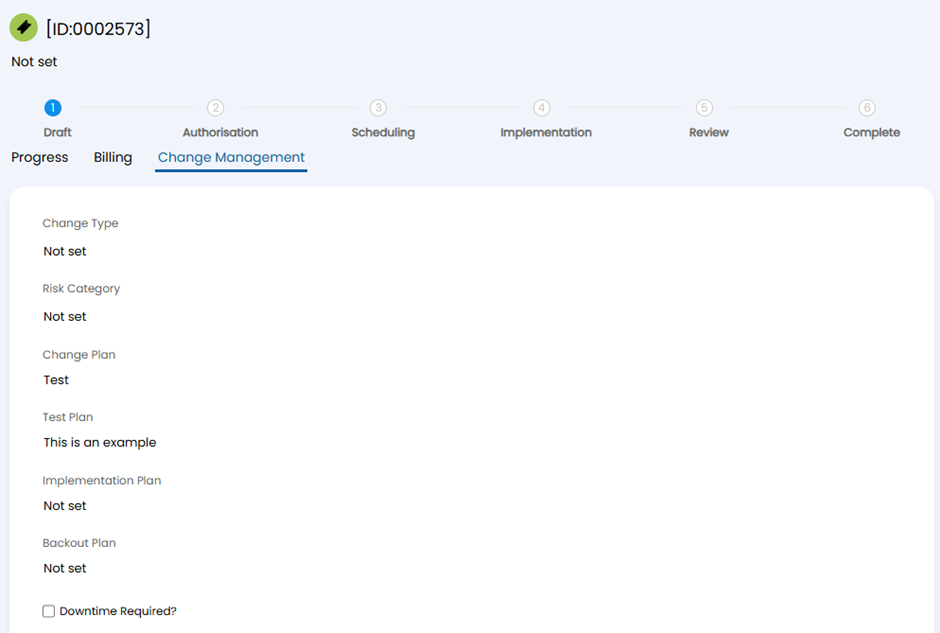
Fig 22. Change Management tab
It can also be used to show software releases. Once the Software Releases module is enabled in Configuration, this tab will show the below settings in Fig 23 in addition to the ones in Fig 22.
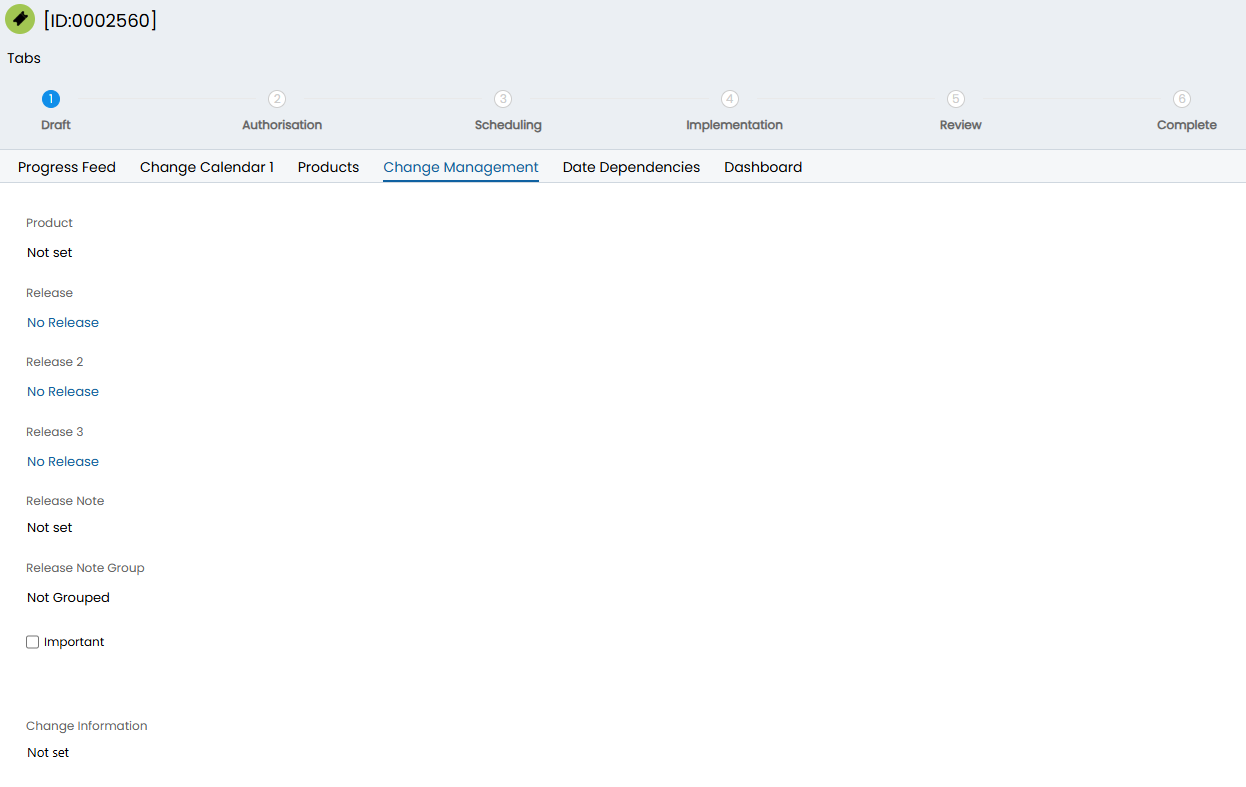
Fig 23. Change Management tab with Software Releases
Plan
This tab shows the plan and associated child that are yet to be created.
Note: This is called Project Plan on tickets with the ITIL type of Projects.
This tab can be enabled in Configuration > Tickets > Ticket Types > choose a type > Forms tab > enable the settings in Fig 24.
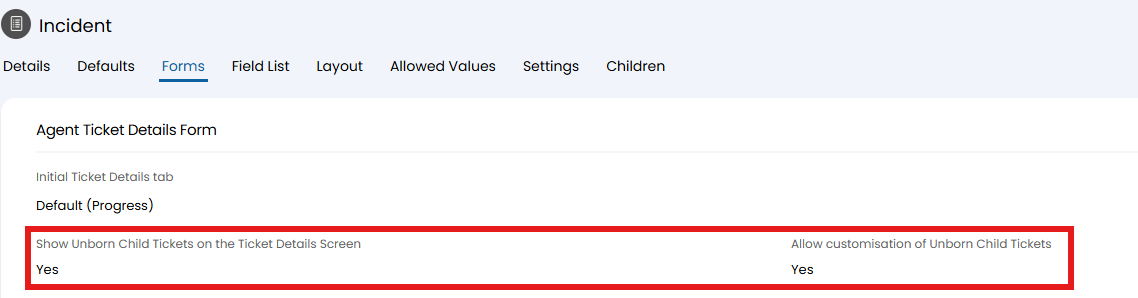
Fig 24. Show Unborn Child Tickets on the Ticket Details Screen and Allow customisation of Unborn Child Tickets settings
Chats
This tab will show any agent-to-user chats that have been linked to that ticket.
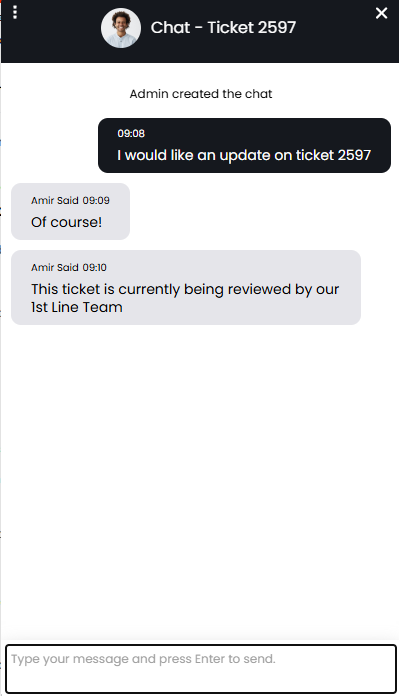
Fig 25. Linking the chat to a ticket.
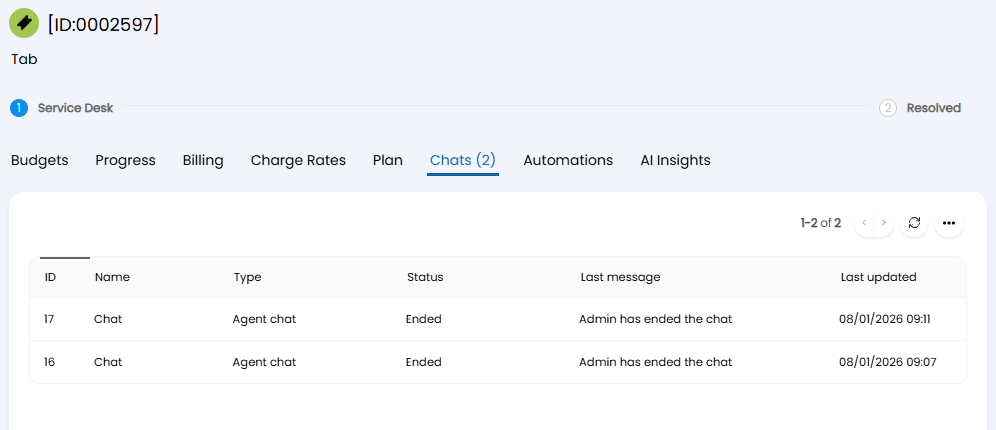
Fig 26. Chats tab.
Article Details
This tab will show a linked article within it, so information in it can be quickly referenced when working on the ticket.
To link an article head to Configuration > Tickets > Ticket Types > choose the type > Defaults tab > "Article", and select the Article you would like to link.
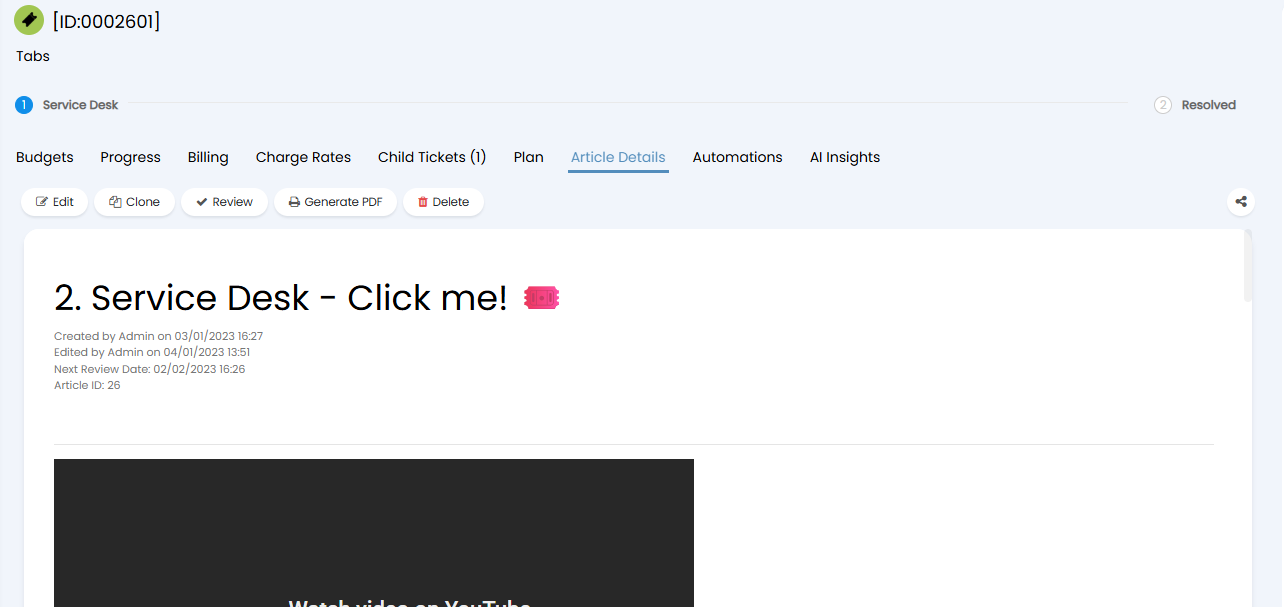
Fig 27. Article Details tab.
Journeys
This tab will appear when using actions with the system use "Start Journey". The Travel time will be calculated from the difference between the 'Start Journey' and 'End Journey' action.
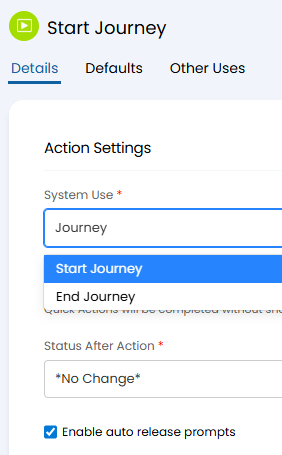
Fig 28. Start Journey and End Journey system use.
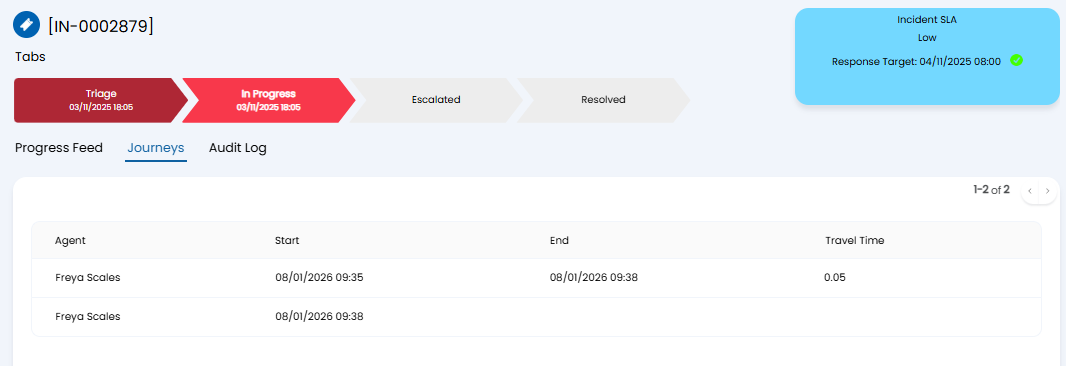
Fig 29. Journeys tab
Automations
This tab will show automated actions done from custom integrations. On the ticket in Fig 29, the tab shows the AI insights runbook being triggered and running.
Note: It will only appear if "Show the Automations tab on the Ticket Details Screen" is enabled in Configuration > Tickets > Ticket Types > choose the type > Forms tab.
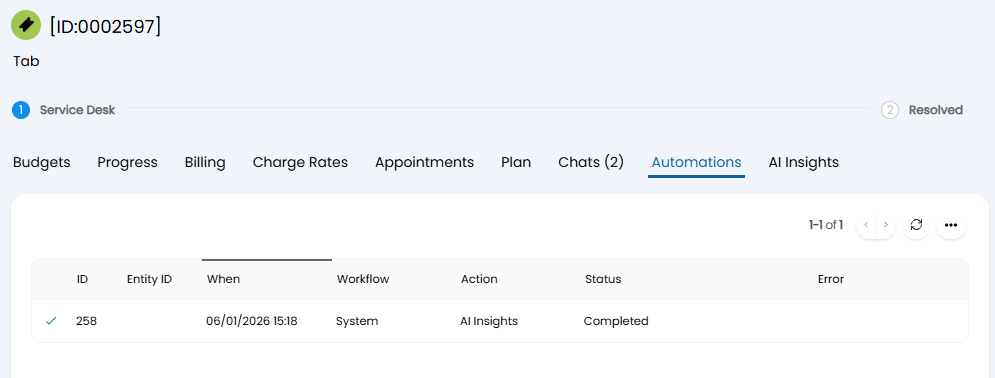
Fig 30. Automations tab.
Contacts
This tab shows contacts on an opportunity when Show Opportunity contacts tab is enabled on the ticket (opportunity) type. Any users here are converted to users under the customer if the opportunity is won.
Note: This applies to those within Configuration > Sales > Opportunity Types.
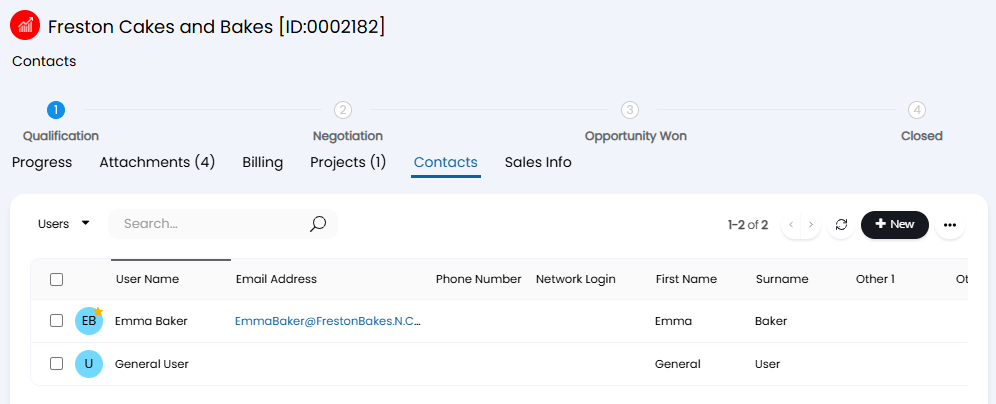
Fig 31. Contacts tab
Audit Log
This tab shows any changes and actions that have been done on a ticket.
For this to show, "Display the Auditing Tab" needs to be enabled on the ticket type in Configurations > Tickets > Ticket Types > select the type > Forms tab.
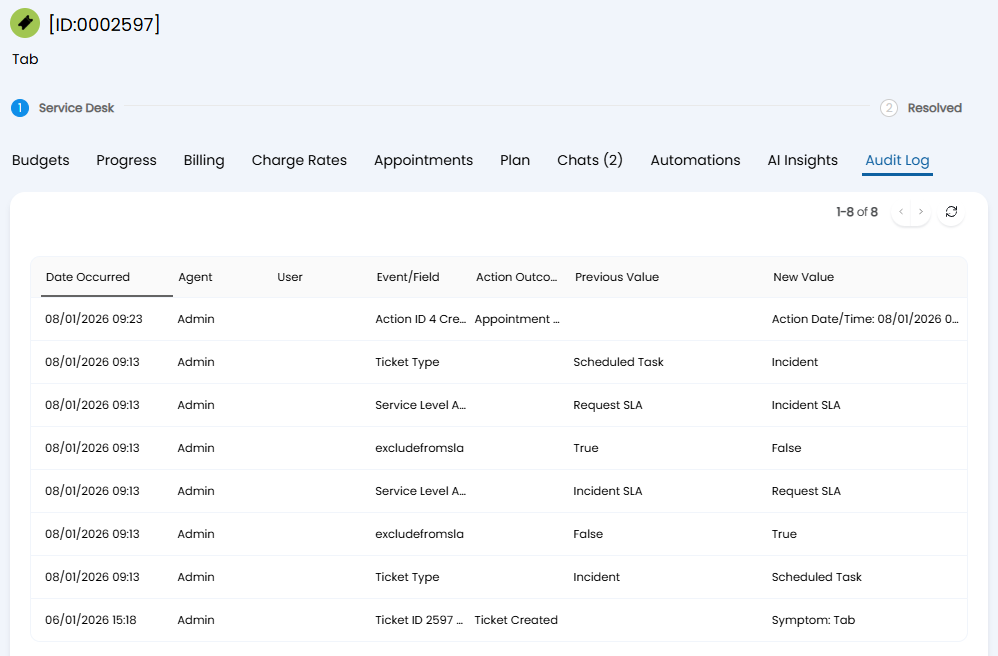
Fig 32. Audit Log tab.
The auditing tab is paginated to improve loading times.
Milestones
This tab appears on project tickets for setting "phases" of your project. Here you can set the Start date and End date of each phase, which order you want them to appear by the Sequence, and their current status.

Fig 33. Milestones tab
Forecasting
This tab appears on project tickets, and agent will appear in the table if they are assigned to the project or a project task under the project. Here you can set the expected time spent on the project within the week, and the colours will switch based on the percentage thresholds set in Configuration > Project Management > General Settings.
Forecasting can be enabled per ticket type in the "Settings" tab ("Enable Forecasting"). This checkbox will only appear if the "Time Management" module is enabled within Configuration.
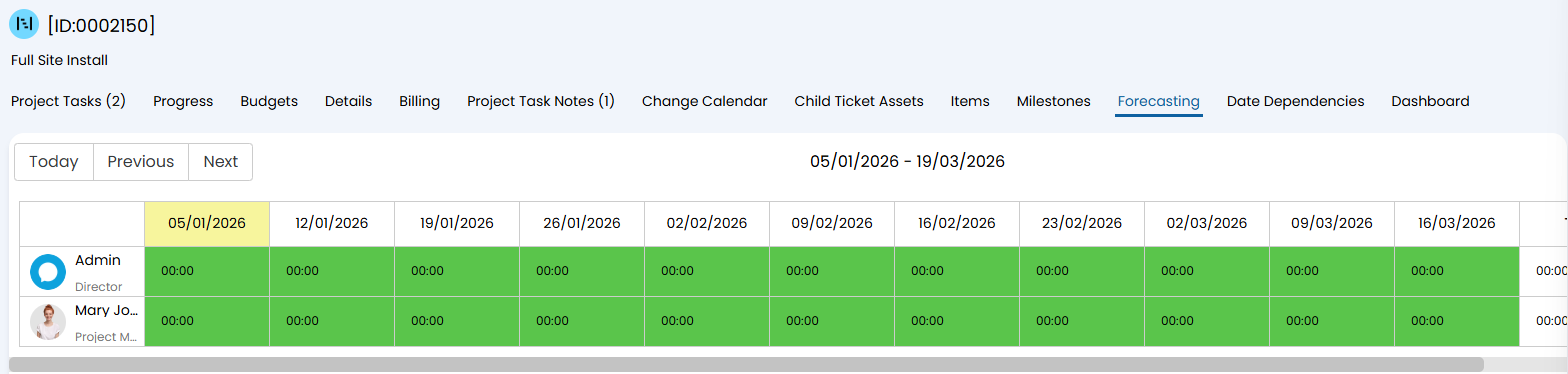
Fig 34. Forecasting tab.
Call Log
This tab shows calls taken that have been linked to that ticket with the Start Date and Time, Call Duration in minutes, the phone number used, and any attachments.
Note: For this tab to show, "Show Call Log on the Ticket" needs to be enabled in Configuration > Call Management > General Settings, and the Call Management module turned on.
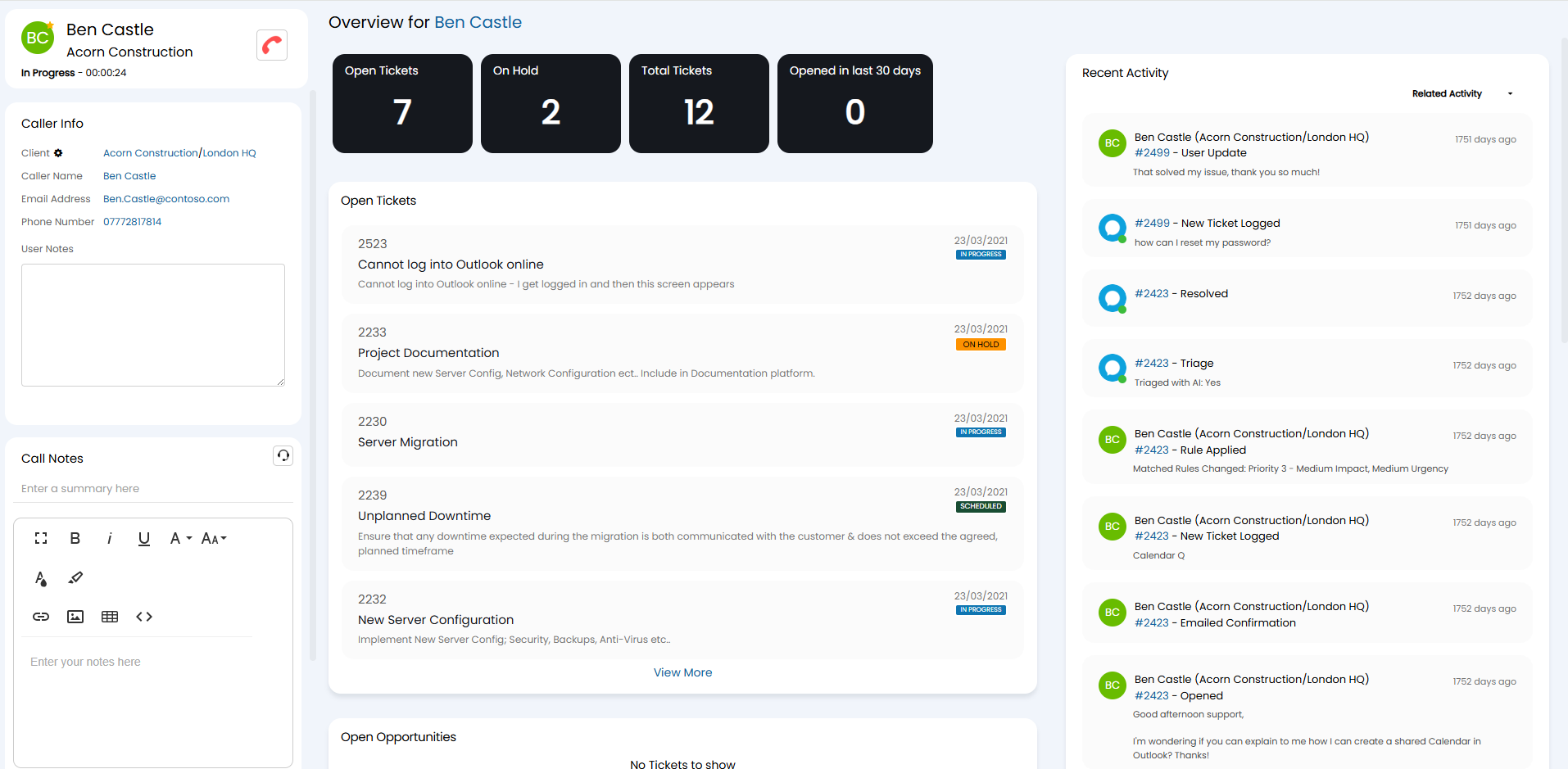
Fig 35. Call Log tab and call screen linked to the ticket.
Event Log
This tab shows events on a ticket such as the ticket being logged, status changes, etc.
Note: This tab will only show to Admins, when "Show an "Event Log" tab on entities with events (Admins only) is enabled in Configuration > Notifications > General Settings. This is a global setting, not per ticket type.
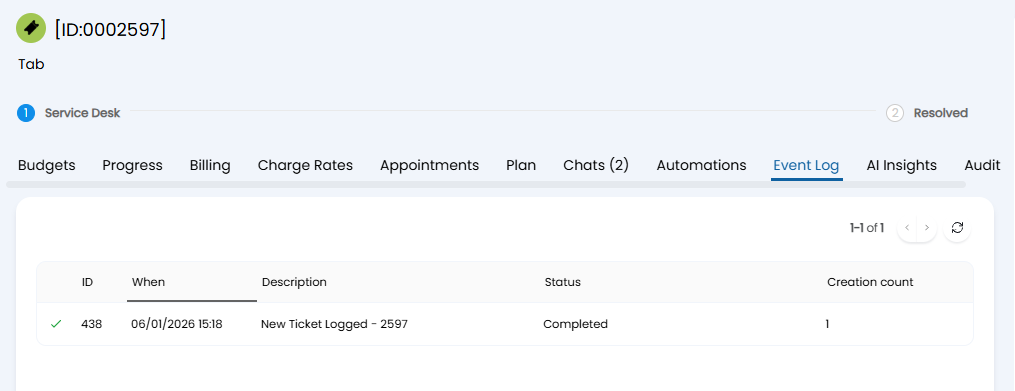
Fig 36. Event Log
Microsoft Teams Chat
This tab will appear when the Microsoft Teams module and its Chat Management is enabled. Please reference the "Chat Management" section of the following guide.
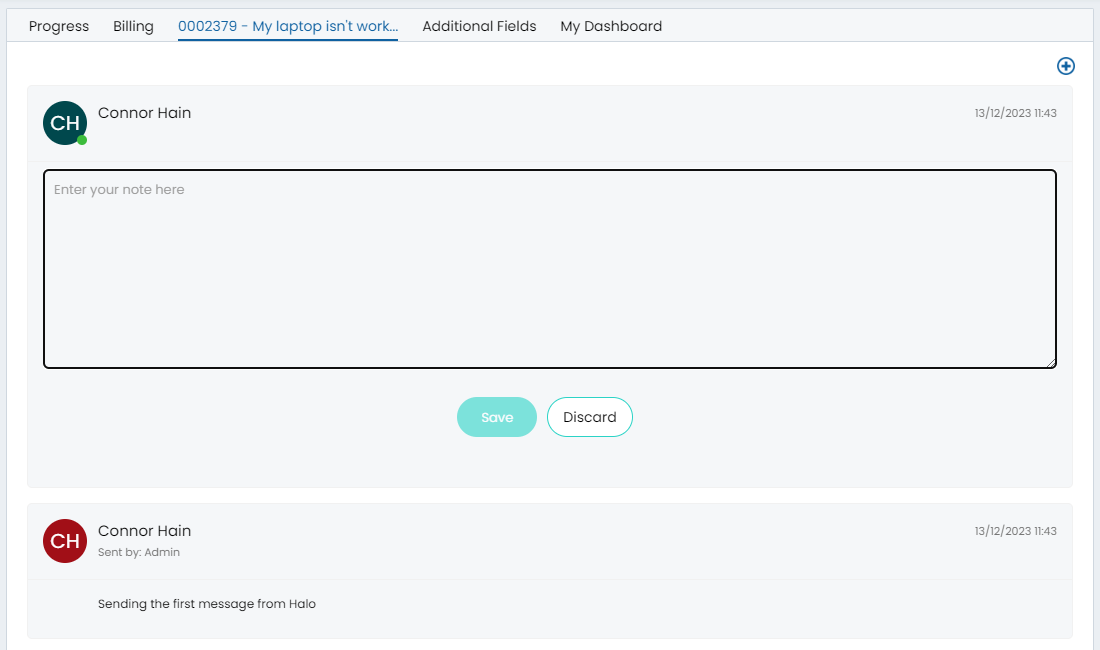
Fig 37. Microsoft Teams Chat tab
Date Dependencies
This tab shows dependant child tickets to the parent ticket being viewed, and the dependency type.
These are configured on the parent ticket when "Enable Date Dependencies" is set to Yes in Configuration > Tickets > Ticket Types > choose the type > Forms tab.
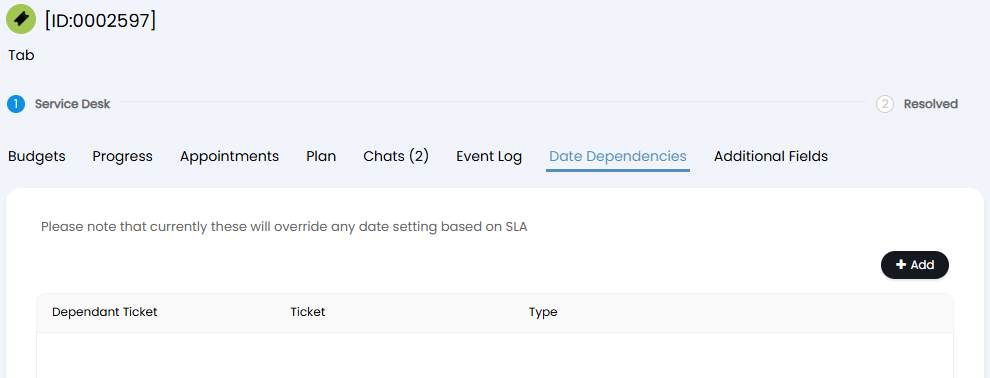
Fig 38. Date Dependencies tab
OLAs
This tab shows the OLAs set on the ticket's corresponding workflow, and information such as Start date, Target Date, Status, Completion Date, Time on OLA, and if the target was met.
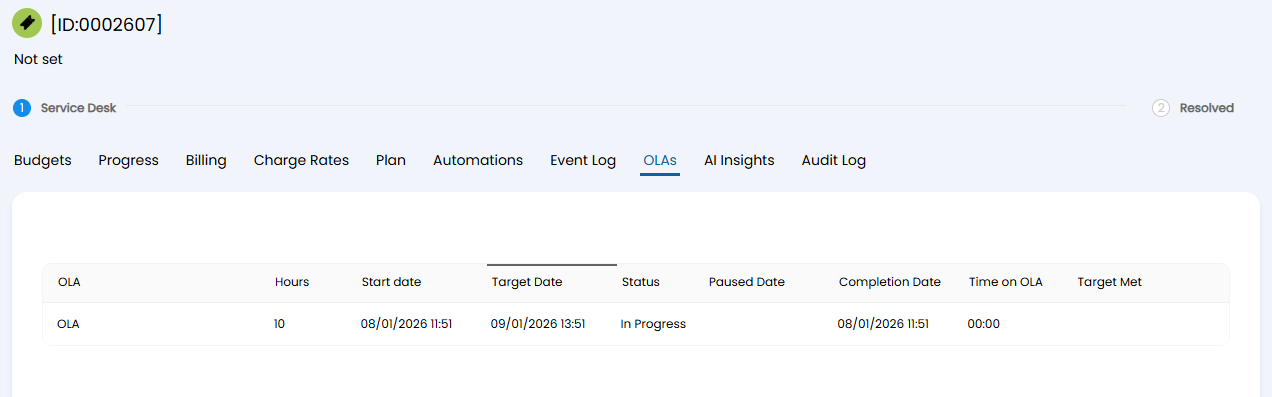
Fig 39. OLAs tab
AI Insights
This tab appears if AI is enabled within your instance, and shows information based on the "AI Insights" section in Configuration > AI.
Note: These tabs are now consolidated into one tab.
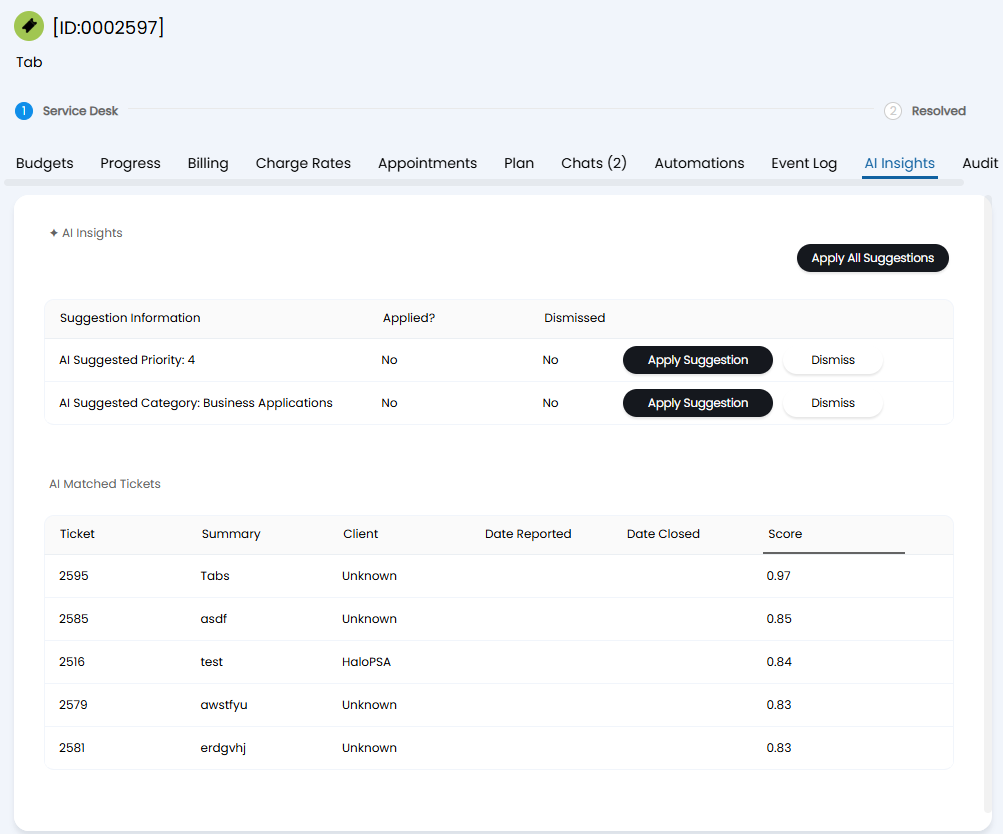
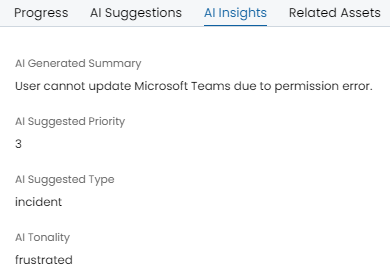
Fig 40 and 41. AI Insights tab and contents
View Log
The "View Log" tab can be used to see who viewed a ticket and when, which can be useful for seeing who is "cherry-picking" tickets. In Configuration > Advanced Settings, enable "Record Ticket views" and then "Show the "View Log" tab on Ticket Details" that will then show underneath.
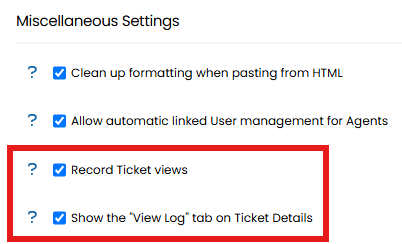
Fig 42. Enabling the log tab.
The tab will then show on tickets like below, showing the agent and when they viewed the ticket.
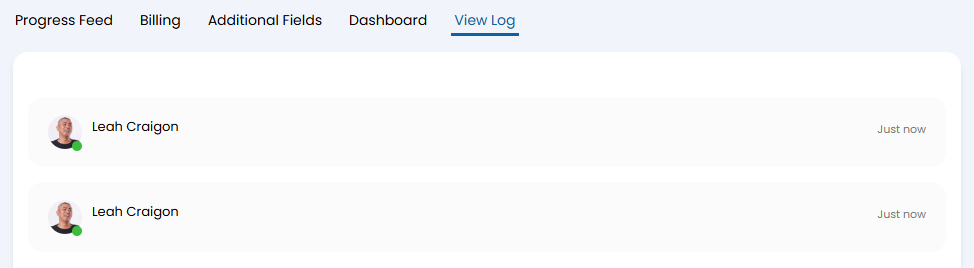
Fig 43. View Log tab.
Notification Log
The "Notification Log" can be enabled from Configuration > Notifications > General Settings > "Show a "Notification Log" tab on Tickets".
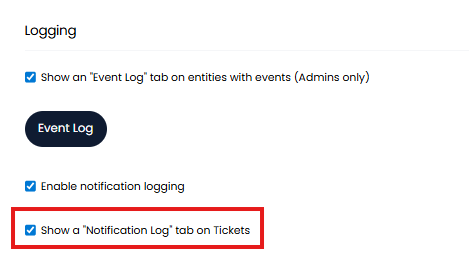
Fig 44. Enabling Notification Log.
Note: "Enable notification logging" needs to be enabled for this to be available.
The tab will show all the notifications that have triggered for the ticket, including webhooks, runbooks and system notifications such as approval process emails. Useful for troubleshooting and monitoring.
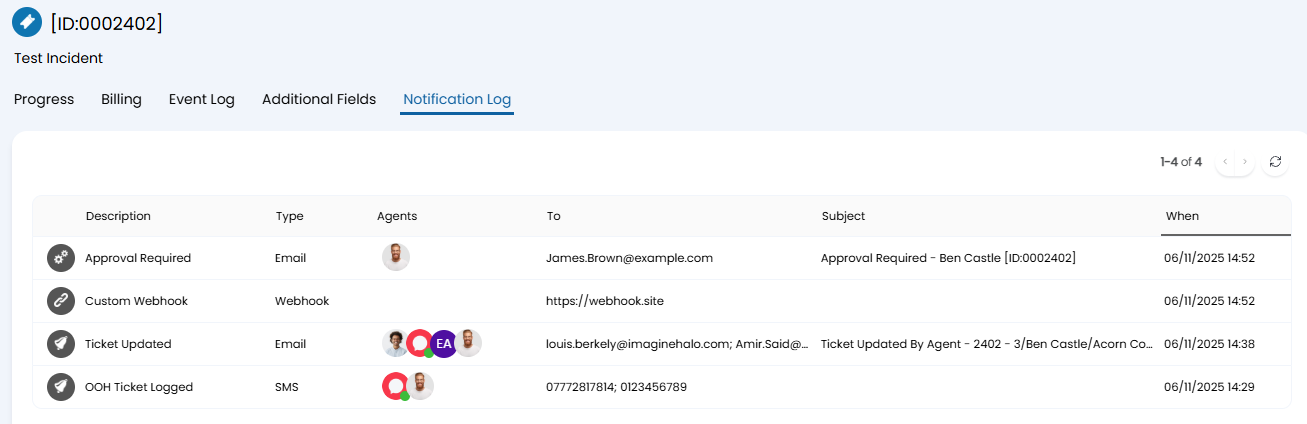 Fig 45. Notification Log tab.
Clicking into a notification from this page will take you to the configuration page for that notification. You will have the option to choose what you view when you click on a notification. From this version a drop-down shows when the "Show a "Notification Log" tab on Tickets setting is enabled. This can be set to "Show the notification configuration" (current behaviour), or "Show the outbound logs", which will show the outbound logs for any email type notifications. Each record can then be selected to view more details. Administrators will be able to view the log and attempts by changing the tab, and will be able to resend or delete the record from this page.
Supplier Tickets
You can have a tab on a Ticket which shows all the other tickets logged to that Supplier. To enable this head to Configuration > Tickets > Ticket Types, choose the relevant Ticket Type, and head to the Settings Tab. Under the Related Activity section, enable the "Show other Tickets for the Supplier in a tab" checkbox.
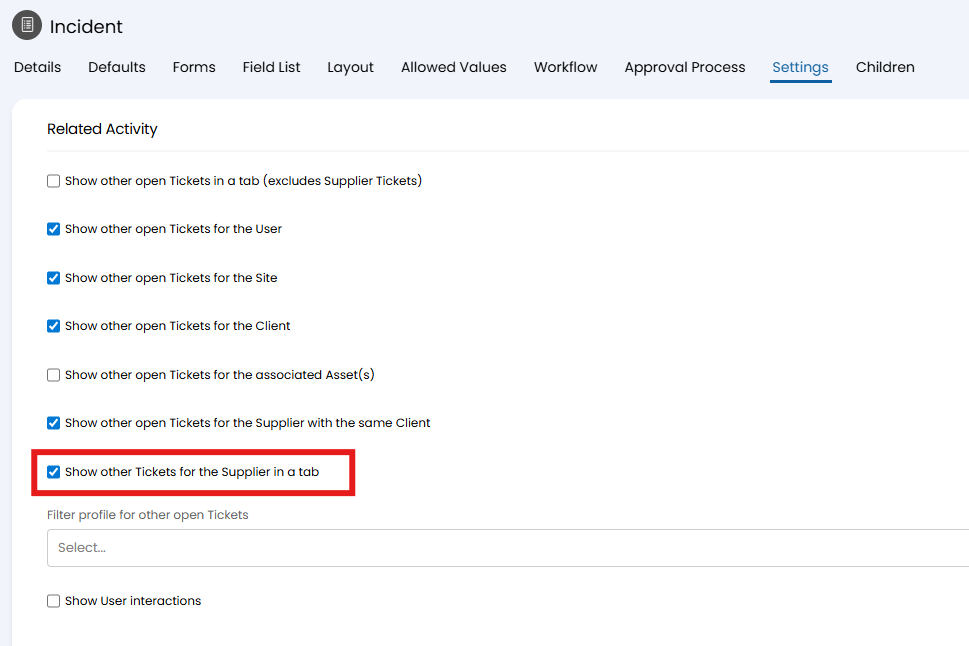
Fig 46. Show other Tickets for the Supplier in a tab.
You will now find a Supplier Tickets Tab which shows other Tickets logged with the same supplier.
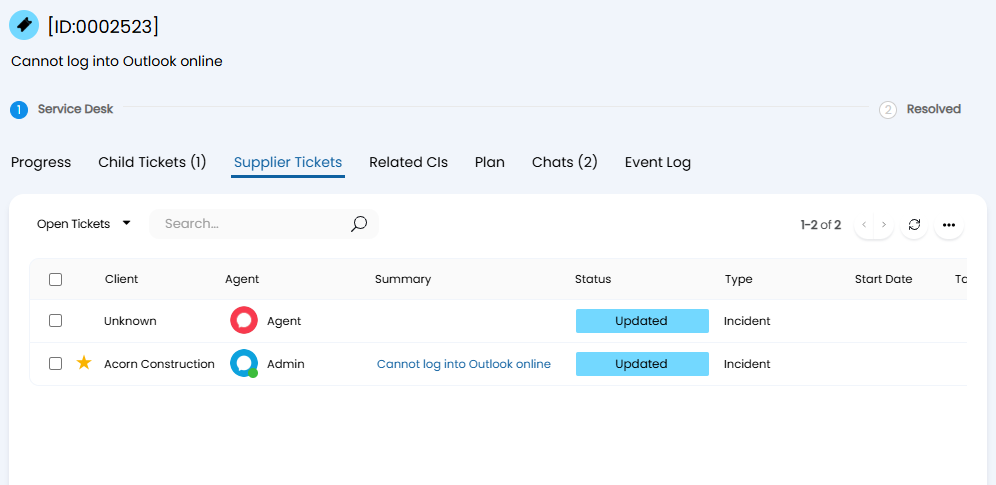
Fig 47. Supplier Tickets Tab
Harvest Timer
You can enable a tab on Tickets which links to your Harvest account, and shows your Harvest Timer. To see this tab you will first need to enable "Show Harvest Timer Tab on Tickets" in Configuration > Advanced Settings.
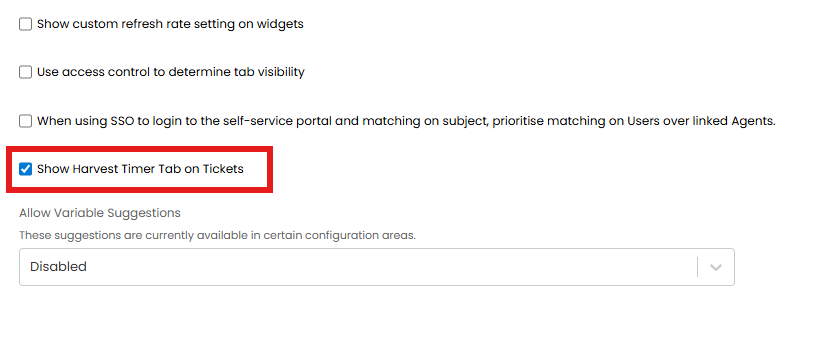
Fig 48. Enabling the Harvest Timer Tab
With this enabled you will see the "Harvest Timer" tab on your Tickets. To link your account head into this tab and click "Select an account". This will bring up a modal window where you can sign in to Harvest.
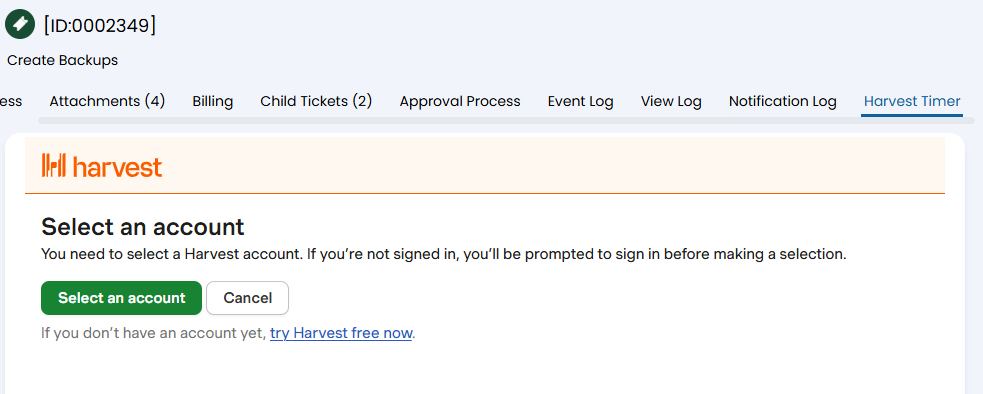
Fig 49. Connecting your Harvest account
Once you have connected your Harvest account you will be able to see your Harvest Task/Project timer under this tab.
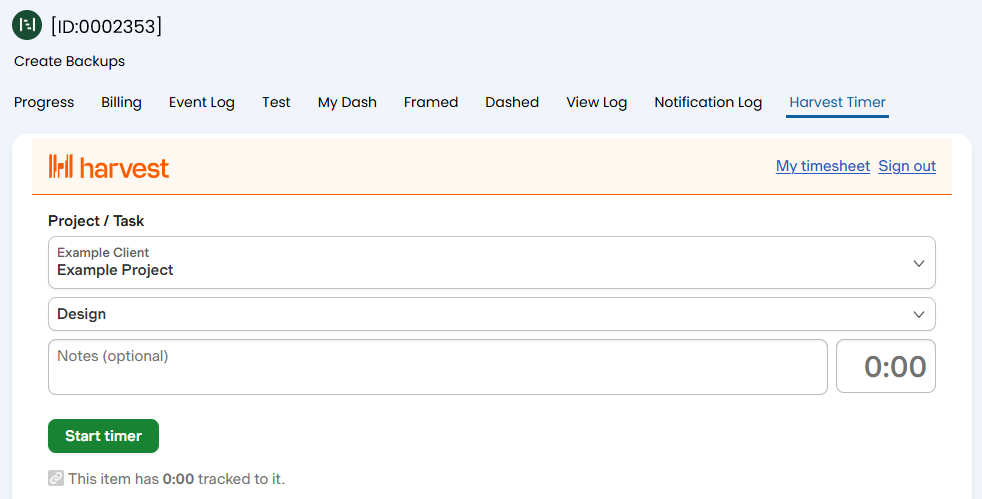
Fig 50. Harvest Timer Tab
Custom Tabs
Custom tabs can be set to whatever contents you would like them to contain by using custom fields. Trials have a few built in, the common uses outlined below.
Additional Fields
This tab will show each custom field set against the ticket type that has not been set against a custom tab. By default, a custom field will be set to this due to this custom tab having the lowest sequence number, but this can be changed if wished.
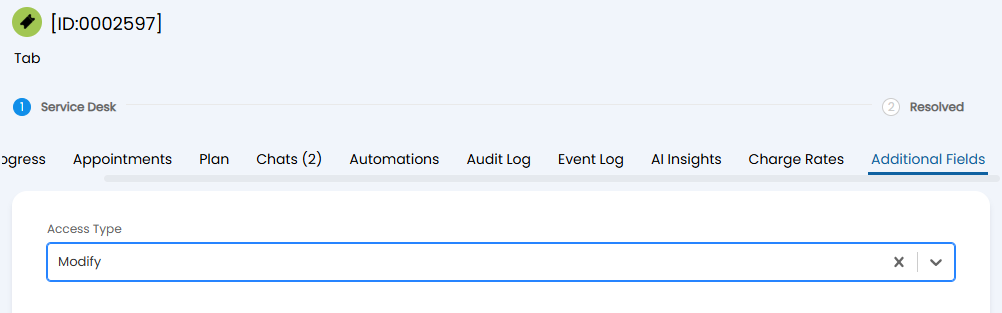
Fig 51. Additional Fields tab
Article Draft
This tab shows on tickets that are being used as article drafts, set in this area below in Configuration > Knowledge Base.
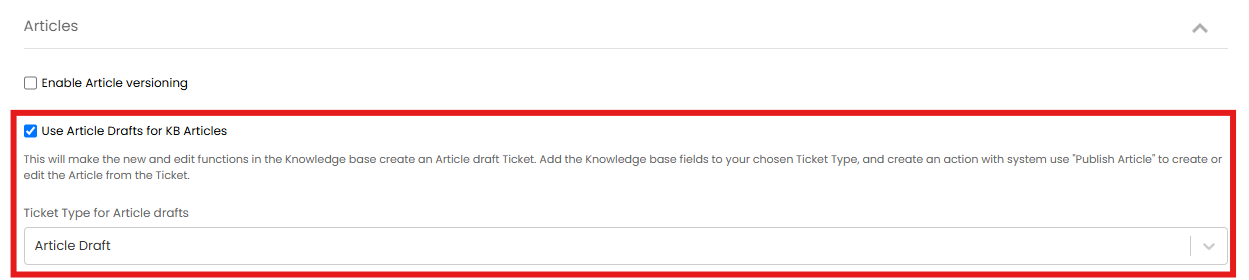
Fig 52. Article Draft configuration.
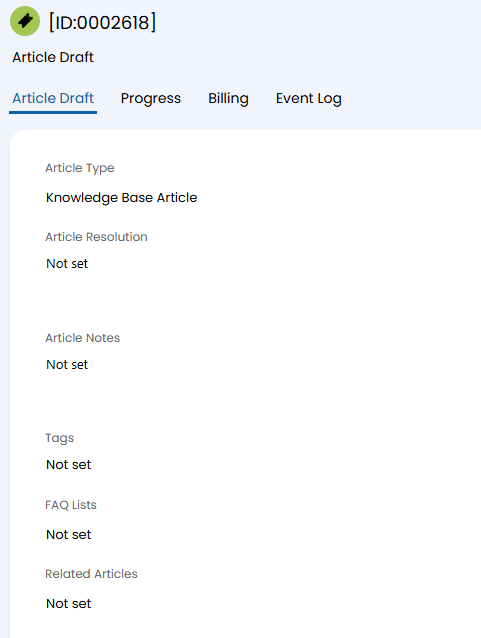
Fig 53. Article Draft tab.
Sales Info
This built-in custom tab can show information on opportunity tickets by assigning custom fields to it. This can be edited to your own needs.
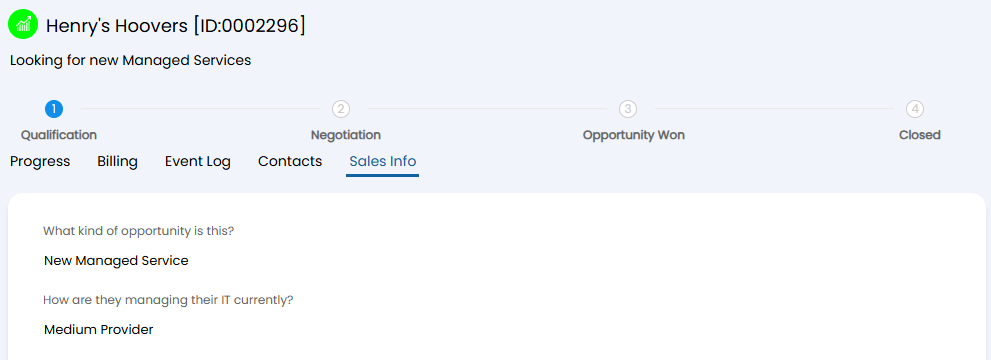
Fig 54. Sales Info tab.
SoW
This built-in custom tab can have fields added to this to track a Statement of Work.
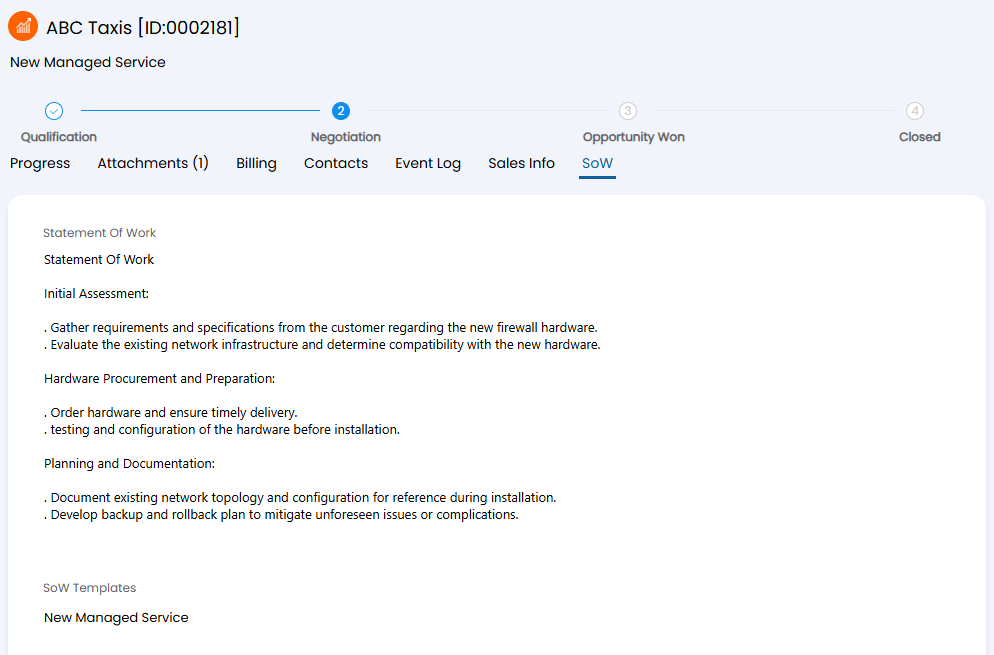
Fig 55. SoW tab.
Customising Tab Layout
You can change the order that the tabs appear per ticket type. Go to Configuration > Tickets > Ticket Types > choose a type > Layout tab. The "Tab layout" can be changed from Default to Custom.
This will make the "Tab order" area underneath appear. Here, you can hover over a tab to show the dots on the left side of the bar, and you can use this to drag-and-drop the tabs in whichever order you wish them to appear.
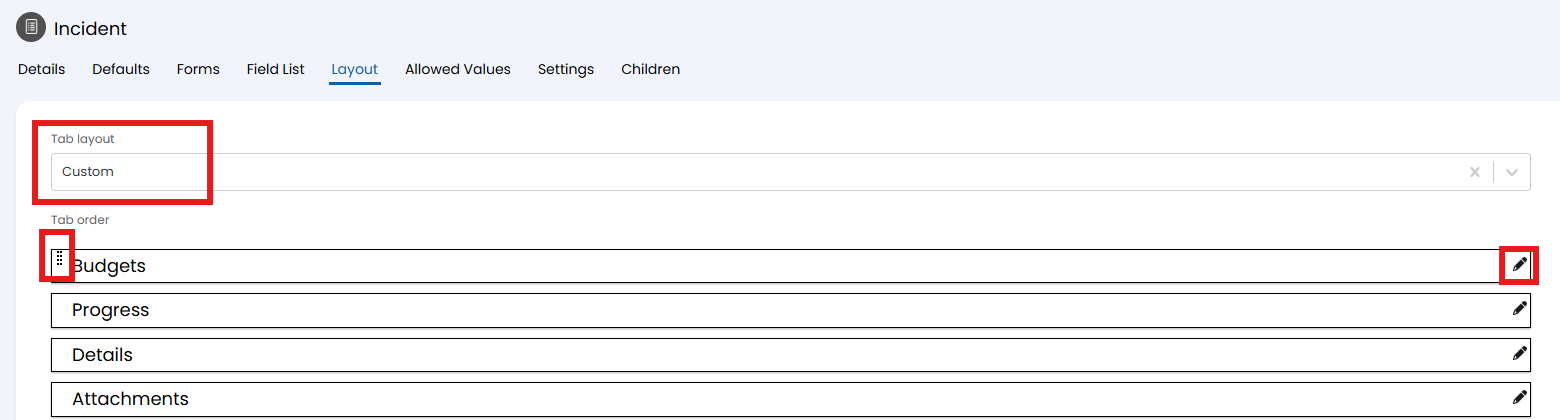
Fig 56. Tab layout configuration.
You can click the pencil icon on the right when editing to also set whether you wish this tab to show or be hidden.
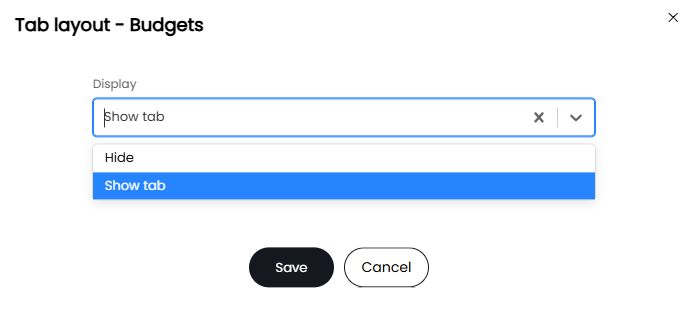
Fig 57. Show/hide a tab.
If "Show tab" is selected, the tab will appear once the prerequisites for it doing so are set, i.e. the Budgets tab appears once the Budgets field is added to the ticket type.
If "Hide" is selected, the tab will not appear regardless of whether the prerequisites are met or not.