Asset Views
- Assets
- Asset Views
- asset list
- CMDB list
- asset key field
- asset name
- asset column profile
- asset display name
- assets in portal
- my devices page
In this guide we will cover:
- Asset Lists and Key Fields
- Column Profiles
- Related Assets Column Profile
- Changing the display name of an Asset
- Viewing Assets in the Portal
Admin Guides:
Asset Lists and Key Fields
There are two main ways in which the list of assets can be presented: By asset type or by asset group. The default list view can be set via Configuration > Asset Management > General Settings.
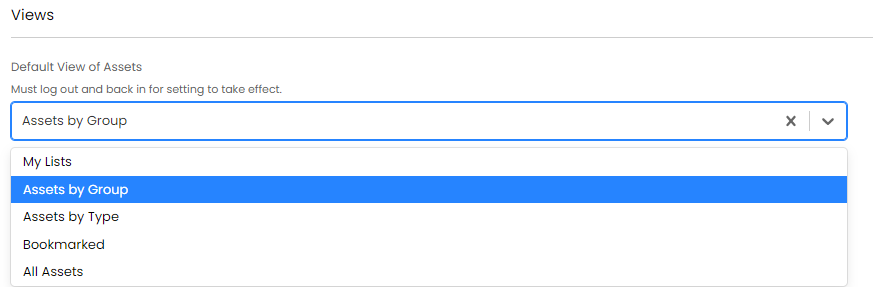
Fig 1. Setting default list type for Assets
When viewing the list of Assets, the default column profile will look similar to:

Fig 2. Default Column Profile for Assets
Notice the last three/rightmost columns - Key field 1, 2 and 3. The data in these columns is determined by the Key Fields for an Asset Type. Setting an Asset Type's key field is done within the configuration for an Asset Type, via the "Field List" tab.
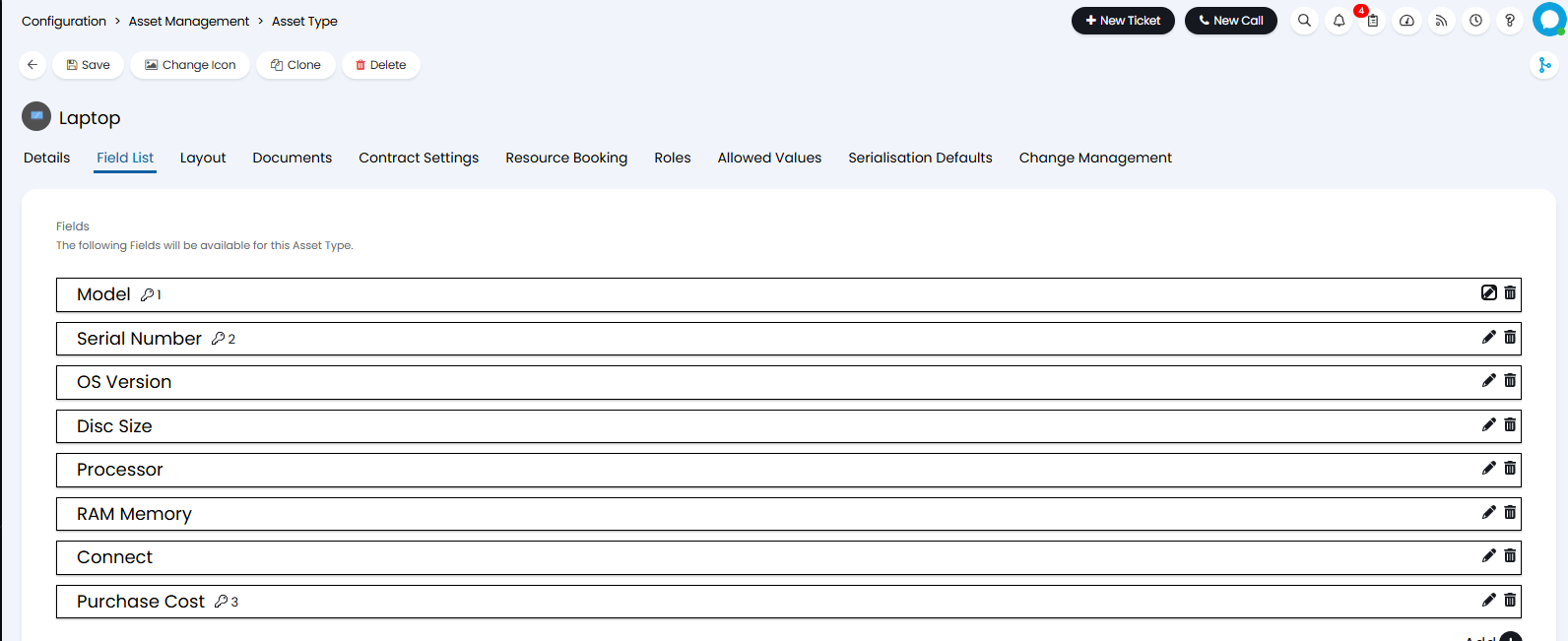
Fig 3. Field List within Asset Type Configuration
Setting an Asset field as a Key field is a case of editing the field in question, then setting said field as a 'Key Field':
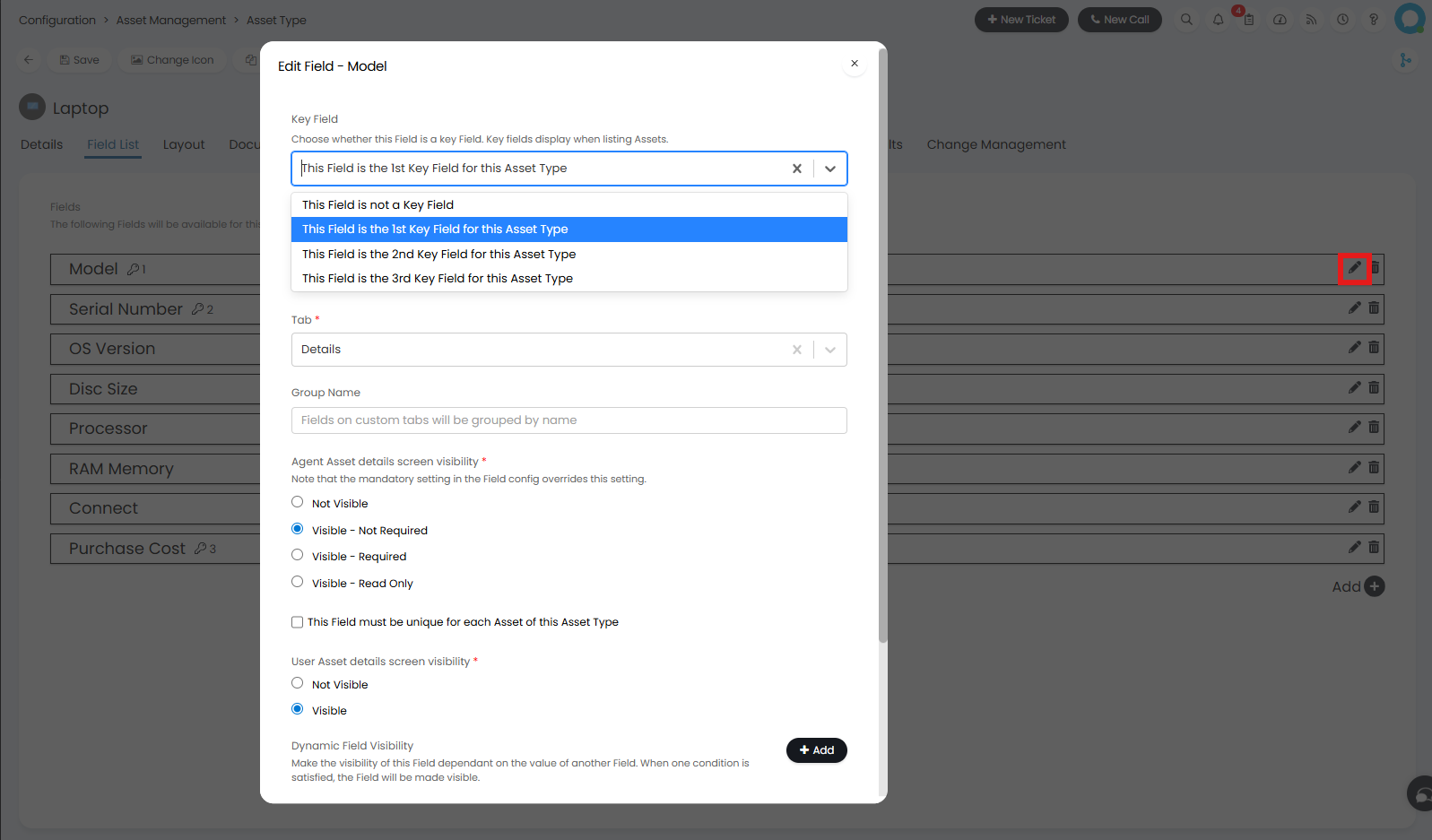
Fig 4. Editing Asset Type field to set as Key Field
Note that, as different Asset Types can have different Key Fields, the columns in the List of Assets says the generic 'Key Field 1/2/3'. However, when viewing a list of Assets of a given type, the columns return the specific fields that have been set as the Asset type's Key Fields:

Fig 5. Columns Returned when Viewing Assets of a particular type (Laptop in this case)
This being said, HaloPSA does provide the option to create your own custom Asset Column Profiles.
Asset Column Profile
In a very similar fashion to Ticket column profiles, Asset column profiles allow you to establish the columns of information returned when viewing the list of Assets via the Assets module.
Asset Column Profiles are created/amended via Configuration > Asset Management > General Settings.
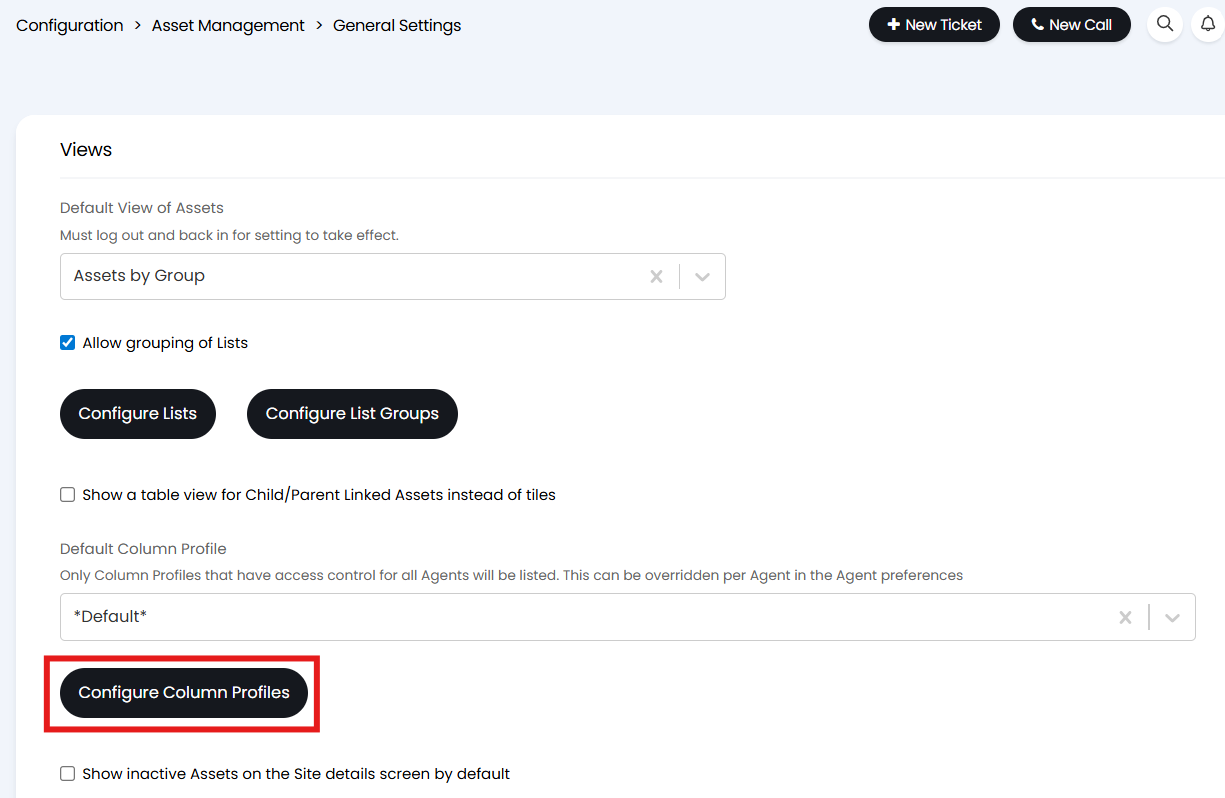
Fig 6. Configuring Asset Column Profiles
Again, in a similar fashion to Ticket Column Profiles, you construct your profile via adding a Column Profile ('New' at the top right) then adding to the 'Columns' list:
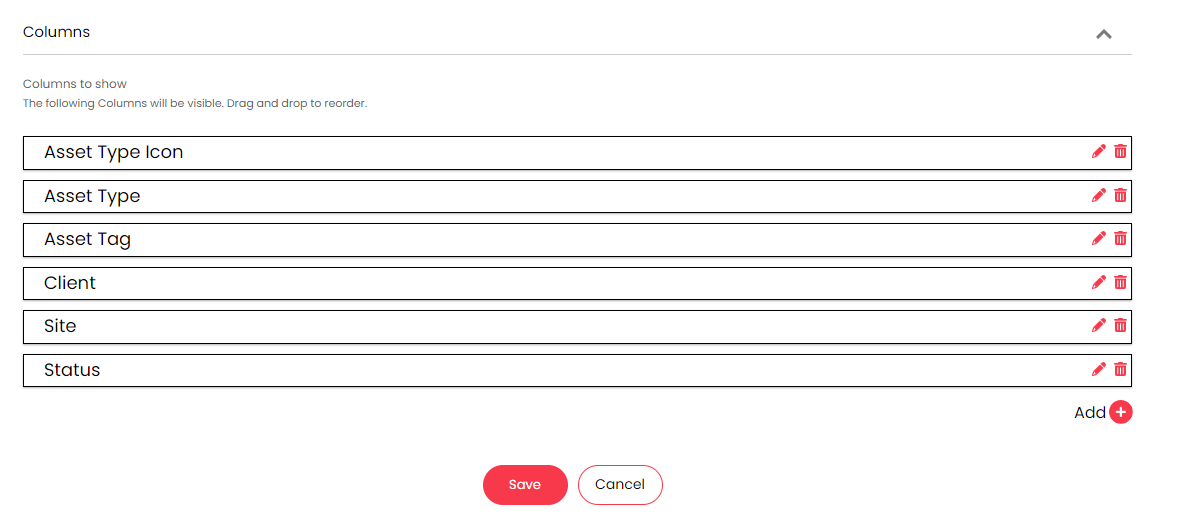
Fig 7. Constructing Column Profile
The first field in the Columns list is the left-most column & the last field in the list is the right-most. Re-ordering fields is done via drag & drop (by hovering over the LHS of the field & moving up/down):

Fig 8. Re-ordering fields
By clicking the pencil on the Right of the field to edit, you can apply sorting/grouping accordingly:
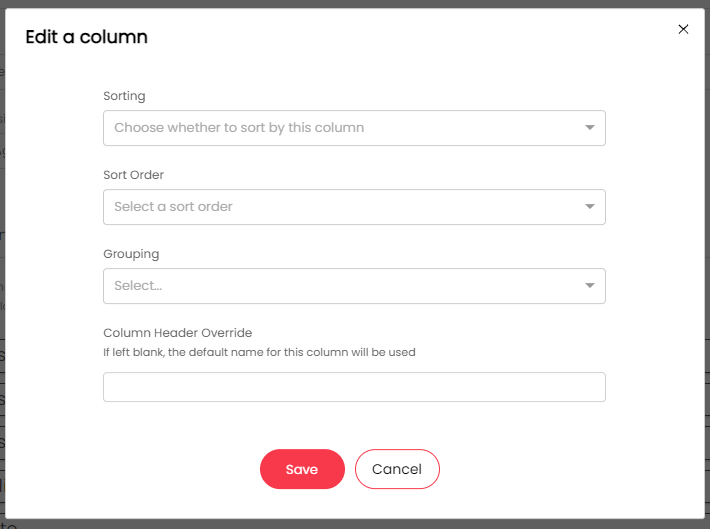
Fig 9. Editing Asset Column Configuration
Once applying the Column Profile I have just created:
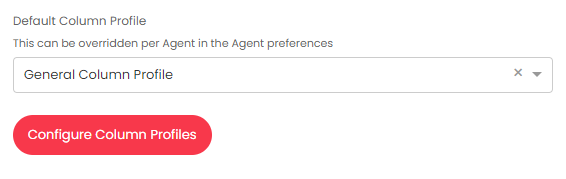
Fig 10. Applying Column Profile
Then the columns present in my Asset list will be altered:

Fig 11. Asset list, based on new column profile
The default Asset column Profile applied can be set per Agent, via their Preferences:
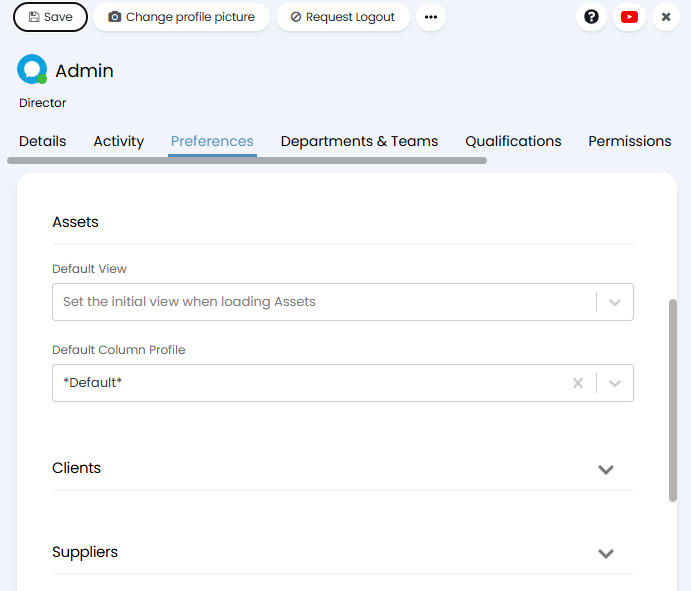
Fig 12. Default Asset Column Profile option
Asset Fields can be thought of as the bits of information you are looking to capture against an asset type. Of course, the type of information you are looking to capture will vary from one asset type to the next (you won't be interested in displaying the 'Operating System' field against Keyboards). With this in mind, it is important to note that column profiles can also be set per asset type - via Configuration > Asset Management > Asset Types:
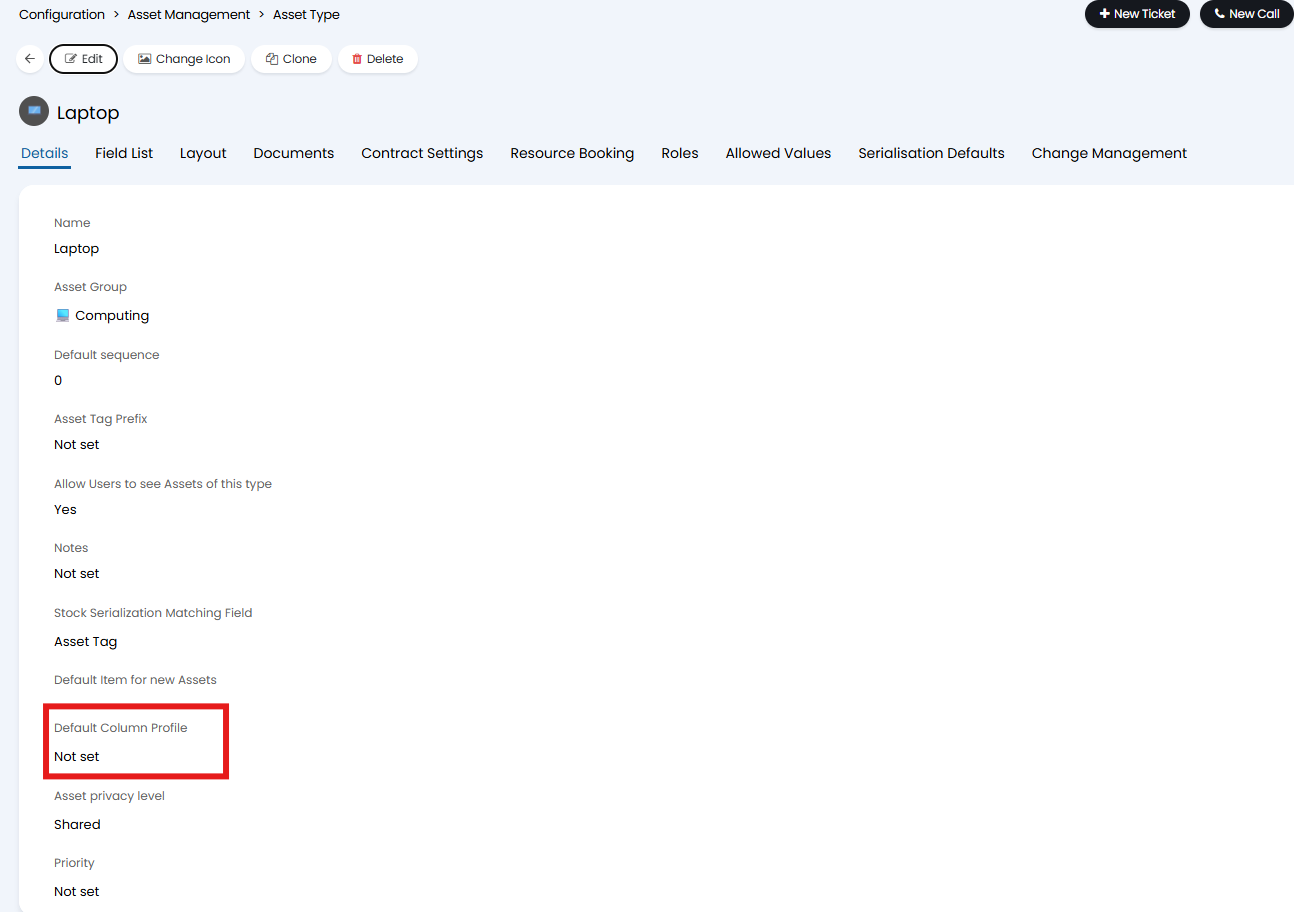
Fig 13. Default Column Profile per Asset Type
Such that, for each Asset Type, you are only presenting the relevant information in list view.
Related Assets Column Profile
Within Configuration > Tickets > General Settings you can set a "Related Assets Column Profile".
Within the Related Assets you can right click to set the set primary Asset.
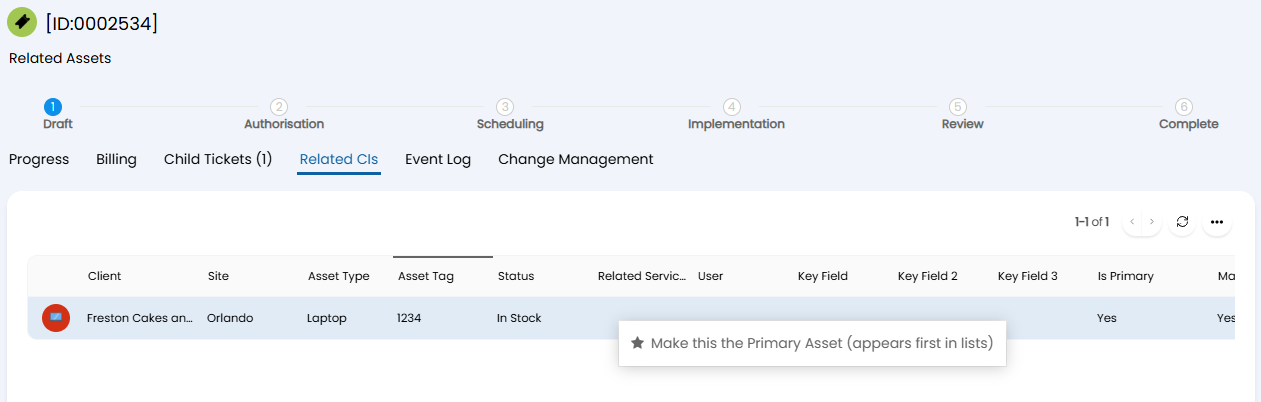 Fig 14. Default View of Related Assets Tab
We can set a related assets column profile in the tickets general settings module, the selectable profiles will be ones of use: asset. Configured in Configuration > Asset Management > General Settings > Column Profiles.
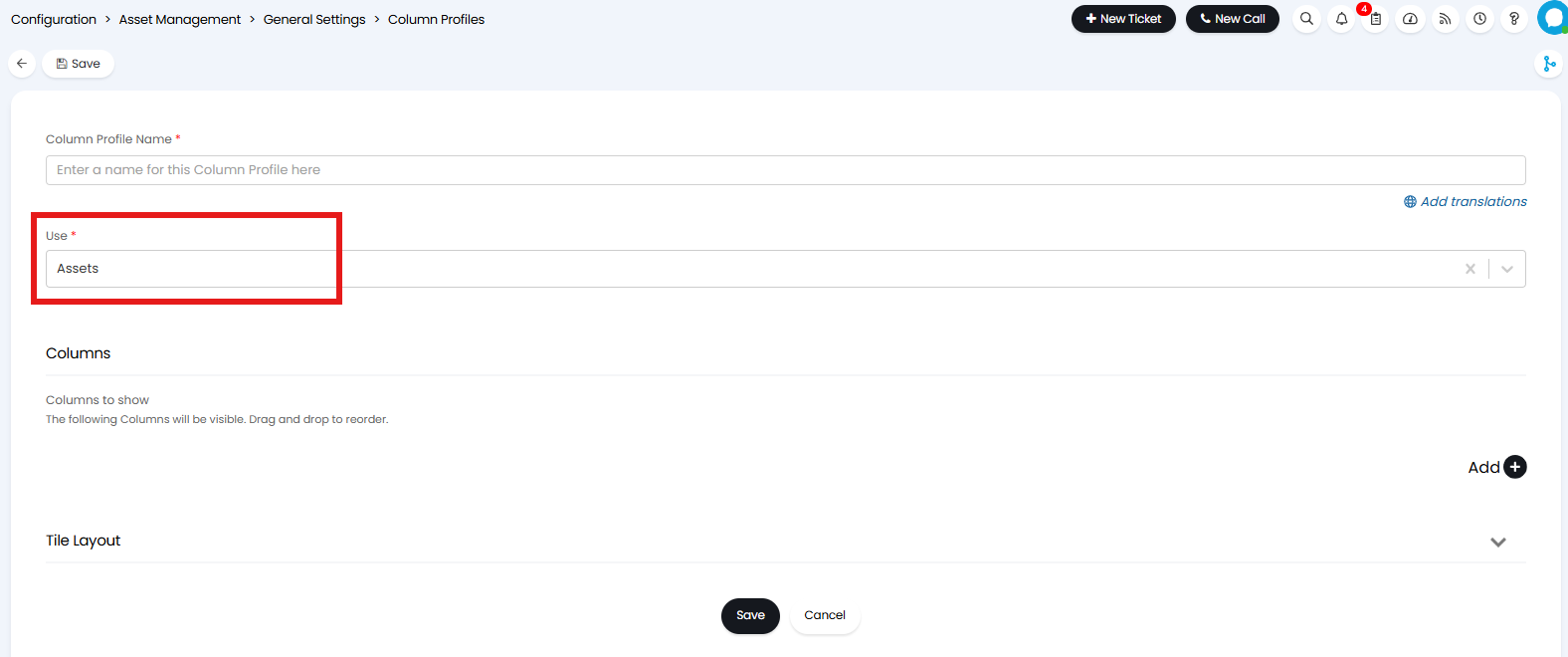
Fig 15. Creating a Column Profile For Use: Assets
I can now set this in Tickets > General Settings.
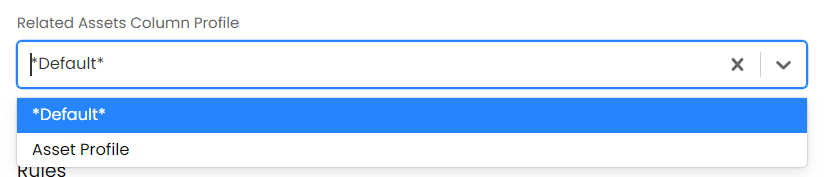 Fig 16. Setting a New Column Profile for Related Assets Tab
Now on the ticket type I can set the correct visibility for the display type on the asset field, in this case it is a field that is in a field group.
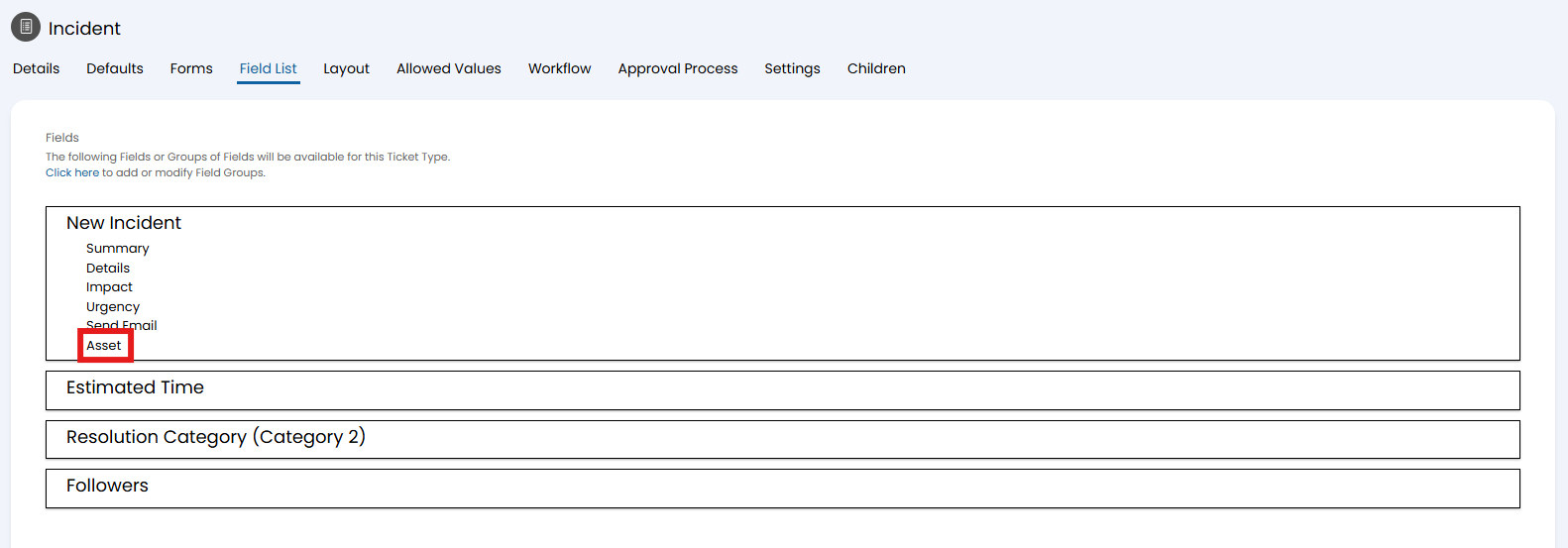 Fig 17. Asset Field in The Field List
Note: You may need to add the asset field to the ticket type if it is not already set.
You can set the asset field to the display type "Table View".

Fig 18. Setting The Correct Display Type
Now clicking into the related assets tab of the ticket type I have configured, I see this:
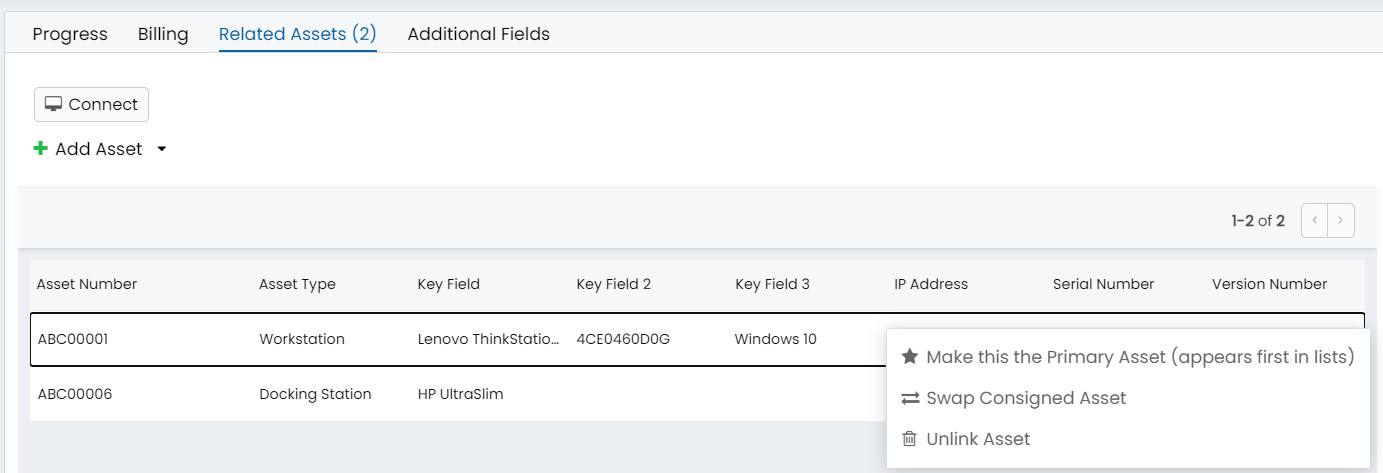
Fig 19. Column Profile Showing On The Related Asset Tab
When displaying a ticket's related assets as a table, if the Asset Tag field is included as one of the columns, hovering over that column will display a hover popup with the following details:
- Asset Type
- Asset Tag
- Status
- Key Field 1 - 3
Within the Asset list, you can click into the ellipse option in the top right and use various system use features:
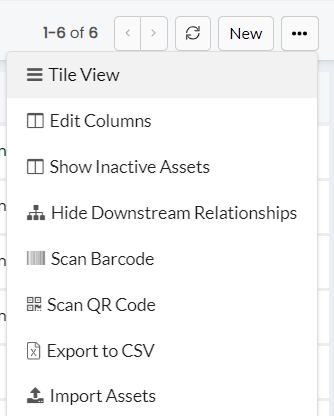
Fig 20. Asset Options within the List
Changing the display name of an asset
By default the header of an asset is the asset's asset number (tag), this is the value that will show as the header when you are viewing the asset profile, shown in Figure 21.
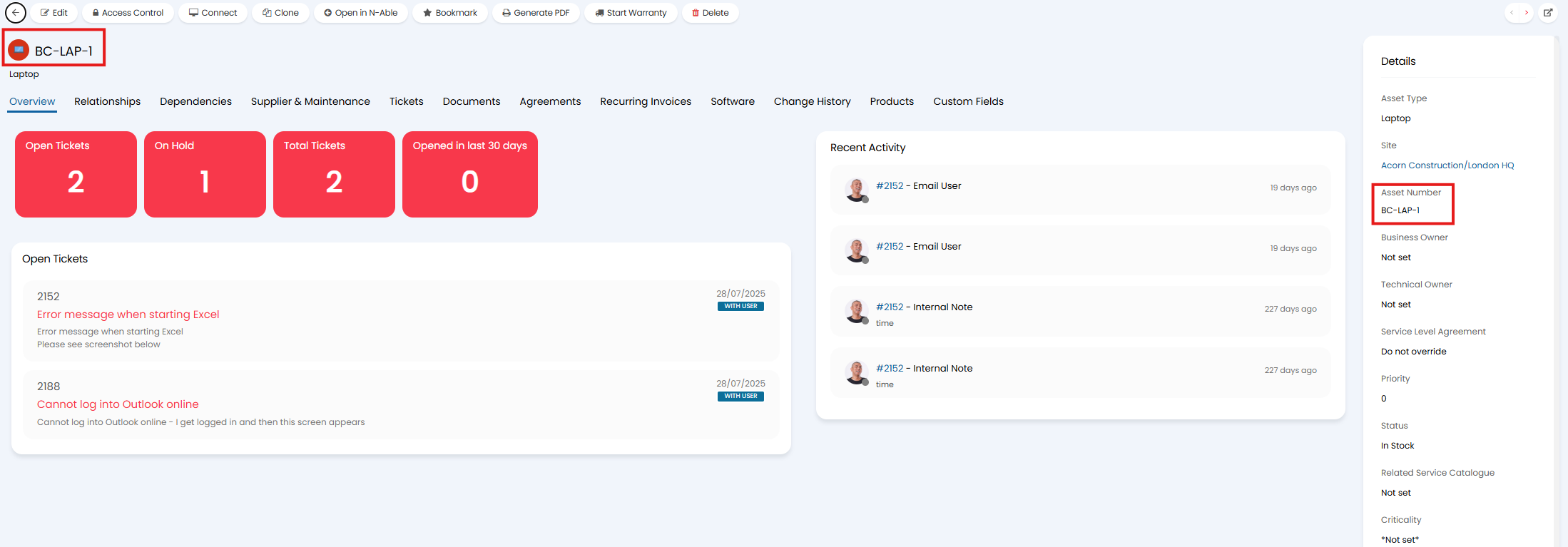
Fig 21. Asset number as display name
If the asset number field against an asset is populated this will always show as the header. The type of the asset will also show under the header.
If the asset number field is not populated the asset type + the first asset key field will be used instead.
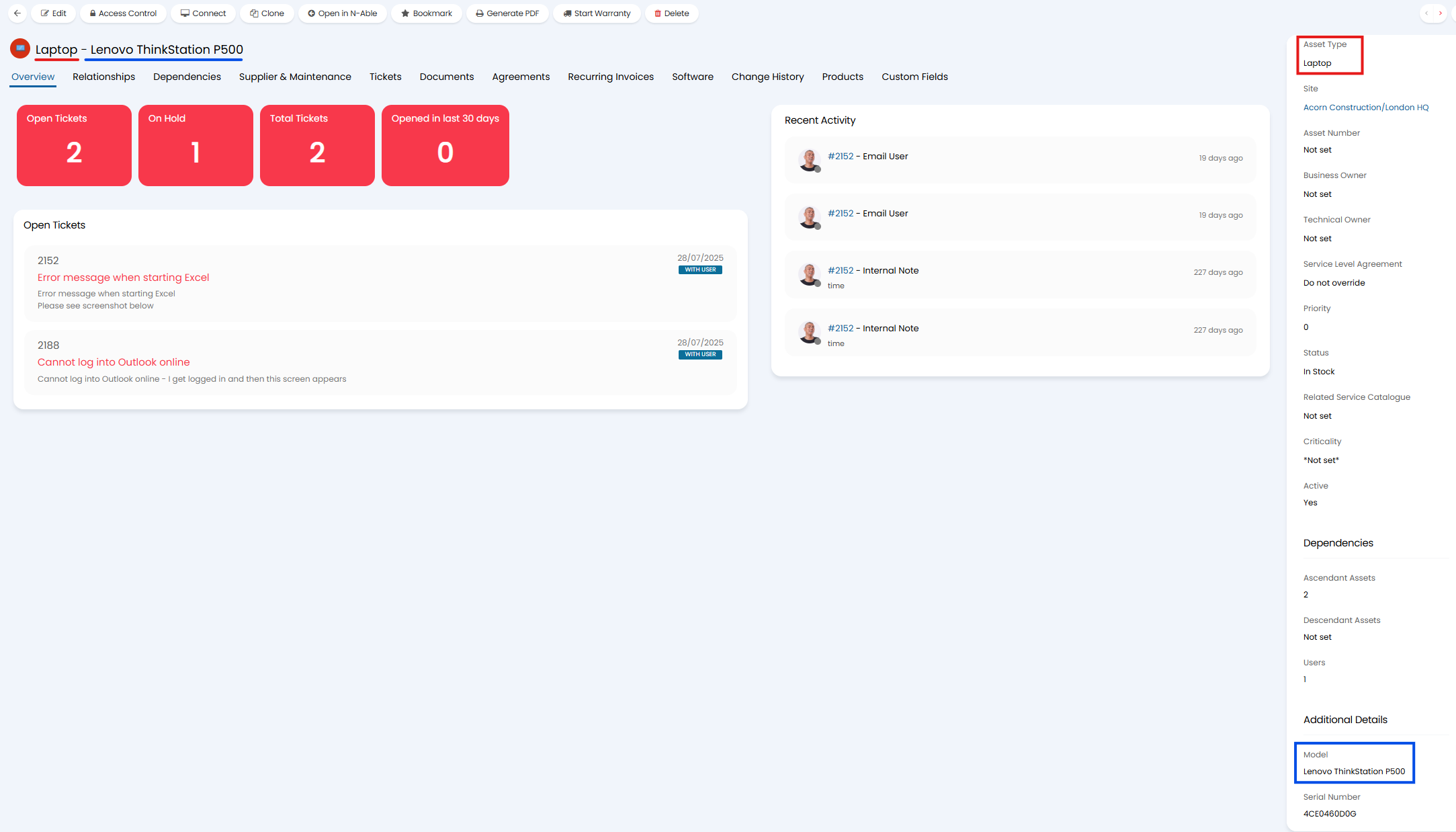
Fig 22. Key field 1 (model) and asset type being used as asset header when Asset Number field not populated
If the asset number and first key field are both not populated the asset type + the site the asset is assigned to will be used as the header.
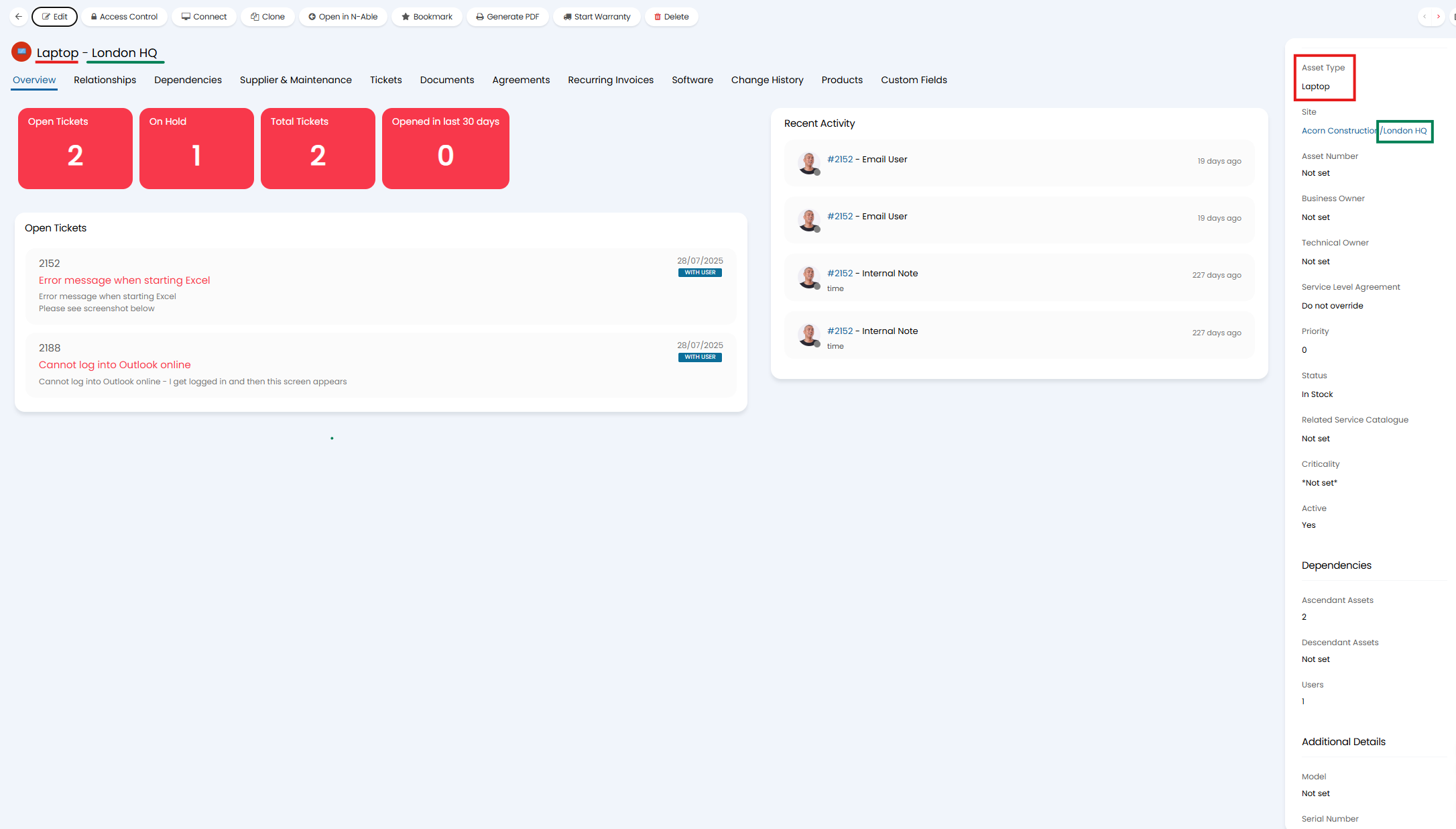
Fig 23. Asset Type and Site being used as asset header when Asset Number and Key Field 1 are not populated
You can override the asset display name, by selecting which name to display in the "Field used for Asset display name in the CMDB" dropdown in Configuration > Asset Management > General Settings.
Changing the Display Name of Assets when viewing from Tickets and Search Results
The asset number field will also be the field that displays when viewing assets on a ticket, and in search results by default but this can be changed. To do this, head to Configuration > Asset Management > General Settings, see the setting here for "Fields to display when Assets are displayed on Tickets or in search results". If this is set to be "Key Field" the first key field on the asset will represent the asset. 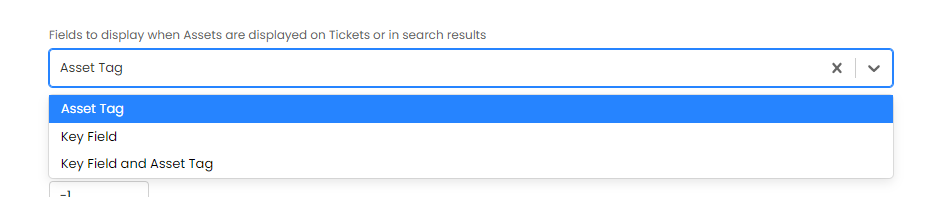
Fig 24. Fields to display when Assets are displayed on Tickets or in search results setting
Now when I search assets to relate to a ticket, I can still search using any field but the headings for the results will be the chosen (first) key field. In the Figure 25 example I have set the first key field to be "Name".
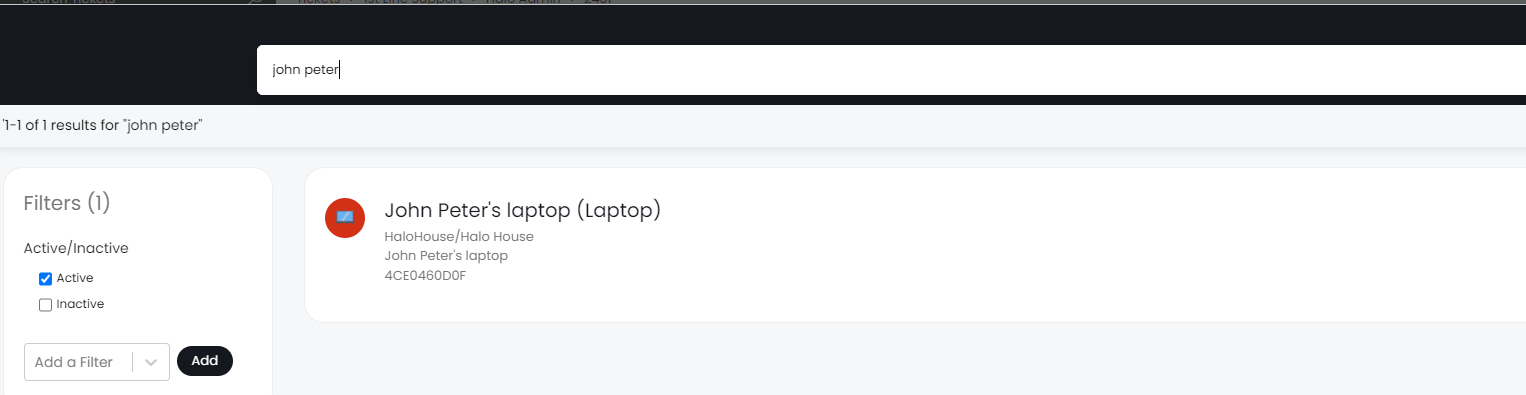
Fig 25a. Searching asset using key field
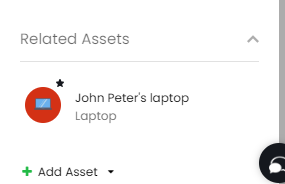
Fig 25b. Key field used to reference asset
This can be used to create a much more user friendly interface for viewing assets.
Viewing Assets in the Portal
To allow users to view assets in the portal ensure you add the "My Devices" button to the self service portal. This is added under Configuration > Self Service Portal.
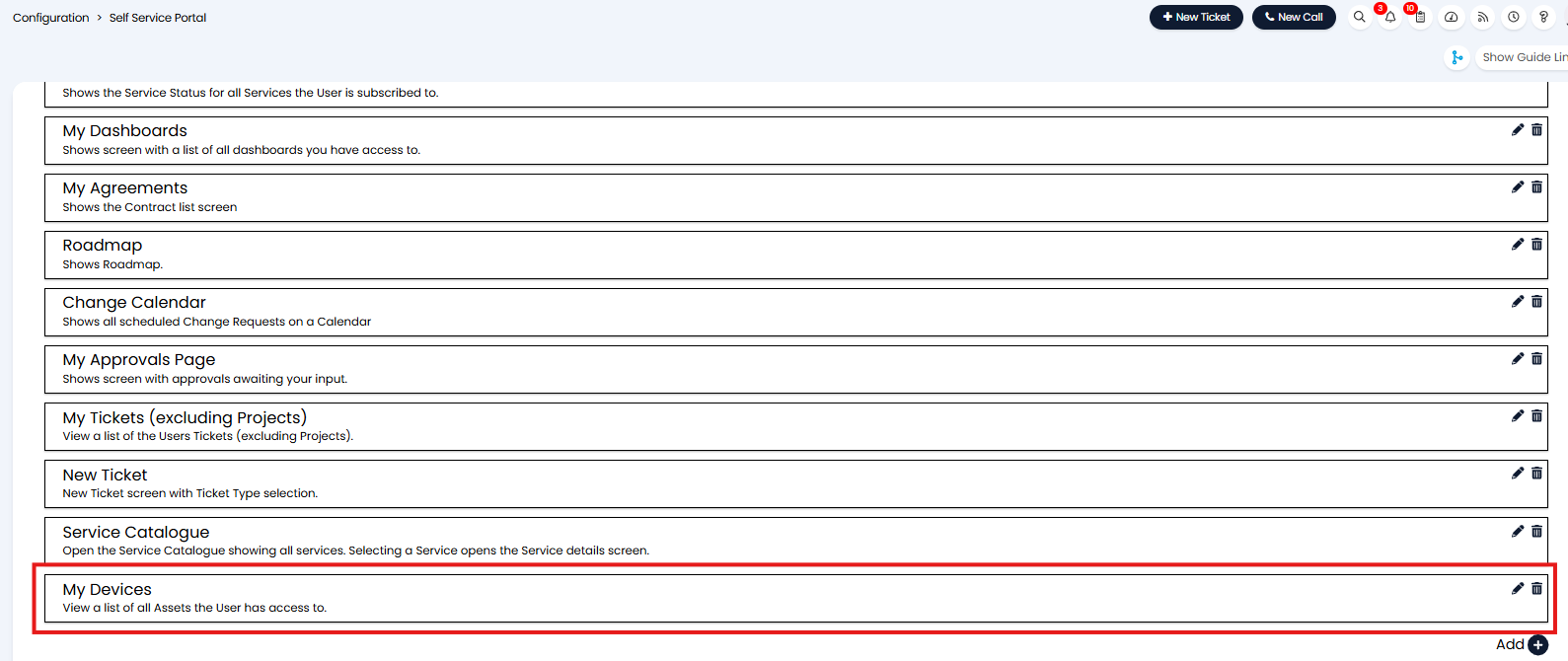
Fig 26. Enable My Devices page
This will add a new button to the portal as shown in Figure 27.
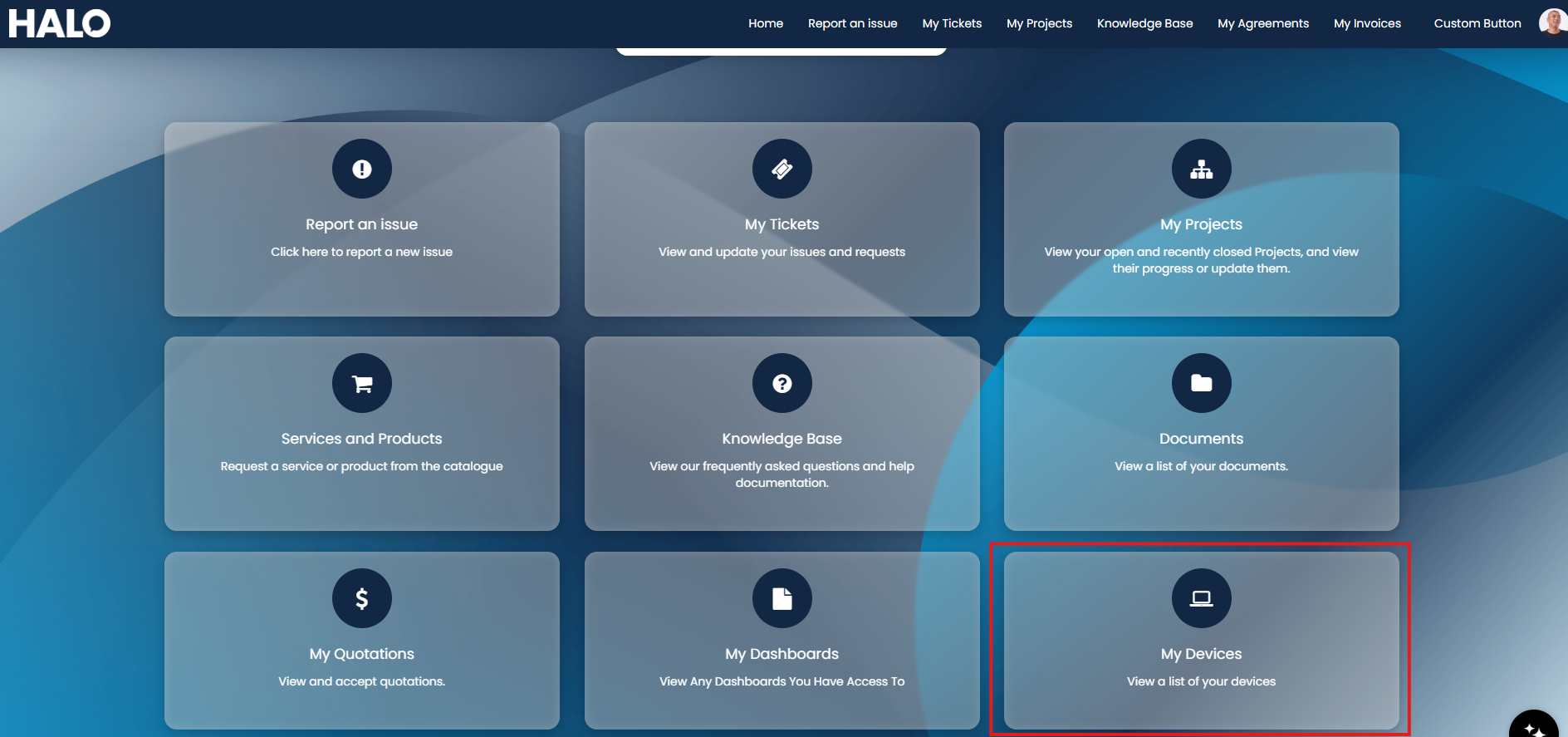
Fig 28. My Devices button in portal
Here, users will be able to see all the devices they have access to.
The devices (assets) they have access to will be controlled by the user permission "Asset Access Level".
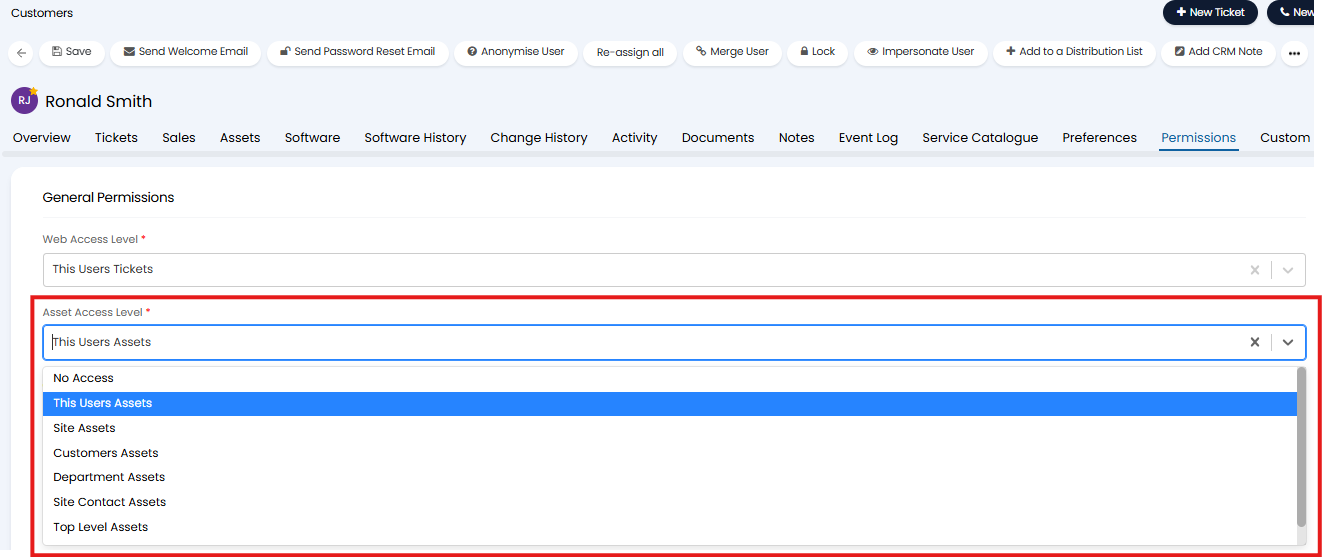
Fig 29. Permission to control which assets the user can see in the portal
Customise how the "My Devices" page looks
You can customise how the My Devices page looks, including customising the column profile used here and the view (tile or table). Allowing you to customise which asset data is presented to users at a glance.
By default, the columns shown in Figure 28 will be used.

Fig 30. Default asset view in Portal
To customise the column profile used head to Configuration > Self Service Portal > Asset Settings, and set "Column profile for My Assets".
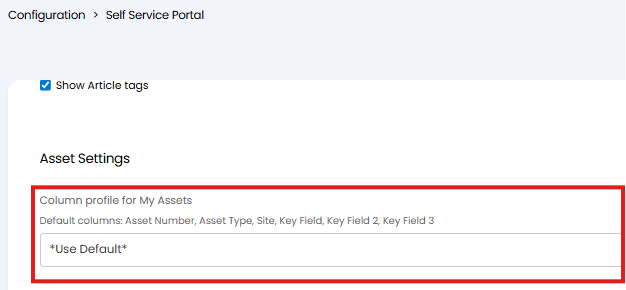
Fig 31. Column profile to use in the Portal
Users can also toggle between viewing assets in the table view or tile view.

Fig 32. Toggle asset view in the Portal
You can set a default view for users when editing the "My Devices" menu button, under Configuration > Self Service Portal > edit "My Devices", using the "Default view" field.
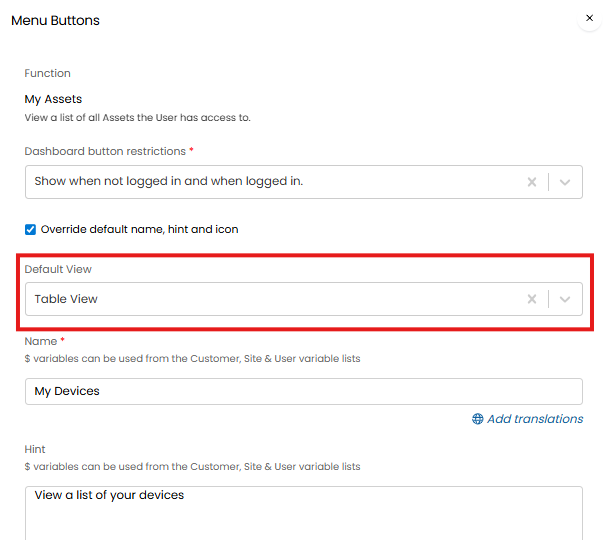
Fig 33. Default users view of assets in the Portal