Column Profiles
In this guide we will cover:
- Available Entities and Defaults
- Creating a Column Profile
- Sorting Tickets
- Display Types (Kanban, Tile, Gantt)
- Column profiles and Child Tickets
- Using Dashboard Column Profiles
- Access Control
- Billing Column Profiles
- Filtering via the Column Profile
Admin Guides:
Related Guides:
A column profile is the selection of columns that can be used in various areas of the system such as the service desk.
Available Entities and Defaults
Below is a list of areas where column profiles are created and where defaults can be set for them.
Note: Most defaults can also be overridden per agent profile.
- Tickets: Configuration > Tickets > Views, default can also be set per ticket area.
- Sales: Configuration > Sales > Views.
- Assets: Configuration > Asset Management > General Settings.
- Related Assets on Tickets: Configuration > Tickets > General Settings.
- Agreements: Configuration > Agreements.
- Quotation/Quotation Lines: Configuration > Quotations > General Settings.
- Sales Order/Sales Order Lines: Configuration > Sales Orders.
- Purchase Order/Purchase Order Lines: Configuration > Purchase Orders.
- Invoice/Invoice Lines: Configuration > Billing > General Settings.
- Recurring Invoice/Recurring Invoice Lines: Configuration > Billing > Recurring Invoices.
- Supplier Agreements: Configuration > Supplier Agreements.
- Suppliers: Configuration > Suppliers.
- Customer: Configuration > Users > General Settings.
- Site: Configuration > Users > General Settings.
- User: Configuration > Users > General Settings.
- Accounts: Configuration > Users > General Settings.
- Prospects: Configuration > Users > General Settings.
- Products/Items (v2.252+): Configuration > Items and Stock Control > General Settings.
Creating a Column Profile
There are various areas that these can be configured, but we will use a ticket column profile in this example.

Fig 1. Columns in a ticket area
Within a list screen, such as viewing a ticket area, you can hover over the ellipse in the top right corner of the screen, and the following options will be displayed.
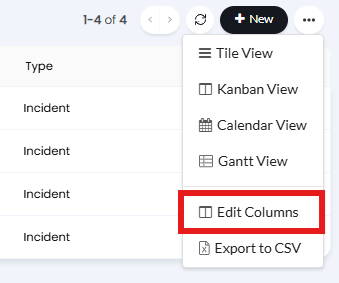
Fig 2. Edit Columns button
From here you can choose to either select a column profile to use, edit or create a new profile.
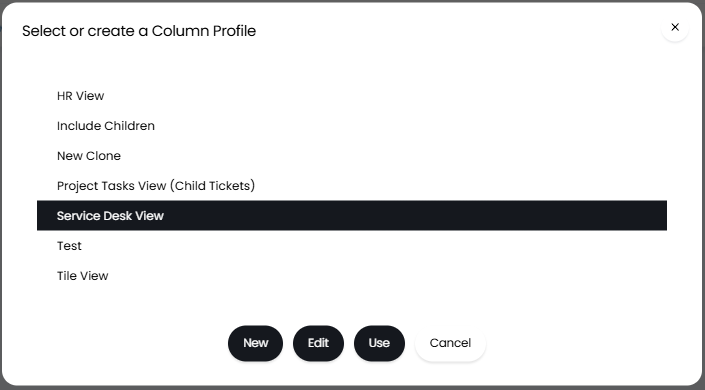
Fig 3. Column profile popup
If you choose to create a new column profile, you will see the below options. Here you can set the name of the Column Profile, use and columns to display. The "Use" you set here refers to the area this column will show under. To add the columns to show in this profile, select the plus symbol next to "Add" and choose columns using the multiple selection drop down.
Note: From v2.258+, Invoice and Site address lines can be added to Site column profiles.
This screen can also be found in various areas of configuration, depending on the entity. The same ticket column profiles can be configured within Configuration > Tickets > Views > Configure Column Profiles.
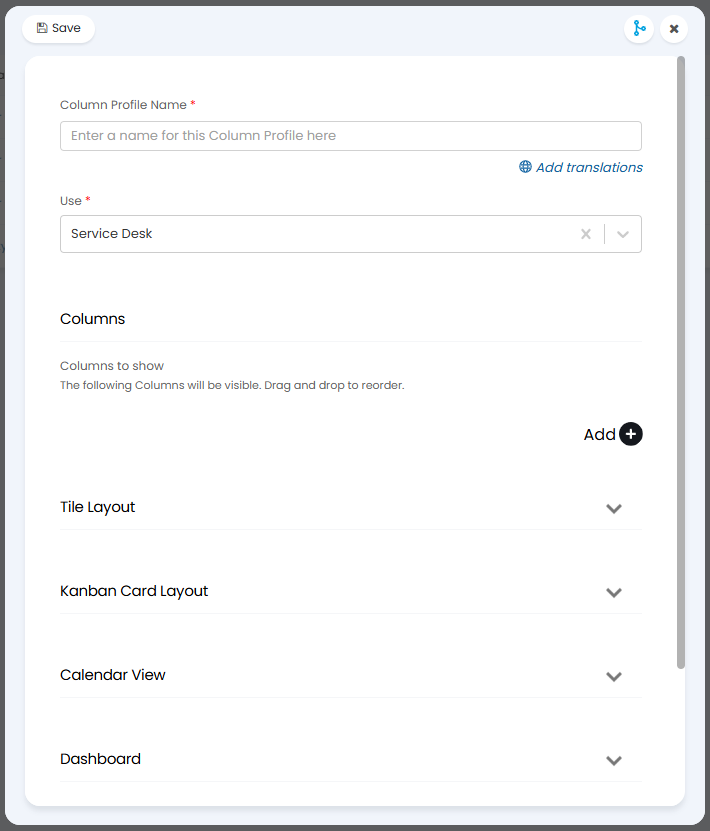
Fig 4. Column profile options
After adding the columns, you can remove or edit columns, or hover over a column and drag and drop the dots on the left side to reorder them.
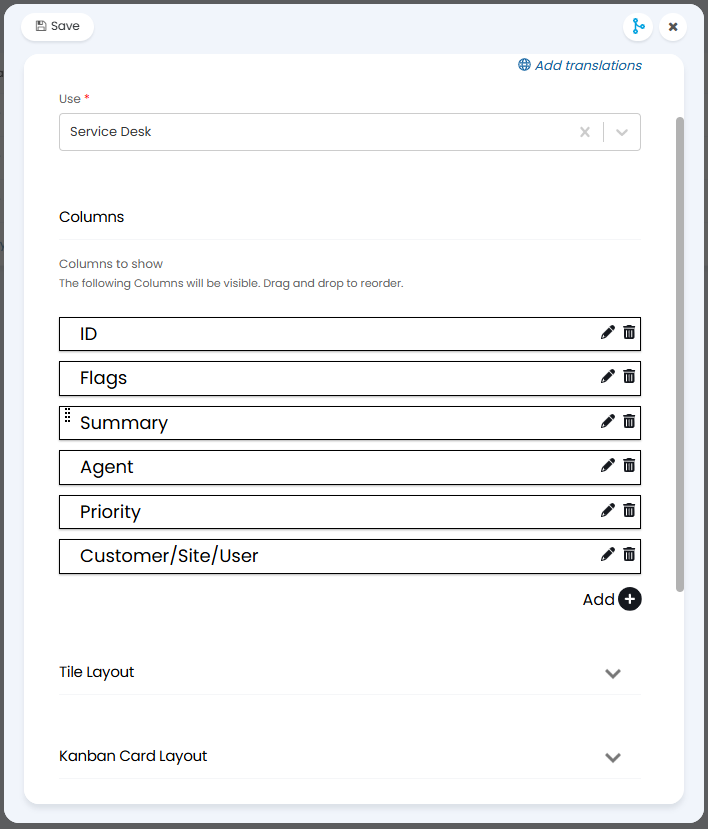
Fig 5. Added columns
- If you integrate with another ticketing system, the columns "Third Party ID" and "Third Party ID (String)" can be added to quickly reference between both platforms.
The default widths for columns can also be set when editing a column. This width is in pixels, and this is useful for areas where data within certain columns tends to be longer than the OOTB default.
Note: The width set will need to fall within a minimum/maximum range hard-set within the system, and this range differs per column. Any values that do not fall within this range will be overridden and no change will be made. This range can be worked out by inspecting the page, but please contact support if you require assistance on this.
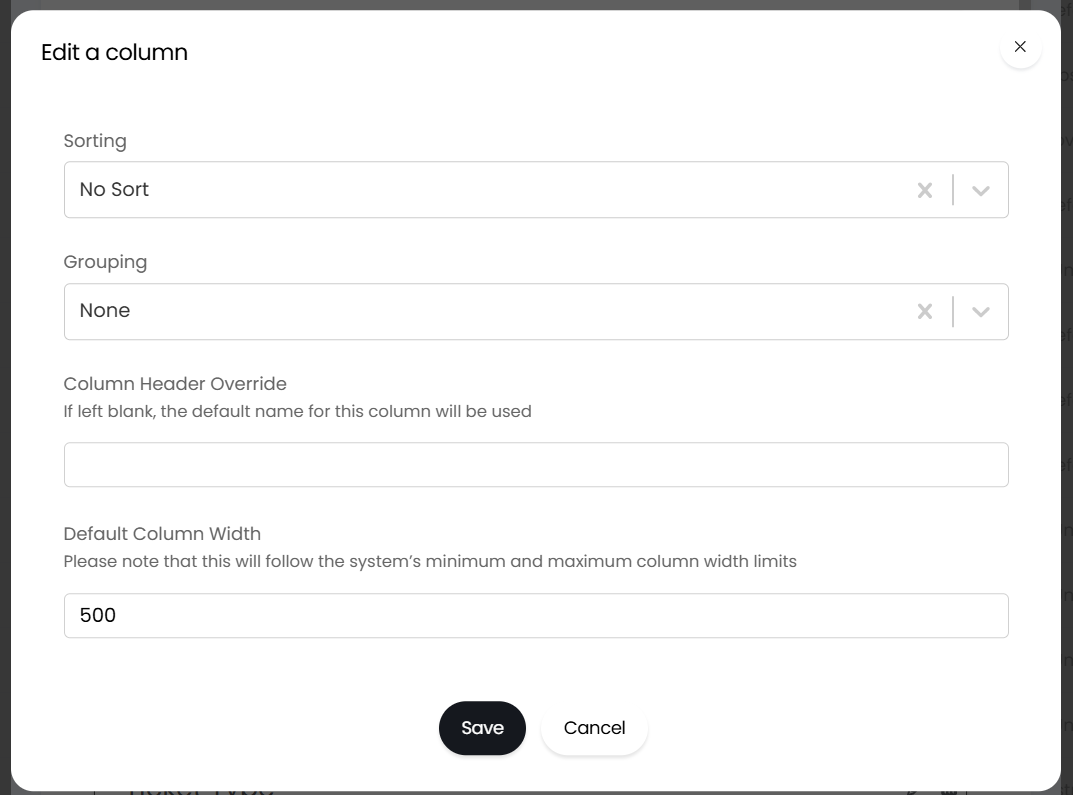
Fig 6. Editing a column
From v2.250+ columns that contain integer values can have aggregations (totals/averages) calculated and displayed in an additional row. This is used when a column profile groups tickets, as this allows you to see the totals/averages for the tickets in each group. Particularly useful for managing opportunities and viewing service desk metrics.
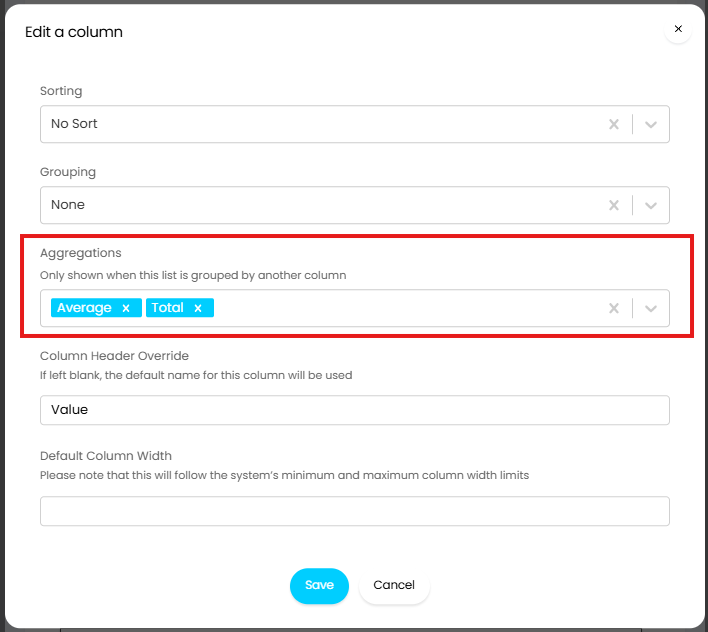
Fig 7. Column Aggregations
When set, this will calculate the average/total of this column for each of the tickets in each group.

Fig 8. Column profile showing average potential opportunity value for each pipeline stage
Note: In order for totals/averages to show the opportunities/leads must have a grouping. If a grouping is not used in the column profile aggregations will not show.
A default Column Profile can be set in various areas of the system, such as against a Ticket Area in Configuration > Tickets > Areas. This will force the use of a certain Column Profile for Agents. Agents will be able to switch from the default to another of their choice.
Save as New
If you edit an existing Column Profile you will be able to edit the profile and "Save as New". If the Agent has the permission "Can Configure Column Profile Access Control", they will be able to specify whether to copy the Access Control when using this button. Prior to this version the Access Control will be copied automatically.
Sorting Tickets
Select the pencil icon on the right side of the row to edit the column. From this screen, you can choose the sort for the columns. The primary sort will be the first way in which a column is sorted. The grouping option is how you can group by the column you are editing.
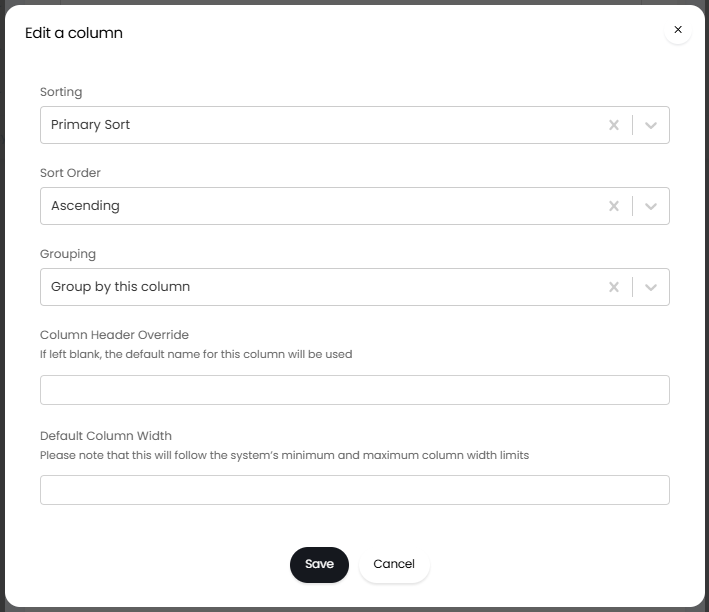
Fig 7. Sorting a column
When grouping by a column all tickets in the list will be grouped based on the value they have in this field. By default they will be grouped but expanded when this profile is used. An option will be available against the column profile to have the group collapsed by default, this is done using the setting 'Collapse groups by default'.
Secondary Sort would come into play when values matched on the primary sort, so if you have 3 P1 ticket with a Priority then it would look at the Secondary Sort to order those 3 with the same matching value on the primary sort.
If you sorted by Date Created as the Primary Sort, and sorted in Descending order it would mean that it shows the most recent ticket first.
Note: From version 2.242+, if you are sorting by Ticket status, the sequence of the statuses will be used instead of the alphabetical order.
You can colour code custom field values on your column profile. To do this head to the desired custom field (if you create a new one you will need to save this first), and edit each value. Here select the "Use colour to highlight value in column profiles" checkbox and choose a colour for this value.
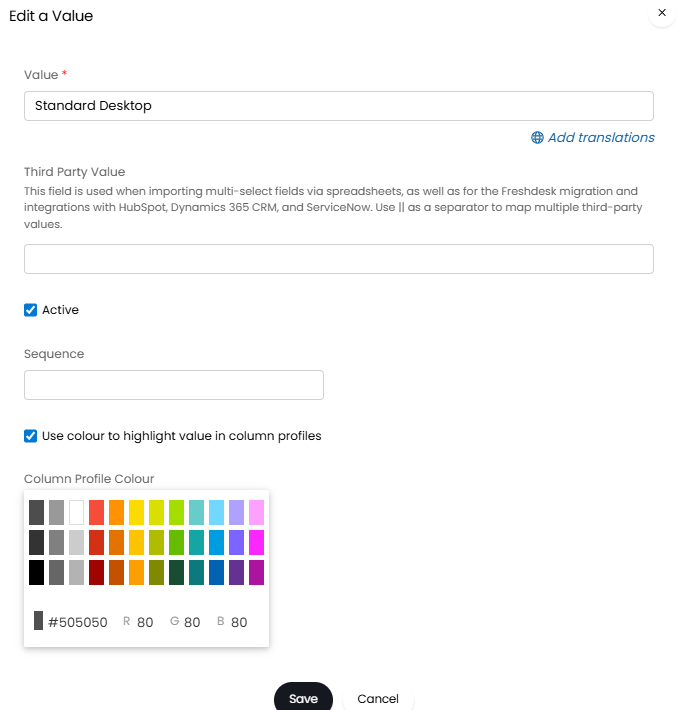
Fig 8. Custom Field colours
When this Custom Field is used in a column profile it will show the values in the colour.
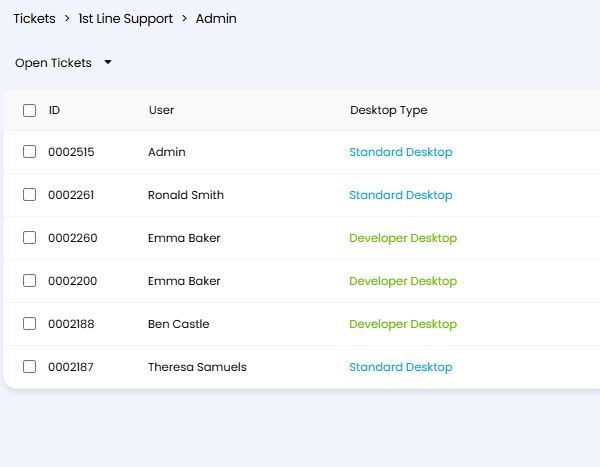
Fig 9. Custom Field column with coloured values
Display Types
Various display types are available to change how ticket information is shown in lists. Rather than the standard table view, other display options are available.
Tile View
Tile view is an alternative to the default table view, and displays a little more like Outlook. Hover over the ellipse in the top right hand corner and click "Tile View".
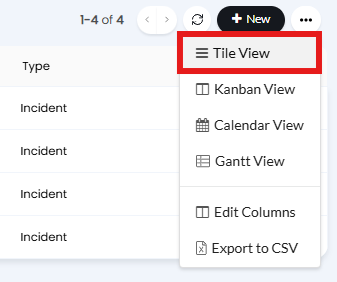
Fig 10. Tile View button
This will display as tiles on the left hand side which pop out on the right when selected.
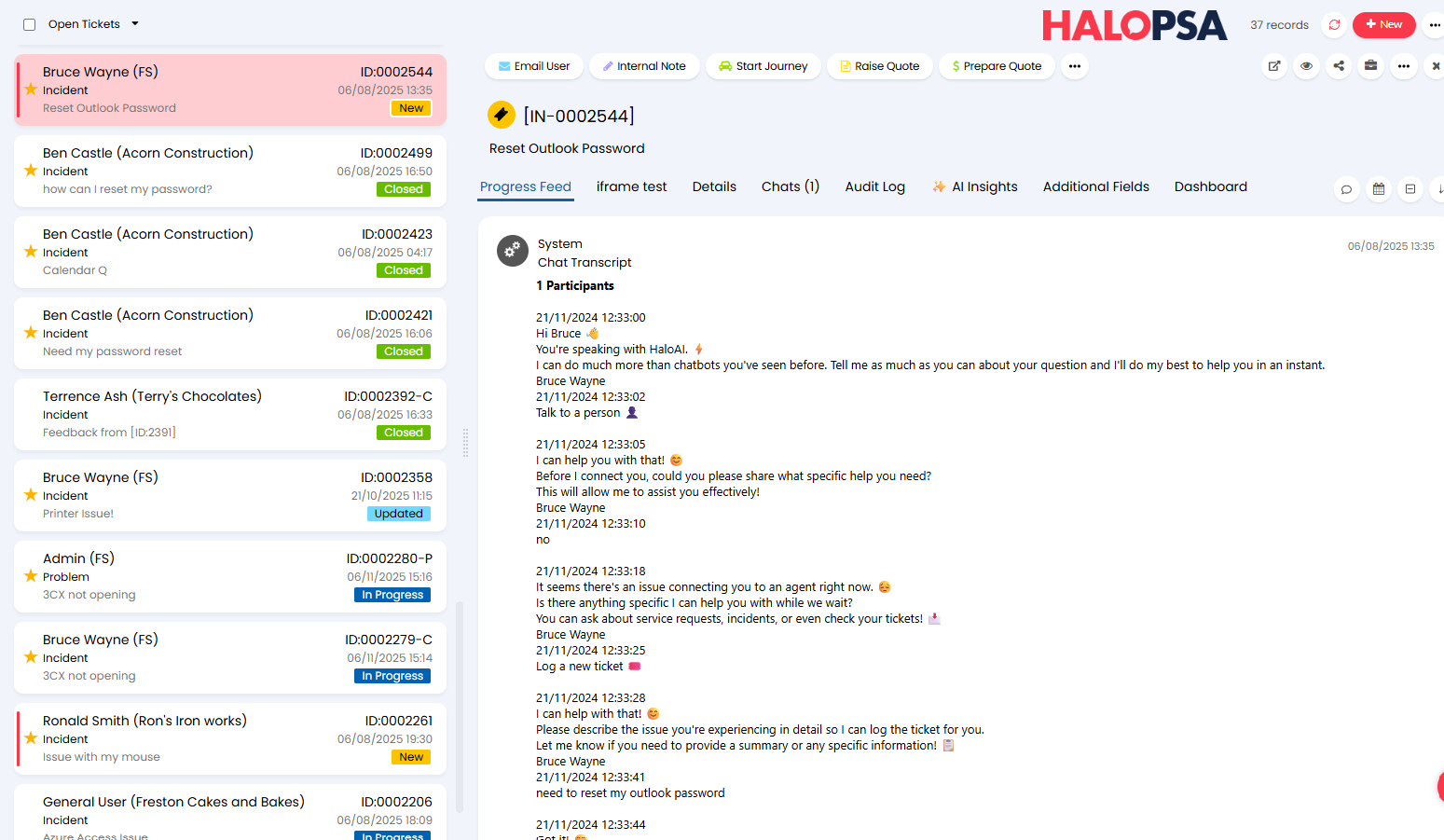
Fig 11. Tile View.
Setting Tile View as the Default
Tile View can be set as the default per agent in either Configuration > Teams & Agents > Agents > select an agent > Preferences tab, or clicking your profile picture in the top right > My Account > Preferences tab.
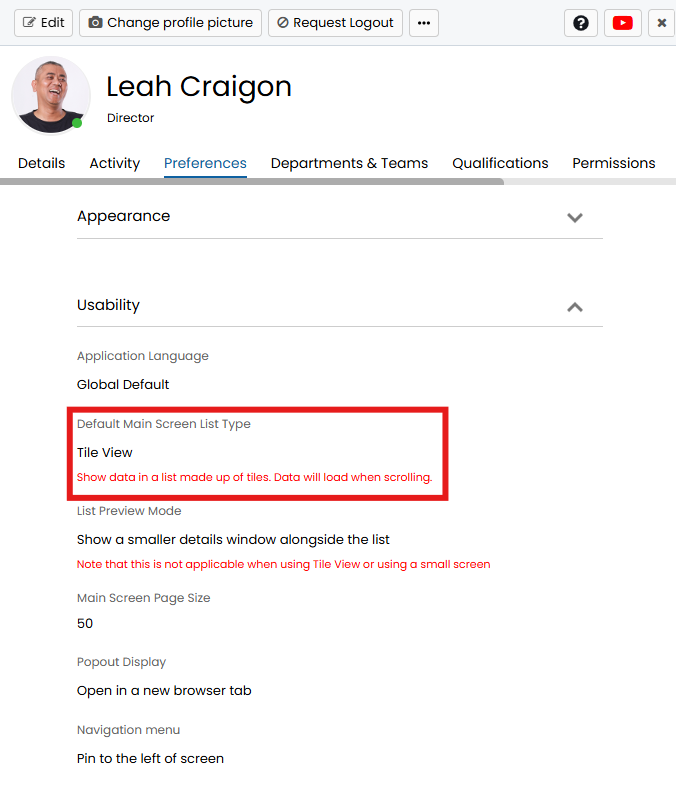
Fig 12. Default Main Screen List Type setting
Editing Tile View
On a ticket screen hover over the three dots and click "Edit Columns".
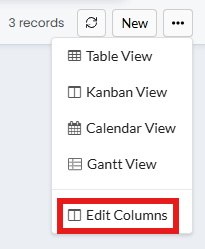
Fig 13. Edit Columns button
Select the column profile you wish to edit and press "Edit".
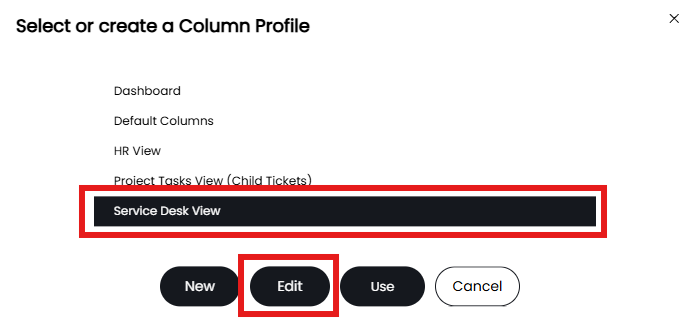
Fig 14. Select or create a Column Profile area
Scroll to the bottom of the popup window and open the "Tile Layout" section. This reveals a HTML editing box for editing the tile view, and this box shows each change made.
Add in the dollar variables for the relevant fields, you can use tables and formatting to display the information. For a list of the variables for the fields that can be used in Tile View checkout our guide Tile and Kanban HTML $ Variables. When you're finished, press Save.
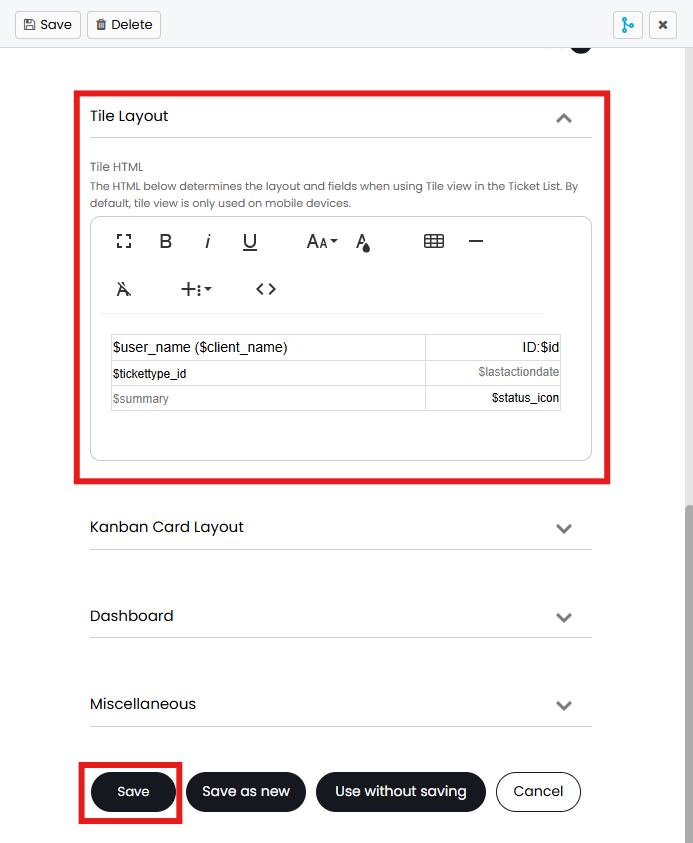
Fig 15. Tile Layout configuration
These are the text formatting options - Bold, Italic, Underline, Font Size and Text Color.

Fig 16. Text formatting settings
This brings up a list of standardised variables that correspond to actions in the ticket.
Fig 17. Insert Field action
This brings up the HTML Code View for more advanced editing.
Note: Changes made in Code View will not be saved if the Save button is pressed before exiting Code View. Click back out of Code View before saving.

Fig 18. Code View action
Kanban View
Your tickets can be displayed sorted on their current status or workflow/pipeline stage. This view is commonly used for projects areas.
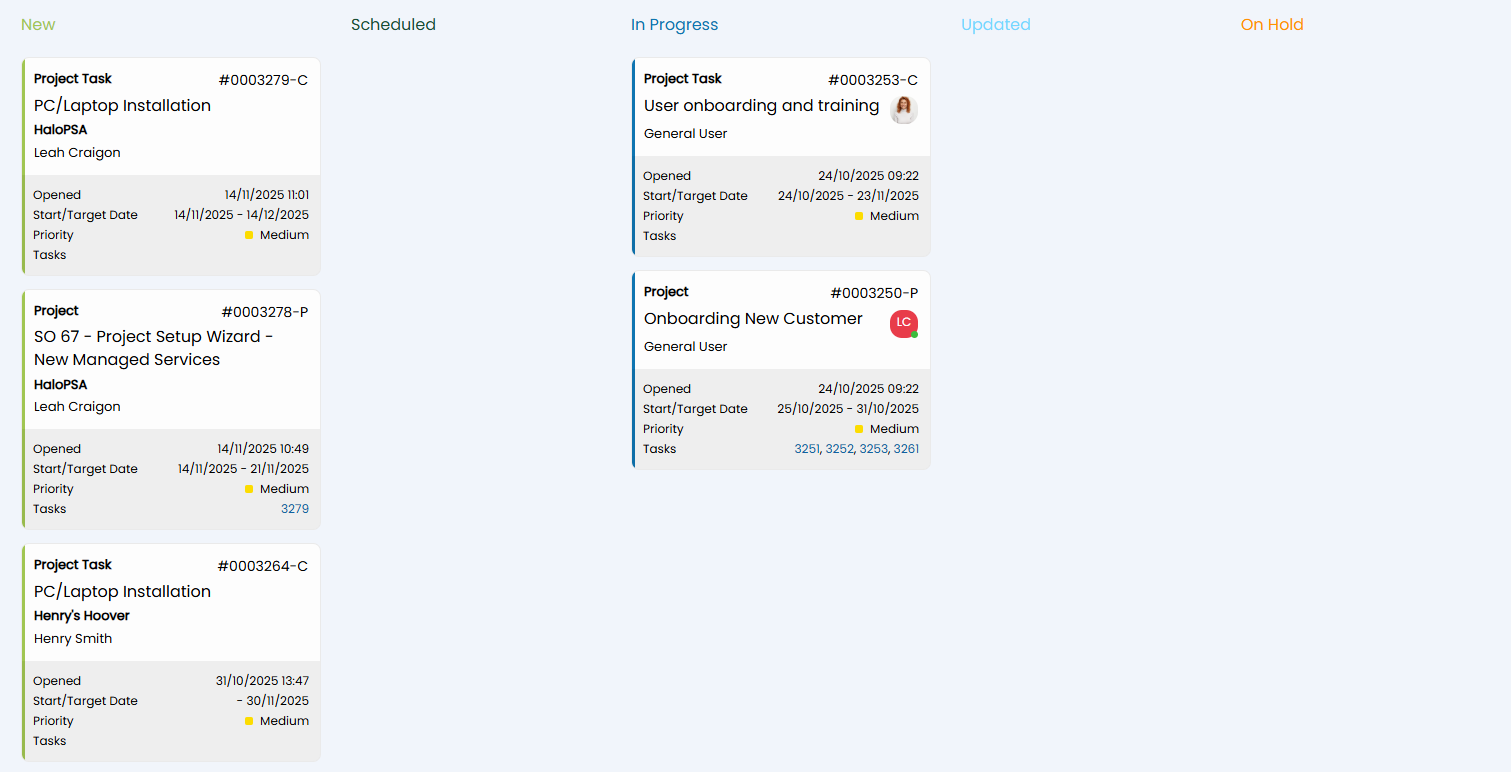
Fig 19.Kanban View
You can toggle between organising tickets by status or workflow stage using the three dots in the top right-hand corner. You can also toggle this to order by pipeline stage for lead and opportunity ticket types.
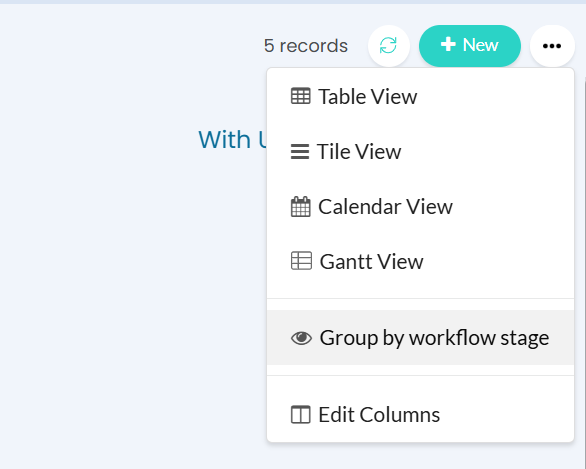
Fig 20. Toggle between grouping by workflow and status
If you are in a ticket area used for opportunities, you will also have the option to group by pipeline stages.
Note: Drag and drop Kanban cards between columns to change their status.
You can 'lock' certain statuses to the Kanban board for child tickets.
In Configuration > Tickets > Ticket Types > Settings tab, disable the "Show Active Statuses on the Child Kanban" option. This will then present you with a multiple-select field, where you can pick the statuses to lock on the child ticket Kanban board.
This should be done within the parent ticket type, as opposed to within the child ticket type.
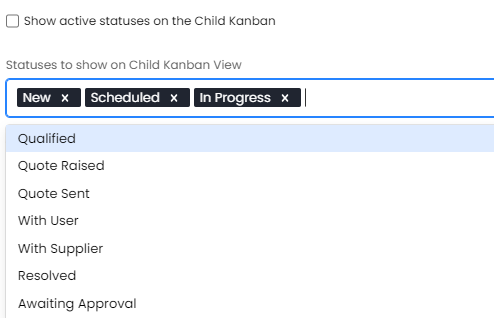
Fig 21. Adding statuses
The HTML layout of the Kanban card can be configured within the column profile under the "Kanban Card Layout" dropdown.
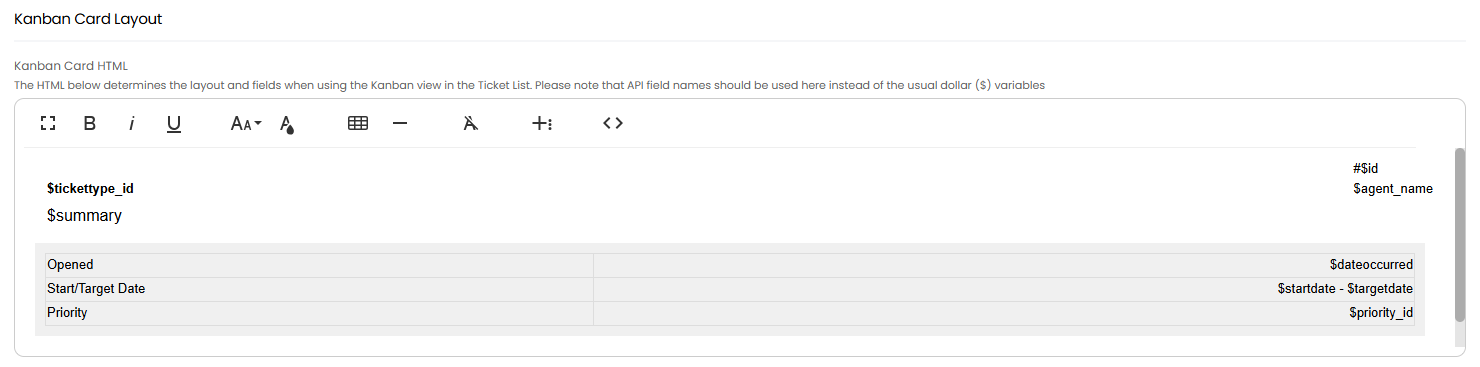
Fig 22. Changing the information on the Kanban cards.
Note: If using a Ticket Rule to change the colour of a Ticket, the Rule colour will override the colour of the Kanban Status.
Gantt View
The Gantt view will display a timeline of tickets based on the start/target date against them. Therefore, in order to use this view, you will need to set the fields "Start Date" and "Target Date" on tickets.
This is commonly used for projects and project tasks. You can view the projects in Gantt View and when clicking into a project you can view the project tasks in Gantt View within the "Project Tasks" Tab.
Note: This view can also be shown similarly by using the calendar view, the main difference being that you will have to search through your calendar to find the Projects/ Project tasks if they are far in the future or far in the past and overdue. It is important to set the start/target dates, as they are required for the Gantt view to work.
For information on using the Gantt view see our guide here.
Column profiles and Child Tickets
Viewing Child Tickets within a Ticket
When viewing the child tickets of a ticket (this is mostly used in project management), you can also customize the column profile used here and the view used (Gantt or Kanban). To customise how child tickets appear under a ticket, you will need to set these settings under the parent ticket type, shown in figure 23.
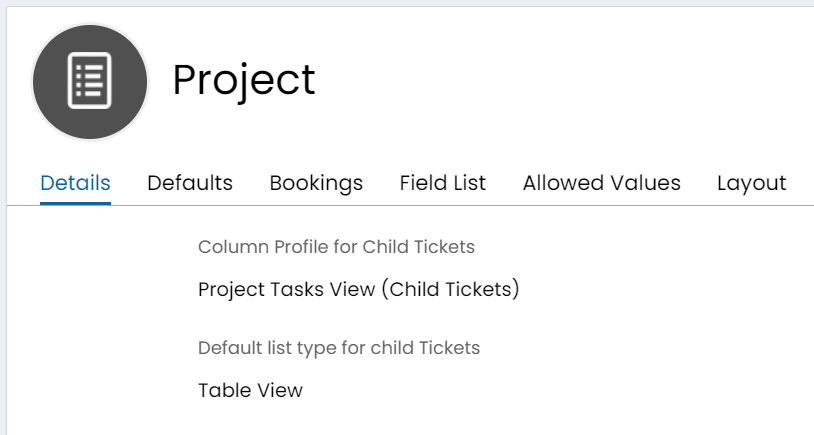
Fig 23. Configuration For Child Tickets
The list type will have 3 options, the table view for which you can set column profiles, the Gantt view, and the Kanban view.
Viewing Child Tickets from the Main Ticket List
When editing/creating column profiles, there is an option to include child tickets as a dropdown per ticket, this allows you to click into child tickets from the ticket list. Navigate to your chosen column profile, and click into the miscellaneous dropdown.
Enable "Include Children".
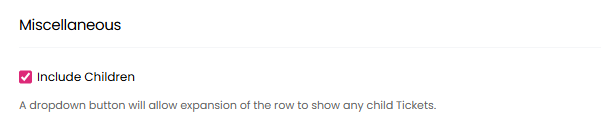
Fig 24. Include Children checkbox on column profiles.
The following view will be shown when this setting is enabled, with arrows that can be toggled open.
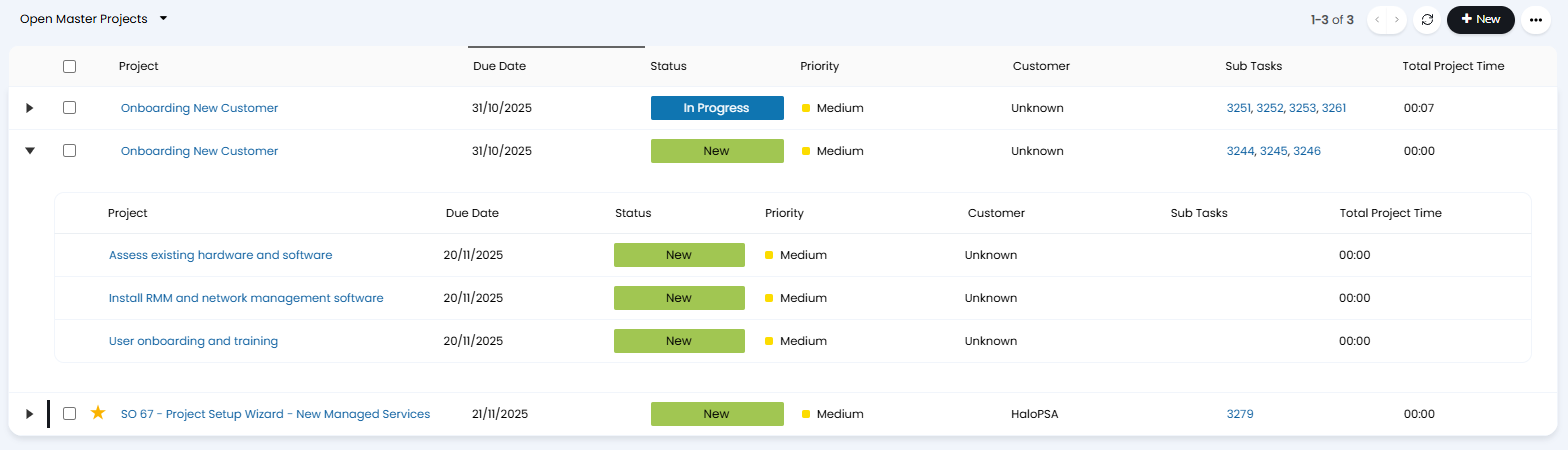
Fig 25. Child tickets showing under parent
Parent tickets that have child tickets with their own children (i.e. parent > child > grandchild) can also show the arrow dropdown within the child ticket tab. The arrows will also no longer show if a ticket does not have a child.
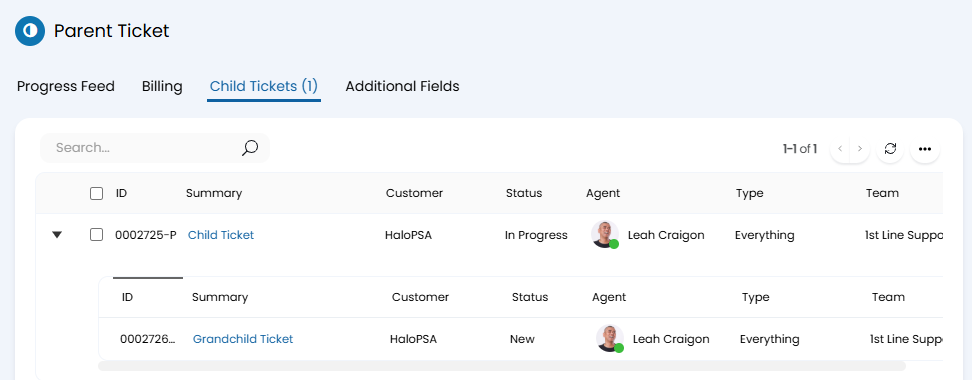
Fig 26. Child ticket dropdown within a parent
Using Dashboard Column Profiles
Columns can be replaced with dashboard widgets to fully customise your ticket views. Edit a column profile, open the "Dashboard" dropdown, and enable "Use a dashboard instead of columns in table view". A button to "Configure Dashboard" will then show.
Note: The dashboard created will be accessible to edit here, but not within the main dashboard module.
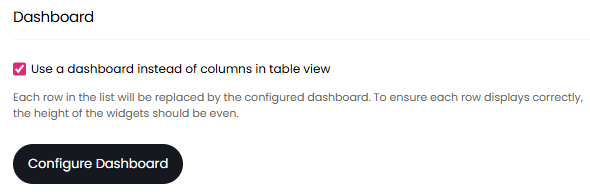
Fig 27. Using a dashboard column profile
Add reports for the information you wish to show, and add these to the dashboard as a widget. HTML formatting can also be added to reports to further customise the view.
You will want to ensure your widgets are neatly in one line like below, so that the column profile renders correctly when showing more than one.
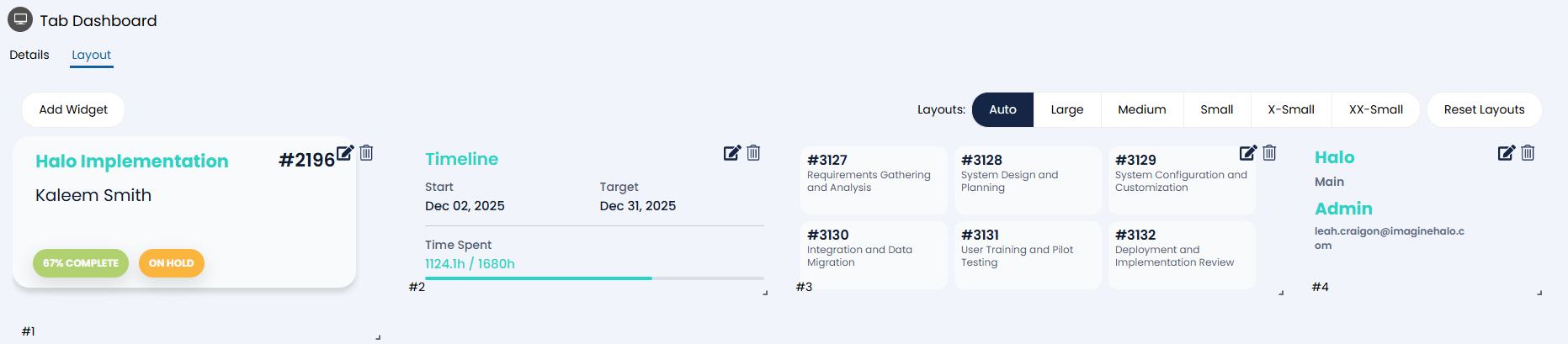
Fig 28. Example widgets on a dashboard
Access Control
Non-administrator agents can now be allowed permission to edit access control on column profiles. In the agent's profile > Permissions tab, set "Can Configure Column Profile Access Control" to "Yes".
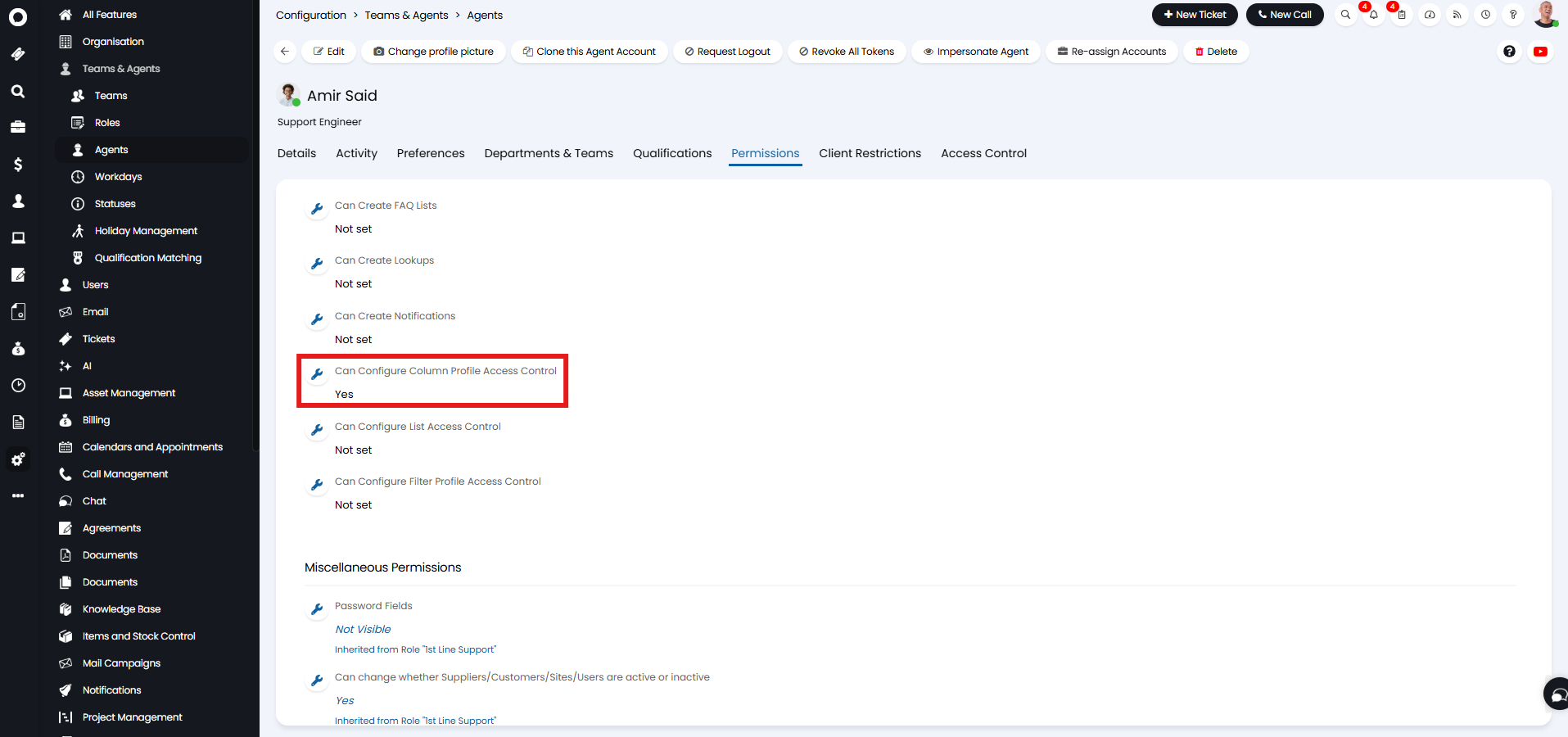
Fig 29. Allowing access control for column profiles
The administrator will then need to set that agent as an "Owner" on the column profile to allow them to view the column profile in order to edit the access control on it.
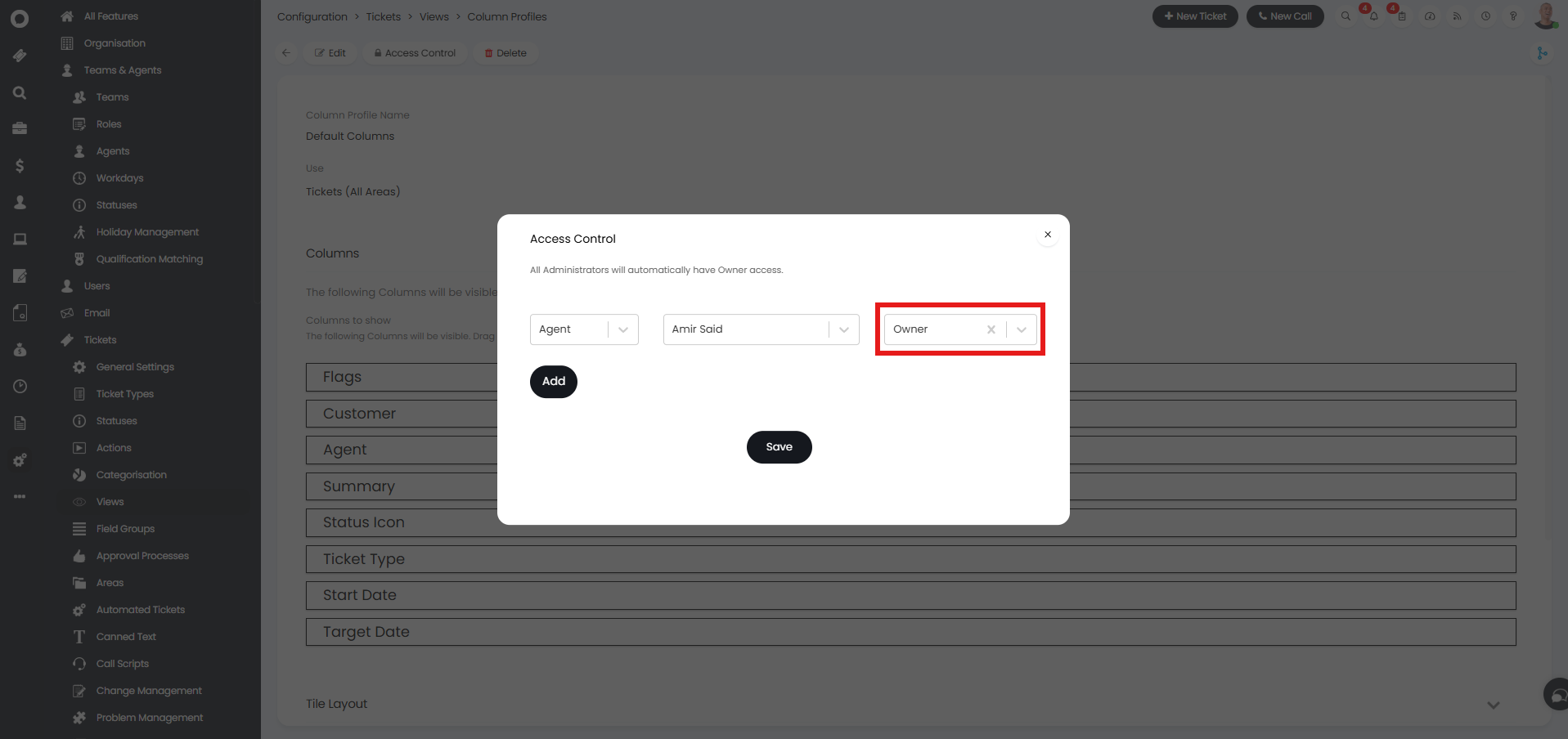
Fig 30. Setting agent as owner
The agent can then go into "My Config" and find the column profile to edit access control. This allows them to add or remove agents as needed without having to ask the administrator to do so for them.
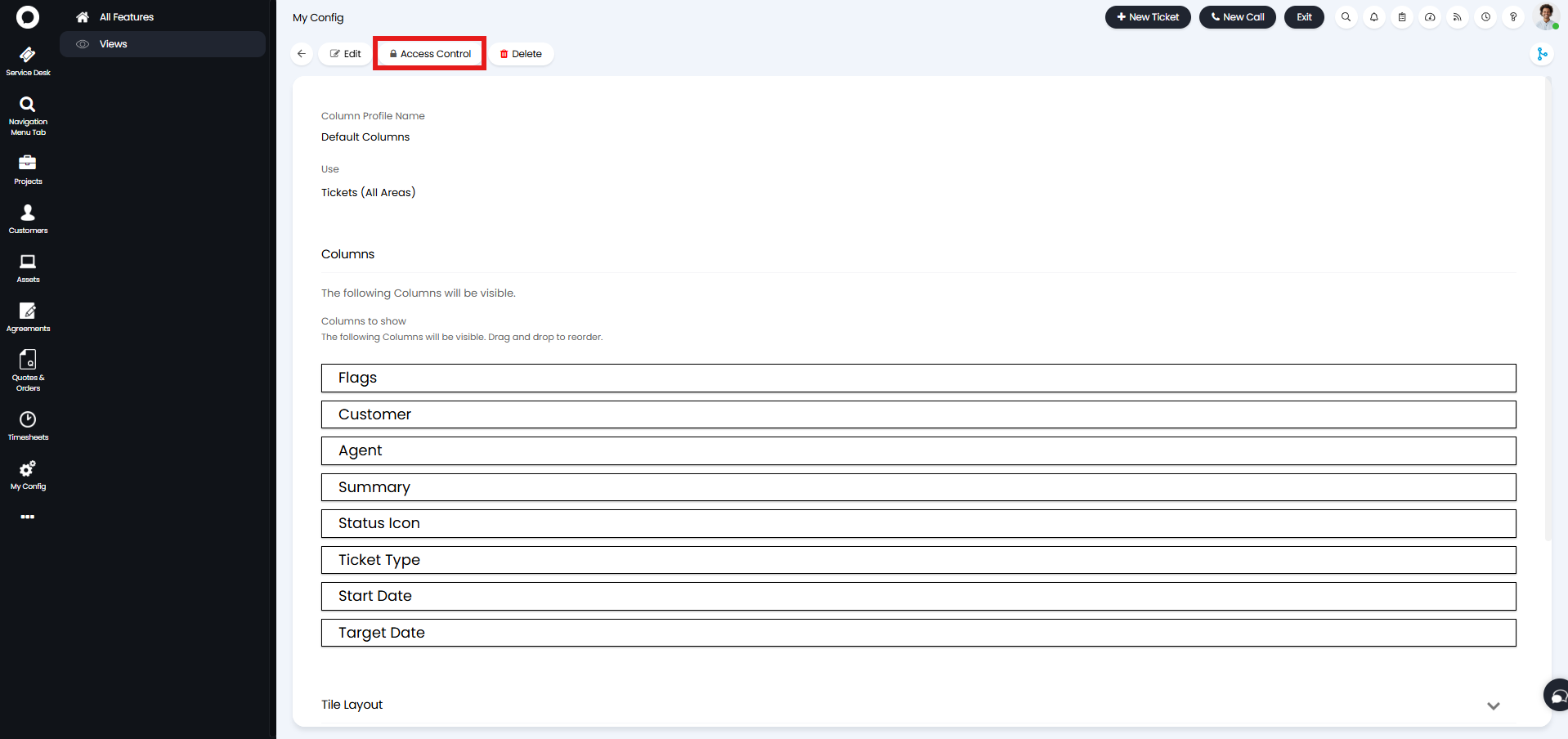 Fig 31. Access Control button
Billing Column Profiles
Column profiles can also be edited for quotations, sales orders, invoices and recurring invoices. In Configuration > Tickets > Areas, click "New" to create a column profile. Here, set the "Use" dropdown to whichever billing area you wish to create one for.
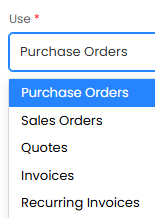
Fig 32. Billing related column profiles
You can select from a list of relevant system fields, as well as any existing custom fields for that entity. For example, the ones shown below for the "Quotes" use.
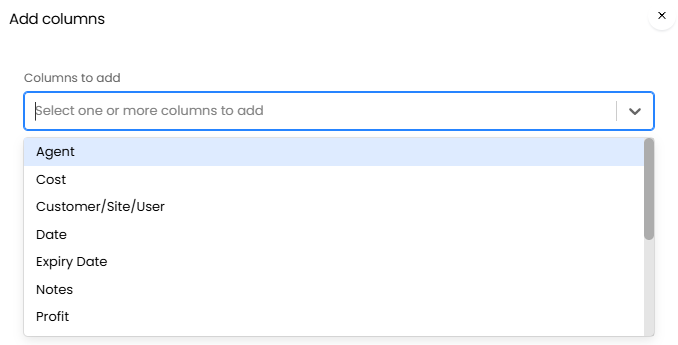
Fig 33. Column options for quotations
Line column profiles are also available for billing entities.
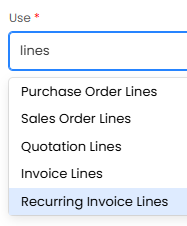
Fig 34. Line column profile options
"Total Cost", "Total Profit", "Total Cost (Default Currency)" and "Cost (Default Currency)" have been added to Quotation Line and Sales Order Line profiles. The latter two will only show when using purchase currency functionality (enabled in Configuration > Billing > Currency)..
From v2.248+, Supplier Start Date, End Date and Reference are available for Recurring Invoice Line column profiles.
From v2.256+, Site will be an available column for Invoice column profiles.
After creating one with one of the above uses, navigate to that entity. Here, we will be applying an "Invoice Lines" column profile, so we are viewing an Invoice. Click "Edit Columns" at the top, and select your column profile of choice.
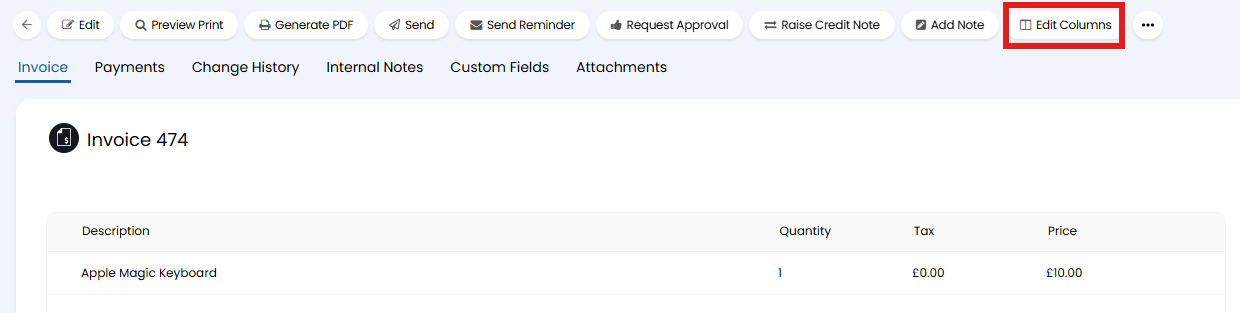
Fig 35. Edit Columns button on an invoice
Filtering via the Column Profile
If you would like to filter the results on a Column Profile, you can hover over the field you would like to filter by, and select the filter icon. You will then see a box below each column header where you can search for a value.

Fig 36. Filtering columns
In Configuration > Tickets > General Settings you have the option to "Allow multi-select Ticket filtering". This allows you to use a drop-down to select which values to filter for Teams, Agents, and statuses.
 Fig 36. Multi-select drop-down filter