Top Levels
In this guide we will cover:
- Enabling Top Levels
- Creating a Top Level
- Importing Top Levels
- Ticket Lists Filter
- Notifications Criteria
- Knowledge Base Access
- Calendar Filter
- Column Profiles
- Assigning Tickets to Other Customers in the Top Level
- Setting as Default View
- Showing Top Level on Tickets
- Service Restrictions
Admin Guides:
Related Guides:
To act as an additional layer of organisation to your customer management, you can group your customers by 'top level'. In addition to simply being a method of grouping, you can also utilise these top levels to place overrides on settings such as the outgoing mailbox and use them to see an overview of all tickets, invoices, opportunities, documentation and licencing for the customers grouped within the top level.
Enabling Top Levels
To enable top level, navigate to Configuration > Users > General Settings, and enable "Show an additional level ("Top Level") for grouping Customers".
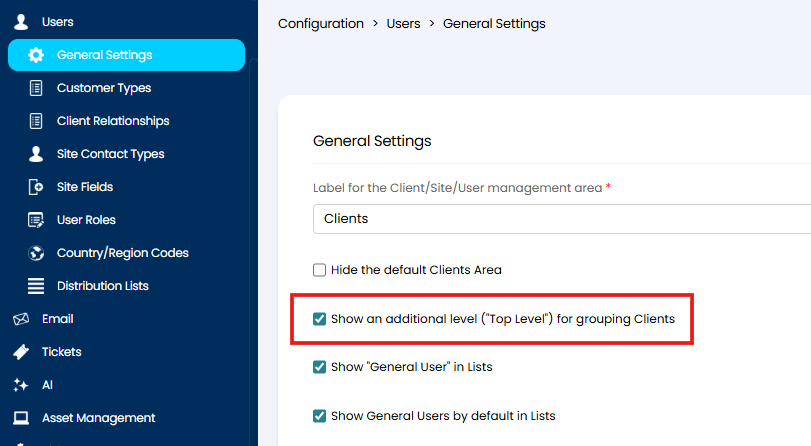
Fig 1. The setting for enabling top levels
From v2.250+, you can restrict which Top Levels are visible to Agents in the Restrictions tab of an Agent Account (Configuration > Teams & Agents > Agents), or Agent Roles (Configuration > Teams & Agents > Roles). To do this, set "Allow use of all Top Levels" to "No" and add the Top Levels you would like the Agent/Role to see to the table.
Creating a Top Level
Now within the Customers area of your Halo, you will see a Top Level section. You can then hover over "+ New" in the top right to see the dropdown for creating a "New Top Level".
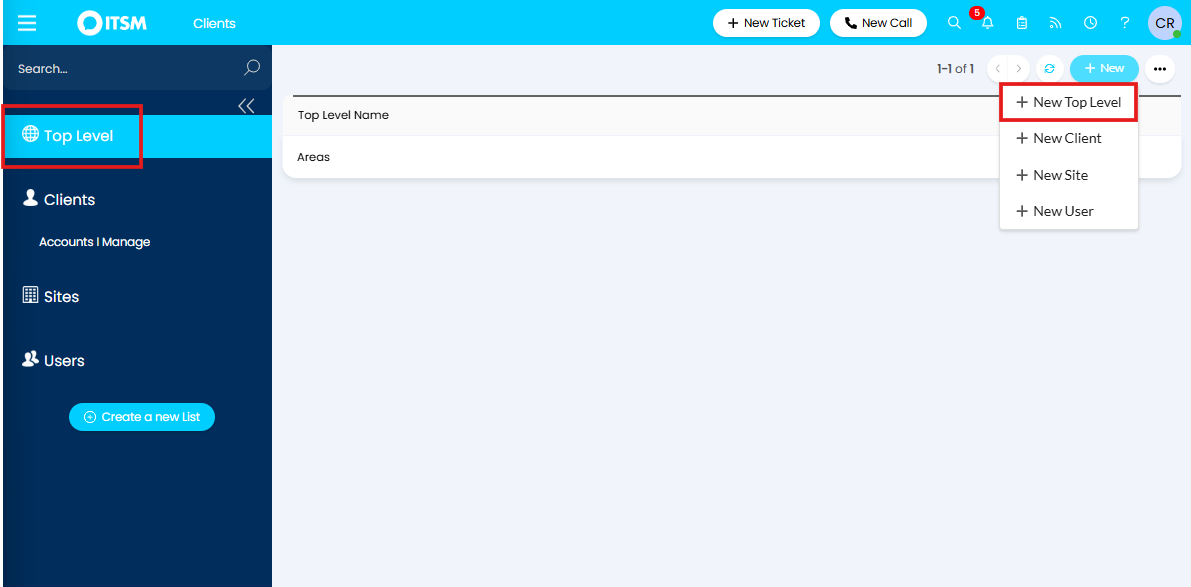
Fig 2. The customers area once top levels are enabled
When you click into an existing top level, you will be greeted with the "Overview" page, showing you an overview of all current Ticketing for the top level's Customers. You will also see the details bar along the side where you can set or change the name of the top level, override the web announcement for the portal, and override the outgoing mailbox.
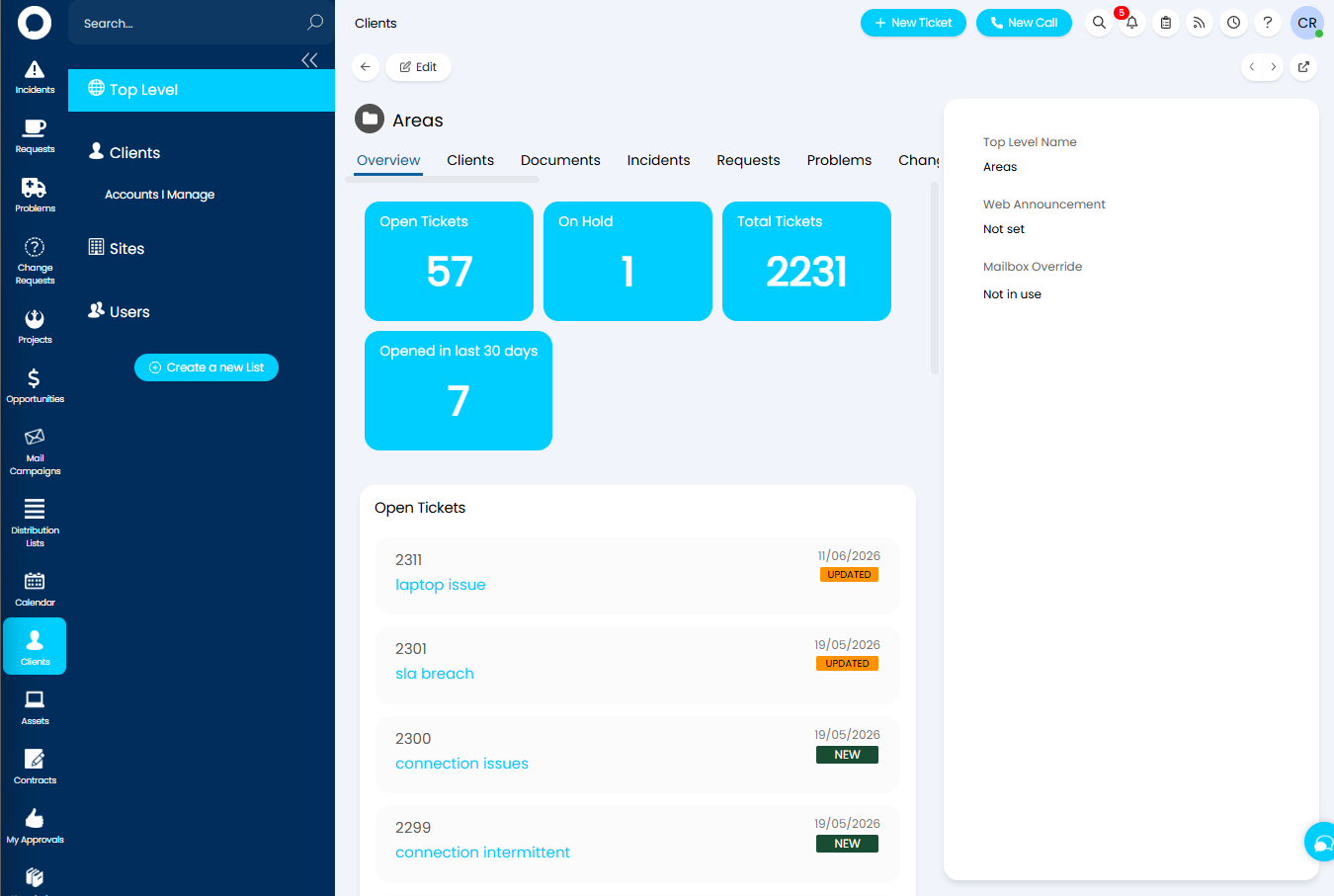
Fig 3. The overview tab of an existing top level
Each tab on a top level shows the same information that would appear on a customer, but for all customers grouped under that top level.
For instance, the "Overview" tab demonstrated in Figure 3 shows a dashboard similar to how each individual customer has, except it combines every customer under the top level, showing ticket statistics and the recent activity associated with them.
There will be an "Accounts" tab on the Top Level if "Use Accounts and Prospects for Opportunities" is enabled in Configuration > Sales > General Settings.
From version 2.242+, there will also be a "Subscriptions" tab on top levels that will show all subscriptions for customers under that top level.
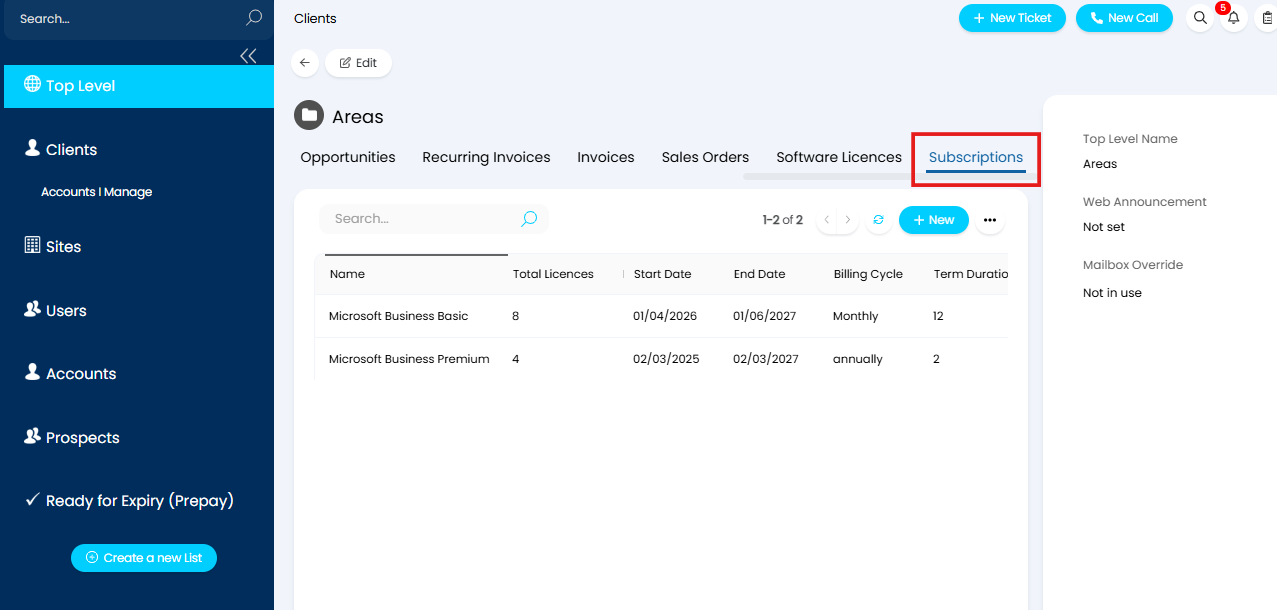
Fig 4. The subscriptions tab against top levels (v2.242+)
Importing Top Levels
Certain Integrations may allow you to select a Top Level to group new customers under that are using said integration. For example the NinjaOne integration allows the selection of a Top Level, the option chosen will add all imported customers from Ninja to the top level selected.
The top level can also be a column header on the Customer Import spreadsheet.

Fig 5. Setting top level on customer import spreadsheet
Ticket Lists Filter
Top levels can be used as a filter on ticket lists. In Configuration > Tickets > Views > Configure Lists, create or edit a list.
In the "Filters" tab, add criteria of the Top Level.
This could be used to have a specific ticket list that filters in only tickets from a specific top level, a group of retention customers for example, with the aim of prioritising their tickets by increasing their visibility.
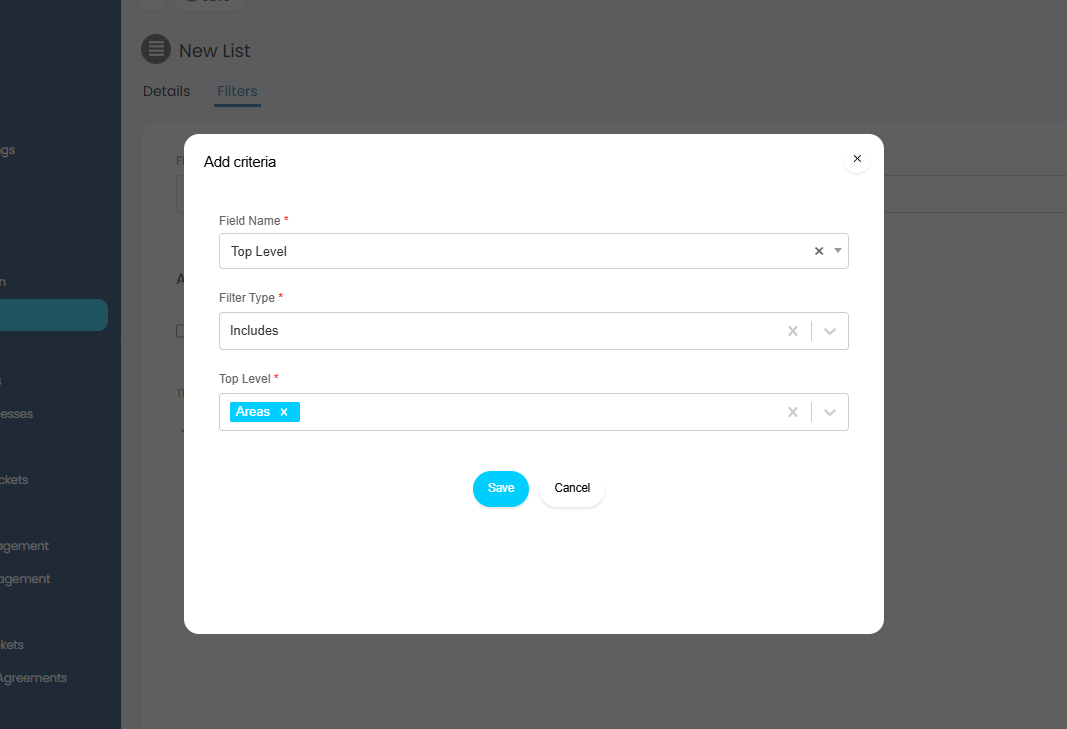
Fig 6. Setting top level as a ticket list criteria
Notifications Criteria
Top levels can be used as a criteria for notifications. In Configuration > Notifications > Notifications, create or edit a notification. In the "Trigger" section of the configuration page, top level can be set in the criteria table to ensure that the notification will only trigger if the entity triggering it is related, or not related to, a specific top level.
This could be used to notify agents when tickets from a certain top level are logged for example.
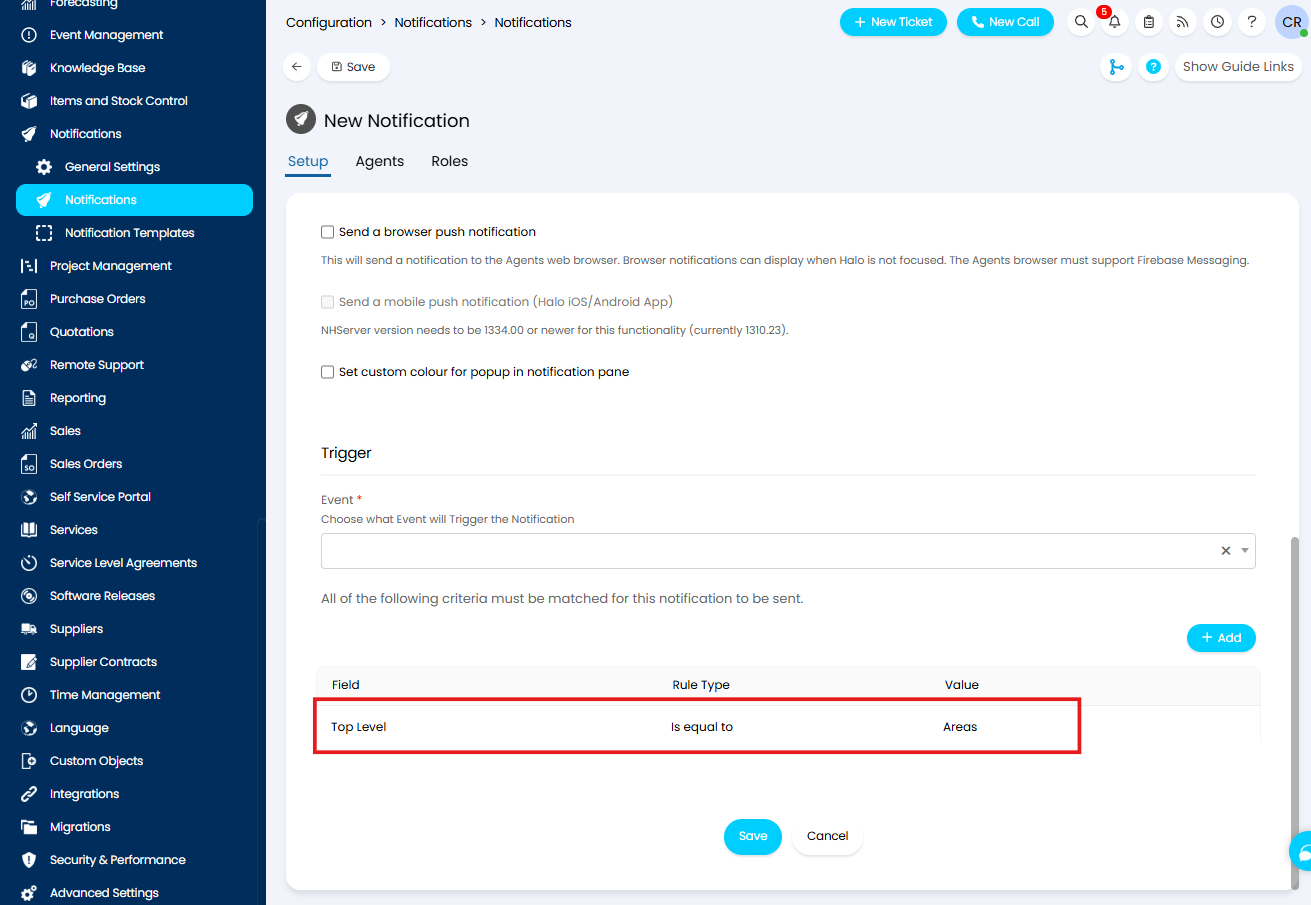
Fig 7. Top level as a notification criteria
Knowledge Base Access
Top levels can be granted access to knowledge base articles.
This can be used to provide a group of customers access to specific knowledge base articles without having to grant the access to each individual customer.
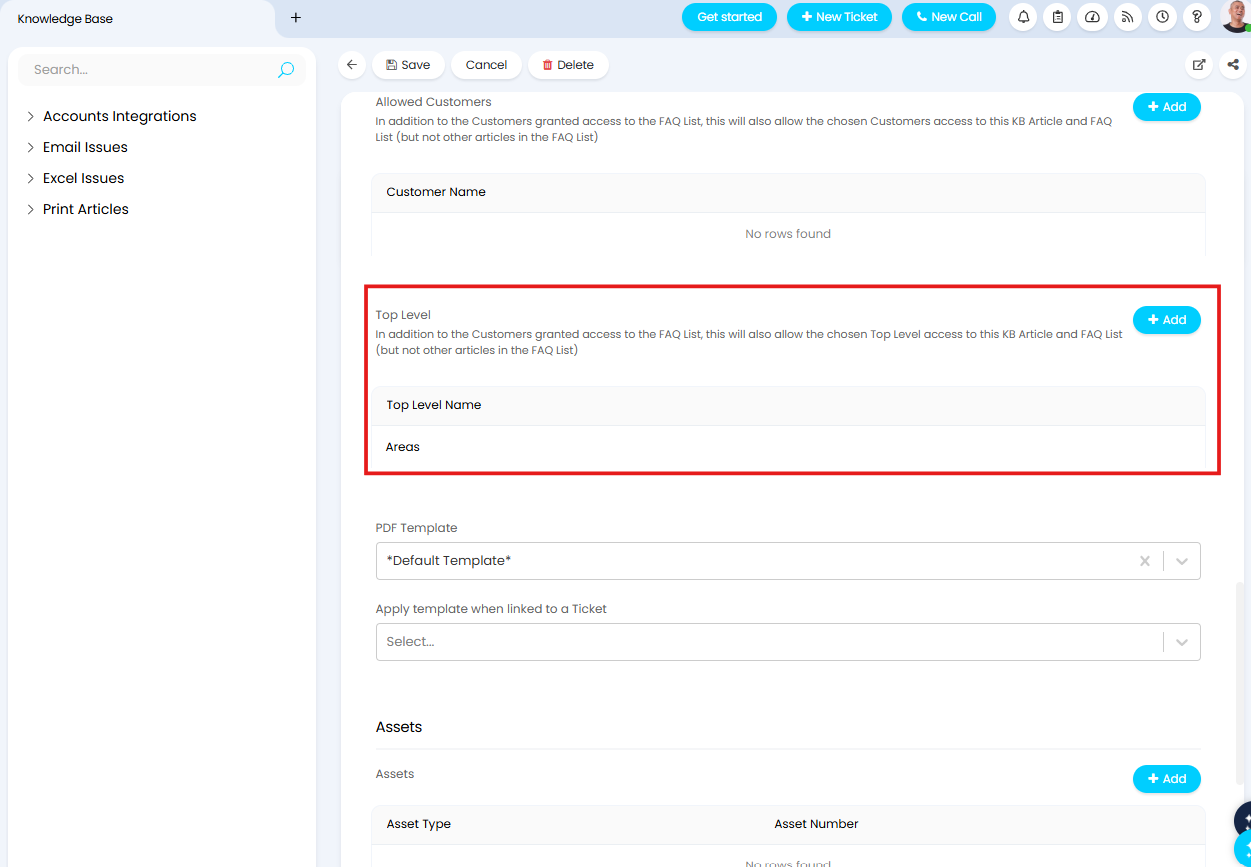
Fig 8. Giving a top level access to a knowledge base article
As Customers are added into the top level with access, they will then dynamically inherit the access.
Calendar Filter
Top level can be used as a filter when agents are viewing the calendar.
This could be used in cases of co-managed IT where agents will only want to see appointments relevant to their area.
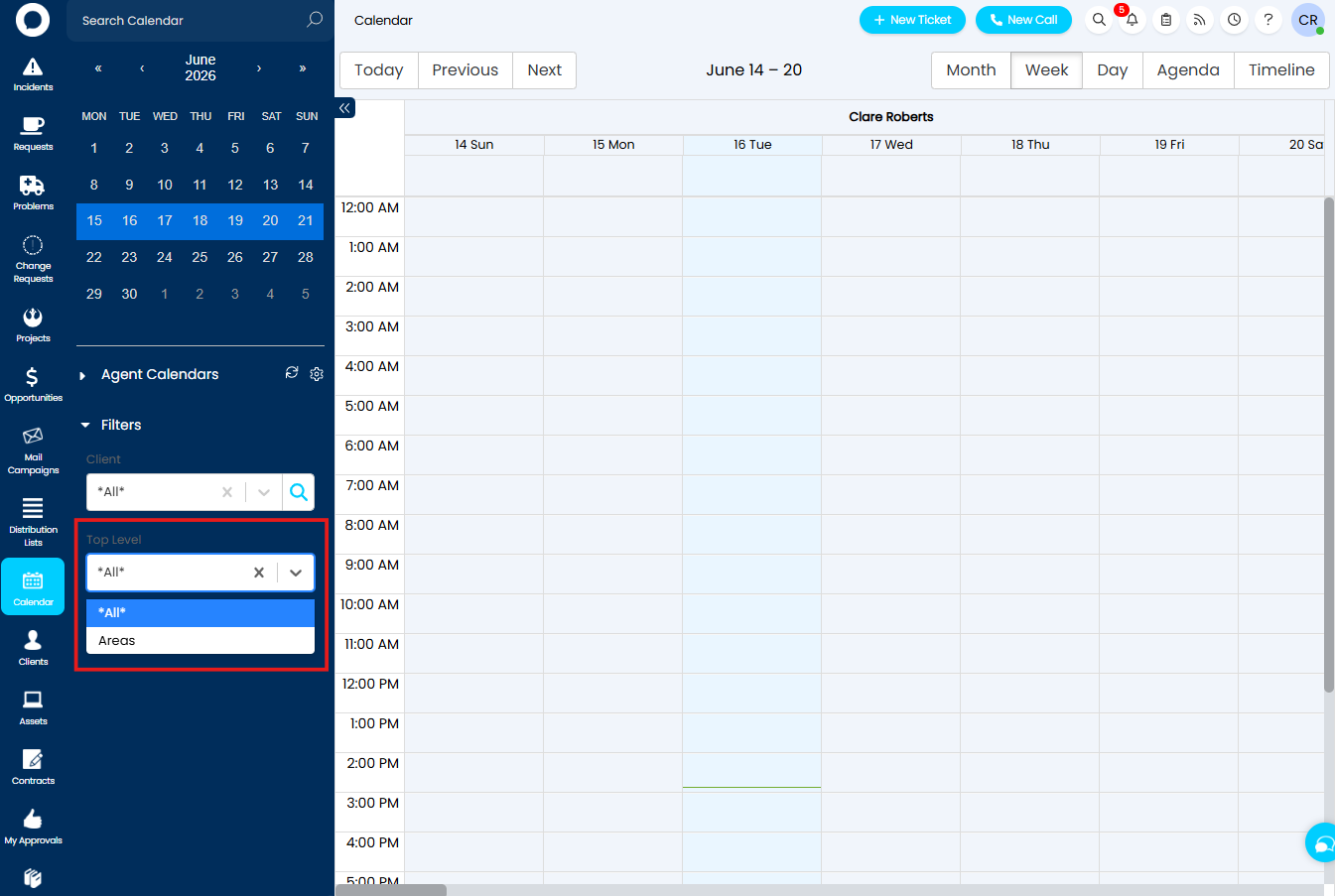
Fig 9. Top level filter on calendar area
Column Profiles
Top level can be added as a column when viewing the customers area. When sorting by it, customers will appear sorted by top level, then in alphabetical order within each top level.
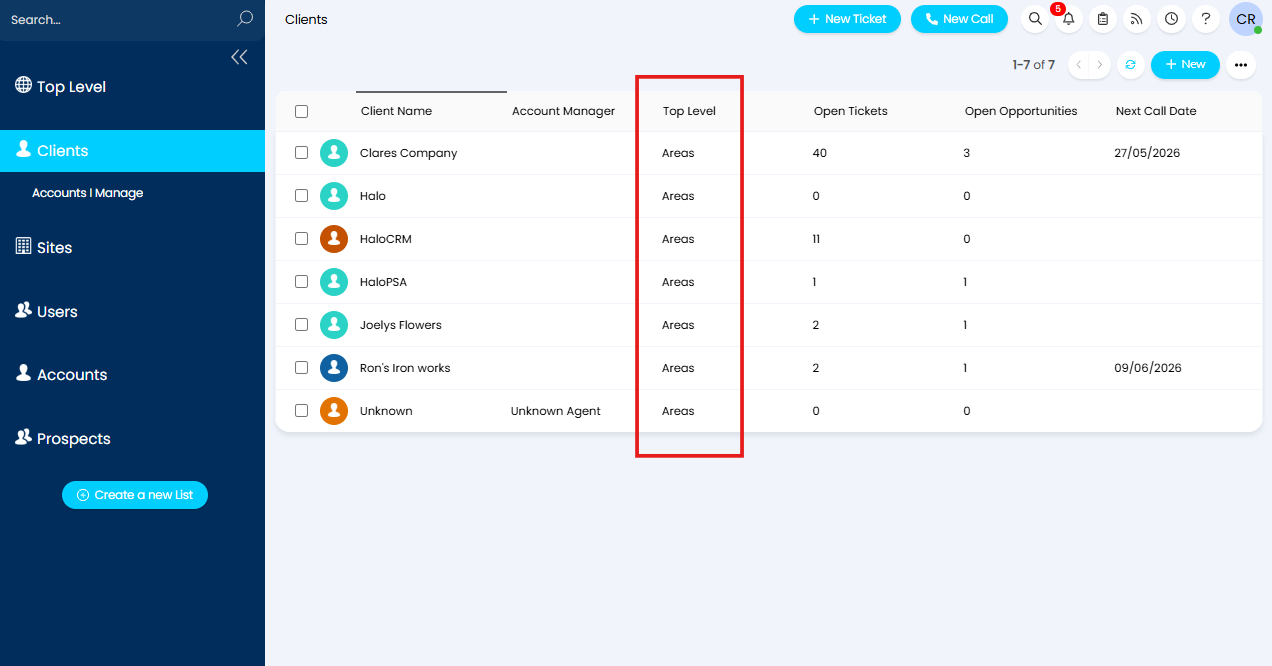
Fig 10. Sorting customers using the top level column
Assigning Tickets to Other Customers in the Top Level
In Configuration > Tickets > General Settings, you can "Allow selection from any Customers/Sites in their Top Level". This allows the customer and site on a ticket to be different to the end-user's customer and site. This can be set on the new ticket logging screen, or by editing the details when already logged.
This could be used in cases where a top level is set for parent companies of multiple customers, so tickets can be assigned to any of the sister/child companies of the parent.
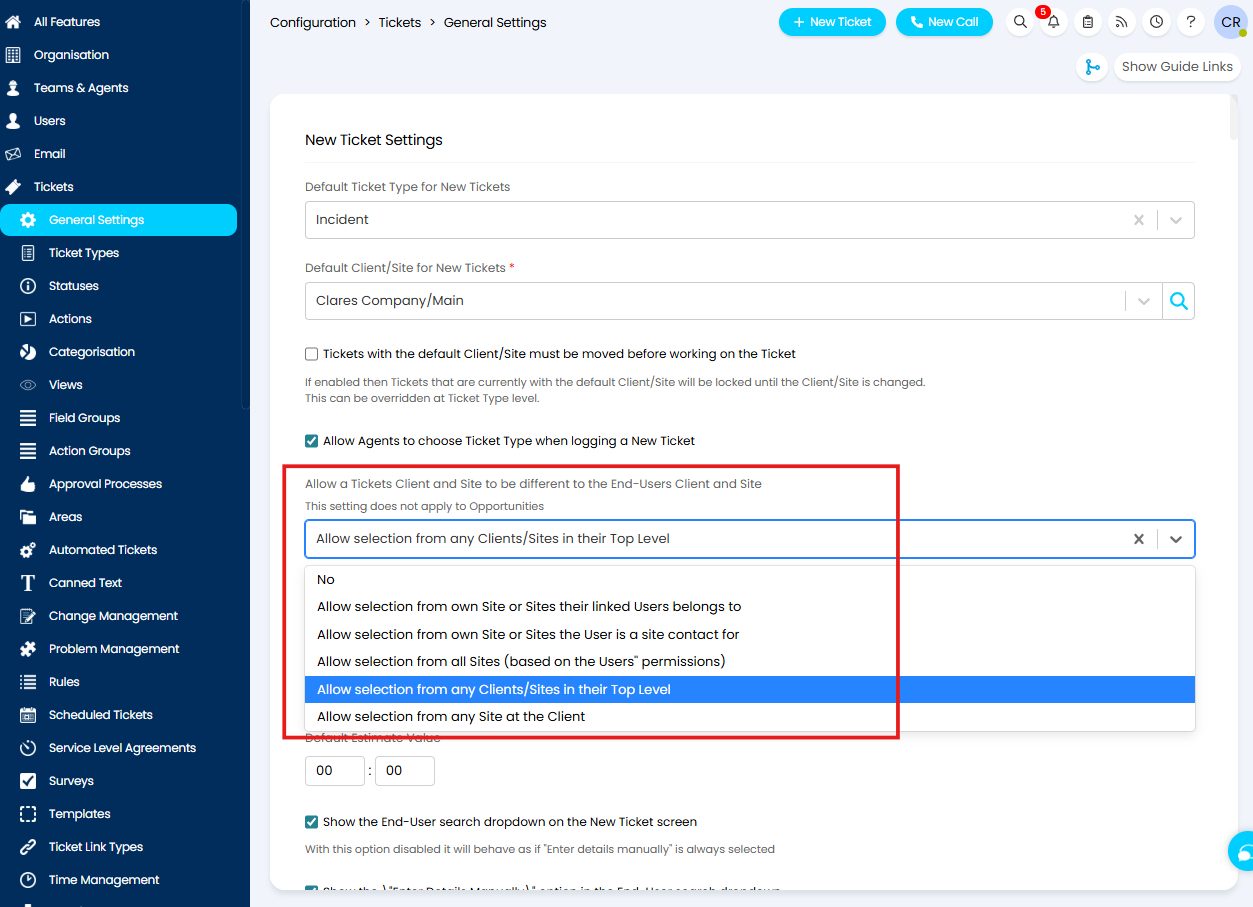
Fig 11. The setting to "Allow a Tickets Customer and Site to be different to the End-Users Customer and Site" set to "Allow selection from any Customers/Sites in their Top Level"
Setting as Default View
Top level can be set as the default view when opening the customers area. In Configuration > Users > General Settings, set "Default List - Customer" to "Top Level".
This can also be set per agent in the "Preferences" tab.
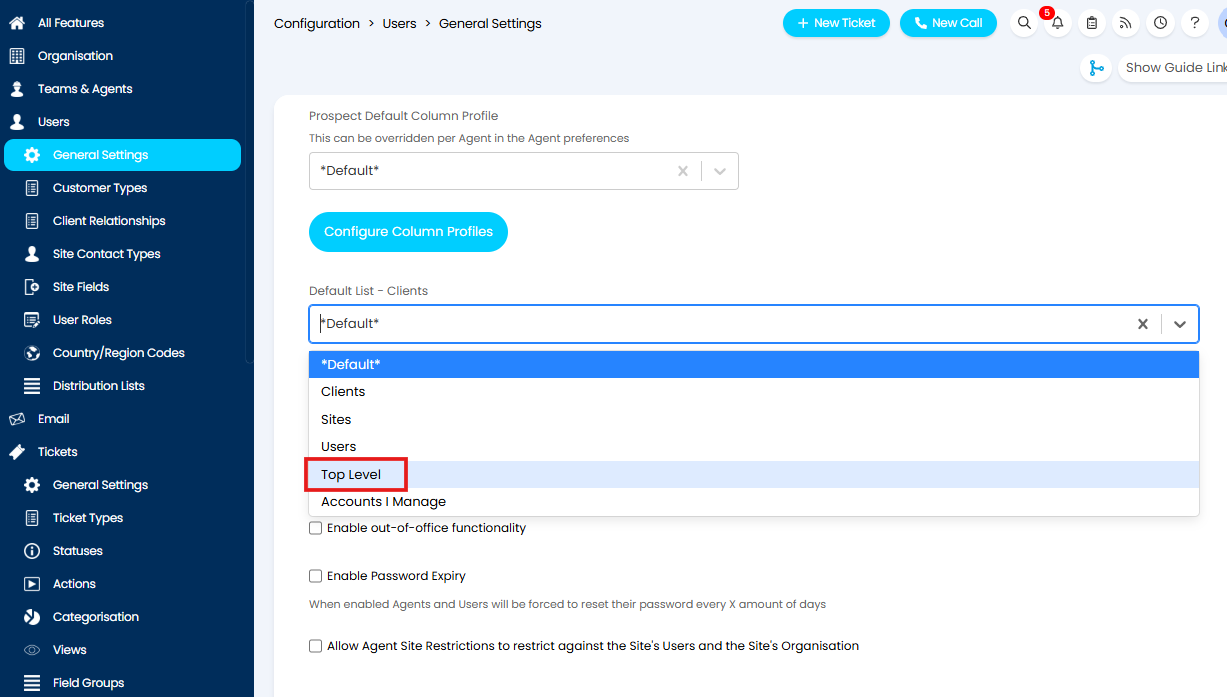
Fig 12. Default List for customers area
Showing Top Level on Tickets
Top levels can be shown in the End-User details area on a ticket. In Configuration > Tickets > General Settings, enable "Show Top Level on Ticket".
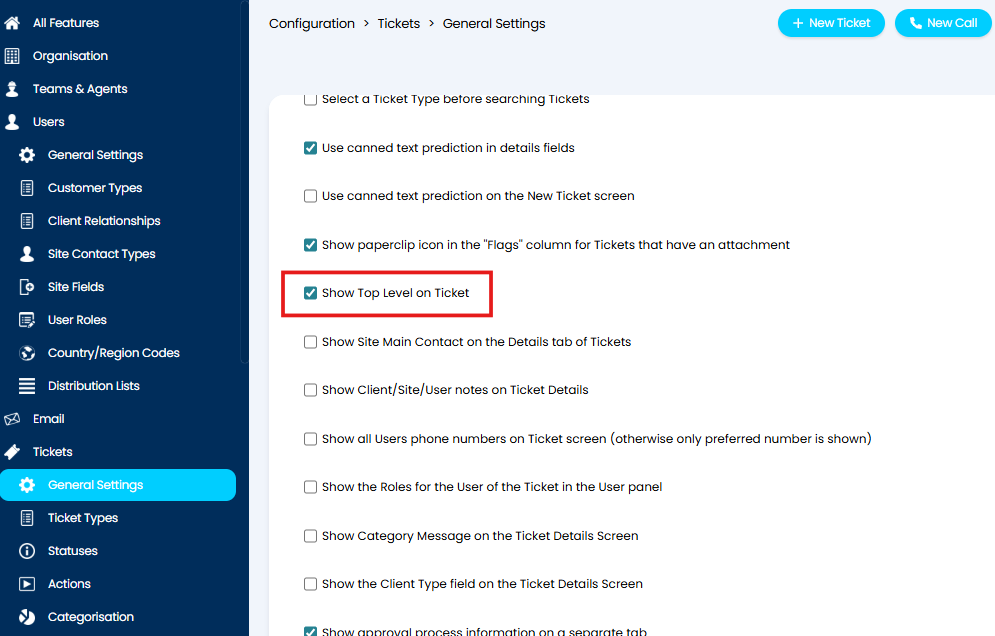
Fig 13. The setting to show top level on tickets
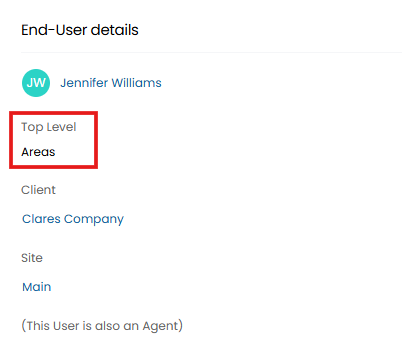
Fig 14. A user's top level displayed on a ticket
Service Restrictions
Top levels can be used as access criteria for a service in the service catalogue.
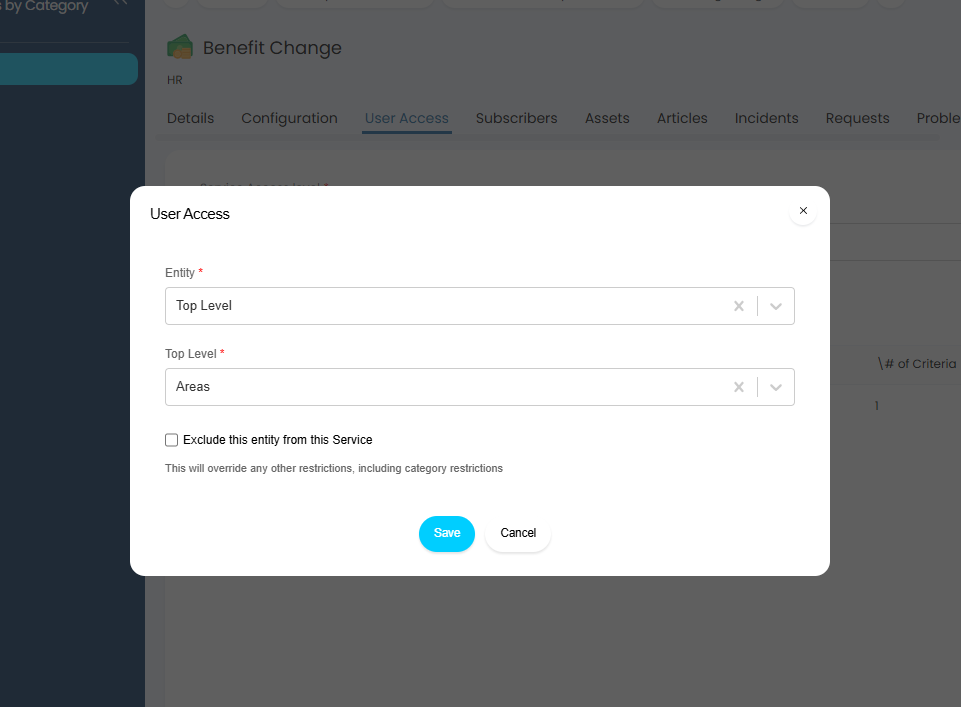
Fig 15. Restricting user access to a service by restricting it by top level
Note: Top Level changes to Customer records can be viewed under the Customer's Change Management Tab.