Article Restrictions - Users
- knowledge base
- faq list
- geo location
- knowledge base access
- permalink
In this guide we will cover:
- Allow All Users to view Articles on an FAQ list
- Allow Access to FAQ lists based on the User's Customer or Role
- Allow Access to FAQ Lists Based on Site and Organisation
- Allow Access to FAQ Lists based on the User's Geo Location
- Grant Access to Individual Articles
- Make an Article available at a specific Link - Permalinks
Knowledge base articles can be made available to your users in the End User Portal. Allowing users to access content/information you have created to assist them. Access/restrictions can be setup to control exactly which articles users can view in your portal. This is useful if only selected users should have access to certain articles, for example you may only want managers and HR staff to have access to an article outlining how to raise a new starter request but have this article hidden for other users.
In this guide we will cover the different methods in which access to knowledge base articles can be restricted, this assumes you have already setup the knowledge base in your portal.
For information on how to setup the knowledge base in your portal, see our guide here.
Allow All Users to view Articles on an FAQ list
Articles are organised using FAQ lists. FAQ lists can be configured to allow all users to view all the articles in this list, useful for articles that should be available to all users. For information on setting up FAQ lists see our guide here.
Keep in mind some restrictions still apply even when an FAQ list is set to show for all users. The following restrictions are still considered:
- Geolocation restrictions on a specific Article
- Geolocation on an FAQ List
- Organisation/Portal Restrictions
Configuring these restrictions will be covered later in this guide.
To grant all users access to articles on an FAQ list head to Configuration > Knowledge Base > Configure FAQ lists > select a list > enable "Show for all Users".
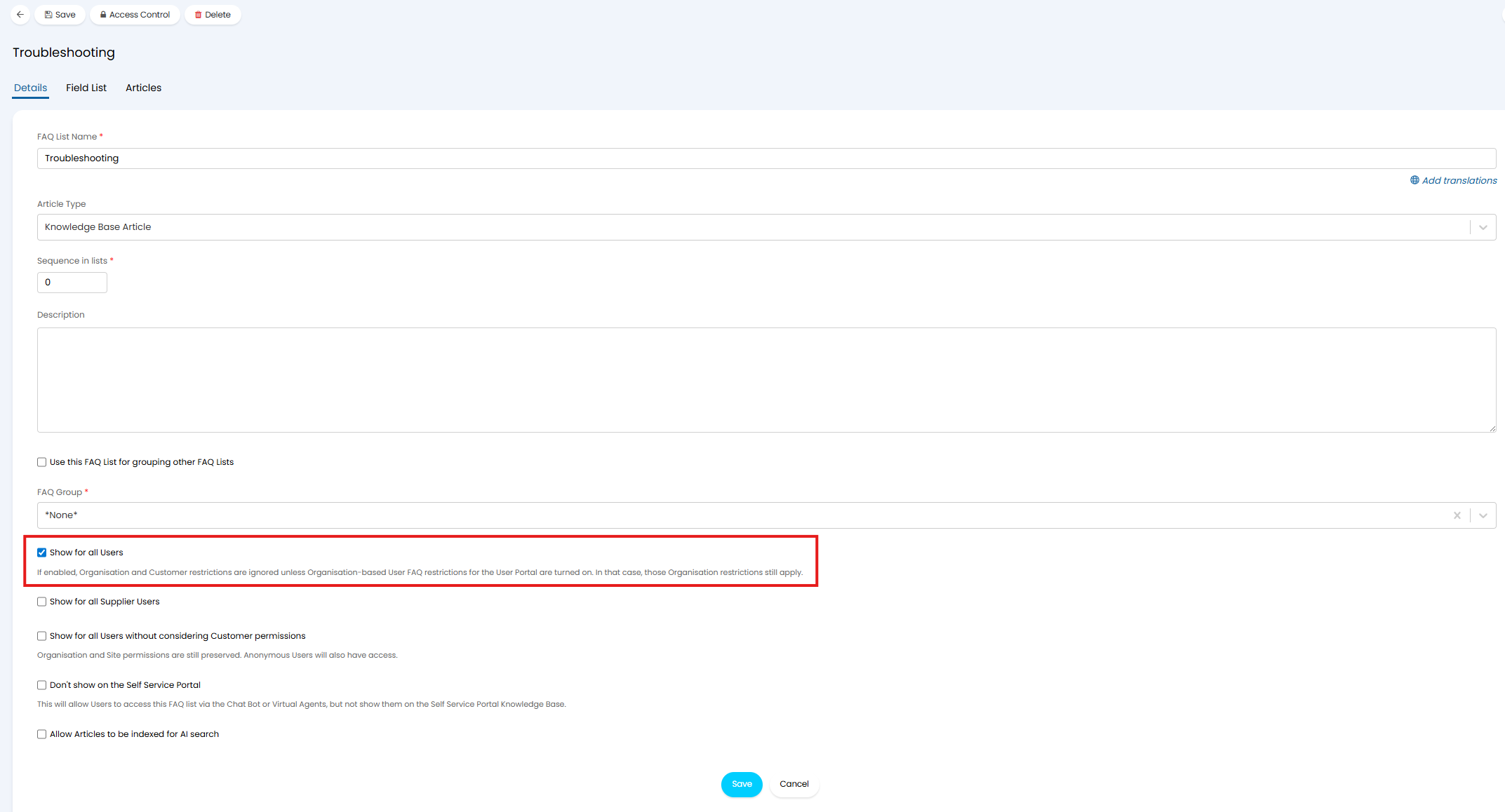
Fig 1. Show an FAQ List for all Users
When enabled, all users will be able to access articles on this FAQ list in the portal.
Allow Access to FAQ lists based on the User's Customer or Role
Articles are organised using FAQ lists. Access can be granted to the FAQ list based on the customer a user belongs to or the role that user has. Granting this access will allow the user to see all the articles in this FAQ list. For information on setting up FAQ lists see our guide here.
To grant users access to articles on an FAQ list head to Configuration > Knowledge Base > Configure FAQ lists > select a list > ensure "Show for all Users" is disabled > use the settings shown in Figure 2 to grant access based on a user's customer or role.
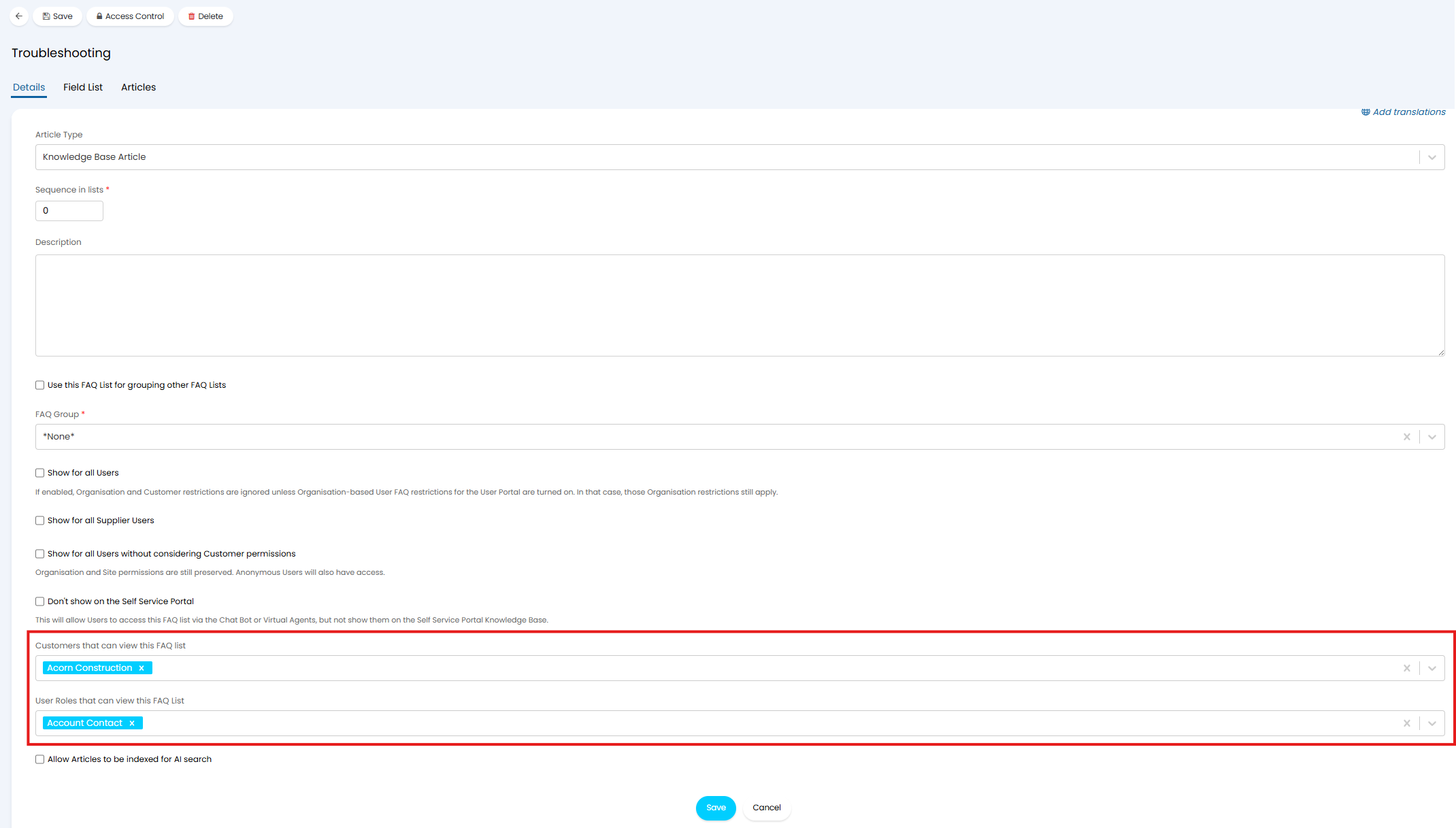
Fig 2. Options to allow access to the FAQ list based on customer and user role
Here, simply select the customers and/or user roles you would like to have access to this list. Only users under the selected customers or chosen roles will be able to access this list.
These two fields "Customers that can view this FAQ list" and "User Roles that can view this FAQ List" have an OR relationship, this means users only need to have one of the selected roles OR be under one of the chosen customers to view the FAQ list. If "Show for all Users" is disabled but no customers/roles are set here no users will be able to see this FAQ list.
The field "Customers that can view this FAQ list" will populate the field "FAQ Lists that this Customer can view" found against each customer (Customers > select a customer > Settings tab > Knowledge Base section), and vice versa. This allows you to set the FAQ lists a customer can access both against the FAQ list and against the customer. Useful for account manager agents who have access to edit their clients but not FAQ lists, as this allows them to change their client's allowed FAQ lists without needing permission to edit FAQ lists.
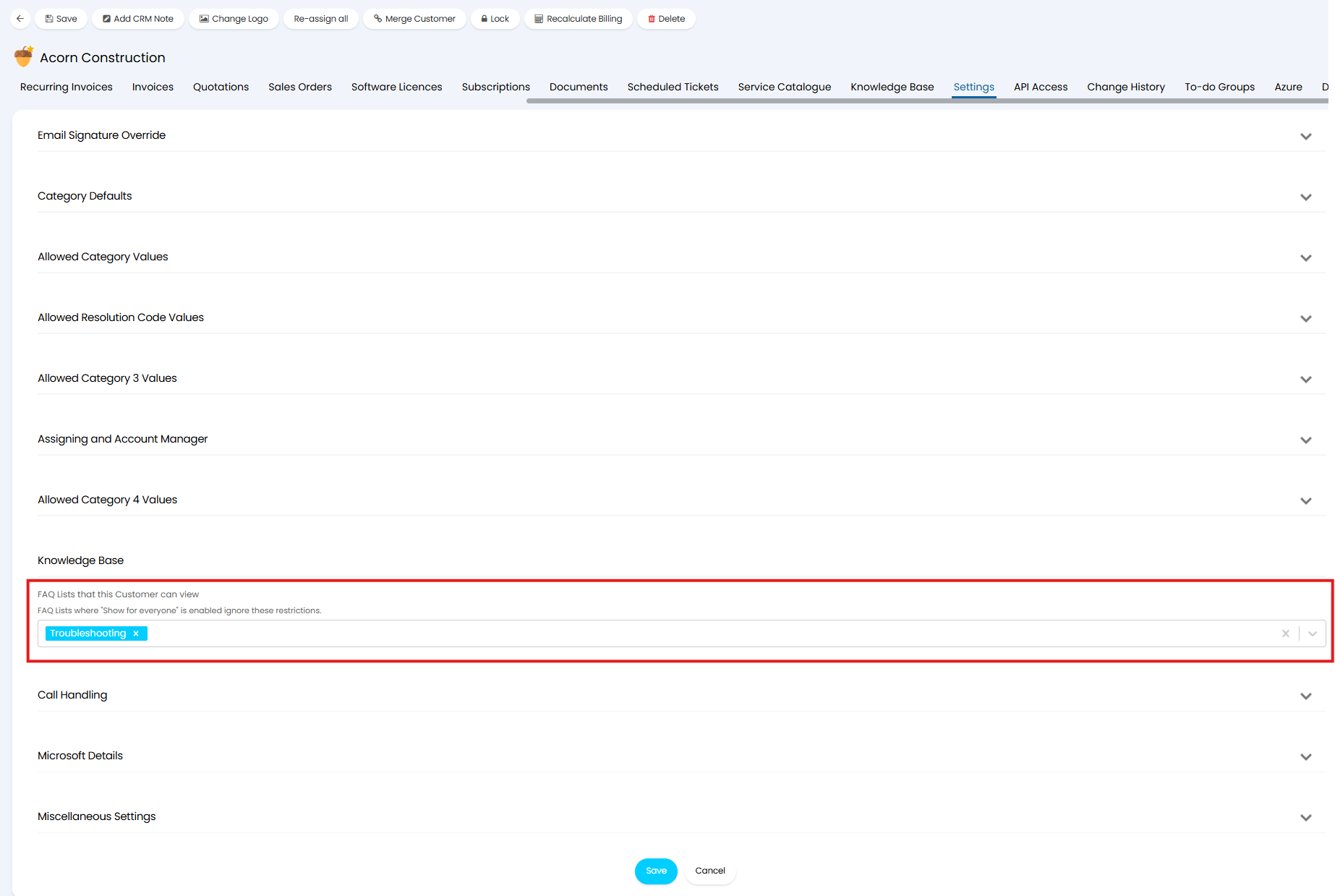
Fig 3. FAQ Lists that this Customer can view
If an article is on multiple FAQ lists, some of which a user does not have access to, the user will be able to view the article provided they have access to one of the lists the article is on.
View the Articles a Customer has access to
To help you manage a customer's article access you can view all the articles they have access to against their customer profile. This can be found under the "Knowledge Base" tab of the customer.
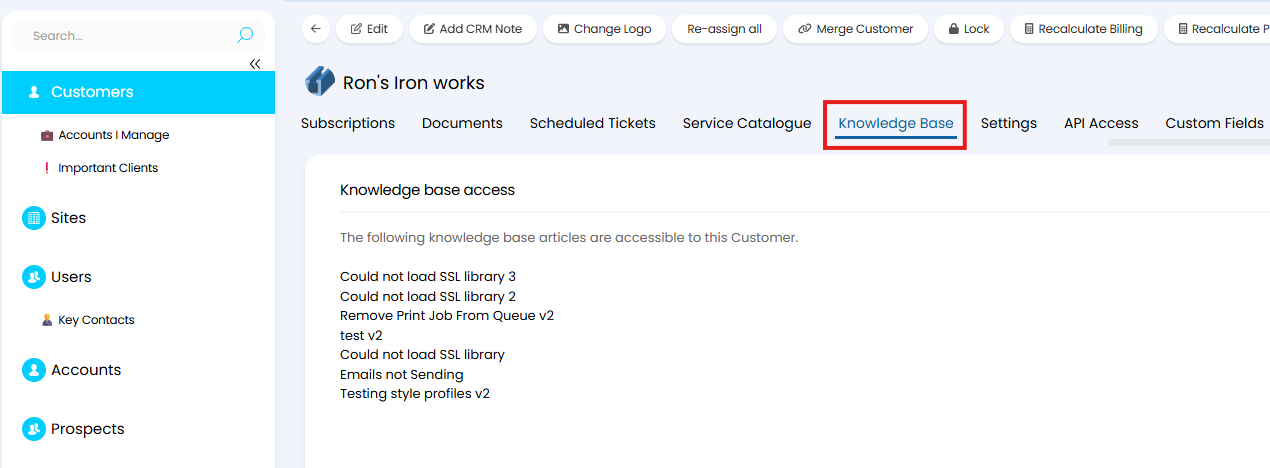
Fig 4. Articles a customer can access
You cannot change the articles a customer can access from here, but this provides an easy way to see their access.
Allow Access to FAQ List Groups
FAQ lists can be organised into 'sub lists' using FAQ Groups (a group is just an FAQ list that is marked as a group). The same access options are available to grant on a group as on FAQ lists. When user access is granted on an FAQ group the user will only be granted access to articles assigned directly to this group.
This means FAQ list access is not inherited from the group an FAQ list belongs to. Access must be granted to each FAQ list individually. This allows for more granular control, you can still use groups to organise FAQ lists and articles, without access being inherited.
For example, the customer Acorn Construction is allowed access to an FAQ group.
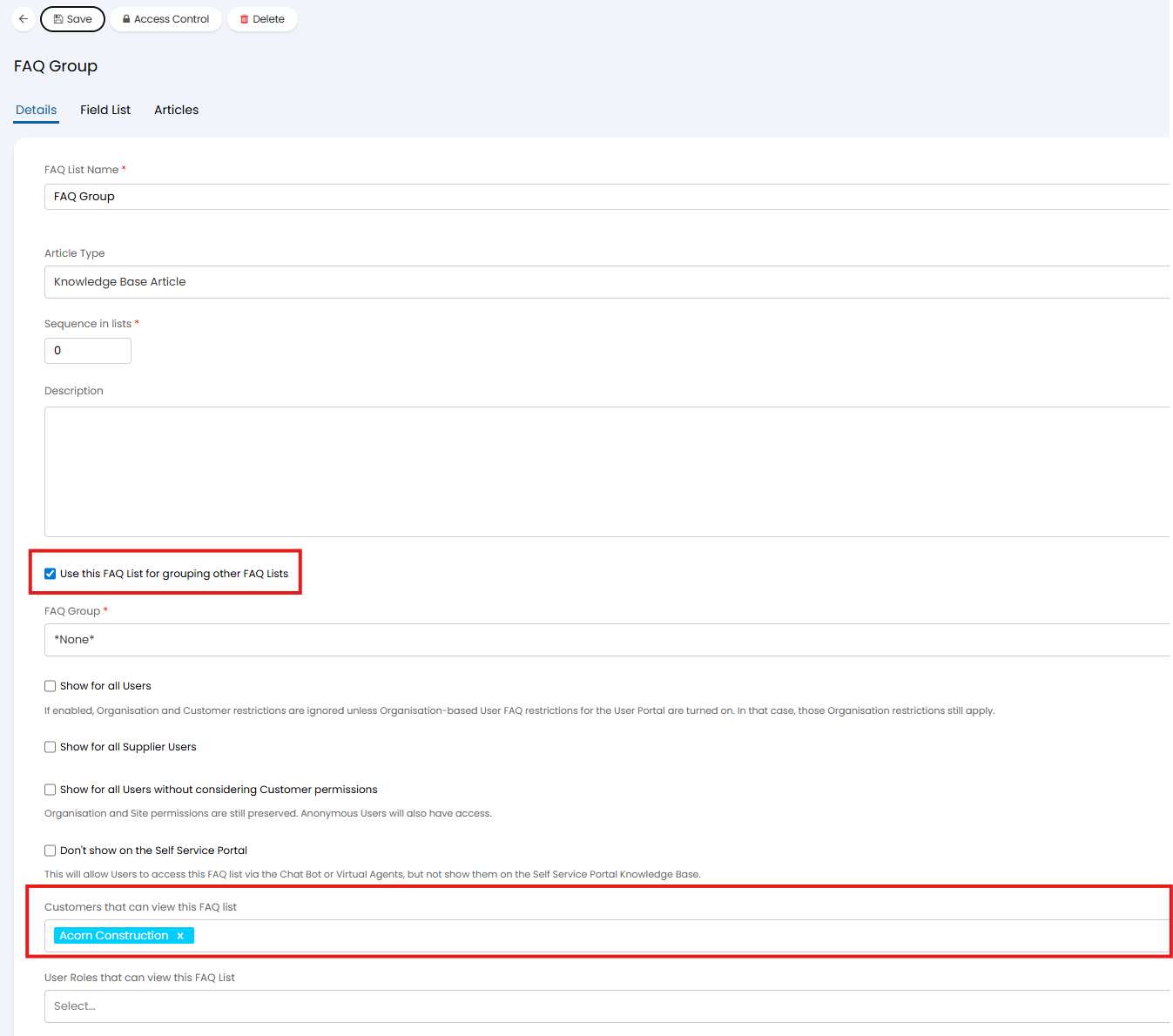
Fig 5. Customer access granted to FAQ group
An FAQ list is assigned to this group which acorn construction does not have access to.
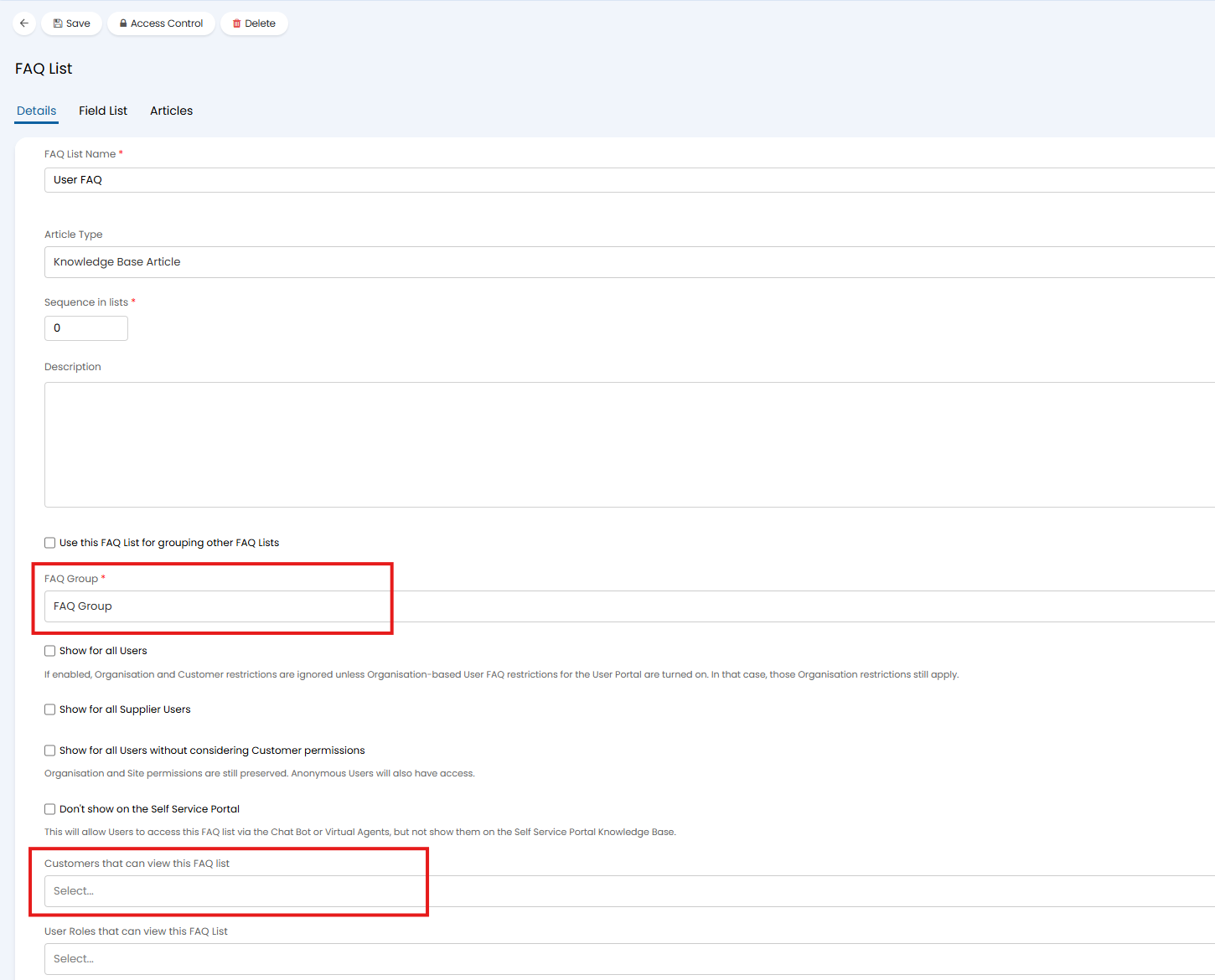
Fig 6. FAQ list assigned to a group
Using the Figure 5 example, users under Acorn Construction will have access to "User article 1" as this is assigned directly to the FAQ group. They will not have access to "User article 2" as this is assigned to an FAQ list which they do not have access to.
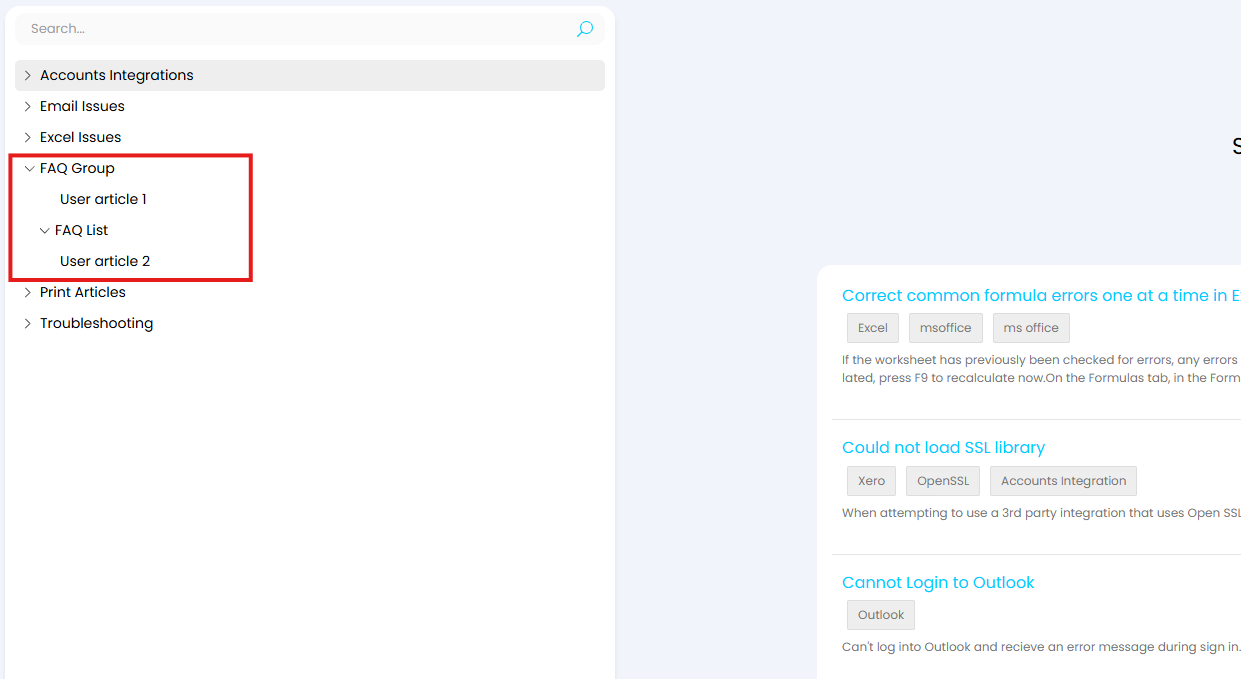
Fig 7. Articles and FAQ lists under the "FAQ Group" group
Allow Access to FAQ Lists Based on Site and Organisation
Grant Access based on Site
Access can be granted to an FAQ list based on the site a user belongs. Useful when you would only like users at particular sites to have access to a set of articles, for example when you have troubleshooting articles that are specific to a particular office location.
By default, all sites are set to inherit the FAQ list access from the client they belong to, so this will need to be disabled for any sites if you would like to have different access from their client.
To set a site's access to a FAQ list head to Clients > sites > select a site > settings tab > knowledge base section > disable "All FAQ lists available at Client level will be available at this Site" > use the setting shown in Figure 8 to choose which FAQ list users at this site can access.
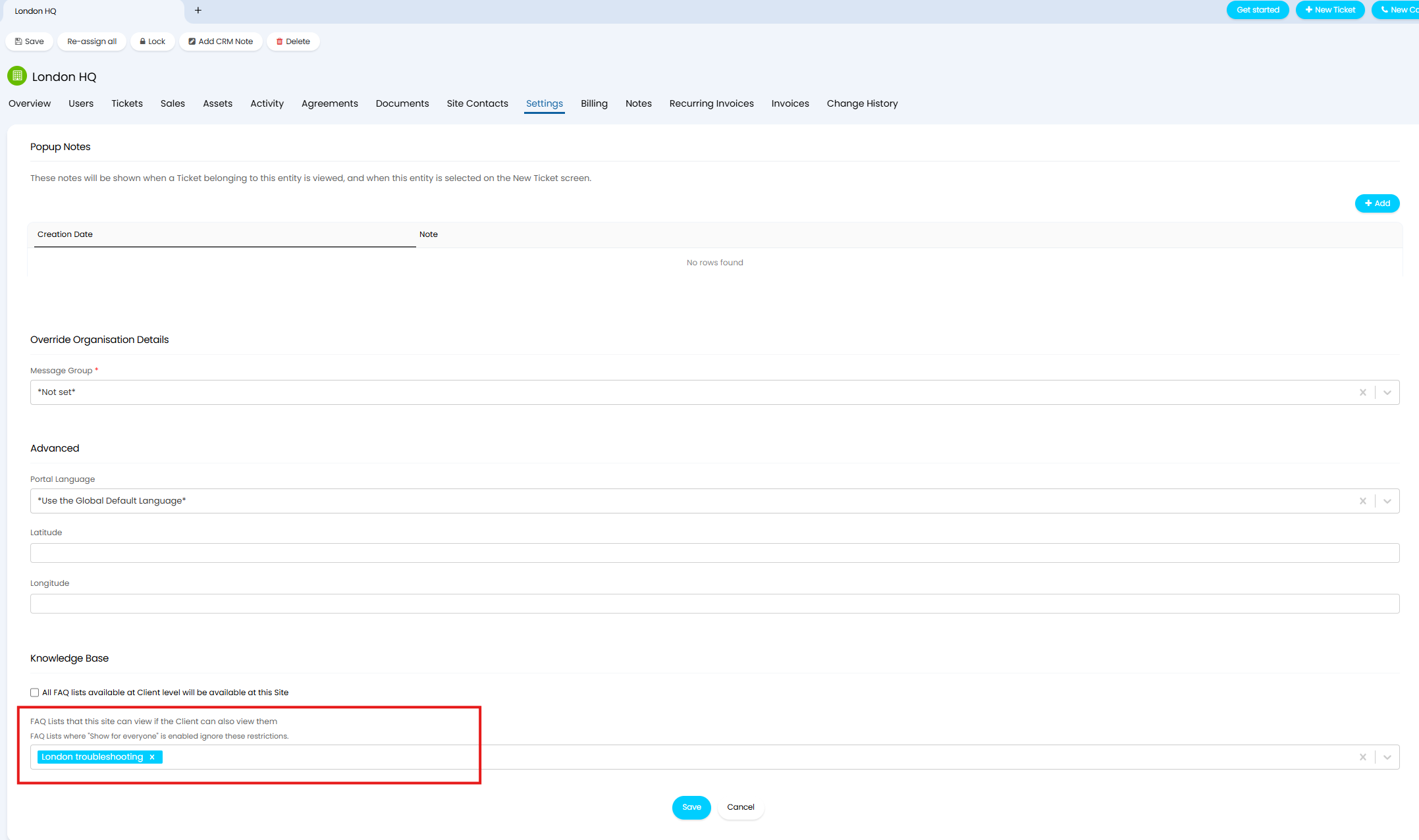
Fig 8. FAQ Lists that users at this site can view
In order for users at this site to be able to view articles under this FAQ list the client the site is under will also need access to this FAQ list. To prevent other sites at the same client from accessing this FAQ list, ensure "All FAQ lists available at Client level will be available at this Site" is disabled for each site and the desired articles are selected.
Grant Access Based on Organisation/Portal
This method of article restriction is only applicable for those:
- Using Multi Tenancy in their Halo instance
AND
If you have multiple end user portals (typically for different organisations) you can restrict which FAQ lists users see based on the portal they are logged in to. Useful when you have separate articles for each of your organisations and have separate portals for each organisation.
Before these restrictions can be implemented you will need to first have multiple end user portals deployed and have assigned each organisation's branding to the portal accordingly. Information on how to do this can be found in our guide here.
To allow organisation based restrictions to articles this must be enabled. Head to Configuration > Knowledge Base > enable "Enable the ability to restrict FAQ lists for Users on a Self Service Portal for different Organisations".

Fig 9. Enable the ability to restrict FAQ lists for Users on a Self Service Portal for different Organisations
Now you can set which FAQ lists users can access per organisation. Head to Configuration > Organisations > Configure Organisations > Settings tab > disable "Users can see all available FAQ Lists". Then you will be able to use the setting shown in Figure 10 to choose which FAQ lists show in this organisation's portal.
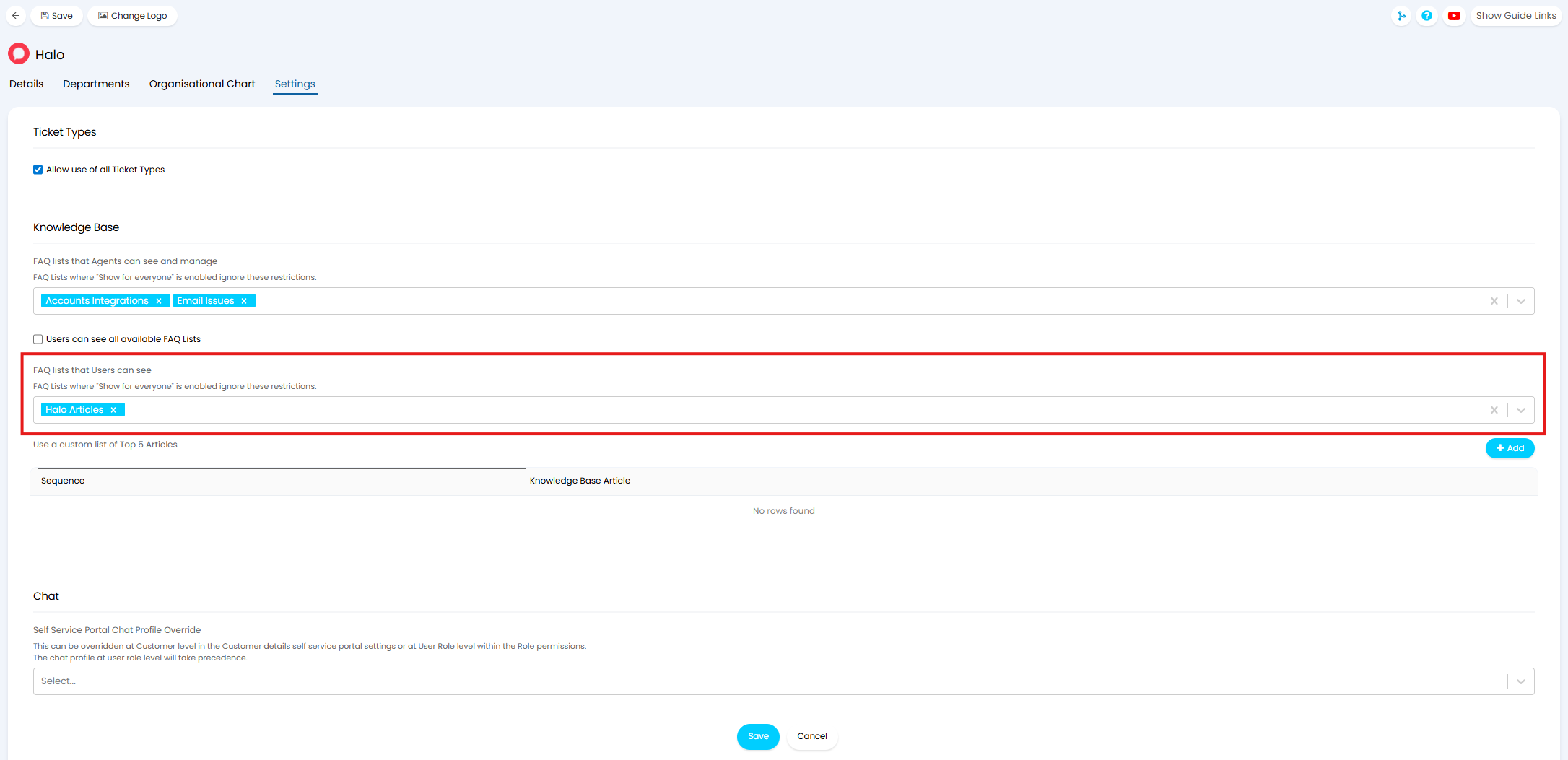
Fig 10. FAQ lists that Users can see
Note: These restrictions can be overridden for selected FAQ lists by enabling "Show for everyone" on the FAQ list. Useful for FAQ lists used by all users.
Now, users who log into a portal which users this organisation's branding will only see articles on the FAQ lists chosen here (as well as FAQ lists that are set to show for all users).
If restricting which FAQ lists a user can access based on the organisation of the portal they are logging in to, other restrictions are also considered. For example if customer/site restrictions are in place the user must be under a customer and site that has also has access to the organisation's allowed FAQ lists.
Use Only Site and Organisation Restrictions - Easing the application of Site Level Access
If you would like to have customer restrictions ignored, so only organisation and site restrictions are considered this can be toggled per FAQ list. This is useful when only one (or few) sites under a customer should have access to an FAQ list. This can make access configuration easier when only a handful of site should have access to an FAQ as rather than having to allow the FAQ list for the client, then remove it from each site, you can simply add the FAQ list to the allowed lists for the site.
This can also be useful when you would like articles on an FAQ list to be available to all users while still keeping organisation and site level restrictions in place.
To do this head to Configuration > Knowledge Base > Configure FAQ Lists > select an FAQ list > enable "Show for all Users without considering Customer permissions".
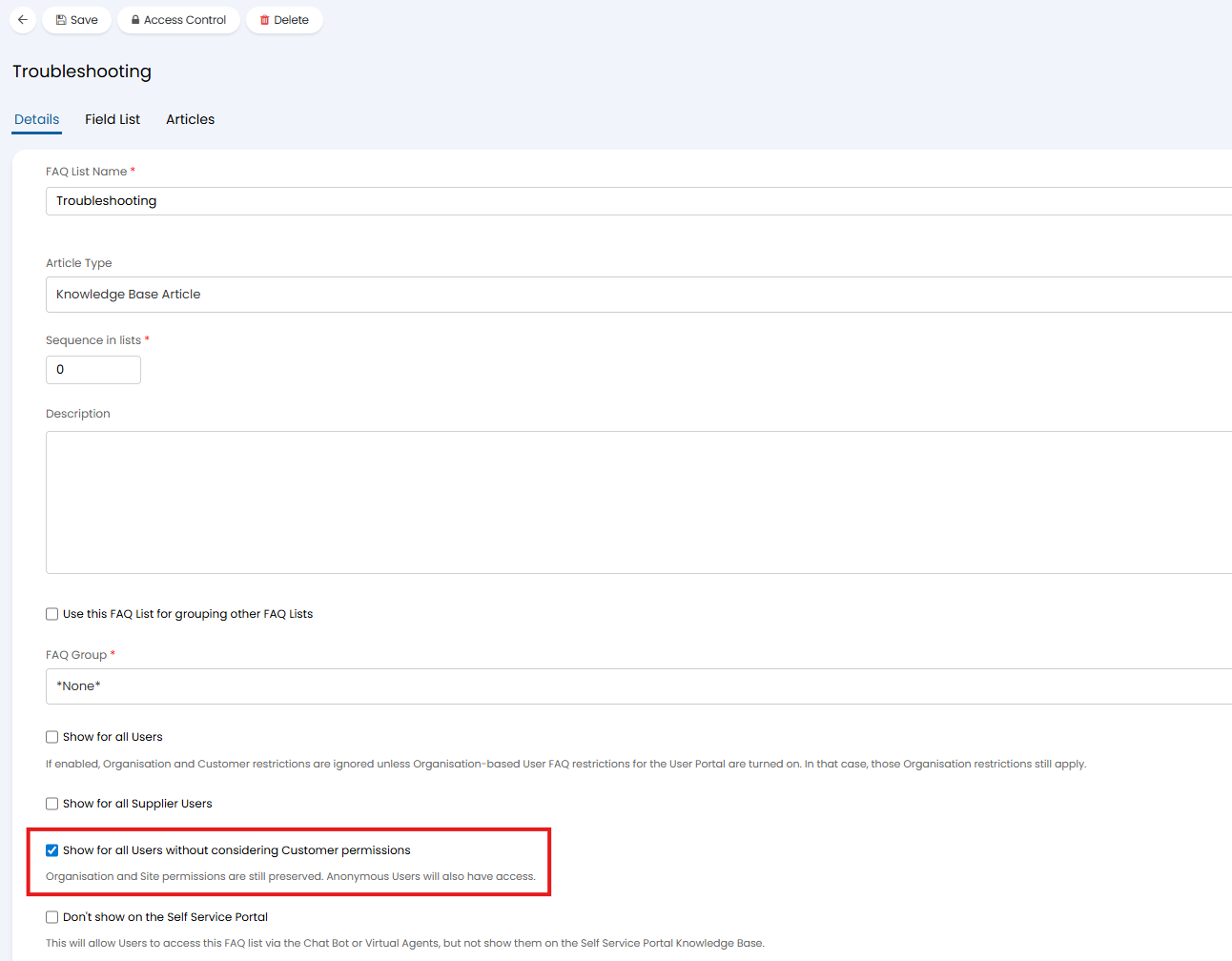
Fig 11. Show for all Users without considering Customer permissions
When this is enabled, all users will be able to see articles on this FAQ list provided the site they belong to has access, and the organisation of the portal they are logging in to has access.
Allow Access to FAQ Lists based on the User's Geo Location
Access to articles on an FAQ list can be granted based on the geographical location of the user. User's geographical location is checked using their IP address.
This functionality will first need to be enabled in Configuration > Knowledge Base > "Use Geo Location Restrictions for FAQ Lists".
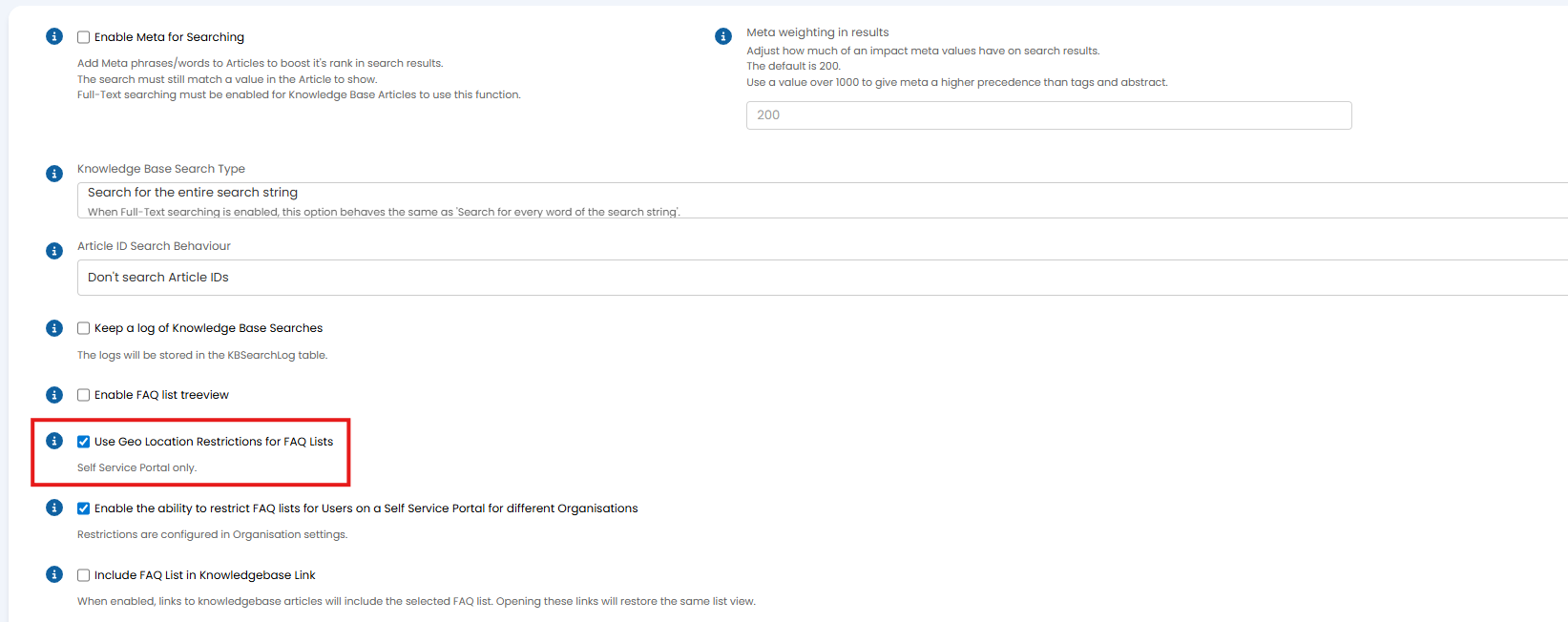 Fig 12. Enable Geo Location Restrictions to be used for FAQ Lists
Keep in mind when enabled, performance around knowledge base articles may be impacted.
Note: This setting for "Use Geo Location Restrictions for FAQ Lists" can also be found on the self service portal configuration page.
Once enabled an additional table will appear against FAQ lists called 'Geo Location Restrictions'. Here you can add entries to restrict who can see the article based on the country or continent they are in. Restrictions can either be set so that only users in this location can view the article, or all users except this location can view the article.
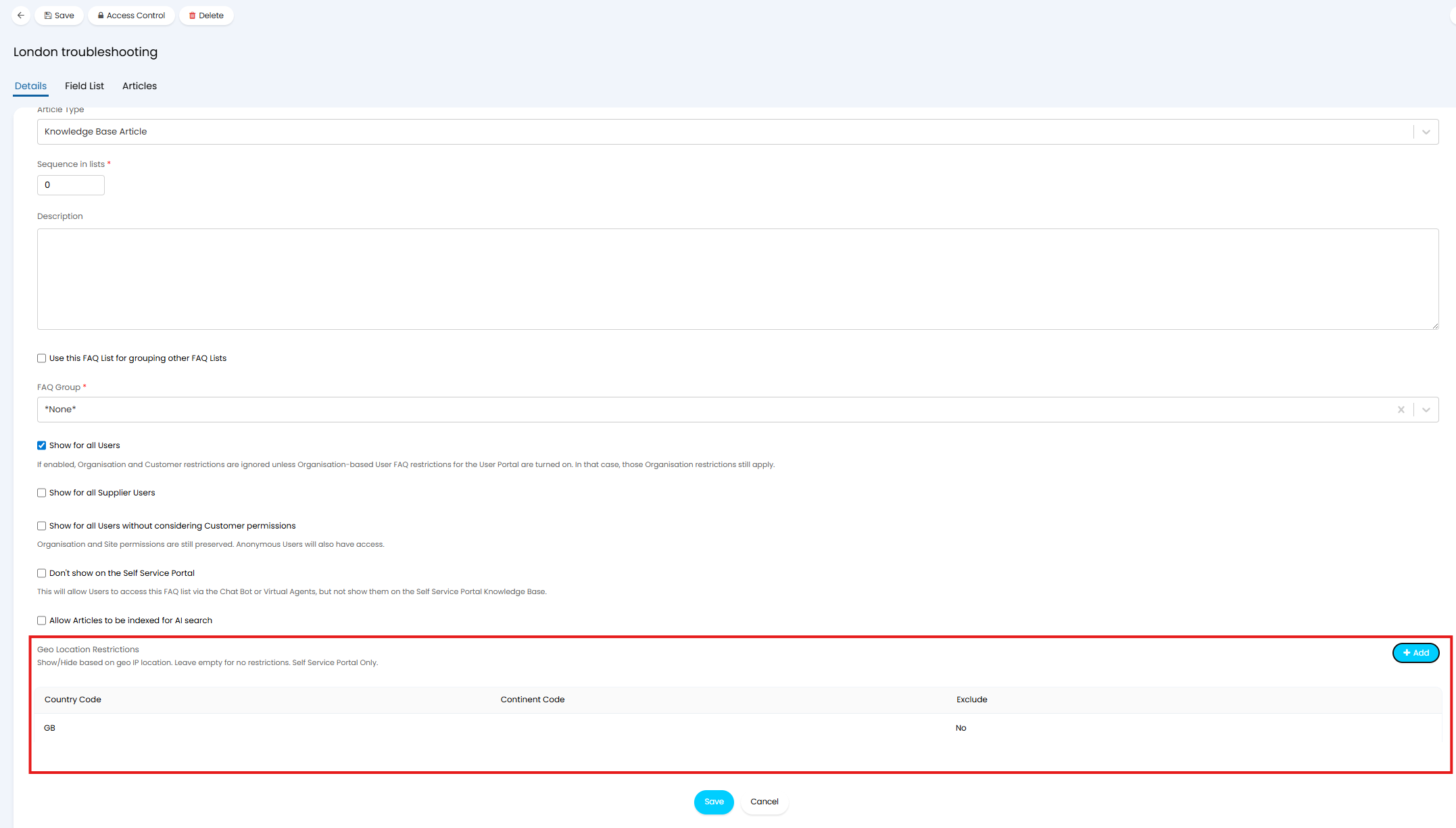
Fig 13. Geo Location Restrictions on an FAQ List
Note: Even if the FAQ list is set to 'show for all users' geo restrictions are still considered.
Any access that has been granted on an FAQ list will override article access. That is, if users in a country have been given access to an FAQ list but have been excluded from seeing an article in this list, they will still be able to see the article. The highest level of access will always be taken.
Grant Access to Individual Articles
Users can be granted access to individual articles based on their:
- Customer
- Top Level
- Geo Location
If users are granted access to individual articles they will not need access to the FAQ list the article is on to be able to see it. It is important to note, if the FAQ List that the article is under has the setting "Show for all Users" selected, then customer and top level set on the article will not apply as they will be overridden by the FAQ list setting. To have the restrictions apply the FAQ list must not show for all users, then access can be granted against each article. Geo location restrictions will still apply.
Grant Access based on Customer and Top Level
To give particular customers access to the article add them to the 'Allowed Customers' table against the article, only the customers in this table will be able to see the article in the portal.
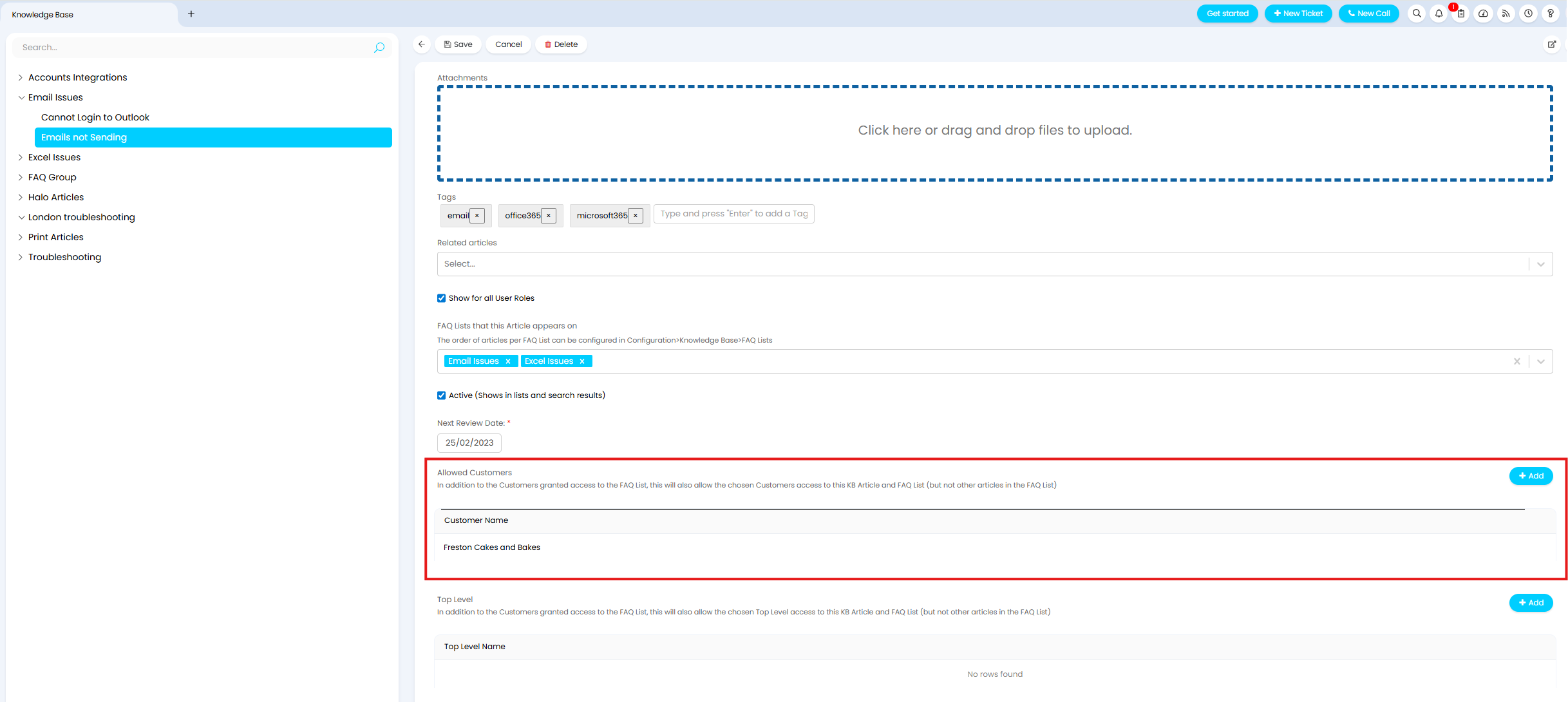
Fig 14. Give particular customers access to an article
To give customer under a particular top level access to the article add them to the 'Top Level' table against the article.
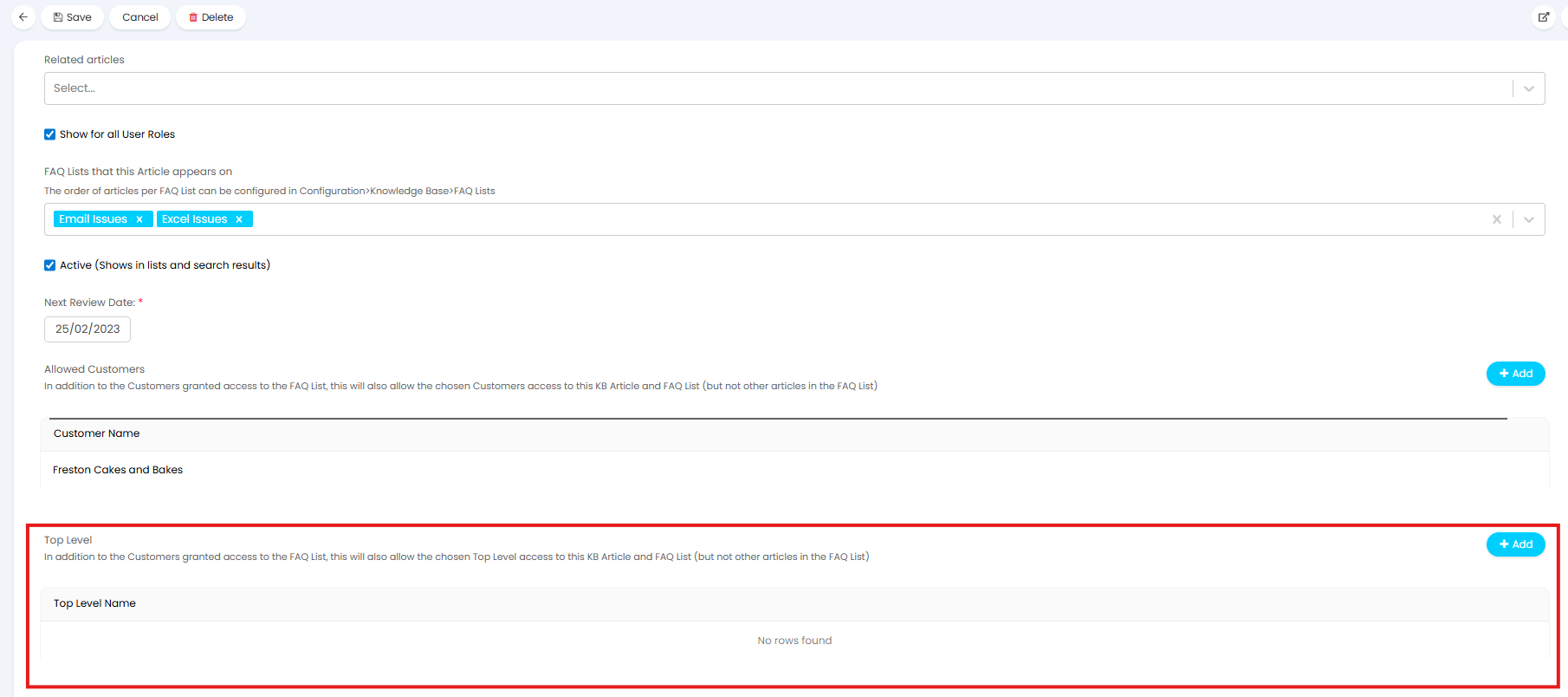
Fig 15. Give customers under a particular top level access to an article
Only the customers chosen here/under the top level chosen here will be able to access the article.
Grant Access based on Geo Location
Access to articles can be granted based on a user's geo location (using their IP address) to only allow users at particular locations to view an article. This can be useful when you have location specific articles and would only like users at that location to view it.
This functionality will first need to be enabled in Configuration > Knowledge Base > "Use Geo Location Restrictions for Knowledge Base Articles".
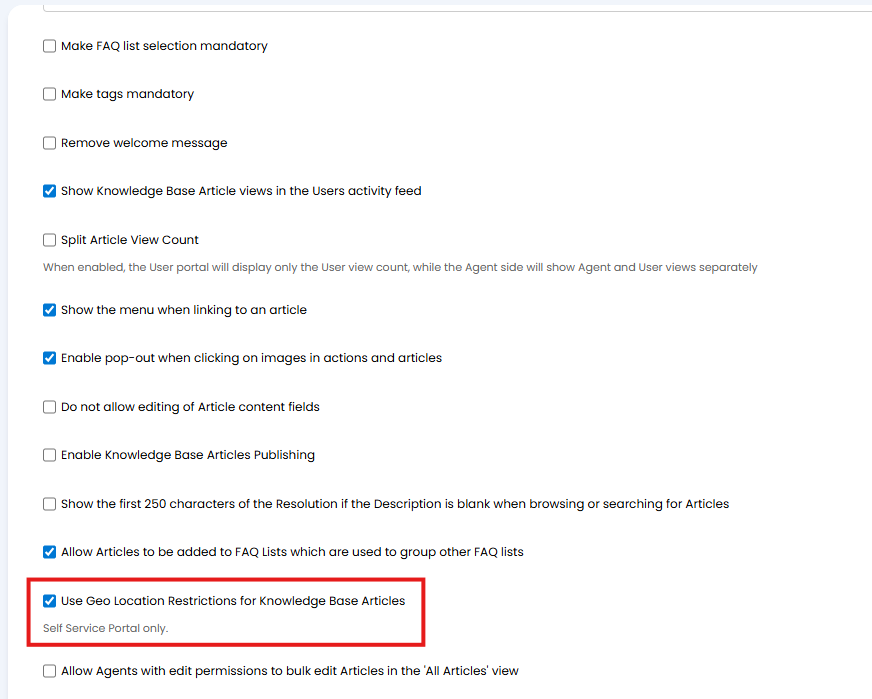
Fig 16. Enable Geo Location Restrictions for articles
Keep in mind when enabled, performance around knowledge base articles may be impacted.
Note: This setting for "Use Geo Location Restrictions for FAQ Lists" can also be found on the self service portal configuration page.
Once enabled an additional table will appear against articles called 'Geo Location Restrictions'. Here you can add entries to restrict who can see the article based on the country or continent they are in. Restrictions can either be set so that only users in this location can view the article, or all users except this location can view the article.
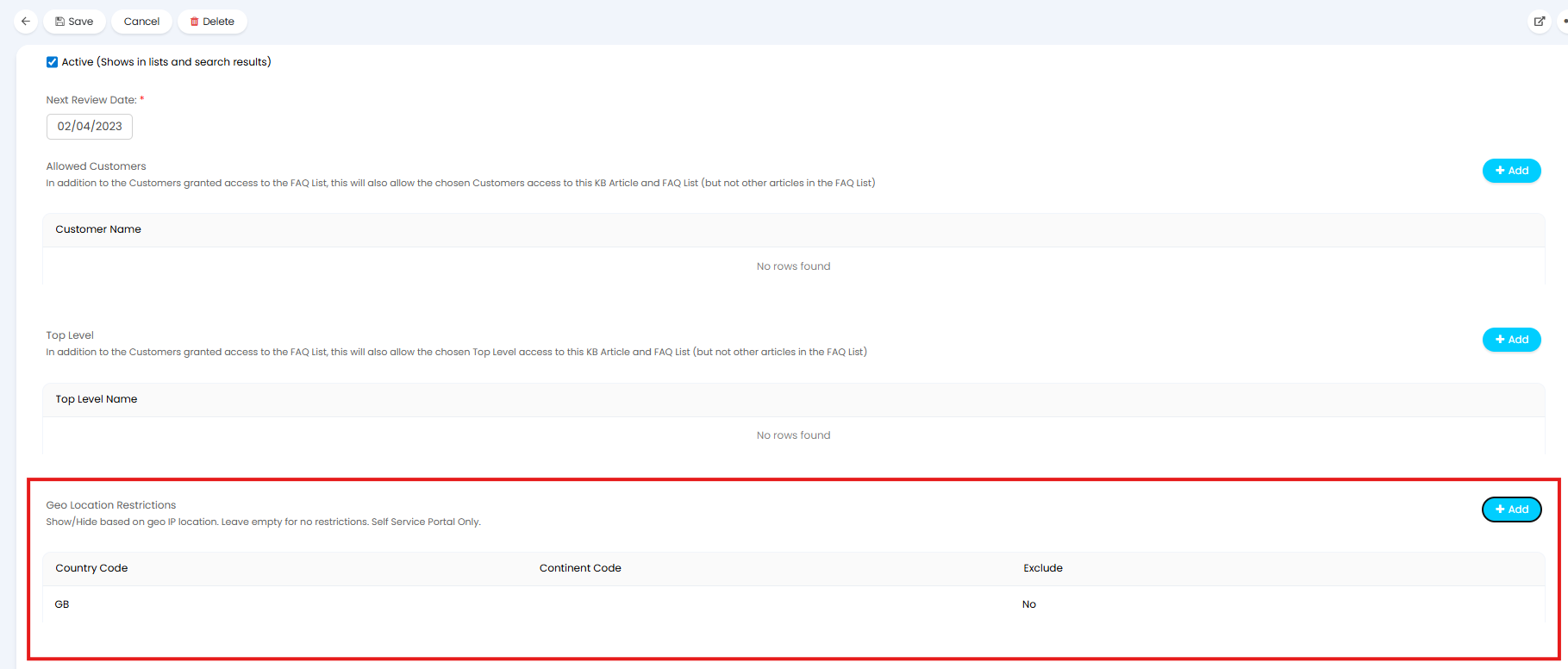
Fig 17. Geo Location Restrictions against article
Exclude setting - When checked, all users can see this article, except users in the country/continent selected. When unchecked only the users at this country/continent will be able to see this article.
In the Figure 18example all users except those in France will be able to see this article.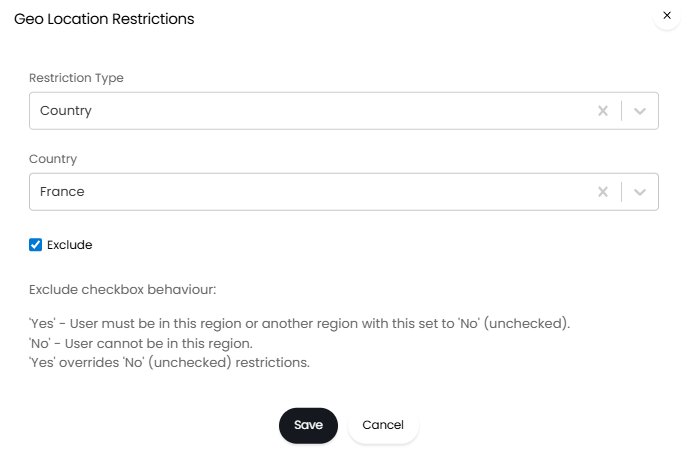
Fig 18. Restricting Geo Location example
It is important to note, if you set restrictions that overlap, that is you give users at a particular continent access to this article, but exclude a country under this continent, the highest level of access will be granted. So all users under the continent would have access even if they country they are in has been excluded.
Make an Article available at a specific Link - Permalinks
Articles can be published to create a permalink for that article. Permalinks can be used to make an article accessible at a specific link. Multiple links can be generated per article.
To enable this head to Configuration > Knowledge Base > enable the setting shown in Figure 19.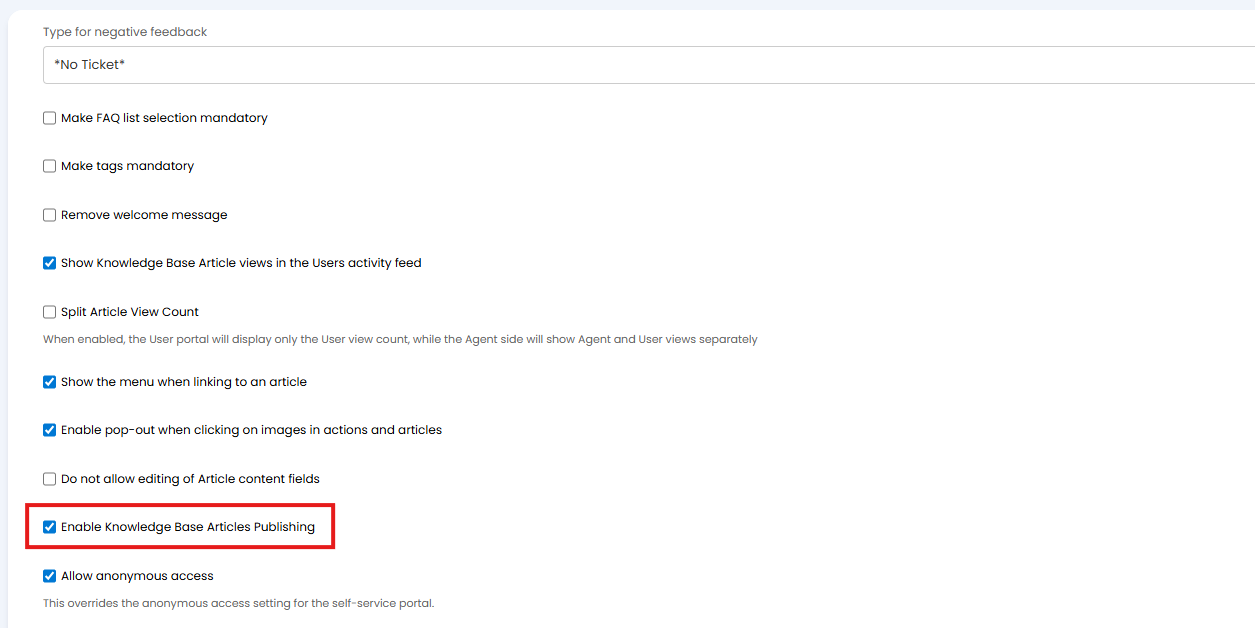
Fig 19. Enable Knowledge Base Article Publishing
Now, against each article you will have an option to "Create" Permalink".
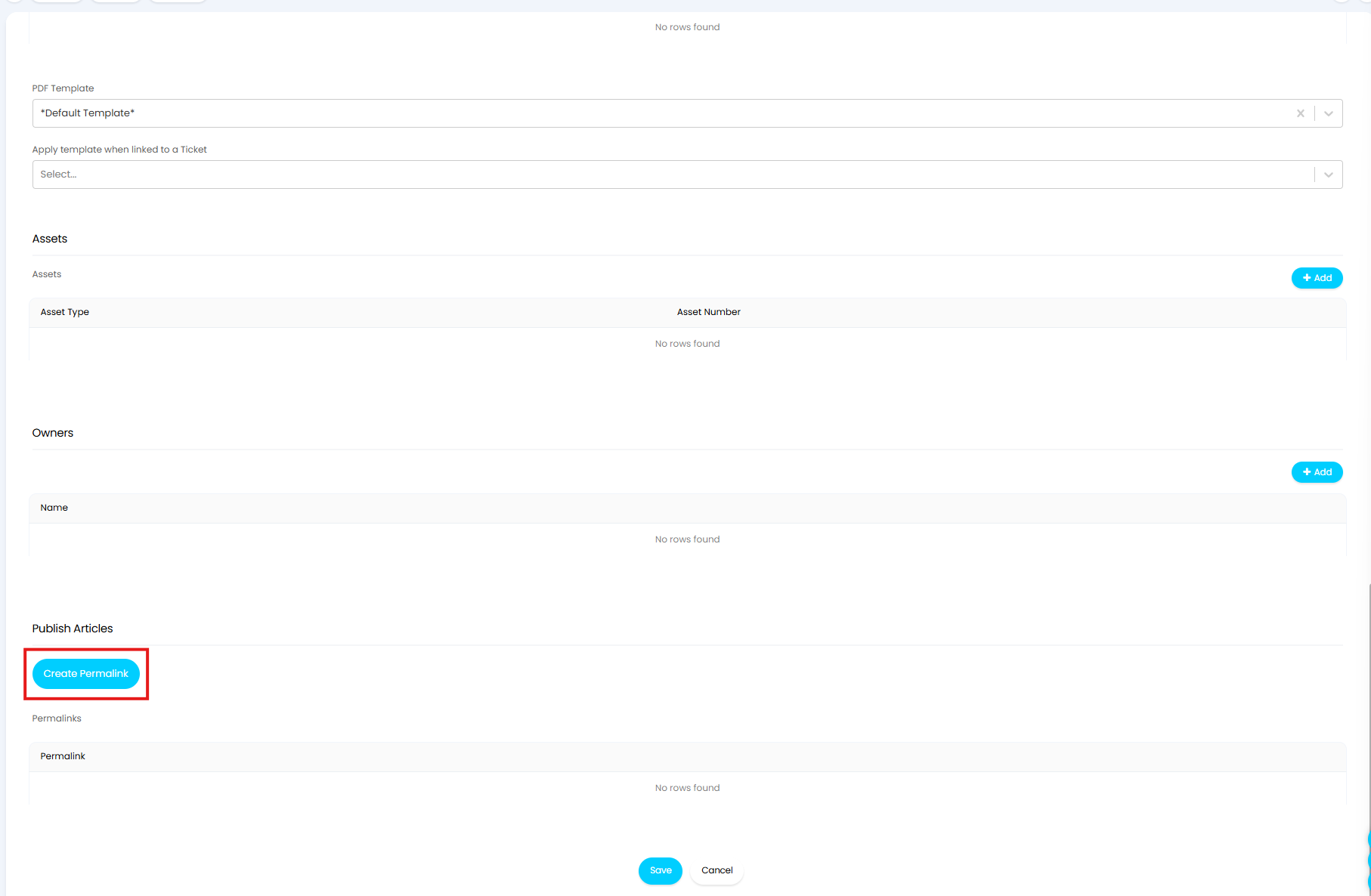
Fig 20. Create Permalink for an article
When creating you will need to choose the type of permalink to create.
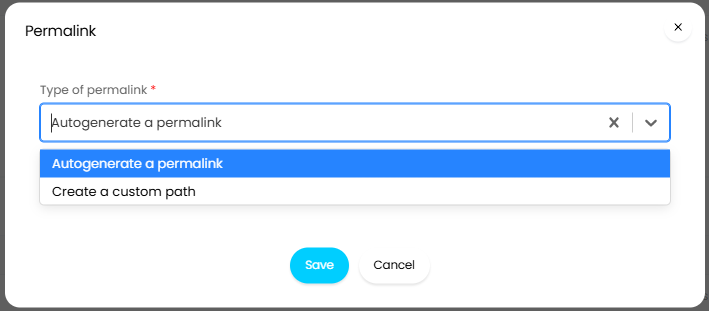
Fig 21. Type of permalink
Autogenerate a permalink - A permalink will be generated for you.
Create a custom path - Choose this if you would like to choose a path to be appended to the URL used to access your knowledge base in the portal. Useful when you would like a link that is easy to remember.
Once a permalink type is chosen, a link will be created after a few seconds and a prompt will show on screen to confirm the link has been created.
The link will be visible upon saving the article.
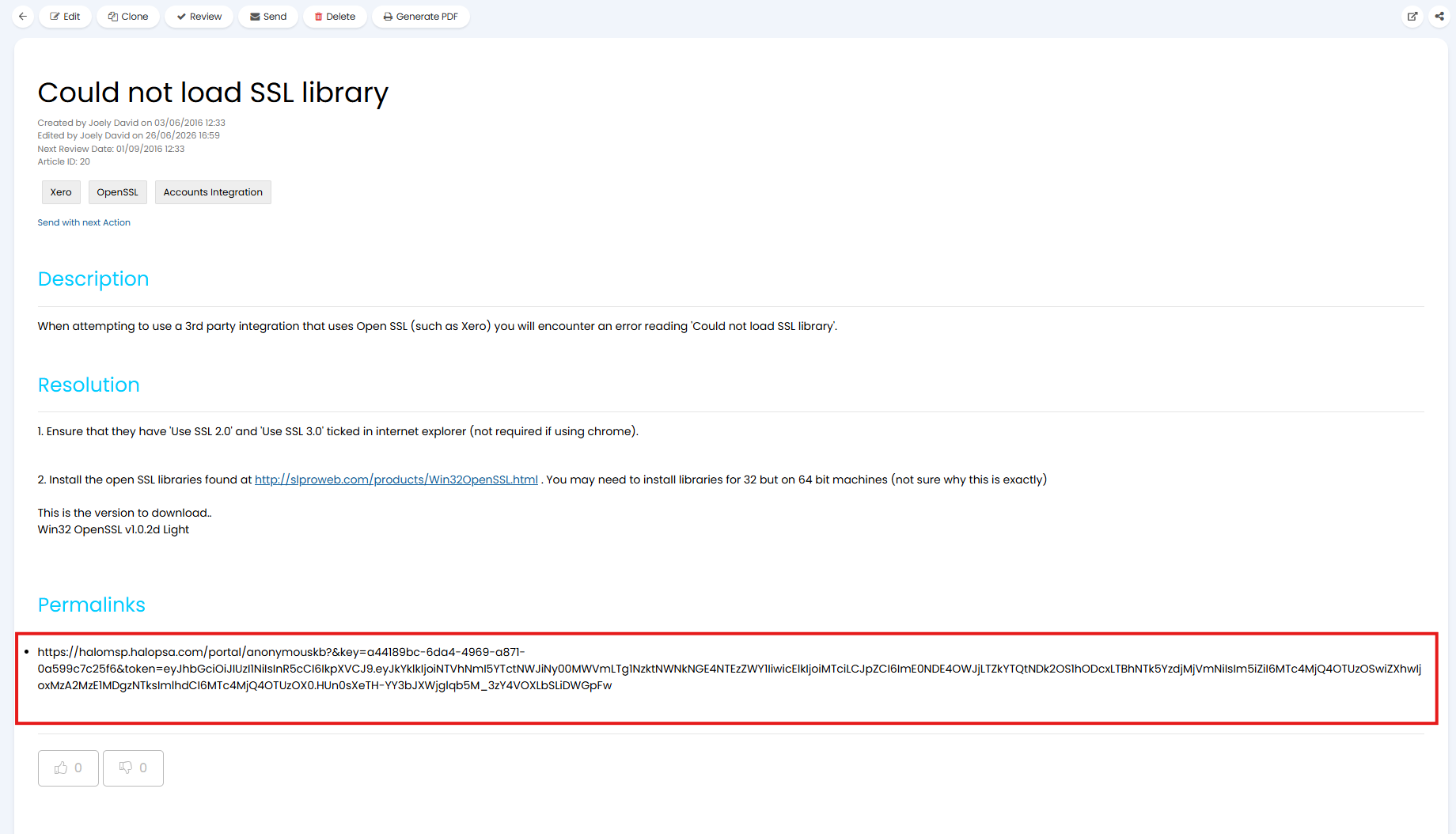
Fig 22. Permalink for article
Now, this can be given to users that you would like to have access to this article.
If creating a new version of an article (when using article versioning) the any existing links will still be valid and will link transfer over the newest version of the article.