Using your Knowledge Base
- knowledge base
- article
- guide
- article link
In this guide we will cover:
- Navigating to the Knowledge Base
- Searching for Articles
- Creating an Article
- Updating Articles
- Sending Article Links
Admin Guides:
Related Guides
This guide will cover the basics of creating and editing articles, and navigating the area.
Navigating to the Knowledge Base
If not already, the knowledge base can be enabled in Configuration > Optional Features.
Fig 1. Enabling the Knowledge Base module
The module can then be found either in the module bar, or in the overflow, depending on the navigation menu format you are using.

Fig 2. Knowledge Base module in the module bar
Clicking into the module will bring up the knowledge base area. This will provide an overview of the FAQ lists on the left hand side, as well as a list of the most upvoted articles on the right. Here you can also see the "New Article" and "All Articles" buttons.
The "All Articles" button can be clicked to bring up a list of articles with the date created, name, description, the FAQ lists it is on, tags, next review date and whether it is inactive.
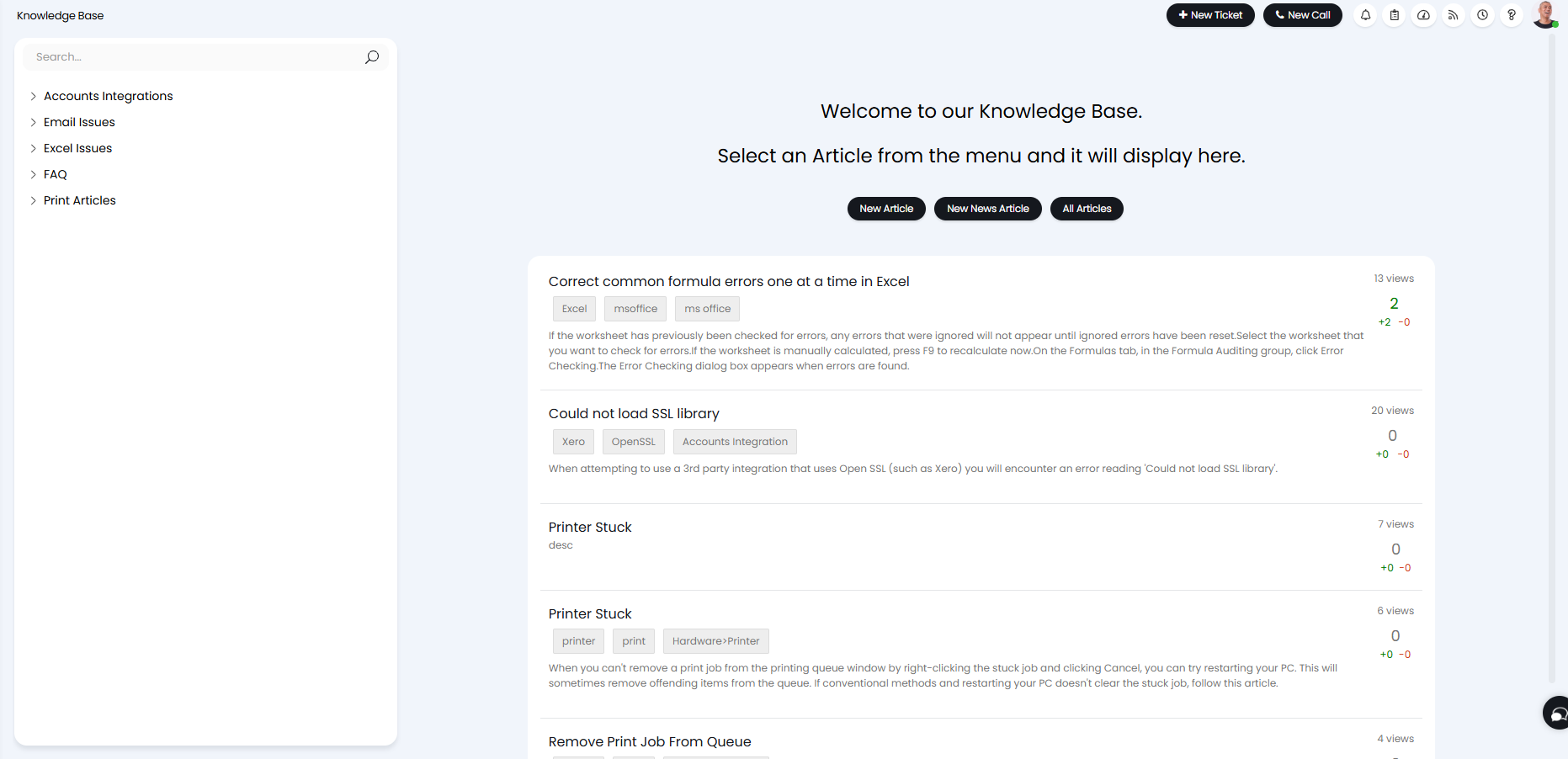
Fig 3. Knowledge base screen
Searching for Articles
At the top left of the screen, there is also a search bar to search for articles. Searching here will show the below screen where you can filter results on the left side, or select how to sort the results on the right above the first result.
You can see the name and description of each article and the number or views/upvotes they have.
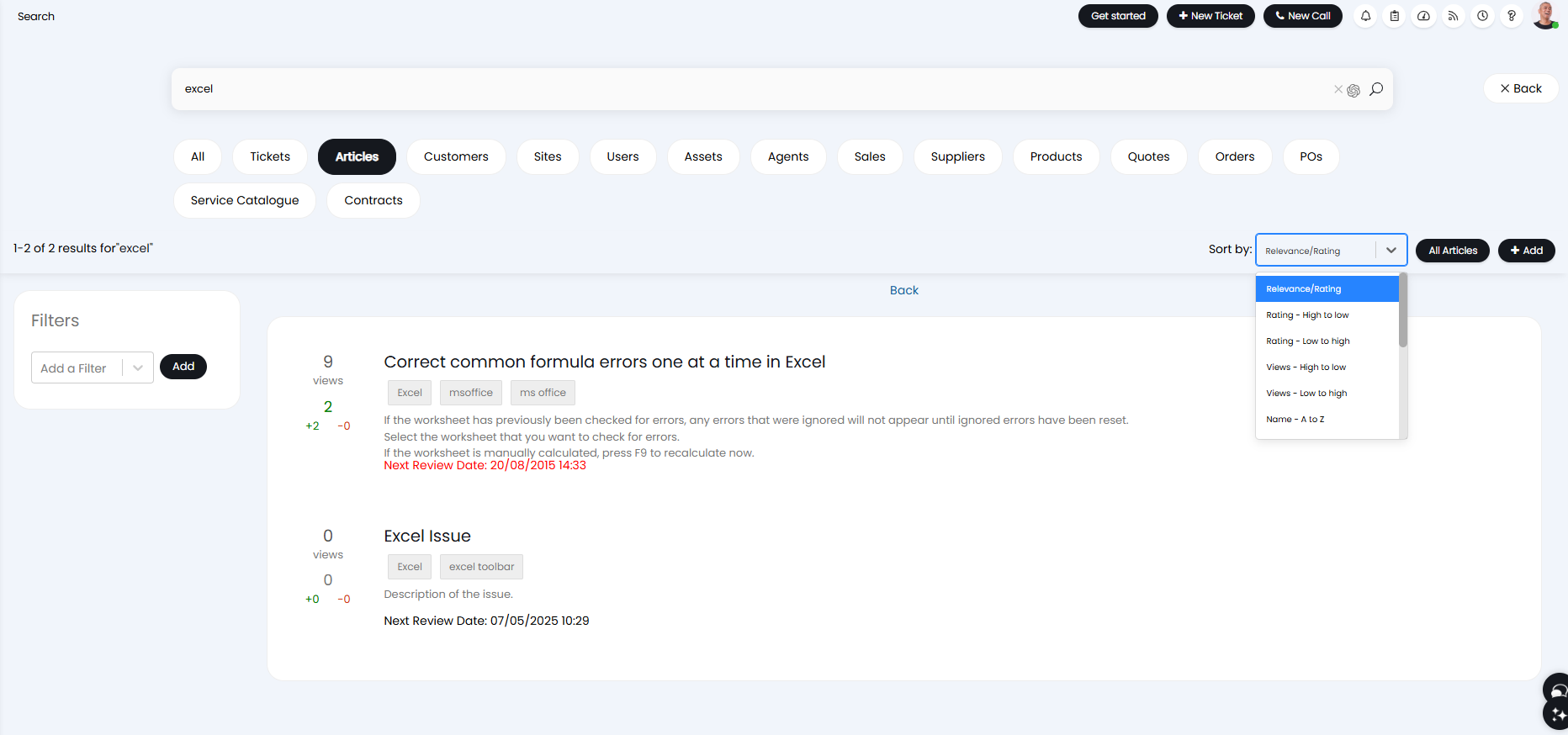
Fig 4. KB search screen
To optimize this search, "Enable Knowledge Base Article Full-Text Searching" can be switched on in Configuration > Advanced Settings > Searching. Full text searching searches for the entire string, rather than each individual word within the string, which not only speeds up searching, it also makes it more accurate upon doing so. This functionality will return search results which contain the whole, unbroken search phrase higher than articles which otherwise match the search phrase when using the search type "Search for each word of the search string" or "Search for every word of the search string". From v2.242+, If you are using Full-Text searching you will have the option to determine whether to include the Internal Memo in Agent search results using the checkbox "Full-text search the internal memo field when an Agent is searching".
Within Configuration > Knowledge Base you can further adjust the behaviour of your search. The "Knowledge Base Search Type" drop-down can be used to determine if the search results will include only articles which contain the entire string, articles with contain any part of the string, or articles containing every word within the string. You will also be able to choose the behaviour for searching IDs. To do this you can set the "Article ID Search Behaviour" to prevent the searching of Article IDs, only return the Article with the ID searched, or include both the searched ID and other results.
Note: You can surround the phrase you are searching for is quotation marks (" ") to search for the exact content.
Creating an Article
Click the "New Articles" button on the main to bring up the screen to create an article. You will see the below fields to enter information, a summary of the base ones is as follows:
- "Title" - The title of your article.
- "Article Type" - If using both knowledge base and news articles, you can specify which of the two here.
- "Description" - A short description of the contents of the article, or of the problem. This will show on the screen underneath the title when viewing a list.
- "Resolution" - The main body of the article, or a summary of how to solve the problem.
- "Internal Memo" - An area to put private notes that agents can see, but not end-users.
- "Attachments" - Add attachments to your article here.
- "Tags" - Short words or phrases that users can search by to easily find an article.
- "Related Articles" - Articles that may have similar contents or be otherwise related. They will show linked at the bottom of the article once published.
- "Teams that can access this article" - This can be used to restrict which teams can view the article. By default, this will show "All Teams".
- "FAQ Lists that this article appears on" - A multi-select field with what FAQ lists an article is contained on.
- "Active" - When enabled, the article can be found in FAQ lists and search.
- "Next Review Date" - The date set that the contents of an article should be reviewed by, and then amended if considered obsolete.
Users access to this article can also be restricted here. For more information on this, check out the "Article Restrictions - Users" guide.
When using the description or resolution fields, there is also a toolbar across the top of the text box where you can format the text, embed pictures, videos and links, create tables, or switch to code view to edit the HTML.
A "Paragraph Formatter" option is available in the toolbar. This will show each header type/formatting, allowing you to easily insert header HTML into the article.
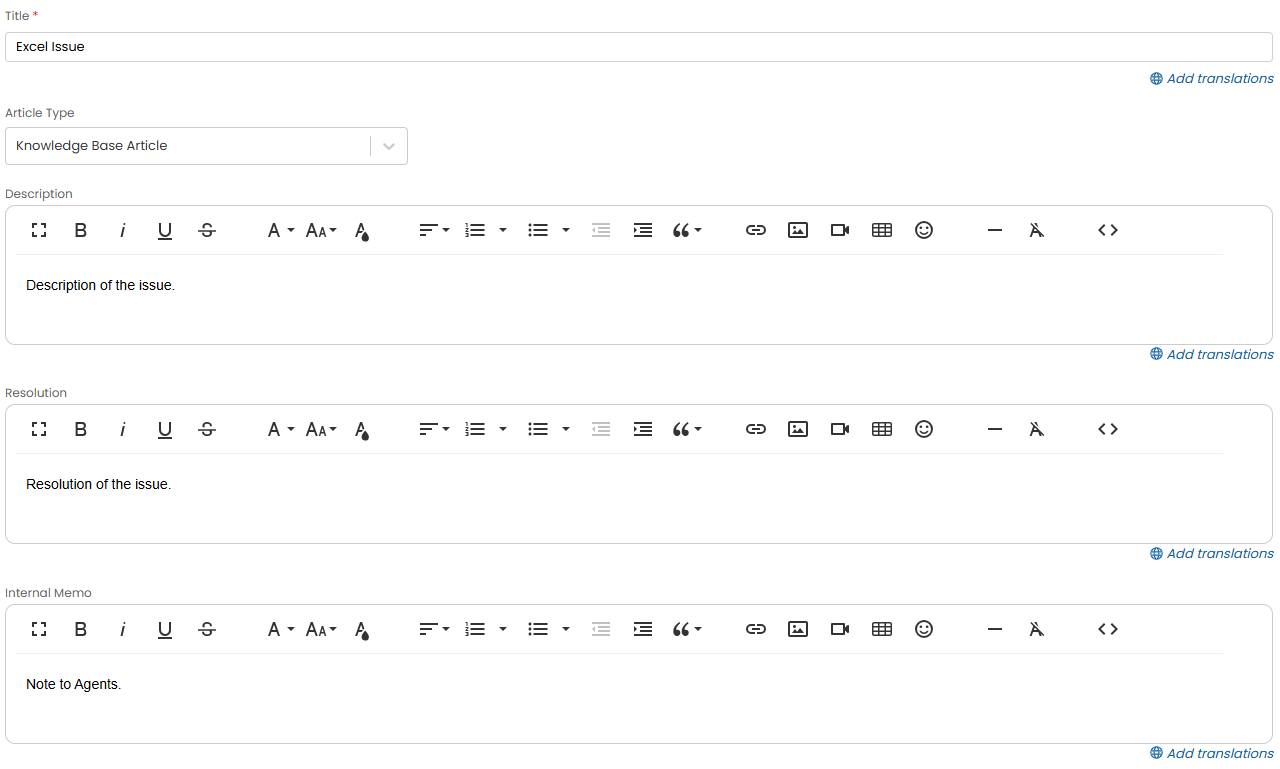
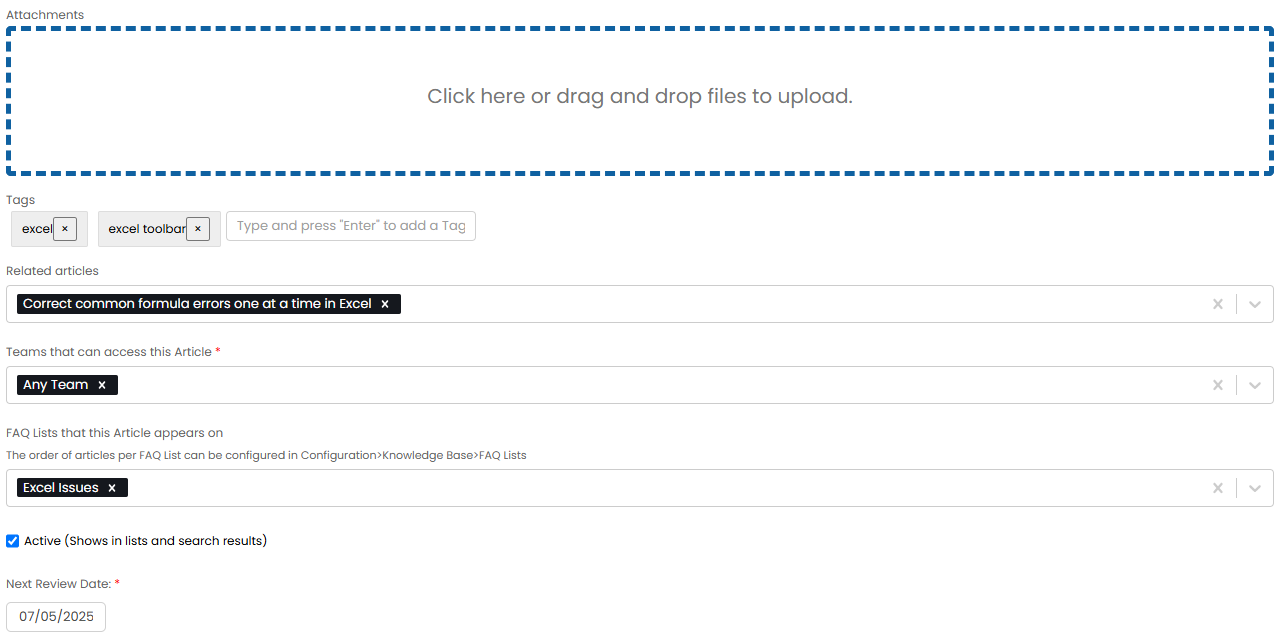
Fig 5. Creating an article
After entering the required details, scroll to the bottom and press "Save". Your article will now be created, and appear like below.
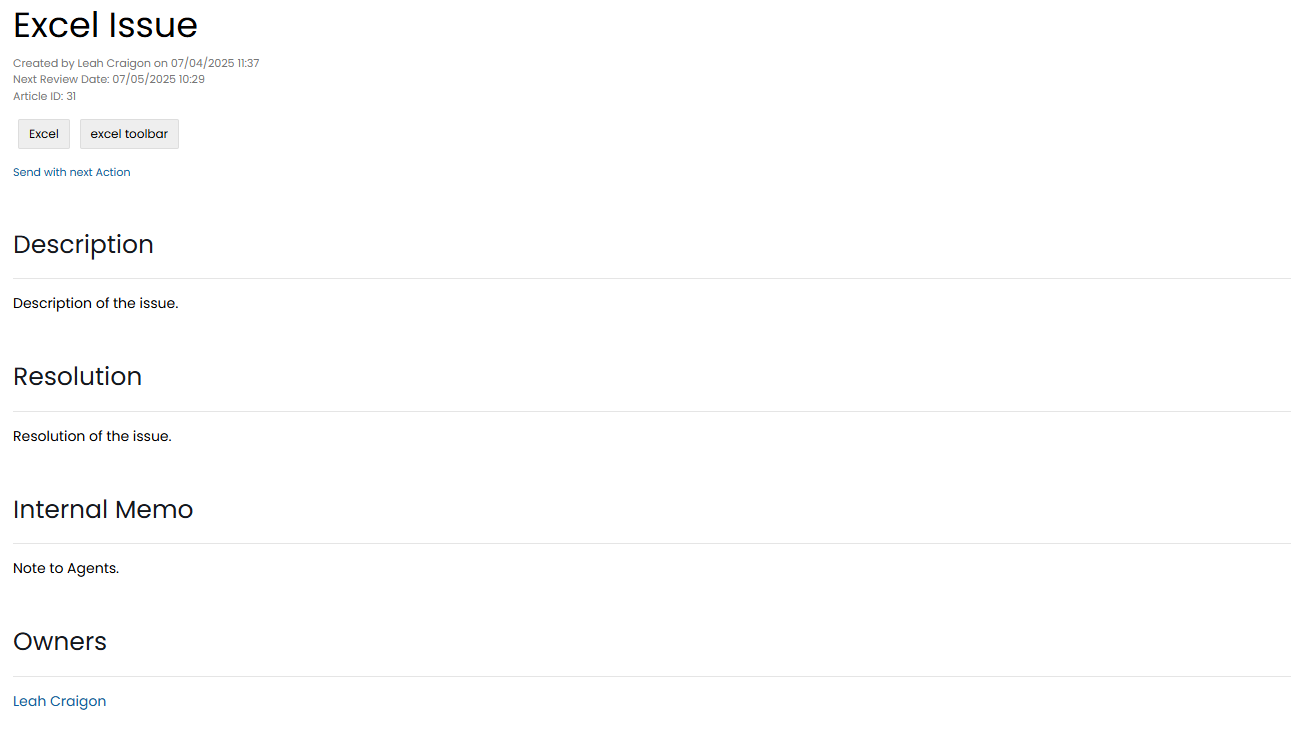
Fig 6. Created article
Articles can also be created directly from a Ticket. In the Settings tab against a Ticket Type (Configuration>Tickets>Ticket Types), you can choose to have an Article created when the Ticket is closed. Using the "Article Creation" field, determine if an Article should be automatically created, not be created, or if a toggle should show on the closing Action to prompt the Agent to decide if the Article should be created.
Updating Articles
Upon creation, the following buttons will appear at the top of the article.
- "Edit" - Brings up the edit screen which looks the same as the creation screen, and allows the agent to make changes to the article. The agent that edits the article will then appear underneath the "Created by" with a new line saying "Edited by". If another agent edits afterwards, the most recent agent will show here.
- "Clone" - Bring up a popup screen to name the new article. Upon naming and saving, another identical copy of the article will be saved with the new name. Agents can then edit the article as normal.
- "Generate PDF" - This will create a PDF of the article with the default template.
- "Send" - This will email out a PDF of the article with the default template.
- "Delete" - This will delete the article.

Fig 7. System actions after creating an article
You can allow bulk editing of tags and FAQ lists associated with articles. In Configuration > Knowledge Base > Articles, you can enable the below checkbox.

Fig 8. Allow Agents with edit permissions to bulk edit Articles in the 'All Articles' view.
When clicking the "All Articles" button, agents will see a checkbox next to each article in the list. Upon selecting one or more, an "Edit" button will show in the top left corner. Hovering over this will show the options to edit either tags or FAQ lists.
"Add Tags" and "Add to FAQ Lists" will add an additional one to the existing list, whereas "Set Tags" and "Set FAQ Lists" will override the existing ones and delete any that are not selected here, and you can set a "Next Review Date".
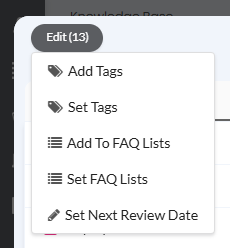
Fig 9. Bulk editing an article
Enable Collision Detection
You can enable collision detection for article editing. This will alert an agent if another agent is viewing/editing the same article as them. Helpful in preventing agents editing the same article at the same time.
To enable this head to Configuration > Knowledge Base > "Enable collision detection for when multiple Agents are editing the same Article".
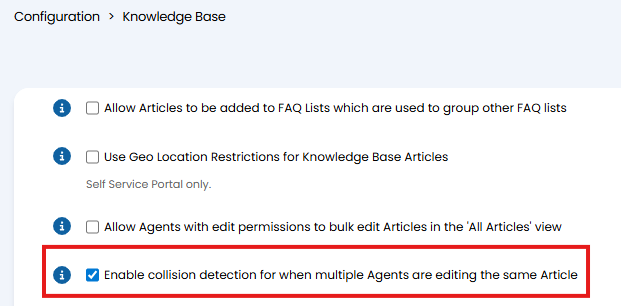
Fig 10. Enable collision detection
If two agents are viewing/editing an article at the same time they will see the pop-up shown in figure 11.
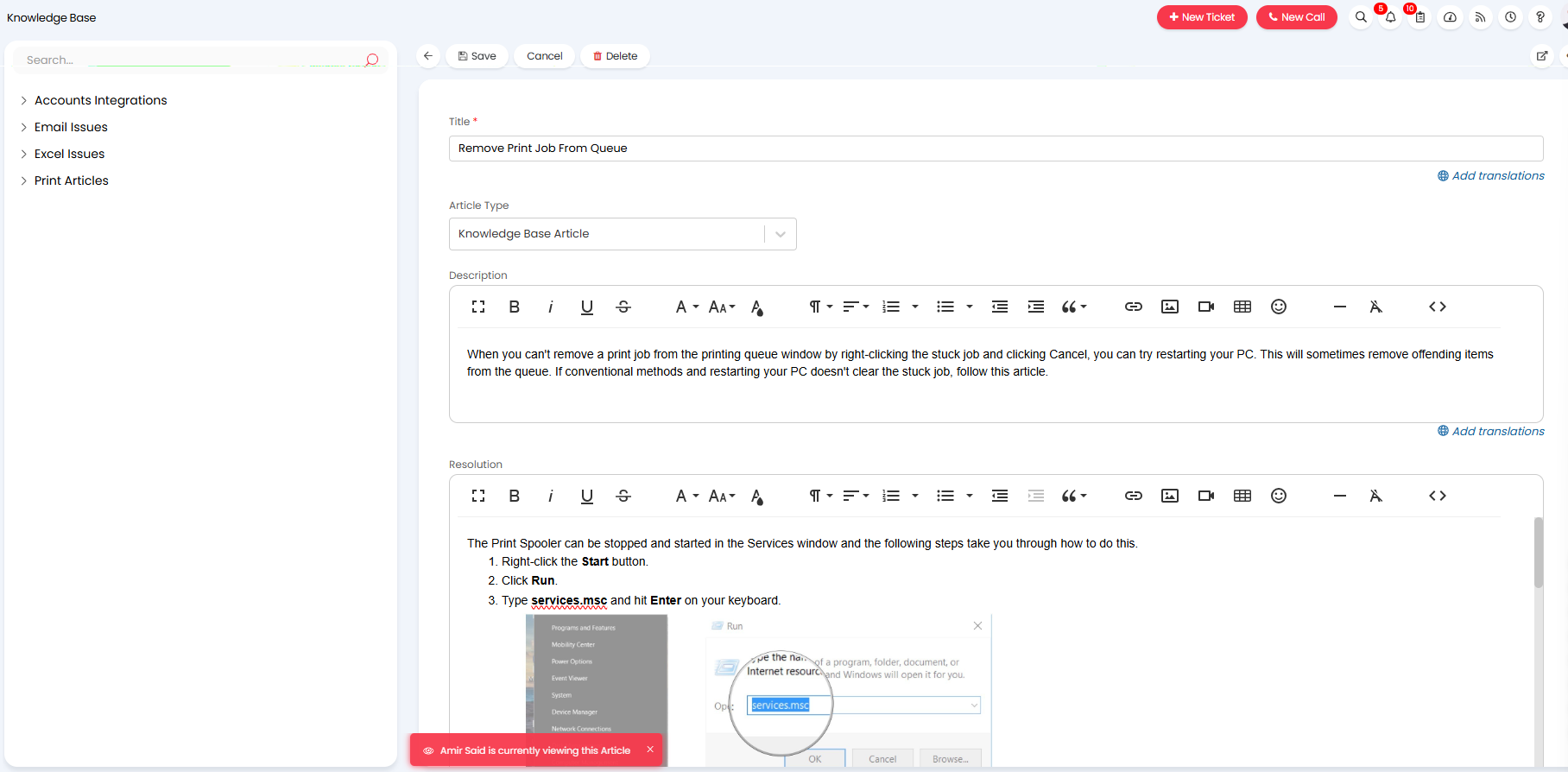
Fig 11. Pop-up for article collision detection
Sending Article Links
You can quickly copy a link to an Article, using either the Agent or User portal URL. Hover over the share icon and select an option. If Article Versioning is enabled in Configuration > Knowledge Base, you will have additional options to send the latest version.
The latest version links will use unique identifiers as part of the URL. The view counts of each version of an article will then be totalled together.
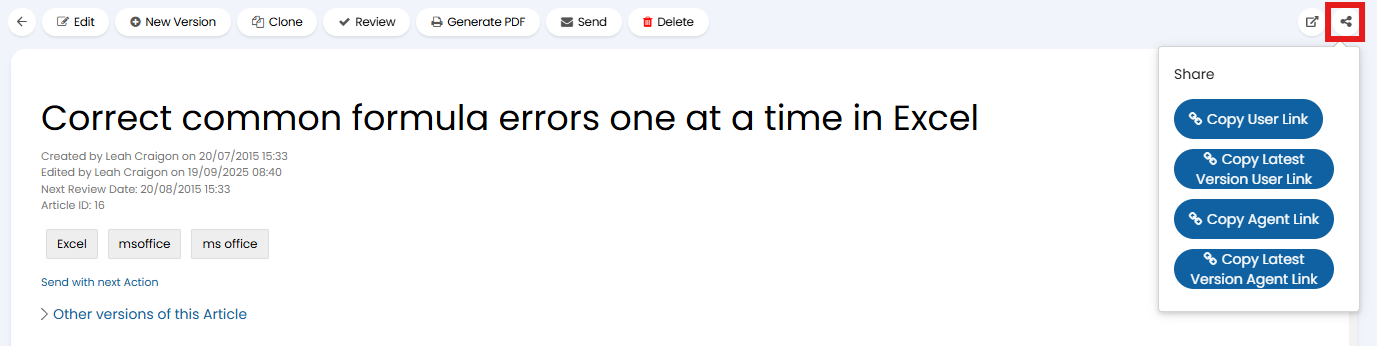
Fig 10. Share link options