FAQ Lists in the Knowledge Base
- FAQ lists
- Knowledge base FAQ list
- FAQ groups
- restrict suggested FAQ lists
- sequence FAQ lists
- Sequence articles
- force FAQ list selection
In this guide we will cover:
- What are FAQ lists?
- Creating New Articles
- Configuring FAQ Lists
- FAQ Groups
- Restrict suggested FAQ lists per ticket type
- FAQ Lists on the Portal
- Sending Article Links
Admin Guides:
Related Guides:
What are FAQ Lists?
FAQ Lists are a means of categorising different sections of the knowledge base for an enhanced and efficient user experience.
The FAQ lists can be set to a tree view (Configuration > Knowledge Base (Single select called "Agent App KB Area View" which allows for the drop down of different sections in the tree to help split up the guides/ articles into an easy to understand format. When creating articles, the FAQ list is a multi select near the bottom of the creation screen, where you can add in what FAQ list of the knowledge base you would like that article to appear in. The example below shows that the "Security & Performance" article appears under the "Advanced Settings" FAQ List.
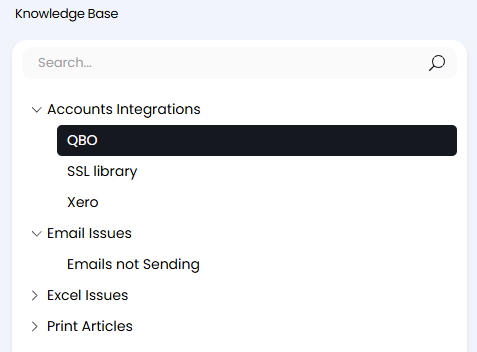
Fig 1. FAQ List as a tree view
FAQ Lists are used as drop downs for determining which articles are grouped where. So for example if I add the FAQ lists "Accounts Integrations" and "Halo Guides" to FAQ List field "FAQ Lists that this Article appears on" as shown on the article creation screen in Fig 2. The FAQ lists will now update to show this article underneath them as shown in the tree view of Fig 2 on the left hand side.
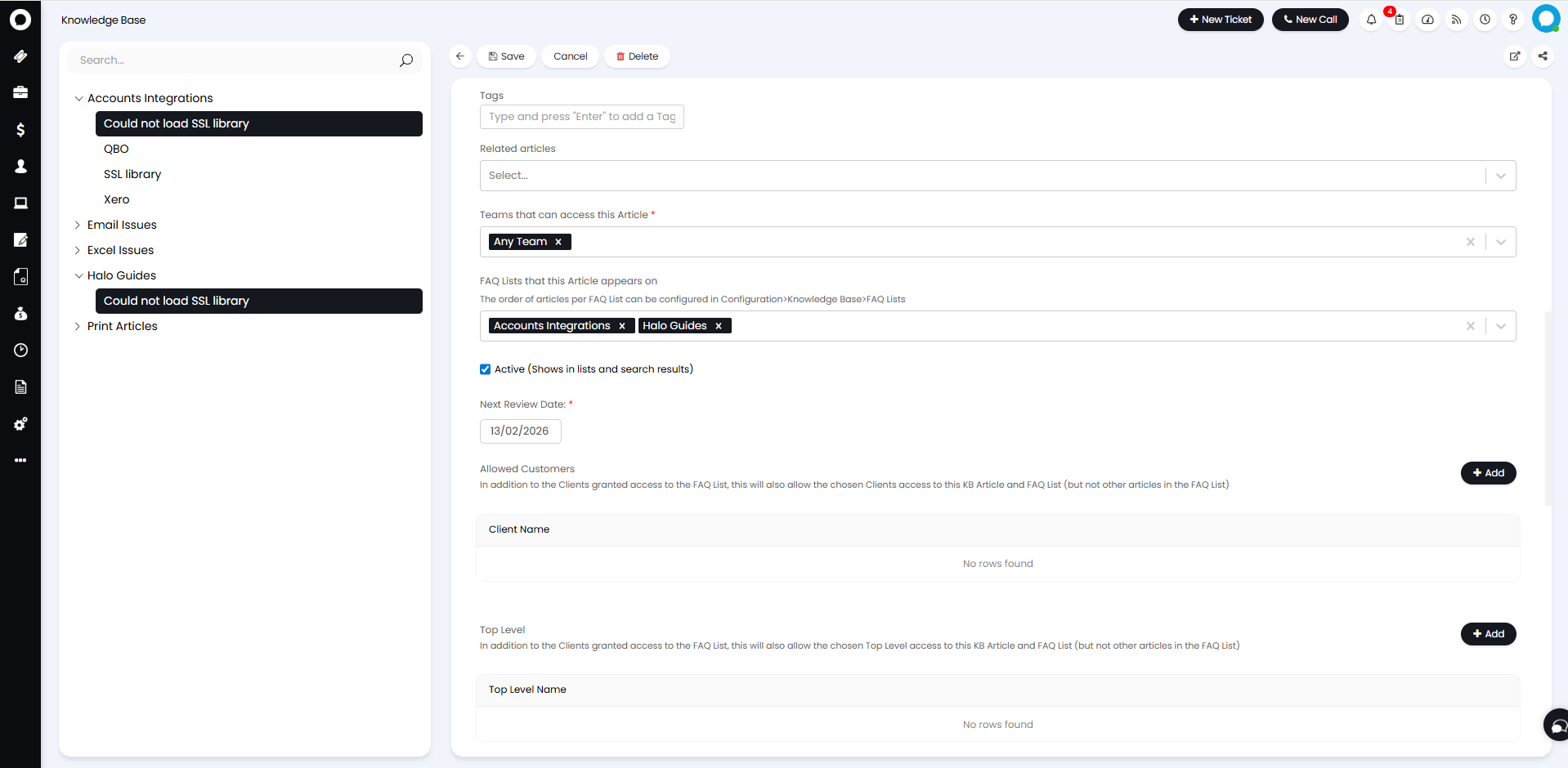
Fig 2. FAQ Lists that this Article appears on
Creating New Articles
In order to create new articles open the Knowledge Base area in the navigation menu.
There will be a button called "New Article" (if using the agent app KB area view is set to FAQ List Tree view).
Or alternatively this will display as an icon "⊕" on the top right if the other view is selected.
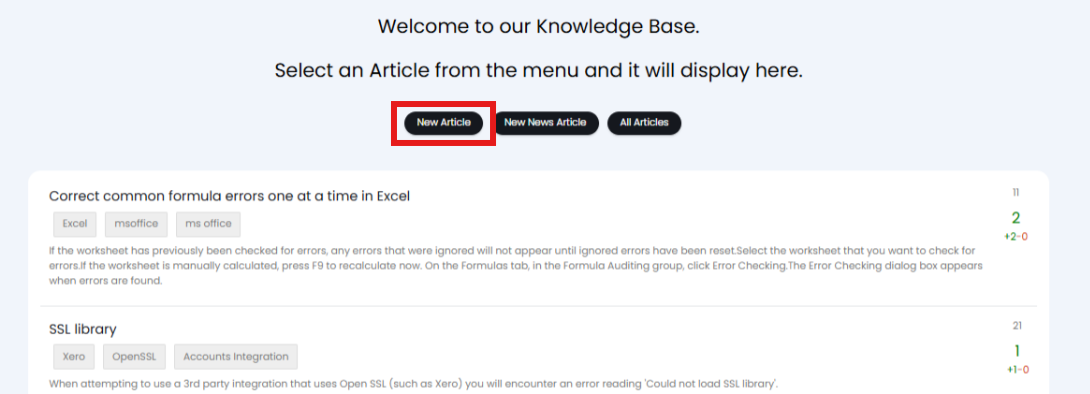
Fig 3. New Article Button
Configuring FAQ Lists
When creating an Article the drop-down in Fig 6 will show, allowing you to choose any FAQ Lists that the article will be added to. This can be made mandatory using the "Make FAQ list selection mandatory "checkbox in Configuration > Knowledge Base.
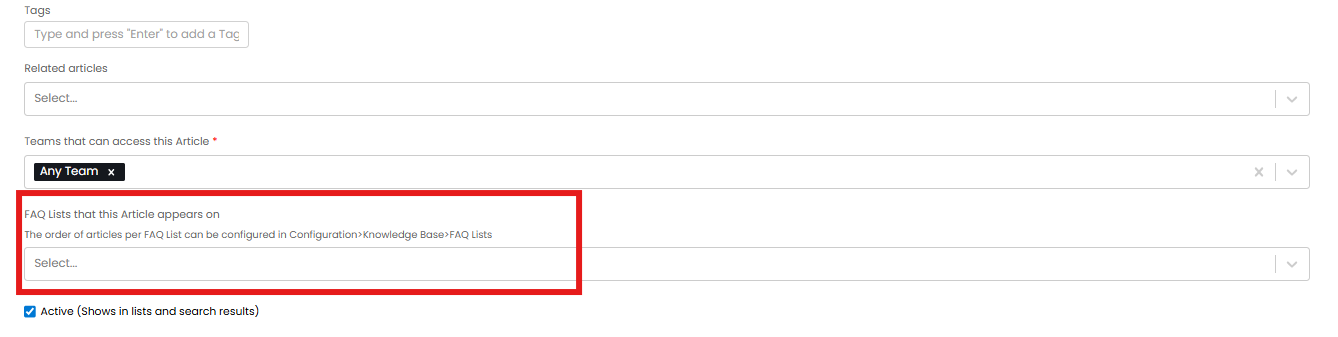
Fig 4. FAQ List Selection
From v2.238+, an additional option to specify a primary FAQ list will show. This FAQ list can then be used as criteria in Notifications, Approval process rules, Ticket rules, and Runbook automations.
In Configuration > Knowledge Base you will find the different configuration options:
- Select a FAQ list before searching Articles - This checkbox setting, when selected, will force the agent/user will to choose a FAQ list before being allowed to search the knowledge base.
- Enable FAQ list treeview - When selected, FAQ Lists show in the "Filters" area when searching articles.
- Include FAQ List in Knowledgebase Link - When enabled, URL links copied from the "Share" button on the Agent Portal will include a parameter for the FAQ List the Agent is viewing the Article from (See the 'Sending Article Links' section of this guide).
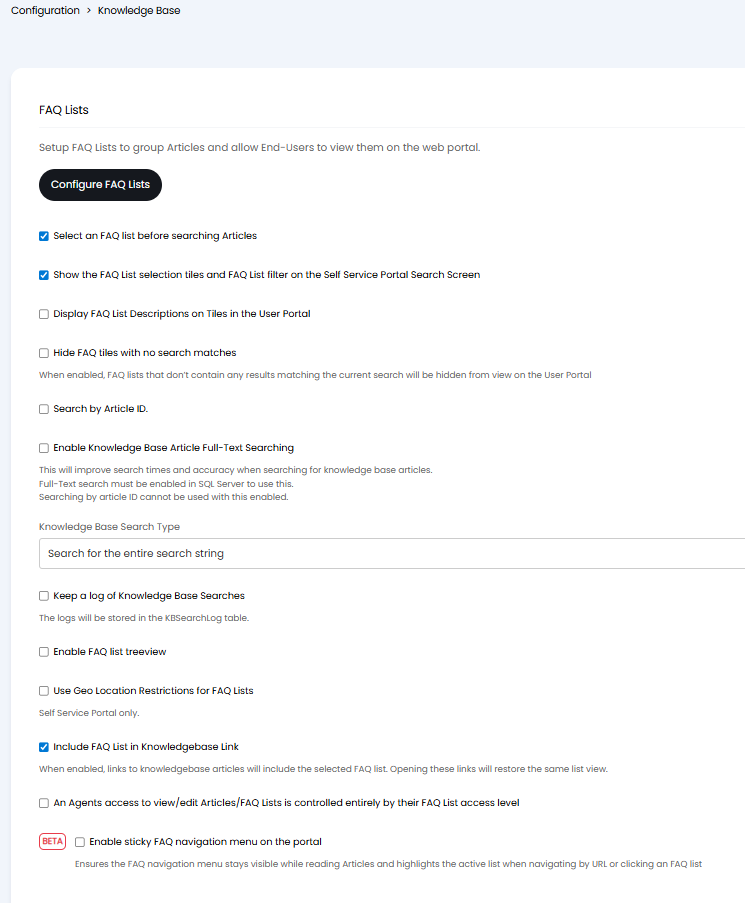
Fig 7. FAQ list configuration
See the 'FAQ Lists on the Portal' section of this guide for information on the Portal specific settings shown here.
Creating your FAQ Lists
To create or view your FAQ Lists click into the "Configure FAQ Lists" button within Configuration > Knowledge Base.
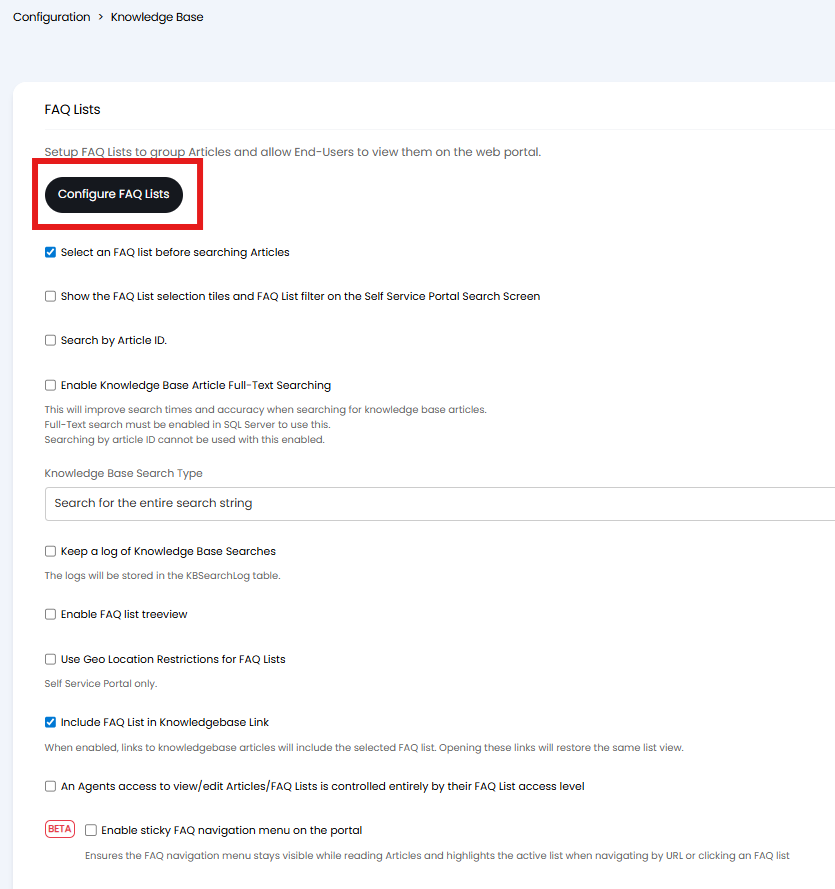
Fig 8. Configuring FAQ Lists
Here you will find all the settings specific to each individual FAQ List. When creating an FAQ list, give it a name and assign it an article type. You will also need to assign this to an FAQ group.
Now set the visibility using the checkboxes outlined below:
- Show for all users - When enabled all users will be able to see articles in this FAQ list.
- Show for all Supplier Users - When enabled Supplier contacts will be able to view the FAQ List in the Portal. For more information see the guide on Allowing Suppliers to use the Portal.
- Show for all Users without considering Client permission - When enabled, the client level restrictions are ignored so all clients and anonymous users (if applicable) can view the FAQ list. However, organisation level restrictions are still preserved along with any site level restrictions. This is useful for when you have multiple anonymous Self Service Portals with different FAQ List requirements.
- Don't show on the self-service portal - When enabled the articles in this list will not show in the portal, but will be able to be suggested by a chat bot or virtual agent.
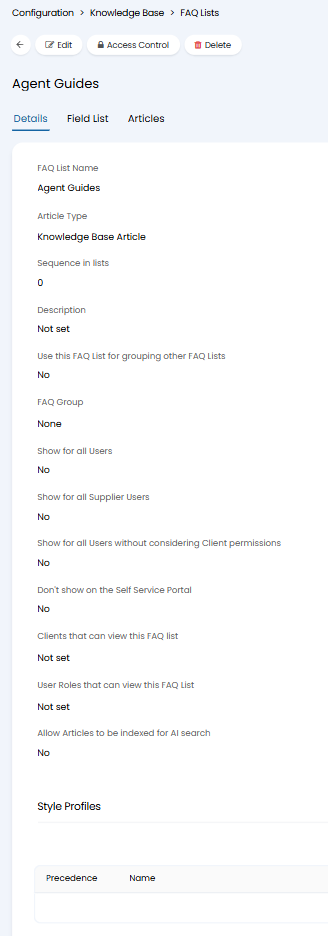
Fig 9. FAQ Lists
From v2.246+, you have the options to set a Icon, show the Article Count, and select Articles to show when using the Knowledge Base Menu Button "Opens the Knowledge Base browse screen in tile mode".
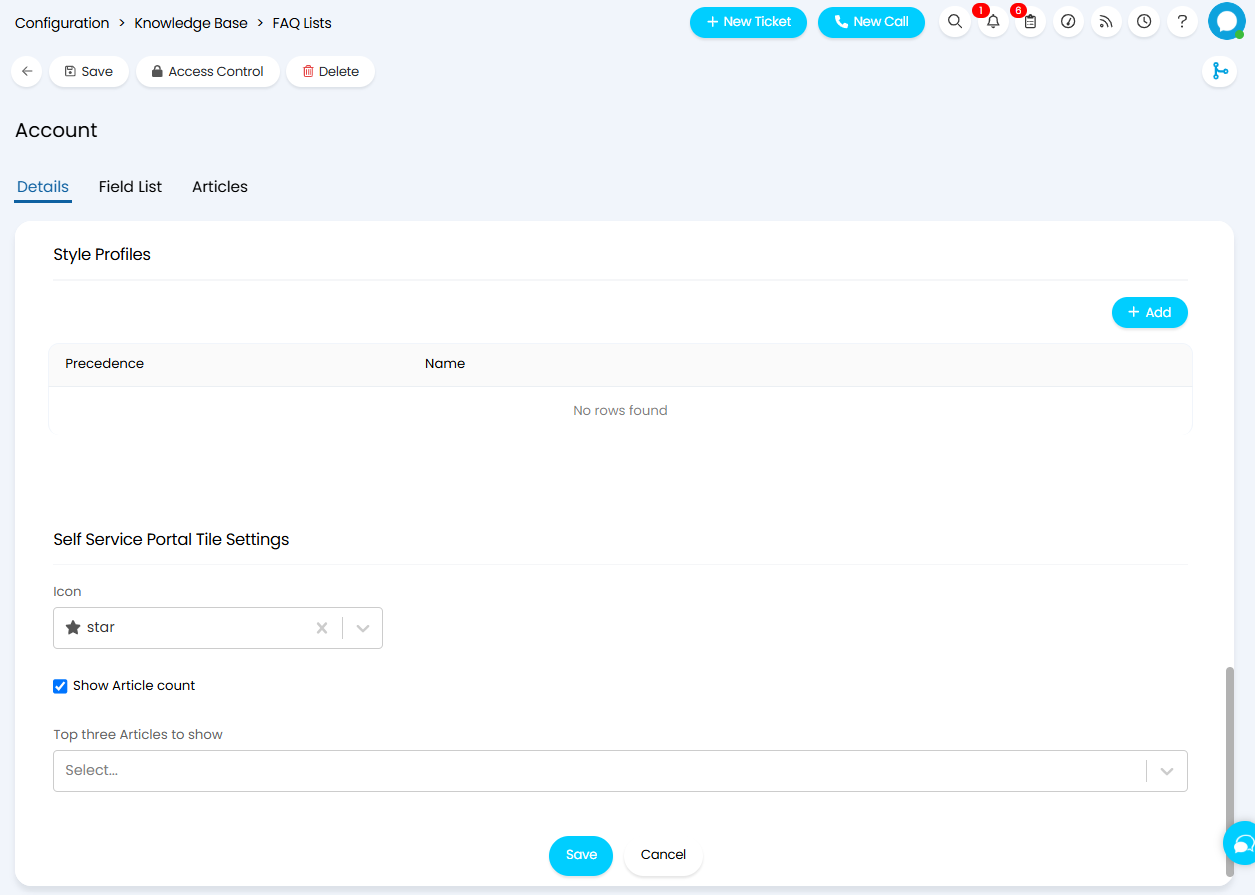
Fig 10. FAQ Lists Tile settings
To add additional fields to show against each article in the FAQ List, head to the "Field List Tab". This allows you to add custom fields specific to your FAQ Lists.
You can restrict the visibility of these fields by selecting the pencil icon.

Fig 11. Editing a FAQ List field
This will open the 'Edit field' screen, allowing you to restrict the access and visibility of the field for Agents and Users.
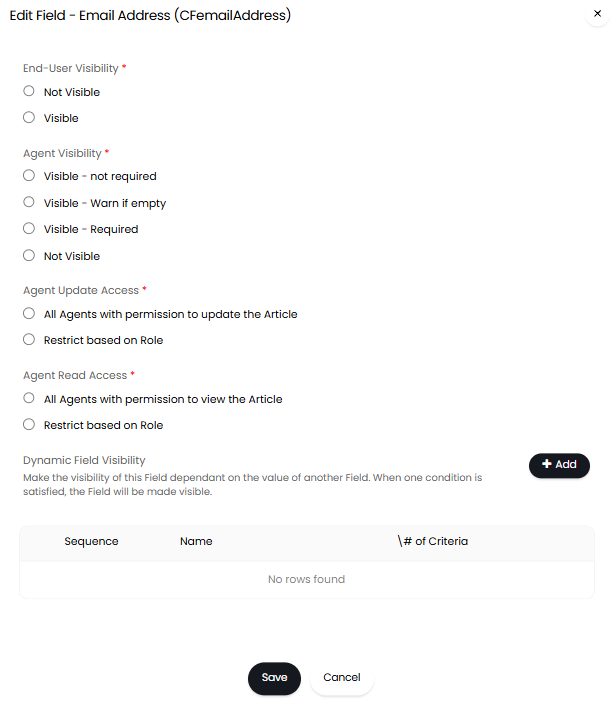
Fig 12. Setting access and visibility for a FAQ List field
To see a list of articles that are added to the FAQ list see the 'Articles' tab. New ones cannot be added here, only via the article itself. By default, articles will organise alphabetically, but this can be edited using the drag and drop. Hovering over will show the dots on the left side of the field.
Note: This edited order will only be reflected in the Self-Service Portal, not the agent portal.
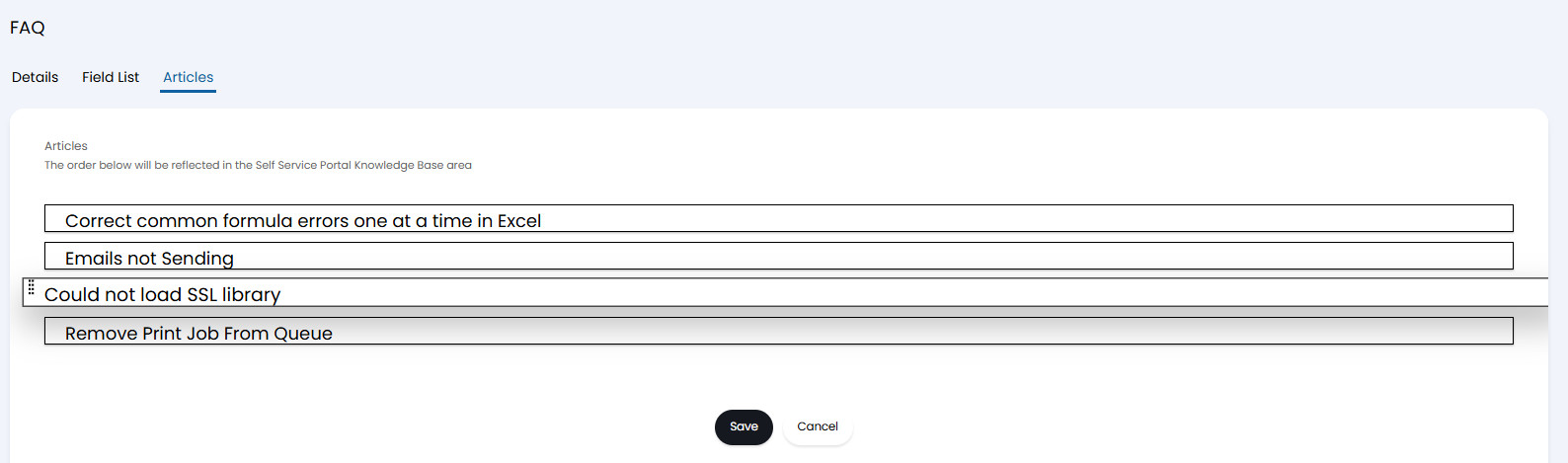
Fig 13. Editing the article order
You can also choose the order FAQ lists appear in within the FAQ group by applying sequencing. By default these will appear alphabetically. The sequence is set using the 'Sequence in lists' field against the configuration for the FAQ list.
FAQ Groups
The purpose of FAQ Groups is to categorise FAQ Lists at a higher level. This has the benefit of more granular searching when a user/ agent is scrolling through the FAQ List tree on the knowledge base.
FAQ Groups appear as tree dropdowns when the "FAQ List Tree" view is selected.
To create an FAQ group, create an FAQ list as shown above but enable the setting 'Use this FAQ List for grouping other FAQ Lists'. This will make this an FAQ group (although the option to assign this to an FAQ group will still appear, this will no longer apply).
Restrict suggested FAQ lists per ticket type
FAQ Lists which will appear in article suggestions can be configured per ticket type.
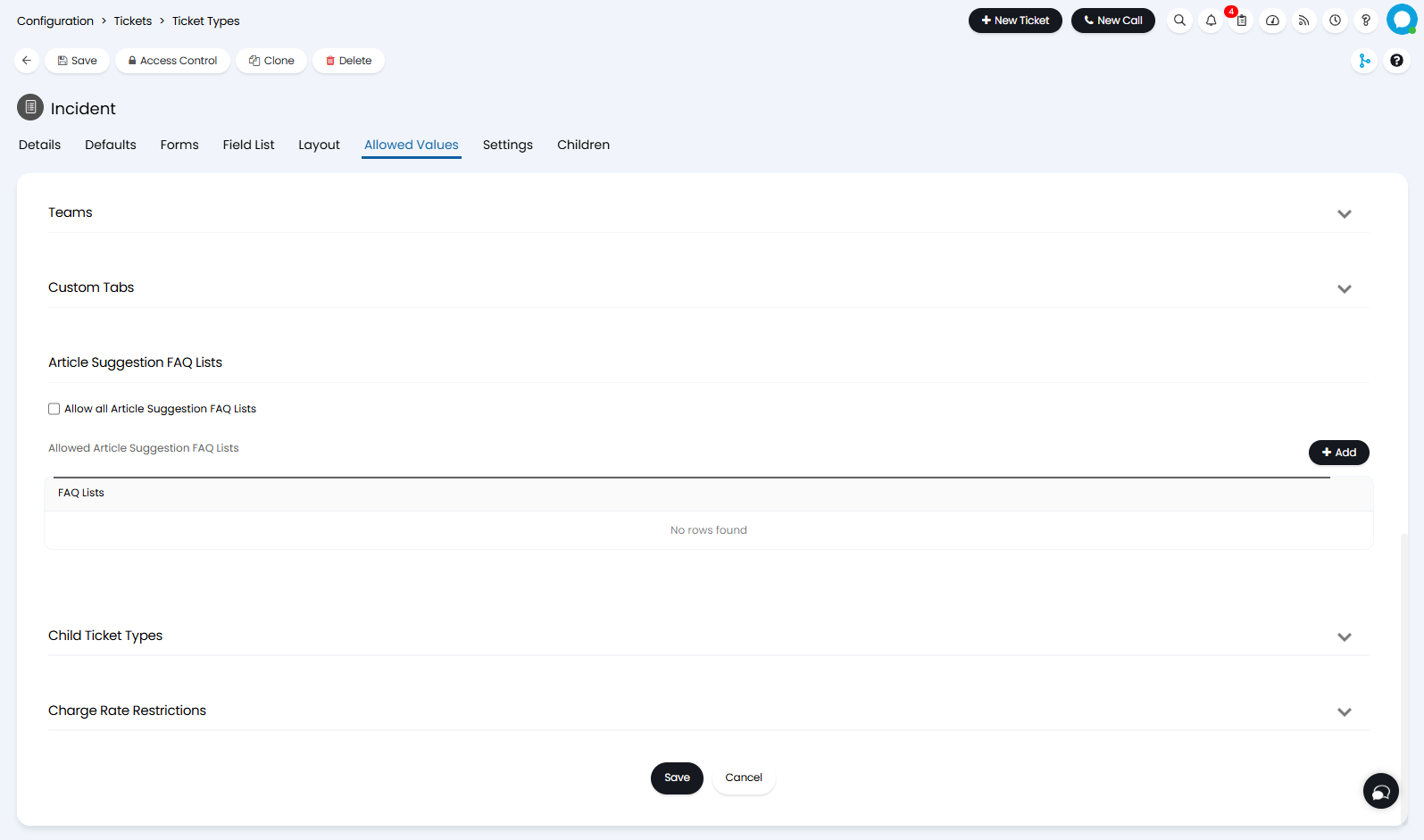
Fig 14. Configuring Article Suggestions Per Ticket Type
The checkbox option to allow all article suggestions can be used or there can be restrictions set on the ticket type so that only set articles will be suggested, based on their FAQ List. This is very useful in making sure relevant information is displayed in the suggested articles.
There is also the option to use the dollar variable $-suggestedarticles. This variable can be used in email templates to automatically suggest up to three relevant Knowledge Base Articles relating to the ticket it is sent from. For an Article to appear as a suggestion, it must be available to the client who logged the ticket, or available to all users. This setting will only work for acknowledgement emails when using the new incoming email service, which is due to be released soon.
FAQ Lists on the Portal
In Configuration > Knowledge Base, under the FAQ Lists section, you will find FAQ List settings which change the display of the FAQs on the Portal:
- Show the FAQ List selection tiles and FAQ List filter on the Self Service Portal Search Screen - This shows the FAQ Lists as tile buttons, as well as in the filters to force Users to select the FAQ before an Article can be viewed.
- Display FAQ List Descriptions on Tiles in the User Portal - This field will only show when "Show the FAQ List selection tiles and FAQ List filter on the Self Service Portal Search Screen" is selected. When checked the description set against a FAQ List will show underneath the name on the tile.
- Hide FAQ tiles with no search matches - This field will only show when "Show the FAQ List selection tiles and FAQ List filter on the Self Service Portal Search Screen" is selected. When checked this will hide any FAQ Lists that do not contain an Article that is relevant to the search term
- Use Geo Location Restrictions for FAQ Lists - This setting allows the knowledge Base FAQ List or specific Article to be restricted when viewed on the Portal based on the location of the user. To configure this, refer to this guide on user article restrictions here.
- Enable sticky FAQ navigation menu on the portal - When enabled, clicking on an FAQ list in the portal, or navigating directly via its URL, now loads the related articles directly into the main content area and automatically highlights the corresponding FAQ list in the sidebar. It also ensures the FAQ list menu says pinned to the screen as you scroll through an article, rather than needing to scroll back to the top of the page to change the FAQ list.
Show the FAQ List selection tiles and FAQ List filter on the Self Service Portal Search Screen
To Force FAQ List Selection on the Portal, enable "Show the FAQ List selecting tiles and FAQ List filter on the Self Service Portal Search Screen". To make this view display the Descriptions set against the FAQ List, select the "Display FAQ List Descriptions on Tiles in the User Portal" checkbox.
When searching in the knowledge base, the user will instead see this screen where they can pick an FAQ list to view the search results for, and filter on the left side.
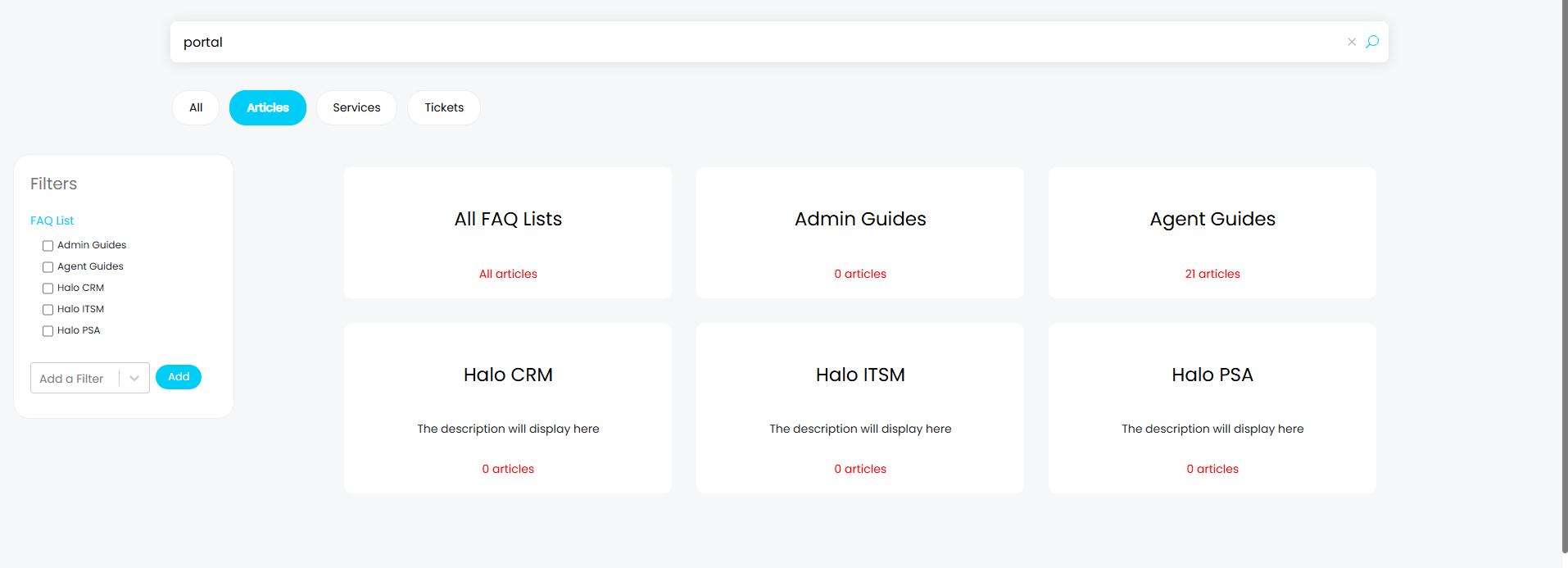
Fig 15. FAQ list selection on the end-user portal
Sending Article Links
When copying a link for a Knowledge Base Article, you can choose to include the parameter for that specific FAQ List in the link. In Configuration > Knowledge Base, enable "Include FAQ List in Knowledgebase Link".
When choosing an Article, you can then share and copy the link as normal.
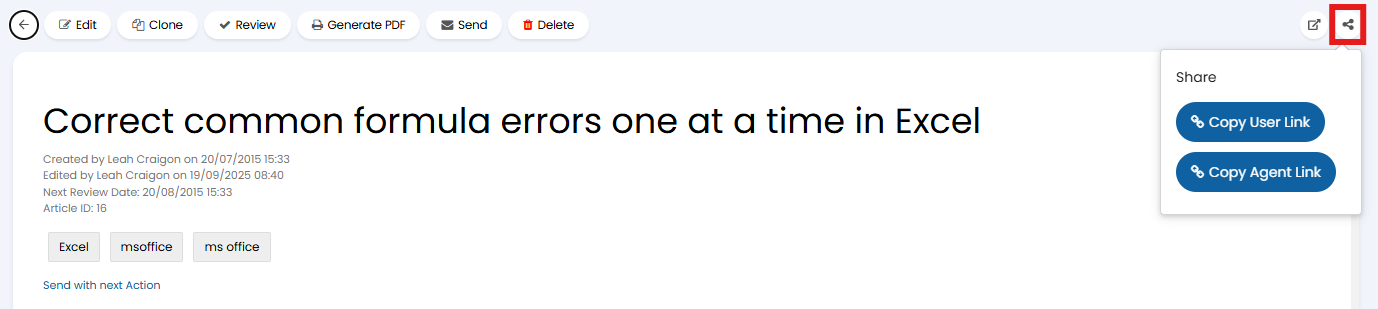
Fig 16. Sharing an Article
The link will include the ID of the FAQ List the Agent was viewing when they copied the link, and will auto-expand this list upon viewing.
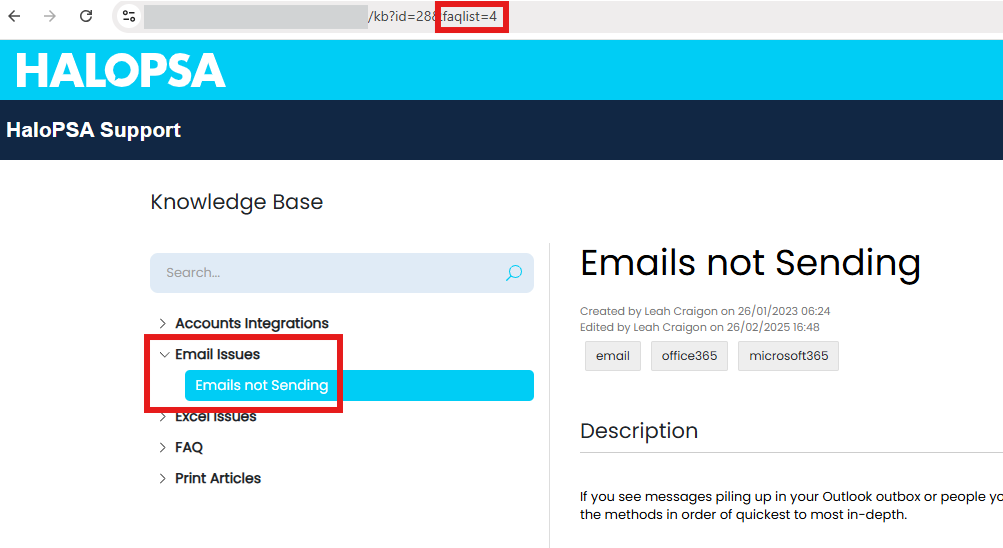
Fig 17. FAQ List parameter in the URL that auto-expands that list