An Introduction to the Knowledge Base
In this guide we will cover:
- What is the Knowledge Base?
- Knowledge Base Permissions
- Viewing, Editing and Adding Articles
- Article Owners
- Cloning Articles
- Reporting on Articles
- Article Suggestions
This guide provides an introduction to the Knowledge Base in Halo, highlighting some of it's key features. Not all knowledge base features are mentioned in this guide, for a comprehensive list of the features available checkout: Contents of Knowledge Base Guides.
What is the Knowledge Base?
The Halo knowledge base functionality is used internally in the system by agents to ensure efficient resolution of common incidents, but it is also used externally by end-users on the self-service portal. This allows end-users to “self-serve” and fix their own problems without logging a ticket.
Knowledge Base Permissions
In order to access the Knowledge Base module agents must have the following permission:
- Knowledge Base Access Level
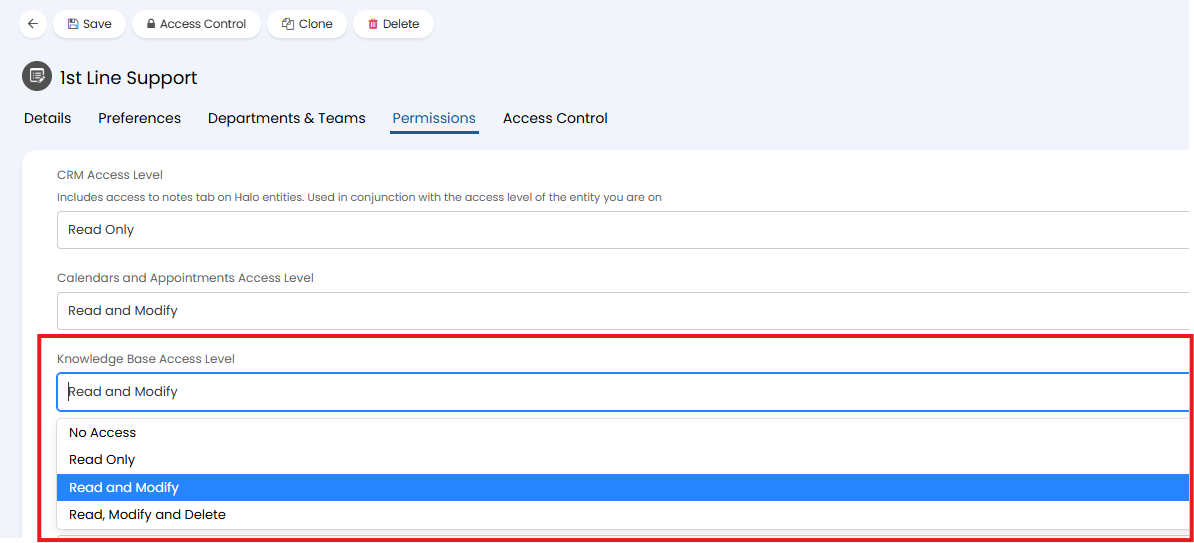
Fig 1. Knowledge Base Access Level
No Access - The agent will not be able to see/access the knowledge base module.
Read Only - The agent will be able to read articles in the knowledge base, but not edit them.
Read and Modify - The agent will be able to read articles and edit in the knowledge base, but not delete them.
Read, Modify and Delete - The agent will be able to read, edit and delete articles and edit in the knowledge base.
An agent's permission sets their base level access to the knowledge base as a whole, however the exact articles within the knowledge base and agent can see/edit is can be controlled more granularly.
For information on configuring agents' access to knowledge base articles see our guide here.
For information on configuring users' access to knowledge base articles see our guide here.
Viewing, Editing and Adding Articles
To view and add articles, head to the knowledge base by clicking on the knowledge base module (books icon) in your navigation menu.
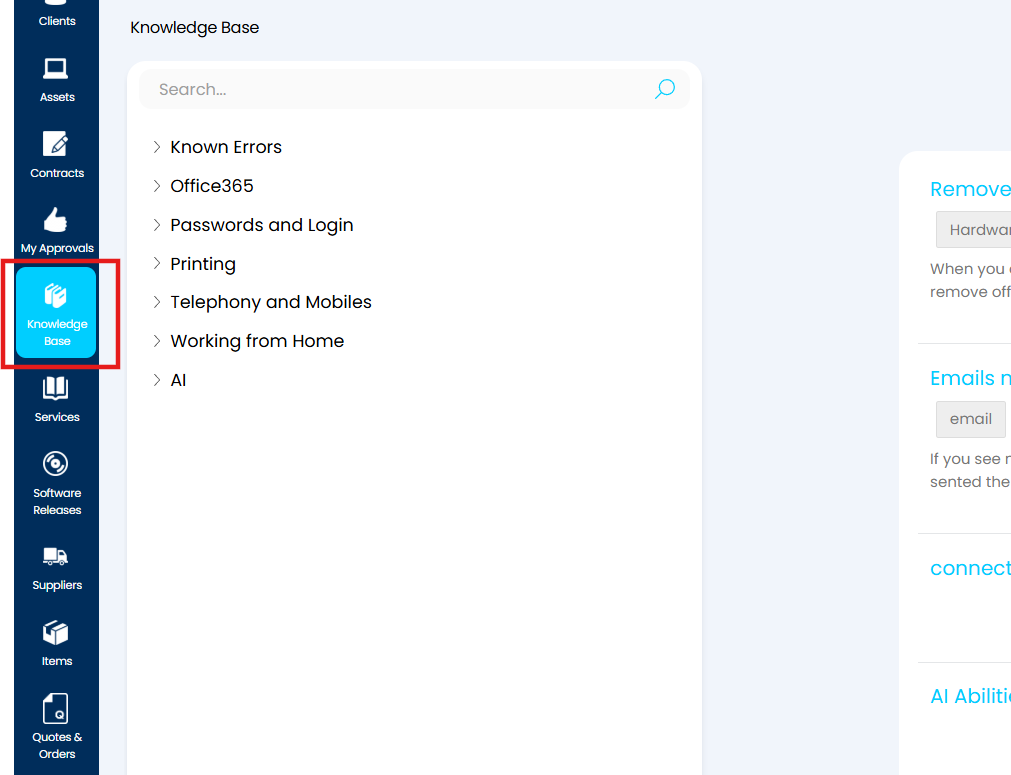
Fig 2. Knowledge Base Module on the Navigation Menu
This takes you to the main screen for articles.
The view you see in your knowledge base module will depend on the option selected in the "Agent app KB area view" dropdown.
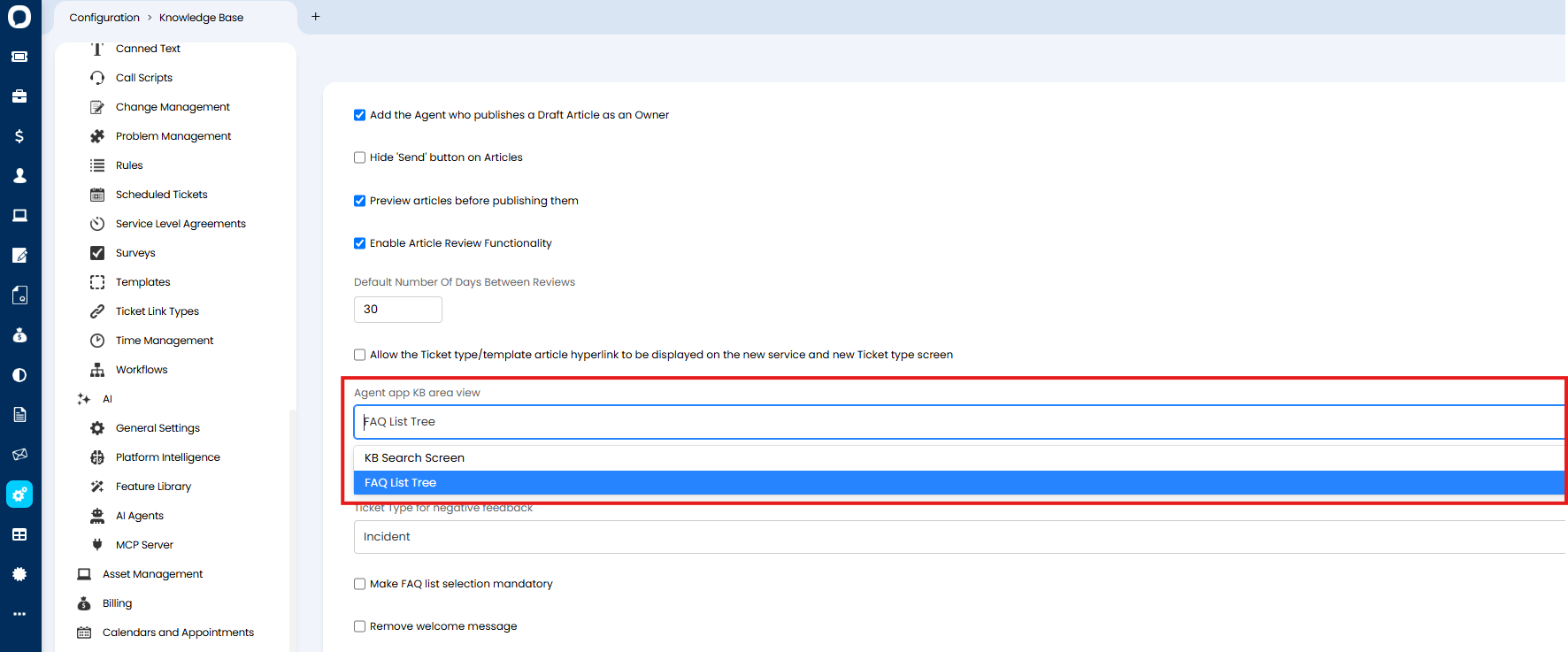
Fig 3. "Agent app KB area view" dropdown
If "FAQ List Tree" is chosen the knowledge base will display as shown in Figure 4.
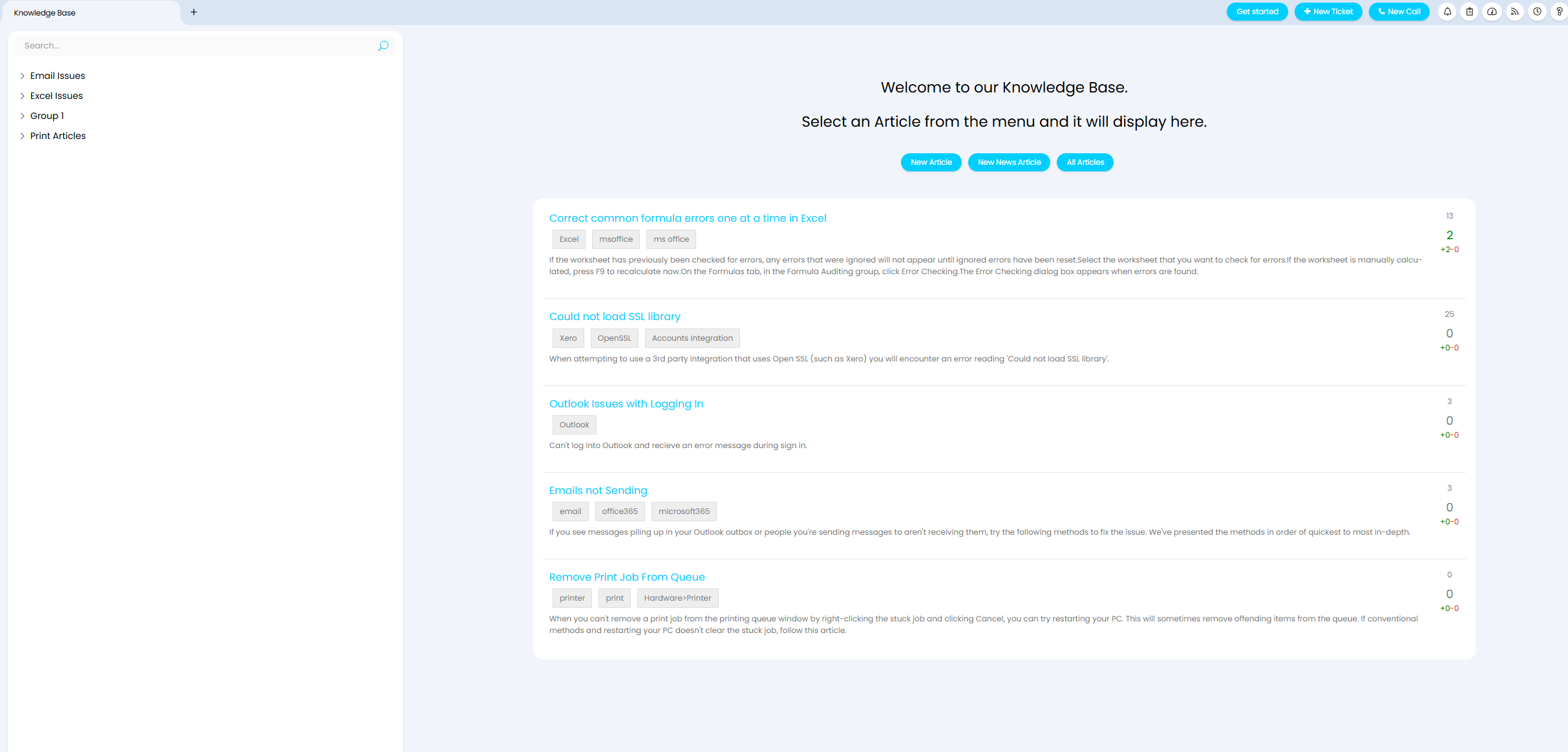
Fig 4. "FAQ List Tree" view of the knowledge base
If "KB Search Screen" is chosen the knowledge base will display as shown in Figure 5.
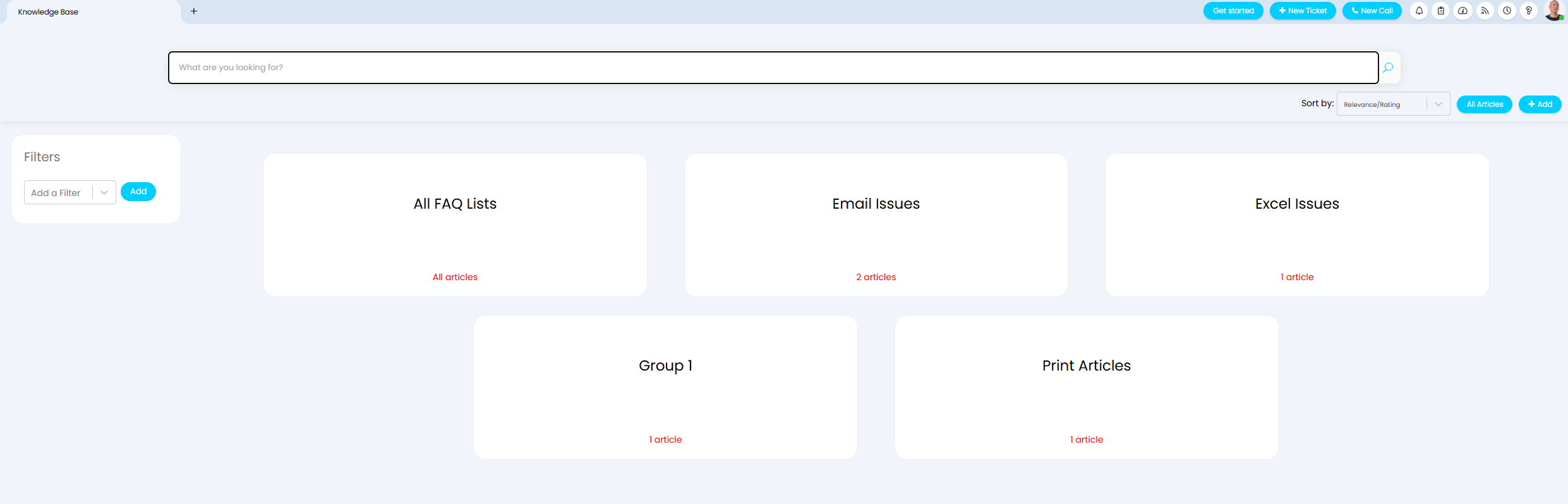
Fig 5. "KB Search Screen" view of the knowledge base
The 'FAQ List Tree' view displays your FAQ lists down the left hand side of the page, allowing you to expand each list to see any sub-lists within these, and articles under those lists.
The 'KB Search Screen' view allows you to search within a specific FAQ list, useful if you have a lot of articles within each FAQ list. Agents can choose which FAQ list they would like to search in (including searching in all) by selecting the FAQ list then entering their search term. Agents can also browse all the articles within an FAQ list by selecting one of the FAQs from this screen.
What are FAQ Lists?
FAQ Lists are a means of categorising/grouping different articles in the knowledge base for an enhanced and efficient user experience. FAQ lists can have multiple levels, allowing you to make your organisation of articles more granular. Each FAQ list can be assigned to another FAQ list (referred to as an FAQ group) creating a heirarchy in which the FAQ list sits under the assigned group. Articles can then be assigned to the FAQ list and/or FAQ group to control how it is categorised.
When viewing the knowledge base using the 'FAQ List Tree' view FAQ lists will display as shown in Figure x. Agents can expand/collapse FAQ lists to see the other FAQs and articles within them.
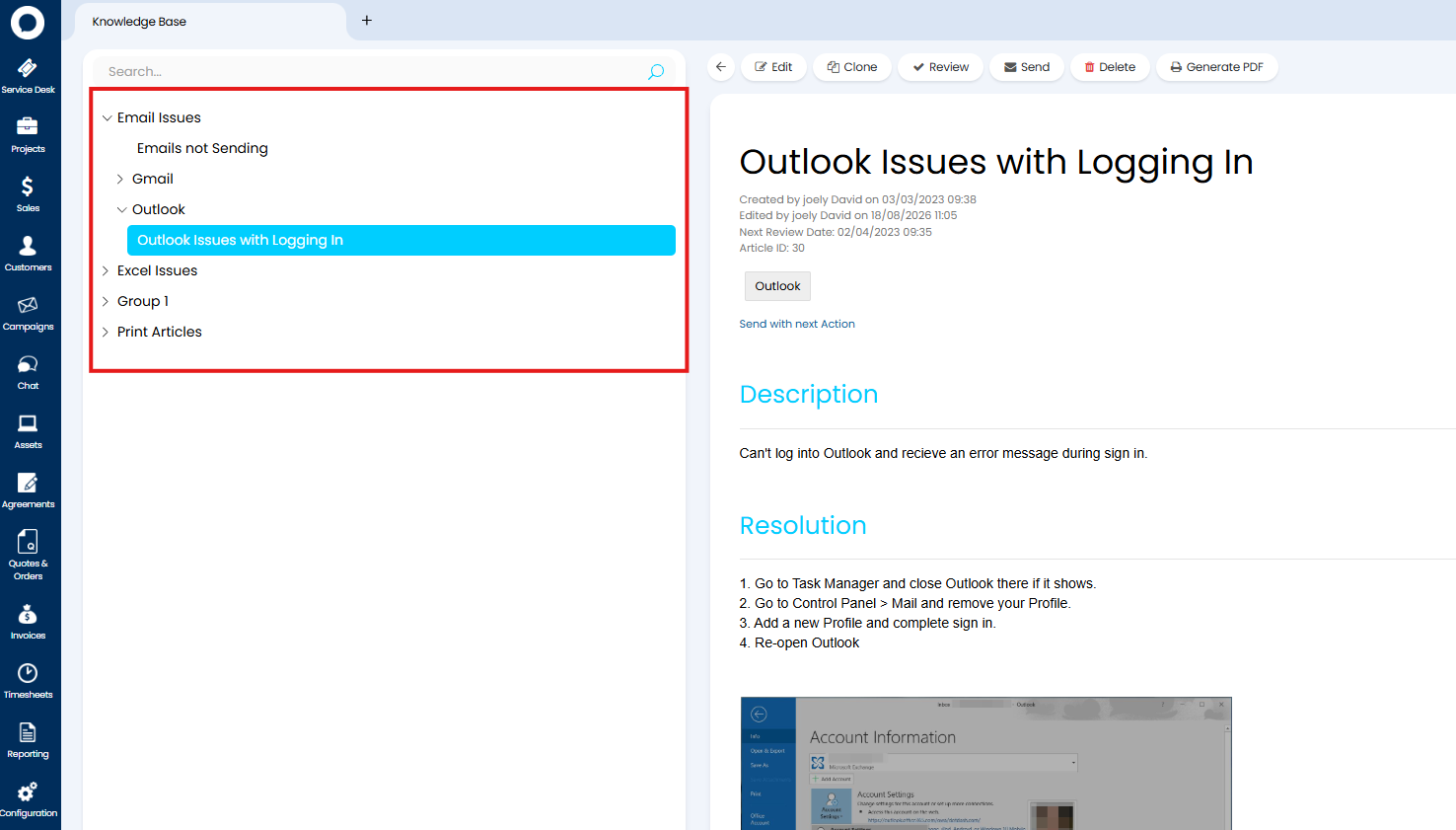
Fig 6. FAQ Lists in the Knowledge Base
For more information on configuring and using FAQ lists see our dedicated guide here.
Bulk Editing Articles
The "All Articles" button will show a list of all articles that agent has access to, and its corresponding details. In Configuration > Knowledge Base > Articles, you can also enable "Allow Agents with edit permissions to bulk edit Articles in the 'All Articles' view". This will show an additional checkbox at the side of each article in the list, which will allow agents with edit permissions to bulk update FAQ lists or Tags.
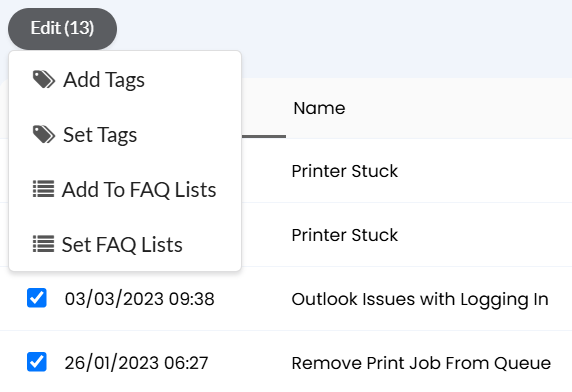
Fig 7. Bulk editing knowledge base articles
Creating an Article
If you are in the 'FAQ List Tree view' view, click on "New Article" to create an article.
If in the 'KB Search Screen' view, click "Add" in the top right to create an article.
From here there are various fields to complete against the article, each relating to a different knowledge base function. The title description and resolution of the article make up the content of the article, viewed by agents and end users. The "FAQ Lists that this Article appears on" will assign the article to these FAQ lists, used to group and organise articles.
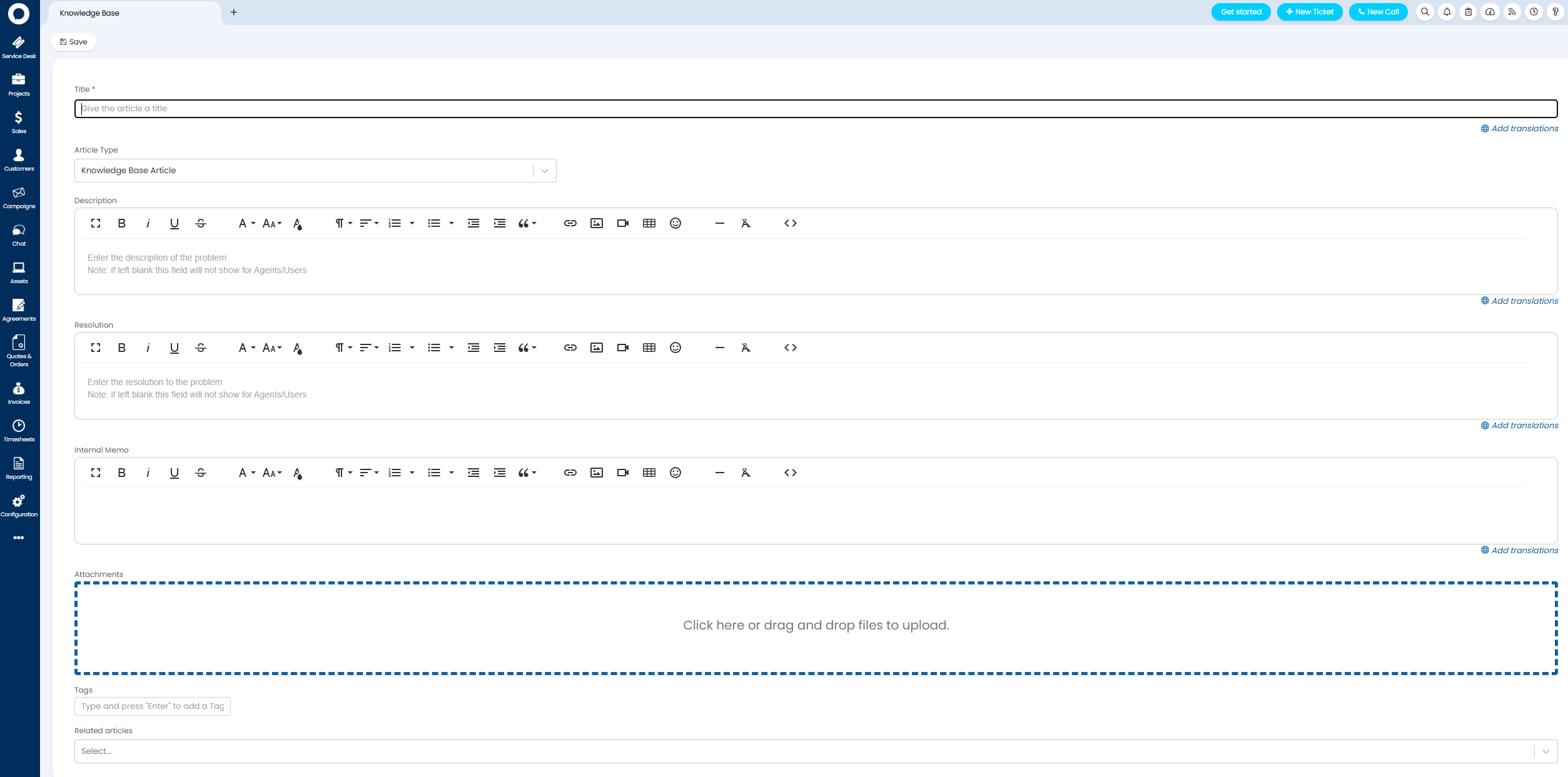
Fig 8. New Article
The "Tags" field is used to add tags onto articles, which are used to return results when searching on articles and when using the resolution finder.
You can set who can access it - restricting it by team for instance. This is particularly useful when you have a large number of articles, as it stops technicians having to search through a number of articles which are not relevant to their role. There are various ways to restrict agents and users' access to articles, we recommend reading our dedicated guides for information on this.
Article Drafts and Versions
If you would prefer agents to not edit content directly in the knowledge base, and instead require changes to be reviewed/approved before being published you can make use of our article drafts functionality, covered in a dedicated guide here.
If you would like to keep a record of each change to an article, storing each change as it's own version, rather than allowing agents to edit the original, you can make use of our article versioning functionality, covered in a dedicated guide here.
In-Article Anchor Tags
From version 2.253, you are able to add anchor tags to your articles in order to improve user navigation.
'Anchors' are a method of creating in-article links, allowing you to select a link that takes you to a section of the same article. Useful for improving ease of navigation on large articles and for improving user experience.
To set up anchor tags create a new article, or edit an existing one, and navigate to the part of the article where you wish to add an anchor. Edit the article, and click the section of text where you wish to insert the anchor. Select the bookmark icon in the formatting bar (Figure 9).
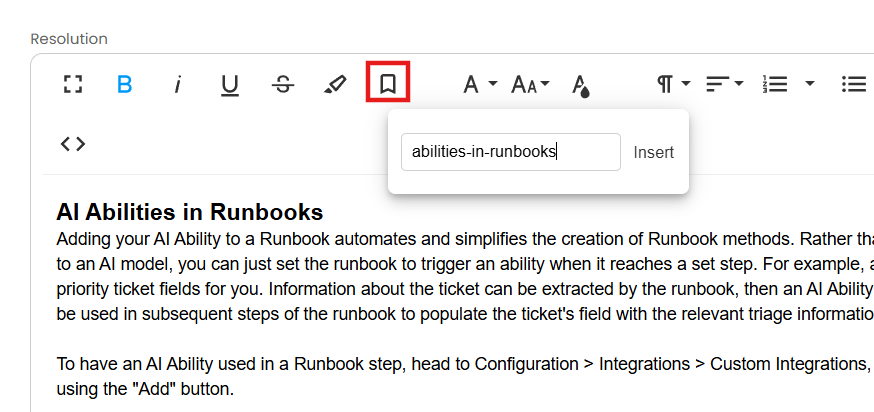
Fig 9. The bookmark icon for adding an anchor (v2.253+)
An option will then appear to enter the name of your new anchor. This name is only visible in the html of the article and when editing the anchor, it will not be visible when reading the article.
Important: The name should not have any spaces - if you do include spaces, then Halo will replace them with '-' once the anchor is inserted. This is important to note because, as you will see next, the exact name of the anchor must be used for the link's URL.
Select the "Insert" button once you are happy with the anchor text.
Note: Make a note of the name you give the anchor, as you will use this to create the link.
When the anchor is inserted, a small bookmark icon will appear where it has been inserted.
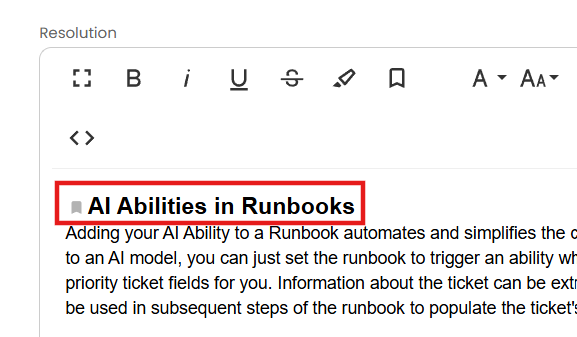
Fig 10. A bookmark icon will appear where an anchor as been inserted
Once the anchor has been inserted, you need to create the link that a user will click to navigate to the anchor.
To do this, go to create a regular link by highlighting a section of text, or clicking a section of the article, and selecting the link icon in the formatting bar (Figure 11).
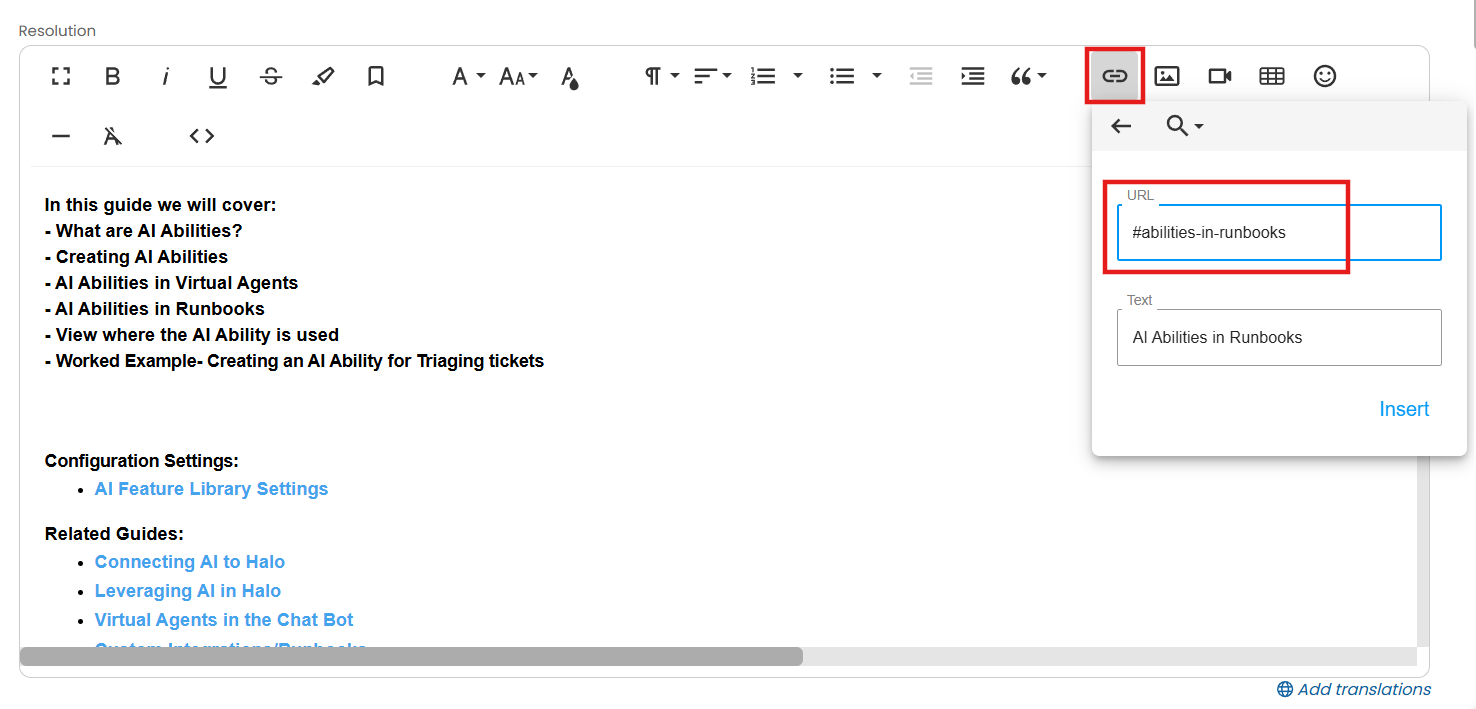
Fig 11. Creating the link to the anchor
As you can see in Figure 11, instead of writing a regular URL as you would for an external link, the URL has been written by prefixing the anchor's name with '#' - this is how the anchor links should always be written.
Important: Ensure you have written the name of the anchor exactly. Note that if you included spaces in the name of the anchor when creating it, these spaces will have been replaced with '-' and you should write the name as illustrated in Figure 11.
Once the link is saved, when it is selected, the page will jump to the relevant anchor.
Adding Videos to Articles
Adding videos to your articles can be an excellent method of making your knowledge base more engaging for end-users, particularly if you are looking to make your articles available on your end-user portal.
On any article (when in edit mode) simply click on the video camera icon to add a video. There are 2 methods of adding videos to articles:
- Insert a link: Click on the link icon and add in the URL of the video you wish to link the article to, then click insert.
- Embedded code:
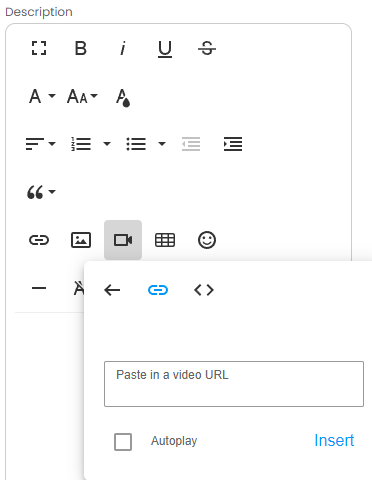
Fig 12. Adding a video to an article
Article Owners
Each article can have specified 'owners', used for automating processes around articles. For example, when using article drafts to process articles approval processes can be based on the owner of the article, allowing the article owner to approve any changed. The owners of an article are set using the 'Owners' table against an article. Multiple agents can be added to this table.
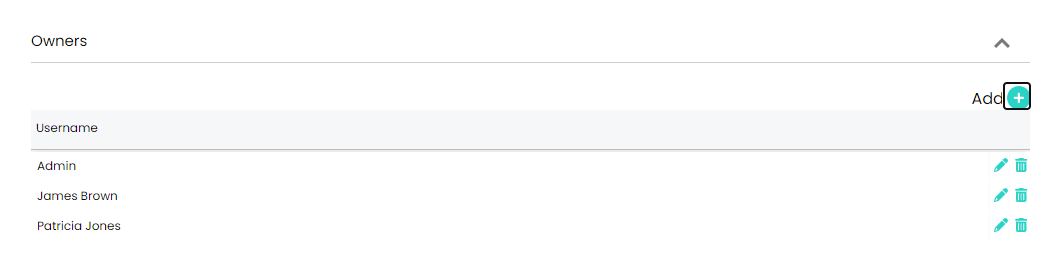
Fig 13. Article Owners Table
When creating new articles, if no owners are specified it will default to the agent creating the article.
Teams can be added as owners in addition to individual agents. When adding an owner, a selection can be made between team or agent, and then owners added.
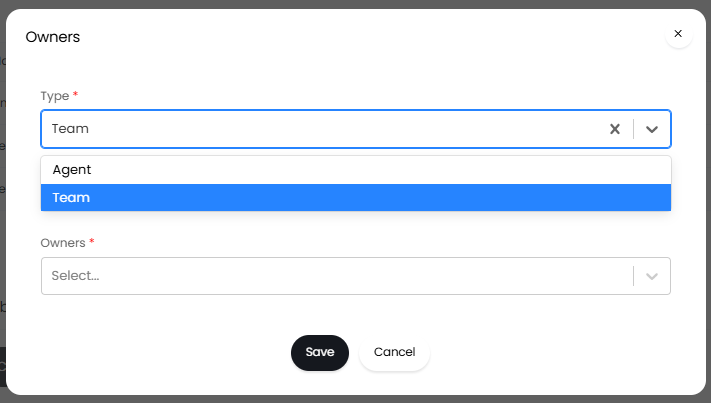
Fig 14. Adding owners
The table will specify when it is a team like below.
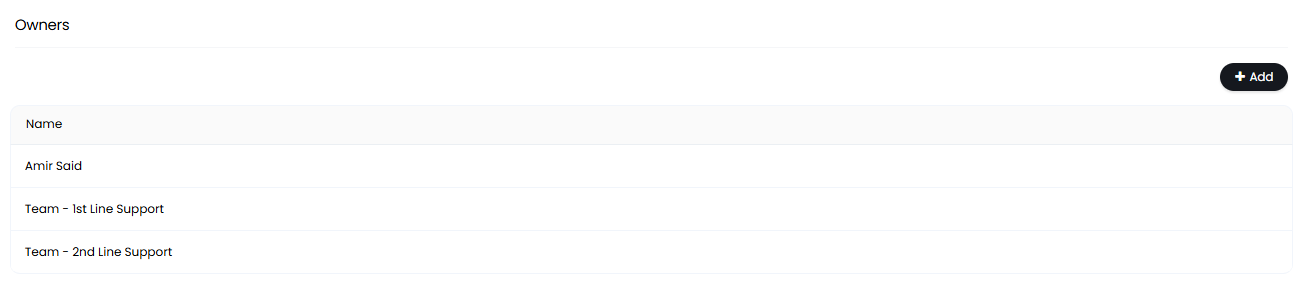
Fig 15. Teams and agent owners
Cloning Articles
Articles can also be cloned after creation, which is a useful feature if the information in it is relevant for another guide you would like to create.
A "Clone" button will show at the top of the article
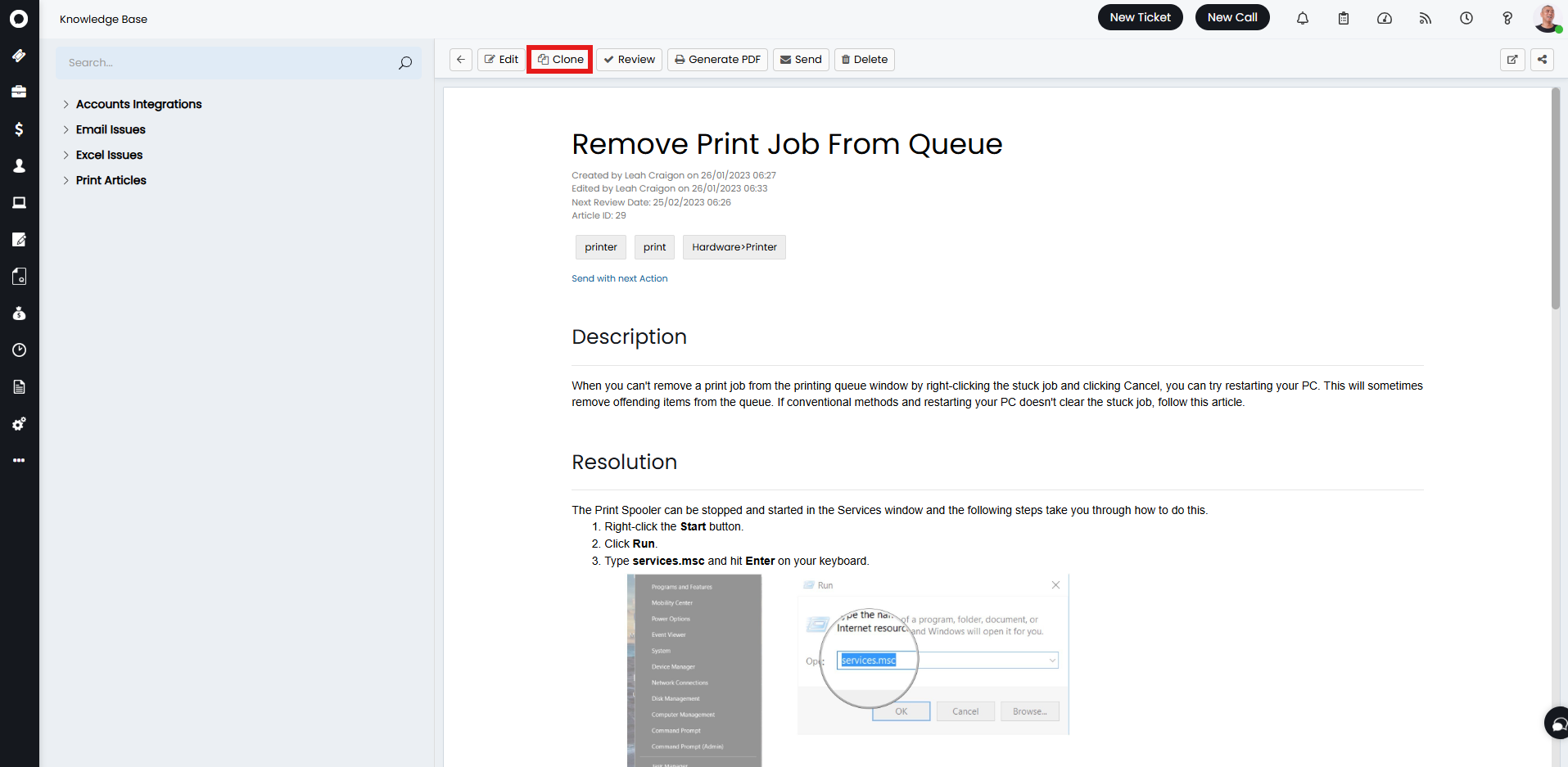
Fig 16. Clone button on an article
Upon clicking, you will be prompted to enter a title for the cloned version.
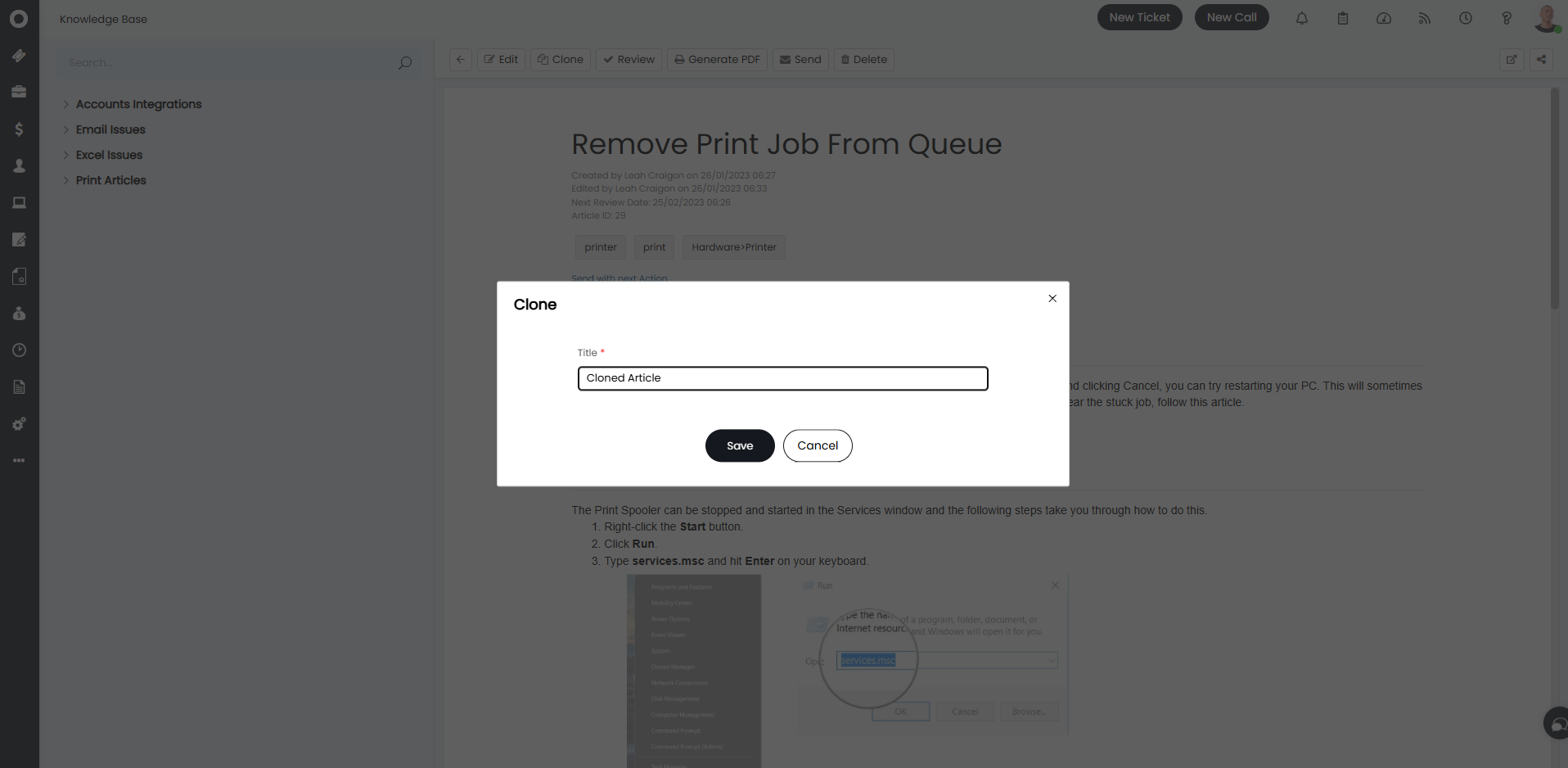
Fig 17. Setting title on the cloned version
The cloned version will also have the same tags and be part of the same FAQ lists as the original.
Reporting on Articles
You can use the table KBViewLog for reporting purposes. It stores the Agent/User ID, KB Article ID and Datetime of every view of a knowledgebase article.
Other useful reports can be found in the online repository by searching for "knowledge base".
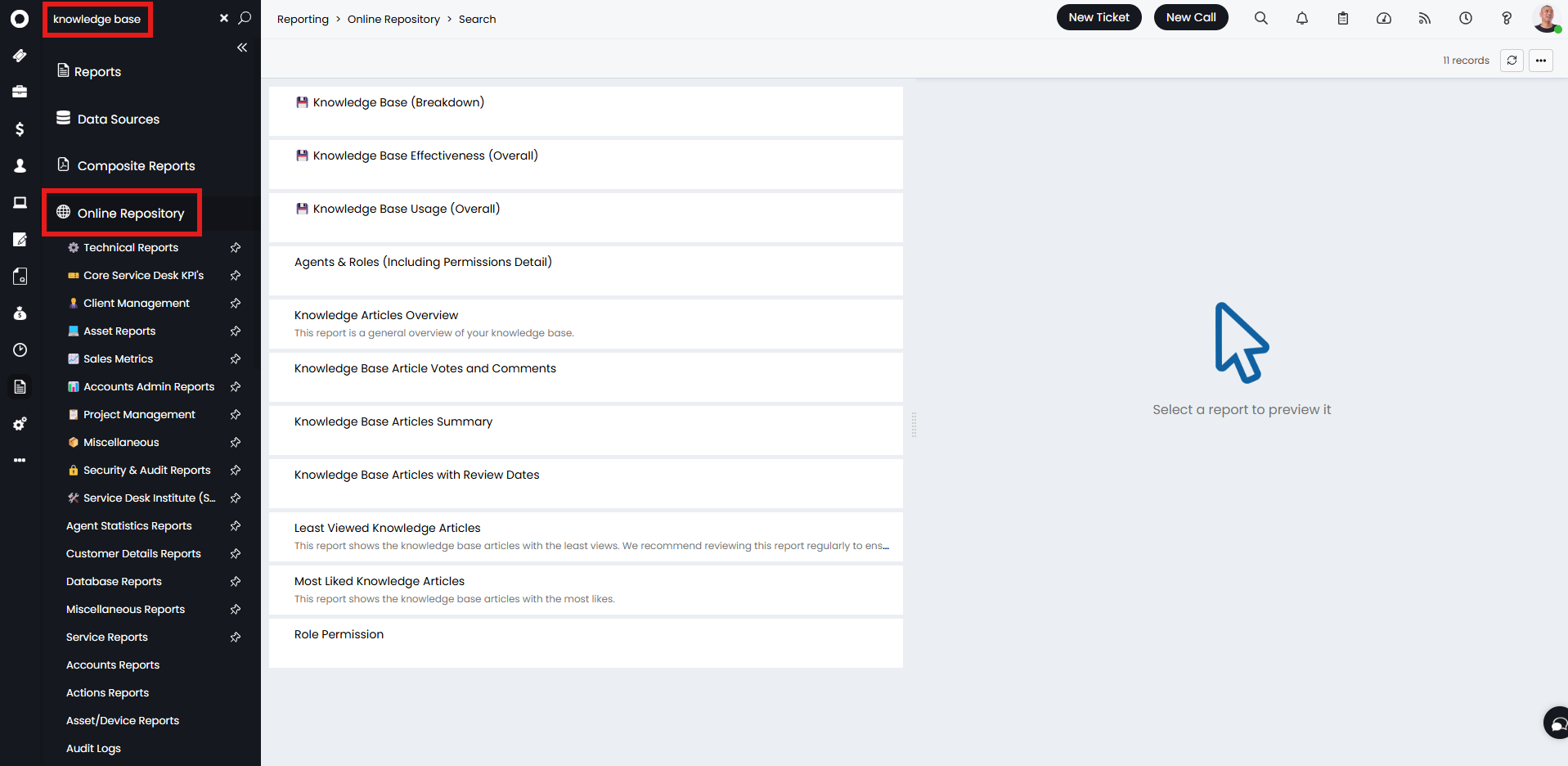
Fig 18. Searching the Online Repository for knowledge base reports
For a general report on all of the articles in your system, you can use the query:
select id as [KB ID],
abstract as [Title],
kbtags as [Tags],
datecreated as [Date Created],
faultid as [Linked Ticket ID]
from kbentry
Article Suggestions
Articles can be suggested to agents and users when logging and/or viewing a ticket, useful in helping them resolve any issues/complete any changes.
Articles can be suggested using the problem/resolution finder, which will suggest relevant articles based on string matches between content in the article and ticket. Information on using and setting this up can be found here.
Articles can also be suggested using AI, which will suggest relevant articles based on their semantic content. Information on using and setting this up can be found here.