Problem/Resolution Finder
- Problem Management
- article suggestions
- ticket suggestions
- suggest problem
- suggest incident
- incident management
- problem finder
- resolution finder
In this guide we will cover:
- What is the problem/resolution finder?
- Using the Resolution Finder
- The Logic behind the Problem/resolution finder
- Configuring the Resolution finder
What is the problem/resolution finder?
To optimise incident and problem resolution, similar previous and related cases (tickets) can be used to assist agents in resolving current incidents and problems. Halo's resolution finder matches historical/existing tickets in your database to a current ticket based on the ticket summary, but a custom field, the ticket category and configuration items (assets) can also be used in matching.
Knowledge base articles will also be suggested by the resolution finder, suggesting to the agent any relevant related articles that may help with the resolution of the ticket. Having an article suggested to an agent saves them searching the knowledge base for the content they need and provides them with a shortcut to send this article to the user. Knowledge base articles are suggested based on the article title and tags against the article.
In this guide we will cover how to set up and use the resolution finder.
If you are interested in using AI to make article and ticket suggestions, check out AI Suggestions.
Using the Resolution Finder
When a ticket is viewed by an agent the resolution finder will appear on the screen, this will contain suggested articles, matching problems, similar open incidents and similar closed incidents. The suggested articles/tickets are organised into these categories by the finder, allowing the agent to navigate through the categories based on the suggestion they are looking for, as shown in figure 1.
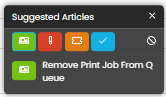
Fig 1. Problem/resolution finder
| Suggested articles |
| Matching Problems (tickets of ITIL type problem) |
| Similar Open Incidents (tickets of ITIL type incident) |
| Similar Closed Incidents (tickets of ITIL type incident) |


When a suggestion is given by the resolution finder the agent can then use these suggestions to carry out actions on the ticket.
Link article to ticket
When the agent selects the suggested article this will open up the article in the right hand pane against the ticket. The agent can read through this to gather information that may help them resolve the issue.
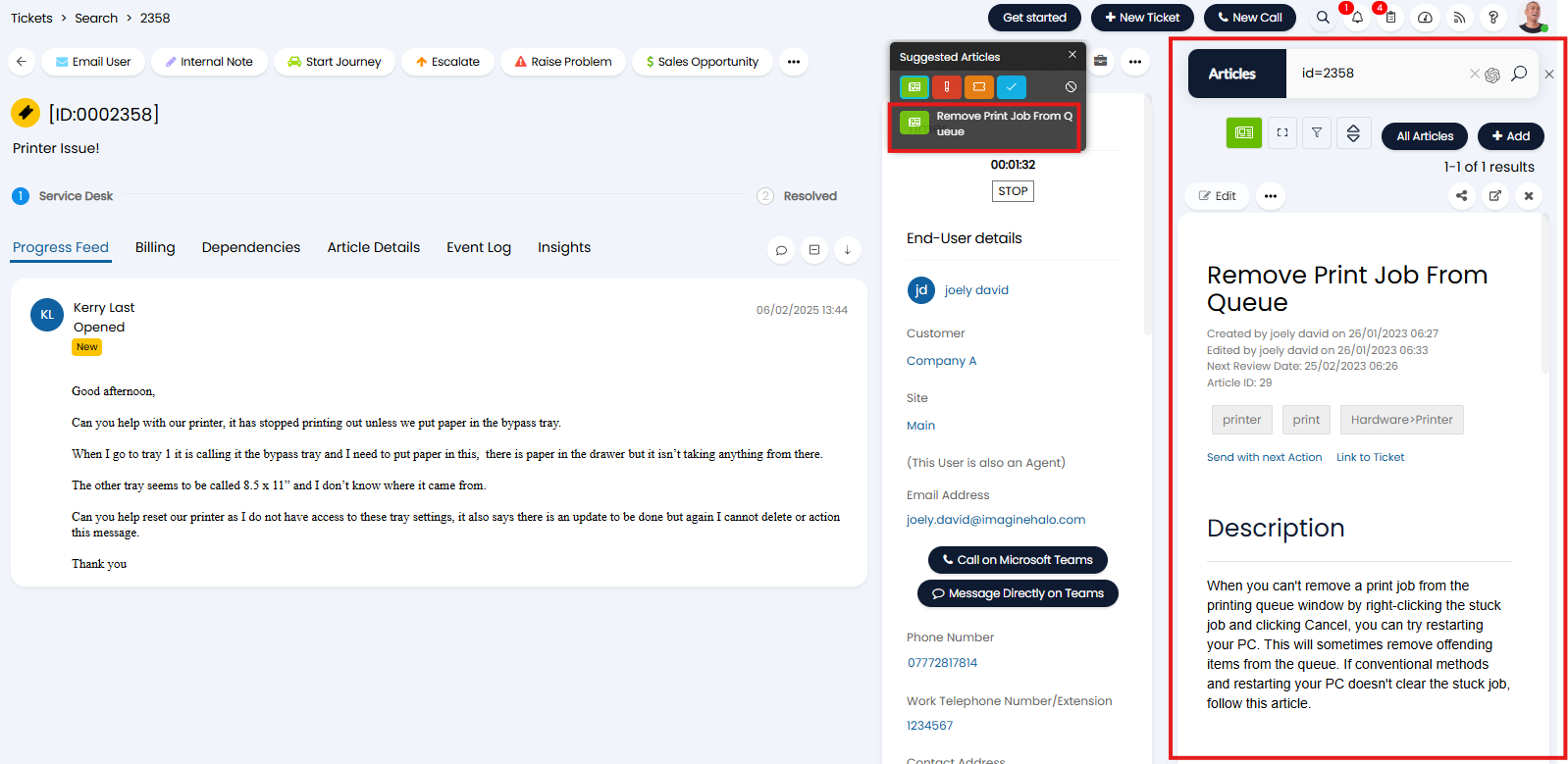
Fig 2. Viewing suggested article
This also provides the agent with a shortcut to send this article to the end user of the ticket, and/or link this article to the ticket. This can be done using the 'send with next action' and 'link to ticket' options (respectively) against the article. When 'send with next action' is used a link to this article will be included in the text field of the next action the agent starts on this ticket. If the article is not available to users on the Portal the article text will be pasted into the action instead.
Matching Problems
When the agent selects a matching problem ticket suggested by the finder this will open up the suggested problem ticket. Once this ticket is open the agent can then evaluate if this problem ticket does relate to the raised incident and can link the problem ticket to the incident.
Similar Open/Closed Incidents
When the agent selects a similar open/closed incident suggested by the finder this will open up the suggested ticket. Once this ticket is open the agent can evaluate this incident, either using information from this incident to resolve the newly raised incident, or identify if the incidents have the same root cause, resulting in them needing to be linked/a problem ticket to be raised.
Functions the finder assists with:
- Assists in resolution by suggesting useful articles to agents to help them resolve tickets
- Suggests relevant articles for agents to send to users, saving agents having to search the knowledge base.
- Identifying open problems causing the incident
- Identifying potential problems based on existing open incidents
- Assists in resolution by suggesting historical incidents for agents to review
The Logic behind the Problem/resolution finder
Before configuring the problem/resolution finder it is useful to understand the logic behind how the finder suggests articles/tickets, that is, how it deems an article/ticket to be appropriately similar or 'match' to the ticket currently being viewed.
Article Matching Logic
Articles are suggested by the finder based on the tags set against the article and the title of the article. The string(s) in the article tags and title are then checked against the summary of the ticket, if the tag string matches a string in the ticket summary, the article will be suggested for the ticket.
In the figure 3 example the article 'Remove Print Job From Queue' and has the tag 'printer'. When a ticket is raised with the string 'printer' in the summary, this article will be suggested by the resolution finder as the strings match.
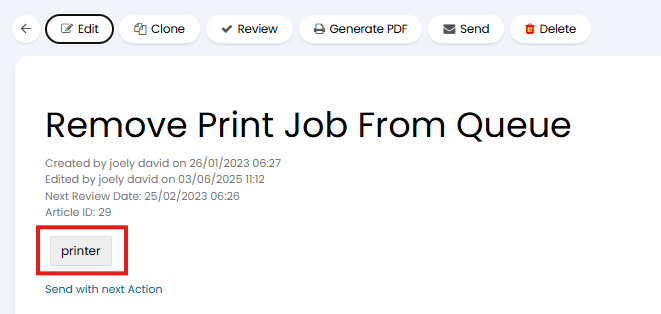
Fig 3. Article tag
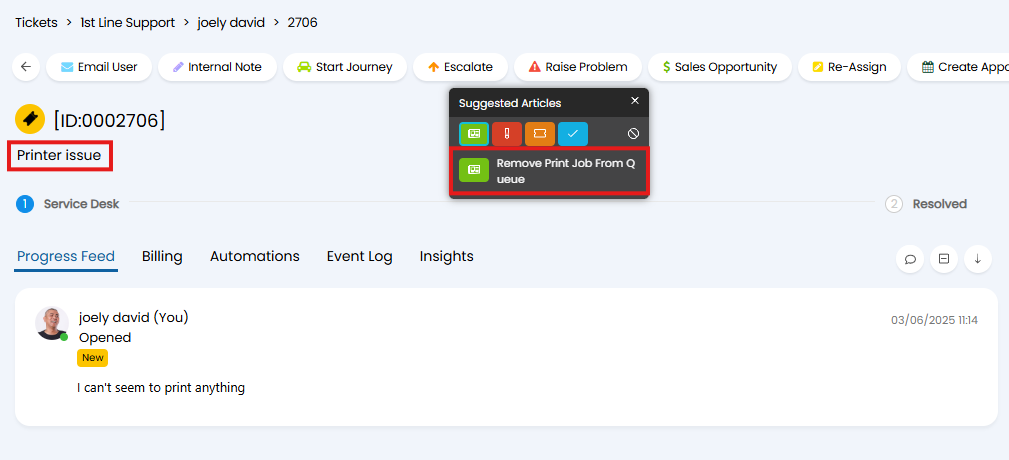
Fig 4. Suggested article for ticket
Similarly, if the ticket had the summary 'Print Issue' this article would also be suggested, not because it matches the tag, but because it matches a string in the article title.
Tag matching is done by comparing the whole tag string to the summary of the ticket, in order for an article to match to a ticket the ticket summary needs to contain the whole string of an article tag. For example, if the article has the tag 'printer issue' it will be suggested for any tickets that contain this string in their summary, such as 'I seem to have a printer issue'. However, it will not match to ticket that only contains one word of the tag in it's summary such as 'Printer problems'. As the whole string needs to match, the order of the words in the summary is also important, tickets with summary 'I have printer issues' will match, but 'I have issue printer' wont match.
For a match to be made a tag against the article must match a whole word within the ticket summary string.
Article title matching is done by comparing the whole ticket summary to the article's title, if the whole summary string matches part or all of the article title exactly the article will be suggested for the ticket. For example, if the article has title 'Remove print Job From Queue' it will be suggested for any tickets that have the same, or part of the, string as the summary. Tickets with the summary 'Job from Queue' would match, tickets with the summary 'print job remove' would not.
As both the article title and tag are used to match articles to tickets, an article will be suggested for a ticket if it meets matching criteria in line with the article title OR tags.
Article matching can also be based on text custom fields against the ticket (if 'Allow matching based on Text Custom Fields' is enabled). When this is in use article titles and tags will match to a ticket based on content in the summary and content in any text custom fields against the ticket. Custom field matching follows the same logic as when matching using the ticket summary.
Match articles using categories
By default, article suggestions will be based on how the article title and tag but suggestions can be configured to restrict suggestions to article tags that match the category assigned to the ticket.
Enable this functionality under configuration > knowledge base > 'Categories must match a Tag'.
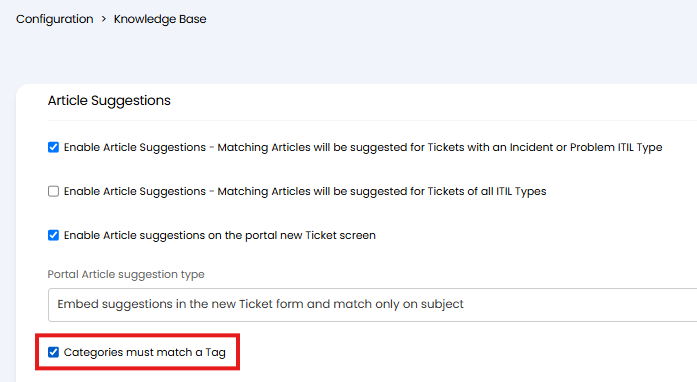
Fig 5. Enable functionality to restrict suggestions to articles that match the ticket category
When enabled, you will need to add ticket categories against the relevant articles in the form of article tags. for example, I would like the article 'Remove print Job From Queue' to only be suggested for tickets that have the category 'hardware > printer' selected. Therefore, I will need to add the tag 'hardware > printer' to the article.
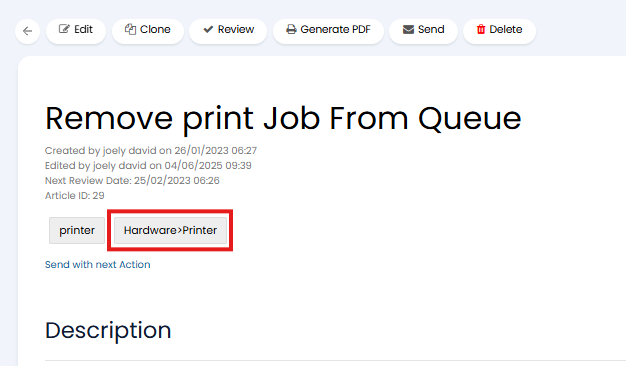
Fig 6. Add category to article in the form of a tag
Now, only tickets with the category Hardware > printer will be suggested this article. Category matching takes precedence over ticket summary matching, as long as the ticket has this category it will be suggested this article, regardless of the other details against the ticket.
If you are using this functionality you will need to go through each article in your knowledge base and add the relevant ticket categories as tags to the articles. For information on configuring tags and knowledge base articles check out An Introduction to the Knowledge Base.
Ticket Matching Logic
Tickets (problem and incident) are suggested by the finder based on the summary of the tickets. The summary of the ticket that is being viewed will be checked against the summary of other tickets in your database, this they contain matching values the ticket will be deemed as a 'match'. Only the ticket summaries will be compared, other ticket fields will not be used to calculate matches by default, however, a custom field, the category 1 field and the product linked to the ticket can be configured to make matching dependent on tickets containing the values in this field.
Summary matches can be made based on the whole summary string, or each word of the ticket summary. To choose how this matching takes place head to configuration > tickets > problem management > Problem match search type.
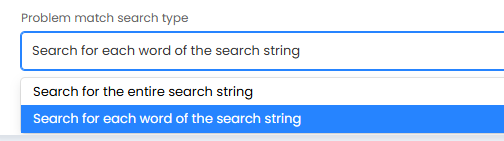
Fig 7. Problem match search type
Problem match search type - This setting determines how the problem/resolution finder suggests matching tickets.
- Search for entire string - When selected, the whole summary string of the ticket that is being viewed will be compared to existing ticket summaries. In order for a ticket to be matched the whole summary of the ticket being viewed will need to be present within the summary of an existing ticket.
- For example, the ticket with the summary 'Outlook issues' will be matched to an existing ticket with the summary 'I have Outlook issues'. But the ticket with summary 'Please help me with Outlook issues' will not match to an existing ticket with summary 'Outlook issues'.
- Search for each word of the search string- When selected, each word in the summary of the ticket being viewed will be compared to each word in other ticket summaries. If two words in the summary match the ticket will be suggested. A list of 'stop words' are hard coded to be excluded from matching, these include common pronouns, prepositions and conjunctions in the English language, such as 'you', 'was', 'after', 'so' and 'they'. For a full list of the 'stop words' see Appendix Figure A1.
- For example, a ticket with the summary 'Cannot sign into Outlook' will match to any tickets that have one of the words 'Cannot', 'sign' or 'Outlook' in their summary.
Note: Ticket matching will not include function words, but article matching will include function words.
Match based on custom field value
Tickets will always match based on summary, however, you can restrict matches so only tickets that contain the same value in a chosen custom field will match, and be suggested in the problem finder.
To do this head to configuration > tickets > problem management > The following Custom Field value must match (Knowledge Base and Ticket Suggestions), in this field choose the custom field you would like matching to be dependent on. In the figure 8 example only tickets that have the same value in the field CFchangeType will be suggested to each other, provided their summaries match.

Fig 8. Field to restrict matching based on a custom field
For this functionality to work you will also need to enable the use of the new search method. Enable this under configuration > advanced settings > 'Use new search method'.
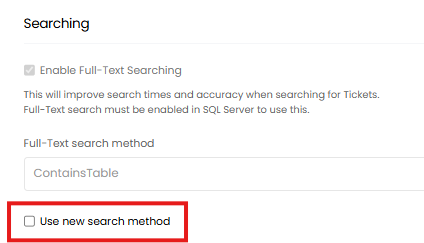
Fig 9. Enable use of new search method
Match based on associated Assets (Configuration Items) (v2.248+)
Tickets will always be matched based on summary, but from v2.248+ you can also have tickets match if they have the same related asset as the ticket being logged. For example, when an incident is being raised for a particular asset (configuration item) but a problem ticket is already open for this asset, this will return the problem ticket as a match even if the ticket summaries are completely different. Useful when logging changes for assets/configuration items as this alerts agents to any current problems/issues with the asset/configuration which could impact the change.
To enable this, head to Configuration > Tickets > Problem Management > enable "Allow matching on Assets".
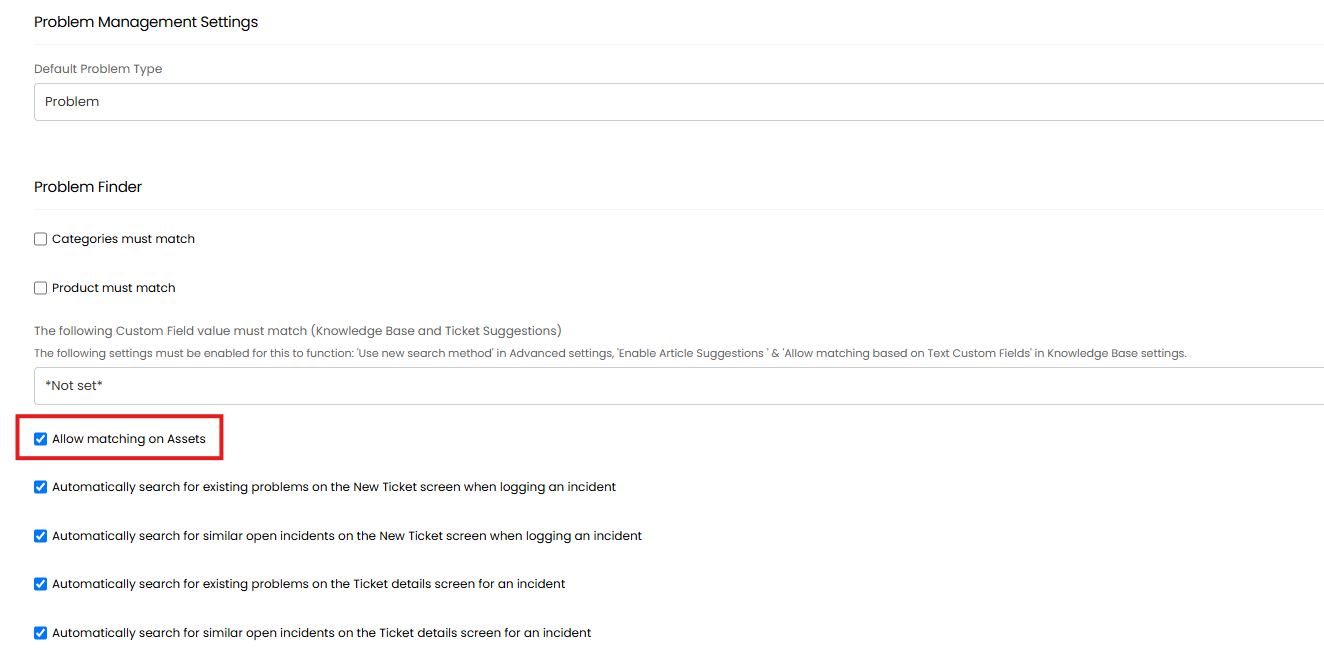
Fig 10. Allow matching using on Assets
If you cannot see this setting you do not have the new search method enabled for your instance. Head to Configuration > Advanced Settings > enable "Use new search method". Then this setting will be available.
Now, when logging a ticket with a related asset the 'Matching problems', 'Similar Open Incidents' and 'Similar Closed Incidents' sections of the problem/resolution finder will show any tickets that have this asset associated too.
If the ticket being raised has multiple related assets, both will be checked and any tickets with either asset associated will be returned.
Keep in mind, assets are related to tickets using the "Asset" field.
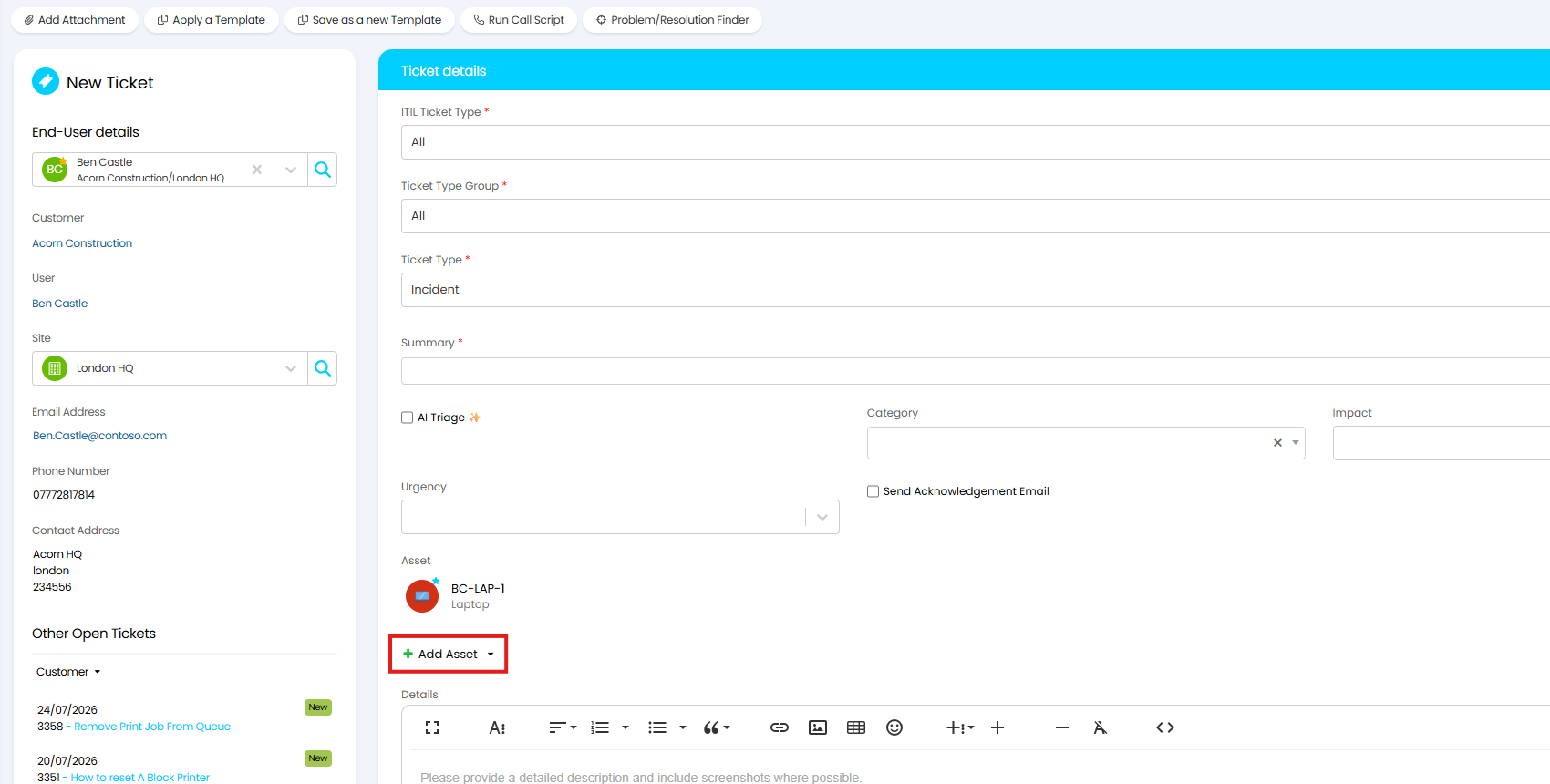
Fig 11. Relate Asset to Ticket
Note: Matching based on assets will only occur on the new ticket screen. Assets will not be used to suggest matches when viewing existing tickets.
Configuring the Resolution finder
Ticket suggestions
To customise how the resolution finder appears and behaves head to configuration > tickets > problem management, here there are numerous settings controlling the problem/resolution finder.
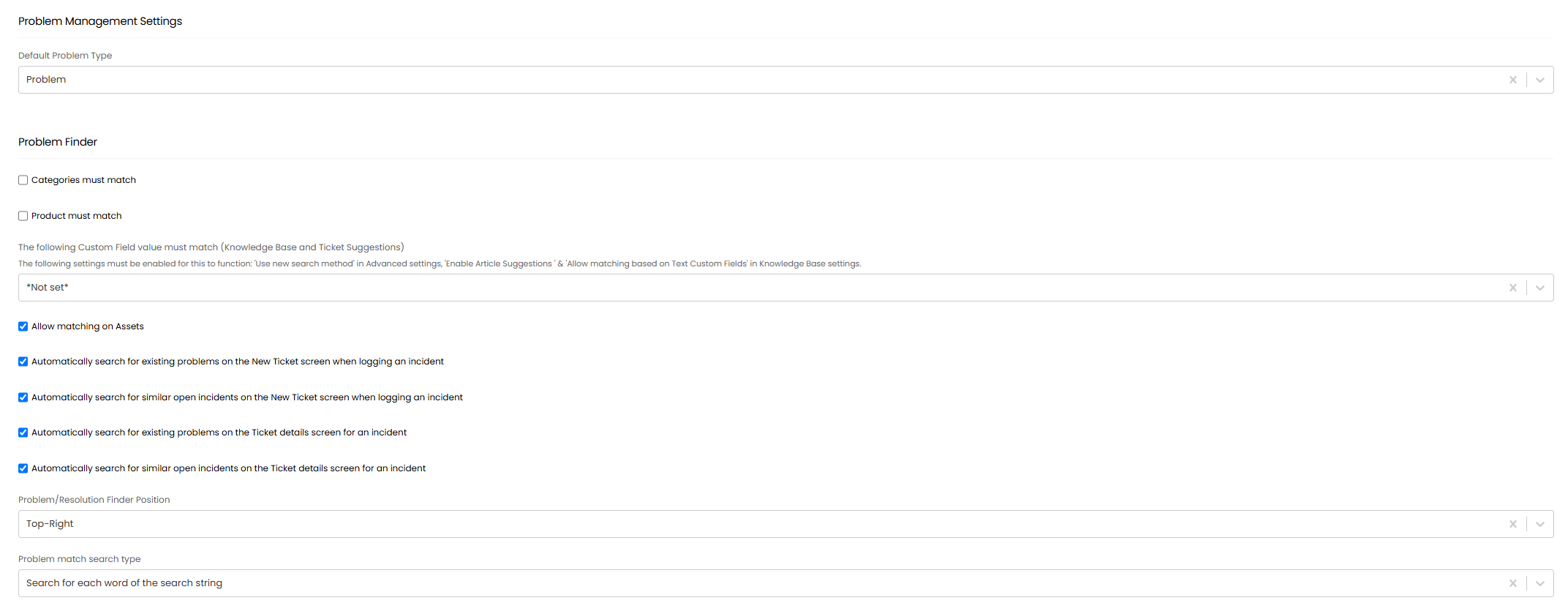
Fig 12. Problem/resolution finder settings
Categories must match - When enabled, only tickets that share the same category as the ticket being viewed will be suggested by the problem resolution finder.
Product must match - When enabled, only tickets that share the same product as the ticket being viewed will be suggested by the problem resolution finder.
The following Custom Field value must match (Knowledge Base and Ticket Suggestions) - Here, choose a custom field to restrict matching based on.
Automatically search for existing problems on the New Ticket screen when logging an incident - When enabled, the problem/resolution finder will search for matching problem tickets when a new ticket is being logged.
Allow matching on Assets (v2.248+) - When enabled, ticket matches will also be made using the related assets on the ticket.
Automatically search for similar open incidents on the New Ticket screen when logging an incident - When enabled, the problem/resolution finder will search for matching incident tickets when a new ticket is being logged.
Automatically search for existing problems on the Ticket details screen for an incident - When enabled, the problem/resolution finder will search for matching problem tickets after a new ticket is logged.
Automatically search for similar open incidents on the Ticket details screen for an incident - When enabled, the problem/resolution finder will search for matching incident tickets after a new ticket is logged.
Problem/Resolution Finder Position - Here, choose the location the resolution finder appears in on the screen.
Problem match search type - Here, choose how ticket matching takes place.
Article suggestions
To customise how the resolution finder behaves for article suggestions head to configuration > knowledge base > see section 'article suggestions'.
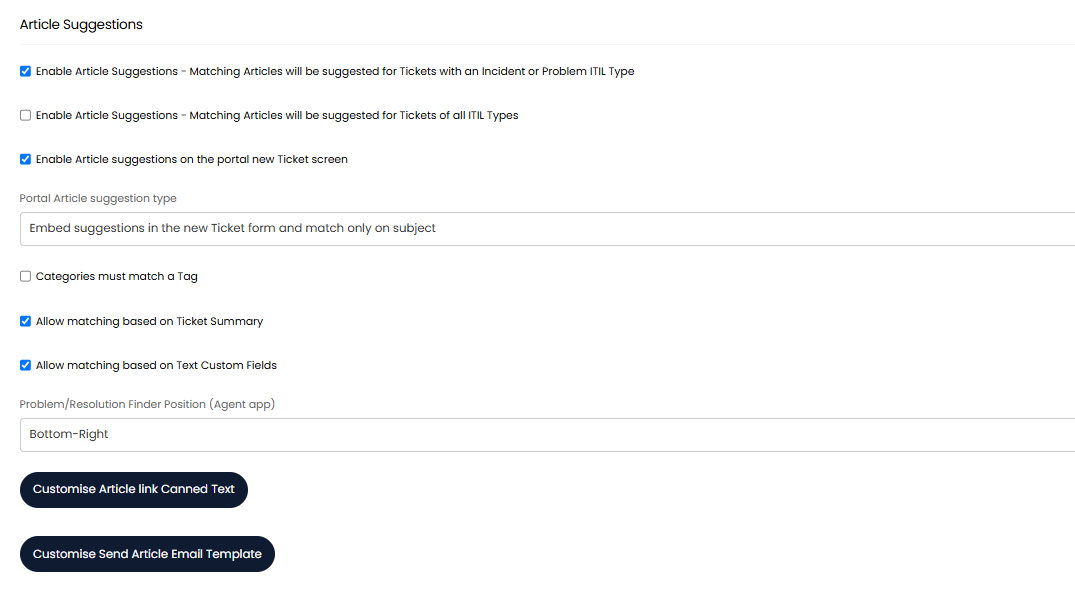
Fig 13. Article suggestion configuration
Enable Article Suggestions - Matching Articles will be suggested for Tickets with an Incident or Problem ITIL Type - When enabled article suggestions will take place for tickets that have ITIL type problem or incident.
Enable Article Suggestions - Matching Articles will be suggested for Tickets of all ITIL Types- When enabled article suggestions will take place for all tickets regardless of ITIL type.
Enable Article suggestions on the portal new Ticket screen - When enabled, article suggestion will take place when tickets are being raised from the portal.
Portal Article suggestion type - Here you can choose how articles are suggested to users for tickets in the portal.
- Embed suggestions in the new Ticket form and match only on subject - When selected an article will be suggested while a user is logging a ticket, giving them a link to the article in the portal.
- Pop-out suggestions to side of screen - When selected, articles will be suggested using a pop-out suggestion at the side of the ticket details screen after the ticket is logged.
Categories must match a Tag - When enabled, articles will only be suggested for a ticket if they contain a tag that matches the ticket category.
Allow matching based on Ticket Summary - When enabled, articles will be suggested for a ticket based on the ticket summary.
Allow matching based on Text Custom Fields - When enabled, articles will be suggested for a ticket based on text custom fields against the ticket.
Problem/Resolution Finder Position (Agent app) - Here, choose the location the resolution finder appears in on the screen. This applies to both article and ticket suggestions.
Disable the Resolution Finder
You can choose whether the problem/resolution finder appears on a chosen ticket type by default. This can be set for both users and agents. This is useful if you do not want the problem/resolution finder to be used for particular ticket types.
To do this head to configuration > tickets > ticket types > select a ticket type > settings tab, here look for the settings highlighted in figure 14.
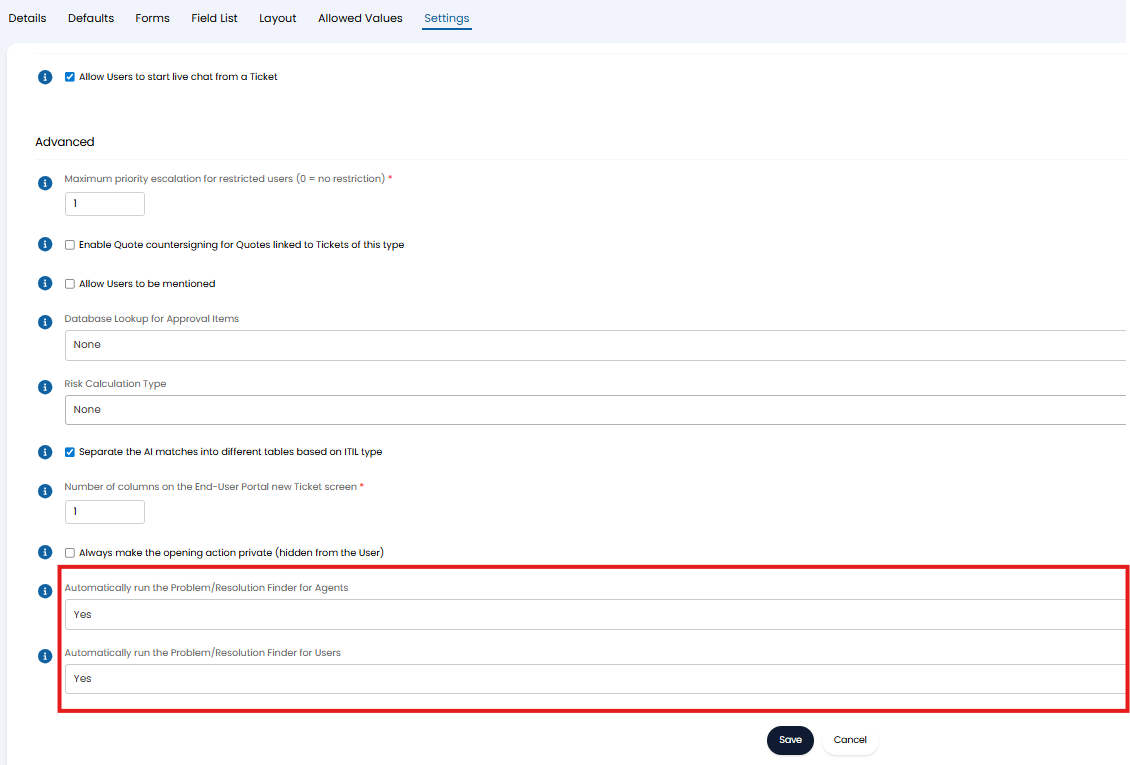
Fig 14. Settings to show/hide the Problem/Resolution finder by default
Automatically run the Problem/Resolution Finder for Agents - When set to 'No' the Problem/Resolution finder will not show for agents when they are viewing tickets of this type.
Automatically run the Problem/Resolution Finder for Users - When set to 'No' the Problem/Resolution finder will not show for users when they are viewing tickets of this type.
Keep in mind, even when the Problem/Resolution finder is hidden from view for agents, they will still be able to access the finder using the system actions menu against a ticket, shown in Figure 15.
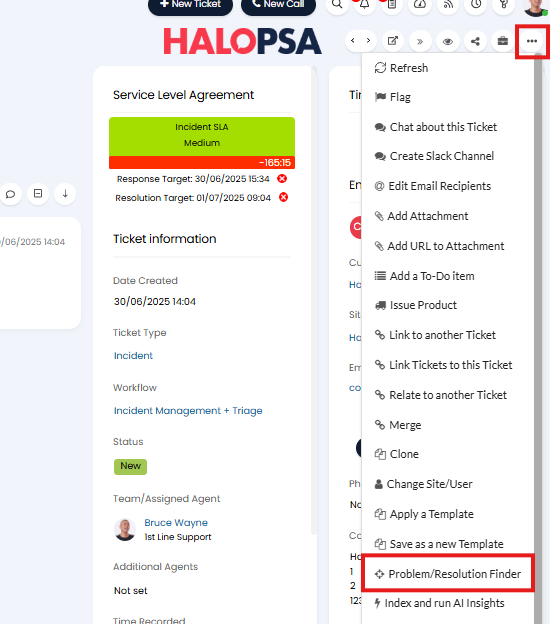
Fig 15. Show the Problem/Resolution finder using the system actions menu
Appendix
Figure A1 - Strings excluded from Matching (Stop Words)
"a","b","c","d","e","f","g","h","i","j","k","l","m","n","o","p","q","r","s","t","u","v","w","x","y","z",
"about","above","after","again","against","all","am","an","and","any","are","aren't","as","at","also", "another",
"be","because","been","before","being","below","between","both","but","by",
"can't","cannot","could","couldn't","came","can","come",
"did","didn't","do","does","doesn't","doing","don't","down","during",
"each","else",
"few","for","from","further",
"get","got",
"had","hadn't","has","hasn't","have","haven't","having","he","he'd","he'll","he's","her","here","here's","hers","herself","him","himself","his","how","how's",
"i'd","i'll","i'm","i've","if","in","into","is","isn't","it","it's","its","itself",
"just",
"let's","like",
"many","make","me","might","more","most","much","must","mustn't","my","myself","no","nor","not",
"never", "now",
"of","off","on","once","only","or","other","ought","our","ours","out","ourselves","over","own",
"said","same","see","shan't","she","she'd","she'll","she's","should","shouldn't","since","so","some","still","such",
"take","than","that","that's","the","their","theirs","them","themselves","then","there","there's","these","they","they'd","they'll","they're","they've","this","those","through","to","too",
"under","until","use","up",
"very",
"was","want","wasn't","way","we","we'd","we'll","we're","we've","were","weren't","what","what's","when","when's","where","where's","which","while","will","who","who's","whom","why","why's","with","won't","would","wouldn't",
"you","you'd","you'll","you're","you've","your","yours","yourself","yourselves",
"0","1","2","3","4","5","6","7","8","9"