Major Incident Management
- incident management
- major incident
- incident
- major incident management
In this guide we will cover:
- What is a Major Incident?
- Tha Major Incident Console
- Identifying a Major Incident
- Logging a Major Incident Ticket
- Actioning the Major Incident Ticket
- Resolving and Closing the Major Incident
What is a Major Incident?
A Major Incident is effectively an Incident that is a very high priority issue, such as network outages or slow servers, which therefore causes multiple issues below it. Once the root cause of the problem is identified, a change can be made to avoid the issue in the future.
This guide will cover the OOTB ITSM setup. If you have any questions on replicating this in your own instance, please contact support.
The Major Incident Console
The Major Incident Console is the central hub for all active and historical Major Incidents. The console gives immediate situational awareness across your entire MI landscape, displaying:
- All open Major Incidents, their summary, status and their current workflow stage
- Priority level for each MI
- Assigned team and agent
- Primary affected Configuration Item
- Time elapsed since the MI was opened
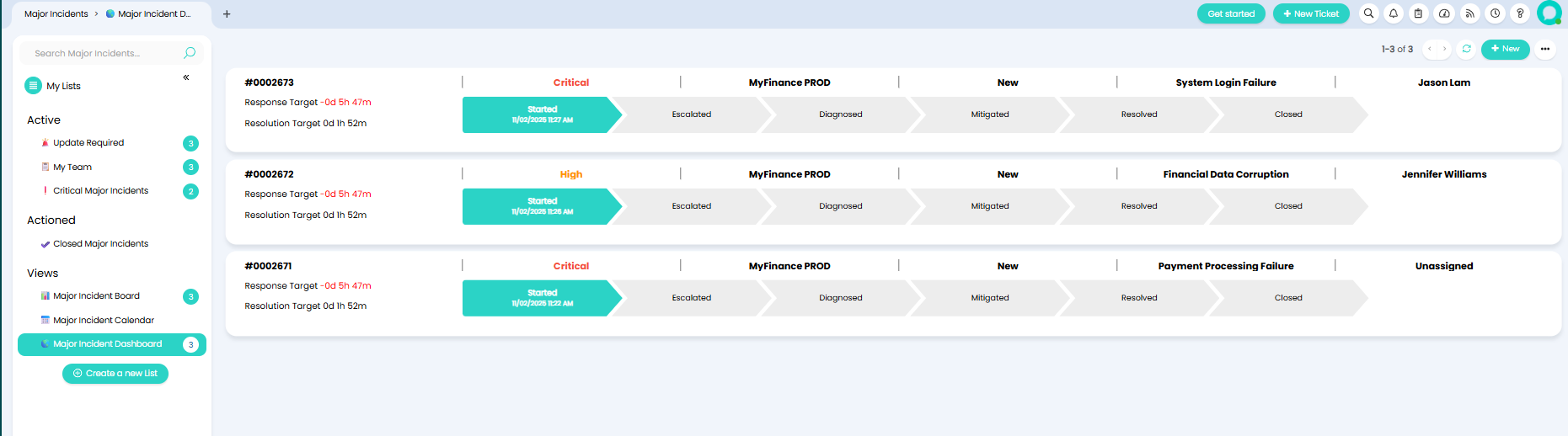
Fig 1. The Major Incident Console.
From the console, agents can open any MI to view its full details. This is the recommended starting point whenever a new potential Major Incident is being assessed.
Identifying a Major Incident
When a user logs an Incident, and another similar Incident is then raised by a different user, this pattern may indicate a wider underlying problem worth escalating to a Major Incident.
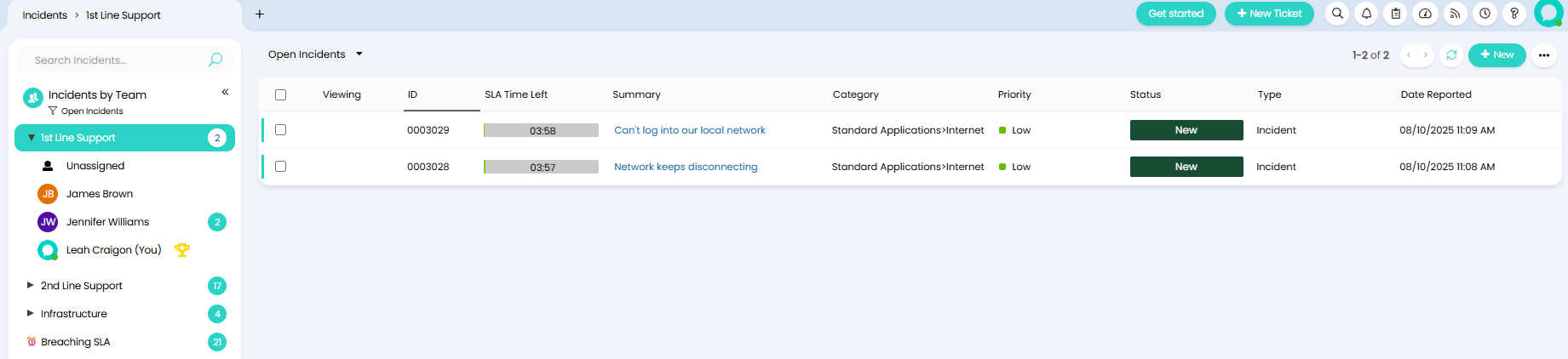
Fig 2. Two similar Tickets logged.
Opening one of these Tickets can show the Problem Finder in the right corner. This is a pop-out box that uses AI to look for similar Tickets and Articles, which can be used to help diagnose issues.
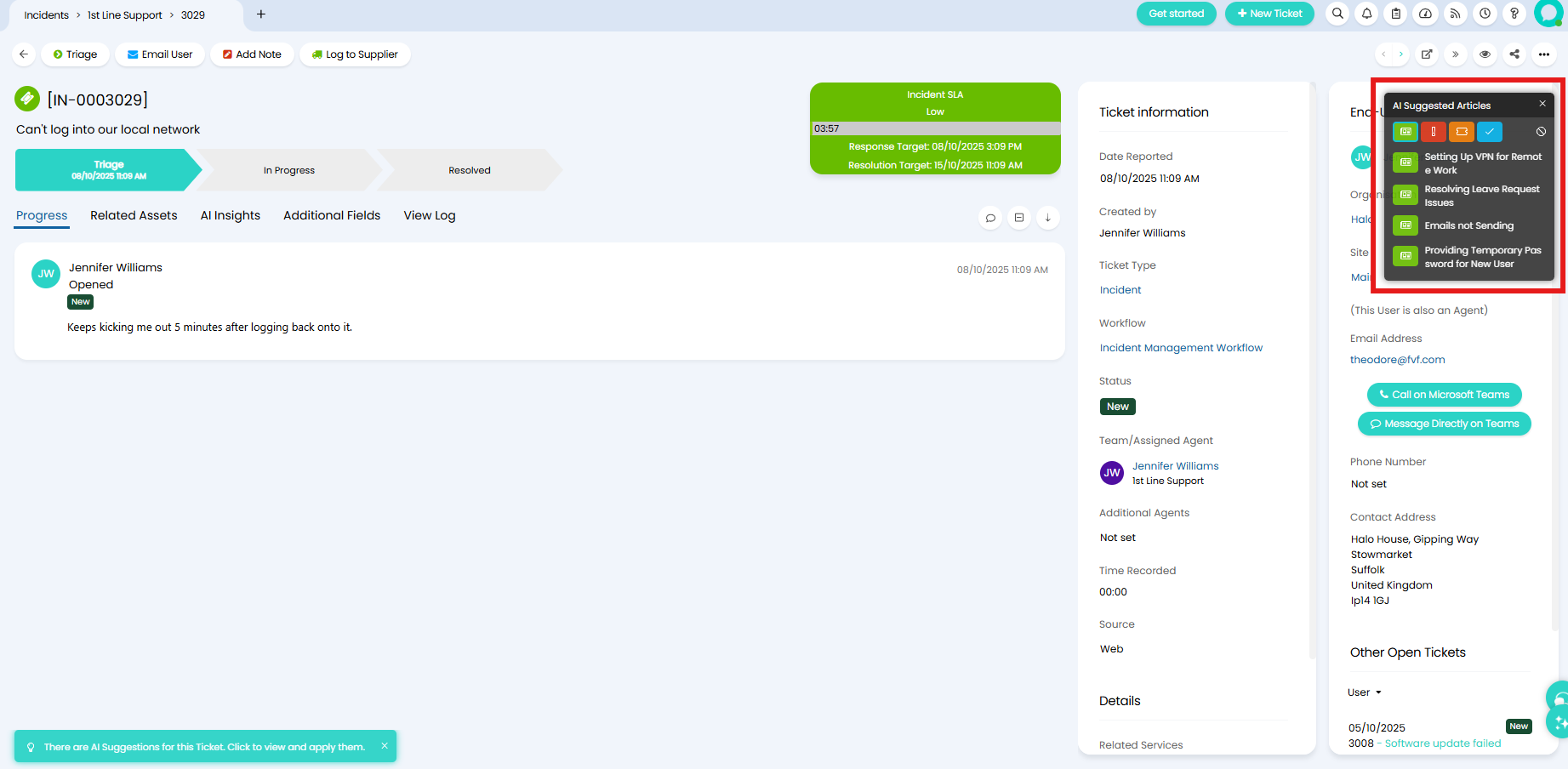
Fig 3. Problem Finder on a Ticket.
Navigate to Configuration > Tickets > Problem Management. Here you can find options such as when to automatically search and show the Problem Finder, and configure what is considered a match.
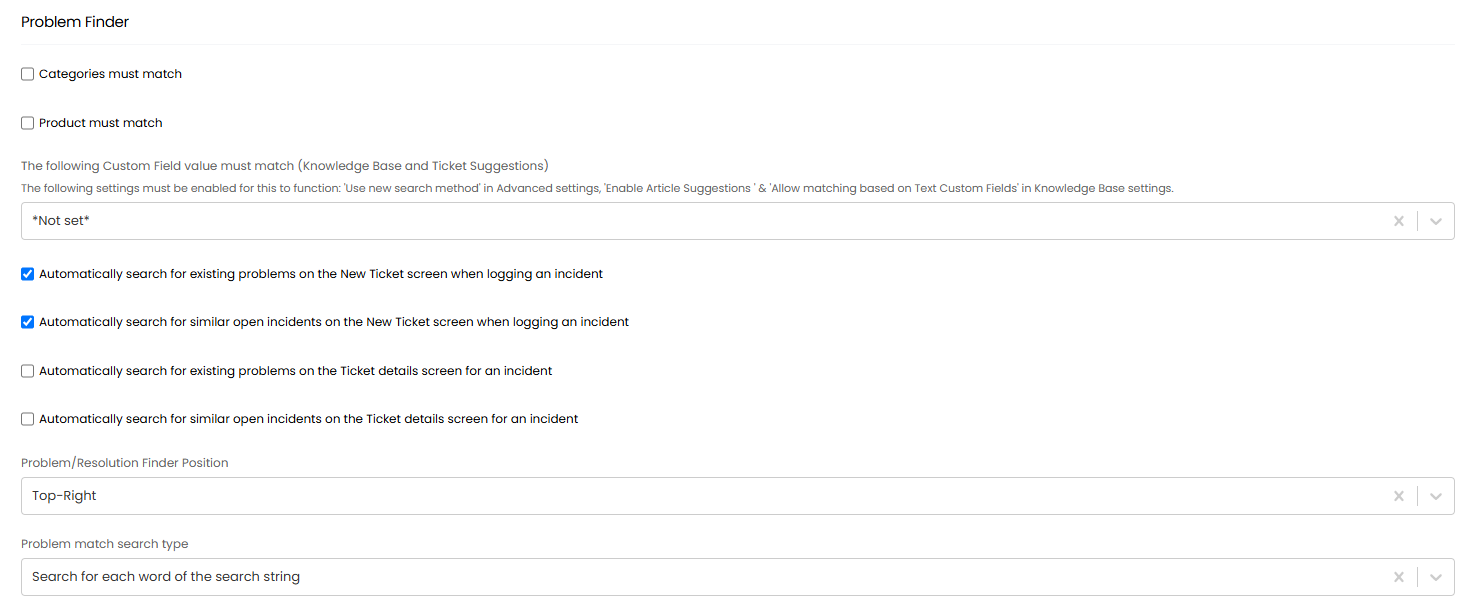
Fig 4. Problem Finder configuration.
Logging a Major Incident Ticket
Now that similar Incidents and Problems can be easily matched together, we can determine that this is a Major Incident. On an Incident Ticket, you will find an Action named "Major Incident". This Action will create a Parent Ticket with the Ticket Type "Major Incident", and automatically link this Incident as a Child Ticket.
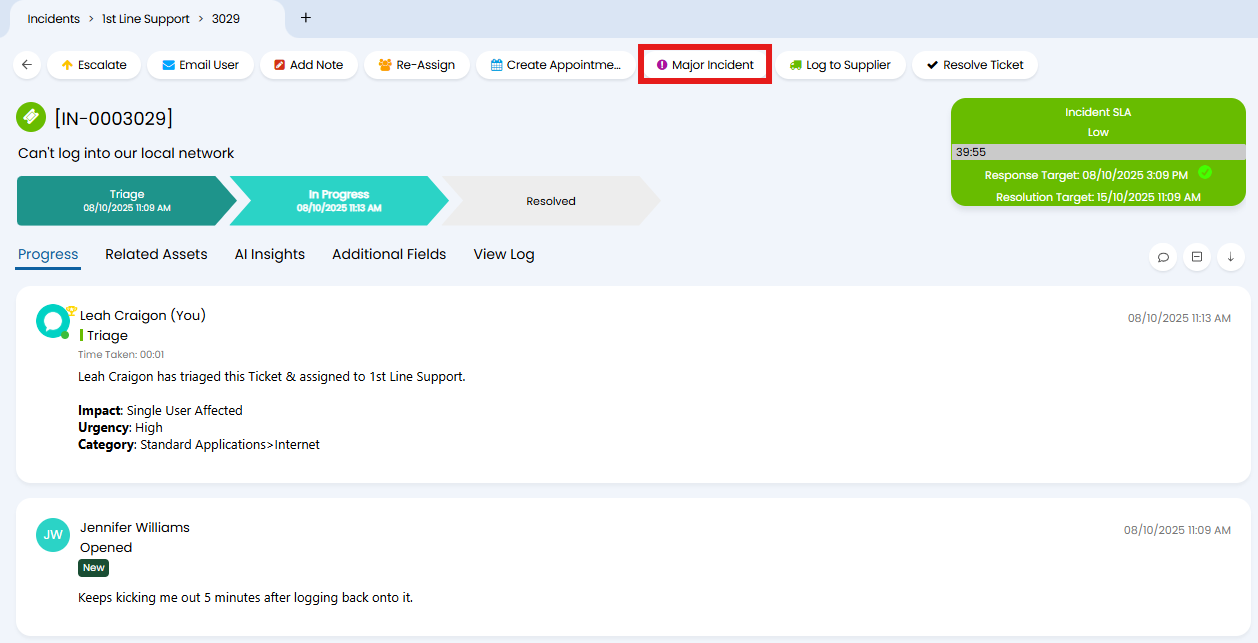
Fig 5. Major Incident Action.
A popup will show to log the Major Incident Ticket.
The Major Incident Ticket Summary will default to the Summary of the Incident Ticket. This is done by enabling "Default summary on new Ticket is summary of source Ticket" in Configuration > Tickets > Actions > Details tab.
Additional Details can then be left.
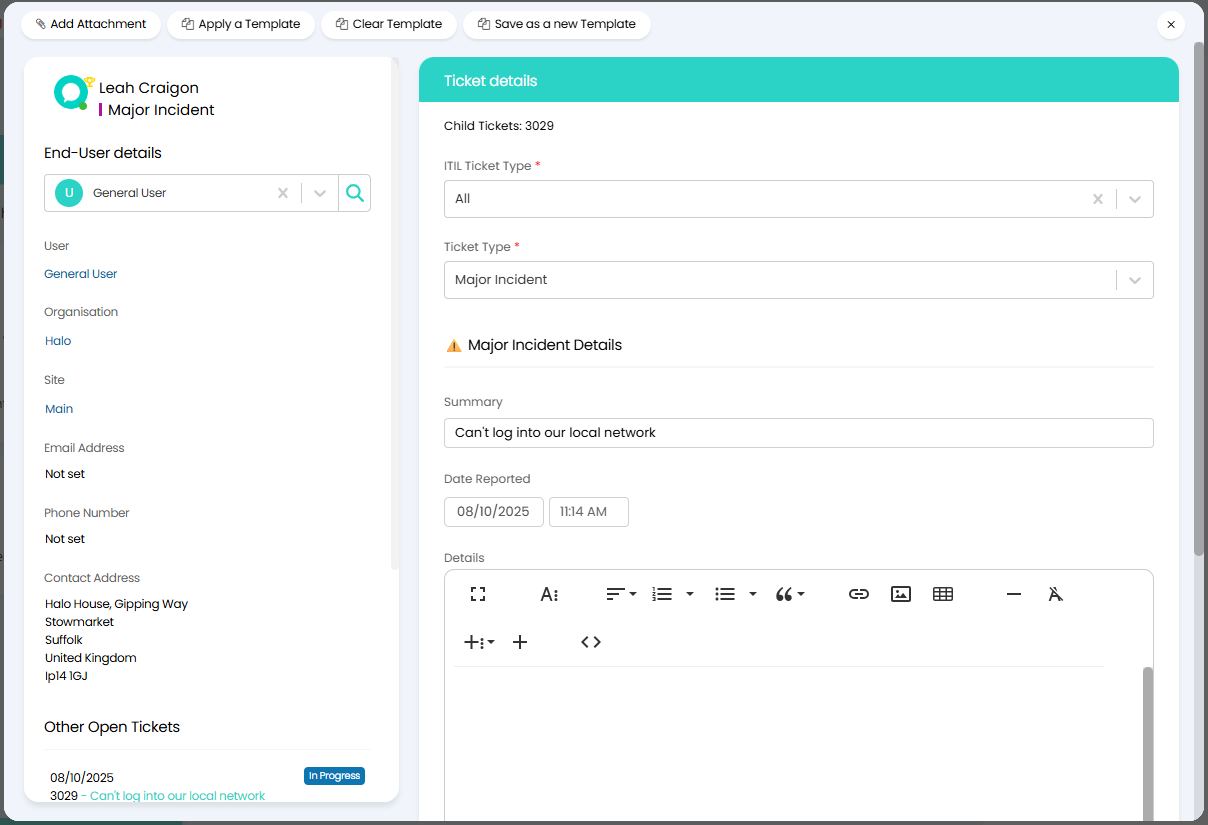
Fig 6. Setting the main details.
You can then set the Impact and who is affected, Automatically assign to Team on the Ticket Type. The Assigned Team and Agent will be defaulted from the Ticket Type (Configuration > Tickets > Ticket Types > Defaults tab > "Team"/"Agent").
You can then link any Assets that are affected by the Major Incident through the "Asset" Field. This is added to the Ticket Type in the "Field List" tab.
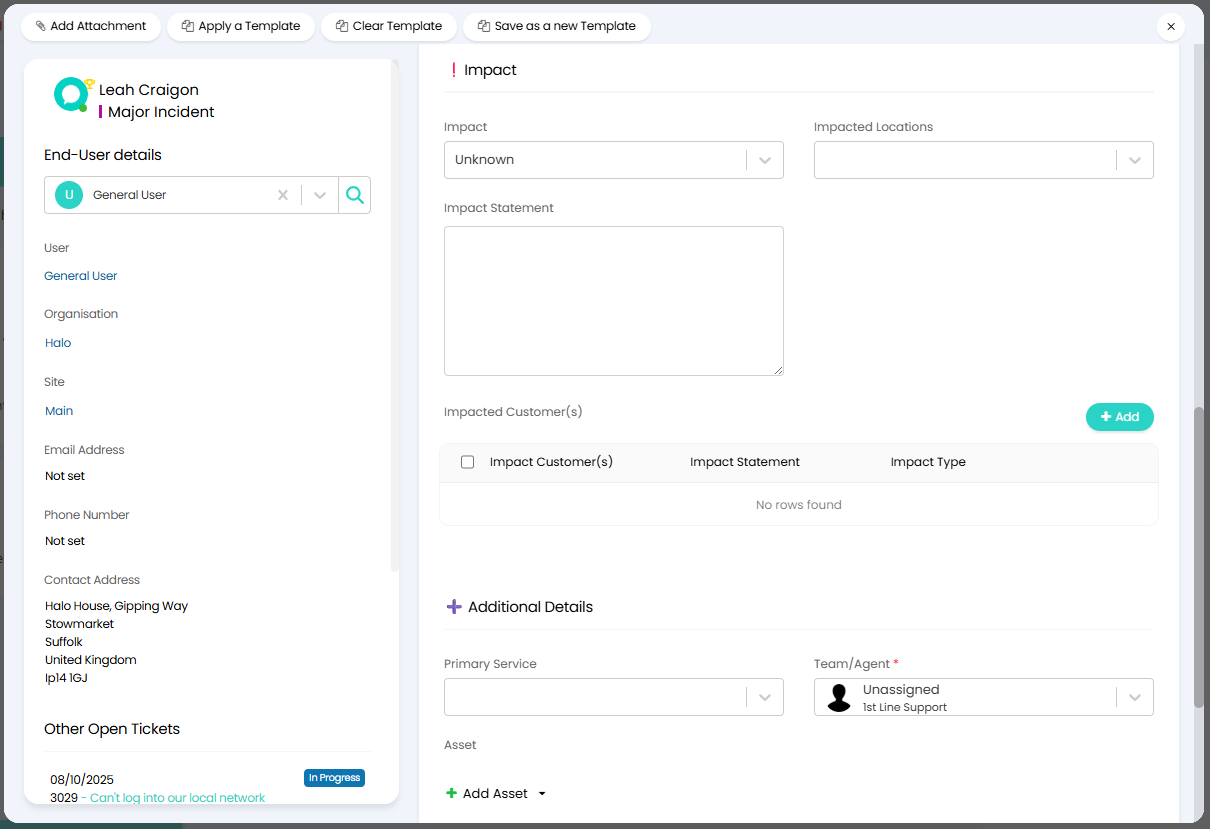
Fig 7. Setting Impact and additional information.
When clicking "Add Asset", the Asset screen will show to select the impacted devices. This is a multi-select, and you can also filter and then bulk select the results to add these quickly.
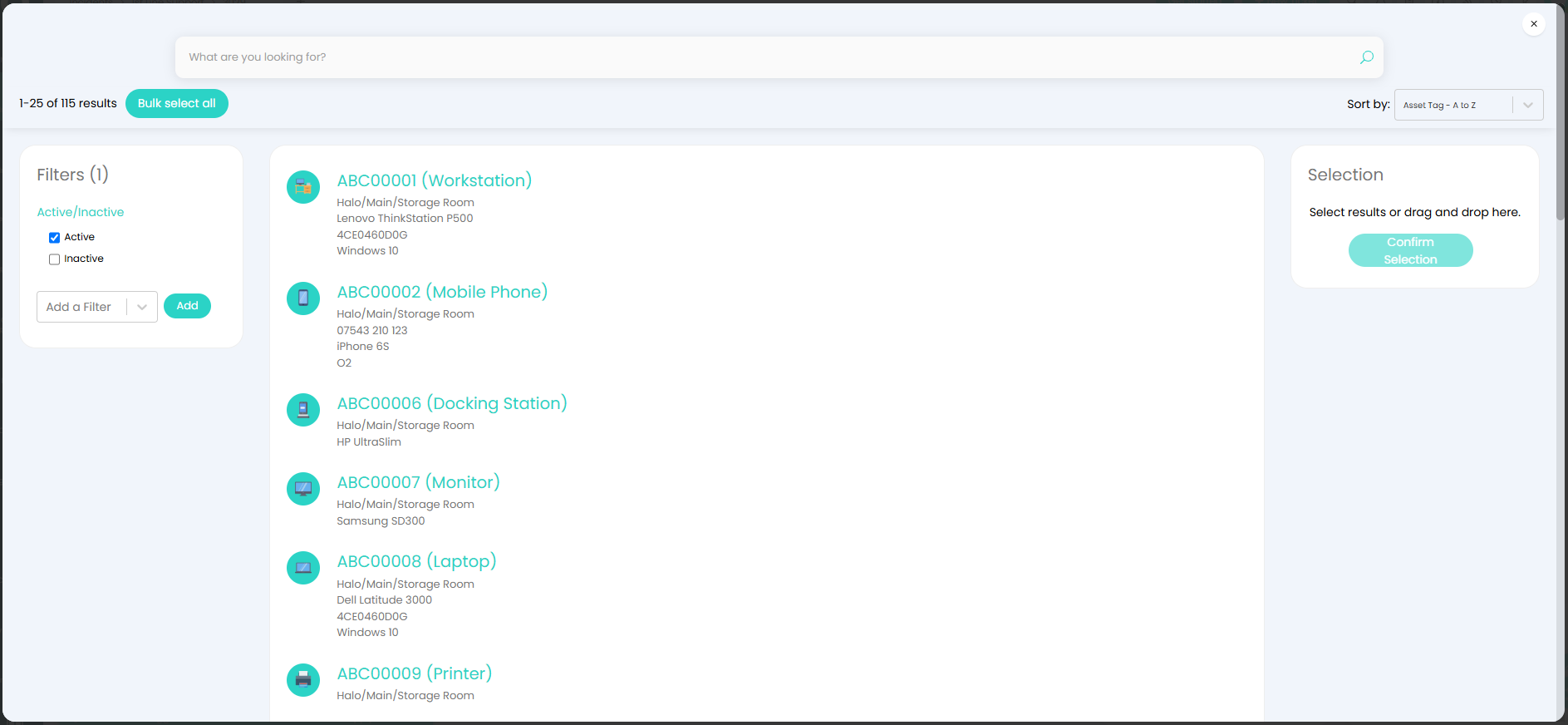
Fig 8. Asset screen.
The Asset(s) will then be linked to the Major Incident Ticket, and we can now log this.
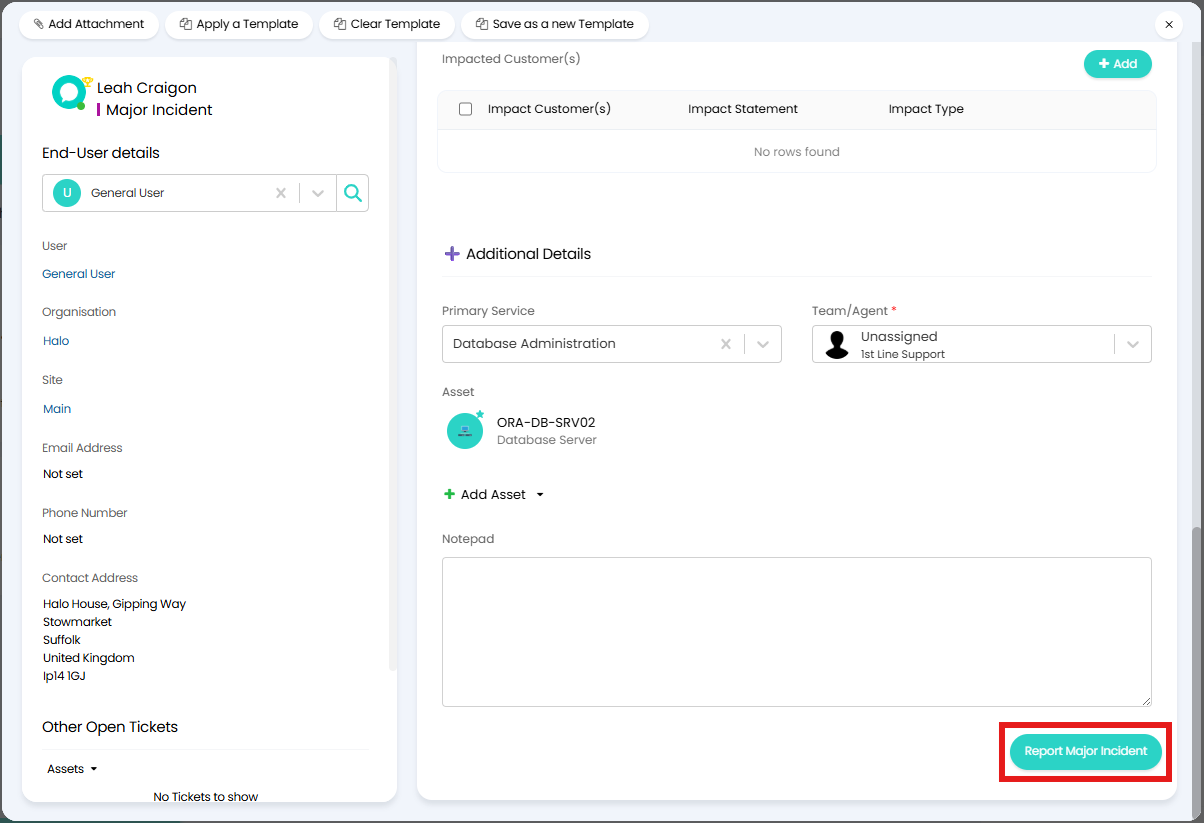
Fig 9. Logging the MI.
If the impacted Asset has any linked downstream relationships, a warning popup will show to highlight these as well.
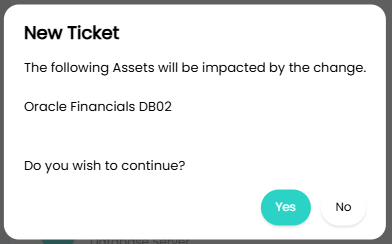
Fig 10. Asset relationship warning.
The Major Incident will show a Dashboard that provides information about the issue at a quick glance. This is added to the Ticket through a Custom Tab.
Within the "Work Activity" widget, you will also be able to log "Business Tasks" and "Technical Tasks" to complete the work needed to resolve the issue.
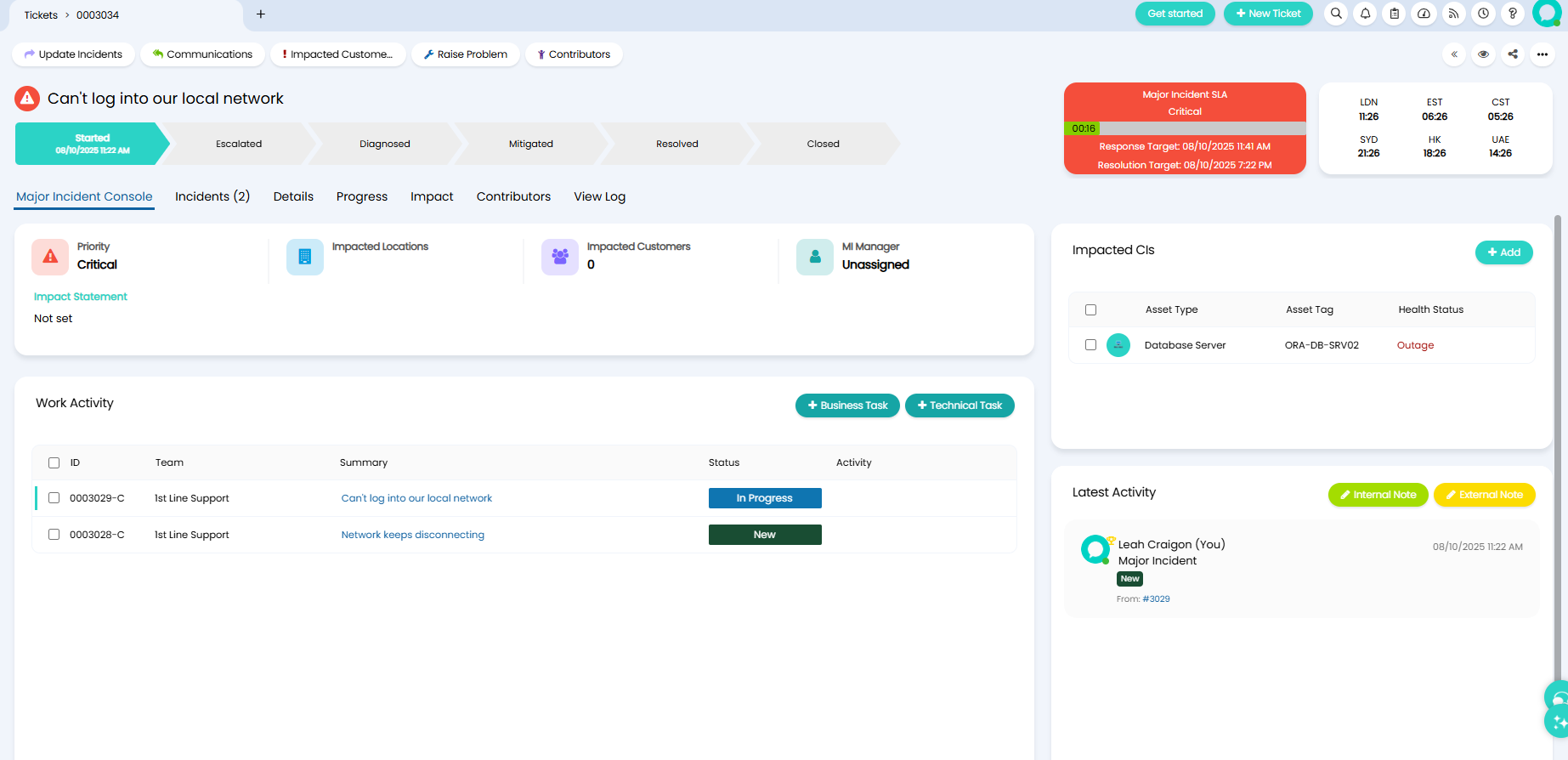
Fig 11. MI Dashboard.
When additional Tickets come in relating to the same issue, you can link them to the MI Ticket as a Child. Navigate to the three dots in the top right of the Ticket, hover and select "Link to another Ticket". You can then select the Major Incident from the list.
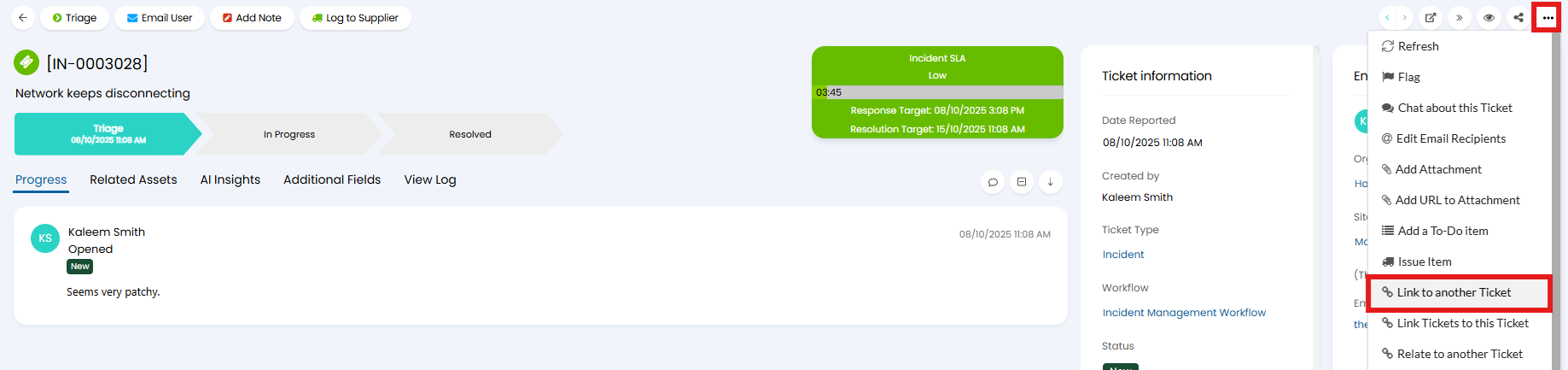
Fig 12. Linking additional Tickets.
Actioning the Major Incident Ticket
At the top of the Major Incident Ticket, you will see the below Actions to track the impact and progress of the Major Incident.

Fig 13. OOTB Actions.
1) Update Incidents
The "Update Incidents" Action will send an email to the End-User of the Major Incident Ticket and any Child Incident Tickets.
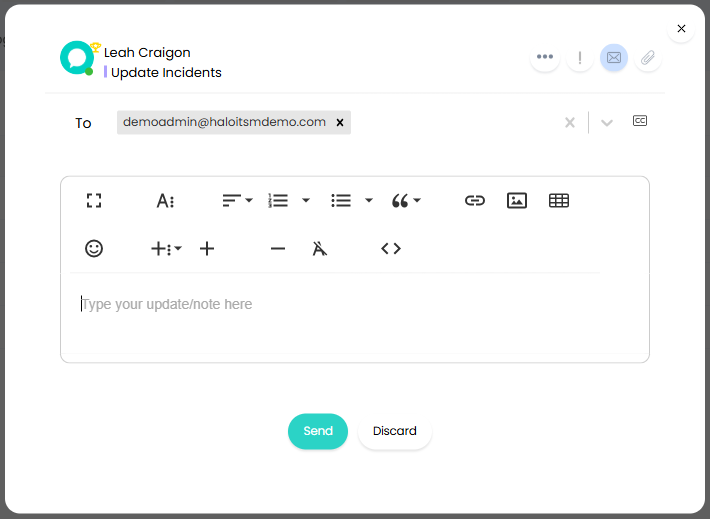
Fig 14. Update Incidents Action.
The Action shows here in the Latest Activity, and that it has also been added to Child Tickets.
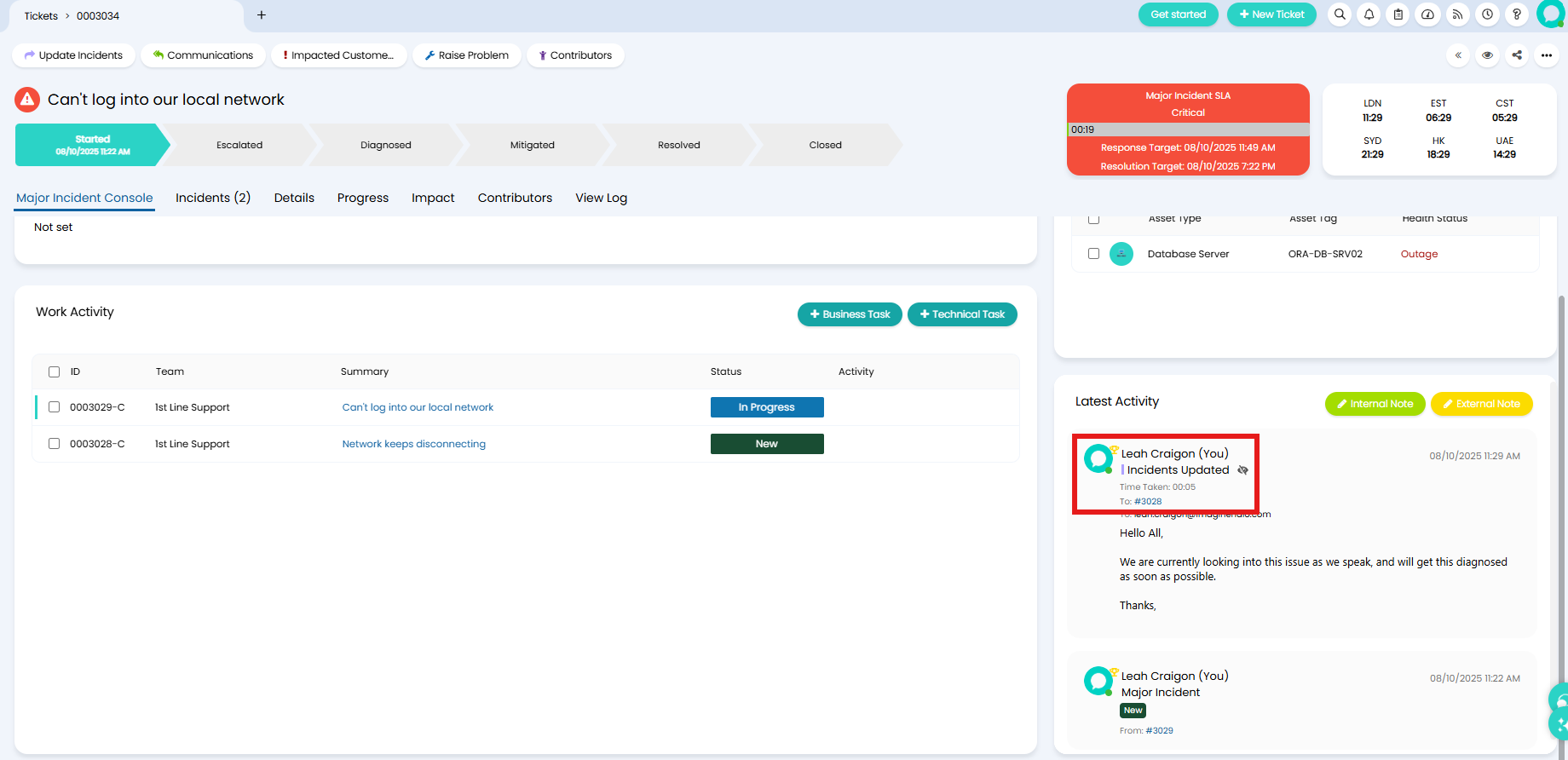
Fig 15. Action in Latest Activity.
2) Communications
The "Communications" Action can be used to send email updates to business stakeholders.
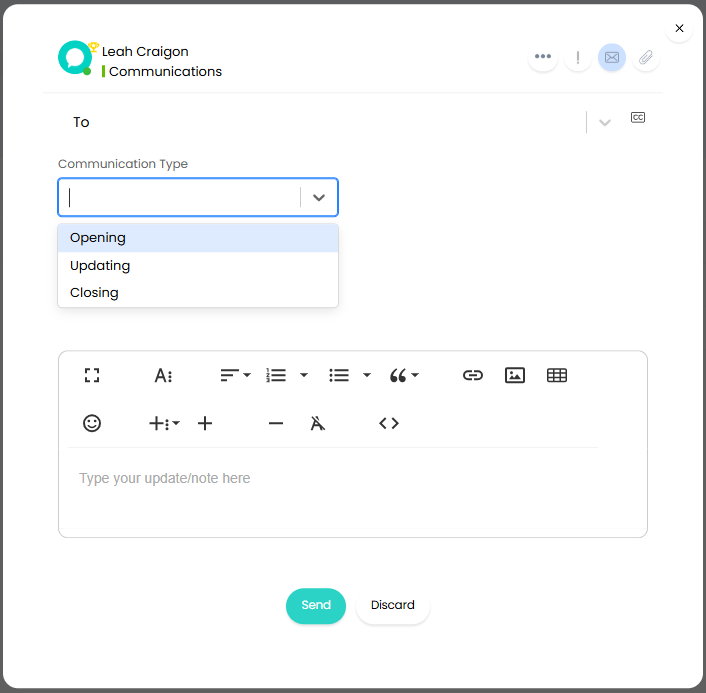
Fig 16. Communications Action.
3) Impacted Customers
The "Impacted Customers" Action uses a Custom Table to track those impacted by the change.
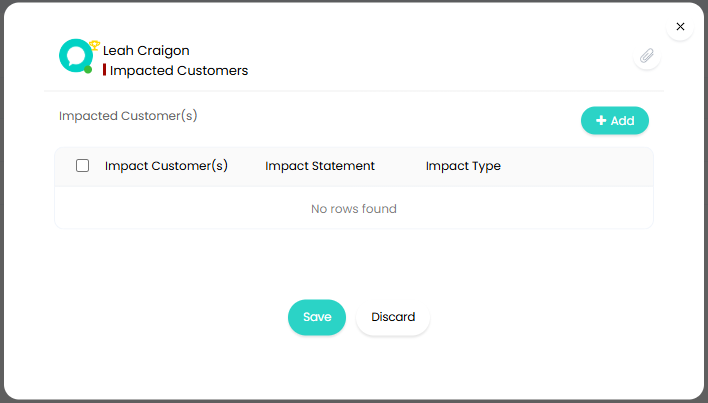
Fig 17. Impacted Customers Action.
Customers can be selected from the dropdown, alongside a statement on the Impact faced and its level.
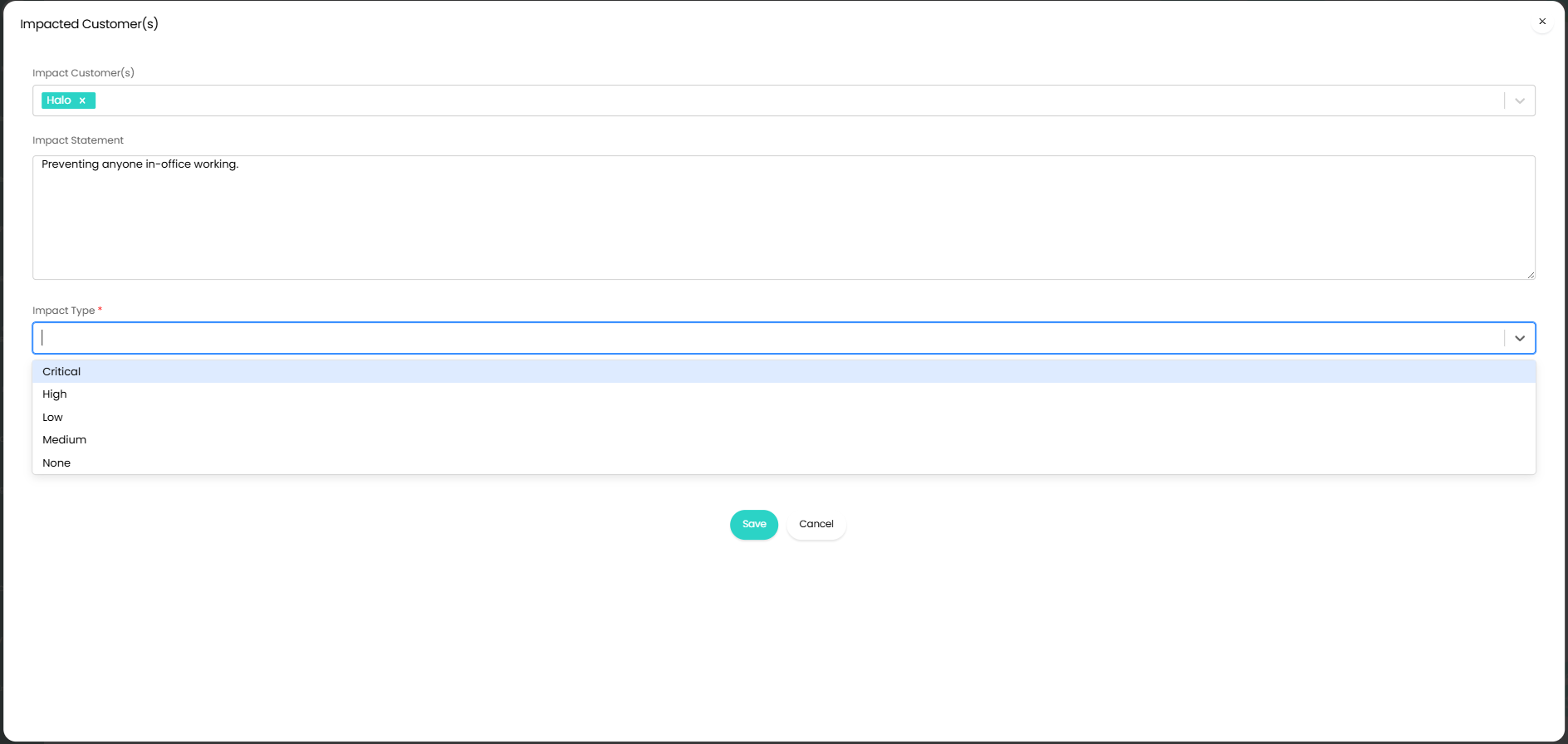
Fig 18. Filling in the Custom Table.
Clicking save will add a row to the table.
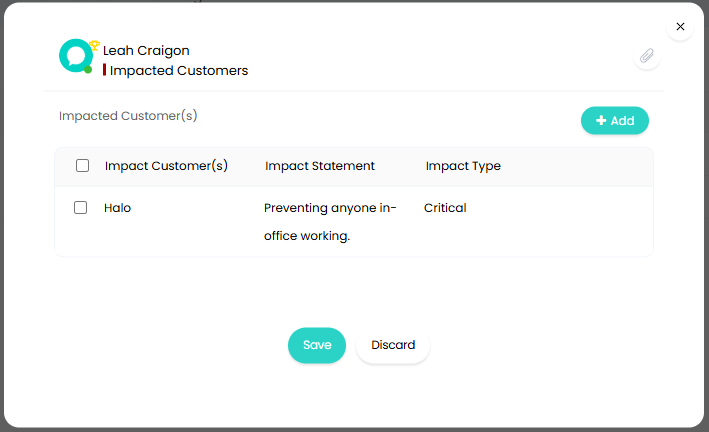
Fig 19. Custom Table data example.
Once fully saved, the data is stored in the "Impact" tab on the Major Incident Ticket.
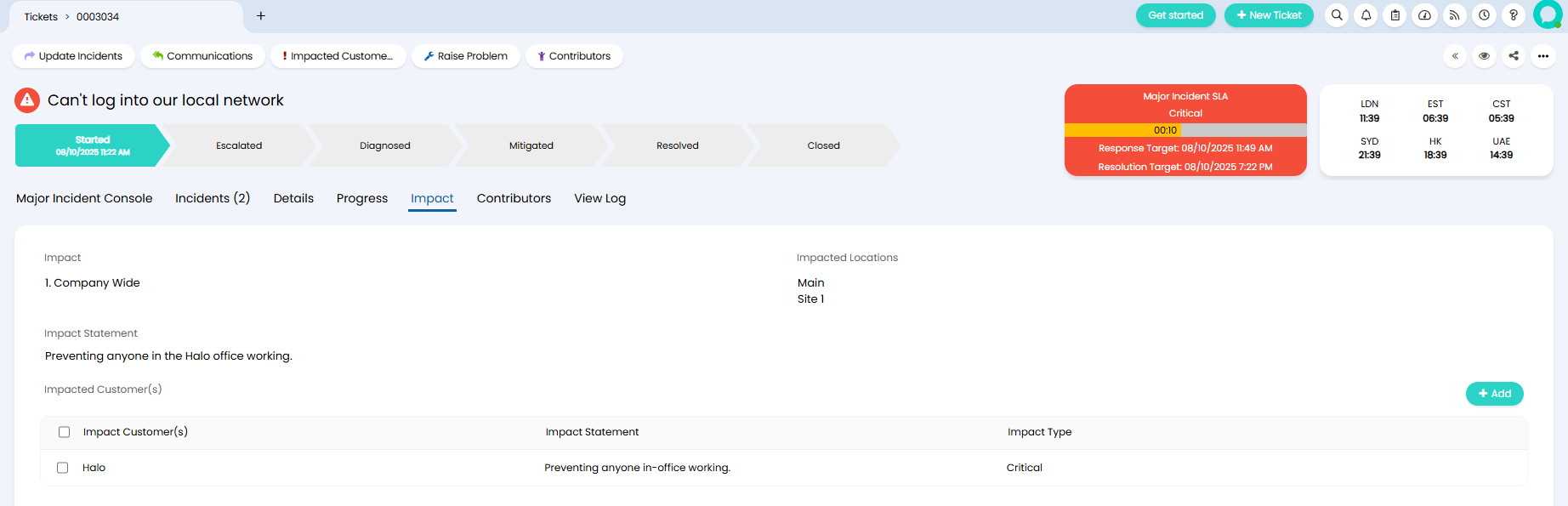
Fig 20. Impact Tab with Custom Table.
4) Raise Problem
The "Raise Problem" Action can be used to log a Problem Ticket that will be linked as a Parent Ticket. This allows Agents to quickly action the root cause of the Major Incident, and update it accordingly.
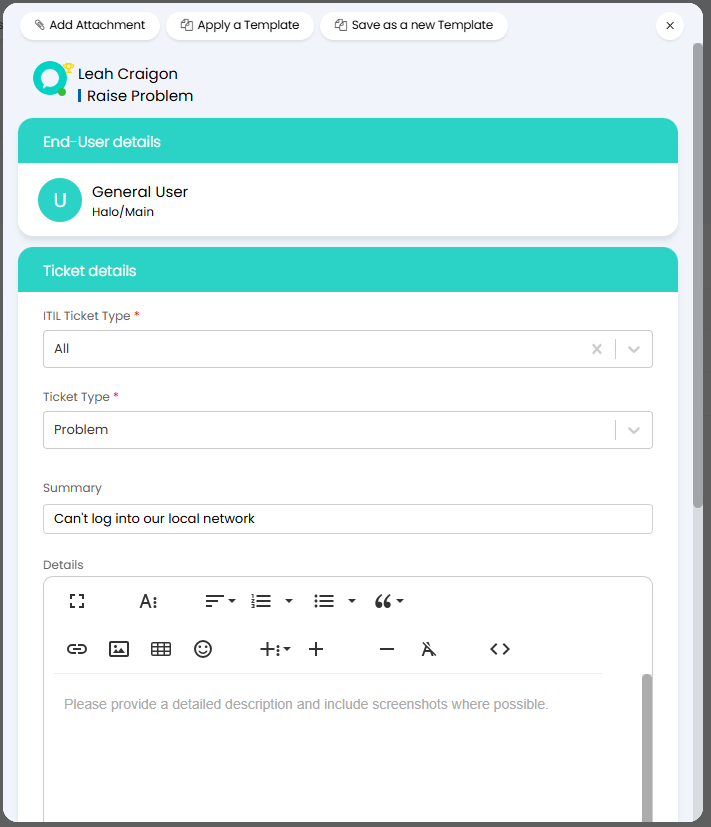
Fig 21. Raise Problem Action.
5) Contributors
The "Contributors" Action allows Agents and Users to be added as Contributors for the Major Incident. Each can select a role, which can be configured as Lookup Values. This can track everyone who has worked on a Ticket.
Within Configuration > Tickets > Ticket Types > Forms tab, you can enable "Prompt to add contributor when first opening Ticket" to force this to be done as well.
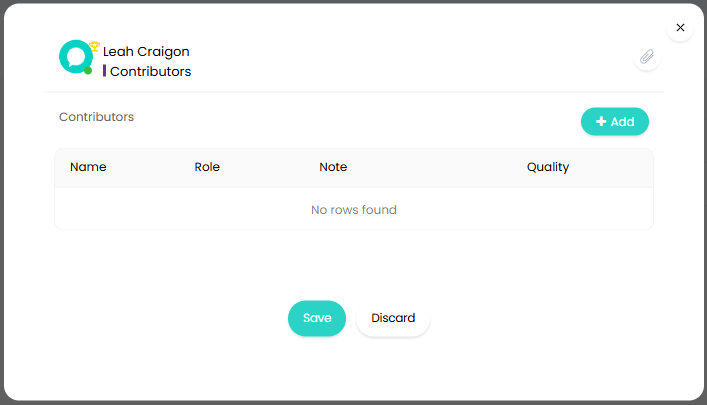
Fig 22. Contributors Action.
Select a User and then you can add a Role, Note, and Quality. This can then be reported on, so when looking back at similar Major Incidents it can be seen who is most useful to resolving the issue.
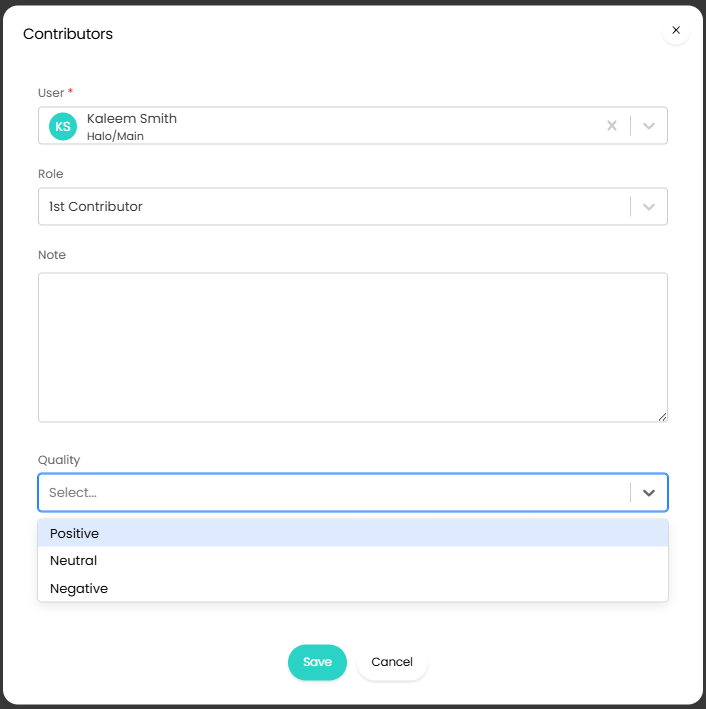
Fig 23. Adding Contributors.
Upon saving, this information will be added to the "Contributors" tab on the Major Incident.
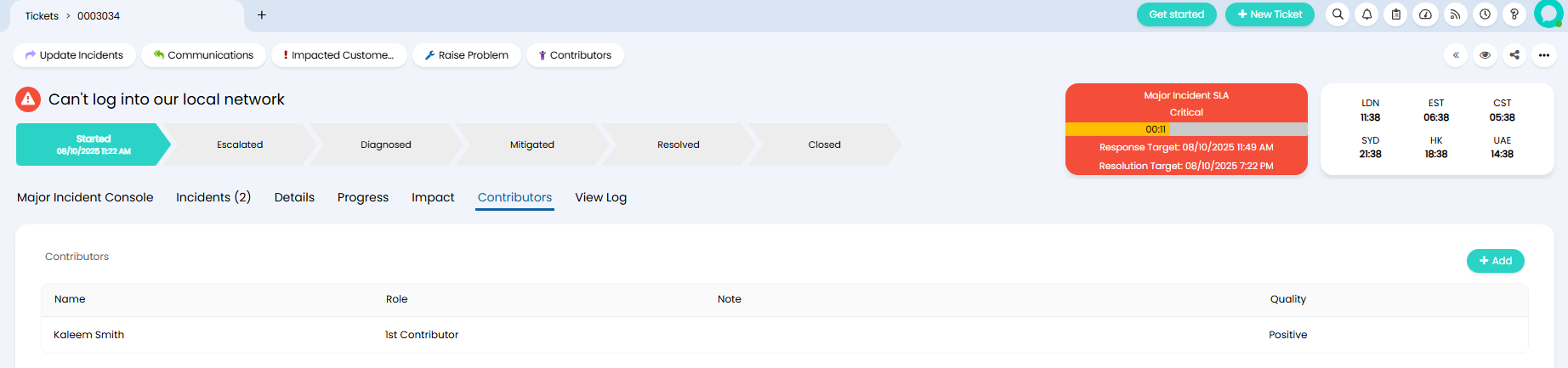
Fig 24. Contributors tab.
6) Updating Major Incident via interactice Chevron Workflow
As you work your way through resolving the issue, you can click on each chevron Workflow Stage to move it back and forth.

Fig 25. Workflow Stages.
This will show the "Update Progress" Action, where a note can be added.
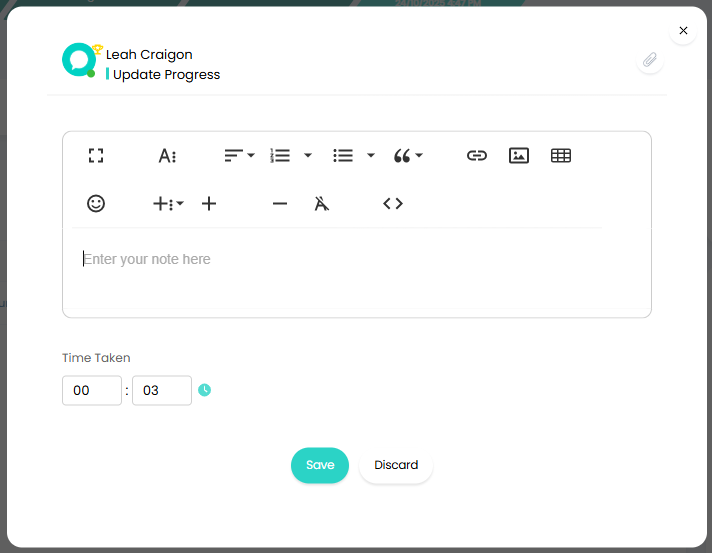
Fig 26. Updating the Workflow Stage.
7) Microsoft Teams 2-Way Chat from within the Major Incident
The Major Incident Ticket supports a native 2-way integration with Microsoft Teams, enabling agents and stakeholders to collaborate in real time without leaving the context of the incident. Messages sent in the linked Teams chat are reflected on the MI Ticket timeline, and replies made on the ticket flow back into Teams, keeping all communication fully in sync.

Fig 27. Microsoft Teams 2-Way Chat on the Major Incident Ticket.
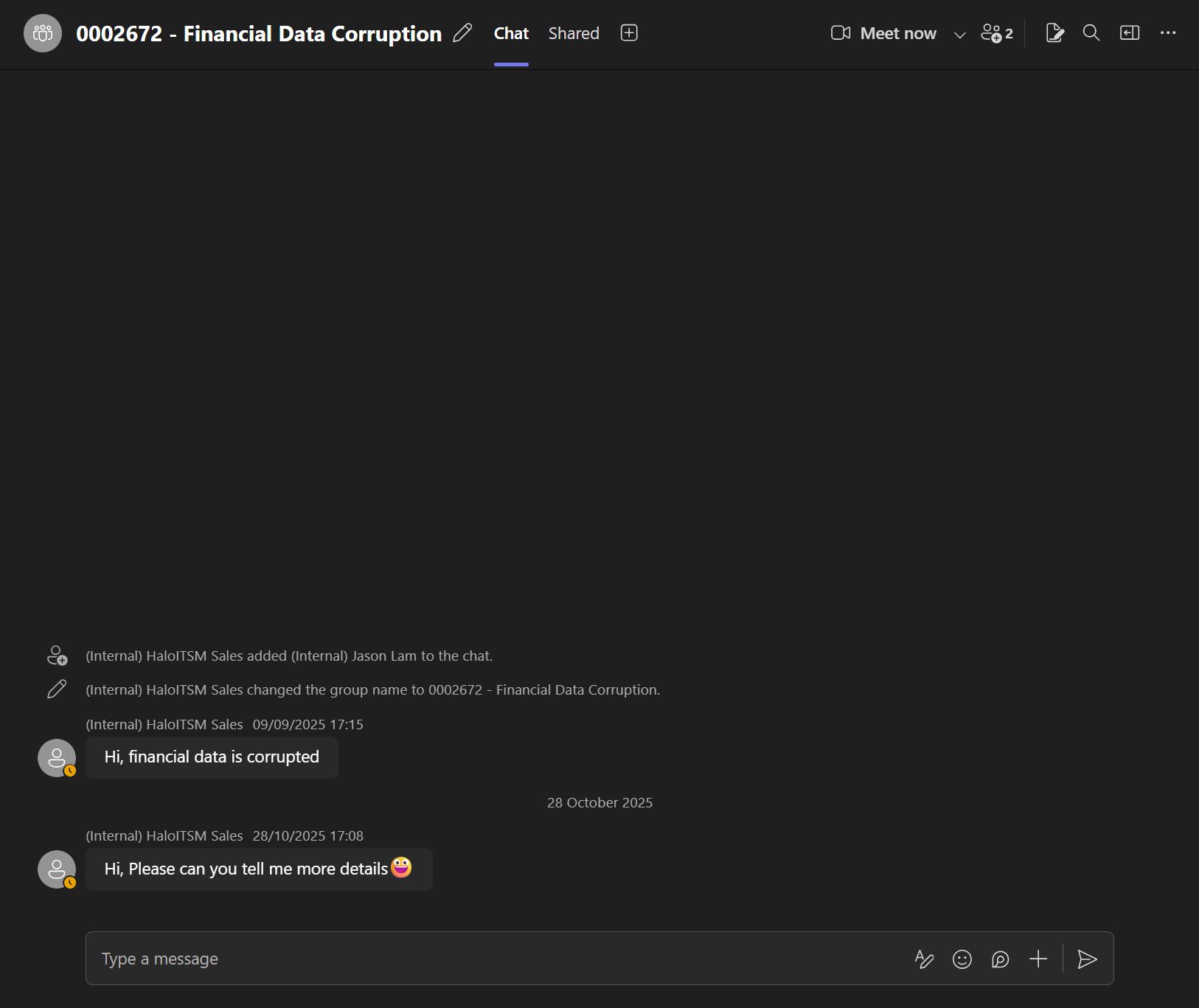
Fig 28. Microsoft Teams 2-Way Chat within MS Teams.
8) World Clocks
Major Incidents frequently involve responders and stakeholders spread across multiple time zones. E.g. on-call engineers in different regions, offshore support teams, and business stakeholders in global offices.
World Clocks solve this by displaying the current local time for multiple configured time zones directly within the Major Incident Ticket interface. This removes any ambiguity when coordinating handovers, scheduling calls, or recording the timeline of events
Configuring World Clocks
World Clocks are configured in configuration>advanced settings and are then visible to all agents on Major Incident Tickets. Here you can add up to 6 time zones as required, give each a friendly label (e.g. London (UK), New York (ET), Sydney (AEST)), and set the display order.
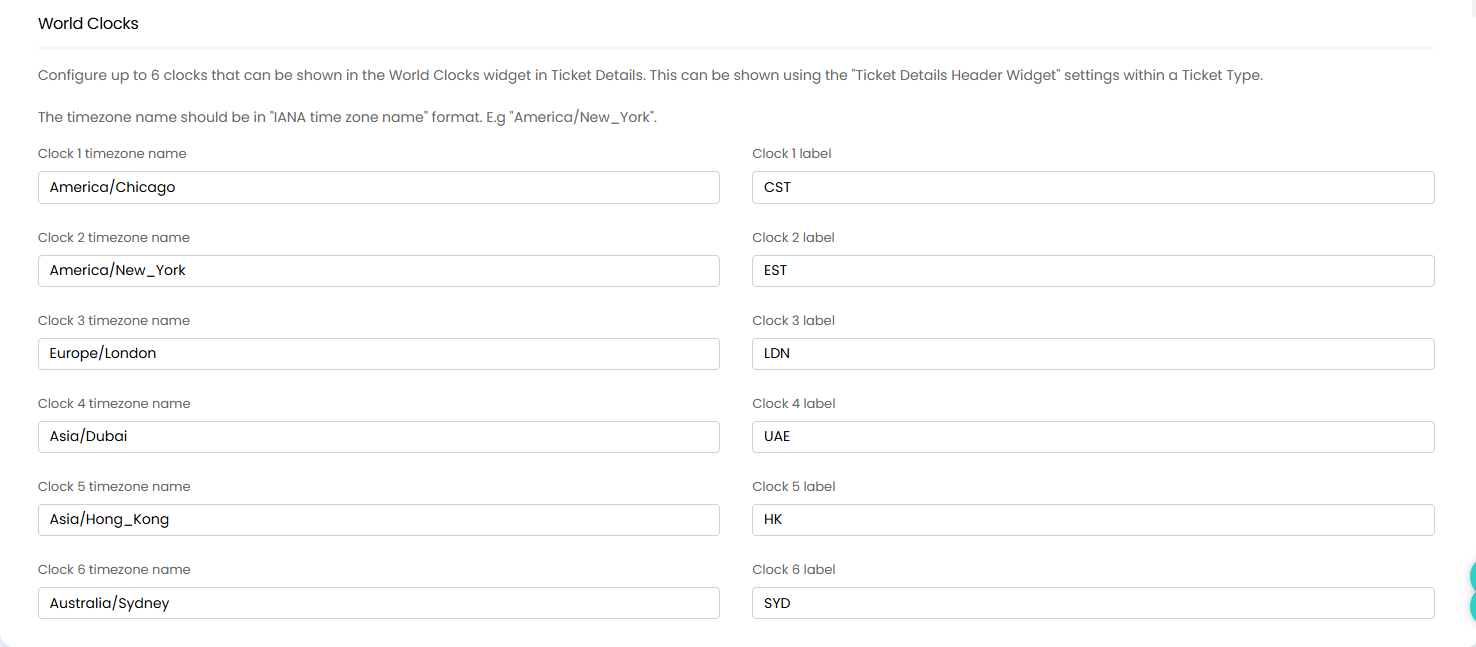
Fig 29. World Clocks configuration
Once configured, the World Clocks widget is visible within the Major Incident Ticket, displaying the live current time for each configured zone.
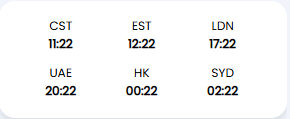
Fig 30. World Clocks on the Major Incident Ticket.
Resolving and Closing the Major Incident
In a similar way to moving the other Workflow Stages along. to close the Major Incident, we will click the "Closed" chevron to use the "Resolve Major Incident" Action. This will close the Ticket and send an email to the End-User of the Major Incident, as well as each Child Ticket.
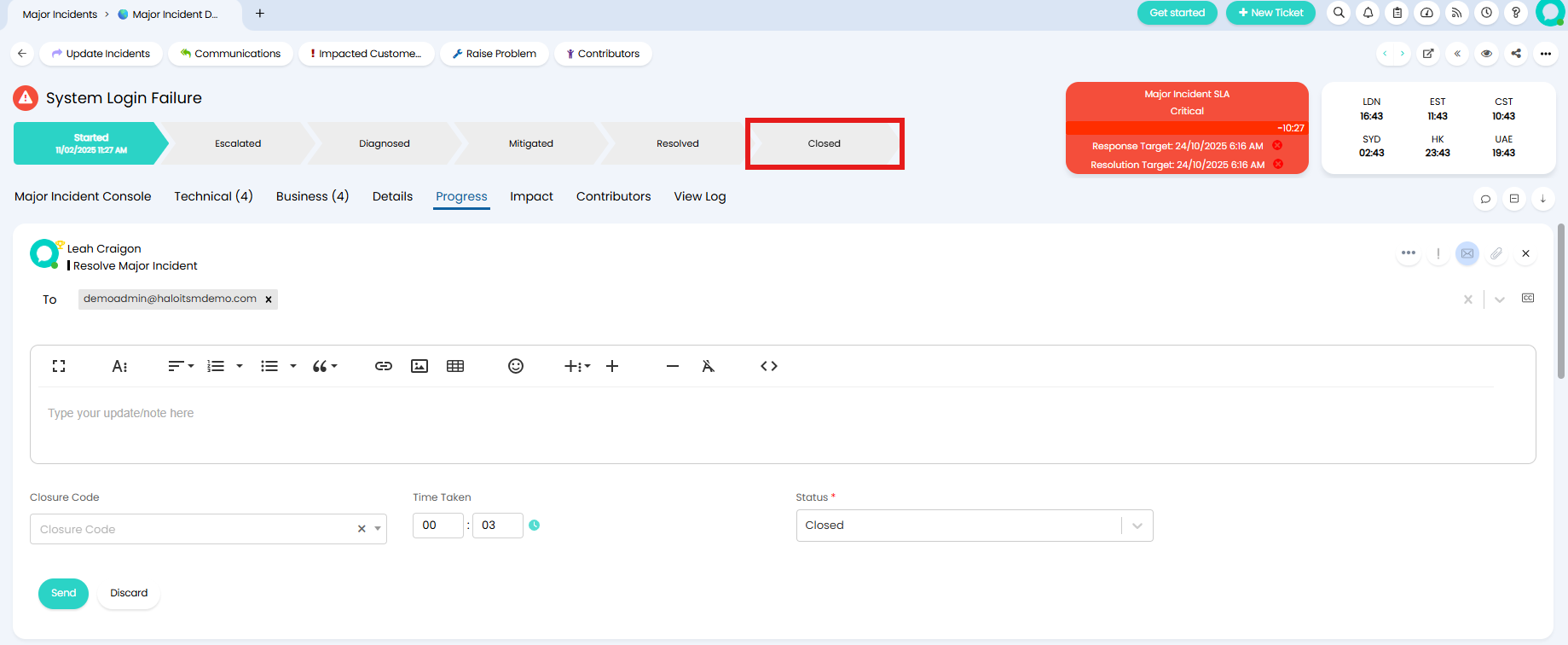
Fig 30. Closing the MI.