Updating Workflow Step Based on the Stage that is Clicked
In this guide we will cover:
- Setting up Chevron view
- Editing the Workflow
- Using on a Ticket
Within the Details tab of the workflow, you can add in the step you would like to move to if the chevron view is enabled and a stage of the workflow progress visual is clicked on.
Setting up Chevron view
To enable the chevron view navigate to Configuration > Tickets > General Settings:
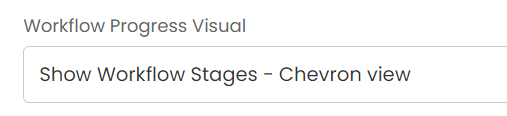
Fig 1. Workflow Progress Visual Setting Found in Tickets General Settings
You can also set whether the start date or end date of the stage shows (The date when the stage commenced, or the date when the stage was finished), this is a dropdown option that becomes visible when you have the above dropdown set to chevron view:
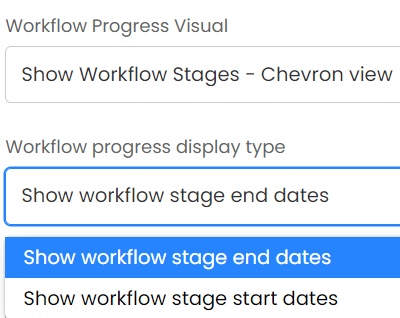
Fig 2. Setting the Start or End Date for the Stages Displayed on the Ticket
Editing the Workflow
Stages are a feature where each step can belong to a Stage. The Stage that a workflow is at can then be indicated on a Ticket, via the chevron view. To configure the workflow step change, when clicking into a stage on the chevron view, we must edit the details tab of the workflow (The actions which can be executed during the step change, are restricted to actions that are allowed at all steps)
Navigate to the details tab of your workflow, in this example, a problem management workflow has been used, where the use case is that the agent has initially moved to the "Root Cause Identified" step, but has later realised the root cause hasn't actually been identified yet:
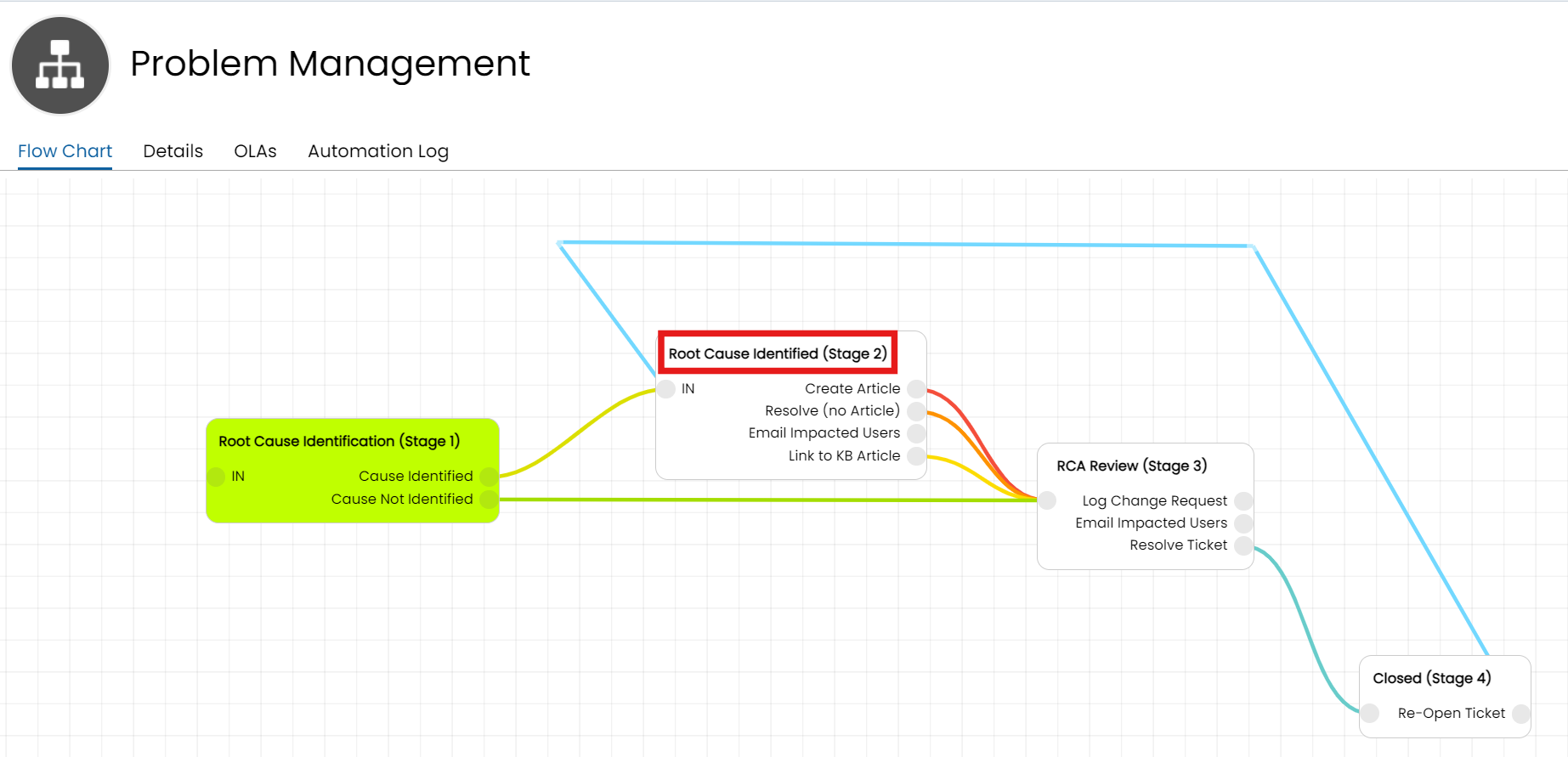
Fig 3. Example Workflow for Moving Step
In order to reverse this mistake, we can add in the step to move to from the details tab of the workflow. For example if we are currently on the "Root Cause Identified" Stage, we will be able to move back to the "Investigation" Stage when the agent realises their mistake:
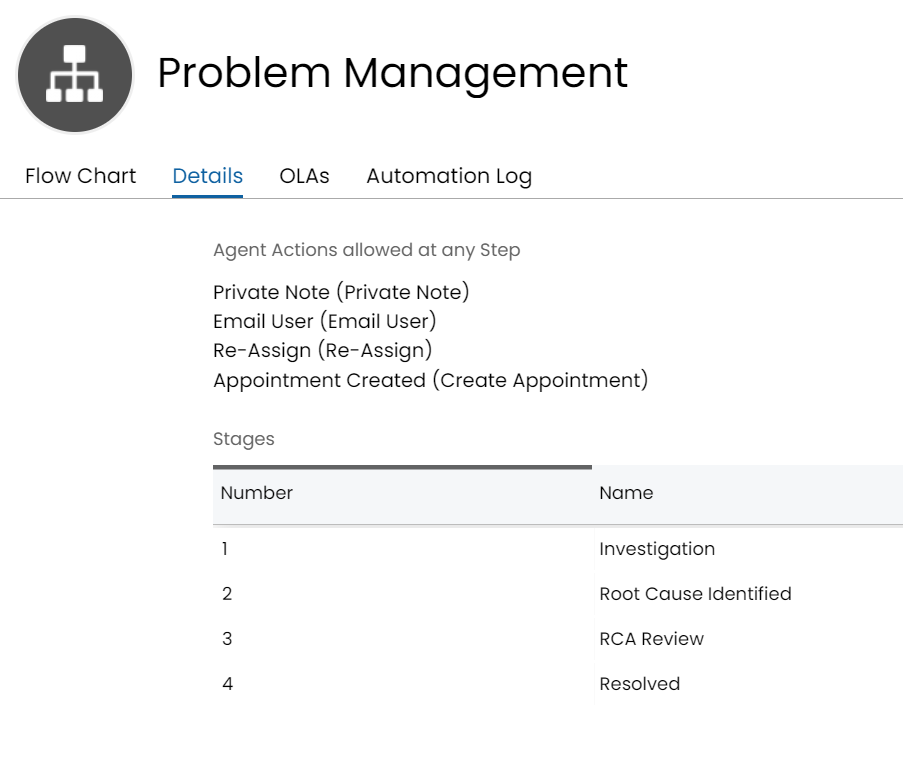
Fig 4. Update Stage Based on The Real Time Situation of the Ticket
When in the edit view of the Details tab of the workflow, you can set the action to use (This must be an action that can be used at any step of the workflow:

Fig 5. Agent Actions allowed at any Step
Now editing the workflow stage and adding the action to perform, we can configure the workflow step change, when clicking into it from the chevron view. In this situation, I will add a step change for the "Investigation" stage, this will allow agents to click into this stage, perform a private note, which will then allow the step to update:
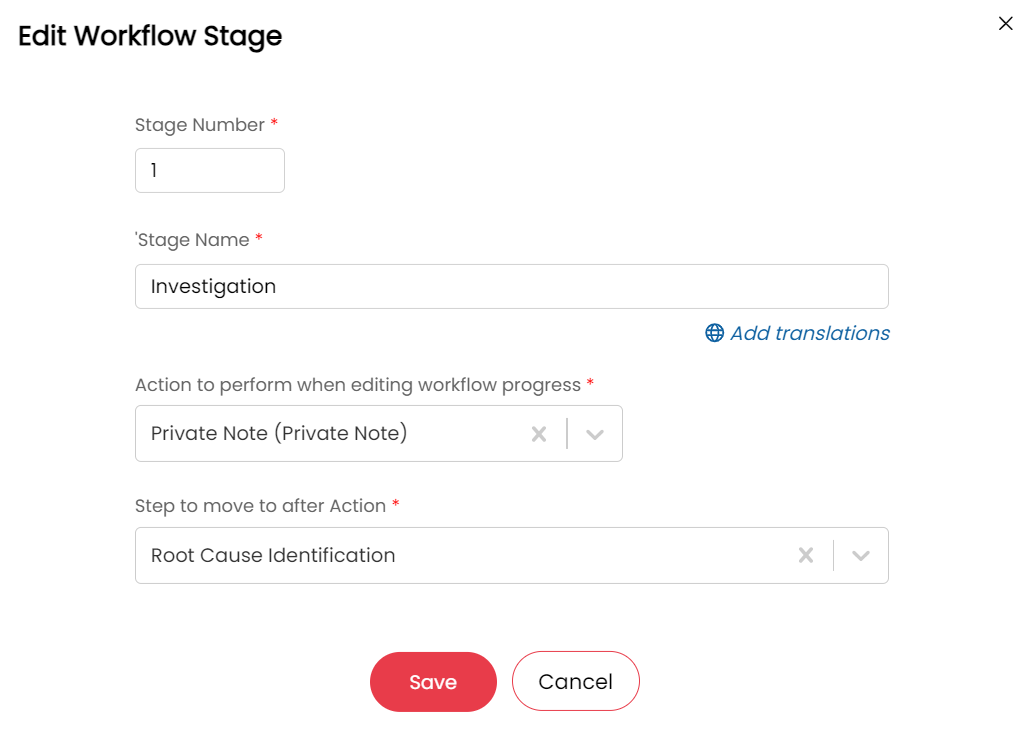
Fig 6. Editing the Stage to add a Step to Move to After Performing the Private Note Action
Using on a Ticket
This is how our Chevron view displays on the ticket:
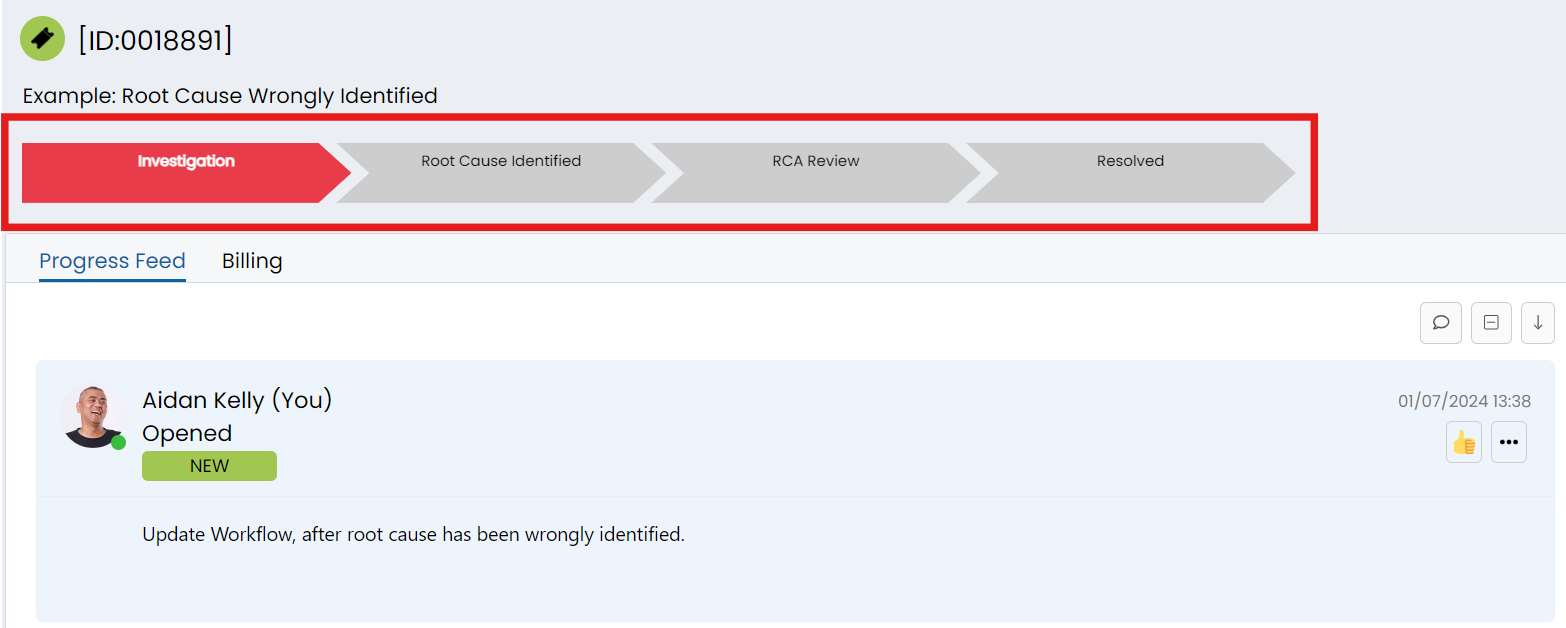
Fig 7. The Chevron View on the Problem Ticket
The agent has wrongly Identified the Root Cause:
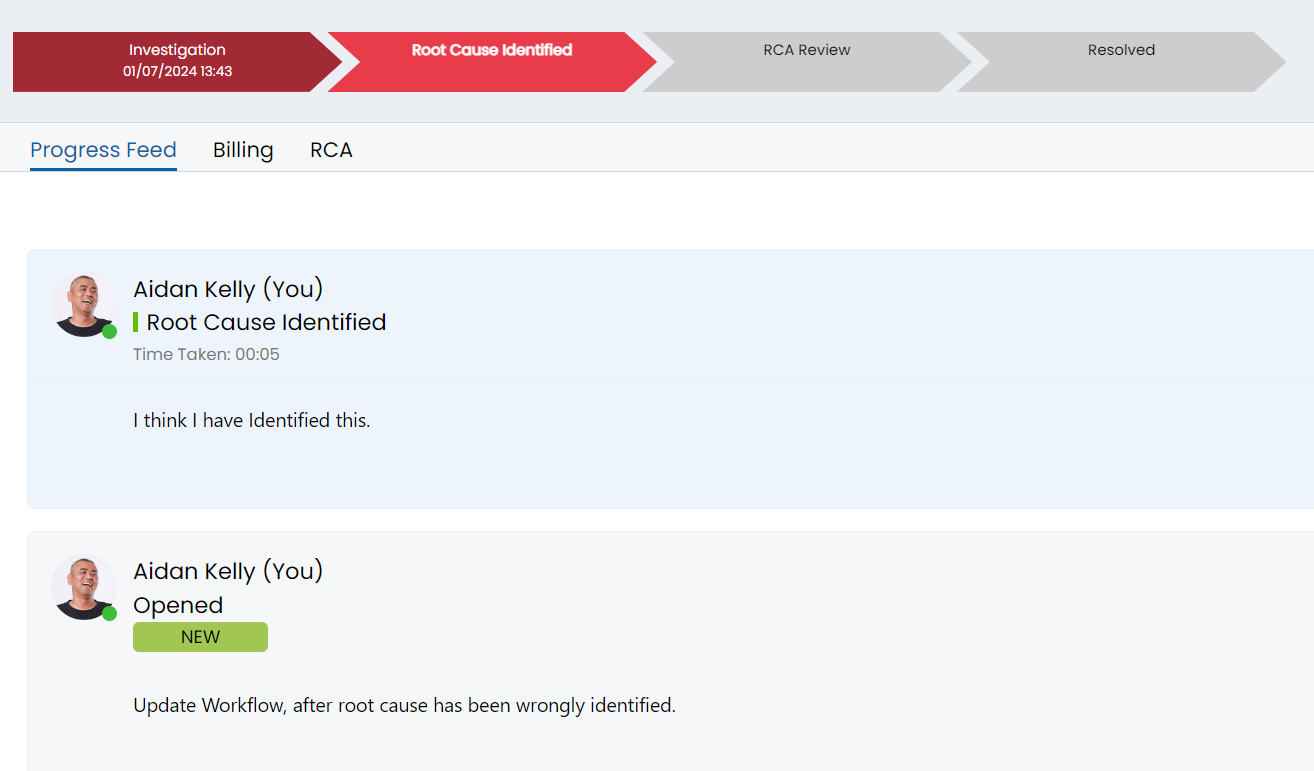 Fig 8. Wrong Identification of the Root Cause
Now the "Investigation" stage chevron of the workflow can be clicked into, which will prompt a private note action to be added:
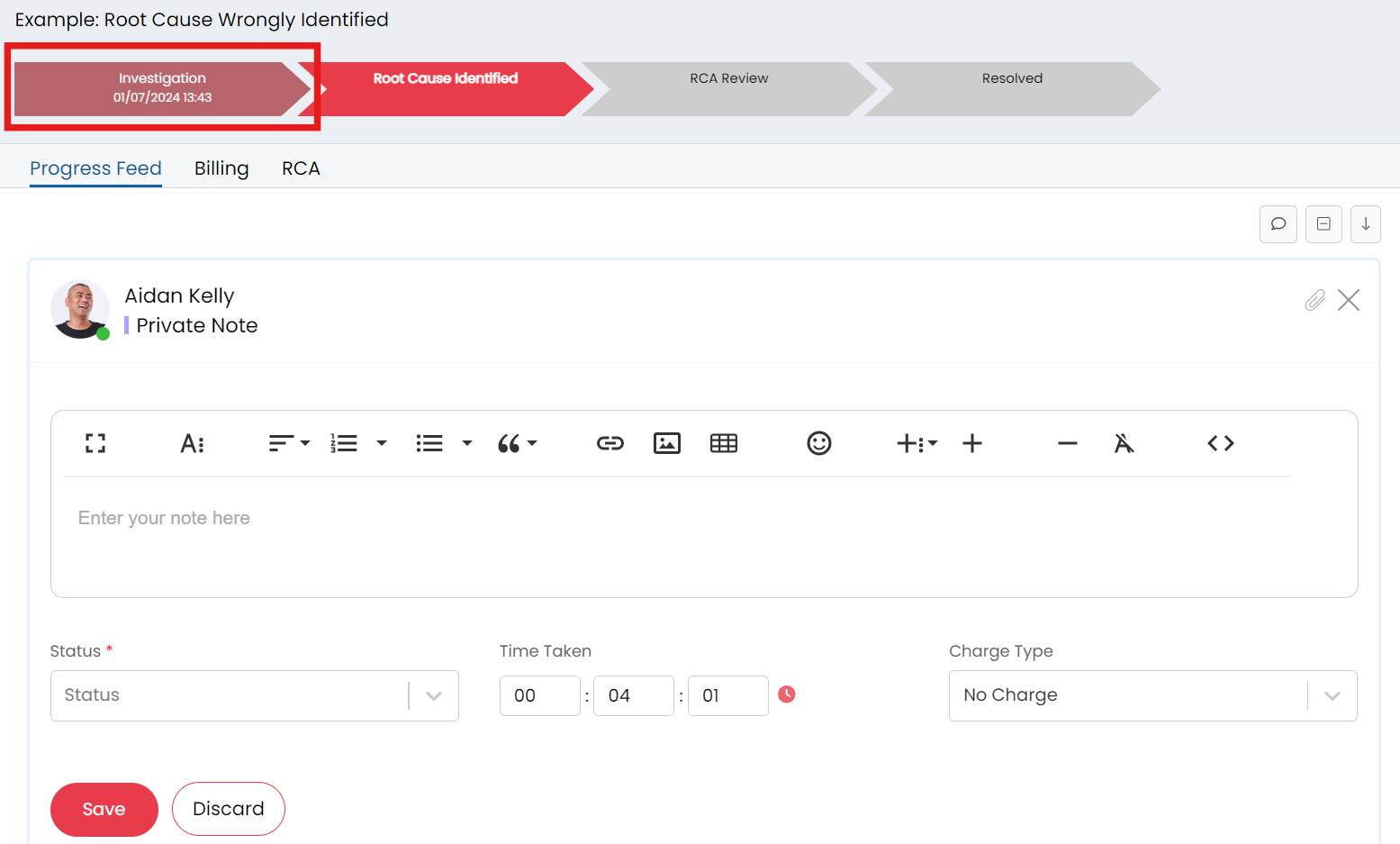
Fig 9. Clicking on the Stage I want to Move Back to and Adding the Private Note
After adding a private note, the step of the workflow will update and move back to the "Investigation" stage:
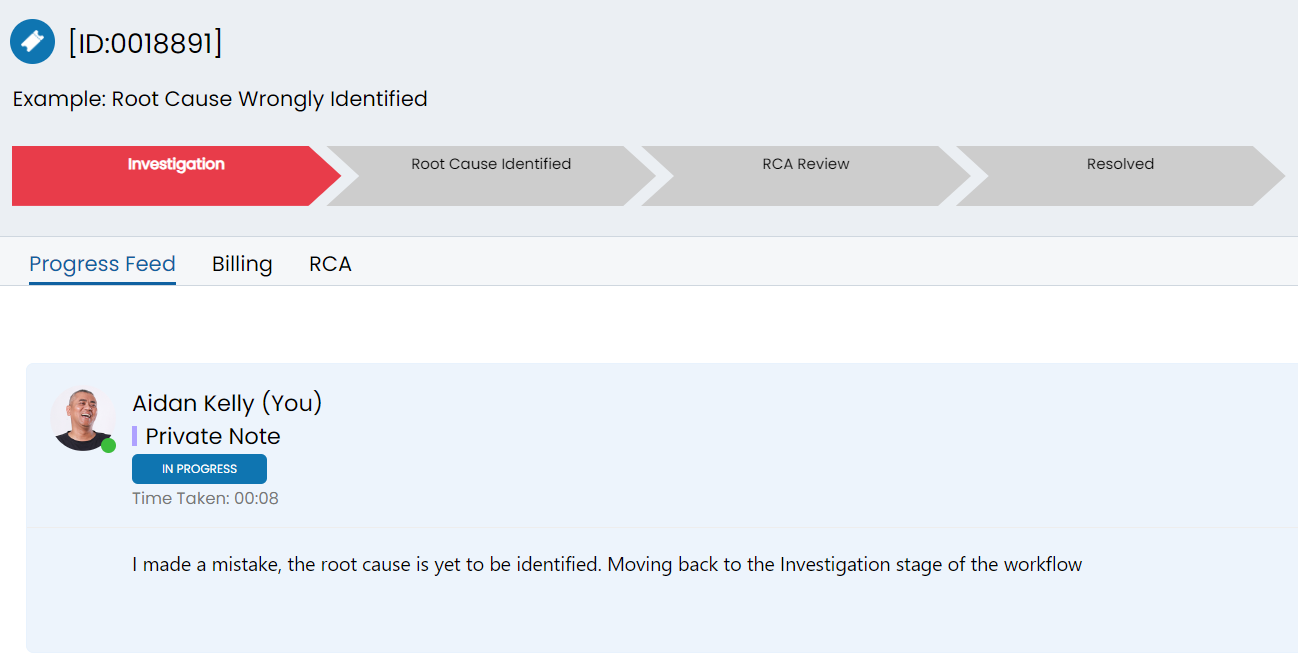
Fig 10. Workflow Step has been Updated and the Agent is Back at the Investigation Stage
Note: Updating the workflow step may not always change the stages displayed on the chevron view, if the step changes then the actions displayed in the ticket header will change to the actions allowed at the new step you have changed to.