Allow Suppliers to use the Portal
- supplier users
- supplier portal
- supplier contact
In this guide we will cover:
- Why allow Supplier Contacts to access the Portal?
- Creating Supplier Users
- Viewing Tickets in the Portal
- Viewing Documents and the Knowledge base in the portal
- Allow Supplier Users to update their details from the Portal
Why allow Supplier Contacts to access the Portal?
Supplier contacts in Halo can be allowed access to the end user portal. Allowing them to read and leave notes on tickets that have been logged to their supplier. Supplier contacts can also be allowed access to knowledge base articles and the documents stored against their supplier in Halo.
This provides an central location supplier contacts can use to review and action any issues logged to them.
Creating Supplier Users
A 'supplier user' profile must be created for each person at the supplier whom you would like to access your portal. Each user will require their own login details in order to access the portal.
To create a new contact head to Suppliers > select a supplier > Supplier Users tab > New.
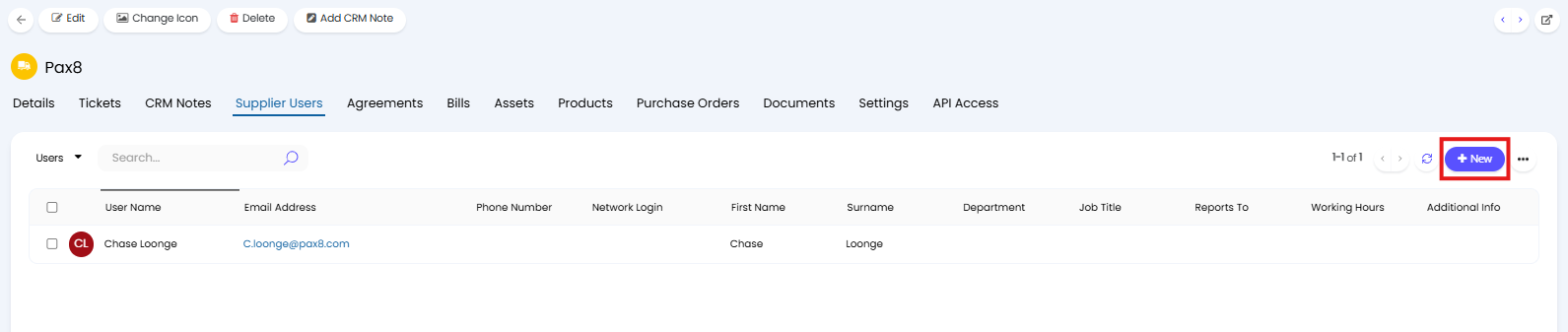
Fig 1. Create new Supplier User
When creating a user, enter their details, you will need to at least give them a "Username" and "Email Address".
Then, head to the "Permissions" tab and set the "Web Access Level" to "Supplier Tickets". This will allow the user to access the portal, but only see tickets that have been logged to their supplier.
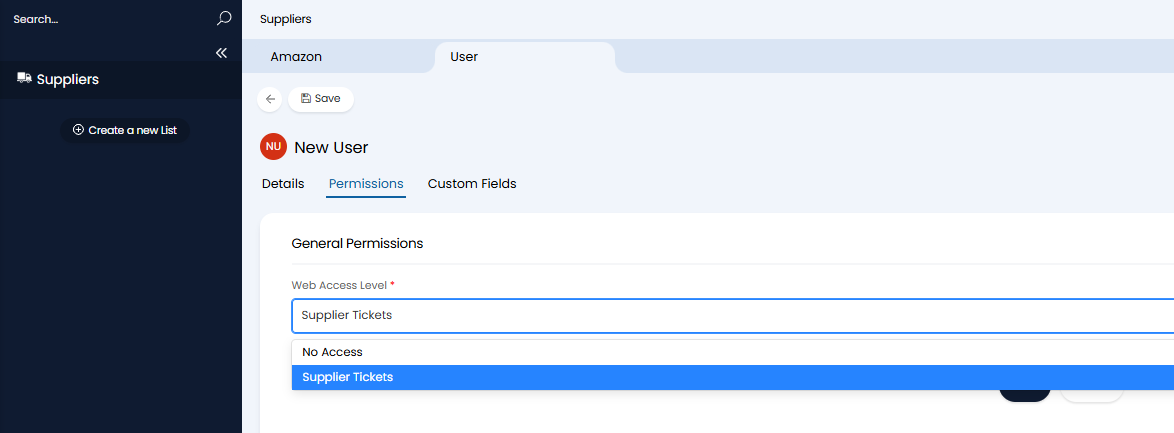
Fig 2. Give user permission to access the portal
Note: Supplier users that do not have this permission will not be able to log into the portal.
Once the user profile is created, you can use the 'Send Welcome Email' button to send the user an invite to log into the Halo portal, this will allow them to set a password for their account.
Now you will need to repeat this process for each supplier contact that you would like to have access to your portal.
Viewing Tickets in the Portal
Once a contact has a 'supplier user' profile they can log into your portal and view the tickets that have been logged to their supplier.
When logging into the portal they will only see the 'My Tickets" button. They will also be able to view the knowledge base and documents for their supplier. No other portal buttons will be available to the supplier user.
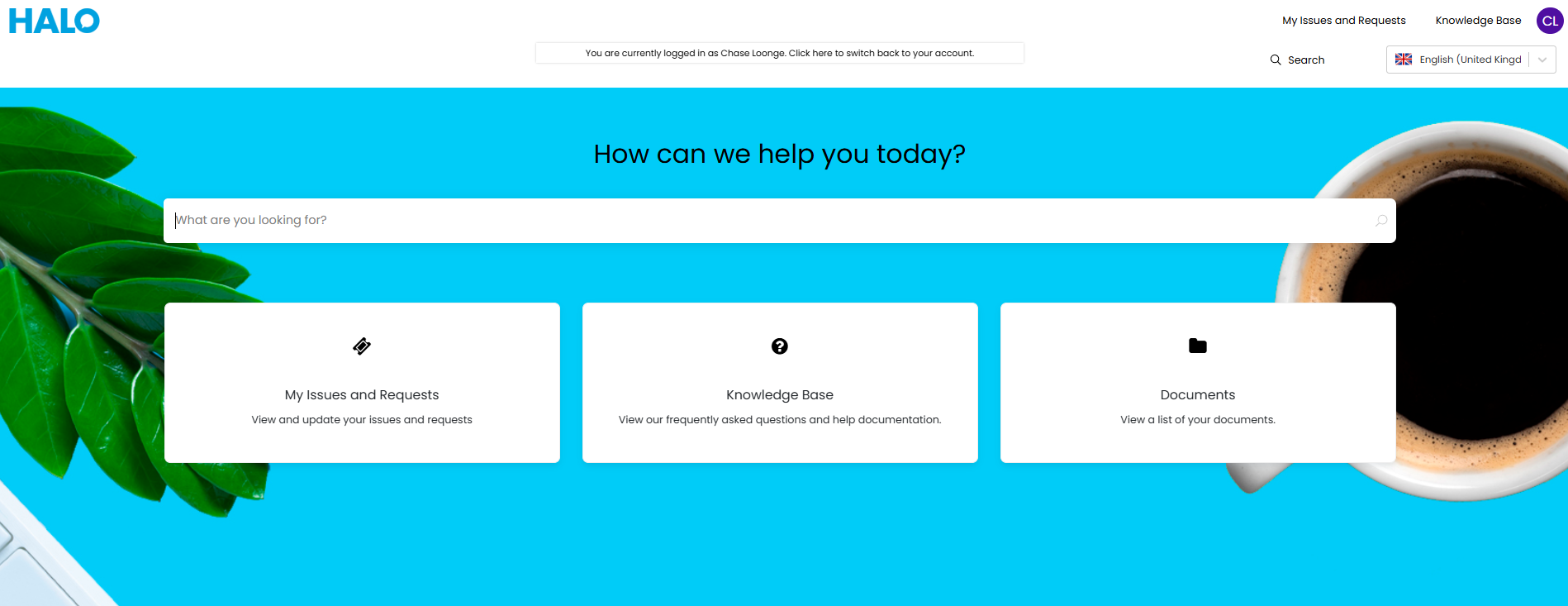
Fig 3. Supplier user view of the portal
When clicking into the "My Issues and Requests" button, they will only see tickets that have been logged to their supplier. Even if this particular user was not the contact the ticket was escalated to, as long as the ticket was logged to their supplier, the user will see it.
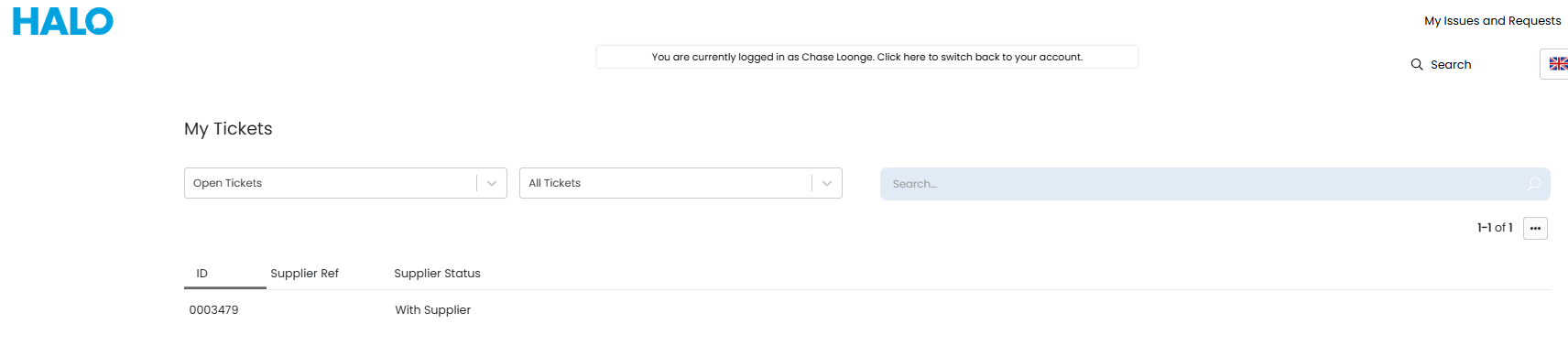
Fig 4. Supplier tickets list in portal
When a ticket is clicked into the supplier user will only see historic actions that have the following system uses:
- Log to Supplier
- Email Supplier
- Supplier Response
- Supplier Fixed
- Supplier Recall
For more information on what these action system uses do, checkout Actions: System Uses.
They will only see supplier communications and supplier details, they will not see any end user information.
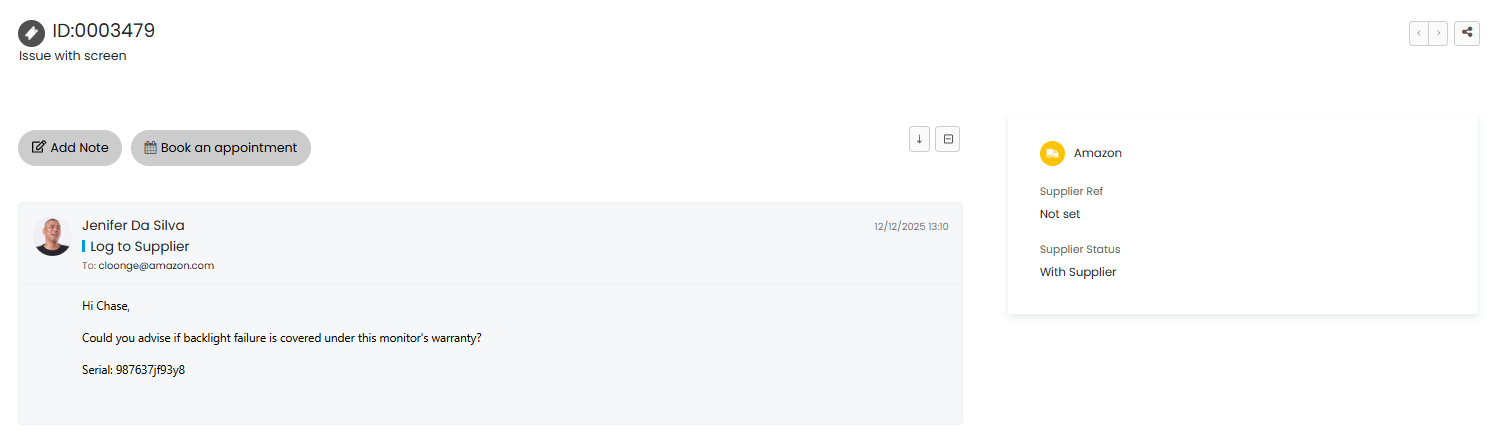
Fig 5. Supplier ticket in portal
Supplier users can then add notes to the ticket from the portal, using the "Add Note" action. This action must be configured to be available to end users for suppliers to see/use this too.
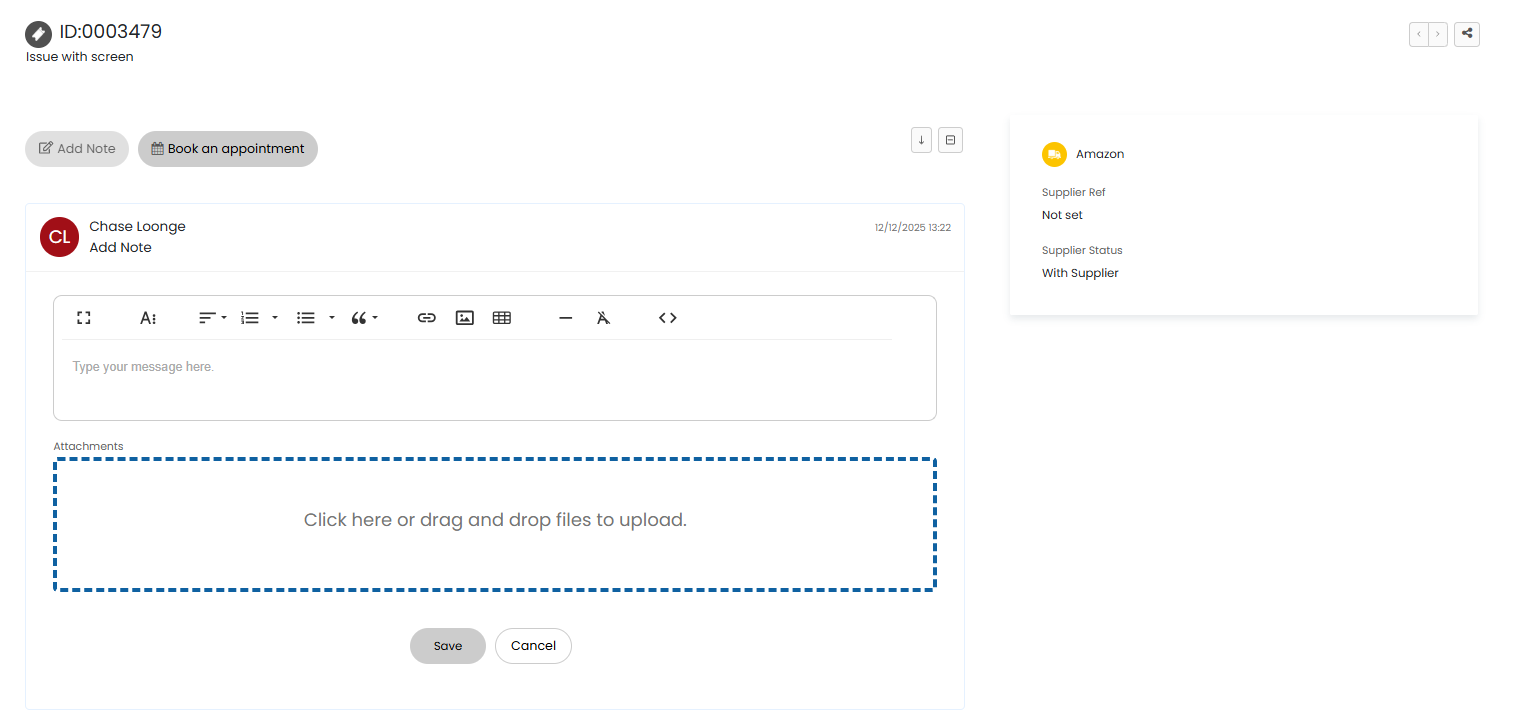
Fig 6. Supplier user adding note to a ticket
If you have other actions configured to be available for users to use, supplier users will not be able to use or see these actions. If the ticket type is set to allow users to book an appointment from the ticket supplier users will be able to see this action, but not use it. In the figure 6 example, the action "Book an appointment" is visible as this has been made available to end users of this ticket type. However, supplier users are not able to use this action.
Control which Portal Buttons Supplier Users can see (v2.258+)
From v2.258+ visibility restrictions can be configured for portal buttons to restrict which suppliers have access to that button. Allowing you to configure a different portal experience for each of your suppliers.
Keep in mind these restrictions can only be configured for the buttons supplier users have access to, this includes:
- My Tickets
- Knowledge Base
- Documents
To configure these restrictions head to Configuration > Self Service Portal > Menu Buttons section > edit a button > add a visibility restriction > select Supplier.
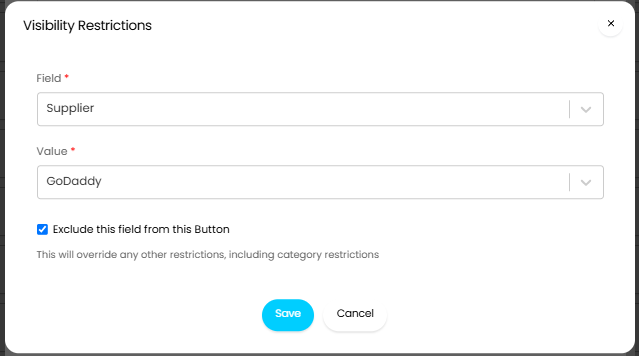
Fig 7. Supplier visibility restriction
Now, you can select which supplier you would like to be able to see/not see this button. This restriction will apply to all supplier users under this supplier.
Exclude this field from this Button - When enabled, all suppliers will be able to see this button in the portal, except the one selected.
In the Figure 7 example, all suppliers will be able to see this button except GoDaddy.
Control Which Ticket Fields Supplier Users can see (v2.238+)
From v2.238+ you can set which ticket fields are visible to supplier users for each ticket type. On versions prior to v2.238 the supplier contact will be able to see the same fields as the end user of the ticket (excluding end user information). Being able to set visibility specifically for supplier contacts allows you to have more granular control over what supplier contacts can see.
To set which fields a supplier contact can see head to Configuration > Tickets > Ticket Types > select a ticket type > Field List tab > edit a field > use "Supplier Ticket Details Screen Visibility" to set whether this field is visible and where it shows. If you would like the field to be hidden to suppliers if there is no data in it, check "Supplier Hidden if empty".
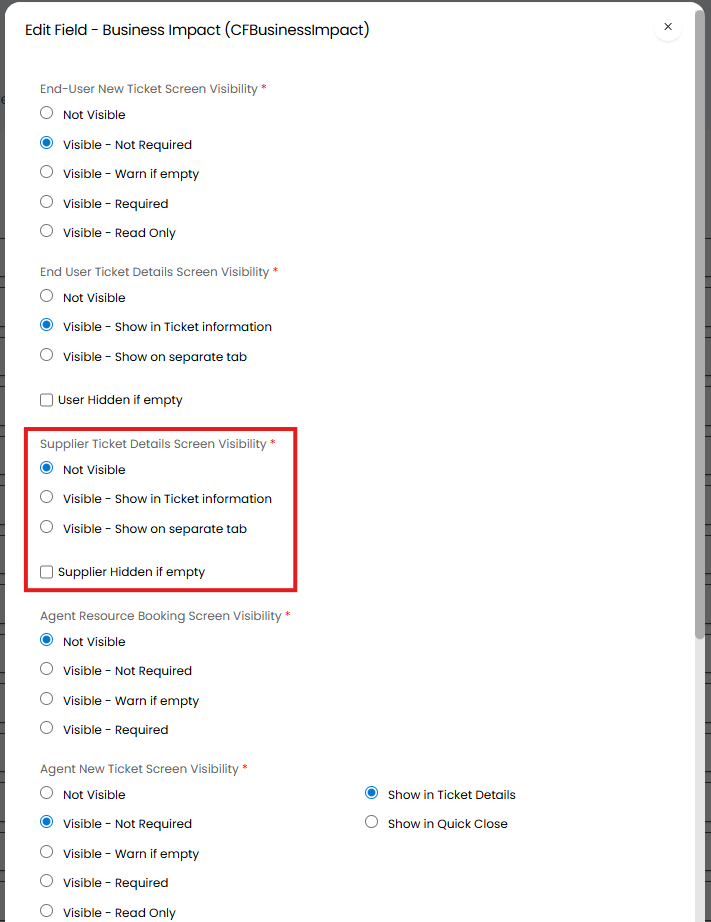
Fig 8. Ticket Field Visibility Settings for Supplier Contacts
Viewing Documents and the Knowledge base in the Portal
Supplier users will also be able to see buttons to access the knowledge base and their supplier's documents in the portal. Articles and documents can be restricted to control which supplier users can see them .
Give Suppliers access to Knowledge Base Articles
Supplier users will automatically be given access to the "Knowledge Base" button on the portal. However, you will need to provide them access to the articles you would like them to see, by default they will not be able to see any articles here.
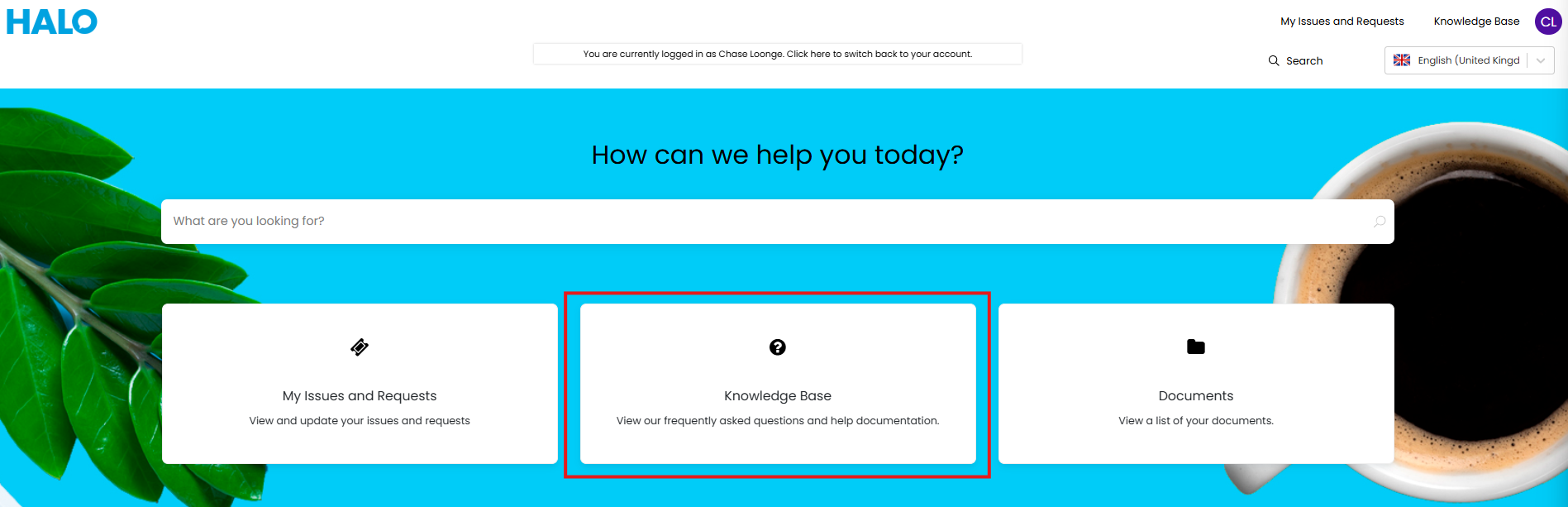
Fig 9. Knowledge base button in the portal
Giving supplier users access to knowledge base articles allows you to easily share information with the supplier, without needing to send them a PDF document/attachment. For example, you can allow suppliers to see articles outlining standard setup, so suppliers can see how the device has been setup/used, assisting with troubleshooting and diagnosis.
For more information on the knowledge base in general checkout: An Introduction to the Knowledge Base.
Supplier's access to articles is determined by their access to the FAQ list the article is on. Supplier users cannot be granted access to specific articles, instead access is granted to chosen FAQ lists, the supplier users will then be able to view all the articles within this FAQ list.
Allow all Suppliers to Access an FAQ List
Use this option is you have an FAQ lists dedicated to supplier articles and all suppliers should be able to see this.
Head to Configuration > Knowledge Base > Configure FAQ Lists > select the FAQ list > enable "Show for all Supplier Users".
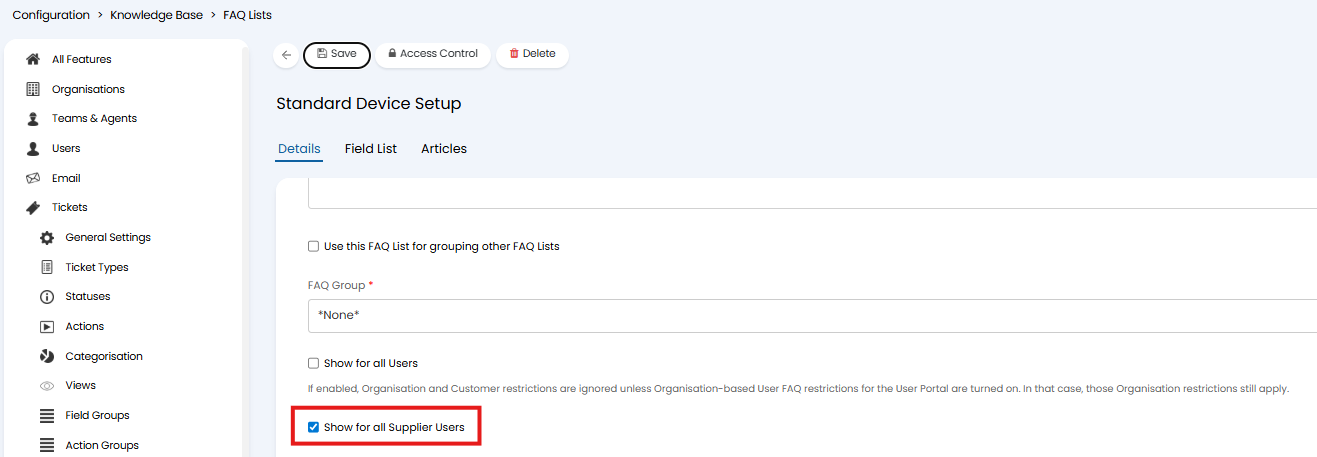
Fig 10. Set an FAQ list to show for Supplier Users
Now, all supplier users with access to the portal will be able to see all the articles under this FAQ list.
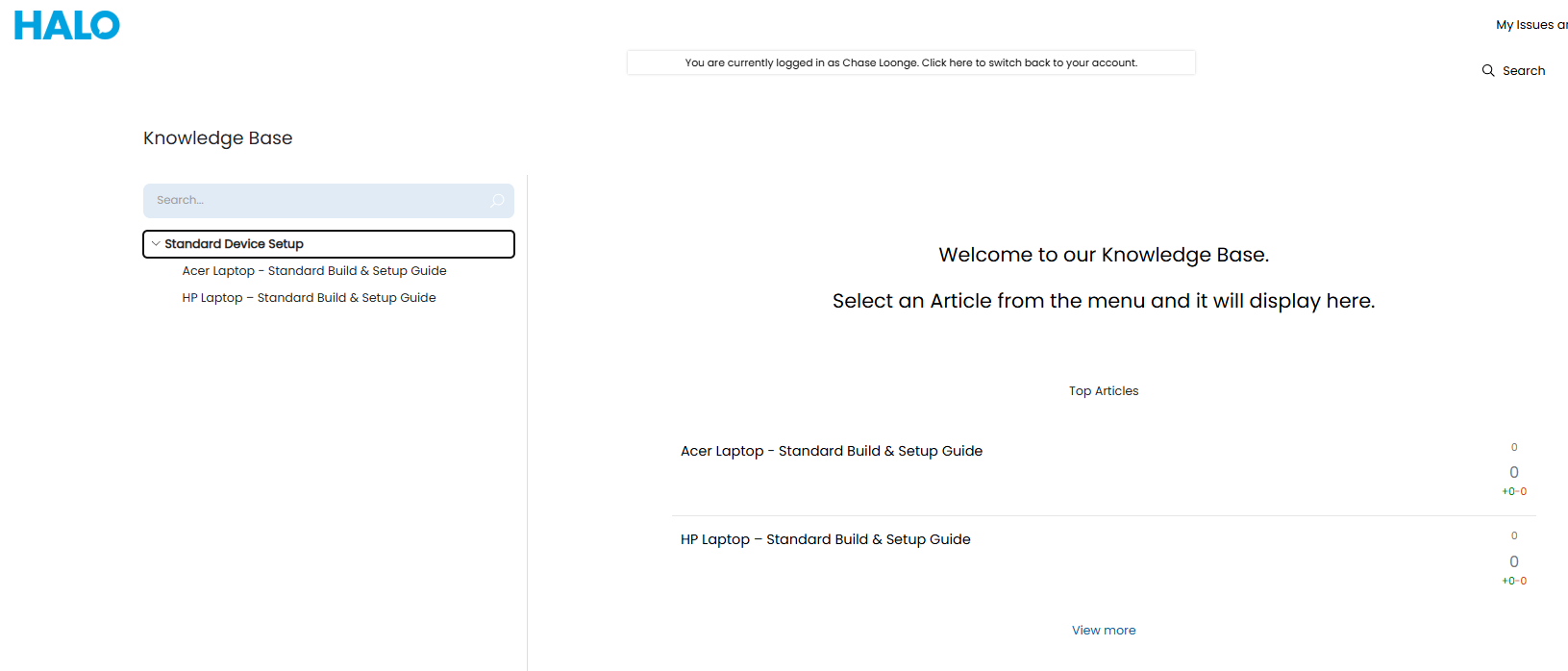
Fig 11. Supplier user viewing FAQ list in portal
Choose which FAQ lists a Supplier can Access
Use this option if you need to allow some suppliers access to different articles than other suppliers. For example, if you would only like suppliers to see documentation relating to the products they supply.
Head to Suppliers > select the supplier > Settings tab > Knowledge Base section. here, use the "FAQ Lists this Supplier can view" field to control which FAQ lists supplier users under this supplier can view.
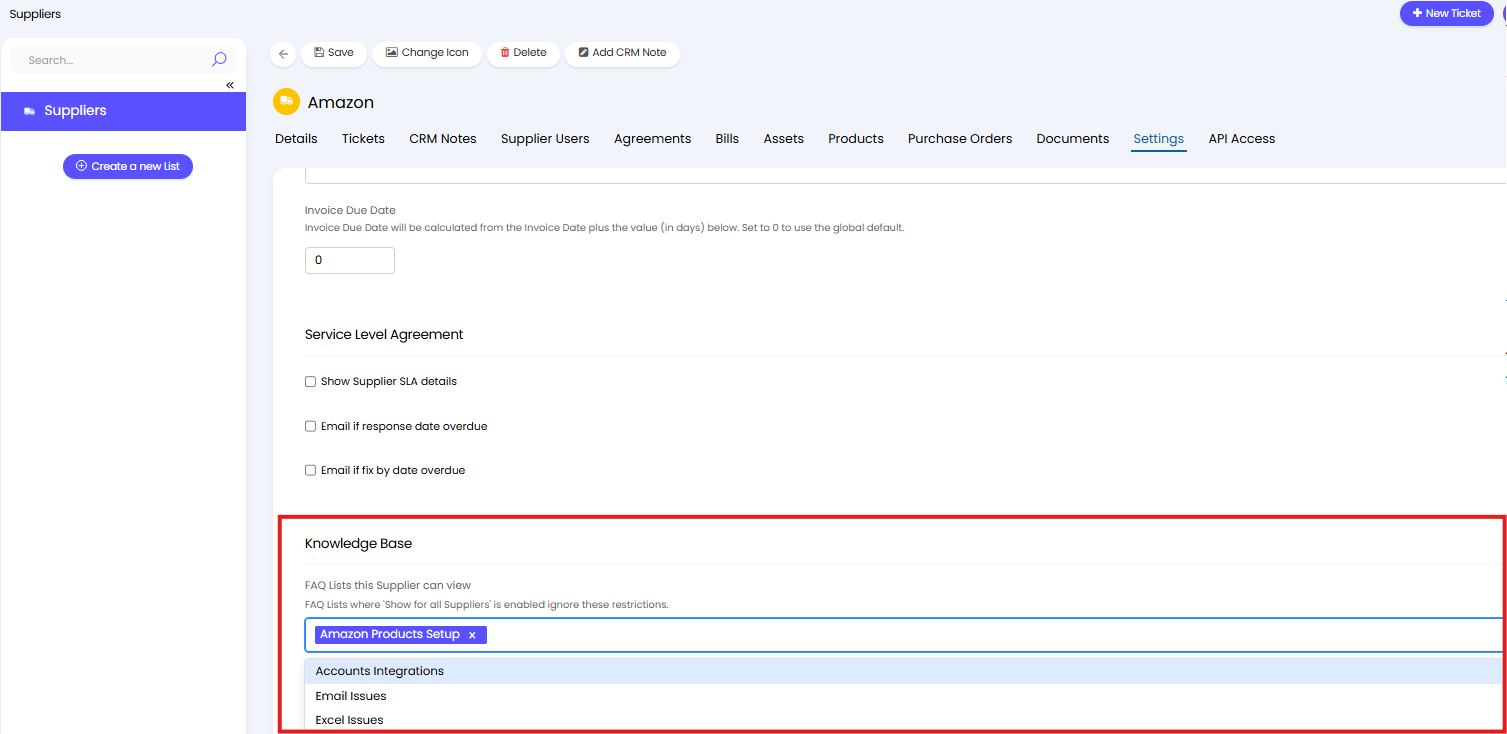
Fig 12. FAQ Lists this Supplier can view
In the Figure 12 example the supplier will be able to see articles in the "Amazon Products Setup" FAQ list. If any other FAQ lists have "Show for all Supplier Users" enabled these will also show for this supplier.
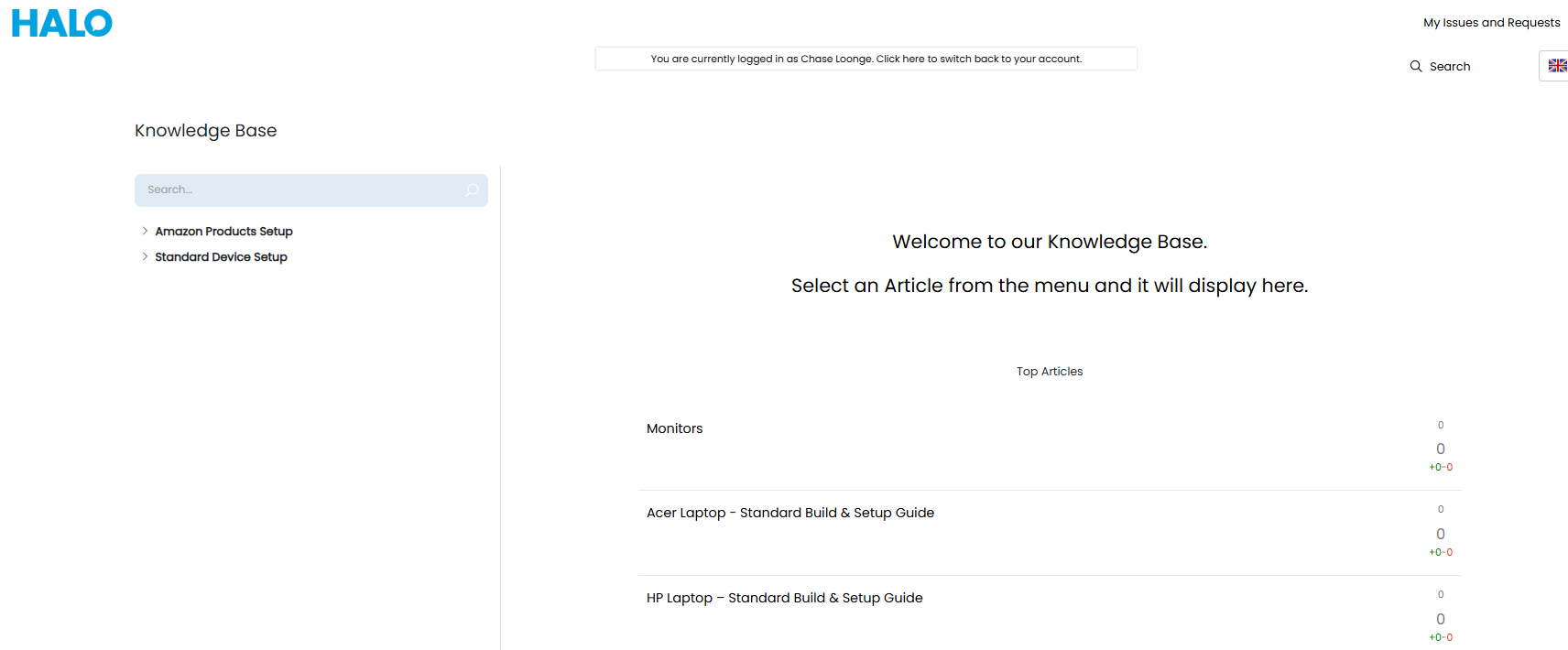
Fig 13. FAQ lists 'Amazon' supplier users can see
Give Supplier Users access to Supplier Documents
Supplier users will be given access to the "Documents" section of the end user portal. Here, they will be able to see documents added to the Supplier profile, or their supplier user profile. Useful for storing and sharing agreements and terms between you and the supplier. The visibility of each document can be toggled to control which documents shows in the portal.
For more information on the 'Documents' functionality in general checkout: Document Management for Customers, Sites and Users.
Documents are uploaded to the supplier profile under the "Documents" tab. Once uploaded documents will be hidden from users by default.

Fig 14. Documents against a Supplier
To make a document visible to supplier users right-click on the document and select "Toggle End-User visibility".
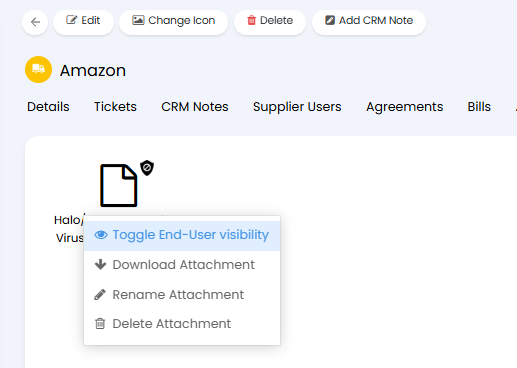
Fig 15. Make document visible to end users
The prohibition icon '🚫' indicates which icons are not visible to supplier users.
If a document is visible all supplier users under the supplier will be able to view it in the portal.
If you would like a document to only be visible to a chosen supplier user, upload the document directly to the supplier user profile.
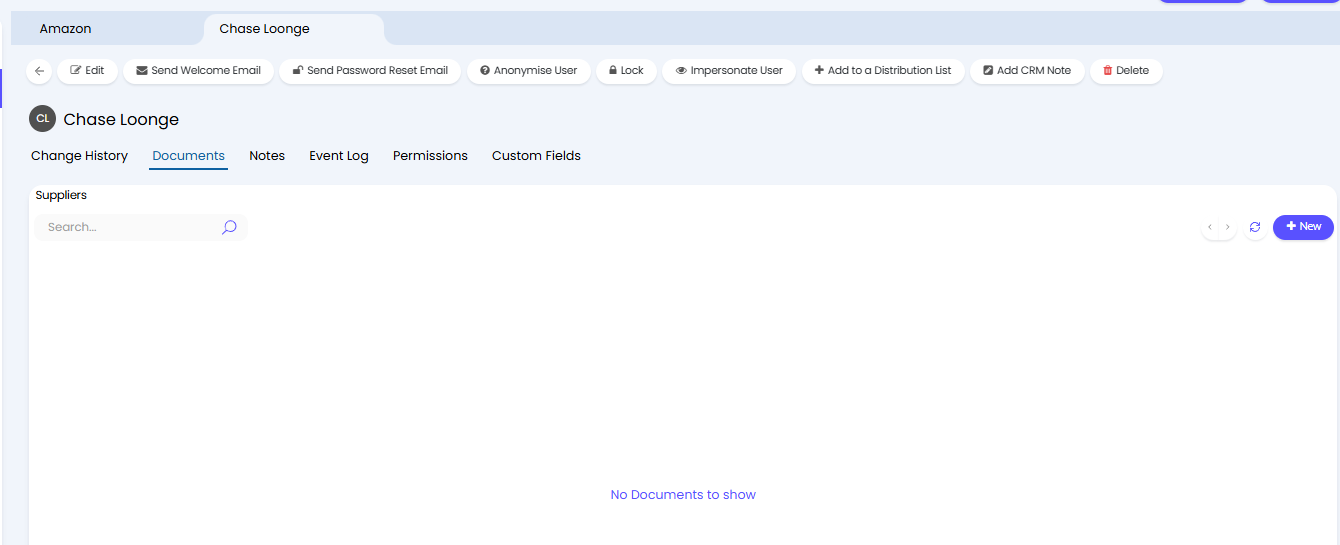
Fig 16. Documents area against a user profile
Allow Supplier Users to update their details from the Portal
Supplier users can be allowed update their own user details from the self service portal. Making it easier for users to keep their details up to date as they do not need to rely on/wait for agents to update the details for them.
Allow Supplier Users to Update system User fields
The following system fields can be added to the portal to allow Supplier users to update them:
- Username
- First name
- Surname
- Title
- Date of Birth
- Department
- Job Title
- Reports To
- Working Hours
- Additional Information
To allow supplier users to update one/some of these fields, head to Configuration > Self Service Portal > enable "Allow Supplier Users to edit system Fields on the Portal". Then you will be able to select which fields users can update.
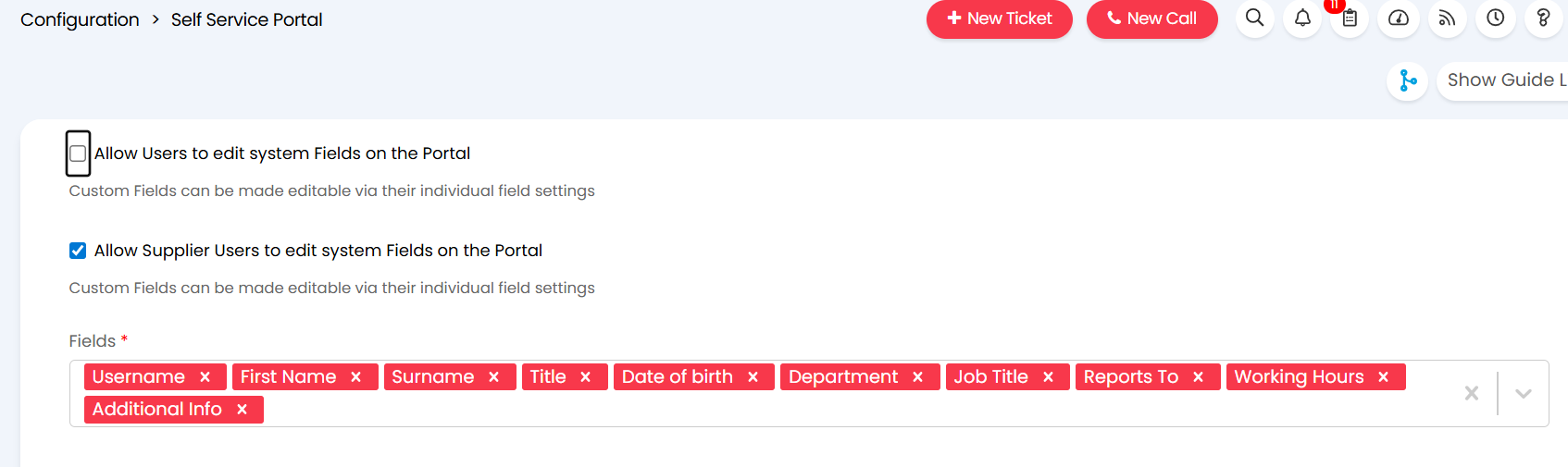
Fig 17. Allow users to edit system fields in the portal
Allow Supplier Users to Update Custom Fields
Any user custom fields created can also be added to the portal to allow supplier users to update them. To add a field to the portal this will need to be set against the field itself.
Head to Configuration > Custom Objects > Custom Fields > change the entity to User > select a field > enable "Allow Supplier Users to edit this Field on the Portal".
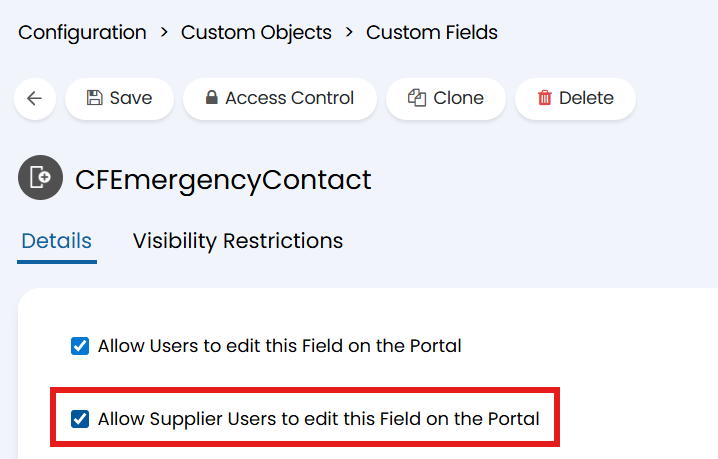
Fig 18. Allow a custom field to be edited on the portal
Editing Fields in the Portal
Supplier users can now update the chosen fields under the "Settings and Preferences" section of the portal. Accessed by selecting their profile in the top right.
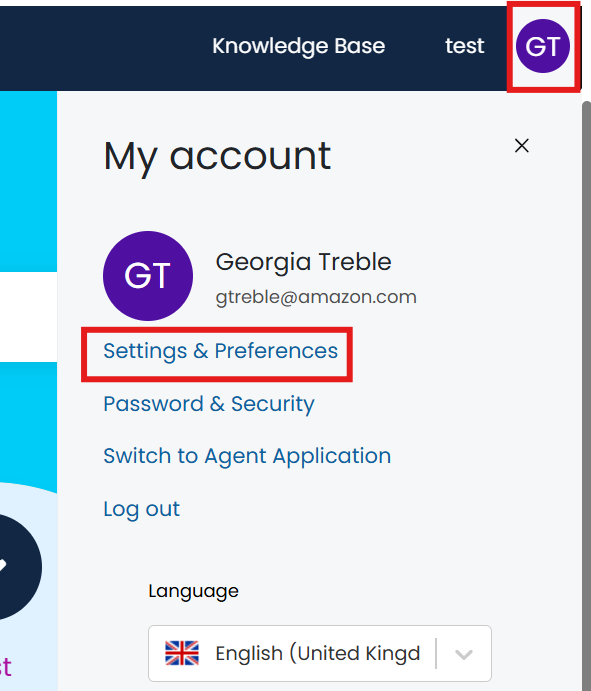
Fig 19. Access Settings and Preferences
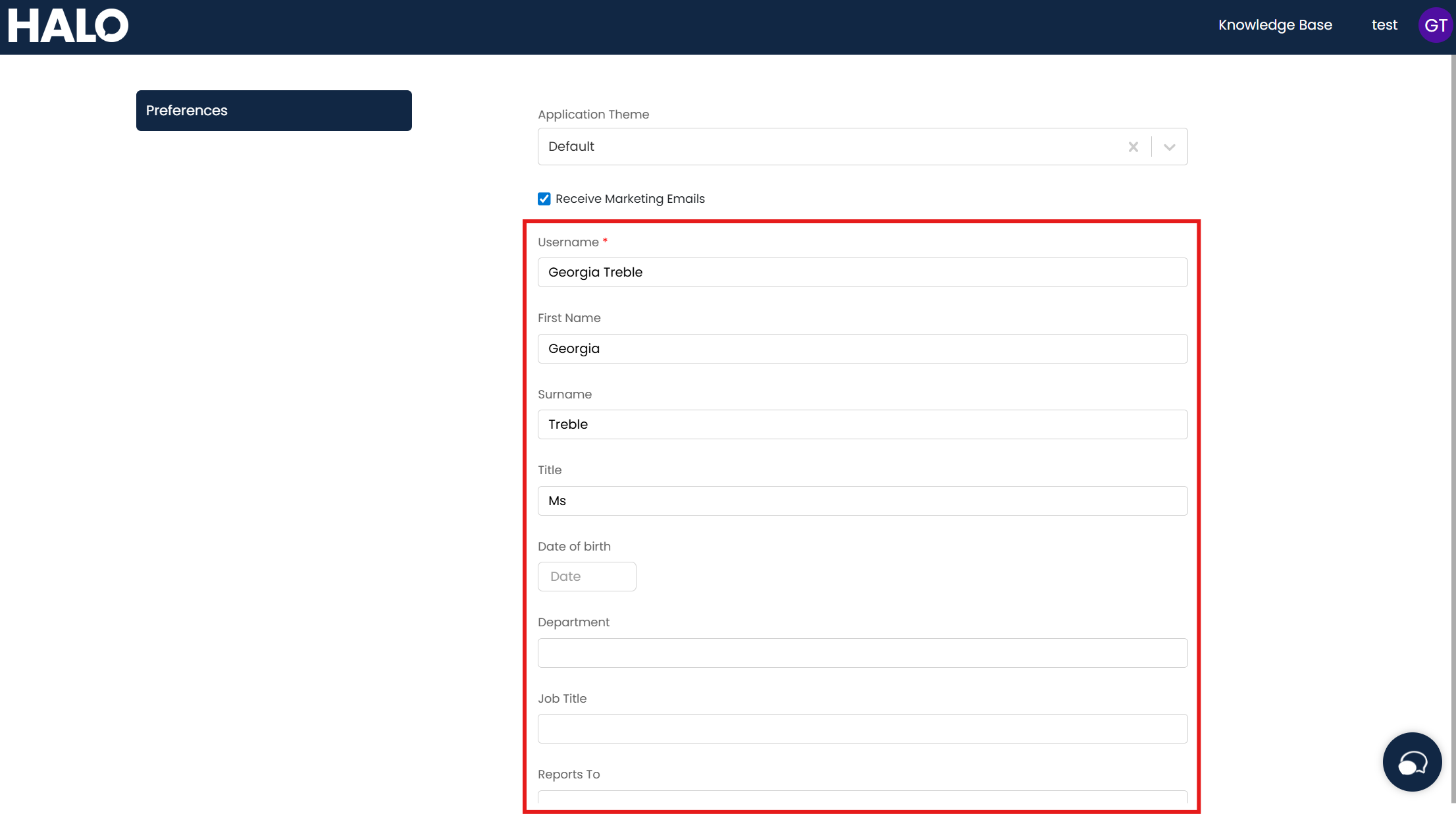
Fig 20. User Details to update