SoftwareOne/Crayon Integration (Cloud-iQ)
In this guide we will cover:
- What is the Crayon Integration?
- Connecting to Crayon
- Map Organisations
- Import Customers
- Importing Licences
- Import Customer and Subscription Data automatically
- View Imported Licences
- Bill for Licences from Crayon
What is the Crayon Integration?
The Crayon integration allows you to import Customers and Subscriptions from Crayon into Halo. A record of the Organisation a customer belongs to in Crayon can also be synced, by mapping Organisations to Top Levels in Halo. When customers/subscriptions are added/changed in Crayon these changes can be automatically synced across to Halo. This allows you to easily bill for subscriptions held in Crayon from Halo. Subscription quantities on the recurring invoice can update automatically when subscriptions are updated in Crayon, with pro-rata calculations automatically added to customer's the next invoice. This applies to both seat and device based subscriptions. The integration is multi-tenanted, allowing you to connect multiple Crayon tenants (accounts) to a single Halo instance.
For information about SoftwareOne/Crayon checkout their website here.
Connecting to Crayon
First enable the integration module, navigate to Configuration > Integrations > here enable the 'Crayon' module using the '+' icon.
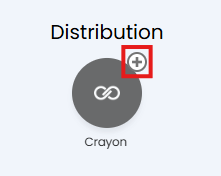
Fig 1. Enable Integration module
Click into the module to begin configuration and create a new connection using the "New" button.
In order to connect Crayon to Halo you will need to generate a Client ID and Secret, as well as provide a username and password for an account used to login to the Cloud IQ portal.
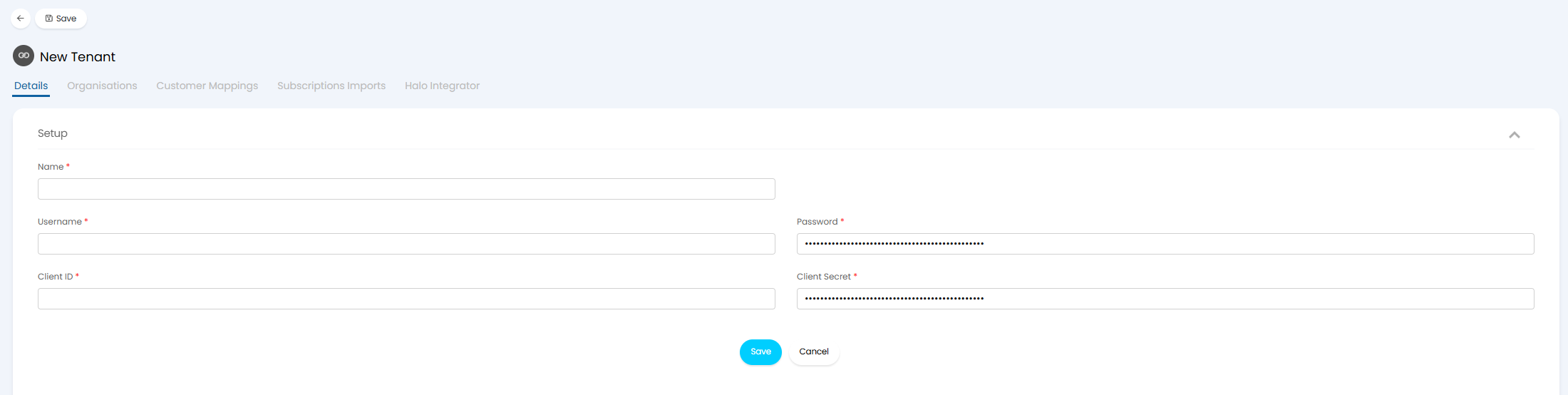
Fig 2. Integration Connection Details
For information on how to generate a Client ID and secret for connection, checkout Crayon's guide here.
When generating these credentials ensure you set the 'Flow' to "Resource Owner".
Now, in Halo, give the connection a relevant name and plug the Client ID and secret in. Also enter the username and password of a Crayon/Cloud IQ account. The user account provided will determine the permissions of the integration, so ensure this account has permission to access all the relevant organisations/clients/subscriptions you are looking to import.
Once you have entered your credentials hit "Connect" to establish the connection.
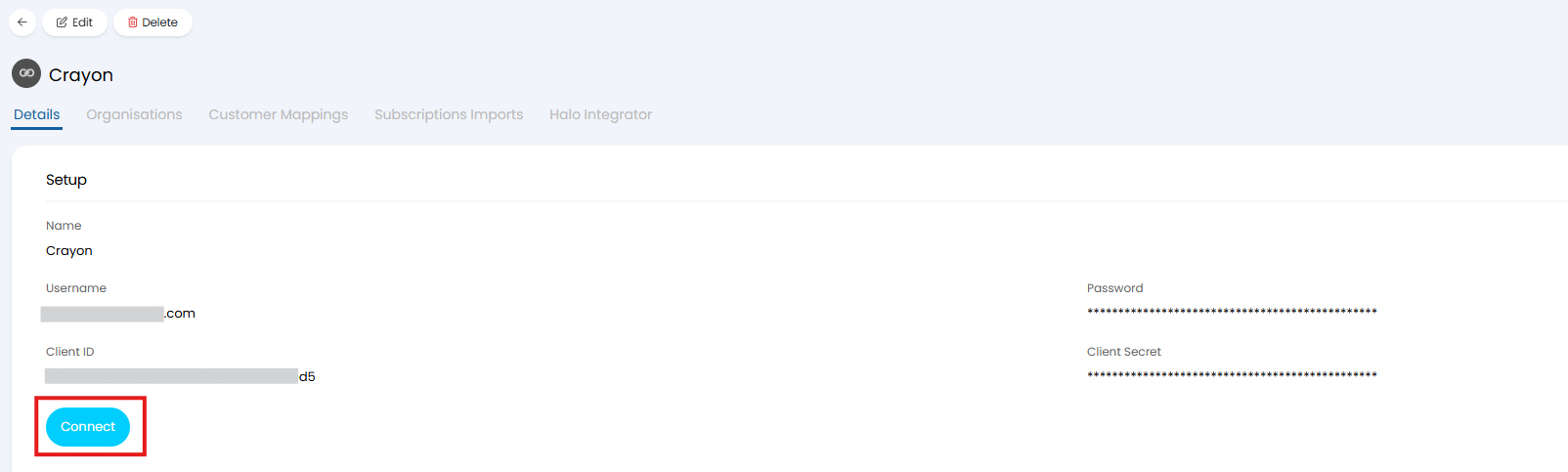
Fig 3. Button to connect the integration
If connection is not successful (credentials are invalid) a pop-up will appear to notify you of this. If connection is successful the other configuration tabs will become available.
Map Organisations
Organisation mappings are used to control which customers can be imported, only customers under mapped organisations will be imported.
Organisations from Crayon can also be mapped to Halo Top Levels. Top Levels are used as a method of grouping customers together, if you have multiple organisations in Crayon and wish to organise your Halo customers in line with these, ensure you have Top Levels enabled (under Configuration > Users > General Settings > "Show an additional level ("Top Level") for grouping Customers".
The way in which mappings are configured differs slightly based on if you have Top Levels enabled in your instance.
To map organisations head to the "Organisations" tab within the integration setup.
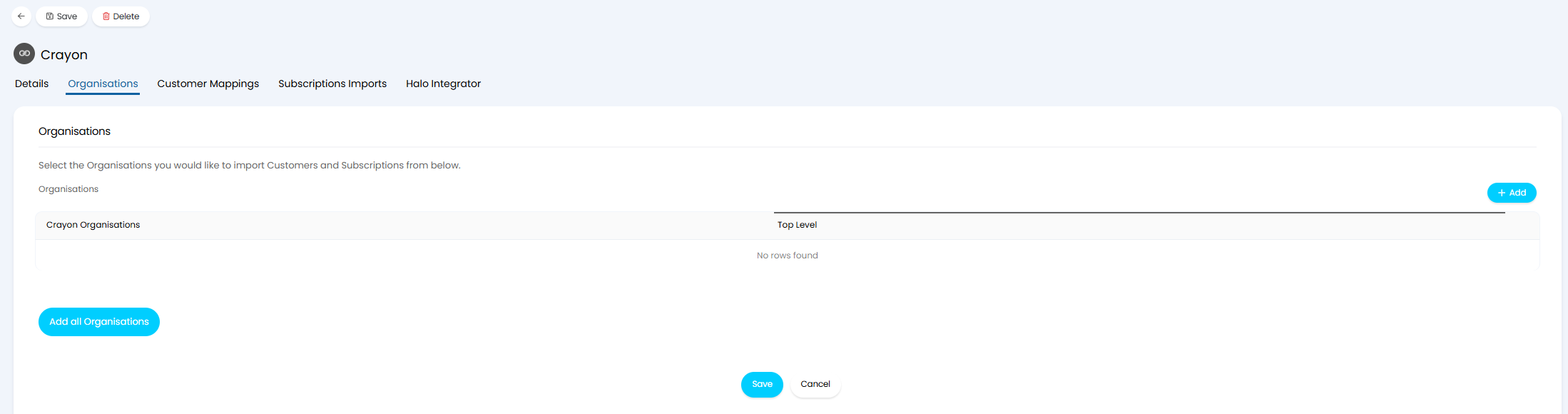
Fig 4. Organisations Tab
Top Levels not in Use
If Top Levels are not in use choose which organisations you would like to import data from by adding these organisations to the organisations table. Only customers/subscriptions under organisations added here will be imported, and imported customers will not be associated to a Top Level.
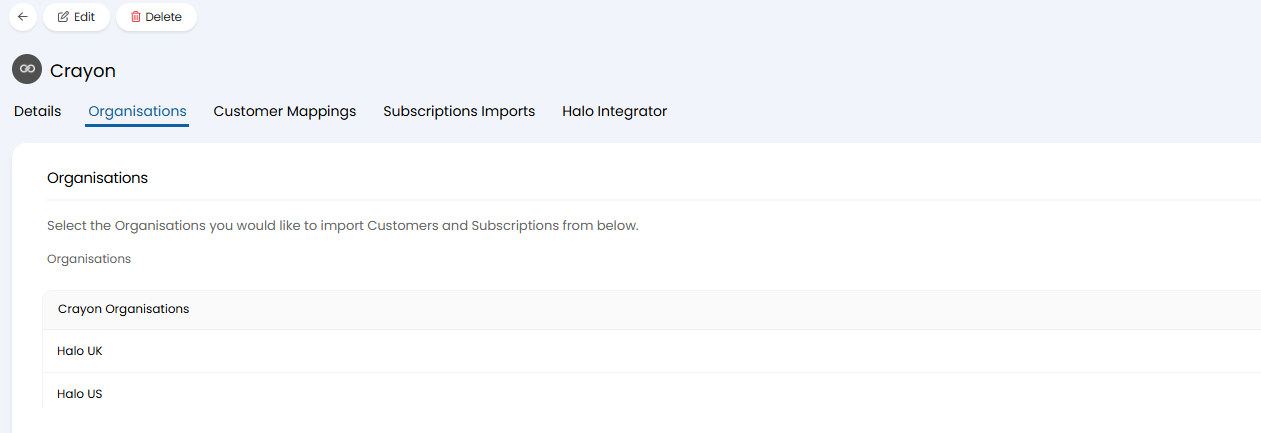
Fig 5. Mappings when Top Levels are not in use
If you would like data from all organisations to be imported you can use the "Add all Organisations" button to automatically add all your organisations to the mapping table.
Top Levels are in Use
If Top Levels are in use, map each organisation to a Top Level in your instance. When importing customers each customer will be assigned to a Top Level based on the mapped Crayon organisation. Only customers under a mapped organisation will be imported so ensure you map each organisation you would like to import data from.
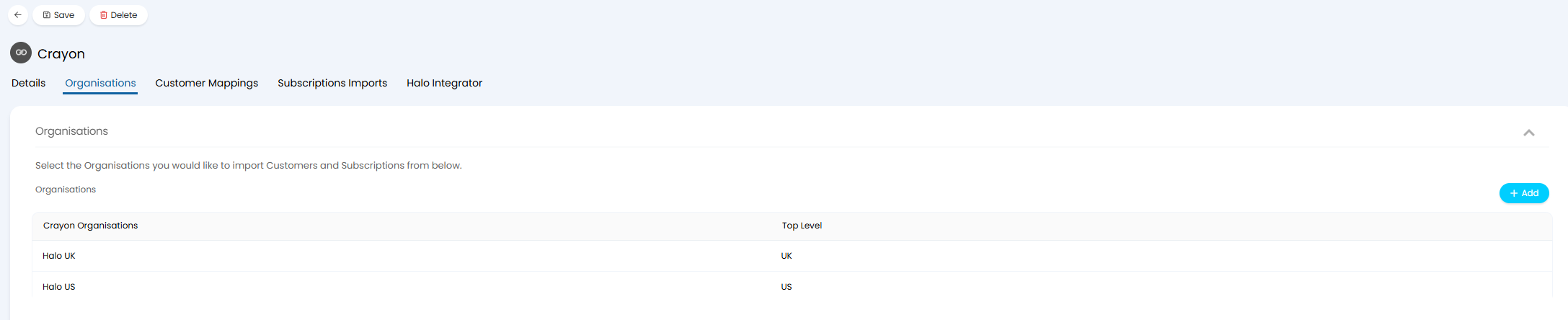
Fig 6. Mappings when Top Levels are in use
If you would like data from all organisations to be imported you can use the "Add all Organisations" button to automatically add all your organisations to the mapping table. This will map them to a default top level, chosen in the next stage of setup. If each of your organisations should be associated with a different Top Level, be sure to edit the mapping and amend this.
Import Customers
Customer imports are configured under the "Customer Mappings" tab. Customers can be imported from Crayon to create customers in Halo, once imported mappings will be generated for the imported customers. If you have already created your customers in Halo, you will need to map each Crayon customer to the associated Crayon customer. Mappings can be automatically generated using the "Generate Mappings" button if customers share the same name across platforms.
Customer mappings link Halo and Crayon customers, used to determine which Halo customer is updated when the associated customer in Crayon us updated, and which Halo customer subscriptions are created under.
To configure mappings simply add to the "Customer Mappings" table.
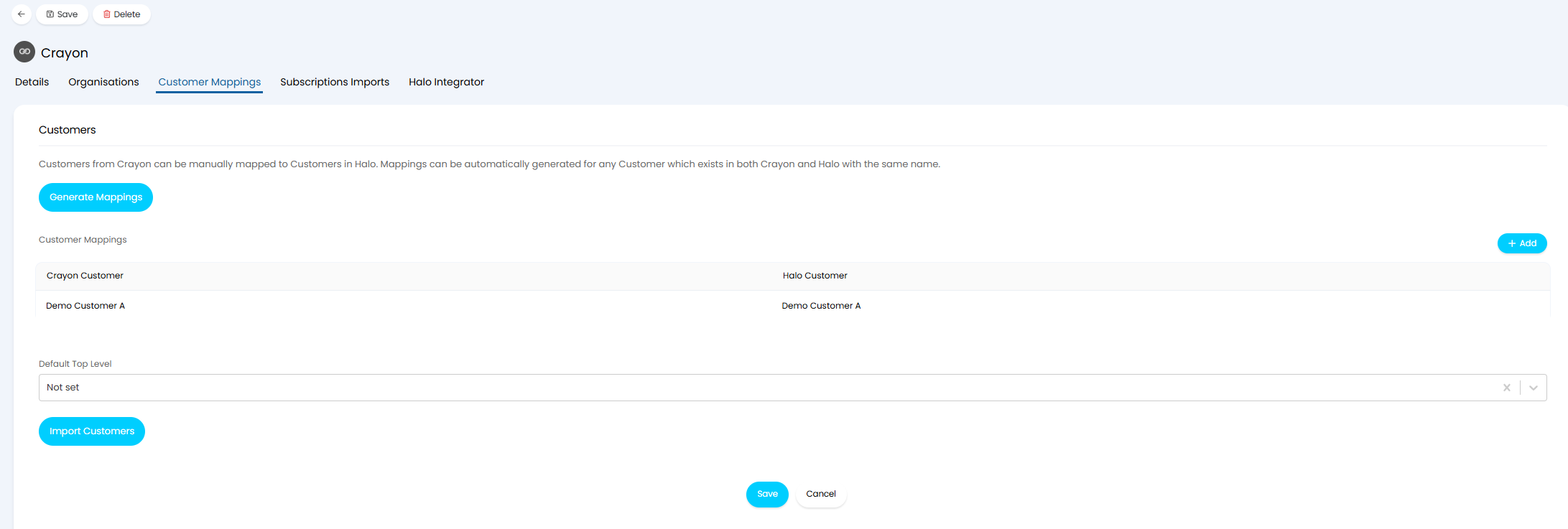
Fig 7. Customer Mappings
You will only be able to create a mapping for a customer if the organisation they belong to has been mapped in the "Organisations" tab.
Default Top Level - If Top Levels are in use you can set a default Top Level for customers to be assigned to. Customers will be assigned to the Top Level chosen here when they are under an organisation that is mapped to the "*Use Default Top Level*" option.
Once mappings are complete, import customers using the "Import Customers" button. Only customers under a mapped organisation will be available to import.
Importing Licences
Licences are imported under the "Subscription Imports" tab of the integration.
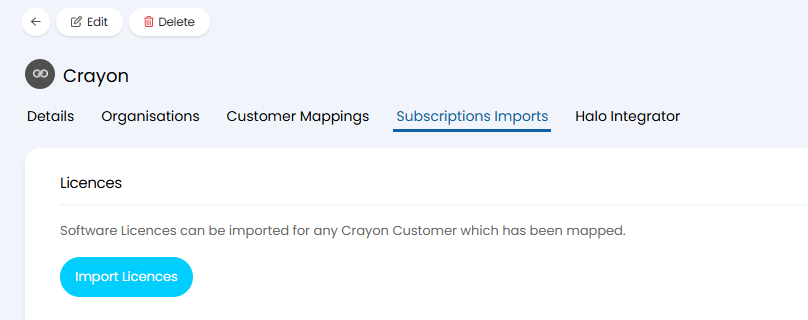
Fig 8. Subscription Imports
Only licences assigned to mapped customers will be imported.
Upon import, all licences will be imported but deleted or suspended licences will be marked as 'inactive' in Halo.
The following licence information will be imported:
- Name
- Quantity
- Start Date
- End Date
- Term Duration
Import Customer and Subscription Data automatically
To have customers and subscriptions imported automatically on a schedule, enable the Halo integrator for the integration.
Head to the Halo Integrator tab of the integration and enable "Enable the Halo Integrator for the Crayon integration".
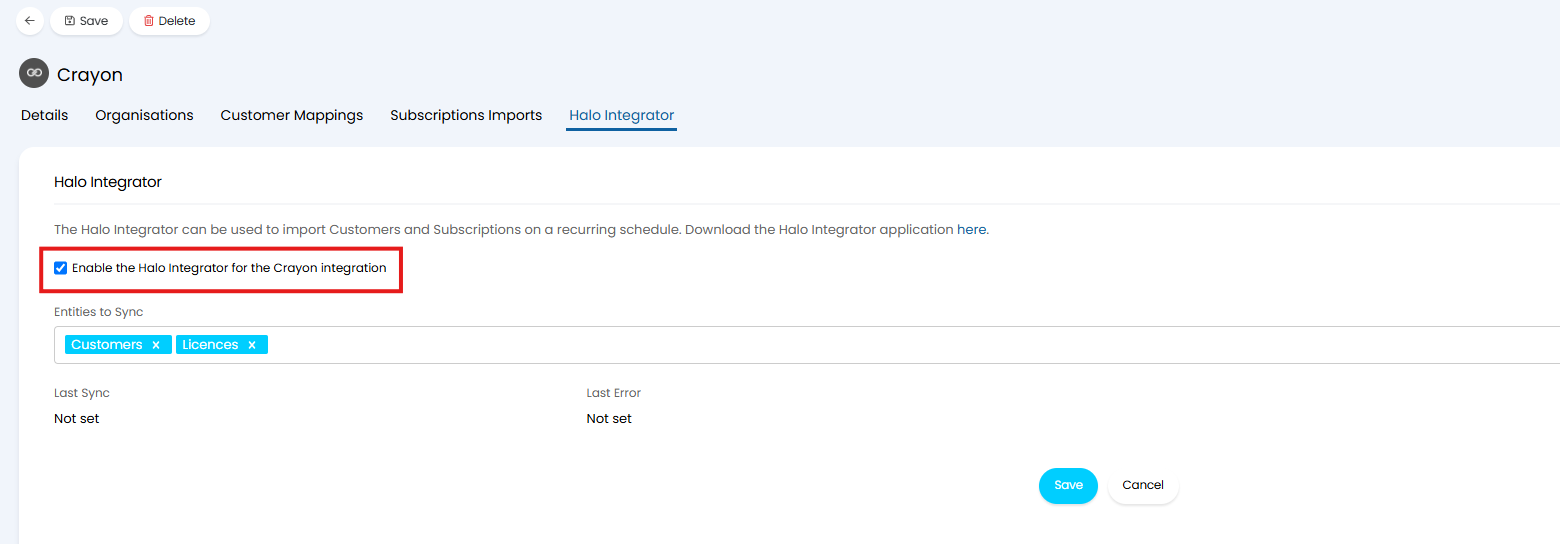
Fig 9. Enable the Halo Integrator
Once enabled you will be able to choose which entities you would like to sync using the "Entities to Sync" field. This will import data for these entities from Crayon on a daily basis.
View Imported Licences
Imported licences will appear under the 'Subscriptions' tab against a customer's profile in Halo. Head to Customers > select a Customer > Subscriptions, here you will see the subscriptions for this customer.
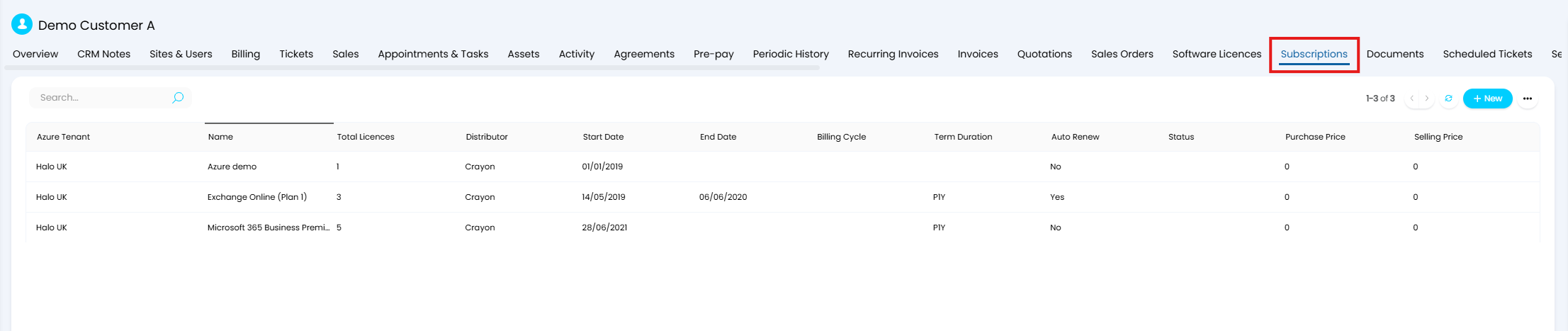
Fig 10. Imported Licences
Note: Licences imported from an integration will not be able to be edited in Halo.
Bill for Licences from Crayon
When billing for licences in Crayon from Halo the invoice line can recalculate automatically based on quantity changes in Crayon. This means when licence quantities are added/removed in Crayon this will automatically update the line quantity of the recurring invoice in Halo, it can also pro-rate the line price based on when the licence change was made.
For information on how to setup a recurring invoice in Halo so that quantities update automatically based on licence count, checkout our guide here.