Ticket Sources
- tickets
- ticket source
- source
- processing tickets
In this guide we will cover:
- What is a Ticket Source?
- Adding to Columns and Lists
- Ticket Rule Criteria
- Setting Source by Actions
- Notifications
- Excluding/Ordering Ticket Sources
What is a Ticket Source?
Ticket source is a field that is automatically set to display where a ticket has been created from. For example, tickets logged via the call screen will have a source of "Manual - Phone", and some integrations will have their own ticket source added upon setup.
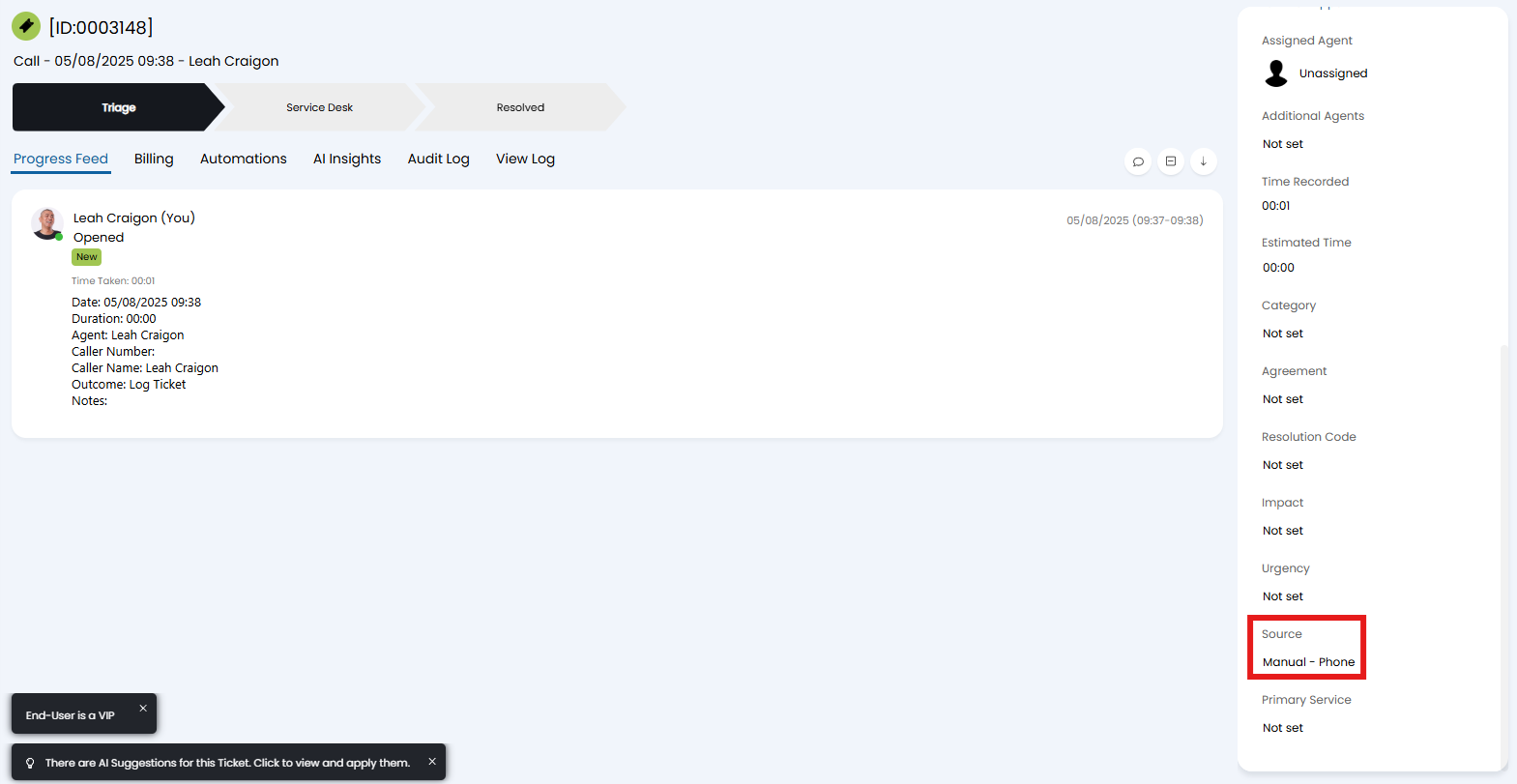
Fig 1. Source on a ticket raised from a call.
Adding to Columns and Lists
Source can be added to a column profile as below, allowing agents to filter and find tickets with a specific source.
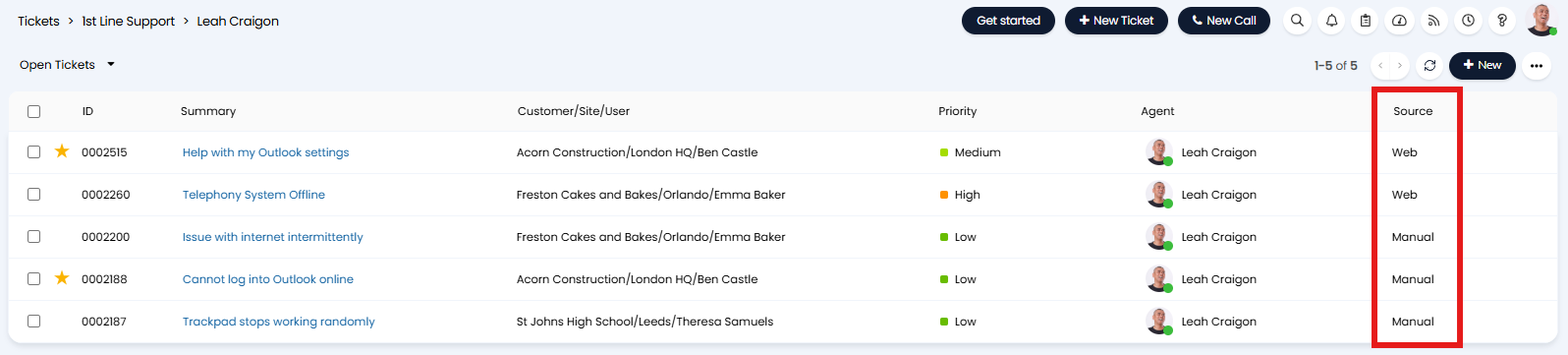
Fig 2. Source in a column profile.
If your agents wish to do this often, it can be beneficial to create a custom list, and set the filter criteria based on "Ticket Source". This can be set to either include or exclude certain sources.
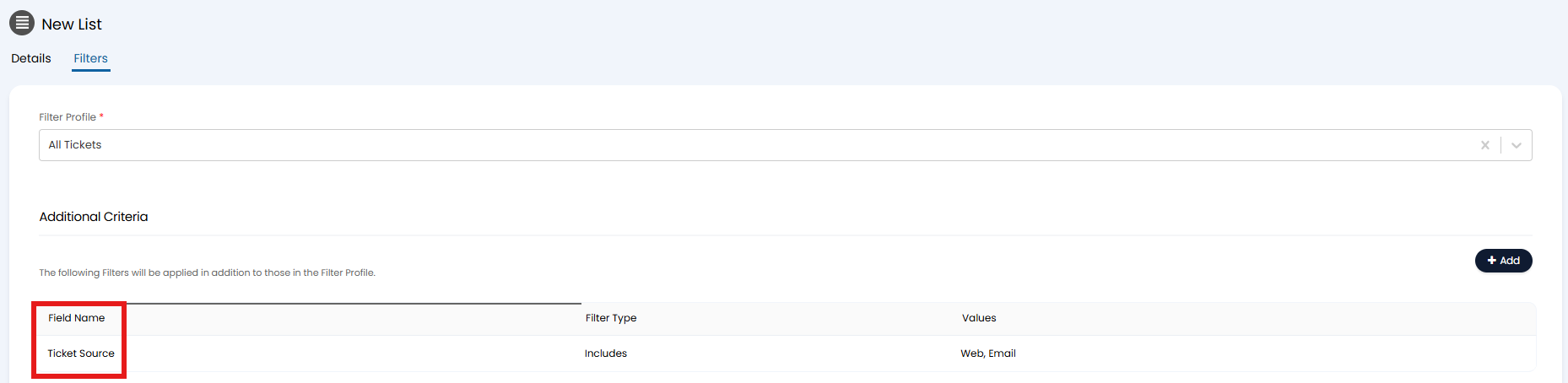
Fig 3. List with source filter.
Ticket Rule Criteria
Ticket rules can also use source as a criteria. This can be useful such as in the example below, where alerts raised from N-Central could be easily routed to the correct team who work with them.
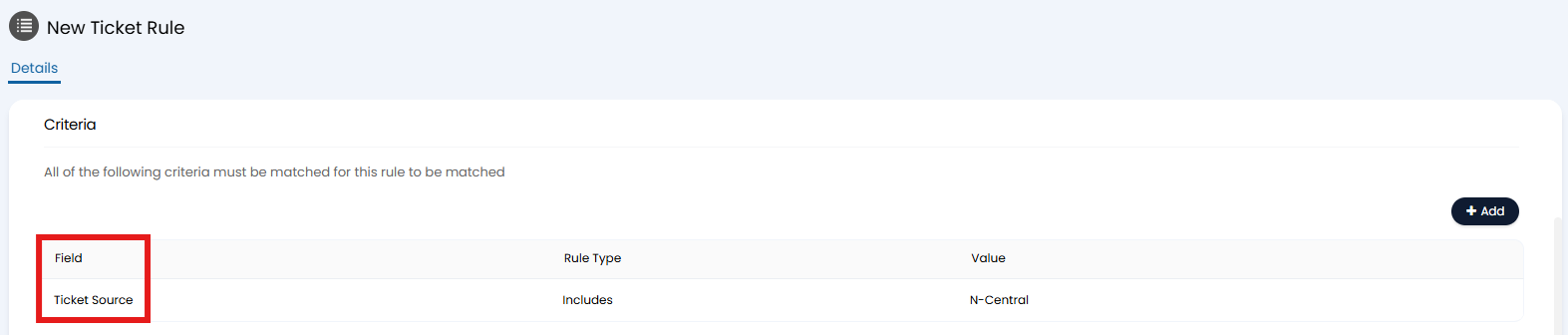
Fig 4. Ticket rule with source criteria.
Setting Source by Actions
Source can be added to the field list of an action in Configuration > Tickets > Actions > Field List tab.
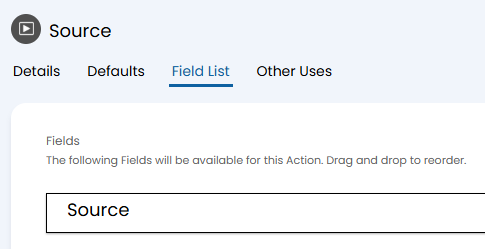
Fig 5. Source in an action field list.
When using the action, agents can change the source if needed. You may also wish to set this field to be read-only if it is intended as a quick reference whilst agents are completing actions on the ticket. For more information on how to edit field lists, check out the "Actions" guide.
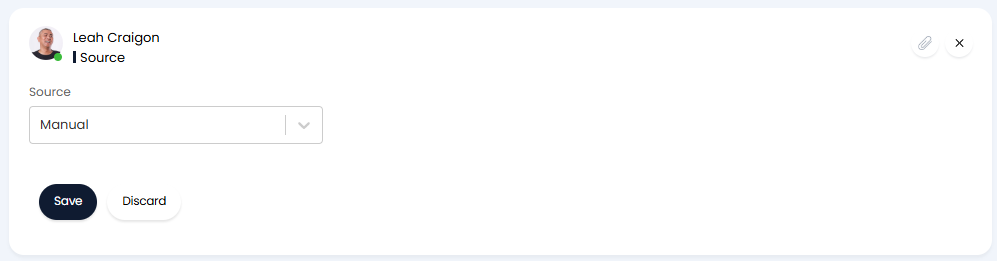
Fig 6. Source field on an action.
Notifications
Source can be used as criteria for a notification. In this example, new tickets logged by TrustPilot will notify subscribed agents. This will be useful to prompt them to respond to the review.
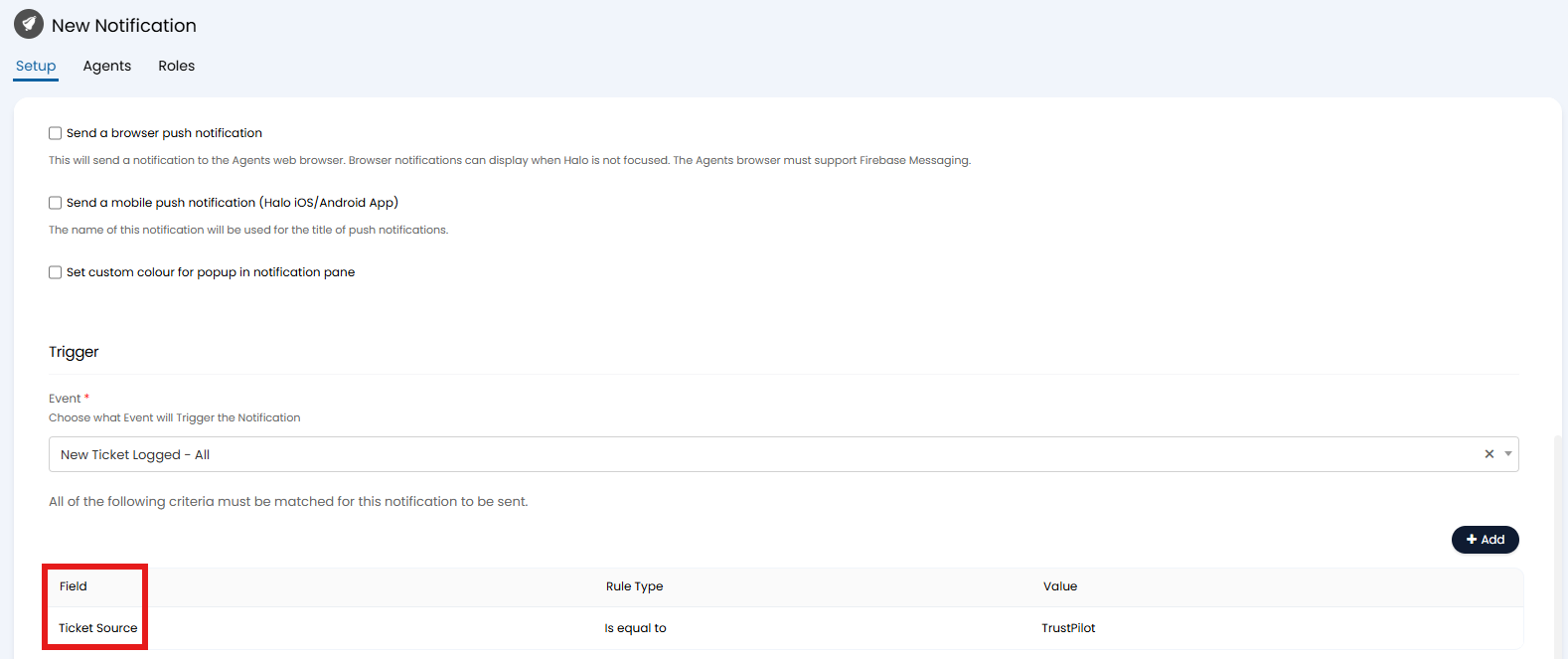
Fig 7. Source as a notification criteria.
Excluding/Ordering Ticket Sources
Ticket sources can be excluded from use by making them inactive. Navigate to Configuration > Advanced Settings, and scroll to the very bottom where the "Lookup Codes" button is.
Upon clicking, a list of impact levels will be shown. In the entity in the top left, change this to "Request Source" to show a list of ticket sources.
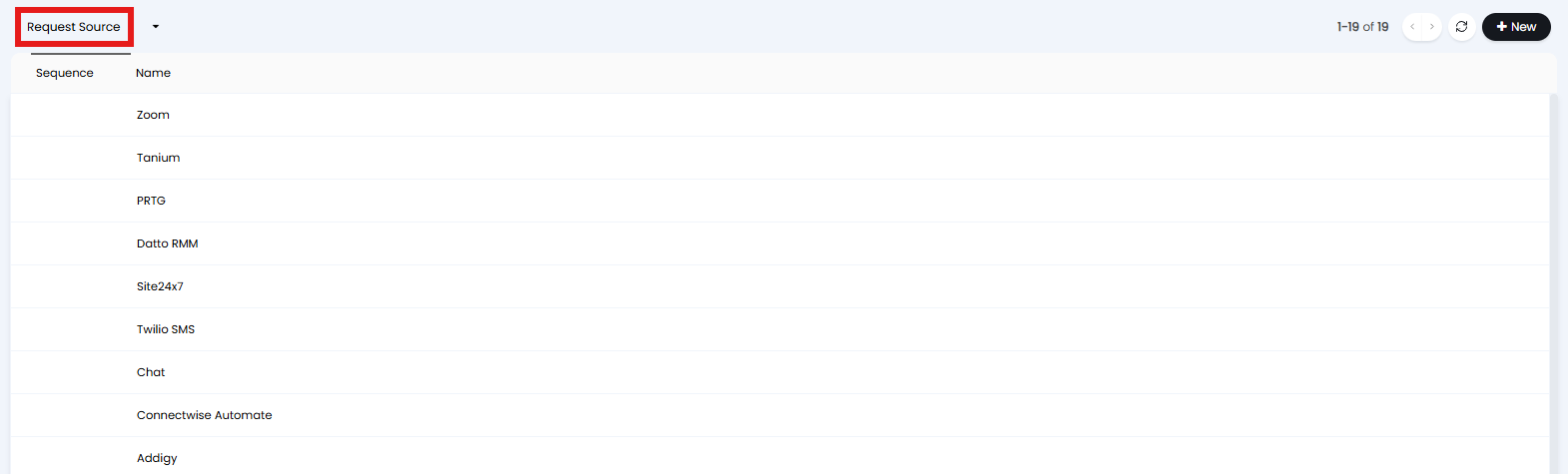
Fig 8. List of ticket sources.
Click on one, and disable the "Active" checkbox to disable it.
Within the same area, you can also set an order for the ticket sources based on the "Sequence" field.
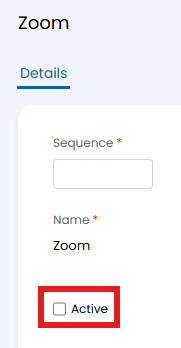
Fig 9. Disabling a ticket source.
That source will then be no longer available to be set within the field. If that source was previously set anywhere, these will then default to "Not set".
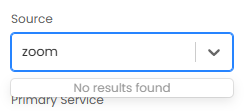
Fig 10. Unavailable ticket source.