Planning and Forecasting
- projects
- project management
- project forecasting
In this guide we will cover:
- Planning Screen
- Forecasting
- Automatic Estimate Forecasting
- Percentage Thresholds
Admin Guides:
Before starting the rest of this configuration, ensure the "Time Management" module is enabled in Configuration by hovering over this and clicking the "+" icon, then check the "Enable Agent Timesheet feature" setting.
Planning Screen
The Planning Screen is a section within the Timesheet module that can be used to return the expected availability of your Agents, based on appointments they have against their name. Each panel returns a percentage, equating to the percentage of time available and are colour-coded based on this percentage. Additional Agents of both the project ticket and child tasks will also show here.
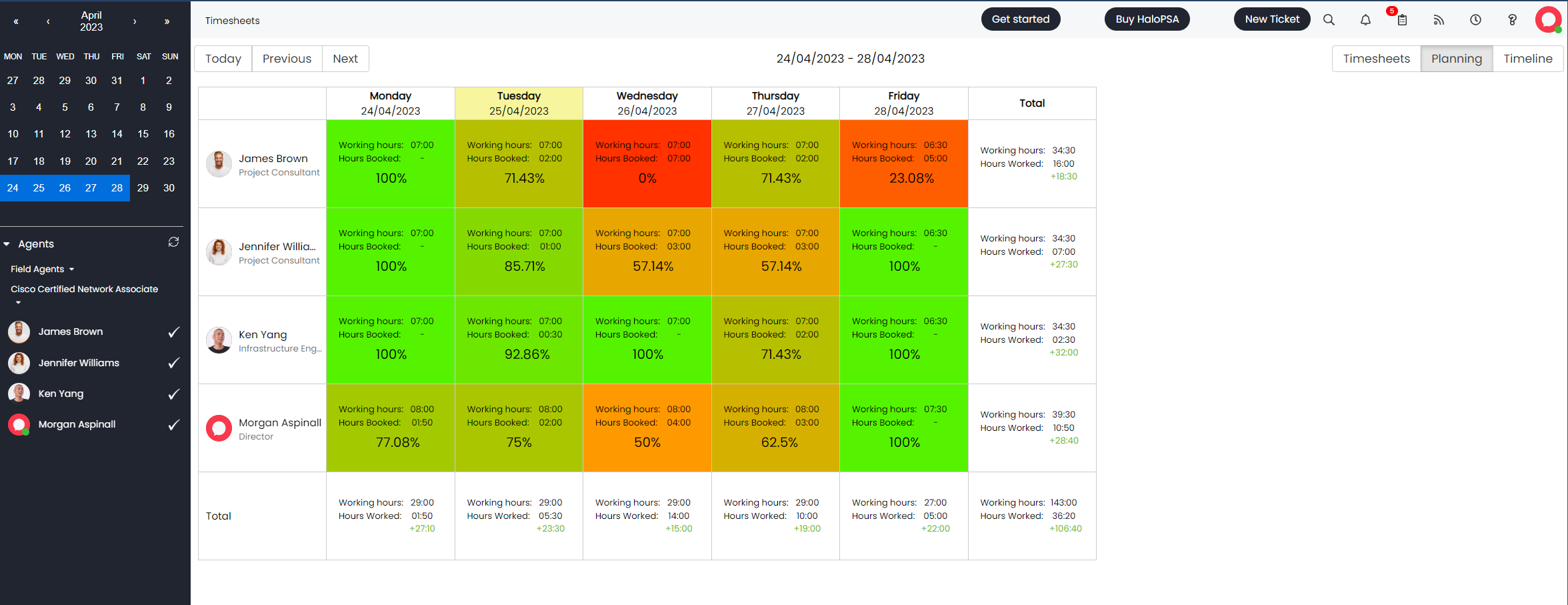
Fig 1. The Planning Screen
The duration over which you would like to track Agent availability can be established via clicking a start date, then clicking to your desired end date (all done on the calendar present in the top left hand side of Figure 1).
You'll also note that totals per day/Agent are also present, with a grand total also being returned.
Forecasting
Forecasting is a way of allocating expected Project time for a given Project/week. Tiles are displayed per Agent and are coloured based on Forecasted time as a proportion of available time (based on Shifts/Work Hours).
Forecasting is enabled per Ticket Type, via the "Settings" tab, and will show a "Forecasting" tab on Tickets of this Type. You can then allocate forecasted hours based on Agents within the team assigned to the Project/Tasks by clicking into each box and entering their respective hours.
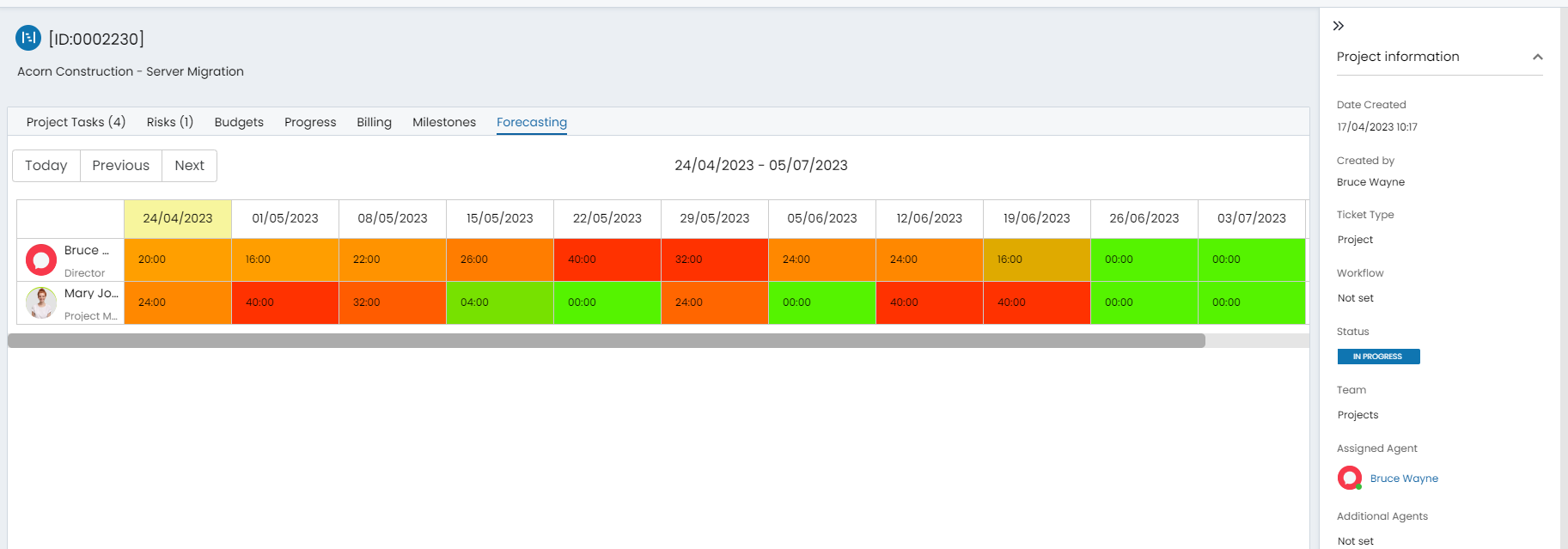
Fig 2. Project-specific Forecasting screen
A Global Forecasting screen is also available on the Timesheets module, where you can see a summation of forecast hours across all Projects.

Fig 3. Global Forecast screen in the Timesheets area
Automatic Estimate Forecasting
Forecasting can be calculated automatically based on the dates within the Project/Project Tasks. This is enabled globally in Configuration > Project Management > General Settings.
Note: When enabled, Forecasting can no longer be set manually.

Fig 4. Enabling estimate-based Forecasting
In Configuration > Tickets > Ticket Types > Settings tab, you will then need to enable "Include this Ticket Type for estimate-based forecasting" for each Ticket Type you want to Forecast on. This option will show when "Enable Forecasting" is set above it.
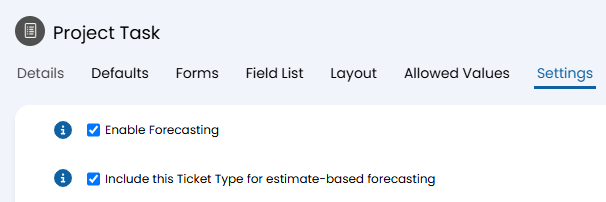
Fig 5. Enabling Forecasting per Ticket Type
The Forecasting values will then be automatically calculated based on the Project Tasks' Start Date/Time and End Date/Time, and show on both the "Forecasting" tab on the Project as well as the "Forecasting" view in the Timesheets area. This will account for their Working Hours, breaks or holidays if the period overlaps with one of these.
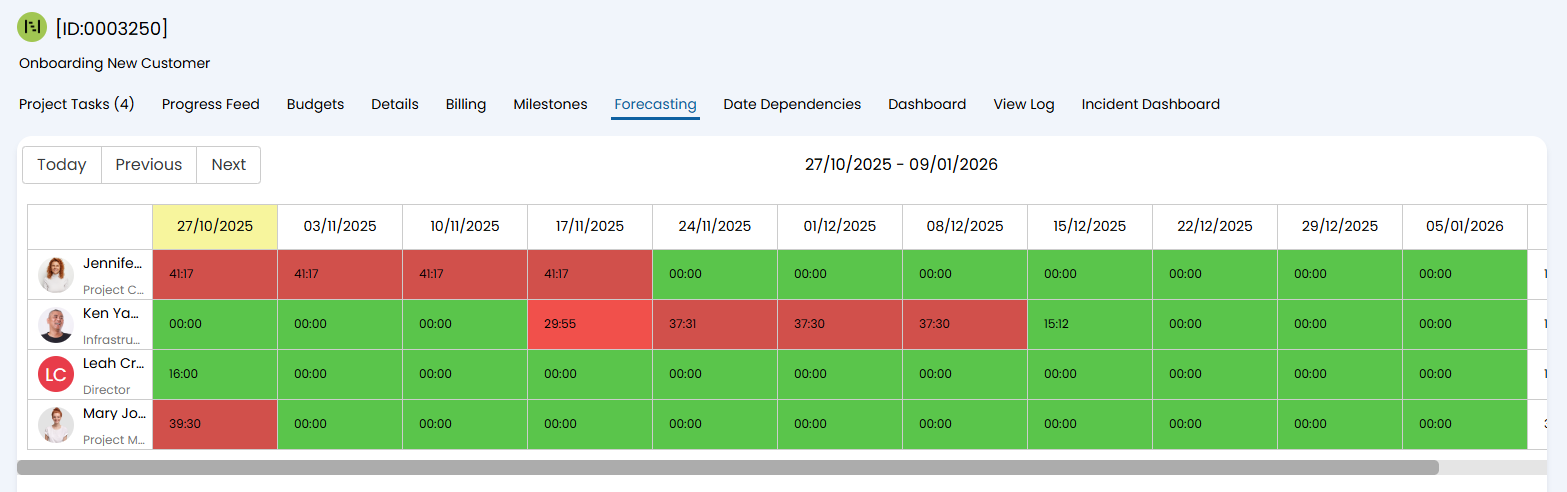
Fig 6. Estimate based Forecasting
Drill down on Automatic Estimate Forecasting
When you are using Automatic Estimate Forecasting you will be able to 'Drill Down' on entries in the forecasting tab, allowing you to see each project task that has been allocated to that agent for that week, and how many hours have been allocated. Making it easier to manage the resource assigned to project tasks.
To see more information on the forecast for a given agent in a given week simply select the entry in the forecast calendar.
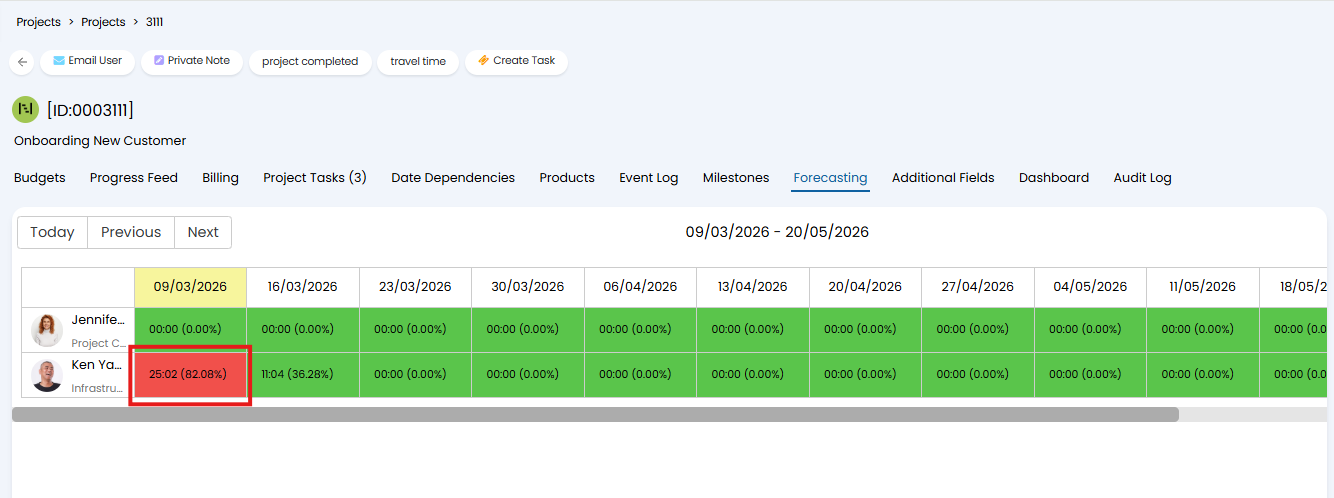 Fig 7. Entry in Forecasting Calendar
Once selected you will see a breakdown of each project task that is assigned to this agent, scheduled for the given week.
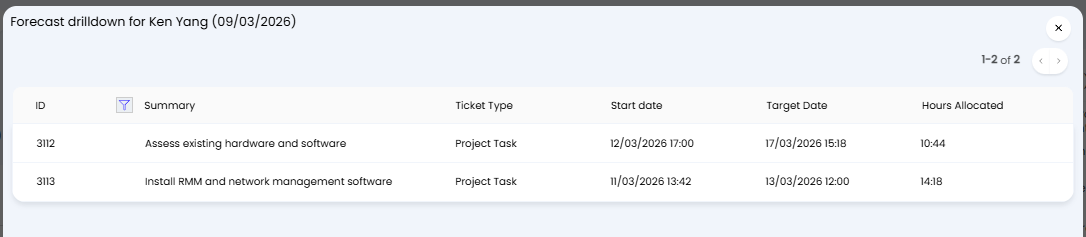
Fig 8. Drilldown of Forecast
This will only show tasks (tickets) that sit under this project, other project work scheduled for the agent will not show here.
Selecting an entry here will open that task, allowing you to easily see the current progress.
Percentage Thresholds
Percentage Thresholds are found in Configuration > Project Management > General Settings, where you can determine the percentage threshold for Orange/Red tiles.
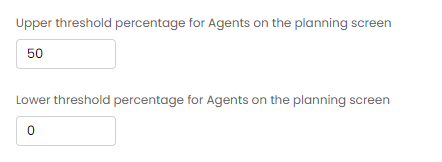
Fig 9. Percentage Thresholds for Planning and Forecasting