Integrating Ingram Micro Reseller (Hardware data) with the Etilize Catalogue
- Ingram
- tech data
- ingram micro
- reseller
- resellers
- etilize
- td
- Import quotes from Ingram
- Sync Purchase orders to Ingram
- Filter Ingram product search
In this guide we will cover:
- What is Ingram Micro Reseller?
- Connecting to Ingram Micro Reseller
- Adding Etilize/Ingram Items to Quotations
- Import Quotes from Ingram Micro into Halo
- Syncing Purchase Orders in Halo to Ingram
- Receive Updates on Purchase Order Changes in Ingram Micro
- Creating Notifications based on Purchase order statuses
What is Ingram Micro Reseller?
Ingram Micro Reseller is a product catalogue integration. This allows you to create quotes, sales orders and purchase orders in Halo using items from the Ingram Micro catalogue, giving you region specific price and stock information in real time. Quotes created in Ingram can also be imported into Halo and purchase orders in Halo can be synced out to Ingram.
Webhooks can also be configured to have a purchase order in Halo update when the associated PO in Ingram is updated, ensuring PO status is consistent across platforms. Notifications can be created based on PO status to keep agents updated on purchase order activity.
Connecting to Ingram Micro Reseller
First you will need to enable the respective integration module on the Configuration > Integrations page, enable this using the '+' icon.
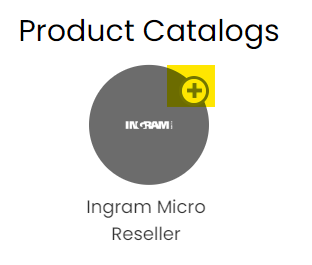
Fig 1. Turning on the Ingram Micro Reseller module
Once enabled click into the integration module to begin configuration. Create a new tenant, multiple tenants can be configured for this integration, used when your sales team covers multiple regions. As prices/currencies for products will vary based on the country code of the tenant they are ordered with. Once your tenant is created head to the 'Details' tab and enter your connection details and set the 'Application Type' to 'Production'.
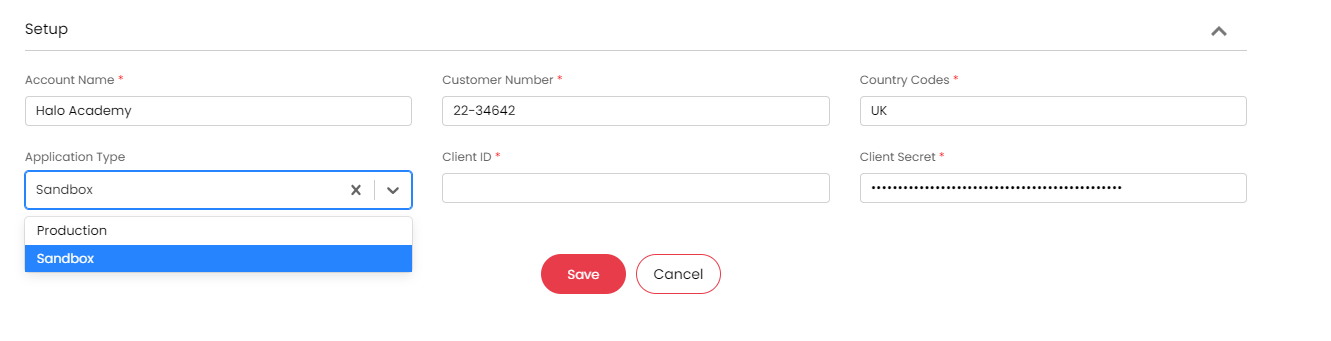
Fig 2. Ingram Setup page in the Details tab
See appendix figure A1 for a list of Country codes used for the Ingram Micro integration.
The connection details required can be obtained from your Ingram partner/developer portal in the 'My Apps' area.
The Customer Number can be found in the below Xvantage portal.
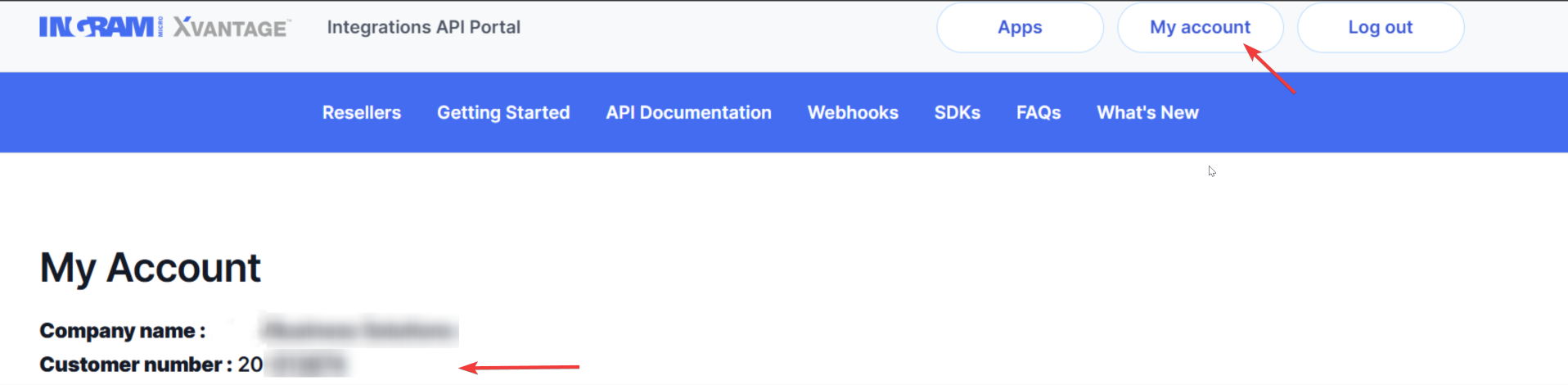
Permissions required
The correct API permissions will need to be authorised against your Ingram Micro account within your Ingram Micro developer console for Halo to obtain product/quote/purchase order information. The permissions required depend on what your are using the integration for.
Product Catalog v6 - Allows item information to be pulled from Ingram into Halo and view catalogue stock and prices for these items.
Quote Management v6 - Allows quotes to be imported from Ingram into Halo.
Order Management v6 - Allows you to sync purchase order information from Halo to Ingram.
Async Order Management v7 - Allows you to sync purchase order information from Halo to Ingram for purchase orders that are linked to a quote that already exists in Ingram.
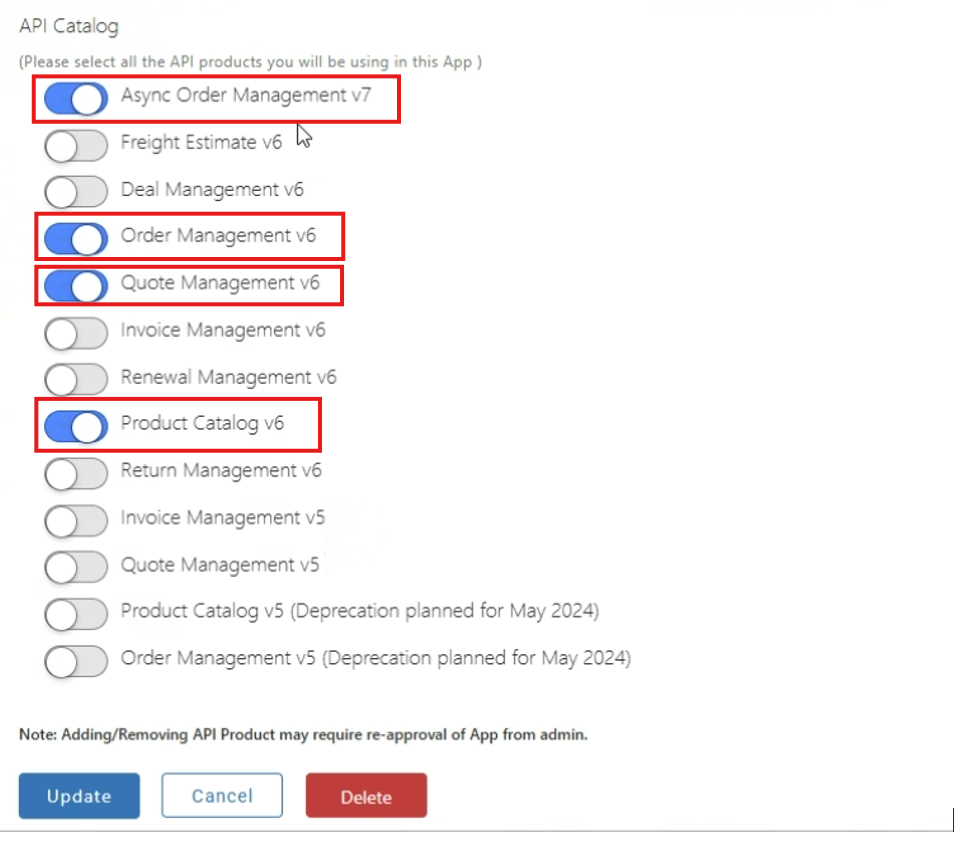
Fig 3. API permissions for Ingram Micro
API permissions will need to be set before generating a secret for the application, if the API permissions are changed a new secret will need to be generated to use these permissions.
Note: When granting API permissions Ingram will have to approve changes to the application, this can take a few days to take effect.
Once permissions are set copy and paste the required connected details from your Ingram developer portal.
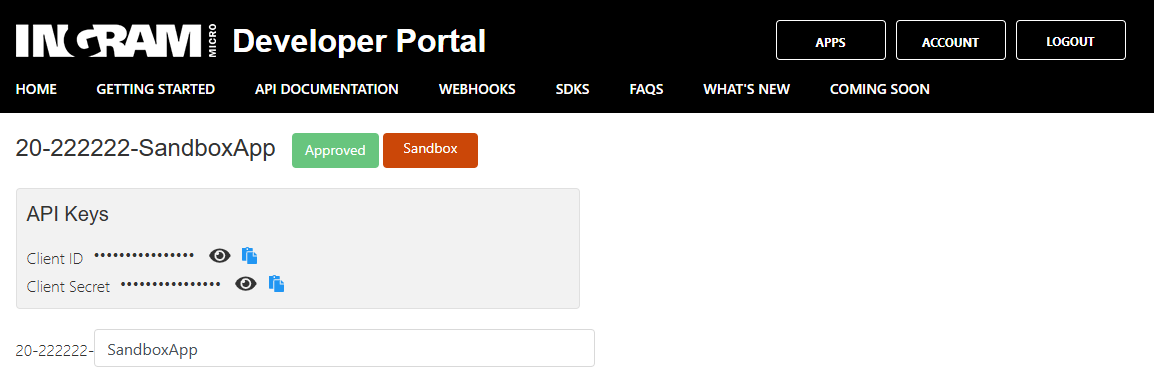
Fig 4. Connection details in Ingram Micro Reseller
The Ingram Micro integration is used in conjunction with the Etilize integration, this will need to be set up before items can be added/sync.
Connecting Ingram with Etilize
Head to configuration > integrations > Etilize. Make sure the module is enabled. Here you will need to configure Etilize and associate this with a Ingram Micro Reseller tenant.
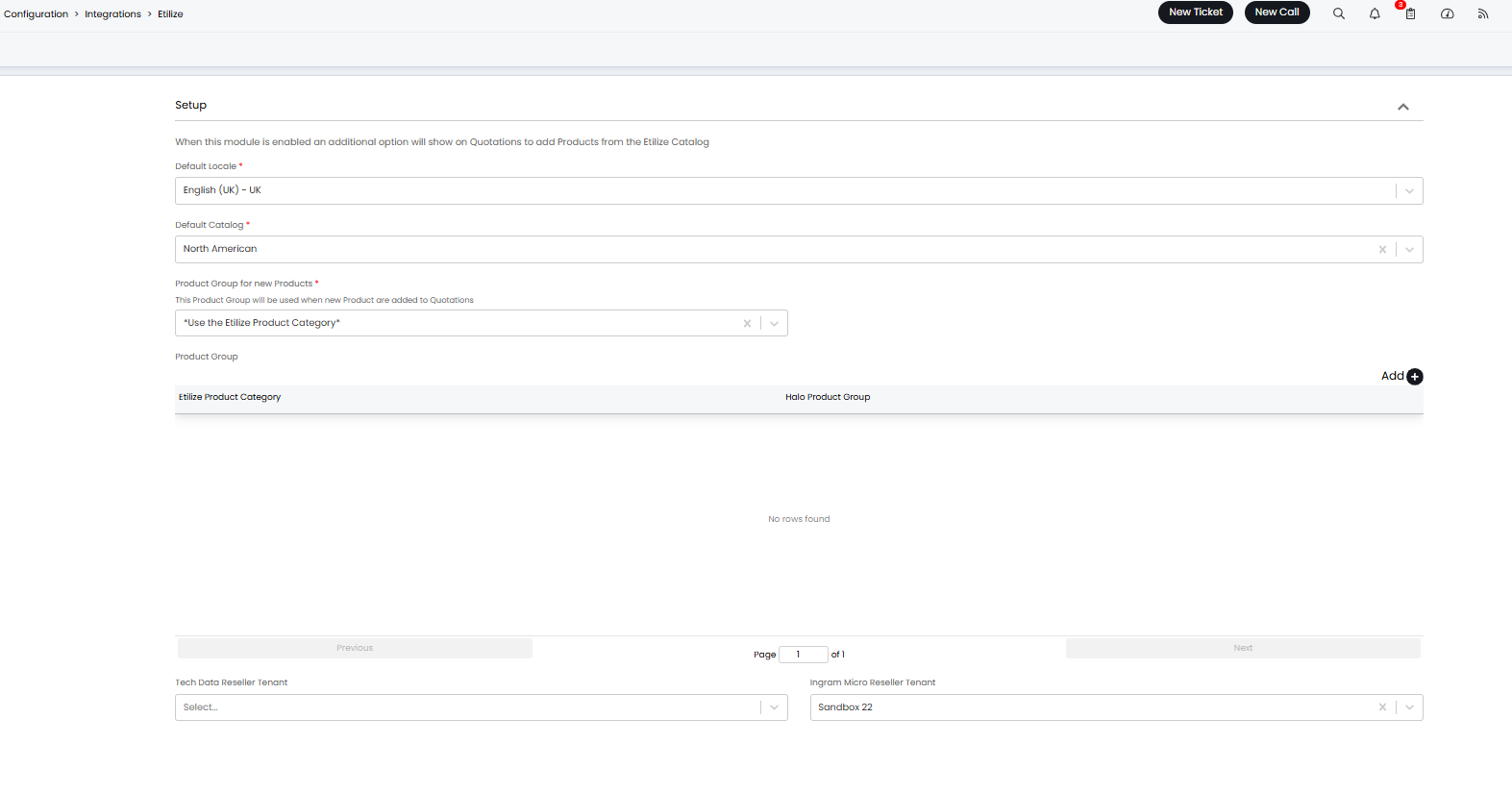
Fig 5. Etilize Integration module
Enter your location in the 'Default Locale' field. Currently supported Etilize locales:
- English (US) USA
- English (UK) - UK
- English (US) Canada
- English (UK) - Australia
Use the 'Default Catalog' field to set a default catalogue, the catalogue used can be changed when adding items to a quote/purchase order, but this provides a default. The catalogue you use should be consistent with the country you are using for your Ingram Micro reseller integration.
When an Etilize item is added to a quote in Halo this item will be created as a product in your Halo instance using data from the catalogue the item has come from. The field 'Product Group for new Products' will determine the product group that new items created by Etilize will be created under. If '*Use the Etilize Product Category*' is selected the item will be created under the product group that has a name matching it's Etilize product category description.
Alternatively, Etilize product categories can be mapped to Halo product groups, when mapped Etilize items with this product category will be created under the mapped Halo product group. This allows you to create items under existing product groups when the product category and group names do not match.
Important: The product group the item is created under determines the income/expense account the item uses as income/expense account is inherited from an item's product group. The income/expense account must be set for items to sync to accounting integrations.
There are also options on the Etilize setup screen to choose a default 'Tenant' to search the catalogues with, these must be filled in for the integration to work. The single-select options shown in figure 6 will be dynamically visible based on the reseller integration modules you have enabled (Tech Data Reseller and/ or Ingram Micro Reseller).

Fig 6. Setting a default Tenant to search catalogues with
Adding Etilize Items to Quotations
Now you have connected to the catalogue you can begin adding items from the Ingram Micro catalogue to your quotations. To add an Etilize item (item from the Ingram Micro catalogue) to a quotation head into a new quotation and you will see the 'Add Etilize Items' button is now available.
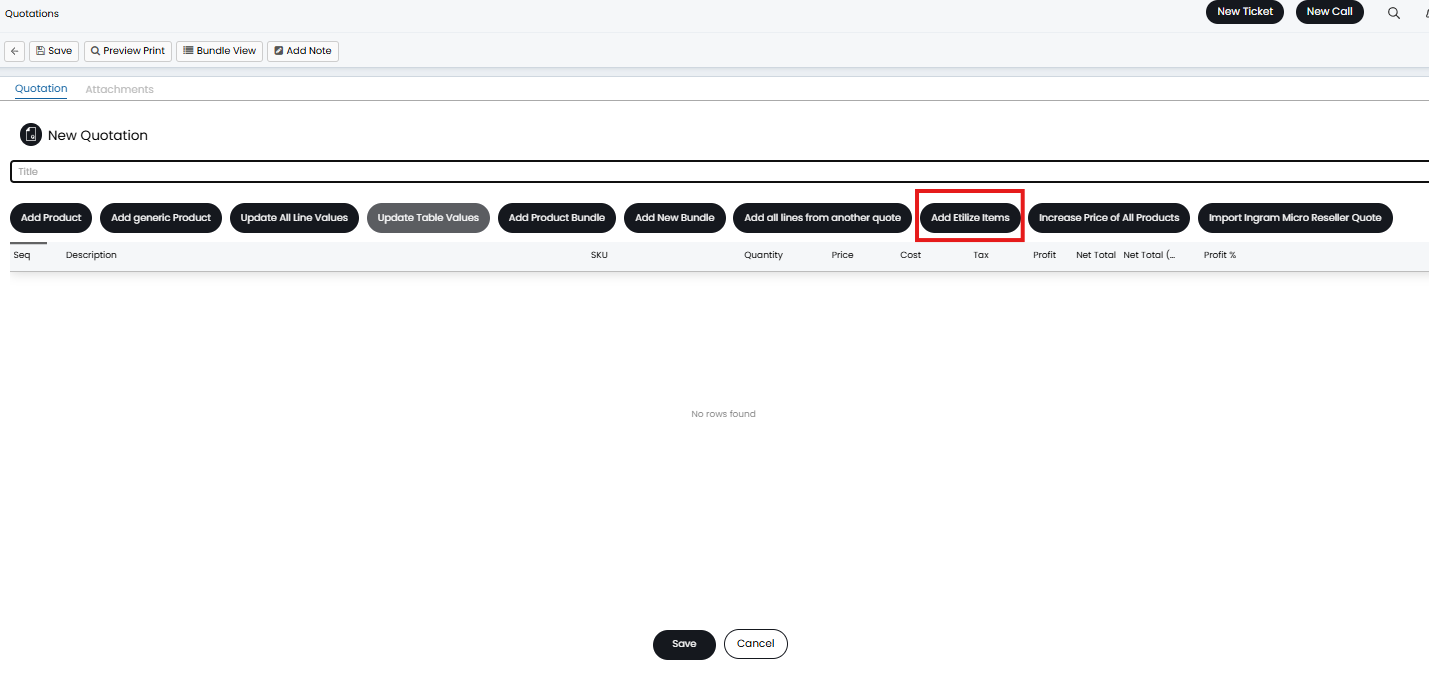
Fig 7. Add Etilize Items button now on Quotations
When this button is used you will need to select the catalogue you are using, your locale and the Ingram tenant you would like to use. The tenant will provide the connection to the catalogue but results will be filtered based on the catalogue and locale fields. For example, if I set the catalogue to be 'North America' and the locale to be English US Canada the North American catalogue would be used and only products available in the Canadian locale would be returned.
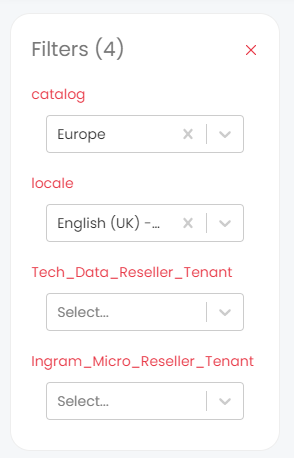
Fig 8. Filters when adding items
Note: If you have multiple Ingram Micro tenants set up, it is at this stage you can choose which tenant is being used.
After adding in the tenant, you will be able to search the catalogues prices and quantities in real time.
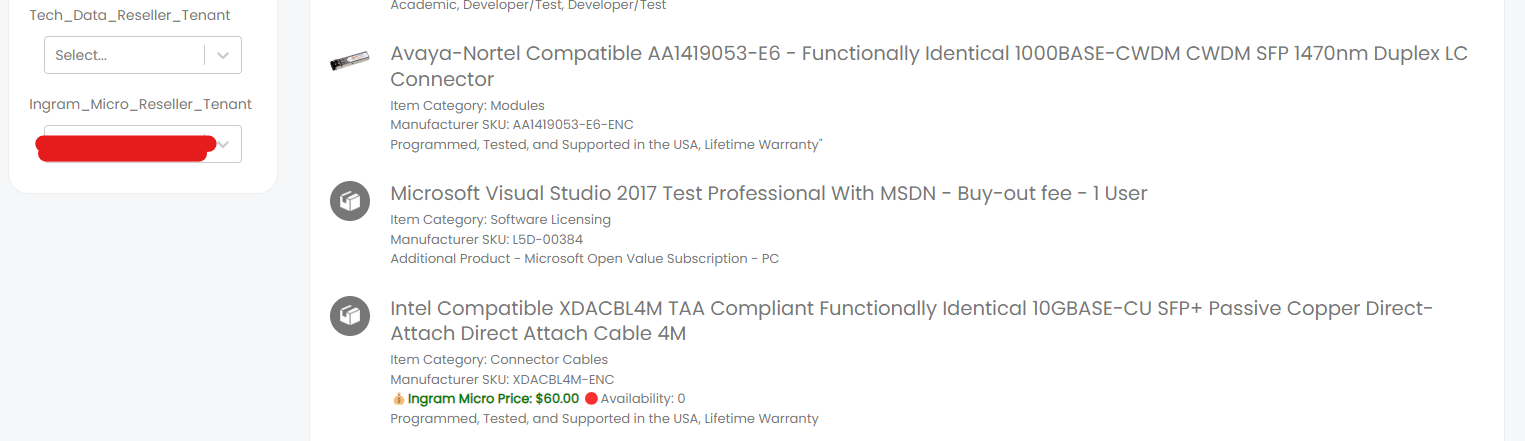
Fig 9. Searching for items to add
Products can be searched by:
- Name/description
- Item Category
- Manufacturer SKU
If you are using multiple product catalogues data from both catalogues will show against the item, allowing you to compare price/stock data. The cheaper price out of the two catalogues (if both are enabled) will be selected when adding the item to the order and the default mark up will be applied.

Fig 10. Item with Ingram and Tech data price/stock info
When you have found the item you would like to add to the quote select this item. Upon adding the item to the quote the item will be created as a product in your Halo instance. Product details such as SKU, cost and price will be taken from Ingram, automatically populating the product in Halo with this information.
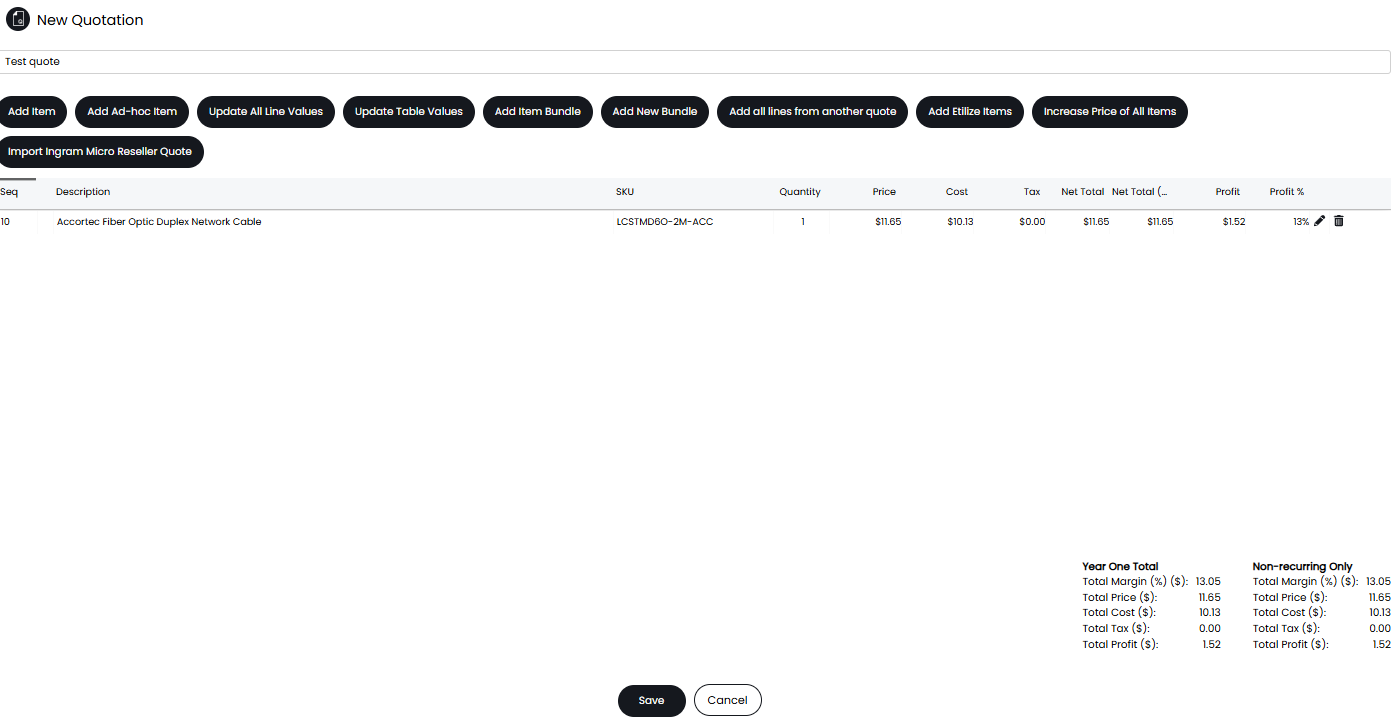 Fig 11. Etilize item added to quote
As this Etilize item has now been created as a product in your instance you will be able to add this same product to quotes later on using the 'Add Item' button against the quote. However, we advise against this as when adding an item to a quote this way the item cost will be taken from the item in Halo so will not reflect current costs in Ingram. Instead add this item to quotes using the 'Add Etilize Items' button, searching for this same item. This will add the item to the quote using the most up to date cost in Ingram.
If adding an item to a quote that shares an SKU with an item that already exists in your instance (likely previously created by Etilize), the item cost of the existing item in your instance will be updated to reflect the current cost in Ingram.
Filtering Etilize items that appear in search
You can filter search results of Etilize items by category, manufacturer and attribute. These filters can be applied in conjunction with a search to assist you/narrow down search results.
To enable this functionality head to configuration > integrations > Etilize and enable 'Show category, manufacturer, and attribute filters when searching Products'.
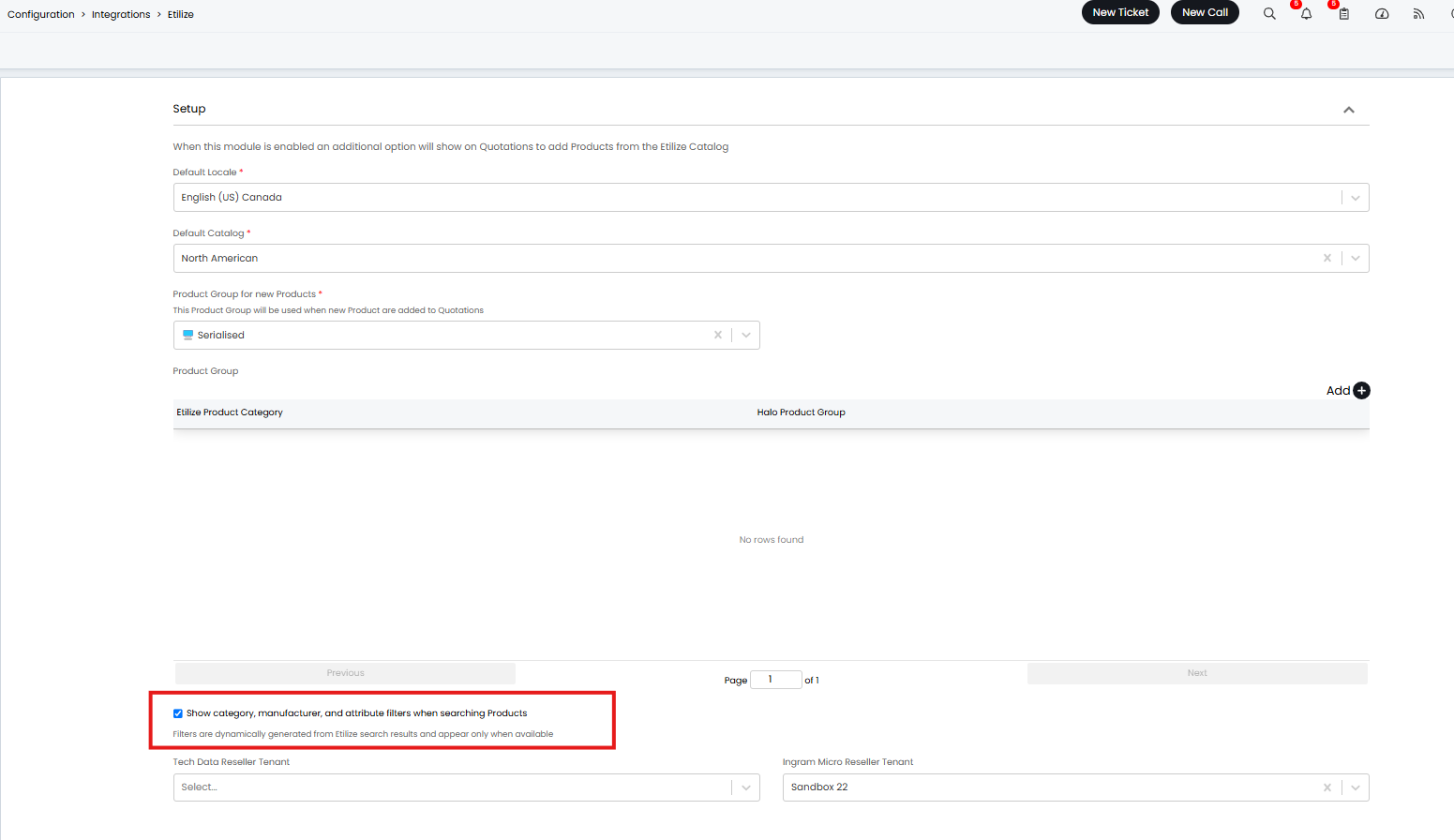
Fig 12. Enable additional filters when searching Etilize products
Now this is enabled when an item search is complete an additional field will show in the search 'Filters'.
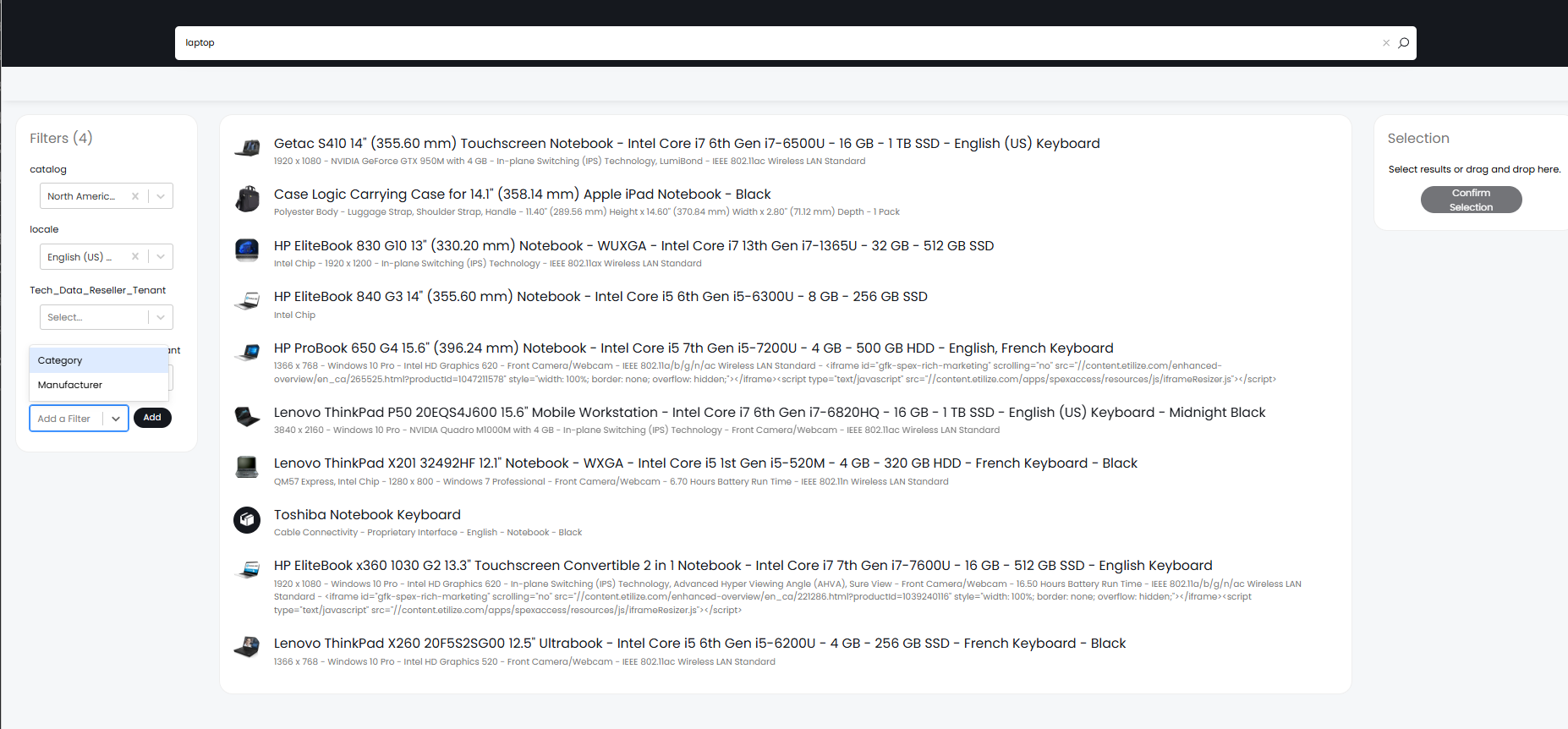
Fig 13. Etilize filters for search
Here you can choose to filter the search results on category, manufacturer and attribute. The filter options that are available will depend on what you have searched for, for example the category filter will only appear when you have searched a term they contains category values that can be filtered on.
Note: You will need to search for an item before this additional filter field will show.
Add Ingram Micro Products to Quotes
The "Add Ingram Micro Products "button allows you to browse items from Ingram to items to quotations.
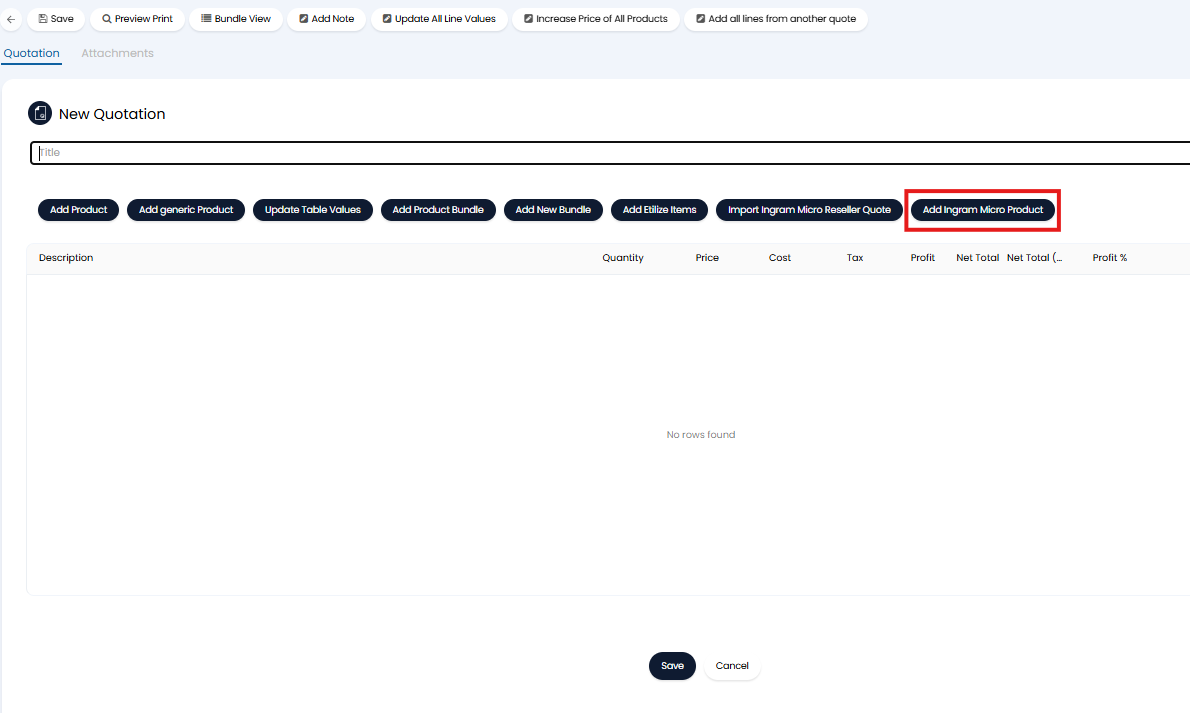
Fig 14. Add Ingram Micro Product to quote
When used you will still need to select which Ingram Tenant to use, then you will be able to browse/search items from the Ingram Micro catalogue only.
Products added to quotes from the Ingram catalogue will create a new product in Halo that is linked to the Ingram Micro product. The product will use the default product group set in the "Product creation" section of the Ingram Micro Reseller configuration under the "Quotes" tab.
Similarly to when adding an item via the 'Add Etilize Items' button, Ingram products added to quotes in this way can be ordered in Ingram once a PO is raised for them in Halo.
Import Quotes from Ingram Micro into Halo
Quotes created in Ingram Micro can be imported into Halo to allow your agents to manage orders within Halo. Before you can import quotes from Ingram head to configuration > integrations > Ingram Micro > select tenant > Quotes tab. Here you will need to set the product group that items created from imported quotes are created under in Halo. When a quote is imported from Ingram Micro the items against the quote will be created as products in Halo, therefore a product group for these items will need to be determined.
Note: If products are created in Halo from a quote import the group they are under will be determined by the setting in figure 14. If products are created by adding an item to a quote from the catalogue the Etilize product mappings (figure 4) will determine the product group.
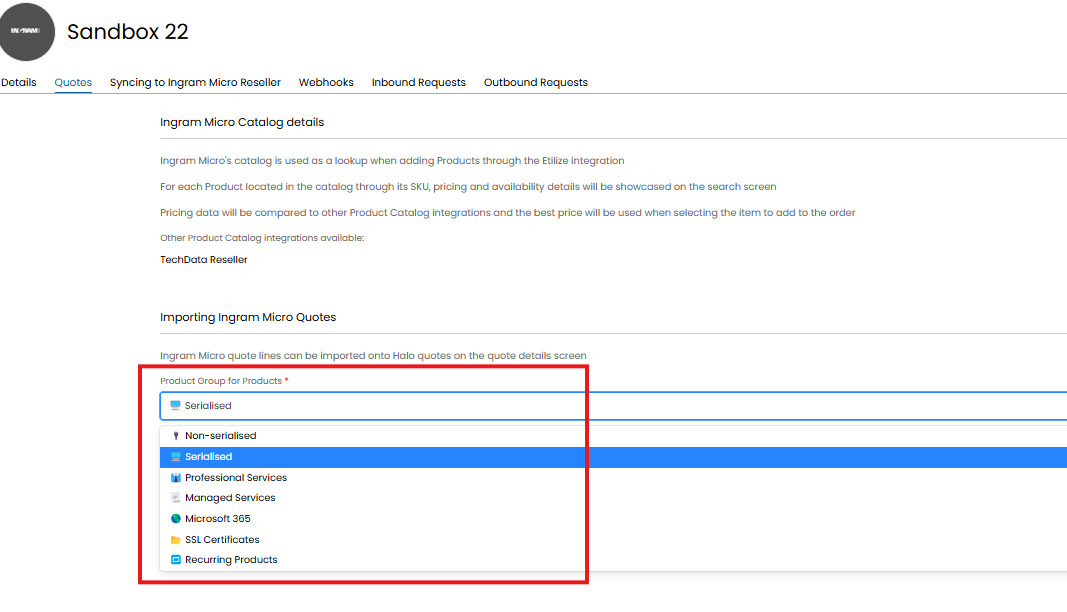
Fig 15. Product Group for Products field
To import a quote from Ingram create a new quote in Halo and use the 'Import Ingram Micro Reseller Quote' button.
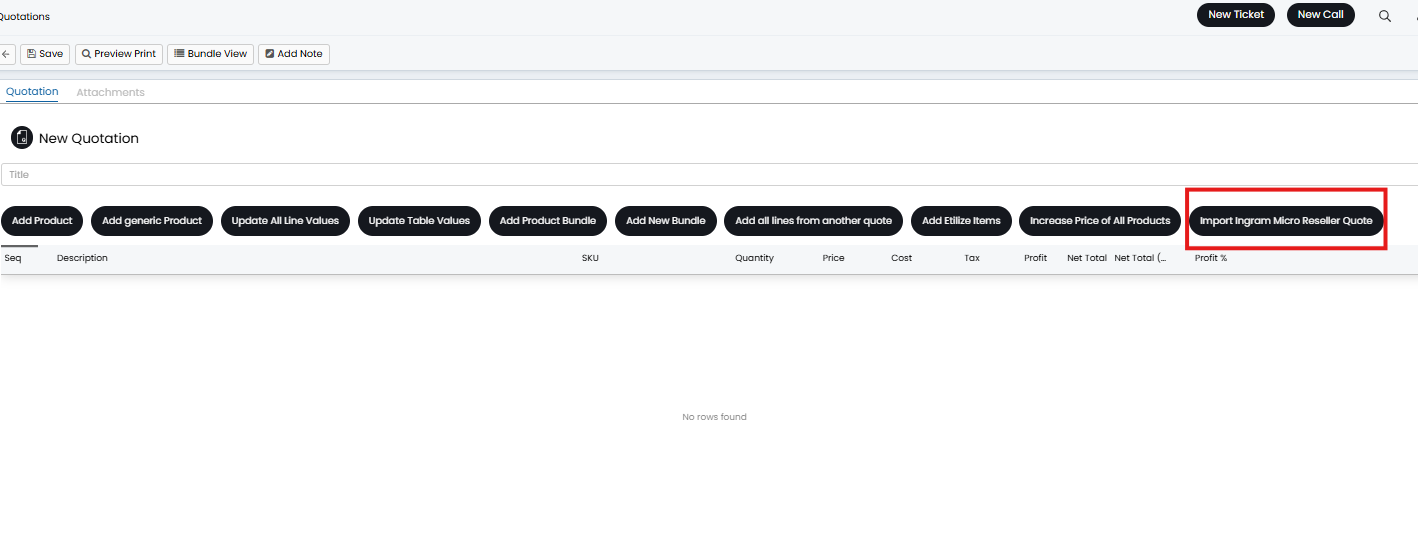
Fig 16. 'Import Ingram Micro Reseller Quote' button
This will bring up a search screen in which you can select which tenant you would like to search quotes for. A list of this tenant's quotes will appear but quotes can also be searched using the quote number.
Syncing Purchase Orders in Halo to Ingram
When a purchase order is raised in Halo, that is linked to a quote containing Etilize items, this purchase order can be synced over to and created in Ingram Micro. This allows you to complete the quoting/ordering process in Halo and then sync the purchase order over to Ingram when items are ready to be ordered, streamlining the ordering process. Purchase orders are synced manually using a 'Sync to Ingram Micro' button against the purchase order.
To set this functionality up head to Configuration > Integration > Ingram Micro Reseller > select a tenant > syncing to Ingram Micro Reseller tab.
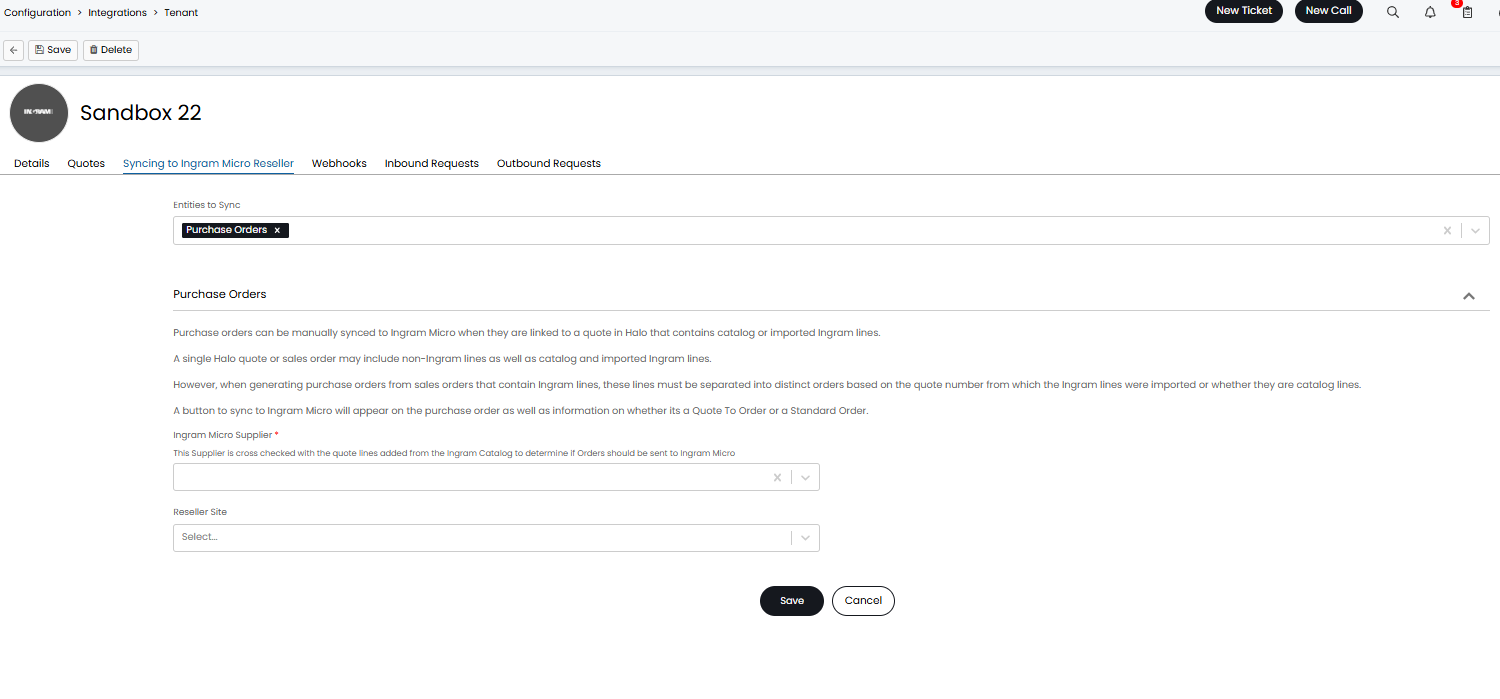
Fig 17. Syncing to Ingram Micro tab
First, ensure you have 'Purchase orders' set in the 'Entities to Sync' field. Then populate the 'Ingram Micro Supplier' field with the supplier in Halo associated with Ingram Micro. If you do not have a supplier called 'Ingram Micro' already you will need to create a new supplier, for information on creating suppliers in Halo see our guide here.
The supplier set here will be checked when syncing a purchase order to Ingram, if the supplier against the purchase order matches this supplier the purchase order will sync. If the purchase order has a different supplier set (e.g. Amazon) the purchase order will not sync to Ingram as it will be assumed a different supplier is required/used for this product.
Then set the 'Reseller Site' field, the address of the site selected here will be used as the purchase order from address when ordering items from the Ingram Micro catalogue. The delivery address will still use your purchase order default address, or this can still be overridden against each purchase order.
Now you are ready to sync purchase orders from Halo into Ingram. Create a purchase order from the sales order linked to your quote. It is important to note that quote/sales order lines that have been imported from a quote in Ingram (so the quote already exists in Ingram) will need to be on a separate PO to any Etilize items on the same quote/PO. If the quote/sales order consists of items from an imported quote (from Ingram) and additional items added from the Ingram catalogue these items will need to be on separate POs, one PO containing the imported quote items and another for the remaining items. This is because the PO containing the imported quote items will be linked to the existing quote in Ingram, however the other items on the quote in Halo cannot be linked to this PO as they do not exist against the quote in Ingram.
When quote line items that have been imported from Ingram are added to a PO in Halo and synced to Ingram this is known as a 'Quote to order'. When etilize items on a quote in Halo are added to a PO in Halo and synced to Ingram this is known as a 'Standard Order'.
Note: When raising a PO from a sales order in Halo you will not be able to add imported quote lines to the same PO as Etilize/Ingram items that have been added to the quote in Halo directly from the catalogue even if they are on the same sales order.
Standard orders can now be synced to Ingram but quote to orders (purchase orders linked to a quote containing imported quote lines) will need to have the webhook functionality configured before a sync can take place. See the 'Receive Updates on purchase order changes in Ingram Micro' section of this guide.
Once you have created your purchase order(s) use the the 'Sync to Ingram Micro' button against the purchase order to sync it to Ingram Micro. You will notice the type of order being raised is denoted above the button.
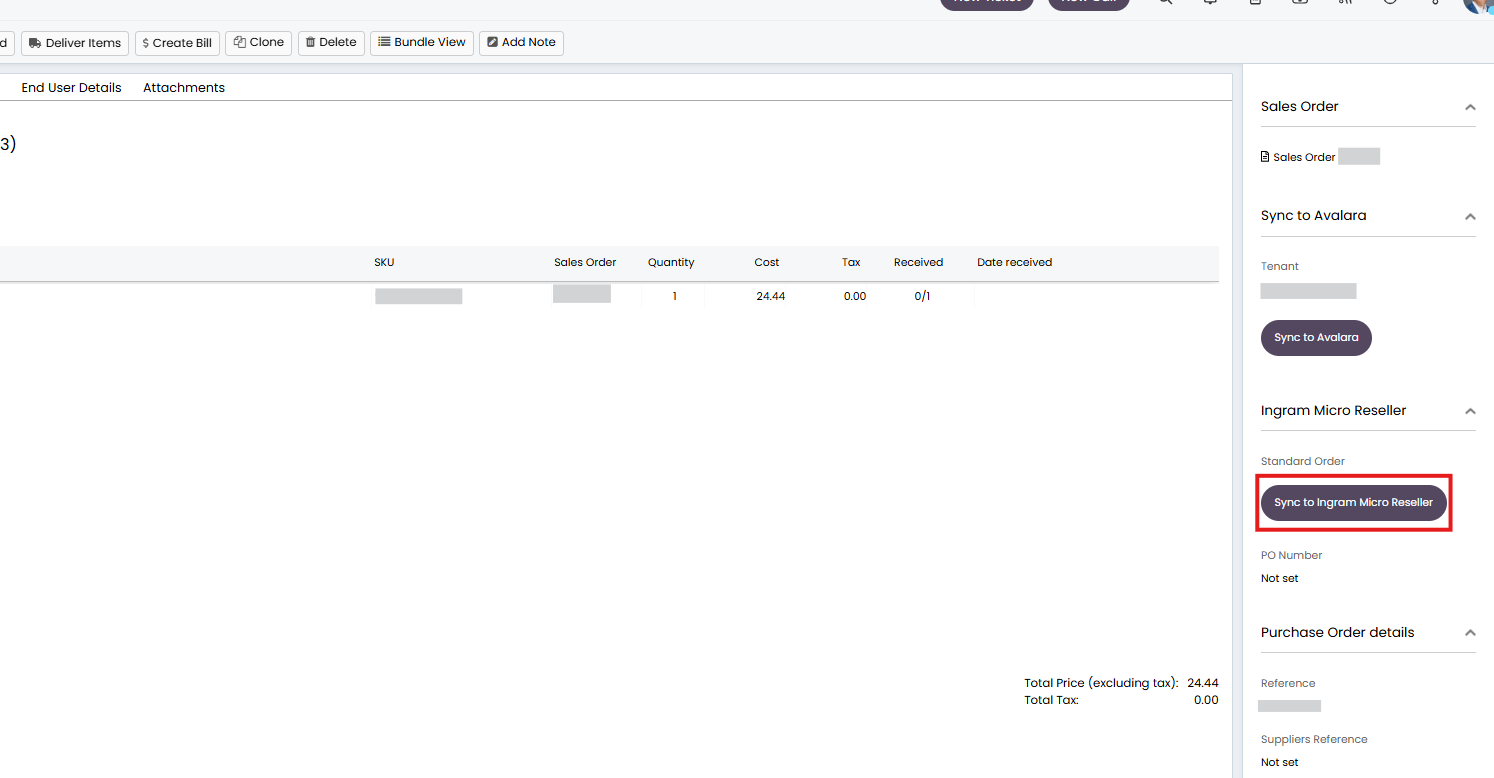
Fig 18. Sync to Ingram Micro Button
Syncing Carrier Code (v2.244+)
From v2.244+ the carrier code of the purchase order can be synced from Halo to Ingram.
To do this you must first link each of your carriage codes (in Halo) with the appropriate Ingram carrier code. Head to Configuration > Advanced Settings > Lookup Codes > Toggle the dropdown to Carriage Items > create a new or edit an existing carriage code here > use the "Ingram Micro Reseller Carrier Code" to pick the Ingram carrier code with this carriage item.
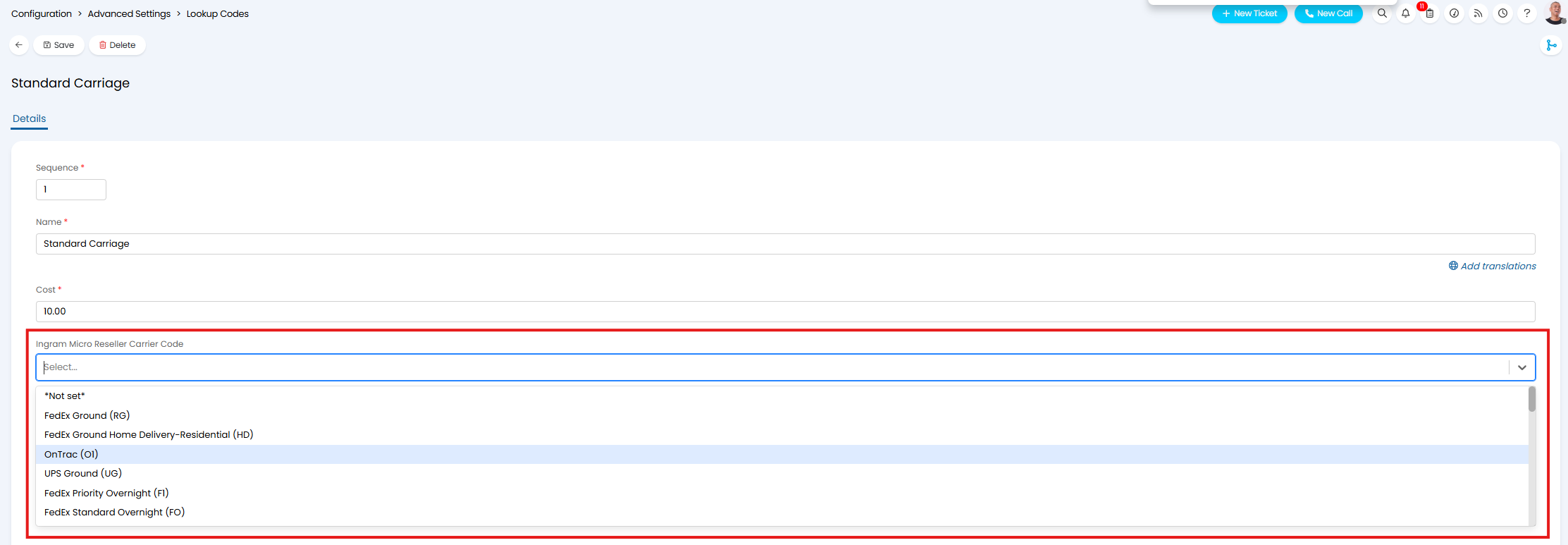
Fig 19. Ingram Micro Reseller Carrier Code
Now, when this carriage item is selected for a purchase order in Halo, when it is synced to Ingram, it will be created with the associated Ingram carrier code.
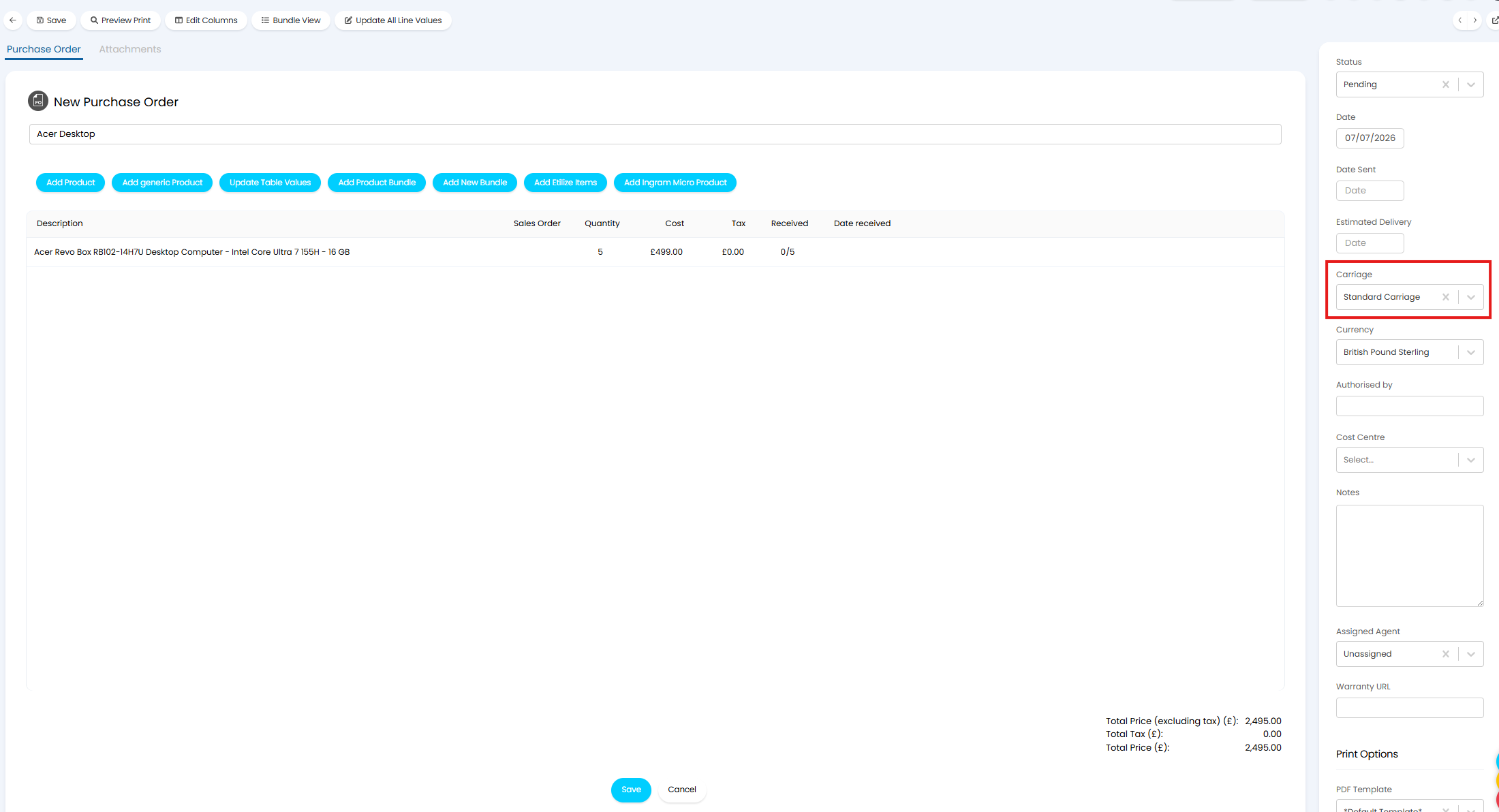
Fig 20. Carriage against PO
Using Other Catalogues in conjunction with Ingram
If you are using other product catalogue integrations in addition to Ingram Micro (such as TechData reseller) you will have to take some extra considerations when syncing POs from Halo to Ingram.
When multiple catalogues are connected you will see price/stock info for both catalogues. When an item is added to a quote the cheapest price will be taken and it will be assumed this item will be ordered from the cheapest catalogue. However, if TechData offers a lower price than Ingram but you would like to order the item from Ingram using the purchase order syncing functionality you will need to remove TechData items from the search results. This is shown in figure 16. This ensures the Ingram Micro item is selected.
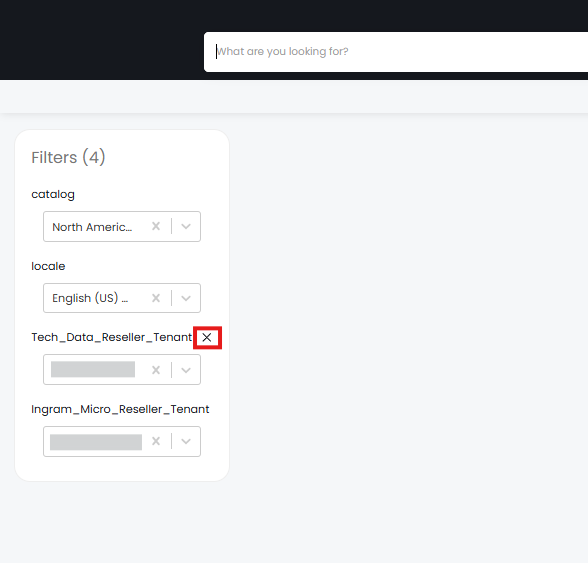
Fig 21. Remove additional catalogue from item search results
If you are having issues getting your PO to sync from Halo to Ingram ensure the items on the PO and linked quote have all been selected from the Ingram catalogue.
Receive Updates on purchase order changes in Ingram Micro
If syncing purchase orders to Ingram Micro, webhooks can be configured to allow your purchase order in Halo to be updated when the associated purchase order in Ingram Micro has been updated. When the purchase order status in Ingram changes the status of the purchase order in Halo will change too.
To set this up you will first need to create a webhook in your Ingram developer portal, go to developer portal >webhooks section > new webhook. In the Destination URL field enter https://YOURHALODOMAIN/api/notify/IngramMicroReseller and enable the notification events that you would like to trigger the webhook. We recommend enabling the following:
- order_invoiced
- order_shipped
- order_voided
- order_hold
- async_order
But all events can be enabled.
Note: 'async_order' trigger is required to be able to sync POs from Halo to Ingram that are linked to quote lines imported from Ingram.
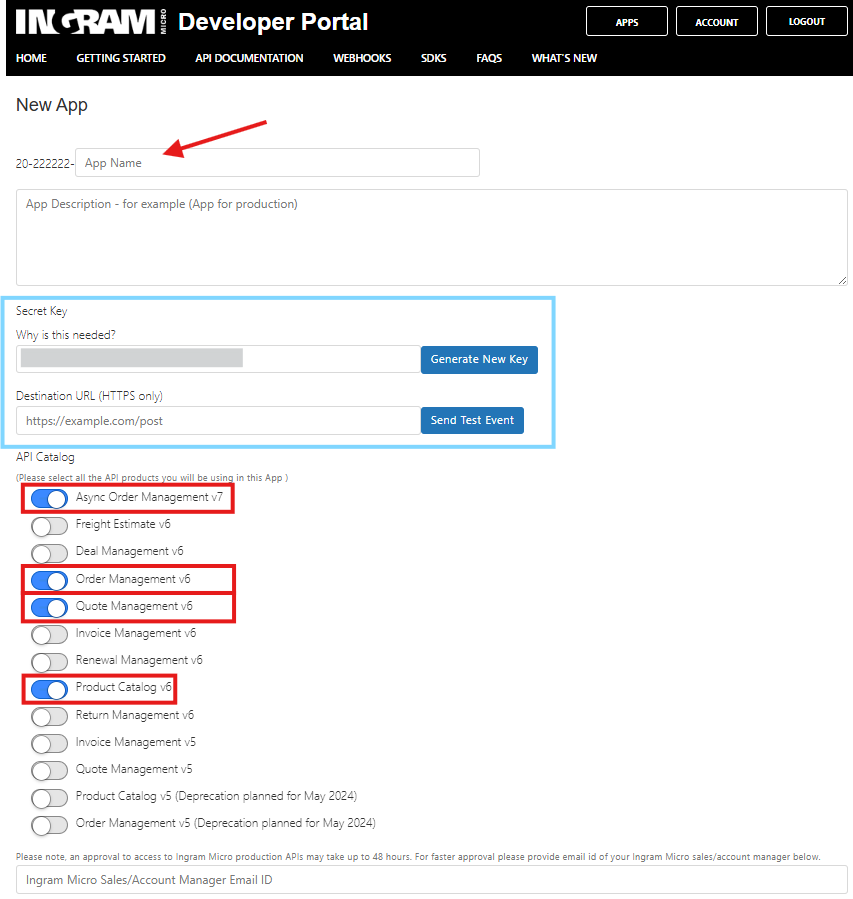
Fig 22. Configuring the API details
If you see 2 webhooks in your Ingram Micro Portal, you will want to use the Webhook marked as 'async_order_create', as seen below:
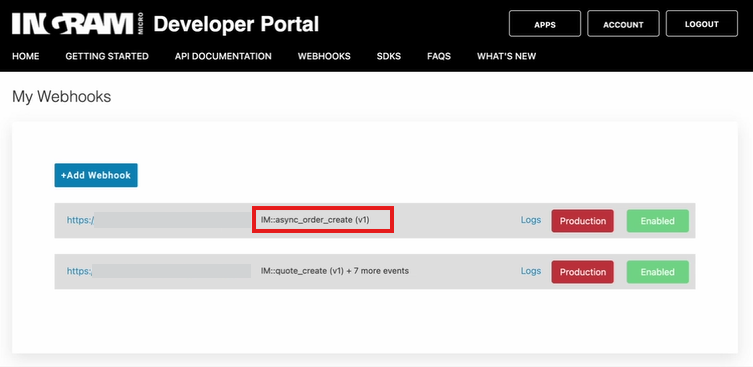
Fig 23. Webhook creation in Ingram (This is a sandbox instance so your portal will look slightly different)
Now generate and copy a signature key for the webhook. Head back into Halo and paste the signature key into the 'Webhook Signature' field on the integration setup page.
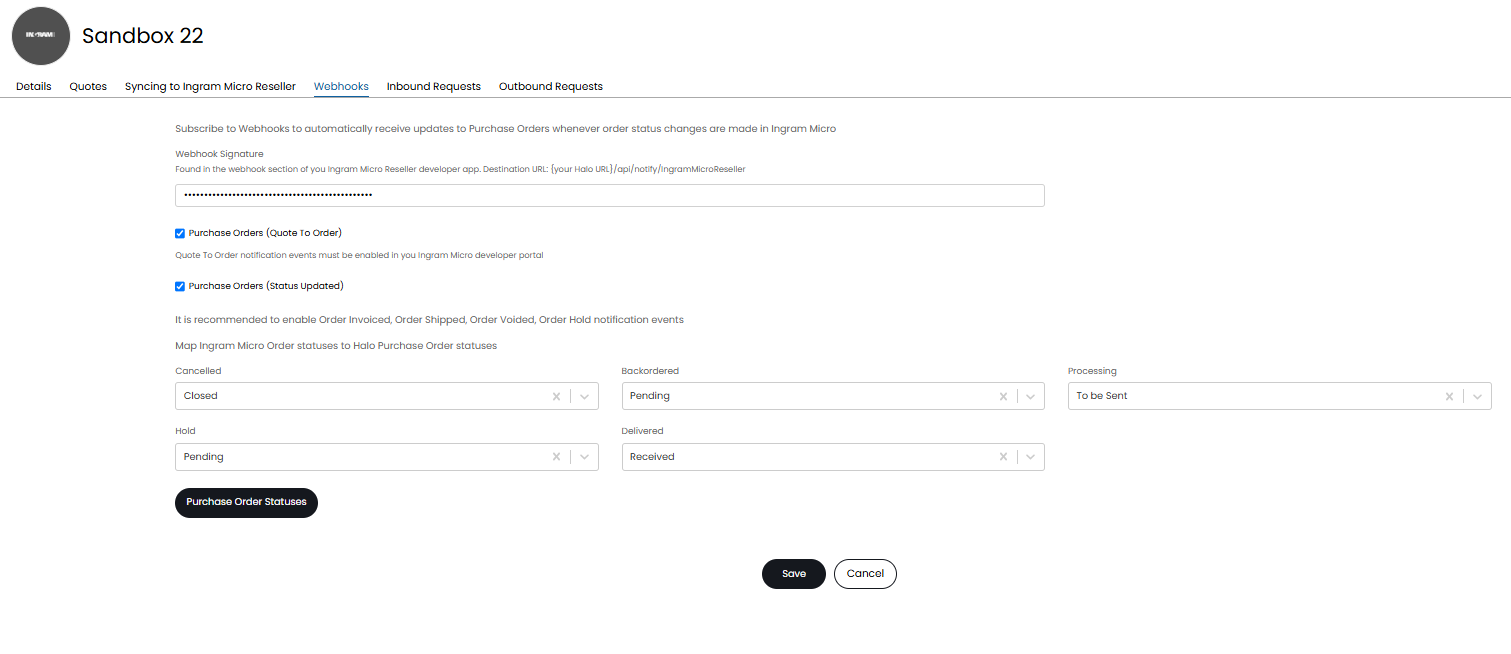
Fig 24. Webhooks tab on integration setup page
The checkboxes 'Purchase Orders (Quote To Order)' and 'Purchase Orders (Status Updated)' are used to determine which purchase orders in Halo are updated by Ingram.
Purchase Orders (Quote To Order) - When enabled purchase orders in Halo linked to a quote imported from Ingram can be synced to Ingram.
Purchase Orders (Status Updated) - When enabled purchase orders in Halo that have been synced to Ingram will receive live status updates when the PO in Ingram is updated.
Enabling both options will ensure all purchase orders synced to Ingram will receive status updates. Enabling only 'Purchase Orders (Status Updated)' will ensure only purchase orders not linked to a quote that has been imported from Ingram will receive updates. If you are importing quotes from Ingram we recommend having both these settings enabled.
When 'Purchase Orders (Status Updated)' is enabled you will be able to map Ingram purchase order statuses to Halo purchase order statuses. These mappings will determine the status the PO in Halo will have when the Po in Ingram is changed to this status. You may wish to create some new purchase order statuses to reflect the Ingram status more accurately. To create new PO statuses click 'Purchase Order statuses', here you will be able to configure a new status.
Creating Notifications based on PO statuses
To optimize your ordering procedure notifications can be configured to alert agents to changes in a purchase order's status. This is useful in alerting agents to any action they need to take.
We will work through an example notification that can be created. To create a notification head to Configuration > Notifications > Notifications > New, in this example we will configure a notification that will alert agents when a purchase order has been cancelled. Give the notification a name and set the 'Notification Type' to 'Agent Notification'.
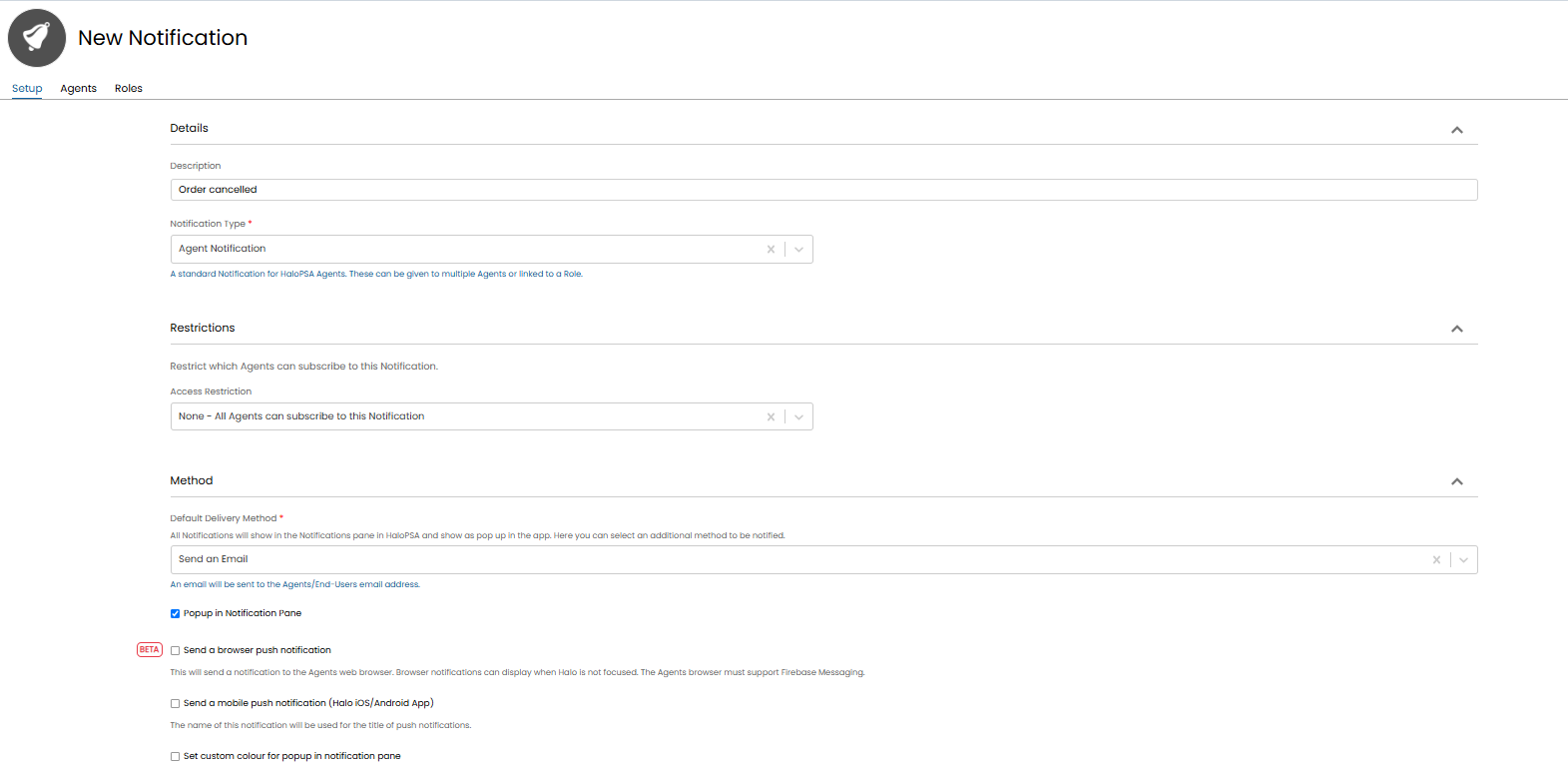
Fig 25. Order cancelled notification example
Set the 'Event' for the notification to be 'Purchase order updated'. Then in the criteria table add in the status the purchase order needs to be in order to trigger this notification. In my example I have added additional criteria for the supplier to ensure agents are only notified for Ingram cancellations.
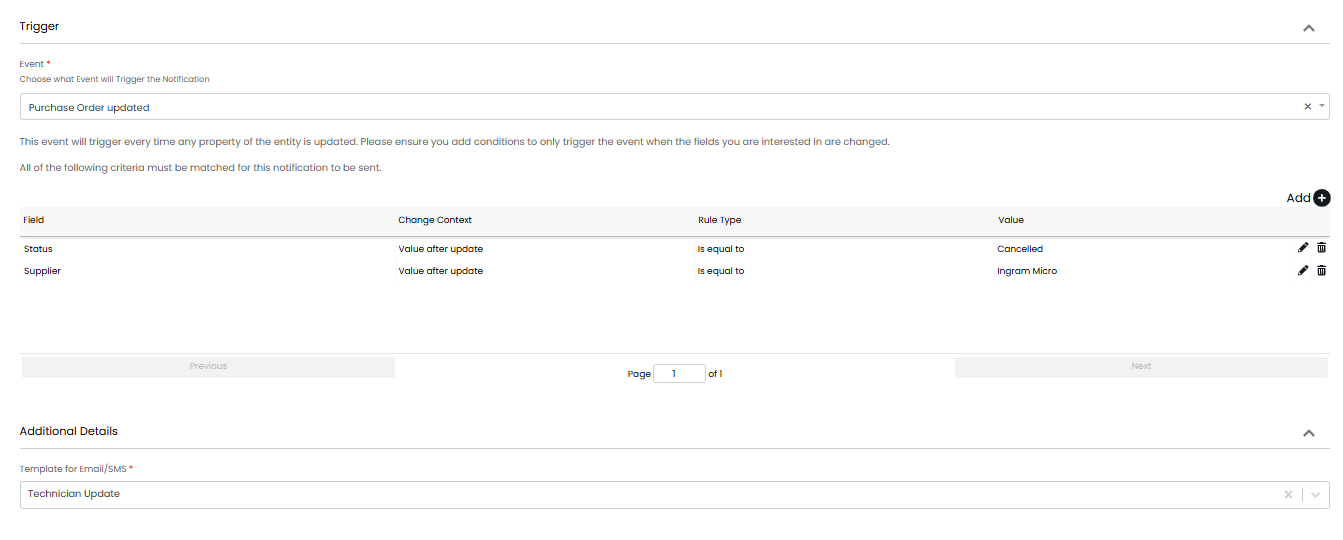
Fig 26. Order cancelled notification event trigger
Now you can subscribe the agents you would like to receive this notification to the notification (in agents tab), such as the agents in your purchasing team.
Appendix
Figure A1 - Country Codes for Ingram Micro Reseller
| Argentina | AR |
| Australia | AU |
| Austria | AT |
| Bahrain | BH |
| Belgium | BE |
| Brazil | BR |
| Canada | CA |
| Chile | CL |
| Colombia | CO |
| Egypt | EG |
| France | FR |
| Germany | DE |
| Hong Kong | HK |
| Hungary | HU |
| India | IA or IN |
| Indonesia | ID |
| Italy | IT |
| Kuwait | KW |
| Lebanon | LB |
| Malaysia | MY |
| Mexico | MX |
| Morocco | MA |
| Netherlands | NL |
| New Zealand | NZ |
| Norway | NO |
| Oman | OM |
| Pakistan | PK |
| Peru | PE |
| Puerto Rico | PR |
| Qatar | QA |
| Saudi Arabia | SA |
| Singapore | SG |
| Spain | ES |
| Sweden | SE |
| Switzerland | CH |
| Thailand | TH |
| Turkey | TR |
| United Kingdom | UK |
| United States | US |