Linking Assets
- site
- User
- child
- parent
- Asset
- linking
- cmdb
- move
In this guide we will cover:
- Linking Assets to a Ticket
- Linking Assets to a Site
- Asset Relationships
You can link Assets to Users, Tickets, Sites, or other Parent/Child Assets. You can do all of this in any of the respective areas, for example, it is possible to add an Asset to a Ticket, or in a User's profile you can link an Asset to them in the Assets tab.
Linking Assets to a Ticket
Within Configuration > Tickets > Ticket Types, ensure the "Asset" Field is added to the Field List.
Open a Ticket of that Type you would like to link an Asset to. In the Details pane on the right hand side, you will find the "Related Assets" header. Click "Add Asset".
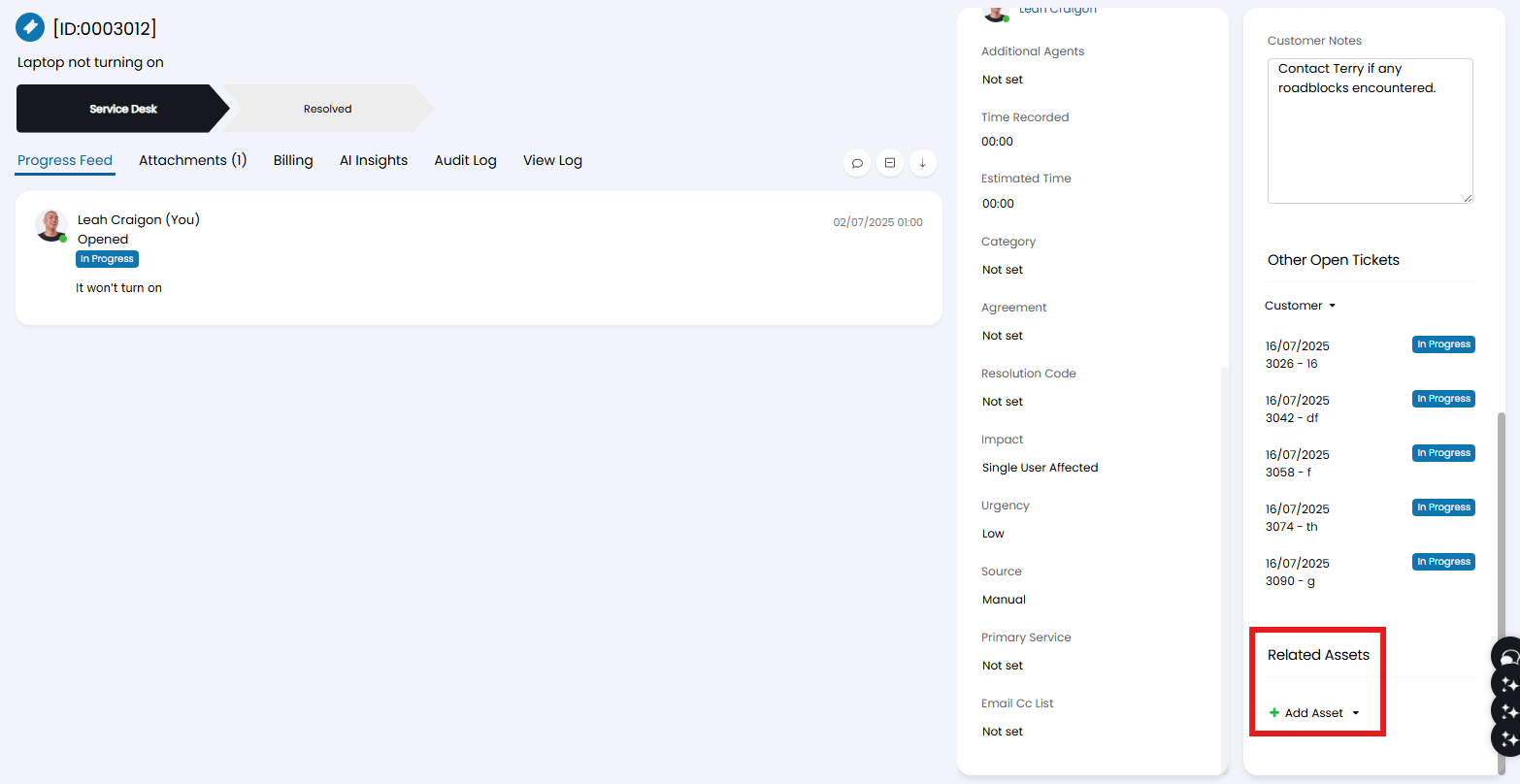
Fig 1. Related Assets Field.
Select the relevant search filter, or create a new Asset.
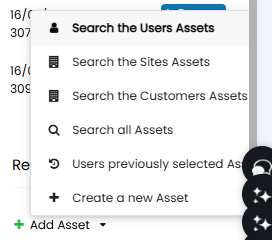
Fig 2. Selecting an Asset search filter.
On the search screen, find the Asset(s) you wish to link, select, and click "Confirm Selection" to add these to the Ticket. There is a button in the top left to "Bulk select all". This will add all Assets on the current screen (based on the filtering) to the Ticket, which is useful if an entire sub-section of Assets are impacted.
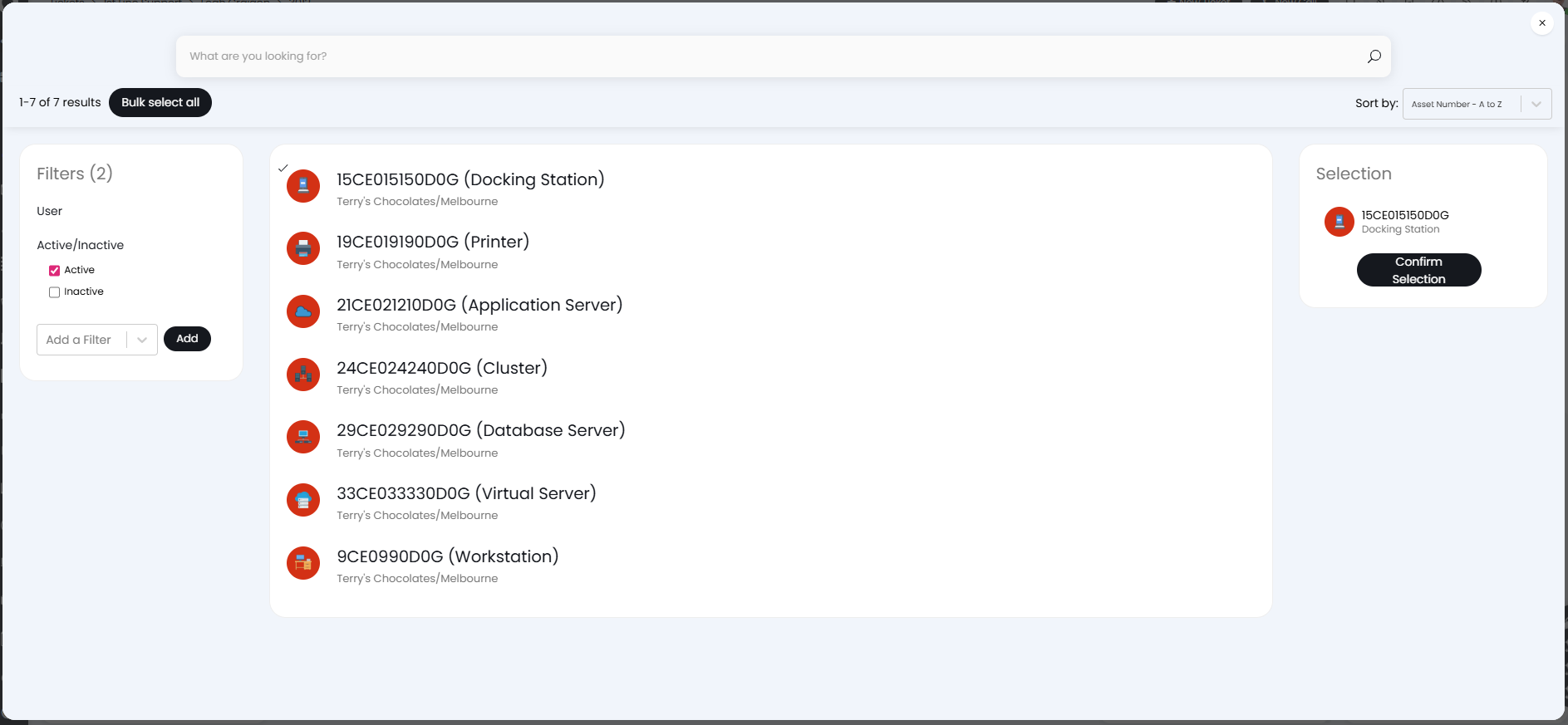
Fig 3. Asset search screen.
Linking Assets to a Site
From a Site
Navigate to the Site, which can be done from clicking the Site on a Ticket or within the Customers Area. Head to the "Assets" tab, and click "New" in the top right or "Clone" an existing asset as above.
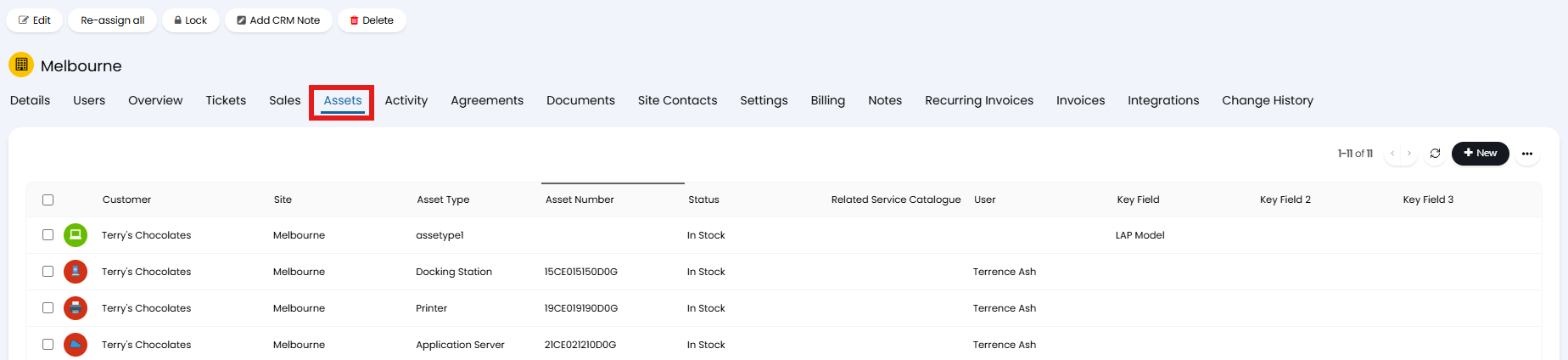
Fig 4. Assets tab on a Site.
From an Asset
View any Asset you wish to move Sites for, and click the "Edit" button in the top left. In the "Details" tab or side pane, select the Site you wish to move the Asset to.
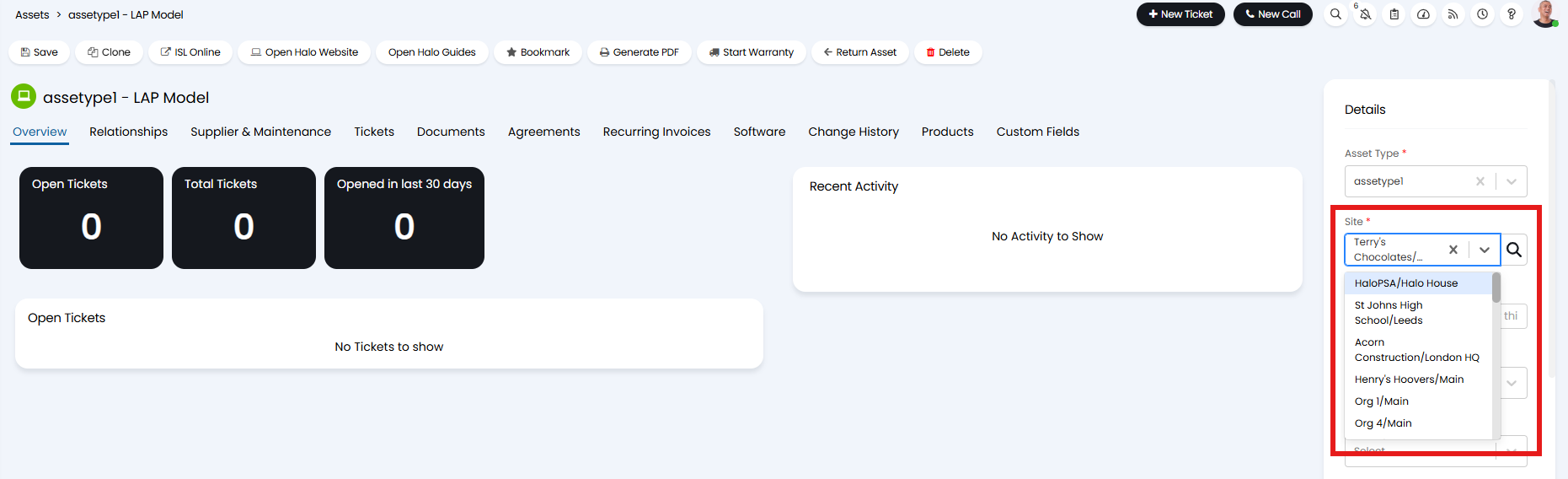
Fig 5. Details tab on an Asset.
Moving Multiple Assets
Filter a selection of Assets - this could be Assets of a given Type, certain Key Fields or at another Site.
Select these Assets using the check boxes.
Note: The tick box at the top of the page will select all Assets in the list, not just the ones on the page you are currently viewing.
Hover over the "Edit" button in the top left and select "Move". Select the Site you wish to move these to.
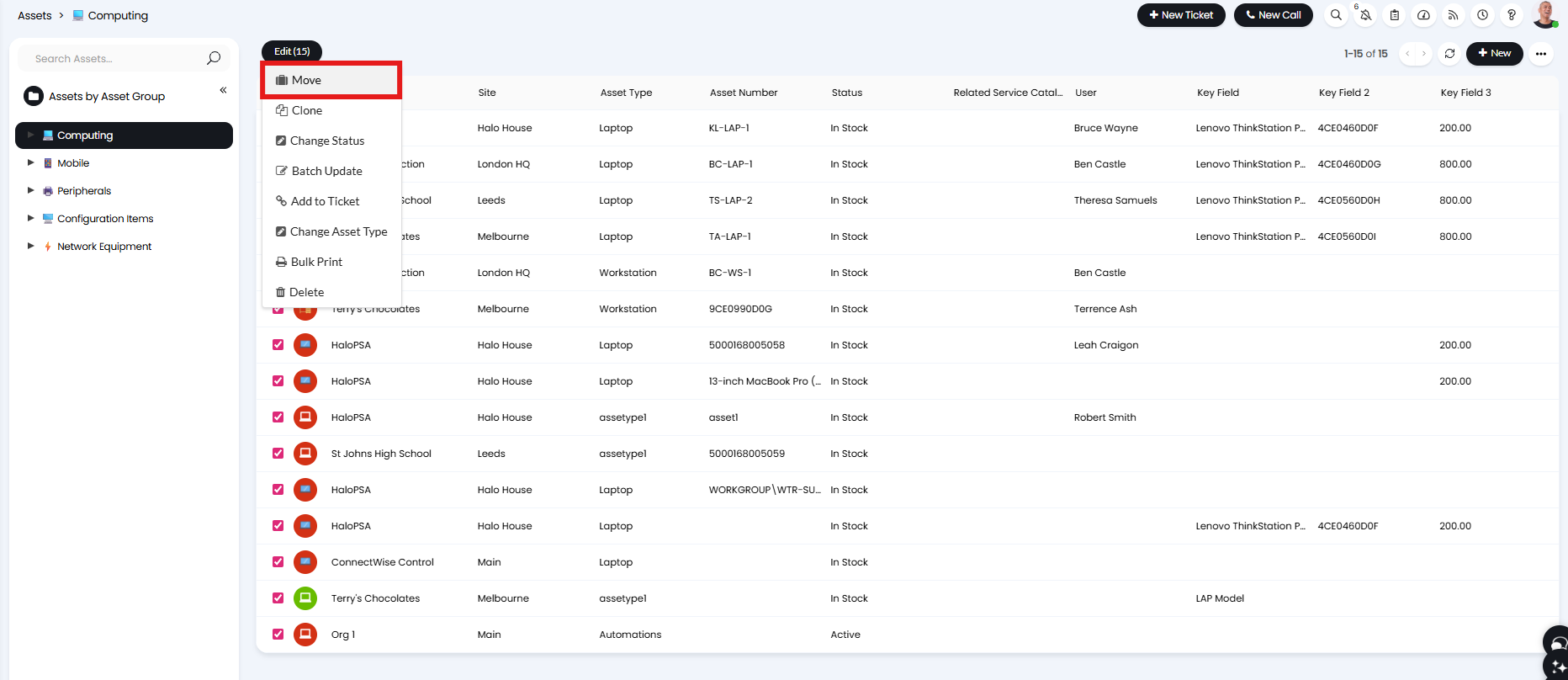
Fig 6. Bulk moving Assets.
Asset Relationships
Relationships for both Asset-Asset and Asset-User can be edited and added in Configuration > Asset Management. You will be able to set "Relationship is bi-directional" On Asset- Asset Relationships. This allows Assets to have a relationship with another asset which is both upstream and downstream.
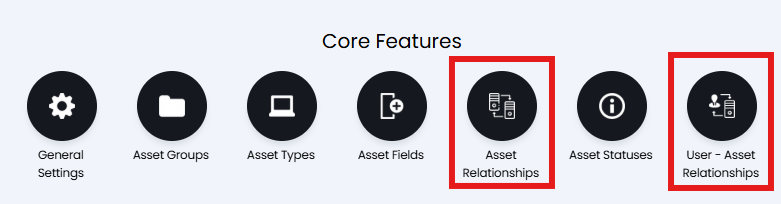
Fig 7. Relationship configuration.
Assets can be linked in upstream/downstream relationships and to Users, which can all be done from the "Relationships" tab.
Navigate to the Asset and click the "Relationships" tab. Click "Edit" in the top left, and click the "Add" button on one of the options. Search for either the User or Asset in the list, then select and click "Confirm".
Note: To prevent dependencies looping you are not able to add the same Asset to both the upstream and downstream relationships. From v2.248+, An error message will pop up if you try to add these duplicate Asset Relationships.
From v2.242+, Notes can be added to relationships when they are added or edited.
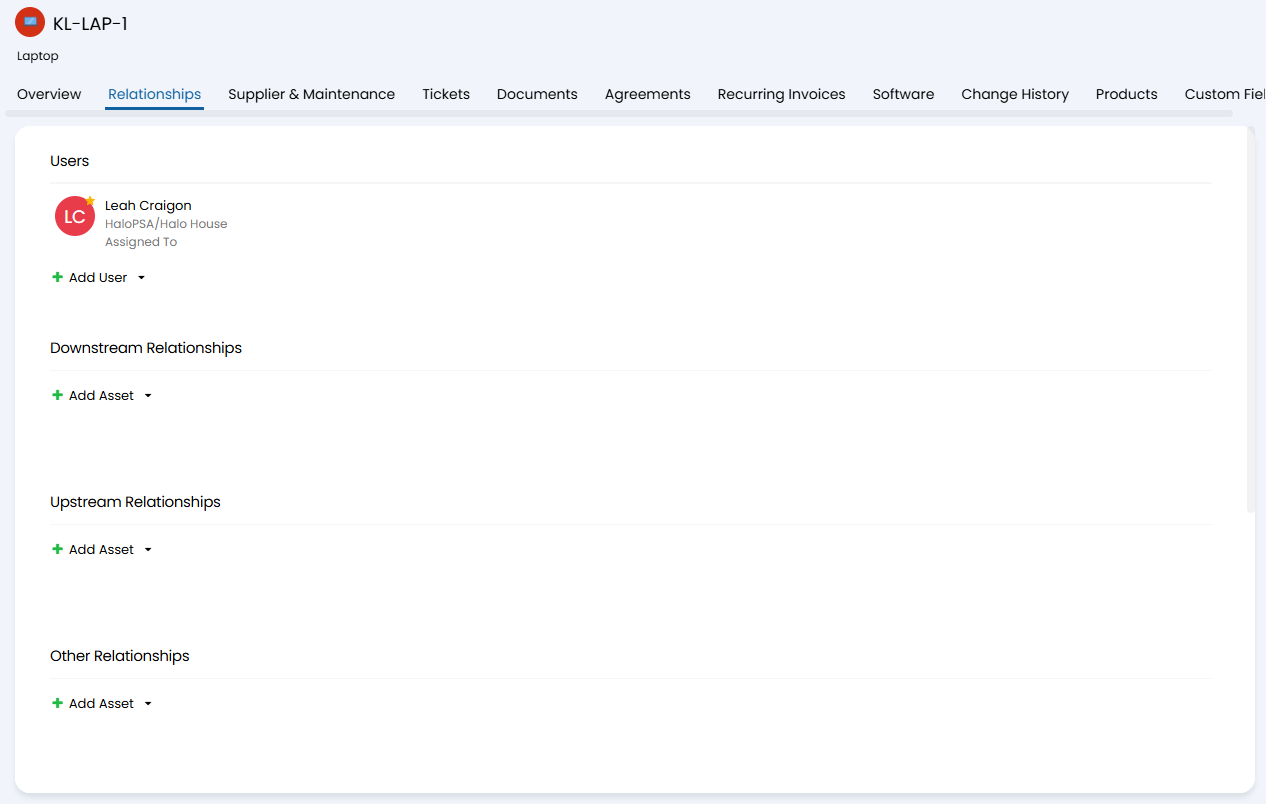
Fig 8. Relationship options.
To restrict which Asset Types can be added here, head to Configuration > Asset Management > Asset Types you can choose the Asset Type you are adding relationships to. Under the "Allowed Statuses" tab you will find the option to add "Allowed Upstream Relationships" and "Allowed Downstream Relationships". You will also find the option to disable these relationships. Setting this will prevent the adding of any upstream relationships to the Assets of that type. Enabling this will also prevent the selection of assets of this type when adding the opposite relationships to other assets.
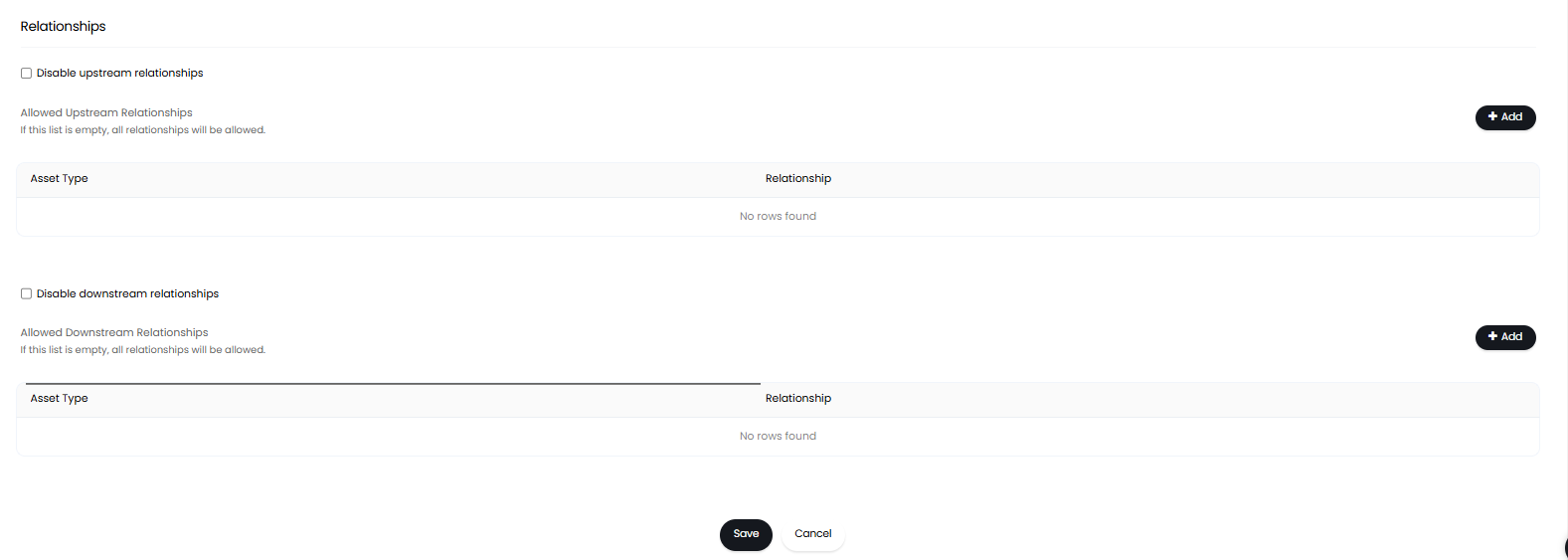
Fig 9. Restricting Relationships
Once you have added any relationships you will be able to view them in the Dependencies tab. The dependencies diagram can be filtered using the Asset Type drop-down, and the checkboxes on the left.
From v2.238+, When loading an asset that has had the dependency tab set to hidden on the asset type, only the immediate parent and children assets are loaded rather than the entire tree.
From v2.238+, each asset will have the setting "Don't load Dependency Diagram for this Asset", when enabled, this will prevent the loading of the dependency chart when the asset is opened, improving loading times for assets with a large number of dependants. By default, this setting appears on the "Details" tab of an asset but can be moved to another tab by adjusting the "Load Dependency Diagram Toggle Tab " setting on the asset type layout. From v2.244+ this the global setting "Restrict the loading of dependency diagrams per Asset" must be enabled for this option to appear against each asset.
From v2.242+, Notes can be added to relationships when they are added or edited. These can be viewed by hovering over the related asset relationship on the dependencies diagram.
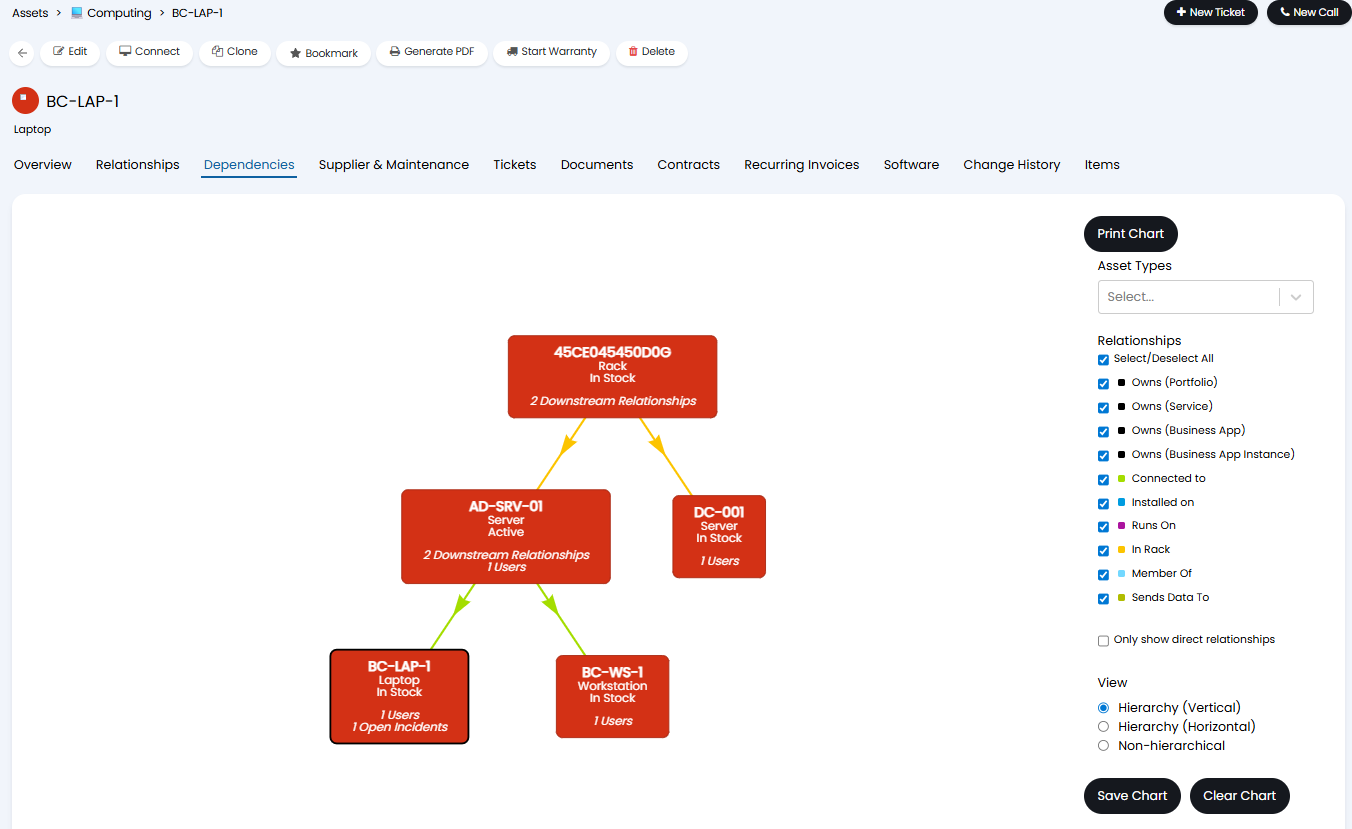
Fig 10. Dependencies Diagram
Importing Assets relationships
Asset relationships can be imported using the "Import Assets" option in Configuration > Asset Management > General Settings. This uses a XLS import spreadsheet to bulk add assets and their relationships. More information on spreadsheet imports can be found here.
A more common way to get asset relationships into the system is through one of our many asset management and alerting integrations.