Configuration Items
- service catalogue
- Assets
- configuration item
- CI
- linked asset service
In this guide we will cover:
- What are Configuration Items?
- Linking Assets and Services
- Configuration Item Types
- Creating CI Types
- Creating CIs from an existing CMDB (v2.248+)
- Owning Relationships
- Viewing CIs on a Ticket
- Environments and Maintenance Windows
Note: Some deployments will have standard "Assets" renamed to "Configuration Items". The configuration highlighted below will remain the same if you wish to link assets/CIs and services.
What are Configuration Items?
A Configuration Item (CI) is any component that needs to be managed, track, or map relationships against.
- Hardware (servers, laptops, network devices)
- Software (applications, licences)
- Services ("Email Service," "Payroll Application")
Each CI can map what else is dependent on it, helping to access change risk or support major incident management by seeing what is linked to a failing component.
Linking Assets and Services
CIs can be used to manage assets and services as a single entity. This allows examples such as a server (typically an asset) that also constitutes a monitored service that can be managed as one record instead of two separate ones.
Navigate to Configuration > Asset Management > General Settings, and enable "Allow automatic linking of Assets and Services".
If using access control for either assets or services, access control will be enabled for the other entity upon enabling.
- Configuration > Asset Management > General Settings > "Asset Permission Type"
- Configuration > Services > "Service Permission Type".
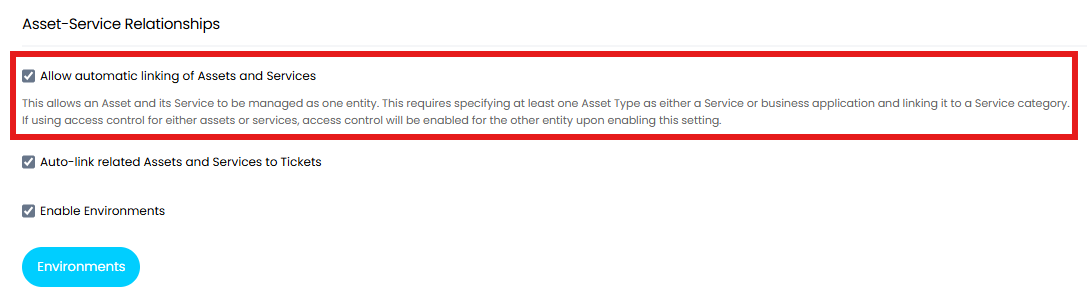
Fig 1. Enabling linked asset-service relationships
Configuration Item Types
When asset-service linking is enabled, four CI types can be set against an asset type. Creating assets that use these options will automatically create linked services and pre-set most of the related configuration.
| Portfolio | Service | Business Application | Business Application Instance | |
| Level | 1 | 2 | 3 | 4 |
| Sits Under/"Owned by" | N/A | Portfolio (not dependant on) | Service | Business Application |
| Explanation | An overall grouping of Services by ownership, department or investment area. | The outcome the user consumes. | An application that supports the provision of a Service. | A specific deployment of the Business Application. |
| Use | General reporting, budgeting and governance. Not part of the dependency chain. Allows the asset to be set in the "Owning Portfolio" field. | The "what" a user consumes. Supported by several Business Applications working together. | The "how" the user consumes that "what" (service). What needs to be maintained behind the scenes to deliver the Service. | Separates PROD, DEV, etc. Allows for change management procedures to change dependant on the instance. Every Business Application must have a PROD Business Application Instance. |
| Example | HR and Payroll | Payroll Service | Sage Payroll | Sage Payroll - Dev |
The chart below shows an example hierarchy CIs may use, following this standard flow. You may notice an additional layer at the bottom for the infrastructure the Business Application Instances run off of. These should be stored as regular assets, but can be added to the asset relationships in the standard way outlined here.
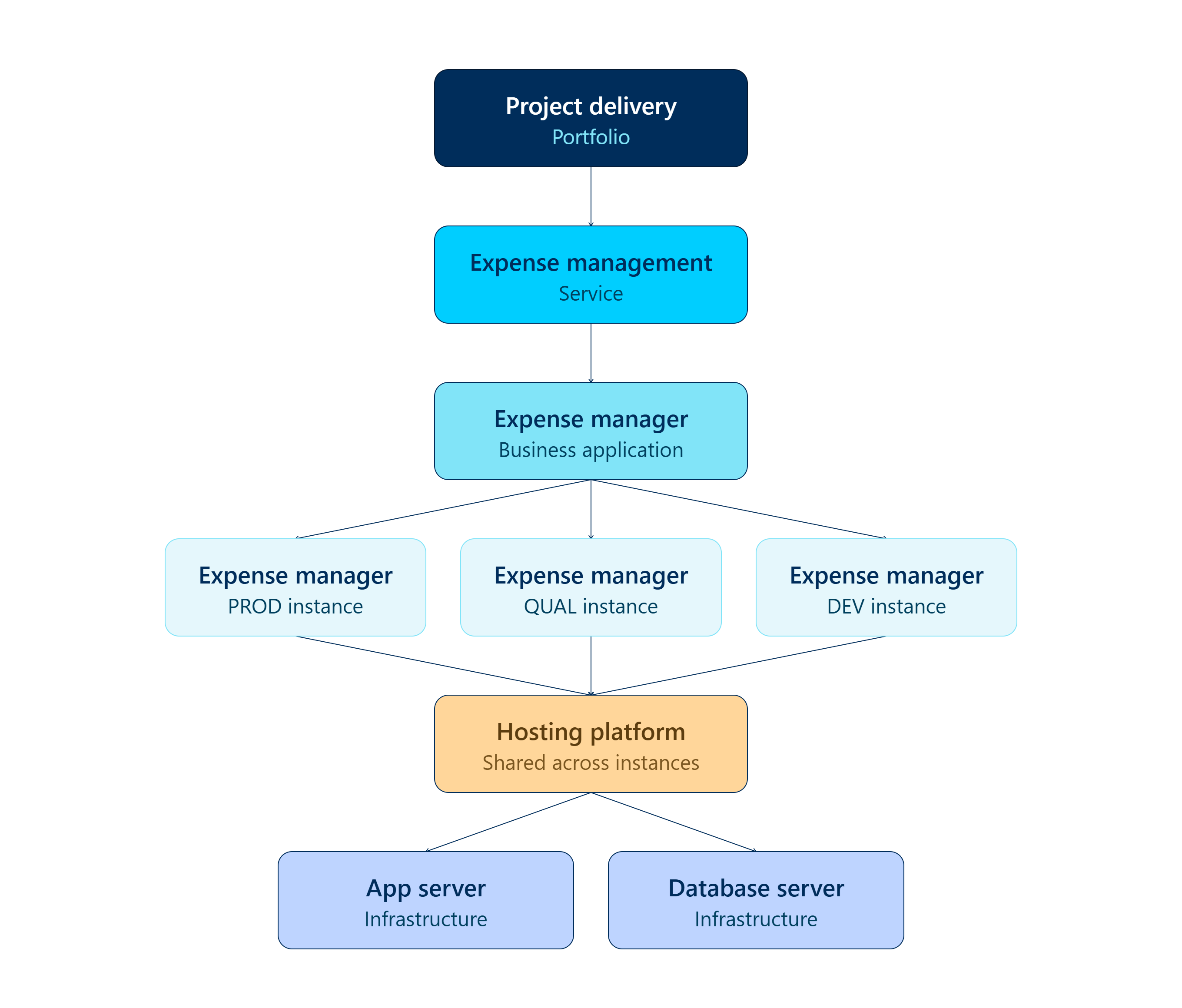
Fig 2. CI hierarchy example
Creating CI Types
CIs can be either be a Service or a Business Application, not both. Enabling one will make the other read-only automatically, and this classification cannot be edited once saved.
Navigate to Configuration > Asset Management > Asset Types. Within an asset type, you can enable "Is Service" or "Is Business Application".
Services
Creating an asset type for services first, enable "Is Service". This will prompt selection of a "Service Category". Services linked to this asset type will be added to this service category.
Creating an asset of this type auto-creates a linked service that inherits these fields.
- Asset Tag to Service Name (the service name can be overridden using the "Portal Display Name" field)
- Business Owner
- Technical Owner
- Criticality
- Notes
- Related Articles
- Related Assets
Asset types can also be related to individual services. Services set in the "Related Services" field will be inherited by assets of that asset type, including ones not inter-linked with services.
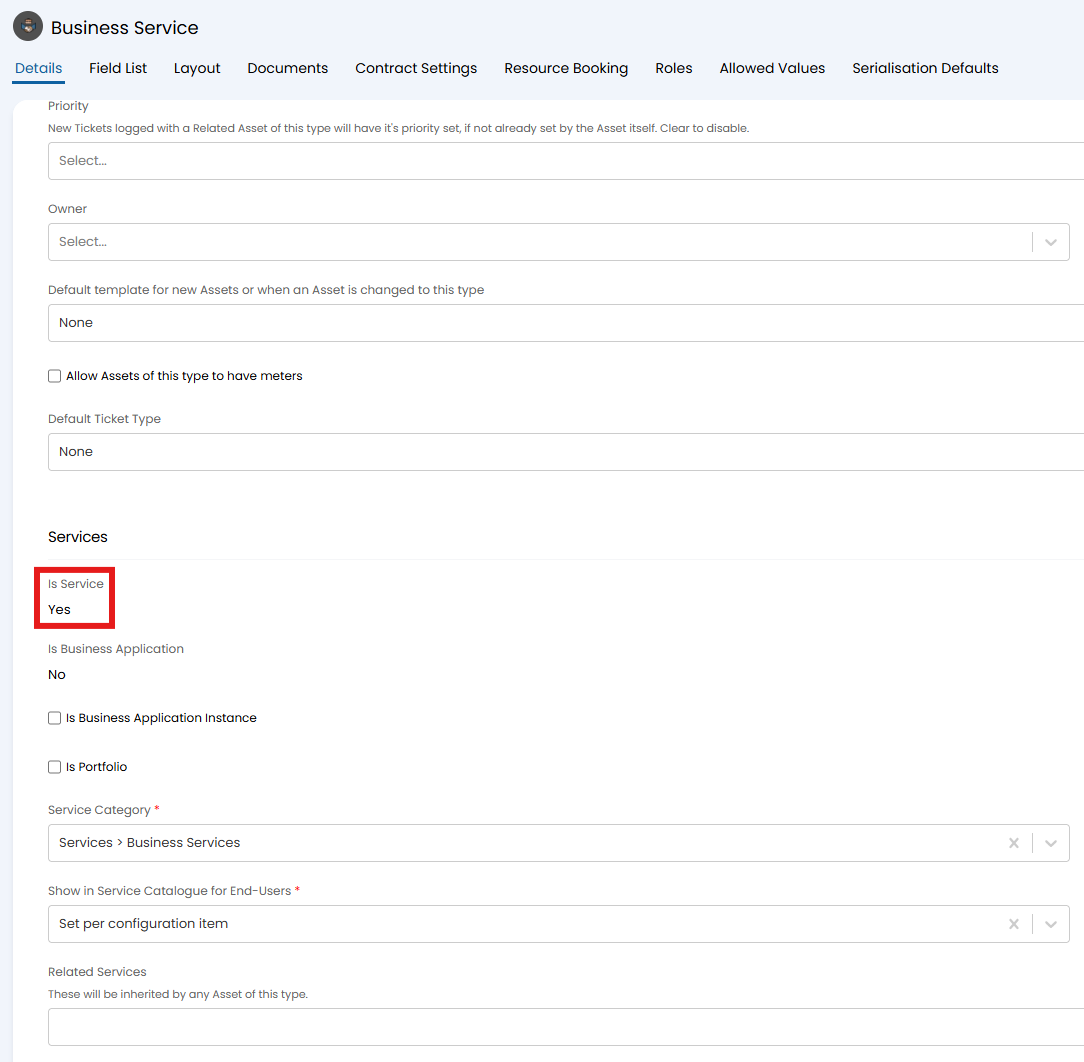
Fig 3. Asset type for services
Business Application
Following the same process to create an asset type for Business Applications, enable "Is Business Application". This will prompt selection of the "Service Category" field again. Services linked to this asset type will be added to this service category.
Creating an asset of this type auto-creates a linked service that inherits the same fields as listed previously, with the addition of the below also being enabled.
- Is a Monitored Service (Track Service Status)
- Show in Service Catalogue for End-Users
- Allow Subscribers to log Incidents
Business Application Instances
An asset type needs to be created for Business Application Instances next, which can then be linked to the above primary setting or assets created manually. Enable "Is Business Application Instance" on this one.
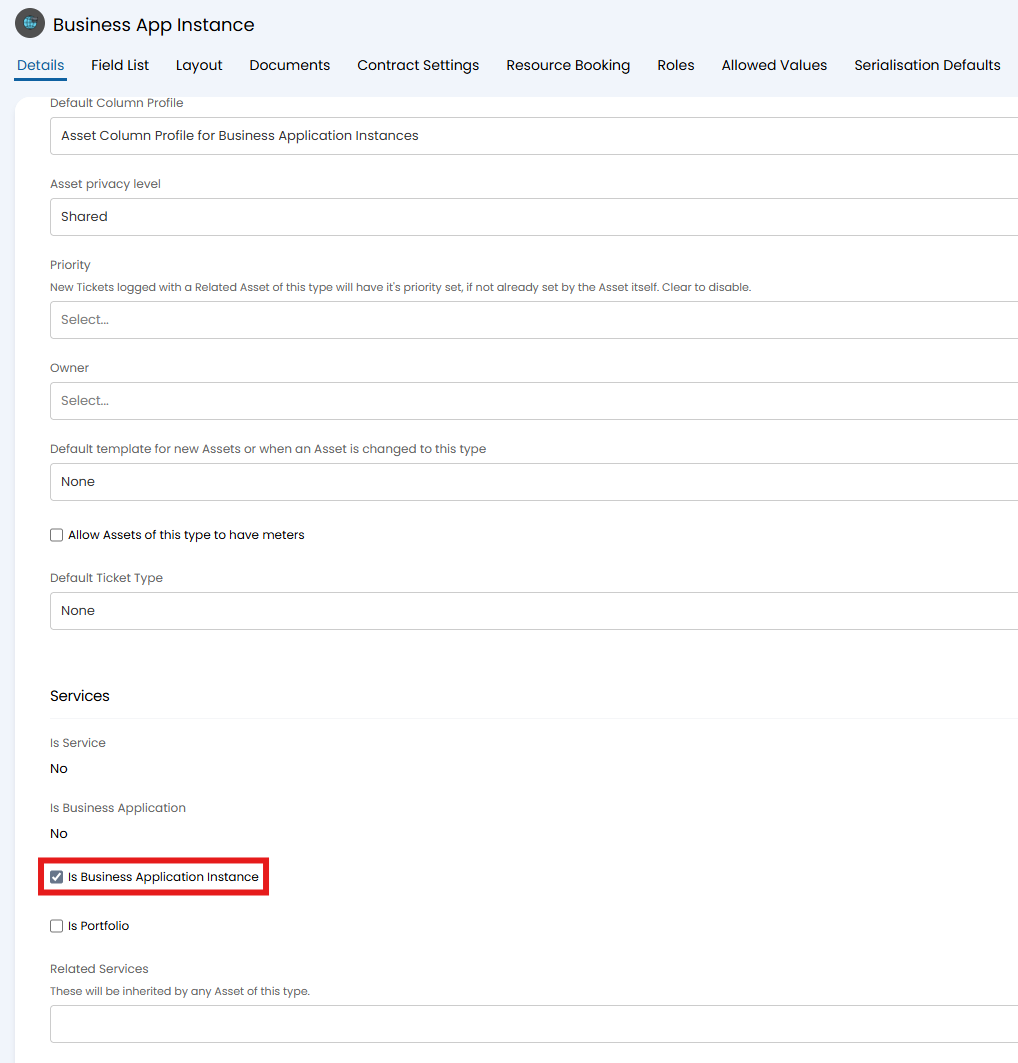
Fig 4. Asset type for Business Application Instances
Business Applications have the option to "Automatically create a primary instance". This shows a list of asset types that "Is Business Application Instance" is enabled for.
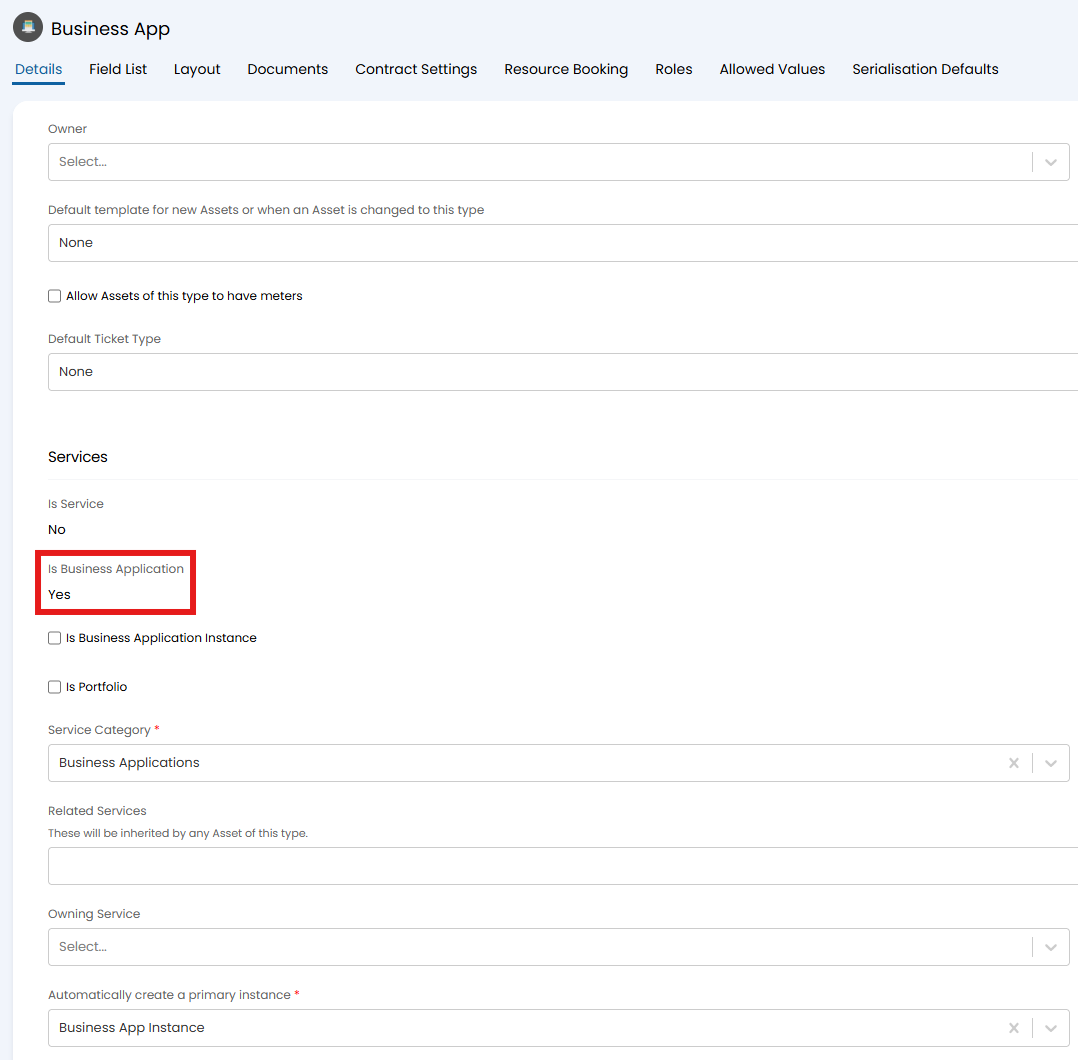
Fig 5. Asset type for Business Applications
If this is set, a field to enter a "Primary Instance Name" will show when creating assets of this Business Application type. This will create a Business Application Instance with that name, and its values copied from the Business Application. They will also be automatically linked via the "Owning Business Application" field.
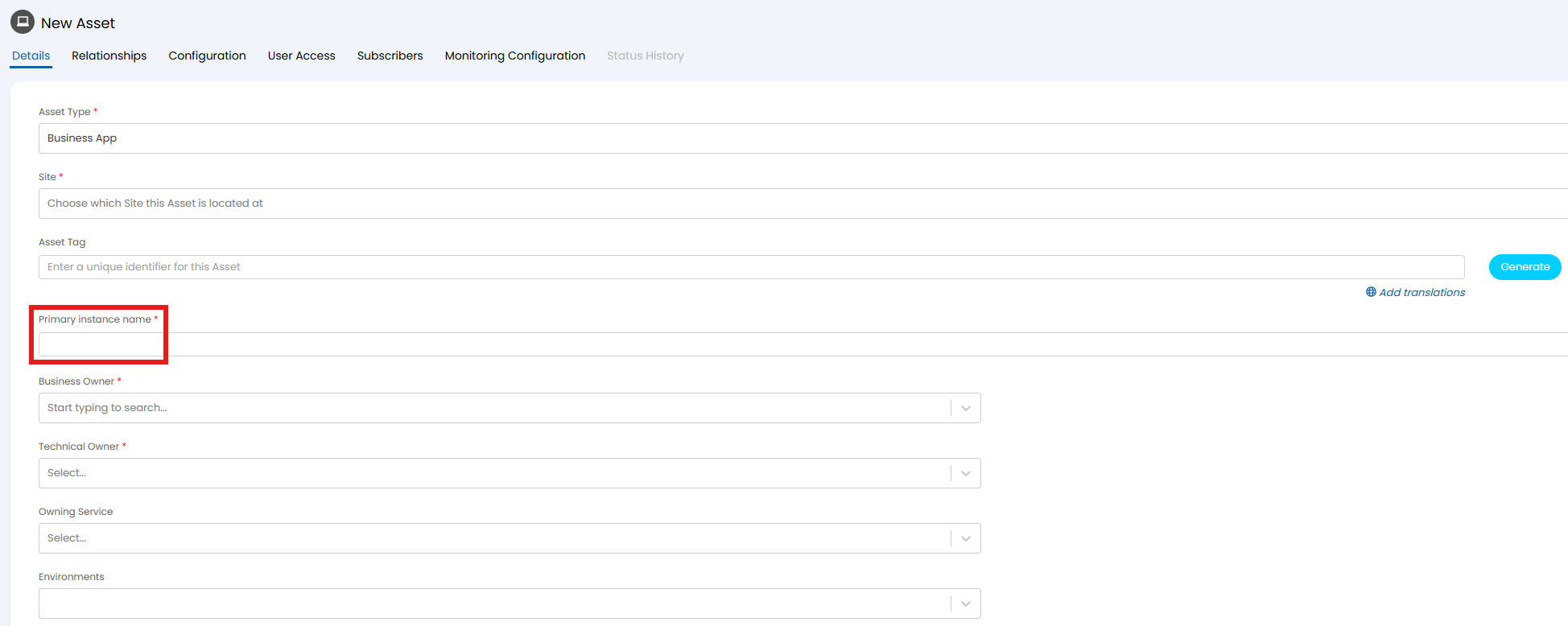
Fig 6. Creating a primary Business Application Instance when creating a Business Application
Portfolios
The final asset type is for Portfolios. This is an additional level to group related services together, allowing for additional overview of risk, governance and ownership.
A downstream relationship is created with assets that have the "Owning Portfolio" set, for improved reporting and tracking.
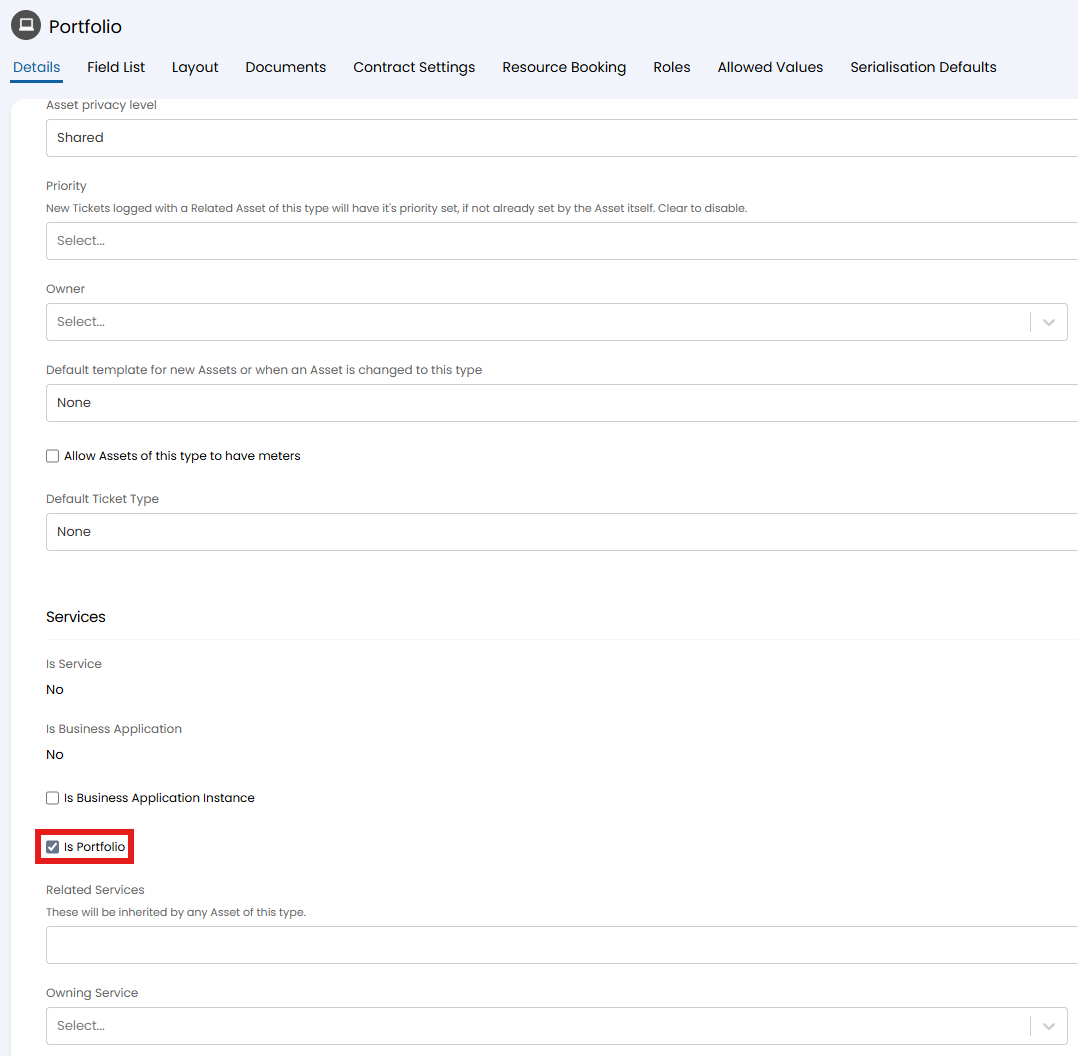
Fig 7. Asset type for Portfolios
Creating assets with these asset types will auto-link the created service. When viewing the asset, you can toggle between the CI view or Service view to see the configuration associated with both.
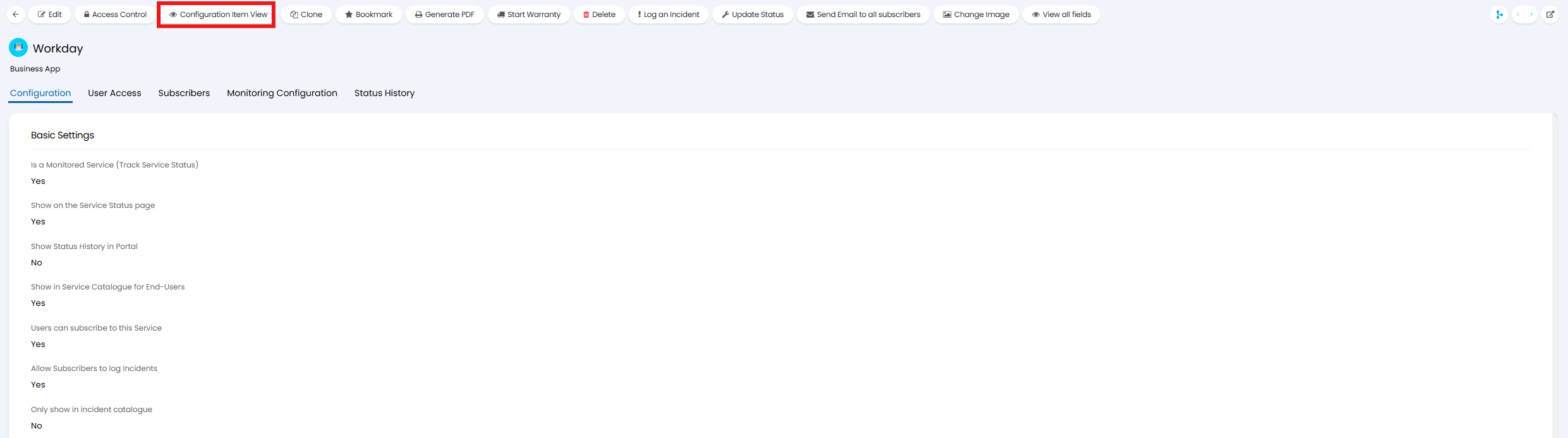
Fig 8. Switching between service and CI view
A general "Use" can be set against the asset type for reporting purposes. This field will only show once values are added to the relevant lookup code (ID: 97/"Asset Type Use").
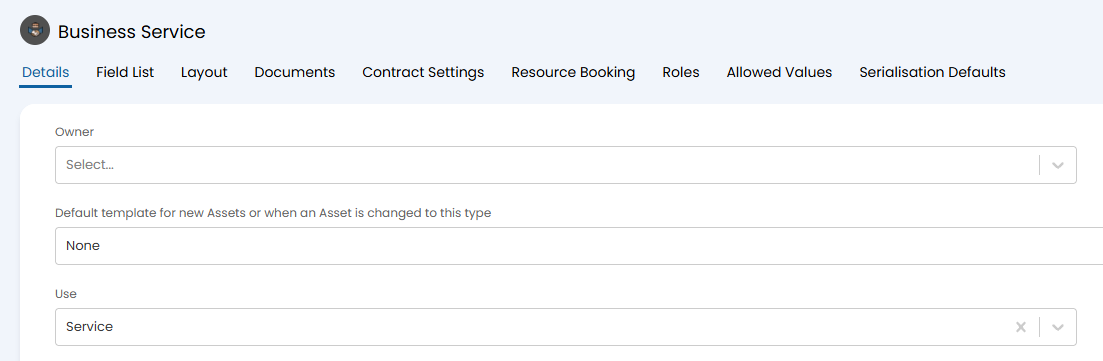
Fig 9. Use on an asset type
Creating CIs from an existing CMDB (v2.248+)
If the assets have already been imported/created, a new asset type needs to be created with the above configuration. The existing assets can then be moved into this asset type.
Upon doing so, a popup will show to confirm if the asset should have a new service created or if it should be linked to an existing one. If multiple assets are being moved at once, they will all have new services created.
If linking to an existing service, the fields shared between the asset and service (i.e. name, business owner, note) will both use the value from the asset.
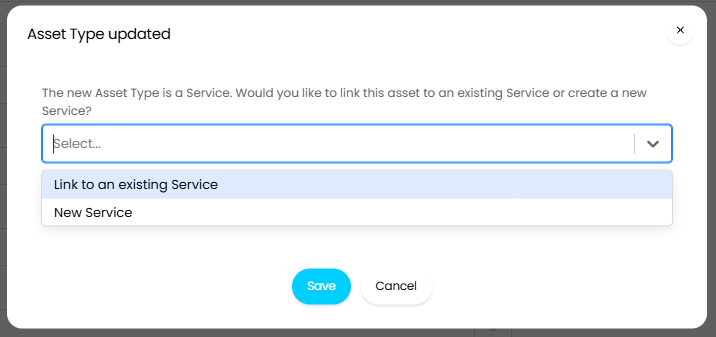
Fig 10. Linking existing asset to a Service CI type
Owning Relationships
Owning relationships can be set to reflect the CI relationship hierarchy.
Looking at this Business Application as the example, the "Owning Service" is set here.
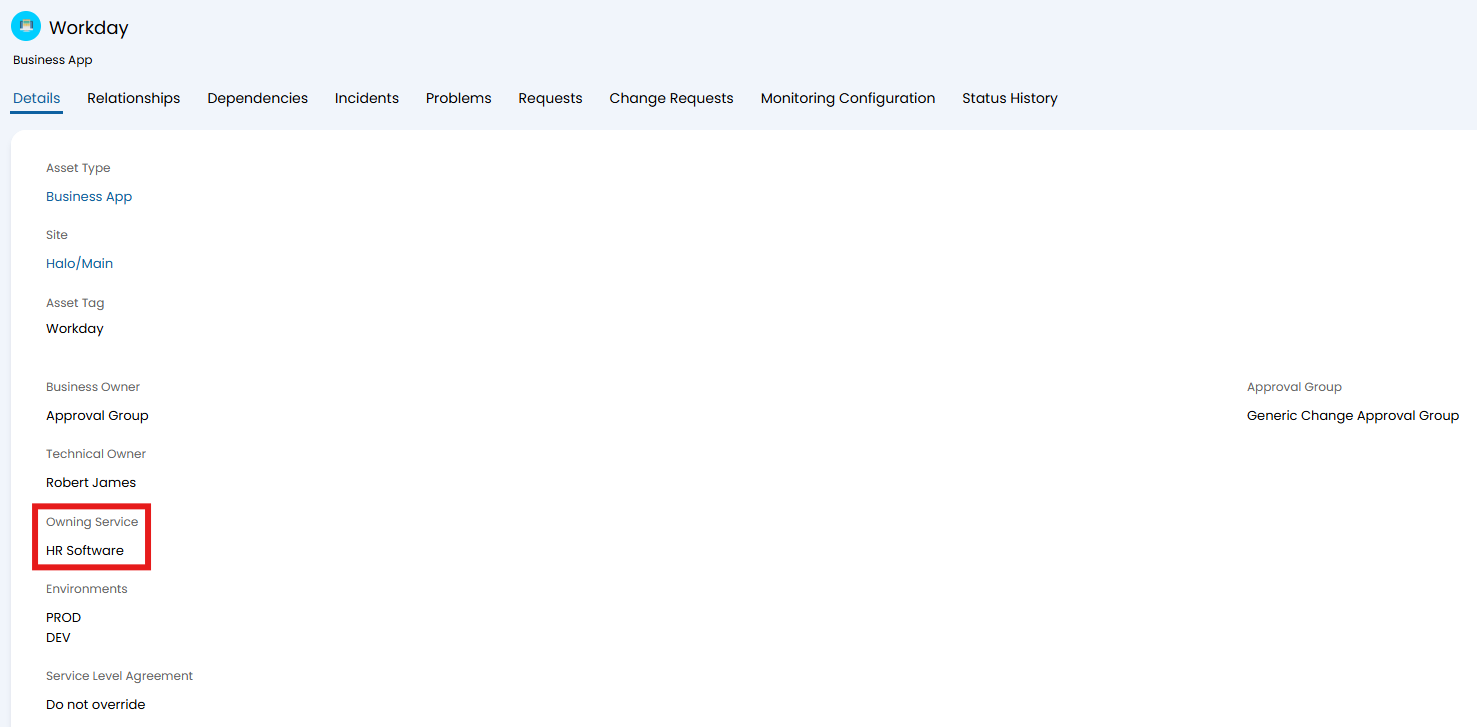
Fig 11. Owning Service on a CI
This is reflected in the "Relationships" tab, where an upstream relationship is automatically set.
If alternatively viewing a "Business Application Instance", this field will instead be the "Owning Business Application", using the same relationship logic.
Note: "Owning Service" can be set on the "Business Application" asset type. "Owning Business Application" is only set per CI.
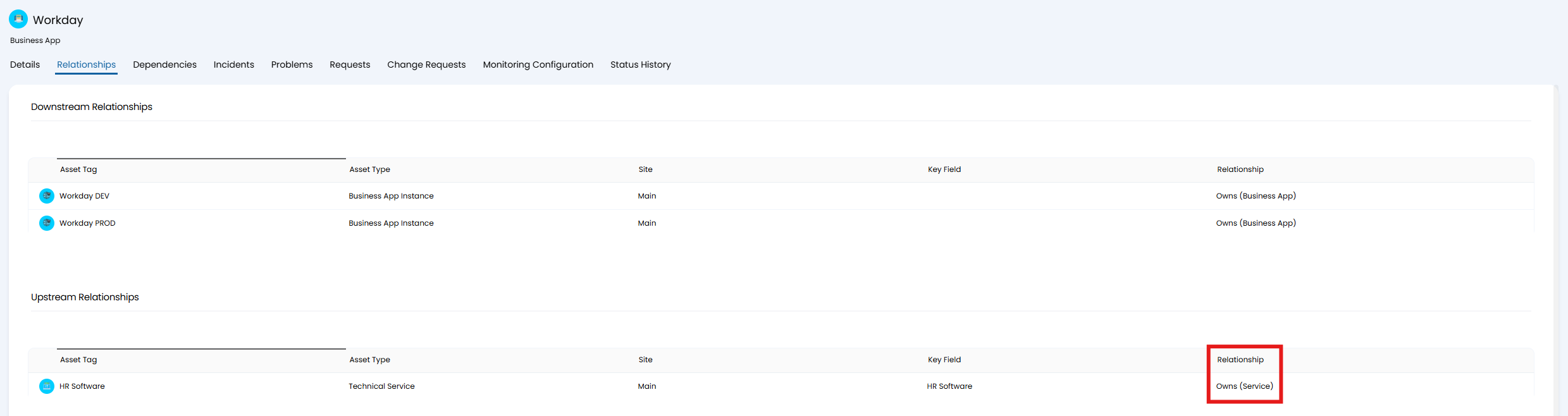
Fig 12. Asset relationships with CI ownership
If viewing the "Dependencies" tab, the ownership relationships are shown here. There are additional toggles on the right side to hide certain owning relationships from the diagram.
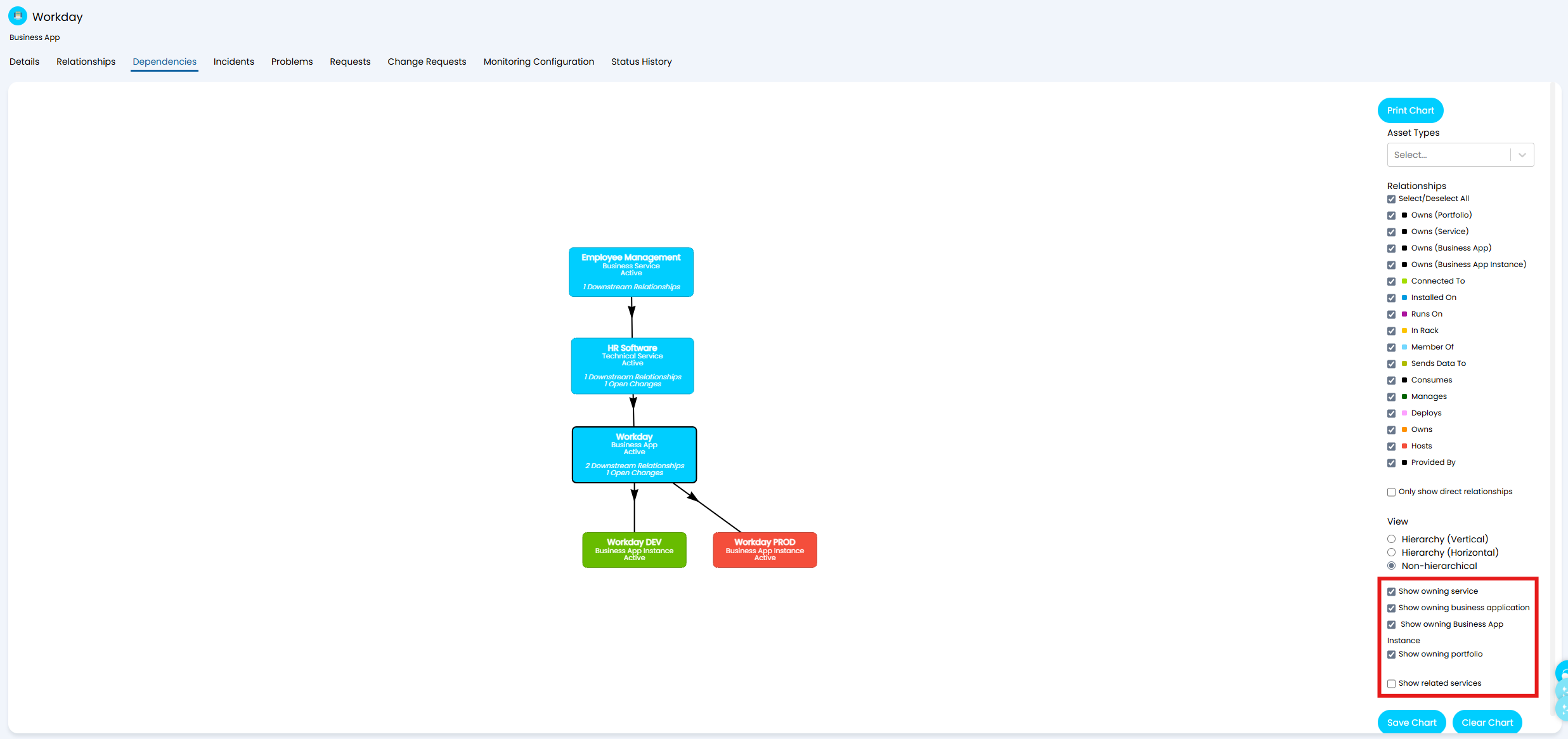
Fig 13. Asset dependency with CI ownership
A general "Owning CI" can also be set on a CI, and will show any CI marked as a Service or Business Application Instance.
Relationships can be restricted per asset type. If relationships are not disabled, a list of individual restrictions can be optionally added between asset type. If any relationships are added to either table, relationships not listed cannot be used.
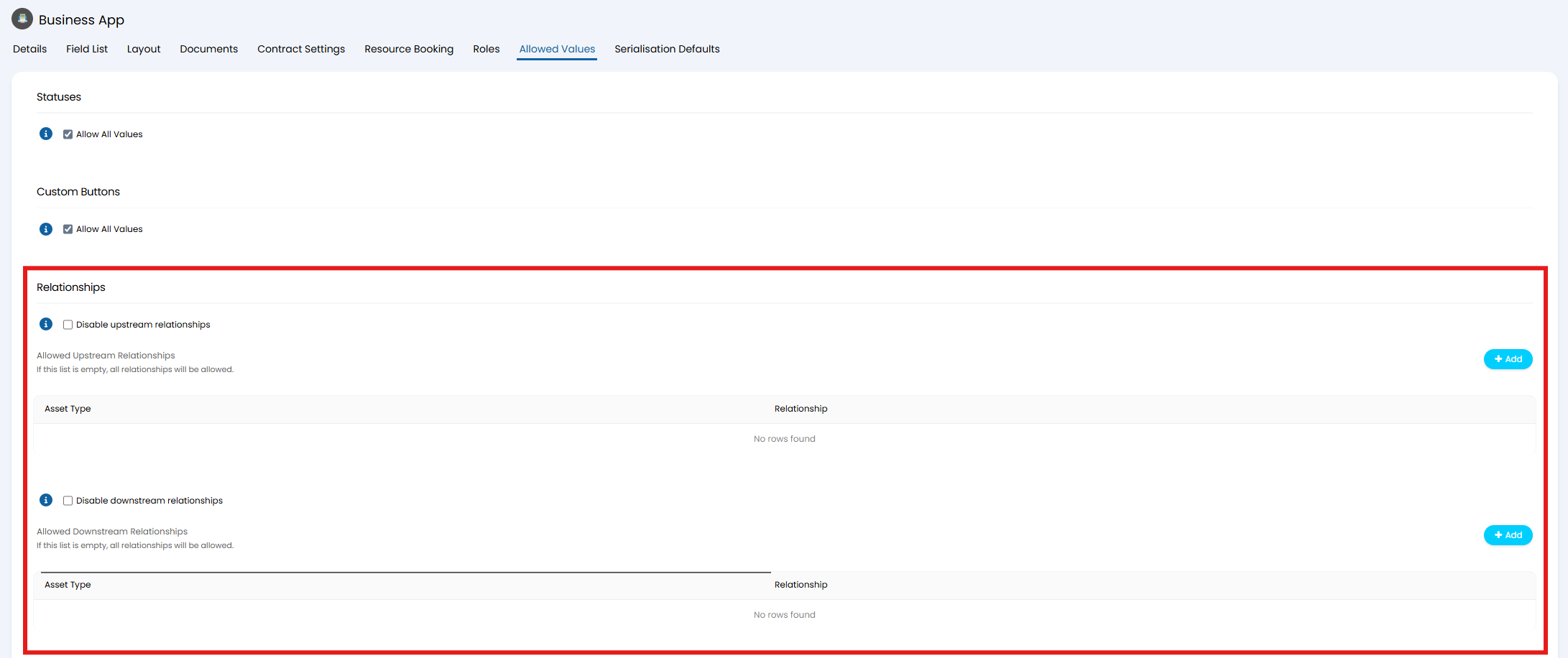
Fig 14. Restricting asset relationships
Viewing CIs on a Ticket
Linking an asset to a ticket auto-links its corresponding service and vice versa by default. This avoids linking duplicate asset and service records for the same underlying issue.
If it is preferred to treat the linked asset and service separately, disable "Auto-link related Assets and Services to Tickets" in Configuration > Asset Management > General Settings.
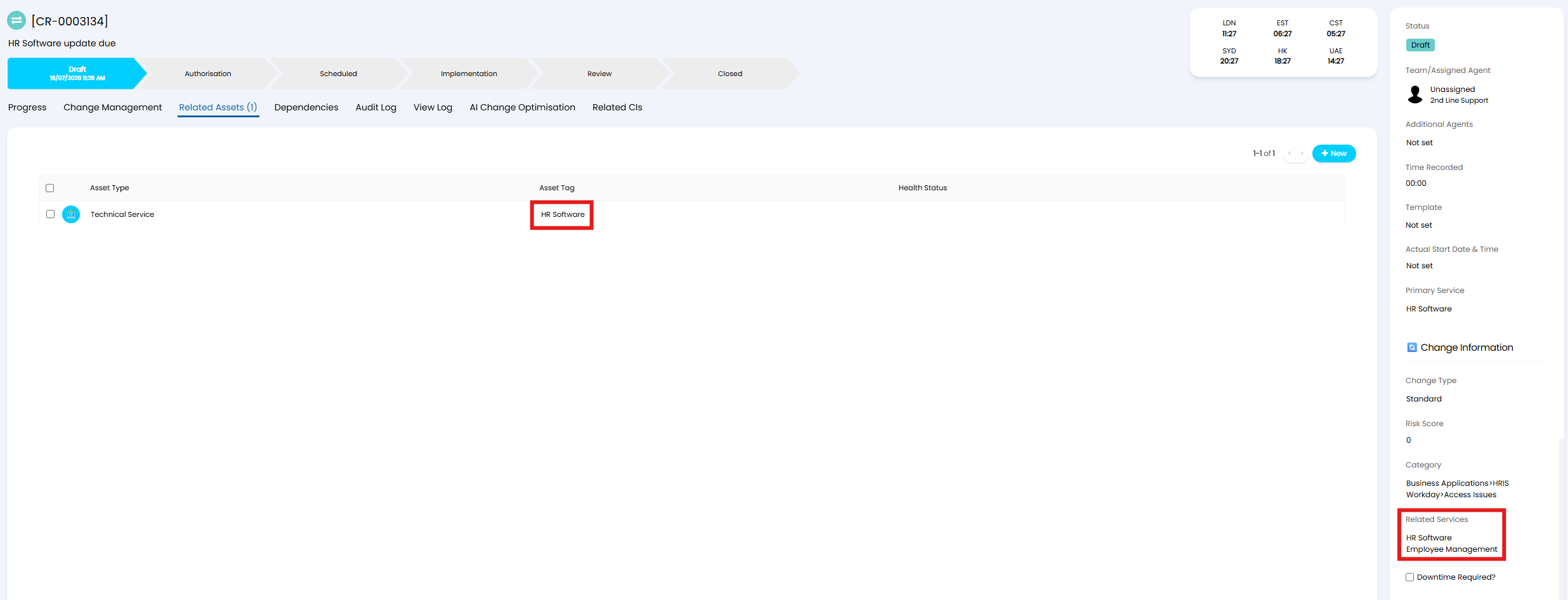
Fig 15. Linked asset-service showing on a change request
All directly related Services and Business Applications of the primary asset will be related to the ticket. When changing the primary asset or service, the automatic linking will be recalculated. Any additional services or assets that have been manually linked to the ticket will not be removed during this recalculation.
The column profile used for the "Related CIs" tab can be overridden per ticket type via the "Column profile for the related CIs tab" option in the "Forms" tab. By default, columns for "Is Primary", "Manually Linked" and "Related CIs" (whether it is related to the Primary CI) will show.
This can be individually shown within separate fields if the "Related Services" and "Related Business Applications" fields are added to the ticket type.
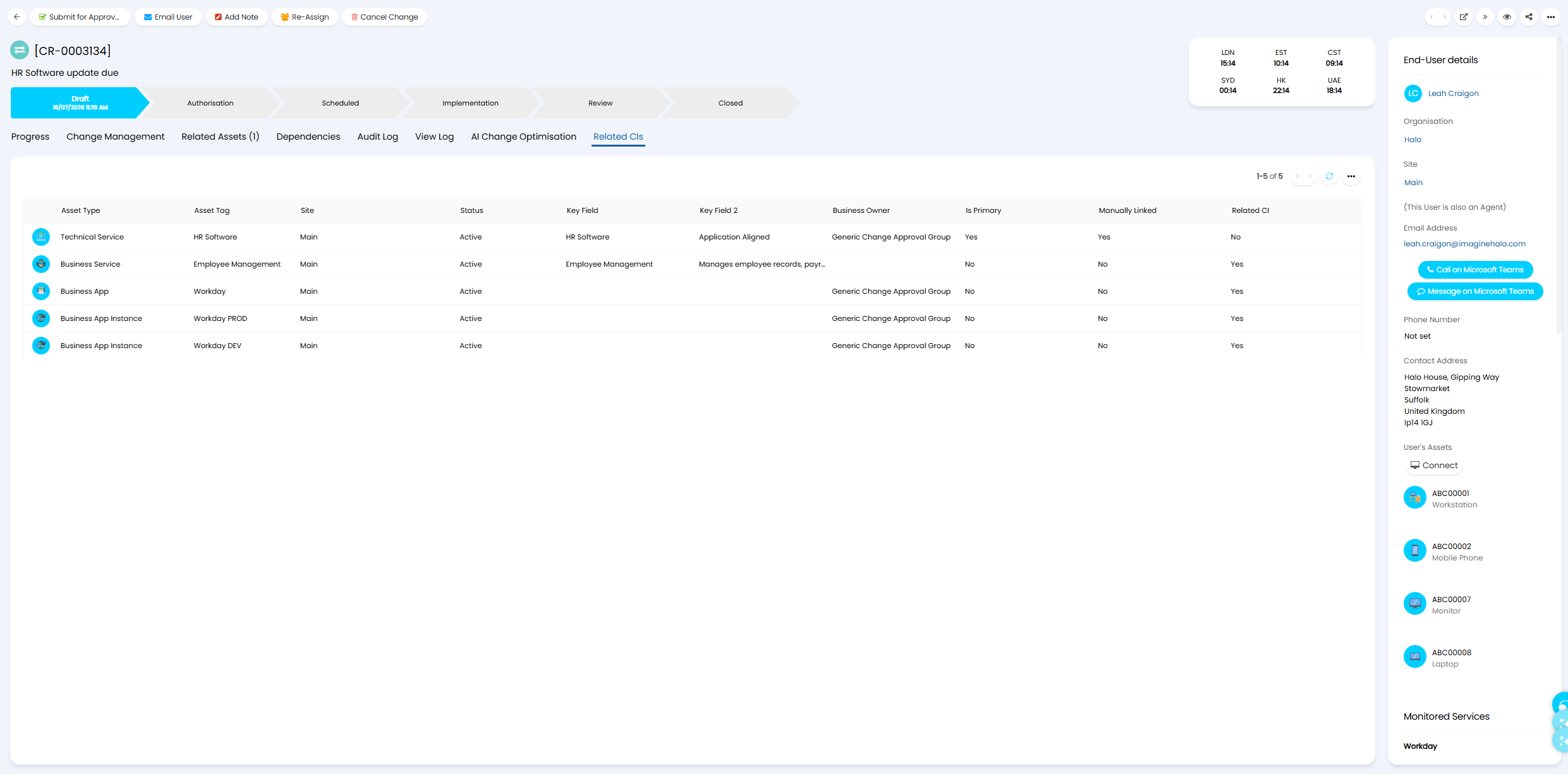
Fig 16. Related CIs tab
Environments and Maintenance Windows
Maintenance windows can be set for CIs as part of the overall change management procedure.
In Configuration > Asset Management > General Settings, select "Enable Environments". An "Environments" button will show to create your environment types.
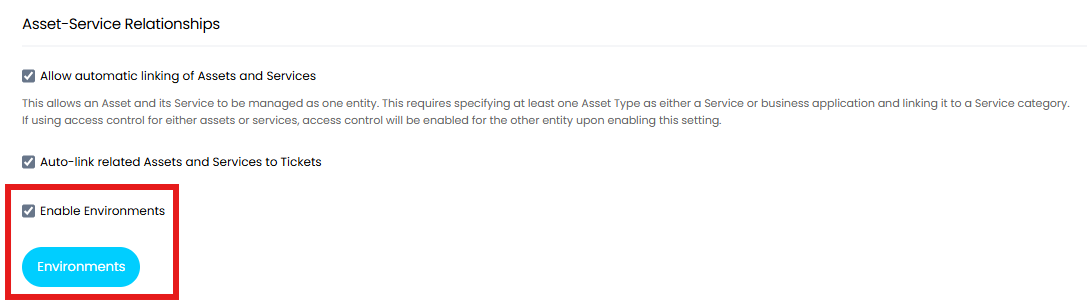
Fig 17. Enabling Environments
This allows you to set allowed multiple environment types against any asset whose asset type "Is Business Application".
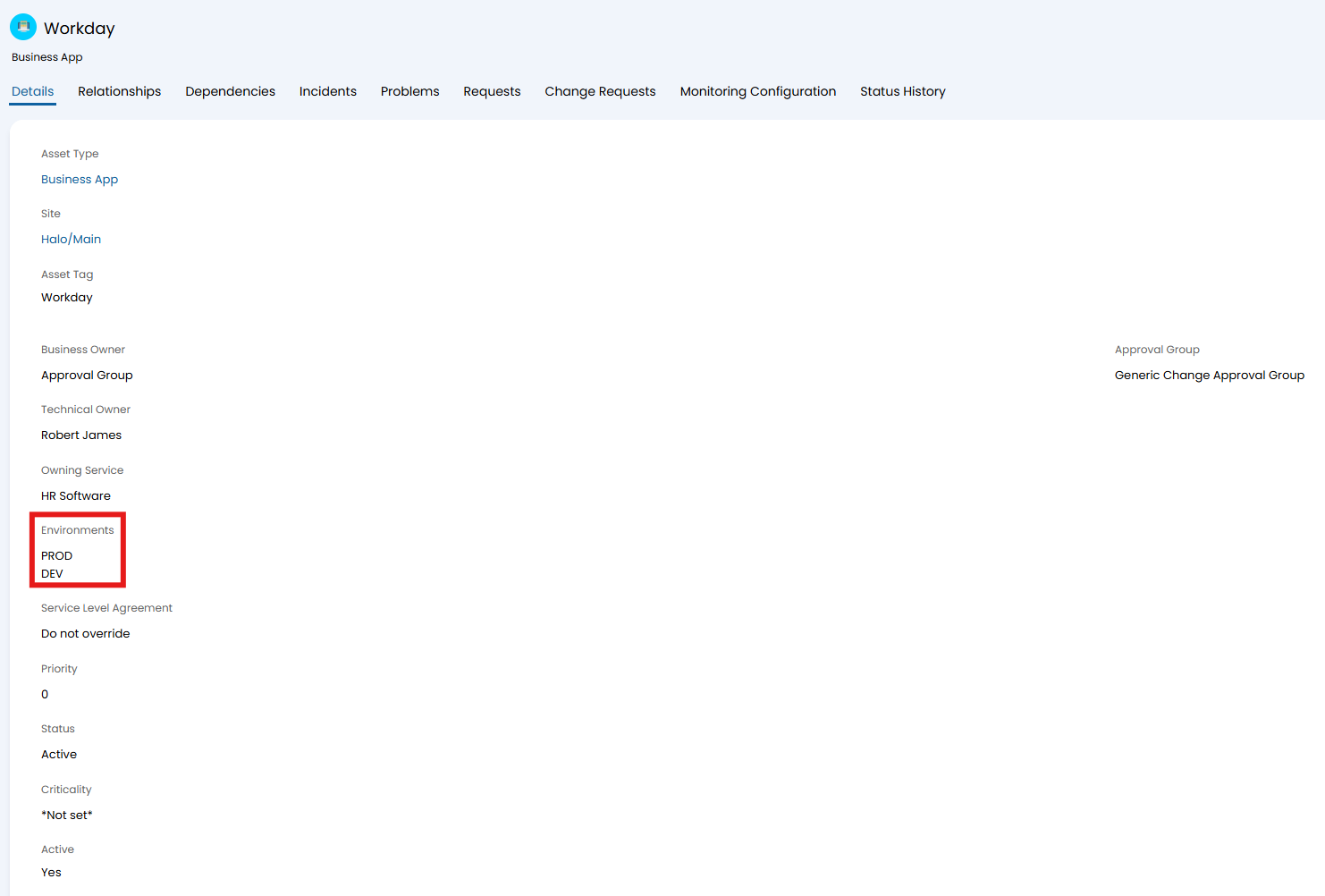
Fig 18. Allowed environment types on a Business Application
Any asset with that asset set as the "Owning Business Application" must have one of those allowed environments set against it.
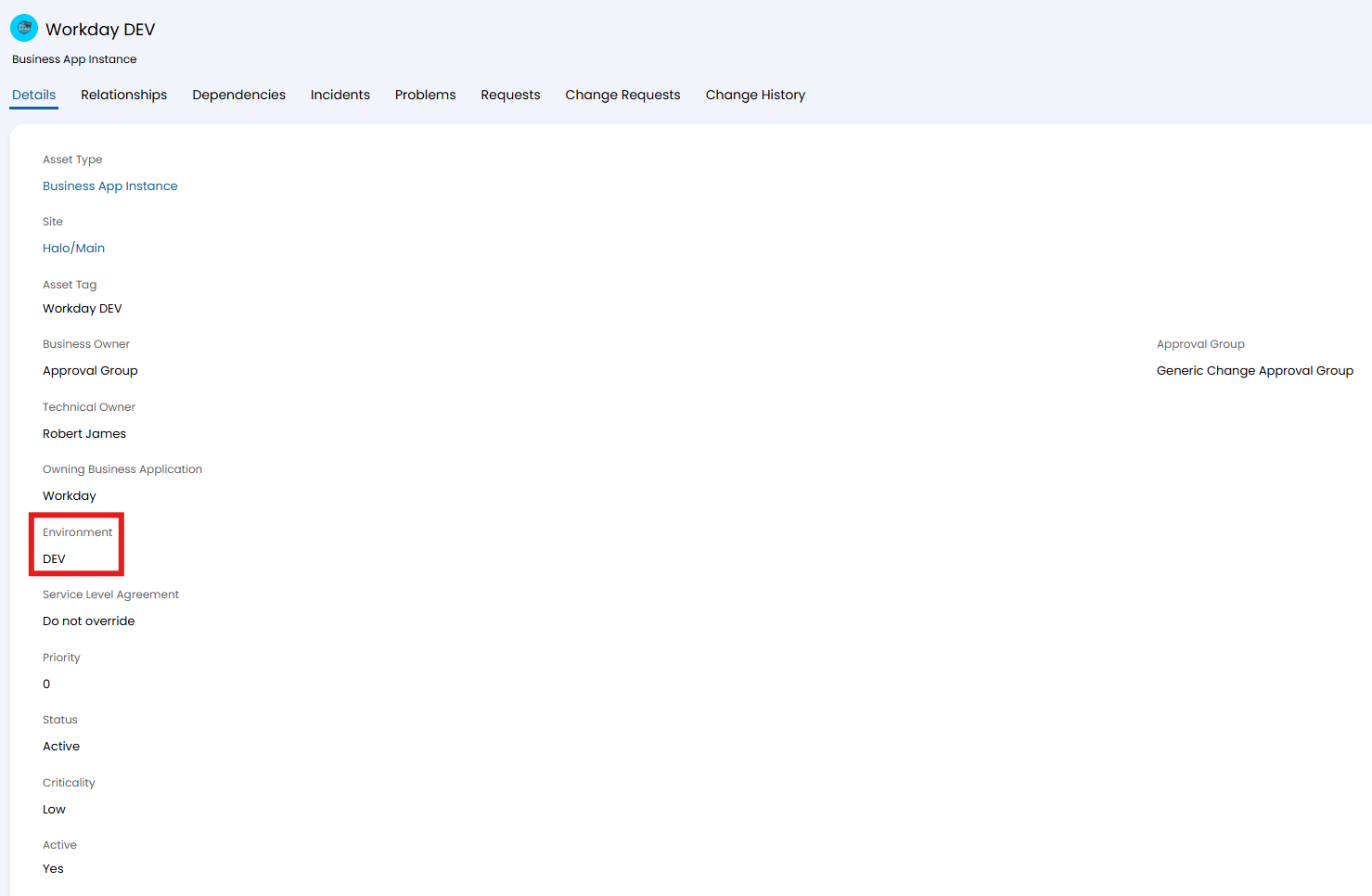
Fig 19. Environment type set on a Business Application Instance
When a change request is logged with start/end dates, the primary CI and upstream "Is a Service" relationships are checked against any set maintenance windows. If outside of a maintenance window, this can either prompt to confirm before logging, or optionally entirely block logging.
If "Allow maintenance windows and change freeze periods per Asset" is enabled on the asset type, maintenance windows created on those assets can be linked to individual environment types. The assets dependant on that CI that are using that environment type will inherit the maintenance window. This is intended to be enabled on the Business Application asset type, so that assets with this type can create windows for the Business Application instances under them.
i.e. Setting "DEV" will mean the maintenance window will only be inherited by dependant assets using that environment type. The "PROD" environment would not inherit the window.
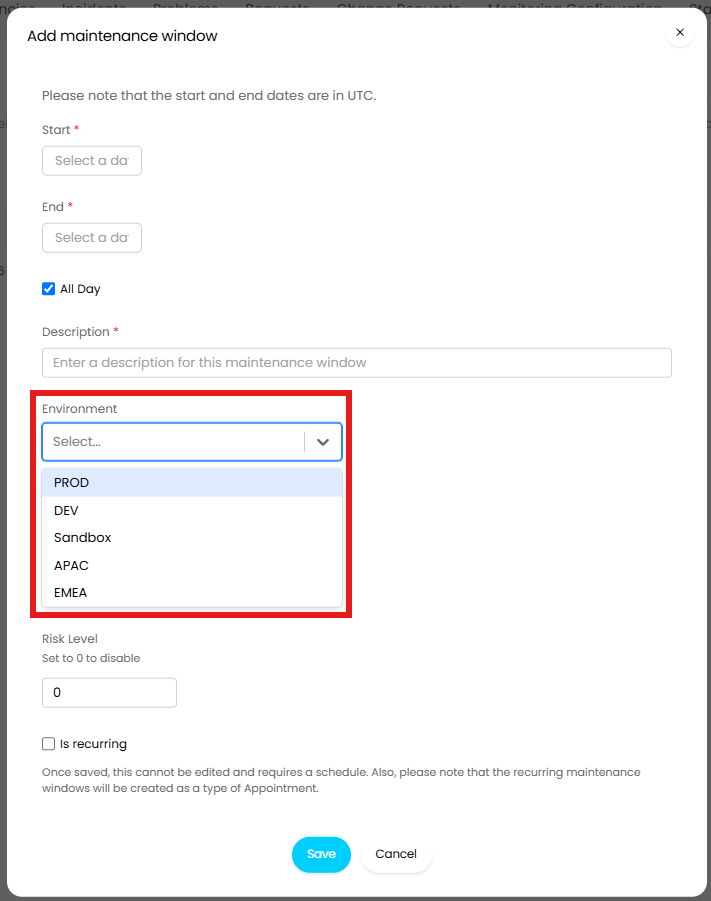
Fig 20. Linking a business application maintenance window to certain instance environments
For the full run-through of this functionality, check out this guide.