Maintenance Windows
- Asset Management
- change management
- maintenance windows
- configuration items
In this guide we will cover:
- What are Maintenance Windows
- Enabling Maintenance Windows
- Environments
- Calendar view
Related guides:
What are Maintenance Windows
Maintenance Windows are a scheduled 'Window' of time for changes and updates to occur without causing as great of an impact.
Note: To use these settings you will need to enable "Allow automatic linking of Assets and Service Catalogue" in Configuration > Asset Management > General Settings.
Enabling Maintenance Windows
Head to Configuration > Asset Management > General Settings, and select "Allow automatic linking of Assets and Service Catalogue".
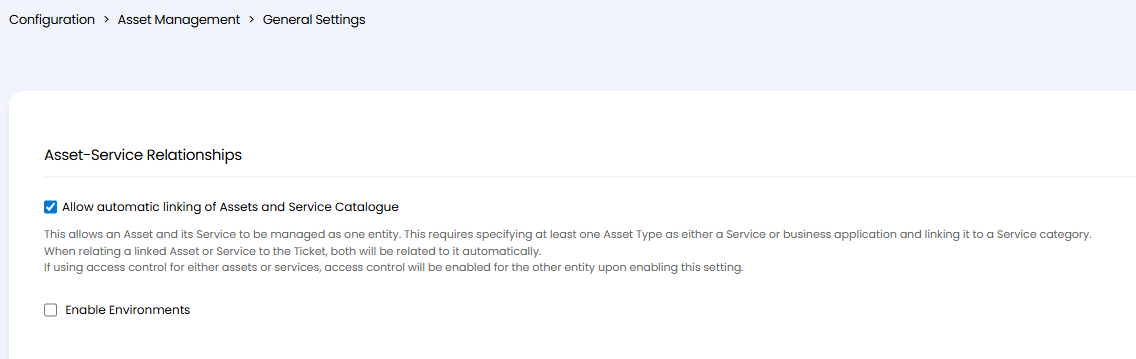
Fig 1. Allow automatic linking of Assets and Service Catalogue
Once enabled, head to Configuration > Tickets > Change Management, and select the "Enable Maintenance Windows" checkbox found under the Maintenance Windows section.
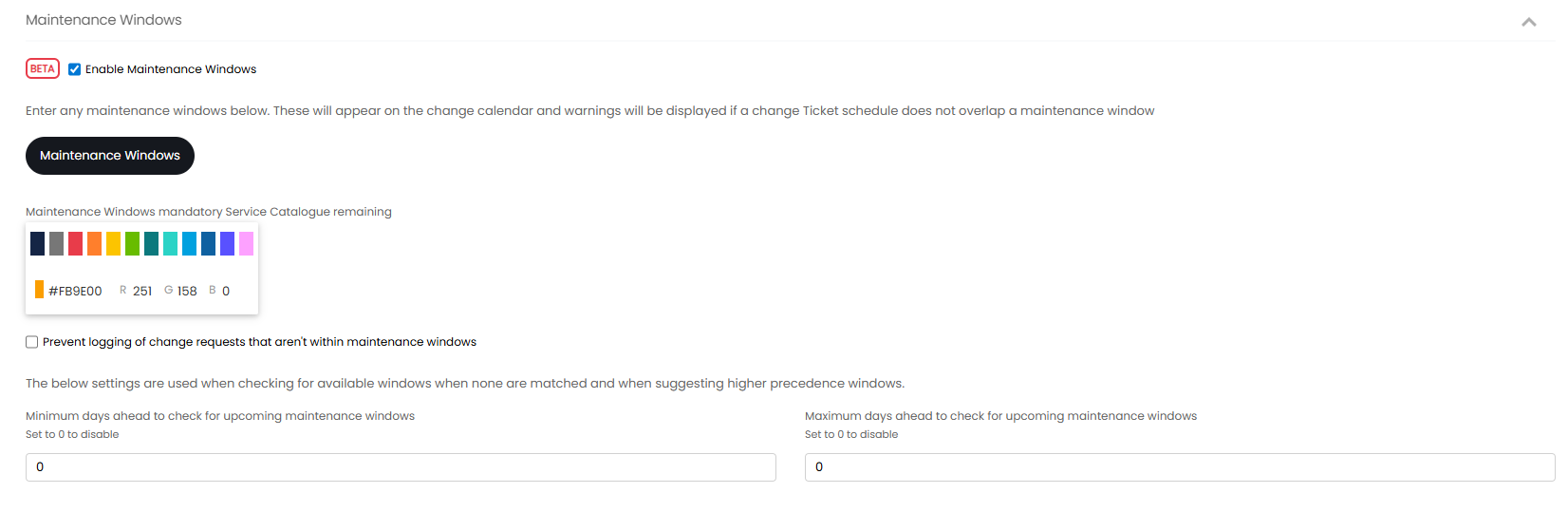
Fig 2. Enabling Maintenance Windows
You can create Maintenance Windows at 4 different levels:
- Global
- Asset type
- Site
- Asset - The asset type setting "Allow maintenance windows per asset" must be enabled to use this setting (Configuration > Asset Management > Asset Type, Change Management tab)
When logging a change request with a start and an end date, the primary asset will be checked to see if it falls within a maintenance window. This checks the primary asset and any upstream relationships it has, provided each asset's asset type has "is a service" set to true. If any of these assets are outside of a maintenance window, a prompt will be shown asking if the ticket should still be logged. These checks ensure discourage agents from raising a change for a service at a potentially high impact time.
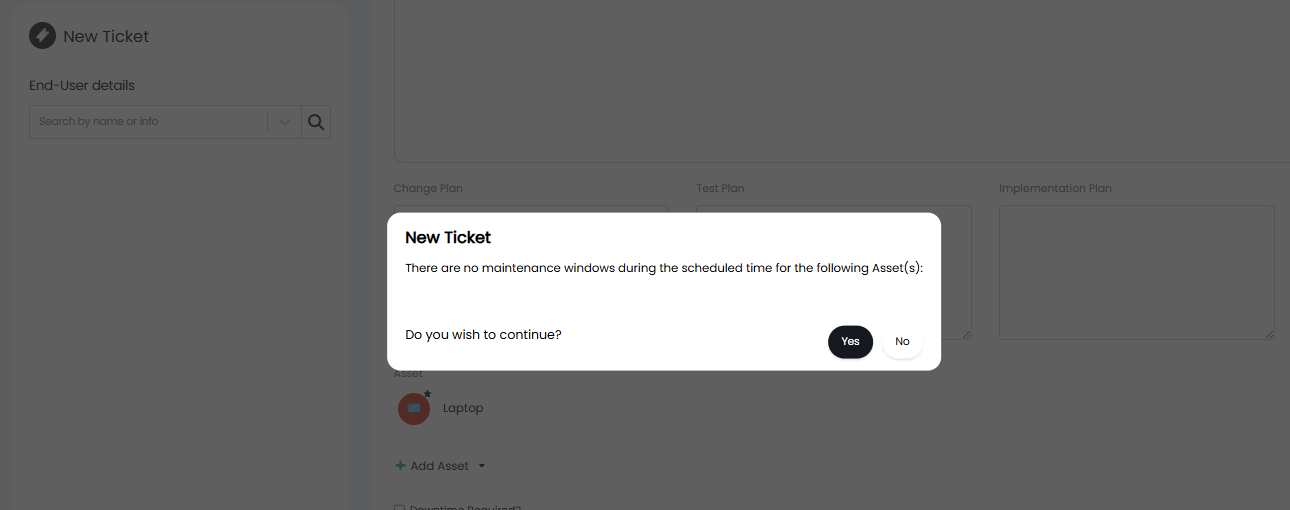
Fig 3. Outside Maintenance Window Pop-up
From v2.248+ you can choose which assets' maintenance windows are checked for each asset type, rather than assets with an upstream relationship to the asset the change is being raised for always being checked. To choose which assets are checked head to Configuration > Asset management > select an Asset Type > Change Management tab > toggle "Relationships to include when checking change management windows".
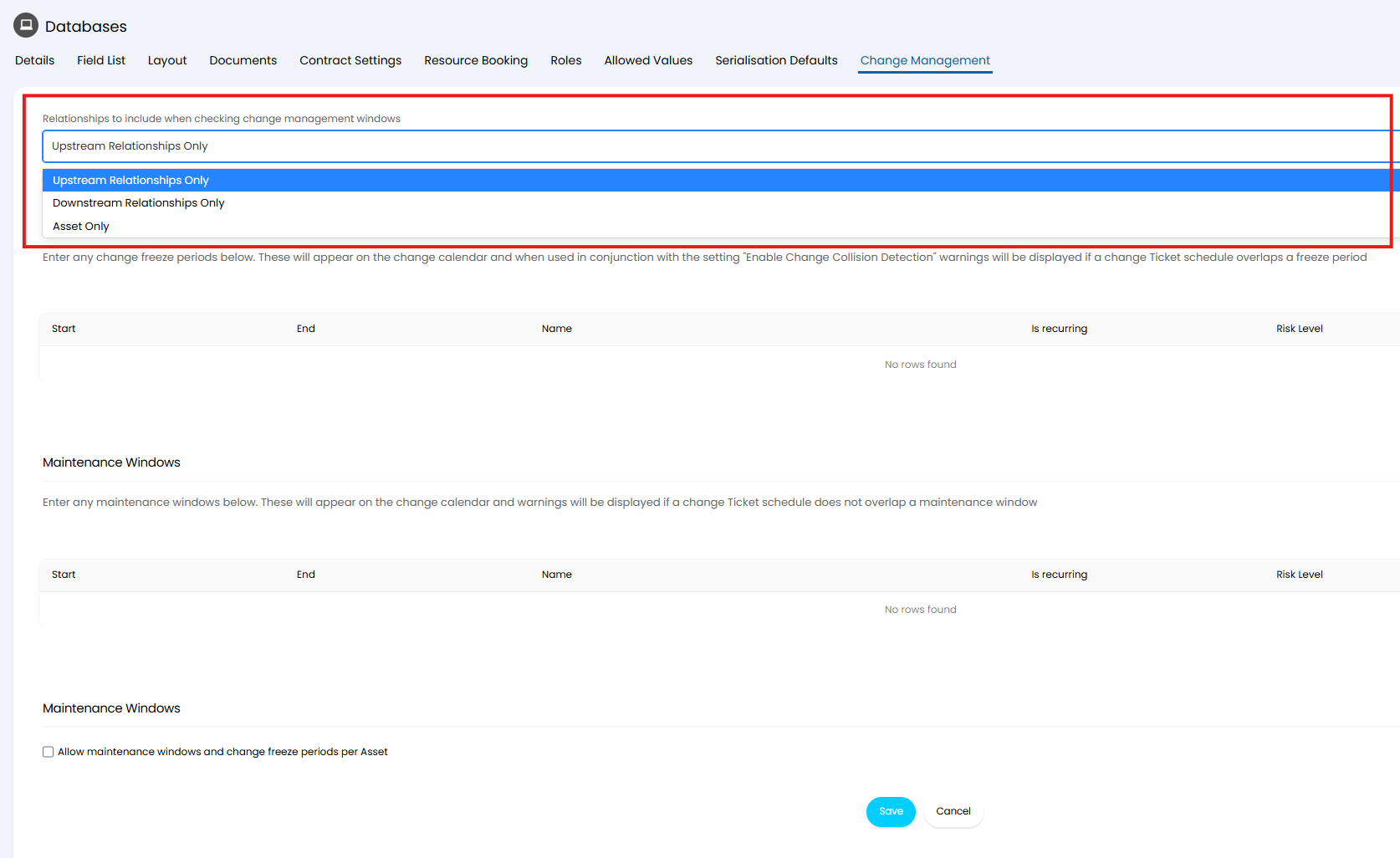
Fig 4. Relationships to include when checking change management windows
This is used when changes to assets of this type impact services (assets) downstream of this one, or changes to this asset do not impact others, so the maintenance windows of other assets need not be checked when making changes to this one.
You will now be able to add the new field "Is In Maintenance window" to tickets.
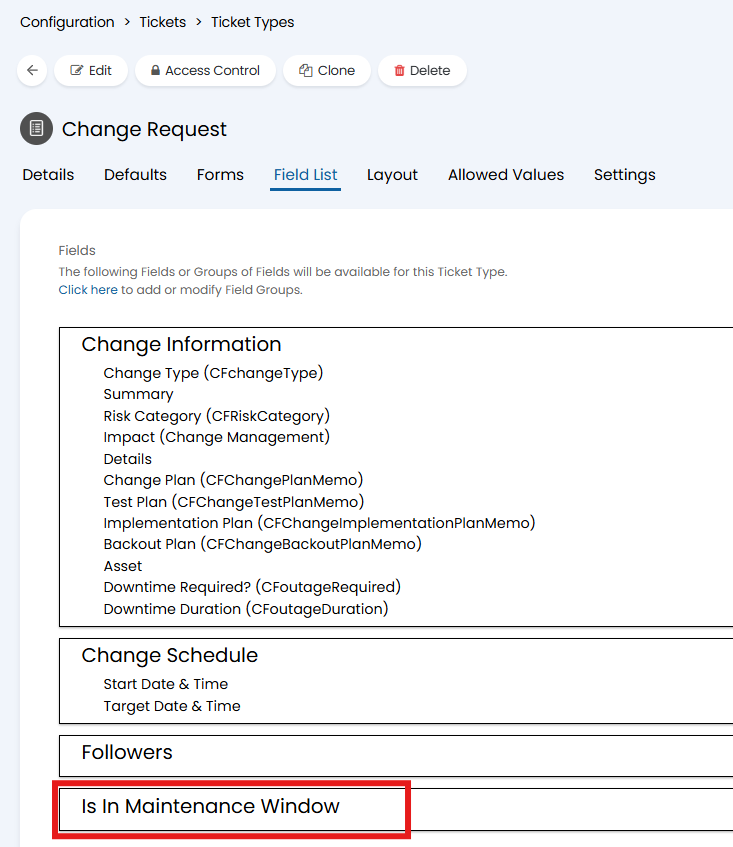
Fig 5. Adding Is In Maintenance Window field to a Ticket
This will automatically be set to true or false based on if all assets are within a maintenance window. This can then be used as a criterion for approvals, ticket rules, etc.
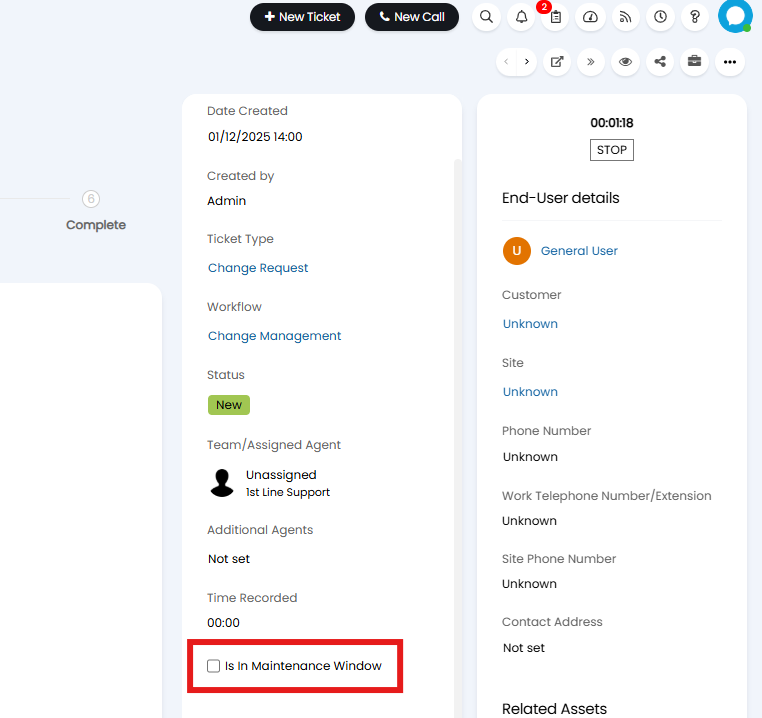
Fig 6. Is In Maintenance Window field
There is also a setting to prevent tickets from being logged if the assets are not within a maintenance window: "Prevent logging of change requests that aren't within maintenance windows"
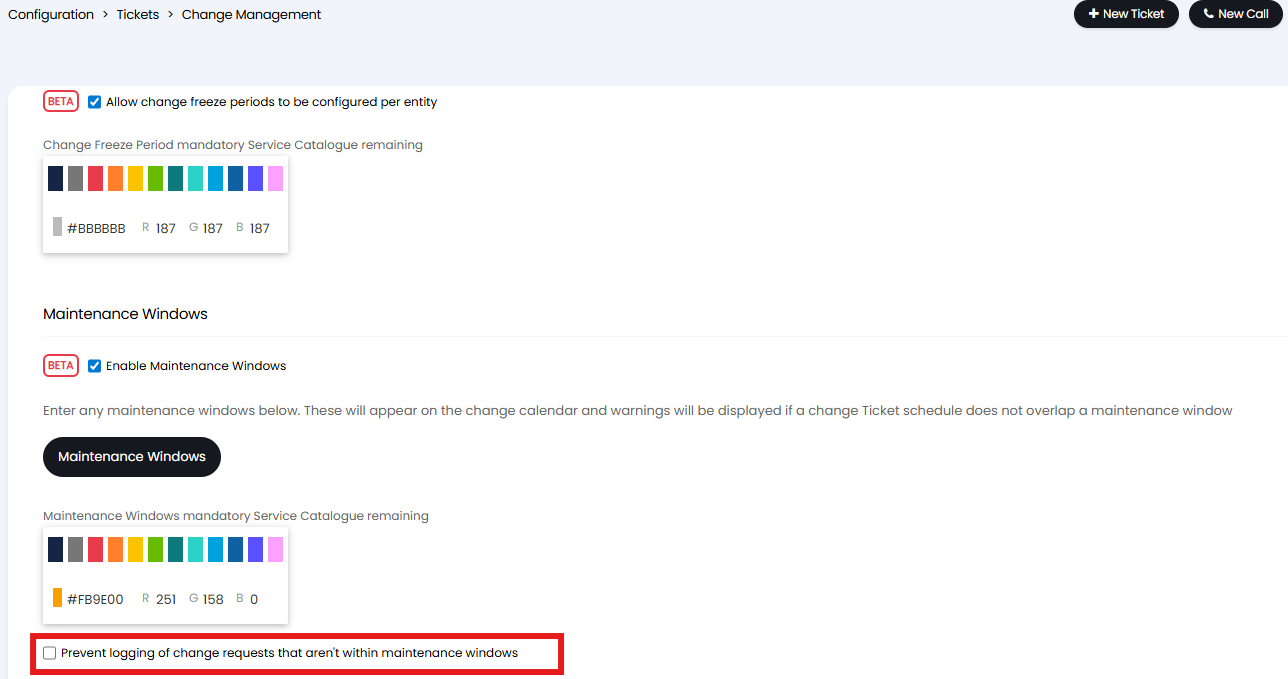
Fig 7. Adding Is In Maintenance Window field to a Ticket
When the settings "Minimum days ahead to check for upcoming maintenance windows" and "Maximum days ahead to check for upcoming maintenance windows" are set (see Fig 7), tickets that are logged outside of maintenance windows will suggest any applicable upcoming windows in that range. These suggestions will be split into the separate levels: global, asset, asset type, and site.
With this enabled, you can also enable the setting "When a window is matched, suggest upcoming higher precedence maintenance windows". When logging a ticket, the type of maintenance window that was matched will be checked, and, if any types are of higher precedence, it will suggest ones of that type in the upcoming period.
The precedence is as follows:
- Asset
- Owning Business Application
- Asset Type
- Site
- Global

Fig 8. Enabling Maintenance Windows
Environments
You can also enable the setting "Enable Environments" in Asset Management > General Settings. This allows you to set allowed environment types against any asset type with "Is Business Application" set. You will then see an "Environments" button where you can configure all your environments.
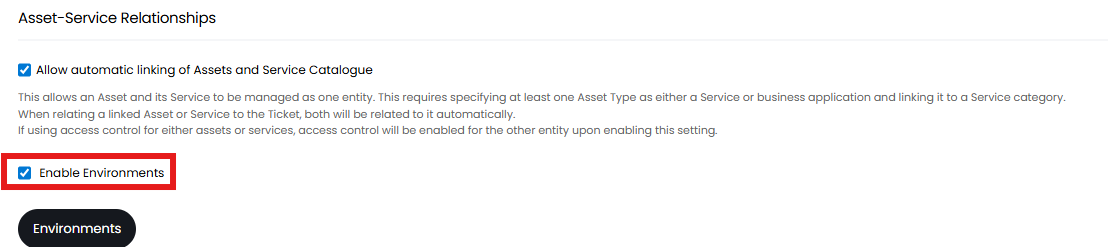
Fig 9. Enabling Environments
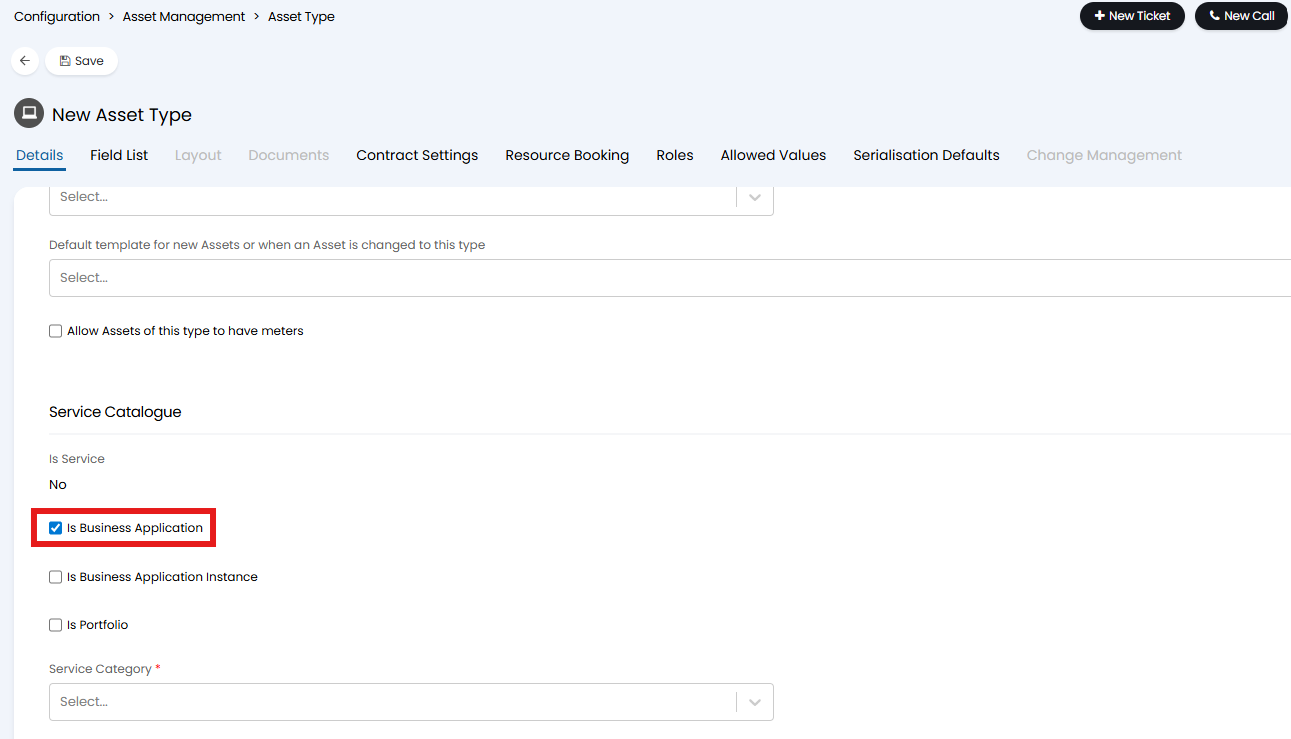
Fig 10. Is Business Application checkbox
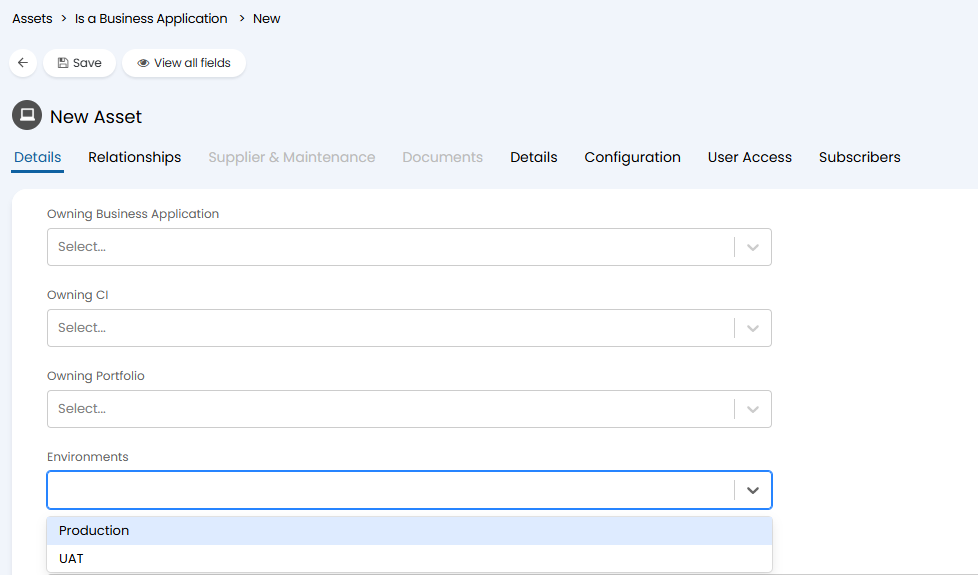
Fig 11. Choosing Environments
Any asset that is a "Owning Business Application" must have one of those allowed environments set against it.
If "Allow maintenance windows and change freeze periods per Asset" is enabled on the asset type, maintenance windows can be created on those assets in the "Change Windows" tab, and can additionally be linked to individual environment types. The assets dependant on that CI that are using that environment type will inherit the maintenance window. This is intended to be enabled on the Business Application asset type, so that assets with this type can create windows for the Business Application instances under them.
i.e. Setting "DEV" will mean the maintenance window will only be inherited by dependant assets using that environment type. The "PROD" environment would not inherit the window.
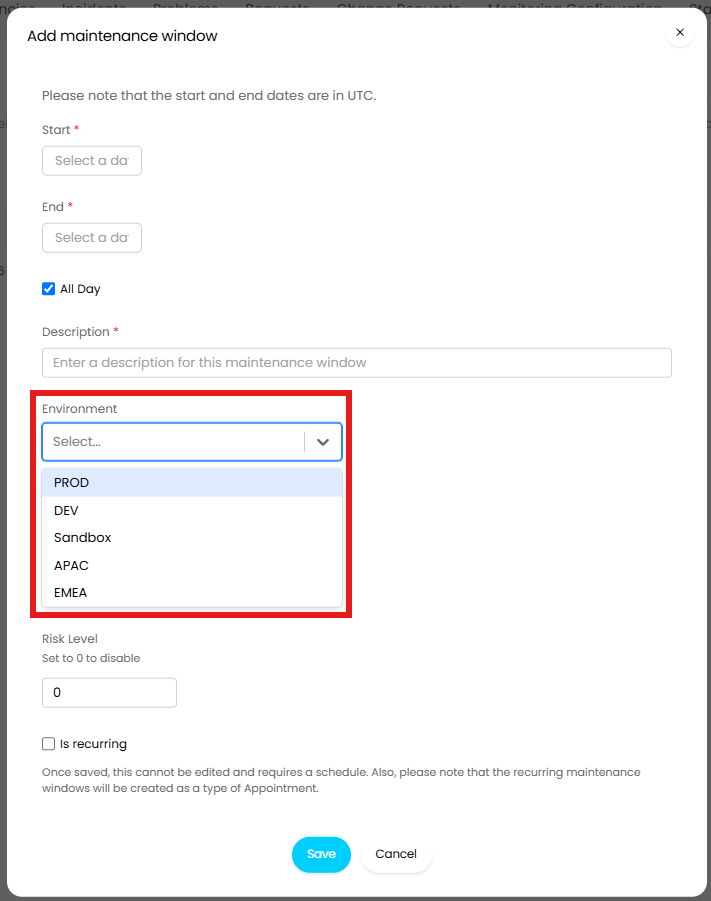
Fig 12. Linking a business application maintenance window to certain instance environments
Calendar view
Change freeze periods and maintenance windows relating to assets can be shown on the calendar. To allow this, head to Configuration > Asset Management > General Settings, and select "Allow automatic linking of Assets and Service Catalogue" (see Fig 1). Against the ticket area or list, enable "Show change freeze periods and maintenance windows in the calendar view". This will display all windows and periods that are applicable to the assets on tickets in that view.
The colour for these windows and periods to display as on the calendar can also be adjusted. To do this head to Configuration > Tickets > Change Management and choose the colour from the selection shown below. To change the colour of maintenance windows they must first be enabled, to do this make sure "Allow automatic linking of Assets and Service Catalogue" is turned on in Configuration > Asset Management > General Settings (see Fig 1), and make sure to select the "Enable Maintenance Windows" checkbox shown below.
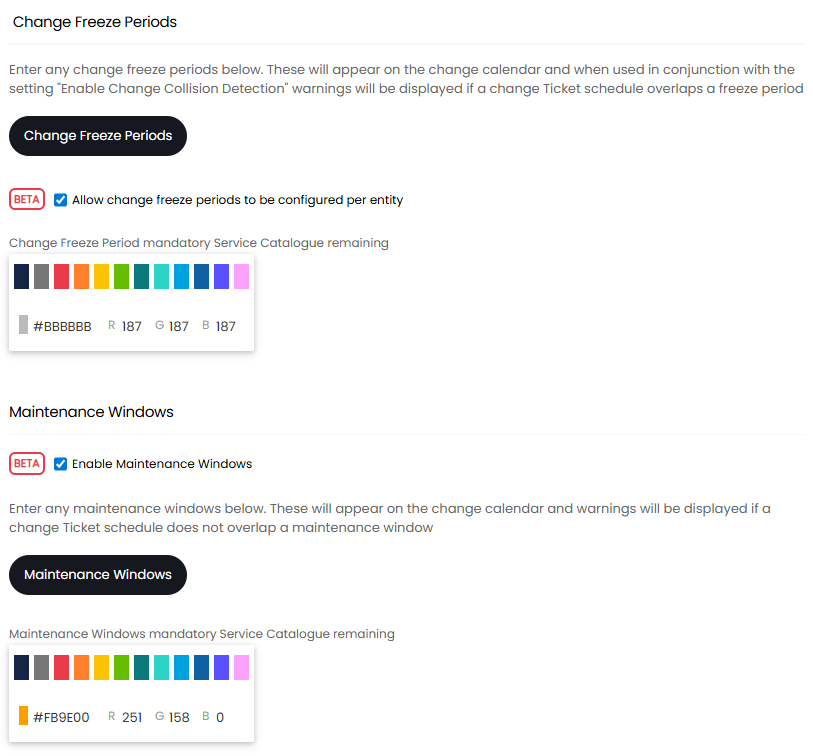
Fig 13. Changing the colour on the calendar