Device Change History
- Assets
- devices
- change history
- audit
- asset history
- tracking asset changes
In this guide we will cover:
- Tracking Device Change History
- Filtering Device Change History
- Changing to Tile View
- Reporting on Device Changes
- Optimising Device Change history
Admin Guides:
Related Guides:
Tracking Device Change History
Within your "Assets" area, you can track changes made to an asset in the "Change History" tab. This will show changes to an asset in a table view with the most recent showing first. In the example below, the user the asset is assigned to has been changed, followed by a site change.
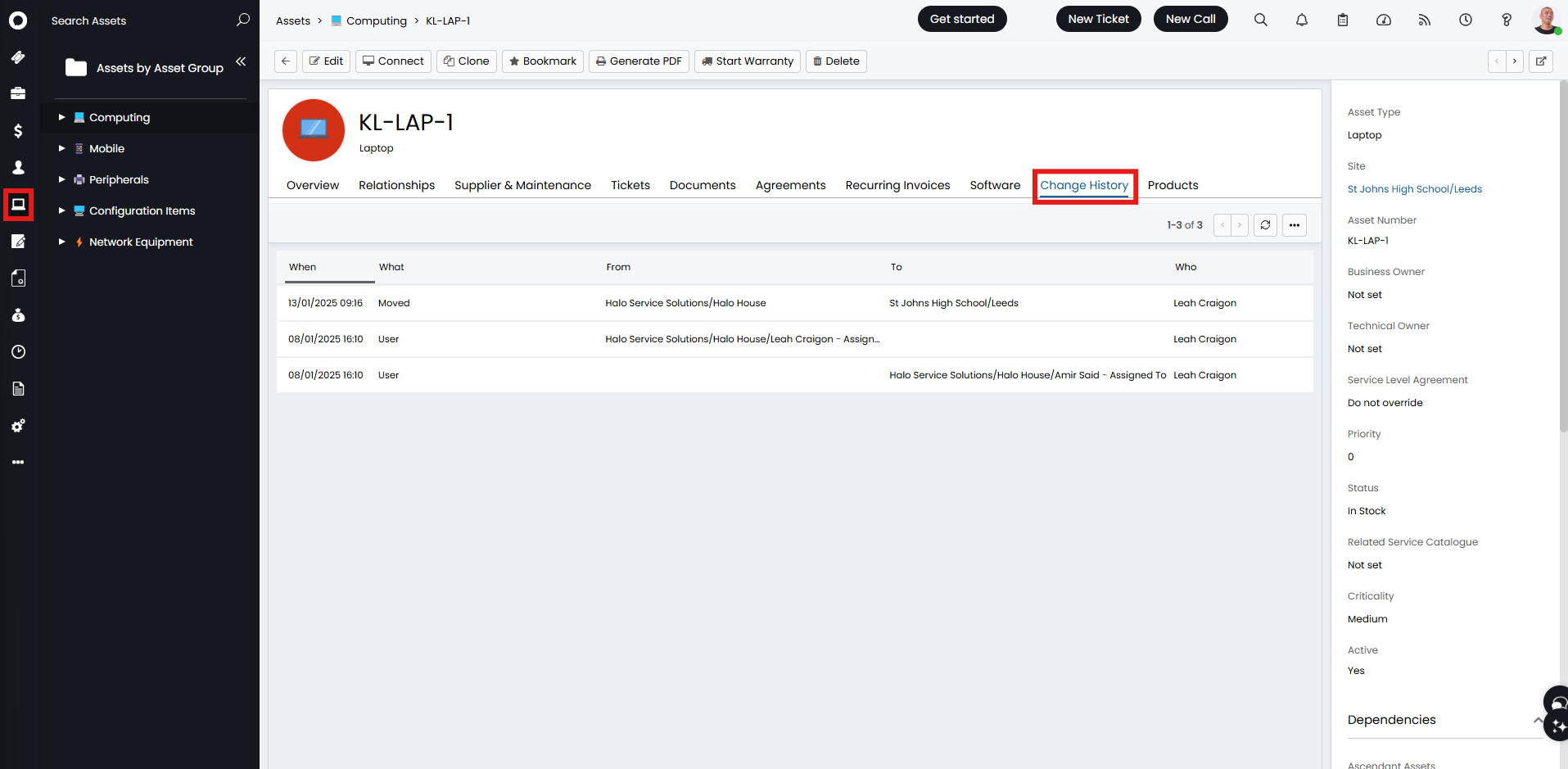
Fig 1. Change History tab on an asset
Filtering Device Change History
Filtering can be applied to change history by hovering over the column name so that the filtering icon appears.
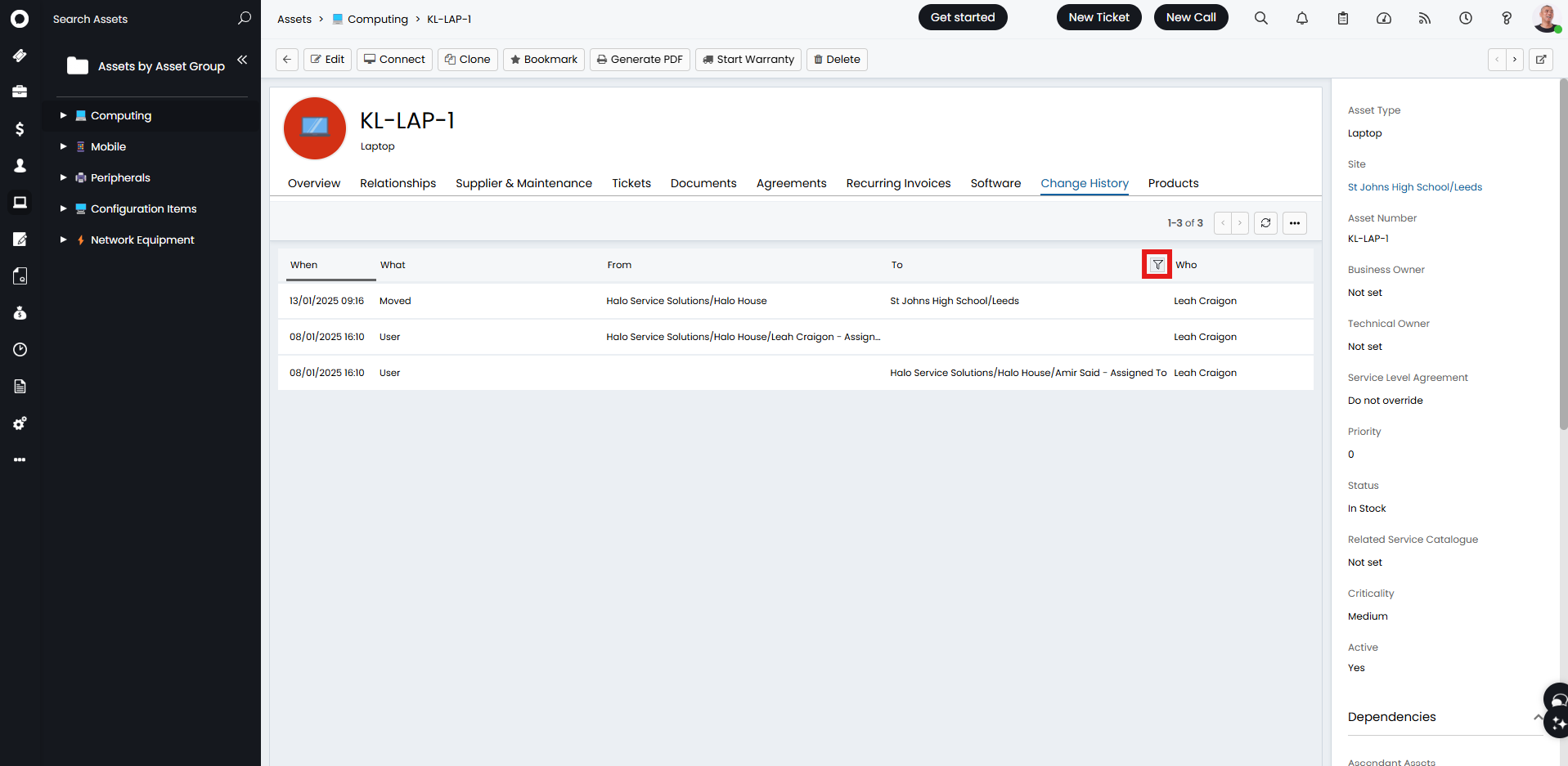
Fig 2. Filter icon on a column.
You can then click this icon and a search bar will appear to allow you to filter. "What", "From", "To" and "Who" use a type search field, whereas "When" shows a calendar popup to select a date from.
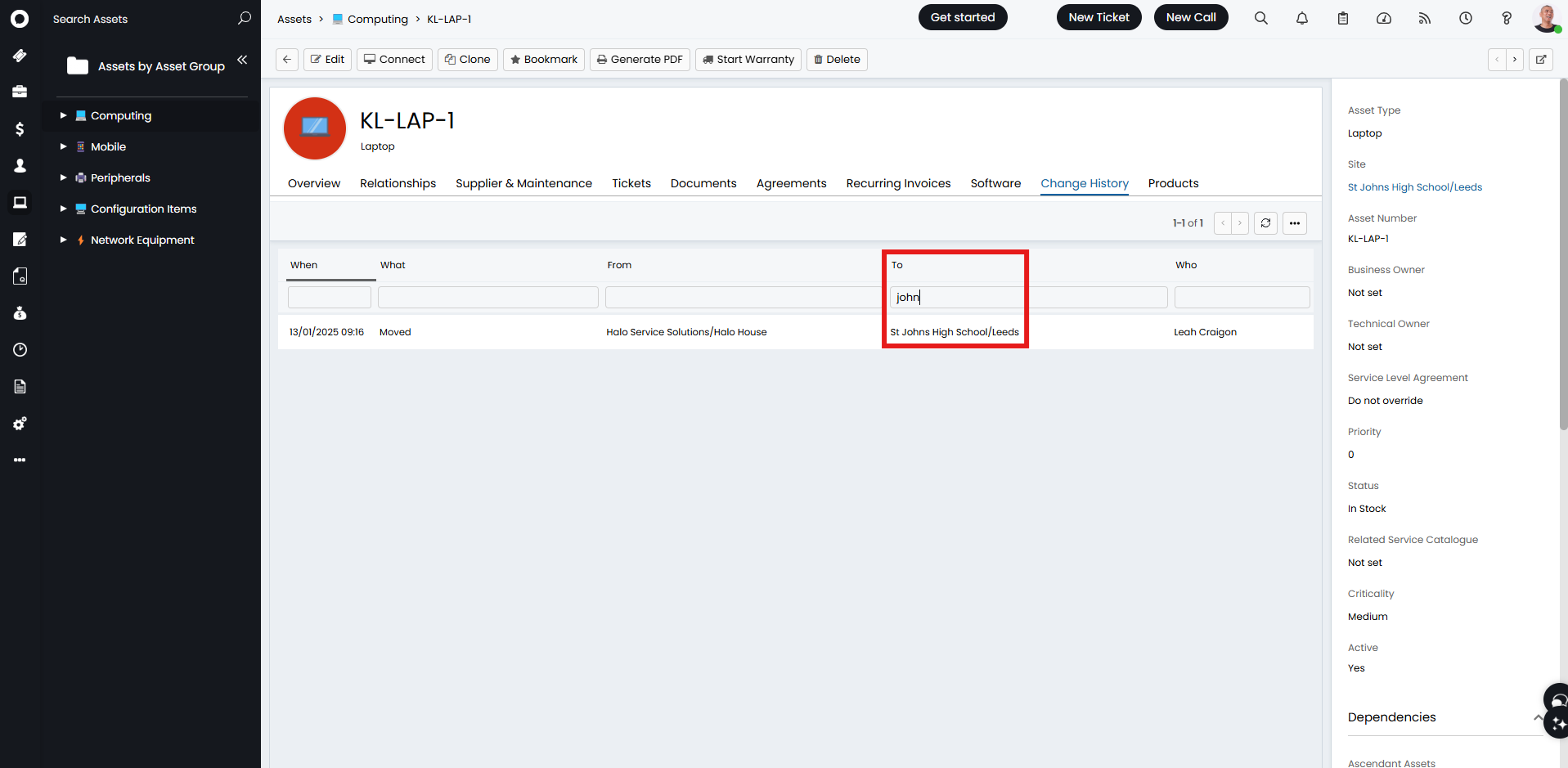
Fig 3. Filtering the results.
Changing to Tile View
Change history can also be viewed within tile view by selecting it from the "..." dropdown in Fig 4.
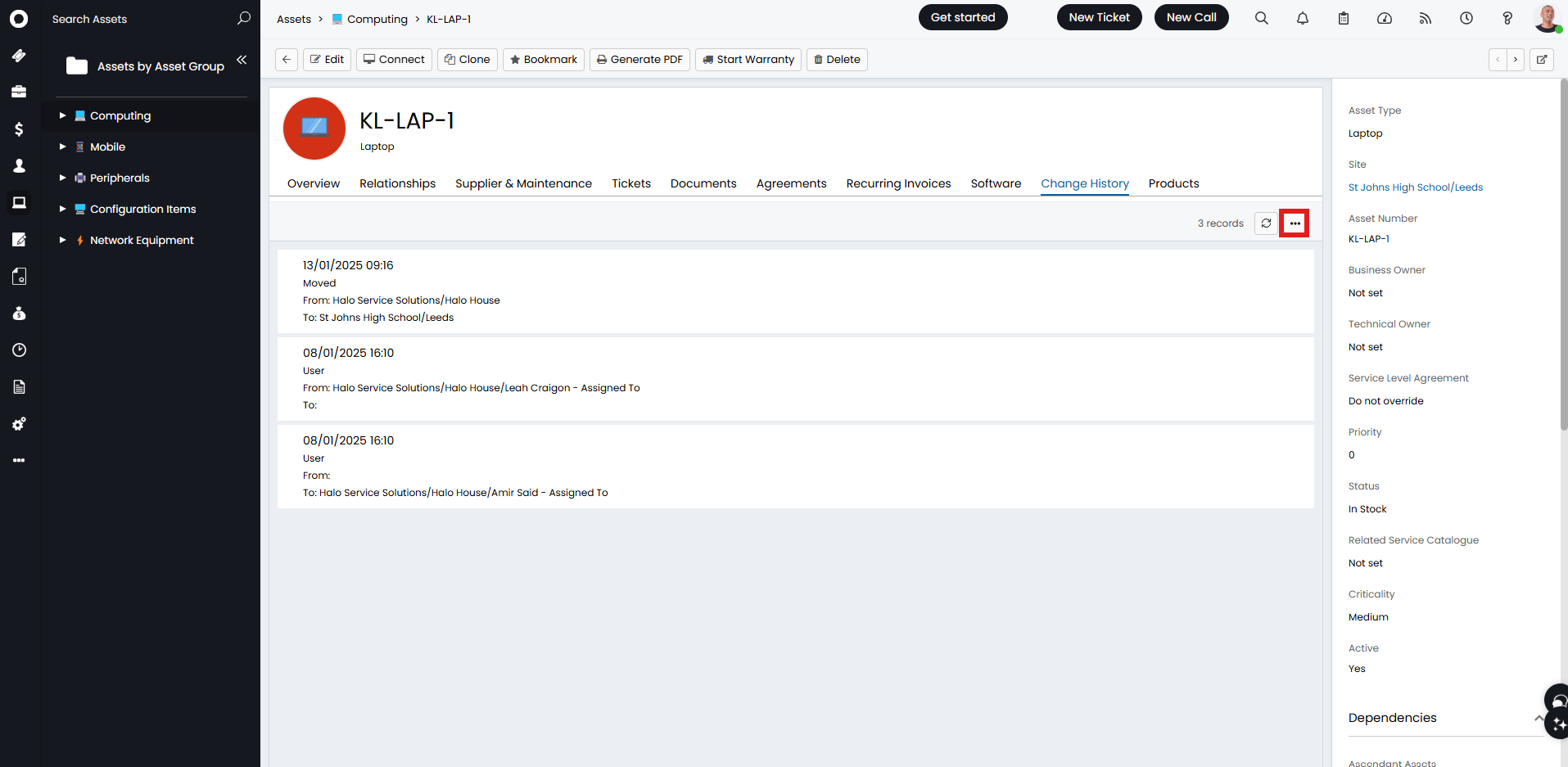
Fig 4. Change History in tile view.
Reporting on Device Changes
The change history is linked to the "devicechange" table when reporting. Fig 5 shows the table for the changes made in the example in Fig 1, taken from the "Device Changes" report that is available in the online repository.
DEVICECHANGE.DCID AS [ID],
DEVICECHANGE.DCDID AS [Device ID],
DEVICECHANGE.DCDevNum AS [Device Number],
DEVICECHANGE.DCWhen AS [Timestamp],
DEVICECHANGE.DCWho AS [Agent],
DEVICECHANGE.DCDSite AS [Device Site],
DEVICECHANGE.DCOldSite AS [Site - From],
DEVICECHANGE.DCNewSite AS [Site - To],
DEVICECHANGE.DCFieldID AS [Field ID],
DEVICECHANGE.dcfieldname AS [Field Name],
DEVICECHANGE.DCOldValue AS [Field - From],
DEVICECHANGE.DCNewValue AS [Field - To],
DEVICECHANGE.dcuserid AS [User ID]
FROM
DEVICECHANGE
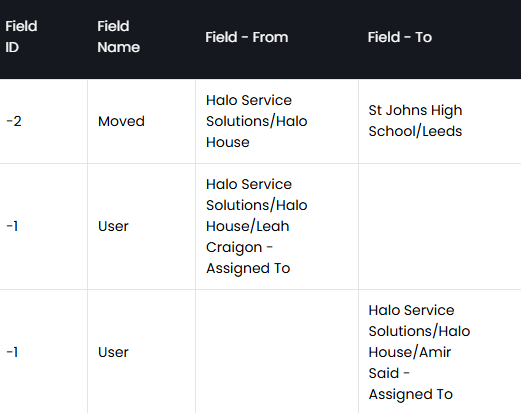
Fig 5. Report from the devicechange table.
"DCFieldID" shows a number that corresponds to a type of change. The below ID key shows which each of these corresponds to.
ID Key
-1 = "User"
-2 = "Moved"
-3 = "Status"
-4 = "Assembled"
-5 = "Used in Assembly"
-6 = "Linked to Ticket"
-7 = "Passed Commission"
-8 = "Failed Commission"
-9 = "Reset Commission"
-11 = "Asset Tag"
-12 = "Note"
-13 = "Commission Date"
-14 = "Unchanged Commission"
-15 = "Attachment Added"
-16 = "Attachment Removed"
-17 = "Image Added"
-18 = "Image Removed"
-19 = "Status Changed"
-20 = "Child asset linked"
-21 = "Child asset unlinked"
-22 = "Parent asset linked"
-23 = "Parent asset unlinked"
-24 = "Sibling asset linked"
-25 = "Sibling asset unlinked"
-50 = "Created"
-51 = "Type Changed"
-52 = "Software Added"
-53 = "Software Deleted"
-54 = "Software version updated"
-55 = "Software install date updated"
-56 = "Software licence changed"
-57 = "Software licence count changed"
-58 = "Software licence role changed"
-59 = "Linked Asset relationship changed"
-60 = "Inactive"
-61 = "Teamviewer connection"
-62 = "Business Owner"
-63 = "Change Advice Board"
-64 = "Technical Owner"
-65 = "Priority"
-66 = "Supplier"
-67 = "Contract"
-68 = "Supplier Priority"
-69 = "Supplier Reference"
-71 = "Service Linked"
-72 = "Service Unlinked"
-73 = "Name"
-74 = "Status"
-75 = "Sales Description"
-76 = "Purchase Description"
-77 = "Price"
-78 = "Cost"
-79 = "Tax Code"
-80 = "Accounts Code"
-81 = "Item Group"
-82 = "Parts Warranty Start Date"
-83 = "Parts Warranty End Date"
-84 = "Labour Warranty Start Date"
-85 = "Labour Warranty End Date"
-86 = "Licence Linked"
-87 = "Licence Unlinked"
-88 = "Contract Linked"
-89 = "Contract Unlinked"
-90 = "Taxable"
-91 = "Recurring Price"
-92 = "Recurring Cost"
-93 = "Not Consignable"
-94 = "Item Project Template"
-95 = "Do not receive on Purchase Order"
-96 = "Budget Type"
-97 = "Manufacturer SKU"
-98 = "Is a Contract"
-99 = "Don't Invoice on Sales Orders"
Optimising Device Change history
You can turn on the setting "Use optimised Device Change history retrieval method", found in Configuration > Asset Management > General Settings to allow performance improvements to Device Change History to be enabled.
Note: This should only be enabled for Databases created after June 2025.
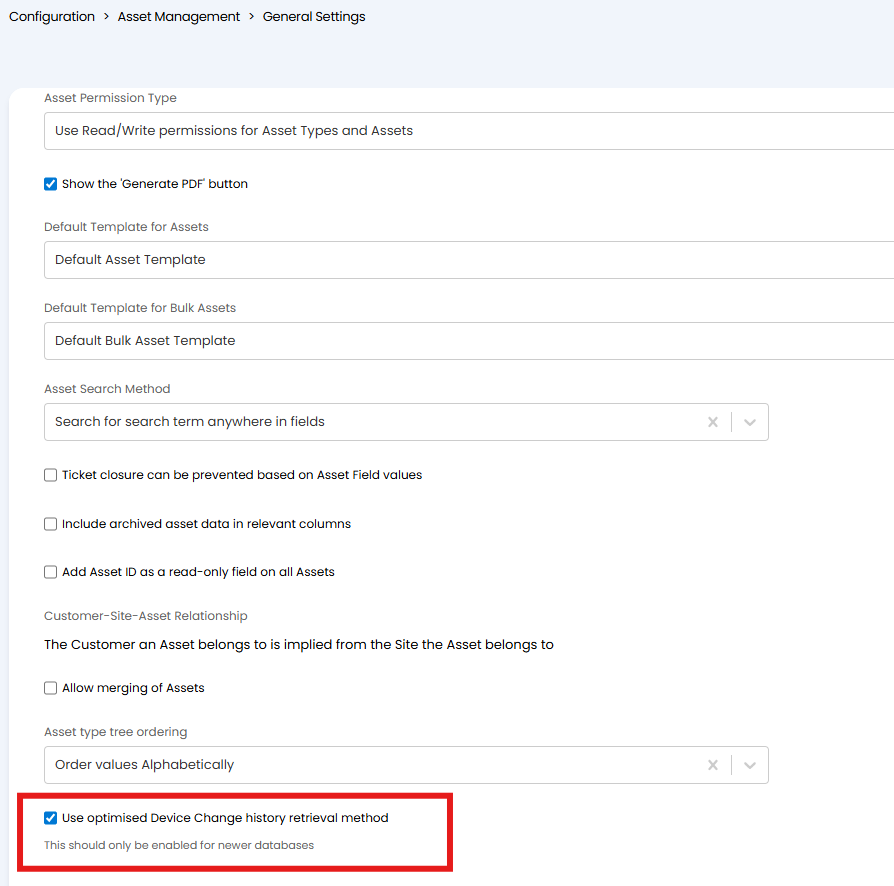
Fig 6. Optimised Device Change history retrieval method checkbox.