Barcode Scanning
- barcode
- barcode scanning
- barcode scanner
In this guide we will cover:
- Enabling Barcode Scanning
- Scanning Barcodes via the Web App
- Creating Barcodes for Existing Assets
- Scanning Barcodes via the Mobile App
Related Guides:
Barcode scanning functionality can be enabled to create new Assets from existing barcodes, or barcodes can be generated by Halo from existing Assets.
Enabling Barcode Scanning
In Configuration > Asset Management > General Settings, check the "Enable Scanners" option. Further options will show to decide the decoder to use for barcodes that are being scanned into Halo, as well as the option for an another matching field for the Mobile App (additional to inventory number).
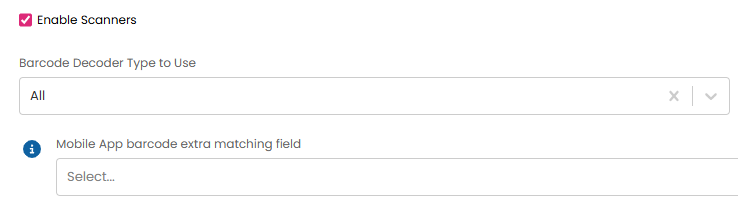
Fig 1. Barcode configuration.
Scanning Barcodes via the Web App
Navigate to the Assets area, hover over the three dots in the top right corner and the option to "Scan Barcode" will appear. This will bring up an on-screen camera. Ensure you allow your Halo instance to access your camera.
A barcode scanner can also be plugged into your device to use with this method.
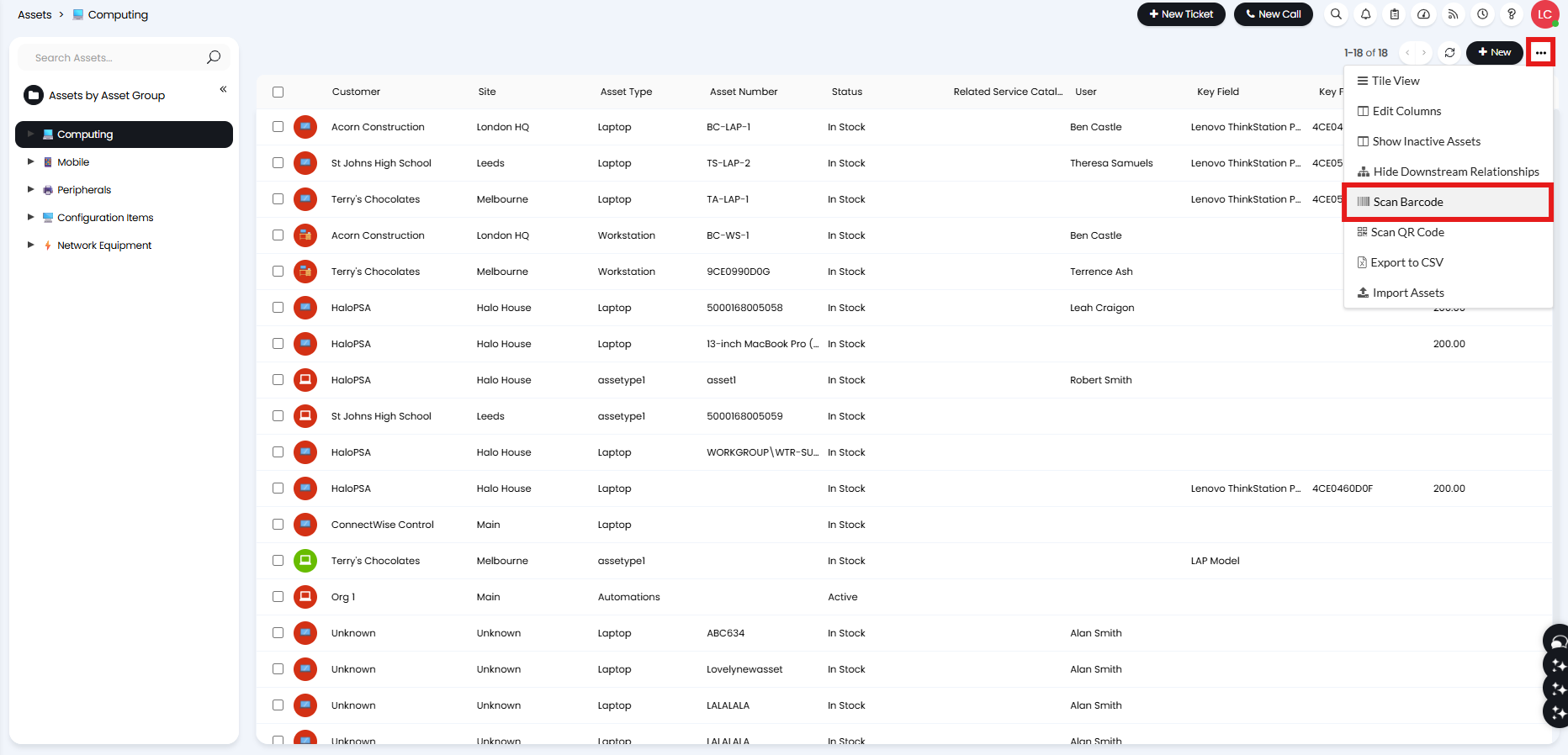
Fig 2. Scan Barcode Action.
Scan the barcode of the asset and the "New Asset" screen will dynamically appear.
Creating Barcodes for Existing Assets
You can create barcodes for existing Assets. Select the checkboxes on the left of the asset, hover over "Edit" and select "Bulk Print".
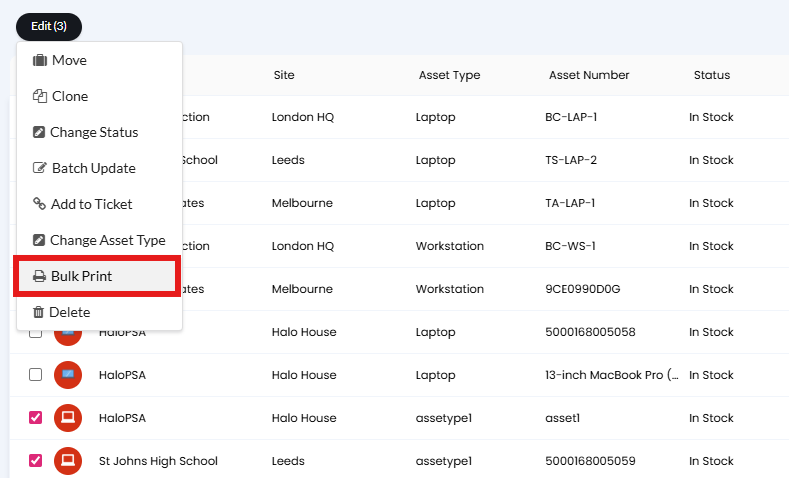
Fig 3. Bulk Print Action.
Choose a PDF Template to use.
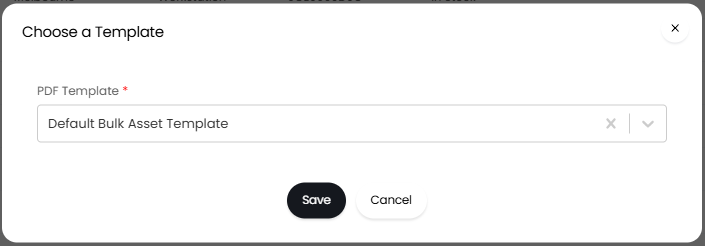
Fig 4. Selecting a PDF Template.
The default one will create a PDF like the below.
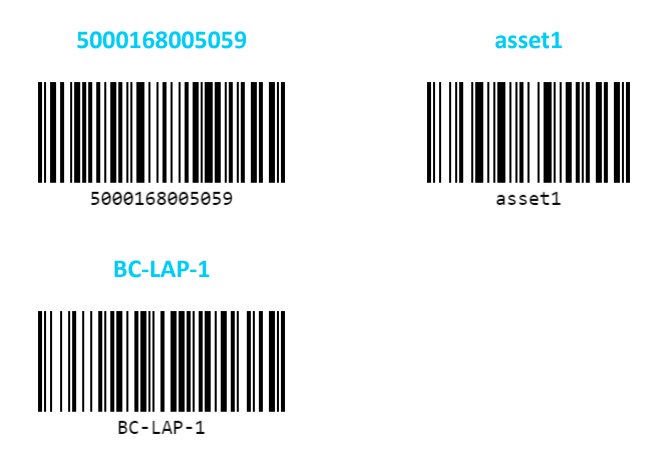
Fig 5. Example Asset barcodes.
You can also create barcodes for singular assets by clicking into an Asset from the list, and using the "Generate PDF" button.
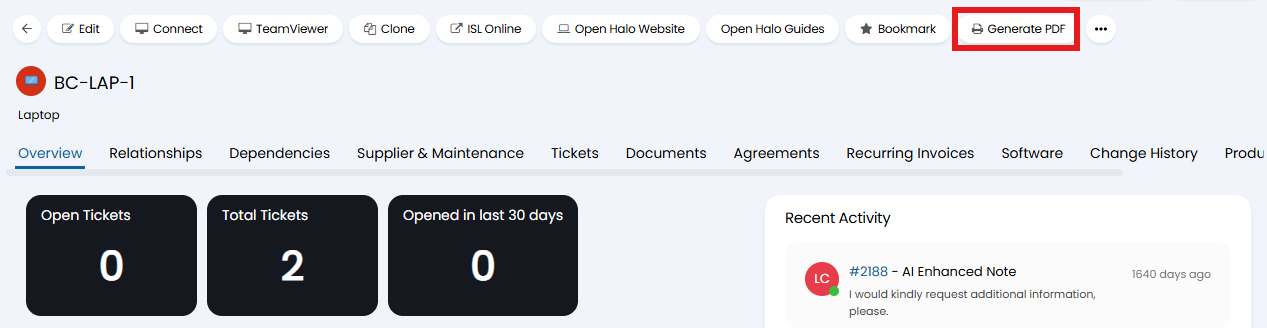
Fig 6. Generate singular barcodes.
The default PDF template shown here will be the one set as the default from within Configuration > Asset Management > General Settings. A PDF Template of type "Asset" can be set here.
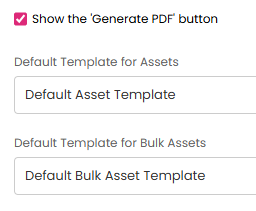
Fig 7. Asset Template defaults.
Scanning Barcodes via the Mobile App
Asset barcodes can also be scanned in the Halo Mobile App to view existing Assets or create new ones. Opening the third area called "Assets" will initially show a list of asset types in the "Asset Types" tab at the top.
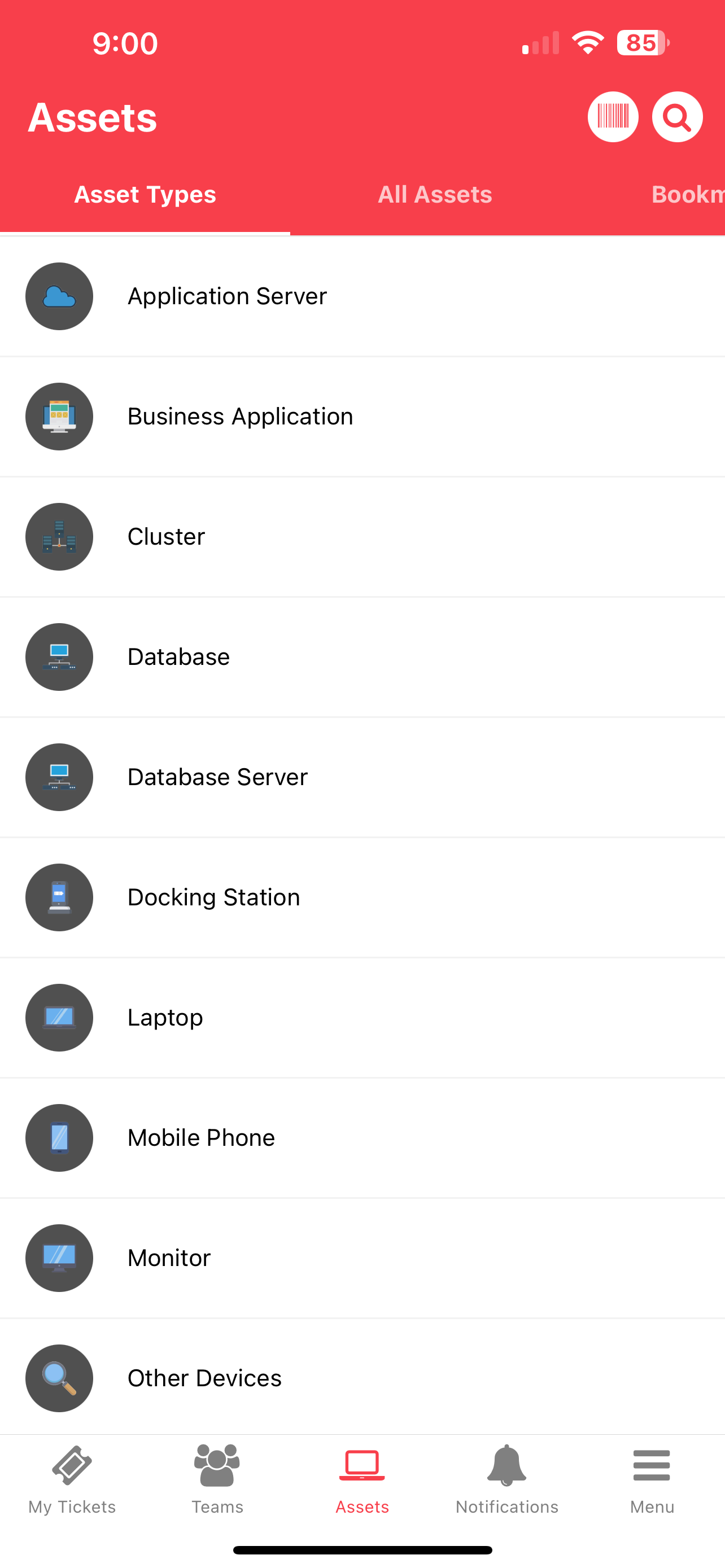
Fig 8. List of asset types.
In the top right, selecting the barcode item will open the camera to be able to scan asset barcodes Note: The app will need camera permission to do so.
If a barcode that is scanned that is not associated with an asset, it will prompt to create an asset from it. Selecting "Create a new Asset" will open the asset creation page in your mobile browser.
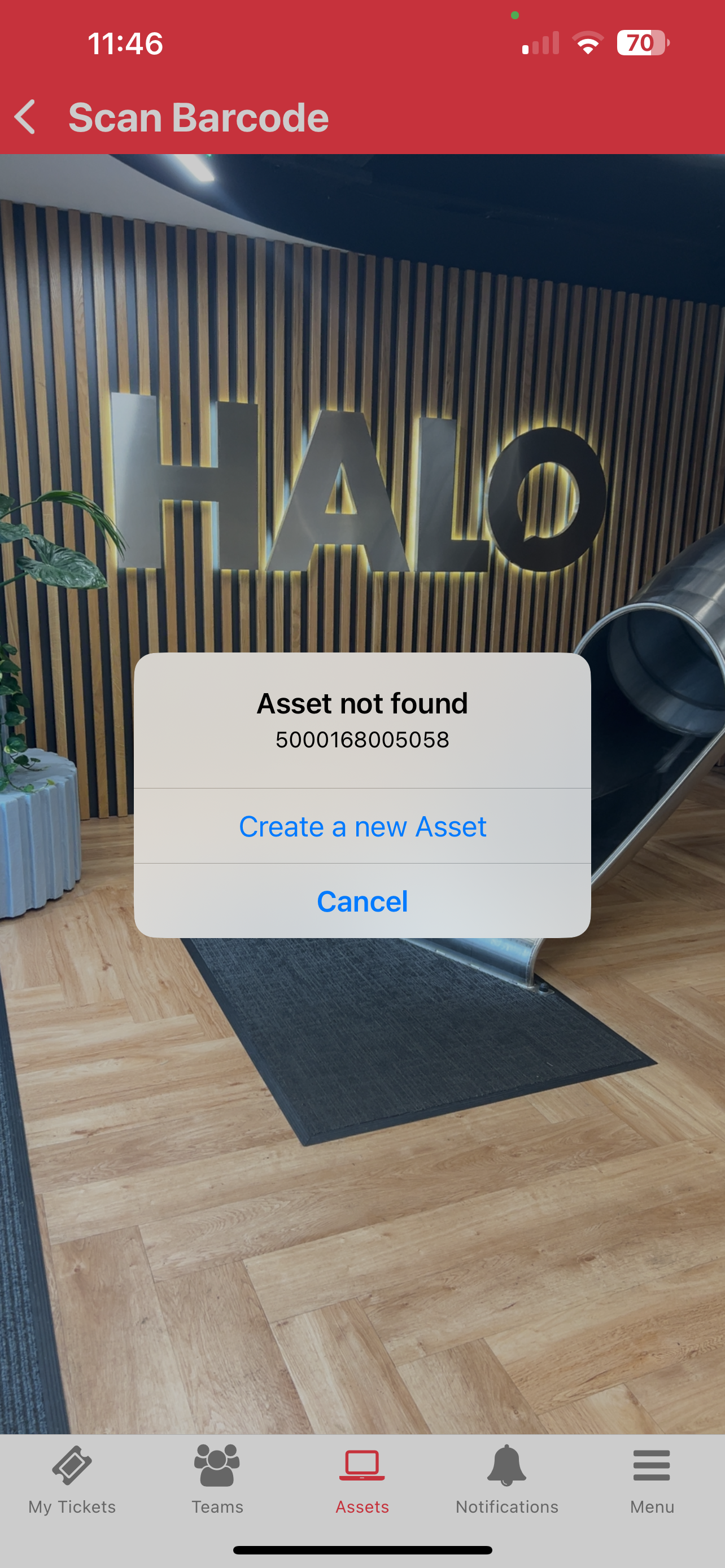
Fig 9. Asset not found popup.
If scanning an asset that already has that barcode associated with it, the options to either bookmark or view the asset will show. If the barcode scanner retrieves multiple Assets, it allows a selection between them.
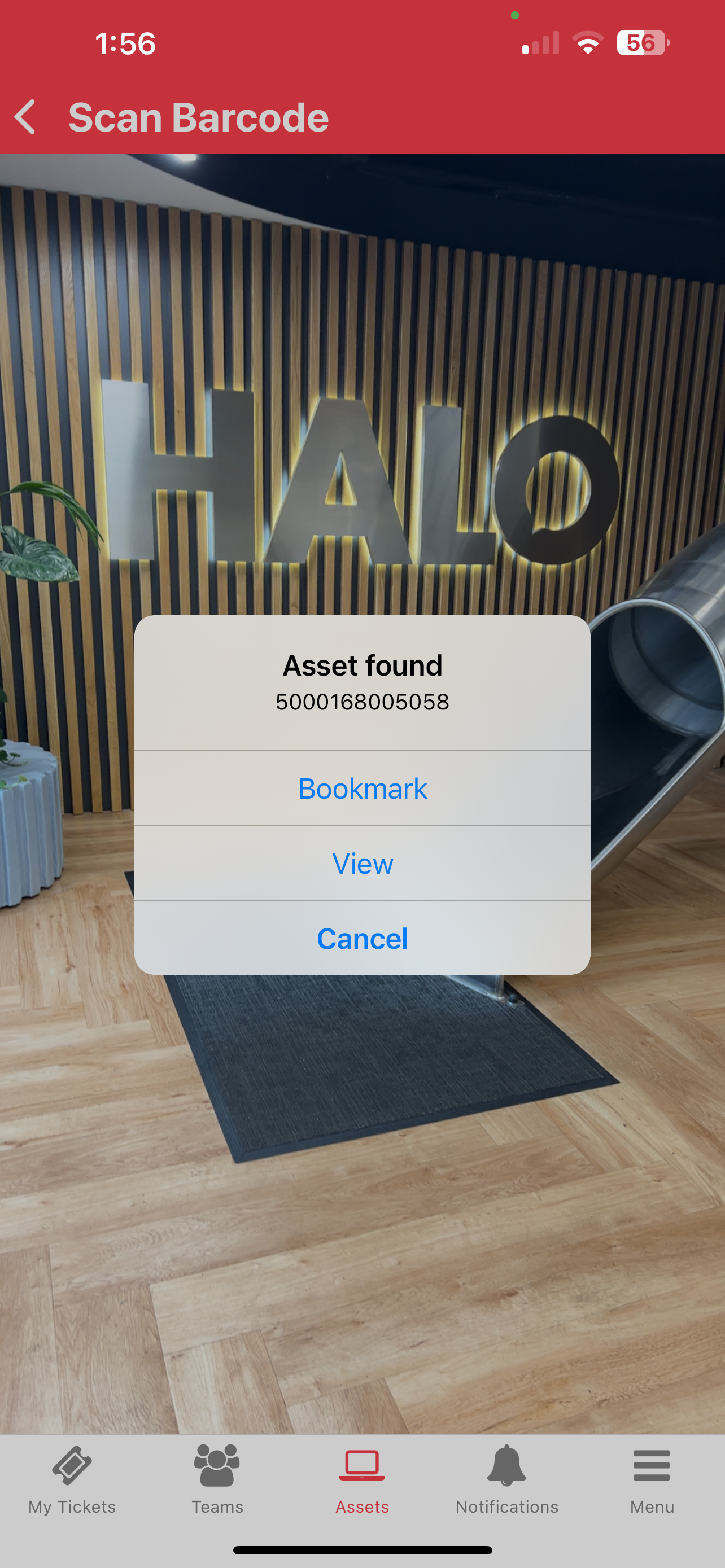
Fig 10. Asset found popup.
Selecting "View" will open the asset's information. This is the same page that will appear if manually clicking into an asset from the list. Here you can view details about the asset, and associated attachments and tickets.
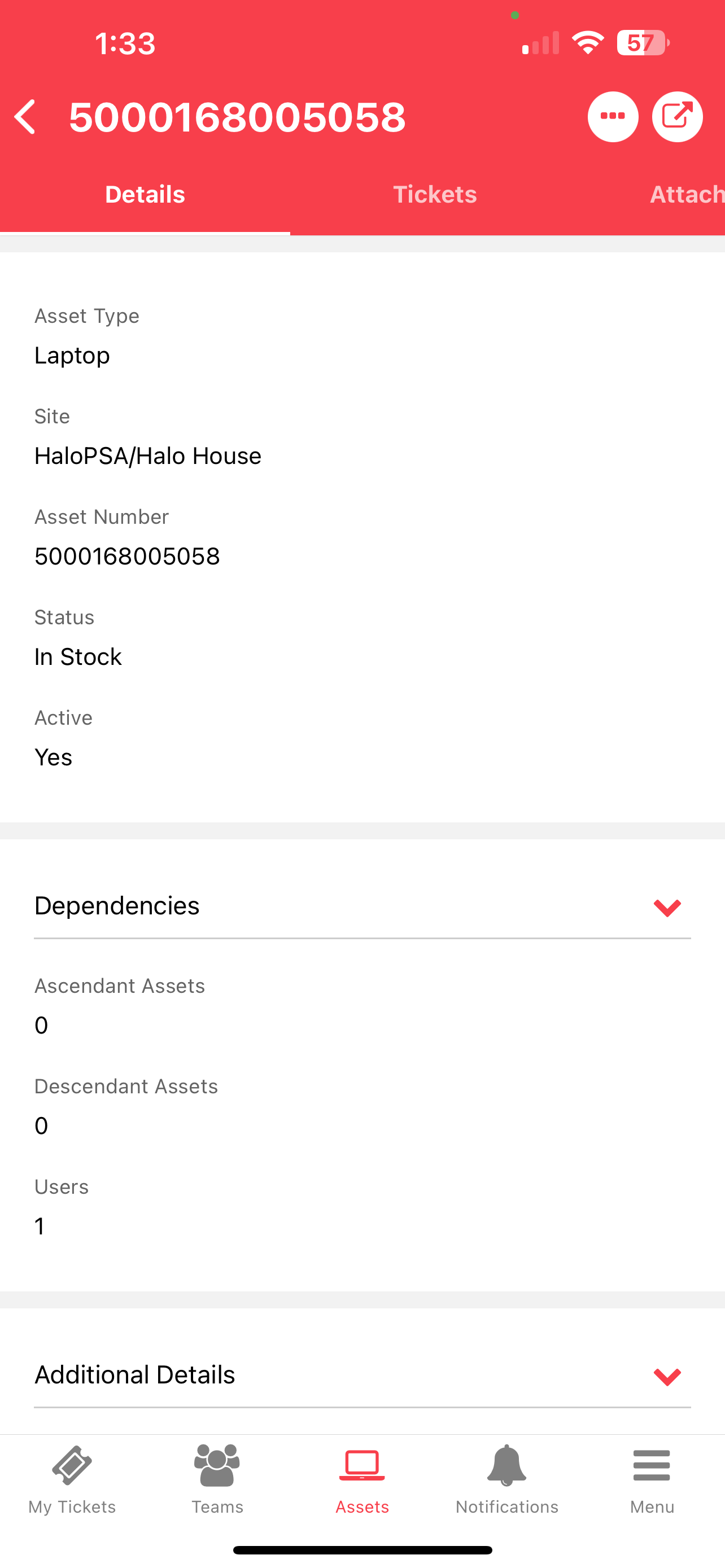
Fig 11. Asset details tab.