Finding Missing Entities
- deleted tickets
- config change tracking
- troubleshooting
- missing action
- missing client
- missing user
- missing ticket type
- missing article
- change tracking
- troubleshooting
In this guide we will cover:
- Steps to Find a Hidden Entity
Sometimes, especially in the earlier days of using Halo, you may find that a certain entity is not showing where you would expect. For example, a client not showing in the list, or a ticket not showing in a ticket area. This guide will cover common places to check, explaining the logic throughout. Some of the example settings as entity-specific, such as a ticket area for tickets only, but others are more general.
If you have any issues locating an entity following this guide, please contact support for further assistance.
Is it inactive?
If you cannot find a particular client, site or user, it may have been inactive. This could have been done manually by and agent, or commonly through an integration when the same client is deactivated there.
When viewing a list of clients, sites or users, whether in the main "Clients" module or within a specific client profile, in the top right corner, hover over the three dots and select "Show Inactive Clients/Sites/Users".
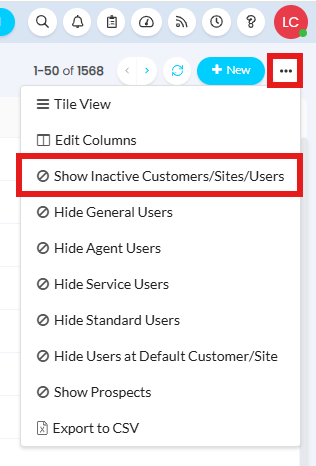
Fig 1. Show inactive in the list
The list will then show any inactive clients in addition to the active ones already showing, with a red circle next to their logo indicating they are inactive.
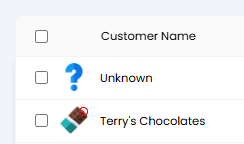
Fig 2. Inactive client
To make the client, site or user active again, there will be a checkbox within the "Details" tab or sidebar.
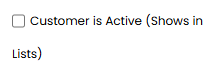
Fig 3. Client active/inactive toggle
The filters on ticket areas, lists or filter profile may also be filtering to only show tickets from active clients, so no tickets are showing for these clients either. Lists and filter profiles can be found in Configuration > Tickets > Views, and areas in Configuration > Tickets > Areas.

Fig 4. Inactive entities being filtered out
Is it visible in lists?
Next, check if the entity is visible in lists.
If a client is made inactive, they will not appear in lists either - unless "Show Inactive Clients/Sites/Users" is toggled as above.
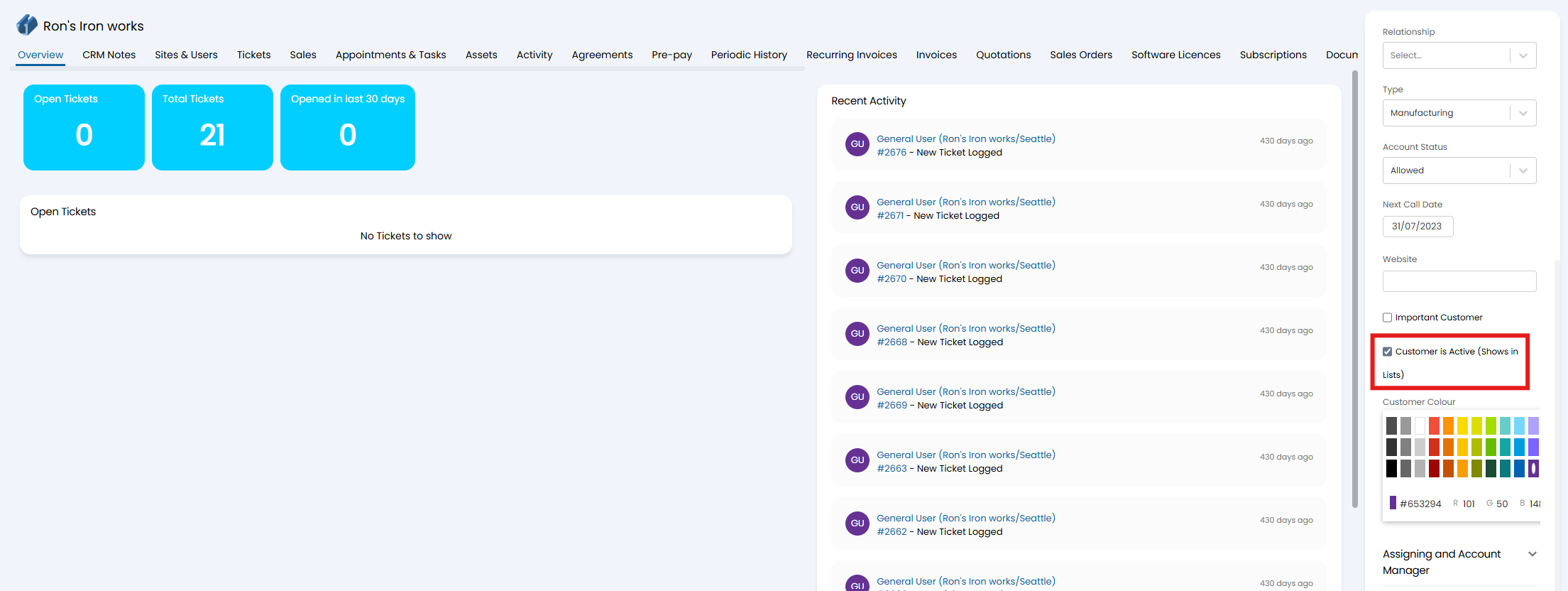
Fig 5. Making client/customer active
Ticket types may not appear in dropdowns or be able to be logged by an agent if "Visible in lists for Agents" is not enabled. If disabled, this ticket type can only be logged by system automations or defaults.
This is set in Configuration > Tickets > Ticket Types > "Details" tab.
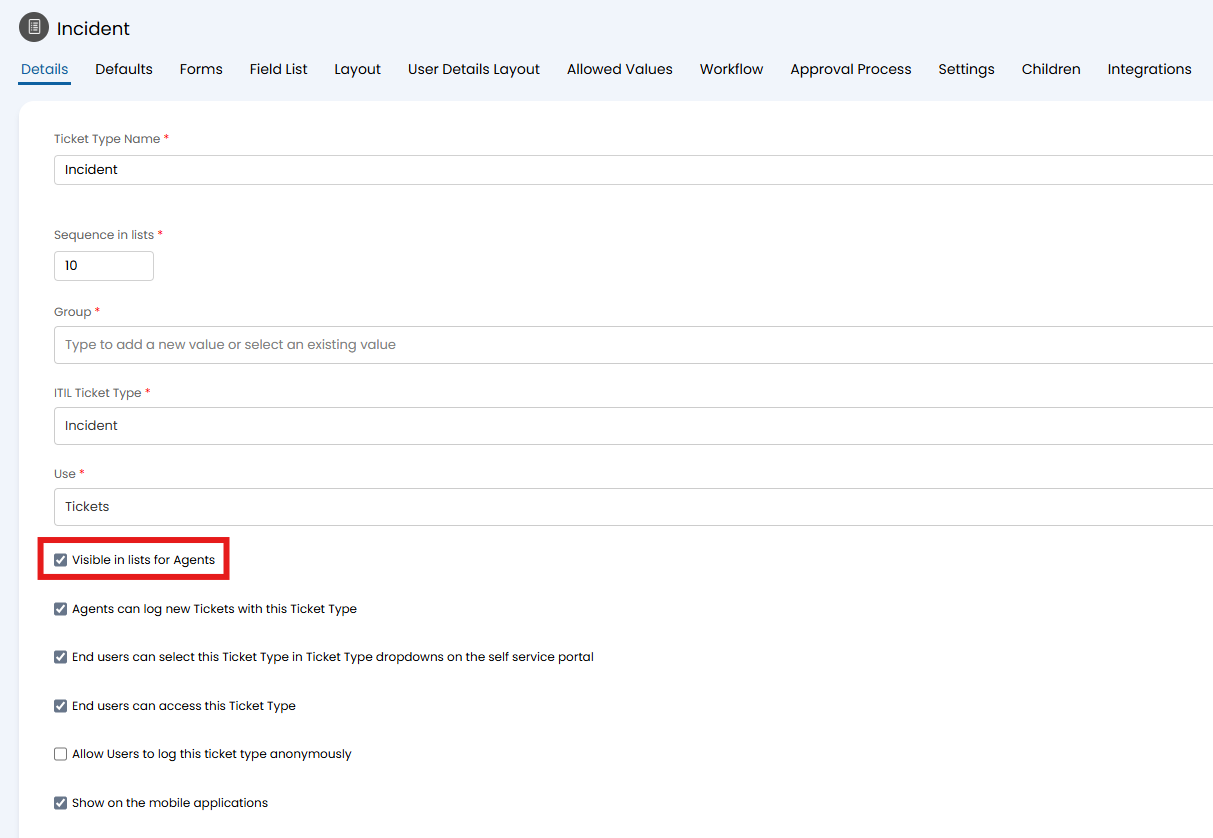
Fig 6. Making ticket type visible
Do they have access to view it?
The next area to check is agent permissions. If a ticket is not showing for example, the most likely place to check is department and team membership. On their agent profile, look at the "Departments & Teams" tab.
Department gives them access to view the ticket in general (i.e. via search), and team membership allows them to see it in the "Tickets by Team" view. If utilising custom lists that do not filter by team, department access will mean they can see the ticket there. If using "Tickets by Team", they'll need team access to view the ticket.
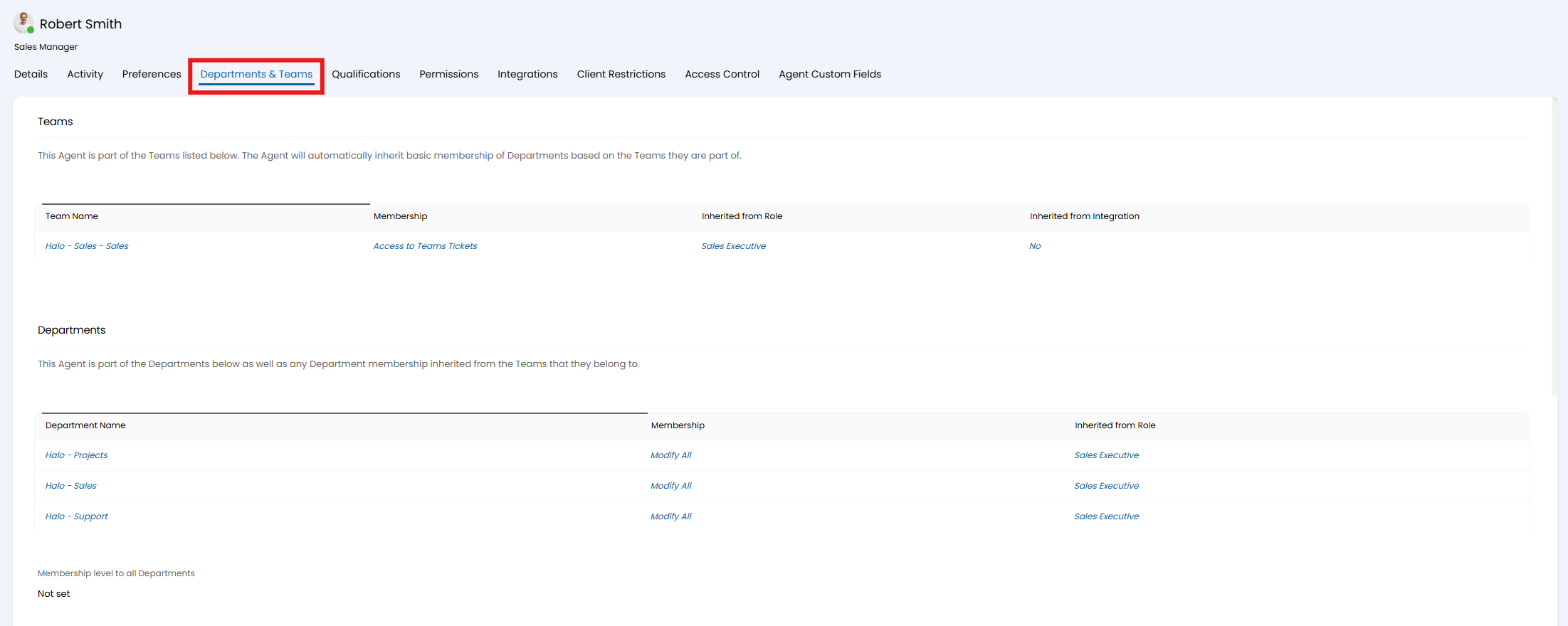
Fig 7. Department and Team access
If the ticket can still not be accessed, or another entity is not showing, check the "Permissions" tab on the agent. Any permission labelled "[Entity] Access Level" will give base level access to that entity, so check these first.
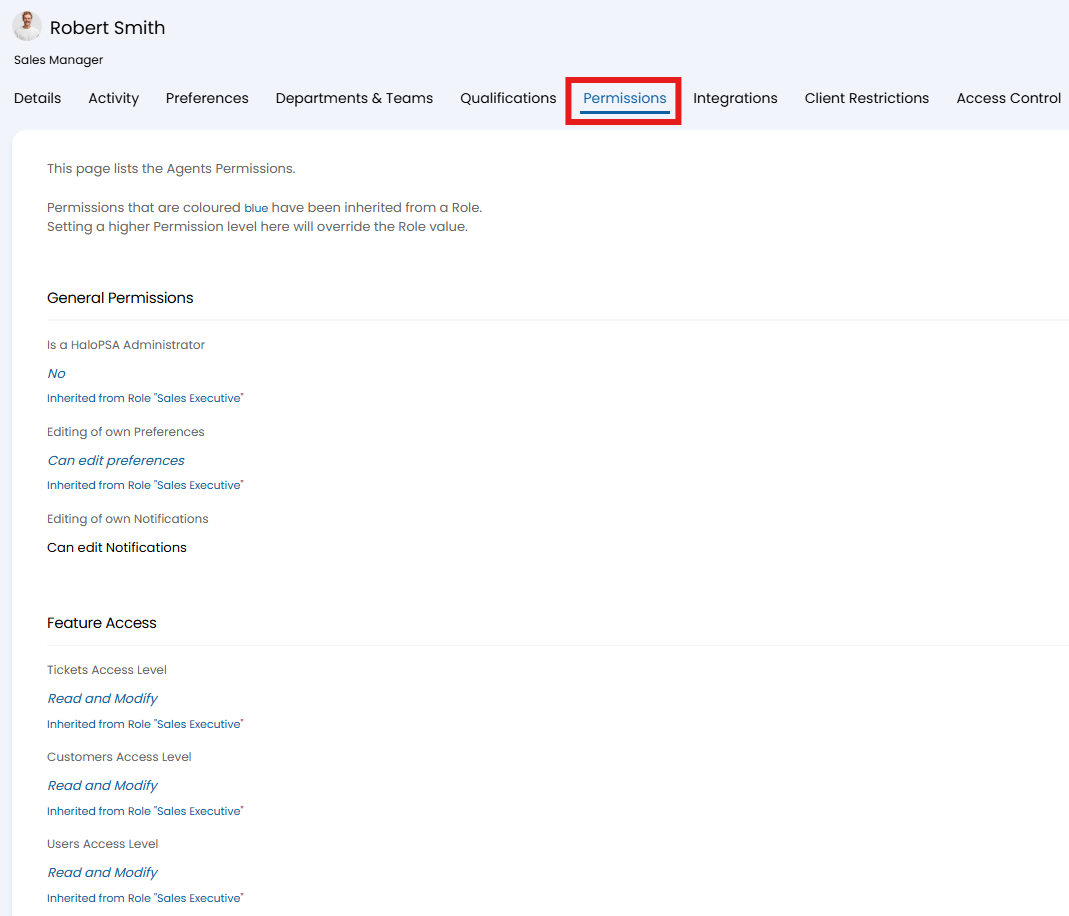
Fig 8. Agent permissions
Some entities will have additional control via Access Control. For example, Knowledge Base Articles require "Read Only" access on the FAQ list to be able to see any articles within that list, even if the "Knowledge Base Access Level" permission has been granted. This is set against the entity with the "Access Control" button at the top.
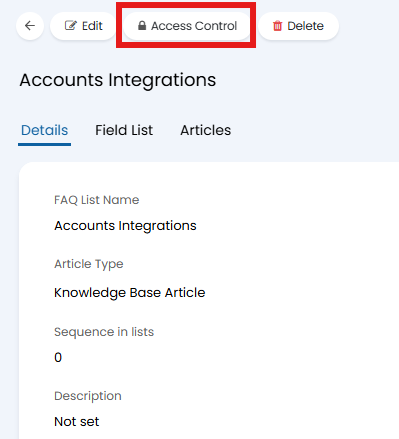
Fig 9. Setting Access Control
If a user cannot see an entity, they also have a "Permissions" tab on their user profile. Anything with "[Entity] Access Level" or "Can view [entity]" should be checked.
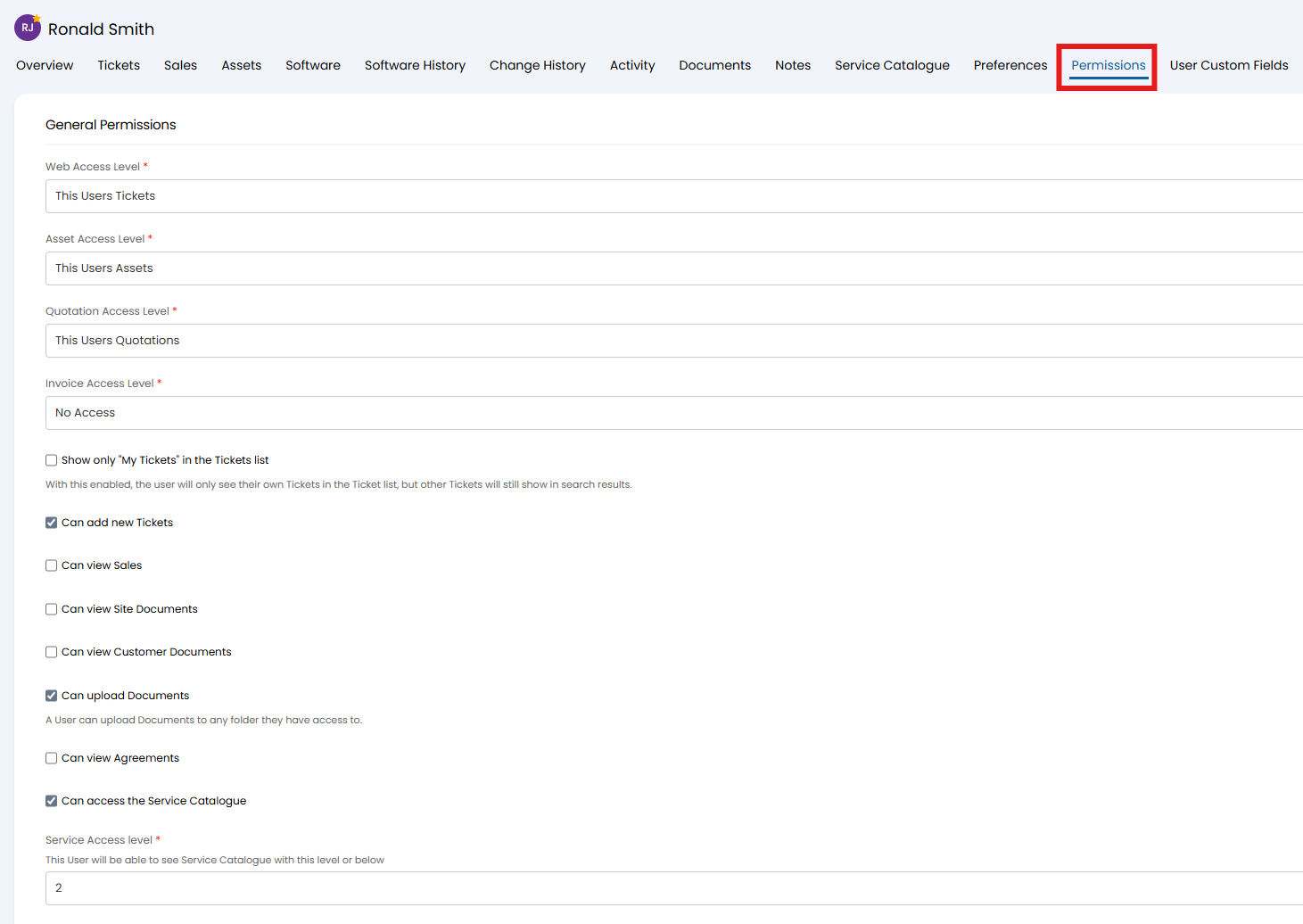
Fig 10. User permissions
If the user cannot see a certain ticket, check the ticket type that ticket uses. In Configuration > Tickets > Ticket Types > "Defaults" tab, the "Show to End User" option can be defaulted on or off.
If defaulted on and this is still not showing, add the field of the same name to the ticket type field list to check this has not been manually toggled off.
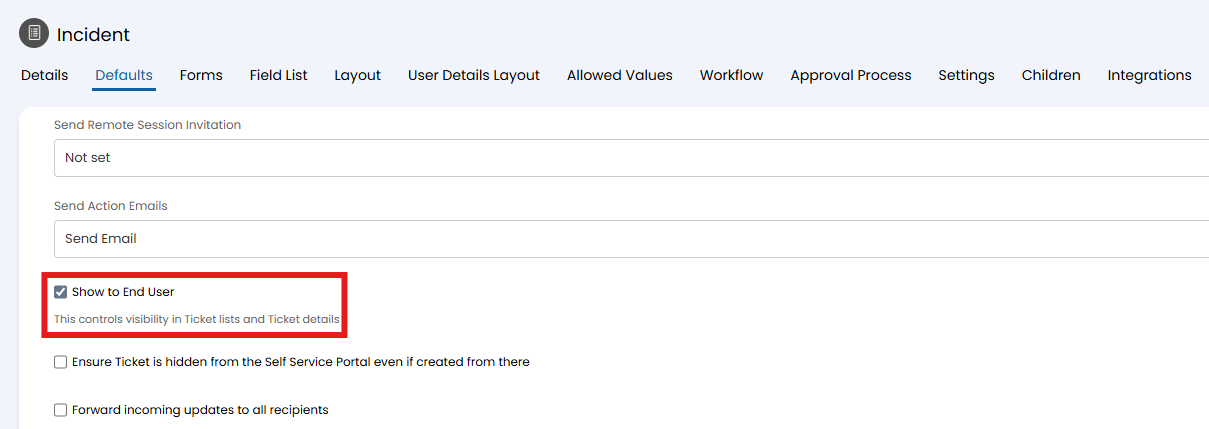
Fig 11. Show to End User default
Has it been otherwise filtered out?
If a ticket is still not showing in lists, take a look at the filters on a ticket area, filter profile or custom list.
Lists and filter profiles can be found in Configuration > Tickets > Views, and areas in Configuration > Tickets > Areas.
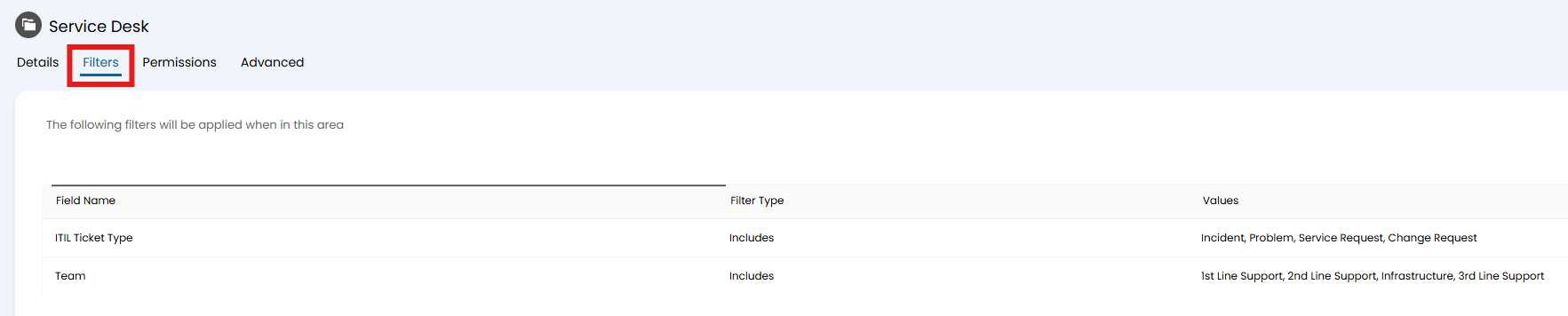
Fig 12. Filtering out tickets
If a certain action, status, category, etc. cannot be seen in ticket dropdowns, check the allowed values on the ticket type. Navigate to Configuration > Tickets > Ticket Types > "Allowed Values" tab.
If an action is not showing, take a look at this guide of the other configuration to look at.
If the "Allow All" checkbox has been disabled, anything not added to the table that appears below it will not be available for use. These options add additional filters onto anything included in workflows as well, so even if the workflow step allows it, this will stop it from showing.
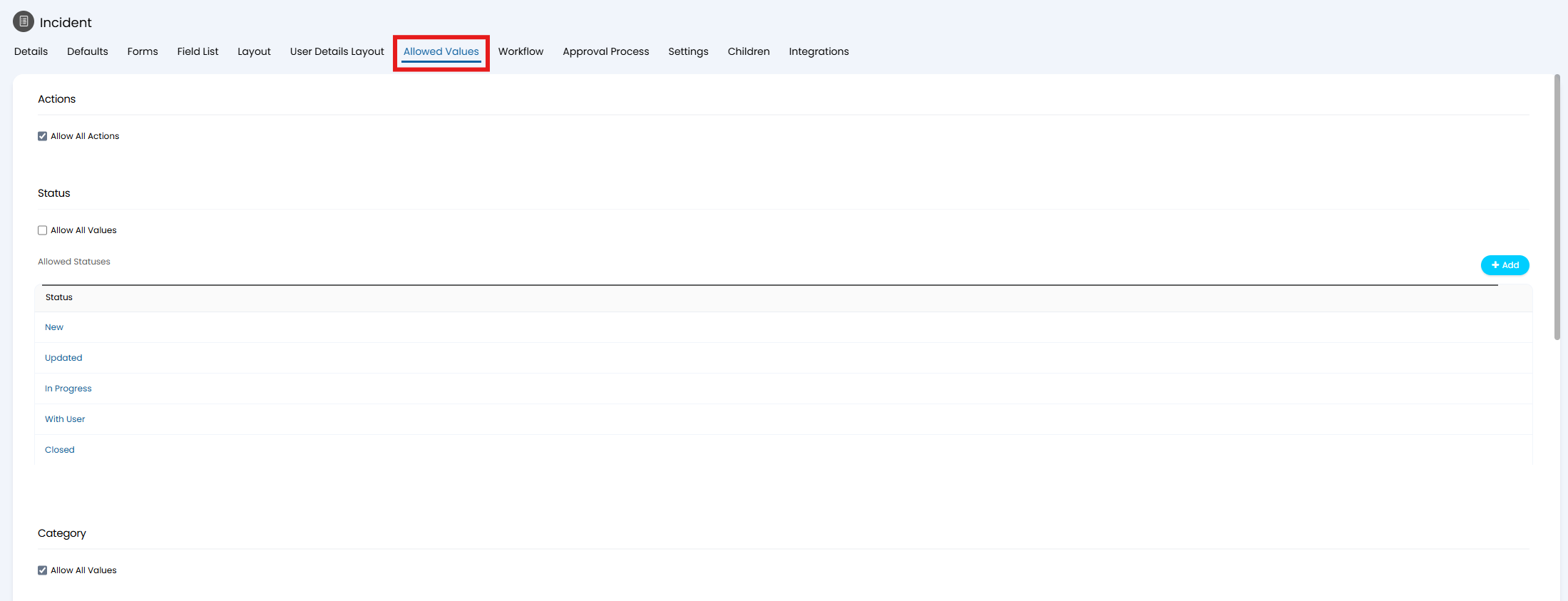
Fig 13. Allowed values tab
Has it been deleted?
This error is most commonly seen when trying to find a ticket, although similar screens can also show for other entities. If the agent would usually have access to similar tickets (by checking Department/Team/permissions), it may mean it has been deleted.
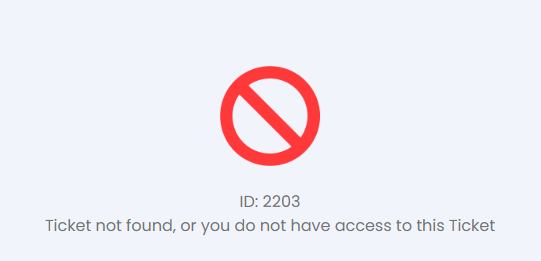
Fig 14. Error code when viewing a deleted ticket
First place to check is Configuration > Advanced Settings, where deletion behaviour can be configured for various entities, as well as view previously deleted tickets. Entities other than tickets cannot be recovered.
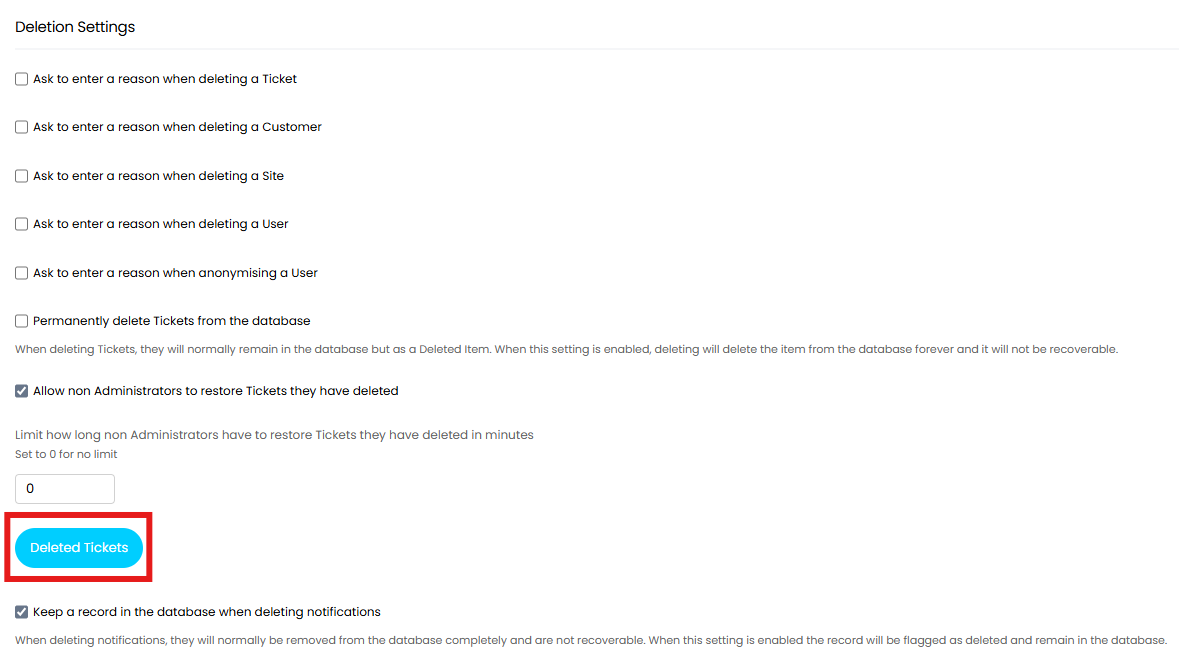
Fig 15. Viewing deleted tickets
If "Permanently delete Tickets from the database" is enabled, a time limit can be set before the ticket is fully and permanently deleted. Tickets past this time limit cannot be recovered, so will not show in the "Deleted Tickets" screen, but may still have actually been deleted.
If the missing entity is not found by checking the common places mentioned, reporting on it can be a good place to work back from. The pictured SQL query will return a list of deleted tickets.
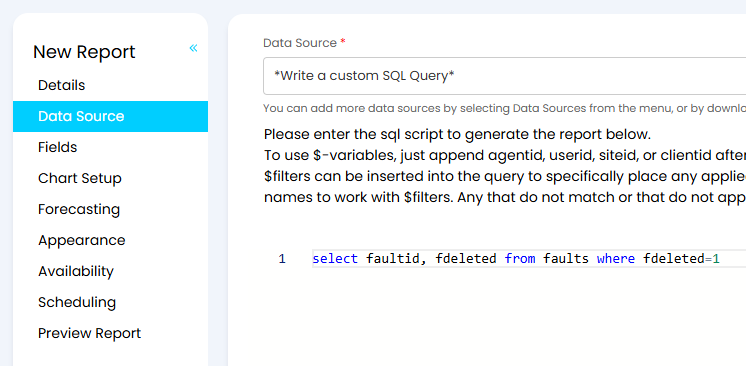
Fig 16. Reporting on deleted tickets
For other entities, configuration change tracking will show if it was deleted (Configuration > Advanced Settings > "Enable config change tracking"), and this can then be viewed in Configuration > Advanced Settings > View config changes".
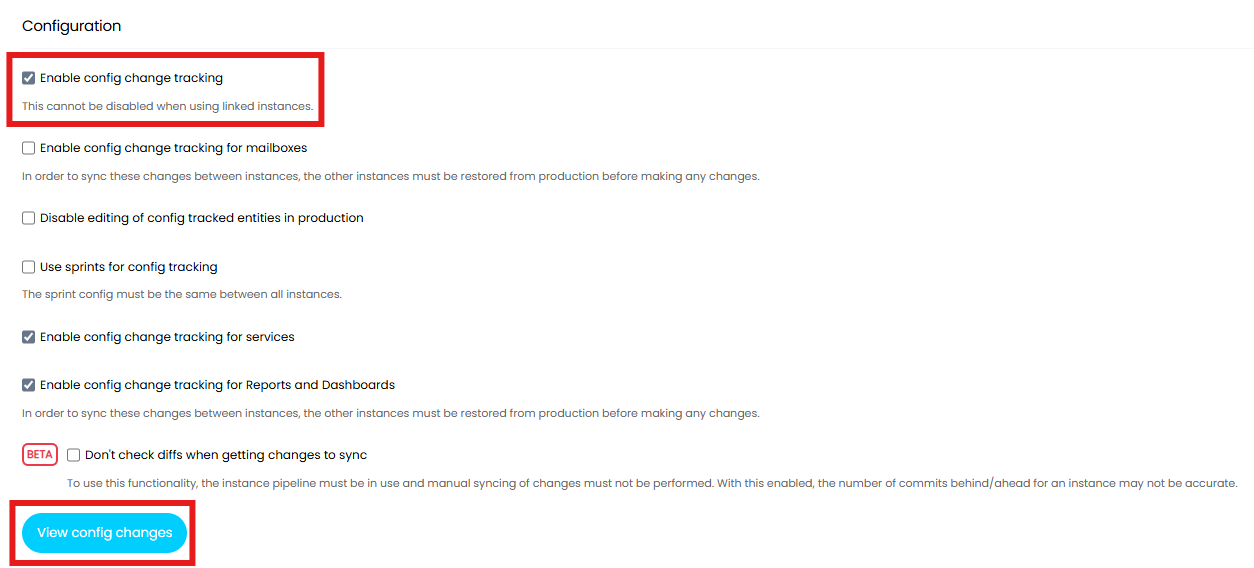
Fig 17. Enabling config change tracking
Any entities that show here cannot be rolled back, but it can still be useful to check when and who this was done by.

Fig 18. Configuration change tracking