Action Not Showing on a Ticket
- action
- hidden action
- missing action
- troubleshooting
In this guide we will cover:
- Steps to Find a Missing Action
You may find that a certain action is not showing on a ticket where you would want it to. This guide will cover common places to check, explaining the logic throughout.
If you have any issues locating an entity following this guide, please contact support for further assistance.
Is it allowed on the ticket type?
The first place actions can be restricted is on the ticket type itself. In Configuration > Tickets > Ticket Types, select the "Allowed Values" tab.
If the option to "Allow All Actions" is disabled, a table will show underneath to choose the actions that the ticket type can use. If this table is left blank, no actions will show on the ticket.
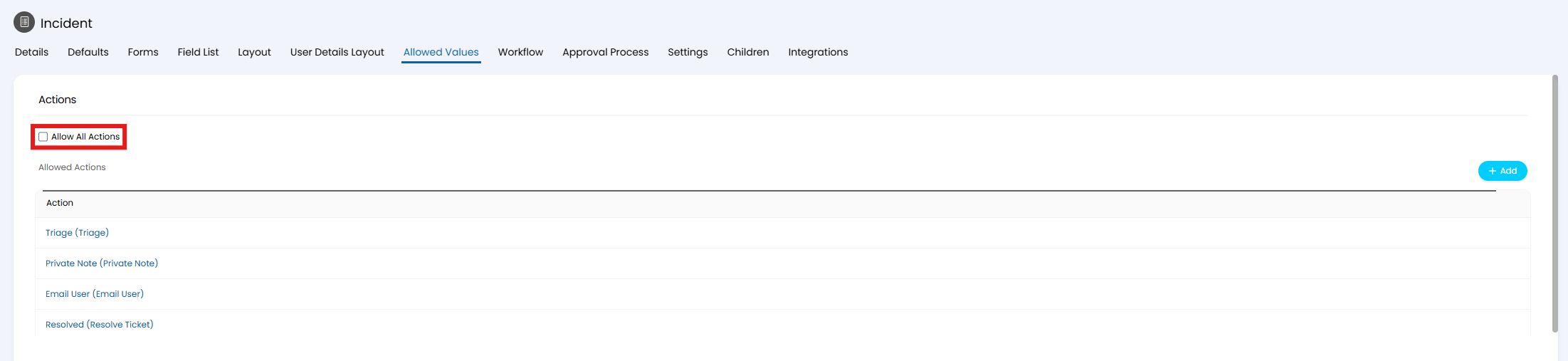
Fig 1. Restricting actions on the ticket type
Is it restricted by a workflow step?
If there is a workflow against the ticket, navigate to Configuration > Tickets > Workflows to look at the configuration of it.
Workflow steps will restrict the actions available on a ticket, when currently on that step. For example, the only action that will be available on the first step of this workflow is "Triage", which after using it will move to the next step where other actions become available.
The allowed actions on the ticket type will be added on top of this, so if "Triage" is not allowed on the ticket type this workflow is used on, no actions will show.
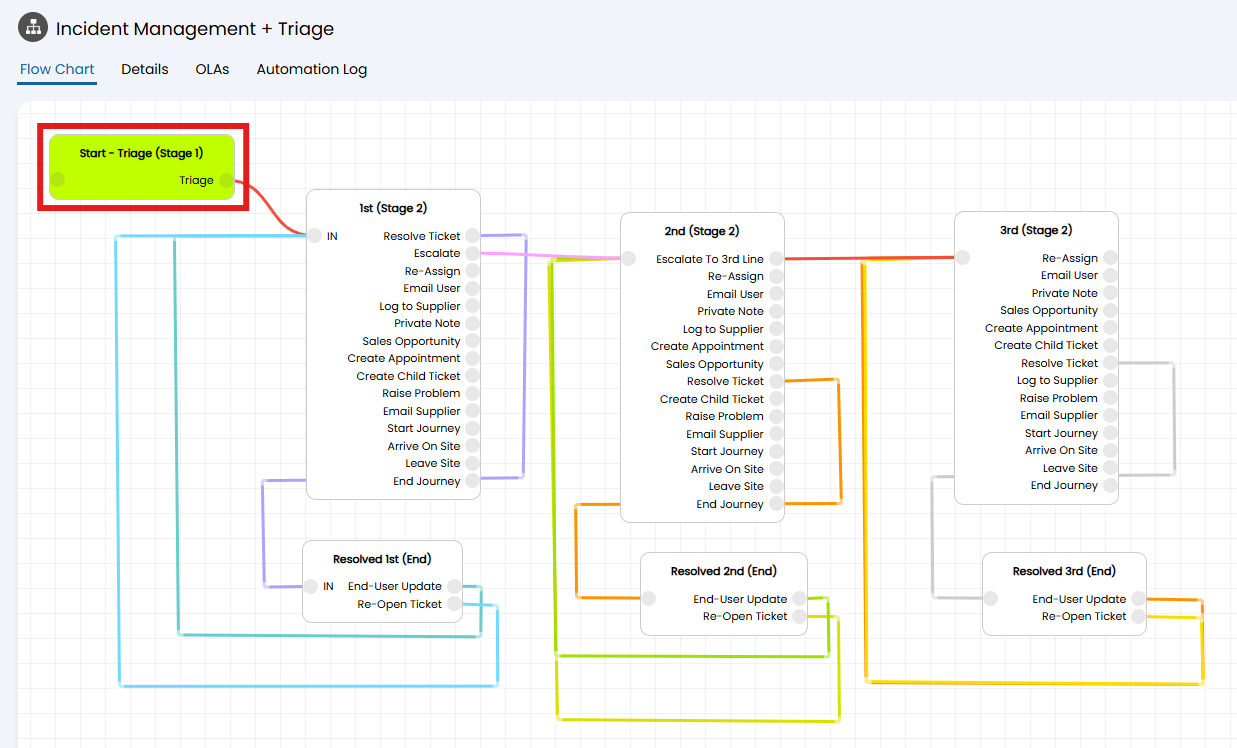
Fig 2. Restricting actions on the workflow step
Within the step, any allowed actions will show as "Allow use of Action "[Action Name]"".
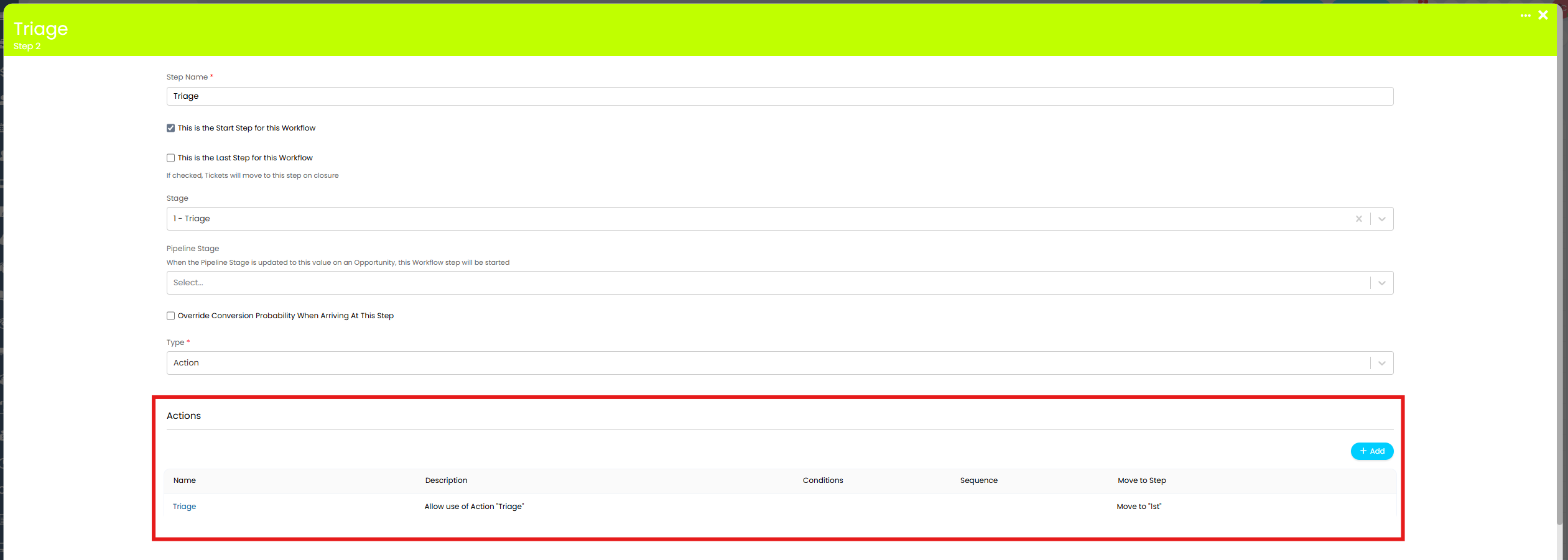
Fig 3. Choosing which actions to allow on the workflow step
Editing that line will show the option to "Restrict access to this Action", which will add another additional restriction layer. This can be done by qualities of the logged in agent, the team the ticket is assigned to, etc.
For example, the "Triage" action will now only show if allowed on the ticket type, the ticket is on this step of the workflow, and the agent looking at the ticket is the "Team Leader" of any of the support teams.
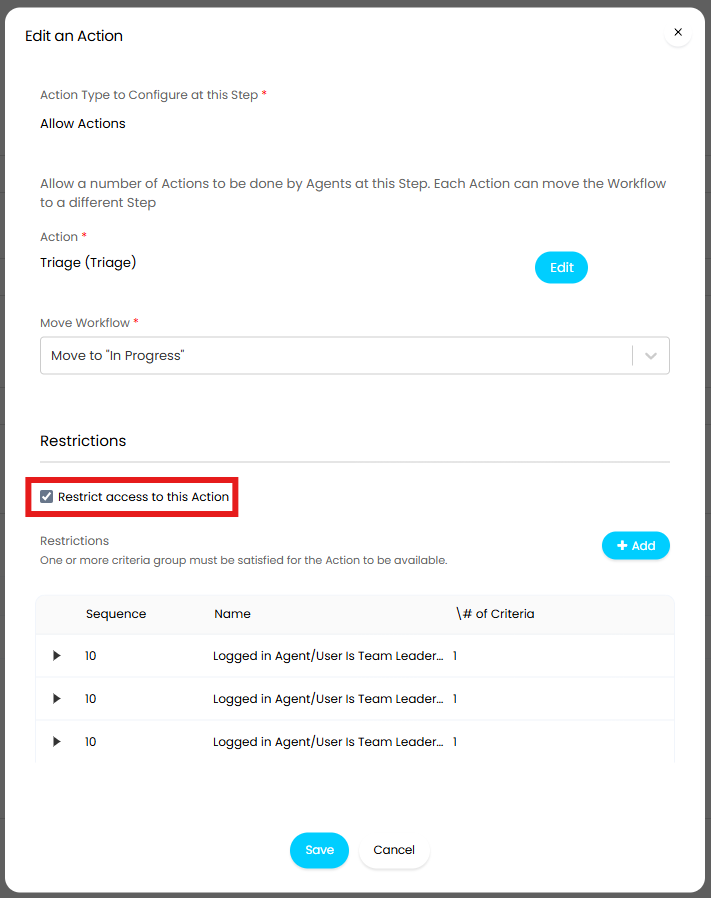
Fig 4. Adding additional action restrictions on the workflow step
The exception to workflow step restrictions can be set in the "Details" tab of the workflow. Actions added here can be used at any step of the workflow, so will only be restricted by the ticket type allowed actions, etc.
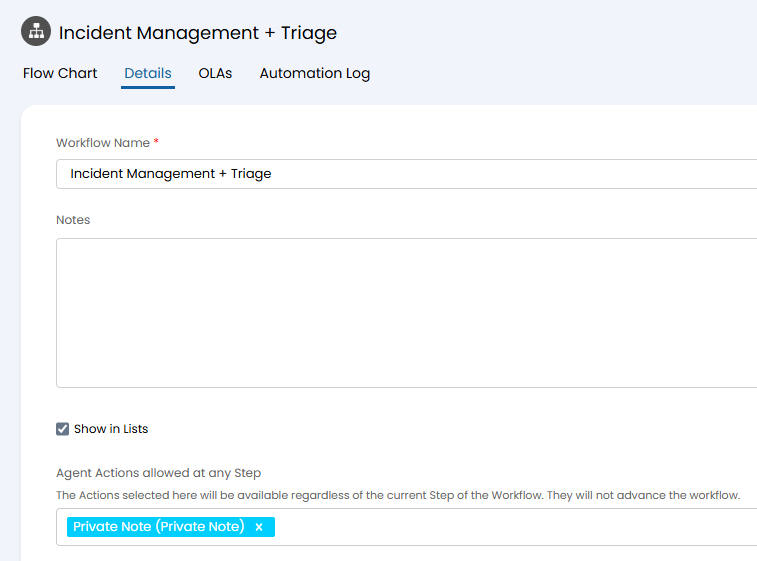
Fig 5. Allowing actions on every step of a workflow
Is the action button visible?
In Configuration > Tickets > Actions, a few options are available to hide the action button.
- Action button is visible: This hides the action completely and essentially makes the action inactive.
- Action is visible outside of Workflows: The action can only be seen if made available via a workflow. If using "Allowed Values" on the ticket type only, it will not show.
- Action Configuration Access Type: This determines if the action will appear in dropdowns when adding actions to a workflow. If set to "Workflow-specific action", the agent created the workflow will need access control to the action.
- Hide from Ticket header: The action is hidden from the action bar on tickets, and is only available for use via automation/API.
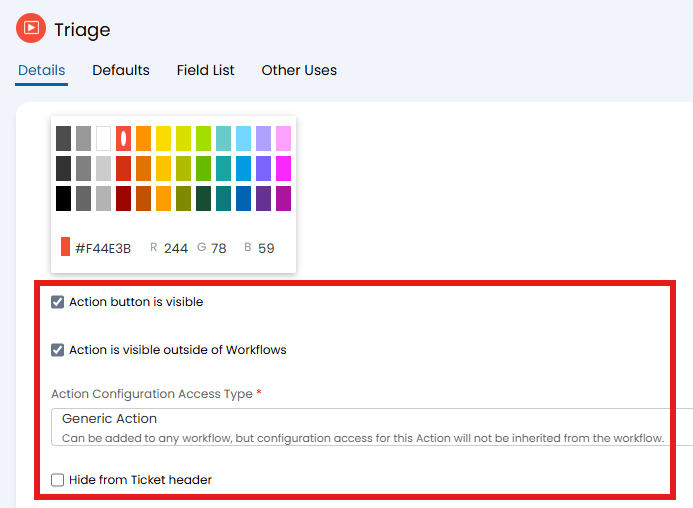
Fig 6. Hiding the action button
Does the agent have permission to the entity that system use references?
If the action has a system use, the action button will only show to agents who have the relevant permission for what that action does.
For example, this action will create a quotation. If the agent does not have the "Quotations Access Level" permission set to be able to modify quotations, the action will not show.
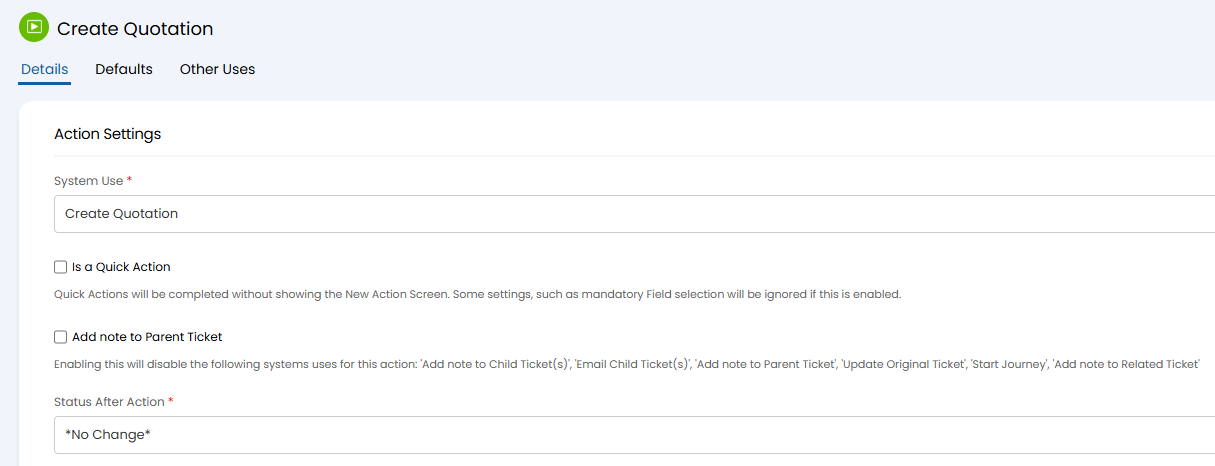
Fig 7. Setting a system use on an action
Does the user have permission to use the action?
If the action is intended for a user, this will need to be enabled on the action for it to show on the Self-Service Portal. Navigate to Configuration > Tickets > Actions.
- Allow Users to use this action: Allows the action to show on the portal.
- Hide Action button on the User Portal: Shows when above is enabled. Hides the action on the user portal, but still allows use of the action via the $-LINKTOUSERACTION variable.
Note: The option to show an action to a user is not available with all action system uses.
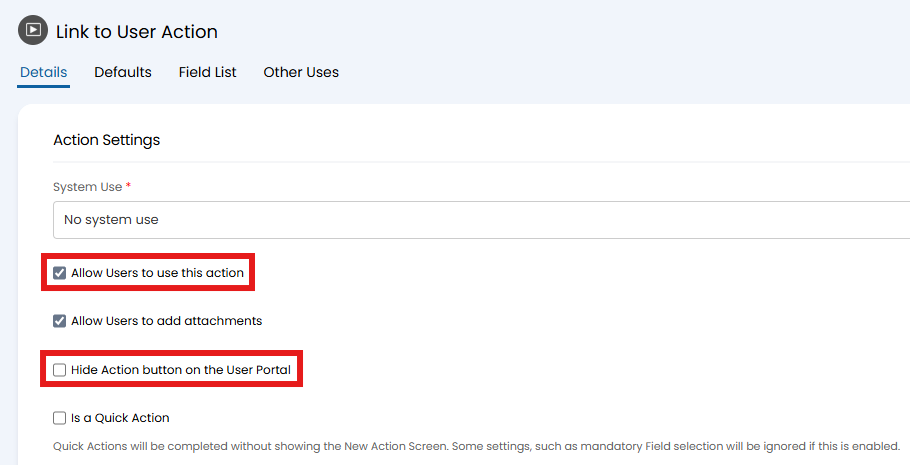
Fig 8. Restricting actions for users
Are actions being hidden on "stopped" clients?
If the client is set to a "Stopped " status (Client profile > "Details" tab > "Account Status"), actions can be configured to be hidden on any tickets.
In Configuration > Tickets > General Settings, there is an option to "Hide Actions on Tickets for Stopped Customers/Sites".
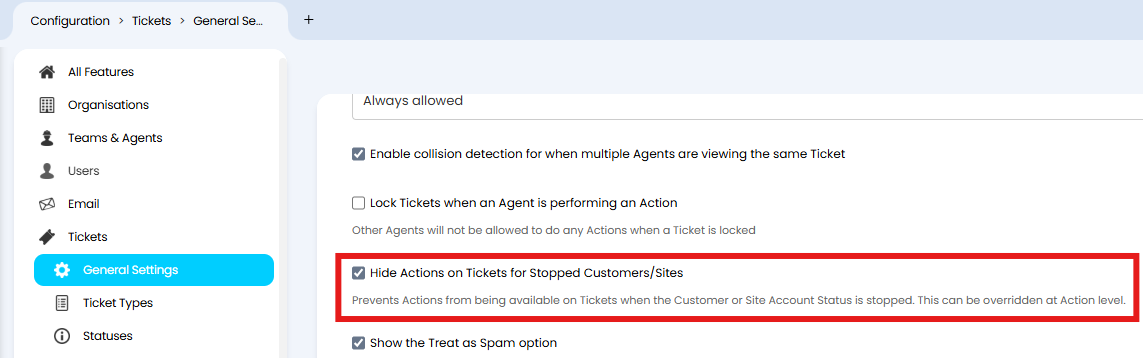
Fig 9. Hiding actions on stopped clients
If enabled, all actions will be hidden by default. This may have been overridden on specific actions to show. Go to Configuration > Tickets > Actions, and enable "Show Action when account status is stopped".
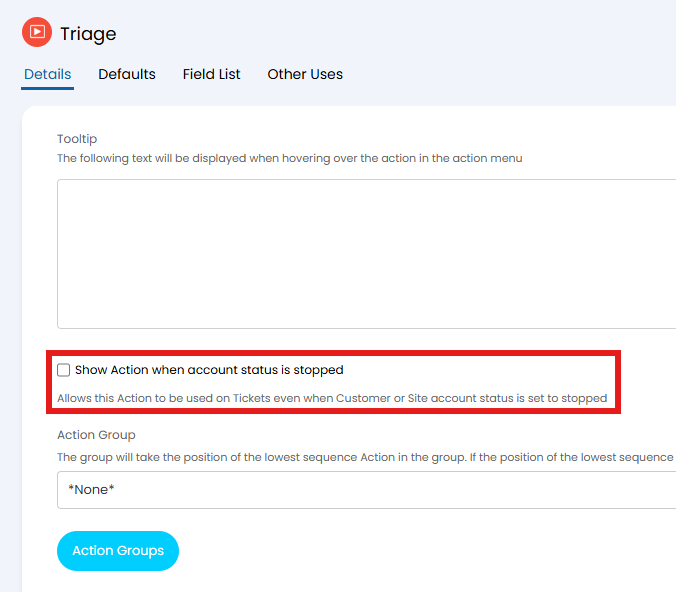
Fig 10. Showing select actions on stopped clients
Are actions locked?
Actions can be locked from being used in a few ways.
If the ticket is against the "Default Client/Site for New Tickets" in Configuration > Tickets > General Settings, actions can be locked until the end-user is changed. Check if "Tickets with the default Customer/Site must be moved before working on the Ticket" is enabled.
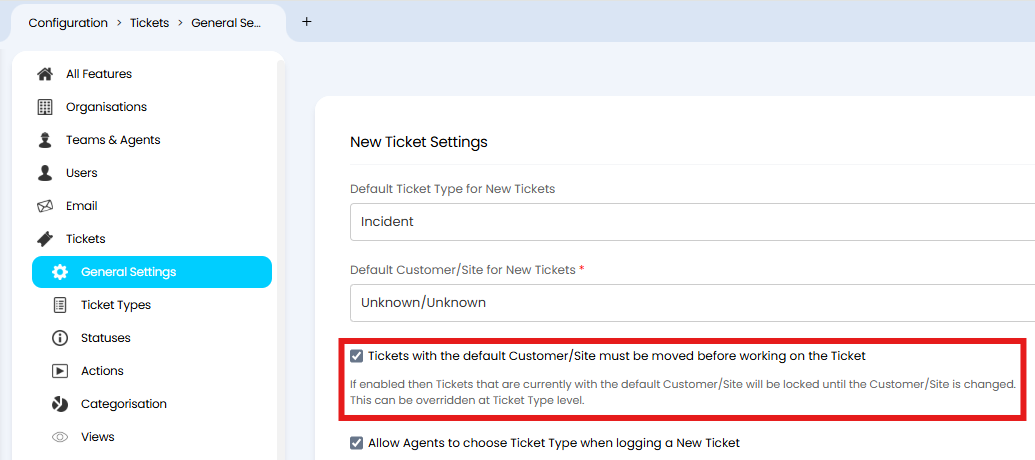
Fig 11. Hiding actions on the default client
If so, a banner like below will appear in place of the actions.
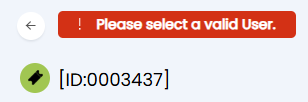
Fig 12. Action restriction banner for the default client
If another agent is completing an action, other actions can be locked until the agent submits the action or exits out of it. In Configuration > Tickets > General Settings, check if "Lock Tickets when an Agent is performing an Action" is enabled.
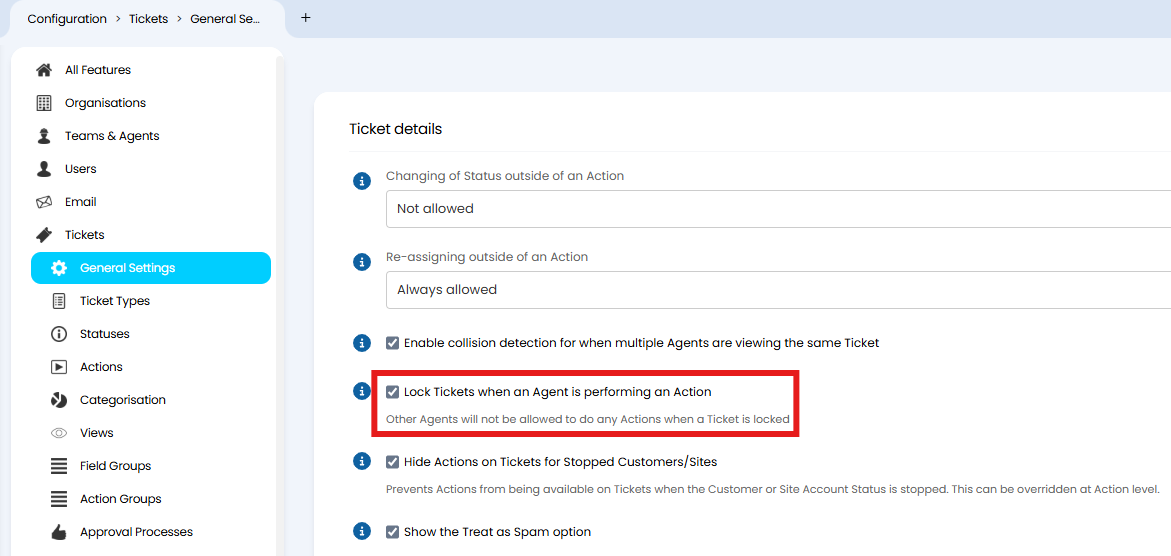
Fig 13. Hiding other actions when another agent is completing an action
If so, a banner like below will appear in place of the actions.
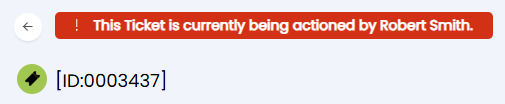
Fig 14. Action restriction banner when another agent is actioning the ticket
If a parent ticket has milestone dependencies, actions on tickets under the dependant milestone can be locked until the previous milestone is marked as complete.
In the "Milestones" tab on the parent ticket, check if the "Dependencies" field is set on the milestone. It will then show the milestones status as "Locked".

Fig 15. Hiding other actions when a milestone is dependant on another
If so, a banner like below will appear in place of the actions.
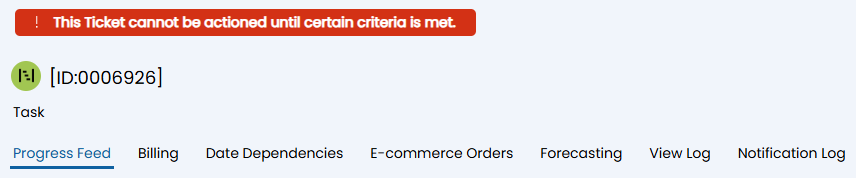
Fig 16. Action restriction banner when milestone dependencies are locked