Qualification Matching
- What is Qualification Matching?
- Creating Qualifications
- Assigning Tickets based on Qualification
- Qualification Matching Notifications
- Qualification Matching on Appointments
- Allowing Agents to create/update qualifications
What is Qualification Matching?
Qualification Matching is a method of storing and managing qualifications. These qualifications can then be used to direct Tickets to the Agent with the relevant qualification. Tickets which require handling by a qualified Agent will be routed to an Agent who hold the qualification.
Creating Qualifications
In order to use Qualification Matching you will first need to create your qualifications. Head to Configuration > Teams & Agents > Qualification Matching, and click "Add" to create a new qualification.
Name the qualification and weighting. This weighting will be used to identify which other qualifications this qualification takes precedence over. This is then used to determine the most suitable Agent if multiple qualifications are matched to a Ticket. Those with higher weightings will place the Agents with the qualification at the top of the list. To force Tickets which match this qualification to be assigned to an Agent who currently holds this qualification, check the "Agents must have this qualification to be assigned a Ticket that matches this qualification" checkbox.
Next you will need to set the criteria for Tickets to match this qualification. Add a line to the table for the criteria which will be used to match the Ticket to the qualification. Each line added here will act as an "OR" condition, with the qualification being matched if any of the criteria lines are met.
When you click "Add" you will have the option to create Criteria Groups. These are "AND" conditions, where all the criteria must be met for the Ticket to match. To do this, add multiple lines to the table in this modal window. Once saves, each criteria line within the group must be met in order for the overall group to be met.
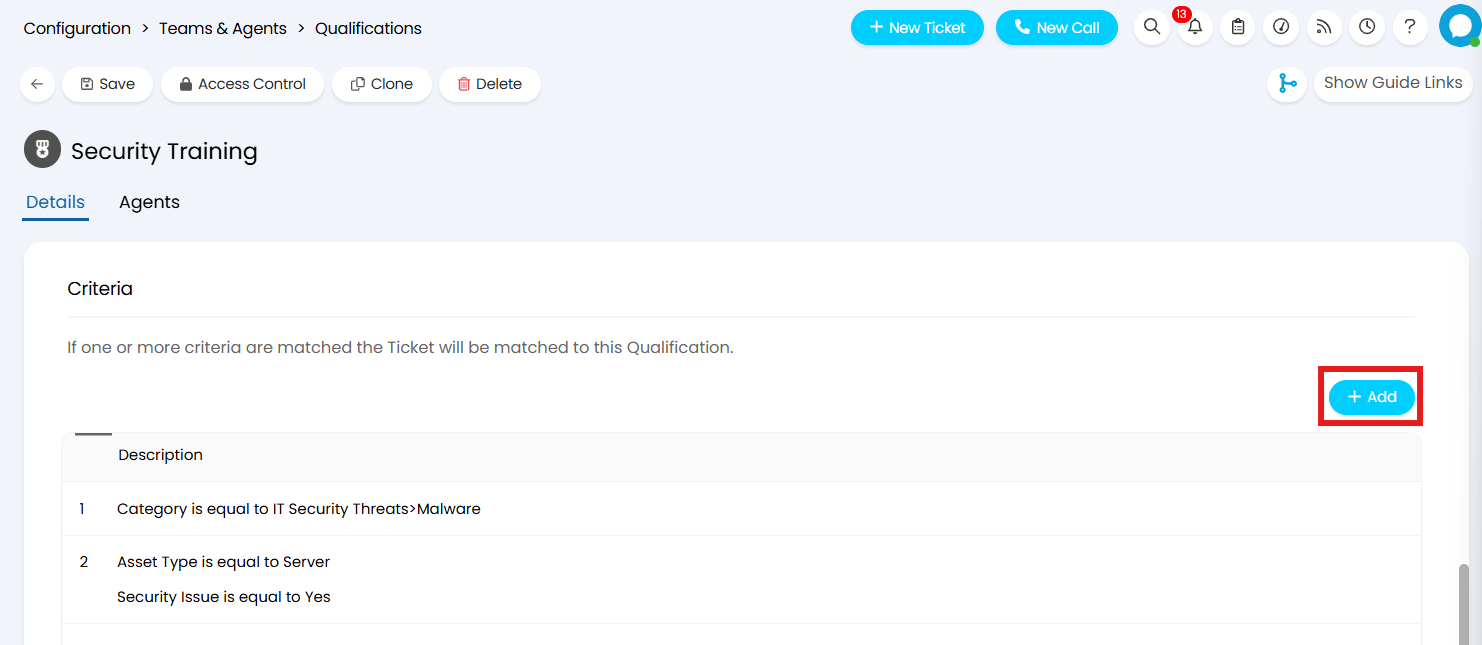
Fig 1. Adding criteria
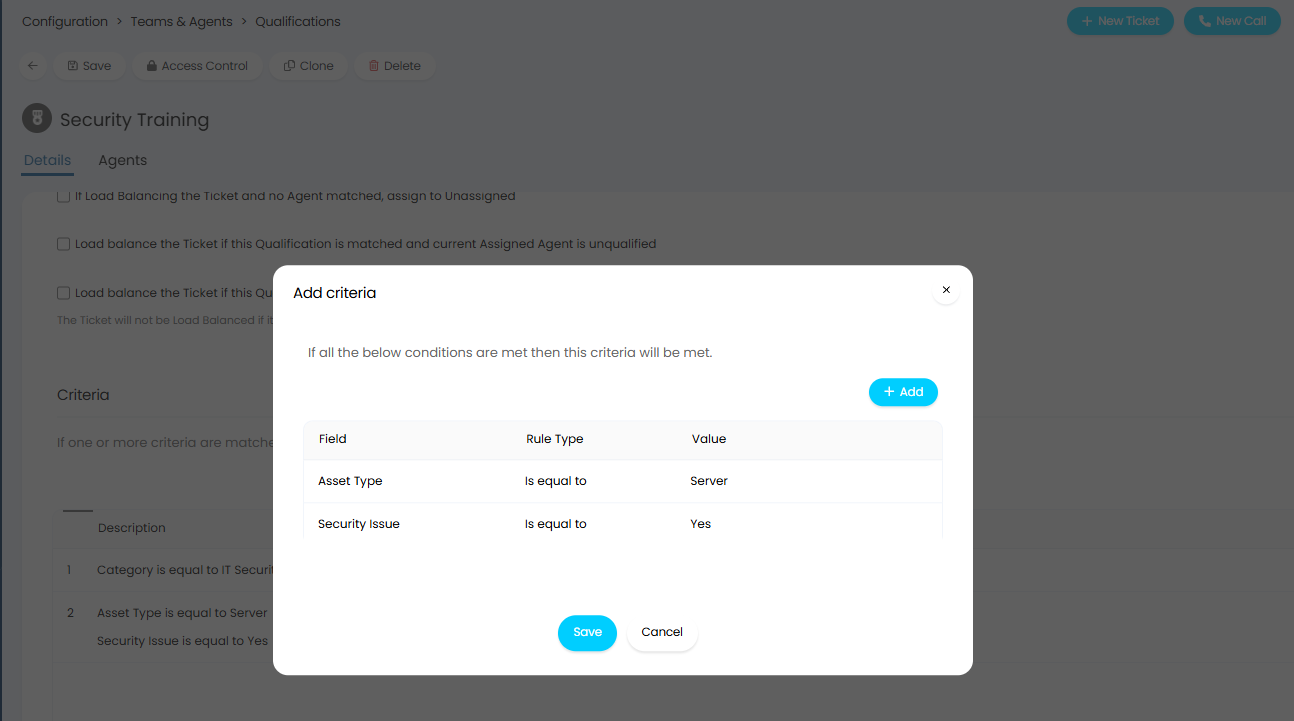
Fig 2. Adding criteria
In the Figure example, criteria has been setup for the Ticket to match this qualification if:
- Category = IT Security Threats>Malware
OR
- Asset Type = Server AND Security Issue = Yes
Now head into the Agents tab and add the qualified Agents to the table. For each Agent added, set the start and end date of their qualification. Once the end date is met the Agent will no longer be considered to hold that qualification.
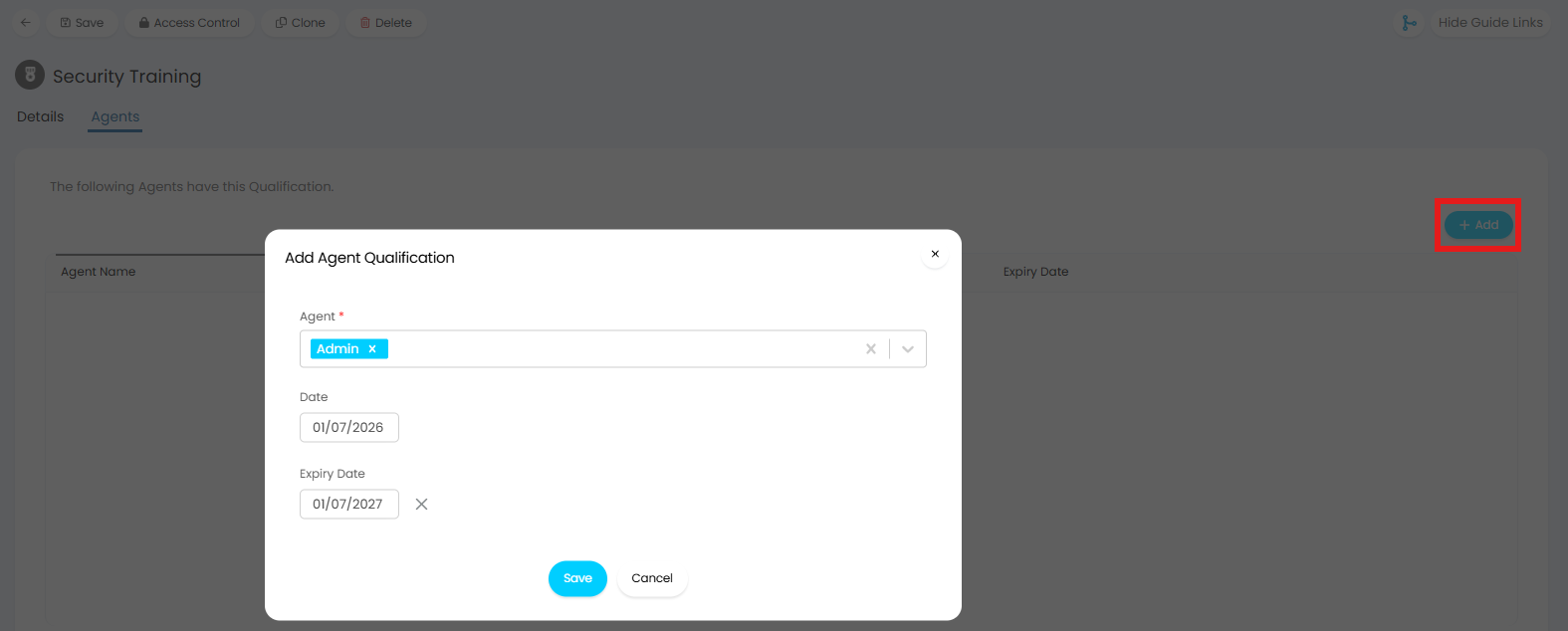
Fig 3. Adding qualified Agents
Assigning Tickets based on Qualification
When assigning a new Ticket, or using a re-assign Action on a Ticket which matches a Qualification, if "Agents must have this qualification to be assigned a Ticket that matches this qualification" is enabled against your Qualification, only the qualified Agents will be available to select in the dropdown. If this setting is disabled, the dropdown will show all Agents with a tick or cross to represent if they are qualified to action the Ticket.
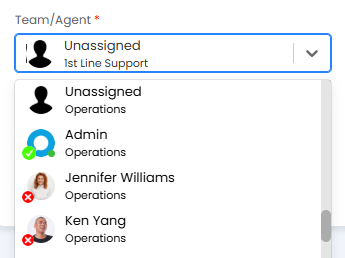
Fig 4. Assigning to an Agent
To assign out Tickets in line with Agent qualifications you can also use Load Balancing. Since your Tickets may not have been assigned via Load Balancing originally, in the Load Balance section of your qualification you can determine the behaviour when the assigned Agent does not match the qualification.
If Load Balancing the Ticket and no Agent matched, assign to Unassigned: Will only show if the qualification is not mandatory. This will assign the Ticket to Unassigned if no Agent is matched when Load Balancing.
Load balance the Ticket if this Qualification is matched and current Assigned Agent is unqualified: This will trigger Load Balance if the qualification is matched and the Agent who has been assigned the Ticket is unqualified.
Load balance the Ticket if this Qualification is unmatched and current Assigned Agent is unqualified: This will trigger Load Balance if the qualification is unmatched but still matches another qualification. The Ticket will not be Load Balanced if it has no other qualifications, as all Agents are now allowed the Ticket.
Load Balance Re-Opened Qualified Tickets
If a Ticket is reopened and the assigned Agent is no longer qualified, the Ticket can be load balanced to another qualified Agent. This can also apply if the Ticket did not originally meet qualification criteria, and now does.
In Configuration > Tickets > General Settings, set "Tickets reopened by updates are assigned to" to "Load balance if assigned Agent doesn't match mandatory qualification".
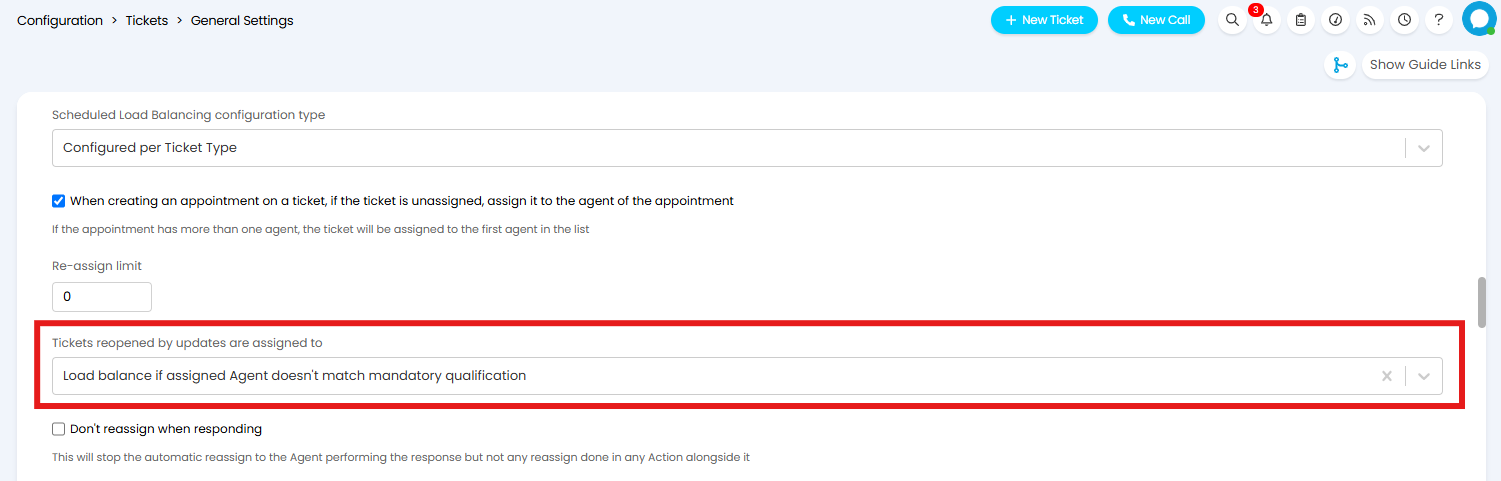
Fig 5. Reopened Tickets settings
The Qualification matched must have "Agents must have this qualification to be assigned a Ticket that matches this qualification" enabled.
For example, when the Ticket assigned to Patricia was reopened, this time meeting that Qualification criteria, it was reassigned to Ken who has that Qualification.
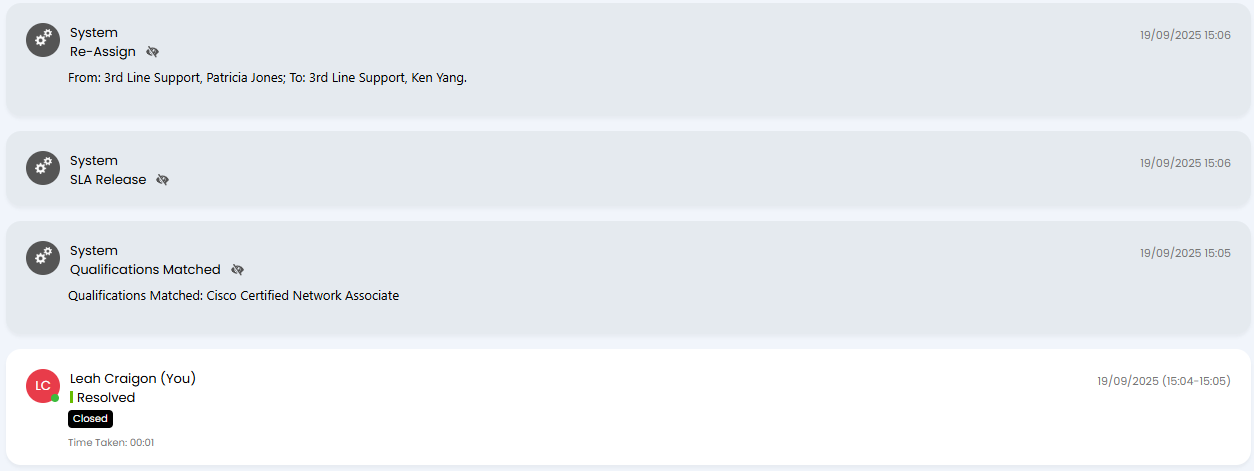
Fig 6. Qualification Load Balance example
Qualification Matching Notifications
Notifications with the Trigger "New Ticket Logged (Qualified)" or "Ticket Updated by User (Qualified)" can be set up to notify Agents with the relevant qualifications when a Ticket is logged or updated.
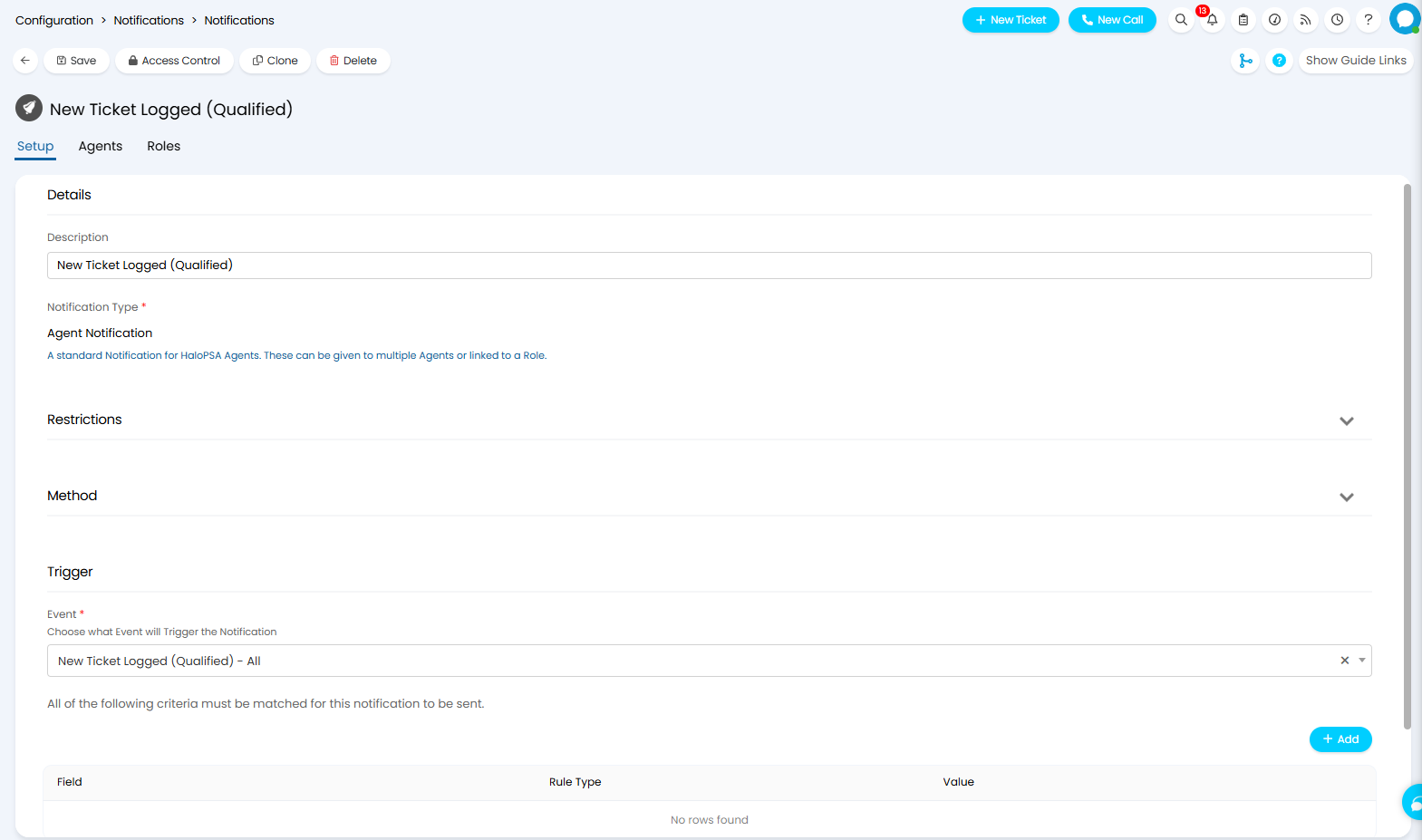
Fig 7. New Ticket Logged (Qualified) notification
When a Ticket meets the event trigger, the "New Request Logged (Qualified)", or "Request Updated by User (Qualified)" Notification Template will be sent via the method configured against the notification.
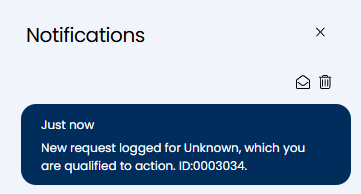
Fig 8. Qualified Ticket notification
Qualification Matching on Appointments
The setting "Appointment Scheduler should only show qualified agents by default", checked on in Configuration > Calendars & Appointments > General Settings, is the option to only show qualified agents when scheduling appointments.
When selected, if qualification matching has been set up, then the agents shown on the appointment scheduler (at the top of the create appointment screen) will be the ones that are qualified to deal with that ticket. A qualification could be i.e. Cisco Certified Network Associate (set as a qualification on an agent) therefore if a qualification match is set to say "If the category on the ticket is Hardware > Desk Phone > Cisco", then make the ticket qualified for only Cisco Certified Network Associates to deal with.

Fig 9. Appointment Scheduler
This can be audited to show when qualification matching has been used to assign a certain agent to the ticket. In Configuration > Tickets > General Settings, enable "Add Action when qualification is matched". This will add a system action like the below to the ticket, which can be viewed by clicking the icon here to switch to "All Actions". It will show that a qualification has matched, and the name of which one.

Fig 10. Qualifications Matched system Action
Allowing Agents to create/update qualifications
In order for an Agents to create qualifications they must have the permission "Can Create Qualifications".
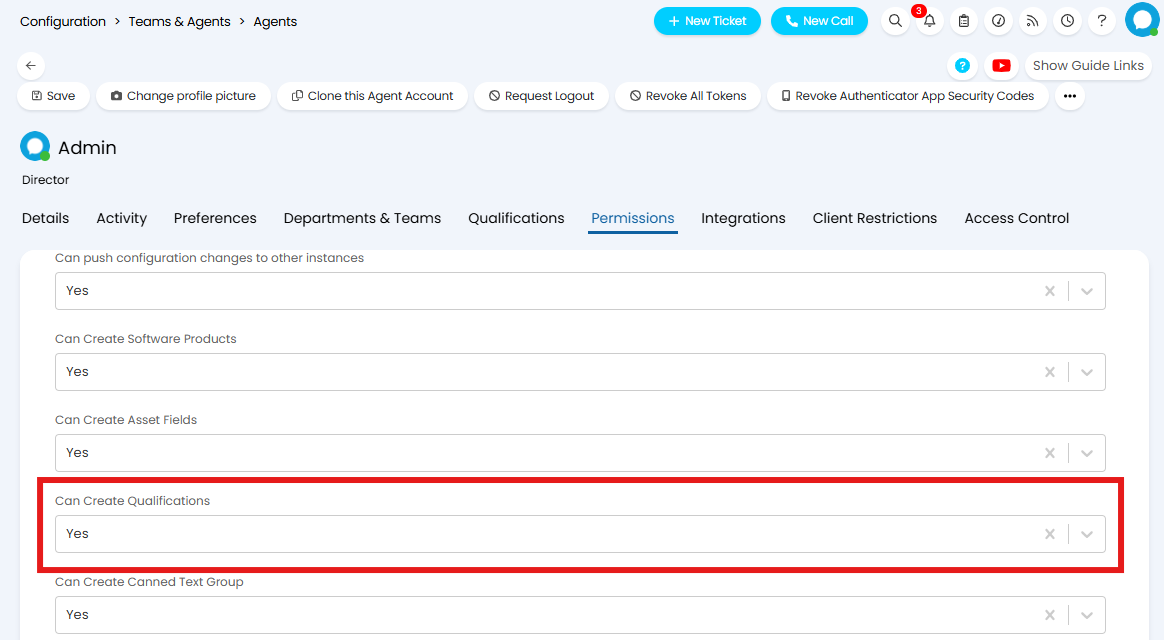
Fig 11. Can create Qualifications permission
However, if you would like certain Agents to have access to update particular Qualifications, this can be achieved via Access Control.
Against each qualification is the option to grant Access Control.
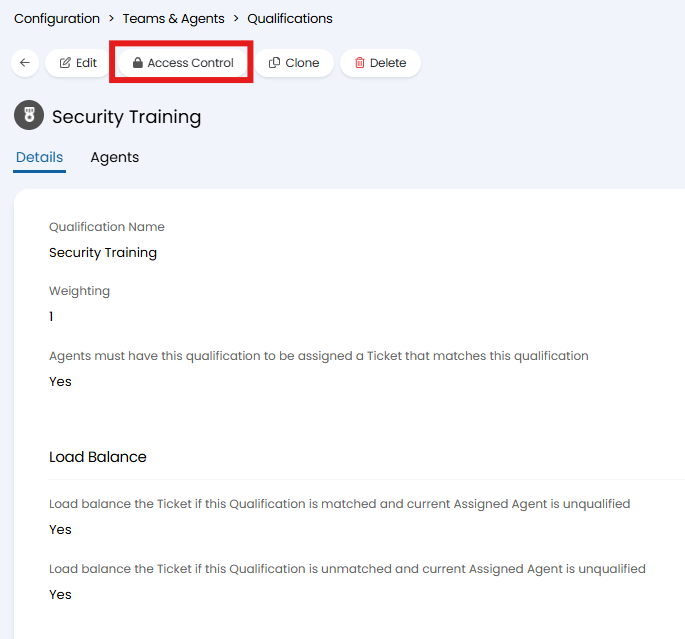
Fig 12. Access Control
Clicking this "Access Control" button will open a modal window, where access to edit this qualification can be granted to particular Agents, Teams, Roles, and/or Departments.
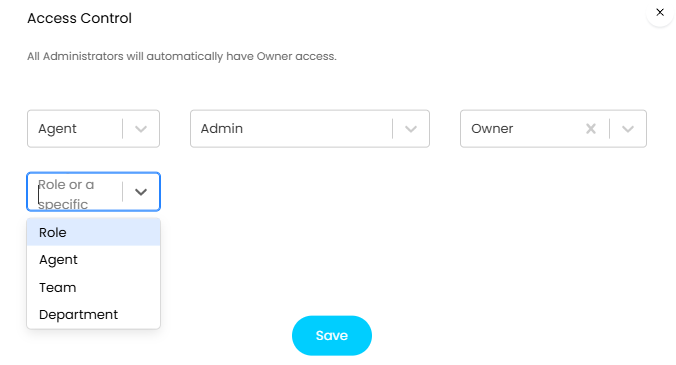
Fig 13. Granting Access Control
Only Agents with "Owner" level access will be able to delete the qualification.
Using Access Control is particularly useful for allowing the Team or Agent responsible for the qualification to update which Agents have obtained it. This means if different Agents or Teams are responsible for different qualifications they can update only the relevant details.