Admin Mode
- administrator
- Admin mode
- permissions
- configuration access
In this guide we will cover:
- What is Admin Mode?
- How to Configure Admin mode
- Using Admin mode
- Notify the agent when admin mode is activated on their account
What is Admin Mode?
Admin mode allows you to restrict administrator accounts so they are not granted admin privileges immediately upon login, and instead have to complete an additional two-factor authentication to elevate the permissions of the session when they require admin privileges.
This improves the security of administrator accounts as it provides an additional barrier to administrator access as well as imposing a time limit on this access. Administrator agents will still be able to access their Halo in line with all their other permissions but to view or edit any entities that require administrator access they will need to head into 'Admin mode' and complete 2FA.
Who this affects
Admin mode only impacts agents who have the permission 'Is a HaloPSA Administrator' this can be granted either through a role or against their agent profile.
These agents will still be able to log into Halo as usual, but when they log in they will not be able to access entities that are restricted to administrators right away (i.e. the configuration area). If the agent has been granted access control to certain entities, they will be able to access these entities in the 'My config' area without going into Admin mode.
How to Configure Admin mode
As admin mode relies on 2FA to gatekeep access, in order to use this functionality 2FA must be enforced for all agents. To enforce this head to configuration > advanced settings > enable 'Force all Agents to use Two-Factor Authentication'.
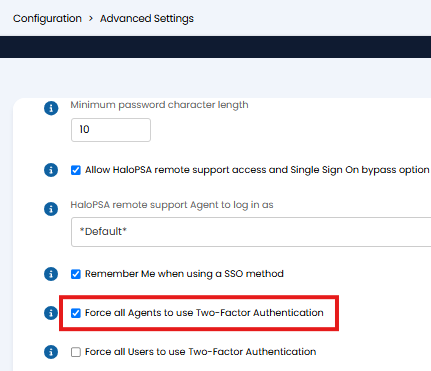
Fig 1. Enforce 2FA
Once this is enabled 'Admin mode' can be enabled. Head to configuration > security and performance > section 'Request verification to enable Admin privileges' > click to configure > set 'Agent app Administrator access grant' field to be 'Agents with the administrator permission must elevate their session by verifying with 2FA to get Administrator access'.
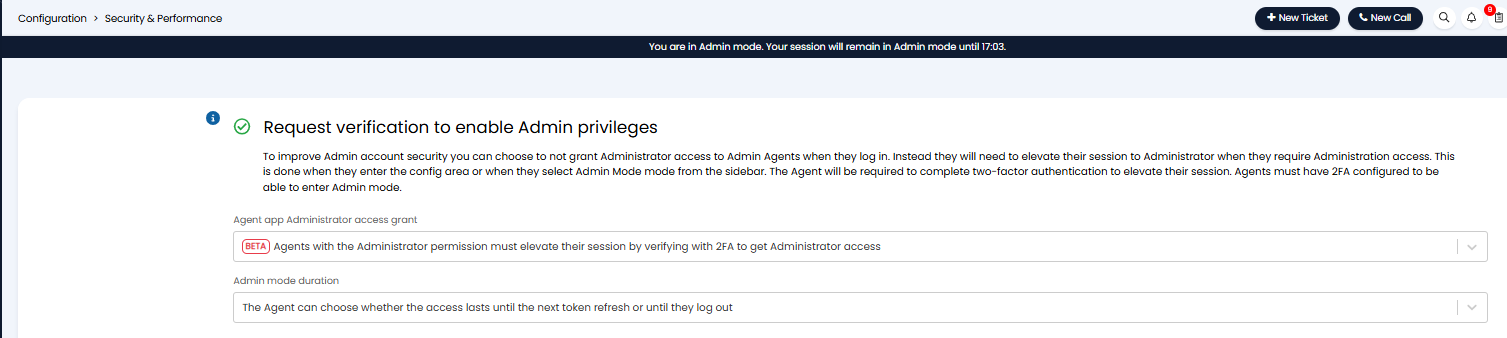
Fig 2. Agents with the administrator permission must elevate their session by verifying with 2FA to get Administrator access
Once enabled you will have an additional option to set the admin mode duration.
Admin mode duration - Here, choose how long admin mode lasts for agents.
- Admin mode lasts until the next token refresh (normally 1 hour) until the agent needs to verify again - When chosen admin mode will last until the next token refresh, token refreshes take place automatically, usually every hour.
- The Agent can choose whether the access lasts until the next token refresh or until they log out - When chosen agents can choose how long they will be in admin mode for. They can choose between staying in admin mode until the next token refresh or until they log out, this is useful when doing configuration for an extended period of time.
Using Admin mode
When admin mode is enabled agents with the administrator role will be able to log into Halo as usual, but their access will behave as if they do not have the administrator permission. The entities the agent has access to will be determined by the rest of the agent's permissions. They will also have two configuration modules 'Configuration' (for admins) and 'My config'.
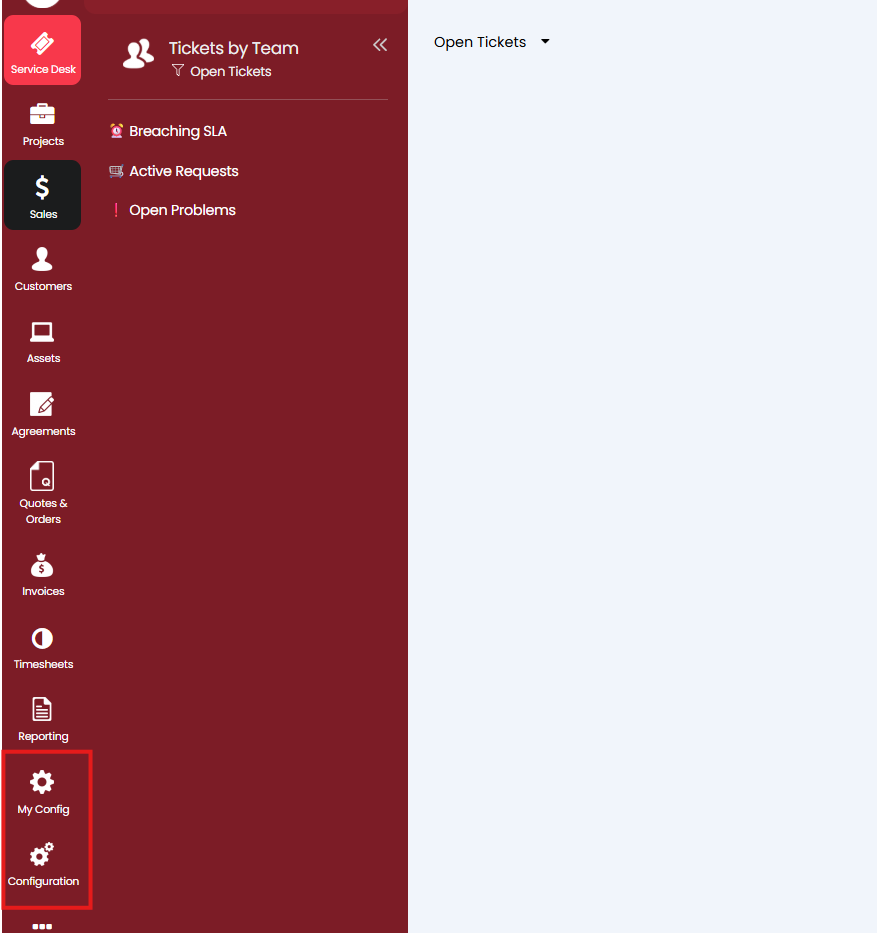
Fig 3. Configuration modules
My Config - This module will provide configuration access to entities the agent has been granted access control to. Agents do not need to be in admin mode to access this module.
When agents navigate to the configuration module a pop-up will appear, prompting them to log-in and complete 2FA. If you have allowed agents to choose how long they can remain in admin mode for it is at this stage they can choose.
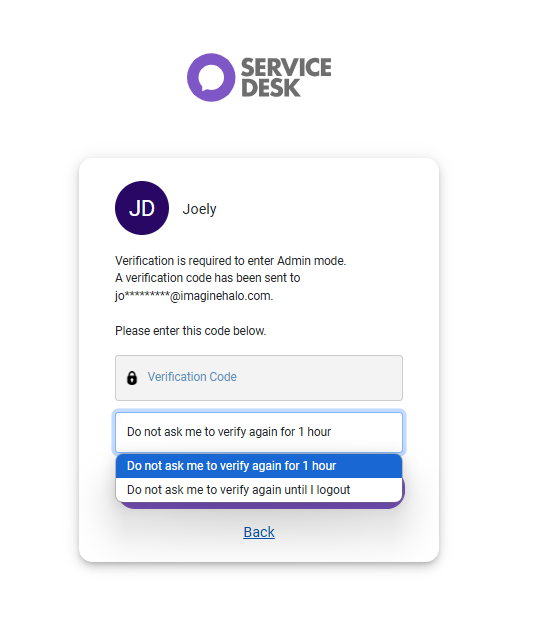
Fig 4. Log-in pop-up
Now the agent will be in administrator mode and can made configuration changes as usual.
Agents can also access admin mode from their account on the side bar.
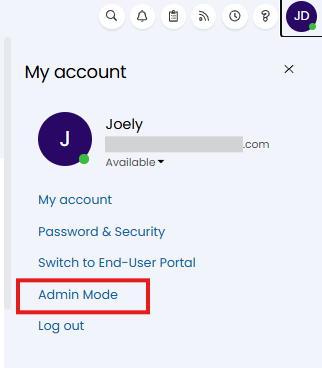
Fig 5. Admin mode option
Once in admin mode agents will have administrator access to the instance, they will be able to access entities (such as tickets) regardless of their other permissions, and they will have configuration access.
If they have selected to stay in admin mode for an hour (until the next token refresh), they will see a timer at the top of the page indicating how long they have left of their session.
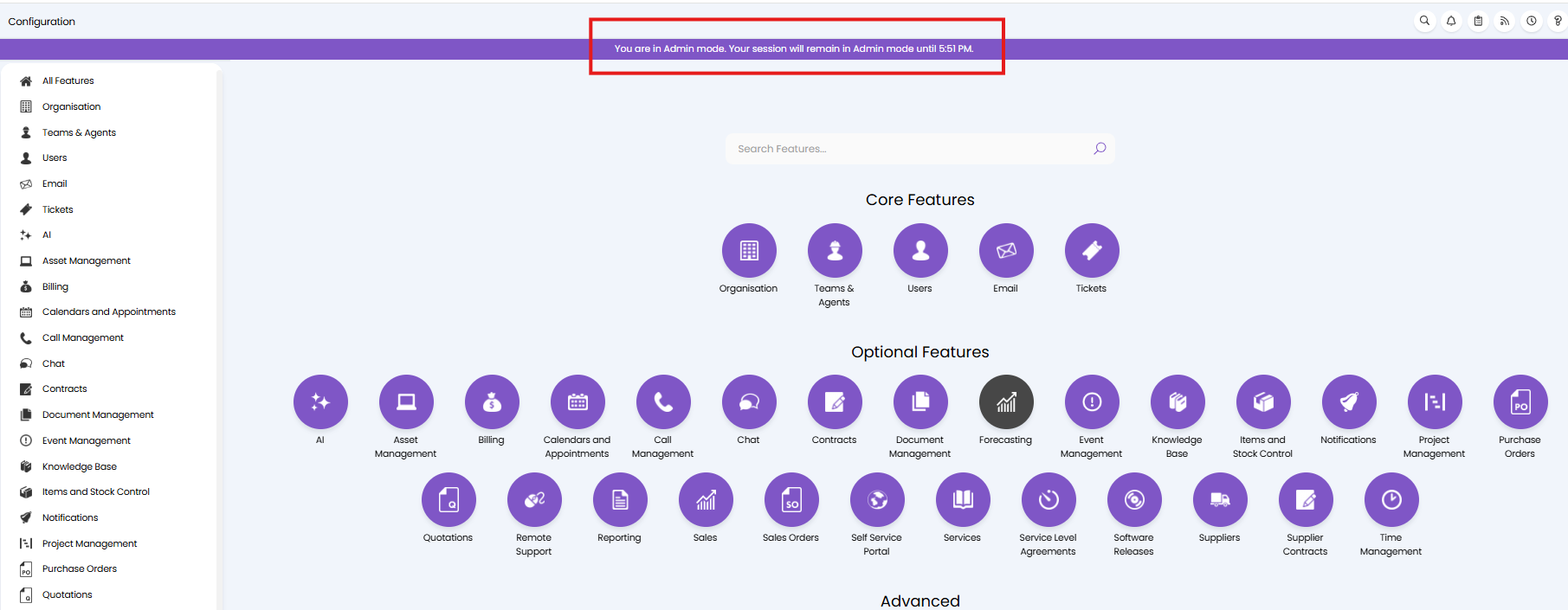
Fig 6. Time remaining in admin session
To leave admin mode agents will need to log out and log back into Halo.
Notify the agent when admin mode is activated on their account
To increase security the agent can be notified each time admin mode is activated against their account. Enable this under configuration > security and performance > 'Admin mode activated'.
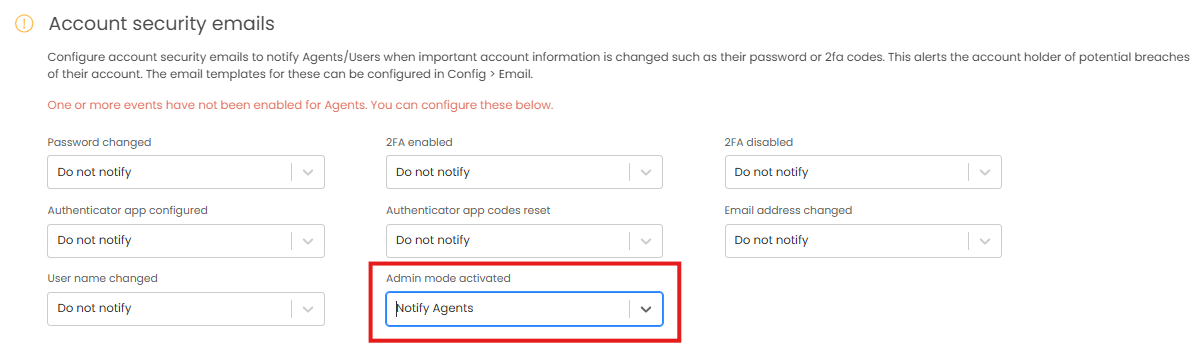
Fig 7. Activate admin mode notification