Restricting Information Access for Agents
- admin
- administrator
- access control
- Agent permission
- restrictions
- roles
In this guide we will cover:
- What are Departments?
- What are Teams?
- What are Roles?
- Restricting Administrator Access
- Restricting Reporting on Tickets
- Build Permissions without Administrator Access
Configuration Settings:
Related Guides:
This guide outlines how Agents, including those with the Administrator Role, can be restricted to allow for separation of sensitive information.
What are Departments?
Departments sit underneath an Organisation. They contain Teams, which contain Agents. If an Agent is a member of a Team, they will automatically inherit basic access to any Departments that Team sits underneath.
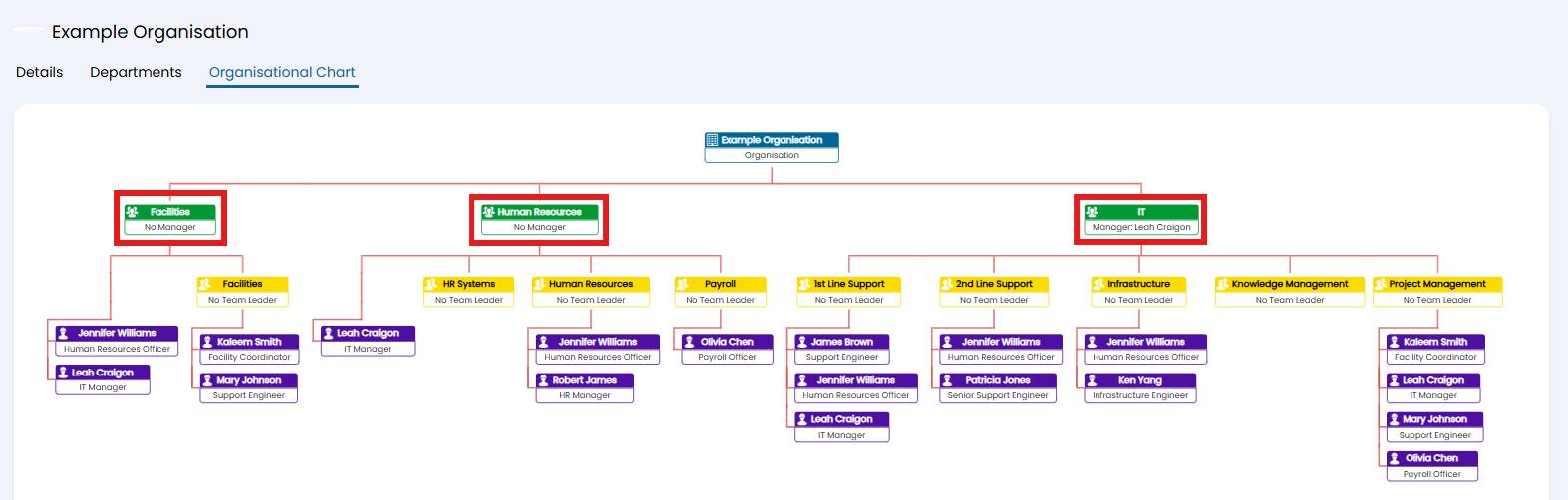
Fig 1. Departments in the Organisational structure.
What are Teams?
Teams separate Agents within the same Department.
In this example, Olivia Chen is a part of the "Human Resources" Department as they are a member of a Team within that Department. They cannot view Tickets belonging to other Teams in that Department, unless they are a member of that Team or they have elevated Department access.
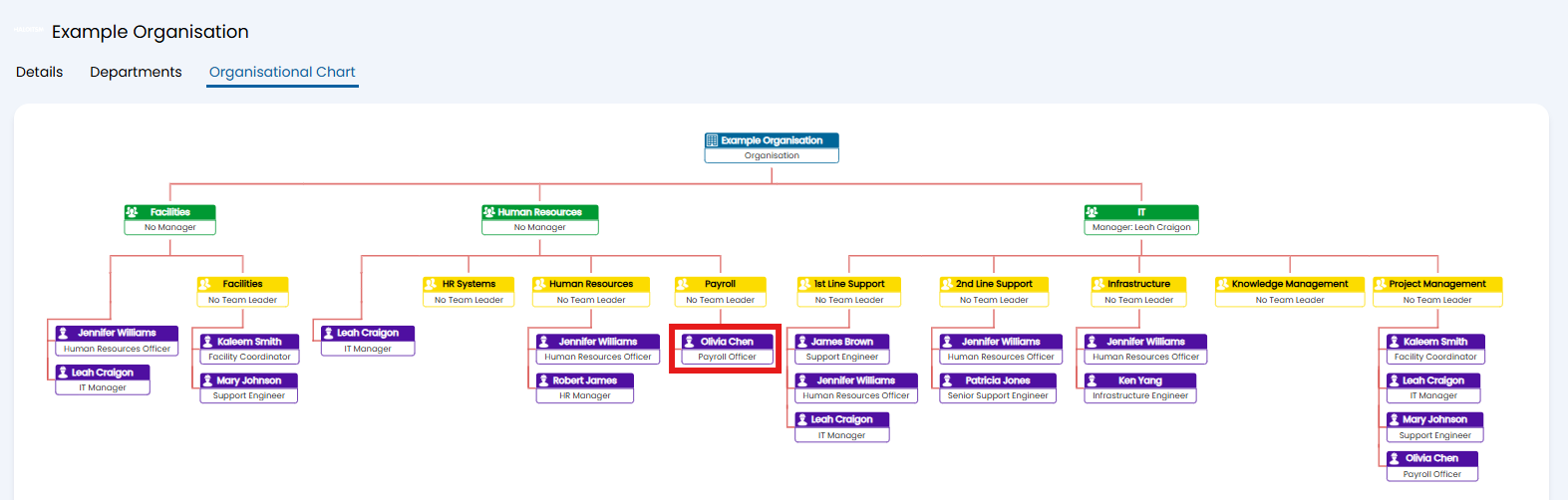
Fig 2. Agent in a Team in a Department.
What are Roles?
Roles can be used to give Agents access to Departments and Teams, as well as apply specific permissions using the "Permissions" tab on the Role.
In this example, an Agent with the "IT Agent" Role is a member of the "IT" Department but only has access to the "1st Line Support" Team's Tickets.
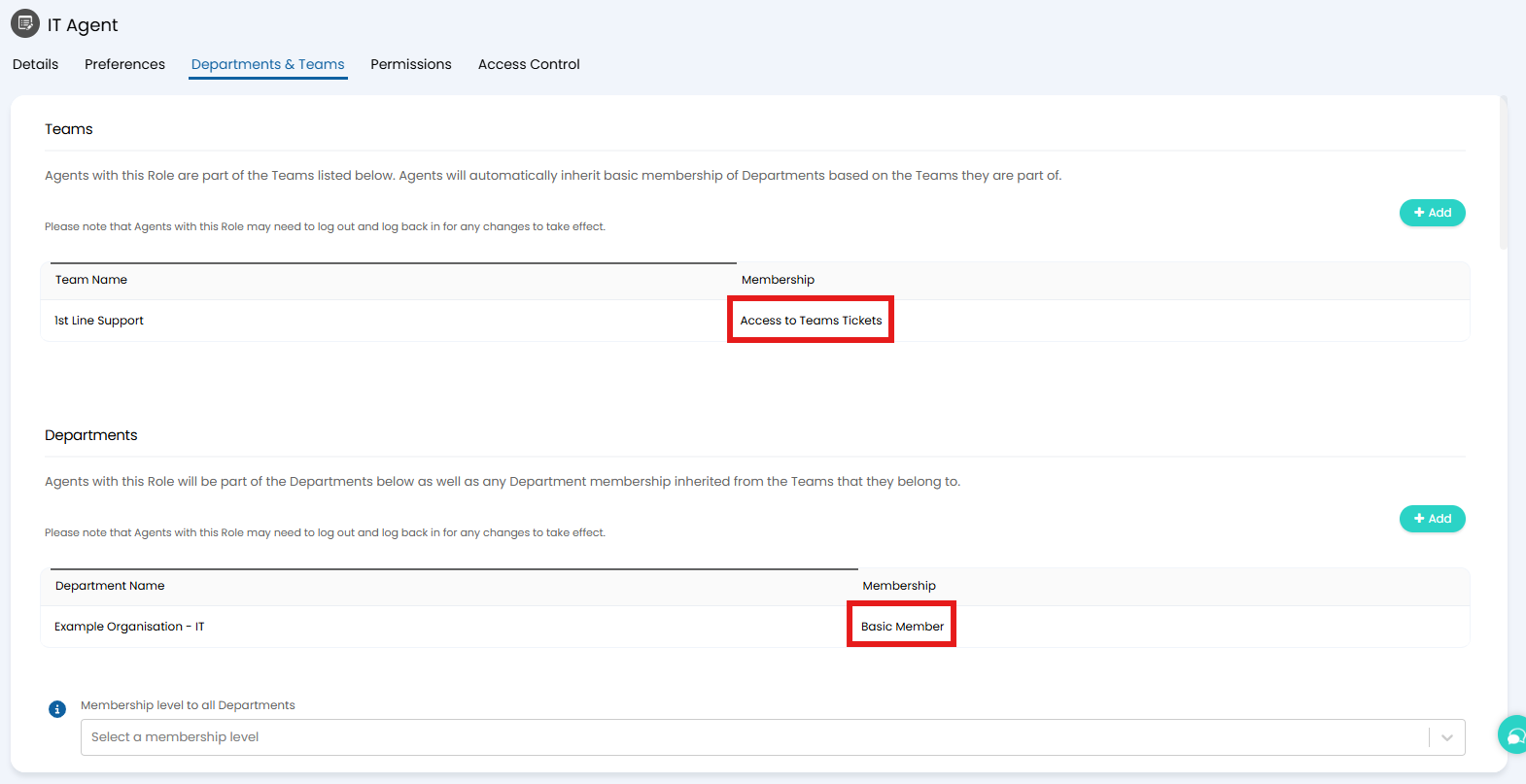
Fig 3. Example Role restrictions.
Restricting Administrator Access
Using the methods above will allow you to restrict access to certain areas for almost all Agents. When an Agent has the Administrator role, this gives them access to all Tickets and the ability to override permissions and settings.
To prevent Administrators automatically overriding the permissions they have set, you can disable "Give admins additional privileges" in Configuration > Advanced Settings. This allows you to restrict access to certain Ticket Types against Administrator accounts, preventing Agents searching for Tickets outside of the Areas they have access to.

Fig 4. Disabling additional Administrator privileges.
Administrators could also override the setting above, which is where configuration tracking comes in. We can report on when this setting has been changed, and by which Agent, to audit any instances of Administrators trying to override their allowed permissions.
The table "configcommit" details all configuration changes, and can be filtered to display only instances where this setting has been adjusted, which can then be added to a Scheduled Report to send if results are present.
Restricting Reporting Access
Even if restricted from certain Areas, Agents can still make Reports which pull this information from the database using custom SQL. To restrict this, you can prevent Agents from creating custom SQL Reports and limit them to the Query Builder.
In Configuration > Teams & Agents > Roles, select a Role and go to the "Permissions" tab. Here, set "Can Create SQL Data Sources" to "No".
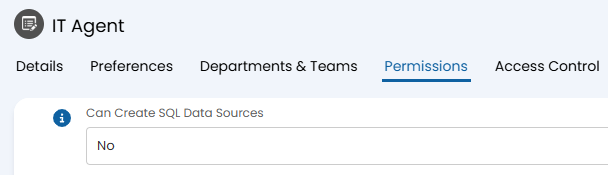
Fig 5. Restricting SQL access.
Then, enable "Default for apply Agent's permissions to Ticket, Action, and Asset query builder queries" in Configuration > Reporting > General Settings.
The combination of these settings restricts Agents from reporting on Tickets they would not have access to in the UI.

Fig 6. Restricting Reporting by Agent permissions.
For those that will need access to custom SQL, or have access to the restricted Department as Administrators, we can audit when Reports are run on certain topics by enabling "Audit when reports are run" in Configuration > Advanced Settings.
This feature will add to the "reportevent" table for each Report that is run, allowing us to audit where Reports are being run on Tickets related to the restricted Department. For example, you can run a Report to audit where a Report is being run by querying the "reportevent" table and filtering on the "RESQL" column to identify instances of reporting on sensitive Tickets and Departments.

Fig 7. Reporting auditing enabled.
Build Permissions without Administrator Access
If an Agent needs permission to configure Areas without the need to be an Administrator, this can be allowed by enabling the relevant Agent permissions. In Configuration > Teams & Agents > Roles > Permissions tab, set the permissions under the "Configuration" section.
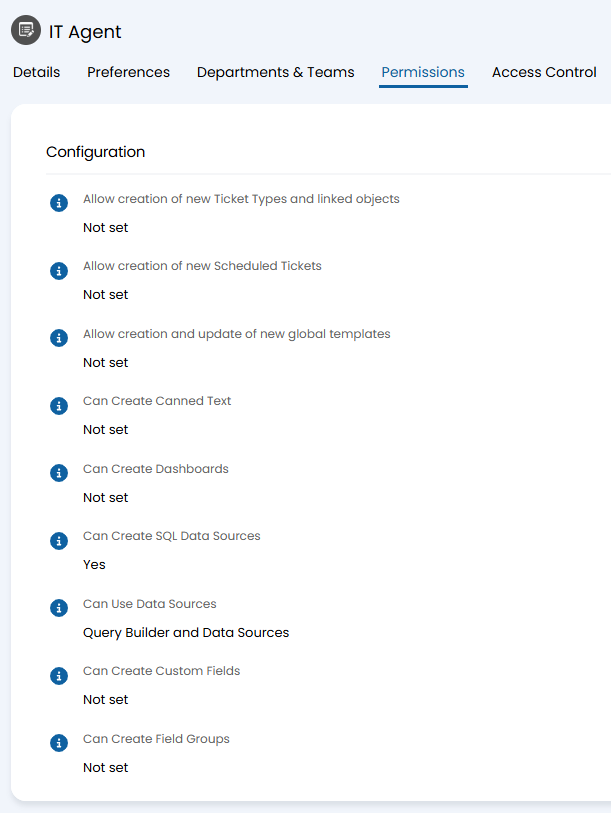
Fig 8. Build permissions on a Role.
Access Control can also link into these permissions, as if one Agent creates the configuration for a certain entity, they can then grant access to other Agents with permissions to be able to edit this.
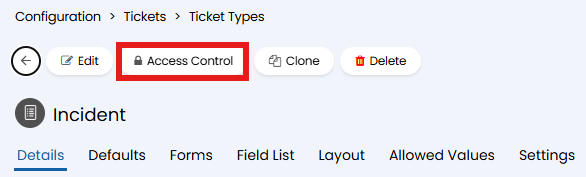
Fig 9. Access Control button on a Ticket Type.