Teams
- team leader
In this guide we will cover:
- Configuring your Teams
- Showing Department on the Team Dropdown
Configuring your Teams
To configure your Teams go to the Teams and Agents configuration area and hit Teams.

Fig 1. Teams module.
When adding a Team to this list, you will first be presented with the option to add in core details against the team including the name, main email address and any team-specific notes. Beneath these fields you will find options to specify what types of ticket this team is used for (Tickets, Projects or Opportunities):
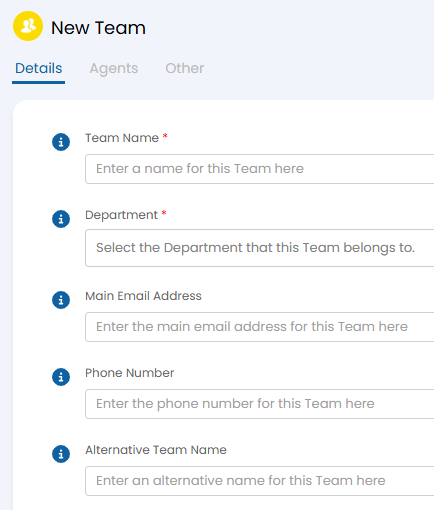
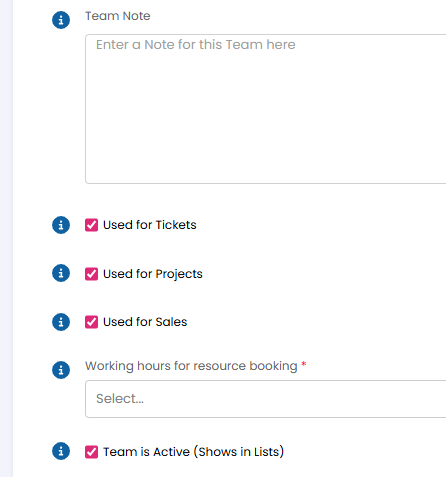
Fig 2. New Team screen.
Note the setting "Team is Active". You will see this option for Teams/Agent and also for Clients/Sites/Users. By marking an entity as inactive, you can remove it from the UI without the need to permanently delete the information from the database.
Once the Team has been created, the last step is to add in your Agents. You will find an "Agents" tab available upon creating your Team with the option to add to this list. When adding Agents to a Team, you are presented with the below options.
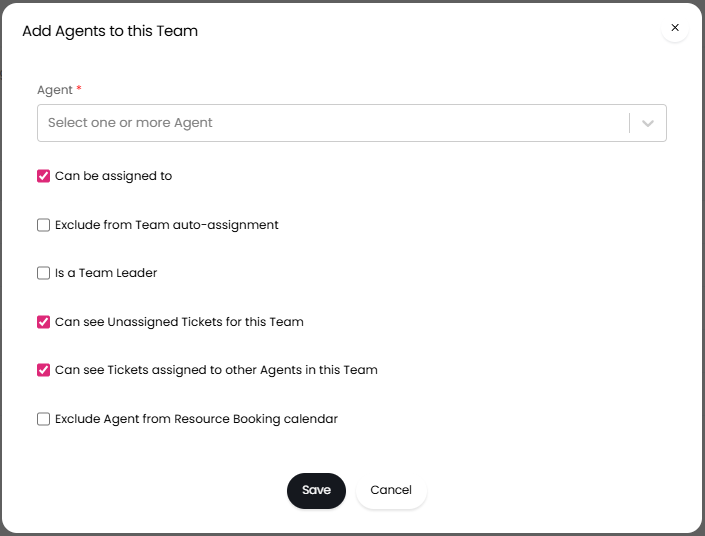 Fig 3. Adding Agents to a Team.
- Can be assigned to - Determines whether the Agent has a physical queue within the Team. When enabled, they will be given their own physical queue under that team, leaving it unticked just gives them visibility of the team without having their own queue.
- Exclude from Team auto-assignment - Excludes the Agent from being automatically assigned Tickets via Load Balance or Round Robin.
- Is a Team Leader - Determines whether they are the Team Leader of the given Team. If they are a Team Leader they can access the Team Settings, which is a module where they can make minor changes to the Team Settings. Team leaders are able to edit the details and preferences of Agents in their Team if "Allow Team leaders to edit Agent preferences" is enabled in Configuration > Advanced Settings.
- Can see Unassigned Tickets for this Team - Determines whether or not the Agent can see Unassigned Tickets for the Team.
- Can see Tickets assigned to other Agents in the Team - Determines whether Agents can see Tickets assigned to other Agents in the Team.
- Exclude Agent from Resource Booking calendar - Excludes the Agent from the Resource Booking calendar.
From v2.250+, you can restrict which Teams can be assigned a Ticket based on the Customer of the Ticket. In the Settings tab of a Customer record, add to the "Allowed Teams" table to restrict assignment to only the listed Teams. If this table is empty no Team restrictions will apply. This is useful for Co-managed Agents, allowing Tickets to be escalated to appropriate Teams.
You can check who belongs to which team under the organisational chart under Configuration > Organisation > Organisational Chart.
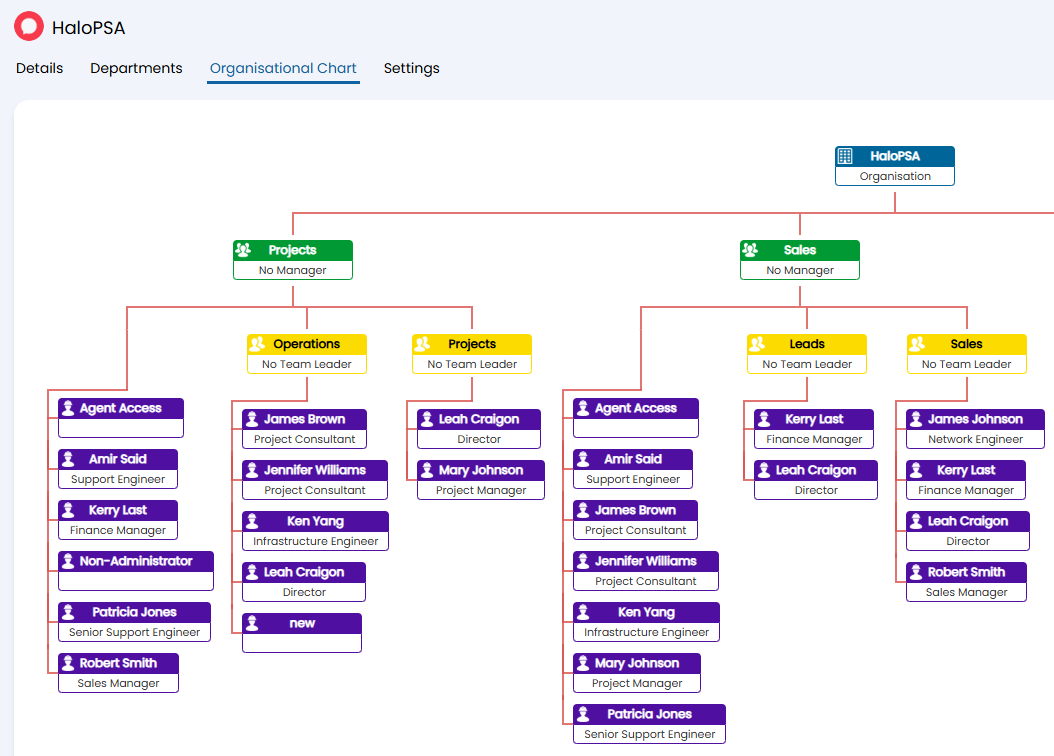 Fig 4. Organisation chart.
Showing Department on the Team Dropdown
Within a ticket, the team the ticket is assigned to is shown. Within this dropdown, the department the team is under can be shown by enabling the below in Configuration > Tickets > General Settings. This can be useful if you are within a larger organisation who wants to see each layer of the structure.

Fig 5. Enabling department/team relationships.
When assigning or re-assigning, the dropdown will appear like the examples below. The first is if "Assign/re-assign dropdown behaviour" in Configuration > Tickets > General Settings is set to "Team and Agent in separate dropdowns".
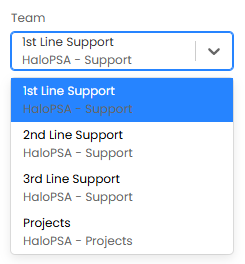
Fig 6. Team dropdown with departments.
The second is if "Assign/re-assign dropdown behaviour" in Configuration > Tickets > General Settings is set to "Single dropdown for Team and Agent selection grouped by Team".
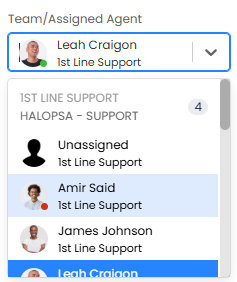
Fig 7. Combined team dropdown with departments.