Co-Managed IT
- Permissions
- organisation
- co-manged IT
- co-managed agent
- customer restrictions
- external agent
- external user
- customer group override
In this guide we will cover:
- What is Co-Managed IT?
- How to set up a Co-Managed agent
- How tickets can be passed between co-managed and normal agents
- Restricting FAQ list and reporting access
- Worked Example
What is Co-Managed IT?
Co-Managed IT allows for collaborative IT management, in which a businesses' internal IT team works with a MSP in managing the business' IT needs. As an MSP, this means you may want this external party to have access to/work out of your PSA system, but have restricted access to only their business and not be able to see any data related to your other customers.
Co-managed IT can be set up, allowing you to give external agents access to your Halo, but only for set customer(s). This will allow the agent to access the key areas of Halo, customer info, assets, the service desk etc, but only seeing data for the customers you give them access to.
Setting Up a Co-Managed Agent
Head to configuration > teams and agents > agents > select the agent you would like to be the 'Co-Managed' agent (this will be the agent with limited access) > client restrictions tab.
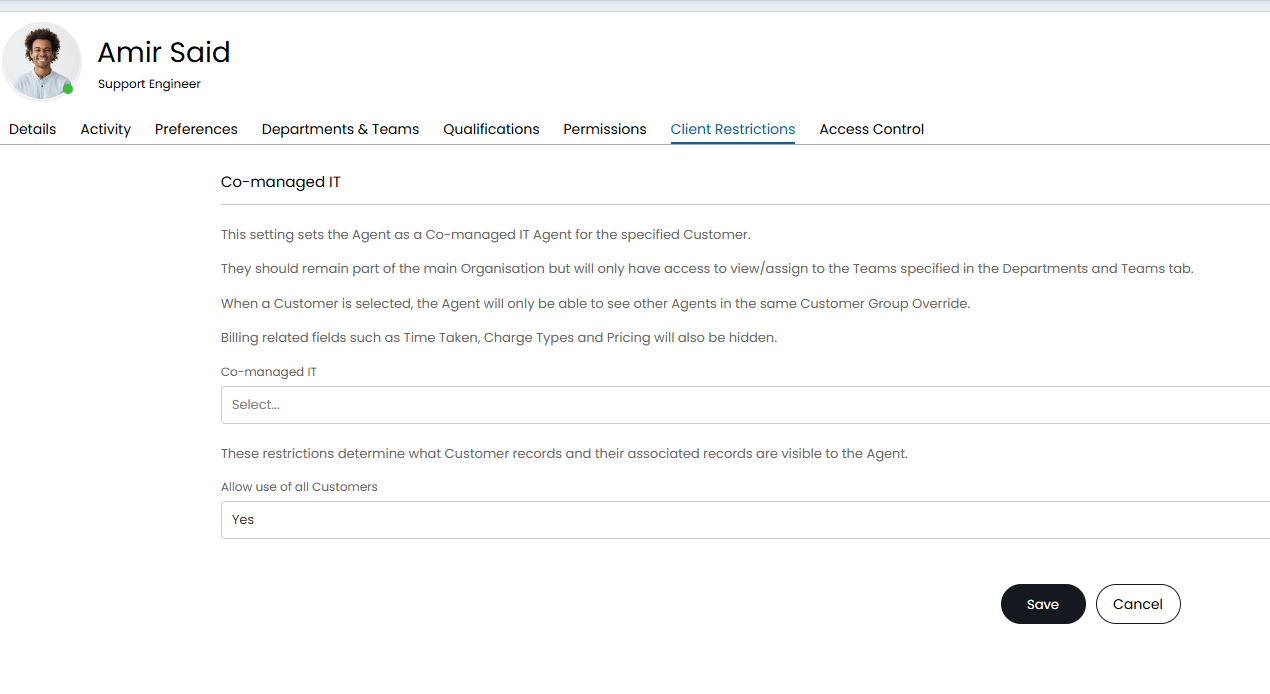
Fig 1. Client Restrictions tab
Here, there are two settings, these determine the access the agent has.
Co-managed IT setting
This setting acts as an organisation override and determines the other agents this agent will be able to see in Halo. The Agent in question will only be able to see other agents who have the same option selected in the Co-Managed IT dropdown. This creates a 'customer group' in which all agents who have the same customer selected in their 'Co-managed IT' dropdown become a part of that group, in which they have access to each other but not other agents in the Halo instance.
For example, if this field is set to be 'Acorn Construction' this agent will only be able to see other agents who have this field also set to be 'Acorn Construction ' against their profile. This allows you to group Co-Managed IT agents together, without having to move them to a separate organisation or team.
For example, if I set the Co-managed IT field against the agent Amir to be 'Acorn Construction' and I set this same field against the agent Patricia to be 'Acorn Construction' Amir and Patricia will only be able to see their tickets, and each others tickets. If I set the Co-managed IT field against Patricia to be *not set* (or to be any other customer), Amir would only be able to see his own tickets as there are no other agents who share this organisation override.
This can also be set against a role, however, the setting here is called 'Customer Group Override'.
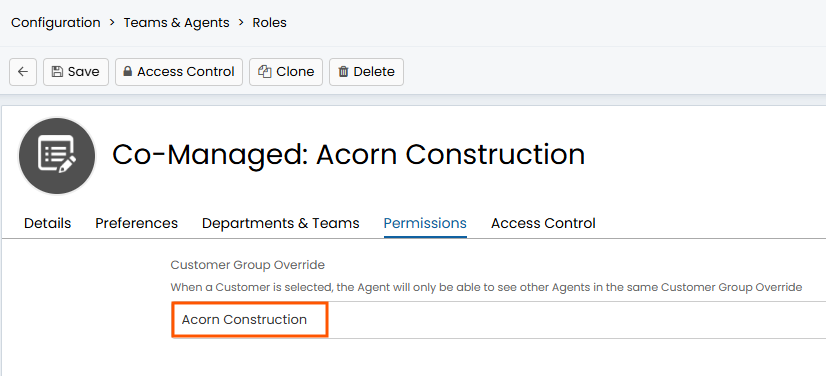
Fig 2. The Co-Managed IT (Customer Group Override) Option Found in Role Permissions
Once an agent has been marked as being co-managed (having the setting populated), they will no longer be able to access the following:
• Make new column profiles
• View/update Software License/Subscription Costs
• View call scripts
Note: Even if agents are not in the same team they will still be able to see each other's tickets if they share the same Co-Managed IT (Customer Group Override).
Allow use of all Customers
This setting determines the customer(s) the agent has access to. This following entities will be filtered to only show the respective customers information:
- Tickets
- Assets
- Customer profile
- agreement
- Quotes/sales order/purchase orders
The agent will still be able to access the above entities but they will be filtered so they only see records relating to the customer they have access to, they will not be able to see data for any other customers.
To restrict the customers the agent can access, set the 'Allow use of all Customers' field to 'no', a table will then appear below. Here, in the table, add in the customers the agent has access to. It is important to note this customer access can also be inherited from the agent's role, any access set at the role will override the settings here (against the agent).
To set this at role level head to configuration > teams and agents > roles > select a role > permissions > client restrictions section.
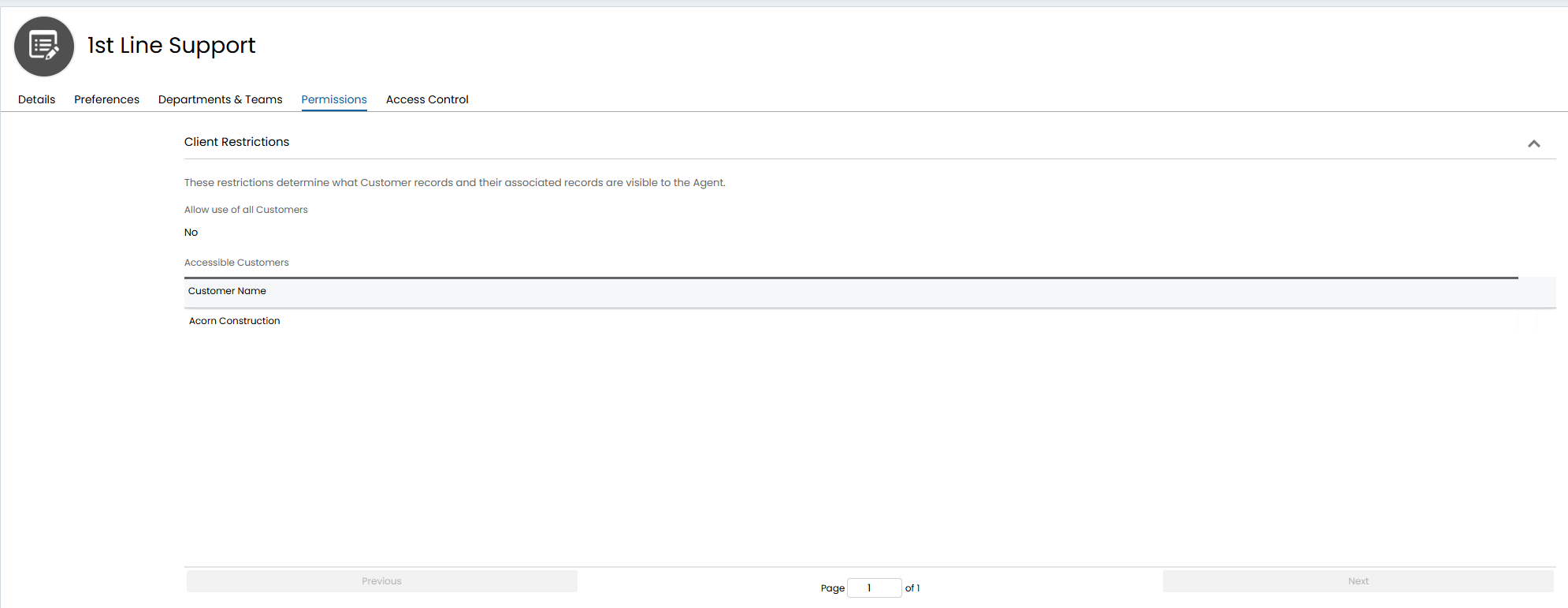
Fig 3. Set Customer Restrictions at Role Level
Teams
If a Co-managed agent is a member of a team containing non co-managed agents, the co-managed agent will be able to see unassigned tickets in this team (only for the customer they have access to). But they will not be able to see any non co-managed agents in this team, or their tickets. Therefore, you do not need to create a new team specifically for your co-managed agents, they can work out of your existing teams without seeing agent/customer data they do not have access to.
Additionally, two co-managed agents who are in the same co-managed customer group do not need to be in the same team in order to see each other's tickets, they will still be able to see the tickets the other agent has in the 'tickets by agent' view.
Assigning Tickets between Co-managed and non co-managed agents
Tickets assigned from co-managed agents
In order for Co-managed agents to assign a ticket to a normal agent you will need to create an action for them to use to be able to do this.
Head to configuration > tickets > actions > new, create an action with the following configuration:
- System use = no system use
- Default team = Choose the team you want the ticket to be re-assigned to
- Default agent= Choose the agent from this team you want the ticket to be assigned to
Once the action is created ensure it is added to the relevant workflows.
Re-assigning a ticket using an action will mean the co-managed agent will be able to re-assign the ticket to a team they do no have access to. However, this also means once the ticket is re-assigned the co-managed agent will not be able to see/access the ticket. If you would like the agent to be able to see the ticket after re-assigning you will need to add the co-managed agent to the team they are re-assigning to, but with limited access.
To agent to a team with limited access head to configuration > teams and agents > agents > select the Co-managed agent > department and teams tab. Here, within the 'Teams' table you will need to add the agent to the team they will escalate tickets to. When adding a team first input the team name, then determine the team membership using the checkboxes.
De-selecting all the boxes except 'Can see Unassigned tickets for this Team' will result in the agent being able to assign tickets to the 'unassigned' que in this team.
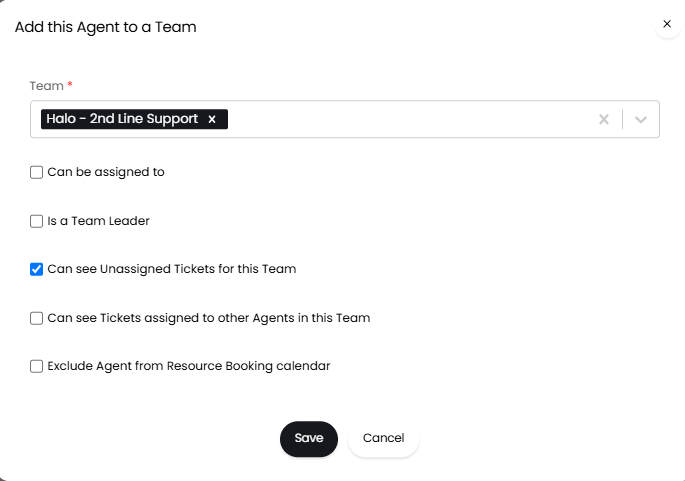
Fig 4. Adding agent to a team- limited membership
This means after re-assigning a ticket they can then go into the other team's unassigned queue and still be able to view the ticket here. Once the ticket is assigned to another agent they will no longer be able to see it.
From v2.250+, you can restrict which Teams can be assigned a Ticket based on the Customer of the Ticket. In the Settings tab of a Customer record, add to the "Allowed Teams" table to restrict Ticket assignment to only the listed Teams. If this table is empty no Team restrictions will apply.
Assigning tickets to Co-Managed Agents
Normal agents can assign tickets to co-managed agents in the same way as outlined above, using a pre-configured action.
Note: Agents will not be able to assign a ticket to a co-managed agent if the ticket is for a customer that the co-managed agent does not have access to.
If your co-managed agents have access to see agents within your organisation you may want to restrict them being able to re-assign tickets that are currently assigned to a non-comanaged agent. Head to configuration > tickets > general settings, here you can enable the setting shown in figure 5.

Fig 6. 'Agents using Co-managed functionality cannot re-assign Tickets from non Co-managed Agents'
When enabled, any agents that are marked as co-managed will not be able to re-assign tickets currently assigned to a non co-managed agent. They will still be able to re-assign unassigned tickets and tickets assigned to another co-managed agent.
Viewing Actions on Tickets
If a non co-managed agent completes an action on a ticket that a co-managed agent has access to the co-manged agent will be able to see the name of the agent who completed the action (not their profile photo) and the type of action they completed. However, they will not be able to see the time spent on the action, or any billing information such as the charge type. Co-managed agents will also not be able to see the 'billing' tab against the ticket.
Similarly, when a co-managed agent completes an action on a ticket the 'time spent' and 'charge type' field will not be visible for them, even if set against the action. This means time tracking and billing details will be kept private.
Allow Co-Managed agents to log time on actions
Co-managed agents can be given the ability to log time on actions, useful if they are using Halo for time tracking.
To enable this, head to Configuration > Tickets > General Settings > "Allow co-managed agents to log time".
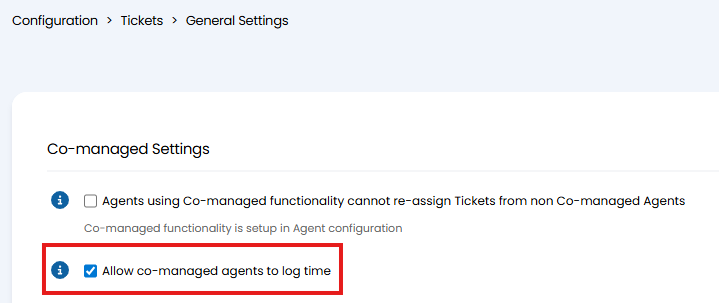
Fig 7. Allow co-managed Agents to Log Time
When enabled the "Time Spent" field will be visible to the co-managed agent and they will be able to log time using this field.
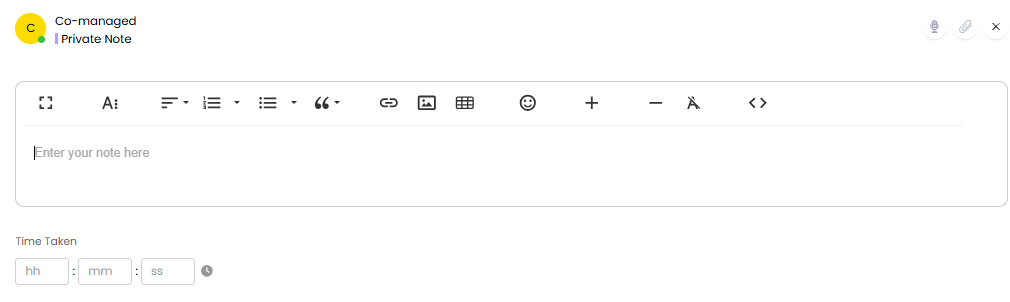
Fig 8. Time Taken field on Action
From v2.250+, time logged by Co-managed Agents can be marked as non-billable. To do this, head to Configuration > Billing > Labor and Travel, and enable "Mark all Comanaged time as unbillable".
Allow Co-Managed agents to edit actions
Co-managed agents can also be given the ability to edit actions, useful if you would like them to be able to edit their actions after they have been logged.
To do this the agent will need the following permissions:
- Editing of Actions - Can edit own actions only
When this permission is give the agent will be able to edit their own action and see the "Time Tracking" tab, here they can adjust the time they logged on the action.
Important: If this is enabled, the co-managed agent will be able to see the billable details of other agent's actions when editing their actions. They will only be able to view, not edit, the details.
Email Processing
By default emails from co-managed IT agents will be processed in the same was as normal agents. To have emails from co-managed agents be processed in the same way as end user emails instead head to Configuration > Email > General Settings, and enable 'Emails from Co-managed Agents are treated as Users'.
This is useful if you have a agent specific email settings enabled that you would not like to apply to co-managed agents. For example, if you have 'Agent updates via Email are hidden from End-Users' enabled and 'Emails from Co-managed Agents are treated as Users' enabled, email updates from agents will be hidden from the end user, unless the update is from a co-manged agent. As the co-managed agent emails are processed in the same way as end user emails this will be visible to the end user:
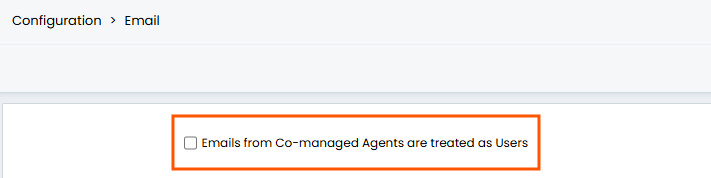
Fig 9. Incoming Email Setting for Co-managed Agents
Restrict Module Access
Your Co-managed agents will likely not need access to as many modules as your standard agents. Module access can be restricted using a custom navigation menu. These can be configured in configuration > advanced settings > screen layout profiles > change entity to navigation menu, here you can create a new profile to determine what modules appear on the navigation menu for the agent. Then ensure you assign this profile to the co-managed agents.
FAQ lists
Co-managed agents will only be able to see FAQ lists that have 'show for all users' enabled, regardless if 'show for all agents' is enabled.
If you do not want this FAQ list to be visible for all your users you can restrict this by customer. Disable 'show for all users' then you will have an option to set customers that can view the FAQ list. Only customers added into this field will be able to see this FAQ list. Co-managed agents that have this customer set as their 'Co-managed IT' customer (or customer group override) will be able to see this FAQ list too.
In the figure 6 example, all agents will be able to see this FAQ list, except co-managed IT agents. Unless the co-managed agent is for Acorn construction as this customer does have access to the FAQ list.
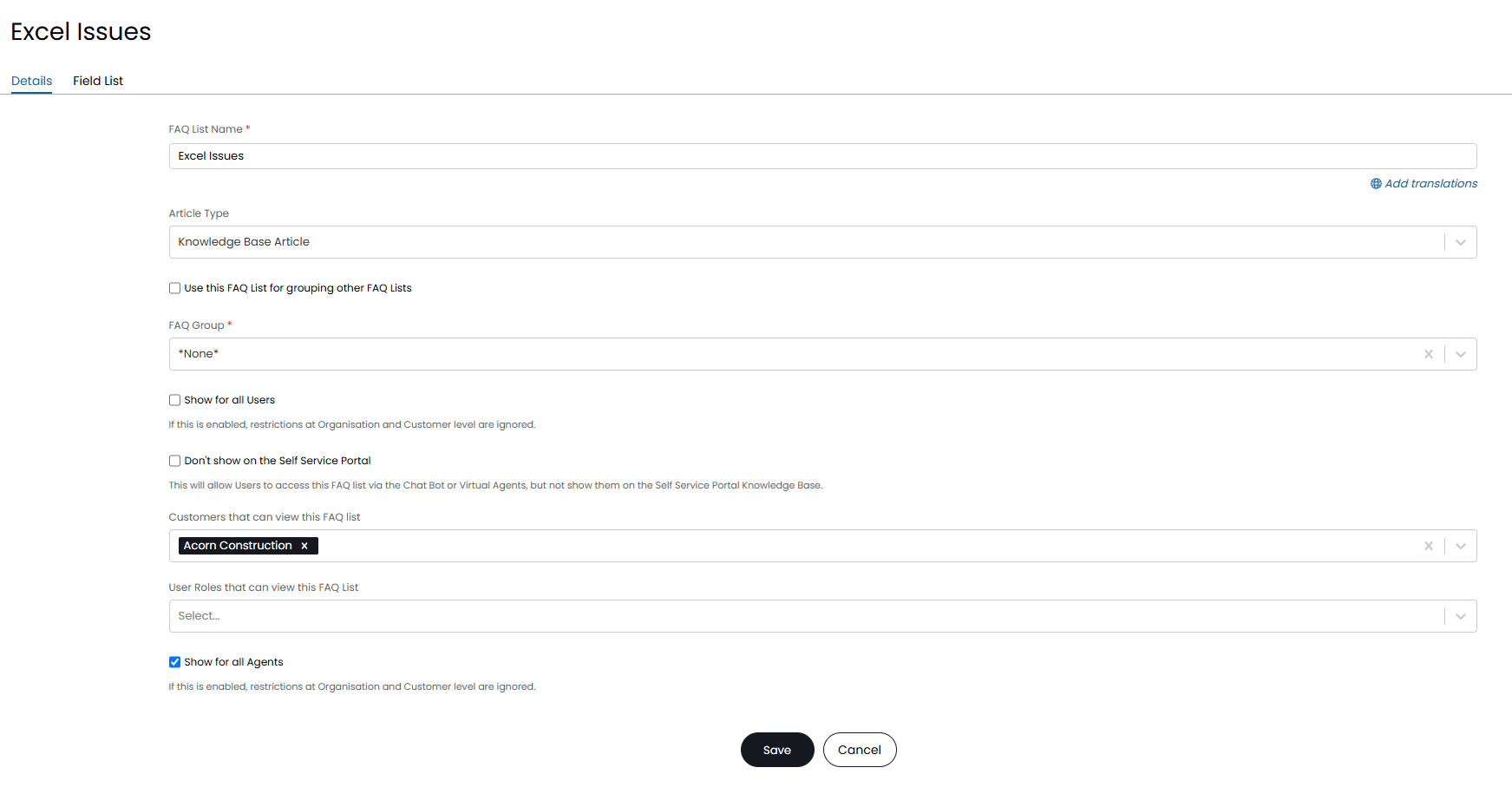
Fig 10. Restricting FAQ list example
Reporting Access for Co-managed IT agents
It is possible to give co-manged agents access to the reporting suite, and only be able to access data for their respective customer(s). This can be done using pre-set data sources. For more information on how to do this see our guide here.
Worked example - Setting up Co-managed IT agents
I have two external agents who will be supporting the customer 'Acorn construction' only. These agents need to be able to see each other's tickets but I do not want them to see any of my other agents or customers.
I create a role for these agents, in this role I set their general permissions. Then I set the customer group override to be 'Acorn construction' and set their accessible customers to be 'Acorn construction' only.
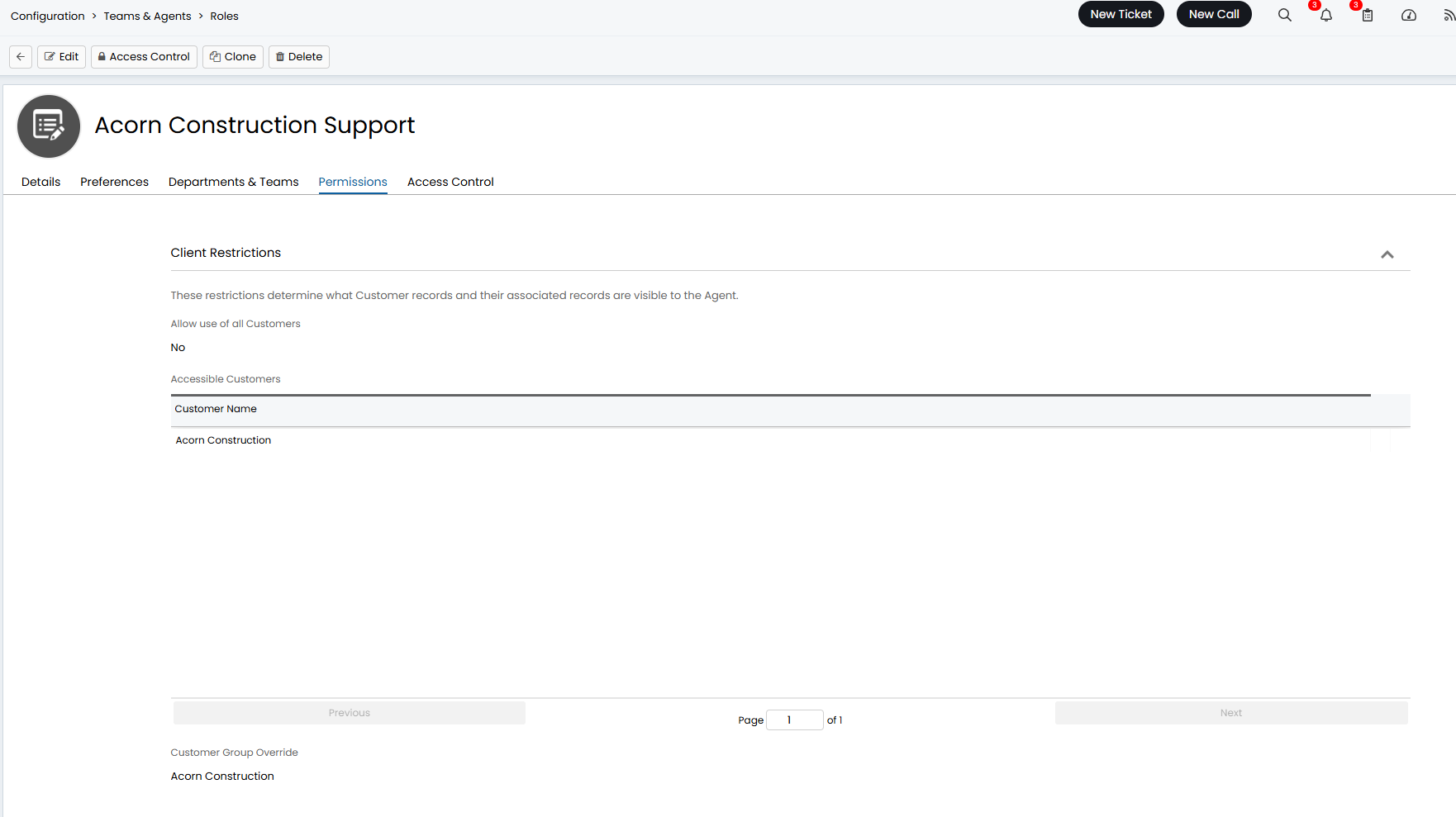
Fig 11. Permissions Example
Now, I will assign my Co-managed agents to this role.
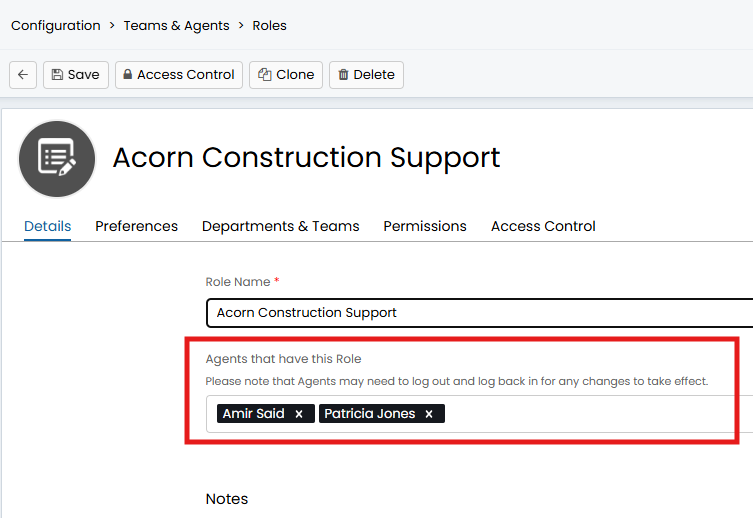
Fig 12. Role Assignment
I am going to give the agent Amir membership to the 1st line support team, as this is the team he will be working out of, I will also add him to the 2nd line support team (with limited membership) so he can escalate (re-assign) tickets to agents in this team.
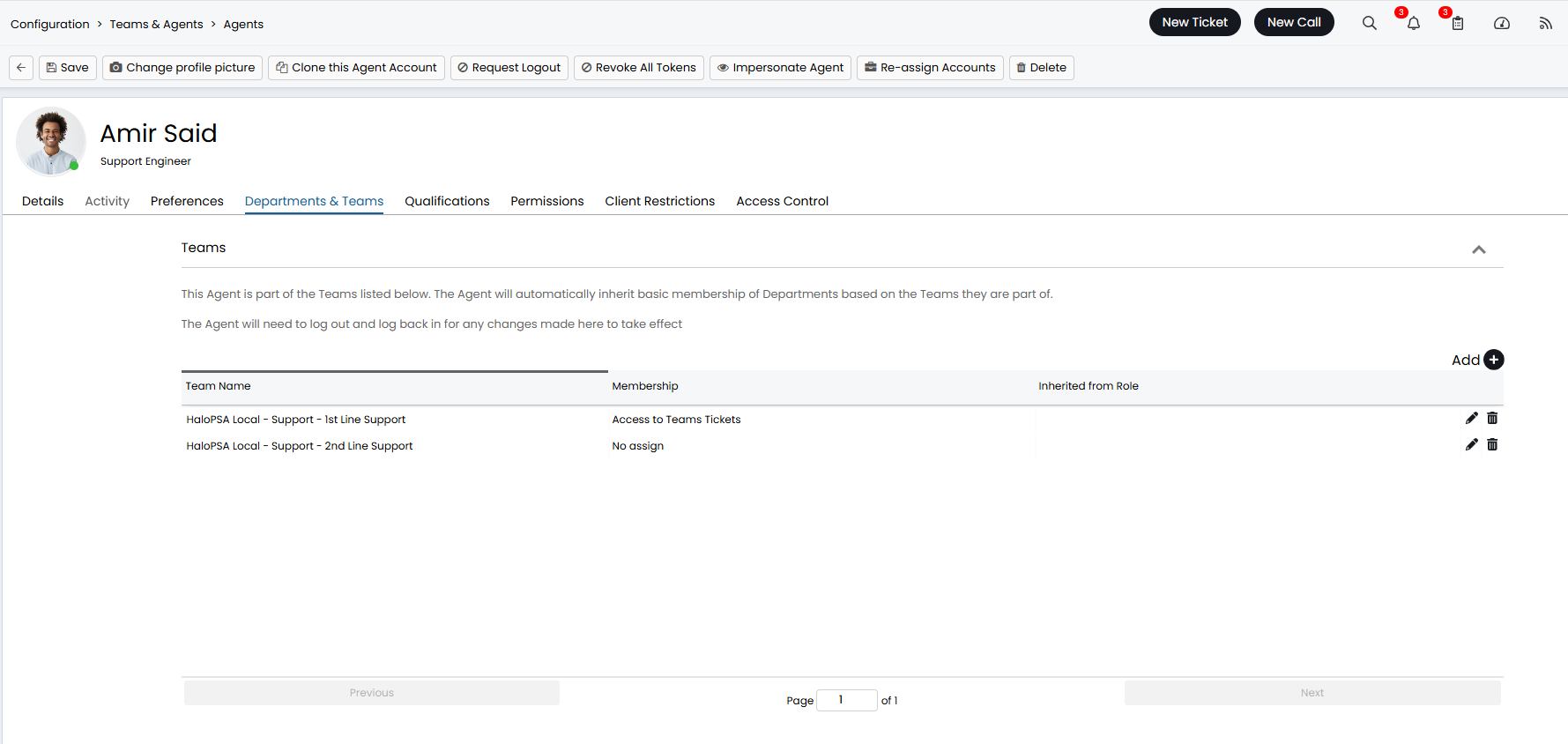
Fig 13. Amir's Department/ Team Access
I am going to add Patricia to the 1st line support team only as this is the team she will be working from.
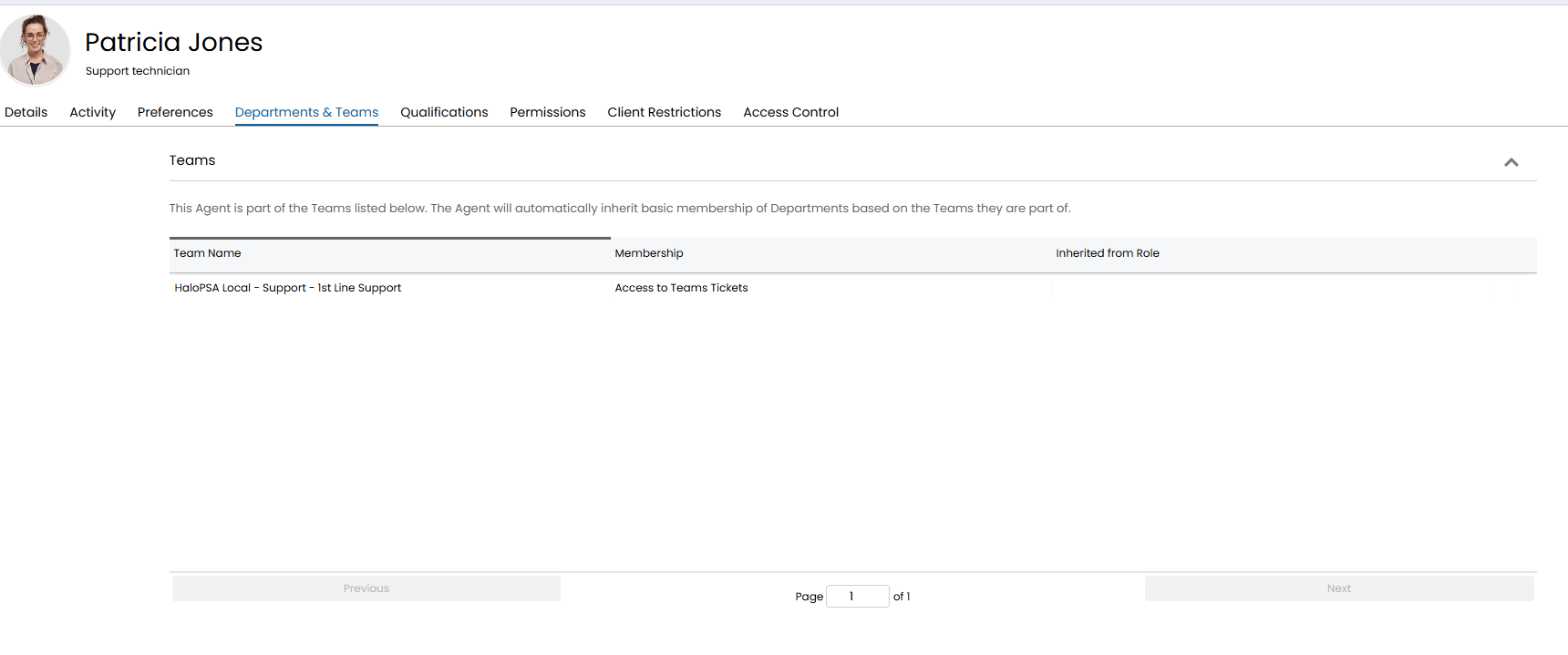
Fig 14. Patricia's Department/ Team Access
Amir will now be able to see unassigned tickets in the 1st line support team, and Patricia's tickets. But only for the customer Acorn Construction.
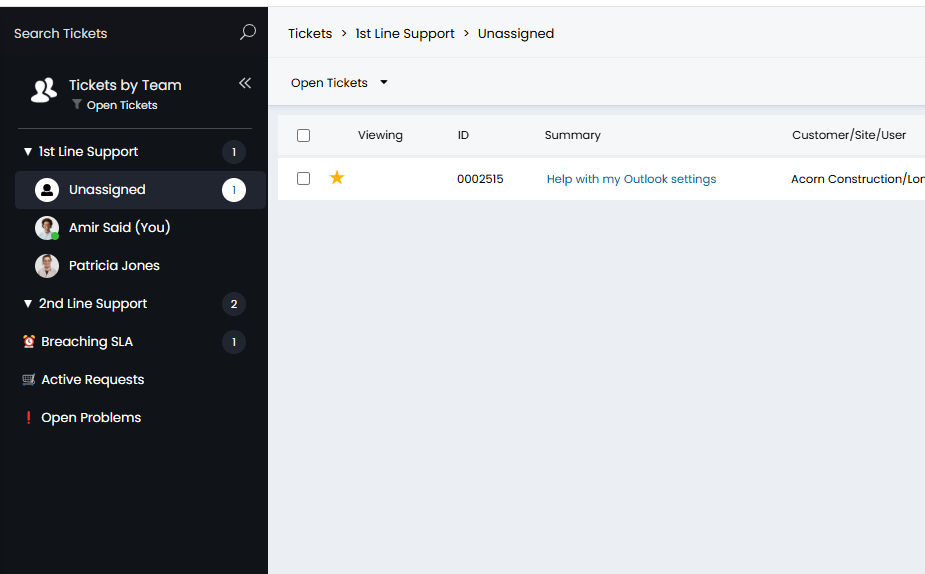
Fig 15. Amir's Ticket List View
Amir will be able to re-assign a ticket to the unassigned agent in the 2nd line support team as he is in this team but will no longer be able to see this ticket once it is in this team. This is because 'Can see Unassigned Tickets for this Team' was disabled for his membership to this team.
Patricia will now be able to see tickets in the 1st line support team that are unassigned, assigned to her, or to Amir. She will not be able to re-assign tickets to the 2nd line support team as she does not have membership to this team.
If they navigate to any other modules in Halo they will only be able to see data related to Acorn Construction as this is the only customer they have access to.
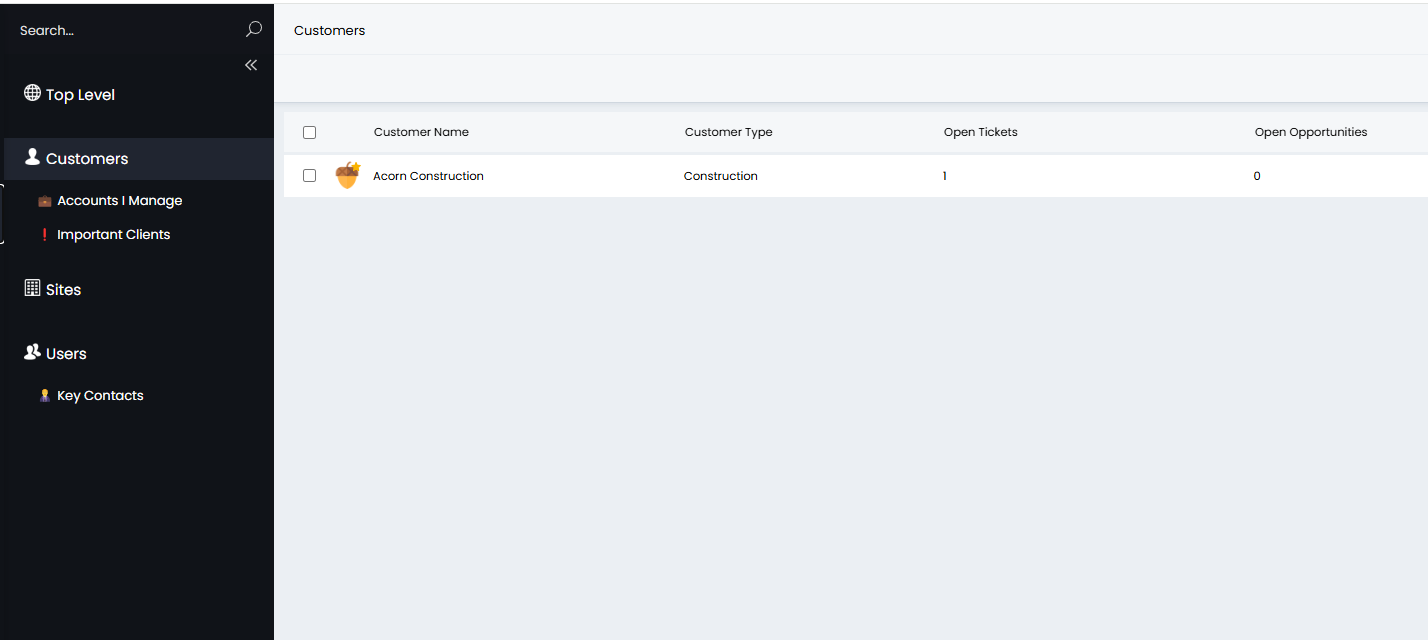
Fig 16 Amir's Customer List
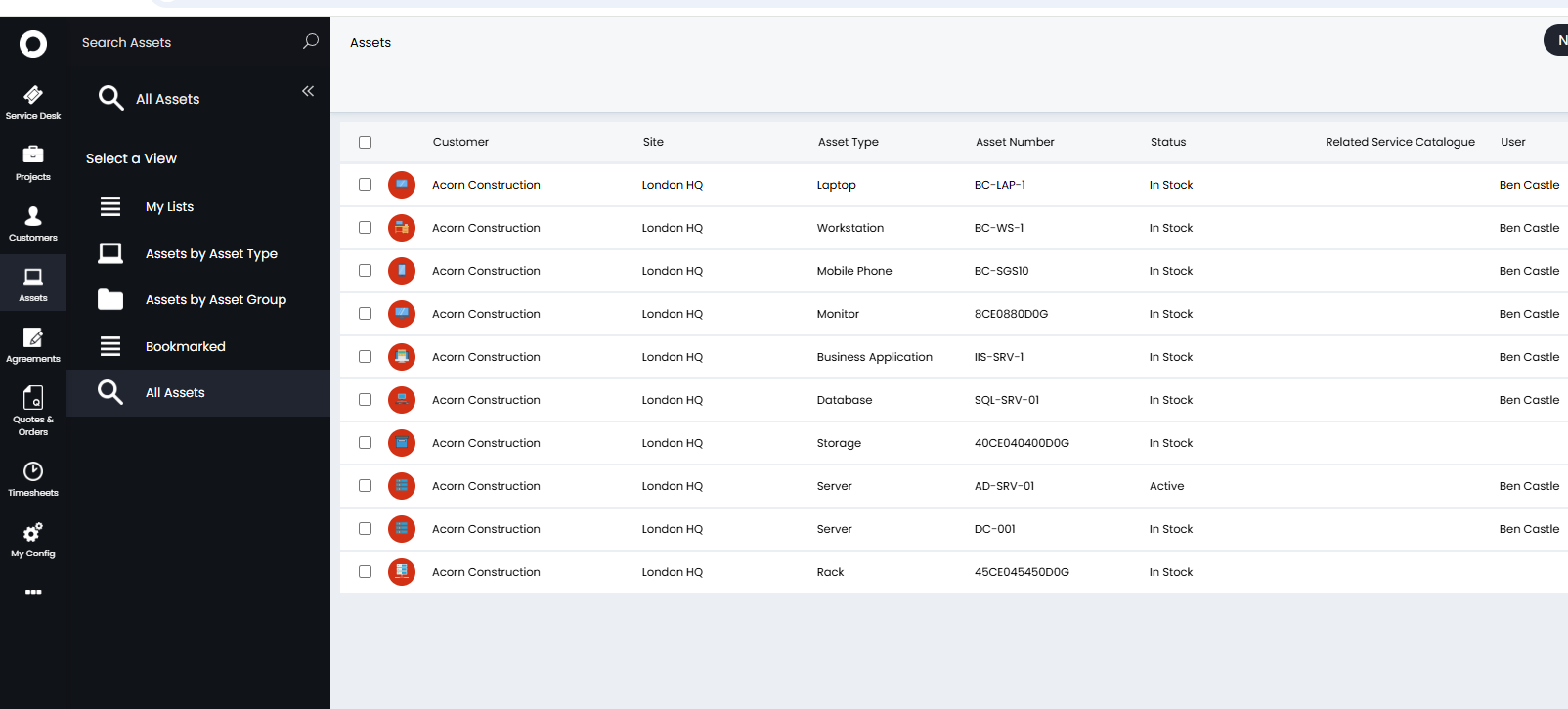
Fig 17. Amir's Asset List