Custom Tables
- naviagtion menu
In this guide we will cover:
- What are Custom Tables?
- Creating Custom Tables
- Displaying Custom Tables
- Custom Fields on Custom Tables
- Auditing Custom Tables
- Access Control
Admin Guides:
What are Custom Tables?
Custom tables allow you to store information against various entities in table format, this can either be just for reference or to used to support other automation functionalities such as Dynamic SQL Lookup Fields and Custom SQL Query for Licence/Subscription Count on Recurring Invoice Lines . Custom fields are stored within a custom table, as a column, therefore when creating custom tables you must create the table itself and the fields that will be used as the table columns. In this guide we will run through how to create custom tables.
Creating Custom Tables
Custom Tables are created under Configuration > Custom Objects > Custom Tables.
All Custom Tables are shown here in one list and the entity is chosen during the creation of the Custom Table. Once the Custom Table is created a field list tab will show and custom fields can be added that will show on the custom table. For creation of custom fields please see the custom fields guide.
Note: Set the "Link to another entity" field upon creation, as this cannot be edited later.
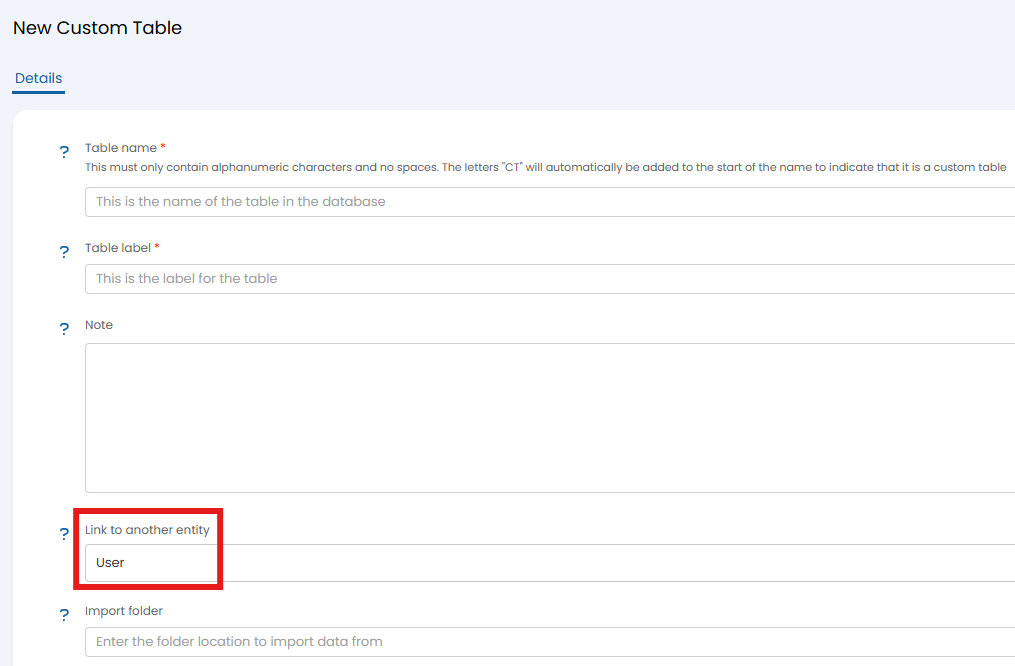
Fig 1. Creating a custom table
The entity the custom table is linked to will determine where the custom table appears in your instance/what entity it is stored against. For example, if you select 'Area' as the entity to link to, the custom table will appear against all customer profiles. From v2.238+, selecting "Do not show this field on the Client details" on the Custom Field holding the Custom Table to hide it from Client records.
For a breakdown on what each field within the custom table configuration is used for, check out Custom Tables.
Once you have completed the details of your custom table save the table then head to the field list tab.
Here, you will configure what the fields in your custom table will be, when adding a field you will be prompted to create a new custom field. Each field will be used as a column in the table. The fields added here have the same configuration options as custom fields.
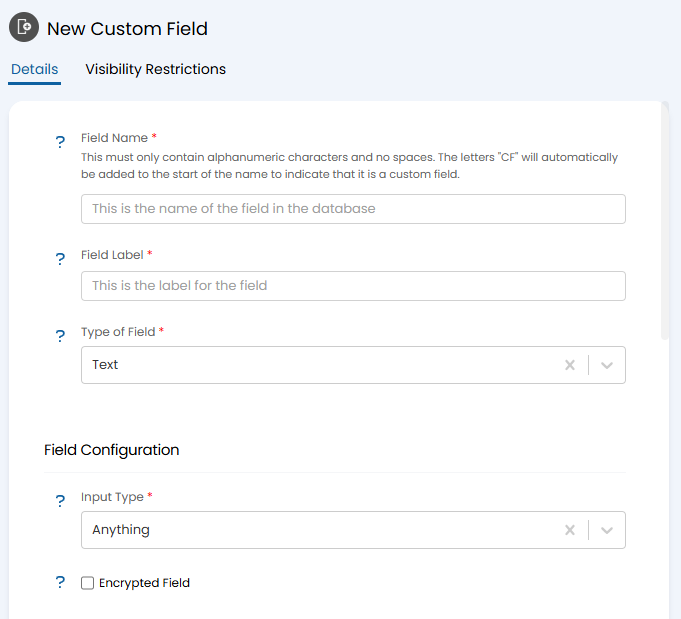 Fig 2. Creating a custom field
Note: Calculated custom fields can be created for custom tables (using "Input Type" "Calculated"). Allowing you to have the value of the column determined by other values in the table, useful for totals columns.
The order of your field list will determine the order of the table columns, with the top field in the list being the leftmost column in the table. In the Figure 3 example the field 'Column C' will be the leftmost column.
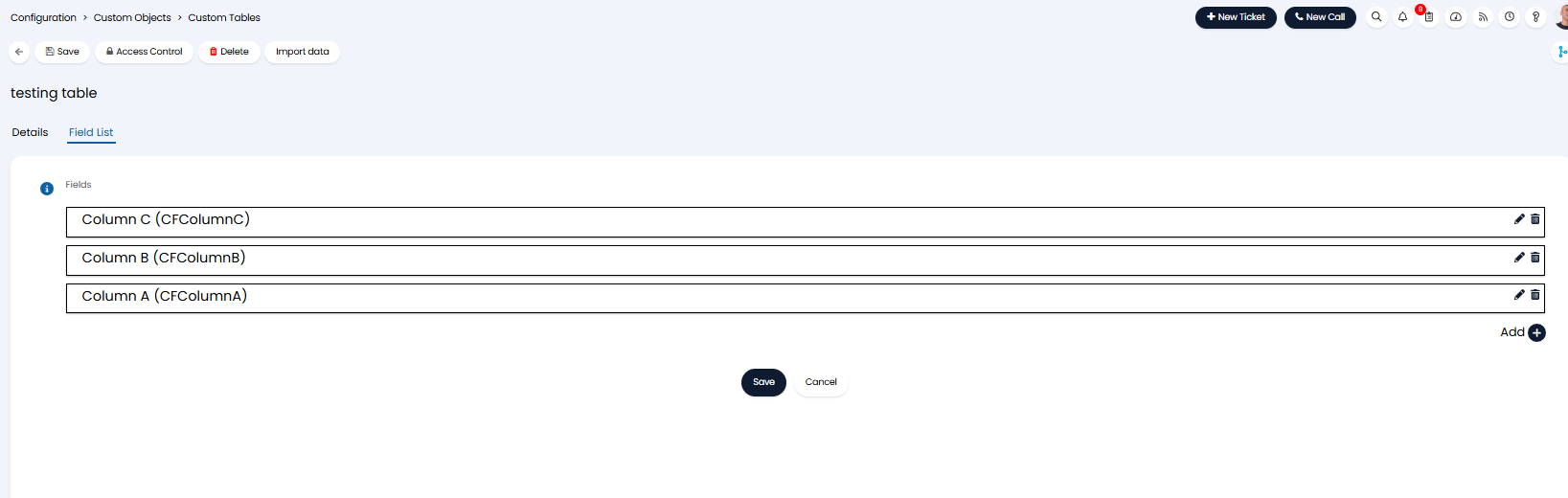
Fig 3. Ordering custom table fields
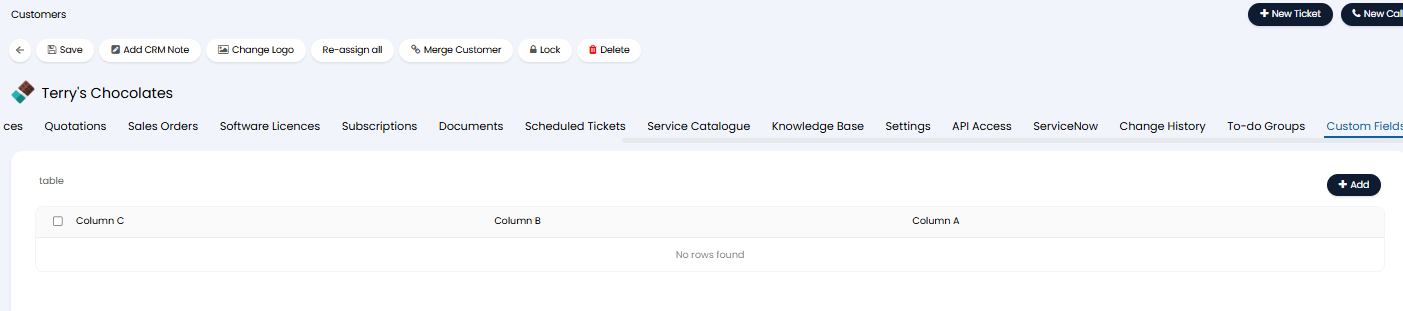
Fig 4. Custom table with ordered columns
Note: Fields can be re-ordered by dragging and dropping the top left of the field.
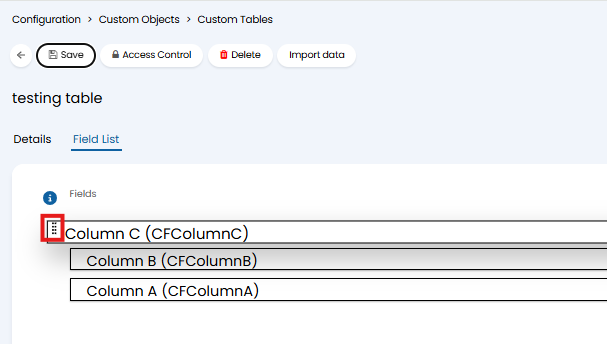
Fig 5. Re-ordering columns/fields
From v2.253+, you can edit Custom Fields in your Custom Table by hovering over a field and selecting the open in new window icon.
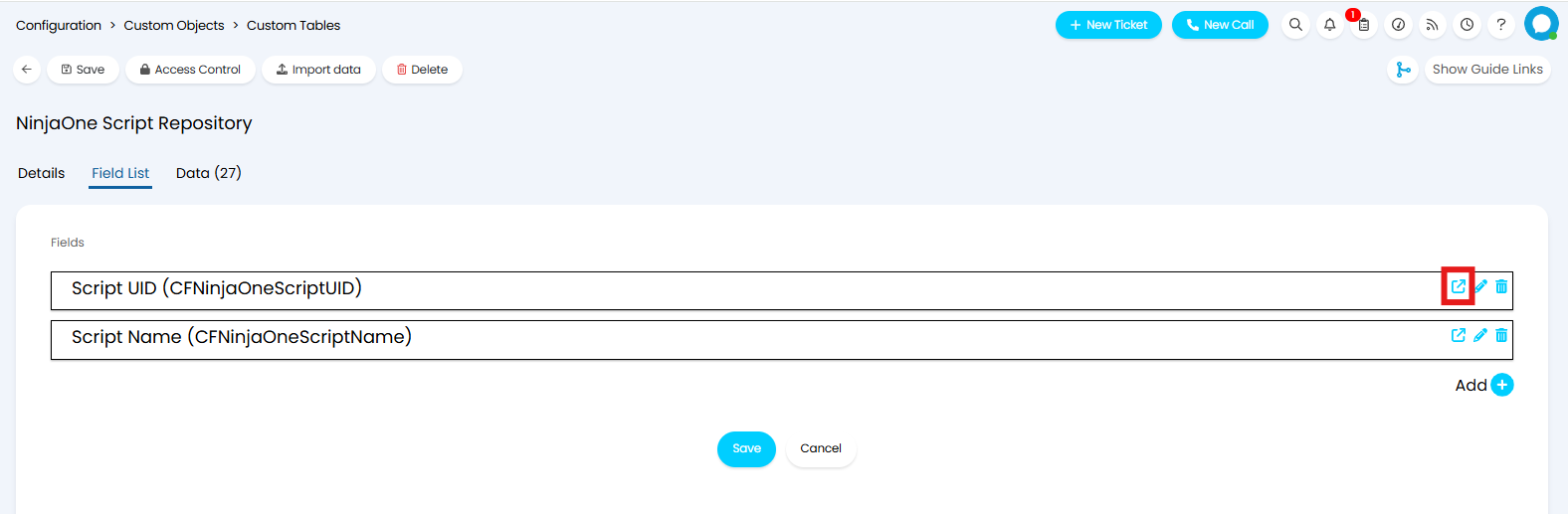
Fig 6. Editing fields
Multi-Select Custom table Fields
If one of the fields (columns) added to your custom table is a multi-select field, the values chosen in this list will appear as a comma separated list when viewing the table.

Fig 7. Multi-select field values in custom table
On versions v2.253+ each value will show on it's own line. In addition to this, you can control how many characters show on each line, useful if you have very long field value labels.
To control how many characters show, head to Configuration > Advanced Settings > adjust "Custom table multi-select character limit".
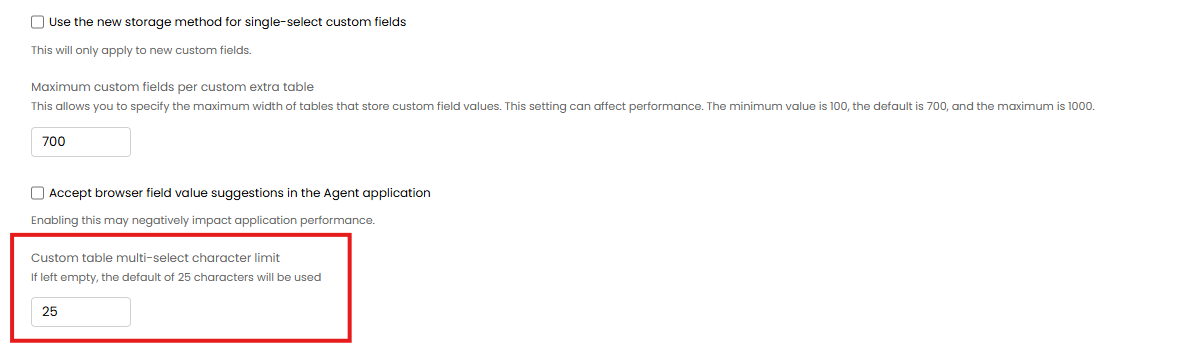
Fig 8. Custom table multi-select character limit
When set to 25 (the default) the first 25 characters of the field value will show.
Restrict Access to Custom table fields
You can restrict which agents can access fields within a custom table, based on their role. Useful when you would like agents to have access to the table, but not particular columns of data in this table, such as if it contains sensitive information.
To do this, edit the field under the custom table you would like to restrict access to, using the pencil icon.
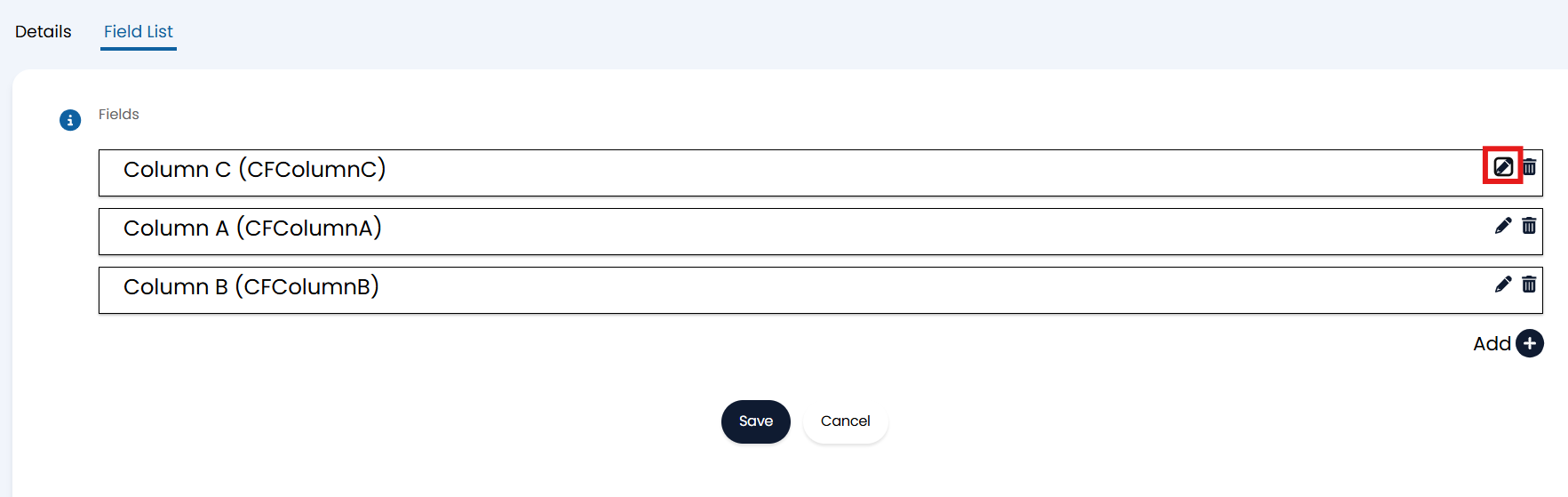
Fig 9. Edit Custom field under Custom table
Then configure the read/modify access to 'Restrict based on Role' and add in the roles that have access to read/modify the values in this field (column). In the Figure 11 example, only agents with the administrator role will be able to read and modify values in column C.
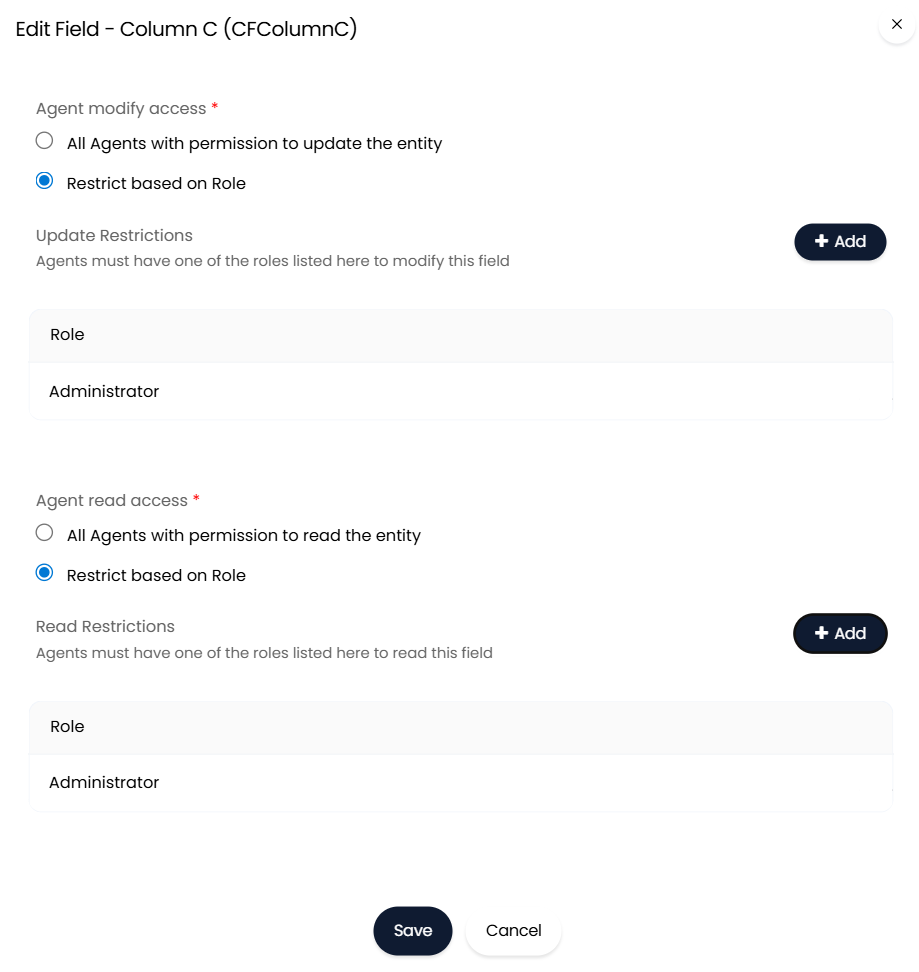
Fig 10. Read and modify restrictions against a table field
Displaying Custom Tables
Displaying a Custom Table Linked to an Entity
Custom Tables will not appear right away for any of the entities. For the custom table to show you need to create a custom field to 'store' the table in, the field must be for the same entity as the table and have the type of field as "Table".
The correct table then needs to be chosen from the "Link to Table" options. Once this custom field is created the custom table it is linked to will show up instead of the custom field.
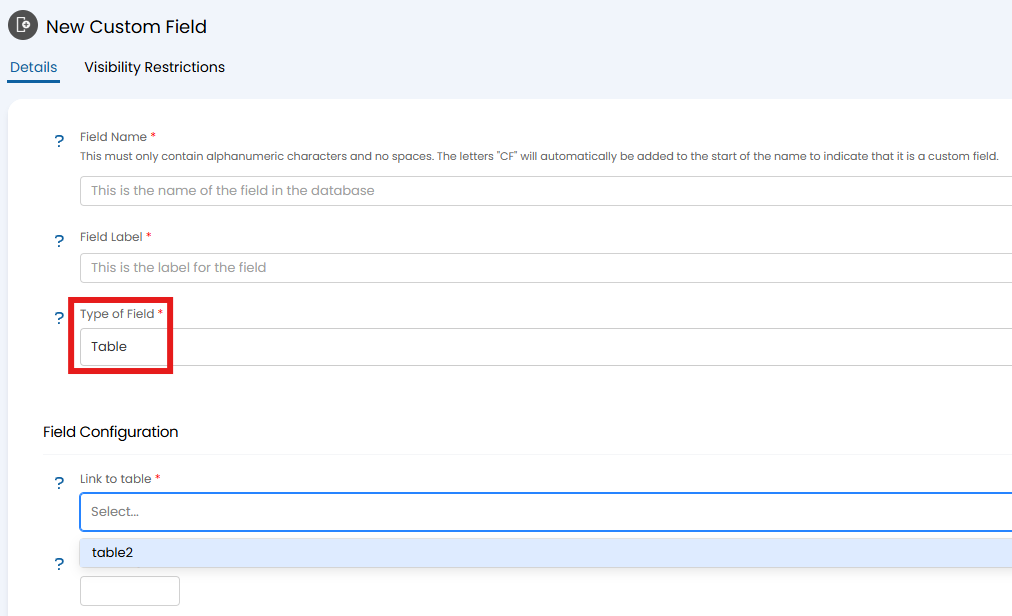
Fig 11. Creation of a custom field linked to a custom table
You can have a custom field to 'store' the table in created automatically when the table is created. To do this enable "Create a Custom Field for this table" when creating the custom table. Keep in mind this setting will only show after "Link to another entity" has been set.
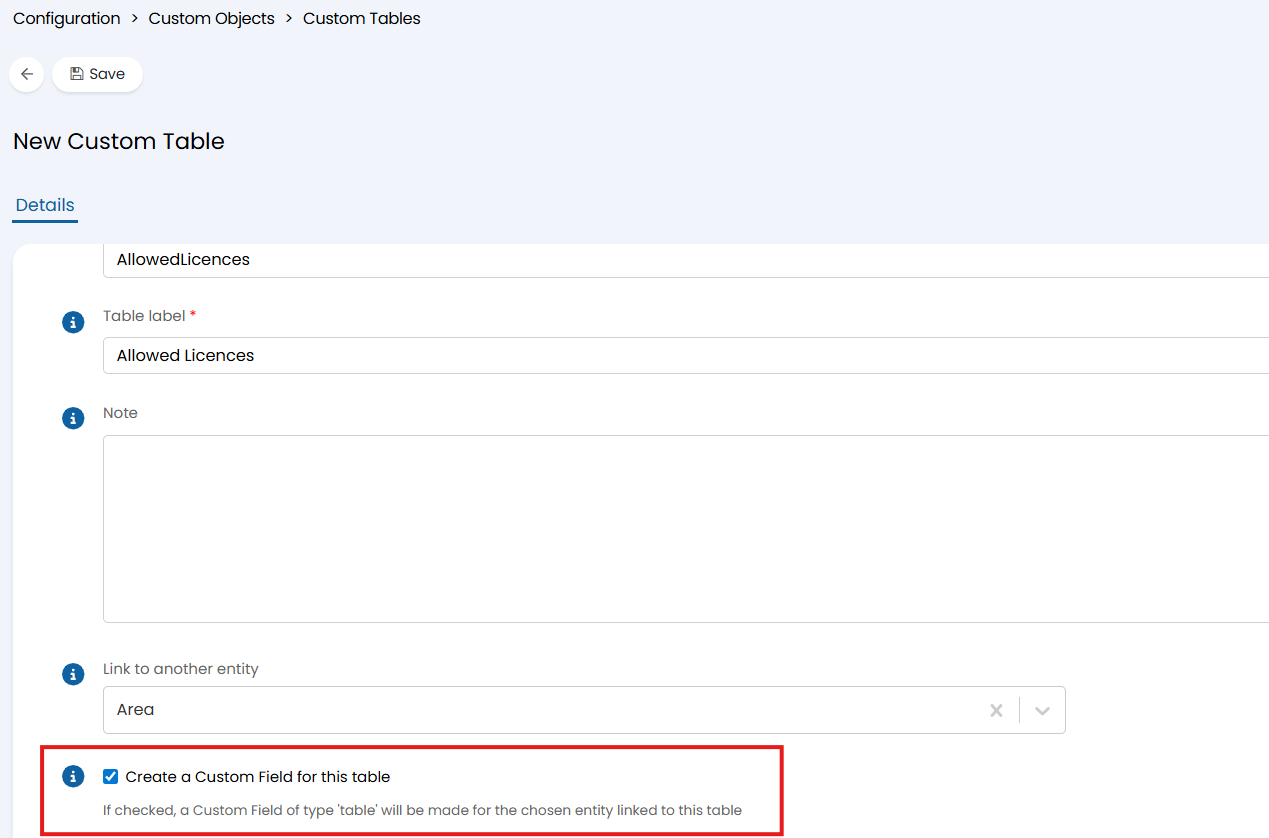
Fig 12. Create a Custom Field for this table
When checked, a field will be created for the linked entity automatically.
To add the custom table to a ticket type, the custom field would need to be added to the field list of that specific ticket type.
Displaying a Custom Table Not Linked to an Entity
Custom tables not linked to an entity can be added to their own module in the navigation menu. Allowing agents to view an add entries to the table without needing access to the Configuration module.
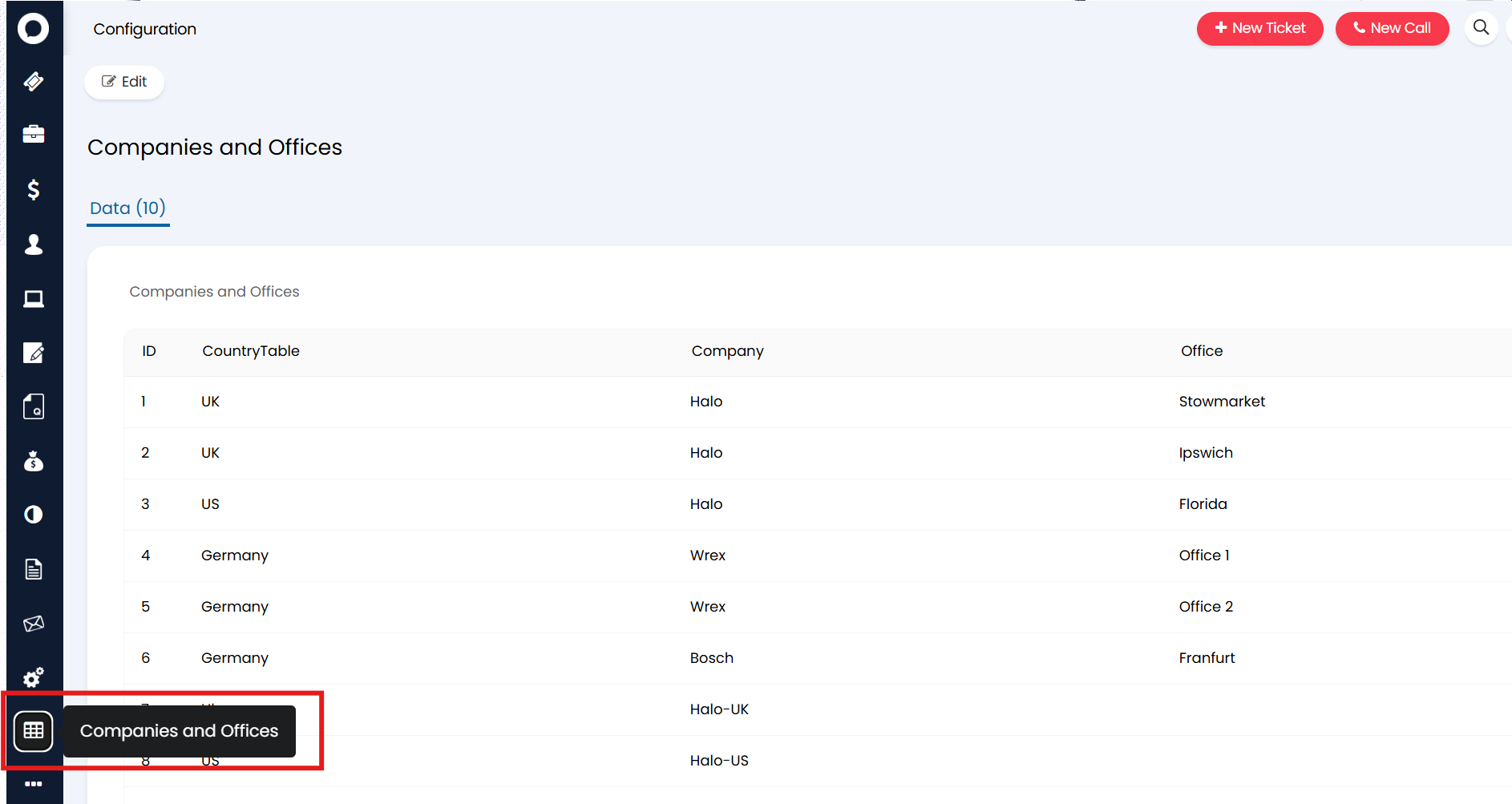
Fig 13. Custom Table in own Module
To do this, simply enable "Show as Navigation Area" against the custom table.
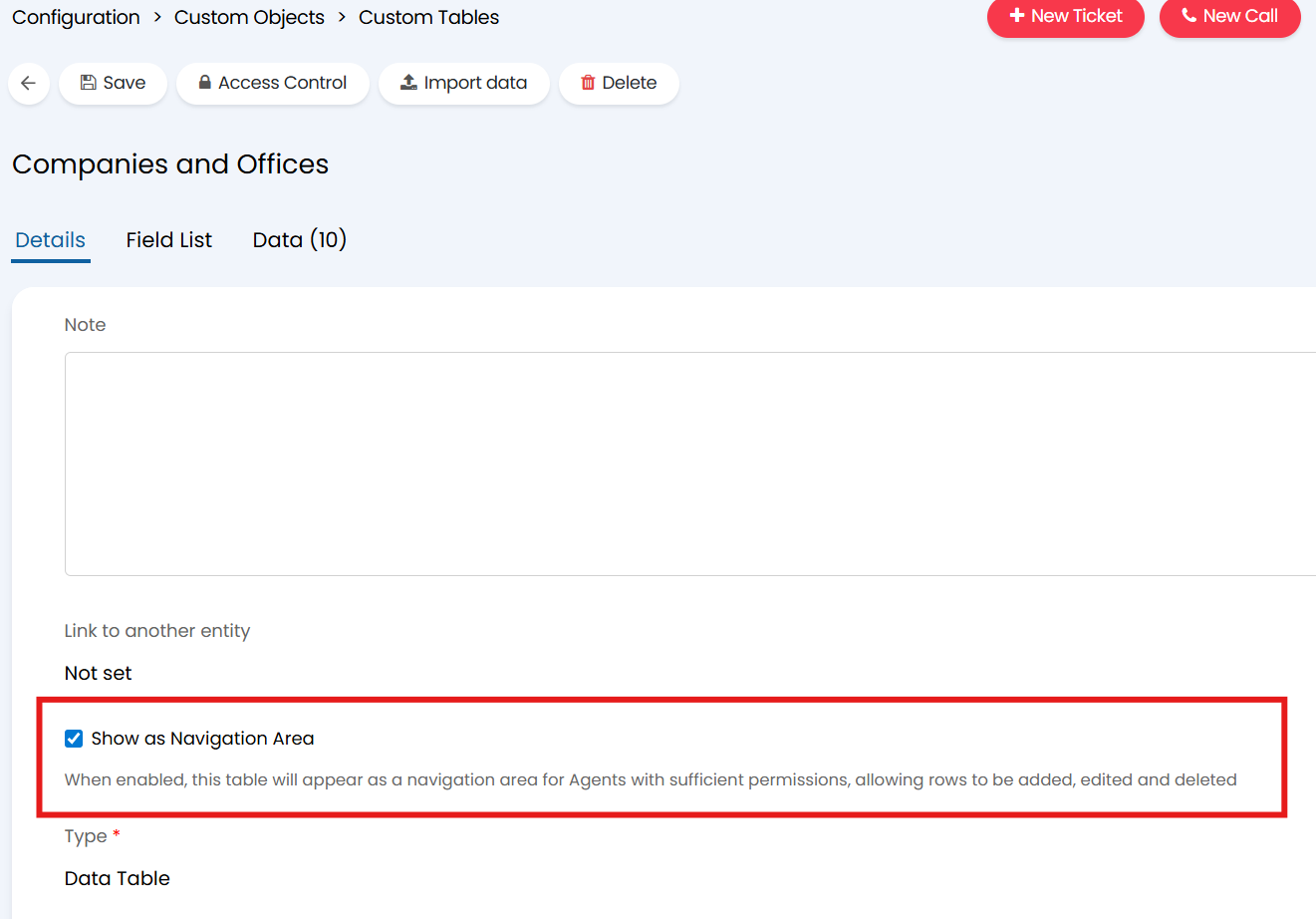 Fig 14. Set custom table to show as navigation area
Then, set which agents should be able to see the table using the access control for the table. Only agents with access control will see the module.
Now, a new module will appear in the navigation menu, named after the custom table.
Note: Configuration for the table (such as the columns and access control) can still only be set from the Configuration area.
Adding rows to the table
Once the table is created and visible against the entity you can add rows of data using the 'Add' button against the table. When adding data you will be able to complete all the columns (fields) for that row. If you would only like one of the cells in this row to be populate just leave the other fields (columns) blank and add a new row.

Fig 15. Adding data to table rows
Adding multiple rows at Once
You can enable the below checkbox on a "single-selection" custom field.
Note: This field can only be enabled for one field per table.

Fig 16. Multiple value option
When enabled, you can select multiple values in a similar way to a multi-select field, but each field will be on a new row, instead of multiple on a line.
For instance, this table has a single-select with the checkbox enabled, another single-select with it disabled, and a multi-select.
- The single-select with the checkbox enabled can select multiple values, but they appear in individual rows each.
- The single-select with the checkbox disabled can only select one at a time.
- The multi-select can select multiple values, and they all appear within the same row.
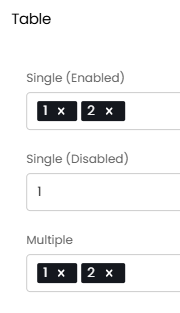
Fig 17. Adding field values to the table
The table will appear like below.

Fig 18. Custom table with various value selection configuration
If you are adding multiple types of fields at once, like the configuration in Figure 15, the values for the "Single (Disabled)" and "Multiple" columns are shown multiple times for each row that is created by the single-select with the checkbox enabled.

Fig 19. Fields shown on multiple lines
Auditing Custom Tables
You are able to audit changes made to the rows of custom tables via Halo's reporting tool.
To do this navigate to the reporting module and click 'new' to create a new report.
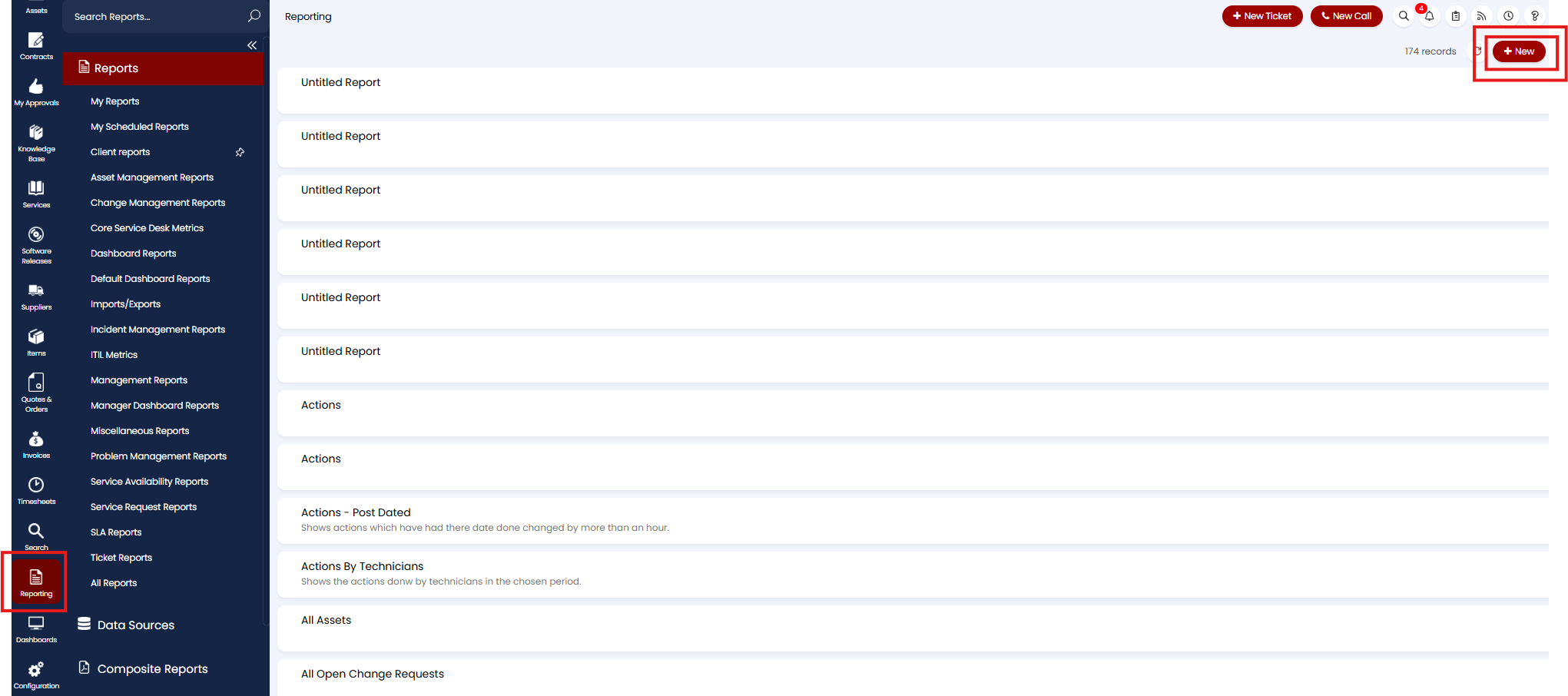
Fig 20. Creating a new report in Halo's reporting module
If you are not comfortable with SQL then you only need to write a very simple query of 'select * from audit', which selects everything from the Audit table. Before hitting 'Load Report', you can then easily apply filters for the returned data on the 'Preview Report' tab. Whichever entity your custom table is linked to is the table that you will want to filter on. For example, if I have a custom table linked to the 'area' entity (Figure 19a), meaning it is linked to customers, then I would filter on the area table in the auditing report (Figure 21b).
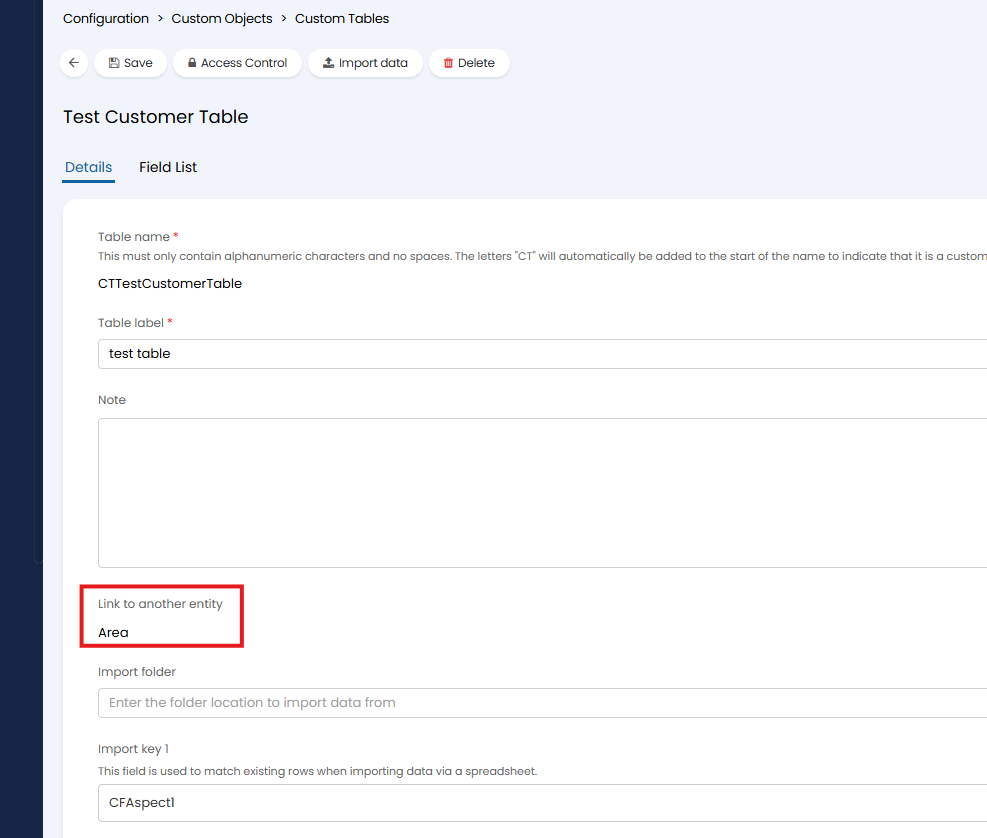
Fig 21a. A custom table linked to the 'Area' (customers) entity
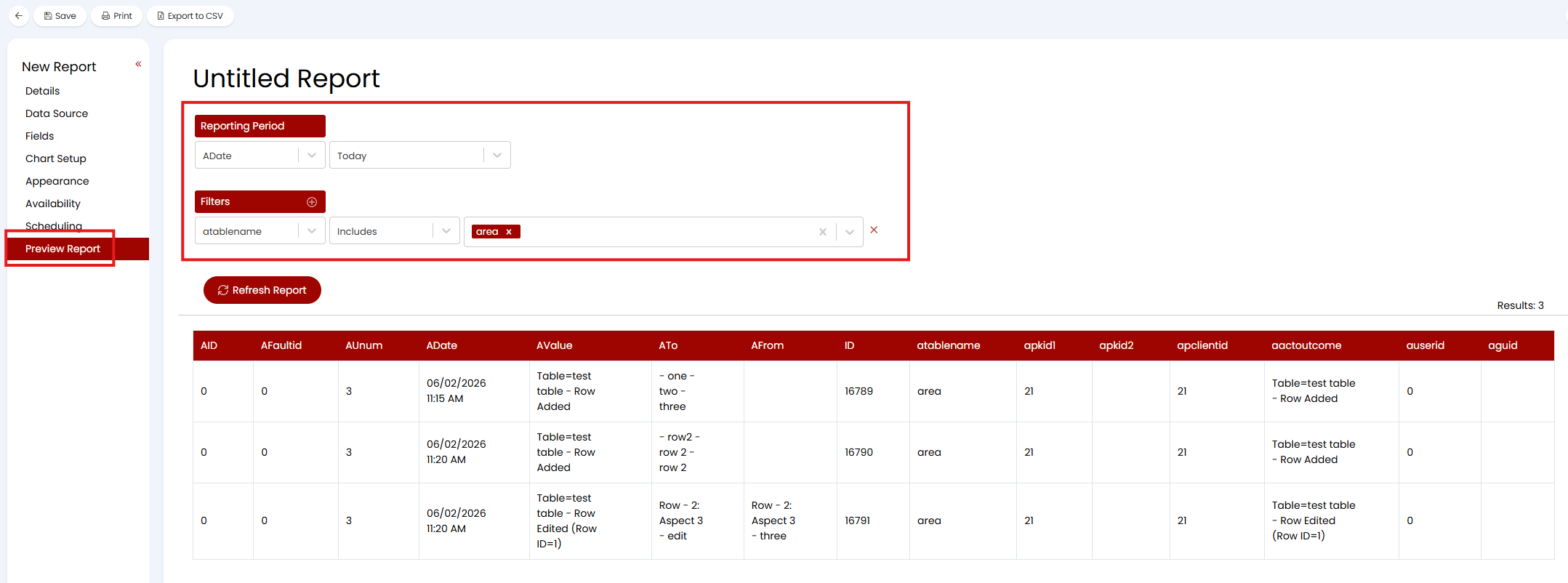
Fig 21b. An example audit report on changes made to customers today showing changes made to a custom table (versions earlier than 2.226.1 will not have the table name or row ID included in the returned data)
Access Control
Access Control can be set on Custom Tables to determine which Agents can view and edit the Table. For more information on Access Control see our guide linked here
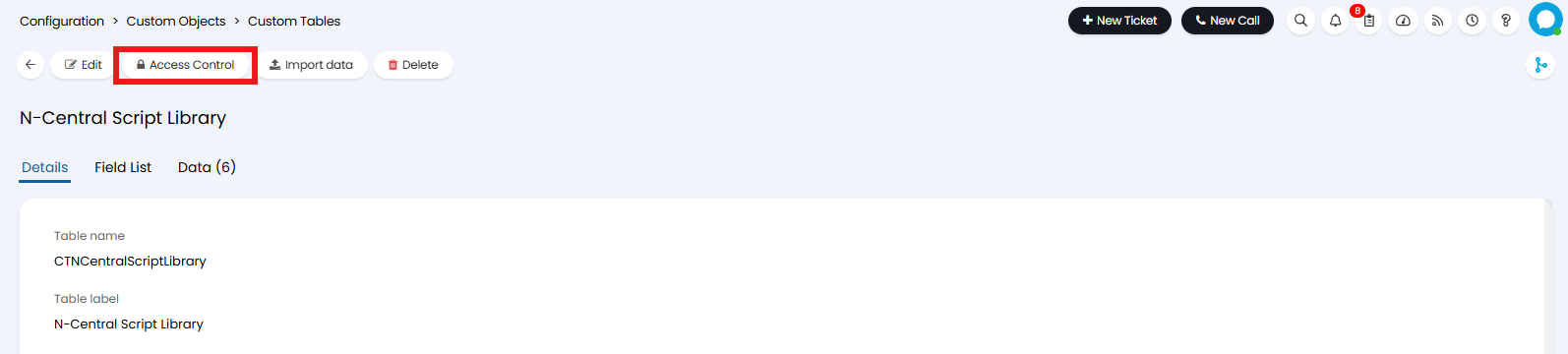 Fig 22. Access Control
You can choose to grant "Read and Modify (Add/Edit/Delete Data)" Access Control, allowing the Agent to make changes to row data without access to the overall Table configuration.