Customising the Agent Application
- new ui
- 2025 ui
- ui
- customising ui
- widgets
- world clock
- notepad
- tree view
- branding
In this guide we will cover:
- Switching to the New UI
- Tickets General Configuration
- Ticket Type Configuration
- Action Configuration
- SLA Configuration
- Agent Configuration
- Custom Tables Configuration
- Dashboard Configuration
- Advanced Settings Configuration
- Branding Ticket Areas
- Customising the Help menu
Admin Guides:
Related Guides:
Switching to the New UI
In Configuration > Advanced Settings > Appearance, you will find the dropdown named "Halo UI Style". By default, this is currently set to "halo-2021", but changing this to "halo-2025" will switch to the new UI.
This can currently be switched between, although these customisations are only available on the 2025 version, not 2021.
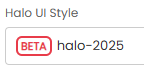
Fig 1. Halo UI Style set to 2025 version.
Everything in the new UI will appear more modern, with rounded corners and a cleaner display from removing boxed borders. For example, this is how a ticket will appear from this UI by default. This can however now be customised with dashboard-adjacent features to move areas around and show or hide others.
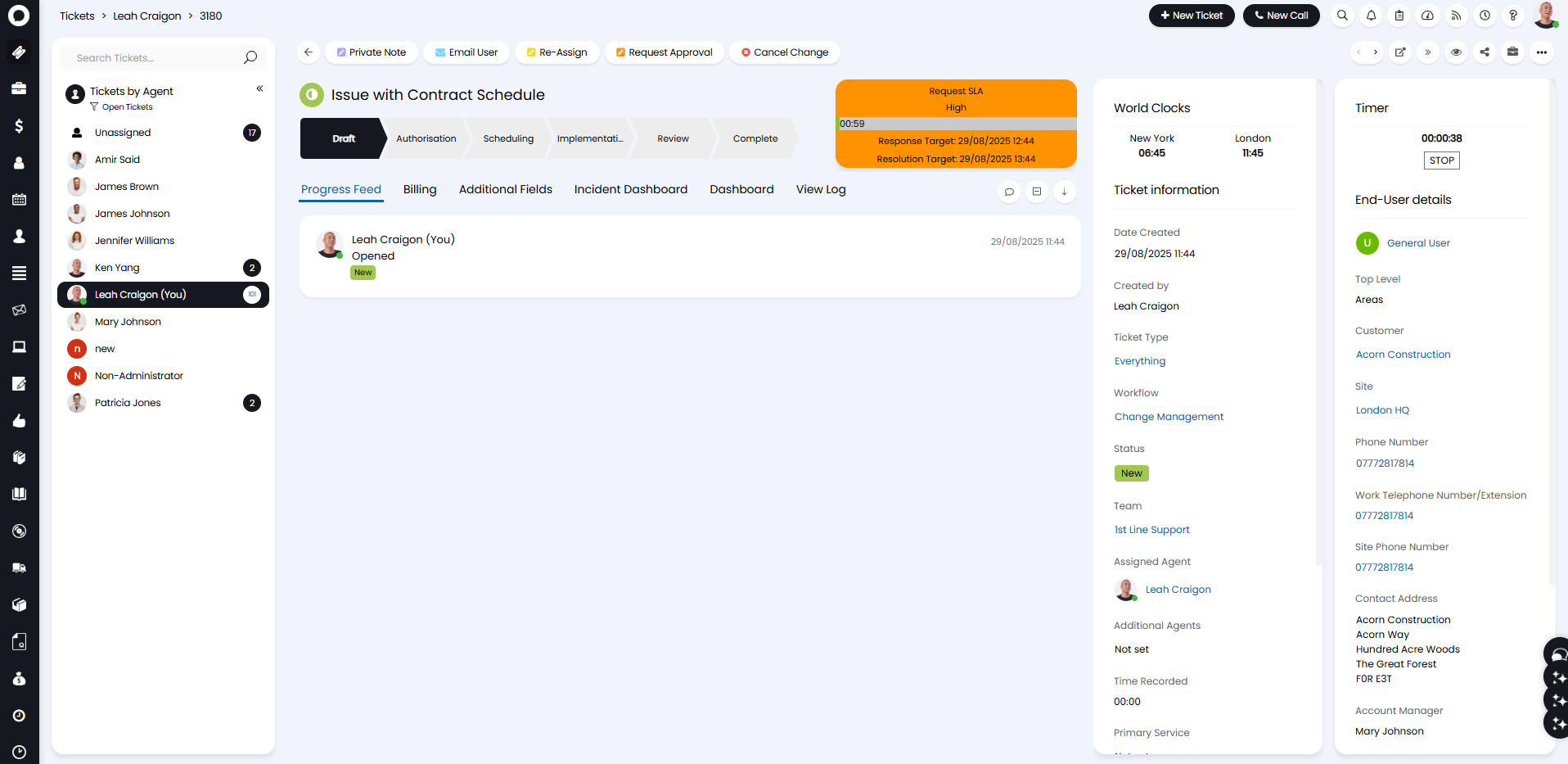
Fig 2. New UI on a ticket.
Tickets General Configuration
Customise the User Search
You can customise how the user details search appears when logging tickets on the new ticket screen. This can allow agents to quickly narrow down users who may have similar names for instance, such as by searching for their job title or who they report to as well.
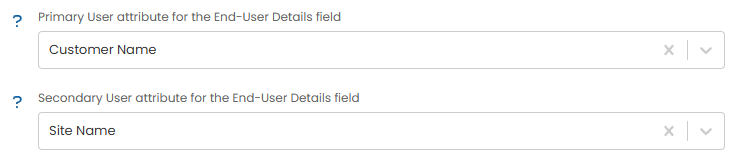
Fig 3. User attributes.
Ticket Type Configuration
Customise the Ticket Icon
The ticket icon can be customised and overridden from the default in Configuration > Tickets > Ticket Types > select a type > "Forms" tab > Agent Ticket Details Form.
"Ticket Icon" can be used to change the icon to any available one, and the "Ticket icon colour" can be set to either be based on the status colour like usual, or on the priority colour.
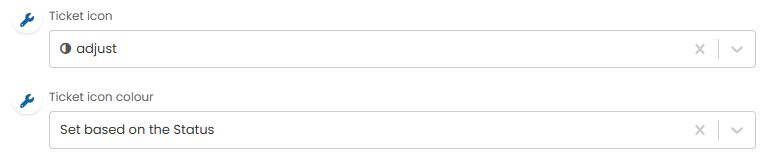
Fig 4. Customising ticket icon.
It will then appear on the ticket like below.
Fig 5. Customised ticket icon on a ticket.
Hide Ticket ID
The ticket ID can be hidden from the ticket header by disabling the "Show the Ticket ID in the Header on the Ticket Details screen" in Configuration > Tickets > Ticket Types > select a type > Forms tab > Agent Ticket Details Form.

Fig 6. Hiding the ticket ID from a ticket.
The ticket header will then appear like this, with the summary in its place instead.

Fig 7. Ticket header with the summary in place of the ID.
Adding Ticket Widgets and World Clocks
In Configuration > Tickets > Ticket Types > select a type > Forms tab > Agent Ticket Details Form, you can choose one or two widgets to show in the Ticket details.
Choose between "SLA Information", "SLA Target Countdown", or "World Clocks". The default is one widget for SLA Information. These will display based on screen size, with two widgets only being available on large screens.]
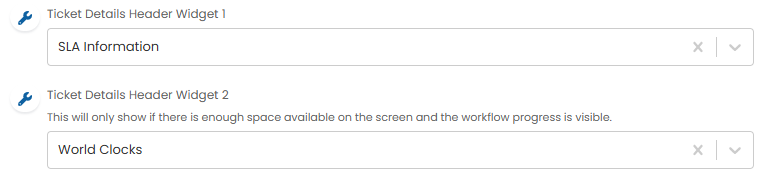
Fig 8. Adding widgets to a ticket type.
Here "SLA Information" and "World Clocks" are shown.
Note: For the SLA to "pop out", a workflow must be against the Ticket.
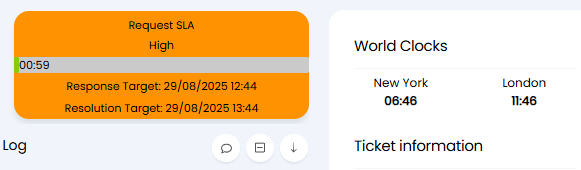
Fig 9. Ticket details widgets.
The "World Clocks" widget pulls from the world clocks configuration in Advanced Settings, shown below. Time zones here must be entered in "IANA" format, which can be found online.
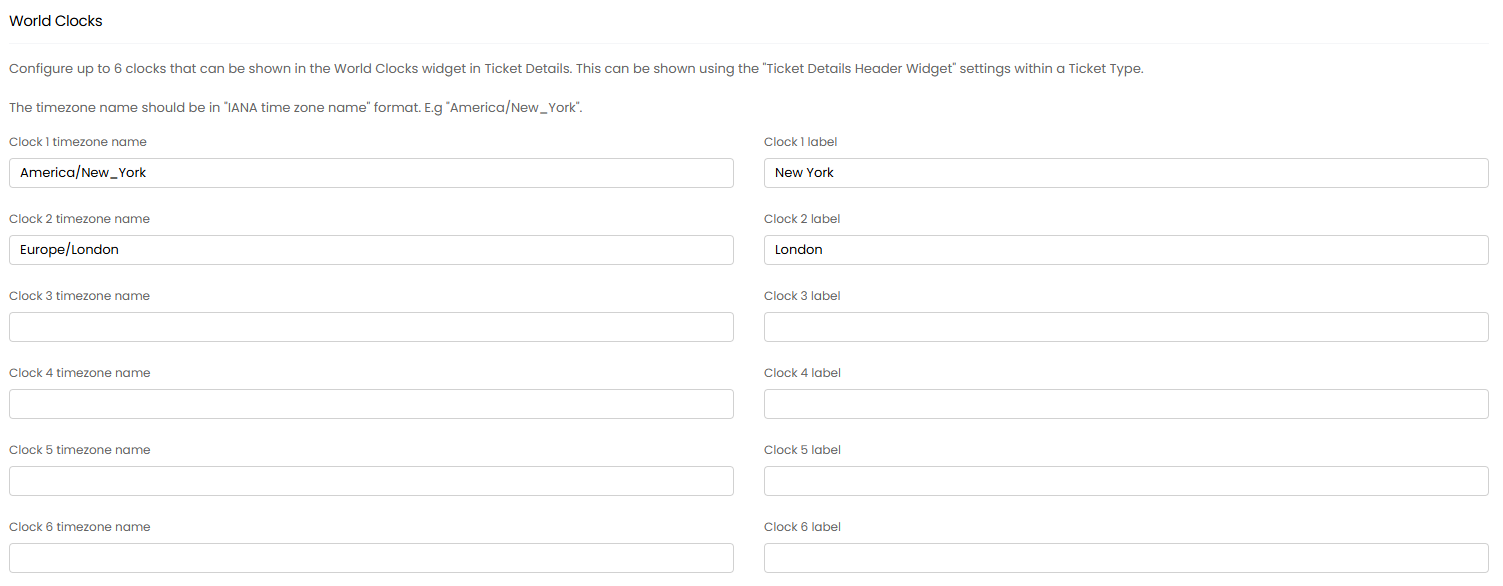 Fig 10. Timezone clock configuration.
Changing the Sidebar Content
In Configuration > Tickets > Ticket Types > select a type > Forms tab > Agent Ticket Details Form, you can choose what shows on the Sidebar. Choose between "Details", "Progress/History", or "Microsoft Teams Chats".
Details is set by default.
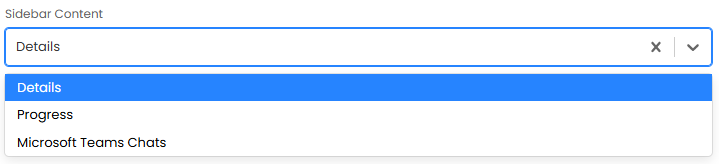
Fig 11. Sidebar Content.
Setting the above to "Progress" will instead show the ticket layout like below.
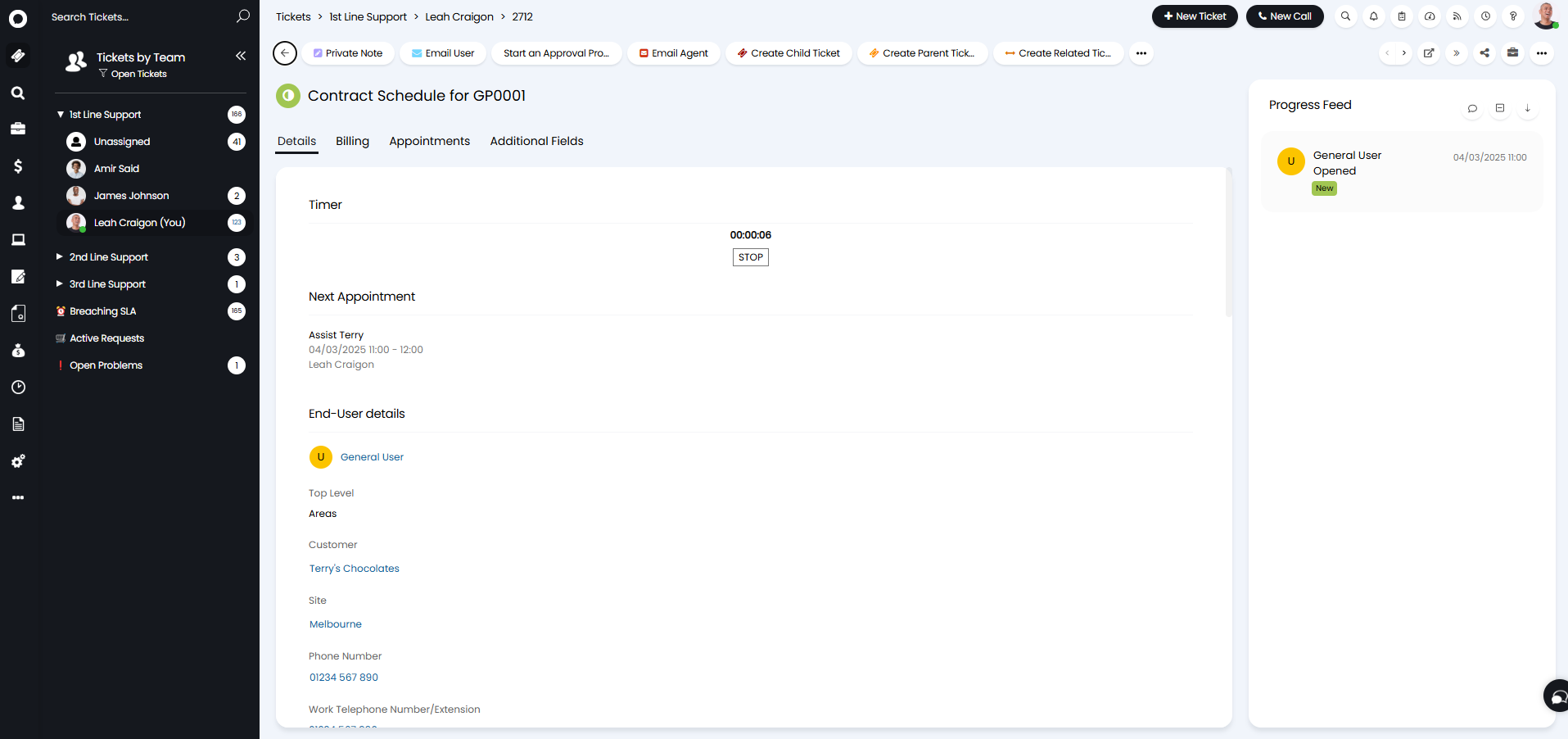
Fig 12. Sidebar set to Progress.
If the above is set to "Details" an option will then show underneath to select the "Maximum number of Sidebar Columns" that can show on larger displays. Choose between, 0, 1 or 2.
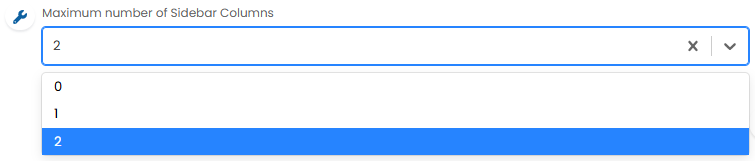
Fig 13. Choosing the number of columns.
Action Configuration
Adding the Notepad to Actions
The "Notepad" field can now be added to an action's field list. It will then populate the "Notepad" field added to the ticket type, and does not show the note on the ticket action.
Notepad works where only the agent/user who wrote it can see it. Multiple values can be stored in this field, but you will only see your own.
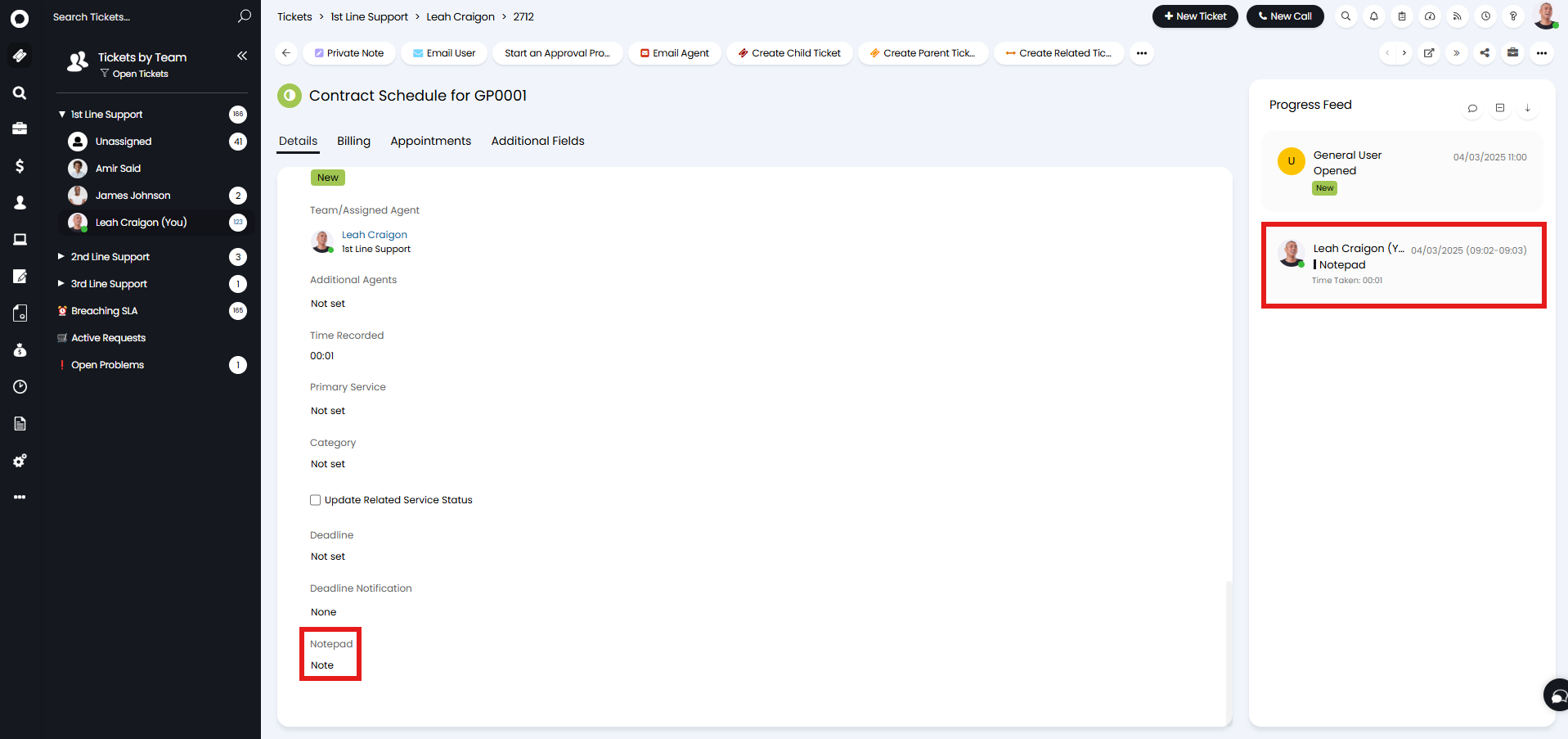
Fig 14. Notepad on a ticket type and action.
SLA Configuration
Seconds Countdown
In Configuration > Service Level Agreements > General Settings > General Settings, you can choose whether seconds show on the SLA countdown or not. The timer must be switched on for this to show.
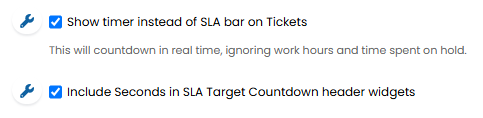
Fig 15. Include Seconds in SLA Target Countdown header widgets.
It will then appear on the ticket like below.
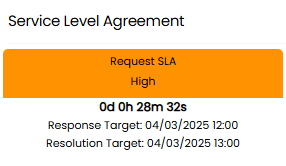
Fig 16. SLA with a timer with seconds.
Agent Configuration
Expand Details Screens
When the tree is not attached to the menu you can make it so details screens (like Ticket Details) cover the tree when selected, allowing Ticket Details to take up the full screen width within the current tab when opened. This is set in Advanced Settings.
 Fig 17. Default "Tree menu display" set to be undocked.
This can be set via the new option "Show details full screen (hide the tree menu)" in the "List Preview Mode" Agent Preference ("Usability" dropdown), or the corresponding new setting for the "Default List Preview Mode" for new Agents in Advanced Settings.
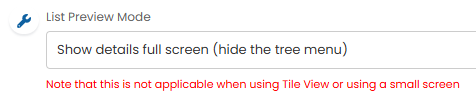
Fig 18. Hiding the undocked tree menu.
Opening tickets will now show like the below instead.
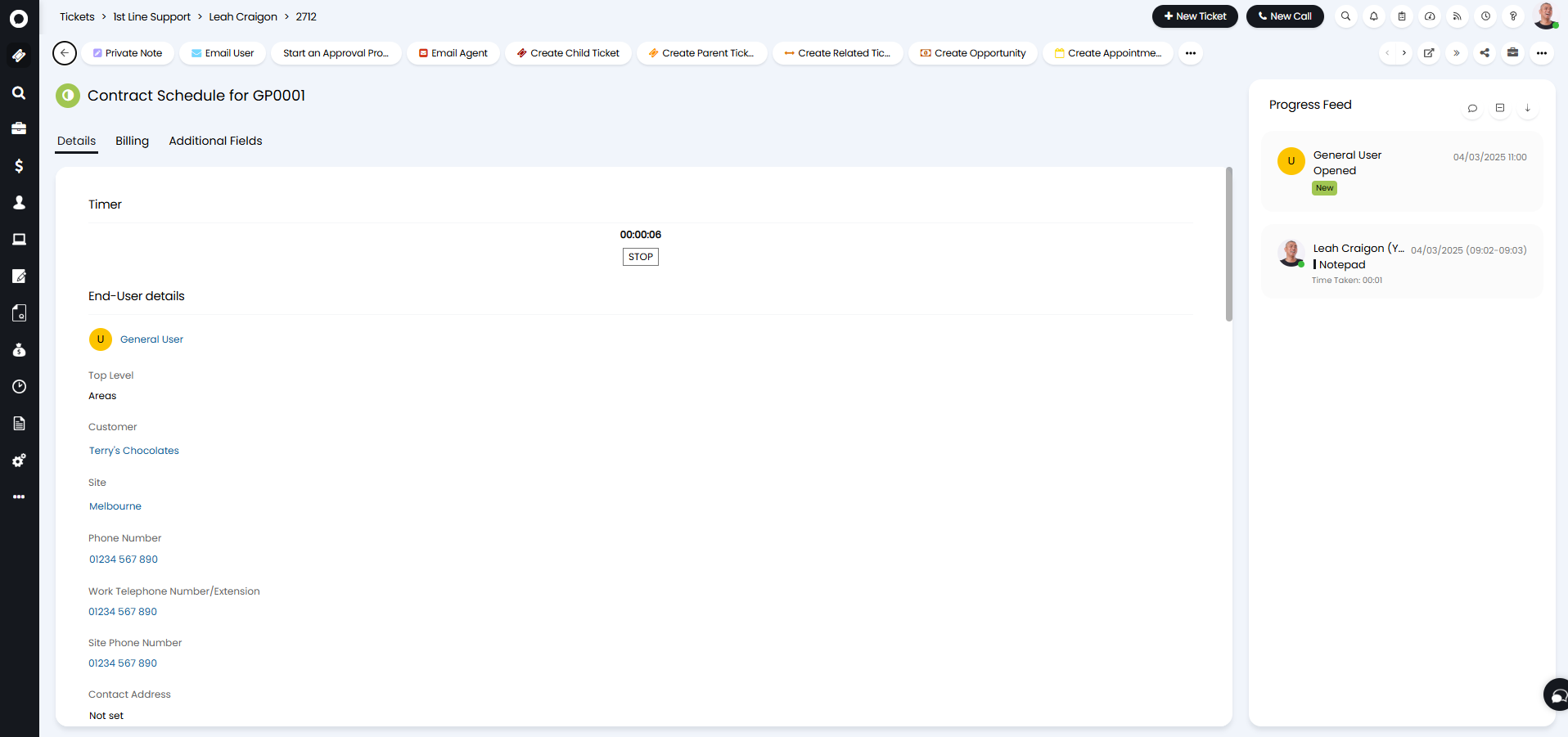
Fig 19. Ticket with a hidden tree menu.
Custom Tables Configuration
Modal Size
When configuring a custom table, in the "Details" tab you can choose the size of the modal screens used. By default, these are set to "Large".

Fig 20. Input Modal Size on a custom table.
Dashboard Configuration
Widget Appearance
When creating dashboards, new widget styles "Bubble" and "Bubble with hover" have been added, that use the same styles as screens in the 2025 UI.
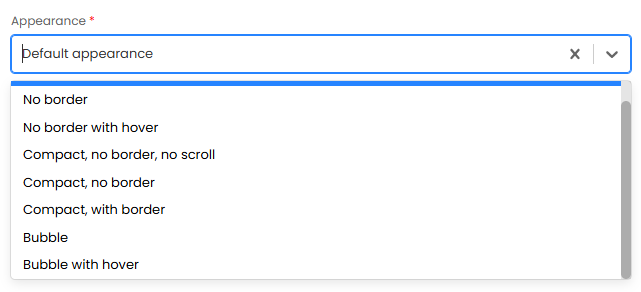
Fig 21. Widget appearance options.
"Bubble" appears like below in a similar style to the new UI's rounded style, and "Bubble with hover" will appear the same except with a pop-out effect upon hovering over it.
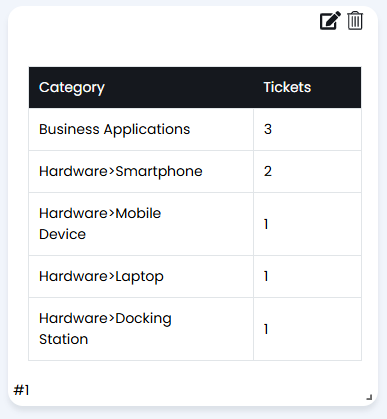
Fig 22. Bubble widget.
Asset List Widget
"Asset List" has been added as a new Widget type for dashboards. Upon selection, a column profile must be selected.
Note: Column profiles will only show in this dropdown if they are a) Custom, i.e. not the *Default*, and b) Have "Read Only" access control allowed for "All Agents".
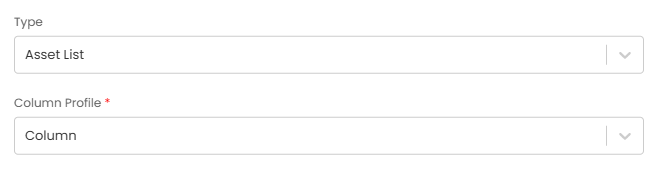
Fig 23. Asset List widget configuration.
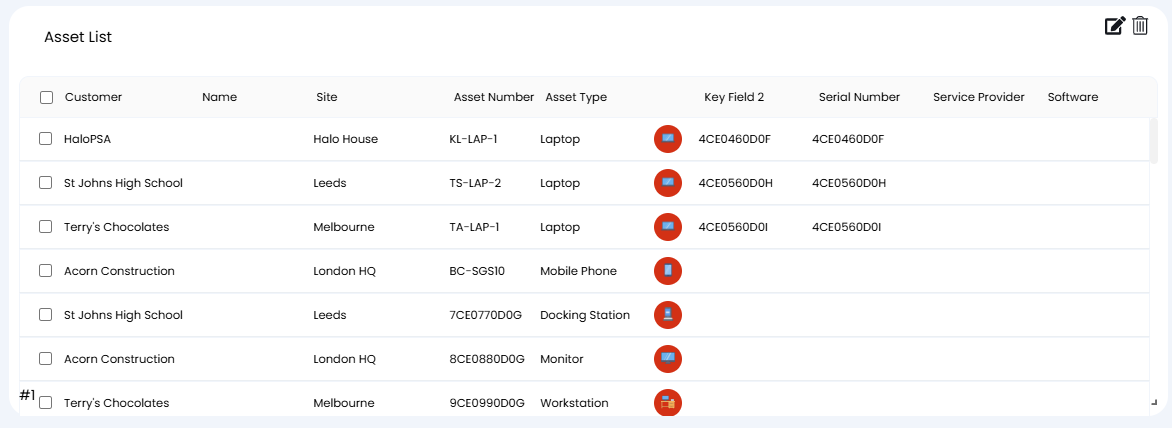
Fig 24. Asset List widget.
Counter Field Widgets
"Counter" has been added as a new mode for "Single Field" and "Group of Fields" widget types on Ticket-level dashboards.
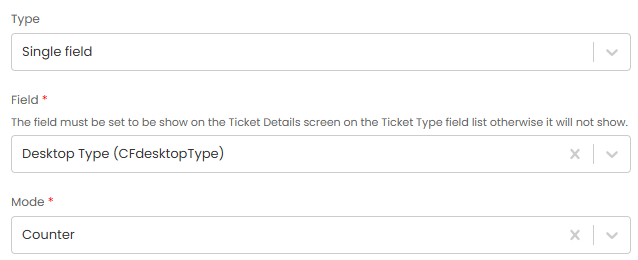
Fig 25. Single field counter configuration.
Single and group will then appear like below.
Note: If using a group format, the group of fields will need to be added to the ticket type's field list as a group, not individually.
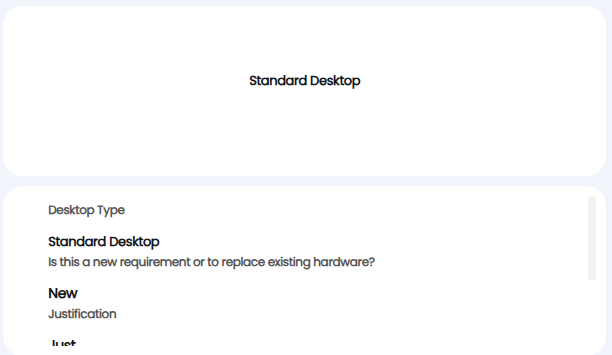
Fig 26. Single field and Group of fields counter widgets.
Multiple Fields Widgets
"Multiple Fields" has been added as a new Widget type for Ticket-level dashboards. These allow you to select which fields to include in the Widget and apply different icons, colours and display modes to each field.
Upon selection, fields will need to be added into the table.
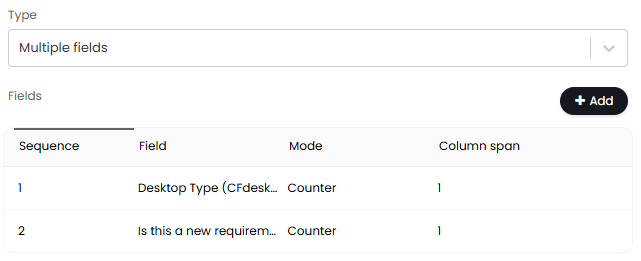
Fig 27. Adding fields to the table.
Editing a field will then allow you to select counter mode and choose an icon and colour for each field.
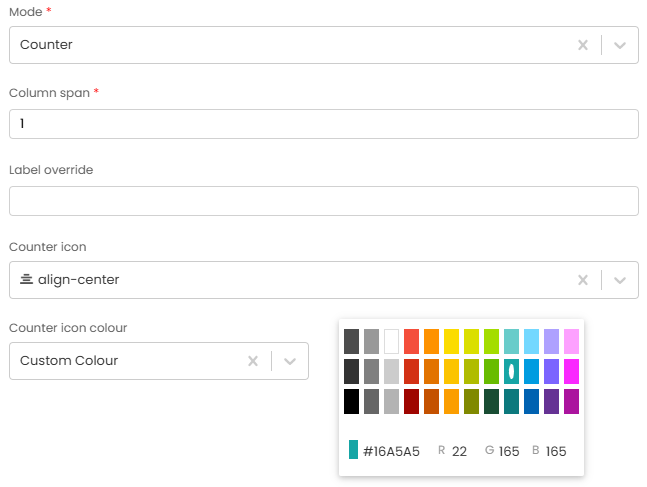
Fig 28. Counter options for a multiple field widget.
They will then display like below.
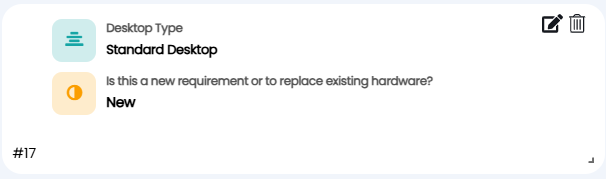
Fig 29. Multiple fields widget.
Advanced Settings Configuration
Tree View Display
In Configuration > Advanced Settings, you can control the display of the tree menu, either having it docked into the navigation menu as it previously showed or undocked within its own widget with an updated style.
Fig 30. Undocking the tree menu.
It then appears in a widget-like bubble on the side instead of as attached like before.
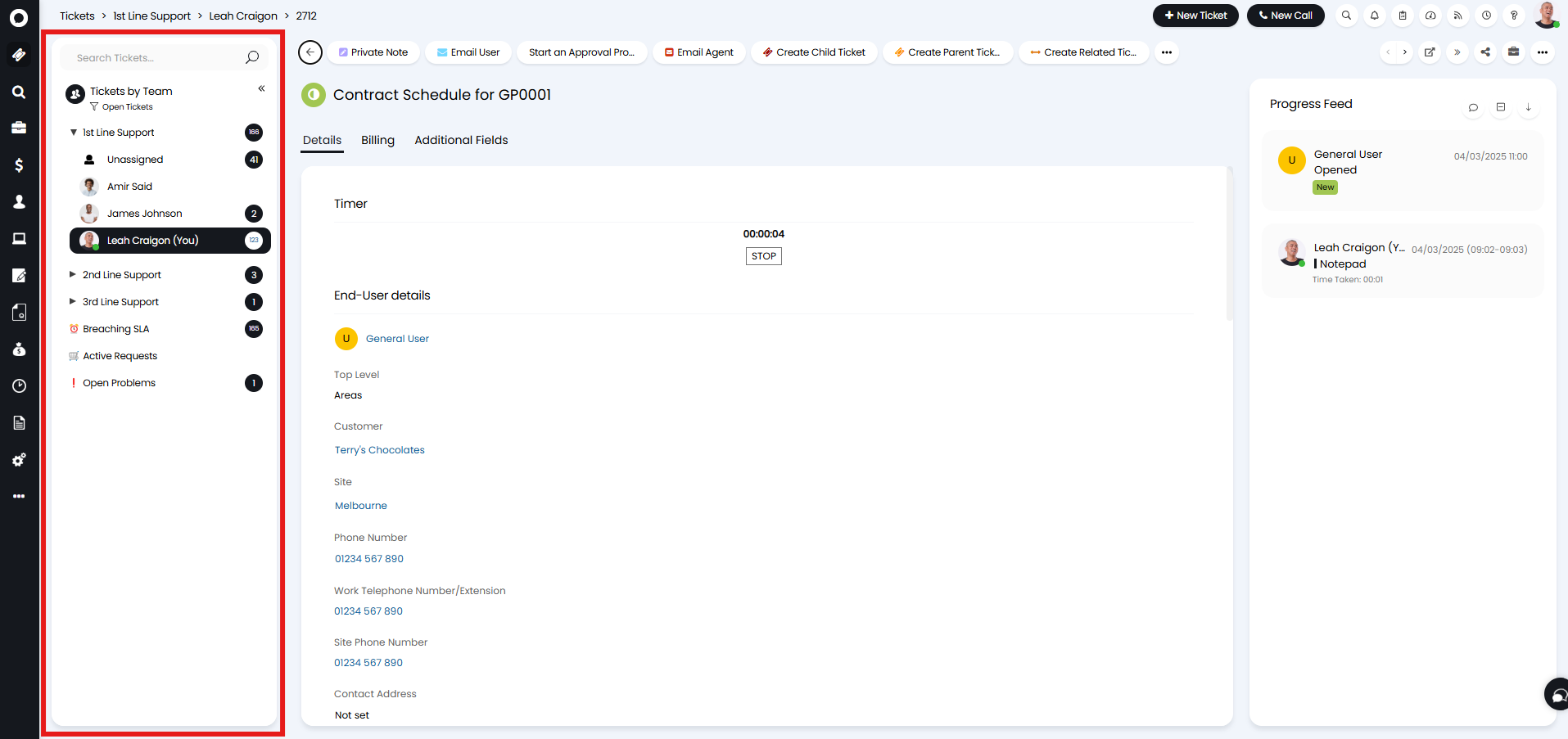 Fig 31. Widget for tree menu.
The width of this tree menu can be adjusted if set to "Undocked". Head to Configuration > Advanced Settings, and set "Tree menu width (px)". This is defaulted to 298 pixels.
You can also change the colour that appears on the navigation menu in Configuration > Advanced Settings > Appearance. Changing the "Navigation menu colour" dropdown from "Default" to "Custom Colour" will show a colour selector. You can choose one of the pre-configured colours, or enter your own HEX code.
This dropdown is also available in the agent profile > Preferences tab > Appearance, which will override the global default if set differently.
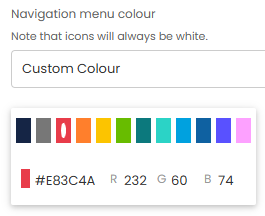
Fig 32. Selecting a colour for the navigation menu.
Below, this has then been overridden from the the Application Colour (black) to a red colour, and the black now shows when you click on the module or within the tree.
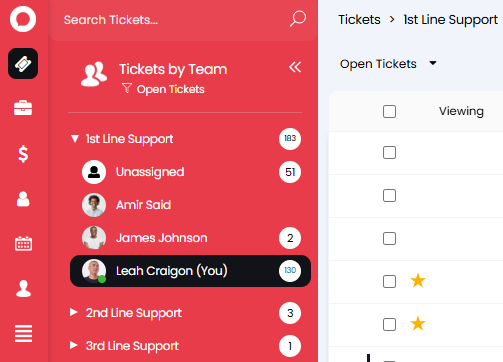 Fig 33. Navigation menu colour override.
Bulk Checkboxes
An Advanced Setting for whether table bulk-select checkboxes display on the left or right. By default, this has always been "Left", but the new "Right" setting hides the checkbox until the row is hovered over, in turn giving a cleaner look to the table.
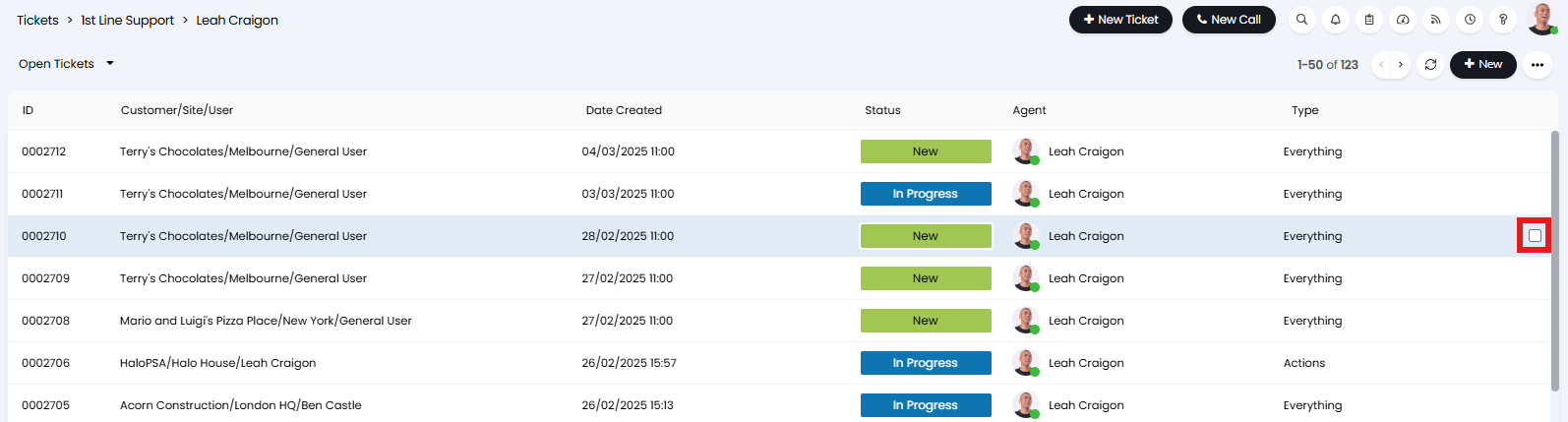
Fig 34. Bulk action checkbox now on the right.
Pop Out Widgets
Enabling "Allow widgets throughout the app to pop-out on hover" will set all widgets to pop out/enlarge on hover. This will be enabled on default when switching to the new UI.

Fig 35. Pop out widgets (currently disabled).
Branding Ticket Areas
You can add images to the page header for each ticket area, allowing you to brand each area to the team/department they pertain to.
To do this head to Configuration > Tickets > Areas > select area > Advanced tab > enable "Show an image in the page header". When enabled, you will be able to enter the URL of the image you would like to appear in the area, you can set different images for each theme of Halo. You can also then set a webpage to be opened when the image is selected.
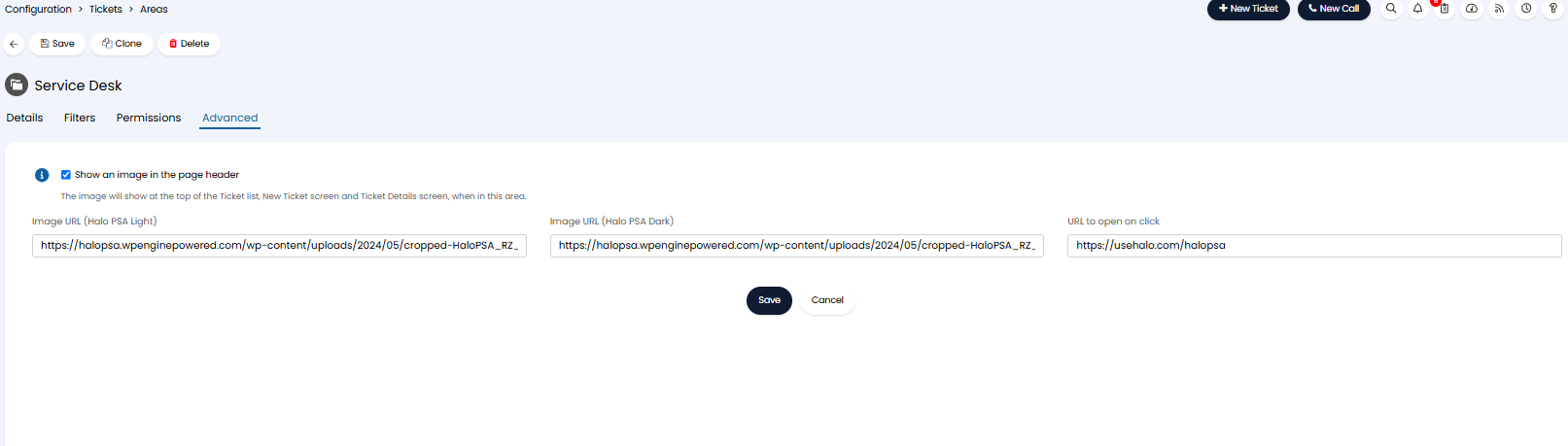
Fig 36. Set an image to appear in the header for the area.
Now this image will appear in the header for the area, both when viewing tickets in lists and when viewing each ticket.
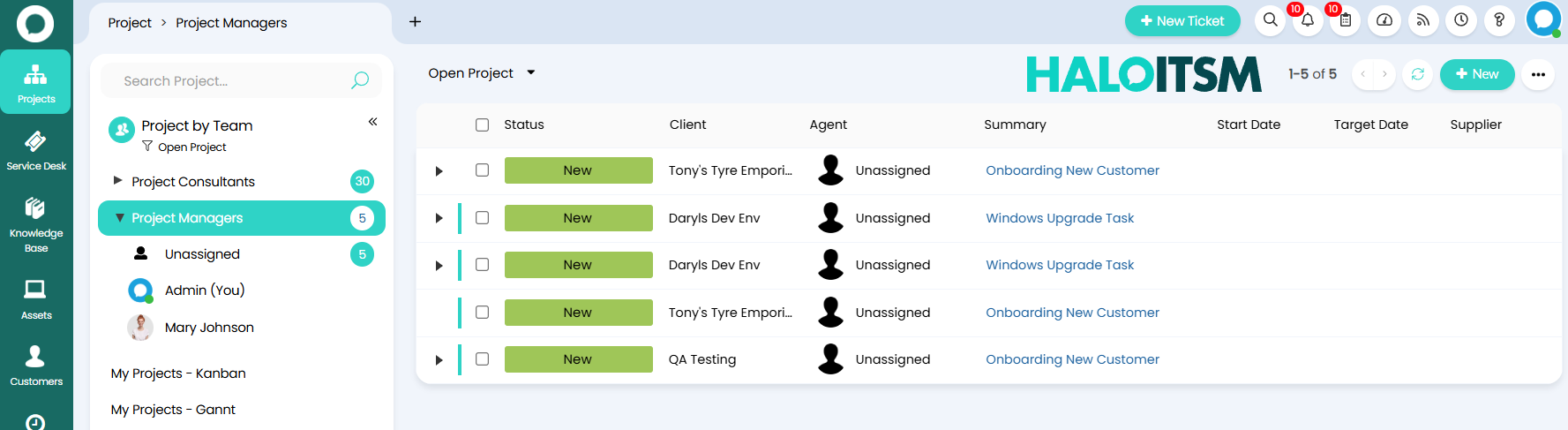
Fig 37. Image in area header
Only hosted images can be used as area headers, if you have an image that you would like to appear here but is not a hosted image (either in .png or .img format) you can reach out to our support team to enquire about us hosting this image for you.
The size of the image in Halo is determined by the size of the hosted image, if you would like to adjust the size of the image that appears in the header you will need to adjust the size image itself.
Customising the Help menu
The Help menu in a Halo instance can be found by clicking the question mark (?) button in the top right.
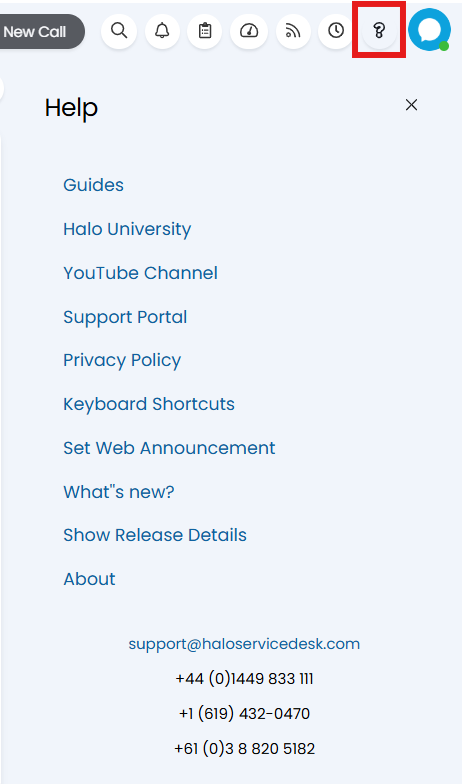
Fig 38. Help menu
To edit the links and values that show here, head to Configuration > Advanced Settings, and select "Enable custom help menu". Once enabled a table will show it the current help menu values. Hovering over each line will show the pencil icon, clicking this allows you to toggle the "Enabled" checkbox to determine if that line will show in the menu. When editing a line you can also override the label and value that show in the Help menu. Halo path and URL lines will always
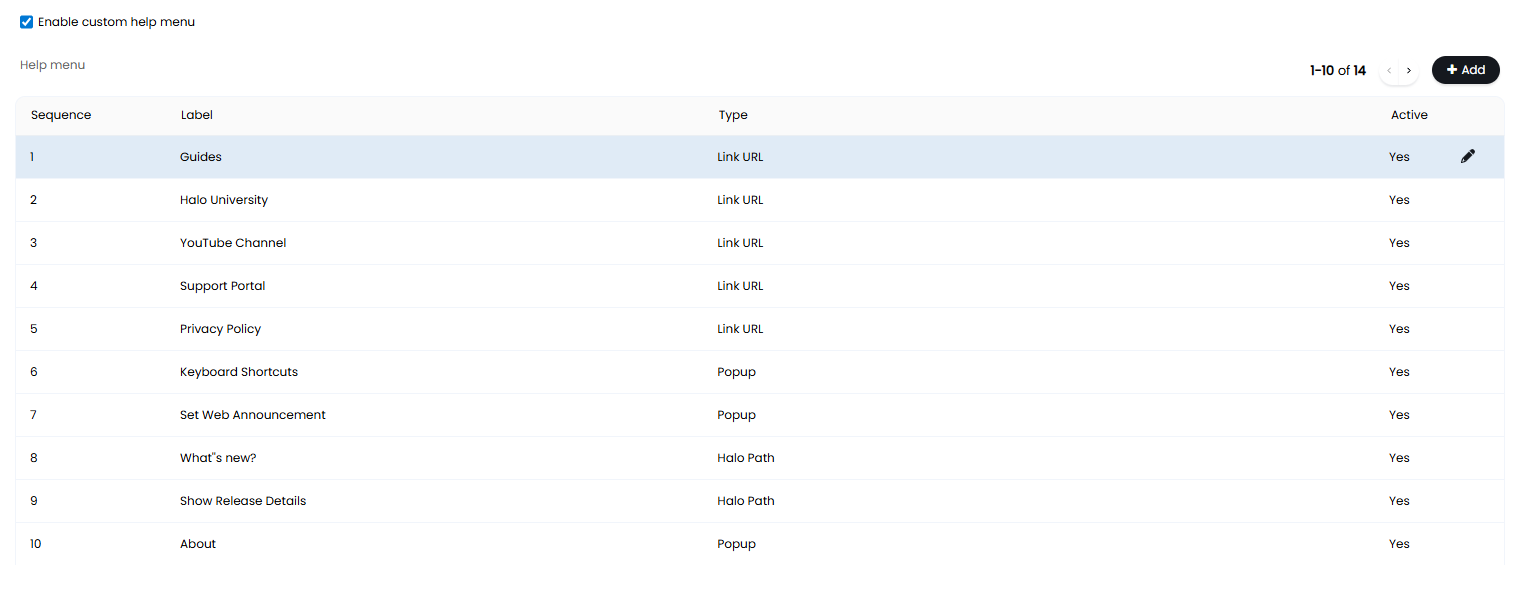
Fig 39. Customising the Help menu
To add a new line to the Help menu click "New". This will bring up a modal window where you can set the name, type, label, and determine if the line is enabled. The types Halo Path and Link URL will show the value field where you can link to the path or URL desired. The sequence you set on the line determines the order of the lines, with lower numbers showing higher on the menu. However, Halo paths and URLs will always show above text, email or phone number lines.
The label is the text that will show on the Help menu, this should be set to the value for phone, email, and text lines. The label for Halo paths and URLs should be the text you would like the link to hide behind, when the text is clicked the link will redirect the Agent to the location specified in the value field.
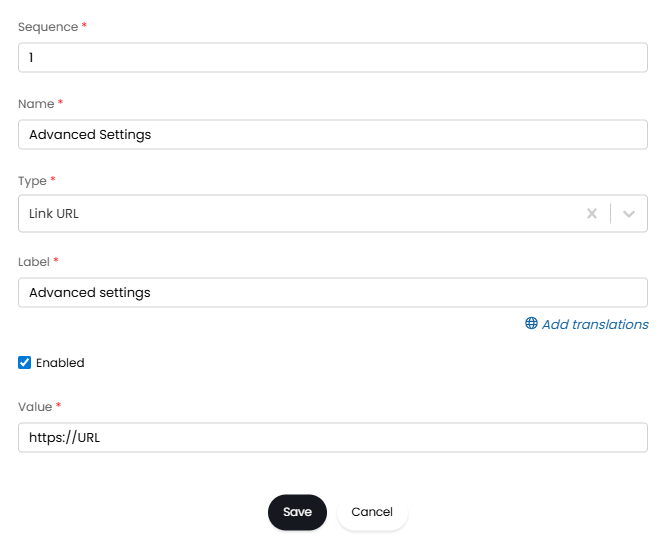
Fig 40. Creating a new Help menu option