Dynamic Custom Fields
- lookup
- databaselookup
- lookups
- sql lookup
In this guide we will cover:
- Creating Dynamic Fields using a SQL Lookup
- Worked Example -SQL
- Using Variables in Dynamic SQL Lookup Queries
- Formatting as a Tree Dropdown
- Default to the First Returned Value
- Creating Dynamic Fields using a Custom Integration Method
Custom fields of type "Single Selection" or "Multiple Selection" can be configured to dynamically return options in the field based on existing data, rather than you having to input fixed values. The data can be dynamically brought into a field, can either be pulled from your Halo database, or from a third party tool. This is done by either running a SQL query on your database, or by running a custom integration method to obtain data from another tool.
Dynamic custom fields are configured differently depending on if you are using the SQL lookup method or the custom integration lookup method.
Creating Dynamic Fields using a SQL Lookup
SQL lookups are used when you would like to populate the options in a field using data in your Halo database.
In this example, we will look at creating a single select custom field, to return the names of users at the same site as the individual raising the Ticket.
Firstly, head to Configuration > Custom Objects > Custom Fields, and ensure the entity selected is "Ticket".
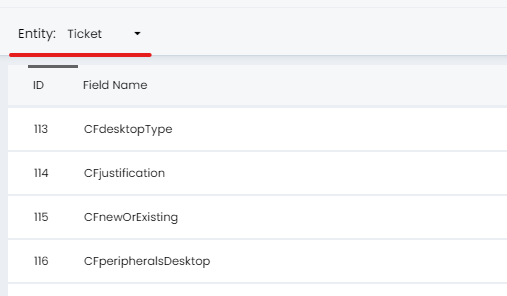
Fig 1. Entity Selection Against Custom Fields
Create a new Custom Field with the following configuration:
- Type of Field - Single Selection
- Lookup Type - Dynamic List
- Lookup Method - SQL
- Connection Type - Halo Database (if using another SQL database setup is the same but you will be required to enter your connection details)
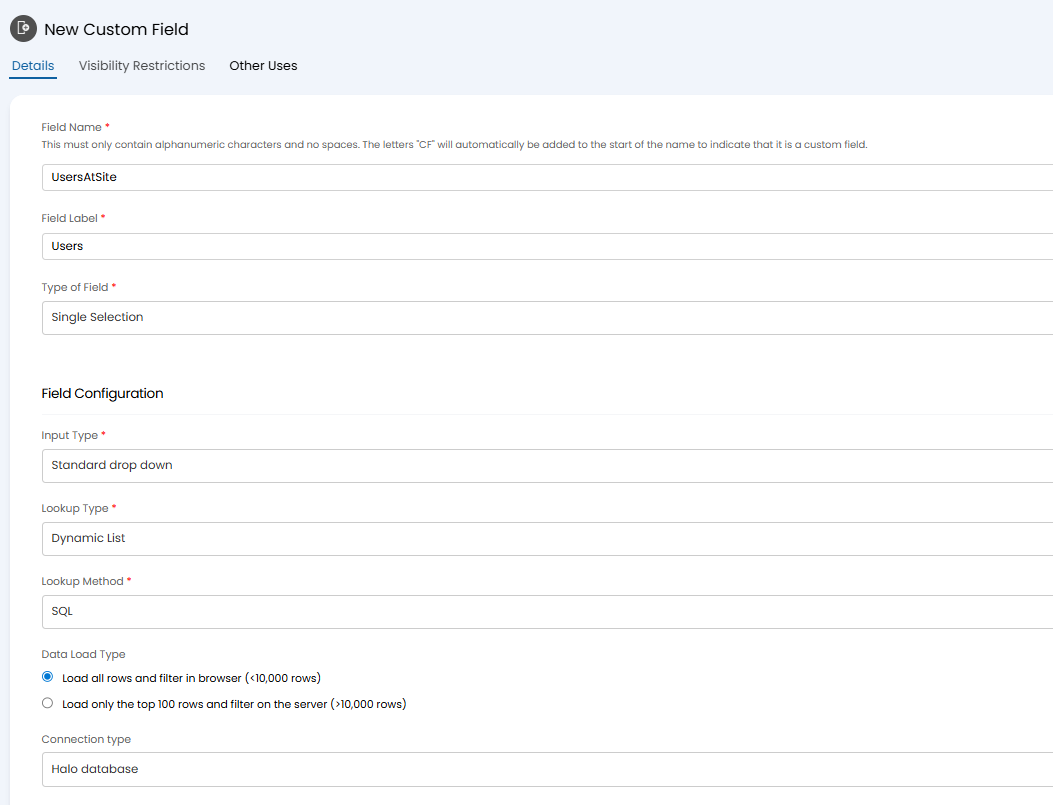
Fig 2. Configuration of New Custom Field
Now, you will need to create and enter a SQL script that returns the values from your database that you would like to be available to choose from in the field.
The SQL query must return two columns: ID and Display.
- The ID column should refer to the ID of the entity you're returning. In this case, as we're concerned with returning the names of users', our ID will be 'uid' (the ID of the user in question, from the users table).
- The Display column is whatever is returned in the dropdown. For our example, as we want to return the names of users, our display column will be 'uusername' (the name of the user in question, from the users table).
Finally, we want to ensure we are not returning all users, only users at the same site as the end-user of the Ticket being raised. For this, we will need to add a "where" clause.
where usite=(select usite from users where uid=$userid)
In this example usite is the ID of the site & $userid is the end-user of the Ticket.
So, putting this all together, we would want our SQL query to look like:
select uid [ID], uusername [Display] from users where usite=(select usite from users where uid=$userid)
If your SQL query returns less than 10,000 rows ensure "Data Load Type" is set to "Load all rows and filter in browser (<10,000 rows)". This will allow all results will be returned in the field for agents/users to choose from.
If your SQL query returns more than 10,000 rows ensure "Data Load Type" is set to "Load only the top 100 rows and filter on the server (>10,000 rows)". When this is selected agents/users will need to search the field before results are returned (to limit the amount of data being returned). In order to search successfully you will need to adjust your existing SQL query and create a "Search SQL Script". See the section "Creating and Using a Search SQL Script" for information on how to do this.
Once you have created your field, click "Save" and add your newly created custom field to the relevant Ticket Type(s). You should find it returns a list of usernames, where those users are located at the same site as the end-user of the Ticket being logged
Creating and Using a Search SQL Script
A Search SQL Script will need to be configured if your SQL query returns more than 10,000 rows of data.
You will need to adjust your existing SQL query. In this example we are using a query that returns all items (products) in the instance. The field will be used to select an item (product) from all items currently in my instance.
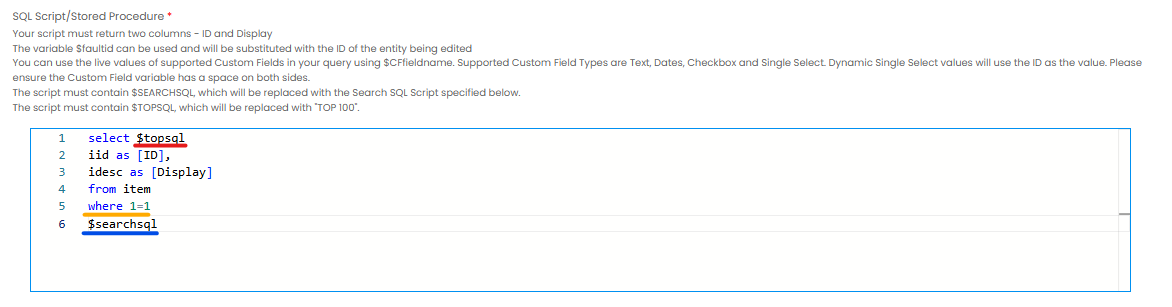
Fig 3. Modified SQL Query to Allow for Search
$topsql - This is added after the select command. This ensures only the top 100 values are returned and available to chose from, after the results have been filtered by the search. This is required to prevent too many values being returned.
where 1=1 - This is added after the from clause. This acts a base condition and ensures all relevant results are returned even after filters are applied.
$searchsql - This will pull through the search SQL script, configured in the field below (figure 4).
Now, you will need to add another SQL script to allow results to be filtered by the search accordingly.
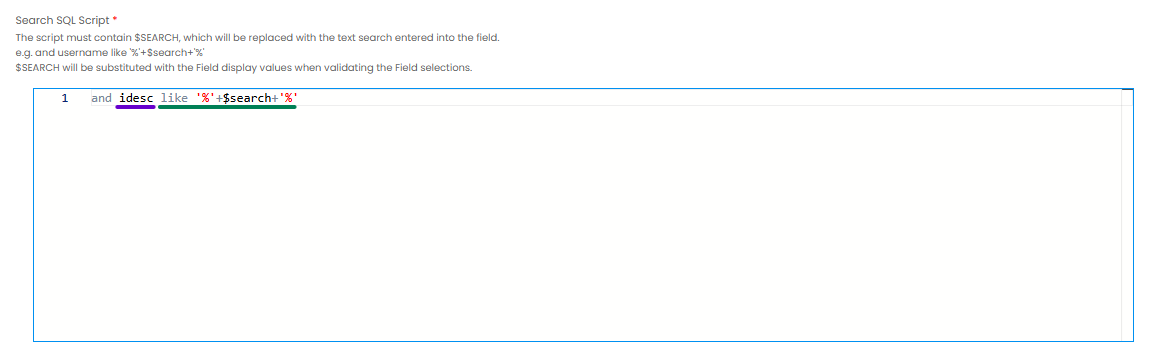
Fig 4. Search SQL Script
The script here extends the where clause of the existing query (filtering the results). Results are filtered so that only items that have an item description (idesc) containing the string entered in the search will be returned.
idesc - The name of the column being used as the 'Display' value.
'%'+$search+'%' - Pulls in the string entered in the search field.
Once you have created your field, click Save (top LHS) and add your newly created custom field to the relevant Ticket Type(s)/actions.
Now, when this field is used agents/users will be able to search the field before results are loaded.

Fig 4. Searching in Custom Field
From v2.238+, $-SEARCH can be used in the SQL Script and the Search SQL Script.
Worked Example - SQL
This video covers how to dynamically add the cost and price data of an item to the ticket details screen in Halo. It is achieved through using dynamic SQL fields and database lookups. Video Link for Portal Users: Database Lookups.
Using Variables in Dynamic SQL Lookup Queries
Variables can be used in your SQL query to have the results returned in the field change based on the ticket/user/customer the field relates to. Using the above example, the variable $-userid is used to filter results based on the user of the ticket.
Some common variables available to use include (when using variables do not include the hyphen):
$-faultid = Returns the ID of the ticket.
$-agentid = Returns the ID of the agent doing the action.
$-userid = Returns the ID of the user assigned the ticket.
$-deviceid = Returns the ID of the asset.
$-invoiceid = Returns the ID of the invoice.
$-areaid - Returns the ID of the customer.
$-siteid - Returns the ID of the site.
$-loggedinuserid - Returns the ID of the logged in user.
Note: $-clientid can be used to filter other SQL queries but not in dynamic SQL lookup queries, therefore to filter on the client use the following SQL 'where aarea = (select aarea from users left join site on usite=ssitenum left join area on sarea=aarea where uid=$userid)'
Formatting as a Tree Dropdown
If a SQL query includes '>', Halo handles this character and formats the results in a tree dropdown format.
Using this example:
select uid as [ID], aareadesc + '>' + uusername as [Display] from area
join users on aarea=uarea
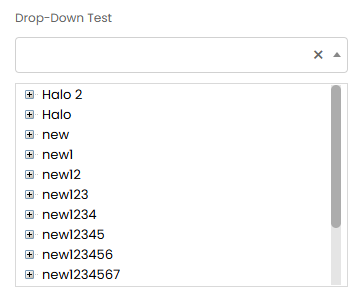
Fig 5. Tree dropdown from SQL.
Default to the First Returned Value
You can have dynamic SQL lookup fields be populated with default data. As the options within this field change dynamically you cannot choose a set default like you can with static fields. Instead you can set the default to be the first value that is returned by the SQL query used for the field.
To do this enable the option 'Default to first value' against the dynamic SQL field.
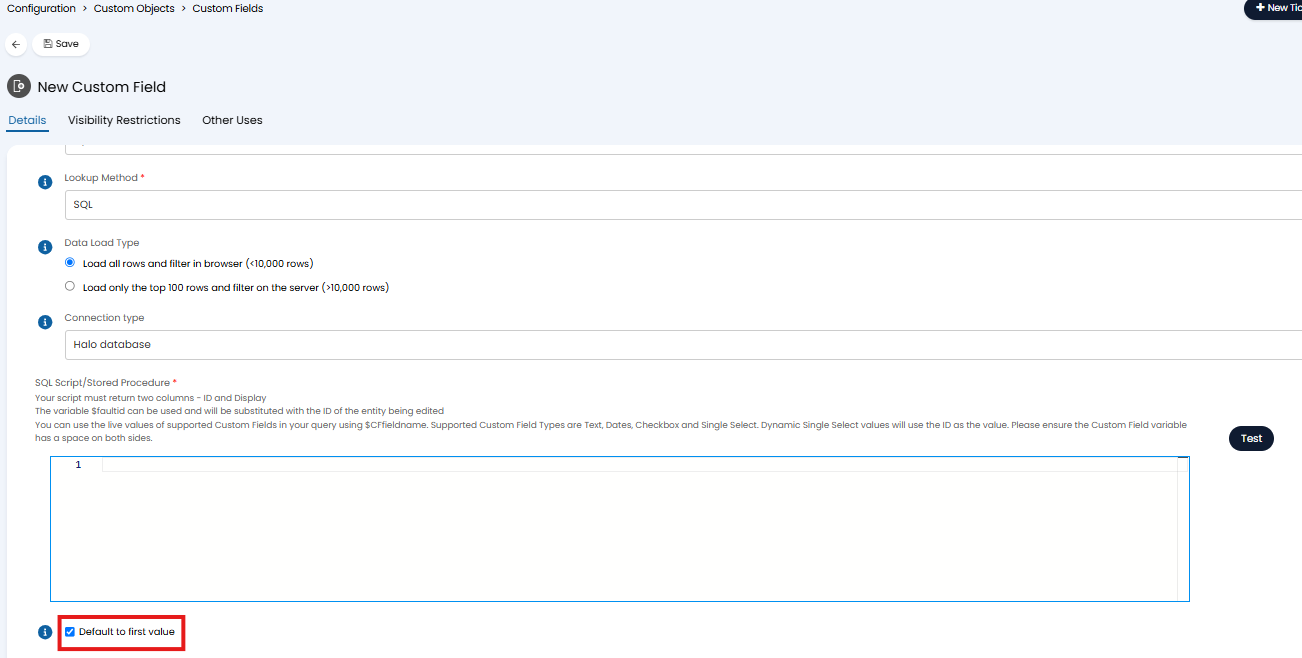
Fig 6. Default Field Value to the First Value Returned by the Query
Creating Dynamic Fields using a Custom Integration Method
Custom integration methods are used when you would like the options available in a field to be based on data in another tool (outside of Halo). Using this method requires a base understanding of runbooks/custom integrations.
The custom integration method is used when the data required is not stored in the Database but is accessible in a Custom Integration.
In this example, we will create a field that returns a list of tickets stored in another tool.
Firstly, head to Configuration > Custom Objects > Custom Fields, and choose the entity you would like the custom field to be available on.
Note: Custom table fields can use custom integration lookups.
Configure the custom field with the following values:
Type of Field - Single Selection/Multiple Selection
Lookup Type - Dynamic List
Lookup Method - Custom Integration Method
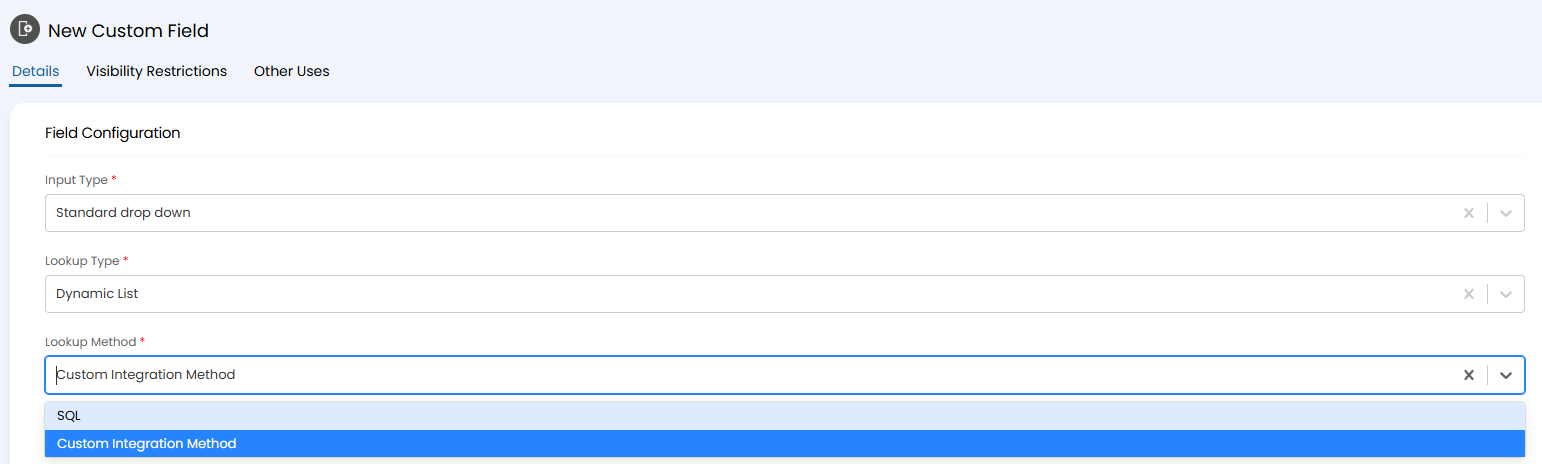
Fig 7. Custom Integration Method
You are now able to choose which of your custom integration methods to use for this lookup, and the desired output variable. The custom integration method must obtain the data you would like to appear in the field.
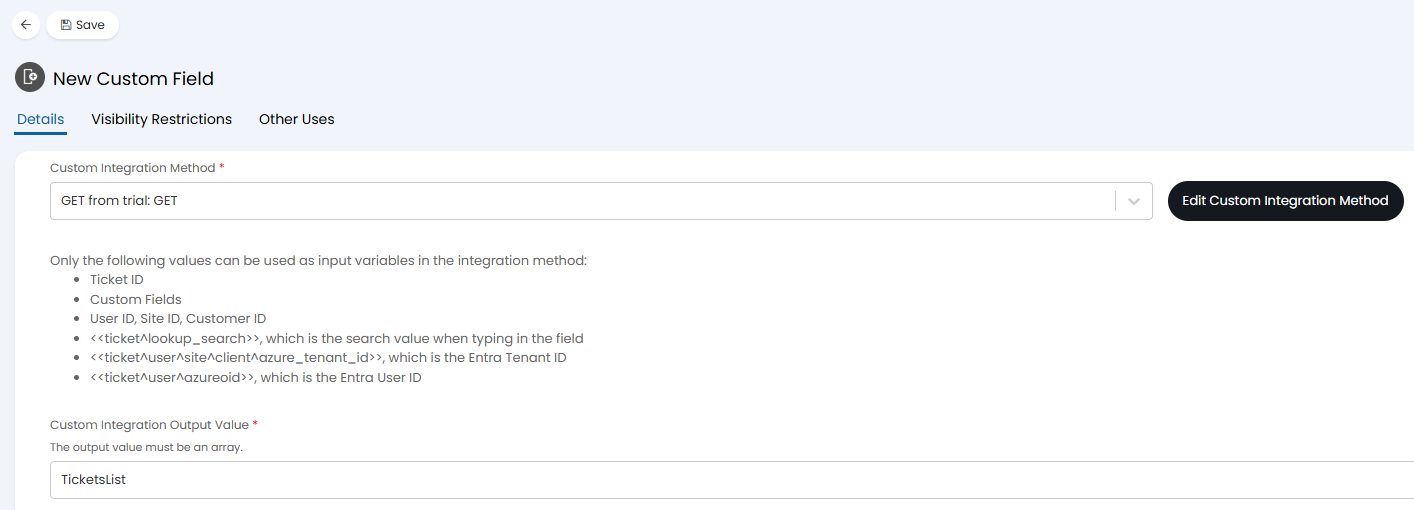
Fig 8. Custom Integrations
The output value must the the name of an output variable outputted by your chosen custom integration method. This variable must produce an array of data. This array will be used as the options available in the custom field. In this example, the output variable 'TicketsList' contains a list (array) of tickets. Each ticket returned in this list will be an option to choose from in the field. If you do not have an existing variable that meets these conditions you will need to create a new variable.

Fig 9. Output variables
Finally, you can set the ID property and Display property. These properties must be child properties of each element returned in the array, and will be used to populate the custom field.
The ID property must be an integer, this must be the unique identifier for the element in the array. The Display should be the property that you would like to display to agents/users in the custom field, this should be unique and can be the same as the ID property. This can be chosen form the objects returned within your array.
In the figure 10 example the id of each ticket returned in the array is used as the ID property and the summary of each ticket is used as the display property.
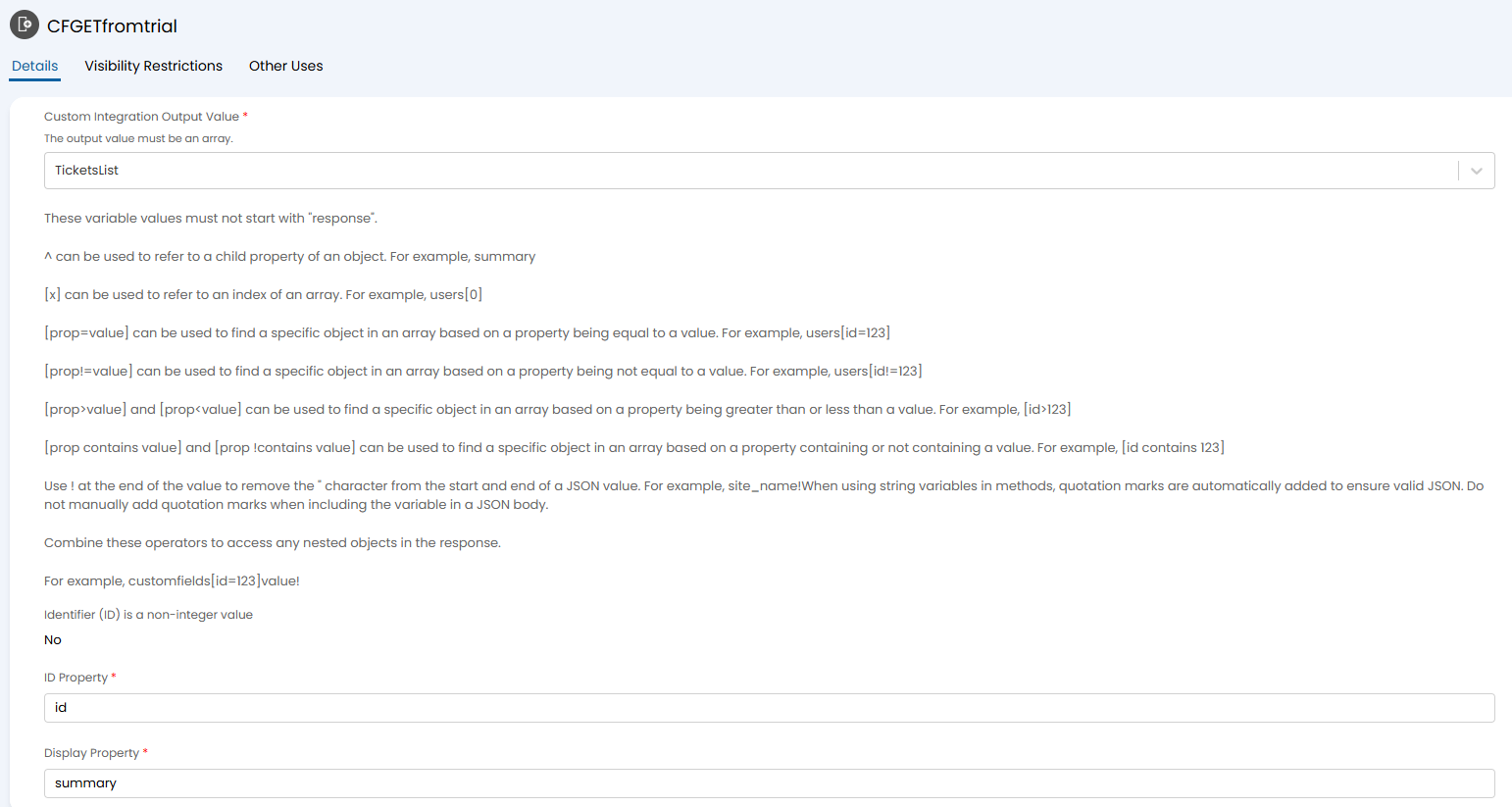
Fig 10. Setting properties
Figure 11 shows the properties within an element of the array used as the ID and display properties for the field.

Fig 11. Example array
Note: Non-integer IDs can be identified for multi-select custom fields.
Once the ID and display properties are set save the field.
The custom integration method will run every time the drop-down for the field is clicked, retrieving the current values from your custom integration.